Analytics with ArcPy
Package; some
functionalities within
Mapping Module and
Data Management
Toolbox
-By
Soumik Chakraborty
(M.Tech GIS)
Neemrana
Table of Contents:
 Basics about ArcPy Package
 ArcPy Structure
 Introduction to Mapping Module & Spatial Analyst Module
 Map Document Class
 Active Data Frame object and Data Frame class
 Create a Layer Object using Layer Class
 Add Layer Function, List Layer Function
Basics about ArcPy Package
 ArcPy is a site package that builds on the successful arcgis-scripting module. Its goal
is to create a useful and productive way to perform geographic data analysis, data
conversion, data management, and map automation with Python.
 ArcPy provides access to geoprocessing tools as well as additional functions, classes,
and modules that allow you to create simple or complex workflows quickly and
easily.
 ArcPy provides access to geoprocessing tools as well as additional functions, classes,
and modules that allow you to create simple workflows.
WHY arcpy?
 ArcGIS applications and scripts written using ArcPy benefit from being able to access and
work with the numerous Python modules developed by GIS professionals and
programmers from many different disciplines.
 The additional power of using ArcPy within Python is the fact that Python is a general-
purpose programming language that is easy to learn and use.
 It is interpreted and dynamically typed, which provides you with the ability to quickly
prototype and test scripts in an interactive environment while still being powerful
enough to support the writing of large applications.
 The software has integrated Python, the open source programming language, and at
ArcGIS 10 introduced ArcPy, a Python site package, to simplify and automate Python
scripting.
ArcPy Structure:
 The reason of this uncommon structure is that ESRI uses classes and tools from their C++
ArcObjects library.
 This structure is quite different from other Python Packages. For example Class remains inside
Module and Module inside Package whereas in ArcPy you can have Class directly under package.
 Arcpy package can e called in ArcMap, ArcCatalog and IDLE; to run in IDLE we need to create
separate (.py) files whereas in others it is one line at a time.
Map Document Class
 ArcPy package  mapping module  Map Document Class
 import arcpy
 mD = arcpy.mapping.MapDocument (‘C:/Users/userName/project.mxd’)
 mD2 = arcpy.mapping.MapDocument(‘CURRENT’)
 Print(mD.author)
 mD.author = ‘Soumik’
 Print(mD.filePath)
 mD.filePath = ‘C:/temp/test.mxd’
 mD.saveACopy(‘D:/backup/city_3_30_16.mxd’)
 mD.saveACopy(D: :/backup/city_3_30_16.mxd’, ‘8.3’)
String indicating pre-
opened mxd
Read/write Property of
the object
Method examples one with
compulsory parameter and
one with optional
Active Data Frame object & Data Frame Class
 The active Data Frame is a property of the Map Document class.
 mD.activeDataFrame  returns a Data Frame oject.
 Similarly, MD.author  it returns a string.
 Data Frame object is based on the Data Frame class.
 We can further use Data Frame class properties and methods.
 aDF = mD.activeDataFrame
 aDF.name = ‘Main’
= original “DataFrame” Class called.
Object Declaration.
Property used; type = Read/Write
By default “Layers”  Changed to “Main”
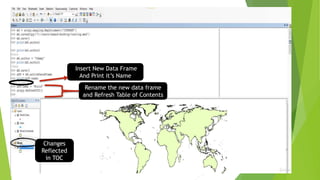
Insert New Data Frame
And Print it’s Name
Rename the new data frame
and Refresh Table of Contents
Changes
Reflected
in TOC
Create a Layer Object using Layer Class
 Import arcpy
 parksShapeLayer = arcpy.mapping.Layer(‘D:/data/parks.shp’)
 parksFClassLayer = arcpy.mapping.Layer(‘D:/data/input.gdb/parks’)
 parksDotLayer = arcpy.mapping.Layer(‘D:/data/parks.lyr’)
 print(parksShapeLayer.visible)
 parksShapeLayer.visible = False
 Print(parksShapeLayer.isFeatureLayer)
 parksShapeLayer.saveACopy(‘D:/backup/parks.lyr’)
 Arcpy.CopyFeatures_management(parkShapeLayer, ‘D:/backup/’ +
parkShapeLayer.name + ‘.shp’)
Read/write property
; assign a value to
the property
No requirement of
writing file in case
of Feature class
but geodatabse
extension must be
specified
Lyr extension used
to save the
symbology of a file
Representation
of objects/
variables
Read property ;
return a boolean
value (True/False) A method with a
compulsory
parameter
Add Layer Function example of “entire script”
 Arcpy package  mapping.module  AddLayer Function. The AddLayer function needs
both a “layer” and a “DataFrame” objects to operate.
 import arcpy
 mD = arcpy.mapping.MapDocument(‘C:/Users/someuser/Desktop/proj.mxd’)
 dF = mD.activeDataFrame
 buildingsLayer = arcpy.mapping.Layer(‘C:/data/buildings.shp’)
 roadsLayer = arcpy.mapping.Layer (‘C:/data/roads.shp’)
 Arcpy.mapping.AddLayer(dF, buildingsLayer, ‘TOP’)
 Arcpy.mapping.AddLayer(dF, roadsLayer, ‘TOP’)
 mD.save()
Process is called creating an object out of another object using a class
Optional parameter required to
indicate position of layer in TOC
Opening a Map
Document
Defining the data
frame object
Defining two
shape files as
Layers
Adding the
layers
Saving the
document
List Layer Function
 The List Layers function returns a list of the layers in an mxd document or in a specific
dataframe.
 import arcpy
 mD = arcpy.mapping.MapDocument(‘C:/Users/someuser/Desktop/proj.mxd’)
 dF = mD.activeDataFrame
 allLayers = arcpy.mapping.ListLayers(mD)
 firstDFLayers = arcpy.mapping.ListLayers(mD,None,dF)
List all the layers within that object “mD”
which may contain many data frames
“dF” indicates only those layers within
active data frame
“None” represents the syntax showing no
additional filtering criteria is given
To show first layer of list indicated by [0] position
Optional Parameters
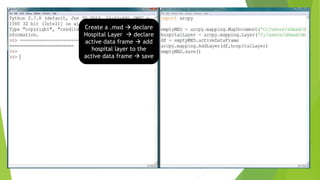
Create a .mxd  declare
Hospital Layer  declare
active data frame  add
hospital layer to the
active data frame  save
Tool structure: Copy Management tool
 Tools are arc object Functions written in C++. Tool comes under a toolset which falls
under a toolbox.
 Copy management tool is used to copy shapefiles or geodatabase feature classes. Easy for
backup data creation. Important Note:- both input and output should be of same data
format eg. Shapefiles/geodatabses.
 arcpy.Copy_management(‘D:/myData/lake.shp’, ‘D:/myProj/lakes.shp’)
 To copy from a .lyr file, we need another tool:
 arcpy.CopyFeatures_management(riversLayer,’D:/myProj/lakes.shp’)
Syntax of Copy Management
; keeping in same format
for shapefile and layer as
input and output
Merge Management script
 Tool used to merge two or more datasets into one.
 Arcpy.Merge_management([‘C:/data/parcels1.shp’,’C:/data/parcels2.shp’],’C:/data
/mergedParcels.shp’ )
 import arcpy
 arcpy.env.workspace = ‘C:/users/name/desktop/sampleData.gdb’
 arcpy.env.overwriteOutput = True
 arcpy.Merge_management([‘hospitals1’, ‘hospitals2’], ‘allHospitals’)
 arcpy.Intersect_analysis([‘allHospitals’,’DC’],’DCHospitals’)
 print(“Successfully finished”)
Syntax of Merge Management ;having 2
input shapefiles/layers as list items
and then output shapefile separate.
Fixing environment
variables ; pre-requisite
before running scripts.
Combining two list items
hospitals using merge
Input & Output Results:
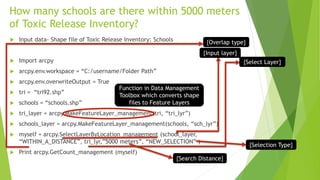
How many schools are there within 5000 meters
of Toxic Release Inventory?
 Input data- Shape file of Toxic Release Inventory; Schools
 Import arcpy
 arcpy.env.workspace = “C:/username/Folder Path”
 arcpy.env.overwriteOutput = True
 tri = “tri92.shp”
 schools = “schools.shp”
 tri_layer = arcpy.MakeFeatureLayer_management(tri, “tri_lyr”)
 schools_layer = arcpy.MakeFeatureLayer_management(schools, “sch_lyr”)
 myself = arcpy.SelectLayerByLocation_management (school_layer,
“WITHIN_A_DISTANCE”, tri_lyr,”5000 meters”, “NEW_SELECTION” )
 Print arcpy.GetCount_management (myself)
Function in Data Management
Toolbox which converts shape
files to Feature Layers
{Input layer}
{Overlap type}
{Select Layer}
{Search Distance}
{Selection Type}
How many schools are there within 5000 meters
of one particular Toxic Release Inventory?
 import arcpy
 arcpy.env.workspace = “C:/username/Folder Path”
 arcpy.env.overwriteOutput = True
 tri = “tri92.shp”
 schools = “schools.shp”
 tri_layer = arcpy.MakeFeatureLayer_management(tri, “tri_lyr”)
 schools_layer = arcpy.MakeFeatureLayer_management(schools, “sch_lyr”)
 factory = arcpy.SelectLayerByAttribute_management(tri_lyr, “NEW_SELECTION”, “NAME =
‘LINDAU CHEMICAL’”)
 myself = arcpy.SelectLayerByLocation_management (school_layer, “WITHIN_A_DISTANCE”,
factory,”5000 meters”, “NEW_SELECTION” )
 Print arcpy.GetCount_management (myself)
Creating factory variable
containing another tool and
inputting it into the previous
variable as Select Layer parameter
THANK YOU

Analytics with arcpy package detailing of Mapping Module Properties and Data management Tools

  • 1.
    Analytics with ArcPy Package;some functionalities within Mapping Module and Data Management Toolbox -By Soumik Chakraborty (M.Tech GIS) Neemrana
  • 2.
    Table of Contents: Basics about ArcPy Package  ArcPy Structure  Introduction to Mapping Module & Spatial Analyst Module  Map Document Class  Active Data Frame object and Data Frame class  Create a Layer Object using Layer Class  Add Layer Function, List Layer Function
  • 3.
    Basics about ArcPyPackage  ArcPy is a site package that builds on the successful arcgis-scripting module. Its goal is to create a useful and productive way to perform geographic data analysis, data conversion, data management, and map automation with Python.  ArcPy provides access to geoprocessing tools as well as additional functions, classes, and modules that allow you to create simple or complex workflows quickly and easily.  ArcPy provides access to geoprocessing tools as well as additional functions, classes, and modules that allow you to create simple workflows.
  • 4.
    WHY arcpy?  ArcGISapplications and scripts written using ArcPy benefit from being able to access and work with the numerous Python modules developed by GIS professionals and programmers from many different disciplines.  The additional power of using ArcPy within Python is the fact that Python is a general- purpose programming language that is easy to learn and use.  It is interpreted and dynamically typed, which provides you with the ability to quickly prototype and test scripts in an interactive environment while still being powerful enough to support the writing of large applications.  The software has integrated Python, the open source programming language, and at ArcGIS 10 introduced ArcPy, a Python site package, to simplify and automate Python scripting.
  • 5.
    ArcPy Structure:  Thereason of this uncommon structure is that ESRI uses classes and tools from their C++ ArcObjects library.  This structure is quite different from other Python Packages. For example Class remains inside Module and Module inside Package whereas in ArcPy you can have Class directly under package.  Arcpy package can e called in ArcMap, ArcCatalog and IDLE; to run in IDLE we need to create separate (.py) files whereas in others it is one line at a time.
  • 6.
    Map Document Class ArcPy package  mapping module  Map Document Class  import arcpy  mD = arcpy.mapping.MapDocument (‘C:/Users/userName/project.mxd’)  mD2 = arcpy.mapping.MapDocument(‘CURRENT’)  Print(mD.author)  mD.author = ‘Soumik’  Print(mD.filePath)  mD.filePath = ‘C:/temp/test.mxd’  mD.saveACopy(‘D:/backup/city_3_30_16.mxd’)  mD.saveACopy(D: :/backup/city_3_30_16.mxd’, ‘8.3’) String indicating pre- opened mxd Read/write Property of the object Method examples one with compulsory parameter and one with optional
  • 8.
    Active Data Frameobject & Data Frame Class  The active Data Frame is a property of the Map Document class.  mD.activeDataFrame  returns a Data Frame oject.  Similarly, MD.author  it returns a string.  Data Frame object is based on the Data Frame class.  We can further use Data Frame class properties and methods.  aDF = mD.activeDataFrame  aDF.name = ‘Main’ = original “DataFrame” Class called. Object Declaration. Property used; type = Read/Write By default “Layers”  Changed to “Main”
  • 9.
    Insert New DataFrame And Print it’s Name Rename the new data frame and Refresh Table of Contents Changes Reflected in TOC
  • 10.
    Create a LayerObject using Layer Class  Import arcpy  parksShapeLayer = arcpy.mapping.Layer(‘D:/data/parks.shp’)  parksFClassLayer = arcpy.mapping.Layer(‘D:/data/input.gdb/parks’)  parksDotLayer = arcpy.mapping.Layer(‘D:/data/parks.lyr’)  print(parksShapeLayer.visible)  parksShapeLayer.visible = False  Print(parksShapeLayer.isFeatureLayer)  parksShapeLayer.saveACopy(‘D:/backup/parks.lyr’)  Arcpy.CopyFeatures_management(parkShapeLayer, ‘D:/backup/’ + parkShapeLayer.name + ‘.shp’) Read/write property ; assign a value to the property No requirement of writing file in case of Feature class but geodatabse extension must be specified Lyr extension used to save the symbology of a file Representation of objects/ variables Read property ; return a boolean value (True/False) A method with a compulsory parameter
  • 11.
    Add Layer Functionexample of “entire script”  Arcpy package  mapping.module  AddLayer Function. The AddLayer function needs both a “layer” and a “DataFrame” objects to operate.  import arcpy  mD = arcpy.mapping.MapDocument(‘C:/Users/someuser/Desktop/proj.mxd’)  dF = mD.activeDataFrame  buildingsLayer = arcpy.mapping.Layer(‘C:/data/buildings.shp’)  roadsLayer = arcpy.mapping.Layer (‘C:/data/roads.shp’)  Arcpy.mapping.AddLayer(dF, buildingsLayer, ‘TOP’)  Arcpy.mapping.AddLayer(dF, roadsLayer, ‘TOP’)  mD.save() Process is called creating an object out of another object using a class Optional parameter required to indicate position of layer in TOC Opening a Map Document Defining the data frame object Defining two shape files as Layers Adding the layers Saving the document
  • 12.
    List Layer Function The List Layers function returns a list of the layers in an mxd document or in a specific dataframe.  import arcpy  mD = arcpy.mapping.MapDocument(‘C:/Users/someuser/Desktop/proj.mxd’)  dF = mD.activeDataFrame  allLayers = arcpy.mapping.ListLayers(mD)  firstDFLayers = arcpy.mapping.ListLayers(mD,None,dF) List all the layers within that object “mD” which may contain many data frames “dF” indicates only those layers within active data frame “None” represents the syntax showing no additional filtering criteria is given
  • 13.
    To show firstlayer of list indicated by [0] position Optional Parameters
  • 14.
    Create a .mxd declare Hospital Layer  declare active data frame  add hospital layer to the active data frame  save
  • 15.
    Tool structure: CopyManagement tool  Tools are arc object Functions written in C++. Tool comes under a toolset which falls under a toolbox.  Copy management tool is used to copy shapefiles or geodatabase feature classes. Easy for backup data creation. Important Note:- both input and output should be of same data format eg. Shapefiles/geodatabses.  arcpy.Copy_management(‘D:/myData/lake.shp’, ‘D:/myProj/lakes.shp’)  To copy from a .lyr file, we need another tool:  arcpy.CopyFeatures_management(riversLayer,’D:/myProj/lakes.shp’) Syntax of Copy Management ; keeping in same format for shapefile and layer as input and output
  • 16.
    Merge Management script Tool used to merge two or more datasets into one.  Arcpy.Merge_management([‘C:/data/parcels1.shp’,’C:/data/parcels2.shp’],’C:/data /mergedParcels.shp’ )  import arcpy  arcpy.env.workspace = ‘C:/users/name/desktop/sampleData.gdb’  arcpy.env.overwriteOutput = True  arcpy.Merge_management([‘hospitals1’, ‘hospitals2’], ‘allHospitals’)  arcpy.Intersect_analysis([‘allHospitals’,’DC’],’DCHospitals’)  print(“Successfully finished”) Syntax of Merge Management ;having 2 input shapefiles/layers as list items and then output shapefile separate. Fixing environment variables ; pre-requisite before running scripts. Combining two list items hospitals using merge
  • 17.
  • 18.
    How many schoolsare there within 5000 meters of Toxic Release Inventory?  Input data- Shape file of Toxic Release Inventory; Schools  Import arcpy  arcpy.env.workspace = “C:/username/Folder Path”  arcpy.env.overwriteOutput = True  tri = “tri92.shp”  schools = “schools.shp”  tri_layer = arcpy.MakeFeatureLayer_management(tri, “tri_lyr”)  schools_layer = arcpy.MakeFeatureLayer_management(schools, “sch_lyr”)  myself = arcpy.SelectLayerByLocation_management (school_layer, “WITHIN_A_DISTANCE”, tri_lyr,”5000 meters”, “NEW_SELECTION” )  Print arcpy.GetCount_management (myself) Function in Data Management Toolbox which converts shape files to Feature Layers {Input layer} {Overlap type} {Select Layer} {Search Distance} {Selection Type}
  • 19.
    How many schoolsare there within 5000 meters of one particular Toxic Release Inventory?  import arcpy  arcpy.env.workspace = “C:/username/Folder Path”  arcpy.env.overwriteOutput = True  tri = “tri92.shp”  schools = “schools.shp”  tri_layer = arcpy.MakeFeatureLayer_management(tri, “tri_lyr”)  schools_layer = arcpy.MakeFeatureLayer_management(schools, “sch_lyr”)  factory = arcpy.SelectLayerByAttribute_management(tri_lyr, “NEW_SELECTION”, “NAME = ‘LINDAU CHEMICAL’”)  myself = arcpy.SelectLayerByLocation_management (school_layer, “WITHIN_A_DISTANCE”, factory,”5000 meters”, “NEW_SELECTION” )  Print arcpy.GetCount_management (myself) Creating factory variable containing another tool and inputting it into the previous variable as Select Layer parameter
  • 21.