Active Learning Using Kahoot!
By: Miriam Huddleston
Assistant Professor
Integrated Business and Applied Technology
Harford Community College
mhuddleston@Harford.edu
Session 1.9. Thursday, January 10, 2019
AFACCT Conference, hosted by Cecil College
Presentation Guidelines
• When you see the Kahoot! icon ( ), we’ll be using Kahoot!
• Kahoot! can be accessed via:
• Option I: Downloading the App
• Option II: Directly Accessing Kahoot.com.
Enjoy and have fun!
What is active learning?
What are examples of active learning?
How many people use polling software?
(Show of hands)
Kahoot!: The Four Options
1. Survey – Gather Opinions
2. Quiz – Test students’ knowledge of materials
3. Discussion - Generates classroom discussion
4. Jumble – Drag answers into correct order
(Each option in Kahoot! is created the same way, using the same interface. The
differences lie in the options/results provided by each choice.)
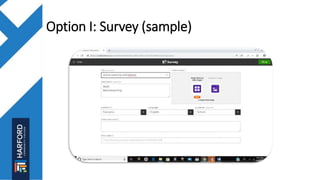
Option I: Survey (sample)
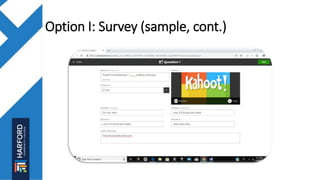
Option I: Survey (sample, cont.)
Option I: Survey – “Time to try it!”
Option II: Quiz
• Great tool to record student answers
• Assesses comprehension of course material
• Offers immediate results
Option II: Quiz – “Give it a shot!”
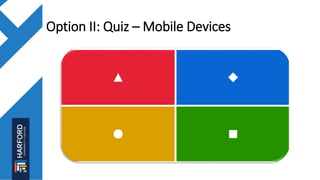
Option II: Quiz – Mobile Devices
Option III: Discussion
Option IV: Jumble
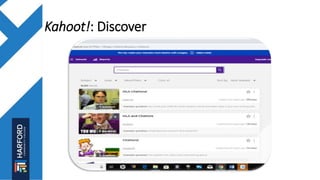
Kahoot!: Discover
• Question: Which option do I most often utilize?”
• Answer: Option II: The “Quiz”
• Kahoot! Quiz allows me to:
• See if students have read material
• Know which concepts need further discussion
• Test students via in-class assignments/quizzes
• In addition:
• Once created, quizzes are re-usable
• Videos can be inserted into quiz!
Free Polling Software Examples
• Poll Everywhere - https://www.polleverywhere.com
• Micropoll – http://www.micropoll.com
• Crowd Signal (Poll Daddy) - http://www.crowdsignal.com
• Kahoot! – http://www.kahootit.com
Questions?
• Contact Information:
• Miriam Huddleston
• mhuddleston@Harford.edu
• (443) 412-2426
Sources
• Brame, C., (2016). Active learning. Vanderbilt University Center
for Teaching. (2018, December 26). Retrieved from
https://cft.vanderbilt.edu/active-learning/
• Promoting active learning. (2018, December 26). Retrieved
from
https://teachingcommons.stanford.edu/resources/learning-
resources/promoting-active-learning.

Active Learning Using Kahoot, a Free Polling Software

  • 1.
    Active Learning UsingKahoot! By: Miriam Huddleston Assistant Professor Integrated Business and Applied Technology Harford Community College mhuddleston@Harford.edu Session 1.9. Thursday, January 10, 2019 AFACCT Conference, hosted by Cecil College
  • 2.
    Presentation Guidelines • Whenyou see the Kahoot! icon ( ), we’ll be using Kahoot! • Kahoot! can be accessed via: • Option I: Downloading the App • Option II: Directly Accessing Kahoot.com. Enjoy and have fun!
  • 3.
    What is activelearning?
  • 4.
    What are examplesof active learning?
  • 5.
    How many peopleuse polling software? (Show of hands)
  • 6.
    Kahoot!: The FourOptions 1. Survey – Gather Opinions 2. Quiz – Test students’ knowledge of materials 3. Discussion - Generates classroom discussion 4. Jumble – Drag answers into correct order (Each option in Kahoot! is created the same way, using the same interface. The differences lie in the options/results provided by each choice.)
  • 7.
  • 8.
    Option I: Survey(sample, cont.)
  • 9.
    Option I: Survey– “Time to try it!”
  • 10.
    Option II: Quiz •Great tool to record student answers • Assesses comprehension of course material • Offers immediate results
  • 11.
    Option II: Quiz– “Give it a shot!”
  • 12.
    Option II: Quiz– Mobile Devices
  • 13.
  • 14.
  • 15.
  • 16.
    • Question: Whichoption do I most often utilize?” • Answer: Option II: The “Quiz” • Kahoot! Quiz allows me to: • See if students have read material • Know which concepts need further discussion • Test students via in-class assignments/quizzes • In addition: • Once created, quizzes are re-usable • Videos can be inserted into quiz!
  • 17.
    Free Polling SoftwareExamples • Poll Everywhere - https://www.polleverywhere.com • Micropoll – http://www.micropoll.com • Crowd Signal (Poll Daddy) - http://www.crowdsignal.com • Kahoot! – http://www.kahootit.com
  • 18.
    Questions? • Contact Information: •Miriam Huddleston • mhuddleston@Harford.edu • (443) 412-2426
  • 19.
    Sources • Brame, C.,(2016). Active learning. Vanderbilt University Center for Teaching. (2018, December 26). Retrieved from https://cft.vanderbilt.edu/active-learning/ • Promoting active learning. (2018, December 26). Retrieved from https://teachingcommons.stanford.edu/resources/learning- resources/promoting-active-learning.

Editor's Notes

  • #3 Note: The first time you enter a new Kahoot, you will be prompted to input your name and the Game Pin.
  • #4 What is active learning? (Kahoot Question) Learning while being active Learning when listening to lectures Learning while being engaged I have no idea that is why I am here! There are many definitions of active learning. Most institutions in higher education specifically address active learning in their Teaching Commons or Learning Centers. Please see the example below: "Active learning" means students engage with the material, participate in the class, and collaborate with each other.  Don't expect your students simply to listen and memorize; instead, have them help demonstrate a process, analyze an argument, or apply a concept to a real-world situation.” Stanford University – Teaching Commons Promoting active learning. (2018, December 26). Retrieved from https://teachingcommons.stanford.edu/resources/learning-resources/promoting-active-learning.
  • #5 What are some examples of active learning? (Kahoot Question) Think, Pair, Share Minute Papers Concept Map Decision Making Activities The answer is all of the above plus much more! The Center for Teaching at Vanderbilt University offers some very valuable resources for Active Learning. Their website contains a lot of good examples to include: Strip sequence Concept map Student generated test questions Decision making activities Case based learning Flipped classroom   Brame, C., (2016). Active learning. Vanderbilt University Center for Teaching. (2018, December 26). Retrieved from https://cft.vanderbilt.edu/active-learning/
  • #6 Hopefully you will learn new strategies today which can be put in your polling “toolbox” for future use. If you do not use a polling software, then hopefully today’s presentation will inspire you to try one!
  • #8 Screen shot of first screen in survey creation Use picture or upload from computer – make sure to cite sources Can be edited after created
  • #9 Screen shot of Question – only 95 characters – needs to be short and sweet! Answers cannot contain more than 60 characters Note that the default time limit is 20 seconds but this can be adjusted per question as needed. Pictures from Kahoot, the Internet or personal from device can be used. Links to You tube videos can also be included.
  • #10 Participants will be shown how to create a basic survey in Kahoot. Note: If participants do not have a Kahoot account they may want to set one up so that any work completed can be saved and accessed for future use. Create a new Kahoot Select Survey Complete all entries that say Required! Title, description, audience An image can be inserted or left blank Select “Ok, go” Add question Once all questions have been added select “Save” Then select Edit, Review etc… or if the survey is complete select “I’m Done” The survey will now be saved in the section titled “My Kahoots” and can be accessed at a later time Participants will also be shown a survey created by the instructor to get an idea how it appears to students and other participants.
  • #12 Participants will view a previously created quiz in Kahoot! and complete the related quiz. Questions Can use previously saved images or images provided within Kahoot! Default time is 20 seconds to answer a question The timing may be adjusted Use of video in Kahoot! Time does not begin to count down until the video clip is over This can be a great tool to help students understand the concept Use of images provided by Kahoot! In Question #3, I have used an image provided by Getty Images within Kahoot!. Once I selected the image, the source automatically prefills into the area titled “credit resources.” Once you are done the quiz, select Save, I’m Done. You can always go back and edit the quiz. Once the quiz is played you can select Results, Save Results, and it will be downloaded into an Excel file If you are using the results for grades, or want the quiz to be anonymous, you can provide students assigned numbers. I do this at the beginning of the semester and students can use this same number the entire semester. (Just make sure that you keep track of these numbers so that if you are using the results for class participation or a quiz grade you know to whom to give credit.)
  • #13 Use of mobile devices to participate (sample picture of what students see on their devices). It is important to note that if a student is using a tablet or phone they will only see the color and shape! They will not see the words. I read each question out loud as well as each of the choices and corresponding color – this process also helps to eliminate any inequities that may be encountered by students who read more slowly than others.
  • #14 Note that there are not any right or wrong answers for these types of discussions Great way to get the class engaged. Often publishers provide great discussion topics in some of their instructor manuals
  • #15 Jumble prompts instructors to enter the options in the correct order and then they will be “jumbled” when presented as a question to the class The default time for this is 60 seconds but just like the other options this time can be adjusted
  • #16 Instructors have access to pre-made Kahoot! quizzes / surveys, etc… These can be a great resource if you are teaching a concept that is often covered by others I selected “Discover,” then in the search option, I typed ‘Citations’ and several Kahoot!(s) populated First, select the Kahoot! you would like to use Next, select the Duplicate option…this allows you to then edit the existing quiz and may save you time as you are not re-inventing the wheel  
  • #18 These are only a few of the available resources at our disposal. I encourage you to research different options and find the ones which best suit your needs. I was introduced to Kahoot! at a conference several years ago and have found it to be user friendly and engaging for students, as well as easy to track results.