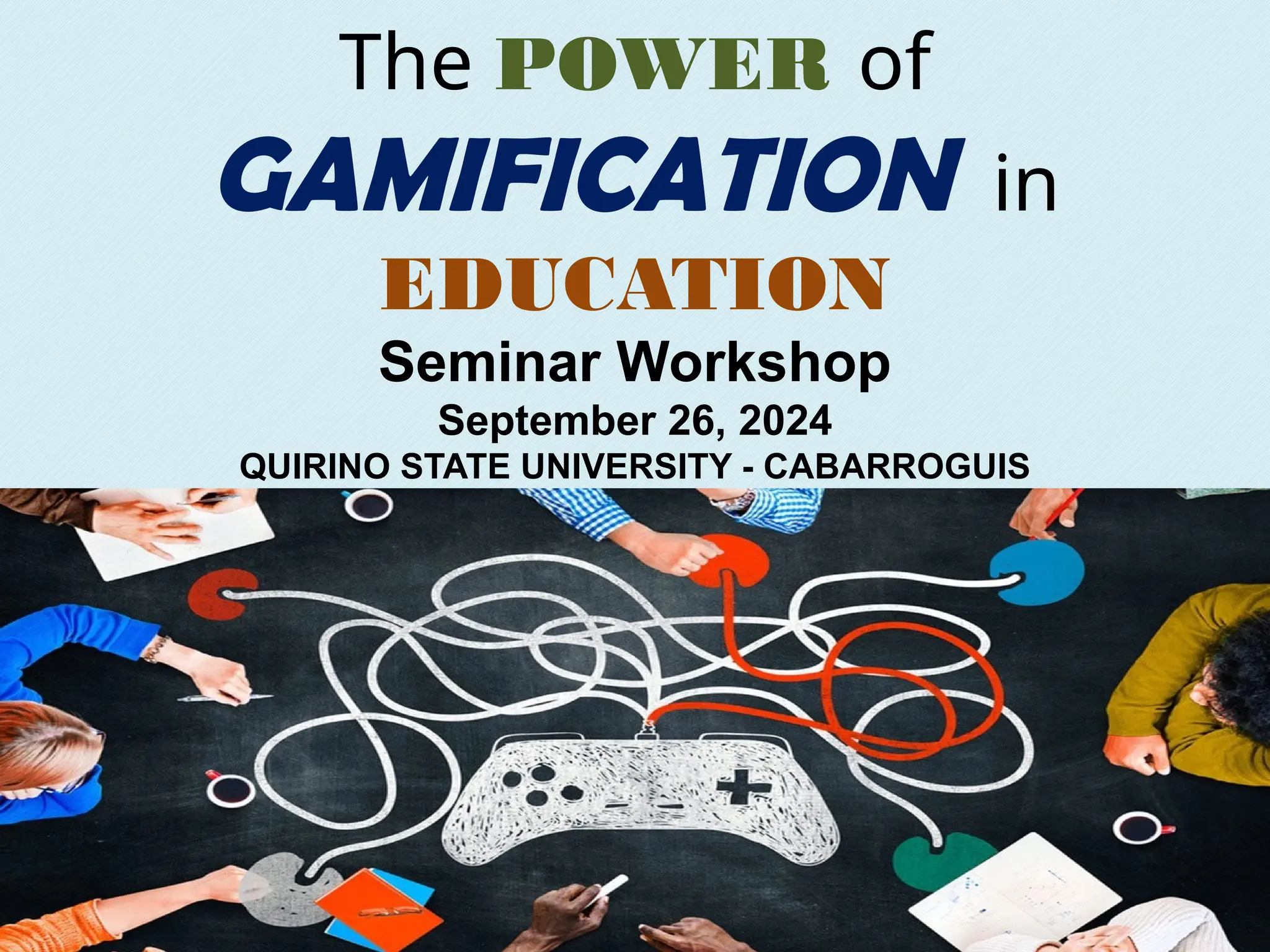
The POWER of
GAMIFICATION in
EDUCATION
Seminar Workshop
September 26, 2024
QUIRINO STATE UNIVERSITY - CABARROGUIS
Before we begin this workshop…
join me in slido by scanning the QR code below or...
WORKSHOP OBJECTIVES:
know more about
Educational Gamification
understand the benefits
of Gamification in
Education
learn some examples of
Gamification (how we can useto
make our teaching so fun)
GAMING vs. GAMIFICATION
involves playing
games for
entertainment
involves playing
games for
educational
purposes
Traditional format of teaching can
sometimes be monotonous.
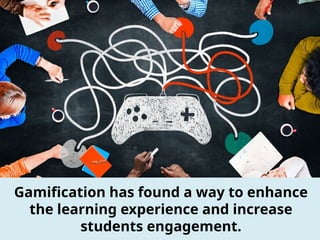
Gamification has found a way to enhance
the learning experience and increase
students engagement.
What is Gamification in Education?
• Gamification involves integrating
game design elements into non-game
contexts.
• In education, this means enhancing
learning with game-like features
(points, badges, levels).
• The goal: Motivate students and
make learning engaging.
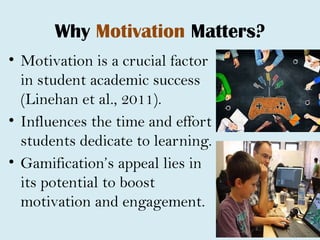
Why Motivation Matters?
• Motivation is a crucial factor
in student academic success
(Linehan et al., 2011).
• Influences the time and effort
students dedicate to learning.
• Gamification’s appeal lies in
its potential to boost
motivation and engagement.
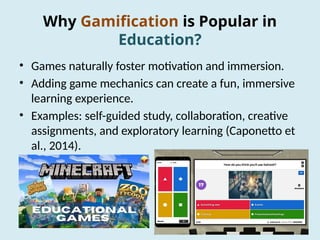
Why Gamification is Popular in
Education?
• Games naturally foster motivation and immersion.
• Adding game mechanics can create a fun, immersive
learning experience.
• Examples: self-guided study, collaboration, creative
assignments, and exploratory learning (Caponetto et
al., 2014).
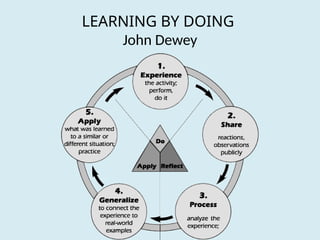
LEARNING BY DOING
John Dewey
How To Implement Gamification
1. Use a Point System
2. Hand Out Badges
3. Create a Script With
Avatars
4. Encourage Teamwork
Gamification and the Gartner Hype
Cycle
• Technology follows a pattern: initial excitement,
followed by disillusionment, then eventual
understanding.
• Gamification is still progressing through this cycle
(Gartner, 2013).
• We are learning its true strengths and limitations.
Challenges of Gamifying Education
• Not all gamification strategies work; success is
not guaranteed.
• Creating sustainable behavior change is
complex.
• Often based more on guesswork than science
(Holman et al., 2013).
Some Popular Tools:
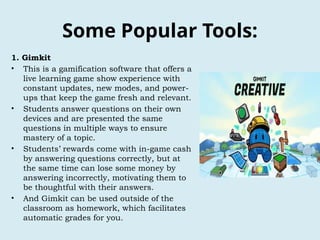
1. Gimkit
• This is a gamification software that offers a
live learning game show experience with
constant updates, new modes, and power-
ups that keep the game fresh and relevant.
• Students answer questions on their own
devices and are presented the same
questions in multiple ways to ensure
mastery of a topic.
• Students’ rewards come with in-game cash
by answering questions correctly, but at
the same time can lose some money by
answering incorrectly, motivating them to
be thoughtful with their answers.
• And Gimkit can be used outside of the
classroom as homework, which facilitates
automatic grades for you.
Some Popular Tools:
2. Kahoot!
• This offers a game show environment to get students excited about
learning.
• Particularly useful in the school setting for quizzing vocabulary,
multiplication, and simple geography.
• And Kahoot! provides support to many learning settings such as
school, work, and home.
• Kahoot! is utilized by more than 1 million+ players annually in more
than 200 countries.
• Kahoot! is used in the US by over 50% of teachers and 97% of Fortune
500 companies.
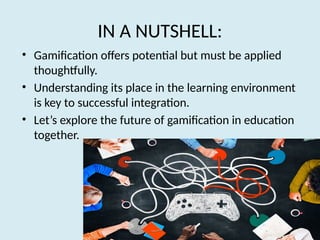
IN A NUTSHELL:
• Gamification offers potential but must be applied
thoughtfully.
• Understanding its place in the learning environment
is key to successful integration.
• Let’s explore the future of gamification in education
together.
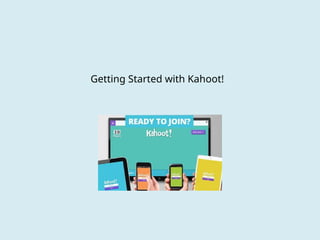
Getting Started with Kahoot!
First What is Kahoot?
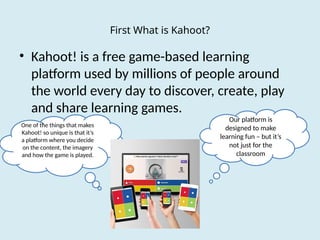
• Kahoot! is a free game-based learning
platform used by millions of people around
the world every day to discover, create, play
and share learning games.
Our platform is
designed to make
learning fun – but it’s
not just for the
classroom
One of the things that makes
Kahoot! so unique is that it’s
a platform where you decide
on the content, the imagery
and how the game is played.
Part A: Creating New Kahoot!
Step One: Make an account
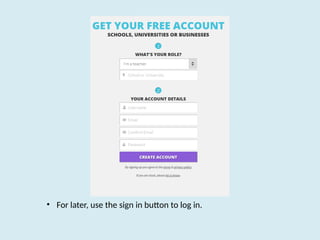
• Go to https://kahoot.com/ and click on
button : Sign Up
• On the next screen you will be asked to fill out
your account details.
• Fill in the account details to set up your
personal account
• For later, use the sign in button to log in.
Step Two: Create a NewK! Quiz
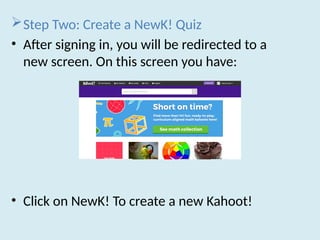
• After signing in, you will be redirected to a
new screen. On this screen you have:
• Click on NewK! To create a new Kahoot!
 Step Two: Create a NewK! Quiz
•
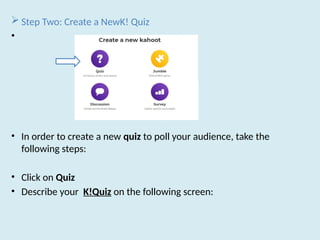
• In order to create a new quiz to poll your audience, take the
following steps:
• Click on Quiz
• Describe your K!Quiz on the following screen:
Step Two: Create a NewK! Quiz
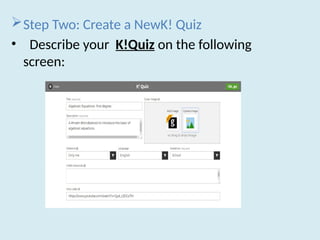
• Describe your K!Quiz on the following
screen:
Step Two: Create a NewK! Quiz
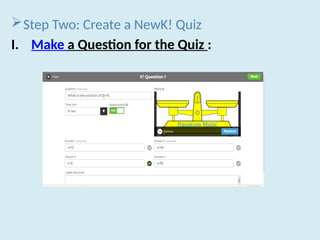
I. Make a Question for the Quiz :
Step Two: Create a NewK! Quiz
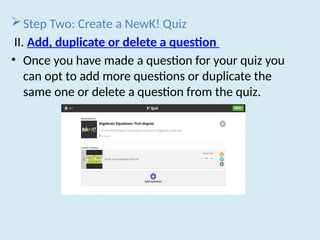
II. Add, duplicate or delete a question
• Once you have made a question for your quiz you
can opt to add more questions or duplicate the
same one or delete a question from the quiz.
Step Two: Create a NewK! Quiz
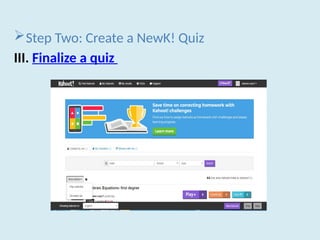
III. Finalize a quiz
 Step Two: Create a NewK! Quiz
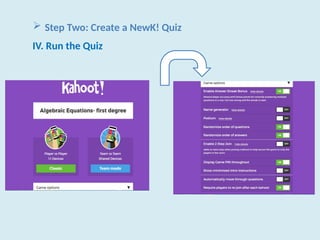
IV. Run the Quiz
Step Two: Create a NewK! Quiz
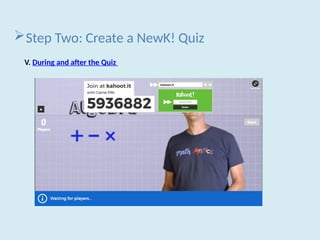
V. During and after the Quiz
• A game PIN is generated randomly and students are asked to go to the site:
kahoot.it.
• Once students enter the game PIN they join the quiz.
• When enough participants entered the game, the presenter can press the
start button at the middle right of the screen to begin the quiz.
• After each student answers the question, the teacher can continue the quiz
by pressing on Next.
• Finally, at the end of the quiz students are prompted to give feedback on
the quiz.
• After the quiz is over, the results are shown immediately for the presenter.
Step Two: Create a NewK! Quiz
V. During and after the Quiz
Step Three: Create a NewK! Jumble, Survey or
Discussion
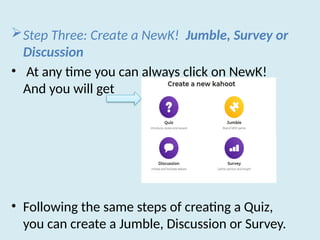
• At any time you can always click on NewK!
And you will get
• Following the same steps of creating a Quiz,
you can create a Jumble, Discussion or Survey.
What are the different Kahoot types for?
1. Quiz
• Unique to the quiz are features like assigning
right/wrong answers and toggling points on/off.
• When a quiz is played, there will be a scoreboard
between questions to show the current top-
scoring players.
• Use quizzes to introduce new topics, review
recently learned material, and ultimately add
fun/reward to the learning experience.
What are the different Kahoot types for?
2. Jumble
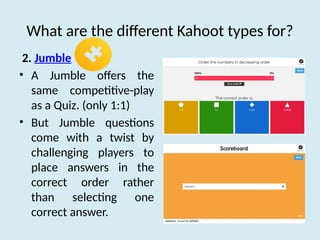
• A Jumble offers the
same competitive-play
as a Quiz. (only 1:1)
• But Jumble questions
come with a twist by
challenging players to
place answers in the
correct order rather
than selecting one
correct answer.
What are the different Kahoot types for?
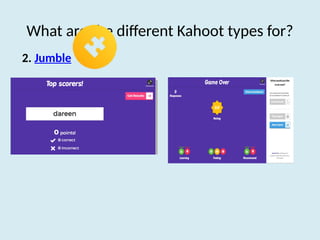
2. Jumble
What are the different Kahoot types for?
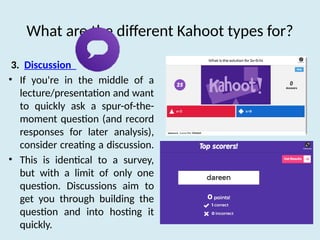
3. Discussion
• If you're in the middle of a
lecture/presentation and want
to quickly ask a spur-of-the-
moment question (and record
responses for later analysis),
consider creating a discussion.
• This is identical to a survey,
but with a limit of only one
question. Discussions aim to
get you through building the
question and into hosting it
quickly.
What are the different Kahoot types for?
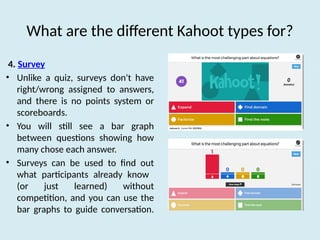
4. Survey
• Unlike a quiz, surveys don't have
right/wrong assigned to answers,
and there is no points system or
scoreboards.
• You will still see a bar graph
between questions showing how
many chose each answer.
• Surveys can be used to find out
what participants already know
(or just learned) without
competition, and you can use the
bar graphs to guide conversation.
Part B: Playing with Kahoot
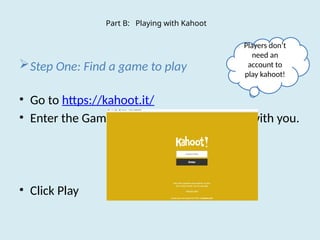
Step One: Find a game to play
• Go to https://kahoot.it/
• Enter the Game PIN that has been shared with you.
• Click Play
Players don’t
need an
account to
play kahoot!
Step Two: Launch the game so players can
play
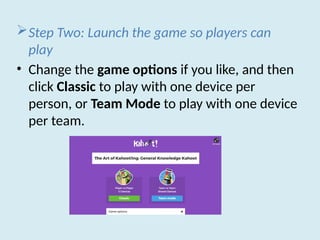
• Change the game options if you like, and then
click Classic to play with one device per
person, or Team Mode to play with one device
per team.
Step Two: Launch the game so players can
play
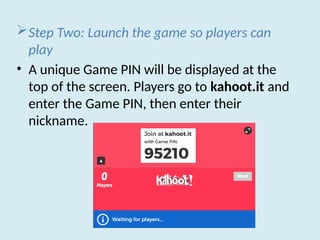
• A unique Game PIN will be displayed at the
top of the screen. Players go to kahoot.it and
enter the Game PIN, then enter their
nickname.
Step Three: Play the Kahoot
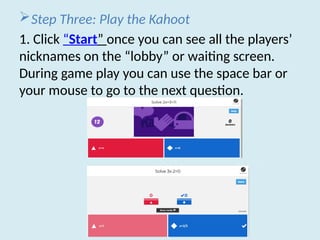
1. Click “Start” once you can see all the players’
nicknames on the “lobby” or waiting screen.
During game play you can use the space bar or
your mouse to go to the next question.
Step Three: Play the Kahoot
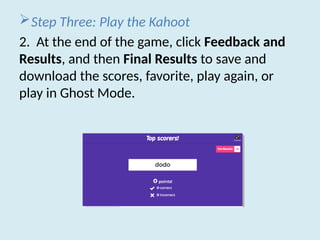
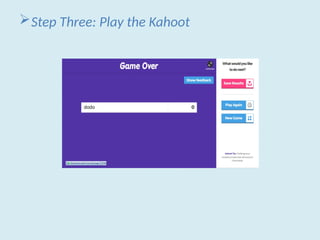
2. At the end of the game, click Feedback and
Results, and then Final Results to save and
download the scores, favorite, play again, or
play in Ghost Mode.
Step Three: Play the Kahoot
Thank YOU!!!
And Now It’s Your turn to Kahoot it!
Dareen Nasr
https://create.kahoot.it/

GAMIFICATION IN EDUCATION - ALL ABOUT KAHOOT

  • 1.
    The POWER of GAMIFICATIONin EDUCATION Seminar Workshop September 26, 2024 QUIRINO STATE UNIVERSITY - CABARROGUIS
  • 3.
    Before we beginthis workshop… join me in slido by scanning the QR code below or...
  • 4.
    WORKSHOP OBJECTIVES: know moreabout Educational Gamification understand the benefits of Gamification in Education learn some examples of Gamification (how we can useto make our teaching so fun)
  • 5.
    GAMING vs. GAMIFICATION involvesplaying games for entertainment involves playing games for educational purposes
  • 6.
    Traditional format ofteaching can sometimes be monotonous.
  • 7.
    Gamification has founda way to enhance the learning experience and increase students engagement.
  • 8.
    What is Gamificationin Education? • Gamification involves integrating game design elements into non-game contexts. • In education, this means enhancing learning with game-like features (points, badges, levels). • The goal: Motivate students and make learning engaging.
  • 9.
    Why Motivation Matters? •Motivation is a crucial factor in student academic success (Linehan et al., 2011). • Influences the time and effort students dedicate to learning. • Gamification’s appeal lies in its potential to boost motivation and engagement.
  • 10.
    Why Gamification isPopular in Education? • Games naturally foster motivation and immersion. • Adding game mechanics can create a fun, immersive learning experience. • Examples: self-guided study, collaboration, creative assignments, and exploratory learning (Caponetto et al., 2014).
  • 11.
  • 12.
    How To ImplementGamification 1. Use a Point System 2. Hand Out Badges 3. Create a Script With Avatars 4. Encourage Teamwork
  • 13.
    Gamification and theGartner Hype Cycle • Technology follows a pattern: initial excitement, followed by disillusionment, then eventual understanding. • Gamification is still progressing through this cycle (Gartner, 2013). • We are learning its true strengths and limitations.
  • 14.
    Challenges of GamifyingEducation • Not all gamification strategies work; success is not guaranteed. • Creating sustainable behavior change is complex. • Often based more on guesswork than science (Holman et al., 2013).
  • 15.
    Some Popular Tools: 1.Gimkit • This is a gamification software that offers a live learning game show experience with constant updates, new modes, and power- ups that keep the game fresh and relevant. • Students answer questions on their own devices and are presented the same questions in multiple ways to ensure mastery of a topic. • Students’ rewards come with in-game cash by answering questions correctly, but at the same time can lose some money by answering incorrectly, motivating them to be thoughtful with their answers. • And Gimkit can be used outside of the classroom as homework, which facilitates automatic grades for you.
  • 16.
    Some Popular Tools: 2.Kahoot! • This offers a game show environment to get students excited about learning. • Particularly useful in the school setting for quizzing vocabulary, multiplication, and simple geography. • And Kahoot! provides support to many learning settings such as school, work, and home. • Kahoot! is utilized by more than 1 million+ players annually in more than 200 countries. • Kahoot! is used in the US by over 50% of teachers and 97% of Fortune 500 companies.
  • 17.
    IN A NUTSHELL: •Gamification offers potential but must be applied thoughtfully. • Understanding its place in the learning environment is key to successful integration. • Let’s explore the future of gamification in education together.
  • 18.
  • 19.
    First What isKahoot? • Kahoot! is a free game-based learning platform used by millions of people around the world every day to discover, create, play and share learning games. Our platform is designed to make learning fun – but it’s not just for the classroom One of the things that makes Kahoot! so unique is that it’s a platform where you decide on the content, the imagery and how the game is played.
  • 20.
    Part A: CreatingNew Kahoot! Step One: Make an account • Go to https://kahoot.com/ and click on button : Sign Up • On the next screen you will be asked to fill out your account details. • Fill in the account details to set up your personal account
  • 21.
    • For later,use the sign in button to log in.
  • 22.
    Step Two: Createa NewK! Quiz • After signing in, you will be redirected to a new screen. On this screen you have: • Click on NewK! To create a new Kahoot!
  • 23.
     Step Two:Create a NewK! Quiz • • In order to create a new quiz to poll your audience, take the following steps: • Click on Quiz • Describe your K!Quiz on the following screen:
  • 24.
    Step Two: Createa NewK! Quiz • Describe your K!Quiz on the following screen:
  • 25.
    Step Two: Createa NewK! Quiz I. Make a Question for the Quiz :
  • 26.
    Step Two: Createa NewK! Quiz II. Add, duplicate or delete a question • Once you have made a question for your quiz you can opt to add more questions or duplicate the same one or delete a question from the quiz.
  • 27.
    Step Two: Createa NewK! Quiz III. Finalize a quiz
  • 28.
     Step Two:Create a NewK! Quiz IV. Run the Quiz
  • 29.
    Step Two: Createa NewK! Quiz V. During and after the Quiz • A game PIN is generated randomly and students are asked to go to the site: kahoot.it. • Once students enter the game PIN they join the quiz. • When enough participants entered the game, the presenter can press the start button at the middle right of the screen to begin the quiz. • After each student answers the question, the teacher can continue the quiz by pressing on Next. • Finally, at the end of the quiz students are prompted to give feedback on the quiz. • After the quiz is over, the results are shown immediately for the presenter.
  • 30.
    Step Two: Createa NewK! Quiz V. During and after the Quiz
  • 31.
    Step Three: Createa NewK! Jumble, Survey or Discussion • At any time you can always click on NewK! And you will get • Following the same steps of creating a Quiz, you can create a Jumble, Discussion or Survey.
  • 32.
    What are thedifferent Kahoot types for? 1. Quiz • Unique to the quiz are features like assigning right/wrong answers and toggling points on/off. • When a quiz is played, there will be a scoreboard between questions to show the current top- scoring players. • Use quizzes to introduce new topics, review recently learned material, and ultimately add fun/reward to the learning experience.
  • 33.
    What are thedifferent Kahoot types for? 2. Jumble • A Jumble offers the same competitive-play as a Quiz. (only 1:1) • But Jumble questions come with a twist by challenging players to place answers in the correct order rather than selecting one correct answer.
  • 34.
    What are thedifferent Kahoot types for? 2. Jumble
  • 35.
    What are thedifferent Kahoot types for? 3. Discussion • If you're in the middle of a lecture/presentation and want to quickly ask a spur-of-the- moment question (and record responses for later analysis), consider creating a discussion. • This is identical to a survey, but with a limit of only one question. Discussions aim to get you through building the question and into hosting it quickly.
  • 36.
    What are thedifferent Kahoot types for? 4. Survey • Unlike a quiz, surveys don't have right/wrong assigned to answers, and there is no points system or scoreboards. • You will still see a bar graph between questions showing how many chose each answer. • Surveys can be used to find out what participants already know (or just learned) without competition, and you can use the bar graphs to guide conversation.
  • 37.
    Part B: Playingwith Kahoot Step One: Find a game to play • Go to https://kahoot.it/ • Enter the Game PIN that has been shared with you. • Click Play Players don’t need an account to play kahoot!
  • 38.
    Step Two: Launchthe game so players can play • Change the game options if you like, and then click Classic to play with one device per person, or Team Mode to play with one device per team.
  • 39.
    Step Two: Launchthe game so players can play • A unique Game PIN will be displayed at the top of the screen. Players go to kahoot.it and enter the Game PIN, then enter their nickname.
  • 40.
    Step Three: Playthe Kahoot 1. Click “Start” once you can see all the players’ nicknames on the “lobby” or waiting screen. During game play you can use the space bar or your mouse to go to the next question.
  • 41.
    Step Three: Playthe Kahoot 2. At the end of the game, click Feedback and Results, and then Final Results to save and download the scores, favorite, play again, or play in Ghost Mode.
  • 42.
  • 43.
    Thank YOU!!! And NowIt’s Your turn to Kahoot it! Dareen Nasr https://create.kahoot.it/

Editor's Notes

  • #3 https://app.sli.do/event/xaTiDXPYuJHCdVqZ5dGg2u
  • #7 Gamification and teaching presents a new approach to learning and it has gained significant popularity in recent years with the rise of digital technology gamification has become an Innovative way to teach kids, college students and even adults. Educators all over the world have started to adopt the gamification model to make learning more exciting and immersive.
  • #8 Example of non-game context, reading, solving math problems, learning the subject verb aggreement etc.
  • #12 How To Implement Gamification The essential first steps are to explore what behaviors you want to promote and what learning strategies and training objectives you're trying to achieve. Once you establish these, you can proceed to set up your game mechanics. 1. Use a Point System In a typical learning setting, grades evaluate performance which can be disheartening, especially if you are not doing well. A point system rewards task completion and can offer a sense of accomplishment, allowing students to feel compensated for their efforts. 2. Hand Out Badges Just because students may not earn points does not mean they are not accomplishing tasks. Badges are a great way to reward progress and serve as milestones for the class. 3. Create a Script With Avatars Invent a story that includes your students' imagination. To do this, allow them to create their characters or avatars in the story you use to gamify their learning experience. Just make sure you continue to use the same characters or avatars throughout the game so that the student creates consistent ownership with their unique role in the game. 4. Encourage Teamwork Creating teams to accomplish tasks throughout the story or game is invaluable to move through learning objectives. When working in a team setting, you are more apt to show up because the fear of letting down a teammate is greater than failing on your own in most cases.