Accounts Payable
Version 1.0

Unit 5: Inquiries & Account Management
Course Agenda


    Unit 1: Introduction
    Unit 2: Master Data
    Unit 3: Invoice and Credit Note Processing
    Unit 4: Payments
    Unit 5: Inquiries
    Unit 6: Reporting
    Unit 7: Vendor Reconciliation


                            Here comes your footer   FI: Accounts Payable   2
Unit Objectives


 At the completion of this unit, you will be able to:
  Perform Vendor Account Balance Inquiries
  Perform Vendor Line Item Inquiries


                        Here comes your footer   FI: Accounts Payable   Page 3 3
Transaction Codes


 Display Account Balance FK10N
 Display Account Line Items FBL1N or ZFBL1N


                    Here comes your footer   FI: Accounts Payable   Page 4 4
Key Terms


 Multiple Selections
 Screen Layouts
 Clear Open Items
 Reset Cleared Items


                    Here comes your footer   FI: Accounts Payable   Page 5 5
Vendor A/C Inquiries


  When you post transactions to vendor accounts the system
   automatically updates the account.
  You can then view information on Accounts Payable by either
   using Balance Display or Line Item Display.
  Account Balance Display – shows the opening balance c/f plus
   the total of all transactions posted per period.
  Line Item Display – allows you search for particular
   transactions posted.
  SAP makes it very easy to view vendor information from both
   the summary and line item level.


                     Here comes your footer   FI: Accounts Payable   Page 6 6
Vendor Inquiries – Transaction Codes (FK10N)


                  Here comes your footer   FI: Accounts Payable   Page 7 7
Account Balance Display (FK10N)

  Using Transaction FK10N you can view a specific vendor
   balance or a range of vendor balances


                     Here comes your footer   FI: Accounts Payable   Page 8 8
Account Balance Display (FK10N)


  Account Balance Display contains

  - Any Balance C/F from previous year
  - List of Debit and Credits for each month
  - Balance for the Period
  - Sales/Purchases – net movement for the
    period
  - Closing Balance for each period

  You can navigate from each total’s display to the list of line
   items by double-clicking an amount.
  Another double-click on the line item will take you to a
                                        FI: Accounts Payable        9
   document display screen
                                 Here comes your footer                 Page 9
Account Balance Display (FK10N)


                               Double click on the monthly
                              balance for a particular period
                                  to view the line items


                                                                         10
                  Here comes your footer   FI: Accounts Payable   Page 10
Multiple Vendor Selection
  On the multiple selection screen you can either include a range
   of vendor accounts or exclude a range of vendor accounts


                                                             Double click to include
                                                                multiple values


                                                                  Exclude a Range

                                                       Include a Range


                                                                                   11
                      Here comes your footer   FI: Accounts Payable         Page 11
Display Vendor Navigation Screen
  You can navigate from each totals display to the list of line
   items by double-clicking an amount.


                                                        Double Click
                                                        to View Item


                                                                              12
                       Here comes your footer   FI: Accounts Payable   Page 12
Display Vendor Line Items
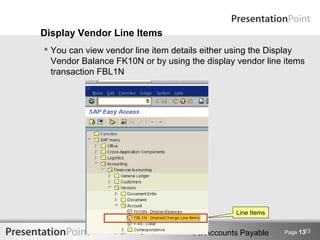
 You can view vendor line item details either using the Display
  Vendor Balance FK10N or by using the display vendor line items
  transaction FBL1N


                                                         Line Items

                                                                             13
                     Here comes your footer   FI: Accounts Payable    Page 13
Display Vendor Line Items (ZFBL1N)


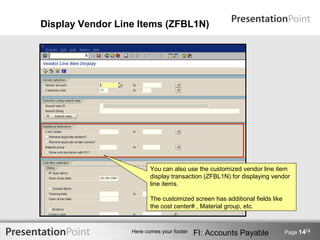
                         You can also use the customized vendor line item
                         display transaction (ZFBL1N) for displaying vendor
                         line items.

                         The customized screen has additional fields like
                         the cost center# , Material group, etc.


                                                                                   14
                  Here comes your footer   FI: Accounts Payable             Page 14
Display Line Item – Selection Criteria
    View a range of Vendor Accounts
    View a range of Company Codes
    View only Open items only
    View cleared items only
    View all items posted


                                                                        Status


                                                                                 15
                        Here comes your footer   FI: Accounts Payable     Page 15
Line Item Display – Item Status


  The line item list contains a selection of standard fields from the
   document
  You can display the following line items:
  - Open items
  - Cleared items
  - Parked items


                                                                               16
                        Here comes your footer   FI: Accounts Payable   Page 16
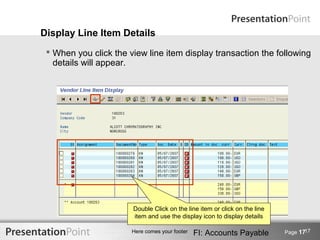
Display Line Item Details
  When you click the view line item display transaction the following
   details will appear.


                       Double Click on the line item or click on the line
                       item and use the display icon to display details

                                                                                   17
                       Here comes your footer   FI: Accounts Payable        Page 17
Details on Line Item

                                            Click on the document header icon to
                                            display
                                            •Who posted the transaction
                                            •When the transaction was posted
                                            •Currency details
                                            •Document type


                                                                                  18
                   Here comes your footer   FI: Accounts Payable           Page 18
Change the Line Layout Details


  Each user will have different fields they will want to see when
   making queries on a vendor account. Therefore, a specific
   user screen layout can be defined to ensure users are only
   looking at the details they require.
  Possible Selection Fields include:
  - Doc Number
  - Local and Transaction Currency
  - Cost Center
  - Posting Date and Posting Period


                                                                              19
                       Here comes your footer   FI: Accounts Payable   Page 19
Posted Document View

    You can change the line layout to list the details you need.


                                  Use the select layout icon to
                                  display another existing line
                                   layout with different fields
                                                                              20
                       Here comes your footer   FI: Accounts Payable   Page 20
Possible Screen Selection Fields
                                                Use the change layout option to
                                              define you own layout and select the
                                                  fields you need in your layout


                                                                                 21
                   Here comes your footer   FI: Accounts Payable          Page 21
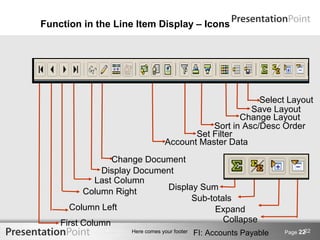
Function in the Line Item Display – Icons


                                                        Select Layout
                                                      Save Layout
                                                   Change Layout
                                            Sort in Asc/Desc Order
                                        Set Filter
                                 Account Master Data
                 Change Document
              Display Document
             Last Column
          Column Right      Display Sum
                                  Sub-totals
      Column Left                      Expand
    First Column                          Collapse
                                                                           22
                    Here comes your footer   FI: Accounts Payable   Page 22
Download Vendor Account Details

  It is possible to download vendor account details to excel. The
   menu patch is as follows:


                                                                              23
                       Here comes your footer   FI: Accounts Payable   Page 23
Unit Recap


  You can Display Vendor Balances using transaction code
   FK10N
  You can Display Vendor Line Items using transaction FBL1N
   and ZFBL1N


                                                                            24
                     Here comes your footer   FI: Accounts Payable   Page 24
Questions and Answers


                                                                        25
                 Here comes your footer   FI: Accounts Payable   Page 25

Accounts payable Training 5

  • 1.
    Accounts Payable Version 1.0 Unit5: Inquiries & Account Management
  • 2.
    Course Agenda Unit 1: Introduction Unit 2: Master Data Unit 3: Invoice and Credit Note Processing Unit 4: Payments Unit 5: Inquiries Unit 6: Reporting Unit 7: Vendor Reconciliation Here comes your footer FI: Accounts Payable 2
  • 3.
    Unit Objectives Atthe completion of this unit, you will be able to:  Perform Vendor Account Balance Inquiries  Perform Vendor Line Item Inquiries Here comes your footer FI: Accounts Payable Page 3 3
  • 4.
    Transaction Codes  DisplayAccount Balance FK10N  Display Account Line Items FBL1N or ZFBL1N Here comes your footer FI: Accounts Payable Page 4 4
  • 5.
    Key Terms  MultipleSelections  Screen Layouts  Clear Open Items  Reset Cleared Items Here comes your footer FI: Accounts Payable Page 5 5
  • 6.
    Vendor A/C Inquiries  When you post transactions to vendor accounts the system automatically updates the account.  You can then view information on Accounts Payable by either using Balance Display or Line Item Display.  Account Balance Display – shows the opening balance c/f plus the total of all transactions posted per period.  Line Item Display – allows you search for particular transactions posted.  SAP makes it very easy to view vendor information from both the summary and line item level. Here comes your footer FI: Accounts Payable Page 6 6
  • 7.
    Vendor Inquiries –Transaction Codes (FK10N) Here comes your footer FI: Accounts Payable Page 7 7
  • 8.
    Account Balance Display(FK10N)  Using Transaction FK10N you can view a specific vendor balance or a range of vendor balances Here comes your footer FI: Accounts Payable Page 8 8
  • 9.
    Account Balance Display(FK10N)  Account Balance Display contains - Any Balance C/F from previous year - List of Debit and Credits for each month - Balance for the Period - Sales/Purchases – net movement for the period - Closing Balance for each period  You can navigate from each total’s display to the list of line items by double-clicking an amount.  Another double-click on the line item will take you to a FI: Accounts Payable 9 document display screen Here comes your footer Page 9
  • 10.
    Account Balance Display(FK10N) Double click on the monthly balance for a particular period to view the line items 10 Here comes your footer FI: Accounts Payable Page 10
  • 11.
    Multiple Vendor Selection  On the multiple selection screen you can either include a range of vendor accounts or exclude a range of vendor accounts Double click to include multiple values Exclude a Range Include a Range 11 Here comes your footer FI: Accounts Payable Page 11
  • 12.
    Display Vendor NavigationScreen  You can navigate from each totals display to the list of line items by double-clicking an amount. Double Click to View Item 12 Here comes your footer FI: Accounts Payable Page 12
  • 13.
    Display Vendor LineItems  You can view vendor line item details either using the Display Vendor Balance FK10N or by using the display vendor line items transaction FBL1N Line Items 13 Here comes your footer FI: Accounts Payable Page 13
  • 14.
    Display Vendor LineItems (ZFBL1N) You can also use the customized vendor line item display transaction (ZFBL1N) for displaying vendor line items. The customized screen has additional fields like the cost center# , Material group, etc. 14 Here comes your footer FI: Accounts Payable Page 14
  • 15.
    Display Line Item– Selection Criteria  View a range of Vendor Accounts  View a range of Company Codes  View only Open items only  View cleared items only  View all items posted Status 15 Here comes your footer FI: Accounts Payable Page 15
  • 16.
    Line Item Display– Item Status  The line item list contains a selection of standard fields from the document  You can display the following line items: - Open items - Cleared items - Parked items 16 Here comes your footer FI: Accounts Payable Page 16
  • 17.
    Display Line ItemDetails  When you click the view line item display transaction the following details will appear. Double Click on the line item or click on the line item and use the display icon to display details 17 Here comes your footer FI: Accounts Payable Page 17
  • 18.
    Details on LineItem Click on the document header icon to display •Who posted the transaction •When the transaction was posted •Currency details •Document type 18 Here comes your footer FI: Accounts Payable Page 18
  • 19.
    Change the LineLayout Details  Each user will have different fields they will want to see when making queries on a vendor account. Therefore, a specific user screen layout can be defined to ensure users are only looking at the details they require.  Possible Selection Fields include: - Doc Number - Local and Transaction Currency - Cost Center - Posting Date and Posting Period 19 Here comes your footer FI: Accounts Payable Page 19
  • 20.
    Posted Document View You can change the line layout to list the details you need. Use the select layout icon to display another existing line layout with different fields 20 Here comes your footer FI: Accounts Payable Page 20
  • 21.
    Possible Screen SelectionFields Use the change layout option to define you own layout and select the fields you need in your layout 21 Here comes your footer FI: Accounts Payable Page 21
  • 22.
    Function in theLine Item Display – Icons Select Layout Save Layout Change Layout Sort in Asc/Desc Order Set Filter Account Master Data Change Document Display Document Last Column Column Right Display Sum Sub-totals Column Left Expand First Column Collapse 22 Here comes your footer FI: Accounts Payable Page 22
  • 23.
    Download Vendor AccountDetails  It is possible to download vendor account details to excel. The menu patch is as follows: 23 Here comes your footer FI: Accounts Payable Page 23
  • 24.
    Unit Recap You can Display Vendor Balances using transaction code FK10N  You can Display Vendor Line Items using transaction FBL1N and ZFBL1N 24 Here comes your footer FI: Accounts Payable Page 24
  • 25.
    Questions and Answers 25 Here comes your footer FI: Accounts Payable Page 25