

Unity 3D
Environment
binary-studio.com
Contents
1. Intro
2. IDE
3. Main Windows
4. Creating Gameplay
Intro
1. Popular (More than 10 years)
2. Multi-platform (Console, PC, Mac, Web, Mobile)
3. User friendly (Big community, Asset Store)
4. Languages (JS, C#, Boo)
IDE
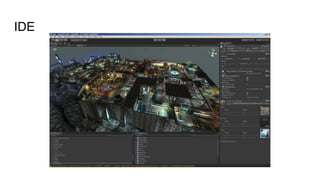
IDE
Visual Studio Integration (Express, Professional)
Monodevelop Integration (IOS, Android remote debugging)
Sublime Integration (Unity3D Syntax Highlighting, Unity3D Snippets and Completes)
Main Windows
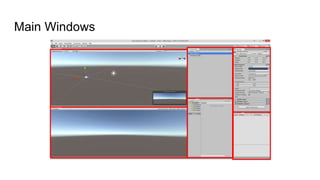
Main Windows
Creating gameplay
1. Scenes
2. GameObjects
3. Components
4. Transforms
5. Lights
6. Cameras
7. Inputs
8. Triggers
Scenes
1. View - container of objects.
2. Level - level of game, menu, individual menu and other.
3. Asset - binary file.
GameObjects
1. 3D Objects
2. 2D Object
3. Lights
4. Audio
5. UI
6. Camera
Components
1. Mesh
2. Effects
3. Physics / Physics 2D
4. Audio
5. Layout
6. UI
7. Scripts
Transforms
Position - X, Y, Z
Rotate - X, Y, Z
Scale - X, Y, Z
Lights
1. Point light - sends light out in all directions.
2. Directional light - the sun.
3. Spot light - sends light to one direction.
4. Area light
Lights
Light’s properties:
1. Range
2. Color
3. Intensity
4. Shadow
Cameras
1. Projection (Perspective, Orthographic)
2. Background
3. Depth
Inputs
Axe’s properties:
1. Name
2. Negative/Positive button
3. Gravity
4. Sensitivity
5. Snap
6. Invert
7. Type
Triggers
Components -> Physics -> xxx Collider -> IsTrigger
Main events:
1. OnTriggerEnter(Collider coll)
2. OnTriggerStay(Collider coll)
3. OnTriggerExit(Collider coll)
*Needs Rigidbody (Character controller).
Useful links
1. Unity3D Docs
2. Unity3D Wiki
3. Unity3D Answers
Home Task
1. Create maze. (Add colors and lights)
2. Create movable controller. (Sphere or capsule)
3. At the end of the way create trigger which removed floor under the controller.
4. (Optional) Add camera to the controller and turn it with A and D keys.
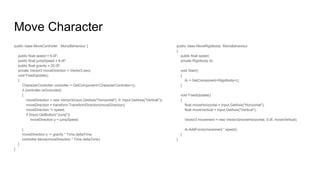
Move Character
public class MoveController : MonoBehaviour {
public float speed = 6.0F;
public float jumpSpeed = 8.0F;
public float gravity = 20.0F;
private Vector3 moveDirection = Vector3.zero;
void FixedUpdate()
{
CharacterController controller = GetComponent<CharacterController>();
if (controller.isGrounded)
{
moveDirection = new Vector3(Input.GetAxis("Horizontal"), 0, Input.GetAxis("Vertical"));
moveDirection = transform.TransformDirection(moveDirection);
moveDirection *= speed;
if (Input.GetButton("Jump"))
moveDirection.y = jumpSpeed;
}
moveDirection.y -= gravity * Time.deltaTime;
controller.Move(moveDirection * Time.deltaTime);
}
}
public class MoveRigidbody: MonoBehaviour
{
public float speed;
private Rigidbody rb;
void Start()
{
rb = GetComponent<Rigidbody>();
}
void FixedUpdate()
{
float moveHorizontal = Input.GetAxis("Horizontal");
float moveVertical = Input.GetAxis("Vertical");
Vector3 movement = new Vector3(moveHorizontal, 0.0f, moveVertical);
rb.AddForce(movement * speed);
}
}

Academy PRO: Unity 3D. Environment

  • 1.
  • 2.
    Contents 1. Intro 2. IDE 3.Main Windows 4. Creating Gameplay
  • 3.
    Intro 1. Popular (Morethan 10 years) 2. Multi-platform (Console, PC, Mac, Web, Mobile) 3. User friendly (Big community, Asset Store) 4. Languages (JS, C#, Boo)
  • 4.
  • 5.
    IDE Visual Studio Integration(Express, Professional) Monodevelop Integration (IOS, Android remote debugging) Sublime Integration (Unity3D Syntax Highlighting, Unity3D Snippets and Completes)
  • 6.
  • 7.
  • 8.
    Creating gameplay 1. Scenes 2.GameObjects 3. Components 4. Transforms 5. Lights 6. Cameras 7. Inputs 8. Triggers
  • 9.
    Scenes 1. View -container of objects. 2. Level - level of game, menu, individual menu and other. 3. Asset - binary file.
  • 10.
    GameObjects 1. 3D Objects 2.2D Object 3. Lights 4. Audio 5. UI 6. Camera
  • 11.
    Components 1. Mesh 2. Effects 3.Physics / Physics 2D 4. Audio 5. Layout 6. UI 7. Scripts
  • 12.
    Transforms Position - X,Y, Z Rotate - X, Y, Z Scale - X, Y, Z
  • 13.
    Lights 1. Point light- sends light out in all directions. 2. Directional light - the sun. 3. Spot light - sends light to one direction. 4. Area light
  • 14.
    Lights Light’s properties: 1. Range 2.Color 3. Intensity 4. Shadow
  • 15.
    Cameras 1. Projection (Perspective,Orthographic) 2. Background 3. Depth
  • 16.
    Inputs Axe’s properties: 1. Name 2.Negative/Positive button 3. Gravity 4. Sensitivity 5. Snap 6. Invert 7. Type
  • 17.
    Triggers Components -> Physics-> xxx Collider -> IsTrigger Main events: 1. OnTriggerEnter(Collider coll) 2. OnTriggerStay(Collider coll) 3. OnTriggerExit(Collider coll) *Needs Rigidbody (Character controller).
  • 18.
    Useful links 1. Unity3DDocs 2. Unity3D Wiki 3. Unity3D Answers
  • 19.
    Home Task 1. Createmaze. (Add colors and lights) 2. Create movable controller. (Sphere or capsule) 3. At the end of the way create trigger which removed floor under the controller. 4. (Optional) Add camera to the controller and turn it with A and D keys.
  • 20.
    Move Character public classMoveController : MonoBehaviour { public float speed = 6.0F; public float jumpSpeed = 8.0F; public float gravity = 20.0F; private Vector3 moveDirection = Vector3.zero; void FixedUpdate() { CharacterController controller = GetComponent<CharacterController>(); if (controller.isGrounded) { moveDirection = new Vector3(Input.GetAxis("Horizontal"), 0, Input.GetAxis("Vertical")); moveDirection = transform.TransformDirection(moveDirection); moveDirection *= speed; if (Input.GetButton("Jump")) moveDirection.y = jumpSpeed; } moveDirection.y -= gravity * Time.deltaTime; controller.Move(moveDirection * Time.deltaTime); } } public class MoveRigidbody: MonoBehaviour { public float speed; private Rigidbody rb; void Start() { rb = GetComponent<Rigidbody>(); } void FixedUpdate() { float moveHorizontal = Input.GetAxis("Horizontal"); float moveVertical = Input.GetAxis("Vertical"); Vector3 movement = new Vector3(moveHorizontal, 0.0f, moveVertical); rb.AddForce(movement * speed); } }