SQL: DISTINCT Clause 
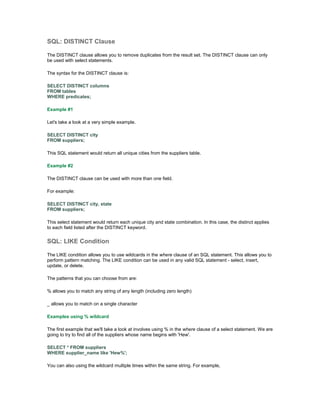
The DISTINCT clause allows you to remove duplicates from the result set. The DISTINCT clause can only 
be used with select statements. 
The syntax for the DISTINCT clause is: 
SELECT DISTINCT columns 
FROM tables 
WHERE predicates; 
Example #1 
Let's take a look at a very simple example. 
SELECT DISTINCT city 
FROM suppliers; 
This SQL statement would return all unique cities from the suppliers table. 
Example #2 
The DISTINCT clause can be used with more than one field. 
For example: 
SELECT DISTINCT city, state 
FROM suppliers; 
This select statement would return each unique city and state combination. In this case, the distinct applies 
to each field listed after the DISTINCT keyword. 
SQL: LIKE Condition 
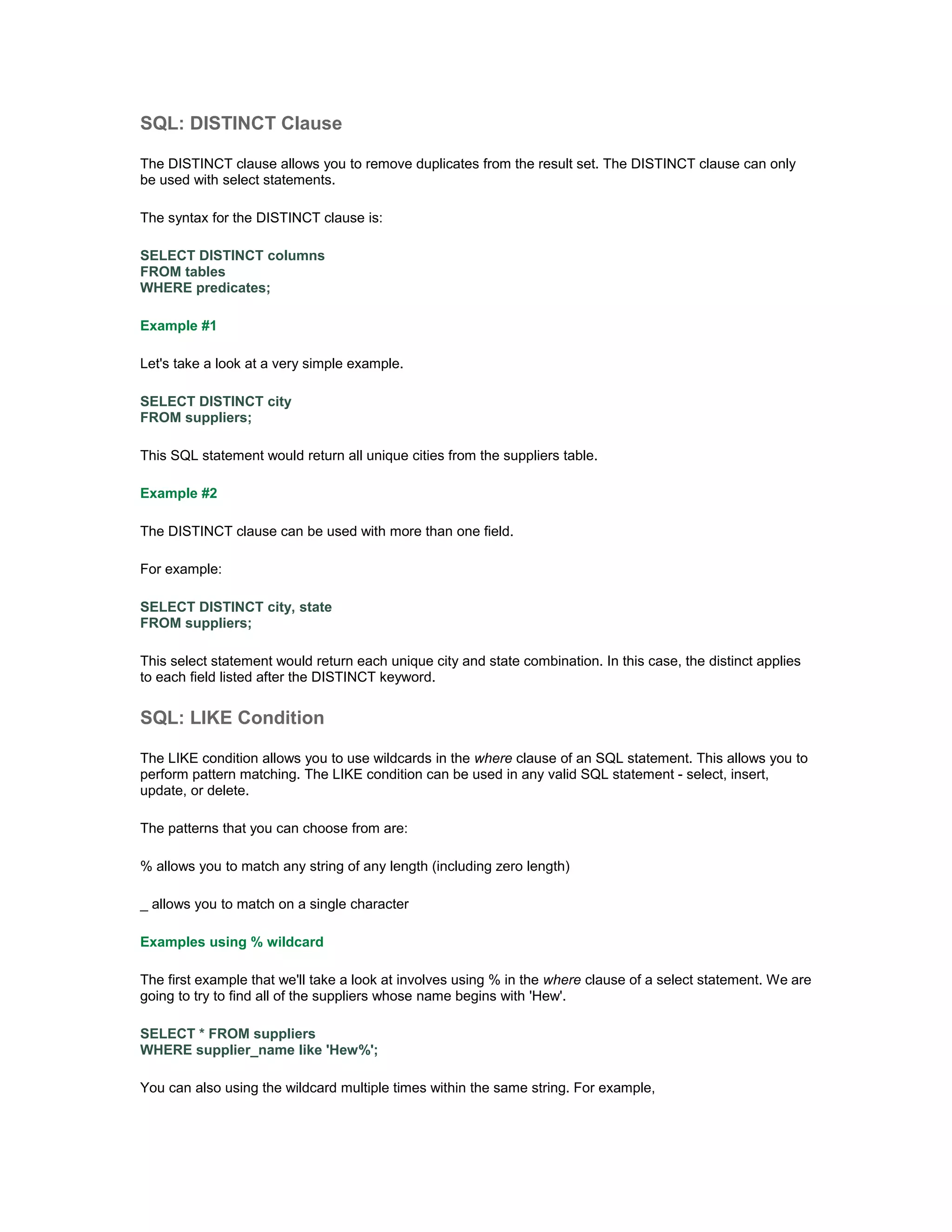
The LIKE condition allows you to use wildcards in the where clause of an SQL statement. This allows you to 
perform pattern matching. The LIKE condition can be used in any valid SQL statement - select, insert, 
update, or delete. 
The patterns that you can choose from are: 
% allows you to match any string of any length (including zero length) 
_ allows you to match on a single character 
Examples using % wildcard 
The first example that we'll take a look at involves using % in the where clause of a select statement. We are 
going to try to find all of the suppliers whose name begins with 'Hew'. 
SELECT * FROM suppliers 
WHERE supplier_name like 'Hew%'; 
You can also using the wildcard multiple times within the same string. For example,
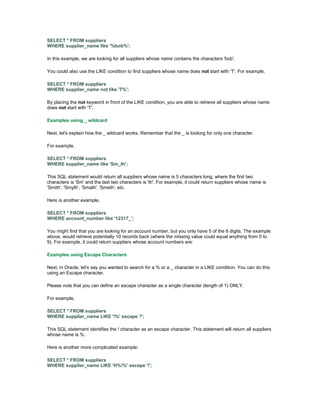
SELECT * FROM suppliers 
WHERE supplier_name like '%bob%'; 
In this example, we are looking for all suppliers whose name contains the characters 'bob'. 
You could also use the LIKE condition to find suppliers whose name does not start with 'T'. For example, 
SELECT * FROM suppliers 
WHERE supplier_name not like 'T%'; 
By placing the not keyword in front of the LIKE condition, you are able to retrieve all suppliers whose name 
does not start with 'T'. 
Examples using _ wildcard 
Next, let's explain how the _ wildcard works. Remember that the _ is looking for only one character. 
For example, 
SELECT * FROM suppliers 
WHERE supplier_name like 'Sm_th'; 
This SQL statement would return all suppliers whose name is 5 characters long, where the first two 
characters is 'Sm' and the last two characters is 'th'. For example, it could return suppliers whose name is 
'Smith', 'Smyth', 'Smath', 'Smeth', etc. 
Here is another example, 
SELECT * FROM suppliers 
WHERE account_number like '12317_'; 
You might find that you are looking for an account number, but you only have 5 of the 6 digits. The example 
above, would retrieve potentially 10 records back (where the missing value could equal anything from 0 to 
9). For example, it could return suppliers whose account numbers are: 
Examples using Escape Characters 
Next, in Oracle, let's say you wanted to search for a % or a _ character in a LIKE condition. You can do this 
using an Escape character. 
Please note that you can define an escape character as a single character (length of 1) ONLY. 
For example, 
SELECT * FROM suppliers 
WHERE supplier_name LIKE '!%' escape '!'; 
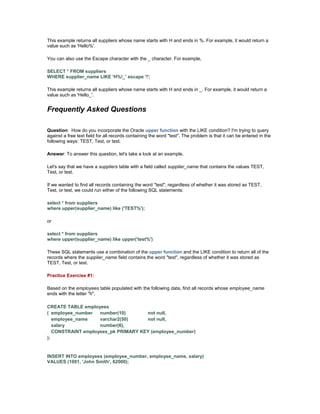
This SQL statement identifies the ! character as an escape character. This statement will return all suppliers 
whose name is %. 
Here is another more complicated example: 
SELECT * FROM suppliers 
WHERE supplier_name LIKE 'H%!%' escape '!';
This example returns all suppliers whose name starts with H and ends in %. For example, it would return a 
value such as 'Hello%'. 
You can also use the Escape character with the _ character. For example, 
SELECT * FROM suppliers 
WHERE supplier_name LIKE 'H%!_' escape '!'; 
This example returns all suppliers whose name starts with H and ends in _. For example, it would return a 
value such as 'Hello_'. 
Frequently Asked Questions 
Question: How do you incorporate the Oracle upper function with the LIKE condition? I'm trying to query 
against a free text field for all records containing the word "test". The problem is that it can be entered in the 
following ways: TEST, Test, or test. 
Answer: To answer this question, let's take a look at an example. 
Let's say that we have a suppliers table with a field called supplier_name that contains the values TEST, 
Test, or test. 
If we wanted to find all records containing the word "test", regardless of whether it was stored as TEST, 
Test, or test, we could run either of the following SQL statements: 
select * from suppliers 
where upper(supplier_name) like ('TEST%'); 
or 
select * from suppliers 
where upper(supplier_name) like upper('test%') 
These SQL statements use a combination of the upper function and the LIKE condition to return all of the 
records where the supplier_name field contains the word "test", regardless of whether it was stored as 
TEST, Test, or test. 
Practice Exercise #1: 
Based on the employees table populated with the following data, find all records whose employee_name 
ends with the letter "h". 
CREATE TABLE employees 
( employee_number number(10) not null, 
employee_name varchar2(50) not null, 
salary number(6), 
CONSTRAINT employees_pk PRIMARY KEY (employee_number) 
); 
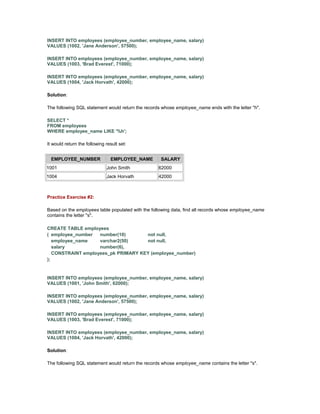
INSERT INTO employees (employee_number, employee_name, salary) 
VALUES (1001, 'John Smith', 62000);
INSERT INTO employees (employee_number, employee_name, salary) 
VALUES (1002, 'Jane Anderson', 57500); 
INSERT INTO employees (employee_number, employee_name, salary) 
VALUES (1003, 'Brad Everest', 71000); 
INSERT INTO employees (employee_number, employee_name, salary) 
VALUES (1004, 'Jack Horvath', 42000); 
Solution: 
The following SQL statement would return the records whose employee_name ends with the letter "h". 
SELECT * 
FROM employees 
WHERE employee_name LIKE '%h'; 
It would return the following result set: 
EMPLOYEE_NUMBER EMPLOYEE_NAME SALARY 
1001 John Smith 62000 
1004 Jack Horvath 42000 
Practice Exercise #2: 
Based on the employees table populated with the following data, find all records whose employee_name 
contains the letter "s". 
CREATE TABLE employees 
( employee_number number(10) not null, 
employee_name varchar2(50) not null, 
salary number(6), 
CONSTRAINT employees_pk PRIMARY KEY (employee_number) 
); 
INSERT INTO employees (employee_number, employee_name, salary) 
VALUES (1001, 'John Smith', 62000); 
INSERT INTO employees (employee_number, employee_name, salary) 
VALUES (1002, 'Jane Anderson', 57500); 
INSERT INTO employees (employee_number, employee_name, salary) 
VALUES (1003, 'Brad Everest', 71000); 
INSERT INTO employees (employee_number, employee_name, salary) 
VALUES (1004, 'Jack Horvath', 42000); 
Solution: 
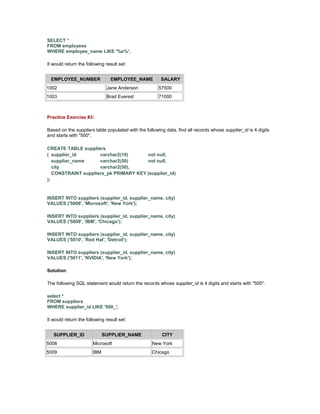
The following SQL statement would return the records whose employee_name contains the letter "s".
SELECT * 
FROM employees 
WHERE employee_name LIKE '%s%'; 
It would return the following result set: 
EMPLOYEE_NUMBER EMPLOYEE_NAME SALARY 
1002 Jane Anderson 57500 
1003 Brad Everest 71000 
Practice Exercise #3: 
Based on the suppliers table populated with the following data, find all records whose supplier_id is 4 digits 
and starts with "500". 
CREATE TABLE suppliers 
( supplier_id varchar2(10) not null, 
supplier_name varchar2(50) not null, 
city varchar2(50), 
CONSTRAINT suppliers_pk PRIMARY KEY (supplier_id) 
); 
INSERT INTO suppliers (supplier_id, supplier_name, city) 
VALUES ('5008', 'Microsoft', 'New York'); 
INSERT INTO suppliers (supplier_id, supplier_name, city) 
VALUES ('5009', 'IBM', 'Chicago'); 
INSERT INTO suppliers (supplier_id, supplier_name, city) 
VALUES ('5010', 'Red Hat', 'Detroit'); 
INSERT INTO suppliers (supplier_id, supplier_name, city) 
VALUES ('5011', 'NVIDIA', 'New York'); 
Solution: 
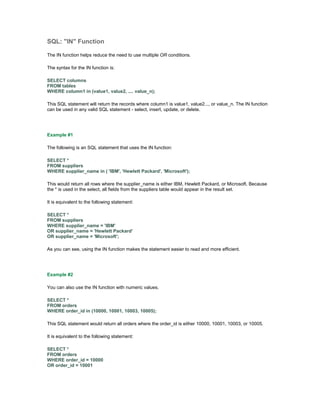
The following SQL statement would return the records whose supplier_id is 4 digits and starts with "500". 
select * 
FROM suppliers 
WHERE supplier_id LIKE '500_'; 
It would return the following result set: 
SUPPLIER_ID SUPPLIER_NAME CITY 
5008 Microsoft New York 
5009 IBM Chicago
SQL: "IN" Function 
The IN function helps reduce the need to use multiple OR conditions. 
The syntax for the IN function is: 
SELECT columns 
FROM tables 
WHERE column1 in (value1, value2, .... value_n); 
This SQL statement will return the records where column1 is value1, value2..., or value_n. The IN function 
can be used in any valid SQL statement - select, insert, update, or delete. 
Example #1 
The following is an SQL statement that uses the IN function: 
SELECT * 
FROM suppliers 
WHERE supplier_name in ( 'IBM', 'Hewlett Packard', 'Microsoft'); 
This would return all rows where the supplier_name is either IBM, Hewlett Packard, or Microsoft. Because 
the * is used in the select, all fields from the suppliers table would appear in the result set. 
It is equivalent to the following statement: 
SELECT * 
FROM suppliers 
WHERE supplier_name = 'IBM' 
OR supplier_name = 'Hewlett Packard' 
OR supplier_name = 'Microsoft'; 
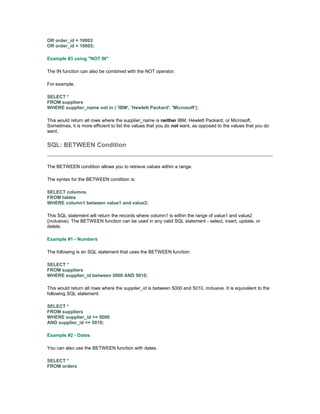
As you can see, using the IN function makes the statement easier to read and more efficient. 
Example #2 
You can also use the IN function with numeric values. 
SELECT * 
FROM orders 
WHERE order_id in (10000, 10001, 10003, 10005); 
This SQL statement would return all orders where the order_id is either 10000, 10001, 10003, or 10005. 
It is equivalent to the following statement: 
SELECT * 
FROM orders 
WHERE order_id = 10000 
OR order_id = 10001
OR order_id = 10003 
OR order_id = 10005; 
Example #3 using "NOT IN" 
The IN function can also be combined with the NOT operator. 
For example, 
SELECT * 
FROM suppliers 
WHERE supplier_name not in ( 'IBM', 'Hewlett Packard', 'Microsoft'); 
This would return all rows where the supplier_name is neither IBM, Hewlett Packard, or Microsoft. 
Sometimes, it is more efficient to list the values that you do not want, as opposed to the values that you do 
want. 
SQL: BETWEEN Condition 
The BETWEEN condition allows you to retrieve values within a range. 
The syntax for the BETWEEN condition is: 
SELECT columns 
FROM tables 
WHERE column1 between value1 and value2; 
This SQL statement will return the records where column1 is within the range of value1 and value2 
(inclusive). The BETWEEN function can be used in any valid SQL statement - select, insert, update, or 
delete. 
Example #1 - Numbers 
The following is an SQL statement that uses the BETWEEN function: 
SELECT * 
FROM suppliers 
WHERE supplier_id between 5000 AND 5010; 
This would return all rows where the supplier_id is between 5000 and 5010, inclusive. It is equivalent to the 
following SQL statement: 
SELECT * 
FROM suppliers 
WHERE supplier_id >= 5000 
AND supplier_id <= 5010; 
Example #2 - Dates 
You can also use the BETWEEN function with dates. 
SELECT * 
FROM orders
WHERE order_date between to_date ('2003/01/01', 'yyyy/mm/dd') 
AND to_date ('2003/12/31', 'yyyy/mm/dd'); 
This SQL statement would return all orders where the order_date is between Jan 1, 2003 and Dec 31, 2003 
(inclusive). 
It would be equivalent to the following SQL statement: 
SELECT * 
FROM orders 
WHERE order_date >= to_date('2003/01/01', 'yyyy/mm/dd') 
AND order_date <= to_date('2003/12/31','yyyy/mm/dd'); 
Example #3 - NOT BETWEEN 
The BETWEEN function can also be combined with the NOT operator. 
For example, 
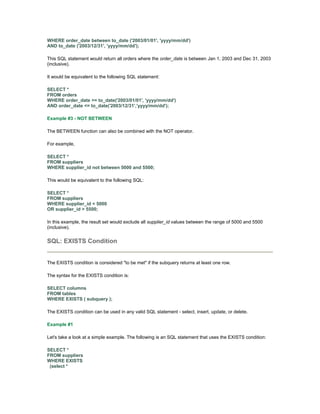
SELECT * 
FROM suppliers 
WHERE supplier_id not between 5000 and 5500; 
This would be equivalent to the following SQL: 
SELECT * 
FROM suppliers 
WHERE supplier_id < 5000 
OR supplier_id > 5500; 
In this example, the result set would exclude all supplier_id values between the range of 5000 and 5500 
(inclusive). 
SQL: EXISTS Condition 
The EXISTS condition is considered "to be met" if the subquery returns at least one row. 
The syntax for the EXISTS condition is: 
SELECT columns 
FROM tables 
WHERE EXISTS ( subquery ); 
The EXISTS condition can be used in any valid SQL statement - select, insert, update, or delete. 
Example #1 
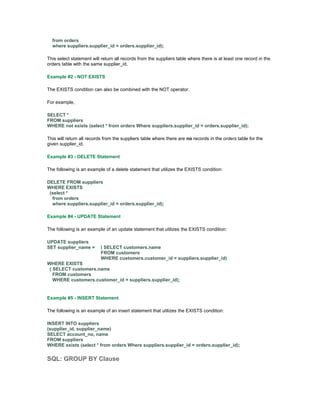
Let's take a look at a simple example. The following is an SQL statement that uses the EXISTS condition: 
SELECT * 
FROM suppliers 
WHERE EXISTS 
(select *
from orders 
where suppliers.supplier_id = orders.supplier_id); 
This select statement will return all records from the suppliers table where there is at least one record in the 
orders table with the same supplier_id. 
Example #2 - NOT EXISTS 
The EXISTS condition can also be combined with the NOT operator. 
For example, 
SELECT * 
FROM suppliers 
WHERE not exists (select * from orders Where suppliers.supplier_id = orders.supplier_id); 
This will return all records from the suppliers table where there are no records in the orders table for the 
given supplier_id. 
Example #3 - DELETE Statement 
The following is an example of a delete statement that utilizes the EXISTS condition: 
DELETE FROM suppliers 
WHERE EXISTS 
(select * 
from orders 
where suppliers.supplier_id = orders.supplier_id); 
Example #4 - UPDATE Statement 
The following is an example of an update statement that utilizes the EXISTS condition: 
UPDATE suppliers 
SET supplier_name = ( SELECT customers.name 
FROM customers 
WHERE customers.customer_id = suppliers.supplier_id) 
WHERE EXISTS 
( SELECT customers.name 
FROM customers 
WHERE customers.customer_id = suppliers.supplier_id); 
Example #5 - INSERT Statement 
The following is an example of an insert statement that utilizes the EXISTS condition: 
INSERT INTO suppliers 
(supplier_id, supplier_name) 
SELECT account_no, name 
FROM suppliers 
WHERE exists (select * from orders Where suppliers.supplier_id = orders.supplier_id); 
SQL: GROUP BY Clause
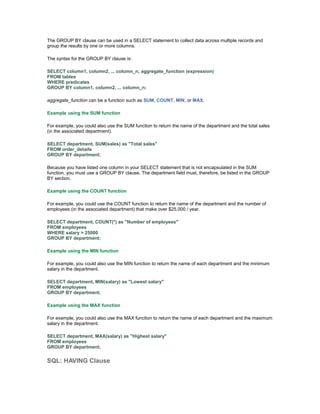
The GROUP BY clause can be used in a SELECT statement to collect data across multiple records and 
group the results by one or more columns. 
The syntax for the GROUP BY clause is: 
SELECT column1, column2, ... column_n, aggregate_function (expression) 
FROM tables 
WHERE predicates 
GROUP BY column1, column2, ... column_n; 
aggregate_function can be a function such as SUM, COUNT, MIN, or MAX. 
Example using the SUM function 
For example, you could also use the SUM function to return the name of the department and the total sales 
(in the associated department). 
SELECT department, SUM(sales) as "Total sales" 
FROM order_details 
GROUP BY department; 
Because you have listed one column in your SELECT statement that is not encapsulated in the SUM 
function, you must use a GROUP BY clause. The department field must, therefore, be listed in the GROUP 
BY section. 
Example using the COUNT function 
For example, you could use the COUNT function to return the name of the department and the number of 
employees (in the associated department) that make over $25,000 / year. 
SELECT department, COUNT(*) as "Number of employees" 
FROM employees 
WHERE salary > 25000 
GROUP BY department; 
Example using the MIN function 
For example, you could also use the MIN function to return the name of each department and the minimum 
salary in the department. 
SELECT department, MIN(salary) as "Lowest salary" 
FROM employees 
GROUP BY department; 
Example using the MAX function 
For example, you could also use the MAX function to return the name of each department and the maximum 
salary in the department. 
SELECT department, MAX(salary) as "Highest salary" 
FROM employees 
GROUP BY department; 
SQL: HAVING Clause
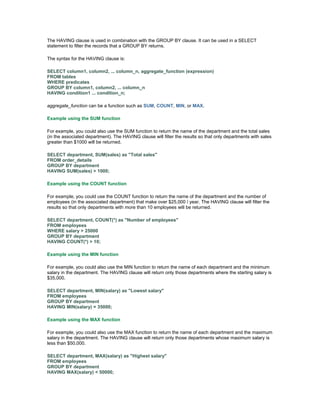
The HAVING clause is used in combination with the GROUP BY clause. It can be used in a SELECT 
statement to filter the records that a GROUP BY returns. 
The syntax for the HAVING clause is: 
SELECT column1, column2, ... column_n, aggregate_function (expression) 
FROM tables 
WHERE predicates 
GROUP BY column1, column2, ... column_n 
HAVING condition1 ... condition_n; 
aggregate_function can be a function such as SUM, COUNT, MIN, or MAX. 
Example using the SUM function 
For example, you could also use the SUM function to return the name of the department and the total sales 
(in the associated department). The HAVING clause will filter the results so that only departments with sales 
greater than $1000 will be returned. 
SELECT department, SUM(sales) as "Total sales" 
FROM order_details 
GROUP BY department 
HAVING SUM(sales) > 1000; 
Example using the COUNT function 
For example, you could use the COUNT function to return the name of the department and the number of 
employees (in the associated department) that make over $25,000 / year. The HAVING clause will filter the 
results so that only departments with more than 10 employees will be returned. 
SELECT department, COUNT(*) as "Number of employees" 
FROM employees 
WHERE salary > 25000 
GROUP BY department 
HAVING COUNT(*) > 10; 
Example using the MIN function 
For example, you could also use the MIN function to return the name of each department and the minimum 
salary in the department. The HAVING clause will return only those departments where the starting salary is 
$35,000. 
SELECT department, MIN(salary) as "Lowest salary" 
FROM employees 
GROUP BY department 
HAVING MIN(salary) = 35000; 
Example using the MAX function 
For example, you could also use the MAX function to return the name of each department and the maximum 
salary in the department. The HAVING clause will return only those departments whose maximum salary is 
less than $50,000. 
SELECT department, MAX(salary) as "Highest salary" 
FROM employees 
GROUP BY department 
HAVING MAX(salary) < 50000;
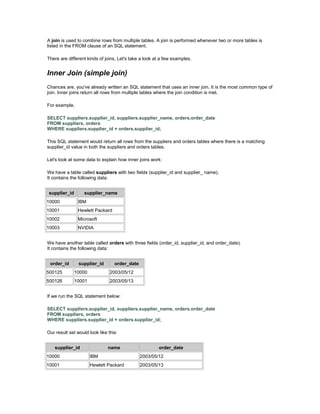
A join is used to combine rows from multiple tables. A join is performed whenever two or more tables is 
listed in the FROM clause of an SQL statement. 
There are different kinds of joins. Let's take a look at a few examples. 
Inner Join (simple join) 
Chances are, you've already written an SQL statement that uses an inner join. It is the most common type of 
join. Inner joins return all rows from multiple tables where the join condition is met. 
For example, 
SELECT suppliers.supplier_id, suppliers.supplier_name, orders.order_date 
FROM suppliers, orders 
WHERE suppliers.supplier_id = orders.supplier_id; 
This SQL statement would return all rows from the suppliers and orders tables where there is a matching 
supplier_id value in both the suppliers and orders tables. 
Let's look at some data to explain how inner joins work: 
We have a table called suppliers with two fields (supplier_id and supplier_ name). 
It contains the following data: 
supplier_id supplier_name 
10000 IBM 
10001 Hewlett Packard 
10002 Microsoft 
10003 NVIDIA 
We have another table called orders with three fields (order_id, supplier_id, and order_date). 
It contains the following data: 
order_id supplier_id order_date 
500125 10000 2003/05/12 
500126 10001 2003/05/13 
If we run the SQL statement below: 
SELECT suppliers.supplier_id, suppliers.supplier_name, orders.order_date 
FROM suppliers, orders 
WHERE suppliers.supplier_id = orders.supplier_id; 
Our result set would look like this: 
supplier_id name order_date 
10000 IBM 2003/05/12 
10001 Hewlett Packard 2003/05/13
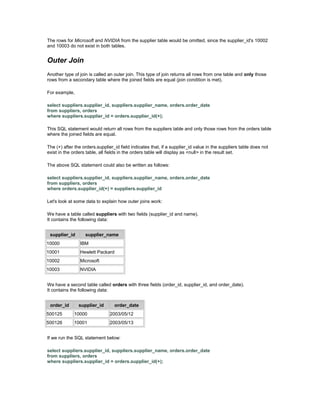
The rows for Microsoft and NVIDIA from the supplier table would be omitted, since the supplier_id's 10002 
and 10003 do not exist in both tables. 
Outer Join 
Another type of join is called an outer join. This type of join returns all rows from one table and only those 
rows from a secondary table where the joined fields are equal (join condition is met). 
For example, 
select suppliers.supplier_id, suppliers.supplier_name, orders.order_date 
from suppliers, orders 
where suppliers.supplier_id = orders.supplier_id(+); 
This SQL statement would return all rows from the suppliers table and only those rows from the orders table 
where the joined fields are equal. 
The (+) after the orders.supplier_id field indicates that, if a supplier_id value in the suppliers table does not 
exist in the orders table, all fields in the orders table will display as <null> in the result set. 
The above SQL statement could also be written as follows: 
select suppliers.supplier_id, suppliers.supplier_name, orders.order_date 
from suppliers, orders 
where orders.supplier_id(+) = suppliers.supplier_id 
Let's look at some data to explain how outer joins work: 
We have a table called suppliers with two fields (supplier_id and name). 
It contains the following data: 
supplier_id supplier_name 
10000 IBM 
10001 Hewlett Packard 
10002 Microsoft 
10003 NVIDIA 
We have a second table called orders with three fields (order_id, supplier_id, and order_date). 
It contains the following data: 
order_id supplier_id order_date 
500125 10000 2003/05/12 
500126 10001 2003/05/13 
If we run the SQL statement below: 
select suppliers.supplier_id, suppliers.supplier_name, orders.order_date 
from suppliers, orders 
where suppliers.supplier_id = orders.supplier_id(+);
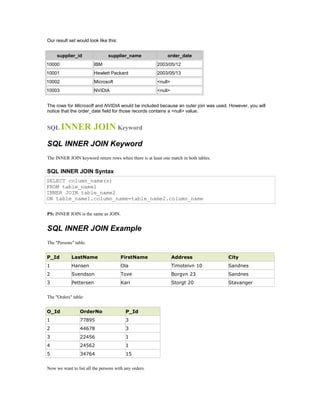
Our result set would look like this: 
supplier_id supplier_name order_date 
10000 IBM 2003/05/12 
10001 Hewlett Packard 2003/05/13 
10002 Microsoft <null> 
10003 NVIDIA <null> 
The rows for Microsoft and NVIDIA would be included because an outer join was used. However, you will 
notice that the order_date field for those records contains a <null> value. 
SQL INNER JOIN Keyword 
The INNER JOIN keyword return rows when there is at least one match in both tables. 
SQL INNER JOIN Syntax 
SELECT column_name(s) 
FROM table_name1 
INNER JOIN table_name2 
ON table_name1.column_name=table_name2.column_name 
PS: INNER JOIN is the same as JOIN. 
SQL INNER JOIN Example 
The "Persons" table: 
P_Id LastName FirstName Address City 
1 Hansen Ola Timoteivn 10 Sandnes 
2 Svendson Tove Borgvn 23 Sandnes 
3 Pettersen Kari Storgt 20 Stavanger 
The "Orders" table: 
O_Id OrderNo P_Id 
1 77895 3 
2 44678 3 
3 22456 1 
4 24562 1 
5 34764 15 
Now we want to list all the persons with any orders.
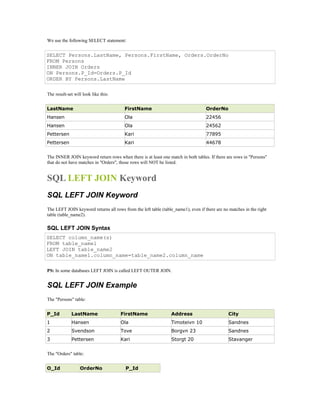
We use the following SELECT statement: 
SELECT Persons.LastName, Persons.FirstName, Orders.OrderNo 
FROM Persons 
INNER JOIN Orders 
ON Persons.P_Id=Orders.P_Id 
ORDER BY Persons.LastName 
The result-set will look like this: 
LastName FirstName OrderNo 
Hansen Ola 22456 
Hansen Ola 24562 
Pettersen Kari 77895 
Pettersen Kari 44678 
The INNER JOIN keyword return rows when there is at least one match in both tables. If there are rows in "Persons" 
that do not have matches in "Orders", those rows will NOT be listed. 
SQL LEFT JOIN Keyword 
The LEFT JOIN keyword returns all rows from the left table (table_name1), even if there are no matches in the right 
table (table_name2). 
SQL LEFT JOIN Syntax 
SELECT column_name(s) 
FROM table_name1 
LEFT JOIN table_name2 
ON table_name1.column_name=table_name2.column_name 
PS: In some databases LEFT JOIN is called LEFT OUTER JOIN. 
SQL LEFT JOIN Example 
The "Persons" table: 
P_Id LastName FirstName Address City 
1 Hansen Ola Timoteivn 10 Sandnes 
2 Svendson Tove Borgvn 23 Sandnes 
3 Pettersen Kari Storgt 20 Stavanger 
The "Orders" table: 
O_Id OrderNo P_Id
1 77895 3 
2 44678 3 
3 22456 1 
4 24562 1 
5 34764 15 
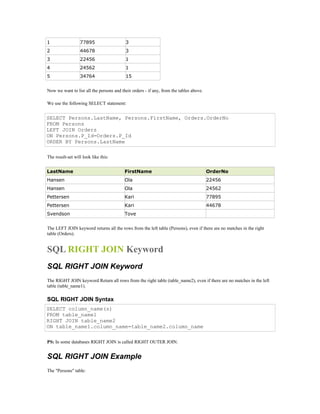
Now we want to list all the persons and their orders - if any, from the tables above. 
We use the following SELECT statement: 
SELECT Persons.LastName, Persons.FirstName, Orders.OrderNo 
FROM Persons 
LEFT JOIN Orders 
ON Persons.P_Id=Orders.P_Id 
ORDER BY Persons.LastName 
The result-set will look like this: 
LastName FirstName OrderNo 
Hansen Ola 22456 
Hansen Ola 24562 
Pettersen Kari 77895 
Pettersen Kari 44678 
Svendson Tove 
The LEFT JOIN keyword returns all the rows from the left table (Persons), even if there are no matches in the right 
table (Orders). 
SQL RIGHT JOIN Keyword 
The RIGHT JOIN keyword Return all rows from the right table (table_name2), even if there are no matches in the left 
table (table_name1). 
SQL RIGHT JOIN Syntax 
SELECT column_name(s) 
FROM table_name1 
RIGHT JOIN table_name2 
ON table_name1.column_name=table_name2.column_name 
PS: In some databases RIGHT JOIN is called RIGHT OUTER JOIN. 
SQL RIGHT JOIN Example 
The "Persons" table:
P_Id LastName FirstName Address City 
1 Hansen Ola Timoteivn 10 Sandnes 
2 Svendson Tove Borgvn 23 Sandnes 
3 Pettersen Kari Storgt 20 Stavanger 
The "Orders" table: 
O_Id OrderNo P_Id 
1 77895 3 
2 44678 3 
3 22456 1 
4 24562 1 
5 34764 15 
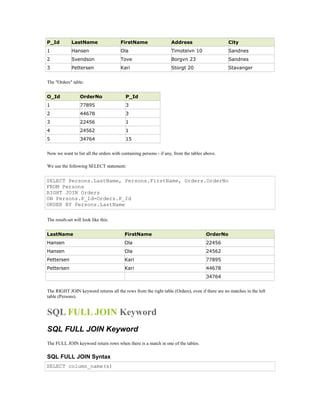
Now we want to list all the orders with containing persons - if any, from the tables above. 
We use the following SELECT statement: 
SELECT Persons.LastName, Persons.FirstName, Orders.OrderNo 
FROM Persons 
RIGHT JOIN Orders 
ON Persons.P_Id=Orders.P_Id 
ORDER BY Persons.LastName 
The result-set will look like this: 
LastName FirstName OrderNo 
Hansen Ola 22456 
Hansen Ola 24562 
Pettersen Kari 77895 
Pettersen Kari 44678 
34764 
The RIGHT JOIN keyword returns all the rows from the right table (Orders), even if there are no matches in the left 
table (Persons). 
SQL FULL JOIN Keyword 
The FULL JOIN keyword return rows when there is a match in one of the tables. 
SQL FULL JOIN Syntax 
SELECT column_name(s)
FROM table_name1 
FULL JOIN table_name2 
ON table_name1.column_name=table_name2.column_name 
SQL FULL JOIN Example 
The "Persons" table: 
P_Id LastName FirstName Address City 
1 Hansen Ola Timoteivn 10 Sandnes 
2 Svendson Tove Borgvn 23 Sandnes 
3 Pettersen Kari Storgt 20 Stavanger 
The "Orders" table: 
O_Id OrderNo P_Id 
1 77895 3 
2 44678 3 
3 22456 1 
4 24562 1 
5 34764 15 
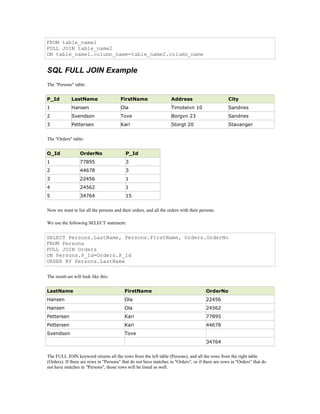
Now we want to list all the persons and their orders, and all the orders with their persons. 
We use the following SELECT statement: 
SELECT Persons.LastName, Persons.FirstName, Orders.OrderNo 
FROM Persons 
FULL JOIN Orders 
ON Persons.P_Id=Orders.P_Id 
ORDER BY Persons.LastName 
The result-set will look like this: 
LastName FirstName OrderNo 
Hansen Ola 22456 
Hansen Ola 24562 
Pettersen Kari 77895 
Pettersen Kari 44678 
Svendson Tove 
34764 
The FULL JOIN keyword returns all the rows from the left table (Persons), and all the rows from the right table 
(Orders). If there are rows in "Persons" that do not have matches in "Orders", or if there are rows in "Orders" that do 
not have matches in "Persons", those rows will be listed as well.
75864 sql

75864 sql

  • 1.
    SQL: DISTINCT Clause The DISTINCT clause allows you to remove duplicates from the result set. The DISTINCT clause can only be used with select statements. The syntax for the DISTINCT clause is: SELECT DISTINCT columns FROM tables WHERE predicates; Example #1 Let's take a look at a very simple example. SELECT DISTINCT city FROM suppliers; This SQL statement would return all unique cities from the suppliers table. Example #2 The DISTINCT clause can be used with more than one field. For example: SELECT DISTINCT city, state FROM suppliers; This select statement would return each unique city and state combination. In this case, the distinct applies to each field listed after the DISTINCT keyword. SQL: LIKE Condition The LIKE condition allows you to use wildcards in the where clause of an SQL statement. This allows you to perform pattern matching. The LIKE condition can be used in any valid SQL statement - select, insert, update, or delete. The patterns that you can choose from are: % allows you to match any string of any length (including zero length) _ allows you to match on a single character Examples using % wildcard The first example that we'll take a look at involves using % in the where clause of a select statement. We are going to try to find all of the suppliers whose name begins with 'Hew'. SELECT * FROM suppliers WHERE supplier_name like 'Hew%'; You can also using the wildcard multiple times within the same string. For example,
  • 2.
    SELECT * FROMsuppliers WHERE supplier_name like '%bob%'; In this example, we are looking for all suppliers whose name contains the characters 'bob'. You could also use the LIKE condition to find suppliers whose name does not start with 'T'. For example, SELECT * FROM suppliers WHERE supplier_name not like 'T%'; By placing the not keyword in front of the LIKE condition, you are able to retrieve all suppliers whose name does not start with 'T'. Examples using _ wildcard Next, let's explain how the _ wildcard works. Remember that the _ is looking for only one character. For example, SELECT * FROM suppliers WHERE supplier_name like 'Sm_th'; This SQL statement would return all suppliers whose name is 5 characters long, where the first two characters is 'Sm' and the last two characters is 'th'. For example, it could return suppliers whose name is 'Smith', 'Smyth', 'Smath', 'Smeth', etc. Here is another example, SELECT * FROM suppliers WHERE account_number like '12317_'; You might find that you are looking for an account number, but you only have 5 of the 6 digits. The example above, would retrieve potentially 10 records back (where the missing value could equal anything from 0 to 9). For example, it could return suppliers whose account numbers are: Examples using Escape Characters Next, in Oracle, let's say you wanted to search for a % or a _ character in a LIKE condition. You can do this using an Escape character. Please note that you can define an escape character as a single character (length of 1) ONLY. For example, SELECT * FROM suppliers WHERE supplier_name LIKE '!%' escape '!'; This SQL statement identifies the ! character as an escape character. This statement will return all suppliers whose name is %. Here is another more complicated example: SELECT * FROM suppliers WHERE supplier_name LIKE 'H%!%' escape '!';
  • 3.
    This example returnsall suppliers whose name starts with H and ends in %. For example, it would return a value such as 'Hello%'. You can also use the Escape character with the _ character. For example, SELECT * FROM suppliers WHERE supplier_name LIKE 'H%!_' escape '!'; This example returns all suppliers whose name starts with H and ends in _. For example, it would return a value such as 'Hello_'. Frequently Asked Questions Question: How do you incorporate the Oracle upper function with the LIKE condition? I'm trying to query against a free text field for all records containing the word "test". The problem is that it can be entered in the following ways: TEST, Test, or test. Answer: To answer this question, let's take a look at an example. Let's say that we have a suppliers table with a field called supplier_name that contains the values TEST, Test, or test. If we wanted to find all records containing the word "test", regardless of whether it was stored as TEST, Test, or test, we could run either of the following SQL statements: select * from suppliers where upper(supplier_name) like ('TEST%'); or select * from suppliers where upper(supplier_name) like upper('test%') These SQL statements use a combination of the upper function and the LIKE condition to return all of the records where the supplier_name field contains the word "test", regardless of whether it was stored as TEST, Test, or test. Practice Exercise #1: Based on the employees table populated with the following data, find all records whose employee_name ends with the letter "h". CREATE TABLE employees ( employee_number number(10) not null, employee_name varchar2(50) not null, salary number(6), CONSTRAINT employees_pk PRIMARY KEY (employee_number) ); INSERT INTO employees (employee_number, employee_name, salary) VALUES (1001, 'John Smith', 62000);
  • 4.
    INSERT INTO employees(employee_number, employee_name, salary) VALUES (1002, 'Jane Anderson', 57500); INSERT INTO employees (employee_number, employee_name, salary) VALUES (1003, 'Brad Everest', 71000); INSERT INTO employees (employee_number, employee_name, salary) VALUES (1004, 'Jack Horvath', 42000); Solution: The following SQL statement would return the records whose employee_name ends with the letter "h". SELECT * FROM employees WHERE employee_name LIKE '%h'; It would return the following result set: EMPLOYEE_NUMBER EMPLOYEE_NAME SALARY 1001 John Smith 62000 1004 Jack Horvath 42000 Practice Exercise #2: Based on the employees table populated with the following data, find all records whose employee_name contains the letter "s". CREATE TABLE employees ( employee_number number(10) not null, employee_name varchar2(50) not null, salary number(6), CONSTRAINT employees_pk PRIMARY KEY (employee_number) ); INSERT INTO employees (employee_number, employee_name, salary) VALUES (1001, 'John Smith', 62000); INSERT INTO employees (employee_number, employee_name, salary) VALUES (1002, 'Jane Anderson', 57500); INSERT INTO employees (employee_number, employee_name, salary) VALUES (1003, 'Brad Everest', 71000); INSERT INTO employees (employee_number, employee_name, salary) VALUES (1004, 'Jack Horvath', 42000); Solution: The following SQL statement would return the records whose employee_name contains the letter "s".
  • 5.
    SELECT * FROMemployees WHERE employee_name LIKE '%s%'; It would return the following result set: EMPLOYEE_NUMBER EMPLOYEE_NAME SALARY 1002 Jane Anderson 57500 1003 Brad Everest 71000 Practice Exercise #3: Based on the suppliers table populated with the following data, find all records whose supplier_id is 4 digits and starts with "500". CREATE TABLE suppliers ( supplier_id varchar2(10) not null, supplier_name varchar2(50) not null, city varchar2(50), CONSTRAINT suppliers_pk PRIMARY KEY (supplier_id) ); INSERT INTO suppliers (supplier_id, supplier_name, city) VALUES ('5008', 'Microsoft', 'New York'); INSERT INTO suppliers (supplier_id, supplier_name, city) VALUES ('5009', 'IBM', 'Chicago'); INSERT INTO suppliers (supplier_id, supplier_name, city) VALUES ('5010', 'Red Hat', 'Detroit'); INSERT INTO suppliers (supplier_id, supplier_name, city) VALUES ('5011', 'NVIDIA', 'New York'); Solution: The following SQL statement would return the records whose supplier_id is 4 digits and starts with "500". select * FROM suppliers WHERE supplier_id LIKE '500_'; It would return the following result set: SUPPLIER_ID SUPPLIER_NAME CITY 5008 Microsoft New York 5009 IBM Chicago
  • 6.
    SQL: "IN" Function The IN function helps reduce the need to use multiple OR conditions. The syntax for the IN function is: SELECT columns FROM tables WHERE column1 in (value1, value2, .... value_n); This SQL statement will return the records where column1 is value1, value2..., or value_n. The IN function can be used in any valid SQL statement - select, insert, update, or delete. Example #1 The following is an SQL statement that uses the IN function: SELECT * FROM suppliers WHERE supplier_name in ( 'IBM', 'Hewlett Packard', 'Microsoft'); This would return all rows where the supplier_name is either IBM, Hewlett Packard, or Microsoft. Because the * is used in the select, all fields from the suppliers table would appear in the result set. It is equivalent to the following statement: SELECT * FROM suppliers WHERE supplier_name = 'IBM' OR supplier_name = 'Hewlett Packard' OR supplier_name = 'Microsoft'; As you can see, using the IN function makes the statement easier to read and more efficient. Example #2 You can also use the IN function with numeric values. SELECT * FROM orders WHERE order_id in (10000, 10001, 10003, 10005); This SQL statement would return all orders where the order_id is either 10000, 10001, 10003, or 10005. It is equivalent to the following statement: SELECT * FROM orders WHERE order_id = 10000 OR order_id = 10001
  • 7.
    OR order_id =10003 OR order_id = 10005; Example #3 using "NOT IN" The IN function can also be combined with the NOT operator. For example, SELECT * FROM suppliers WHERE supplier_name not in ( 'IBM', 'Hewlett Packard', 'Microsoft'); This would return all rows where the supplier_name is neither IBM, Hewlett Packard, or Microsoft. Sometimes, it is more efficient to list the values that you do not want, as opposed to the values that you do want. SQL: BETWEEN Condition The BETWEEN condition allows you to retrieve values within a range. The syntax for the BETWEEN condition is: SELECT columns FROM tables WHERE column1 between value1 and value2; This SQL statement will return the records where column1 is within the range of value1 and value2 (inclusive). The BETWEEN function can be used in any valid SQL statement - select, insert, update, or delete. Example #1 - Numbers The following is an SQL statement that uses the BETWEEN function: SELECT * FROM suppliers WHERE supplier_id between 5000 AND 5010; This would return all rows where the supplier_id is between 5000 and 5010, inclusive. It is equivalent to the following SQL statement: SELECT * FROM suppliers WHERE supplier_id >= 5000 AND supplier_id <= 5010; Example #2 - Dates You can also use the BETWEEN function with dates. SELECT * FROM orders
  • 8.
    WHERE order_date betweento_date ('2003/01/01', 'yyyy/mm/dd') AND to_date ('2003/12/31', 'yyyy/mm/dd'); This SQL statement would return all orders where the order_date is between Jan 1, 2003 and Dec 31, 2003 (inclusive). It would be equivalent to the following SQL statement: SELECT * FROM orders WHERE order_date >= to_date('2003/01/01', 'yyyy/mm/dd') AND order_date <= to_date('2003/12/31','yyyy/mm/dd'); Example #3 - NOT BETWEEN The BETWEEN function can also be combined with the NOT operator. For example, SELECT * FROM suppliers WHERE supplier_id not between 5000 and 5500; This would be equivalent to the following SQL: SELECT * FROM suppliers WHERE supplier_id < 5000 OR supplier_id > 5500; In this example, the result set would exclude all supplier_id values between the range of 5000 and 5500 (inclusive). SQL: EXISTS Condition The EXISTS condition is considered "to be met" if the subquery returns at least one row. The syntax for the EXISTS condition is: SELECT columns FROM tables WHERE EXISTS ( subquery ); The EXISTS condition can be used in any valid SQL statement - select, insert, update, or delete. Example #1 Let's take a look at a simple example. The following is an SQL statement that uses the EXISTS condition: SELECT * FROM suppliers WHERE EXISTS (select *
  • 9.
    from orders wheresuppliers.supplier_id = orders.supplier_id); This select statement will return all records from the suppliers table where there is at least one record in the orders table with the same supplier_id. Example #2 - NOT EXISTS The EXISTS condition can also be combined with the NOT operator. For example, SELECT * FROM suppliers WHERE not exists (select * from orders Where suppliers.supplier_id = orders.supplier_id); This will return all records from the suppliers table where there are no records in the orders table for the given supplier_id. Example #3 - DELETE Statement The following is an example of a delete statement that utilizes the EXISTS condition: DELETE FROM suppliers WHERE EXISTS (select * from orders where suppliers.supplier_id = orders.supplier_id); Example #4 - UPDATE Statement The following is an example of an update statement that utilizes the EXISTS condition: UPDATE suppliers SET supplier_name = ( SELECT customers.name FROM customers WHERE customers.customer_id = suppliers.supplier_id) WHERE EXISTS ( SELECT customers.name FROM customers WHERE customers.customer_id = suppliers.supplier_id); Example #5 - INSERT Statement The following is an example of an insert statement that utilizes the EXISTS condition: INSERT INTO suppliers (supplier_id, supplier_name) SELECT account_no, name FROM suppliers WHERE exists (select * from orders Where suppliers.supplier_id = orders.supplier_id); SQL: GROUP BY Clause
  • 10.
    The GROUP BYclause can be used in a SELECT statement to collect data across multiple records and group the results by one or more columns. The syntax for the GROUP BY clause is: SELECT column1, column2, ... column_n, aggregate_function (expression) FROM tables WHERE predicates GROUP BY column1, column2, ... column_n; aggregate_function can be a function such as SUM, COUNT, MIN, or MAX. Example using the SUM function For example, you could also use the SUM function to return the name of the department and the total sales (in the associated department). SELECT department, SUM(sales) as "Total sales" FROM order_details GROUP BY department; Because you have listed one column in your SELECT statement that is not encapsulated in the SUM function, you must use a GROUP BY clause. The department field must, therefore, be listed in the GROUP BY section. Example using the COUNT function For example, you could use the COUNT function to return the name of the department and the number of employees (in the associated department) that make over $25,000 / year. SELECT department, COUNT(*) as "Number of employees" FROM employees WHERE salary > 25000 GROUP BY department; Example using the MIN function For example, you could also use the MIN function to return the name of each department and the minimum salary in the department. SELECT department, MIN(salary) as "Lowest salary" FROM employees GROUP BY department; Example using the MAX function For example, you could also use the MAX function to return the name of each department and the maximum salary in the department. SELECT department, MAX(salary) as "Highest salary" FROM employees GROUP BY department; SQL: HAVING Clause
  • 11.
    The HAVING clauseis used in combination with the GROUP BY clause. It can be used in a SELECT statement to filter the records that a GROUP BY returns. The syntax for the HAVING clause is: SELECT column1, column2, ... column_n, aggregate_function (expression) FROM tables WHERE predicates GROUP BY column1, column2, ... column_n HAVING condition1 ... condition_n; aggregate_function can be a function such as SUM, COUNT, MIN, or MAX. Example using the SUM function For example, you could also use the SUM function to return the name of the department and the total sales (in the associated department). The HAVING clause will filter the results so that only departments with sales greater than $1000 will be returned. SELECT department, SUM(sales) as "Total sales" FROM order_details GROUP BY department HAVING SUM(sales) > 1000; Example using the COUNT function For example, you could use the COUNT function to return the name of the department and the number of employees (in the associated department) that make over $25,000 / year. The HAVING clause will filter the results so that only departments with more than 10 employees will be returned. SELECT department, COUNT(*) as "Number of employees" FROM employees WHERE salary > 25000 GROUP BY department HAVING COUNT(*) > 10; Example using the MIN function For example, you could also use the MIN function to return the name of each department and the minimum salary in the department. The HAVING clause will return only those departments where the starting salary is $35,000. SELECT department, MIN(salary) as "Lowest salary" FROM employees GROUP BY department HAVING MIN(salary) = 35000; Example using the MAX function For example, you could also use the MAX function to return the name of each department and the maximum salary in the department. The HAVING clause will return only those departments whose maximum salary is less than $50,000. SELECT department, MAX(salary) as "Highest salary" FROM employees GROUP BY department HAVING MAX(salary) < 50000;
  • 12.
    A join isused to combine rows from multiple tables. A join is performed whenever two or more tables is listed in the FROM clause of an SQL statement. There are different kinds of joins. Let's take a look at a few examples. Inner Join (simple join) Chances are, you've already written an SQL statement that uses an inner join. It is the most common type of join. Inner joins return all rows from multiple tables where the join condition is met. For example, SELECT suppliers.supplier_id, suppliers.supplier_name, orders.order_date FROM suppliers, orders WHERE suppliers.supplier_id = orders.supplier_id; This SQL statement would return all rows from the suppliers and orders tables where there is a matching supplier_id value in both the suppliers and orders tables. Let's look at some data to explain how inner joins work: We have a table called suppliers with two fields (supplier_id and supplier_ name). It contains the following data: supplier_id supplier_name 10000 IBM 10001 Hewlett Packard 10002 Microsoft 10003 NVIDIA We have another table called orders with three fields (order_id, supplier_id, and order_date). It contains the following data: order_id supplier_id order_date 500125 10000 2003/05/12 500126 10001 2003/05/13 If we run the SQL statement below: SELECT suppliers.supplier_id, suppliers.supplier_name, orders.order_date FROM suppliers, orders WHERE suppliers.supplier_id = orders.supplier_id; Our result set would look like this: supplier_id name order_date 10000 IBM 2003/05/12 10001 Hewlett Packard 2003/05/13
  • 13.
    The rows forMicrosoft and NVIDIA from the supplier table would be omitted, since the supplier_id's 10002 and 10003 do not exist in both tables. Outer Join Another type of join is called an outer join. This type of join returns all rows from one table and only those rows from a secondary table where the joined fields are equal (join condition is met). For example, select suppliers.supplier_id, suppliers.supplier_name, orders.order_date from suppliers, orders where suppliers.supplier_id = orders.supplier_id(+); This SQL statement would return all rows from the suppliers table and only those rows from the orders table where the joined fields are equal. The (+) after the orders.supplier_id field indicates that, if a supplier_id value in the suppliers table does not exist in the orders table, all fields in the orders table will display as <null> in the result set. The above SQL statement could also be written as follows: select suppliers.supplier_id, suppliers.supplier_name, orders.order_date from suppliers, orders where orders.supplier_id(+) = suppliers.supplier_id Let's look at some data to explain how outer joins work: We have a table called suppliers with two fields (supplier_id and name). It contains the following data: supplier_id supplier_name 10000 IBM 10001 Hewlett Packard 10002 Microsoft 10003 NVIDIA We have a second table called orders with three fields (order_id, supplier_id, and order_date). It contains the following data: order_id supplier_id order_date 500125 10000 2003/05/12 500126 10001 2003/05/13 If we run the SQL statement below: select suppliers.supplier_id, suppliers.supplier_name, orders.order_date from suppliers, orders where suppliers.supplier_id = orders.supplier_id(+);
  • 14.
    Our result setwould look like this: supplier_id supplier_name order_date 10000 IBM 2003/05/12 10001 Hewlett Packard 2003/05/13 10002 Microsoft <null> 10003 NVIDIA <null> The rows for Microsoft and NVIDIA would be included because an outer join was used. However, you will notice that the order_date field for those records contains a <null> value. SQL INNER JOIN Keyword SQL INNER JOIN Keyword The INNER JOIN keyword return rows when there is at least one match in both tables. SQL INNER JOIN Syntax SELECT column_name(s) FROM table_name1 INNER JOIN table_name2 ON table_name1.column_name=table_name2.column_name PS: INNER JOIN is the same as JOIN. SQL INNER JOIN Example The "Persons" table: P_Id LastName FirstName Address City 1 Hansen Ola Timoteivn 10 Sandnes 2 Svendson Tove Borgvn 23 Sandnes 3 Pettersen Kari Storgt 20 Stavanger The "Orders" table: O_Id OrderNo P_Id 1 77895 3 2 44678 3 3 22456 1 4 24562 1 5 34764 15 Now we want to list all the persons with any orders.
  • 15.
    We use thefollowing SELECT statement: SELECT Persons.LastName, Persons.FirstName, Orders.OrderNo FROM Persons INNER JOIN Orders ON Persons.P_Id=Orders.P_Id ORDER BY Persons.LastName The result-set will look like this: LastName FirstName OrderNo Hansen Ola 22456 Hansen Ola 24562 Pettersen Kari 77895 Pettersen Kari 44678 The INNER JOIN keyword return rows when there is at least one match in both tables. If there are rows in "Persons" that do not have matches in "Orders", those rows will NOT be listed. SQL LEFT JOIN Keyword SQL LEFT JOIN Keyword The LEFT JOIN keyword returns all rows from the left table (table_name1), even if there are no matches in the right table (table_name2). SQL LEFT JOIN Syntax SELECT column_name(s) FROM table_name1 LEFT JOIN table_name2 ON table_name1.column_name=table_name2.column_name PS: In some databases LEFT JOIN is called LEFT OUTER JOIN. SQL LEFT JOIN Example The "Persons" table: P_Id LastName FirstName Address City 1 Hansen Ola Timoteivn 10 Sandnes 2 Svendson Tove Borgvn 23 Sandnes 3 Pettersen Kari Storgt 20 Stavanger The "Orders" table: O_Id OrderNo P_Id
  • 16.
    1 77895 3 2 44678 3 3 22456 1 4 24562 1 5 34764 15 Now we want to list all the persons and their orders - if any, from the tables above. We use the following SELECT statement: SELECT Persons.LastName, Persons.FirstName, Orders.OrderNo FROM Persons LEFT JOIN Orders ON Persons.P_Id=Orders.P_Id ORDER BY Persons.LastName The result-set will look like this: LastName FirstName OrderNo Hansen Ola 22456 Hansen Ola 24562 Pettersen Kari 77895 Pettersen Kari 44678 Svendson Tove The LEFT JOIN keyword returns all the rows from the left table (Persons), even if there are no matches in the right table (Orders). SQL RIGHT JOIN Keyword SQL RIGHT JOIN Keyword The RIGHT JOIN keyword Return all rows from the right table (table_name2), even if there are no matches in the left table (table_name1). SQL RIGHT JOIN Syntax SELECT column_name(s) FROM table_name1 RIGHT JOIN table_name2 ON table_name1.column_name=table_name2.column_name PS: In some databases RIGHT JOIN is called RIGHT OUTER JOIN. SQL RIGHT JOIN Example The "Persons" table:
  • 17.
    P_Id LastName FirstNameAddress City 1 Hansen Ola Timoteivn 10 Sandnes 2 Svendson Tove Borgvn 23 Sandnes 3 Pettersen Kari Storgt 20 Stavanger The "Orders" table: O_Id OrderNo P_Id 1 77895 3 2 44678 3 3 22456 1 4 24562 1 5 34764 15 Now we want to list all the orders with containing persons - if any, from the tables above. We use the following SELECT statement: SELECT Persons.LastName, Persons.FirstName, Orders.OrderNo FROM Persons RIGHT JOIN Orders ON Persons.P_Id=Orders.P_Id ORDER BY Persons.LastName The result-set will look like this: LastName FirstName OrderNo Hansen Ola 22456 Hansen Ola 24562 Pettersen Kari 77895 Pettersen Kari 44678 34764 The RIGHT JOIN keyword returns all the rows from the right table (Orders), even if there are no matches in the left table (Persons). SQL FULL JOIN Keyword SQL FULL JOIN Keyword The FULL JOIN keyword return rows when there is a match in one of the tables. SQL FULL JOIN Syntax SELECT column_name(s)
  • 18.
    FROM table_name1 FULLJOIN table_name2 ON table_name1.column_name=table_name2.column_name SQL FULL JOIN Example The "Persons" table: P_Id LastName FirstName Address City 1 Hansen Ola Timoteivn 10 Sandnes 2 Svendson Tove Borgvn 23 Sandnes 3 Pettersen Kari Storgt 20 Stavanger The "Orders" table: O_Id OrderNo P_Id 1 77895 3 2 44678 3 3 22456 1 4 24562 1 5 34764 15 Now we want to list all the persons and their orders, and all the orders with their persons. We use the following SELECT statement: SELECT Persons.LastName, Persons.FirstName, Orders.OrderNo FROM Persons FULL JOIN Orders ON Persons.P_Id=Orders.P_Id ORDER BY Persons.LastName The result-set will look like this: LastName FirstName OrderNo Hansen Ola 22456 Hansen Ola 24562 Pettersen Kari 77895 Pettersen Kari 44678 Svendson Tove 34764 The FULL JOIN keyword returns all the rows from the left table (Persons), and all the rows from the right table (Orders). If there are rows in "Persons" that do not have matches in "Orders", or if there are rows in "Orders" that do not have matches in "Persons", those rows will be listed as well.