3D Printing
Workshop 2016
Dr. Raymond Pang
(wmpang@cihe.edu.hk)
明 愛 專 上 學 院
計 算 機 及 信 息 科 學 學 院
School of Computing and Information Science
Caritas Institute of Higher Education
21 May 2016
What is 3D Printing?
 Third industrial revolution
 Change traditional way of
manufacture
 Subtractive Manufacturing
 Remove unnecessary parts from
material
 E.g. sculpture
 Injection Molding
 Inject melt material into mold
 Additive Manufacturing
 Object as stackable layers
3D Printing: The History
 In 1984, Charles Hull developed first
3D printing device -- Stereo
lithography
 Stereolithography (SLA)
(立體平板印刷)
 is defined as “system
for generating 3D objects
by creating a cross-
sectional pattern of the
object to be formed”
3D Printing: The Technologies
 Later in 1980s, similar technologies emerge including
 Selective Laser Sintering (SLS)
 Laminate Object Manufacturing (LOM)
 Fused Deposition Modeling (FDM)
3D Printing: The Technologies
 SLS (選擇性雷射燒結)
 high power laser to fuse
small particles of plastic,
metal, ceramic, or glass
powders
 LOM (層狀物體製造)
 adhesive-coated paper, plastic,
or metal laminates glued
together and cut to shape with a
knife or laser cutter
http://goddard.cotsaweb.com/kjmjg/
http://www.techbang.com/posts/18161-3d-printer-technology-talk
3D Printing: The Technologies
 FDM (熔融沉積成型)
 laying down material in layers
 plastic filament or metal wire
is unwound from a coil and
supplies material to extrusion
nozzle
 Either the nozzle or/and
platform have to move
synchronously to construct
the object layers
3D Printing: Applications
 Prototyping
 Household goods or
accessories
 Medical
 Fashion
3D Printers
 2 Major 3D technology companies in US
 3D Systems
 Stratsys
What will we do today?
 Learn how to use a 3d printer
 Learn and experience creating 3d
print objects
 Use 3d systems cube for
demonstration
http://www.3dsystems.com/shop/support
/cube/videos
Parts in the 3D Printer
From virtual to real
 First, we need to have a 3D model
(a digital version of the object) for
printing
 3d model represents only the
surface of object
 Surface usually
is constructed by polygons
 Triangle is the simplest ones
From virtual to real
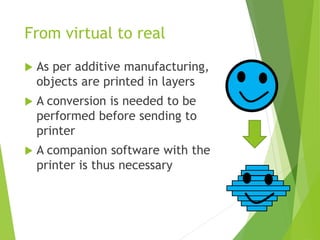
 As per additive manufacturing,
objects are printed in layers
 A conversion is needed to be
performed before sending to
printer
 A companion software with the
printer is thus necessary
Cube Print the Software
 Cube Print
 companian software of the 3D Systems’ Cube
printer
Structural Supports
 Like construct a building
 Structural supports are need to
avoid collapse
 Some are internal
 Make the object stronger
 Some are external
 Have to be removed
Structural Supports
Structural Supports
Structural Support in CubePrint
Materials
 ABS (Acrylonitrile Butadiene Styrene)
 commonly used thermoplastic
 lightweight
 requires less force to extrude than PLA
 print at about 230°C
 PLA (Polylatic Acid)
 harder than ABS
 melts at a lower temperature (around 180°C to 220°C)
The Print File
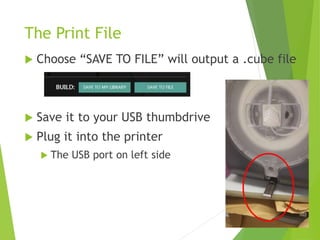
 Choose “SAVE TO FILE” will output a .cube file
 Save it to your USB thumbdrive
 Plug it into the printer
 The USB port on left side
The Print File
 Press “PRINT” from the touch
screen of printer
 Select the file for printing
 Press left or right to browse other
files on the drive
 Apply glue on the plate
Wait, wait and wait
 Take a coffee break
After Printing…
 Clean with water to remove glue
 Gently lift the object to remove it
from the platform
3D models for printing
Ways to create 3D objects
 Scanning from real objects
 Create using of modeling software
 123D design
 SketchUp
 Download from Internet
 Thingiverse (http://www.thingiverse.com)
 SketchUp 3D Warehouse
(https://3dwarehouse.sketchup.com)
 GrabCAD (http://grabcad.com)
Sketchup Make
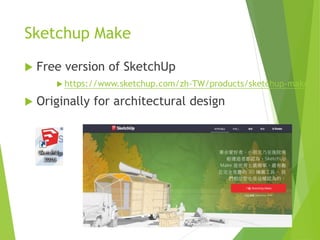
 Free version of SketchUp
 https://www.sketchup.com/zh-TW/products/sketchup-make
 Originally for architectural design
Sketchup Make
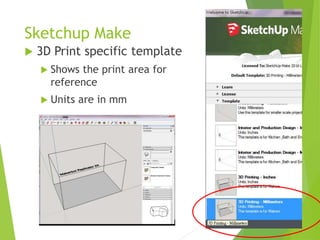
 3D Print specific template
 Shows the print area for
reference
 Units are in mm
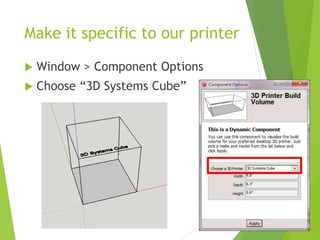
Make it specific to our printer
 Window > Component Options
 Choose “3D Systems Cube”
Moving in the Environment
 Change your view points with
 Orbit
 Mouse move with :
 Mouse middle button
 Pan
 Mouse move with :
 Shift + Mouse middle button
 Zoom
 Scroll with mouse wheel
Views in the Environments
 Camera>Standard Views
Drawing and Select 2D Shapes
 Lines
 Straight line or Freehand
 Arcs
 Shapes
 Select Tool
 Single click (Interior)
 Double click
(Both outline and interior)
Single click Double click
Draw in Freehand
 We can draw things in free hand
 Our own style and less regular
Merging Shapes
 Place shapes together
 Select internal lines
 Delete them
Select & Delete
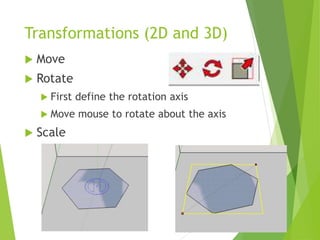
Transformations (2D and 3D)
 Move
 Rotate
 First define the rotation axis
 Move mouse to rotate about the axis
 Scale
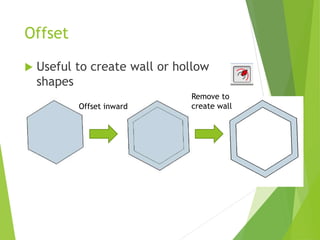
Offset
 Useful to create wall or hollow
shapes
Offset inward
Remove to
create wall
Modeling with Extrude
 Push/Pull
For example, Draw a circle and then push
We got a PIE!!
Modeling with Extrude
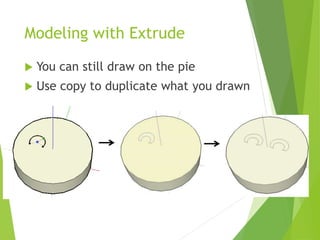
 You can still draw on the pie
 Use copy to duplicate what you drawn
Modeling with Extrude
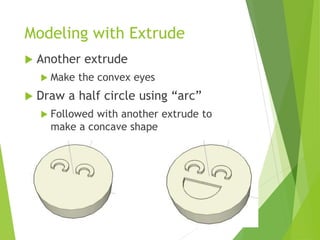
 Another extrude
 Make the convex eyes
 Draw a half circle using “arc”
 Followed with another extrude to
make a concave shape
Save the model
 Choose File>Save
 Save only to SketchUp’s own format (.skp)
 For printing, we need more portable
formats like STL or OBJ etc.
Sketchup Plugins
 To export to STL, we need install
additional plugins
 Window>Extension Warehouse
 SketchUp STL
 Click Install
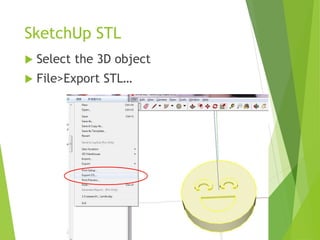
SketchUp STL
 Select the 3D object
 File>Export STL…
Open in Cube Print
Let’s Print Now!
 Dimension: 4x4x1cm
 36 mins
Shape by Path Following
(Follow Me)
 Draw two shapes
 One is the circle
(For the shape)
 One is hexagon
(As the path)
 Choose the hexagon
 Click Tools>Follow Me
 Select the circle
Shape by Path Following
(Follow Me)
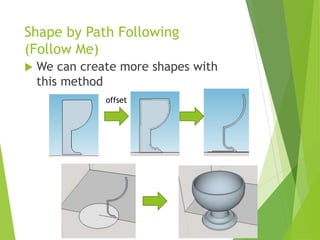
 We can create more shapes with
this method
offset
Bitmap to Mesh
 Again, SketchUp Plugin
 Search “Bitmap to Mesh”
and Install
 Convert height field to
mesh
 Can also refer to following video
on what it can do
 https://www.youtube.com/wat
ch?v=oGU7NABqEeU
Bitmap to Mesh: Bitmap Edit
 Edit the bitmap with common image
editing tools
 InfraView
 GIMP
 Photoshop
Bitmap to Mesh
 After editing the bitmap:
 Choose Draw>Mesh from Heightmap
 Then select your bmp file
 Recommend to have smaller
bmp file (around 200x200)
Bitmap to Mesh (2)
 Then you need to draw
where to create the
mesh
 Click and Drag (the red
rectangle)
 Enter depth of your
height map
Bitmap to Mesh
 Wait for the generation of mesh…
 Finally …
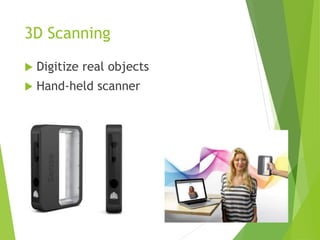
3D Scanning
 Digitize real objects
 Hand-held scanner
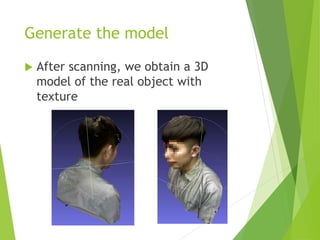
Generate the model
 After scanning, we obtain a 3D
model of the real object with
texture
Time of Creativity !!
References
 “3D Printing For Dummies” by Kalani
Kirk Hausman
 “3D Printing with SketchUp” by Marcus
Ritland
 “Cube 3 User Guide” by 3D Systems
 “Sense 3D Scanner User Guide” by 3D
Systems
Thanks for joining
the workshop

3D printing workshop 2016 (CIHE)

  • 1.
    3D Printing Workshop 2016 Dr.Raymond Pang (wmpang@cihe.edu.hk) 明 愛 專 上 學 院 計 算 機 及 信 息 科 學 學 院 School of Computing and Information Science Caritas Institute of Higher Education 21 May 2016
  • 2.
    What is 3DPrinting?  Third industrial revolution  Change traditional way of manufacture  Subtractive Manufacturing  Remove unnecessary parts from material  E.g. sculpture  Injection Molding  Inject melt material into mold  Additive Manufacturing  Object as stackable layers
  • 3.
    3D Printing: TheHistory  In 1984, Charles Hull developed first 3D printing device -- Stereo lithography  Stereolithography (SLA) (立體平板印刷)  is defined as “system for generating 3D objects by creating a cross- sectional pattern of the object to be formed”
  • 4.
    3D Printing: TheTechnologies  Later in 1980s, similar technologies emerge including  Selective Laser Sintering (SLS)  Laminate Object Manufacturing (LOM)  Fused Deposition Modeling (FDM)
  • 5.
    3D Printing: TheTechnologies  SLS (選擇性雷射燒結)  high power laser to fuse small particles of plastic, metal, ceramic, or glass powders  LOM (層狀物體製造)  adhesive-coated paper, plastic, or metal laminates glued together and cut to shape with a knife or laser cutter http://goddard.cotsaweb.com/kjmjg/ http://www.techbang.com/posts/18161-3d-printer-technology-talk
  • 6.
    3D Printing: TheTechnologies  FDM (熔融沉積成型)  laying down material in layers  plastic filament or metal wire is unwound from a coil and supplies material to extrusion nozzle  Either the nozzle or/and platform have to move synchronously to construct the object layers
  • 7.
    3D Printing: Applications Prototyping  Household goods or accessories  Medical  Fashion
  • 8.
    3D Printers  2Major 3D technology companies in US  3D Systems  Stratsys
  • 9.
    What will wedo today?  Learn how to use a 3d printer  Learn and experience creating 3d print objects  Use 3d systems cube for demonstration http://www.3dsystems.com/shop/support /cube/videos
  • 10.
    Parts in the3D Printer
  • 11.
    From virtual toreal  First, we need to have a 3D model (a digital version of the object) for printing  3d model represents only the surface of object  Surface usually is constructed by polygons  Triangle is the simplest ones
  • 12.
    From virtual toreal  As per additive manufacturing, objects are printed in layers  A conversion is needed to be performed before sending to printer  A companion software with the printer is thus necessary
  • 13.
    Cube Print theSoftware  Cube Print  companian software of the 3D Systems’ Cube printer
  • 14.
    Structural Supports  Likeconstruct a building  Structural supports are need to avoid collapse  Some are internal  Make the object stronger  Some are external  Have to be removed
  • 15.
  • 16.
  • 17.
  • 18.
    Materials  ABS (AcrylonitrileButadiene Styrene)  commonly used thermoplastic  lightweight  requires less force to extrude than PLA  print at about 230°C  PLA (Polylatic Acid)  harder than ABS  melts at a lower temperature (around 180°C to 220°C)
  • 19.
    The Print File Choose “SAVE TO FILE” will output a .cube file  Save it to your USB thumbdrive  Plug it into the printer  The USB port on left side
  • 20.
    The Print File Press “PRINT” from the touch screen of printer  Select the file for printing  Press left or right to browse other files on the drive  Apply glue on the plate
  • 21.
    Wait, wait andwait  Take a coffee break
  • 22.
    After Printing…  Cleanwith water to remove glue  Gently lift the object to remove it from the platform
  • 23.
    3D models forprinting
  • 24.
    Ways to create3D objects  Scanning from real objects  Create using of modeling software  123D design  SketchUp  Download from Internet  Thingiverse (http://www.thingiverse.com)  SketchUp 3D Warehouse (https://3dwarehouse.sketchup.com)  GrabCAD (http://grabcad.com)
  • 25.
    Sketchup Make  Freeversion of SketchUp  https://www.sketchup.com/zh-TW/products/sketchup-make  Originally for architectural design
  • 26.
    Sketchup Make  3DPrint specific template  Shows the print area for reference  Units are in mm
  • 27.
    Make it specificto our printer  Window > Component Options  Choose “3D Systems Cube”
  • 28.
    Moving in theEnvironment  Change your view points with  Orbit  Mouse move with :  Mouse middle button  Pan  Mouse move with :  Shift + Mouse middle button  Zoom  Scroll with mouse wheel
  • 29.
    Views in theEnvironments  Camera>Standard Views
  • 30.
    Drawing and Select2D Shapes  Lines  Straight line or Freehand  Arcs  Shapes  Select Tool  Single click (Interior)  Double click (Both outline and interior) Single click Double click
  • 31.
    Draw in Freehand We can draw things in free hand  Our own style and less regular
  • 32.
    Merging Shapes  Placeshapes together  Select internal lines  Delete them Select & Delete
  • 33.
    Transformations (2D and3D)  Move  Rotate  First define the rotation axis  Move mouse to rotate about the axis  Scale
  • 34.
    Offset  Useful tocreate wall or hollow shapes Offset inward Remove to create wall
  • 35.
    Modeling with Extrude Push/Pull For example, Draw a circle and then push We got a PIE!!
  • 36.
    Modeling with Extrude You can still draw on the pie  Use copy to duplicate what you drawn
  • 37.
    Modeling with Extrude Another extrude  Make the convex eyes  Draw a half circle using “arc”  Followed with another extrude to make a concave shape
  • 38.
    Save the model Choose File>Save  Save only to SketchUp’s own format (.skp)  For printing, we need more portable formats like STL or OBJ etc.
  • 39.
    Sketchup Plugins  Toexport to STL, we need install additional plugins  Window>Extension Warehouse  SketchUp STL  Click Install
  • 40.
    SketchUp STL  Selectthe 3D object  File>Export STL…
  • 41.
  • 42.
    Let’s Print Now! Dimension: 4x4x1cm  36 mins
  • 43.
    Shape by PathFollowing (Follow Me)  Draw two shapes  One is the circle (For the shape)  One is hexagon (As the path)  Choose the hexagon  Click Tools>Follow Me  Select the circle
  • 44.
    Shape by PathFollowing (Follow Me)  We can create more shapes with this method offset
  • 45.
    Bitmap to Mesh Again, SketchUp Plugin  Search “Bitmap to Mesh” and Install  Convert height field to mesh  Can also refer to following video on what it can do  https://www.youtube.com/wat ch?v=oGU7NABqEeU
  • 46.
    Bitmap to Mesh:Bitmap Edit  Edit the bitmap with common image editing tools  InfraView  GIMP  Photoshop
  • 47.
    Bitmap to Mesh After editing the bitmap:  Choose Draw>Mesh from Heightmap  Then select your bmp file  Recommend to have smaller bmp file (around 200x200)
  • 48.
    Bitmap to Mesh(2)  Then you need to draw where to create the mesh  Click and Drag (the red rectangle)  Enter depth of your height map
  • 49.
    Bitmap to Mesh Wait for the generation of mesh…  Finally …
  • 50.
    3D Scanning  Digitizereal objects  Hand-held scanner
  • 51.
    Generate the model After scanning, we obtain a 3D model of the real object with texture
  • 52.
  • 53.
    References  “3D PrintingFor Dummies” by Kalani Kirk Hausman  “3D Printing with SketchUp” by Marcus Ritland  “Cube 3 User Guide” by 3D Systems  “Sense 3D Scanner User Guide” by 3D Systems
  • 54.