21 HIDDEN
LINKEDIN HACKS	
Revealed
You know the power
of LinkedIn for
You know the power
of LinkedIn for
sales prospecting
You know the power
of LinkedIn for
finding a job
You know the power
of LinkedIn for
hiring
You know the power
of LinkedIn for
networking
You know the power
of LinkedIn for
marketing
But are you using
these hidden LinkedIn
hacks?
Here are 21 tips, tricks,
and hacks to make
you a LinkedIn pro.
Discover What Your
Prospect Is Interested
In
1)  Go to a connection’s
profile.
2)  Mouse over the arrow
next to the “endorse”
button and click “View
recent activity.”
3)  Get a digest of
everything your prospect
has been reading,
sharing, commenting on,
and liking recently.
Hide Your Connections
From Prying Eyes
(read: your competition)
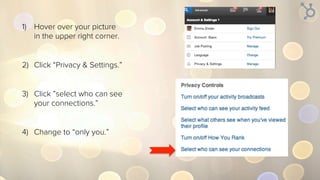
1)  Hover over your picture
in the upper right corner,
and click “Privacy &
Settings.”
2)  Click the “Privacy” tab.
3)  Click “Who can see your
connections.”
4)  Select “only you.”
Sort Connections
Into Groups
1)  Visit a connection’s profile.
2)  Click “tag” under the
Relationship tag.
3)  Tag the connection with a
specific group.
4)  Click “manage tags” to edit or
delete existing tags, or “add
new tag” to create new ones.
Search a
Customer’s
Connections
For Referrals
1)  Visit a connection’s profile.
2)  Click the number of
connections they have.
3)  Click the magnifying glass.
4)  Search for potential referrals by
job title or company.
View 100 Profiles a
Day
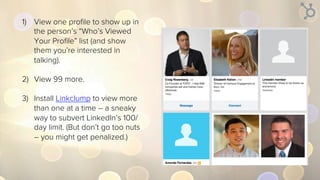
1)  View one profile to show up in
the person’s “Who’s Viewed
Your Profile” list (and show
them you’re interested in
talking).
2)  View 99 more.
Get Found in Search
with Keywords
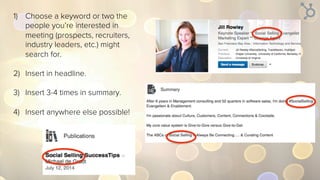
1)  Choose a keyword or two the
people you’re interested in
meeting (prospects, recruiters,
industry leaders, etc.) might
search for.
2)  Insert in headline.
3)  Insert 3-4 times in summary.
4)  Insert anywhere else possible!
Rearrange the Order
of Your Groups
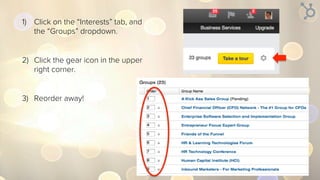
1)  Click on the “Interests” tab, and
the “Groups” dropdown.
2)  Click the sprocket icon in the
upper right corner.
3)  Reorder away!
Use Boolean
Search
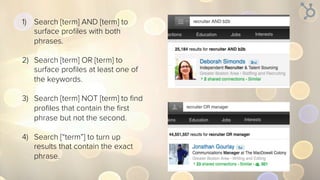
1)  Search [term] AND [term] to
surface profiles with both
phrases.
2)  Search [term] OR [term] to
surface profiles at least one of
the keywords.
3)  Search [term] NOT [term] to find
profiles that contain the first
phrase but not the second.
4)  Search [“term”] to turn up
results that contain the exact
phrase.
Find Out Exactly
How Many
Connections
Someone Has
1)  Type in a person’s name in the
top search bar and click the
blue magnifying glass icon.
2)  Click on “500+”
3)  Check out the number of
connections in the top left
corner.
Export Your
Connections’
Email Addresses
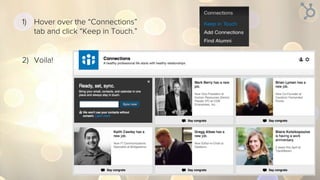
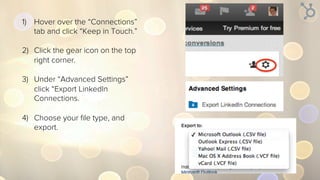
1)  Hover over the “My Network”
tab and click “Connections.”
2)  Click the gear icon on the top
right corner.
3)  Under “Advanced Settings”
click “Export LinkedIn
Connections.”
4)  Choose your file type, and
export.
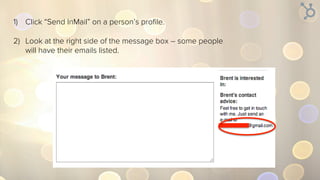
Message People
You’re Not
Connected To
(no InMail required)
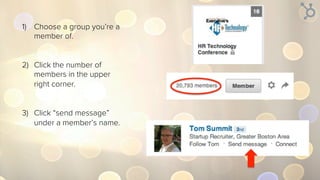
1)  Choose a group you’re a
member of.
2)  Click the number of
members under the
group name.
3)  Click the envelope icon
next to a member’s
name.
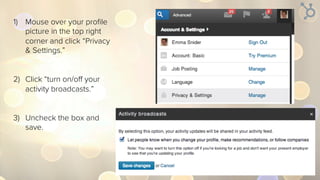
Turn Your Profile
Edit Notifications
Off
1)  Mouse over your profile
picture in the top right
corner and click “Privacy
& Settings.”
2)  Click the “Privacy” tab.
3)  Click “Sharing profile
edits.”
4)  Change “Yes” to “No.”
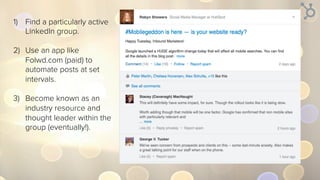
Automate Your
Group Posts
1)  Find a particularly active
LinkedIn group.
2)  Use an app like Followed
(paid) to automate posts
at set intervals.
3)  Become known as an
industry resource and
thought leader within the
group (eventually!).
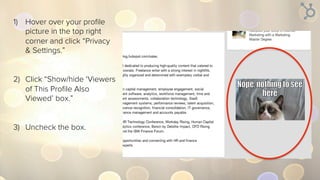
Disable “People
Also Viewed”
(keep those viewers on
your page!)
1)  Hover over your profile
picture in the top right
corner and click “Privacy
& Settings.”
2)  Click the “Privacy” tab.
3)  Click “Viewers of this
profile also viewed.”
4)  Uncheck the box.
Find Prospects
You Already Have
Something in
Common With
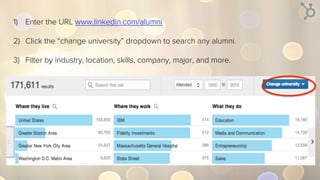
1)  Enter the URL www.linkedin.com/alumni
2)  Click the “change university” dropdown to search any alumni.
3)  Filter by industry, location, skills, company, major, and more.
Customize Your
Connection
Request on a
Mobile Device
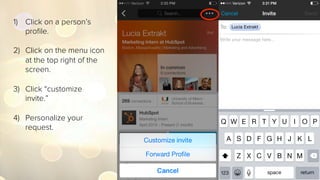
1)  Click on a person’s
profile.
2)  Click on the menu icon
at the top right of the
screen.
3)  Click “Personalize
invite.”
4)  Personalize your
request.
Reorganize Your
Endorsements
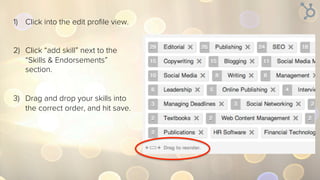
1)  Click into the edit profile view.
2)  Click the arrow button next to
the “Skills & Endorsements”
section.
3)  Drag and drop your skills into
the correct order, and hit save.
View LinkedIn
profile information
in Gmail
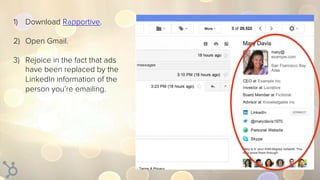
1)  Download Rapportive.
2)  Open Gmail.
3)  Rejoice in the fact that ads
have been replaced by the
LinkedIn information of the
person you’re emailing.
Set a Reminder to
Follow Up with
Someone
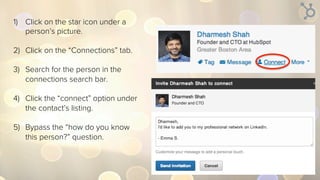
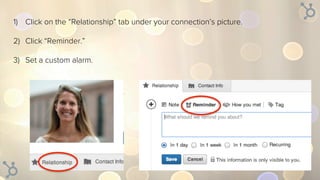
1)  Click “Reminder” under your connection’s picture.
2)  Set a custom alarm.
Get New Leads
Emailed Directly to
You
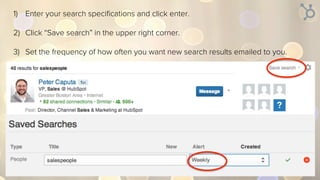
1)  Enter your search specifications and click enter.
2)  Click “Save search” in the upper right corner.
3)  Set the frequency of how often you want new search results emailed to you.
Add More Than
One Twitter
Account to Your
Profile
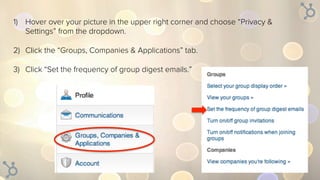
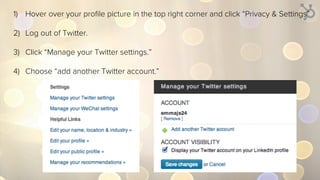
1)  Hover over your profile picture in the top right corner and click “Privacy & Settings”
2)  Click “Twitter settings.”
3)  Choose “add another Twitter account.”
Want even more
LinkedIn tips?
Want even more
LinkedIn tips?
Subscribe to the HubSpot
Sales Blog
Want even more
LinkedIn tips?
Subscribe to the HubSpot
Sales Blog
Sherlock Holmes is a
subscriber.*
Want even more
LinkedIn tips?
Subscribe to the HubSpot
Sales Blog
Sherlock Holmes is a
subscriber.*
*not a verifiable fact.

21 Hidden LinkedIn Hacks Revealed

  • 1.
  • 2.
    You know thepower of LinkedIn for
  • 3.
    You know thepower of LinkedIn for sales prospecting
  • 4.
    You know thepower of LinkedIn for finding a job
  • 5.
    You know thepower of LinkedIn for hiring
  • 6.
    You know thepower of LinkedIn for networking
  • 7.
    You know thepower of LinkedIn for marketing
  • 8.
    But are youusing these hidden LinkedIn hacks?
  • 9.
    Here are 21tips, tricks, and hacks to make you a LinkedIn pro.
  • 10.
  • 11.
    1)  Go toa connection’s profile. 2)  Mouse over the arrow next to the “endorse” button and click “View recent activity.” 3)  Get a digest of everything your prospect has been reading, sharing, commenting on, and liking recently.
  • 12.
    Hide Your Connections FromPrying Eyes (read: your competition)
  • 13.
    1)  Hover overyour picture in the upper right corner, and click “Privacy & Settings.” 2)  Click the “Privacy” tab. 3)  Click “Who can see your connections.” 4)  Select “only you.”
  • 14.
  • 15.
    1)  Visit aconnection’s profile. 2)  Click “tag” under the Relationship tag. 3)  Tag the connection with a specific group. 4)  Click “manage tags” to edit or delete existing tags, or “add new tag” to create new ones.
  • 16.
  • 17.
    1)  Visit aconnection’s profile. 2)  Click the number of connections they have. 3)  Click the magnifying glass. 4)  Search for potential referrals by job title or company.
  • 18.
  • 19.
    1)  View oneprofile to show up in the person’s “Who’s Viewed Your Profile” list (and show them you’re interested in talking). 2)  View 99 more.
  • 20.
    Get Found inSearch with Keywords
  • 21.
    1)  Choose akeyword or two the people you’re interested in meeting (prospects, recruiters, industry leaders, etc.) might search for. 2)  Insert in headline. 3)  Insert 3-4 times in summary. 4)  Insert anywhere else possible!
  • 22.
  • 23.
    1)  Click onthe “Interests” tab, and the “Groups” dropdown. 2)  Click the sprocket icon in the upper right corner. 3)  Reorder away!
  • 24.
  • 25.
    1)  Search [term]AND [term] to surface profiles with both phrases. 2)  Search [term] OR [term] to surface profiles at least one of the keywords. 3)  Search [term] NOT [term] to find profiles that contain the first phrase but not the second. 4)  Search [“term”] to turn up results that contain the exact phrase.
  • 26.
    Find Out Exactly HowMany Connections Someone Has
  • 27.
    1)  Type ina person’s name in the top search bar and click the blue magnifying glass icon. 2)  Click on “500+” 3)  Check out the number of connections in the top left corner.
  • 28.
  • 29.
    1)  Hover overthe “My Network” tab and click “Connections.” 2)  Click the gear icon on the top right corner. 3)  Under “Advanced Settings” click “Export LinkedIn Connections.” 4)  Choose your file type, and export.
  • 30.
  • 31.
    1)  Choose agroup you’re a member of. 2)  Click the number of members under the group name. 3)  Click the envelope icon next to a member’s name.
  • 32.
    Turn Your Profile EditNotifications Off
  • 33.
    1)  Mouse overyour profile picture in the top right corner and click “Privacy & Settings.” 2)  Click the “Privacy” tab. 3)  Click “Sharing profile edits.” 4)  Change “Yes” to “No.”
  • 34.
  • 35.
    1)  Find aparticularly active LinkedIn group. 2)  Use an app like Followed (paid) to automate posts at set intervals. 3)  Become known as an industry resource and thought leader within the group (eventually!).
  • 36.
    Disable “People Also Viewed” (keepthose viewers on your page!)
  • 37.
    1)  Hover overyour profile picture in the top right corner and click “Privacy & Settings.” 2)  Click the “Privacy” tab. 3)  Click “Viewers of this profile also viewed.” 4)  Uncheck the box.
  • 38.
    Find Prospects You AlreadyHave Something in Common With
  • 39.
    1)  Enter theURL www.linkedin.com/alumni 2)  Click the “change university” dropdown to search any alumni. 3)  Filter by industry, location, skills, company, major, and more.
  • 40.
  • 41.
    1)  Click ona person’s profile. 2)  Click on the menu icon at the top right of the screen. 3)  Click “Personalize invite.” 4)  Personalize your request.
  • 42.
  • 43.
    1)  Click intothe edit profile view. 2)  Click the arrow button next to the “Skills & Endorsements” section. 3)  Drag and drop your skills into the correct order, and hit save.
  • 44.
  • 45.
    1)  Download Rapportive. 2) Open Gmail. 3)  Rejoice in the fact that ads have been replaced by the LinkedIn information of the person you’re emailing.
  • 46.
    Set a Reminderto Follow Up with Someone
  • 47.
    1)  Click “Reminder”under your connection’s picture. 2)  Set a custom alarm.
  • 48.
    Get New Leads EmailedDirectly to You
  • 49.
    1)  Enter yoursearch specifications and click enter. 2)  Click “Save search” in the upper right corner. 3)  Set the frequency of how often you want new search results emailed to you.
  • 50.
    Add More Than OneTwitter Account to Your Profile
  • 51.
    1)  Hover overyour profile picture in the top right corner and click “Privacy & Settings” 2)  Click “Twitter settings.” 3)  Choose “add another Twitter account.”
  • 52.
  • 53.
    Want even more LinkedIntips? Subscribe to the HubSpot Sales Blog
  • 54.
    Want even more LinkedIntips? Subscribe to the HubSpot Sales Blog Sherlock Holmes is a subscriber.*
  • 55.
    Want even more LinkedIntips? Subscribe to the HubSpot Sales Blog Sherlock Holmes is a subscriber.* *not a verifiable fact.