Blackboard presentation
Blackboard Introduction
Ir Ellen Zillig-Straatman, SSC-ICT Education Technology
13-10-2011


          Delft
          University of
          Technology

          Challenge the future
Overview
•   Who am I?
•   Introduction round
•   Blackboard
•   Questions


                         Blackboard Introduction   2
Who Am I?
Ellen Zillig-Straatman

• New ‘FAB’ (Functional Manager) of Blackboard
• Working at Delft University of Technology since November 2008
• Trainee
   • Nov 2008: Education and Student Affairs at the Faculty of
     Architecture
   • Nov 2009: Education and Student Affairs at the Faculty of
     Technology, Policy and Management


                                              Blackboard Introduction   3
Introduction Round
 •   Name
 •   Faculty/department
 •   Experience working in Blackboard
 •   Reason to join this presentation and workshop
 •   Wants to learn more about?


                                             Blackboard Introduction   4
Blackboard
•   My TUDelft
•   Tabs
•   Courses/Organizations
•   Blackboard Upgrade
•   Important
•   Questions


                            Blackboard Introduction   5
Tabs
• My TUDelft
     • My TUDelft
     • Notifications Dashboard
• My Content
• My Staff Info
     •   Staff Info
     •   Osiris Staff
     •   Staff Resources
     •   Online Teacher Training (new)
•   My Campus Life
•   Courses
•   Organizations
•   Help


                                         Blackboard Introduction   6
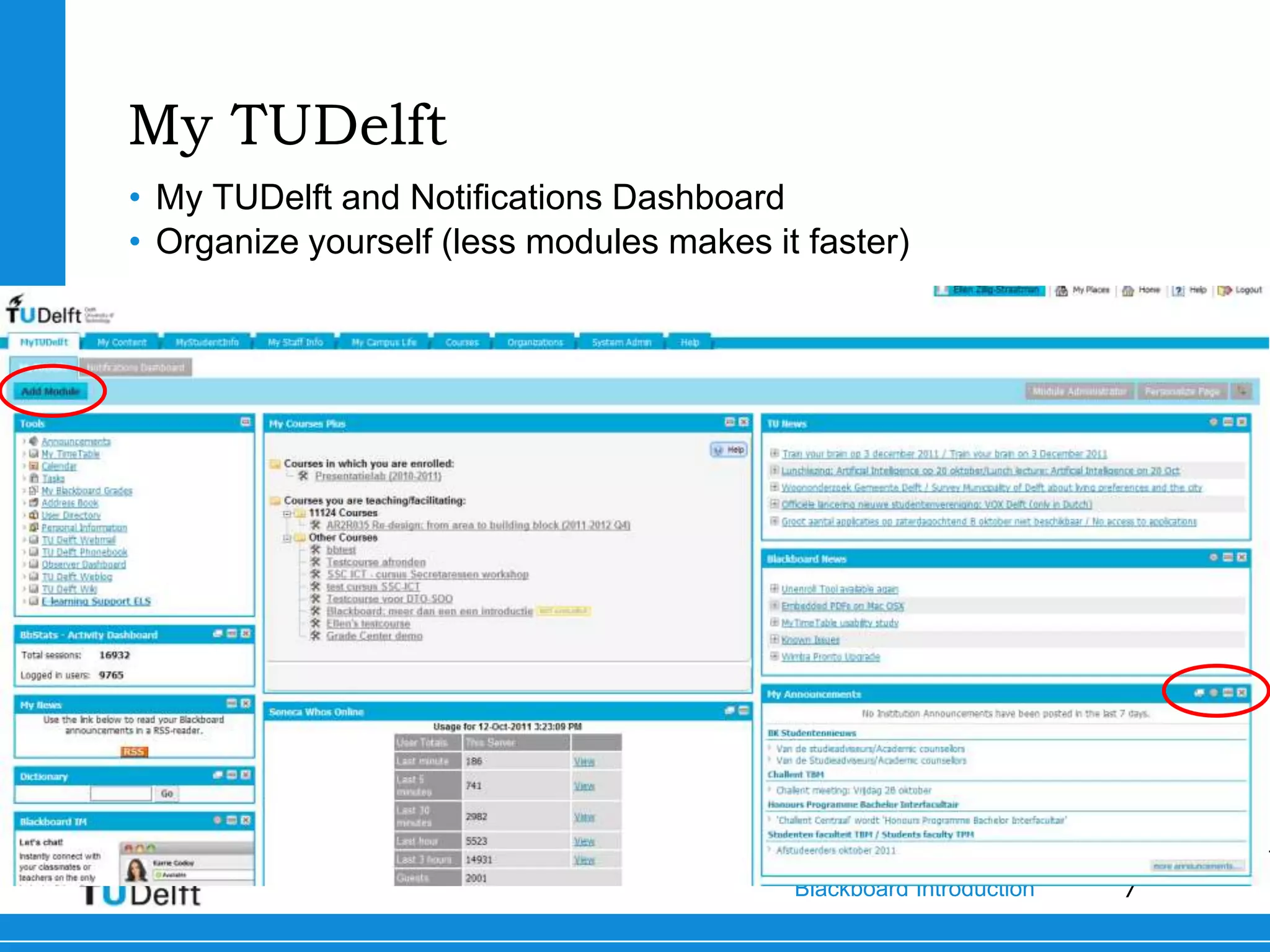
My TUDelft
• My TUDelft and Notifications Dashboard
• Organize yourself (less modules makes it faster)


                                          Blackboard Introduction   7
My Content


             Blackboard Introduction   8
My Staff Info
• Staff Info
   •   My Timetable
   •   Readers
   •   Collegerama
   •   …..
• Osiris Staff
   • A link to Osiris, Osiris is outside Blackboard
• Staff Resources
   •   Software
   •   Dictionairy
   •   Windows 7 Manual
   •   …..
• Online Teacher Training (new)


                                                 Blackboard Introduction   9
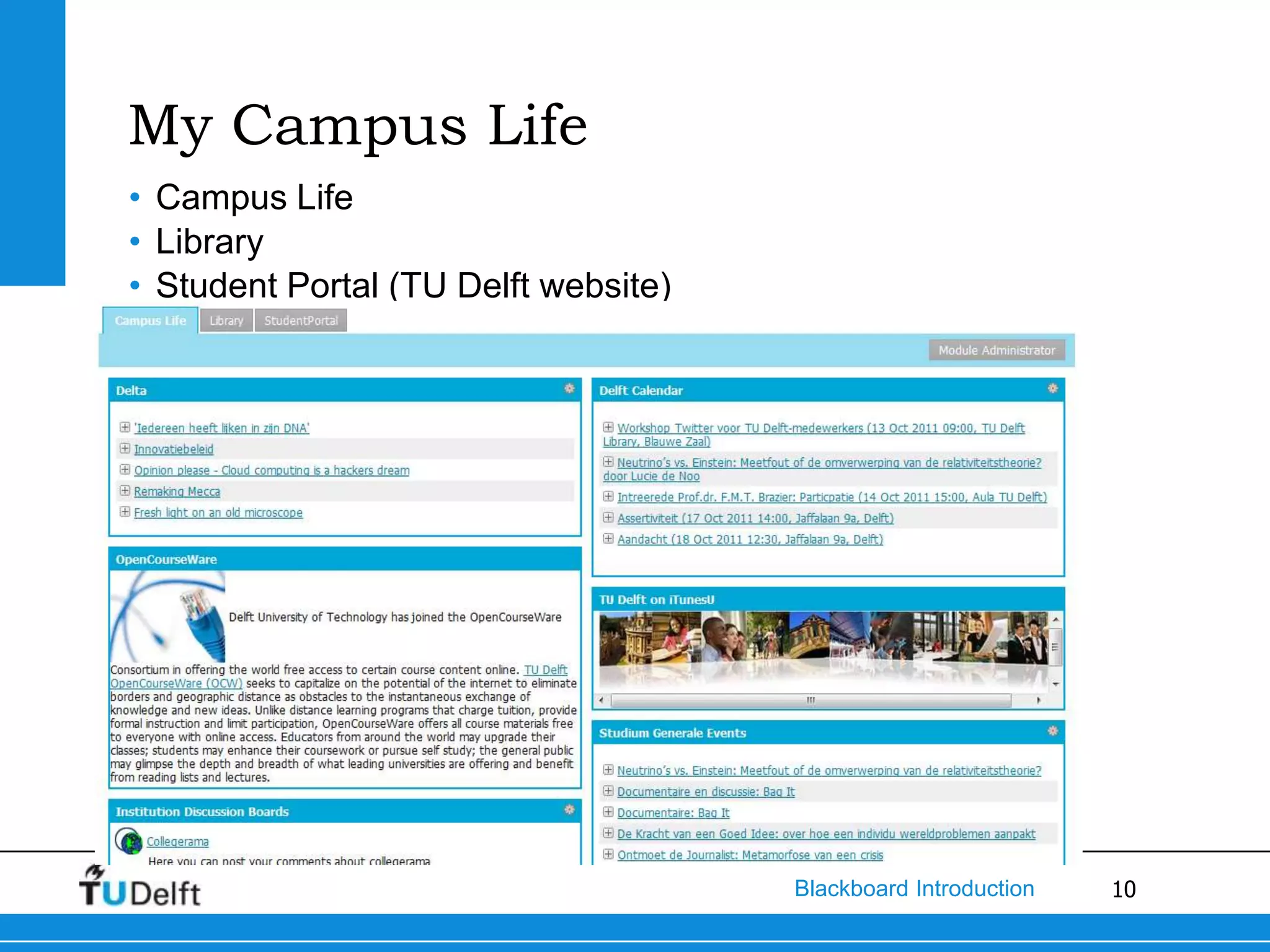
My Campus Life
• Campus Life
• Library
• Student Portal (TU Delft website)


                                      Blackboard Introduction   10
Courses/Organizations
• Courses
   • are linked to a TU Delft Course
   • are yearly renewed according to what is in CourseBase
   • Given more times a year  different courses

• Organizations
   • are used for other communities
   • are continues

• Organizations and Courses have the same Tools


                                            Blackboard Introduction   11
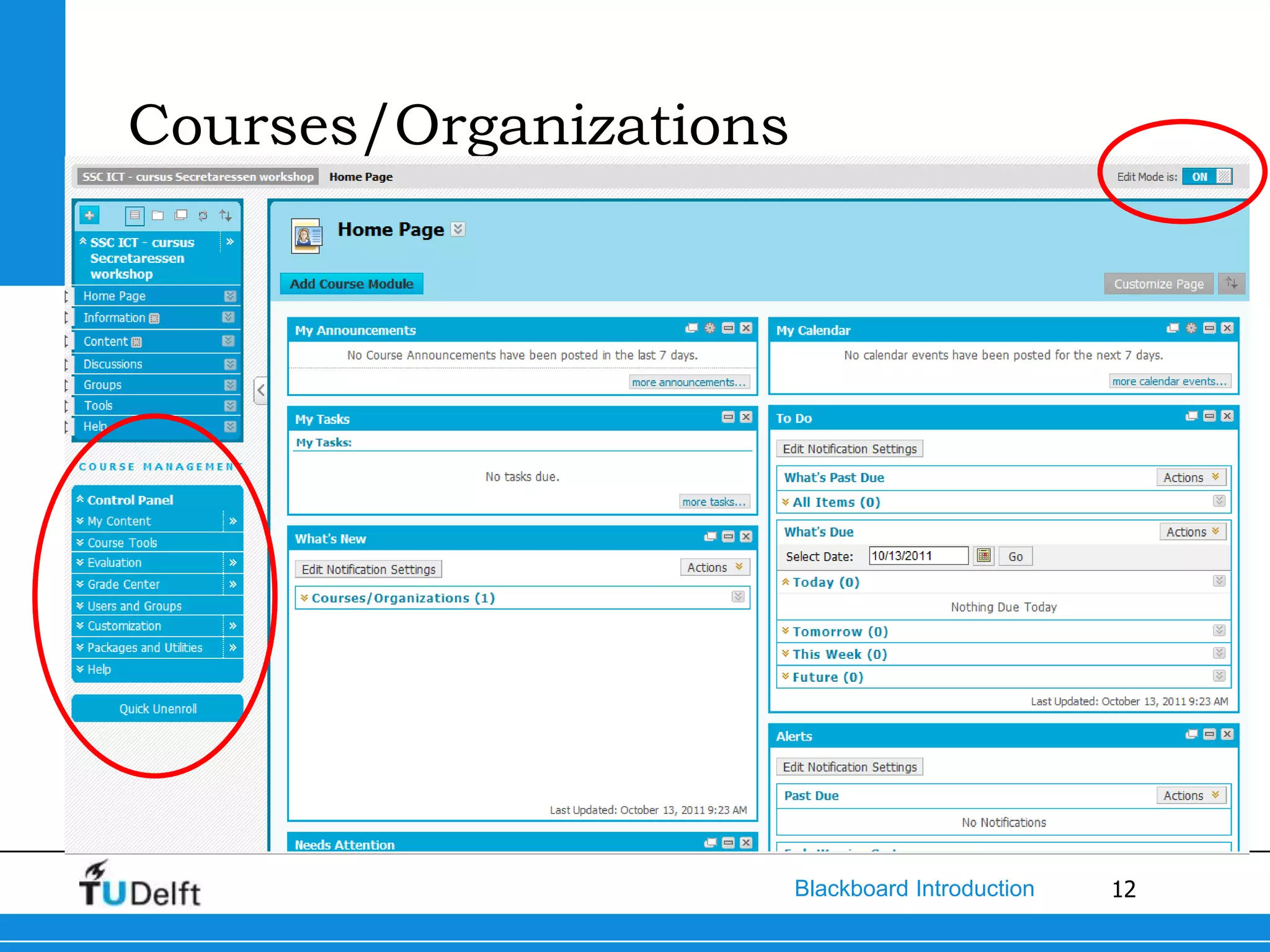
Courses/Organizations


                        Blackboard Introduction   12
Courses/Organizations
•   Create Announcement
•   Add Information or File
•   Add Users/Groups
•   Add Grades


                              Blackboard Introduction   13
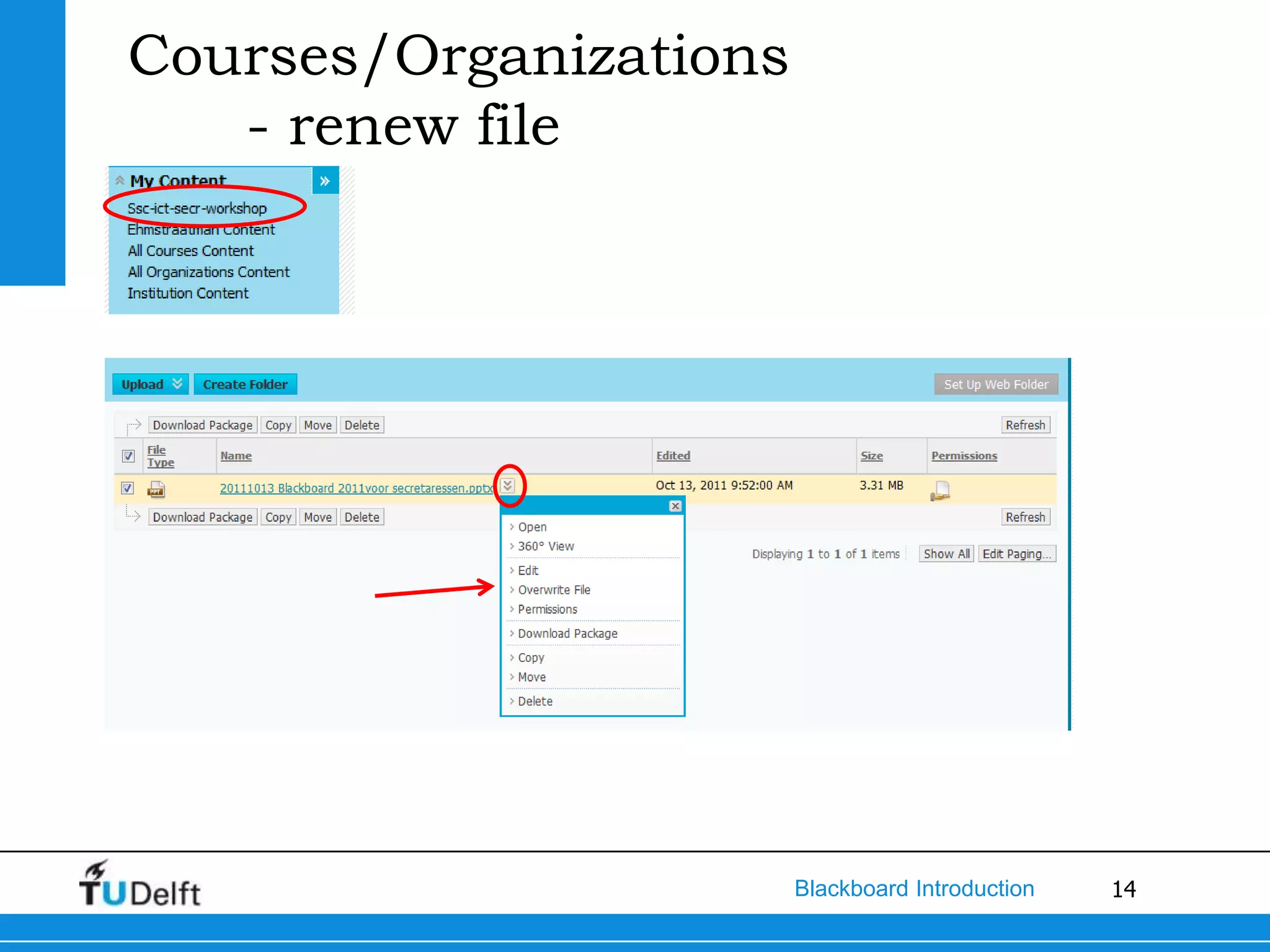
Courses/Organizations
   - renew file


                        Blackboard Introduction   14
Course/Organization Tools
          •   Announcements
          •   Batch Enroll Users
          •   Contacts
          •   Manage Announcements


                              Blackboard Introduction   15
Courses/Organizations
   – Add Content


                        Blackboard Introduction   16
Courses/Organizations
   - Users and Groups
•   Add Single Users
•   Import Many Users
•   Create Groups
•   Add Users to Groups
•   Import Groups


                          Blackboard Introduction   17
Courses/Organizations
   - Grade Center
            •   Enabling Grade Center for students
            •   Automatic Created Columns
            •   Assignments
            •   Test
            •   Grading
                 • Needs Grading
                 • Full Grade Center
            • Manage Grade Center
            • Work offline


                              Blackboard Introduction   18
Enabling Grade Center for students
Make sure the tool is available for students to view their grades
(customization  tool availability)


                                            Blackboard Introduction   19
Automatic Created Columns
•   Assignment
•   Blog
•   Discussion Board
•   Journal
•   Self and Peer Assessment
•   Survey
•   Test


                               Blackboard Introduction   20
Create an Assignment
• Create a new menu item (Create Content Area)
• Create an Assignment (see Create Assessment)


                                       Blackboard Introduction   21
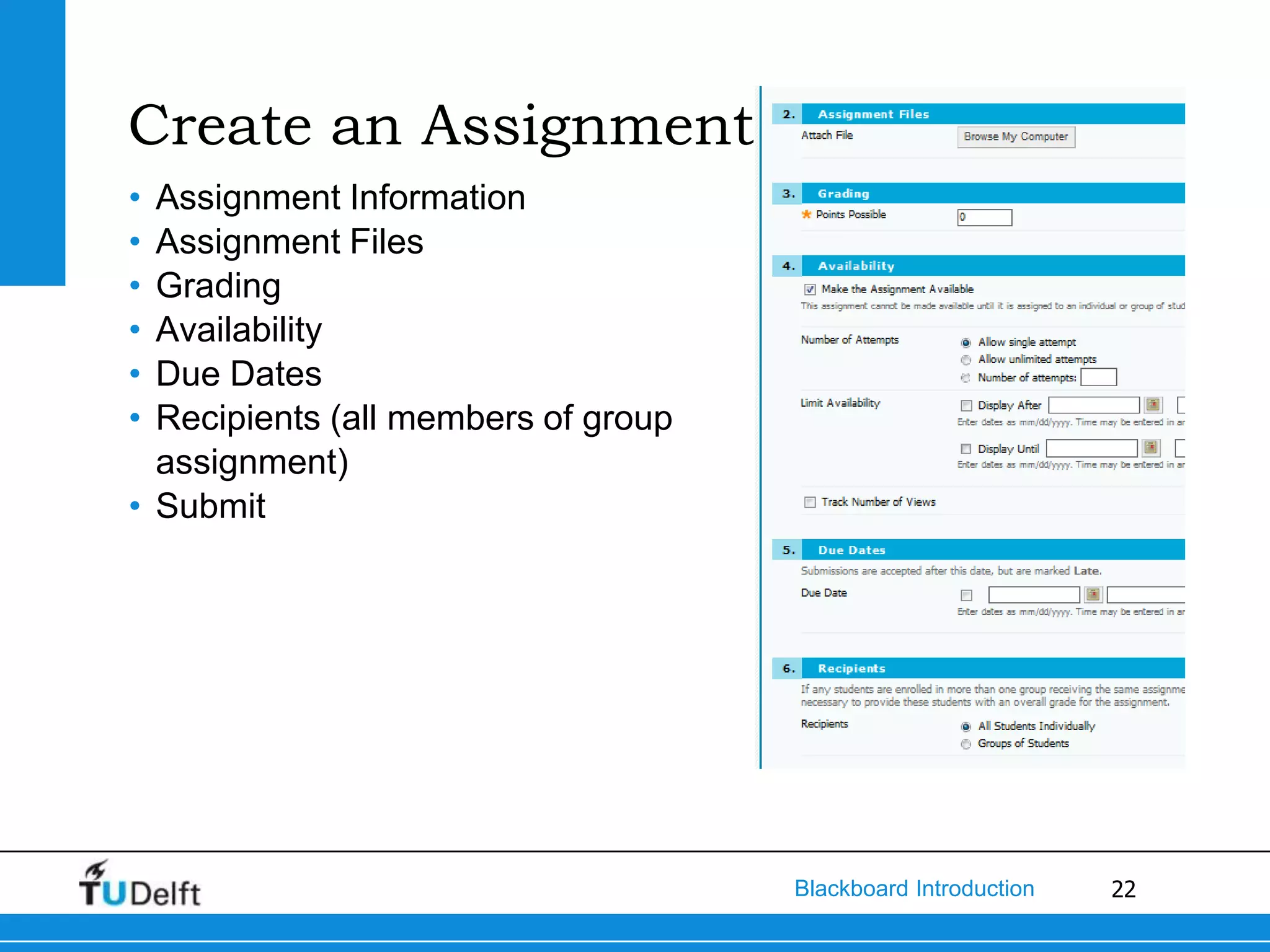
Create an Assignment
• Assignment Information
• Assignment Files
• Grading
• Availability
• Due Dates
• Recipients (all members of group
  assignment)
• Submit


                                     Blackboard Introduction   22
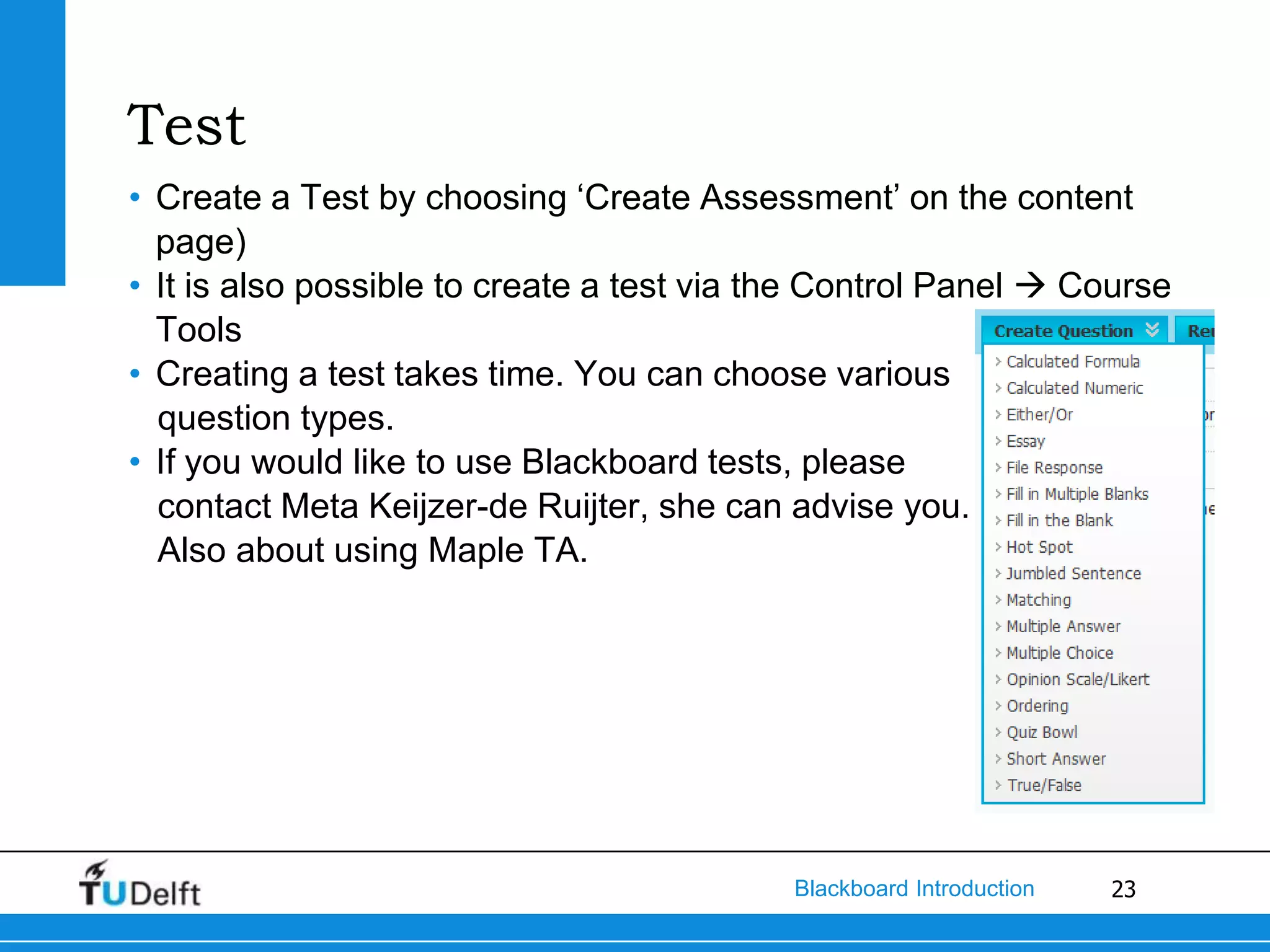
Test
• Create a Test by choosing ‘Create Assessment’ on the content
  page)
• It is also possible to create a test via the Control Panel  Course
  Tools
• Creating a test takes time. You can choose various
  question types.
• If you would like to use Blackboard tests, please
  contact Meta Keijzer-de Ruijter, she can advise you.
  Also about using Maple TA.


                                            Blackboard Introduction   23
Grade Assignment or Test
• Use the ‘Needs Grading’ link in the Grade Center Menu
• Go to the ‘Full Grade Center’ and download all Assignments


                                         Blackboard Introduction   24
Needs Grading
• Possible to make a selection by categorie, item, user and/or date
• Grade one user or one after the other


                                          Blackboard Introduction   25
Full Grade Center
• Go to the ‘Full Grade Center’ and download all Assignments


                       Needs Grading


                                         Blackboard Introduction   26
Manage Grade Center
•   Grading Periods
•   Grading Schemas
•   Grading Color Code
•   Categories
•   Smart Views

• Create Calculated Columns


                              Blackboard Introduction   27
Grading Schemes
• A ‘Grading Scheme’ will grade your assignments and tests
  automatically after giving points.
• You can Create your own Grading Scheme
• All New courses will have ‘round off at 0.1’ as standard grading
  scheme
• Is very simple to create your own Grading Scheme, but can take
  some time.


                                          Blackboard Introduction   28
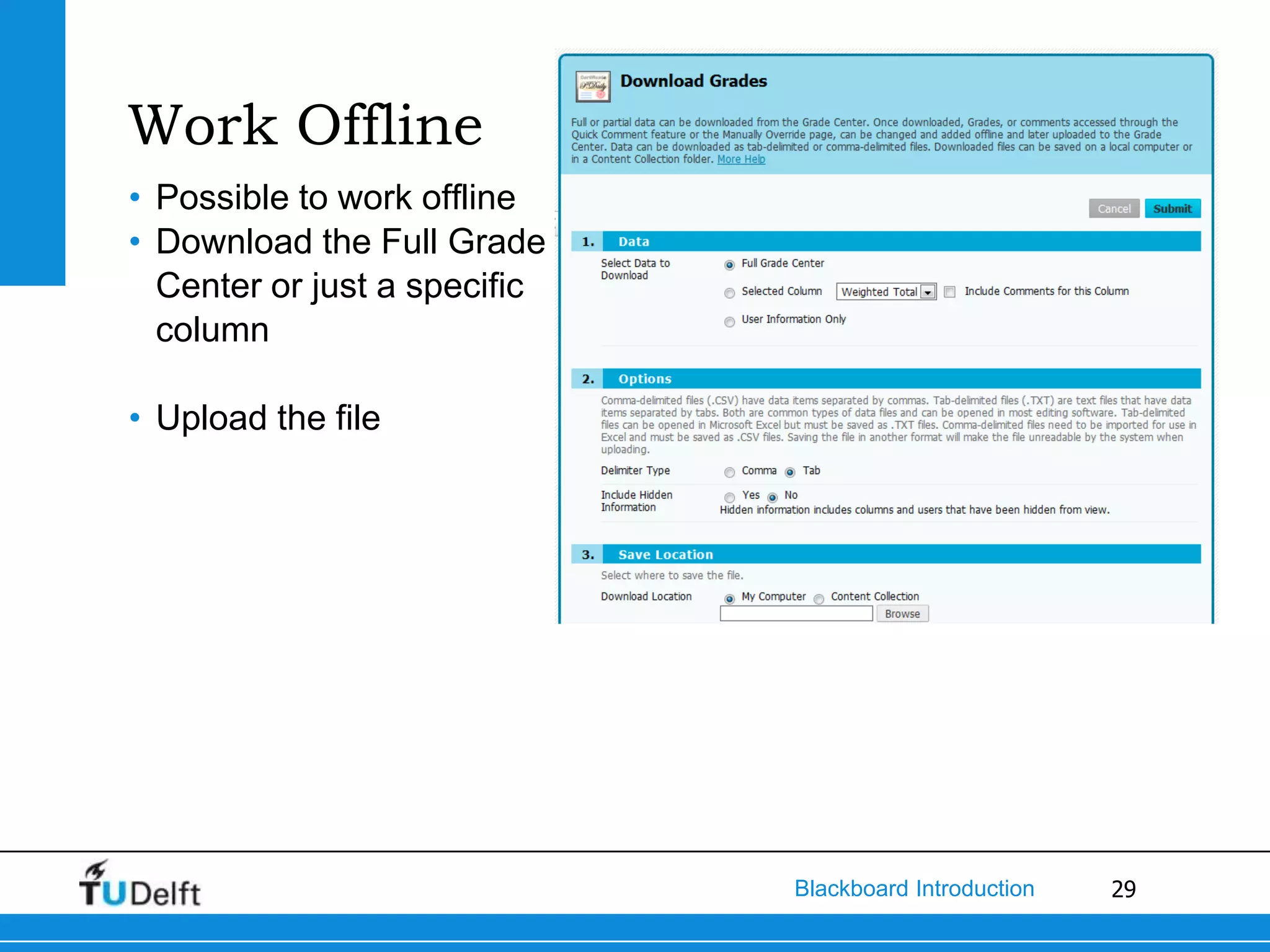
Work Offline
• Possible to work offline
• Download the Full Grade
  Center or just a specific
  column

• Upload the file


                              Blackboard Introduction   29
Tutorial Overview Grade Center
•   Smart View
•   Customizing view
•   Grading Notes
•   Working Offline
•   Creating Test
•   Uploading Questions from Excel
•   Downloading Assignments
•   Color Code

More Tutorials on: http://ondemand.blackboard.com/assess.htm


                                        Blackboard Introduction   30
Courses/Organizations
   - Customization
             • Enrollment Options
                • Enroll by instructor
                • Self Enrollment
             • Set Guest Access
             • Tool Availibility


                               Blackboard Introduction   31
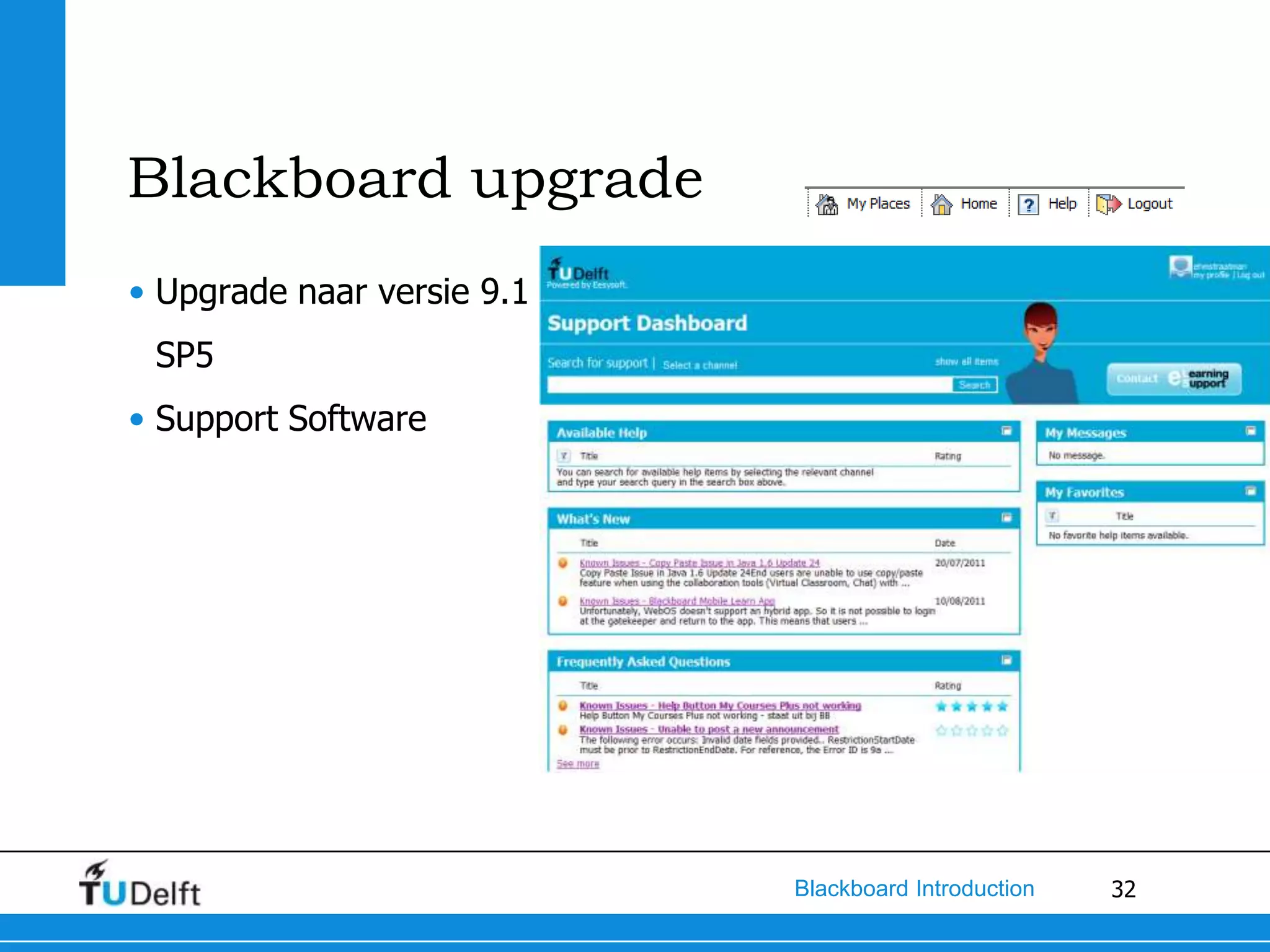
Blackboard upgrade
• Upgrade naar versie 9.1
 SP5
• Support Software


                            Blackboard Introduction   32
Important
• Use Firefox as your default Blackboard browser. This will give the
  least problems.
• If you do experience a problem, it sometimes help to try another
  browser (Chrome, Internet Explorer)
• If you have a question: contact E-learning Support!!!!

• Next Week:
   • Autumn Break? Reschedule or not?


                                           Blackboard Introduction   33
Questions?
E-Learning Support
   • els@tudelft.nl
   • 89194

Ellen Zillig-Straatman
   • E.H.M.Zillig-Straatman@TUDelft.NL
   • 89098
   • Twitter: @ezillig

Blackboard:
   • Blackboard.weblog.tudelft.nl
   • BBfaq.weblog.tudelft.nl
   • Twitter: @TUDelftBb


                                    Blackboard Introduction   34
Questions? Remarks?


                      Blackboard Introduction   35

Blackboard Introduction for secretary - 13-10-2011

  • 1.
    Blackboard presentation Blackboard Introduction IrEllen Zillig-Straatman, SSC-ICT Education Technology 13-10-2011 Delft University of Technology Challenge the future
  • 2.
    Overview • Who am I? • Introduction round • Blackboard • Questions Blackboard Introduction 2
  • 3.
    Who Am I? EllenZillig-Straatman • New ‘FAB’ (Functional Manager) of Blackboard • Working at Delft University of Technology since November 2008 • Trainee • Nov 2008: Education and Student Affairs at the Faculty of Architecture • Nov 2009: Education and Student Affairs at the Faculty of Technology, Policy and Management Blackboard Introduction 3
  • 4.
    Introduction Round • Name • Faculty/department • Experience working in Blackboard • Reason to join this presentation and workshop • Wants to learn more about? Blackboard Introduction 4
  • 5.
    Blackboard • My TUDelft • Tabs • Courses/Organizations • Blackboard Upgrade • Important • Questions Blackboard Introduction 5
  • 6.
    Tabs • My TUDelft • My TUDelft • Notifications Dashboard • My Content • My Staff Info • Staff Info • Osiris Staff • Staff Resources • Online Teacher Training (new) • My Campus Life • Courses • Organizations • Help Blackboard Introduction 6
  • 7.
    My TUDelft • MyTUDelft and Notifications Dashboard • Organize yourself (less modules makes it faster) Blackboard Introduction 7
  • 8.
    My Content Blackboard Introduction 8
  • 9.
    My Staff Info •Staff Info • My Timetable • Readers • Collegerama • ….. • Osiris Staff • A link to Osiris, Osiris is outside Blackboard • Staff Resources • Software • Dictionairy • Windows 7 Manual • ….. • Online Teacher Training (new) Blackboard Introduction 9
  • 10.
    My Campus Life •Campus Life • Library • Student Portal (TU Delft website) Blackboard Introduction 10
  • 11.
    Courses/Organizations • Courses • are linked to a TU Delft Course • are yearly renewed according to what is in CourseBase • Given more times a year  different courses • Organizations • are used for other communities • are continues • Organizations and Courses have the same Tools Blackboard Introduction 11
  • 12.
    Courses/Organizations Blackboard Introduction 12
  • 13.
    Courses/Organizations • Create Announcement • Add Information or File • Add Users/Groups • Add Grades Blackboard Introduction 13
  • 14.
    Courses/Organizations - renew file Blackboard Introduction 14
  • 15.
    Course/Organization Tools • Announcements • Batch Enroll Users • Contacts • Manage Announcements Blackboard Introduction 15
  • 16.
    Courses/Organizations – Add Content Blackboard Introduction 16
  • 17.
    Courses/Organizations - Users and Groups • Add Single Users • Import Many Users • Create Groups • Add Users to Groups • Import Groups Blackboard Introduction 17
  • 18.
    Courses/Organizations - Grade Center • Enabling Grade Center for students • Automatic Created Columns • Assignments • Test • Grading • Needs Grading • Full Grade Center • Manage Grade Center • Work offline Blackboard Introduction 18
  • 19.
    Enabling Grade Centerfor students Make sure the tool is available for students to view their grades (customization  tool availability) Blackboard Introduction 19
  • 20.
    Automatic Created Columns • Assignment • Blog • Discussion Board • Journal • Self and Peer Assessment • Survey • Test Blackboard Introduction 20
  • 21.
    Create an Assignment •Create a new menu item (Create Content Area) • Create an Assignment (see Create Assessment) Blackboard Introduction 21
  • 22.
    Create an Assignment •Assignment Information • Assignment Files • Grading • Availability • Due Dates • Recipients (all members of group assignment) • Submit Blackboard Introduction 22
  • 23.
    Test • Create aTest by choosing ‘Create Assessment’ on the content page) • It is also possible to create a test via the Control Panel  Course Tools • Creating a test takes time. You can choose various question types. • If you would like to use Blackboard tests, please contact Meta Keijzer-de Ruijter, she can advise you. Also about using Maple TA. Blackboard Introduction 23
  • 24.
    Grade Assignment orTest • Use the ‘Needs Grading’ link in the Grade Center Menu • Go to the ‘Full Grade Center’ and download all Assignments Blackboard Introduction 24
  • 25.
    Needs Grading • Possibleto make a selection by categorie, item, user and/or date • Grade one user or one after the other Blackboard Introduction 25
  • 26.
    Full Grade Center •Go to the ‘Full Grade Center’ and download all Assignments Needs Grading Blackboard Introduction 26
  • 27.
    Manage Grade Center • Grading Periods • Grading Schemas • Grading Color Code • Categories • Smart Views • Create Calculated Columns Blackboard Introduction 27
  • 28.
    Grading Schemes • A‘Grading Scheme’ will grade your assignments and tests automatically after giving points. • You can Create your own Grading Scheme • All New courses will have ‘round off at 0.1’ as standard grading scheme • Is very simple to create your own Grading Scheme, but can take some time. Blackboard Introduction 28
  • 29.
    Work Offline • Possibleto work offline • Download the Full Grade Center or just a specific column • Upload the file Blackboard Introduction 29
  • 30.
    Tutorial Overview GradeCenter • Smart View • Customizing view • Grading Notes • Working Offline • Creating Test • Uploading Questions from Excel • Downloading Assignments • Color Code More Tutorials on: http://ondemand.blackboard.com/assess.htm Blackboard Introduction 30
  • 31.
    Courses/Organizations - Customization • Enrollment Options • Enroll by instructor • Self Enrollment • Set Guest Access • Tool Availibility Blackboard Introduction 31
  • 32.
    Blackboard upgrade • Upgradenaar versie 9.1 SP5 • Support Software Blackboard Introduction 32
  • 33.
    Important • Use Firefoxas your default Blackboard browser. This will give the least problems. • If you do experience a problem, it sometimes help to try another browser (Chrome, Internet Explorer) • If you have a question: contact E-learning Support!!!! • Next Week: • Autumn Break? Reschedule or not? Blackboard Introduction 33
  • 34.
    Questions? E-Learning Support • els@tudelft.nl • 89194 Ellen Zillig-Straatman • E.H.M.Zillig-Straatman@TUDelft.NL • 89098 • Twitter: @ezillig Blackboard: • Blackboard.weblog.tudelft.nl • BBfaq.weblog.tudelft.nl • Twitter: @TUDelftBb Blackboard Introduction 34
  • 35.
    Questions? Remarks? Blackboard Introduction 35