RF Management Applications Using ZigBee Networks


TITULACIÓ: Enginyeria Tècnica de Telecomunicacions Especialitat en Telemàtica


                                               AUTORS: Albert Abelló Lozano.
                                            DIRECTORS: Antoni Lazaro Guillén.

                                                            DATA: Maig de 2010.
                    RF	
  Management	
  Applications	
  Using	
  ZigBee	
  Network	


1        Index
1	
   Index ....................................................................................................................... 2	
  
2	
   Objectives ............................................................................................................... 4	
  
3	
   Introducing	
  ZigBee	
  Networks................................................................................... 5	
  
          3.1	
   What	
  Does	
  ZigBee	
  Mean?....................................................................................5	
  
          3.2	
   Licensing .............................................................................................................5	
  
          3.3	
   Uses ....................................................................................................................5	
  
          3.4	
   Specification........................................................................................................6	
  
          3.5	
   Battery	
  Life..........................................................................................................7	
  
          3.6	
   ZigBee	
  Modulation ..............................................................................................7	
  
          3.7	
   Device	
  Types .......................................................................................................8	
  
             3.7.1	
   ZigBee	
  Coordinator.............................................................................................8	
  
             3.7.2	
   ZigBee	
  Router .....................................................................................................8	
  
             3.7.3	
   ZigBee	
  End	
  Device ..............................................................................................9	
  
4	
   ZigBee	
  Networking ................................................................................................ 10	
  
          4.1	
   Network	
  Topologies .......................................................................................... 11	
  
          4.2	
   ZigBee	
  Stack ...................................................................................................... 12	
  
          4.3	
   ZigBee	
  Modules................................................................................................. 13	
  
             4.3.1	
   Jennic	
  JN5148	
  Evaluation	
  Kit ............................................................................13	
  
             4.3.2	
   Telegesis	
  ETRX357DVK	
  Development	
  Kit..........................................................14	
  
5	
   Cirronet	
  ZMN2405/HP	
  ZigBee	
  Module ................................................................... 16	
  
           5.1	
   Specifications .................................................................................................... 16	
  
           5.2	
   Describing	
  the	
  Hardware ................................................................................... 17	
  
           5.3	
   Texas	
  Instruments	
  CC2430................................................................................. 20	
  
              5.3.1	
   RF/Layout .........................................................................................................20	
  
              5.3.2	
   Low	
  Power ........................................................................................................21	
  
              5.3.3	
   Microcontroller.................................................................................................21	
  
              5.3.4	
   Peripherals........................................................................................................21	
  
           5.4	
   Module	
  Pin	
  Description ..................................................................................... 23	
  
           5.5	
   Cirronet	
  Standard	
  Module	
  (CSM)	
  API................................................................. 25	
  
           5.6	
   Communication	
  Protocol ................................................................................... 26	
  
           5.7	
   Clusters ............................................................................................................. 28	
  
              5.7.1	
   Module	
  I/O	
  Cluster	
  (ID	
  0x01)............................................................................28	
  
              5.7.2	
   Configuration	
  Cluster	
  (ID	
  0x02) ........................................................................30	
  
              5.7.3	
   Reset	
  Cluster	
  (ID	
  0x03) .....................................................................................33	
  
              5.7.4	
   Network	
  Cluster	
  (ID	
  0x07) ................................................................................34	
  
              5.7.5	
   RF	
  Cluster	
  (ID	
  0x08) ..........................................................................................35	
  
              5.7.6	
   Security	
  Cluster	
  (ID	
  0x09) .................................................................................36	
  
           5.8	
   Sending	
  Commands ........................................................................................... 37	
  
              5.8.1	
   Set	
  Field	
  (MSG	
  Type	
  0x01)................................................................................38	
  
              5.8.2	
   Set	
  Reply	
  (MSG	
  Type	
  0x81)...............................................................................38	
  
              5.8.3	
   Get	
  Field	
  (MSG	
  Type	
  0x05) ...............................................................................38	
  
              5.8.4	
   Get	
  Reply	
  (MSG	
  Type	
  0x85) ..............................................................................39	
  
              5.8.5	
   Send	
  String	
  (MSG	
  Type	
  0x0A) ...........................................................................39	
  
              5.8.6	
   Send	
  String	
  Reply	
  (MSG	
  Type	
  0x8A) .................................................................40	
  
              5.8.7	
   Get	
  IEEE	
  Address	
  (MSG	
  Type	
  0x10) ..................................................................40	
  

                                                                              2
                       RF	
  Management	
  Applications	
  Using	
  ZigBee	
  Network	


                   5.8.8	
   Get	
  IEEE	
  Address	
  Reply	
  (MSG	
  Type	
  0x90) ........................................................41	
  
                   5.8.9	
   Discovery	
  Request	
  (MSG	
  Type	
  0x64) ................................................................41	
  
                   5.8.10	
   Discovery	
  Reply	
  (MSG	
  Type	
  0xE4) ..................................................................42	
  
                   5.8.11	
   Discovery	
  End	
  (MSG	
  Type	
  0x65).....................................................................42	
  
                   5.8.12	
   Link	
  Announce	
  (MSG	
  Type	
  0xD0) ...................................................................42	
  
                   5.8.13	
   Error	
  (MSG	
  Type	
  0xFF)....................................................................................43	
  
                5.9	
   Creating	
  Sample	
  Packets ................................................................................... 44	
  
                   5.9.1	
   Microcontroller	
  Reset.......................................................................................44	
  
                   5.9.2	
   GI	
  I/O	
  Direction.................................................................................................45	
  
                   5.9.3	
   Receiving	
  Data ..................................................................................................47	
  
                5.10	
   Using	
  the	
  SPI	
  Bus............................................................................................. 49	
  
                5.11	
   Radio	
  TX	
  Power............................................................................................... 50	
  
6	
   Using	
  Cirronet	
  ZMN2405/HP	
  Development	
  Module............................................... 52	
  
          6.1	
   Building	
  a	
  Simple	
  Network ................................................................................ 52	
  
7	
   Matlab	
  Libraries	
  for	
  ZigBee.................................................................................... 56	
  
         7.1	
   Socket	
  Opening	
  (socket_openf) ......................................................................... 56	
  
         7.2	
   Building	
  the	
  Packet	
  (crear_cadena) ................................................................... 57	
  
         7.3	
   Reset	
  Code	
  (resetf) ............................................................................................ 57	
  
         7.4	
   Receiving	
  /	
  Sampling	
  Data	
  (rebre_dada_final) ................................................... 59	
  
            7.4.1	
   Sampling	
  Examples ...........................................................................................63	
  
         7.5	
   LQI	
  Test ............................................................................................................. 66	
  
            7.5.1	
   LQI	
  Test	
  Function ..............................................................................................66	
  
            7.5.2	
   Tests..................................................................................................................67	
  
8	
   Radar	
  Sampling ..................................................................................................... 71	
  
         8.1	
   Theory............................................................................................................... 71	
  
         8.2	
   Radar	
  Sampling	
  Using	
  ZigBee	
  Network .............................................................. 75	
  
               8.2.1	
   Sampling ...........................................................................................................78	
  
               8.2.2	
   Real	
  Examples...................................................................................................87	
  
9	
   Antenna	
  Array ....................................................................................................... 91	
  
10	
   Conclusions ......................................................................................................... 97	
  
11	
   Future	
  Applications ............................................................................................. 98	
  
12	
   References .......................................................................................................... 99	


                                                                                 3
             RF	
  Management	
  Applications	
  Using	
  ZigBee	
  Network	


2     Objectives


      This project is the result of the aim to develop new applications for ZigBee
technology. Nowadays lots of wireless technologies are available on the market but society
needs demands a cheaper and more reliable technology, this is the reason to create ZigBee.
This communication method allows a very low power consumption module to be able to
transmit data at enough speed to be applied in most industrial and domestic sectors.
      In this project we will demonstrate the capability of this modules to be used in
medical sectors and industrial applies. For example the use of ZigBee to monitor the vital
signs of a patient or even detect buried people in a catastrophe. Being able to monitor a
heart without plugging any device or even touching the patient, at the same time applying
the ZigBee into those environments will help the hospital to monitor all the data into a
server while connected with the doctors using some kind of portable device. All this can be
done because the network topology system of the ZigBee protocol.
      Industries are still waiting for a reliable and secure wireless system that allows all
machines to be managed without needing cables; ZigBee might be the answer. Most
industry sensors and machines could be monitored and managed from a central server
using only ZigBee modules distributed in the plant, all this can be done with a tiny amount
of power, and considering the cost of a module, this will suppose an small amount of
money investment compared with other technologies.
      Other markets such as building automation are also very interested in developing this
technology, as told before, this system will allow a single user to control and centralize the
management of a building. Home automation is becoming very popular as an access to
disabled people to a proper life quality style; ZigBee technology will deliver the automated
house of the future due to the network topology flexibility and the low-cost modules.
      ZigBee was created to address the market need for a cost-effective, standards-based
wireless networking solution that supports low data-rates, low-power consumption,
security and reliability. This is the only technology that addresses the unique needs of most
remote monitoring and sensory network applications. Developing and showing the
possibilities of this growing technology is the main aim of this project.
      In particular, the objectives of this project are:
             1. Understanding ZigBee networks
             2. Sampling data from a radar using ZigBee modules
             3. Use ZigBee modules to manage an antenna array


                                                       4
             RF	
  Management	
  Applications	
  Using	
  ZigBee	
  Network	


3     Introducing ZigBee Networks
3.1   What Does ZigBee Mean?
       ZigBee is a new wireless communication protocol using small, low-power digital
radios based on the IEEE 802.15.4-2003 standard. This technology is considered to be
simpler and less expensive than other WPANs, such as Bluetooth. ZigBee is a good option
when considering a radio-frequency application that require a low data rate, long battery
life and secure networking [1].
                                                  This low-cost, low-power, wireless
                                            mesh networking is a proprietary standard.
                                            Very useful when using monitoring
                                            applications, the low-power usage allows
                                            devices to run for long time with small
                                            batteries. Having a mesh type of network
                                            provides the system with a high reliability
                                            and larger range. This technology is
                                            supported by the ZigBee Alliance that
                                            publishes different profiles to be used by
                                            multiple vendors to create interoperable
products. Multiple companies integrate the ZigBee Alliance: Philips, Schneider Electric,
Texas Instruments, Emerson, AT&T, Cisco, etc.
      ZigBee is a very useful system to consider when designing Home Automation
systems that require very fast communication between all devices and the main computer.
This project will be focused in the Healthcare profile, which means it is designated to be
used in hospitals or similar.

3.2   Licensing
      Luckily ZigBee specification is free for non-commercial uses, this kind of licensing
is very helpful when developing new applications for a new technology like ZigBee. This
part of the specification is controlled trough the ZigBee Alliance, an entry level
membership called Adopter gives permission to create products for market using the
specifications. This way of licensing also makes companies become friendly about this
new technology because if they don’t become part of the Alliance they will not be allowed
to use the specification for developing new products [2].

3.3   Uses
      As said before, this protocol is focused in low-data transmission and long battery life.
Even this, applications are very common in our world, due to the low-cost of this
technology creating a wide network is not a problem. The resulting network will use very
small amounts of power so the cost gets even more reduced when talking about battery life.
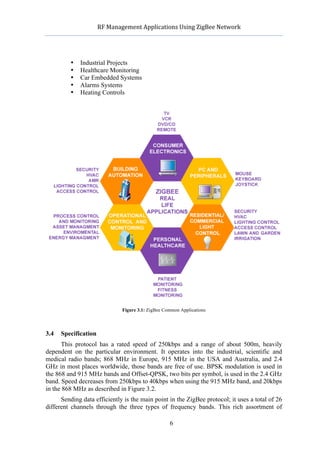
      Some typical areas of usage include (Figure 3.1):
             •   Home Entertainment
             •   Home Management
             •   Home Awareness
             •   Mobile Services

                                                       5
             RF	
  Management	
  Applications	
  Using	
  ZigBee	
  Network	


             •   Industrial Projects
             •   Healthcare Monitoring
             •   Car Embedded Systems
             •   Alarms Systems
             •   Heating Controls


                                 Figure 3.1: ZigBee Common Applications


3.4   Specification
      This protocol has a rated speed of 250kbps and a range of about 500m, heavily
dependent on the particular environment. It operates into the industrial, scientific and
medical radio bands; 868 MHz in Europe, 915 MHz in the USA and Australia, and 2.4
GHz in most places worldwide, those bands are free of use. BPSK modulation is used in
the 868 and 915 MHz bands and Offset-QPSK, two bits per symbol, is used in the 2.4 GHz
band. Speed decreases from 250kbps to 40kbps when using the 915 MHz band, and 20kbps
in the 868 MHz as described in Figure 3.2.
      Sending data efficiently is the main point in the ZigBee protocol; it uses a total of 26
different channels through the three types of frequency bands. This rich assortment of

                                                       6
            RF	
  Management	
  Applications	
  Using	
  ZigBee	
  Network	


frequencies allows each device to be configured to work everywhere around the globe,
allowing companies to easily develop new applications. A ZigBee network can join up to
65000 devices.


                            Figure 3.2: IEE 802.15.4 Provides Three Frequency Bands


3.5   Battery Life
       Usually when creating any RF application the problem related to the power
consumption relies to the radio. Sending data via any wireless system uses lots of energy;
this is something very important when talking about ZigBee. Those modules can activate
in 15ms or less, compared to any known wireless device such as Bluetooth, which takes
about three seconds to wake up, makes them be very fast responding to any command even
they are sleeping. Low latency results in power saving, saving power results in long battery
life.
      Consider a typical temperature sensor, the sensor itself uses a clock at five seconds
interval to calculate the ambient temperature and send the event to the radio to be sent.
Analyzing any ZigBee module, it’s perfectly reliable to use the sleep system to save energy
while its not sending any data. This means any ZigBee module will work for months with
only one alkaline battery for sending data.

3.6   ZigBee Modulation
      Those types of modulations are called Phase-Shift Keying; depending on the number
of bits it will be Quadrature (O-QPSK) with four bytes or Binary (BPSK). The main
difference between both of them is the number of points in the constellation diagram; those
modulations use a rectangular pulse [3].
      The BPSK uses two phases which are separated 180º and can modulate one bit per
symbol, for this reason is unsuitable for high data-rate transmissions, even that, this
modulation is the most robust of all the PSK since it takes the highest level of noise or
distortion to make the demodulator reach an incorrect decision.
      Offset-QPSK is a variant that uses 4 different values of the phase to transmit. Taking
four values of the phase at the same time to construct a QPSK symbol can allow the phase
of the signal to jump by as much as 180º at a time. When the signal is low-pass filtered,
                                                      7
           RF	
  Management	
  Applications	
  Using	
  ZigBee	
  Network	


these phase-shifts result in large amplitude fluctuations, this is bad when talking about
communication systems. If we offset the timing of the odd and even by one or half symbol-
period, the components will never change at the same time, resulting in a much lower
amplitude fluctuations that makes it more difficult to make an incorrect decision (Figure
3.3).


                          Figure 3.3: Differences Between O-QSPK and QPSK


     With four phases, this modulation can encode two bits per symbol, that means double
speed rate than a normal BPSK. That makes it reliable when trying to create faster transfer
communications systems.

3.7   Device Types
      There are three different types of ZigBee devices: ZigBee Coordinator (ZC), ZigBee
Router (ZR) and ZigBee End Device (ZED). The Coordinator and Router are sometimes
referred to as Full Function Devices or FFDs. The End Device is sometimes called
Reduced Function Device or RFD [4].

3.7.1 ZigBee Coordinator
      This is the main device of any ZigBee network; the coordinator forms the root of the
network three. There can be only one coordinator in each network, his work is to path the
communication of all devices and receive the necessary data to be processed. He is also in
charge of discovering new devices when needed and tracing them down in the network
route. If a Personal Area Network ID (Pan ID) has been specified the Routers and End
Devices will look for a Coordinator with the specified Pan ID, if the Coordinator has not
been found or it has a different Pan ID, they will automatically jump to the next channel on
its channel list until this Coordinator is found. The Coordinator will assign a 16-bit
network address to any new device that joins, this address is used to route the data inside
the network.

3.7.2 ZigBee Router
      Router function is to pass data trough all devices on the network, this module can
work also as an End Device receiving data form sensors and running applications.
Actually, it is very similar to the Coordinator, it also acts the same way with the Pan ID but
it cannot distribute new addresses.


                                                     8
              RF	
  Management	
  Applications	
  Using	
  ZigBee	
  Network	


3.7.3 ZigBee End Device
      This device is the simplest one, it only has enough functionality to communicate with
any Router or Coordinator and forward all data that has been acquired, and it cannot relay
data from other devices. This is the only device that can remain sleeping until it needs to be
used, it will be asleep a significant amount of time. ZigBee End Devices are much cheaper
to build that any other module because the amount of memory required is less than a
Coordinator or Router.

3.7.3.1 Sleeping Mode
      Its important to describe the way ZigBee manages sleeping devices. Routers and
Coordinators will be always awake as other devices may attempt to communicate. On the
other hand, End Devices are expected to send data for a brief period of time and then go to
sleep for the majority of time. When an End Device is sleeping the Router or Coordinator
holds any data addressed to it. Every time an End Device is awake it will send a request for
the parent node to send any data it may be holding. End Devices can also be configured to
stay permanently powered up.
      Sleeping End Devices will do two things:
             •   Wake up periodically and see if their parent is holding any data for them.
             •   Wake up periodically and perform some events


                                                        9
           RF	
  Management	
  Applications	
  Using	
  ZigBee	
  Network	


4    ZigBee Networking
     ZigBee is a mesh type networking that sits on top of an 802.15.4 MAC layer radio.
802.15.4 specifies the frequency bands, the number of channels, the spreading technique
and the modulation method. On the other side, ZigBee controls the way data is routed
between 802.15.4 physical layer radios.
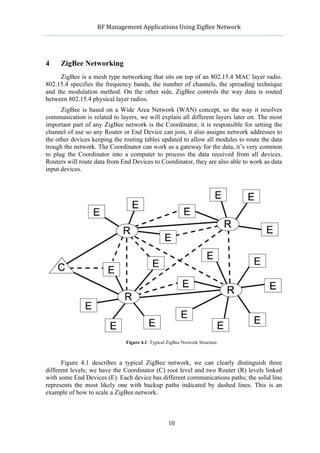
      ZigBee is based on a Wide Area Network (WAN) concept, so the way it resolves
communication is related to layers, we will explain all different layers later on. The most
important part of any ZigBee network is the Coordinator, it is responsible for setting the
channel of use so any Router or End Device can join, it also assigns network addresses to
the other devices keeping the routing tables updated to allow all modules to route the data
trough the network. The Coordinator can work as a gateway for the data, it’s very common
to plug the Coordinator into a computer to process the data received from all devices.
Routers will route data from End Devices to Coordinator, they are also able to work as data
input devices.


                                Figure 4.1: Typical ZigBee Network Structure


      Figure 4.1 describes a typical ZigBee network, we can clearly distinguish three
different levels; we have the Coordinator (C) root level and two Router (R) levels linked
with some End Devices (E). Each device has different communications paths; the solid line
represents the most likely one with backup paths indicated by dashed lines. This is an
example of how to scale a ZigBee network.


                                                    10
              RF	
  Management	
  Applications	
  Using	
  ZigBee	
  Network	


4.1   Network Topologies
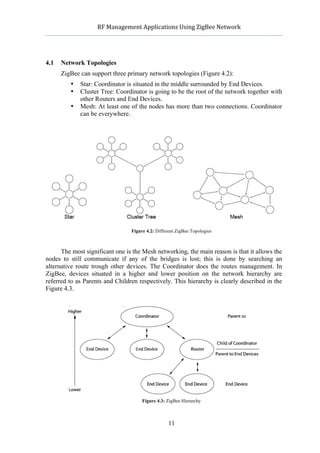
      ZigBee can support three primary network topologies (Figure 4.2):
             •   Star: Coordinator is situated in the middle surrounded by End Devices.
             •   Cluster Tree: Coordinator is going to be the root of the network together with
                 other Routers and End Devices.
             •   Mesh: At least one of the nodes has more than two connections. Coordinator
                 can be everywhere.


                                      Figure 4.2: Different ZigBee Topologies


      The most significant one is the Mesh networking, the main reason is that it allows the
nodes to still communicate if any of the bridges is lost; this is done by searching an
alternative route trough other devices. The Coordinator does the routes management. In
ZigBee, devices situated in a higher and lower position on the network hierarchy are
referred to as Parents and Children respectively. This hierarchy is clearly described in the
Figure 4.3.


                                           Figure 4.3: ZigBee Hierarchy


                                                       11
          RF	
  Management	
  Applications	
  Using	
  ZigBee	
  Network	


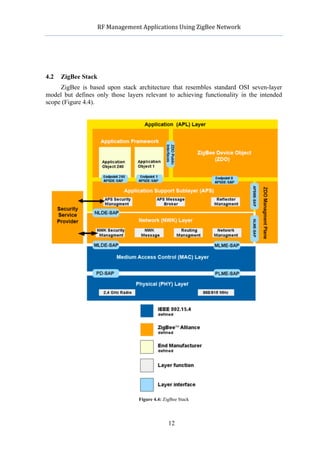
4.2   ZigBee Stack
     ZigBee is based upon stack architecture that resembles standard OSI seven-layer
model but defines only those layers relevant to achieving functionality in the intended
scope (Figure 4.4).


                                     Figure 4.4: ZigBee Stack


                                                   12
           RF	
  Management	
  Applications	
  Using	
  ZigBee	
  Network	


      The ZigBee stack architecture is made up of a set of blocks called layers. Each layer
performs a specific set of services for the layer above. The IEEE 802.15.4 defines the two
lower layers, medium access control (MAC) and physical layer (PHY). The ZigBee
Alliance provides the Network (NWK) layer and the framework for the application layer,
which includes the Application Support (APS) sub-layer, the ZigBee device object (ZDO)
and the manufacturer-defined application objects [5].
       IEEE 802.25.4 has two PHY layers that operate in two separate frequency ranges:
868/915 MHz and 2.4 GHz, depending on the country we will be using the device we will
switch between them. The MAC sub-layer controls access to the radio channel using
frames. The network layer provides mechanisms to join and leave network at the same
time as allows security and routing for the frames. The ZigBee application layer consists of
the APS sub-layer, the ZDO, and the manufacturer-defined application objects. The
responsibilities of the APS include maintaining tables for binding, which is the ability to
match two devices together based on their services and their needs, and forwarding
messages between bound devices. ZigBee Device Object (ZDO) defines the role of the
device within the network (coordinator, router or end device), discovering devices on the
network and determining which application services they provide, also relies on the
initiating and establishing secure relationship connection between network devices.
      Zigbee stack is relatively small compared with other wireless standards; it only
requires about 32kb of memory for a full implementation of the stack.

4.3   ZigBee Modules
      For this project we will be operating with the Cirronet ZMN2405 ZigBee module but
there are other models and brands available in the market. In this part of the project we will
compare some kits and modules we can find in the market today. Lots of expensive kits of
about 2500$ are available on the market but those won’t be explained in here, we will just
compare the ones we consider similar to the Cirronet.

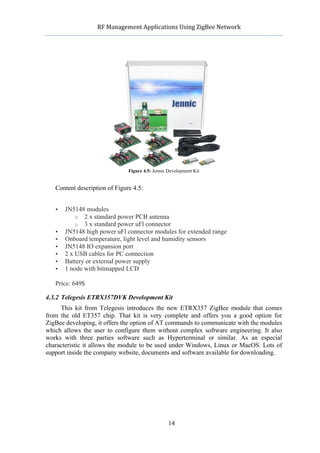
4.3.1 Jennic JN5148 Evaluation Kit
      Probably this is one of the best options when considering which kit to buy for
development, but for our application the Cirronet kit fits better. Probably the Jennic kit
provides too many functions for what we were looking for. This kit can include up to 7
ZigBee modules (5 standard power and 2 high power modules), it also incorporates an
LCD screen and all needed software, this is one of the most complete kit available in the
market. Nodes come with pre-programmed software for demonstrating purposes. AT
commands are available for communicating with the devices [6]


                                                    13
               RF	
  Management	
  Applications	
  Using	
  ZigBee	
  Network	


                                       Figure 4.5: Jennic Development Kit


   Content description of Figure 4.5:


   •          JN5148 modules
                  o 2 x standard power PCB antenna
                  o 3 x standard power uFl connector
   •          JN5148 high power uFl connector modules for extended range
   •          Onboard temperature, light level and humidity sensors
   •          JN5148 IO expansion port
   •          2 x USB cables for PC connection
   •          Battery or external power supply
   •          1 node with bitmapped LCD

   Price: 649$

4.3.2 Telegesis ETRX357DVK Development Kit
     This kit from Telegesis introduces the new ETRX357 ZigBee module that comes
from the old ET357 chip. That kit is very complete and offers you a good option for
ZigBee developing, it offers the option of AT commands to communicate with the modules
which allows the user to configure them without complex software engineering. It also
works with three parties software such as Hyperterminal or similar. As an especial
characteristic it allows the module to be used under Windows, Linux or MacOS. Lots of
support inside the company website, documents and software available for downloading.


                                                          14
              RF	
  Management	
  Applications	
  Using	
  ZigBee	
  Network	


                                    Figure 4.6: Telegesis Development Kit


   The kit contents and the module board connectors are well explained on the product
website [7] (Figure 4.6).


   •          3 x USB Development Boards
   •          2 x ETRX357 on Carrier-Board
   •          2 x ETRX357HR on Carrier-Board
   •          2 x ETRX357LR on Carrier-Board
   •          2 x ETRX357HR-LR on Carrier-Board
   •          1 x ETRX2USB stick
   •          2 x Large Antenna
   •          2 x Small Stubby Antenna
   •          3 x USB Cable

   Price: 348$ est.


                                                        15
              RF	
  Management	
  Applications	
  Using	
  ZigBee	
  Network	


5     Cirronet ZMN2405/HP ZigBee Module
5.1   Specifications
      For this project we had available a brand new ZMN2405/HP Cirronet ZigBee kit,
this kit contains everything needed to create a versatile and fast network. The contents of
the kit are (Figure 5.1):
             •   ZigBee Coordinator device.
             •   ZigBee Router device.
             •   Pair of dipole antennas.
             •   Pair of patch antennas.
             •   Two batteries.
             •   Two power adaptors.
             •   CD that includes software and manuals.


                                       Figure 5.1: Kit ZMN2405/HP


        We should distinguish the difference between the ZMN2405 and the ZMN2405/HP
model, the main difference between them is the output power, the first one provides about
1mW of RF power while the ZMN2405/HP provides 65mW. If we combine this module
with a 2dB dipole antenna we should be able to get 100mW in the case of ZMN2405/HP.
The one we are using in this project is the ZMN2405/HP; we will appreciate this point
when taking measurements of the LQI between the devices. This amount of output power
provides this kit with a high performance RF system that can be used trough very noisy
environments. The only problem with the ZMN2405/HP is related with the battery
consumption due to the high output power, so probably if we are interested on a limited
battery network we should consider using the ZMN2405 model [8].


                                                       16
           RF	
  Management	
  Applications	
  Using	
  ZigBee	
  Network	


       This kit is specially developed to create fast-versatile low-cost networks that
require a fast and reliable data platform for measuring systems. With the high power output
delivered with the supplied antennas we’ll be able to get a strong network.
      We also have the possibility to configure the Router device as an End Device
downloading the code supplied with the CD into the module.

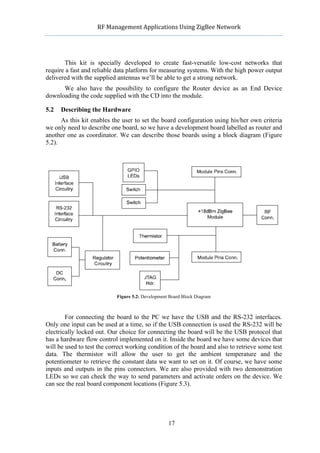
5.2   Describing the Hardware
      As this kit enables the user to set the board configuration using his/her own criteria
we only need to describe one board, so we have a development board labelled as router and
another one as coordinator. We can describe those boards using a block diagram (Figure
5.2).


                            Figure 5.2: Development Board Block Diagram


        For connecting the board to the PC we have the USB and the RS-232 interfaces.
Only one input can be used at a time, so if the USB connection is used the RS-232 will be
electrically locked out. Our choice for connecting the board will be the USB protocol that
has a hardware flow control implemented on it. Inside the board we have some devices that
will be used to test the correct working condition of the board and also to retrieve some test
data. The thermistor will allow the user to get the ambient temperature and the
potentiometer to retrieve the constant data we want to set on it. Of course, we have some
inputs and outputs in the pins connectors. We are also provided with two demonstration
LEDs so we can check the way to send parameters and activate orders on the device. We
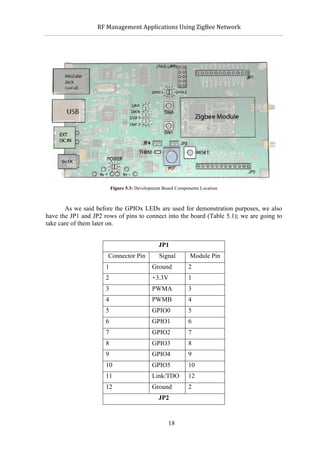
can see the real board component locations (Figure 5.3).


                                                    17
           RF	
  Management	
  Applications	
  Using	
  ZigBee	
  Network	


                          Figure 5.3: Development Board Components Location


       As we said before the GPIOx LEDs are used for demonstration purposes, we also
have the JP1 and JP2 rows of pins to connect into the board (Table 5.1); we are going to
take care of them later on.


                                                JP1
                       Connector Pin            Signal        Module Pin
                      1                      Ground          2
                      2                      +3.3V           1
                      3                      PWMA            3
                      4                      PWMB            4
                      5                      GPIO0           5
                      6                      GPIO1           6
                      7                      GPIO2           7
                      8                      GPIO3           8
                      9                      GPIO4           9
                      10                     GPIO5           10
                      11                     Link/TDO        12
                      12                     Ground          2
                                                JP2


                                                    18
                RF	
  Management	
  Applications	
  Using	
  ZigBee	
  Network	


                              Connector Pin           Signal         Module Pin
                             1                     Ground            2
                             2                     +5V               NC
                             3                     SPI_/MISO 32
                             4                     SPI_MOSI          31
                             5                     SPI_SCLK          30
                             6                     SPI_EN            29
                             7                     ADCZ              27
                             8                     ADCY              26
                             9                     ADCX              25
                             10                    UTX               22
                             11                    URX               21
                             12                    Ground            2
                                         Table 5.1: Board Pin Description


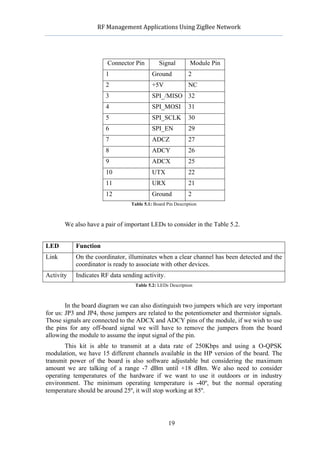
              We also have a pair of important LEDs to consider in the Table 5.2.


LED               Function
Link              On the coordinator, illuminates when a clear channel has been detected and the
                  coordinator is ready to associate with other devices.
Activity          Indicates RF data sending activity.
                                           Table 5.2: LEDs Description


        In the board diagram we can also distinguish two jumpers which are very important
for us: JP3 and JP4, those jumpers are related to the potentiometer and thermistor signals.
Those signals are connected to the ADCX and ADCY pins of the module, if we wish to use
the pins for any off-board signal we will have to remove the jumpers from the board
allowing the module to assume the input signal of the pin.
       This kit is able to transmit at a data rate of 250Kbps and using a O-QPSK
modulation, we have 15 different channels available in the HP version of the board. The
transmit power of the board is also software adjustable but considering the maximum
amount we are talking of a range -7 dBm until +18 dBm. We also need to consider
operating temperatures of the hardware if we want to use it outdoors or in industry
environment. The minimum operating temperature is -40º, but the normal operating
temperature should be around 25º, it will stop working at 85º.


                                                           19
              RF	
  Management	
  Applications	
  Using	
  ZigBee	
  Network	


5.3   Texas Instruments CC2430
      All signals on the ZMN2405HP module are directly connected to the input pins of
the CC2430. This chip is designed by Texas Instruments and the characteristics are
described in the Table 5.3 [10].


Flash/RAM                                             128kb/8kb
Frequency (Min) (MHz)                                 2400
Frequency (Max) (MHz)                                 2483.5
Operating Voltage (Min)                               2V
Operating Voltage (Max)                               3.6 V
Pin/Package                                           48VQFN
Operating Temperature Range (Celsius)                 40 to 85
Device Type                                           System-on-Chip
Frequency Range                                       2.4 GHz
Tx Power (dBm)                                        0
Rx Current (Lowest) (mA)                              27
Sensitivity (Best) (dBm)                              -92
Wake Up Time (PD  RX/TX) (uS)                        645
Data Rate (Max) (Kbps)                                250
                               Table 5.3: Describes Characteristics Of CC2430 Module


      This CC2430 chip is available in three different versions CC2430F32/64/128, with
32/64/128 KB of flash memory respectively. This is a System-On-Chip (SoC) tailored for
the IEEE 802.14.5 that makes it perfect for ZigBee applications such as home monitoring,
industry, healthcare etc. it combines a 8050 MCU with the industry leading ZigBee
protocol stack (Z-Stack) from Texas Instruments. The price of this chip is between 3 – 6
USD; the CC2430 provides one of the market’s most competitive ZigBee SoC solutions.

5.3.1 RF/Layout
             •   2.4 GHz IEEE 802.15.4 compliant RF transceiver (CC2430 radio core).
                     o 250 kbps data rate, 2 MChip/s chip rate.
                     o Reference designs comply with worldwide radio frequency
                        regulations covered by ETSI EN 300 328 and EN 300 440 class 2
                        (Europe), FCC CFR47 Part 25 (US) and ARIB STD-T66 (Japan).
                        Transmit on 2480MHz under FCC is supported by duty-cycling, or by
                        reducing output power.
             •   Excellent receiver sensitivity and robustness to interferers.
             •   Few external components, most parts are integrated into the chip.

                                                        20
              RF	
  Management	
  Applications	
  Using	
  ZigBee	
  Network	


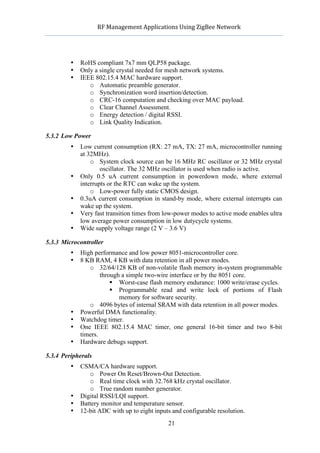
            •   RoHS compliant 7x7 mm QLP58 package.
            •   Only a single crystal needed for mesh network systems.
            •   IEEE 802.15.4 MAC hardware support.
                   o Automatic preamble generator.
                   o Synchronization word insertion/detection.
                   o CRC-16 computation and checking over MAC payload.
                   o Clear Channel Assessment.
                   o Energy detection / digital RSSI.
                   o Link Quality Indication.

5.3.2 Low Power
            •   Low current consumption (RX: 27 mA, TX: 27 mA, microcontroller running
                at 32MHz).
                    o System clock source can be 16 MHz RC oscillator or 32 MHz crystal
                        oscillator. The 32 MHz oscillator is used when radio is active.
            •   Only 0.5 uA current consumption in powerdown mode, where external
                interrupts or the RTC can wake up the system.
                    o Low-power fully static CMOS design.
            •   0.3uA current consumption in stand-by mode, where external interrupts can
                wake up the system.
            •   Very fast transition times from low-power modes to active mode enables ultra
                low average power consumption in low dutycycle systems.
            •   Wide supply voltage range (2 V – 3.6 V)

5.3.3 Microcontroller
            •   High performance and low power 8051-microcontroller core.
            •   8 KB RAM, 4 KB with data retention in all power modes.
                   o 32/64/128 KB of non-volatile flash memory in-system programmable
                        through a simple two-wire interface or by the 8051 core.
                             Worst-case flash memory endurance: 1000 write/erase cycles.
                             Programmable read and write lock of portions of Flash
                               memory for software security.
                   o 4096 bytes of internal SRAM with data retention in all power modes.
            •   Powerful DMA functionality.
            •   Watchdog timer.
            •   One IEEE 802.15.4 MAC timer, one general 16-bit timer and two 8-bit
                timers.
            •   Hardware debugs support.

5.3.4 Peripherals
            •   CSMA/CA hardware support.
                   o Power On Reset/Brown-Out Detection.
                   o Real time clock with 32.768 kHz crystal oscillator.
                   o True random number generator.
            •   Digital RSSI/LQI support.
            •   Battery monitor and temperature sensor.
            •   12-bit ADC with up to eight inputs and configurable resolution.
                                                      21
              RF	
  Management	
  Applications	
  Using	
  ZigBee	
  Network	


            •   AES security coprocessor.
            •   Two powerful USARTs with support for several serial protocols.
            •   21 general I/O pins, two with 20 mA sink/source capabilities.
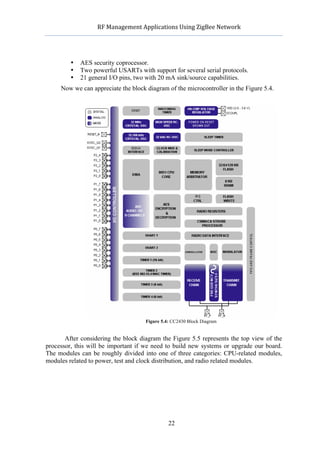
     Now we can appreciate the block diagram of the microcontroller in the Figure 5.4.


                                            Figure 5.4: CC2430 Block Diagram


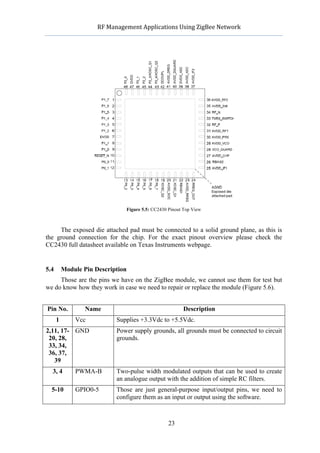
       After considering the block diagram the Figure 5.5 represents the top view of the
processor, this will be important if we need to build new systems or upgrade our board.
The modules can be roughly divided into one of three categories: CPU-related modules,
modules related to power, test and clock distribution, and radio related modules.


                                                      22
          RF	
  Management	
  Applications	
  Using	
  ZigBee	
  Network	


                                    Figure 5.5: CC2430 Pinout Top View


     The exposed die attached pad must be connected to a solid ground plane, as this is
the ground connection for the chip. For the exact pinout overview please check the
CC2430 full datasheet available on Texas Instruments webpage.


5.4       Module Pin Description
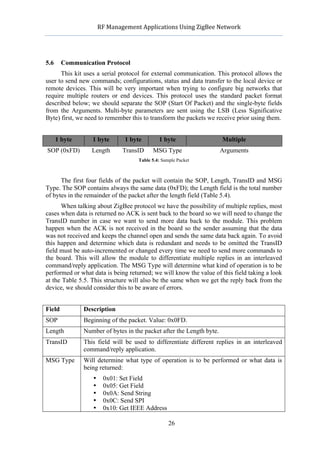
     Those are the pins we have on the ZigBee module, we cannot use them for test but
we do know how they work in case we need to repair or replace the module (Figure 5.6).


Pin No.            Name                                        Description
      1          Vcc           Supplies +3.3Vdc to +5.5Vdc.
2,11, 17- GND                  Power supply grounds, all grounds must be connected to circuit
 20, 28,                       grounds.
 33, 34,
 36, 37,
   39
  3, 4           PWMA-B        Two-pulse width modulated outputs that can be used to create
                               an analogue output with the addition of simple RC filters.
  5-10           GPIO0-5       Those are just general-purpose input/output pins, we need to
                               configure them as an input or output using the software.


                                                       23
             RF	
  Management	
  Applications	
  Using	
  ZigBee	
  Network	


 12          LINK/TDO         Indicates the module link status.
 13          RST              Reset input, tied to pin 24.
 14          NA               Not available
 16          ADC REF          This pin is used to module the +3.3V supply, for use in
                              ratiometric ADC readings.
 21          UART_RX          Receive data input signal of module UART. Data to be sent is
                              transmitted on this pin.
 22          UART_TX          Transmit data output signal of module UART. Data received by
                              the module will be transmitted on this pin.
 23          NA               Not available.
 24          RESET            Module hardware reset input.
25-27        ADCX-Z           Three 10-bit analogues to digital inputs. Inputs are limited to
                              0Vdc to +2.5Vdc.
 29          SPI_EN           Active low chip enable output for SPI bus devices.
 30          SPI_SCLK         SPI port for clock signal.
 31          SPI_MOSI         SPI port for data output.
 32          SPI_MISO         SPI port for data input.
 35          NA               Not available
 38          RF               RF output pin to connect antenna or antenna connector using a
                              50 ohm microstrip line.


                             Figure 5.6: ZMN2405HP Module Pin Description


                                                      24
           RF	
  Management	
  Applications	
  Using	
  ZigBee	
  Network	


5.5   Cirronet Standard Module (CSM) API
      When we talk about a ZigBee developing kit we pretend to be able to send
commands to interact with it, the way to do it is using the integrated API of the specific
model we are using. The way to do that is using the resident firmware application to
control the module; this is called profile in the ZigBee parlance. Cirronet has developed the
Cirronet Standard Module (CSM) profile to allow us to access to all the resources on the
module, such as AD converters, inputs, LEDs, etc.
      All communications with the ZigBee module are made though the UART interface
using a message/command protocol. Those commands will be used to set configuration
parameters, send and receive data, errors, reset, LEDs, etc. the strong point of using this
method relies on the common packet structure to be sent every time we need to
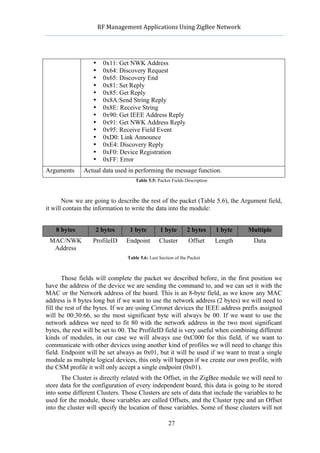
communicate with the device. This CSM is divided into clusters (Figure 5.7), every cluster
contains different kind of commands, and every command is set with an offset into the
cluster.


              ZigBee Module


                                              Module I/O Cluster (ID 0x01)


                                             Configuration Cluster (ID 0x02)


                                                  Reset Cluster (ID 0x03)


                                                Network Cluster (ID 0x07)


                                                   RF Cluster (ID 0x08)


                                                Security Cluster (ID 0x09)

                                   Figure 5.7: All Module Clusters


                                                    25
           RF	
  Management	
  Applications	
  Using	
  ZigBee	
  Network	


5.6     Communication Protocol
      This kit uses a serial protocol for external communication. This protocol allows the
user to send new commands; configurations, status and data transfer to the local device or
remote devices. This will be very important when trying to configure big networks that
require multiple routers or end devices. This protocol uses the standard packet format
described below; we should separate the SOP (Start Of Packet) and the single-byte fields
from the Arguments. Multi-byte parameters are sent using the LSB (Less Significative
Byte) first, we need to remember this to transform the packets we receive prior using them.


      1 byte      1 byte          1 byte          1 byte                      Multiple
SOP (0xFD)        Length         TransID       MSG Type                      Arguments
                                        Table 5.4: Sample Packet


      The first four fields of the packet will contain the SOP, Length, TransID and MSG
Type. The SOP contains always the same data (0xFD); the Length field is the total number
of bytes in the remainder of the packet after the length field (Table 5.4).
      When talking about ZigBee protocol we have the possibility of multiple replies, most
cases when data is returned no ACK is sent back to the board so we will need to change the
TransID number in case we want to send more data back to the module. This problem
happen when the ACK is not received in the board so the sender assuming that the data
was not received and keeps the channel open and sends the same data back again. To avoid
this happen and determine which data is redundant and needs to be omitted the TransID
field must be auto-incremented or changed every time we need to send more commands to
the board. This will allow the module to differentiate multiple replies in an interleaved
command/reply application. The MSG Type will determine what kind of operation is to be
performed or what data is being returned; we will know the value of this field taking a look
at the Table 5.5. This structure will also be the same when we get the reply back from the
device, we should consider this to be aware of errors.


Field          Description
SOP            Beginning of the packet. Value: 0x0FD.
Length         Number of bytes in the packet after the Length byte.
TransID        This field will be used to differentiate different replies in an interleaved
               command/reply application.
MSG Type       Will determine what type of operation is to be performed or what data is
               being returned:
                  •     0x01: Set Field
                  •     0x05: Get Field
                  •     0x0A: Send String
                  •     0x0C: Send SPI
                  •     0x10: Get IEEE Address

                                                      26
             RF	
  Management	
  Applications	
  Using	
  ZigBee	
  Network	


                  •     0x11: Get NWK Address
                  •     0x64: Discovery Request
                  •     0x65: Discovery End
                  •     0x81: Set Reply
                  •     0x85: Get Reply
                  •     0x8A:Send String Reply
                  •     0x8E: Receive String
                  •     0x90: Get IEEE Address Reply
                  •     0x91: Get NWK Address Reply
                  •     0x95: Receive Field Event
                  •     0xD0: Link Announce
                  •     0xE4: Discovery Reply
                  •     0xF0: Device Registration
                  •     0xFF: Error
Arguments      Actual data used in performing the message function.
                                       Table 5.5: Packet Fields Description


       Now we are going to describe the rest of the packet (Table 5.6), the Argument field,
it will contain the information to write the data into the module:


    8 bytes        2 bytes          1 byte         1 byte        2 bytes      1 byte       Multiple
 MAC/NWK          ProfileID        Endpoint        Cluster        Offset      Length        Data
  Address
                                   Table 5.6: Last Section of the Packet


       Those fields will complete the packet we described before, in the first position we
have the address of the device we are sending the command to, and we can set it with the
MAC or the Network address of the board. This is an 8-byte field, as we know any MAC
address is 8 bytes long but if we want to use the network address (2 bytes) we will need to
fill the rest of the bytes. If we are using Cirronet devices the IEEE address prefix assigned
will be 00:30:66, so the most significant byte will always be 00. If we want to use the
network address we need to fit 80 with the network address in the two most significant
bytes, the rest will be set to 00. The ProfileID field is very useful when combining different
kinds of modules, in our case we will always use 0xC000 for this field, if we want to
communicate with other devices using another kind of profiles we will need to change this
field. Endpoint will be set always as 0x01, but it will be used if we want to treat a single
module as multiple logical devices, this only will happen if we create our own profile, with
the CSM profile it will only accept a single endpoint (0x01).
      The Cluster is directly related with the Offset, in the ZigBee module we will need to
store data for the configuration of every independent board, this data is going to be stored
into some different Clusters. Those Clusters are sets of data that include the variables to be
used for the module, those variables are called Offsets, and the Cluster type and an Offset
into the cluster will specify the location of those variables. Some of those clusters will not

                                                       27
         RF	
  Management	
  Applications	
  Using	
  ZigBee	
  Network	


    be erased every time we plug the device, some others will be emptied every time we restart
    the board. We can define Offset as an index into an array of elements in a data field and
    can be found by referring to a particular Cluster.
          The Length will tell us the amount of bytes in the Data field. Every time we receive a
    reply from the device it will contain also the LQI, this number will indicate the quality of
    the signal.

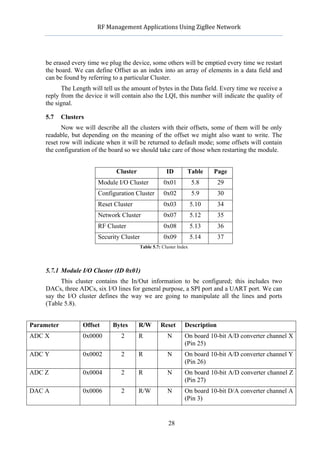
    5.7     Clusters
           Now we will describe all the clusters with their offsets, some of them will be only
    readable, but depending on the meaning of the offset we might also want to write. The
    reset row will indicate when it will be returned to default mode; some offsets will contain
    the configuration of the board so we should take care of those when restarting the module.


                                Cluster                 ID        Table      Page
                        Module I/O Cluster            0x01            5.8      29
                        Configuration Cluster         0x02            5.9      30
                        Reset Cluster                 0x03            5.10     34
                        Network Cluster               0x07            5.12     35
                        RF Cluster                    0x08            5.13     36
                        Security Cluster              0x09            5.14     37
                                           Table 5.7: Cluster Index


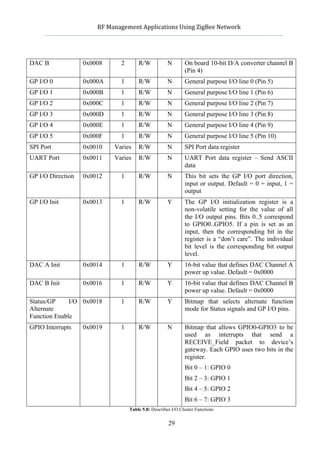
    5.7.1 Module I/O Cluster (ID 0x01)
          This cluster contains the In/Out information to be configured; this includes two
    DACs, three ADCs, six I/O lines for general purpose, a SPI port and a UART port. We can
    say the I/O cluster defines the way we are going to manipulate all the lines and ports
    (Table 5.8).


Parameter          Offset      Bytes      R/W        Reset       Description
ADC X              0x0000         2       R             N        On board 10-bit A/D converter channel X
                                                                 (Pin 25)
ADC Y              0x0002         2       R             N        On board 10-bit A/D converter channel Y
                                                                 (Pin 26)
ADC Z              0x0004         2       R             N        On board 10-bit A/D converter channel Z
                                                                 (Pin 27)
DAC A              0x0006         2       R/W           N        On board 10-bit D/A converter channel A
                                                                 (Pin 3)


                                                         28
        RF	
  Management	
  Applications	
  Using	
  ZigBee	
  Network	


DAC B                0x0008        2       R/W           N         On board 10-bit D/A converter channel B
                                                                   (Pin 4)
GP I/O 0             0x000A        1       R/W           N         General purpose I/O line 0 (Pin 5)
GP I/O 1             0x000B        1       R/W           N         General purpose I/O line 1 (Pin 6)
GP I/O 2             0x000C        1       R/W           N         General purpose I/O line 2 (Pin 7)
GP I/O 3             0x000D        1       R/W           N         General purpose I/O line 3 (Pin 8)
GP I/O 4             0x000E        1       R/W           N         General purpose I/O line 4 (Pin 9)
GP I/O 5             0x000F        1       R/W           N         General purpose I/O line 5 (Pin 10)
SPI Port             0x0010     Varies     R/W           N         SPI Port data register
UART Port            0x0011     Varies     R/W           N         UART Port data register – Send ASCII
                                                                   data
GP I/O Direction     0x0012        1       R/W           N         This bit sets the GP I/O port direction,
                                                                   input or output. Default = 0 = input, 1 =
                                                                   output
GP I/O Init          0x0013        1       R/W           Y         The GP I/O initialization register is a
                                                                   non-volatile setting for the value of all
                                                                   the I/O output pins. Bits 0..5 correspond
                                                                   to GPIO0..GPIO5. If a pin is set as an
                                                                   input, then the corresponding bit in the
                                                                   register is a “don’t care”. The individual
                                                                   bit level is the corresponding bit output
                                                                   level.
DAC A Init           0x0014        1       R/W           Y         16-bit value that defines DAC Channel A
                                                                   power up value. Default = 0x0000
DAC B Init           0x0016        1       R/W           Y         16-bit value that defines DAC Channel B
                                                                   power up value. Default = 0x0000
Status/GP     I/O 0x0018           1       R/W           Y         Bitmap that selects alternate function
Alternate                                                          mode for Status signals and GP I/O pins.
Function Enable
GPIO Interrupts      0x0019        1       R/W           N         Bitmap that allows GPIO0-GPIO3 to be
                                                                   used as interrupts that send a
                                                                   RECEIVE_Field packet to device’s
                                                                   gateway. Each GPIO uses two bits in the
                                                                   register.
                                                                   Bit 0 – 1: GPIO 0
                                                                   Bit 2 – 3: GPIO 1
                                                                   Bit 4 – 5: GPIO 2
                                                                   Bit 6 – 7: GPIO 3
                                       Table 5.8: Describes I/O Cluster Functions

                                                          29
             RF	
  Management	
  Applications	
  Using	
  ZigBee	
  Network	


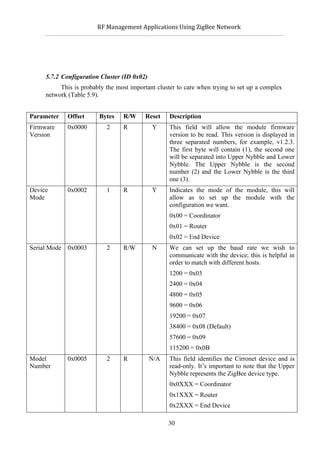
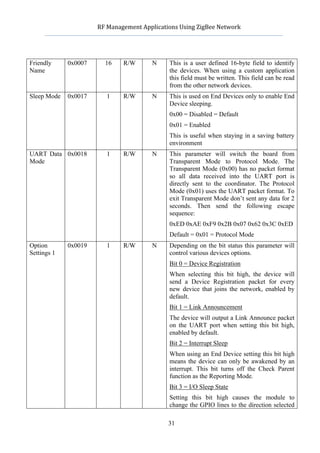
     5.7.2 Configuration Cluster (ID 0x02)
          This is probably the most important cluster to care when trying to set up a complex
     network (Table 5.9).


Parameter          Offset   Bytes      R/W       Reset      Description
Firmware           0x0000       2      R            Y       This field will allow the module firmware
Version                                                     version to be read. This version is displayed in
                                                            three separated numbers, for example, v1.2.3.
                                                            The first byte will contain (1), the second one
                                                            will be separated into Upper Nybble and Lower
                                                            Nybble. The Upper Nybble is the second
                                                            number (2) and the Lower Nybble is the third
                                                            one (3).
Device             0x0002       1      R            Y       Indicates the mode of the module, this will
Mode                                                        allow as to set up the module with the
                                                            configuration we want.
                                                            0x00 = Coordinator
                                                            0x01 = Router
                                                            0x02 = End Device
Serial Mode 0x0003              2      R/W          N       We can set up the baud rate we wish to
                                                            communicate with the device; this is helpful in
                                                            order to match with different hosts.
                                                            1200 = 0x03
                                                            2400 = 0x04
                                                            4800 = 0x05
                                                            9600 = 0x06
                                                            19200 = 0x07
                                                            38400 = 0x08 (Default)
                                                            57600 = 0x09
                                                            115200 = 0x0B
Model              0x0005       2      R           N/A      This field identifies the Cirronet device and is
Number                                                      read-only. It’s important to note that the Upper
                                                            Nybble represents the ZigBee device type.
                                                            0x0XXX = Coordinator
                                                            0x1XXX = Router
                                                            0x2XXX = End Device

                                                            30
             RF	
  Management	
  Applications	
  Using	
  ZigBee	
  Network	


Friendly            0x0007      16      R/W          N       This is a user defined 16-byte field to identify
Name                                                         the devices. When using a custom application
                                                             this field must be written. This field can be read
                                                             from the other network devices.
Sleep Mode          0x0017       1      R/W          N       This is used on End Devices only to enable End
                                                             Device sleeping.
                                                             0x00 = Disabled = Default
                                                             0x01 = Enabled
                                                             This is useful when staying in a saving battery
                                                             environment
UART Data 0x0018                 1      R/W          N       This parameter will switch the board from
Mode                                                         Transparent Mode to Protocol Mode. The
                                                             Transparent Mode (0x00) has no packet format
                                                             so all data received into the UART port is
                                                             directly sent to the coordinator. The Protocol
                                                             Mode (0x01) uses the UART packet format. To
                                                             exit Transparent Mode don’t sent any data for 2
                                                             seconds. Then send the following escape
                                                             sequence:
                                                             0xED 0xAE 0xF9 0x2B 0x07 0x62 0x3C 0xED
                                                             Default = 0x01 = Protocol Mode
Option              0x0019       1      R/W          N       Depending on the bit status this parameter will
Settings 1                                                   control various devices options.
                                                             Bit 0 = Device Registration
                                                             When selecting this bit high, the device will
                                                             send a Device Registration packet for every
                                                             new device that joins the network, enabled by
                                                             default.
                                                             Bit 1 = Link Announcement
                                                             The device will output a Link Announce packet
                                                             on the UART port when setting this bit high,
                                                             enabled by default.
                                                             Bit 2 = Interrupt Sleep
                                                             When using an End Device setting this bit high
                                                             means the device can only be awakened by an
                                                             interrupt. This bit turns off the Check Parent
                                                             function as the Reporting Mode.
                                                             Bit 3 = I/O Sleep State
                                                             Setting this bit high causes the module to
                                                             change the GPIO lines to the direction selected

                                                             31
             RF	
  Management	
  Applications	
  Using	
  ZigBee	
  Network	


                                                              by SleepIODDRstate, and when selected as an
                                                              output, to the level selected by SleepIOState.
                                                              When selected as an input, the like is high
                                                              impedance. This is beneficial if the I/O happens
                                                              to be connected to low impedance devices.
                                                              Bit 4, 5, 6 & 7 = GPIO0 – 3 Message Enable
                                                              Setting this bit high causes the module to issue
                                                              various messages when GPIO0 is set as an
                                                              interruptible input. When the input changes
                                                              from high to low, one message (defined by
                                                              Option Settings 2) will be transmitted to the
                                                              gateway. This is enabled by default.
Message              0x001A       1      R/W          N       This register will keep the message options for
Options                                                       the interruptible inputs we described above.
(Option                                                       0 – 1 = Message Options for GPIO0
Settings 2)
                                                              2 – 3 = Message Options for GPIO1
                                                              4 – 5 = Message Options for GPIO2
                                                              6 – 7 = Message Options for GPIO3
                                                              Only one below can be selected.
                                                              0b00: Button Message
                                                              0b01: Device Announce Message
                                                              0b11: Reserved
                                                              Default = 0x00
Reporting            0x001B       1      R/W          N       This is used when we want the module to report
Mode                                                          all the I/O ports in an interval rate, the rate is
                                                              indicated below. This works for all kind of
                                                              devices.
                                                              0x00 = Enabled
                                                              0x01 = Disabled = Default
Reporting            0x001C       4      R/W          N       This is a 32 bit value that sets the reporting
Rate                                                          interval for the I/O to be send, this value must
                                                              be set in 1ms increments and may vary
                                                              anywhere from 1000ms (0x000003E8) to 49.7
                                                              days (0xFFFFFFFF).
                                                              Default = 0x000003E8
Check       0x0020                2      R/W          N       This is a 32 bit value that sets the interval when
Parent Rate                                                   the End Device will be awaken to ask its parent
(End                                                          for any queued messages. The setting resolution
Devices                                                       is in ms with a default of 1 second.

                                                              32
                RF	
  Management	
  Applications	
  Using	
  ZigBee	
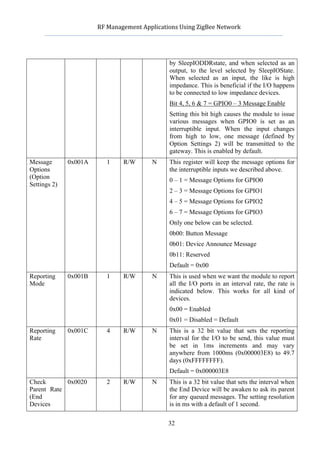
  Network	


Only)
Reserved            0x0022          2        R/W         N        Reserved for future use.
Wake                0x0024          2        R/W         N        These 16-bit setting controls the length of time
Duration                                                          a Timer Sleep End Device will remain awake
                                                                  after it has sent data. The setting resolution is in
                                                                  milliseconds with a default of 100 milliseconds.
Sleep I/O 0x0026                    1        R/W         N        The six LSBs of this byte are used to control the
Direction                                                         direction of the GPIOs during a device’s sleep
(End                                                              period. This will help the user to minimize the
Devices                                                           power consumption. Bits 0 – 5 correspond to
Only)                                                             GPIO0 – GPIO5.
                                                                  0 = Input, 1 = Output
                                                                  Default = 0x00
Sleep I/O 0x0027                    1        R/W         N        The six LSBs of this byte are used to set the
Output                                                            output leel of the GPIOs selected as outputs by
Level (End                                                        SleepIODDR when IOSleepState is enabled
Devices                                                           during a device’s sleep period. Bits 0 – 5
Only)                                                             correspond to GPIO0 – GPIO5.
                                                                  0 = Low, 1 = High
                                                                  Default = 0x3F
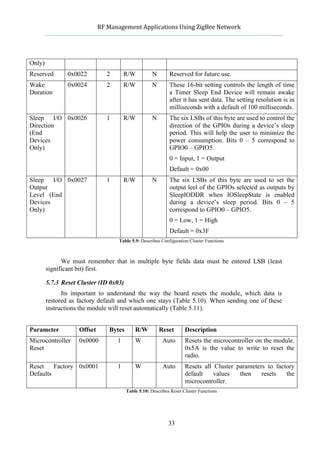
                                         Table 5.9: Describes Configuration Cluster Functions


              We must remember that in multiple byte fields data must be entered LSB (least
        significant bit) first.

        5.7.3 Reset Cluster (ID 0x03)
              Its important to understand the way the board resets the module, which data is
        restored as factory default and which one stays (Table 5.10). When sending one of these
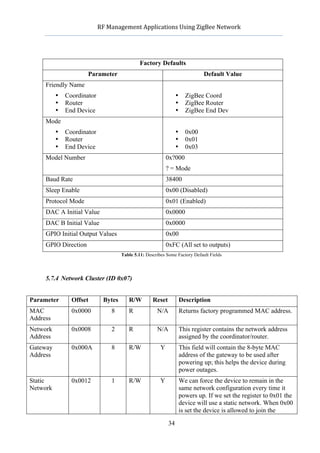
        instructions the module will reset automatically (Table 5.11).


Parameter              Offset        Bytes       R/W         Reset        Description
Microcontroller        0x0000            1       W             Auto       Resets the microcontroller on the module.
Reset                                                                     0x5A is the value to write to reset the
                                                                          radio.
Reset    Factory 0x0001                  1       W             Auto       Resets all Cluster parameters to factory
Defaults                                                                  default    values   then    resets   the
                                                                          microcontroller.
                                             Table 5.10: Describes Reset Cluster Functions


                                                                 33
                  RF	
  Management	
  Applications	
  Using	
  ZigBee	
  Network	


                                                      Factory Defaults
                             Parameter                                                    Default Value
     Friendly Name
          •          Coordinator                                             •     ZigBee Coord
          •          Router                                                  •     ZigBee Router
          •          End Device                                              •     ZigBee End Dev
     Mode
          •          Coordinator                                             •     0x00
          •          Router                                                  •     0x01
          •          End Device                                              •     0x03
     Model Number                                                   0x?000
                                                                    ? = Mode
     Baud Rate                                                      38400
     Sleep Enable                                                   0x00 (Disabled)
     Protocol Mode                                                  0x01 (Enabled)
     DAC A Initial Value                                            0x0000
     DAC B Initial Value                                            0x0000
     GPIO Initial Output Values                                     0x00
     GPIO Direction                                                 0xFC (All set to outputs)
                                             Table 5.11: Describes Some Factory Default Fields


     5.7.4 Network Cluster (ID 0x07)


Parameter              Offset        Bytes       R/W        Reset                Description
MAC                    0x0000            8       R            N/A                Returns factory programmed MAC address.
Address
Network                0x0008            2       R            N/A                This register contains the network address
Address                                                                          assigned by the coordinator/router.
Gateway                0x000A            8       R/W            Y                This field will contain the 8-byte MAC
Address                                                                          address of the gateway to be used after
                                                                                 powering up; this helps the device during
                                                                                 power outages.
Static                 0x0012            1       R/W            Y                We can force the device to remain in the
Network                                                                          same network configuration every time it
                                                                                 powers up. If we set the register to 0x01 the
                                                                                 device will use a static network. When 0x00
                                                                                 is set the device is allowed to join the

                                                                     34
             RF	
  Management	
  Applications	
  Using	
  ZigBee	
  Network	


                                                                        network in a different manner every time it
                                                                        restarts.
                                                                        Default = 0x00 = Disabled
Default PAN          0x0013         2       R/W             Y           Setting this variable to anything other than
ID                                                                      0xFFFF will force a Router or End Device
                                                                        to search for a network with that specific
                                                                        PAN ID. All other networks will be
                                                                        rejected. A coordinator will start a network
                                                                        using this variable as the PAN ID. The two
                                                                        high order bits are currently masked, so a
                                                                        PAN ID of 0x7FFF will be the same as
                                                                        0x3FFF. A value of 0xFFFF causes a
                                                                        Coordinator to form a network with a
                                                                        random PAN ID and a Router or End
                                                                        Device will join any PAN ID.
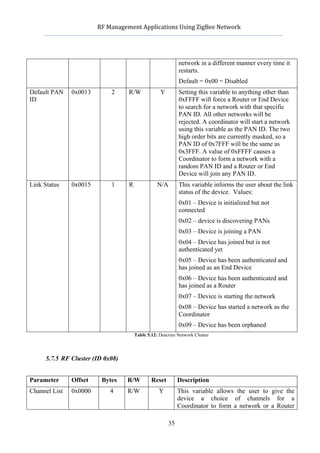
Link Status          0x0015         1       R              N/A          This variable informs the user about the link
                                                                        status of the device. Values:
                                                                        0x01 – Device is initialized but not
                                                                        connected
                                                                        0x02 – device is discovering PANs
                                                                        0x03 – Device is joining a PAN
                                                                        0x04 – Device has joined but is not
                                                                        authenticated yet
                                                                        0x05 – Device has been authenticated and
                                                                        has joined as an End Device
                                                                        0x06 – Device has been authenticated and
                                                                        has joined as a Router
                                                                        0x07 – Device is starting the network
                                                                        0x08 – Device has started a network as the
                                                                        Coordinator
                                                                        0x09 – Device has been orphaned
                                                Table 5.12: Descries Network Cluster


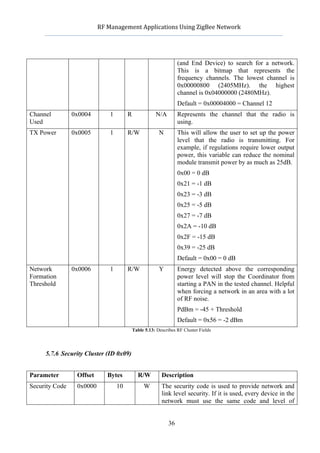
     5.7.5 RF Cluster (ID 0x08)


Parameter            Offset     Bytes      R/W          Reset           Description
Channel List         0x0000        4       R/W             Y            This variable allows the user to give the
                                                                        device a choice of channels for a
                                                                        Coordinator to form a network or a Router

                                                                 35
              RF	
  Management	
  Applications	
  Using	
  ZigBee	
  Network	


                                                                         (and End Device) to search for a network.
                                                                         This is a bitmap that represents the
                                                                         frequency channels. The lowest channel is
                                                                         0x00000800 (2405MHz). the highest
                                                                         channel is 0x04000000 (2480MHz).
                                                                         Default = 0x00004000 = Channel 12
Channel            0x0004         1        R              N/A            Represents the channel that the radio is
Used                                                                     using.
TX Power           0x0005         1        R/W              N            This will allow the user to set up the power
                                                                         level that the radio is transmitting. For
                                                                         example, if regulations require lower output
                                                                         power, this variable can reduce the nominal
                                                                         module transmit power by as much as 25dB.
                                                                         0x00 = 0 dB
                                                                         0x21 = -1 dB
                                                                         0x23 = -3 dB
                                                                         0x25 = -5 dB
                                                                         0x27 = -7 dB
                                                                         0x2A = -10 dB
                                                                         0x2F = -15 dB
                                                                         0x39 = -25 dB
                                                                         Default = 0x00 = 0 dB
Network            0x0006         1        R/W              Y            Energy detected above the corresponding
Formation                                                                power level will stop the Coordinator from
Threshold                                                                starting a PAN in the tested channel. Helpful
                                                                         when forcing a network in an area with a lot
                                                                         of RF noise.
                                                                         PdBm = -45 + Threshold
                                                                         Default = 0x56 = -2 dBm
                                               Table 5.13: Describes RF Cluster Fields


     5.7.6 Security Cluster (ID 0x09)


Parameter           Offset       Bytes           R/W         Description
Security Code       0x0000            10            W        The security code is used to provide network and
                                                             link level security. If it is used, every device in the
                                                             network must use the same code and level of


                                                                36
              RF	
  Management	
  Applications	
  Using	
  ZigBee	
  Network	


                                                             security.
Security Pin          0x0010            4           W        When set to anything other than the default, all
                                                             clusters are locked and cannot be written to or read
                                                             from.
                                                             Default = 0x76543210
                                            Table 5.14: Describes Security Cluster Fields


      5.8     Sending Commands
            When sending commands into the device we will likely get an answer message form
      the ZigBee module, the way those messages are sent will be described in this section.
      Before doing the examples we should take a look at the most commonly used commands
      and the way the packets are built prior sending. Its very important to take care when
      processing the replies from the device, some of them might be different from others,
      sending packets is actually much easier and standard than receiving them. For this project
      we will commonly use Set Field and Get Field message types, but all of them are created
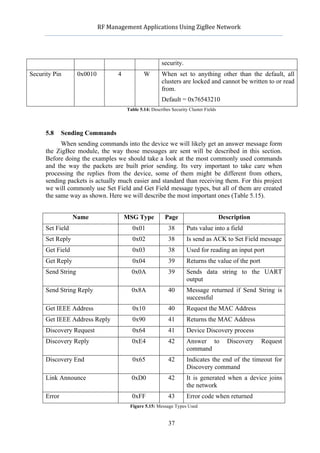
      the same way as shown. Here we will describe the most important ones (Table 5.15).


                     Name                   MSG Type           Page                         Description
      Set Field                                0x01             38        Puts value into a field
      Set Reply                                0x02             38        Is send as ACK to Set Field message
      Get Field                                0x03             38        Used for reading an input port
      Get Reply                                0x04             39        Returns the value of the port
      Send String                             0x0A              39        Sends data string to the UART
                                                                          output
      Send String Reply                       0x8A              40        Message returned if Send String is
                                                                          successful
      Get IEEE Address                         0x10             40        Request the MAC Address
      Get IEEE Address Reply                   0x90             41        Returns the MAC Address
      Discovery Request                        0x64             41        Device Discovery process
      Discovery Reply                         0xE4              42        Answer to           Discovery   Request
                                                                          command
      Discovery End                            0x65             42        Indicates the end of the timeout for
                                                                          Discovery command
      Link Announce                           0xD0              42        It is generated when a device joins
                                                                          the network
      Error                                   0xFF              43        Error code when returned
                                             Figure 5.15: Message Types Used


                                                                37
              RF	
  Management	
  Applications	
  Using	
  ZigBee	
  Network	


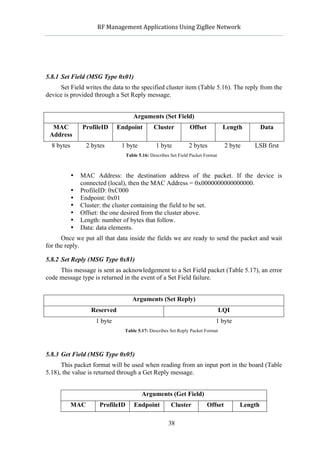
5.8.1 Set Field (MSG Type 0x01)
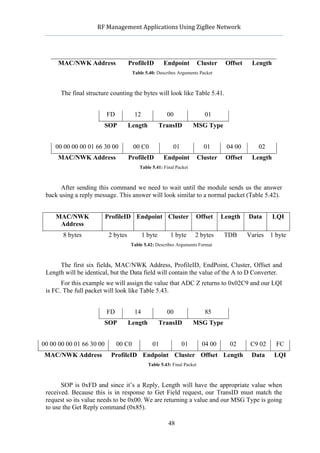
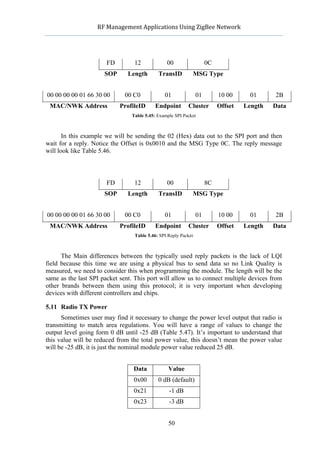
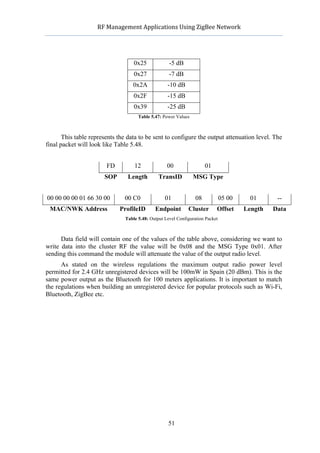
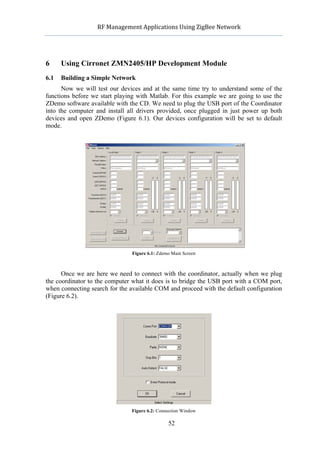
     Set Field writes the data to the specified cluster item (Table 5.16). The reply from the
device is provided through a Set Reply message.


                                       Arguments (Set Field)
  MAC            ProfileID     Endpoint          Cluster           Offset            Length        Data
 Address
  8 bytes          2 bytes        1 byte          1 byte           2 bytes           2 byte   LSB first
                                    Table 5.16: Describes Set Field Packet Format


             •   MAC Address: the destination address of the packet. If the device is
                 connected (local), then the MAC Address = 0x0000000000000000.
             •   ProfileID: 0xC000
             •   Endpoint: 0x01
             •   Cluster: the cluster containing the field to be set.
             •   Offset: the one desired from the cluster above.
             •   Length: number of bytes that follow.
             •   Data: data elements.
      Once we put all that data inside the fields we are ready to send the packet and wait
for the reply.

5.8.2 Set Reply (MSG Type 0x81)
     This message is sent as acknowledgement to a Set Field packet (Table 5.17), an error
code message type is returned in the event of a Set Field failure.


                                       Arguments (Set Reply)
                    Reserved                                                        LQI
                      1 byte                                                    1 byte
                                   Table 5.17: Describes Set Reply Packet Format


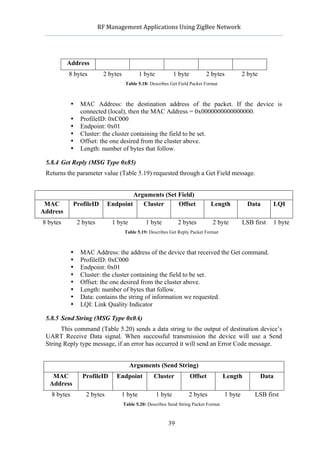
5.8.3 Get Field (MSG Type 0x05)
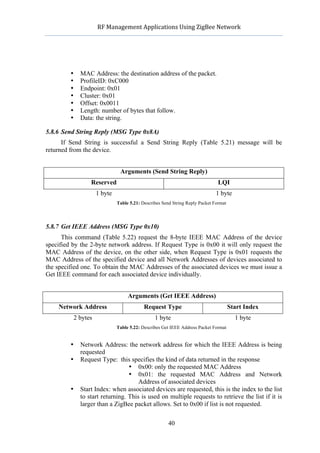
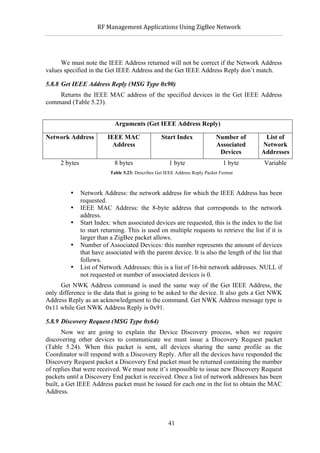
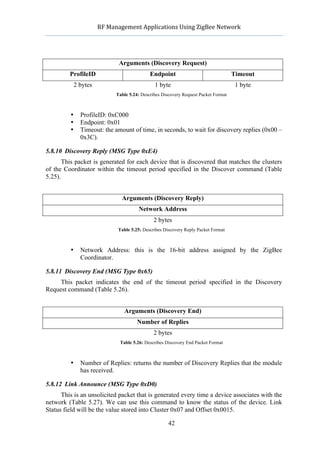
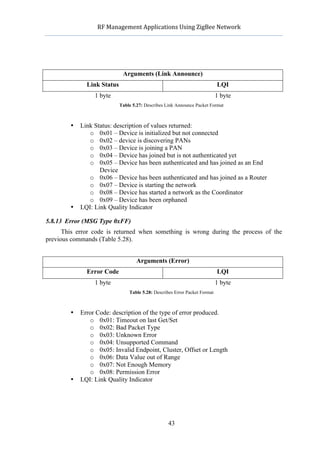
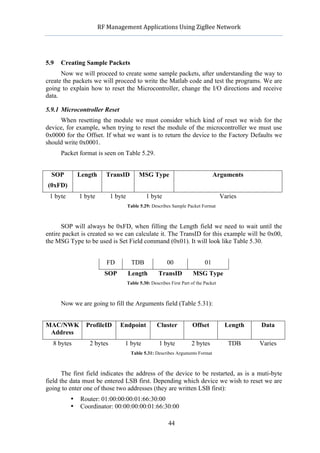
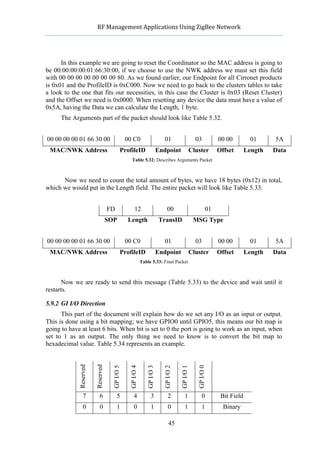
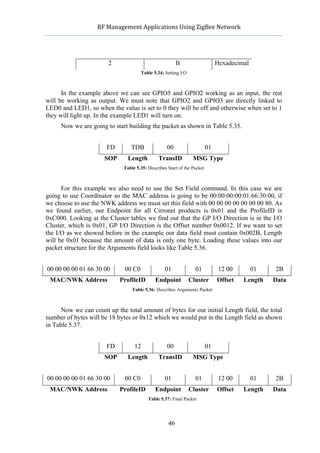
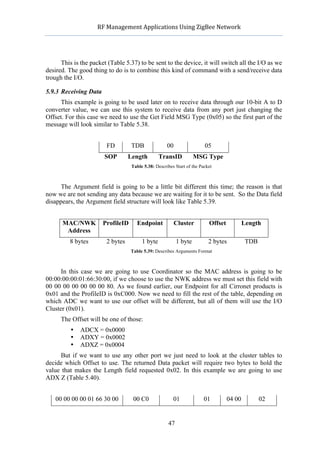
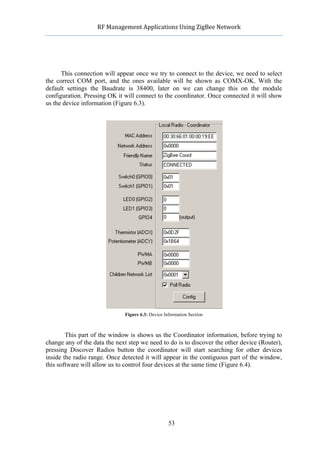
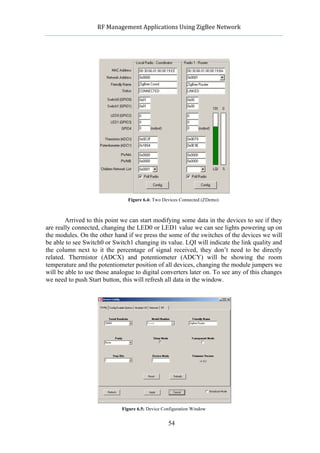
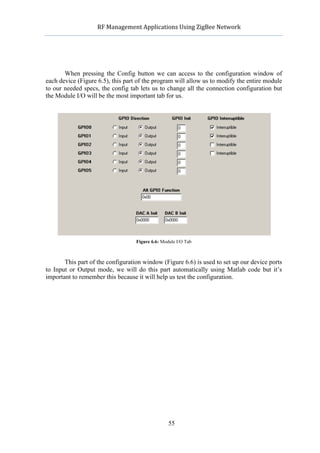
      This packet format will be used when reading from an input port in the board (Table
5.18), the value is returned through a Get Reply message.


                                           Arguments (Get Field)
             MAC        ProfileID      Endpoint           Cluster           Offset        Length

                                                        38
                   RF	
  Management	
  Applications	
  Using	
  ZigBee	
  Network	


             Address
             8 bytes          2 bytes           1 byte                1 byte        2 bytes          2 byte
                                         Table 5.18: Describes Get Field Packet Format


              •    MAC Address: the destination address of the packet. If the device is
                   connected (local), then the MAC Address = 0x0000000000000000.
              •    ProfileID: 0xC000
              •    Endpoint: 0x01
              •    Cluster: the cluster containing the field to be set.
              •    Offset: the one desired from the cluster above.
              •    Length: number of bytes that follow.

 5.8.4 Get Reply (MSG Type 0x85)
 Returns the parameter value (Table 5.19) requested through a Get Field message.


                                         Arguments (Set Field)
 MAC          ProfileID         Endpoint    Cluster     Offset                          Length         Data      LQI
Address
8 bytes           2 bytes         1 byte           1 byte              2 bytes          2 byte       LSB first   1 byte
                                        Table 5.19: Describes Get Reply Packet Format


              •    MAC Address: the address of the device that received the Get command.
              •    ProfileID: 0xC000
              •    Endpoint: 0x01
              •    Cluster: the cluster containing the field to be set.
              •    Offset: the one desired from the cluster above.
              •    Length: number of bytes that follow.
              •    Data: contains the string of information we requested.
              •    LQI: Link Quality Indicator

 5.8.5 Send String (MSG Type 0x0A)
       This command (Table 5.20) sends a data string to the output of destination device’s
 UART Receive Data signal. When successful transmission the device will use a Send
 String Reply type message, if an error has occurred it will send an Error Code message.


                                           Arguments (Send String)
   MAC              ProfileID       Endpoint          Cluster                  Offset      Length             Data
  Address
   8 bytes           2 bytes           1 byte            1 byte            2 bytes          1 byte       LSB first
                                        Table 5.20: Describes Send String Packet Format


                                                             39
               RF	
  Management	
  Applications	
  Using	
  ZigBee	
  Network	


            •   MAC Address: the destination address of the packet.
            •   ProfileID: 0xC000
            •   Endpoint: 0x01
            •   Cluster: 0x01
            •   Offset: 0x0011
            •   Length: number of bytes that follow.
            •   Data: the string.

5.8.6 Send String Reply (MSG Type 0x8A)
      If Send String is successful a Send String Reply (Table 5.21) message will be
returned from the device.


                                 Arguments (Send String Reply)
                    Reserved                                                    LQI
                      1 byte                                                   1 byte
                               Table 5.21: Describes Send String Reply Packet Format


5.8.7 Get IEEE Address (MSG Type 0x10)
      This command (Table 5.22) request the 8-byte IEEE MAC Address of the device
specified by the 2-byte network address. If Request Type is 0x00 it will only request the
MAC Address of the device, on the other side, when Request Type is 0x01 requests the
MAC Address of the specified device and all Network Addresses of devices associated to
the specified one. To obtain the MAC Addresses of the associated devices we must issue a
Get IEEE command for each associated device individually.


                                    Arguments (Get IEEE Address)
    Network Address                         Request Type                               Start Index
            2 bytes                              1 byte                                  1 byte
                               Table 5.22: Describes Get IEEE Address Packet Format


            •   Network Address: the network address for which the IEEE Address is being
                requested
            •   Request Type: this specifies the kind of data returned in the response
                                    • 0x00: only the requested MAC Address
                                    • 0x01: the requested MAC Address and Network
                                        Address of associated devices
            •   Start Index: when associated devices are requested, this is the index to the list
                to start returning. This is used on multiple requests to retrieve the list if it is
                larger than a ZigBee packet allows. Set to 0x00 if list is not requested.

                                                       40
               RF	
  Management	
  Applications	
  Using	
  ZigBee	
  Network	


      We must note the IEEE Address returned will not be correct if the Network Address
values specified in the Get IEEE Address and the Get IEEE Address Reply don’t match.

5.8.8 Get IEEE Address Reply (MSG Type 0x90)
    Returns the IEEE MAC address of the specified devices in the Get IEEE Address
command (Table 5.23).


                              Arguments (Get IEEE Address Reply)

Network Address            IEEE MAC                 Start Index               Number of      List of
                             Address                                          Associated    Network
                                                                               Devices      Addresses
     2 bytes                  8 bytes                  1 byte                    1 byte     Variable
                            Table 5.23: Describes Get IEEE Address Reply Packet Format


            •   Network Address: the network address for which the IEEE Address has been
                requested.
            •   IEEE MAC Address: the 8-byte address that corresponds to the network
                address.
            •   Start Index: when associated devices are requested, this is the index to the list
                to start returning. This is used on multiple requests to retrieve the list if it is
                larger than a ZigBee packet allows.
            •   Number of Associated Devices: this number represents the amount of devices
                that have associated with the parent device. It is also the length of the list that
                follows.
            •   List of Network Addresses: this is a list of 16-bit network addresses. NULL if
                not requested or number of associated devices is 0.
      Get NWK Address command is used the same way of the Get IEEE Address, the
only difference is the data that is going to be asked to the device. It also gets a Get NWK
Address Reply as an acknowledgment to the command. Get NWK Address message type is
0x11 while Get NWK Address Reply is 0x91.

5.8.9 Discovery Request (MSG Type 0x64)
       Now we are going to explain the Device Discovery process, when we require
discovering other devices to communicate we must issue a Discovery Request packet
(Table 5.24). When this packet is sent, all devices sharing the same profile as the
Coordinator will respond with a Discovery Reply. After all the devices have responded the
Discovery Request packet a Discovery End packet must be returned containing the number
of replies that were received. We must note it’s impossible to issue new Discovery Request
packets until a Discovery End packet is received. Once a list of network addresses has been
built, a Get IEEE Address packet must be issued for each one in the list to obtain the MAC
Address.


                                                       41
                RF	
  Management	
  Applications	
  Using	
  ZigBee	
  Network	


                                  Arguments (Discovery Request)
             ProfileID                           Endpoint                                Timeout
              2 bytes                              1 byte                                 1 byte
                                 Table 5.24: Describes Discovery Request Packet Format


             •   ProfileID: 0xC000
             •   Endpoint: 0x01
             •   Timeout: the amount of time, in seconds, to wait for discovery replies (0x00 –
                 0x3C).

5.8.10 Discovery Reply (MSG Type 0xE4)
       This packet is generated for each device that is discovered that matches the clusters
of the Coordinator within the timeout period specified in the Discover command (Table
5.25).


                                    Arguments (Discovery Reply)
                                           Network Address
                                                  2 bytes
                                  Table 5.25: Describes Discovery Reply Packet Format


             •   Network Address: this is the 16-bit address assigned by the ZigBee
                 Coordinator.

5.8.11 Discovery End (MSG Type 0x65)
     This packet indicates the end of the timeout period specified in the Discovery
Request command (Table 5.26).


                                     Arguments (Discovery End)
                                           Number of Replies
                                                  2 bytes
                                   Table 5.26: Describes Discovery End Packet Format


             •   Number of Replies: returns the number of Discovery Replies that the module
                 has received.

5.8.12 Link Announce (MSG Type 0xD0)
      This is an unsolicited packet that is generated every time a device associates with the
network (Table 5.27). We can use this command to know the status of the device. Link
Status field will be the value stored into Cluster 0x07 and Offset 0x0015.

                                                          42
              RF	
  Management	
  Applications	
  Using	
  ZigBee	
  Network	


                                 Arguments (Link Announce)
                  Link Status                                                   LQI
                     1 byte                                                     1 byte
                                Table 5.27: Describes Link Announce Packet Format


            •   Link Status: description of values returned:
                   o 0x01 – Device is initialized but not connected
                   o 0x02 – device is discovering PANs
                   o 0x03 – Device is joining a PAN
                   o 0x04 – Device has joined but is not authenticated yet
                   o 0x05 – Device has been authenticated and has joined as an End
                       Device
                   o 0x06 – Device has been authenticated and has joined as a Router
                   o 0x07 – Device is starting the network
                   o 0x08 – Device has started a network as the Coordinator
                   o 0x09 – Device has been orphaned
            •   LQI: Link Quality Indicator

5.8.13 Error (MSG Type 0xFF)
      This error code is returned when something is wrong during the process of the
previous commands (Table 5.28).


                                        Arguments (Error)
                  Error Code                                                    LQI
                     1 byte                                                     1 byte
                                    Table 5.28: Describes Error Packet Format


            •   Error Code: description of the type of error produced.
                   o 0x01: Timeout on last Get/Set
                   o 0x02: Bad Packet Type
                   o 0x03: Unknown Error
                   o 0x04: Unsupported Command
                   o 0x05: Invalid Endpoint, Cluster, Offset or Length
                   o 0x06: Data Value out of Range
                   o 0x07: Not Enough Memory
                   o 0x08: Permission Error
            •   LQI: Link Quality Indicator


                                                       43
                 RF	
  Management	
  Applications	
  Using	
  ZigBee	
  Network	


5.9   Creating Sample Packets
      Now we will proceed to create some sample packets, after understanding the way to
create the packets we will proceed to write the Matlab code and test the programs. We are
going to explain how to reset the Microcontroller, change the I/O directions and receive
data.

5.9.1 Microcontroller Reset
     When resetting the module we must consider which kind of reset we wish for the
device, for example, when trying to reset the module of the microcontroller we must use
0x0000 for the Offset. If what we want is to return the device to the Factory Defaults we
should write 0x0001.
      Packet format is seen on Table 5.29.


  SOP            Length       TransID         MSG Type                               Arguments
(0xFD)
 1 byte          1 byte        1 byte            1 byte                                  Varies
                                        Table 5.29: Describes Sample Packet Format


      SOP will always be 0xFD, when filling the Length field we need to wait until the
entire packet is created so we can calculate it. The TransID for this example will be 0x00,
the MSG Type to be used is Set Field command (0x01). It will look like Table 5.30.


                              FD          TDB               00                  01
                             SOP        Length          TransID           MSG Type
                                        Table 5.30: Describes First Part of the Packet


      Now we are going to fill the Arguments field (Table 5.31):


MAC/NWK            ProfileID        Endpoint           Cluster           Offset           Length   Data
 Address
  8 bytes           2 bytes           1 byte            1 byte           2 bytes            TDB    Varies
                                         Table 5.31: Describes Arguments Format


       The first field indicates the address of the device to be restarted, as is a muti-byte
field the data must be entered LSB first. Depending which device we wish to reset we are
going to enter one of those two addresses (they are written LSB first):
             •   Router: 01:00:00:00:01:66:30:00
             •   Coordinator: 00:00:00:00:01:66:30:00

                                                             44
                RF	
  Management	
  Applications	
  Using	
  ZigBee	
  Network	


      In this example we are going to reset the Coordinator so the MAC address is going to
be 00:00:00:00:01:66:30:00, if we choose to use the NWK address we must set this field
with 00 00 00 00 00 00 00 80. As we found earlier, our Endpoint for all Cirronet products
is 0x01 and the ProfileID is 0xC000. Now we need to go back to the clusters tables to take
a look to the one that fits our necessities, in this case the Cluster is 0x03 (Reset Cluster)
and the Offset we need is 0x0000. When resetting any device the data must have a value of
0x5A, having the Data we can calculate the Length, 1 byte.
      The Arguments part of the packet should look like Table 5.32.


00 00 00 00 01 66 30 00                         00 C0                        01                            03           00 00          01     5A
 MAC/NWK Address                            ProfileID                     Endpoint                       Cluster        Offset       Length   Data
                                                   Table 5.32: Describes Arguments Packet


      Now we need to count the total amount of bytes, we have 18 bytes (0x12) in total,
which we would put in the Length field. The entire packet will look like Table 5.33.


                                   FD                12                        00                                  01
                                   SOP          Length                     TransID                        MSG Type


00 00 00 00 01 66 30 00                         00 C0                        01                            03           00 00          01     5A
 MAC/NWK Address                            ProfileID                     Endpoint                       Cluster        Offset       Length   Data
                                                            Table 5.33: Final Packet


       Now we are ready to send this message (Table 5.33) to the device and wait until it
restarts.

5.9.2 GI I/O Direction
      This part of the document will explain how do we set any I/O as an input or output.
This is done using a bit mapping; we have GPIO0 until GPIO5, this means our bit map is
going to have at least 6 bits. When bit is set to 0 the port is going to work as an input, when
set to 1 as an output. The only thing we need to know is to convert the bit map to
hexadecimal value. Table 5.34 represents an example.
             Reserved

                        Reserved

                                     GP I/O 5

                                                 GP I/O 4

                                                               GP I/O 3

                                                                            GP I/O 2

                                                                                              GP I/O 1

                                                                                                            GP I/O 0


                 7          6            5           4             3            2                 1             0        Bit Field
                 0          0            1           0             1            0                 1             1         Binary

                                                                                45
           RF	
  Management	
  Applications	
  Using	
  ZigBee	
  Network	


                        2                                        B               Hexadecimal
                                         Table 5.34: Setting I/O


      In the example above we can see GPIO5 and GPIO2 working as an input, the rest
will be working as output. We must note that GPIO2 and GPIO3 are directly linked to
LED0 and LED1, so when the value is set to 0 they will be off and otherwise when set to 1
they will light up. In the example LED1 will turn on.
     Now we are going to start building the packet as shown in Table 5.35.


                       FD         TDB                 00                    01
                      SOP        Length          TransID              MSG Type
                               Table 5.35: Describes Start of the Packet


      For this example we also need to use the Set Field command. In this case we are
going to use Coordinator so the MAC address is going to be 00:00:00:00:01:66:30:00, if
we choose to use the NWK address we must set this field with 00 00 00 00 00 00 00 80. As
we found earlier, our Endpoint for all Cirronet products is 0x01 and the ProfileID is
0xC000. Looking at the Cluster tables we find out that the GP I/O Direction is in the I/O
Cluster, which is 0x01, GP I/O Direction is the Offset number 0x0012. If we want to set
the I/O as we showed before in the example our data field must contain 0x002B, Length
will be 0x01 because the amount of data is only one byte. Loading these values into our
packet structure for the Arguments field looks like Table 5.36.


00 00 00 00 01 66 30 00        00 C0                 01                01         12 00        01   2B
 MAC/NWK Address             ProfileID          Endpoint             Cluster     Offset   Length    Data
                                   Table 5.36: Describes Arguments Packet


      Now we can count up the total amount of bytes for our initial Length field, the total
number of bytes will be 18 bytes or 0x12 which we would put in the Length field as shown
in Table 5.37.


                       FD           12                00                    01
                      SOP        Length          TransID              MSG Type


00 00 00 00 01 66 30 00        00 C0                 01                01         12 00        01   2B
 MAC/NWK Address             ProfileID          Endpoint             Cluster     Offset   Length    Data
                                            Table 5.37: Final Packet


                                                      46
               RF	
  Management	
  Applications	
  Using	
  ZigBee	
  Network	


      This is the packet (Table 5.37) to be sent to the device, it will switch all the I/O as we
desired. The good thing to do is to combine this kind of command with a send/receive data
trough the I/O.

5.9.3 Receiving Data
      This example is going to be used later on to receive data through our 10-bit A to D
converter value, we can use this system to receive data from any port just changing the
Offset. For this case we need to use the Get Field MSG Type (0x05) so the first part of the
message will look similar to Table 5.38.


                            FD         TDB               00                   05
                           SOP        Length         TransID               MSG Type
                                       Table 5.38: Describes Start of the Packet


      The Argument field is going to be a little bit different this time; the reason is that
now we are not sending any data because we are waiting for it to be sent. So the Data field
disappears, the Argument field structure will look like Table 5.39.


             MAC/NWK      ProfileID       Endpoint                Cluster      Offset           Length
              Address
              8 bytes       2 bytes         1 byte                1 byte       2 bytes           TDB
                                       Table 5.39: Describes Arguments Format


      In this case we are going to use Coordinator so the MAC address is going to be
00:00:00:00:01:66:30:00, if we choose to use the NWK address we must set this field with
00 00 00 00 00 00 00 80. As we found earlier, our Endpoint for all Cirronet products is
0x01 and the ProfileID is 0xC000. Now we need to fill the rest of the table, depending on
which ADC we want to use our offset will be different, but all of them will use the I/O
Cluster (0x01).
      The Offset will be one of those:
              •   ADCX = 0x0000
              •   ADXY = 0x0002
              •   ADXZ = 0x0004
     But if we want to use any other port we just need to look at the cluster tables to
decide which Offset to use. The returned Data packet will require two bytes to hold the
value that makes the Length field requested 0x02. In this example we are going to use
ADX Z (Table 5.40).


   00 00 00 00 01 66 30 00              00 C0                     01         01         04 00          02


                                                         47
              RF	
  Management	
  Applications	
  Using	
  ZigBee	
  Network	


      MAC/NWK Address                  ProfileID         Endpoint             Cluster    Offset    Length
                                         Table 5.40: Describes Arguments Packet


       The final structure counting the bytes will look like Table 5.41.


                            FD            12              00                    01
                           SOP         Length           TransID              MSG Type


     00 00 00 00 01 66 30 00             00 C0                     01           01       04 00       02
      MAC/NWK Address                  ProfileID         Endpoint             Cluster    Offset    Length
                                            Table 5.41: Final Packet


      After sending this command we need to wait until the module sends us the answer
 back using a reply message. This answer will look similar to a normal packet (Table 5.42).


     MAC/NWK               ProfileID Endpoint Cluster                        Offset     Length    Data      LQI
      Address
              8 bytes        2 bytes           1 byte       1 byte           2 bytes     TDB      Varies 1 byte
                                       Table 5.42: Describes Arguments Format


      The first six fields, MAC/NWK Address, ProfileID, EndPoint, Cluster, Offset and
 Length will be identical, but the Data field will contain the value of the A to D Converter.
       For this example we will assign the value that ADC Z returns to 0x02C9 and our LQI
 is FC. The full packet will look like Table 5.43.


                            FD            14              00                    85
                           SOP         Length           TransID              MSG Type


00 00 00 00 01 66 30 00          00 C0             01                   01     04 00      02       C9 02    FC
MAC/NWK Address               ProfileID Endpoint Cluster Offset Length                             Data     LQI
                                                 Table 5.43: Final Packet


       SOP is 0xFD and since it’s a Reply, Length will have the appropriate value when
 received. Because this is in response to Get Field request, our TransID must match the
 request so its value needs to be 0x00. We are returning a value and our MSG Type is going
 to use the Get Reply command (0x85).

                                                           48
             RF	
  Management	
  Applications	
  Using	
  ZigBee	
  Network	


     All this examples will be used later on together with the Matlab suite to connect our
device to the computer and be able to process data.

5.10 Using the SPI Bus
      The Serial Peripherial Interface Bus is a full duplex bus standard created by Motorola
and communicates master/slave devices between them using three/four wires. In our
particular case it will be using four wires as shown in Table 5.44 [11].


            Pin     Name                                         Description
            29    SPI_EN           Active low chip enable output for SPI bus devices
            30    SPI_SCLK         SPI port clock signal
            31    SPI_MOSI         SPI port data output
            32    SPI_MISO         SPI port data input
                               Table 5.44: Used Wires for SPI Communication


      When beginning a communication the first transmitting device configures the clock
using a frequency less or equal than the destination device can support, commonly 1-70
MHz. During each SPI clock cycle a full duplex data transmission occurs, the master then
sends the bit in the SPI_MOSI meanwhile the slave reads the same line, then slave sends
the bit using the SPI_MISO and the master reads that line. Everything occurs at the same
time due a full duplex transmission (Figure 5.8). When transmission has finished master
device stops the clock and waits for new data to be sent or received.


                           Figure 5.8: Typical Transmission Using a Circular Buffer


      When sending data through the SPI ports in our Cirronet devices we need to activate
the SPI mode on the pin 29. When connecting both devices we only need to use the typical
sending commands and cluster modes to transmit using this protocol, described on Table
5.45.


                                                         49
           RF	
  Management	
  Applications	
  Using	
  ZigBee	
  Network	


                       FD          12              00                   0C
                      SOP       Length         TransID         MSG Type


00 00 00 00 01 66 30 00        00 C0              01               01        10 00        01     2B
 MAC/NWK Address             ProfileID       Endpoint         Cluster        Offset     Length   Data
                                  Table 5.45: Example SPI Packet


       In this example we will be sending the 02 (Hex) data out to the SPI port and then
wait for a reply. Notice the Offset is 0x0010 and the MSG Type 0C. The reply message
will look like Table 5.46.


                       FD          12              00                   8C
                      SOP       Length         TransID         MSG Type


00 00 00 00 01 66 30 00        00 C0              01               01        10 00        01     2B
 MAC/NWK Address             ProfileID       Endpoint         Cluster        Offset     Length   Data
                                    Table 5.46: SPI Reply Packet


      The Main differences between the typically used reply packets is the lack of LQI
field because this time we are using a physical bus to send data so no Link Quality is
measured, we need to consider this when programming the module. The length will be the
same as the last SPI packet sent. This port will allow us to connect multiple devices from
other brands between them using this protocol; it is very important when developing
devices with different controllers and chips.

5.11 Radio TX Power
      Sometimes user may find it necessary to change the power level output that radio is
transmitting to match area regulations. You will have a range of values to change the
output level going form 0 dB until -25 dB (Table 5.47). It’s important to understand that
this value will be reduced from the total power value, this doesn’t mean the power value
will be -25 dB, it is just the nominal module power value reduced 25 dB.


                                   Data             Value
                                   0x00        0 dB (default)
                                   0x21             -1 dB
                                   0x23             -3 dB


                                                    50
           RF	
  Management	
  Applications	
  Using	
  ZigBee	
  Network	


                                    0x25             -5 dB
                                    0x27             -7 dB
                                    0x2A            -10 dB
                                    0x2F            -15 dB
                                    0x39            -25 dB
                                      Table 5.47: Power Values


       This table represents the data to be sent to configure the output attenuation level. The
final packet will look like Table 5.48.


                        FD          12              00                 01
                       SOP       Length         TransID          MSG Type


00 00 00 00 01 66 30 00         00 C0              01             08            05 00      01      --
 MAC/NWK Address              ProfileID       Endpoint         Cluster      Offset       Length   Data
                                Table 5.48: Output Level Configuration Packet


      Data field will contain one of the values of the table above, considering we want to
write data into the cluster RF the value will be 0x08 and the MSG Type 0x01. After
sending this command the module will attenuate the value of the output radio level.
      As stated on the wireless regulations the maximum output radio power level
permitted for 2.4 GHz unregistered devices will be 100mW in Spain (20 dBm). This is the
same power output as the Bluetooth for 100 meters applications. It is important to match
the regulations when building an unregistered device for popular protocols such as Wi-Fi,
Bluetooth, ZigBee etc.


                                                    51
          RF	
  Management	
  Applications	
  Using	
  ZigBee	
  Network	


6     Using Cirronet ZMN2405/HP Development Module
6.1   Building a Simple Network
      Now we will test our devices and at the same time try to understand some of the
functions before we start playing with Matlab. For this example we are going to use the
ZDemo software available with the CD. We need to plug the USB port of the Coordinator
into the computer and install all drivers provided, once plugged in just power up both
devices and open ZDemo (Figure 6.1). Our devices configuration will be set to default
mode.


                                  Figure 6.1: Zdemo Main Screen


      Once we are here we need to connect with the coordinator, actually when we plug
the coordinator to the computer what it does is to bridge the USB port with a COM port,
when connecting search for the available COM and proceed with the default configuration
(Figure 6.2).


                                  Figure 6.2: Connection Window

                                                   52
            RF	
  Management	
  Applications	
  Using	
  ZigBee	
  Network	


      This connection will appear once we try to connect to the device, we need to select
the correct COM port, and the ones available will be shown as COMX-OK. With the
default settings the Baudrate is 38400, later on we can change this on the module
configuration. Pressing OK it will connect to the coordinator. Once connected it will show
us the device information (Figure 6.3).


                                Figure 6.3: Device Information Section


        This part of the window is shows us the Coordinator information, before trying to
change any of the data the next step we need to do is to discover the other device (Router),
pressing Discover Radios button the coordinator will start searching for other devices
inside the radio range. Once detected it will appear in the contiguous part of the window,
this software will allow us to control four devices at the same time (Figure 6.4).


                                                     53
            RF	
  Management	
  Applications	
  Using	
  ZigBee	
  Network	


                                  Figure 6.4: Two Devices Connected (ZDemo)


        Arrived to this point we can start modifying some data in the devices to see if they
are really connected, changing the LED0 or LED1 value we can see lights powering up on
the modules. On the other hand if we press the some of the switches of the devices we will
be able to see Switch0 or Switch1 changing its value. LQI will indicate the link quality and
the column next to it the percentage of signal received, they don’t need to be directly
related. Thermistor (ADCX) and potentiometer (ADCY) will be showing the room
temperature and the potentiometer position of all devices, changing the module jumpers we
will be able to use those analogue to digital converters later on. To see any of this changes
we need to push Start button, this will refresh all data in the window.


                               Figure 6.5: Device Configuration Window


                                                    54
            RF	
  Management	
  Applications	
  Using	
  ZigBee	
  Network	


       When pressing the Config button we can access to the configuration window of
each device (Figure 6.5), this part of the program will allow us to modify the entire module
to our needed specs, the config tab lets us to change all the connection configuration but
the Module I/O will be the most important tab for us.


                                     Figure 6.6: Module I/O Tab


       This part of the configuration window (Figure 6.6) is used to set up our device ports
to Input or Output mode, we will do this part automatically using Matlab code but it’s
important to remember this because it will help us test the configuration.


                                                    55
               RF	
  Management	
  Applications	
  Using	
  ZigBee	
  Network	


 7     Matlab Libraries for ZigBee
       In this part of the document we will expose the codes and functions we used during
 the project with the examples and data acquired, see Table 7.1.


              Function               File Name                            Description           Page
7.1 Socket Opening              socket_openf()            Opens socket to the ZigBee device     56
7.2 Bulding the Packet          crear_cadena()            Creates the chain to be sent          57
7.3 Reset Code                  resetf()                  Resets the module                     57
7.4 Receiving/Sampling rebre_dada_final()                 Samples data from any A/D port        59
Data
7.4 Receiving/Sampling filtre_dades()                     Separates the data we need from 63
Data                                                      the received packet
7.5.1 LQI Test Function         lqi_test()                Tests the LQI value of a device       66
8.2.1 Sampling                  transformada()            Calculates and plots the Fourier 79
                                                          Chirp transform of the captured
                                                          radar data
9 Antenna Array                 narda()                   Manages the antenna commutator        92
9 Antenna Array                 config_ports()            Configures the I/O ports as desired   92
9 Antenna Array                 enviar_dada()             Sends data into the I/O ports         93
                                        Table 7.1: Function Table Index


 7.1   Socket Opening (socket_openf)
        The first code we need when using Matlab to communicate with the modules is a
 socket opening function, we called it socket_openf.


 %Function per obrir socket
 %Function for socket opening
 function s1=socket_openf(port)
 %This function returns s1 with the open COM port information inside
 %To call it: s1=socket_openf(COM PORT TO USE)


 %We choose the port we want to use to connect the module
 %Escollim el port que utilitzarem per connectar-nos al mÚdul ZigBee
 DefaultSerialPort=['COM',num2str(port)]; %Port sel∑leccionat
 s1 = serial( DefaultSerialPort, 'BaudRate', 38400); %115200,N,8,1 (la
 resta esta per defecte)
 fopen(s1); %Obrim la conexiÛ
 %We ended oppenning the connection

 end


                                                         56
           RF	
  Management	
  Applications	
  Using	
  ZigBee	
  Network	


      As we can see this is a simple code we will use every time we need to open a
connection port to the device.

7.2   Building the Packet (crear_cadena)
       This function will be used also in all programs before sending the packet to the
device. We will need to build it.


function cad =
crear_cadena(resta,Address,ProfileID,Endpoint,Cluster,Offset,Len,Data,Tim
eout)
%Description:
%This function will return the cad vector
%resta:SOP+Length+TransID+MSG Type
%The rest of the data corresponds to the ZigBee packet nomenclature


%Creem la cadena amb les dades entrades
%We build the chain with the input data
Comando=[resta,Address,ProfileID,Endpoint,Cluster,Offset,Len,Data,Timeout
]; %Ho posem tot en una variable ˙nica / Everything together in a single
vector
cad=[]; %Creem un vector per a desar-ho un cop passat a Hex /We will save
the chain in Hex mode
for i=1:2:length(Comando), %Bucle fins el final de la comanda a canviar
    %Passem a Hex totes les dades i ho anem encadenant
    %We convert to Hex all data in the chain at the same time as we save
it
    %into cad []
    cad=[cad,(hex2dec(Comando(i:(i+1))))];
end


end


        That code will help us to pack all the message we want to send into a vector called
cad[], this vector will be returned to the main program so it can be processed to the device.

7.3   Reset Code (resetf)
       This code created with Matlab is used to remotely reset the device. First of all let’s
show the code:


function resetf(opcio)
%Example:
%resetf(1) this will reset the Router
%resetf(2) this will reset the Coordinator
%No data is returned in this function


%Triem si resetegem el router o el coordinador
%We choose wich device we want to reset

                                                    57
           RF	
  Management	
  Applications	
  Using	
  ZigBee	
  Network	


if opcio==1,
  %Router
  Address='0100000001663000';
end
if opcio==2,
  %Coordinador
  Address='0000000001663000';
end
%We create a global variable for the TransID problem, we need to change
the
%TransID in each command we send, so we can switch between 00 and 01
global Contador
if isempty(Contador),
     Contador=0;
end;
TransID=dec2hex(Contador,2);
Contador=1-Contador;
%Codi a enviar
%Packet to be built
SOP='FD';
length='11';
MSGType='01';
resta=[SOP,length,TransID,MSGType];
ProfileID='00C0';
Endpoint='01';
Cluster='03';
Offset='0000';
Len='01';
Data='5A';
Timeout='';

%Cridem obertura del socket al port COM3
%Open the COM3 socket using socket_openf
s1=socket_openf(3);

%Creem la cadena de la comanda a enviar
%We build the packet to be sent
cad=crear_cadena(resta,Address,ProfileID,Endpoint,Cluster,Offset,Len,Data
,Timeout);

%Enviem la comanda
%We send the packet
fwrite(s1,cad);


%Close socket
fclose(s1);
end


       When this code is executed the device will reset. It’s very useful to combine this
function with other programs in the desired way, some times we might want to reset the
device to default, changing the Data field will reset the device with factory defaults.


                                                   58
           RF	
  Management	
  Applications	
  Using	
  ZigBee	
  Network	


7.4   Receiving / Sampling Data (rebre_dada_final)
       For this project we will be using this code to sample input data in the analogue ports
ADCX, ADCY and ADCZ. This code will save all the samples we desire to get to a matlab
file so we can load it later and plot them if necessary.


function rebre_dada_final(opcio,ports,canal1,canal2,canal3,mostres)
%This function will be used to sample analogue data from any ADCx ports
%All data will be save into mesura.mat
%Opcio: 1 Router, 2 Coordinator
%Ports: Desired COM port
%Canal1: Will sample from ADCX if 1 is set, desactivated if 0
%Canal2: Will sample from ADCY if 1 is set, desactivated if 0
%Canal3: Will sample from ADCZ if 1 is set, desactivated if 0
%Mostres: The amount of samples we desire
%mesura1 mesura2 mesura3 t3 t2 t1 t_pot potencia data will be saved

%Creem una variable global de Matlab ja que sino es aixÌ no podrem enviar
%mes d'una comanda per connexiÛ, d'aquesta forma canviarem el TransID de
%forma aleatÚria entre 1 i 0, esta indicat mes endevant
%We create a global variable for the TransID problem, we need to change
the
%TransID in each command we send, so we can switch between 00 and 01
global Contador
if isempty(Contador),
     Contador=0;
end;

%Script variables used
%Variables del script
n=0;
index=1;
canal1=10;
canal2=10;
canal3=10;
mesura1=[];
mesura2=[];
mesura3=[];
t1=[];
t2=[];
t3=[];

%If no input data is made then we will ask for it
if nargin==0,
%Entrada de la selecciÛ del dispositiu amb control d'errors
%Wich device we want data to be sampled from
while (n==0)
    opcio=input('De quin dispositiu vols rebre les dades?(1=Router,
2=Coordinador) ');
    if (opcio~=1)&&(opcio~=2),
         disp('OpciÛ incorrecte, torna-ho a provar');
         n=0;
    else
         n=1;
    end
end


                                                    59
         RF	
  Management	
  Applications	
  Using	
  ZigBee	
  Network	


%Wich COM port is going to be used for connection
ports=input('Per quin port vols realitzar la connexiÛ (COMx)? ');

%We select the ADC ports we want         to read the data from
n=0;
disp('1 = si, 0 = no')
while (canal1~=1) && (canal1~=0)
     canal1=input('Vols rebre per        el canal ADCX? ');
     if canal1==1,
         offset1=1;
         n=n+1;
     end
     if canal1==0,
         offset1=0;
     end
end
while (canal2~=1) && (canal2~=0)
     canal2=input('Vols rebre per        el canal ADCY? ');
     if canal2==1,
         offset2=1;
         n=n+1;
     end
     if canal2==0,
         offset2=0;
     end
end
while (canal3~=1) && (canal3~=0)
     canal3=input('Vols rebre per        el canal ADCZ? ');
     if canal3==1,
         offset3=1;
         n=n+1;
     end
     if canal3==0,
         offset3=0;
     end
end

%The amount of samples we want
mostres=input('Quantes mostres vols fer? ');
end

%We open the conection to the desired COM port
s1=socket_openf(ports);

%Depending on the option taken we chose router or coordinator
if opcio==1,
  %Router
  Address='0100000001663000';
end
if opcio==2,
  %Coordinador
  Address='0000000001663000';
end

%Dades per a crear el paquet ZigBee
%Data for the ZigBee packet
SOP='FD';

                                                60
           RF	
  Management	
  Applications	
  Using	
  ZigBee	
  Network	


length='11';
ProfileID='00C0';
Endpoint='01';
Cluster='01';
Len='02';
Data='';
Timeout='';
MSGType='05';

%Varible que correspon al temps inicial, per poder realitzar c‡lculs
%temporals
%We will use this variable to calculate times between packets and
similar,
%it's only a initial clock
t0=clock;

%Receiving data
%Bucle per rebre les dades
while(index<=mostres+1)

    %If the channel has been selected previously we retreive data from it
    if canal1==1 ,

           %Offset del canal que cal enviar
           %Offset of the channel
           Offset='0000';%ADC0 o ADCX

        %Aquesta comanda s'utilitza per a poder canviar el TransID i
d'aquesta
        %forma poder enviar mÈs d'una comanda per connexiÛ i no fer-ho
manualment
        %We will use this command to change the TransID every time we
need
        %to retreive the data, even if its from different channels
        TransID=dec2hex(Contador,2);
        Contador=1-Contador;

           %Creem la primera part de la cadena del paquet ZigBee
           %Beggining of the ZigBee packet
           resta=[SOP,length,TransID,MSGType];

        %Cridem a la funciÛ per crear la cadena de car‡cters que ens la
retorna en
        %Hex
        %We call crear_cadena to build the vector with the data to be
sent

cad=crear_cadena(resta,Address,ProfileID,Endpoint,Cluster,Offset,Len,Data
,Timeout);

           %Enviem la comanda al dispositiu
           %Sending data
           fwrite(s1,cad);

        %Rebem el paquet i filtrem les dades que nosaltres volem, nomÈs
utilitzarem
        %la potÈncia i LQI (per a proves de senyal)
        %Once data has been sent then we retreive the response packet

                                                  61
           RF	
  Management	
  Applications	
  Using	
  ZigBee	
  Network	


from
              %the device wich contains the sample we want to save together
with
              %the LQI
              %We call filtre_dades to filter the data we are interested in
              [LQI,ADCZ] = filtre_dades(s1);
              mesura1(index)=ADCZ; %Save the sample into the vector mesura1()
              %Save the LQI into the vector potencia(), this vector will be
              %common in all channels to keep all the LQI from the received
              %packets together
              potencia(index+n)=LQI;
              %Temps utilitzat per fer la gr‡fica del LQI si es requereix
              %Total time used to receive the packet, we will need that in
order
              %to plot LQI
              t_pot(index+n)=etime(clock,t0);
              %Contador per guardar el LQI i el t_pot en una taula acumulativa
              %Counter to accumulate for the LQI and t_pot vector
              n=n+1;
              %Time of the data from the first channel
              t1(index)=etime(clock,t0);

       end


       if canal2==1 ,

              Offset='0200';%ADC0 o ADCY

              TransID=dec2hex(Contador,2);
              Contador=1-Contador;
              resta=[SOP,length,TransID,MSGType];

cad=crear_cadena(resta,Address,ProfileID,Endpoint,Cluster,Offset,Len,Data
,Timeout);
        fwrite(s1,cad);
        [LQI,ADCZ] = filtre_dades(s1);
        mesura2(index)=ADCZ;
        potencia(index+n)=LQI;
        t_pot(index+n)=etime(clock,t0);
        n=n+1;
        t2(index)=etime(clock,t0);

       end


       if canal3==1 ,

              Offset='0400';%ADC3 o ADCZ

              TransID=dec2hex(Contador,2);
              Contador=1-Contador;
              resta=[SOP,length,TransID,MSGType];

cad=crear_cadena(resta,Address,ProfileID,Endpoint,Cluster,Offset,Len,Data
,Timeout);
        fwrite(s1,cad);
        [LQI,ADCZ] = filtre_dades(s1);

                                                     62
           RF	
  Management	
  Applications	
  Using	
  ZigBee	
  Network	


             mesura3(index)=ADCZ;
             potencia(index+n)=LQI;
             t_pot(index+n)=etime(clock,t0);
             n=n+1;
             t3(index)=etime(clock,t0);

      end

      n=0;
      index=index+1;

end

%We save all vectors into mesura.mat, we can rename and load it later if
%needed
save mesura.mat mesura1 mesura2 mesura3 t3 t2 t1 t_pot potencia
disp('Finalitzat OK!');
plot(t_pot,potencia)
xlabel('t(s)'); ylabel('LQI');grid;
%Closing COM connection
%Tanquem la connexiÛ un cop acabat el procÈs
fclose(s1);


        After this process we can load the mesura.mat in order to plot the samples. Shown
function also calls filtre_dades code. We created this function to separate all the useful data
in the answer packet and discard all unneeded bytes.


function [LQI,ADCZ] = filtre_dades(s1)
%This function filters the data we need from the rest of the packet
%Returns LQI and ADCZ vectors which include the data and the LQI
%s1 contains the socket we opened previously using socket_openf()

%Reading the reply from the device and filtering
cad=fread(s1,2);
N=cad(2);
cad=fread(s1,N);
Ndata=cad(17);
ValorData=cad(18:(18+Ndata-1));
LQI=cad(end);
ADCZ=ValorData(2)*256+ValorData(1);

end

       Once reached this point we are ready to test the connection with the device and try
to sample something.

7.4.1 Sampling Examples
      The first signal we tried to sample was a continuous sinusoidal signal created from a
generator, this helped us to discover the amount of volts and frequency the device and be
able to sample. This was the first time we really tried the ADCx device inputs.


                                                    63
                RF	
  Management	
  Applications	
  Using	
  ZigBee	
  Network	


Figure 7.1: Sinusoidal Signal of 0.5Hz and 1 Volt                         Figure 7.2: Sinusoidal Signal of 0.5Hz and 2 Volts


            We can easily see the signal obtained from the ADCX port in Figure 7.1. The
    mastering frequency is enough to perfectly plot the signal, when using low frequencies the
    sampling speed of the module works very good. Figure 7.2 represents a sinusoidal input
    signal of 0.5Hz and 2 Volts, it’s still pretty easy to sample it and distinguish the shape.
           Figure 7.3 and 7.4 represents a sinusoidal signal of 4V, this reached the maximum
    amplitude we will be able to sample with those modules, this means that 4 Volts from
    bottom to top is too much, the maximum we will be able to sample is 3.3 Volts and 15 Hz.


Figure 7.3: Sinusoidal Signal of 1Hz and 1 Volt                           Figure 7.4: Sinusoidal Signal of 1Hz and 2 Volts


           When increasing frequency signal plot gets worst (Figure 7.5 and 7.6), the amount
    of samples we can take every second is not enough, so this program will be very useful
    when trying to sample low frequency signals but it will get worst when increasing the Hz,

                                                              64
                RF	
  Management	
  Applications	
  Using	
  ZigBee	
  Network	


    the top part of the signal (Figure 7.6) starts to look unshaped, this is because the sampling
    speed of the module.


Figure 7.5: Sinusoidal Signal of 1.5Hz and 1 Volt                         Figure 7.6: Sinusoidal Signal of 1.5Hz and 2 Volts


           The last sample we took is using a 2Hz frequency (Figure 7.7 and 7.8), now it’s
    very easy to see the problems we could face when increasing the frequency, when using a
    speed between 0-15Hz there won’t be any problem to sample. But it will be easier to
    sample when considering low frequencies.


Figure 7.7: Sinusoidal Signal of 2Hz and 1 Volt                           Figure 7.8: Sinusoidal Signal of 2Hz and 2 Volts


                                                              65
           RF	
  Management	
  Applications	
  Using	
  ZigBee	
  Network	


7.5   LQI Test
        A very important thing to consider when thinking about a ZigBee network is the
range we can reach with our devices with an optimum Link Quality Indicator (LQI), we
cannot pretend to get a very good network if the LQI is extremely low. To test this range of
the modules we created a program called LQI_test, this Matlab function will allow the user
to set the period of meters to take the LQI sample. Considering the huge range of the
device for the outdoor captures we sampled at 5 meters difference, on the other side the
indoor frequency has been reduced to 2 meters considering the attenuation level.

7.5.1 LQI Test Function
      This is the function used for testing the LQI value.


function lqi_test()
%This function will be used to test the LQI range of the modules
%No data is returned or needed to execute it
%All data will be saved into mesura.mat, including the distance and LQI

%We create a global variable for the TransID problem, we need to change
the
%TransID in each command we send, so we can switch between 00 and 01
global Contador
if isempty(Contador),
     Contador=0;
end;

%We will be always testing the router LQI because it's the one not
plugged
%into the computer
Address='0100000001663000';


%For this function we will be sending a Get Field type message to
retreive
%the ADCY field of the module
%Data for the ZigBee packet
SOP='FD';
length='11';
ProfileID='00C0';
Endpoint='01';
Cluster='01';
Len='02';
Data='';
Timeout='';
MSGType='05';
Offset='0200';%ADC0 o ADCY


%We open the conection to the COM3 port
s1=socket_openf(3);
%Function variables
contador_metres=0;


                                                    66
           RF	
  Management	
  Applications	
  Using	
  ZigBee	
  Network	


index=1;
%Init variable for the first loop
teclat=1;
interval=input('Cada cuants metres voleu pendre una mostra ?');
disp('Camineu la distancia introduÔda aproximadament i apreteu 1, cuan
hagueu finalitzat apreteu 2')
while (teclat==1)
    %This function waits for a keypress
    teclat=input('Premeu 1 seguit de ENTER per continuar: ');
    if teclat == 1
         %We control the TransID field
         TransID=dec2hex(Contador,2);
         Contador=1-Contador;
         %Increase the meters
         contador_metres=contador_metres+interval;
         %Show the meter we are taking sample
         contador_metres
         %Builds the packet to be sent
         resta=[SOP,length,TransID,MSGType];

cad=crear_cadena(resta,Address,ProfileID,Endpoint,Cluster,Offset,Len,Data
,Timeout);
        %Sending data
        fwrite(s1,cad);
        %Receives the LQI value from filtre_dades() function
        [LQI,ADCZ] = filtre_dades(s1);
        %Saves the value of the A/D field into a vector
        MESURA(index)=ADCZ;
        LQI %Shows LQI value in screen
        LQI_MESURA(index)=LQI; %Saves the LQI value
        %Increases the reference points for the vectors
        CONTADOR_MESURA(index)=contador_metres;
        index=index+1;
    end
end
fclose(s1);


%This part will plot the LQI signal received
plot(CONTADOR_MESURA,LQI_MESURA);
xlabel('Metres'); ylabel('LQI');grid; %Labels for the plot and grid
%Saves the LQI information into a file
save mesura.mat LQI_MESURA CONTADOR_MESURA


7.5.2 Tests
       Our first try has been in a big open air parking lot, in this case the distance between
the devices without data lost has been amazing, we could easily reach 150 meters or maybe
200 meters with a good link quality.


                                                    67
            RF	
  Management	
  Applications	
  Using	
  ZigBee	
  Network	


                             Figure 7.6: Outdoors LQI Test for 100 Meters


        This test (Figure 7.6) is only for 100 meters but we repeated it few times getting
similar results with 75 as the lowest LQI we got at about 160 meters. Considering the low
battery consumption of this device the signal is very strong in outdoor conditions, we tried
to get a clear graph but some steel columns may have attenuate the signal. Considering
Figure 7.6 in an open environment with good weather conditions all the low points might
be caused by interferences with steel walls or posts, lowest point was situated next to a
steel post so probably it attenuated the signal.
       For the second test we moved indoors, actually the important part of the test is
when walls, people, steel etc. take care into the situation, for future lines of ZigBee
developing is very important to obtain a good LQI signal indoors.


                               Figure 7.7: Indoor LQI Test in Parking Lot


                                                      68
           RF	
  Management	
  Applications	
  Using	
  ZigBee	
  Network	


        For this test (Figure 7.7) we have taken an indoor parking lot with cars parked on it
and walls, as you can see the signal has been rapidly attenuated because the big amount of
steel on the place. This could be a typical situation when designing a mesh network for an
industry or chemical plant, considering the antenna used for this example the signal is still
quite strong in a range of 30 meters, after this point data loss will become a problem.
       The next indoor test situates the module behind five reinforced concrete walls;
those walls are about 20 cm thick.


                                  Figure 7.8: Indoor LQI Test Walls


       The range gets amazingly reduced when considering walls as attenuation, for this
reason we need to study the position of the modules when designing a ZigBee system.
       For the last test we considered the attenuation caused by the people when moving,
we separated the modules about 3 meters from each other and then moved between them
when taking the sample.


                                                    69
           RF	
  Management	
  Applications	
  Using	
  ZigBee	
  Network	


                                        Figure 7.9: LQI Test


        We can only distinguish a big variation in the LQI signal when two people are
situated between the devices (Figure 7.9), even that the attenuation is small and probably it
won’t be important when considering a set-up in a crowd environment. This small
attenuation introduces the possibility of using ZigBee in crowd areas where other
technologies would fail to transmit efficiently.


                                                    70
           RF	
  Management	
  Applications	
  Using	
  ZigBee	
  Network	


        8     Radar Sampling
              The main purpose for this project is to find a practical application for ZigBee transfer
        technology; this part of the project is going to describe a practical situation where we can
        apply this protocol to get a faster and easier transfer method. In our case we will be using
        radar to control human vital signals through the computer. During the last years lots of
        different methods have been developed for human monitoring but all of them have
        intrusive consequences, now it’s possible to create a signals monitoring system that doesn’t
        need to be attached to the patient’s body.
              This system has many applications in real life, you can plug any radar to the ZigBee
        module making it flexible when transmitting through a building or open area. It may help
        to monitor people in hospitals, control non-born babies or ambulances and maybe find
        people underground in some earthquakes extreme situations. Those are only some of the
        applications you can find plugging this type of radar into a ZigBee module.

        8.1   Theory
              For this project we are using a Doppler radar that transmits a pure sinusoidal signal
        similar to cos2πft ; this signal will be reflected by the objective and then returned to the
        radar for demodulation process. Considering the Doppler theory a static object that varies
        his position in time but has no movement will reflect the signal with a proportional phase
        modulation of the position related to time. If we consider a person sitting on a chair with
        his chest moving, this chest will have a periodic movement that can be reflected with the
         €
        desired radar signal. When pointing the signal sent to the chest this will return a similar
        signal but modified with the variation of the chest movement. This will be proportional to
        time; once this signal is demodulated on the radar we will directly get the heart/breath rate
        of that person proportional to time [12].
              When analysing the input signal first we need to focus in the output signal:


                                             T(t) = cos(2πft + φ (t))

              φ (t) Represents the phase. If the signal is reflected by an objective situated at d0
        with a variation of time x(t), the total distance until it comes back to the radar will be
                                €
        2d(t) = 2d0 + 2x(t) . Received wave will look like this:

    €

€


                                                            71
                RF	
  Management	
  Applications	
  Using	
  ZigBee	
  Network	


                           x(t) = x(t − ψ (t))
                                   2d(t − t 0 )
                           ψ (t) =
                                       c
                                                  2d(t − t 0 )            2d(t − t 0 )
                           R(t) = cos[2πf (t −                 ) + φ (t −              )]
                                                      c                       c
                                  e d(t)
                           t0 =     =
                                  v   c
                                                           d(t)                 d(t)
                                                  2d(t −        )        2d(t −      )
                           R(t) = cos[2πf (t −              c ) + φ (t −         c )]
                                                         c                    c


                                                                                c
         Finally we need to apply
            €                              2d(t) = 2d0 + 2x(t) and λ = .
                                                                                f


                               ⎡                   ⎛ d(t) ⎞ ⎛            ⎛ d(t) ⎞ ⎞ ⎤
                             € ⎢               4 πx⎜ t − € ⎟ ⎜         2x⎜ t −   ⎟ ⎟ ⎥
                    R(t) = cos ⎢2πft − 4 πd0 −     ⎝      c ⎠ ⎜ 2d0
                                                                +φ t −   −
                                                                             ⎝     c ⎠ ⎟ ⎥
                               ⎢         λ             λ         ⎜   c          c      ⎟ ⎥
                               ⎢                                 ⎜                     ⎟ ⎥
                               ⎣                                 ⎝                     ⎠ ⎦


                            d(t)                      ⎛ d(t) ⎞
     €          Assuming that       is negligible in x⎜ t −   ⎟ because the chest moves with a
                             c                        ⎝     c ⎠
                               ⎛ d(t) ⎞
                              x⎜ t −     ⎟
                 d(t)          ⎝       c ⎠
    period T >>       , and                  is negligible in the φ term, we can approximate
                  €c                 c
    received signal as:                    €


€                      €                    ⎡       4 πd0 € πx(t) ⎛ 2d0 ⎞ ⎤
                                                            4
                                  R(t) = cos⎢2πft −      −       + φ⎜ t −   ⎟ ⎥
                                            ⎣         λ      λ      ⎝     c ⎠ ⎦


          Received signal is similar to the transmitted but retarded in time determined by the
    distance to the object and with his phase modulated by the periodic movement from the
                 €
    object. We need to get the information from the distance that the object has moved, to get
    this data we need to demodulate the signal with an OL that is provided from the same
    origin as the transmitted signal. When the received signal and the OL are mixed together
    and sent through a low-pass filter the equation we get is this one:


                                                              72
          RF	
  Management	
  Applications	
  Using	
  ZigBee	
  Network	


                                                ⎡   4 πx(t)          ⎤
                                    B(t) = cos⎢φ +          + Δφ (t) ⎥
                                                ⎣       λ            ⎦
                                                           2d
                                    Δφ (t) = φ (t) − φ (t − 0 )
                                                            c
                                        4 πd0
                                    φ=         + φ0
                                           λ


         φ Is the constant phase that is variable depending on the object distance d0 , other
                       €
  situations may affect the value of φ 0 such as the change of phase in the reflexion of the
  object surface close to 180º or the distance between the antenna and the mixer, see Figure
  8.1.
€                                                                        €
                            €


                                     Figure 8.1: Radar Monitoring System

                                                                               π
           If φ in the previous equation is multiple odd from                    , then the output is
                                                                               2
   approximately:

   €
                                                  4 πx(t)         €
                                         B(t) =           + Δφ (t)
                                                     λ


         This is the optimum demodulation phase and the output band is proportional to the
   periodic movement from€ chest x(t) plus the residual phase noise.
                           the
           When φ is multiple of π the output is:

                             €
                                                    ⎡ 4 πx(t)          ⎤ 2
       €               €                 B(t) = 1 − ⎢         + Δφ (t) ⎥
                                                    ⎣ λ                ⎦


                             €                          73
                 RF	
  Management	
  Applications	
  Using	
  ZigBee	
  Network	


      In this case the output is not linearly proportional with the displacement and the
sensibility gets reduced, if this happens we will be getting zeros in this positions. When
talking about 2.4 GHz those zeros will appear every 3 cm, it’s very easy to get them when
monitoring someone.
       To solve this problem we will use an I/Q demodulation system (Figure 8.2). This
system divides the received signal into two and multiplies the first one with a cosine and
the second one with a sine, both focused in the RF frequency obtaining two different
outputs Q and I.


                                      Figure 8.2: I/Q Demodulation System


        This example will show us the way it works; we suppose to receive a signal through
the antenna.


                                                  ((               )
                                    Y (t) = Acos 2πf rf + 2πf D t + φ       )
     We obtain the I output multiplying the signal with a cosine:
                  €


                                          ((              )       ) (
                                I = Acos 2πf rf + 2πf D t + φ cos 2πf rf t      )

            This part will represent the output of the mixer:
                    €

                                                A
                                           I=     cos(2πf D t + φ )
                                                2


                               €
                                                         74
                RF	
  Management	
  Applications	
  Using	
  ZigBee	
  Network	


      Once simplified the result is very easy to plot, then the Q output is obtained
multiplying with a sine:


                                           ((                  )    ) (
                               Q = Acos 2πf rf + 2πf D t + φ sin 2πf rf t    )
                                       A
                               Q=−       cos(2πf D t + φ )
                                       2


     Using this demodulation system we are avoiding all the zeros obtaining two different
                €                                 π
channels Q and I with a phase displacement of . If one output has a zero the other one
                                                  2
won’t. In the receiver both channels will be calculated as:


                                              € π 4 πx(t)
                                               ⎡                      ⎤
                                  BQ (t) = cos⎢θ − +        + Δφ (t) ⎥
                                               ⎣  4    λ              ⎦
                                              ⎡   π 4 πx(t)          ⎤
                                  BI (t) = cos⎢θ + +        + Δφ (t) ⎥
                                              ⎣   4    λ             ⎦


     Using any of both components we will be able to obtain breath rate applying the
                 €
Fourier Chirp transform [13].

8.2   Radar Sampling Using ZigBee Network
             The design created for the radar with the ADS is shown in Figure 8.3.


                                      Figure 8.3: Radar Design Using ADS


       We have two amplifiers to receive the signal and one to transmit; the right part of
the schematic represents the IQ demodulator.


                                                         75
                 RF	
  Management	
  Applications	
  Using	
  ZigBee	
  Network	


                     Figure 8.4: This Figure Represents the Radar When Built With Two Antennas


       After the radar is mounted (Figure 8.4) we need to develop the offset board to
control the input signal of the ZigBee module because the board can’t hold the same
amount of offset as the soundcard they used before for sampling the signal (Figure 8.5).


                                     Figure 8.5: Offset Circuit Design OrCAD


            The Offset regulator will control the input voltage of the circuit:

                                                           76
           RF	
  Management	
  Applications	
  Using	
  ZigBee	
  Network	


                                    Vout ≥ 3V ⇒ Vout = 3V
                                    Vout ≤ 0V ⇒ Vout = 0V
                                                             R2
                                    Vout = (V1 − V2 )
                                                             R1


       After this circuit is created we can proceed to build the PCB design, we used RIMU
                          €
PCB software to do it, after the layout shown in Figure 8.6 is designed we need to send it
to produce.


                                 Figure 8.6: Offset Adder-Subtracter


       After building the circuit, it should like in the Figure 8.7, consider this as a
prototype for the future, as it could be directly combined with the radar once integrated.


                                                    77
            RF	
  Management	
  Applications	
  Using	
  ZigBee	
  Network	


                            Figure 8.7: Offset Adder-Substracter When Built


       Before the use of the ZigBee modules a soundcard was used for sampling data from
the radar, the main aim of using the ZigBee is to be able to compact all the system in a
small box and avoid the use of cables as much as possible. Probably sampling with a
soundcard is better than sampling with the ZigBee module, but we can optimize the device
when compacting it into a box.
       Once we have the board we just need to plug both channels into the board and start
sampling the signal we receive from the radar. To imitate the human breathing we will be
using a speaker connected to a frequency generator, then we are going to set the specified
frequency we desire to start the sampling process.

8.2.1 Sampling
       We are going to use the same Matlab program as before for sampling, depending on
which channel we plugged the cables we need to remove JP4 and JP3. Due to sampling
speed on the module we will be getting the data in separate files, if we don’t care about the
sampling accuracy we can sample both of them at the same time. To avoid interference
problems we changed the ZigBee operating channel to 11. Figure 8.9 represents the set up
created with the ZigBee for the sampling process, one ZigBee module is going to be
connected to the output signal meanwhile the other is connected to the computer waiting to
sample the data.


                                                     78
          RF	
  Management	
  Applications	
  Using	
  ZigBee	
  Network	


                                Figure 8.9: Radar And ZigBee Set Up


       The same rebre_dada_final() will be used in this situation to sample, we will face a
frequency noise problem probably so we also need to apply a Chirp Fourier transform
function. To apply the Chirp Fourier transform we use the transformada() function.


function transformada
%This function will calculate the Chirp Transform form the mat file we
%desire, for this we need to uncomment the lines under this part.
%No output files are sent, plot will be shown automatically for both
%channels

%Commenting or uncommenting lines we will be loading the sample we
desire,
%this needs to be modified when changing the file names, each Hz channel
%will be ploted
% %1Hz
% load mesura1HzCH1.mat t1 mesura1
% load mesura1HzCH2b.mat t2 mesura2
% f1=0.5; f2=3;

%   %2Hz
%   load mesura2HzCH1.mat t1 mesura1
%   load mesura2HzCH2b.mat t2 mesura2
%   f1=0.5; f2=3;


%   %3Hz
%   load mesura3HzCH1.mat t1 mesura1
%   load mesura3HzCH2.mat t2 mesura2
%   f1=1; f2=5;


%5Hz
load mesura5HzCH1.mat t1 mesura1
load mesura5HzCH2.mat t2 mesura2
f1=2; f2=7;


%First channel
Fs=1/mean(diff(t1))


                                                   79
           RF	
  Management	
  Applications	
  Using	
  ZigBee	
  Network	


fs = Fs;   % en hertz
m = 2024;
w = exp(-j*2*pi*(f2-f1)/(m*fs));
a = exp(j*2*pi*f1/fs);

x=mesura1;
Z = czt(x,m,w,a);
fz = ((0:length(Z)-1)'*(f2-f1)/length(Z)) + f1;

figure(1)%First plot
%Create the first out of two different small figures into the same plot
subplot(211);
plot(t1,mesura1); %This plot will represent the sampled signal
xlabel('t(s)'); ylabel('CH1');grid; %Labels for the plot
%Create the second out of two different small figures into the same plot
subplot(212);
plot(fz,abs(Z)/max(abs(Z))); %This one is going to draw the chirp
transform
xlabel('Hz'); ylabel('Chirp Transform')%Labels for the plot


%Second channel
Fs=1/mean(diff(t2))
fs = Fs;   % en hertz
m = 2024;
w = exp(-j*2*pi*(f2-f1)/(m*fs));
a = exp(j*2*pi*f1/fs);

x=mesura2;
Z = czt(x,m,w,a);
fz = ((0:length(Z)-1)'*(f2-f1)/length(Z)) + f1;


figure(2)%Second plot
subplot(211);
plot(t1,mesura1);
xlabel('t(s)'); ylabel('CH2');grid;
subplot(212);
plot(fz,abs(Z)/max(abs(Z)));
xlabel('Hz'); ylabel('Chirp Transform')


        The speaker has been plugged into a frequency generator and different examples
will be sampled to cover a big range of possible situations.
       Figure 8.8 represents the footage created for sampling the data, no modules where
connected at that time but it’s very easy to distinguish the speaker on the right part and the
radar on the left with the oscillator to capture the signal.


                                                    80
             RF	
  Management	
  Applications	
  Using	
  ZigBee	
  Network	


                                       Figure 8.8: Radar Set Up


       The first example is going to show a signal generated of 1 Hz, this signal sent to the
speaker is going to make it move in a similar way as a chest.


OL Radar Frequency                                  2.45GHz
Speaker Voltage                                     5Vpp
Speaker Frequency                                   1Hz
First Channel File                                  Mesura1HzCH1.mat
Second Channel File                                 Mesura1HzCH2b.mat


                                                     81
        RF	
  Management	
  Applications	
  Using	
  ZigBee	
  Network	


       Figure 8.9: Channel 1 and 2 Capture for 1Hz, Time and Chirp Transform Plot


                                              82
             RF	
  Management	
  Applications	
  Using	
  ZigBee	
  Network	


       As we can easily see in Figure 8.9, the Chirp Transform represents the sampled
frequency as 1Hz. There is a problem with the speaker sensibility when trying to capture
low frequency ranges as the quality of the speaker is not very good, it could be possible to
improve the sampling quality using a bass speaker as it is prepared for low frequencies.
The next test has been done using 2 Hz instead of 1.


OL Radar Frequency                                  2.45GHz
Speaker Voltage                                     5Vpp
Speaker Frequency                                   2Hz
First Channel File                                  Mesura2HzCH1.mat
Second Channel File                                 Mesura2HzCH2b.mat


                                                     83
             RF	
  Management	
  Applications	
  Using	
  ZigBee	
  Network	


               Figure 8.10: Channel 1 and 2 Capture for 2Hz, Time and Chirp Transform Plot


       When increasing the frequency the speaker response gets better making it easier to
capture the signal, as seen in Figure 8.10 the captured signal represents 2 Hz.


OL Radar Frequency                                   2.45GHz
Speaker Voltage                                      5Vpp
Speaker Frequency                                    3Hz
First Channel File                                   Mesura3HzCH1.mat
Second Channel File                                  Mesura3HzCH2b.mat


                                                      84
            RF	
  Management	
  Applications	
  Using	
  ZigBee	
  Network	


                Figure 8.11: Channel 1 and 2 Capture for 3Hz, Time and Chirp Transform Plot


       Taking a close look at the time plot of the 3 Hz capture in Figure 8.11 it’s very easy
to discover that the captured signal starts to be unclear on the top and bottom, this is

                                                       85
             RF	
  Management	
  Applications	
  Using	
  ZigBee	
  Network	


because the sampling speed of the device starts to lack us some data. This could be a
problem when sampling high frequencies.


OL Radar Frequency                                  2.45GHz
Speaker Voltage                                     5Vpp
Speaker Frequency                                   5Hz
First Channel File                                  Mesura5HzCH1.mat
Second Channel File                                 Mesura5HzCH2b.mat


                                                     86
            RF	
  Management	
  Applications	
  Using	
  ZigBee	
  Network	


               Figure 8.12: Channel 1 and 2 Capture for 5Hz, Time and Chirp Transform Plot


        We can easily distinguish in Figure 8.12 the working frequency of the speaker just
looking at the Chirp transform, when increasing the frequency the radar allows the user to
clearly calculate the frequency. The sampling speed of the module is fast enough to capture
small frequency signals into the range of 0.5 Hz – 5 Hz. Due to the speaker quality and
sensibility we need to use big frequencies because it won’t represent small frequencies
clearly.

8.2.2 Real Examples
        Now it’s time to try to measure the breath frequency of a person, to do that we need
to place someone in front of the radar and try to sample and calculate the breath frequency.
For the first example we asked the volunteer to breath slowly, the results are shown in the
Figure 8.13.


                                                      87
           RF	
  Management	
  Applications	
  Using	
  ZigBee	
  Network	


                                    Figure 8.13: Slow Breathing


        We can see the sinusoidal signal perfectly sampled on the graph (Figure 8.10), this
figure represents the movement of the chest, to calculate the exact frequency we need to
process the Chirp Transform over that signal, Figure 8.14.


                              Figure 8.14: Chirp Transform Based on Figure 8.13


       This Figure 8.14 shows us the exact breathing frequency of the objective; the result
can be shown on Matlab as 0.4332 Hz that can be converted into 25.9 breaths/minute. For
the second example we will be asking for a normal breathing frequency, Figure 8.15.

                                                    88
            RF	
  Management	
  Applications	
  Using	
  ZigBee	
  Network	


                                     Figure 8.15: Normal Breath


       In this case the Chirp Transform gives us the result of 0.5221 Hz or 31.3
breaths/minute. For the last example we will try to breath as fast as possible, Figure 8.16.


                                                    89
            RF	
  Management	
  Applications	
  Using	
  ZigBee	
  Network	


                                       Figure 8.16: Fast Breath


        It’s easy to se the increment of the Chirp Transform, a fast look at the signal won’t
give us a comprehensive result but the Transform result is 1.1136 Hz or 66.8
breaths/minute. As you can see this radar is able to sample a large range of frequencies and
situations within a small amount of error. The sampling speed of the devices is enough to
work together with this radar, which makes it a reliable option when thinking of improving
the mobility of the radar.


                                                     90
           RF	
  Management	
  Applications	
  Using	
  ZigBee	
  Network	


9     Antenna Array
        Another application for the ZigBee modules is to remotely commute an antenna
array system, for this part of the project we used an antenna commuter and a circuit board
to control the voltage output. The board consisted of a bunch of eight BC847C transistors
with an input and output. If the input is 0 V then the output will be 5 V, and when getting 3
V in the input we get 0 V in OUT, actually it’s just a tension converter with a voltage gain
to be able to match the switch requirements.


                                    Figure 9.1: Voltage Converter


       Figure 9.1 will be repeated eight times in the PCB board so we can have as many
outputs as desired for future applications, actually we only will use six of them or even
less.


                              Figure 9.2: Voltage Converter PCB Design


                                                    91
            RF	
  Management	
  Applications	
  Using	
  ZigBee	
  Network	


        The objective is to be able to switch from one antenna output to another just typing
it into the function when executing, actually the steps to follow are simple. We need to
configure the digital outputs of the module to the one we desire the signal to be sent, the
I/O need to be configured properly and then we just need to send the data through that port.
Narda will be the main function and the input data will be commutated port number we
want to configure and the module where the switch it is connected, coordinator or router.


function narda(direccion,dispositiu)
%Aquesta funciÛ commuta el switch d'antenes
%This function switches the antenna
cad=dec2bin(direccion,4) %Converts the antenna address into binary
%Configurem els ports de sortida o entrada
%We configure the I/O module ports
config_ports(dispositiu); %Router, si posem 2 sera coordinador
for i=1:4,
    %Cridarem la funcio enviar_dada(port a enviar la dada, valor a
enviar,
    %dispositiu a enviar la dada (router 1, coordinador 2))
    %We call the function send_data(I/O port, value, device to send
(router
    %1, coordinator 2))
    if cad(5-i)=='1',
    %Si el port coincideix que es amb 1 commutarem la dada per configurar
    %el switch de entrada
    %If the cycle match one then we commute the value to configurate the
    %port as an input
        enviar_dada(i+1,0,dispositiu);
        i+1
    else
    %Configurem el commutador per a sortida
    %when value is different to 1 then we configurate the switch as an
    %output
        enviar_dada(i+1,1,dispositiu);
    end
end


       This function called narda will depend on other two different functions
config_ports and enviar_dada.


%Utilitzarem aquesta funciÛ per assignar quins ports volem d'entrada i
%quins de sortida, input --> 0 output --> 1
%We will use this function to assign the value of the ports, if we need
the
%port as an input --> 0 or output --> 1

function config_ports(opcio)

%Creem una variable global de Matlab ja que sino es aixÌ no podrem enviar
%mes d'una comanda per connexiÛ, d'aquesta forma canviarem el TransID de
%forma aleatÚria entre 1 i 0, esta indicat mes endevant
global Contador


                                                    92
         RF	
  Management	
  Applications	
  Using	
  ZigBee	
  Network	


if isempty(Contador),
     Contador=0;
end;
if opcio==1,
  %Router
  Address='0100000001663000';
end
if opcio==2,
  %Coordinador
  Address='0000000001663000';
end

%Dades per a crear el packet ZigBee
%ZigBee packet
SOP='FD';
length='12';
TransID=dec2hex(Contador,2);
Contador=1-Contador;
MSGType='01';
%Creem la primera part de la cadena del paquet ZigBee
%First part of the ZigBee chain
resta=[SOP,length,TransID,MSGType];
ProfileID='00C0';
Endpoint='01';
Cluster='01';
Offset='1200';
Len='01';
Timeout='';
%Configurarem els ports del GPIO0 al GPIO5 amb els bits 0 i 1, cuan sigui
0
%estaran configurats d'entrada i cuan sigui 1 de sortida
%This part is where the ports are configured, if we want them to be
%configured as an ouput then we set them as 1 otherwise they will be 0
%GPIO5...GPIO0 --> 00111111
Data=dec2hex(bin2dec('00111111'),2)


%Port de connexio COM3 en el nostre cas
%Cridem obertura del socket
%We open the COM3 socket for sending the order
s1=socket_openf(3);

%Creem la cadena de la comanda a enviar
%Create the packet to be sent
cad=crear_cadena(resta,Address,ProfileID,Endpoint,Cluster,Offset,Len,Data
,Timeout);

%Enviem la comanda
%Send command
fwrite(s1,cad);

fclose(s1);

function enviar_dada(gpio,valor,opcio)
%Creem una variable global de Matlab ja que sino es aixÌ no podrem enviar
%mes d'una comanda per connexiÛ, d'aquesta forma canviarem el TransID de
%forma aleatÚria entre 1 i 0, esta indicat mes endevant
global Contador

                                                93
         RF	
  Management	
  Applications	
  Using	
  ZigBee	
  Network	


if isempty(Contador),
     Contador=0;
end;
n=0;
%La variable opciÛ tria a quin dispositiu enviarem la comanda
if opcio==1,
  %Router
  Address='0100000001663000';
end
if opcio==2,
  %Coordinador
  Address='0000000001663000';
end

%Dades per a crear el packet ZigBee
%ZigBee packet
SOP='FD';
length='12';
TransID=dec2hex(Contador,2);
Contador=1-Contador;
MSGType='01';
%Creem la primera part de la cadena del paquet ZigBee
%First part of the ZigBee chain
resta=[SOP,length,TransID,MSGType];
ProfileID='00C0';
Endpoint='01';
Cluster='01';
Len='01';
Timeout='';

%Depenent del GPIO que entri per els arguments enviarem la dada per un
GPIO
%o unaltre, aquest valor vÈ donat per la funciÛ narda
%The GPIO we select in the input arguments will be the one to send the
data
%into
if (gpio == 0)
     Offset='0A00';
end
if (gpio == 1)
     Offset='0B00';
end
if (gpio == 2)
     Offset='0C00';
end
if (gpio == 3)
     Offset='0D00';
end
if (gpio == 4)
     Offset='0E00';
end
if (gpio == 5)
     Offset='0F00';
end

Data=dec2hex(valor,2);

%Cridem obertura del socket

                                                94
           RF	
  Management	
  Applications	
  Using	
  ZigBee	
  Network	


%Obrim el port COM3
%We open the COM3 socket for sending the order
s1=socket_openf(3);

%Creem la cadena de la comanda a enviar
%Create the packet to be sent
cad=crear_cadena(resta,Address,ProfileID,Endpoint,Cluster,Offset,Len,Data
,Timeout);

%Enviem la comanda
%Send command
fwrite(s1,cad);


fclose(s1);


         After all functions are written we can clearly see that the only thing we do is set one
in the switch we want of the commuter. We will hear a noise when the switch commutes
after executing the program. This photo shows the set up built for the narda switches,
Figure 9.3. Both switches are connected to the same signal of the ZigBee board built
specially for this purpose; all cables are routed thought a COM connector into the module
that is operated from a computer.


                    Figure 9.3: Set Up With Two Narda Switches Connected To ZigBee


       If we would like to test the I/O ports we can use the buttons provided on the board,
plugging the module into the computer and using the ZDemo software we can see when
the GPIO becomes 1 or 0 when buttons are pushed.

                                                     95
           RF	
  Management	
  Applications	
  Using	
  ZigBee	
  Network	


        The reason of creating this antenna switch management is the aim to develop a new
system for breast cancer detection, for this purpose it will be using different antennas to
detect the cancer. Using microwaves coming from different antennas and managing to
receive the data sample at high speed it could be possible to create an image from the
tumour in a screen as is done now with traditional breast detection systems. This picture
will be plotted using tomography [13], this method is based on drawing through sections a
full picture, a similar way it’s used for radiology. [14][15][16]


                                                   96
            RF	
  Management	
  Applications	
  Using	
  ZigBee	
  Network	


10   Conclusions
        This project is a big overview of the possibilities that ZigBee brings to the future
wireless managing systems; it is only showing some small applications to use this powerful
technology. Actually all purposes and objectives for this project have been reached, the
radar application for sampling has worked perfectly and this opens a wide road for the next
to come. At the end of this project all capabilities of this new system have been shown and
reflected on the exposed situations, this system offers a wide range of possibilities and
probably we might see it in a near future on all automated houses or sensor managing
applications, it is cheap and easy to configure as it is a standard in the industry.
        After all the sampling we’ve done with ZigBee it’s very clear that the only problem
we could face is when trying to sample high frequency signals as it won’t do it fast enough
to get a clear result. Even this problem we could probably improve the sampling response
of the device when improving the code for the Matlab function, on the other side we
should also consider the computer speed when trying to sample as probably the device
could go much faster if a good software flow is created between the computer and the
ZigBee module. Improving the communication with the COM port should also be a good
option to consider in future when sampling from a ZigBee device. ZigBee can go much
faster but it’s important to be able to communicate at that speed.


                                                    97
            RF	
  Management	
  Applications	
  Using	
  ZigBee	
  Network	


11   Future Applications
      The use of this technology combined with microwaves it’s going to be the future of
the biomedical industry, as it will provide hospitals with new utilities that won’t be
intrusive for the patients at the same time as they provide very good results. Other kind of
medical applications could be used together with ZigBee, for example, the breast tumour
detection using microwaves.
        For the future a full range of situations could be easily solved with ZigBee such as
automated houses, medical histories, sensor monitoring etc. the way this is implemented
and extended will depend on the companies inside the ZigBee alliance, this technology is
an standard and this is the reason why it could be extended very fast, interacting with
different brands will open a big market with reduced prices. Considering this evolving
situation ZigBee desires a good future and might be followed closely by all developers and
companies.


                                                    98
          RF	
  Management	
  Applications	
  Using	
  ZigBee	
  Network	


12     References


[1] ZigBee Wikipedia (ES)
http://es.wikipedia.org/wiki/ZigBee
[2] ZigBee Alliance
http://www.zigbee.org/
[3] Phase-shift Keying Wikipedia (EN)
http://en.wikipedia.org/wiki/Phase-shift_keying
[4] ZigBee Meshnetics
http://www.meshnetics.com/zigbee-faq/
[5] ZigBee Protocol Wikipedia (EN)
http://en.wikipedia.org/wiki/ZigBee_specification
[6] Jennic JN5148
http://www.jennic.com/products/development_kits/jn5148_evaluation_kit
[7] Telegesis ETRX357DVK
http://www.telegesis.com/ETRX3-development-Kit.htm
[8] Cirronet ZMN2405/HP
http://www.rfm.com/products/data/zmn2405hpdk.pdf
[9] ZMN2405HP Manual
http://www.rfm.com/products/data/zmn2405_manual.pdf
[10] Texas Instruments CC2430 Datasheet
http://focus.ti.com/general/docs/lit/getliterature.tsp?genericPartNumber=cc2430&fileType
=pdf
[11] Serial Peripherial Interface Bus Wikipedia (EN)
http://en.wikipedia.org/wiki/Serial_Peripheral_Interface_Bus
[12] W. Massagram, N. Hafner, B. Park, V. Lubecke, A. Madsen, O. Lubecke, “Feasibility
of Heart Rate Variability Measurement from Quadrature Doppler Radar Using Arctangent
Demodulation with DC Offset Compensation” in IEEE Conference, August 2007
http://www.ncbi.nlm.nih.gov/pubmed/18002288
[13] Rabiner, L.R., and B. Gold. Theory and Application of Digital Signal Processing,
Englewood Cliffs, NJ: Prentice-Hall, 1975.

[14] Fear, E.C., P. M. Meaney, and M. A. Stuchly, “Microwaves for breast cancer
detection?,” /IEEE Potentials/, Vol. 22, No. 1, 12–18, 2003.


                                                    99
           RF	
  Management	
  Applications	
  Using	
  ZigBee	
  Network	


[15] Fear, E.C., J. Sill and M.A. Stuchly, “Experimental Feasibility Study of Confocal
Microwave Imaging for Breast Tumor Detection,” /IEEE Trans. Microwave Theory Tech./,
Vol. 51, No. 3, 887-892, 2003.

[16] Bindu, G., A. Lonappan, V. Thomas, C. K. Aanandan, and K. T. Mathew, “Active
microwave imaging for breast cancer detection”, /Progress In Electromagnetics Research/,
PIER 58, 149–169, 2006.


                                                  100

RF Management Applications Using ZigBee Networks

  • 1.
    RF Management ApplicationsUsing ZigBee Networks TITULACIÓ: Enginyeria Tècnica de Telecomunicacions Especialitat en Telemàtica AUTORS: Albert Abelló Lozano. DIRECTORS: Antoni Lazaro Guillén. DATA: Maig de 2010.
  • 2.
      RF  Management  Applications  Using  ZigBee  Network     1 Index 1   Index ....................................................................................................................... 2   2   Objectives ............................................................................................................... 4   3   Introducing  ZigBee  Networks................................................................................... 5   3.1   What  Does  ZigBee  Mean?....................................................................................5   3.2   Licensing .............................................................................................................5   3.3   Uses ....................................................................................................................5   3.4   Specification........................................................................................................6   3.5   Battery  Life..........................................................................................................7   3.6   ZigBee  Modulation ..............................................................................................7   3.7   Device  Types .......................................................................................................8   3.7.1   ZigBee  Coordinator.............................................................................................8   3.7.2   ZigBee  Router .....................................................................................................8   3.7.3   ZigBee  End  Device ..............................................................................................9   4   ZigBee  Networking ................................................................................................ 10   4.1   Network  Topologies .......................................................................................... 11   4.2   ZigBee  Stack ...................................................................................................... 12   4.3   ZigBee  Modules................................................................................................. 13   4.3.1   Jennic  JN5148  Evaluation  Kit ............................................................................13   4.3.2   Telegesis  ETRX357DVK  Development  Kit..........................................................14   5   Cirronet  ZMN2405/HP  ZigBee  Module ................................................................... 16   5.1   Specifications .................................................................................................... 16   5.2   Describing  the  Hardware ................................................................................... 17   5.3   Texas  Instruments  CC2430................................................................................. 20   5.3.1   RF/Layout .........................................................................................................20   5.3.2   Low  Power ........................................................................................................21   5.3.3   Microcontroller.................................................................................................21   5.3.4   Peripherals........................................................................................................21   5.4   Module  Pin  Description ..................................................................................... 23   5.5   Cirronet  Standard  Module  (CSM)  API................................................................. 25   5.6   Communication  Protocol ................................................................................... 26   5.7   Clusters ............................................................................................................. 28   5.7.1   Module  I/O  Cluster  (ID  0x01)............................................................................28   5.7.2   Configuration  Cluster  (ID  0x02) ........................................................................30   5.7.3   Reset  Cluster  (ID  0x03) .....................................................................................33   5.7.4   Network  Cluster  (ID  0x07) ................................................................................34   5.7.5   RF  Cluster  (ID  0x08) ..........................................................................................35   5.7.6   Security  Cluster  (ID  0x09) .................................................................................36   5.8   Sending  Commands ........................................................................................... 37   5.8.1   Set  Field  (MSG  Type  0x01)................................................................................38   5.8.2   Set  Reply  (MSG  Type  0x81)...............................................................................38   5.8.3   Get  Field  (MSG  Type  0x05) ...............................................................................38   5.8.4   Get  Reply  (MSG  Type  0x85) ..............................................................................39   5.8.5   Send  String  (MSG  Type  0x0A) ...........................................................................39   5.8.6   Send  String  Reply  (MSG  Type  0x8A) .................................................................40   5.8.7   Get  IEEE  Address  (MSG  Type  0x10) ..................................................................40   2
  • 3.
      RF  Management  Applications  Using  ZigBee  Network     5.8.8   Get  IEEE  Address  Reply  (MSG  Type  0x90) ........................................................41   5.8.9   Discovery  Request  (MSG  Type  0x64) ................................................................41   5.8.10   Discovery  Reply  (MSG  Type  0xE4) ..................................................................42   5.8.11   Discovery  End  (MSG  Type  0x65).....................................................................42   5.8.12   Link  Announce  (MSG  Type  0xD0) ...................................................................42   5.8.13   Error  (MSG  Type  0xFF)....................................................................................43   5.9   Creating  Sample  Packets ................................................................................... 44   5.9.1   Microcontroller  Reset.......................................................................................44   5.9.2   GI  I/O  Direction.................................................................................................45   5.9.3   Receiving  Data ..................................................................................................47   5.10   Using  the  SPI  Bus............................................................................................. 49   5.11   Radio  TX  Power............................................................................................... 50   6   Using  Cirronet  ZMN2405/HP  Development  Module............................................... 52   6.1   Building  a  Simple  Network ................................................................................ 52   7   Matlab  Libraries  for  ZigBee.................................................................................... 56   7.1   Socket  Opening  (socket_openf) ......................................................................... 56   7.2   Building  the  Packet  (crear_cadena) ................................................................... 57   7.3   Reset  Code  (resetf) ............................................................................................ 57   7.4   Receiving  /  Sampling  Data  (rebre_dada_final) ................................................... 59   7.4.1   Sampling  Examples ...........................................................................................63   7.5   LQI  Test ............................................................................................................. 66   7.5.1   LQI  Test  Function ..............................................................................................66   7.5.2   Tests..................................................................................................................67   8   Radar  Sampling ..................................................................................................... 71   8.1   Theory............................................................................................................... 71   8.2   Radar  Sampling  Using  ZigBee  Network .............................................................. 75   8.2.1   Sampling ...........................................................................................................78   8.2.2   Real  Examples...................................................................................................87   9   Antenna  Array ....................................................................................................... 91   10   Conclusions ......................................................................................................... 97   11   Future  Applications ............................................................................................. 98   12   References .......................................................................................................... 99   3
  • 4.
      RF  Management  Applications  Using  ZigBee  Network     2 Objectives This project is the result of the aim to develop new applications for ZigBee technology. Nowadays lots of wireless technologies are available on the market but society needs demands a cheaper and more reliable technology, this is the reason to create ZigBee. This communication method allows a very low power consumption module to be able to transmit data at enough speed to be applied in most industrial and domestic sectors. In this project we will demonstrate the capability of this modules to be used in medical sectors and industrial applies. For example the use of ZigBee to monitor the vital signs of a patient or even detect buried people in a catastrophe. Being able to monitor a heart without plugging any device or even touching the patient, at the same time applying the ZigBee into those environments will help the hospital to monitor all the data into a server while connected with the doctors using some kind of portable device. All this can be done because the network topology system of the ZigBee protocol. Industries are still waiting for a reliable and secure wireless system that allows all machines to be managed without needing cables; ZigBee might be the answer. Most industry sensors and machines could be monitored and managed from a central server using only ZigBee modules distributed in the plant, all this can be done with a tiny amount of power, and considering the cost of a module, this will suppose an small amount of money investment compared with other technologies. Other markets such as building automation are also very interested in developing this technology, as told before, this system will allow a single user to control and centralize the management of a building. Home automation is becoming very popular as an access to disabled people to a proper life quality style; ZigBee technology will deliver the automated house of the future due to the network topology flexibility and the low-cost modules. ZigBee was created to address the market need for a cost-effective, standards-based wireless networking solution that supports low data-rates, low-power consumption, security and reliability. This is the only technology that addresses the unique needs of most remote monitoring and sensory network applications. Developing and showing the possibilities of this growing technology is the main aim of this project. In particular, the objectives of this project are: 1. Understanding ZigBee networks 2. Sampling data from a radar using ZigBee modules 3. Use ZigBee modules to manage an antenna array 4
  • 5.
      RF  Management  Applications  Using  ZigBee  Network     3 Introducing ZigBee Networks 3.1 What Does ZigBee Mean? ZigBee is a new wireless communication protocol using small, low-power digital radios based on the IEEE 802.15.4-2003 standard. This technology is considered to be simpler and less expensive than other WPANs, such as Bluetooth. ZigBee is a good option when considering a radio-frequency application that require a low data rate, long battery life and secure networking [1]. This low-cost, low-power, wireless mesh networking is a proprietary standard. Very useful when using monitoring applications, the low-power usage allows devices to run for long time with small batteries. Having a mesh type of network provides the system with a high reliability and larger range. This technology is supported by the ZigBee Alliance that publishes different profiles to be used by multiple vendors to create interoperable products. Multiple companies integrate the ZigBee Alliance: Philips, Schneider Electric, Texas Instruments, Emerson, AT&T, Cisco, etc. ZigBee is a very useful system to consider when designing Home Automation systems that require very fast communication between all devices and the main computer. This project will be focused in the Healthcare profile, which means it is designated to be used in hospitals or similar. 3.2 Licensing Luckily ZigBee specification is free for non-commercial uses, this kind of licensing is very helpful when developing new applications for a new technology like ZigBee. This part of the specification is controlled trough the ZigBee Alliance, an entry level membership called Adopter gives permission to create products for market using the specifications. This way of licensing also makes companies become friendly about this new technology because if they don’t become part of the Alliance they will not be allowed to use the specification for developing new products [2]. 3.3 Uses As said before, this protocol is focused in low-data transmission and long battery life. Even this, applications are very common in our world, due to the low-cost of this technology creating a wide network is not a problem. The resulting network will use very small amounts of power so the cost gets even more reduced when talking about battery life. Some typical areas of usage include (Figure 3.1): • Home Entertainment • Home Management • Home Awareness • Mobile Services 5
  • 6.
      RF  Management  Applications  Using  ZigBee  Network     • Industrial Projects • Healthcare Monitoring • Car Embedded Systems • Alarms Systems • Heating Controls Figure 3.1: ZigBee Common Applications 3.4 Specification This protocol has a rated speed of 250kbps and a range of about 500m, heavily dependent on the particular environment. It operates into the industrial, scientific and medical radio bands; 868 MHz in Europe, 915 MHz in the USA and Australia, and 2.4 GHz in most places worldwide, those bands are free of use. BPSK modulation is used in the 868 and 915 MHz bands and Offset-QPSK, two bits per symbol, is used in the 2.4 GHz band. Speed decreases from 250kbps to 40kbps when using the 915 MHz band, and 20kbps in the 868 MHz as described in Figure 3.2. Sending data efficiently is the main point in the ZigBee protocol; it uses a total of 26 different channels through the three types of frequency bands. This rich assortment of 6
  • 7.
      RF  Management  Applications  Using  ZigBee  Network     frequencies allows each device to be configured to work everywhere around the globe, allowing companies to easily develop new applications. A ZigBee network can join up to 65000 devices. Figure 3.2: IEE 802.15.4 Provides Three Frequency Bands 3.5 Battery Life Usually when creating any RF application the problem related to the power consumption relies to the radio. Sending data via any wireless system uses lots of energy; this is something very important when talking about ZigBee. Those modules can activate in 15ms or less, compared to any known wireless device such as Bluetooth, which takes about three seconds to wake up, makes them be very fast responding to any command even they are sleeping. Low latency results in power saving, saving power results in long battery life. Consider a typical temperature sensor, the sensor itself uses a clock at five seconds interval to calculate the ambient temperature and send the event to the radio to be sent. Analyzing any ZigBee module, it’s perfectly reliable to use the sleep system to save energy while its not sending any data. This means any ZigBee module will work for months with only one alkaline battery for sending data. 3.6 ZigBee Modulation Those types of modulations are called Phase-Shift Keying; depending on the number of bits it will be Quadrature (O-QPSK) with four bytes or Binary (BPSK). The main difference between both of them is the number of points in the constellation diagram; those modulations use a rectangular pulse [3]. The BPSK uses two phases which are separated 180º and can modulate one bit per symbol, for this reason is unsuitable for high data-rate transmissions, even that, this modulation is the most robust of all the PSK since it takes the highest level of noise or distortion to make the demodulator reach an incorrect decision. Offset-QPSK is a variant that uses 4 different values of the phase to transmit. Taking four values of the phase at the same time to construct a QPSK symbol can allow the phase of the signal to jump by as much as 180º at a time. When the signal is low-pass filtered, 7
  • 8.
      RF  Management  Applications  Using  ZigBee  Network     these phase-shifts result in large amplitude fluctuations, this is bad when talking about communication systems. If we offset the timing of the odd and even by one or half symbol- period, the components will never change at the same time, resulting in a much lower amplitude fluctuations that makes it more difficult to make an incorrect decision (Figure 3.3). Figure 3.3: Differences Between O-QSPK and QPSK With four phases, this modulation can encode two bits per symbol, that means double speed rate than a normal BPSK. That makes it reliable when trying to create faster transfer communications systems. 3.7 Device Types There are three different types of ZigBee devices: ZigBee Coordinator (ZC), ZigBee Router (ZR) and ZigBee End Device (ZED). The Coordinator and Router are sometimes referred to as Full Function Devices or FFDs. The End Device is sometimes called Reduced Function Device or RFD [4]. 3.7.1 ZigBee Coordinator This is the main device of any ZigBee network; the coordinator forms the root of the network three. There can be only one coordinator in each network, his work is to path the communication of all devices and receive the necessary data to be processed. He is also in charge of discovering new devices when needed and tracing them down in the network route. If a Personal Area Network ID (Pan ID) has been specified the Routers and End Devices will look for a Coordinator with the specified Pan ID, if the Coordinator has not been found or it has a different Pan ID, they will automatically jump to the next channel on its channel list until this Coordinator is found. The Coordinator will assign a 16-bit network address to any new device that joins, this address is used to route the data inside the network. 3.7.2 ZigBee Router Router function is to pass data trough all devices on the network, this module can work also as an End Device receiving data form sensors and running applications. Actually, it is very similar to the Coordinator, it also acts the same way with the Pan ID but it cannot distribute new addresses. 8
  • 9.
      RF  Management  Applications  Using  ZigBee  Network     3.7.3 ZigBee End Device This device is the simplest one, it only has enough functionality to communicate with any Router or Coordinator and forward all data that has been acquired, and it cannot relay data from other devices. This is the only device that can remain sleeping until it needs to be used, it will be asleep a significant amount of time. ZigBee End Devices are much cheaper to build that any other module because the amount of memory required is less than a Coordinator or Router. 3.7.3.1 Sleeping Mode Its important to describe the way ZigBee manages sleeping devices. Routers and Coordinators will be always awake as other devices may attempt to communicate. On the other hand, End Devices are expected to send data for a brief period of time and then go to sleep for the majority of time. When an End Device is sleeping the Router or Coordinator holds any data addressed to it. Every time an End Device is awake it will send a request for the parent node to send any data it may be holding. End Devices can also be configured to stay permanently powered up. Sleeping End Devices will do two things: • Wake up periodically and see if their parent is holding any data for them. • Wake up periodically and perform some events 9
  • 10.
      RF  Management  Applications  Using  ZigBee  Network     4 ZigBee Networking ZigBee is a mesh type networking that sits on top of an 802.15.4 MAC layer radio. 802.15.4 specifies the frequency bands, the number of channels, the spreading technique and the modulation method. On the other side, ZigBee controls the way data is routed between 802.15.4 physical layer radios. ZigBee is based on a Wide Area Network (WAN) concept, so the way it resolves communication is related to layers, we will explain all different layers later on. The most important part of any ZigBee network is the Coordinator, it is responsible for setting the channel of use so any Router or End Device can join, it also assigns network addresses to the other devices keeping the routing tables updated to allow all modules to route the data trough the network. The Coordinator can work as a gateway for the data, it’s very common to plug the Coordinator into a computer to process the data received from all devices. Routers will route data from End Devices to Coordinator, they are also able to work as data input devices. Figure 4.1: Typical ZigBee Network Structure Figure 4.1 describes a typical ZigBee network, we can clearly distinguish three different levels; we have the Coordinator (C) root level and two Router (R) levels linked with some End Devices (E). Each device has different communications paths; the solid line represents the most likely one with backup paths indicated by dashed lines. This is an example of how to scale a ZigBee network. 10
  • 11.
      RF  Management  Applications  Using  ZigBee  Network     4.1 Network Topologies ZigBee can support three primary network topologies (Figure 4.2): • Star: Coordinator is situated in the middle surrounded by End Devices. • Cluster Tree: Coordinator is going to be the root of the network together with other Routers and End Devices. • Mesh: At least one of the nodes has more than two connections. Coordinator can be everywhere. Figure 4.2: Different ZigBee Topologies The most significant one is the Mesh networking, the main reason is that it allows the nodes to still communicate if any of the bridges is lost; this is done by searching an alternative route trough other devices. The Coordinator does the routes management. In ZigBee, devices situated in a higher and lower position on the network hierarchy are referred to as Parents and Children respectively. This hierarchy is clearly described in the Figure 4.3. Figure 4.3: ZigBee Hierarchy 11
  • 12.
      RF  Management  Applications  Using  ZigBee  Network     4.2 ZigBee Stack ZigBee is based upon stack architecture that resembles standard OSI seven-layer model but defines only those layers relevant to achieving functionality in the intended scope (Figure 4.4). Figure 4.4: ZigBee Stack 12
  • 13.
      RF  Management  Applications  Using  ZigBee  Network     The ZigBee stack architecture is made up of a set of blocks called layers. Each layer performs a specific set of services for the layer above. The IEEE 802.15.4 defines the two lower layers, medium access control (MAC) and physical layer (PHY). The ZigBee Alliance provides the Network (NWK) layer and the framework for the application layer, which includes the Application Support (APS) sub-layer, the ZigBee device object (ZDO) and the manufacturer-defined application objects [5]. IEEE 802.25.4 has two PHY layers that operate in two separate frequency ranges: 868/915 MHz and 2.4 GHz, depending on the country we will be using the device we will switch between them. The MAC sub-layer controls access to the radio channel using frames. The network layer provides mechanisms to join and leave network at the same time as allows security and routing for the frames. The ZigBee application layer consists of the APS sub-layer, the ZDO, and the manufacturer-defined application objects. The responsibilities of the APS include maintaining tables for binding, which is the ability to match two devices together based on their services and their needs, and forwarding messages between bound devices. ZigBee Device Object (ZDO) defines the role of the device within the network (coordinator, router or end device), discovering devices on the network and determining which application services they provide, also relies on the initiating and establishing secure relationship connection between network devices. Zigbee stack is relatively small compared with other wireless standards; it only requires about 32kb of memory for a full implementation of the stack. 4.3 ZigBee Modules For this project we will be operating with the Cirronet ZMN2405 ZigBee module but there are other models and brands available in the market. In this part of the project we will compare some kits and modules we can find in the market today. Lots of expensive kits of about 2500$ are available on the market but those won’t be explained in here, we will just compare the ones we consider similar to the Cirronet. 4.3.1 Jennic JN5148 Evaluation Kit Probably this is one of the best options when considering which kit to buy for development, but for our application the Cirronet kit fits better. Probably the Jennic kit provides too many functions for what we were looking for. This kit can include up to 7 ZigBee modules (5 standard power and 2 high power modules), it also incorporates an LCD screen and all needed software, this is one of the most complete kit available in the market. Nodes come with pre-programmed software for demonstrating purposes. AT commands are available for communicating with the devices [6] 13
  • 14.
      RF  Management  Applications  Using  ZigBee  Network     Figure 4.5: Jennic Development Kit Content description of Figure 4.5: • JN5148 modules o 2 x standard power PCB antenna o 3 x standard power uFl connector • JN5148 high power uFl connector modules for extended range • Onboard temperature, light level and humidity sensors • JN5148 IO expansion port • 2 x USB cables for PC connection • Battery or external power supply • 1 node with bitmapped LCD Price: 649$ 4.3.2 Telegesis ETRX357DVK Development Kit This kit from Telegesis introduces the new ETRX357 ZigBee module that comes from the old ET357 chip. That kit is very complete and offers you a good option for ZigBee developing, it offers the option of AT commands to communicate with the modules which allows the user to configure them without complex software engineering. It also works with three parties software such as Hyperterminal or similar. As an especial characteristic it allows the module to be used under Windows, Linux or MacOS. Lots of support inside the company website, documents and software available for downloading. 14
  • 15.
      RF  Management  Applications  Using  ZigBee  Network     Figure 4.6: Telegesis Development Kit The kit contents and the module board connectors are well explained on the product website [7] (Figure 4.6). • 3 x USB Development Boards • 2 x ETRX357 on Carrier-Board • 2 x ETRX357HR on Carrier-Board • 2 x ETRX357LR on Carrier-Board • 2 x ETRX357HR-LR on Carrier-Board • 1 x ETRX2USB stick • 2 x Large Antenna • 2 x Small Stubby Antenna • 3 x USB Cable Price: 348$ est. 15
  • 16.
      RF  Management  Applications  Using  ZigBee  Network     5 Cirronet ZMN2405/HP ZigBee Module 5.1 Specifications For this project we had available a brand new ZMN2405/HP Cirronet ZigBee kit, this kit contains everything needed to create a versatile and fast network. The contents of the kit are (Figure 5.1): • ZigBee Coordinator device. • ZigBee Router device. • Pair of dipole antennas. • Pair of patch antennas. • Two batteries. • Two power adaptors. • CD that includes software and manuals. Figure 5.1: Kit ZMN2405/HP We should distinguish the difference between the ZMN2405 and the ZMN2405/HP model, the main difference between them is the output power, the first one provides about 1mW of RF power while the ZMN2405/HP provides 65mW. If we combine this module with a 2dB dipole antenna we should be able to get 100mW in the case of ZMN2405/HP. The one we are using in this project is the ZMN2405/HP; we will appreciate this point when taking measurements of the LQI between the devices. This amount of output power provides this kit with a high performance RF system that can be used trough very noisy environments. The only problem with the ZMN2405/HP is related with the battery consumption due to the high output power, so probably if we are interested on a limited battery network we should consider using the ZMN2405 model [8]. 16
  • 17.
      RF  Management  Applications  Using  ZigBee  Network     This kit is specially developed to create fast-versatile low-cost networks that require a fast and reliable data platform for measuring systems. With the high power output delivered with the supplied antennas we’ll be able to get a strong network. We also have the possibility to configure the Router device as an End Device downloading the code supplied with the CD into the module. 5.2 Describing the Hardware As this kit enables the user to set the board configuration using his/her own criteria we only need to describe one board, so we have a development board labelled as router and another one as coordinator. We can describe those boards using a block diagram (Figure 5.2). Figure 5.2: Development Board Block Diagram For connecting the board to the PC we have the USB and the RS-232 interfaces. Only one input can be used at a time, so if the USB connection is used the RS-232 will be electrically locked out. Our choice for connecting the board will be the USB protocol that has a hardware flow control implemented on it. Inside the board we have some devices that will be used to test the correct working condition of the board and also to retrieve some test data. The thermistor will allow the user to get the ambient temperature and the potentiometer to retrieve the constant data we want to set on it. Of course, we have some inputs and outputs in the pins connectors. We are also provided with two demonstration LEDs so we can check the way to send parameters and activate orders on the device. We can see the real board component locations (Figure 5.3). 17
  • 18.
      RF  Management  Applications  Using  ZigBee  Network     Figure 5.3: Development Board Components Location As we said before the GPIOx LEDs are used for demonstration purposes, we also have the JP1 and JP2 rows of pins to connect into the board (Table 5.1); we are going to take care of them later on. JP1 Connector Pin Signal Module Pin 1 Ground 2 2 +3.3V 1 3 PWMA 3 4 PWMB 4 5 GPIO0 5 6 GPIO1 6 7 GPIO2 7 8 GPIO3 8 9 GPIO4 9 10 GPIO5 10 11 Link/TDO 12 12 Ground 2 JP2 18
  • 19.
      RF  Management  Applications  Using  ZigBee  Network     Connector Pin Signal Module Pin 1 Ground 2 2 +5V NC 3 SPI_/MISO 32 4 SPI_MOSI 31 5 SPI_SCLK 30 6 SPI_EN 29 7 ADCZ 27 8 ADCY 26 9 ADCX 25 10 UTX 22 11 URX 21 12 Ground 2 Table 5.1: Board Pin Description We also have a pair of important LEDs to consider in the Table 5.2. LED Function Link On the coordinator, illuminates when a clear channel has been detected and the coordinator is ready to associate with other devices. Activity Indicates RF data sending activity. Table 5.2: LEDs Description In the board diagram we can also distinguish two jumpers which are very important for us: JP3 and JP4, those jumpers are related to the potentiometer and thermistor signals. Those signals are connected to the ADCX and ADCY pins of the module, if we wish to use the pins for any off-board signal we will have to remove the jumpers from the board allowing the module to assume the input signal of the pin. This kit is able to transmit at a data rate of 250Kbps and using a O-QPSK modulation, we have 15 different channels available in the HP version of the board. The transmit power of the board is also software adjustable but considering the maximum amount we are talking of a range -7 dBm until +18 dBm. We also need to consider operating temperatures of the hardware if we want to use it outdoors or in industry environment. The minimum operating temperature is -40º, but the normal operating temperature should be around 25º, it will stop working at 85º. 19
  • 20.
      RF  Management  Applications  Using  ZigBee  Network     5.3 Texas Instruments CC2430 All signals on the ZMN2405HP module are directly connected to the input pins of the CC2430. This chip is designed by Texas Instruments and the characteristics are described in the Table 5.3 [10]. Flash/RAM 128kb/8kb Frequency (Min) (MHz) 2400 Frequency (Max) (MHz) 2483.5 Operating Voltage (Min) 2V Operating Voltage (Max) 3.6 V Pin/Package 48VQFN Operating Temperature Range (Celsius) 40 to 85 Device Type System-on-Chip Frequency Range 2.4 GHz Tx Power (dBm) 0 Rx Current (Lowest) (mA) 27 Sensitivity (Best) (dBm) -92 Wake Up Time (PD  RX/TX) (uS) 645 Data Rate (Max) (Kbps) 250 Table 5.3: Describes Characteristics Of CC2430 Module This CC2430 chip is available in three different versions CC2430F32/64/128, with 32/64/128 KB of flash memory respectively. This is a System-On-Chip (SoC) tailored for the IEEE 802.14.5 that makes it perfect for ZigBee applications such as home monitoring, industry, healthcare etc. it combines a 8050 MCU with the industry leading ZigBee protocol stack (Z-Stack) from Texas Instruments. The price of this chip is between 3 – 6 USD; the CC2430 provides one of the market’s most competitive ZigBee SoC solutions. 5.3.1 RF/Layout • 2.4 GHz IEEE 802.15.4 compliant RF transceiver (CC2430 radio core). o 250 kbps data rate, 2 MChip/s chip rate. o Reference designs comply with worldwide radio frequency regulations covered by ETSI EN 300 328 and EN 300 440 class 2 (Europe), FCC CFR47 Part 25 (US) and ARIB STD-T66 (Japan). Transmit on 2480MHz under FCC is supported by duty-cycling, or by reducing output power. • Excellent receiver sensitivity and robustness to interferers. • Few external components, most parts are integrated into the chip. 20
  • 21.
      RF  Management  Applications  Using  ZigBee  Network     • RoHS compliant 7x7 mm QLP58 package. • Only a single crystal needed for mesh network systems. • IEEE 802.15.4 MAC hardware support. o Automatic preamble generator. o Synchronization word insertion/detection. o CRC-16 computation and checking over MAC payload. o Clear Channel Assessment. o Energy detection / digital RSSI. o Link Quality Indication. 5.3.2 Low Power • Low current consumption (RX: 27 mA, TX: 27 mA, microcontroller running at 32MHz). o System clock source can be 16 MHz RC oscillator or 32 MHz crystal oscillator. The 32 MHz oscillator is used when radio is active. • Only 0.5 uA current consumption in powerdown mode, where external interrupts or the RTC can wake up the system. o Low-power fully static CMOS design. • 0.3uA current consumption in stand-by mode, where external interrupts can wake up the system. • Very fast transition times from low-power modes to active mode enables ultra low average power consumption in low dutycycle systems. • Wide supply voltage range (2 V – 3.6 V) 5.3.3 Microcontroller • High performance and low power 8051-microcontroller core. • 8 KB RAM, 4 KB with data retention in all power modes. o 32/64/128 KB of non-volatile flash memory in-system programmable through a simple two-wire interface or by the 8051 core.  Worst-case flash memory endurance: 1000 write/erase cycles.  Programmable read and write lock of portions of Flash memory for software security. o 4096 bytes of internal SRAM with data retention in all power modes. • Powerful DMA functionality. • Watchdog timer. • One IEEE 802.15.4 MAC timer, one general 16-bit timer and two 8-bit timers. • Hardware debugs support. 5.3.4 Peripherals • CSMA/CA hardware support. o Power On Reset/Brown-Out Detection. o Real time clock with 32.768 kHz crystal oscillator. o True random number generator. • Digital RSSI/LQI support. • Battery monitor and temperature sensor. • 12-bit ADC with up to eight inputs and configurable resolution. 21
  • 22.
      RF  Management  Applications  Using  ZigBee  Network     • AES security coprocessor. • Two powerful USARTs with support for several serial protocols. • 21 general I/O pins, two with 20 mA sink/source capabilities. Now we can appreciate the block diagram of the microcontroller in the Figure 5.4. Figure 5.4: CC2430 Block Diagram After considering the block diagram the Figure 5.5 represents the top view of the processor, this will be important if we need to build new systems or upgrade our board. The modules can be roughly divided into one of three categories: CPU-related modules, modules related to power, test and clock distribution, and radio related modules. 22
  • 23.
      RF  Management  Applications  Using  ZigBee  Network     Figure 5.5: CC2430 Pinout Top View The exposed die attached pad must be connected to a solid ground plane, as this is the ground connection for the chip. For the exact pinout overview please check the CC2430 full datasheet available on Texas Instruments webpage. 5.4 Module Pin Description Those are the pins we have on the ZigBee module, we cannot use them for test but we do know how they work in case we need to repair or replace the module (Figure 5.6). Pin No. Name Description 1 Vcc Supplies +3.3Vdc to +5.5Vdc. 2,11, 17- GND Power supply grounds, all grounds must be connected to circuit 20, 28, grounds. 33, 34, 36, 37, 39 3, 4 PWMA-B Two-pulse width modulated outputs that can be used to create an analogue output with the addition of simple RC filters. 5-10 GPIO0-5 Those are just general-purpose input/output pins, we need to configure them as an input or output using the software. 23
  • 24.
      RF  Management  Applications  Using  ZigBee  Network     12 LINK/TDO Indicates the module link status. 13 RST Reset input, tied to pin 24. 14 NA Not available 16 ADC REF This pin is used to module the +3.3V supply, for use in ratiometric ADC readings. 21 UART_RX Receive data input signal of module UART. Data to be sent is transmitted on this pin. 22 UART_TX Transmit data output signal of module UART. Data received by the module will be transmitted on this pin. 23 NA Not available. 24 RESET Module hardware reset input. 25-27 ADCX-Z Three 10-bit analogues to digital inputs. Inputs are limited to 0Vdc to +2.5Vdc. 29 SPI_EN Active low chip enable output for SPI bus devices. 30 SPI_SCLK SPI port for clock signal. 31 SPI_MOSI SPI port for data output. 32 SPI_MISO SPI port for data input. 35 NA Not available 38 RF RF output pin to connect antenna or antenna connector using a 50 ohm microstrip line. Figure 5.6: ZMN2405HP Module Pin Description 24
  • 25.
      RF  Management  Applications  Using  ZigBee  Network     5.5 Cirronet Standard Module (CSM) API When we talk about a ZigBee developing kit we pretend to be able to send commands to interact with it, the way to do it is using the integrated API of the specific model we are using. The way to do that is using the resident firmware application to control the module; this is called profile in the ZigBee parlance. Cirronet has developed the Cirronet Standard Module (CSM) profile to allow us to access to all the resources on the module, such as AD converters, inputs, LEDs, etc. All communications with the ZigBee module are made though the UART interface using a message/command protocol. Those commands will be used to set configuration parameters, send and receive data, errors, reset, LEDs, etc. the strong point of using this method relies on the common packet structure to be sent every time we need to communicate with the device. This CSM is divided into clusters (Figure 5.7), every cluster contains different kind of commands, and every command is set with an offset into the cluster. ZigBee Module Module I/O Cluster (ID 0x01) Configuration Cluster (ID 0x02) Reset Cluster (ID 0x03) Network Cluster (ID 0x07) RF Cluster (ID 0x08) Security Cluster (ID 0x09) Figure 5.7: All Module Clusters 25
  • 26.
      RF  Management  Applications  Using  ZigBee  Network     5.6 Communication Protocol This kit uses a serial protocol for external communication. This protocol allows the user to send new commands; configurations, status and data transfer to the local device or remote devices. This will be very important when trying to configure big networks that require multiple routers or end devices. This protocol uses the standard packet format described below; we should separate the SOP (Start Of Packet) and the single-byte fields from the Arguments. Multi-byte parameters are sent using the LSB (Less Significative Byte) first, we need to remember this to transform the packets we receive prior using them. 1 byte 1 byte 1 byte 1 byte Multiple SOP (0xFD) Length TransID MSG Type Arguments Table 5.4: Sample Packet The first four fields of the packet will contain the SOP, Length, TransID and MSG Type. The SOP contains always the same data (0xFD); the Length field is the total number of bytes in the remainder of the packet after the length field (Table 5.4). When talking about ZigBee protocol we have the possibility of multiple replies, most cases when data is returned no ACK is sent back to the board so we will need to change the TransID number in case we want to send more data back to the module. This problem happen when the ACK is not received in the board so the sender assuming that the data was not received and keeps the channel open and sends the same data back again. To avoid this happen and determine which data is redundant and needs to be omitted the TransID field must be auto-incremented or changed every time we need to send more commands to the board. This will allow the module to differentiate multiple replies in an interleaved command/reply application. The MSG Type will determine what kind of operation is to be performed or what data is being returned; we will know the value of this field taking a look at the Table 5.5. This structure will also be the same when we get the reply back from the device, we should consider this to be aware of errors. Field Description SOP Beginning of the packet. Value: 0x0FD. Length Number of bytes in the packet after the Length byte. TransID This field will be used to differentiate different replies in an interleaved command/reply application. MSG Type Will determine what type of operation is to be performed or what data is being returned: • 0x01: Set Field • 0x05: Get Field • 0x0A: Send String • 0x0C: Send SPI • 0x10: Get IEEE Address 26
  • 27.
      RF  Management  Applications  Using  ZigBee  Network     • 0x11: Get NWK Address • 0x64: Discovery Request • 0x65: Discovery End • 0x81: Set Reply • 0x85: Get Reply • 0x8A:Send String Reply • 0x8E: Receive String • 0x90: Get IEEE Address Reply • 0x91: Get NWK Address Reply • 0x95: Receive Field Event • 0xD0: Link Announce • 0xE4: Discovery Reply • 0xF0: Device Registration • 0xFF: Error Arguments Actual data used in performing the message function. Table 5.5: Packet Fields Description Now we are going to describe the rest of the packet (Table 5.6), the Argument field, it will contain the information to write the data into the module: 8 bytes 2 bytes 1 byte 1 byte 2 bytes 1 byte Multiple MAC/NWK ProfileID Endpoint Cluster Offset Length Data Address Table 5.6: Last Section of the Packet Those fields will complete the packet we described before, in the first position we have the address of the device we are sending the command to, and we can set it with the MAC or the Network address of the board. This is an 8-byte field, as we know any MAC address is 8 bytes long but if we want to use the network address (2 bytes) we will need to fill the rest of the bytes. If we are using Cirronet devices the IEEE address prefix assigned will be 00:30:66, so the most significant byte will always be 00. If we want to use the network address we need to fit 80 with the network address in the two most significant bytes, the rest will be set to 00. The ProfileID field is very useful when combining different kinds of modules, in our case we will always use 0xC000 for this field, if we want to communicate with other devices using another kind of profiles we will need to change this field. Endpoint will be set always as 0x01, but it will be used if we want to treat a single module as multiple logical devices, this only will happen if we create our own profile, with the CSM profile it will only accept a single endpoint (0x01). The Cluster is directly related with the Offset, in the ZigBee module we will need to store data for the configuration of every independent board, this data is going to be stored into some different Clusters. Those Clusters are sets of data that include the variables to be used for the module, those variables are called Offsets, and the Cluster type and an Offset into the cluster will specify the location of those variables. Some of those clusters will not 27
  • 28.
      RF  Management  Applications  Using  ZigBee  Network     be erased every time we plug the device, some others will be emptied every time we restart the board. We can define Offset as an index into an array of elements in a data field and can be found by referring to a particular Cluster. The Length will tell us the amount of bytes in the Data field. Every time we receive a reply from the device it will contain also the LQI, this number will indicate the quality of the signal. 5.7 Clusters Now we will describe all the clusters with their offsets, some of them will be only readable, but depending on the meaning of the offset we might also want to write. The reset row will indicate when it will be returned to default mode; some offsets will contain the configuration of the board so we should take care of those when restarting the module. Cluster ID Table Page Module I/O Cluster 0x01 5.8 29 Configuration Cluster 0x02 5.9 30 Reset Cluster 0x03 5.10 34 Network Cluster 0x07 5.12 35 RF Cluster 0x08 5.13 36 Security Cluster 0x09 5.14 37 Table 5.7: Cluster Index 5.7.1 Module I/O Cluster (ID 0x01) This cluster contains the In/Out information to be configured; this includes two DACs, three ADCs, six I/O lines for general purpose, a SPI port and a UART port. We can say the I/O cluster defines the way we are going to manipulate all the lines and ports (Table 5.8). Parameter Offset Bytes R/W Reset Description ADC X 0x0000 2 R N On board 10-bit A/D converter channel X (Pin 25) ADC Y 0x0002 2 R N On board 10-bit A/D converter channel Y (Pin 26) ADC Z 0x0004 2 R N On board 10-bit A/D converter channel Z (Pin 27) DAC A 0x0006 2 R/W N On board 10-bit D/A converter channel A (Pin 3) 28
  • 29.
      RF  Management  Applications  Using  ZigBee  Network     DAC B 0x0008 2 R/W N On board 10-bit D/A converter channel B (Pin 4) GP I/O 0 0x000A 1 R/W N General purpose I/O line 0 (Pin 5) GP I/O 1 0x000B 1 R/W N General purpose I/O line 1 (Pin 6) GP I/O 2 0x000C 1 R/W N General purpose I/O line 2 (Pin 7) GP I/O 3 0x000D 1 R/W N General purpose I/O line 3 (Pin 8) GP I/O 4 0x000E 1 R/W N General purpose I/O line 4 (Pin 9) GP I/O 5 0x000F 1 R/W N General purpose I/O line 5 (Pin 10) SPI Port 0x0010 Varies R/W N SPI Port data register UART Port 0x0011 Varies R/W N UART Port data register – Send ASCII data GP I/O Direction 0x0012 1 R/W N This bit sets the GP I/O port direction, input or output. Default = 0 = input, 1 = output GP I/O Init 0x0013 1 R/W Y The GP I/O initialization register is a non-volatile setting for the value of all the I/O output pins. Bits 0..5 correspond to GPIO0..GPIO5. If a pin is set as an input, then the corresponding bit in the register is a “don’t care”. The individual bit level is the corresponding bit output level. DAC A Init 0x0014 1 R/W Y 16-bit value that defines DAC Channel A power up value. Default = 0x0000 DAC B Init 0x0016 1 R/W Y 16-bit value that defines DAC Channel B power up value. Default = 0x0000 Status/GP I/O 0x0018 1 R/W Y Bitmap that selects alternate function Alternate mode for Status signals and GP I/O pins. Function Enable GPIO Interrupts 0x0019 1 R/W N Bitmap that allows GPIO0-GPIO3 to be used as interrupts that send a RECEIVE_Field packet to device’s gateway. Each GPIO uses two bits in the register. Bit 0 – 1: GPIO 0 Bit 2 – 3: GPIO 1 Bit 4 – 5: GPIO 2 Bit 6 – 7: GPIO 3 Table 5.8: Describes I/O Cluster Functions 29
  • 30.
      RF  Management  Applications  Using  ZigBee  Network     5.7.2 Configuration Cluster (ID 0x02) This is probably the most important cluster to care when trying to set up a complex network (Table 5.9). Parameter Offset Bytes R/W Reset Description Firmware 0x0000 2 R Y This field will allow the module firmware Version version to be read. This version is displayed in three separated numbers, for example, v1.2.3. The first byte will contain (1), the second one will be separated into Upper Nybble and Lower Nybble. The Upper Nybble is the second number (2) and the Lower Nybble is the third one (3). Device 0x0002 1 R Y Indicates the mode of the module, this will Mode allow as to set up the module with the configuration we want. 0x00 = Coordinator 0x01 = Router 0x02 = End Device Serial Mode 0x0003 2 R/W N We can set up the baud rate we wish to communicate with the device; this is helpful in order to match with different hosts. 1200 = 0x03 2400 = 0x04 4800 = 0x05 9600 = 0x06 19200 = 0x07 38400 = 0x08 (Default) 57600 = 0x09 115200 = 0x0B Model 0x0005 2 R N/A This field identifies the Cirronet device and is Number read-only. It’s important to note that the Upper Nybble represents the ZigBee device type. 0x0XXX = Coordinator 0x1XXX = Router 0x2XXX = End Device 30
  • 31.
      RF  Management  Applications  Using  ZigBee  Network     Friendly 0x0007 16 R/W N This is a user defined 16-byte field to identify Name the devices. When using a custom application this field must be written. This field can be read from the other network devices. Sleep Mode 0x0017 1 R/W N This is used on End Devices only to enable End Device sleeping. 0x00 = Disabled = Default 0x01 = Enabled This is useful when staying in a saving battery environment UART Data 0x0018 1 R/W N This parameter will switch the board from Mode Transparent Mode to Protocol Mode. The Transparent Mode (0x00) has no packet format so all data received into the UART port is directly sent to the coordinator. The Protocol Mode (0x01) uses the UART packet format. To exit Transparent Mode don’t sent any data for 2 seconds. Then send the following escape sequence: 0xED 0xAE 0xF9 0x2B 0x07 0x62 0x3C 0xED Default = 0x01 = Protocol Mode Option 0x0019 1 R/W N Depending on the bit status this parameter will Settings 1 control various devices options. Bit 0 = Device Registration When selecting this bit high, the device will send a Device Registration packet for every new device that joins the network, enabled by default. Bit 1 = Link Announcement The device will output a Link Announce packet on the UART port when setting this bit high, enabled by default. Bit 2 = Interrupt Sleep When using an End Device setting this bit high means the device can only be awakened by an interrupt. This bit turns off the Check Parent function as the Reporting Mode. Bit 3 = I/O Sleep State Setting this bit high causes the module to change the GPIO lines to the direction selected 31
  • 32.
      RF  Management  Applications  Using  ZigBee  Network     by SleepIODDRstate, and when selected as an output, to the level selected by SleepIOState. When selected as an input, the like is high impedance. This is beneficial if the I/O happens to be connected to low impedance devices. Bit 4, 5, 6 & 7 = GPIO0 – 3 Message Enable Setting this bit high causes the module to issue various messages when GPIO0 is set as an interruptible input. When the input changes from high to low, one message (defined by Option Settings 2) will be transmitted to the gateway. This is enabled by default. Message 0x001A 1 R/W N This register will keep the message options for Options the interruptible inputs we described above. (Option 0 – 1 = Message Options for GPIO0 Settings 2) 2 – 3 = Message Options for GPIO1 4 – 5 = Message Options for GPIO2 6 – 7 = Message Options for GPIO3 Only one below can be selected. 0b00: Button Message 0b01: Device Announce Message 0b11: Reserved Default = 0x00 Reporting 0x001B 1 R/W N This is used when we want the module to report Mode all the I/O ports in an interval rate, the rate is indicated below. This works for all kind of devices. 0x00 = Enabled 0x01 = Disabled = Default Reporting 0x001C 4 R/W N This is a 32 bit value that sets the reporting Rate interval for the I/O to be send, this value must be set in 1ms increments and may vary anywhere from 1000ms (0x000003E8) to 49.7 days (0xFFFFFFFF). Default = 0x000003E8 Check 0x0020 2 R/W N This is a 32 bit value that sets the interval when Parent Rate the End Device will be awaken to ask its parent (End for any queued messages. The setting resolution Devices is in ms with a default of 1 second. 32
  • 33.
      RF  Management  Applications  Using  ZigBee  Network     Only) Reserved 0x0022 2 R/W N Reserved for future use. Wake 0x0024 2 R/W N These 16-bit setting controls the length of time Duration a Timer Sleep End Device will remain awake after it has sent data. The setting resolution is in milliseconds with a default of 100 milliseconds. Sleep I/O 0x0026 1 R/W N The six LSBs of this byte are used to control the Direction direction of the GPIOs during a device’s sleep (End period. This will help the user to minimize the Devices power consumption. Bits 0 – 5 correspond to Only) GPIO0 – GPIO5. 0 = Input, 1 = Output Default = 0x00 Sleep I/O 0x0027 1 R/W N The six LSBs of this byte are used to set the Output output leel of the GPIOs selected as outputs by Level (End SleepIODDR when IOSleepState is enabled Devices during a device’s sleep period. Bits 0 – 5 Only) correspond to GPIO0 – GPIO5. 0 = Low, 1 = High Default = 0x3F Table 5.9: Describes Configuration Cluster Functions We must remember that in multiple byte fields data must be entered LSB (least significant bit) first. 5.7.3 Reset Cluster (ID 0x03) Its important to understand the way the board resets the module, which data is restored as factory default and which one stays (Table 5.10). When sending one of these instructions the module will reset automatically (Table 5.11). Parameter Offset Bytes R/W Reset Description Microcontroller 0x0000 1 W Auto Resets the microcontroller on the module. Reset 0x5A is the value to write to reset the radio. Reset Factory 0x0001 1 W Auto Resets all Cluster parameters to factory Defaults default values then resets the microcontroller. Table 5.10: Describes Reset Cluster Functions 33
  • 34.
      RF  Management  Applications  Using  ZigBee  Network     Factory Defaults Parameter Default Value Friendly Name • Coordinator • ZigBee Coord • Router • ZigBee Router • End Device • ZigBee End Dev Mode • Coordinator • 0x00 • Router • 0x01 • End Device • 0x03 Model Number 0x?000 ? = Mode Baud Rate 38400 Sleep Enable 0x00 (Disabled) Protocol Mode 0x01 (Enabled) DAC A Initial Value 0x0000 DAC B Initial Value 0x0000 GPIO Initial Output Values 0x00 GPIO Direction 0xFC (All set to outputs) Table 5.11: Describes Some Factory Default Fields 5.7.4 Network Cluster (ID 0x07) Parameter Offset Bytes R/W Reset Description MAC 0x0000 8 R N/A Returns factory programmed MAC address. Address Network 0x0008 2 R N/A This register contains the network address Address assigned by the coordinator/router. Gateway 0x000A 8 R/W Y This field will contain the 8-byte MAC Address address of the gateway to be used after powering up; this helps the device during power outages. Static 0x0012 1 R/W Y We can force the device to remain in the Network same network configuration every time it powers up. If we set the register to 0x01 the device will use a static network. When 0x00 is set the device is allowed to join the 34
  • 35.
      RF  Management  Applications  Using  ZigBee  Network     network in a different manner every time it restarts. Default = 0x00 = Disabled Default PAN 0x0013 2 R/W Y Setting this variable to anything other than ID 0xFFFF will force a Router or End Device to search for a network with that specific PAN ID. All other networks will be rejected. A coordinator will start a network using this variable as the PAN ID. The two high order bits are currently masked, so a PAN ID of 0x7FFF will be the same as 0x3FFF. A value of 0xFFFF causes a Coordinator to form a network with a random PAN ID and a Router or End Device will join any PAN ID. Link Status 0x0015 1 R N/A This variable informs the user about the link status of the device. Values: 0x01 – Device is initialized but not connected 0x02 – device is discovering PANs 0x03 – Device is joining a PAN 0x04 – Device has joined but is not authenticated yet 0x05 – Device has been authenticated and has joined as an End Device 0x06 – Device has been authenticated and has joined as a Router 0x07 – Device is starting the network 0x08 – Device has started a network as the Coordinator 0x09 – Device has been orphaned Table 5.12: Descries Network Cluster 5.7.5 RF Cluster (ID 0x08) Parameter Offset Bytes R/W Reset Description Channel List 0x0000 4 R/W Y This variable allows the user to give the device a choice of channels for a Coordinator to form a network or a Router 35
  • 36.
      RF  Management  Applications  Using  ZigBee  Network     (and End Device) to search for a network. This is a bitmap that represents the frequency channels. The lowest channel is 0x00000800 (2405MHz). the highest channel is 0x04000000 (2480MHz). Default = 0x00004000 = Channel 12 Channel 0x0004 1 R N/A Represents the channel that the radio is Used using. TX Power 0x0005 1 R/W N This will allow the user to set up the power level that the radio is transmitting. For example, if regulations require lower output power, this variable can reduce the nominal module transmit power by as much as 25dB. 0x00 = 0 dB 0x21 = -1 dB 0x23 = -3 dB 0x25 = -5 dB 0x27 = -7 dB 0x2A = -10 dB 0x2F = -15 dB 0x39 = -25 dB Default = 0x00 = 0 dB Network 0x0006 1 R/W Y Energy detected above the corresponding Formation power level will stop the Coordinator from Threshold starting a PAN in the tested channel. Helpful when forcing a network in an area with a lot of RF noise. PdBm = -45 + Threshold Default = 0x56 = -2 dBm Table 5.13: Describes RF Cluster Fields 5.7.6 Security Cluster (ID 0x09) Parameter Offset Bytes R/W Description Security Code 0x0000 10 W The security code is used to provide network and link level security. If it is used, every device in the network must use the same code and level of 36
  • 37.
      RF  Management  Applications  Using  ZigBee  Network     security. Security Pin 0x0010 4 W When set to anything other than the default, all clusters are locked and cannot be written to or read from. Default = 0x76543210 Table 5.14: Describes Security Cluster Fields 5.8 Sending Commands When sending commands into the device we will likely get an answer message form the ZigBee module, the way those messages are sent will be described in this section. Before doing the examples we should take a look at the most commonly used commands and the way the packets are built prior sending. Its very important to take care when processing the replies from the device, some of them might be different from others, sending packets is actually much easier and standard than receiving them. For this project we will commonly use Set Field and Get Field message types, but all of them are created the same way as shown. Here we will describe the most important ones (Table 5.15). Name MSG Type Page Description Set Field 0x01 38 Puts value into a field Set Reply 0x02 38 Is send as ACK to Set Field message Get Field 0x03 38 Used for reading an input port Get Reply 0x04 39 Returns the value of the port Send String 0x0A 39 Sends data string to the UART output Send String Reply 0x8A 40 Message returned if Send String is successful Get IEEE Address 0x10 40 Request the MAC Address Get IEEE Address Reply 0x90 41 Returns the MAC Address Discovery Request 0x64 41 Device Discovery process Discovery Reply 0xE4 42 Answer to Discovery Request command Discovery End 0x65 42 Indicates the end of the timeout for Discovery command Link Announce 0xD0 42 It is generated when a device joins the network Error 0xFF 43 Error code when returned Figure 5.15: Message Types Used 37
  • 38.
      RF  Management  Applications  Using  ZigBee  Network     5.8.1 Set Field (MSG Type 0x01) Set Field writes the data to the specified cluster item (Table 5.16). The reply from the device is provided through a Set Reply message. Arguments (Set Field) MAC ProfileID Endpoint Cluster Offset Length Data Address 8 bytes 2 bytes 1 byte 1 byte 2 bytes 2 byte LSB first Table 5.16: Describes Set Field Packet Format • MAC Address: the destination address of the packet. If the device is connected (local), then the MAC Address = 0x0000000000000000. • ProfileID: 0xC000 • Endpoint: 0x01 • Cluster: the cluster containing the field to be set. • Offset: the one desired from the cluster above. • Length: number of bytes that follow. • Data: data elements. Once we put all that data inside the fields we are ready to send the packet and wait for the reply. 5.8.2 Set Reply (MSG Type 0x81) This message is sent as acknowledgement to a Set Field packet (Table 5.17), an error code message type is returned in the event of a Set Field failure. Arguments (Set Reply) Reserved LQI 1 byte 1 byte Table 5.17: Describes Set Reply Packet Format 5.8.3 Get Field (MSG Type 0x05) This packet format will be used when reading from an input port in the board (Table 5.18), the value is returned through a Get Reply message. Arguments (Get Field) MAC ProfileID Endpoint Cluster Offset Length 38
  • 39.
      RF  Management  Applications  Using  ZigBee  Network     Address 8 bytes 2 bytes 1 byte 1 byte 2 bytes 2 byte Table 5.18: Describes Get Field Packet Format • MAC Address: the destination address of the packet. If the device is connected (local), then the MAC Address = 0x0000000000000000. • ProfileID: 0xC000 • Endpoint: 0x01 • Cluster: the cluster containing the field to be set. • Offset: the one desired from the cluster above. • Length: number of bytes that follow. 5.8.4 Get Reply (MSG Type 0x85) Returns the parameter value (Table 5.19) requested through a Get Field message. Arguments (Set Field) MAC ProfileID Endpoint Cluster Offset Length Data LQI Address 8 bytes 2 bytes 1 byte 1 byte 2 bytes 2 byte LSB first 1 byte Table 5.19: Describes Get Reply Packet Format • MAC Address: the address of the device that received the Get command. • ProfileID: 0xC000 • Endpoint: 0x01 • Cluster: the cluster containing the field to be set. • Offset: the one desired from the cluster above. • Length: number of bytes that follow. • Data: contains the string of information we requested. • LQI: Link Quality Indicator 5.8.5 Send String (MSG Type 0x0A) This command (Table 5.20) sends a data string to the output of destination device’s UART Receive Data signal. When successful transmission the device will use a Send String Reply type message, if an error has occurred it will send an Error Code message. Arguments (Send String) MAC ProfileID Endpoint Cluster Offset Length Data Address 8 bytes 2 bytes 1 byte 1 byte 2 bytes 1 byte LSB first Table 5.20: Describes Send String Packet Format 39
  • 40.
      RF  Management  Applications  Using  ZigBee  Network     • MAC Address: the destination address of the packet. • ProfileID: 0xC000 • Endpoint: 0x01 • Cluster: 0x01 • Offset: 0x0011 • Length: number of bytes that follow. • Data: the string. 5.8.6 Send String Reply (MSG Type 0x8A) If Send String is successful a Send String Reply (Table 5.21) message will be returned from the device. Arguments (Send String Reply) Reserved LQI 1 byte 1 byte Table 5.21: Describes Send String Reply Packet Format 5.8.7 Get IEEE Address (MSG Type 0x10) This command (Table 5.22) request the 8-byte IEEE MAC Address of the device specified by the 2-byte network address. If Request Type is 0x00 it will only request the MAC Address of the device, on the other side, when Request Type is 0x01 requests the MAC Address of the specified device and all Network Addresses of devices associated to the specified one. To obtain the MAC Addresses of the associated devices we must issue a Get IEEE command for each associated device individually. Arguments (Get IEEE Address) Network Address Request Type Start Index 2 bytes 1 byte 1 byte Table 5.22: Describes Get IEEE Address Packet Format • Network Address: the network address for which the IEEE Address is being requested • Request Type: this specifies the kind of data returned in the response • 0x00: only the requested MAC Address • 0x01: the requested MAC Address and Network Address of associated devices • Start Index: when associated devices are requested, this is the index to the list to start returning. This is used on multiple requests to retrieve the list if it is larger than a ZigBee packet allows. Set to 0x00 if list is not requested. 40
  • 41.
      RF  Management  Applications  Using  ZigBee  Network     We must note the IEEE Address returned will not be correct if the Network Address values specified in the Get IEEE Address and the Get IEEE Address Reply don’t match. 5.8.8 Get IEEE Address Reply (MSG Type 0x90) Returns the IEEE MAC address of the specified devices in the Get IEEE Address command (Table 5.23). Arguments (Get IEEE Address Reply) Network Address IEEE MAC Start Index Number of List of Address Associated Network Devices Addresses 2 bytes 8 bytes 1 byte 1 byte Variable Table 5.23: Describes Get IEEE Address Reply Packet Format • Network Address: the network address for which the IEEE Address has been requested. • IEEE MAC Address: the 8-byte address that corresponds to the network address. • Start Index: when associated devices are requested, this is the index to the list to start returning. This is used on multiple requests to retrieve the list if it is larger than a ZigBee packet allows. • Number of Associated Devices: this number represents the amount of devices that have associated with the parent device. It is also the length of the list that follows. • List of Network Addresses: this is a list of 16-bit network addresses. NULL if not requested or number of associated devices is 0. Get NWK Address command is used the same way of the Get IEEE Address, the only difference is the data that is going to be asked to the device. It also gets a Get NWK Address Reply as an acknowledgment to the command. Get NWK Address message type is 0x11 while Get NWK Address Reply is 0x91. 5.8.9 Discovery Request (MSG Type 0x64) Now we are going to explain the Device Discovery process, when we require discovering other devices to communicate we must issue a Discovery Request packet (Table 5.24). When this packet is sent, all devices sharing the same profile as the Coordinator will respond with a Discovery Reply. After all the devices have responded the Discovery Request packet a Discovery End packet must be returned containing the number of replies that were received. We must note it’s impossible to issue new Discovery Request packets until a Discovery End packet is received. Once a list of network addresses has been built, a Get IEEE Address packet must be issued for each one in the list to obtain the MAC Address. 41
  • 42.
      RF  Management  Applications  Using  ZigBee  Network     Arguments (Discovery Request) ProfileID Endpoint Timeout 2 bytes 1 byte 1 byte Table 5.24: Describes Discovery Request Packet Format • ProfileID: 0xC000 • Endpoint: 0x01 • Timeout: the amount of time, in seconds, to wait for discovery replies (0x00 – 0x3C). 5.8.10 Discovery Reply (MSG Type 0xE4) This packet is generated for each device that is discovered that matches the clusters of the Coordinator within the timeout period specified in the Discover command (Table 5.25). Arguments (Discovery Reply) Network Address 2 bytes Table 5.25: Describes Discovery Reply Packet Format • Network Address: this is the 16-bit address assigned by the ZigBee Coordinator. 5.8.11 Discovery End (MSG Type 0x65) This packet indicates the end of the timeout period specified in the Discovery Request command (Table 5.26). Arguments (Discovery End) Number of Replies 2 bytes Table 5.26: Describes Discovery End Packet Format • Number of Replies: returns the number of Discovery Replies that the module has received. 5.8.12 Link Announce (MSG Type 0xD0) This is an unsolicited packet that is generated every time a device associates with the network (Table 5.27). We can use this command to know the status of the device. Link Status field will be the value stored into Cluster 0x07 and Offset 0x0015. 42
  • 43.
      RF  Management  Applications  Using  ZigBee  Network     Arguments (Link Announce) Link Status LQI 1 byte 1 byte Table 5.27: Describes Link Announce Packet Format • Link Status: description of values returned: o 0x01 – Device is initialized but not connected o 0x02 – device is discovering PANs o 0x03 – Device is joining a PAN o 0x04 – Device has joined but is not authenticated yet o 0x05 – Device has been authenticated and has joined as an End Device o 0x06 – Device has been authenticated and has joined as a Router o 0x07 – Device is starting the network o 0x08 – Device has started a network as the Coordinator o 0x09 – Device has been orphaned • LQI: Link Quality Indicator 5.8.13 Error (MSG Type 0xFF) This error code is returned when something is wrong during the process of the previous commands (Table 5.28). Arguments (Error) Error Code LQI 1 byte 1 byte Table 5.28: Describes Error Packet Format • Error Code: description of the type of error produced. o 0x01: Timeout on last Get/Set o 0x02: Bad Packet Type o 0x03: Unknown Error o 0x04: Unsupported Command o 0x05: Invalid Endpoint, Cluster, Offset or Length o 0x06: Data Value out of Range o 0x07: Not Enough Memory o 0x08: Permission Error • LQI: Link Quality Indicator 43
  • 44.
      RF  Management  Applications  Using  ZigBee  Network     5.9 Creating Sample Packets Now we will proceed to create some sample packets, after understanding the way to create the packets we will proceed to write the Matlab code and test the programs. We are going to explain how to reset the Microcontroller, change the I/O directions and receive data. 5.9.1 Microcontroller Reset When resetting the module we must consider which kind of reset we wish for the device, for example, when trying to reset the module of the microcontroller we must use 0x0000 for the Offset. If what we want is to return the device to the Factory Defaults we should write 0x0001. Packet format is seen on Table 5.29. SOP Length TransID MSG Type Arguments (0xFD) 1 byte 1 byte 1 byte 1 byte Varies Table 5.29: Describes Sample Packet Format SOP will always be 0xFD, when filling the Length field we need to wait until the entire packet is created so we can calculate it. The TransID for this example will be 0x00, the MSG Type to be used is Set Field command (0x01). It will look like Table 5.30. FD TDB 00 01 SOP Length TransID MSG Type Table 5.30: Describes First Part of the Packet Now we are going to fill the Arguments field (Table 5.31): MAC/NWK ProfileID Endpoint Cluster Offset Length Data Address 8 bytes 2 bytes 1 byte 1 byte 2 bytes TDB Varies Table 5.31: Describes Arguments Format The first field indicates the address of the device to be restarted, as is a muti-byte field the data must be entered LSB first. Depending which device we wish to reset we are going to enter one of those two addresses (they are written LSB first): • Router: 01:00:00:00:01:66:30:00 • Coordinator: 00:00:00:00:01:66:30:00 44
  • 45.
      RF  Management  Applications  Using  ZigBee  Network     In this example we are going to reset the Coordinator so the MAC address is going to be 00:00:00:00:01:66:30:00, if we choose to use the NWK address we must set this field with 00 00 00 00 00 00 00 80. As we found earlier, our Endpoint for all Cirronet products is 0x01 and the ProfileID is 0xC000. Now we need to go back to the clusters tables to take a look to the one that fits our necessities, in this case the Cluster is 0x03 (Reset Cluster) and the Offset we need is 0x0000. When resetting any device the data must have a value of 0x5A, having the Data we can calculate the Length, 1 byte. The Arguments part of the packet should look like Table 5.32. 00 00 00 00 01 66 30 00 00 C0 01 03 00 00 01 5A MAC/NWK Address ProfileID Endpoint Cluster Offset Length Data Table 5.32: Describes Arguments Packet Now we need to count the total amount of bytes, we have 18 bytes (0x12) in total, which we would put in the Length field. The entire packet will look like Table 5.33. FD 12 00 01 SOP Length TransID MSG Type 00 00 00 00 01 66 30 00 00 C0 01 03 00 00 01 5A MAC/NWK Address ProfileID Endpoint Cluster Offset Length Data Table 5.33: Final Packet Now we are ready to send this message (Table 5.33) to the device and wait until it restarts. 5.9.2 GI I/O Direction This part of the document will explain how do we set any I/O as an input or output. This is done using a bit mapping; we have GPIO0 until GPIO5, this means our bit map is going to have at least 6 bits. When bit is set to 0 the port is going to work as an input, when set to 1 as an output. The only thing we need to know is to convert the bit map to hexadecimal value. Table 5.34 represents an example. Reserved Reserved GP I/O 5 GP I/O 4 GP I/O 3 GP I/O 2 GP I/O 1 GP I/O 0 7 6 5 4 3 2 1 0 Bit Field 0 0 1 0 1 0 1 1 Binary 45
  • 46.
      RF  Management  Applications  Using  ZigBee  Network     2 B Hexadecimal Table 5.34: Setting I/O In the example above we can see GPIO5 and GPIO2 working as an input, the rest will be working as output. We must note that GPIO2 and GPIO3 are directly linked to LED0 and LED1, so when the value is set to 0 they will be off and otherwise when set to 1 they will light up. In the example LED1 will turn on. Now we are going to start building the packet as shown in Table 5.35. FD TDB 00 01 SOP Length TransID MSG Type Table 5.35: Describes Start of the Packet For this example we also need to use the Set Field command. In this case we are going to use Coordinator so the MAC address is going to be 00:00:00:00:01:66:30:00, if we choose to use the NWK address we must set this field with 00 00 00 00 00 00 00 80. As we found earlier, our Endpoint for all Cirronet products is 0x01 and the ProfileID is 0xC000. Looking at the Cluster tables we find out that the GP I/O Direction is in the I/O Cluster, which is 0x01, GP I/O Direction is the Offset number 0x0012. If we want to set the I/O as we showed before in the example our data field must contain 0x002B, Length will be 0x01 because the amount of data is only one byte. Loading these values into our packet structure for the Arguments field looks like Table 5.36. 00 00 00 00 01 66 30 00 00 C0 01 01 12 00 01 2B MAC/NWK Address ProfileID Endpoint Cluster Offset Length Data Table 5.36: Describes Arguments Packet Now we can count up the total amount of bytes for our initial Length field, the total number of bytes will be 18 bytes or 0x12 which we would put in the Length field as shown in Table 5.37. FD 12 00 01 SOP Length TransID MSG Type 00 00 00 00 01 66 30 00 00 C0 01 01 12 00 01 2B MAC/NWK Address ProfileID Endpoint Cluster Offset Length Data Table 5.37: Final Packet 46
  • 47.
      RF  Management  Applications  Using  ZigBee  Network     This is the packet (Table 5.37) to be sent to the device, it will switch all the I/O as we desired. The good thing to do is to combine this kind of command with a send/receive data trough the I/O. 5.9.3 Receiving Data This example is going to be used later on to receive data through our 10-bit A to D converter value, we can use this system to receive data from any port just changing the Offset. For this case we need to use the Get Field MSG Type (0x05) so the first part of the message will look similar to Table 5.38. FD TDB 00 05 SOP Length TransID MSG Type Table 5.38: Describes Start of the Packet The Argument field is going to be a little bit different this time; the reason is that now we are not sending any data because we are waiting for it to be sent. So the Data field disappears, the Argument field structure will look like Table 5.39. MAC/NWK ProfileID Endpoint Cluster Offset Length Address 8 bytes 2 bytes 1 byte 1 byte 2 bytes TDB Table 5.39: Describes Arguments Format In this case we are going to use Coordinator so the MAC address is going to be 00:00:00:00:01:66:30:00, if we choose to use the NWK address we must set this field with 00 00 00 00 00 00 00 80. As we found earlier, our Endpoint for all Cirronet products is 0x01 and the ProfileID is 0xC000. Now we need to fill the rest of the table, depending on which ADC we want to use our offset will be different, but all of them will use the I/O Cluster (0x01). The Offset will be one of those: • ADCX = 0x0000 • ADXY = 0x0002 • ADXZ = 0x0004 But if we want to use any other port we just need to look at the cluster tables to decide which Offset to use. The returned Data packet will require two bytes to hold the value that makes the Length field requested 0x02. In this example we are going to use ADX Z (Table 5.40). 00 00 00 00 01 66 30 00 00 C0 01 01 04 00 02 47
  • 48.
      RF  Management  Applications  Using  ZigBee  Network     MAC/NWK Address ProfileID Endpoint Cluster Offset Length Table 5.40: Describes Arguments Packet The final structure counting the bytes will look like Table 5.41. FD 12 00 01 SOP Length TransID MSG Type 00 00 00 00 01 66 30 00 00 C0 01 01 04 00 02 MAC/NWK Address ProfileID Endpoint Cluster Offset Length Table 5.41: Final Packet After sending this command we need to wait until the module sends us the answer back using a reply message. This answer will look similar to a normal packet (Table 5.42). MAC/NWK ProfileID Endpoint Cluster Offset Length Data LQI Address 8 bytes 2 bytes 1 byte 1 byte 2 bytes TDB Varies 1 byte Table 5.42: Describes Arguments Format The first six fields, MAC/NWK Address, ProfileID, EndPoint, Cluster, Offset and Length will be identical, but the Data field will contain the value of the A to D Converter. For this example we will assign the value that ADC Z returns to 0x02C9 and our LQI is FC. The full packet will look like Table 5.43. FD 14 00 85 SOP Length TransID MSG Type 00 00 00 00 01 66 30 00 00 C0 01 01 04 00 02 C9 02 FC MAC/NWK Address ProfileID Endpoint Cluster Offset Length Data LQI Table 5.43: Final Packet SOP is 0xFD and since it’s a Reply, Length will have the appropriate value when received. Because this is in response to Get Field request, our TransID must match the request so its value needs to be 0x00. We are returning a value and our MSG Type is going to use the Get Reply command (0x85). 48
  • 49.
      RF  Management  Applications  Using  ZigBee  Network     All this examples will be used later on together with the Matlab suite to connect our device to the computer and be able to process data. 5.10 Using the SPI Bus The Serial Peripherial Interface Bus is a full duplex bus standard created by Motorola and communicates master/slave devices between them using three/four wires. In our particular case it will be using four wires as shown in Table 5.44 [11]. Pin Name Description 29 SPI_EN Active low chip enable output for SPI bus devices 30 SPI_SCLK SPI port clock signal 31 SPI_MOSI SPI port data output 32 SPI_MISO SPI port data input Table 5.44: Used Wires for SPI Communication When beginning a communication the first transmitting device configures the clock using a frequency less or equal than the destination device can support, commonly 1-70 MHz. During each SPI clock cycle a full duplex data transmission occurs, the master then sends the bit in the SPI_MOSI meanwhile the slave reads the same line, then slave sends the bit using the SPI_MISO and the master reads that line. Everything occurs at the same time due a full duplex transmission (Figure 5.8). When transmission has finished master device stops the clock and waits for new data to be sent or received. Figure 5.8: Typical Transmission Using a Circular Buffer When sending data through the SPI ports in our Cirronet devices we need to activate the SPI mode on the pin 29. When connecting both devices we only need to use the typical sending commands and cluster modes to transmit using this protocol, described on Table 5.45. 49
  • 50.
      RF  Management  Applications  Using  ZigBee  Network     FD 12 00 0C SOP Length TransID MSG Type 00 00 00 00 01 66 30 00 00 C0 01 01 10 00 01 2B MAC/NWK Address ProfileID Endpoint Cluster Offset Length Data Table 5.45: Example SPI Packet In this example we will be sending the 02 (Hex) data out to the SPI port and then wait for a reply. Notice the Offset is 0x0010 and the MSG Type 0C. The reply message will look like Table 5.46. FD 12 00 8C SOP Length TransID MSG Type 00 00 00 00 01 66 30 00 00 C0 01 01 10 00 01 2B MAC/NWK Address ProfileID Endpoint Cluster Offset Length Data Table 5.46: SPI Reply Packet The Main differences between the typically used reply packets is the lack of LQI field because this time we are using a physical bus to send data so no Link Quality is measured, we need to consider this when programming the module. The length will be the same as the last SPI packet sent. This port will allow us to connect multiple devices from other brands between them using this protocol; it is very important when developing devices with different controllers and chips. 5.11 Radio TX Power Sometimes user may find it necessary to change the power level output that radio is transmitting to match area regulations. You will have a range of values to change the output level going form 0 dB until -25 dB (Table 5.47). It’s important to understand that this value will be reduced from the total power value, this doesn’t mean the power value will be -25 dB, it is just the nominal module power value reduced 25 dB. Data Value 0x00 0 dB (default) 0x21 -1 dB 0x23 -3 dB 50
  • 51.
      RF  Management  Applications  Using  ZigBee  Network     0x25 -5 dB 0x27 -7 dB 0x2A -10 dB 0x2F -15 dB 0x39 -25 dB Table 5.47: Power Values This table represents the data to be sent to configure the output attenuation level. The final packet will look like Table 5.48. FD 12 00 01 SOP Length TransID MSG Type 00 00 00 00 01 66 30 00 00 C0 01 08 05 00 01 -- MAC/NWK Address ProfileID Endpoint Cluster Offset Length Data Table 5.48: Output Level Configuration Packet Data field will contain one of the values of the table above, considering we want to write data into the cluster RF the value will be 0x08 and the MSG Type 0x01. After sending this command the module will attenuate the value of the output radio level. As stated on the wireless regulations the maximum output radio power level permitted for 2.4 GHz unregistered devices will be 100mW in Spain (20 dBm). This is the same power output as the Bluetooth for 100 meters applications. It is important to match the regulations when building an unregistered device for popular protocols such as Wi-Fi, Bluetooth, ZigBee etc. 51
  • 52.
      RF  Management  Applications  Using  ZigBee  Network     6 Using Cirronet ZMN2405/HP Development Module 6.1 Building a Simple Network Now we will test our devices and at the same time try to understand some of the functions before we start playing with Matlab. For this example we are going to use the ZDemo software available with the CD. We need to plug the USB port of the Coordinator into the computer and install all drivers provided, once plugged in just power up both devices and open ZDemo (Figure 6.1). Our devices configuration will be set to default mode. Figure 6.1: Zdemo Main Screen Once we are here we need to connect with the coordinator, actually when we plug the coordinator to the computer what it does is to bridge the USB port with a COM port, when connecting search for the available COM and proceed with the default configuration (Figure 6.2). Figure 6.2: Connection Window 52
  • 53.
      RF  Management  Applications  Using  ZigBee  Network     This connection will appear once we try to connect to the device, we need to select the correct COM port, and the ones available will be shown as COMX-OK. With the default settings the Baudrate is 38400, later on we can change this on the module configuration. Pressing OK it will connect to the coordinator. Once connected it will show us the device information (Figure 6.3). Figure 6.3: Device Information Section This part of the window is shows us the Coordinator information, before trying to change any of the data the next step we need to do is to discover the other device (Router), pressing Discover Radios button the coordinator will start searching for other devices inside the radio range. Once detected it will appear in the contiguous part of the window, this software will allow us to control four devices at the same time (Figure 6.4). 53
  • 54.
      RF  Management  Applications  Using  ZigBee  Network     Figure 6.4: Two Devices Connected (ZDemo) Arrived to this point we can start modifying some data in the devices to see if they are really connected, changing the LED0 or LED1 value we can see lights powering up on the modules. On the other hand if we press the some of the switches of the devices we will be able to see Switch0 or Switch1 changing its value. LQI will indicate the link quality and the column next to it the percentage of signal received, they don’t need to be directly related. Thermistor (ADCX) and potentiometer (ADCY) will be showing the room temperature and the potentiometer position of all devices, changing the module jumpers we will be able to use those analogue to digital converters later on. To see any of this changes we need to push Start button, this will refresh all data in the window. Figure 6.5: Device Configuration Window 54
  • 55.
      RF  Management  Applications  Using  ZigBee  Network     When pressing the Config button we can access to the configuration window of each device (Figure 6.5), this part of the program will allow us to modify the entire module to our needed specs, the config tab lets us to change all the connection configuration but the Module I/O will be the most important tab for us. Figure 6.6: Module I/O Tab This part of the configuration window (Figure 6.6) is used to set up our device ports to Input or Output mode, we will do this part automatically using Matlab code but it’s important to remember this because it will help us test the configuration. 55
  • 56.
      RF  Management  Applications  Using  ZigBee  Network     7 Matlab Libraries for ZigBee In this part of the document we will expose the codes and functions we used during the project with the examples and data acquired, see Table 7.1. Function File Name Description Page 7.1 Socket Opening socket_openf() Opens socket to the ZigBee device 56 7.2 Bulding the Packet crear_cadena() Creates the chain to be sent 57 7.3 Reset Code resetf() Resets the module 57 7.4 Receiving/Sampling rebre_dada_final() Samples data from any A/D port 59 Data 7.4 Receiving/Sampling filtre_dades() Separates the data we need from 63 Data the received packet 7.5.1 LQI Test Function lqi_test() Tests the LQI value of a device 66 8.2.1 Sampling transformada() Calculates and plots the Fourier 79 Chirp transform of the captured radar data 9 Antenna Array narda() Manages the antenna commutator 92 9 Antenna Array config_ports() Configures the I/O ports as desired 92 9 Antenna Array enviar_dada() Sends data into the I/O ports 93 Table 7.1: Function Table Index 7.1 Socket Opening (socket_openf) The first code we need when using Matlab to communicate with the modules is a socket opening function, we called it socket_openf. %Function per obrir socket %Function for socket opening function s1=socket_openf(port) %This function returns s1 with the open COM port information inside %To call it: s1=socket_openf(COM PORT TO USE) %We choose the port we want to use to connect the module %Escollim el port que utilitzarem per connectar-nos al mÚdul ZigBee DefaultSerialPort=['COM',num2str(port)]; %Port sel∑leccionat s1 = serial( DefaultSerialPort, 'BaudRate', 38400); %115200,N,8,1 (la resta esta per defecte) fopen(s1); %Obrim la conexiÛ %We ended oppenning the connection end 56
  • 57.
      RF  Management  Applications  Using  ZigBee  Network     As we can see this is a simple code we will use every time we need to open a connection port to the device. 7.2 Building the Packet (crear_cadena) This function will be used also in all programs before sending the packet to the device. We will need to build it. function cad = crear_cadena(resta,Address,ProfileID,Endpoint,Cluster,Offset,Len,Data,Tim eout) %Description: %This function will return the cad vector %resta:SOP+Length+TransID+MSG Type %The rest of the data corresponds to the ZigBee packet nomenclature %Creem la cadena amb les dades entrades %We build the chain with the input data Comando=[resta,Address,ProfileID,Endpoint,Cluster,Offset,Len,Data,Timeout ]; %Ho posem tot en una variable ˙nica / Everything together in a single vector cad=[]; %Creem un vector per a desar-ho un cop passat a Hex /We will save the chain in Hex mode for i=1:2:length(Comando), %Bucle fins el final de la comanda a canviar %Passem a Hex totes les dades i ho anem encadenant %We convert to Hex all data in the chain at the same time as we save it %into cad [] cad=[cad,(hex2dec(Comando(i:(i+1))))]; end end That code will help us to pack all the message we want to send into a vector called cad[], this vector will be returned to the main program so it can be processed to the device. 7.3 Reset Code (resetf) This code created with Matlab is used to remotely reset the device. First of all let’s show the code: function resetf(opcio) %Example: %resetf(1) this will reset the Router %resetf(2) this will reset the Coordinator %No data is returned in this function %Triem si resetegem el router o el coordinador %We choose wich device we want to reset 57
  • 58.
      RF  Management  Applications  Using  ZigBee  Network     if opcio==1, %Router Address='0100000001663000'; end if opcio==2, %Coordinador Address='0000000001663000'; end %We create a global variable for the TransID problem, we need to change the %TransID in each command we send, so we can switch between 00 and 01 global Contador if isempty(Contador), Contador=0; end; TransID=dec2hex(Contador,2); Contador=1-Contador; %Codi a enviar %Packet to be built SOP='FD'; length='11'; MSGType='01'; resta=[SOP,length,TransID,MSGType]; ProfileID='00C0'; Endpoint='01'; Cluster='03'; Offset='0000'; Len='01'; Data='5A'; Timeout=''; %Cridem obertura del socket al port COM3 %Open the COM3 socket using socket_openf s1=socket_openf(3); %Creem la cadena de la comanda a enviar %We build the packet to be sent cad=crear_cadena(resta,Address,ProfileID,Endpoint,Cluster,Offset,Len,Data ,Timeout); %Enviem la comanda %We send the packet fwrite(s1,cad); %Close socket fclose(s1); end When this code is executed the device will reset. It’s very useful to combine this function with other programs in the desired way, some times we might want to reset the device to default, changing the Data field will reset the device with factory defaults. 58
  • 59.
      RF  Management  Applications  Using  ZigBee  Network     7.4 Receiving / Sampling Data (rebre_dada_final) For this project we will be using this code to sample input data in the analogue ports ADCX, ADCY and ADCZ. This code will save all the samples we desire to get to a matlab file so we can load it later and plot them if necessary. function rebre_dada_final(opcio,ports,canal1,canal2,canal3,mostres) %This function will be used to sample analogue data from any ADCx ports %All data will be save into mesura.mat %Opcio: 1 Router, 2 Coordinator %Ports: Desired COM port %Canal1: Will sample from ADCX if 1 is set, desactivated if 0 %Canal2: Will sample from ADCY if 1 is set, desactivated if 0 %Canal3: Will sample from ADCZ if 1 is set, desactivated if 0 %Mostres: The amount of samples we desire %mesura1 mesura2 mesura3 t3 t2 t1 t_pot potencia data will be saved %Creem una variable global de Matlab ja que sino es aixÌ no podrem enviar %mes d'una comanda per connexiÛ, d'aquesta forma canviarem el TransID de %forma aleatÚria entre 1 i 0, esta indicat mes endevant %We create a global variable for the TransID problem, we need to change the %TransID in each command we send, so we can switch between 00 and 01 global Contador if isempty(Contador), Contador=0; end; %Script variables used %Variables del script n=0; index=1; canal1=10; canal2=10; canal3=10; mesura1=[]; mesura2=[]; mesura3=[]; t1=[]; t2=[]; t3=[]; %If no input data is made then we will ask for it if nargin==0, %Entrada de la selecciÛ del dispositiu amb control d'errors %Wich device we want data to be sampled from while (n==0) opcio=input('De quin dispositiu vols rebre les dades?(1=Router, 2=Coordinador) '); if (opcio~=1)&&(opcio~=2), disp('OpciÛ incorrecte, torna-ho a provar'); n=0; else n=1; end end 59
  • 60.
      RF  Management  Applications  Using  ZigBee  Network     %Wich COM port is going to be used for connection ports=input('Per quin port vols realitzar la connexiÛ (COMx)? '); %We select the ADC ports we want to read the data from n=0; disp('1 = si, 0 = no') while (canal1~=1) && (canal1~=0) canal1=input('Vols rebre per el canal ADCX? '); if canal1==1, offset1=1; n=n+1; end if canal1==0, offset1=0; end end while (canal2~=1) && (canal2~=0) canal2=input('Vols rebre per el canal ADCY? '); if canal2==1, offset2=1; n=n+1; end if canal2==0, offset2=0; end end while (canal3~=1) && (canal3~=0) canal3=input('Vols rebre per el canal ADCZ? '); if canal3==1, offset3=1; n=n+1; end if canal3==0, offset3=0; end end %The amount of samples we want mostres=input('Quantes mostres vols fer? '); end %We open the conection to the desired COM port s1=socket_openf(ports); %Depending on the option taken we chose router or coordinator if opcio==1, %Router Address='0100000001663000'; end if opcio==2, %Coordinador Address='0000000001663000'; end %Dades per a crear el paquet ZigBee %Data for the ZigBee packet SOP='FD'; 60
  • 61.
      RF  Management  Applications  Using  ZigBee  Network     length='11'; ProfileID='00C0'; Endpoint='01'; Cluster='01'; Len='02'; Data=''; Timeout=''; MSGType='05'; %Varible que correspon al temps inicial, per poder realitzar c‡lculs %temporals %We will use this variable to calculate times between packets and similar, %it's only a initial clock t0=clock; %Receiving data %Bucle per rebre les dades while(index<=mostres+1) %If the channel has been selected previously we retreive data from it if canal1==1 , %Offset del canal que cal enviar %Offset of the channel Offset='0000';%ADC0 o ADCX %Aquesta comanda s'utilitza per a poder canviar el TransID i d'aquesta %forma poder enviar mÈs d'una comanda per connexiÛ i no fer-ho manualment %We will use this command to change the TransID every time we need %to retreive the data, even if its from different channels TransID=dec2hex(Contador,2); Contador=1-Contador; %Creem la primera part de la cadena del paquet ZigBee %Beggining of the ZigBee packet resta=[SOP,length,TransID,MSGType]; %Cridem a la funciÛ per crear la cadena de car‡cters que ens la retorna en %Hex %We call crear_cadena to build the vector with the data to be sent cad=crear_cadena(resta,Address,ProfileID,Endpoint,Cluster,Offset,Len,Data ,Timeout); %Enviem la comanda al dispositiu %Sending data fwrite(s1,cad); %Rebem el paquet i filtrem les dades que nosaltres volem, nomÈs utilitzarem %la potÈncia i LQI (per a proves de senyal) %Once data has been sent then we retreive the response packet 61
  • 62.
      RF  Management  Applications  Using  ZigBee  Network     from %the device wich contains the sample we want to save together with %the LQI %We call filtre_dades to filter the data we are interested in [LQI,ADCZ] = filtre_dades(s1); mesura1(index)=ADCZ; %Save the sample into the vector mesura1() %Save the LQI into the vector potencia(), this vector will be %common in all channels to keep all the LQI from the received %packets together potencia(index+n)=LQI; %Temps utilitzat per fer la gr‡fica del LQI si es requereix %Total time used to receive the packet, we will need that in order %to plot LQI t_pot(index+n)=etime(clock,t0); %Contador per guardar el LQI i el t_pot en una taula acumulativa %Counter to accumulate for the LQI and t_pot vector n=n+1; %Time of the data from the first channel t1(index)=etime(clock,t0); end if canal2==1 , Offset='0200';%ADC0 o ADCY TransID=dec2hex(Contador,2); Contador=1-Contador; resta=[SOP,length,TransID,MSGType]; cad=crear_cadena(resta,Address,ProfileID,Endpoint,Cluster,Offset,Len,Data ,Timeout); fwrite(s1,cad); [LQI,ADCZ] = filtre_dades(s1); mesura2(index)=ADCZ; potencia(index+n)=LQI; t_pot(index+n)=etime(clock,t0); n=n+1; t2(index)=etime(clock,t0); end if canal3==1 , Offset='0400';%ADC3 o ADCZ TransID=dec2hex(Contador,2); Contador=1-Contador; resta=[SOP,length,TransID,MSGType]; cad=crear_cadena(resta,Address,ProfileID,Endpoint,Cluster,Offset,Len,Data ,Timeout); fwrite(s1,cad); [LQI,ADCZ] = filtre_dades(s1); 62
  • 63.
      RF  Management  Applications  Using  ZigBee  Network     mesura3(index)=ADCZ; potencia(index+n)=LQI; t_pot(index+n)=etime(clock,t0); n=n+1; t3(index)=etime(clock,t0); end n=0; index=index+1; end %We save all vectors into mesura.mat, we can rename and load it later if %needed save mesura.mat mesura1 mesura2 mesura3 t3 t2 t1 t_pot potencia disp('Finalitzat OK!'); plot(t_pot,potencia) xlabel('t(s)'); ylabel('LQI');grid; %Closing COM connection %Tanquem la connexiÛ un cop acabat el procÈs fclose(s1); After this process we can load the mesura.mat in order to plot the samples. Shown function also calls filtre_dades code. We created this function to separate all the useful data in the answer packet and discard all unneeded bytes. function [LQI,ADCZ] = filtre_dades(s1) %This function filters the data we need from the rest of the packet %Returns LQI and ADCZ vectors which include the data and the LQI %s1 contains the socket we opened previously using socket_openf() %Reading the reply from the device and filtering cad=fread(s1,2); N=cad(2); cad=fread(s1,N); Ndata=cad(17); ValorData=cad(18:(18+Ndata-1)); LQI=cad(end); ADCZ=ValorData(2)*256+ValorData(1); end Once reached this point we are ready to test the connection with the device and try to sample something. 7.4.1 Sampling Examples The first signal we tried to sample was a continuous sinusoidal signal created from a generator, this helped us to discover the amount of volts and frequency the device and be able to sample. This was the first time we really tried the ADCx device inputs. 63
  • 64.
      RF  Management  Applications  Using  ZigBee  Network     Figure 7.1: Sinusoidal Signal of 0.5Hz and 1 Volt Figure 7.2: Sinusoidal Signal of 0.5Hz and 2 Volts We can easily see the signal obtained from the ADCX port in Figure 7.1. The mastering frequency is enough to perfectly plot the signal, when using low frequencies the sampling speed of the module works very good. Figure 7.2 represents a sinusoidal input signal of 0.5Hz and 2 Volts, it’s still pretty easy to sample it and distinguish the shape. Figure 7.3 and 7.4 represents a sinusoidal signal of 4V, this reached the maximum amplitude we will be able to sample with those modules, this means that 4 Volts from bottom to top is too much, the maximum we will be able to sample is 3.3 Volts and 15 Hz. Figure 7.3: Sinusoidal Signal of 1Hz and 1 Volt Figure 7.4: Sinusoidal Signal of 1Hz and 2 Volts When increasing frequency signal plot gets worst (Figure 7.5 and 7.6), the amount of samples we can take every second is not enough, so this program will be very useful when trying to sample low frequency signals but it will get worst when increasing the Hz, 64
  • 65.
      RF  Management  Applications  Using  ZigBee  Network     the top part of the signal (Figure 7.6) starts to look unshaped, this is because the sampling speed of the module. Figure 7.5: Sinusoidal Signal of 1.5Hz and 1 Volt Figure 7.6: Sinusoidal Signal of 1.5Hz and 2 Volts The last sample we took is using a 2Hz frequency (Figure 7.7 and 7.8), now it’s very easy to see the problems we could face when increasing the frequency, when using a speed between 0-15Hz there won’t be any problem to sample. But it will be easier to sample when considering low frequencies. Figure 7.7: Sinusoidal Signal of 2Hz and 1 Volt Figure 7.8: Sinusoidal Signal of 2Hz and 2 Volts 65
  • 66.
      RF  Management  Applications  Using  ZigBee  Network     7.5 LQI Test A very important thing to consider when thinking about a ZigBee network is the range we can reach with our devices with an optimum Link Quality Indicator (LQI), we cannot pretend to get a very good network if the LQI is extremely low. To test this range of the modules we created a program called LQI_test, this Matlab function will allow the user to set the period of meters to take the LQI sample. Considering the huge range of the device for the outdoor captures we sampled at 5 meters difference, on the other side the indoor frequency has been reduced to 2 meters considering the attenuation level. 7.5.1 LQI Test Function This is the function used for testing the LQI value. function lqi_test() %This function will be used to test the LQI range of the modules %No data is returned or needed to execute it %All data will be saved into mesura.mat, including the distance and LQI %We create a global variable for the TransID problem, we need to change the %TransID in each command we send, so we can switch between 00 and 01 global Contador if isempty(Contador), Contador=0; end; %We will be always testing the router LQI because it's the one not plugged %into the computer Address='0100000001663000'; %For this function we will be sending a Get Field type message to retreive %the ADCY field of the module %Data for the ZigBee packet SOP='FD'; length='11'; ProfileID='00C0'; Endpoint='01'; Cluster='01'; Len='02'; Data=''; Timeout=''; MSGType='05'; Offset='0200';%ADC0 o ADCY %We open the conection to the COM3 port s1=socket_openf(3); %Function variables contador_metres=0; 66
  • 67.
      RF  Management  Applications  Using  ZigBee  Network     index=1; %Init variable for the first loop teclat=1; interval=input('Cada cuants metres voleu pendre una mostra ?'); disp('Camineu la distancia introduÔda aproximadament i apreteu 1, cuan hagueu finalitzat apreteu 2') while (teclat==1) %This function waits for a keypress teclat=input('Premeu 1 seguit de ENTER per continuar: '); if teclat == 1 %We control the TransID field TransID=dec2hex(Contador,2); Contador=1-Contador; %Increase the meters contador_metres=contador_metres+interval; %Show the meter we are taking sample contador_metres %Builds the packet to be sent resta=[SOP,length,TransID,MSGType]; cad=crear_cadena(resta,Address,ProfileID,Endpoint,Cluster,Offset,Len,Data ,Timeout); %Sending data fwrite(s1,cad); %Receives the LQI value from filtre_dades() function [LQI,ADCZ] = filtre_dades(s1); %Saves the value of the A/D field into a vector MESURA(index)=ADCZ; LQI %Shows LQI value in screen LQI_MESURA(index)=LQI; %Saves the LQI value %Increases the reference points for the vectors CONTADOR_MESURA(index)=contador_metres; index=index+1; end end fclose(s1); %This part will plot the LQI signal received plot(CONTADOR_MESURA,LQI_MESURA); xlabel('Metres'); ylabel('LQI');grid; %Labels for the plot and grid %Saves the LQI information into a file save mesura.mat LQI_MESURA CONTADOR_MESURA 7.5.2 Tests Our first try has been in a big open air parking lot, in this case the distance between the devices without data lost has been amazing, we could easily reach 150 meters or maybe 200 meters with a good link quality. 67
  • 68.
      RF  Management  Applications  Using  ZigBee  Network     Figure 7.6: Outdoors LQI Test for 100 Meters This test (Figure 7.6) is only for 100 meters but we repeated it few times getting similar results with 75 as the lowest LQI we got at about 160 meters. Considering the low battery consumption of this device the signal is very strong in outdoor conditions, we tried to get a clear graph but some steel columns may have attenuate the signal. Considering Figure 7.6 in an open environment with good weather conditions all the low points might be caused by interferences with steel walls or posts, lowest point was situated next to a steel post so probably it attenuated the signal. For the second test we moved indoors, actually the important part of the test is when walls, people, steel etc. take care into the situation, for future lines of ZigBee developing is very important to obtain a good LQI signal indoors. Figure 7.7: Indoor LQI Test in Parking Lot 68
  • 69.
      RF  Management  Applications  Using  ZigBee  Network     For this test (Figure 7.7) we have taken an indoor parking lot with cars parked on it and walls, as you can see the signal has been rapidly attenuated because the big amount of steel on the place. This could be a typical situation when designing a mesh network for an industry or chemical plant, considering the antenna used for this example the signal is still quite strong in a range of 30 meters, after this point data loss will become a problem. The next indoor test situates the module behind five reinforced concrete walls; those walls are about 20 cm thick. Figure 7.8: Indoor LQI Test Walls The range gets amazingly reduced when considering walls as attenuation, for this reason we need to study the position of the modules when designing a ZigBee system. For the last test we considered the attenuation caused by the people when moving, we separated the modules about 3 meters from each other and then moved between them when taking the sample. 69
  • 70.
      RF  Management  Applications  Using  ZigBee  Network     Figure 7.9: LQI Test We can only distinguish a big variation in the LQI signal when two people are situated between the devices (Figure 7.9), even that the attenuation is small and probably it won’t be important when considering a set-up in a crowd environment. This small attenuation introduces the possibility of using ZigBee in crowd areas where other technologies would fail to transmit efficiently. 70
  • 71.
      RF  Management  Applications  Using  ZigBee  Network     8 Radar Sampling The main purpose for this project is to find a practical application for ZigBee transfer technology; this part of the project is going to describe a practical situation where we can apply this protocol to get a faster and easier transfer method. In our case we will be using radar to control human vital signals through the computer. During the last years lots of different methods have been developed for human monitoring but all of them have intrusive consequences, now it’s possible to create a signals monitoring system that doesn’t need to be attached to the patient’s body. This system has many applications in real life, you can plug any radar to the ZigBee module making it flexible when transmitting through a building or open area. It may help to monitor people in hospitals, control non-born babies or ambulances and maybe find people underground in some earthquakes extreme situations. Those are only some of the applications you can find plugging this type of radar into a ZigBee module. 8.1 Theory For this project we are using a Doppler radar that transmits a pure sinusoidal signal similar to cos2πft ; this signal will be reflected by the objective and then returned to the radar for demodulation process. Considering the Doppler theory a static object that varies his position in time but has no movement will reflect the signal with a proportional phase modulation of the position related to time. If we consider a person sitting on a chair with his chest moving, this chest will have a periodic movement that can be reflected with the € desired radar signal. When pointing the signal sent to the chest this will return a similar signal but modified with the variation of the chest movement. This will be proportional to time; once this signal is demodulated on the radar we will directly get the heart/breath rate of that person proportional to time [12]. When analysing the input signal first we need to focus in the output signal: T(t) = cos(2πft + φ (t)) φ (t) Represents the phase. If the signal is reflected by an objective situated at d0 with a variation of time x(t), the total distance until it comes back to the radar will be € 2d(t) = 2d0 + 2x(t) . Received wave will look like this: € € 71
  • 72.
      RF  Management  Applications  Using  ZigBee  Network     x(t) = x(t − ψ (t)) 2d(t − t 0 ) ψ (t) = c 2d(t − t 0 ) 2d(t − t 0 ) R(t) = cos[2πf (t − ) + φ (t − )] c c e d(t) t0 = = v c d(t) d(t) 2d(t − ) 2d(t − ) R(t) = cos[2πf (t − c ) + φ (t − c )] c c c Finally we need to apply € 2d(t) = 2d0 + 2x(t) and λ = . f ⎡ ⎛ d(t) ⎞ ⎛ ⎛ d(t) ⎞ ⎞ ⎤ € ⎢ 4 πx⎜ t − € ⎟ ⎜ 2x⎜ t − ⎟ ⎟ ⎥ R(t) = cos ⎢2πft − 4 πd0 − ⎝ c ⎠ ⎜ 2d0 +φ t − − ⎝ c ⎠ ⎟ ⎥ ⎢ λ λ ⎜ c c ⎟ ⎥ ⎢ ⎜ ⎟ ⎥ ⎣ ⎝ ⎠ ⎦ d(t) ⎛ d(t) ⎞ € Assuming that is negligible in x⎜ t − ⎟ because the chest moves with a c ⎝ c ⎠ ⎛ d(t) ⎞ x⎜ t − ⎟ d(t) ⎝ c ⎠ period T >> , and is negligible in the φ term, we can approximate €c c received signal as: € € € ⎡ 4 πd0 € πx(t) ⎛ 2d0 ⎞ ⎤ 4 R(t) = cos⎢2πft − − + φ⎜ t − ⎟ ⎥ ⎣ λ λ ⎝ c ⎠ ⎦ Received signal is similar to the transmitted but retarded in time determined by the distance to the object and with his phase modulated by the periodic movement from the € object. We need to get the information from the distance that the object has moved, to get this data we need to demodulate the signal with an OL that is provided from the same origin as the transmitted signal. When the received signal and the OL are mixed together and sent through a low-pass filter the equation we get is this one: 72
  • 73.
      RF  Management  Applications  Using  ZigBee  Network     ⎡ 4 πx(t) ⎤ B(t) = cos⎢φ + + Δφ (t) ⎥ ⎣ λ ⎦ 2d Δφ (t) = φ (t) − φ (t − 0 ) c 4 πd0 φ= + φ0 λ φ Is the constant phase that is variable depending on the object distance d0 , other € situations may affect the value of φ 0 such as the change of phase in the reflexion of the object surface close to 180º or the distance between the antenna and the mixer, see Figure 8.1. € € € Figure 8.1: Radar Monitoring System π If φ in the previous equation is multiple odd from , then the output is 2 approximately: € 4 πx(t) € B(t) = + Δφ (t) λ This is the optimum demodulation phase and the output band is proportional to the periodic movement from€ chest x(t) plus the residual phase noise. the When φ is multiple of π the output is: € ⎡ 4 πx(t) ⎤ 2 € € B(t) = 1 − ⎢ + Δφ (t) ⎥ ⎣ λ ⎦ € 73
  • 74.
      RF  Management  Applications  Using  ZigBee  Network     In this case the output is not linearly proportional with the displacement and the sensibility gets reduced, if this happens we will be getting zeros in this positions. When talking about 2.4 GHz those zeros will appear every 3 cm, it’s very easy to get them when monitoring someone. To solve this problem we will use an I/Q demodulation system (Figure 8.2). This system divides the received signal into two and multiplies the first one with a cosine and the second one with a sine, both focused in the RF frequency obtaining two different outputs Q and I. Figure 8.2: I/Q Demodulation System This example will show us the way it works; we suppose to receive a signal through the antenna. (( ) Y (t) = Acos 2πf rf + 2πf D t + φ ) We obtain the I output multiplying the signal with a cosine: € (( ) ) ( I = Acos 2πf rf + 2πf D t + φ cos 2πf rf t ) This part will represent the output of the mixer: € A I= cos(2πf D t + φ ) 2 € 74
  • 75.
      RF  Management  Applications  Using  ZigBee  Network     Once simplified the result is very easy to plot, then the Q output is obtained multiplying with a sine: (( ) ) ( Q = Acos 2πf rf + 2πf D t + φ sin 2πf rf t ) A Q=− cos(2πf D t + φ ) 2 Using this demodulation system we are avoiding all the zeros obtaining two different € π channels Q and I with a phase displacement of . If one output has a zero the other one 2 won’t. In the receiver both channels will be calculated as: € π 4 πx(t) ⎡ ⎤ BQ (t) = cos⎢θ − + + Δφ (t) ⎥ ⎣ 4 λ ⎦ ⎡ π 4 πx(t) ⎤ BI (t) = cos⎢θ + + + Δφ (t) ⎥ ⎣ 4 λ ⎦ Using any of both components we will be able to obtain breath rate applying the € Fourier Chirp transform [13]. 8.2 Radar Sampling Using ZigBee Network The design created for the radar with the ADS is shown in Figure 8.3. Figure 8.3: Radar Design Using ADS We have two amplifiers to receive the signal and one to transmit; the right part of the schematic represents the IQ demodulator. 75
  • 76.
      RF  Management  Applications  Using  ZigBee  Network     Figure 8.4: This Figure Represents the Radar When Built With Two Antennas After the radar is mounted (Figure 8.4) we need to develop the offset board to control the input signal of the ZigBee module because the board can’t hold the same amount of offset as the soundcard they used before for sampling the signal (Figure 8.5). Figure 8.5: Offset Circuit Design OrCAD The Offset regulator will control the input voltage of the circuit: 76
  • 77.
      RF  Management  Applications  Using  ZigBee  Network     Vout ≥ 3V ⇒ Vout = 3V Vout ≤ 0V ⇒ Vout = 0V R2 Vout = (V1 − V2 ) R1 After this circuit is created we can proceed to build the PCB design, we used RIMU € PCB software to do it, after the layout shown in Figure 8.6 is designed we need to send it to produce. Figure 8.6: Offset Adder-Subtracter After building the circuit, it should like in the Figure 8.7, consider this as a prototype for the future, as it could be directly combined with the radar once integrated. 77
  • 78.
      RF  Management  Applications  Using  ZigBee  Network     Figure 8.7: Offset Adder-Substracter When Built Before the use of the ZigBee modules a soundcard was used for sampling data from the radar, the main aim of using the ZigBee is to be able to compact all the system in a small box and avoid the use of cables as much as possible. Probably sampling with a soundcard is better than sampling with the ZigBee module, but we can optimize the device when compacting it into a box. Once we have the board we just need to plug both channels into the board and start sampling the signal we receive from the radar. To imitate the human breathing we will be using a speaker connected to a frequency generator, then we are going to set the specified frequency we desire to start the sampling process. 8.2.1 Sampling We are going to use the same Matlab program as before for sampling, depending on which channel we plugged the cables we need to remove JP4 and JP3. Due to sampling speed on the module we will be getting the data in separate files, if we don’t care about the sampling accuracy we can sample both of them at the same time. To avoid interference problems we changed the ZigBee operating channel to 11. Figure 8.9 represents the set up created with the ZigBee for the sampling process, one ZigBee module is going to be connected to the output signal meanwhile the other is connected to the computer waiting to sample the data. 78
  • 79.
      RF  Management  Applications  Using  ZigBee  Network     Figure 8.9: Radar And ZigBee Set Up The same rebre_dada_final() will be used in this situation to sample, we will face a frequency noise problem probably so we also need to apply a Chirp Fourier transform function. To apply the Chirp Fourier transform we use the transformada() function. function transformada %This function will calculate the Chirp Transform form the mat file we %desire, for this we need to uncomment the lines under this part. %No output files are sent, plot will be shown automatically for both %channels %Commenting or uncommenting lines we will be loading the sample we desire, %this needs to be modified when changing the file names, each Hz channel %will be ploted % %1Hz % load mesura1HzCH1.mat t1 mesura1 % load mesura1HzCH2b.mat t2 mesura2 % f1=0.5; f2=3; % %2Hz % load mesura2HzCH1.mat t1 mesura1 % load mesura2HzCH2b.mat t2 mesura2 % f1=0.5; f2=3; % %3Hz % load mesura3HzCH1.mat t1 mesura1 % load mesura3HzCH2.mat t2 mesura2 % f1=1; f2=5; %5Hz load mesura5HzCH1.mat t1 mesura1 load mesura5HzCH2.mat t2 mesura2 f1=2; f2=7; %First channel Fs=1/mean(diff(t1)) 79
  • 80.
      RF  Management  Applications  Using  ZigBee  Network     fs = Fs; % en hertz m = 2024; w = exp(-j*2*pi*(f2-f1)/(m*fs)); a = exp(j*2*pi*f1/fs); x=mesura1; Z = czt(x,m,w,a); fz = ((0:length(Z)-1)'*(f2-f1)/length(Z)) + f1; figure(1)%First plot %Create the first out of two different small figures into the same plot subplot(211); plot(t1,mesura1); %This plot will represent the sampled signal xlabel('t(s)'); ylabel('CH1');grid; %Labels for the plot %Create the second out of two different small figures into the same plot subplot(212); plot(fz,abs(Z)/max(abs(Z))); %This one is going to draw the chirp transform xlabel('Hz'); ylabel('Chirp Transform')%Labels for the plot %Second channel Fs=1/mean(diff(t2)) fs = Fs; % en hertz m = 2024; w = exp(-j*2*pi*(f2-f1)/(m*fs)); a = exp(j*2*pi*f1/fs); x=mesura2; Z = czt(x,m,w,a); fz = ((0:length(Z)-1)'*(f2-f1)/length(Z)) + f1; figure(2)%Second plot subplot(211); plot(t1,mesura1); xlabel('t(s)'); ylabel('CH2');grid; subplot(212); plot(fz,abs(Z)/max(abs(Z))); xlabel('Hz'); ylabel('Chirp Transform') The speaker has been plugged into a frequency generator and different examples will be sampled to cover a big range of possible situations. Figure 8.8 represents the footage created for sampling the data, no modules where connected at that time but it’s very easy to distinguish the speaker on the right part and the radar on the left with the oscillator to capture the signal. 80
  • 81.
      RF  Management  Applications  Using  ZigBee  Network     Figure 8.8: Radar Set Up The first example is going to show a signal generated of 1 Hz, this signal sent to the speaker is going to make it move in a similar way as a chest. OL Radar Frequency 2.45GHz Speaker Voltage 5Vpp Speaker Frequency 1Hz First Channel File Mesura1HzCH1.mat Second Channel File Mesura1HzCH2b.mat 81
  • 82.
      RF  Management  Applications  Using  ZigBee  Network     Figure 8.9: Channel 1 and 2 Capture for 1Hz, Time and Chirp Transform Plot 82
  • 83.
      RF  Management  Applications  Using  ZigBee  Network     As we can easily see in Figure 8.9, the Chirp Transform represents the sampled frequency as 1Hz. There is a problem with the speaker sensibility when trying to capture low frequency ranges as the quality of the speaker is not very good, it could be possible to improve the sampling quality using a bass speaker as it is prepared for low frequencies. The next test has been done using 2 Hz instead of 1. OL Radar Frequency 2.45GHz Speaker Voltage 5Vpp Speaker Frequency 2Hz First Channel File Mesura2HzCH1.mat Second Channel File Mesura2HzCH2b.mat 83
  • 84.
      RF  Management  Applications  Using  ZigBee  Network     Figure 8.10: Channel 1 and 2 Capture for 2Hz, Time and Chirp Transform Plot When increasing the frequency the speaker response gets better making it easier to capture the signal, as seen in Figure 8.10 the captured signal represents 2 Hz. OL Radar Frequency 2.45GHz Speaker Voltage 5Vpp Speaker Frequency 3Hz First Channel File Mesura3HzCH1.mat Second Channel File Mesura3HzCH2b.mat 84
  • 85.
      RF  Management  Applications  Using  ZigBee  Network     Figure 8.11: Channel 1 and 2 Capture for 3Hz, Time and Chirp Transform Plot Taking a close look at the time plot of the 3 Hz capture in Figure 8.11 it’s very easy to discover that the captured signal starts to be unclear on the top and bottom, this is 85
  • 86.
      RF  Management  Applications  Using  ZigBee  Network     because the sampling speed of the device starts to lack us some data. This could be a problem when sampling high frequencies. OL Radar Frequency 2.45GHz Speaker Voltage 5Vpp Speaker Frequency 5Hz First Channel File Mesura5HzCH1.mat Second Channel File Mesura5HzCH2b.mat 86
  • 87.
      RF  Management  Applications  Using  ZigBee  Network     Figure 8.12: Channel 1 and 2 Capture for 5Hz, Time and Chirp Transform Plot We can easily distinguish in Figure 8.12 the working frequency of the speaker just looking at the Chirp transform, when increasing the frequency the radar allows the user to clearly calculate the frequency. The sampling speed of the module is fast enough to capture small frequency signals into the range of 0.5 Hz – 5 Hz. Due to the speaker quality and sensibility we need to use big frequencies because it won’t represent small frequencies clearly. 8.2.2 Real Examples Now it’s time to try to measure the breath frequency of a person, to do that we need to place someone in front of the radar and try to sample and calculate the breath frequency. For the first example we asked the volunteer to breath slowly, the results are shown in the Figure 8.13. 87
  • 88.
      RF  Management  Applications  Using  ZigBee  Network     Figure 8.13: Slow Breathing We can see the sinusoidal signal perfectly sampled on the graph (Figure 8.10), this figure represents the movement of the chest, to calculate the exact frequency we need to process the Chirp Transform over that signal, Figure 8.14. Figure 8.14: Chirp Transform Based on Figure 8.13 This Figure 8.14 shows us the exact breathing frequency of the objective; the result can be shown on Matlab as 0.4332 Hz that can be converted into 25.9 breaths/minute. For the second example we will be asking for a normal breathing frequency, Figure 8.15. 88
  • 89.
      RF  Management  Applications  Using  ZigBee  Network     Figure 8.15: Normal Breath In this case the Chirp Transform gives us the result of 0.5221 Hz or 31.3 breaths/minute. For the last example we will try to breath as fast as possible, Figure 8.16. 89
  • 90.
      RF  Management  Applications  Using  ZigBee  Network     Figure 8.16: Fast Breath It’s easy to se the increment of the Chirp Transform, a fast look at the signal won’t give us a comprehensive result but the Transform result is 1.1136 Hz or 66.8 breaths/minute. As you can see this radar is able to sample a large range of frequencies and situations within a small amount of error. The sampling speed of the devices is enough to work together with this radar, which makes it a reliable option when thinking of improving the mobility of the radar. 90
  • 91.
      RF  Management  Applications  Using  ZigBee  Network     9 Antenna Array Another application for the ZigBee modules is to remotely commute an antenna array system, for this part of the project we used an antenna commuter and a circuit board to control the voltage output. The board consisted of a bunch of eight BC847C transistors with an input and output. If the input is 0 V then the output will be 5 V, and when getting 3 V in the input we get 0 V in OUT, actually it’s just a tension converter with a voltage gain to be able to match the switch requirements. Figure 9.1: Voltage Converter Figure 9.1 will be repeated eight times in the PCB board so we can have as many outputs as desired for future applications, actually we only will use six of them or even less. Figure 9.2: Voltage Converter PCB Design 91
  • 92.
      RF  Management  Applications  Using  ZigBee  Network     The objective is to be able to switch from one antenna output to another just typing it into the function when executing, actually the steps to follow are simple. We need to configure the digital outputs of the module to the one we desire the signal to be sent, the I/O need to be configured properly and then we just need to send the data through that port. Narda will be the main function and the input data will be commutated port number we want to configure and the module where the switch it is connected, coordinator or router. function narda(direccion,dispositiu) %Aquesta funciÛ commuta el switch d'antenes %This function switches the antenna cad=dec2bin(direccion,4) %Converts the antenna address into binary %Configurem els ports de sortida o entrada %We configure the I/O module ports config_ports(dispositiu); %Router, si posem 2 sera coordinador for i=1:4, %Cridarem la funcio enviar_dada(port a enviar la dada, valor a enviar, %dispositiu a enviar la dada (router 1, coordinador 2)) %We call the function send_data(I/O port, value, device to send (router %1, coordinator 2)) if cad(5-i)=='1', %Si el port coincideix que es amb 1 commutarem la dada per configurar %el switch de entrada %If the cycle match one then we commute the value to configurate the %port as an input enviar_dada(i+1,0,dispositiu); i+1 else %Configurem el commutador per a sortida %when value is different to 1 then we configurate the switch as an %output enviar_dada(i+1,1,dispositiu); end end This function called narda will depend on other two different functions config_ports and enviar_dada. %Utilitzarem aquesta funciÛ per assignar quins ports volem d'entrada i %quins de sortida, input --> 0 output --> 1 %We will use this function to assign the value of the ports, if we need the %port as an input --> 0 or output --> 1 function config_ports(opcio) %Creem una variable global de Matlab ja que sino es aixÌ no podrem enviar %mes d'una comanda per connexiÛ, d'aquesta forma canviarem el TransID de %forma aleatÚria entre 1 i 0, esta indicat mes endevant global Contador 92
  • 93.
      RF  Management  Applications  Using  ZigBee  Network     if isempty(Contador), Contador=0; end; if opcio==1, %Router Address='0100000001663000'; end if opcio==2, %Coordinador Address='0000000001663000'; end %Dades per a crear el packet ZigBee %ZigBee packet SOP='FD'; length='12'; TransID=dec2hex(Contador,2); Contador=1-Contador; MSGType='01'; %Creem la primera part de la cadena del paquet ZigBee %First part of the ZigBee chain resta=[SOP,length,TransID,MSGType]; ProfileID='00C0'; Endpoint='01'; Cluster='01'; Offset='1200'; Len='01'; Timeout=''; %Configurarem els ports del GPIO0 al GPIO5 amb els bits 0 i 1, cuan sigui 0 %estaran configurats d'entrada i cuan sigui 1 de sortida %This part is where the ports are configured, if we want them to be %configured as an ouput then we set them as 1 otherwise they will be 0 %GPIO5...GPIO0 --> 00111111 Data=dec2hex(bin2dec('00111111'),2) %Port de connexio COM3 en el nostre cas %Cridem obertura del socket %We open the COM3 socket for sending the order s1=socket_openf(3); %Creem la cadena de la comanda a enviar %Create the packet to be sent cad=crear_cadena(resta,Address,ProfileID,Endpoint,Cluster,Offset,Len,Data ,Timeout); %Enviem la comanda %Send command fwrite(s1,cad); fclose(s1); function enviar_dada(gpio,valor,opcio) %Creem una variable global de Matlab ja que sino es aixÌ no podrem enviar %mes d'una comanda per connexiÛ, d'aquesta forma canviarem el TransID de %forma aleatÚria entre 1 i 0, esta indicat mes endevant global Contador 93
  • 94.
      RF  Management  Applications  Using  ZigBee  Network     if isempty(Contador), Contador=0; end; n=0; %La variable opciÛ tria a quin dispositiu enviarem la comanda if opcio==1, %Router Address='0100000001663000'; end if opcio==2, %Coordinador Address='0000000001663000'; end %Dades per a crear el packet ZigBee %ZigBee packet SOP='FD'; length='12'; TransID=dec2hex(Contador,2); Contador=1-Contador; MSGType='01'; %Creem la primera part de la cadena del paquet ZigBee %First part of the ZigBee chain resta=[SOP,length,TransID,MSGType]; ProfileID='00C0'; Endpoint='01'; Cluster='01'; Len='01'; Timeout=''; %Depenent del GPIO que entri per els arguments enviarem la dada per un GPIO %o unaltre, aquest valor vÈ donat per la funciÛ narda %The GPIO we select in the input arguments will be the one to send the data %into if (gpio == 0) Offset='0A00'; end if (gpio == 1) Offset='0B00'; end if (gpio == 2) Offset='0C00'; end if (gpio == 3) Offset='0D00'; end if (gpio == 4) Offset='0E00'; end if (gpio == 5) Offset='0F00'; end Data=dec2hex(valor,2); %Cridem obertura del socket 94
  • 95.
      RF  Management  Applications  Using  ZigBee  Network     %Obrim el port COM3 %We open the COM3 socket for sending the order s1=socket_openf(3); %Creem la cadena de la comanda a enviar %Create the packet to be sent cad=crear_cadena(resta,Address,ProfileID,Endpoint,Cluster,Offset,Len,Data ,Timeout); %Enviem la comanda %Send command fwrite(s1,cad); fclose(s1); After all functions are written we can clearly see that the only thing we do is set one in the switch we want of the commuter. We will hear a noise when the switch commutes after executing the program. This photo shows the set up built for the narda switches, Figure 9.3. Both switches are connected to the same signal of the ZigBee board built specially for this purpose; all cables are routed thought a COM connector into the module that is operated from a computer. Figure 9.3: Set Up With Two Narda Switches Connected To ZigBee If we would like to test the I/O ports we can use the buttons provided on the board, plugging the module into the computer and using the ZDemo software we can see when the GPIO becomes 1 or 0 when buttons are pushed. 95
  • 96.
      RF  Management  Applications  Using  ZigBee  Network     The reason of creating this antenna switch management is the aim to develop a new system for breast cancer detection, for this purpose it will be using different antennas to detect the cancer. Using microwaves coming from different antennas and managing to receive the data sample at high speed it could be possible to create an image from the tumour in a screen as is done now with traditional breast detection systems. This picture will be plotted using tomography [13], this method is based on drawing through sections a full picture, a similar way it’s used for radiology. [14][15][16] 96
  • 97.
      RF  Management  Applications  Using  ZigBee  Network     10 Conclusions This project is a big overview of the possibilities that ZigBee brings to the future wireless managing systems; it is only showing some small applications to use this powerful technology. Actually all purposes and objectives for this project have been reached, the radar application for sampling has worked perfectly and this opens a wide road for the next to come. At the end of this project all capabilities of this new system have been shown and reflected on the exposed situations, this system offers a wide range of possibilities and probably we might see it in a near future on all automated houses or sensor managing applications, it is cheap and easy to configure as it is a standard in the industry. After all the sampling we’ve done with ZigBee it’s very clear that the only problem we could face is when trying to sample high frequency signals as it won’t do it fast enough to get a clear result. Even this problem we could probably improve the sampling response of the device when improving the code for the Matlab function, on the other side we should also consider the computer speed when trying to sample as probably the device could go much faster if a good software flow is created between the computer and the ZigBee module. Improving the communication with the COM port should also be a good option to consider in future when sampling from a ZigBee device. ZigBee can go much faster but it’s important to be able to communicate at that speed. 97
  • 98.
      RF  Management  Applications  Using  ZigBee  Network     11 Future Applications The use of this technology combined with microwaves it’s going to be the future of the biomedical industry, as it will provide hospitals with new utilities that won’t be intrusive for the patients at the same time as they provide very good results. Other kind of medical applications could be used together with ZigBee, for example, the breast tumour detection using microwaves. For the future a full range of situations could be easily solved with ZigBee such as automated houses, medical histories, sensor monitoring etc. the way this is implemented and extended will depend on the companies inside the ZigBee alliance, this technology is an standard and this is the reason why it could be extended very fast, interacting with different brands will open a big market with reduced prices. Considering this evolving situation ZigBee desires a good future and might be followed closely by all developers and companies. 98
  • 99.
      RF  Management  Applications  Using  ZigBee  Network     12 References [1] ZigBee Wikipedia (ES) http://es.wikipedia.org/wiki/ZigBee [2] ZigBee Alliance http://www.zigbee.org/ [3] Phase-shift Keying Wikipedia (EN) http://en.wikipedia.org/wiki/Phase-shift_keying [4] ZigBee Meshnetics http://www.meshnetics.com/zigbee-faq/ [5] ZigBee Protocol Wikipedia (EN) http://en.wikipedia.org/wiki/ZigBee_specification [6] Jennic JN5148 http://www.jennic.com/products/development_kits/jn5148_evaluation_kit [7] Telegesis ETRX357DVK http://www.telegesis.com/ETRX3-development-Kit.htm [8] Cirronet ZMN2405/HP http://www.rfm.com/products/data/zmn2405hpdk.pdf [9] ZMN2405HP Manual http://www.rfm.com/products/data/zmn2405_manual.pdf [10] Texas Instruments CC2430 Datasheet http://focus.ti.com/general/docs/lit/getliterature.tsp?genericPartNumber=cc2430&fileType =pdf [11] Serial Peripherial Interface Bus Wikipedia (EN) http://en.wikipedia.org/wiki/Serial_Peripheral_Interface_Bus [12] W. Massagram, N. Hafner, B. Park, V. Lubecke, A. Madsen, O. Lubecke, “Feasibility of Heart Rate Variability Measurement from Quadrature Doppler Radar Using Arctangent Demodulation with DC Offset Compensation” in IEEE Conference, August 2007 http://www.ncbi.nlm.nih.gov/pubmed/18002288 [13] Rabiner, L.R., and B. Gold. Theory and Application of Digital Signal Processing, Englewood Cliffs, NJ: Prentice-Hall, 1975. [14] Fear, E.C., P. M. Meaney, and M. A. Stuchly, “Microwaves for breast cancer detection?,” /IEEE Potentials/, Vol. 22, No. 1, 12–18, 2003. 99
  • 100.
      RF  Management  Applications  Using  ZigBee  Network     [15] Fear, E.C., J. Sill and M.A. Stuchly, “Experimental Feasibility Study of Confocal Microwave Imaging for Breast Tumor Detection,” /IEEE Trans. Microwave Theory Tech./, Vol. 51, No. 3, 887-892, 2003. [16] Bindu, G., A. Lonappan, V. Thomas, C. K. Aanandan, and K. T. Mathew, “Active microwave imaging for breast cancer detection”, /Progress In Electromagnetics Research/, PIER 58, 149–169, 2006. 100