Just imagine a little over 20 years ago we were barely able to drag a mouse across the screen, let alone
get around a desktop interface without typing in a few command lines. Fortunately, things have drastically
changed, but the command line still provides a powerful way of interacting with your Mac.

Unfortunately, most Mac users never dive into UNIX because of how intimidating it can seem at first. But
familiarizing yourself with it -- even a little bit -- is a great way to build up your coding arsenal. We rounded
up some of the most utilized UNIX commands you should know so you can get started tinkering with
Terminal.

Because the Mac is based around a UNIX kernel, the commands you learn below can be used with Mac,
UNIX, or Linux-based systems. Windows, however, uses different Microsoft DOS-based commands that
are not compatible with UNIX, and vice-versa.

Let’s get started learning some UNIX commands.


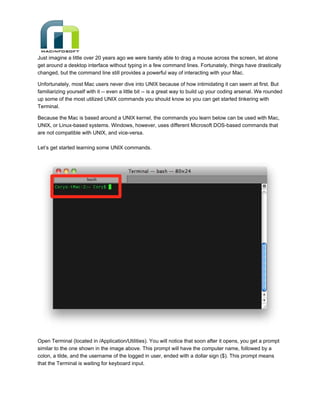
Open Terminal (located in /Application/Utilities). You will notice that soon after it opens, you get a prompt
similar to the one shown in the image above. This prompt will have the computer name, followed by a
colon, a tilde, and the username of the logged in user, ended with a dollar sign ($). This prompt means
that the Terminal is waiting for keyboard input.
1. ls
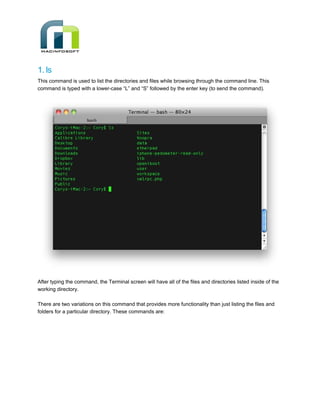
This command is used to list the directories and files while browsing through the command line. This
command is typed with a lower-case “L” and “S” followed by the enter key (to send the command).


After typing the command, the Terminal screen will have all of the files and directories listed inside of the
working directory.

There are two variations on this command that provides more functionality than just listing the files and
folders for a particular directory. These commands are:
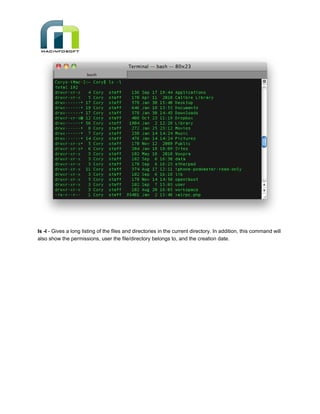
ls -l - Gives a long listing of the files and directories in the current directory. In addition, this command will
also show the permissions, user the file/directory belongs to, and the creation date.
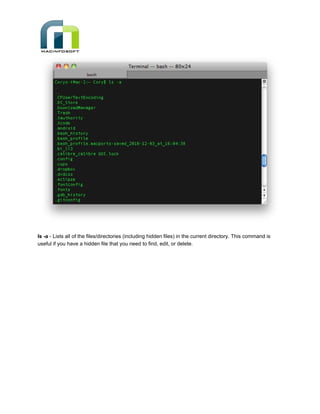
ls -a - Lists all of the files/directories (including hidden files) in the current directory. This command is
useful if you have a hidden file that you need to find, edit, or delete.
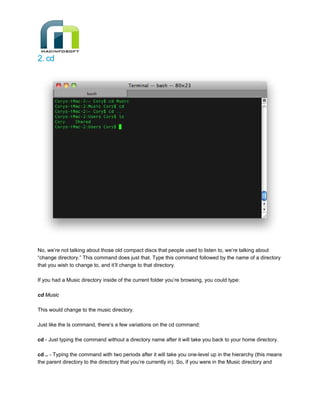
2. cd


No, we’re not talking about those old compact discs that people used to listen to, we’re talking about
“change directory.” This command does just that. Type this command followed by the name of a directory
that you wish to change to, and it’ll change to that directory.

If you had a Music directory inside of the current folder you’re browsing, you could type:

cd Music

This would change to the music directory.

Just like the ls command, there’s a few variations on the cd command:

cd - Just typing the command without a directory name after it will take you back to your home directory.

cd .. - Typing the command with two periods after it will take you one-level up in the hierarchy (this means
the parent directory to the directory that you’re currently in). So, if you were in the Music directory and
wanted to move back up to the parent directory you just moved from, you could type this command. Think
of this functionality as pressing the back button in a Finder window.

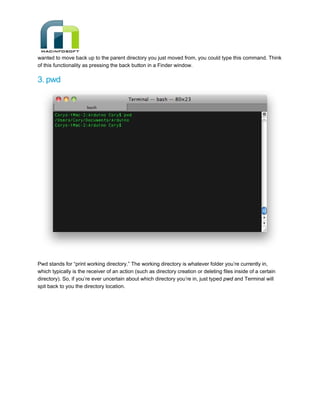
3. pwd


Pwd stands for “print working directory.” The working directory is whatever folder you’re currently in,
which typically is the receiver of an action (such as directory creation or deleting files inside of a certain
directory). So, if you’re ever uncertain about which directory you’re in, just typed pwd and Terminal will
spit back to you the directory location.
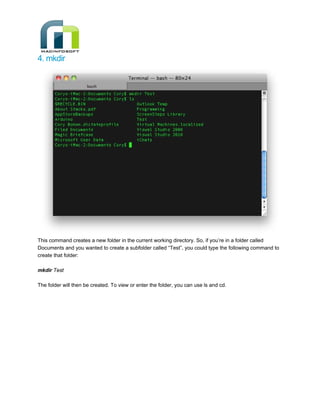
4. mkdir


This command creates a new folder in the current working directory. So, if you’re in a folder called
Documents and you wanted to create a subfolder called “Test”, you could type the following command to
create that folder:

mkdir Test

The folder will then be created. To view or enter the folder, you can use ls and cd.
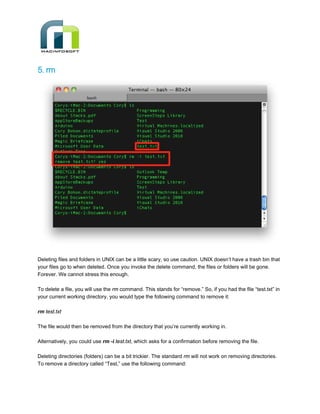
5. rm


Deleting files and folders in UNIX can be a little scary, so use caution. UNIX doesn’t have a trash bin that
your files go to when deleted. Once you invoke the delete command, the files or folders will be gone.
Forever. We cannot stress this enough.

To delete a file, you will use the rm command. This stands for “remove.” So, if you had the file “test.txt” in
your current working directory, you would type the following command to remove it:

rm test.txt

The file would then be removed from the directory that you’re currently working in.

Alternatively, you could use rm -i test.txt, which asks for a confirmation before removing the file.

Deleting directories (folders) can be a bit trickier. The standard rm will not work on removing directories.
To remove a directory called “Test,” use the following command:
rmdir Test

However, this command will only work on directories that don’t have additional files and subdirectories
contained in them. To remove a directory that has files in it, you’ll need to use the following command:

rm -r Test

This will use what’s known as recursion to delete all of the files and folders contained in the directory
before finally deleting the directory itself.


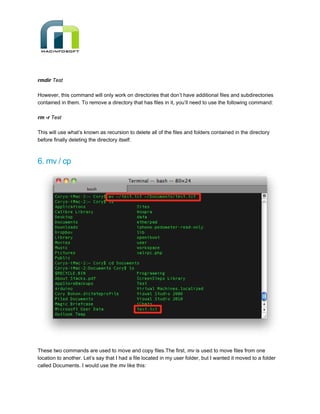
6. mv / cp


These two commands are used to move and copy files.The first, mv is used to move files from one
location to another. Let’s say that I had a file located in my user folder, but I wanted it moved to a folder
called Documents. I would use the mv like this:
mv ~/test.txt ~/Documents/test.txt

This will move the file from the first location that you specified to the second location.

Let’s say that instead of moving the file from the first location to the second location, you wanted to copy
it. That’s easy enough. Just replace the mv command with the cp command, like this:

cp ~/test.txt ~/Documents/test.txt

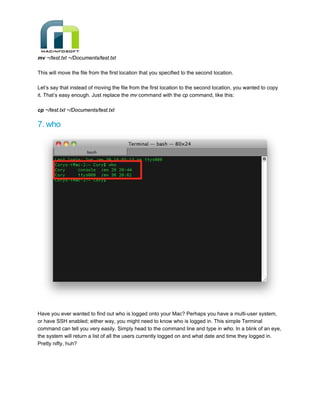
7. who


Have you ever wanted to find out who is logged onto your Mac? Perhaps you have a multi-user system,
or have SSH enabled; either way, you might need to know who is logged in. This simple Terminal
command can tell you very easily. Simply head to the command line and type in who. In a blink of an eye,
the system will return a list of all the users currently logged on and what date and time they logged in.
Pretty nifty, huh?
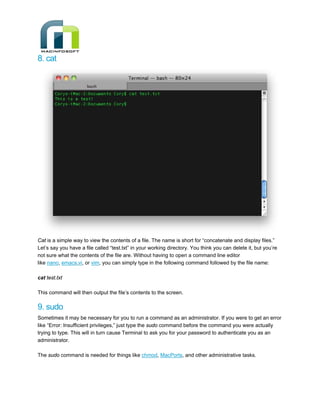
8. cat


Cat is a simple way to view the contents of a file. The name is short for “concatenate and display files.”
Let’s say you have a file called “test.txt” in your working directory. You think you can delete it, but you’re
not sure what the contents of the file are. Without having to open a command line editor
like nano, emacs,vi, or vim, you can simply type in the following command followed by the file name:

cat test.txt

This command will then output the file’s contents to the screen.

9. sudo
Sometimes it may be necessary for you to run a command as an administrator. If you were to get an error
like “Error: Insufficient privileges,” just type the sudo command before the command you were actually
trying to type. This will in turn cause Terminal to ask you for your password to authenticate you as an
administrator.

The sudo command is needed for things like chmod, MacPorts, and other administrative tasks.
10. control + C
Control + C is a way to tell a running command line-based program to quit and return you back to the
command line prompt. So, if you were running a ping or other command line tool, just press Control + C
to get back control.

11. clear
We saved the best and easiest for last. By now, you’ve no doubt tried many of the commands, but this
can leave your Terminal command rather busy with text flowing here and there. If you want to get rid of all
the previous commands and outputs being displayed on the screen, simply enter clear followed by the
enter key. This will wipe your Terminal screen clean, ready for you to type more commands.


For Mac OS X or Mac apps/iPhone apps Contactify@macinfosoft.com

Visit our website at : http://macinfosoft.com

Go through our rich information of knowledge sharing resources in our corporate blog:
http://macinfosoft.com/blog

Connect us in Social Media

http://twitter.com/macinfosoft

http://facebook.com/macinfosoft

http://www.linkedin.com/companies/macinfosoft-inc

We are also experts in designing logos, websites, brochures, flyers, keynotes, SEO, SMO, SMM, SEM &
comprehensive development for Macs, iPhone/iPad & Web.

11 unix osx_commands

  • 2.
    Just imagine alittle over 20 years ago we were barely able to drag a mouse across the screen, let alone get around a desktop interface without typing in a few command lines. Fortunately, things have drastically changed, but the command line still provides a powerful way of interacting with your Mac. Unfortunately, most Mac users never dive into UNIX because of how intimidating it can seem at first. But familiarizing yourself with it -- even a little bit -- is a great way to build up your coding arsenal. We rounded up some of the most utilized UNIX commands you should know so you can get started tinkering with Terminal. Because the Mac is based around a UNIX kernel, the commands you learn below can be used with Mac, UNIX, or Linux-based systems. Windows, however, uses different Microsoft DOS-based commands that are not compatible with UNIX, and vice-versa. Let’s get started learning some UNIX commands. Open Terminal (located in /Application/Utilities). You will notice that soon after it opens, you get a prompt similar to the one shown in the image above. This prompt will have the computer name, followed by a colon, a tilde, and the username of the logged in user, ended with a dollar sign ($). This prompt means that the Terminal is waiting for keyboard input.
  • 3.
    1. ls This commandis used to list the directories and files while browsing through the command line. This command is typed with a lower-case “L” and “S” followed by the enter key (to send the command). After typing the command, the Terminal screen will have all of the files and directories listed inside of the working directory. There are two variations on this command that provides more functionality than just listing the files and folders for a particular directory. These commands are:
  • 4.
    ls -l -Gives a long listing of the files and directories in the current directory. In addition, this command will also show the permissions, user the file/directory belongs to, and the creation date.
  • 5.
    ls -a -Lists all of the files/directories (including hidden files) in the current directory. This command is useful if you have a hidden file that you need to find, edit, or delete.
  • 6.
    2. cd No, we’renot talking about those old compact discs that people used to listen to, we’re talking about “change directory.” This command does just that. Type this command followed by the name of a directory that you wish to change to, and it’ll change to that directory. If you had a Music directory inside of the current folder you’re browsing, you could type: cd Music This would change to the music directory. Just like the ls command, there’s a few variations on the cd command: cd - Just typing the command without a directory name after it will take you back to your home directory. cd .. - Typing the command with two periods after it will take you one-level up in the hierarchy (this means the parent directory to the directory that you’re currently in). So, if you were in the Music directory and
  • 7.
    wanted to moveback up to the parent directory you just moved from, you could type this command. Think of this functionality as pressing the back button in a Finder window. 3. pwd Pwd stands for “print working directory.” The working directory is whatever folder you’re currently in, which typically is the receiver of an action (such as directory creation or deleting files inside of a certain directory). So, if you’re ever uncertain about which directory you’re in, just typed pwd and Terminal will spit back to you the directory location.
  • 8.
    4. mkdir This commandcreates a new folder in the current working directory. So, if you’re in a folder called Documents and you wanted to create a subfolder called “Test”, you could type the following command to create that folder: mkdir Test The folder will then be created. To view or enter the folder, you can use ls and cd.
  • 9.
    5. rm Deleting filesand folders in UNIX can be a little scary, so use caution. UNIX doesn’t have a trash bin that your files go to when deleted. Once you invoke the delete command, the files or folders will be gone. Forever. We cannot stress this enough. To delete a file, you will use the rm command. This stands for “remove.” So, if you had the file “test.txt” in your current working directory, you would type the following command to remove it: rm test.txt The file would then be removed from the directory that you’re currently working in. Alternatively, you could use rm -i test.txt, which asks for a confirmation before removing the file. Deleting directories (folders) can be a bit trickier. The standard rm will not work on removing directories. To remove a directory called “Test,” use the following command:
  • 10.
    rmdir Test However, thiscommand will only work on directories that don’t have additional files and subdirectories contained in them. To remove a directory that has files in it, you’ll need to use the following command: rm -r Test This will use what’s known as recursion to delete all of the files and folders contained in the directory before finally deleting the directory itself. 6. mv / cp These two commands are used to move and copy files.The first, mv is used to move files from one location to another. Let’s say that I had a file located in my user folder, but I wanted it moved to a folder called Documents. I would use the mv like this:
  • 11.
    mv ~/test.txt ~/Documents/test.txt Thiswill move the file from the first location that you specified to the second location. Let’s say that instead of moving the file from the first location to the second location, you wanted to copy it. That’s easy enough. Just replace the mv command with the cp command, like this: cp ~/test.txt ~/Documents/test.txt 7. who Have you ever wanted to find out who is logged onto your Mac? Perhaps you have a multi-user system, or have SSH enabled; either way, you might need to know who is logged in. This simple Terminal command can tell you very easily. Simply head to the command line and type in who. In a blink of an eye, the system will return a list of all the users currently logged on and what date and time they logged in. Pretty nifty, huh?
  • 12.
    8. cat Cat isa simple way to view the contents of a file. The name is short for “concatenate and display files.” Let’s say you have a file called “test.txt” in your working directory. You think you can delete it, but you’re not sure what the contents of the file are. Without having to open a command line editor like nano, emacs,vi, or vim, you can simply type in the following command followed by the file name: cat test.txt This command will then output the file’s contents to the screen. 9. sudo Sometimes it may be necessary for you to run a command as an administrator. If you were to get an error like “Error: Insufficient privileges,” just type the sudo command before the command you were actually trying to type. This will in turn cause Terminal to ask you for your password to authenticate you as an administrator. The sudo command is needed for things like chmod, MacPorts, and other administrative tasks.
  • 13.
    10. control +C Control + C is a way to tell a running command line-based program to quit and return you back to the command line prompt. So, if you were running a ping or other command line tool, just press Control + C to get back control. 11. clear We saved the best and easiest for last. By now, you’ve no doubt tried many of the commands, but this can leave your Terminal command rather busy with text flowing here and there. If you want to get rid of all the previous commands and outputs being displayed on the screen, simply enter clear followed by the enter key. This will wipe your Terminal screen clean, ready for you to type more commands. For Mac OS X or Mac apps/iPhone apps Contactify@macinfosoft.com Visit our website at : http://macinfosoft.com Go through our rich information of knowledge sharing resources in our corporate blog: http://macinfosoft.com/blog Connect us in Social Media http://twitter.com/macinfosoft http://facebook.com/macinfosoft http://www.linkedin.com/companies/macinfosoft-inc We are also experts in designing logos, websites, brochures, flyers, keynotes, SEO, SMO, SMM, SEM & comprehensive development for Macs, iPhone/iPad & Web.