Algunos trucos sencillos. 
Para ir terminando este curso, les dejo algunos trucos, que me son muy útiles, y algunas hojas, 
llamadas cheats, que son los viejos trencitos del liceo... o sea, cartas u hojas con recordatorio de los 
comandos más usados en linux. 
Muchas veces algo se queda atorado en la papelera y no se quiere ir, entonces corremos: 
sudo rm -rf ~/.local/share/Trash/files/* 
y listo. 
Fsck – comprobar si el sistema está ok, o en su defecto arreglar problemas de archivos corruptos. 
Para ejecutar el comando debemos arrancar el sistema en el modo “recovery mode” -> desmontar 
las particiones : tanto / como /home ( o solo la partición raiz / si /home no es una partición, sino 
un directorio dependiente de / ) -> ejecutar fsck 
1- Para saber que particiones hay en el sistema, se ejecuta el comando fdisk -l ( desde recovery 
mode no hace falta poner sudo porque ya estas con permisos de root; desde la sesión normal si que 
habría que poner: sudo fdisk -l ) te dice el sdaX y el sdaY: Lista las tablas de particiones: las 
particiones son usualmente de uno de los siguientes tipos: /dev/hda /dev/hdb ( /dev/hd[a-h] 
para discos IDE, ) , o /dev/sda /dev/sdb ( /dev/sd[a-p] para discos SCSI, ) , /dev/ed[a-d] 
para discos ESDI, /dev/xd[ab] para discos XT). 
2- Una vez hemos sabido cual es la partición-es donde esta el sistema, ( para verificar un sistema de 
archivos es muy aconsejable hacerlo mientras éste está desmontado), si por ejemplo la partición raiz 
/ esta en /dev/sda1 y la partición /home en /dev/sda2 las desmonto con sudo umount /dev/sda1 
sudo umount /dev/sda2 
3- Ejecuto el comando sudo fsck -c -y /dev/sda1 /dev/sda2 Se tardan un poco, pero te dejan los 
discos y el sistema super finos 
Sacado de http://hatteras.wordpress.com/2009/04/21/fsck-file-system-consistency-check/ 
(mucho ojo con fsck, pueden quedarse sin nada en el home si no desmontan primero, están 
avisados...) 
Hacer un backup de un dvd, o sea copiarlo a disco duro... 
dvdbackup -M -i /dev/dvd -o /donde/quieras/ponerlo 
Keyboard shortcuts (Atajos de teclado) 
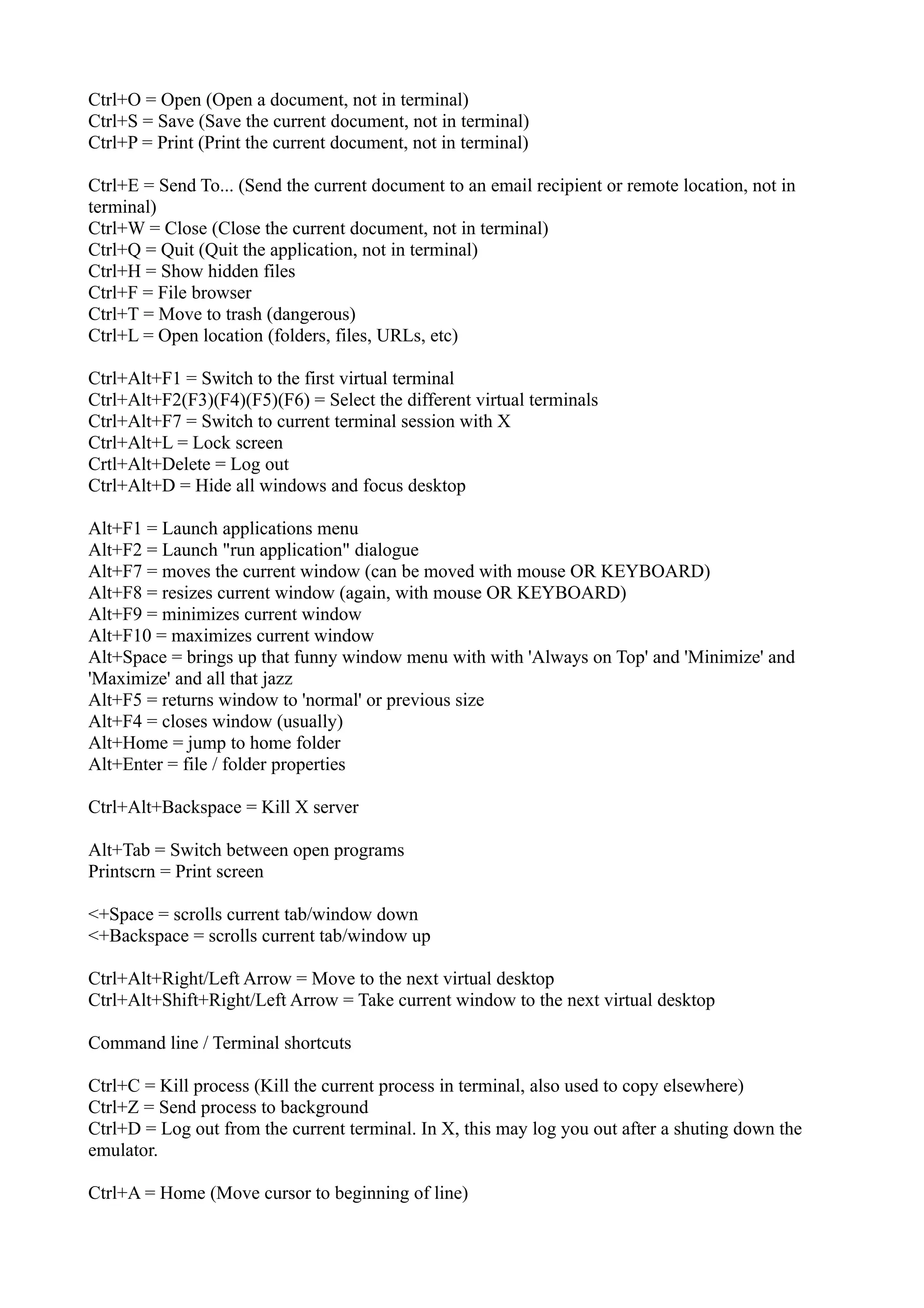
Ctrl+A = Select all (In Documents, Firefox, Nautilus, etc, not Terminal) 
Ctrl+C = Copy (In Documents, Firefox, Nautilus, etc, not Terminal) 
Ctrl+V = Paste (In Documents, Firefox, Nautilus, etc, not Terminal) 
F9 = Toggle Sidebar 
F2 = Rename 
Ctrl+Shift+N = Create new folder 
Ctrl+N = New (Create a new document, not in terminal)
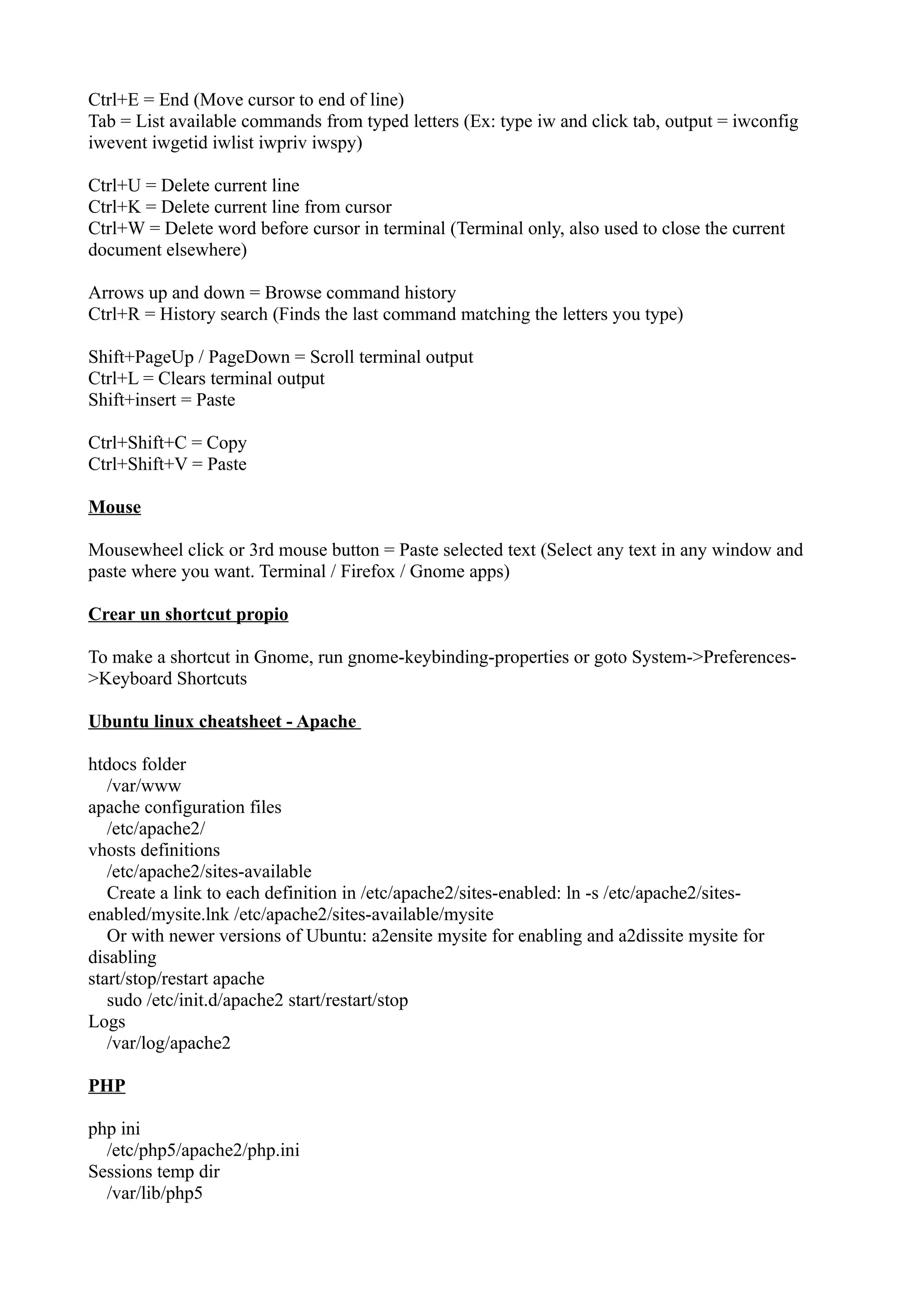
Ctrl+O = Open (Open a document, not in terminal) 
Ctrl+S = Save (Save the current document, not in terminal) 
Ctrl+P = Print (Print the current document, not in terminal) 
Ctrl+E = Send To... (Send the current document to an email recipient or remote location, not in 
terminal) 
Ctrl+W = Close (Close the current document, not in terminal) 
Ctrl+Q = Quit (Quit the application, not in terminal) 
Ctrl+H = Show hidden files 
Ctrl+F = File browser 
Ctrl+T = Move to trash (dangerous) 
Ctrl+L = Open location (folders, files, URLs, etc) 
Ctrl+Alt+F1 = Switch to the first virtual terminal 
Ctrl+Alt+F2(F3)(F4)(F5)(F6) = Select the different virtual terminals 
Ctrl+Alt+F7 = Switch to current terminal session with X 
Ctrl+Alt+L = Lock screen 
Crtl+Alt+Delete = Log out 
Ctrl+Alt+D = Hide all windows and focus desktop 
Alt+F1 = Launch applications menu 
Alt+F2 = Launch "run application" dialogue 
Alt+F7 = moves the current window (can be moved with mouse OR KEYBOARD) 
Alt+F8 = resizes current window (again, with mouse OR KEYBOARD) 
Alt+F9 = minimizes current window 
Alt+F10 = maximizes current window 
Alt+Space = brings up that funny window menu with with 'Always on Top' and 'Minimize' and 
'Maximize' and all that jazz 
Alt+F5 = returns window to 'normal' or previous size 
Alt+F4 = closes window (usually) 
Alt+Home = jump to home folder 
Alt+Enter = file / folder properties 
Ctrl+Alt+Backspace = Kill X server 
Alt+Tab = Switch between open programs 
Printscrn = Print screen 
<+Space = scrolls current tab/window down 
<+Backspace = scrolls current tab/window up 
Ctrl+Alt+Right/Left Arrow = Move to the next virtual desktop 
Ctrl+Alt+Shift+Right/Left Arrow = Take current window to the next virtual desktop 
Command line / Terminal shortcuts 
Ctrl+C = Kill process (Kill the current process in terminal, also used to copy elsewhere) 
Ctrl+Z = Send process to background 
Ctrl+D = Log out from the current terminal. In X, this may log you out after a shuting down the 
emulator. 
Ctrl+A = Home (Move cursor to beginning of line)
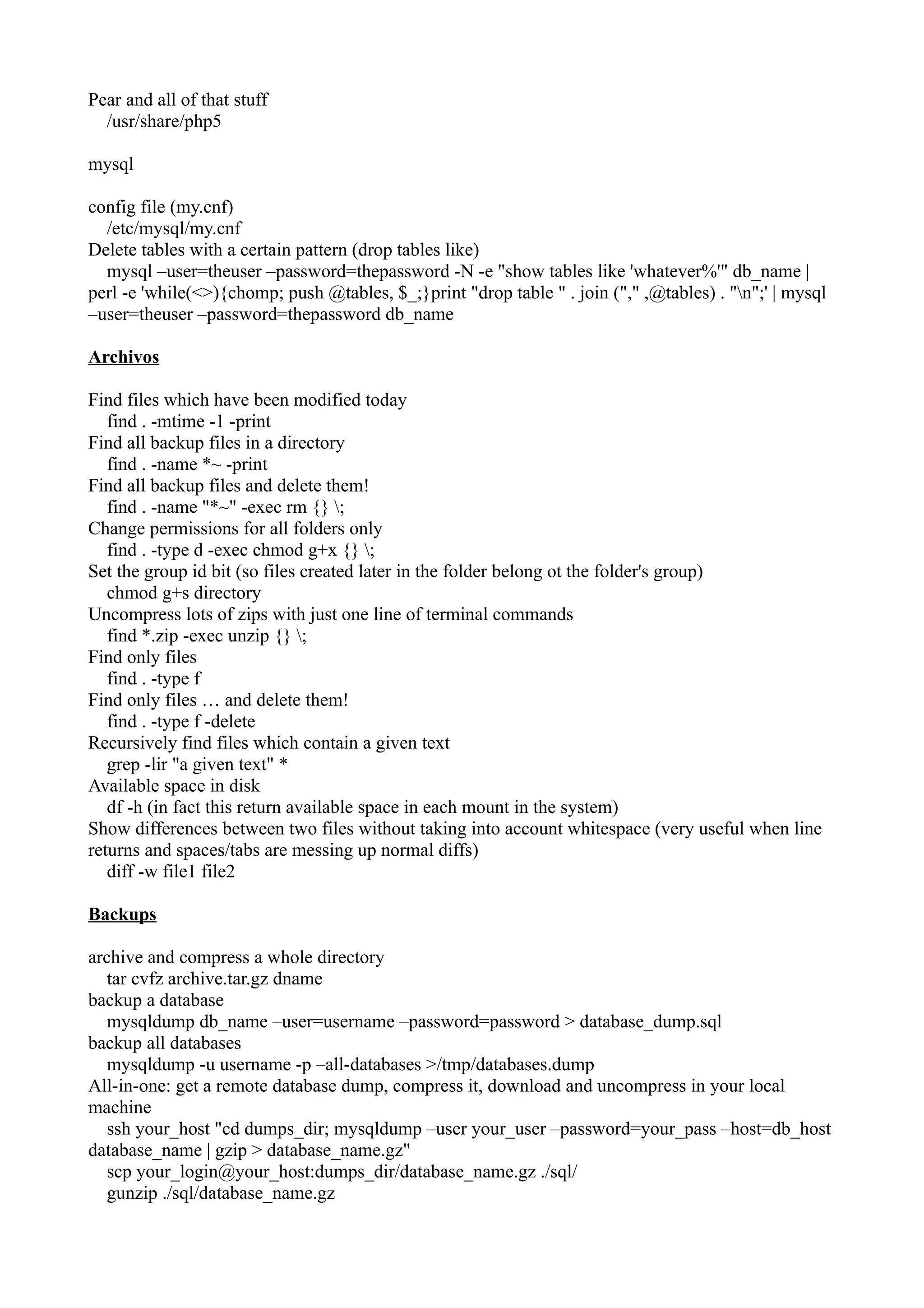
Ctrl+E = End (Move cursor to end of line) 
Tab = List available commands from typed letters (Ex: type iw and click tab, output = iwconfig 
iwevent iwgetid iwlist iwpriv iwspy) 
Ctrl+U = Delete current line 
Ctrl+K = Delete current line from cursor 
Ctrl+W = Delete word before cursor in terminal (Terminal only, also used to close the current 
document elsewhere) 
Arrows up and down = Browse command history 
Ctrl+R = History search (Finds the last command matching the letters you type) 
Shift+PageUp / PageDown = Scroll terminal output 
Ctrl+L = Clears terminal output 
Shift+insert = Paste 
Ctrl+Shift+C = Copy 
Ctrl+Shift+V = Paste 
Mouse 
Mousewheel click or 3rd mouse button = Paste selected text (Select any text in any window and 
paste where you want. Terminal / Firefox / Gnome apps) 
Crear un shortcut propio 
To make a shortcut in Gnome, run gnome-keybinding-properties or goto System->Preferences- 
>Keyboard Shortcuts 
Ubuntu linux cheatsheet - Apache 
htdocs folder 
/var/www 
apache configuration files 
/etc/apache2/ 
vhosts definitions 
/etc/apache2/sites-available 
Create a link to each definition in /etc/apache2/sites-enabled: ln -s /etc/apache2/sites-enabled/ 
mysite.lnk /etc/apache2/sites-available/mysite 
Or with newer versions of Ubuntu: a2ensite mysite for enabling and a2dissite mysite for 
disabling 
start/stop/restart apache 
sudo /etc/init.d/apache2 start/restart/stop 
Logs 
/var/log/apache2 
PHP 
php ini 
/etc/php5/apache2/php.ini 
Sessions temp dir 
/var/lib/php5
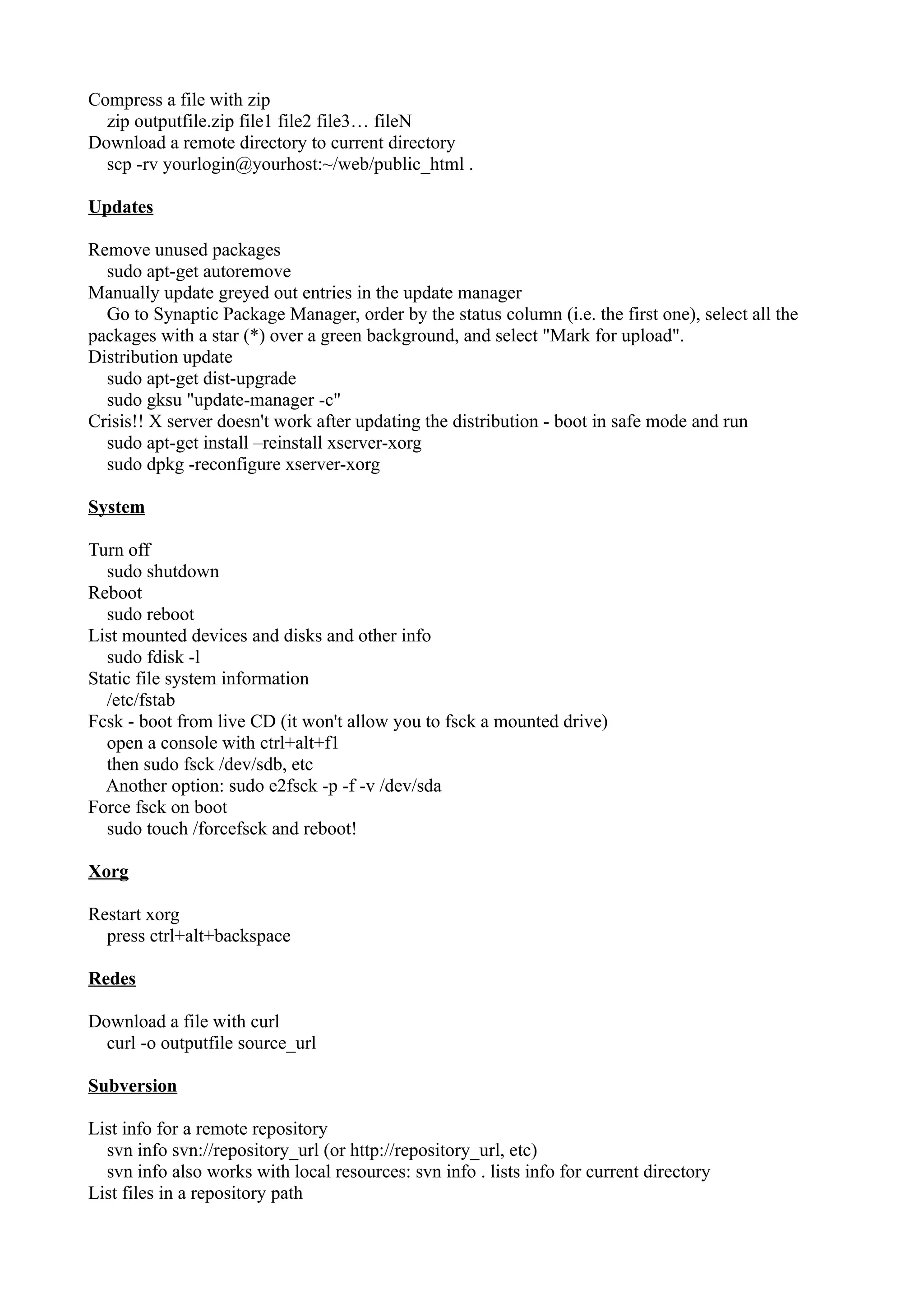
Pear and all of that stuff 
/usr/share/php5 
mysql 
config file (my.cnf) 
/etc/mysql/my.cnf 
Delete tables with a certain pattern (drop tables like) 
mysql –user=theuser –password=thepassword -N -e "show tables like 'whatever%'" db_name | 
perl -e 'while(<>){chomp; push @tables, $_;}print "drop table " . join ("," ,@tables) . "n";' | mysql 
–user=theuser –password=thepassword db_name 
Archivos 
Find files which have been modified today 
find . -mtime -1 -print 
Find all backup files in a directory 
find . -name *~ -print 
Find all backup files and delete them! 
find . -name "*~" -exec rm {} ; 
Change permissions for all folders only 
find . -type d -exec chmod g+x {} ; 
Set the group id bit (so files created later in the folder belong ot the folder's group) 
chmod g+s directory 
Uncompress lots of zips with just one line of terminal commands 
find *.zip -exec unzip {} ; 
Find only files 
find . -type f 
Find only files … and delete them! 
find . -type f -delete 
Recursively find files which contain a given text 
grep -lir "a given text" * 
Available space in disk 
df -h (in fact this return available space in each mount in the system) 
Show differences between two files without taking into account whitespace (very useful when line 
returns and spaces/tabs are messing up normal diffs) 
diff -w file1 file2 
Backups 
archive and compress a whole directory 
tar cvfz archive.tar.gz dname 
backup a database 
mysqldump db_name –user=username –password=password > database_dump.sql 
backup all databases 
mysqldump -u username -p –all-databases >/tmp/databases.dump 
All-in-one: get a remote database dump, compress it, download and uncompress in your local 
machine 
ssh your_host "cd dumps_dir; mysqldump –user your_user –password=your_pass –host=db_host 
database_name | gzip > database_name.gz" 
scp your_login@your_host:dumps_dir/database_name.gz ./sql/ 
gunzip ./sql/database_name.gz
Compress a file with zip 
zip outputfile.zip file1 file2 file3… fileN 
Download a remote directory to current directory 
scp -rv yourlogin@yourhost:~/web/public_html . 
Updates 
Remove unused packages 
sudo apt-get autoremove 
Manually update greyed out entries in the update manager 
Go to Synaptic Package Manager, order by the status column (i.e. the first one), select all the 
packages with a star (*) over a green background, and select "Mark for upload". 
Distribution update 
sudo apt-get dist-upgrade 
sudo gksu "update-manager -c" 
Crisis!! X server doesn't work after updating the distribution - boot in safe mode and run 
sudo apt-get install –reinstall xserver-xorg 
sudo dpkg -reconfigure xserver-xorg 
System 
Turn off 
sudo shutdown 
Reboot 
sudo reboot 
List mounted devices and disks and other info 
sudo fdisk -l 
Static file system information 
/etc/fstab 
Fcsk - boot from live CD (it won't allow you to fsck a mounted drive) 
open a console with ctrl+alt+f1 
then sudo fsck /dev/sdb, etc 
Another option: sudo e2fsck -p -f -v /dev/sda 
Force fsck on boot 
sudo touch /forcefsck and reboot! 
Xorg 
Restart xorg 
press ctrl+alt+backspace 
Redes 
Download a file with curl 
curl -o outputfile source_url 
Subversion 
List info for a remote repository 
svn info svn://repository_url (or http://repository_url, etc) 
svn info also works with local resources: svn info . lists info for current directory 
List files in a repository path
svn list svn://repository/path 
VirtualBox 
Recompiling kernel module after upgrading the kernel: 
sudo aptitude install linux-headers-$(uname -r) 
sudo /etc/init.d/vboxdrv setup 
Some people suggest using "sudo aptitude install virtualbox-ose-modules-generic" which is "a 
metapackage". I haven't tested it. 
PulseAudio 
Stop and restart 
pkill pulseaudio; pulseaudio & 
PGP & co 
Clearsign a file with a non-default key 
gpg –default-key [KEYID] –clearsign [FILENAME] 
Y con esto y las Cheats tienen para entretenerse, y empezar a aprender... 
Muchas gracias a todos. 
Daniel Mato – 27.7.10

Clase10 (consola linux)

  • 1.
    Algunos trucos sencillos. Para ir terminando este curso, les dejo algunos trucos, que me son muy útiles, y algunas hojas, llamadas cheats, que son los viejos trencitos del liceo... o sea, cartas u hojas con recordatorio de los comandos más usados en linux. Muchas veces algo se queda atorado en la papelera y no se quiere ir, entonces corremos: sudo rm -rf ~/.local/share/Trash/files/* y listo. Fsck – comprobar si el sistema está ok, o en su defecto arreglar problemas de archivos corruptos. Para ejecutar el comando debemos arrancar el sistema en el modo “recovery mode” -> desmontar las particiones : tanto / como /home ( o solo la partición raiz / si /home no es una partición, sino un directorio dependiente de / ) -> ejecutar fsck 1- Para saber que particiones hay en el sistema, se ejecuta el comando fdisk -l ( desde recovery mode no hace falta poner sudo porque ya estas con permisos de root; desde la sesión normal si que habría que poner: sudo fdisk -l ) te dice el sdaX y el sdaY: Lista las tablas de particiones: las particiones son usualmente de uno de los siguientes tipos: /dev/hda /dev/hdb ( /dev/hd[a-h] para discos IDE, ) , o /dev/sda /dev/sdb ( /dev/sd[a-p] para discos SCSI, ) , /dev/ed[a-d] para discos ESDI, /dev/xd[ab] para discos XT). 2- Una vez hemos sabido cual es la partición-es donde esta el sistema, ( para verificar un sistema de archivos es muy aconsejable hacerlo mientras éste está desmontado), si por ejemplo la partición raiz / esta en /dev/sda1 y la partición /home en /dev/sda2 las desmonto con sudo umount /dev/sda1 sudo umount /dev/sda2 3- Ejecuto el comando sudo fsck -c -y /dev/sda1 /dev/sda2 Se tardan un poco, pero te dejan los discos y el sistema super finos Sacado de http://hatteras.wordpress.com/2009/04/21/fsck-file-system-consistency-check/ (mucho ojo con fsck, pueden quedarse sin nada en el home si no desmontan primero, están avisados...) Hacer un backup de un dvd, o sea copiarlo a disco duro... dvdbackup -M -i /dev/dvd -o /donde/quieras/ponerlo Keyboard shortcuts (Atajos de teclado) Ctrl+A = Select all (In Documents, Firefox, Nautilus, etc, not Terminal) Ctrl+C = Copy (In Documents, Firefox, Nautilus, etc, not Terminal) Ctrl+V = Paste (In Documents, Firefox, Nautilus, etc, not Terminal) F9 = Toggle Sidebar F2 = Rename Ctrl+Shift+N = Create new folder Ctrl+N = New (Create a new document, not in terminal)
  • 2.
    Ctrl+O = Open(Open a document, not in terminal) Ctrl+S = Save (Save the current document, not in terminal) Ctrl+P = Print (Print the current document, not in terminal) Ctrl+E = Send To... (Send the current document to an email recipient or remote location, not in terminal) Ctrl+W = Close (Close the current document, not in terminal) Ctrl+Q = Quit (Quit the application, not in terminal) Ctrl+H = Show hidden files Ctrl+F = File browser Ctrl+T = Move to trash (dangerous) Ctrl+L = Open location (folders, files, URLs, etc) Ctrl+Alt+F1 = Switch to the first virtual terminal Ctrl+Alt+F2(F3)(F4)(F5)(F6) = Select the different virtual terminals Ctrl+Alt+F7 = Switch to current terminal session with X Ctrl+Alt+L = Lock screen Crtl+Alt+Delete = Log out Ctrl+Alt+D = Hide all windows and focus desktop Alt+F1 = Launch applications menu Alt+F2 = Launch "run application" dialogue Alt+F7 = moves the current window (can be moved with mouse OR KEYBOARD) Alt+F8 = resizes current window (again, with mouse OR KEYBOARD) Alt+F9 = minimizes current window Alt+F10 = maximizes current window Alt+Space = brings up that funny window menu with with 'Always on Top' and 'Minimize' and 'Maximize' and all that jazz Alt+F5 = returns window to 'normal' or previous size Alt+F4 = closes window (usually) Alt+Home = jump to home folder Alt+Enter = file / folder properties Ctrl+Alt+Backspace = Kill X server Alt+Tab = Switch between open programs Printscrn = Print screen <+Space = scrolls current tab/window down <+Backspace = scrolls current tab/window up Ctrl+Alt+Right/Left Arrow = Move to the next virtual desktop Ctrl+Alt+Shift+Right/Left Arrow = Take current window to the next virtual desktop Command line / Terminal shortcuts Ctrl+C = Kill process (Kill the current process in terminal, also used to copy elsewhere) Ctrl+Z = Send process to background Ctrl+D = Log out from the current terminal. In X, this may log you out after a shuting down the emulator. Ctrl+A = Home (Move cursor to beginning of line)
  • 3.
    Ctrl+E = End(Move cursor to end of line) Tab = List available commands from typed letters (Ex: type iw and click tab, output = iwconfig iwevent iwgetid iwlist iwpriv iwspy) Ctrl+U = Delete current line Ctrl+K = Delete current line from cursor Ctrl+W = Delete word before cursor in terminal (Terminal only, also used to close the current document elsewhere) Arrows up and down = Browse command history Ctrl+R = History search (Finds the last command matching the letters you type) Shift+PageUp / PageDown = Scroll terminal output Ctrl+L = Clears terminal output Shift+insert = Paste Ctrl+Shift+C = Copy Ctrl+Shift+V = Paste Mouse Mousewheel click or 3rd mouse button = Paste selected text (Select any text in any window and paste where you want. Terminal / Firefox / Gnome apps) Crear un shortcut propio To make a shortcut in Gnome, run gnome-keybinding-properties or goto System->Preferences- >Keyboard Shortcuts Ubuntu linux cheatsheet - Apache htdocs folder /var/www apache configuration files /etc/apache2/ vhosts definitions /etc/apache2/sites-available Create a link to each definition in /etc/apache2/sites-enabled: ln -s /etc/apache2/sites-enabled/ mysite.lnk /etc/apache2/sites-available/mysite Or with newer versions of Ubuntu: a2ensite mysite for enabling and a2dissite mysite for disabling start/stop/restart apache sudo /etc/init.d/apache2 start/restart/stop Logs /var/log/apache2 PHP php ini /etc/php5/apache2/php.ini Sessions temp dir /var/lib/php5
  • 4.
    Pear and allof that stuff /usr/share/php5 mysql config file (my.cnf) /etc/mysql/my.cnf Delete tables with a certain pattern (drop tables like) mysql –user=theuser –password=thepassword -N -e "show tables like 'whatever%'" db_name | perl -e 'while(<>){chomp; push @tables, $_;}print "drop table " . join ("," ,@tables) . "n";' | mysql –user=theuser –password=thepassword db_name Archivos Find files which have been modified today find . -mtime -1 -print Find all backup files in a directory find . -name *~ -print Find all backup files and delete them! find . -name "*~" -exec rm {} ; Change permissions for all folders only find . -type d -exec chmod g+x {} ; Set the group id bit (so files created later in the folder belong ot the folder's group) chmod g+s directory Uncompress lots of zips with just one line of terminal commands find *.zip -exec unzip {} ; Find only files find . -type f Find only files … and delete them! find . -type f -delete Recursively find files which contain a given text grep -lir "a given text" * Available space in disk df -h (in fact this return available space in each mount in the system) Show differences between two files without taking into account whitespace (very useful when line returns and spaces/tabs are messing up normal diffs) diff -w file1 file2 Backups archive and compress a whole directory tar cvfz archive.tar.gz dname backup a database mysqldump db_name –user=username –password=password > database_dump.sql backup all databases mysqldump -u username -p –all-databases >/tmp/databases.dump All-in-one: get a remote database dump, compress it, download and uncompress in your local machine ssh your_host "cd dumps_dir; mysqldump –user your_user –password=your_pass –host=db_host database_name | gzip > database_name.gz" scp your_login@your_host:dumps_dir/database_name.gz ./sql/ gunzip ./sql/database_name.gz
  • 5.
    Compress a filewith zip zip outputfile.zip file1 file2 file3… fileN Download a remote directory to current directory scp -rv yourlogin@yourhost:~/web/public_html . Updates Remove unused packages sudo apt-get autoremove Manually update greyed out entries in the update manager Go to Synaptic Package Manager, order by the status column (i.e. the first one), select all the packages with a star (*) over a green background, and select "Mark for upload". Distribution update sudo apt-get dist-upgrade sudo gksu "update-manager -c" Crisis!! X server doesn't work after updating the distribution - boot in safe mode and run sudo apt-get install –reinstall xserver-xorg sudo dpkg -reconfigure xserver-xorg System Turn off sudo shutdown Reboot sudo reboot List mounted devices and disks and other info sudo fdisk -l Static file system information /etc/fstab Fcsk - boot from live CD (it won't allow you to fsck a mounted drive) open a console with ctrl+alt+f1 then sudo fsck /dev/sdb, etc Another option: sudo e2fsck -p -f -v /dev/sda Force fsck on boot sudo touch /forcefsck and reboot! Xorg Restart xorg press ctrl+alt+backspace Redes Download a file with curl curl -o outputfile source_url Subversion List info for a remote repository svn info svn://repository_url (or http://repository_url, etc) svn info also works with local resources: svn info . lists info for current directory List files in a repository path
  • 6.
    svn list svn://repository/path VirtualBox Recompiling kernel module after upgrading the kernel: sudo aptitude install linux-headers-$(uname -r) sudo /etc/init.d/vboxdrv setup Some people suggest using "sudo aptitude install virtualbox-ose-modules-generic" which is "a metapackage". I haven't tested it. PulseAudio Stop and restart pkill pulseaudio; pulseaudio & PGP & co Clearsign a file with a non-default key gpg –default-key [KEYID] –clearsign [FILENAME] Y con esto y las Cheats tienen para entretenerse, y empezar a aprender... Muchas gracias a todos. Daniel Mato – 27.7.10