Table of Contents
Preface
Introduction to Linux and shells
man
ls
cd
pwd
mkdir
rmdir
mv
cp
open
touch
find
ln
gzip
gunzip
tar
alias
cat
less
tail
wc
grep
sort
1
uniq
diff
echo
chown
chmod
umask
du
df
basename
dirname
ps
top
kill
killall
jobs
bg
fg
type
which
nohup
xargs
vim
emacs
nano
whoami
who
su
sudo
2
passwd
ping
traceroute
clear
history
export
crontab
uname
env
printenv
Conclusion
3
4
Preface
The Linux Commands Handbook follows the 80/20
rule: learn in 20% of the time the 80% of a topic.
I find this approach gives a well-rounded overview.
This book does not try to cover everything under the
sun related to Linux and its commands. It focuses on
the small core commands that you will use the 80% or
90% of the time, trying to simplify the usage of the
more complex ones.
All those commands work on Linux, macOS, WSL,
and anywhere you have a UNIX environment.
I hope the contents of this book will help you achieve
what you want: get comfortable with Linux.
This book is written by Flavio. I publish
programming tutorials every day on my website
flaviocopes.com.
You can reach me on Twitter @flaviocopes.
Enjoy!
5
Introduction to Linux and
shells
Linux is an operating system, like macOS or Windows.
It is also the most popular Open Source and free, as in
freedom, operating system.
It powers the vast majority of the servers that
compose the Internet. It's the base upon which
everything is built upon. But not just that. Android is
based on (a modified version of) Linux.
The Linux "core" (called kernel) was born in 1991 in
Finland, and it went a really long way from its humble
beginnings. It went on to be the kernel of the GNU
Operating System, creating the duo GNU/Linux.
There's one thing about Linux that corporations like
Microsoft and Apple, or Google, will never be able to
offer: the freedom to do whatever you want with your
computer.
They're actually going in the opposite direction,
building walled gardens, especially on the mobile side.
Linux is the ultimate freedom.
It is developed by volunteers, some paid by
companies that rely on it, some independently, but
there's no single commercial company that can dictate
what goes into Linux, or the project priorities.
6
Linux can also be used as your day to day computer. I
use macOS because I really enjoy the applications,
the design and I also used to be an iOS and Mac apps
developer, but before using it I used Linux as my main
computer Operating System.
No one can dictate which apps you can run, or "call
home" with apps that track you, your position, and
more.
Linux is also special because there's not just "one
Linux", like it happens on Windows or macOS.
Instead, we have distributions.
A "distro" is made by a company or organization and
packages the Linux core with additional programs and
tooling.
For example you have Debian, Red Hat, and Ubuntu,
probably the most popular.
Many, many more exist. You can create your own
distribution, too. But most likely you'll use a popular
one, one that has lots of users and a community of
people around it, so you can do what you need to do
without losing too much time reinventing the wheel
and figuring out answers to common problems.
Some desktop computers and laptops ship with Linux
preinstalled. Or you can install it on your Windows-
based computer, or on a Mac.
But you don't need to disrupt your existing computer
just to get an idea of how Linux works.
I don't have a Linux computer.
If you use a Mac you need to know that under the
hood macOS is a UNIX Operating System, and it
shares a lot of the same ideas and software that a
GNU/Linux system uses, because GNU/Linux is a free
alternative to UNIX.
UNIX is an umbrella term that groups many
operating systems used in big corporations and
institutions, starting from the 70's
The macOS terminal gives you access to the same
exact commands I'll describe in the rest of this
handbook.
Microsoft has an official Windows Subsystem for Linux
which you can (and should!) install on Windows. This
will give you the ability to run Linux in a very easy way
on your PC.
But the vast majority of the time you will run a Linux
computer in the cloud via a VPS (Virtual Private
Server) like DigitalOcean.
A shell is a command interpreter that exposes to the
user an interface to work with the underlying operating
system.
It allows you to execute operations using text and
commands, and it provides users advanced features
like being able to create scripts.
This is important: shells let you perform things in a
more optimized way than a GUI (Graphical User
Interface) could ever possibly let you do. Command
line tools can offer many different configuration options
without being too complex to use.
7
8
There are many different kind of shells. This post
focuses on Unix shells, the ones that you will find
commonly on Linux and macOS computers.
Many different kind of shells were created for those
systems over time, and a few of them dominate the
space: Bash, Csh, Zsh, Fish and many more!
sh
All shells originate from the Bourne Shell, called .
"Bourne" because its creator was Steve Bourne.
sh
Bash means Bourne-again shell. was proprietary
and not open source, and Bash was created in 1989
to create a free alternative for the GNU project and the
Free Software Foundation. Since projects had to pay
to use the Bourne shell, Bash became very popular.
If you use a Mac, try opening your Mac terminal. That
by default is running ZSH. (or, pre-Catalina, Bash)
You can set up your system to run any kind of shell,
for example I use the Fish shell.
Each single shell has its own unique features and
advanced usage, but they all share a common
functionality: they can let you execute programs, and
they can be programmed.
In the rest of this handbook we'll see in detail the most
common commands you will use.
man
The first command I want to introduce is a command
that will help you understand all the other commands.
Every time I don't know how to use a command, I type
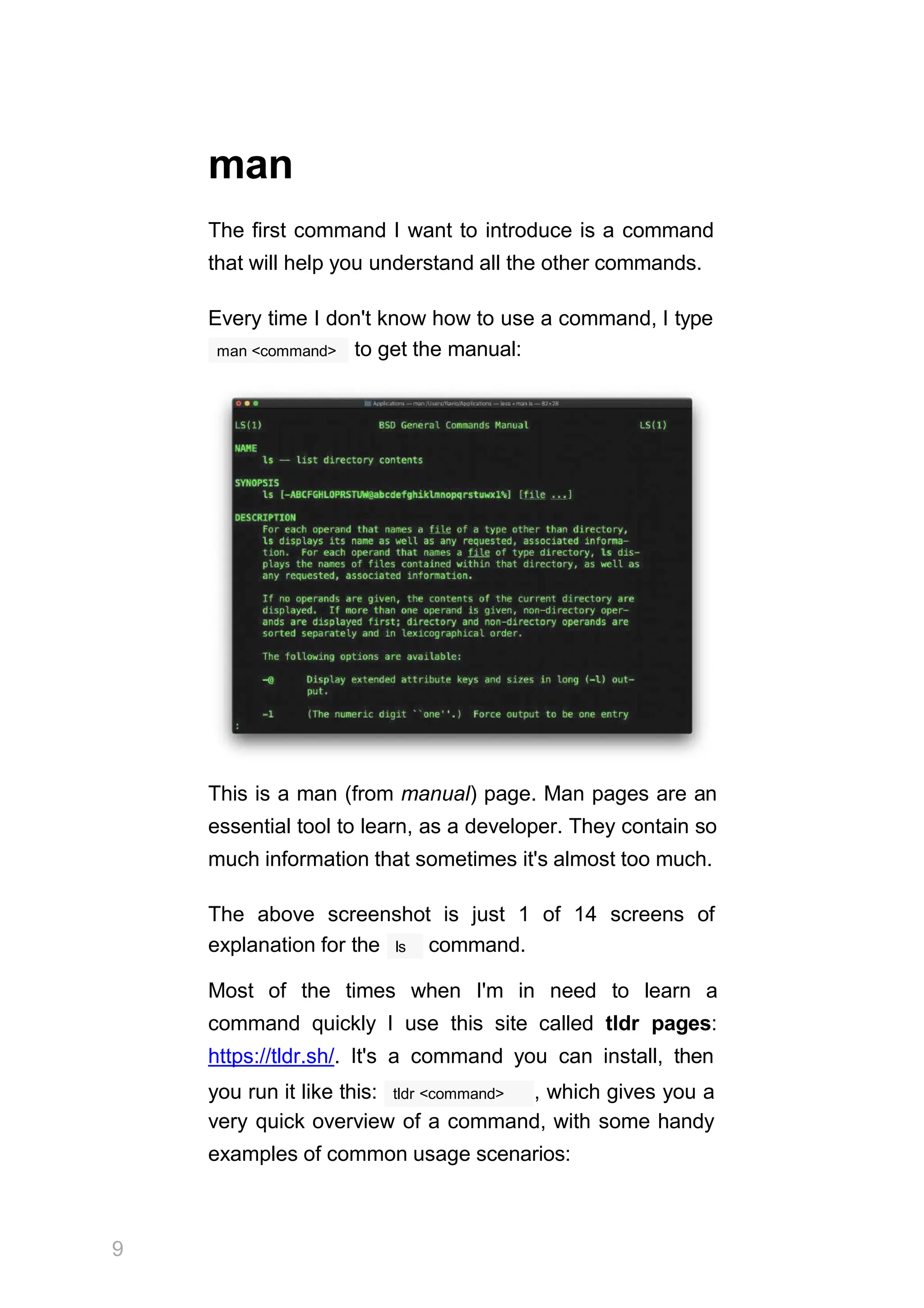
man <command> to get the manual:
This is a man (from manual) page. Man pages are an
essential tool to learn, as a developer. They contain so
much information that sometimes it's almost too much.
The above screenshot is just 1 of 14 screens of
9
ls
explanation for the command.
Most of the times when I'm in need to learn a
command quickly I use this site called tldr pages:
https://tldr.sh/. It's a command you can install, then
tldr <command>
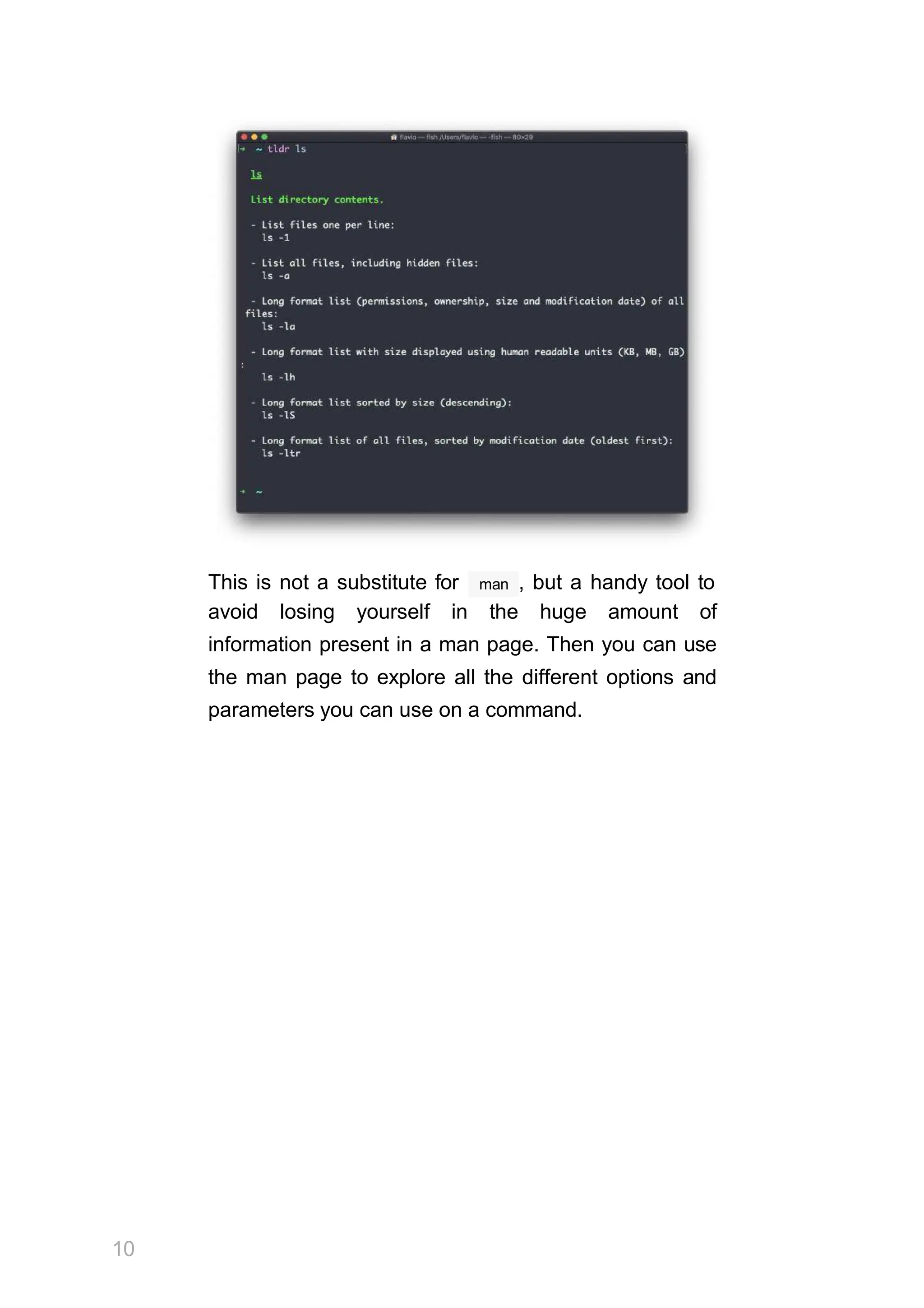
you run it like this: , which gives you a
very quick overview of a command, with some handy
examples of common usage scenarios:
This is not a substitute for
10
man , but a handy tool to
avoid losing yourself in the huge amount of
information present in a man page. Then you can use
the man page to explore all the different options and
parameters you can use on a command.
ls
Inside a folder you can list all the files that the folder
ls
contains using the command:
ls
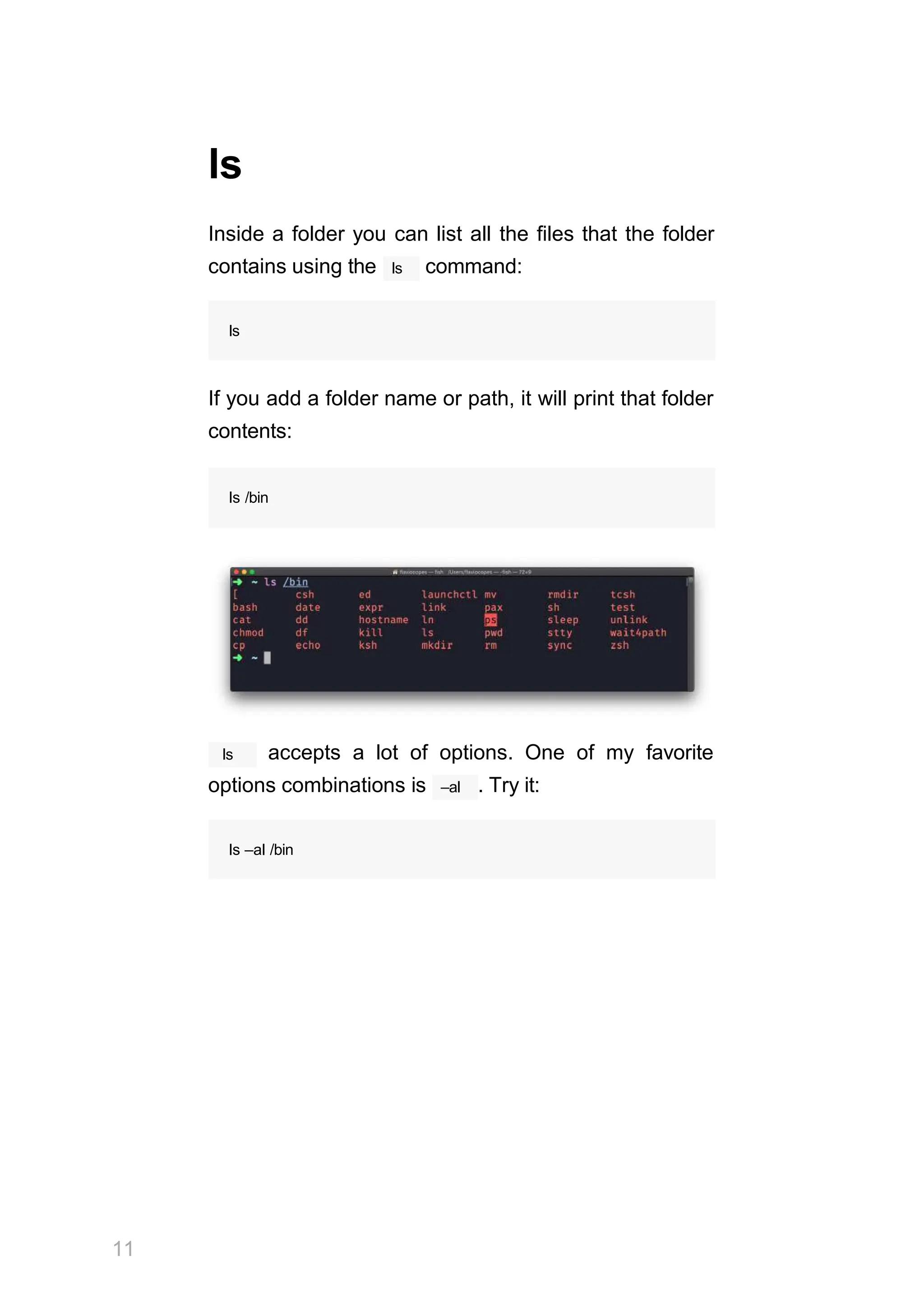
If you add a folder name or path, it will print that folder
contents:
ls /bin
ls
11
accepts a lot of options. One of my favorite
–al
options combinations is . Try it:
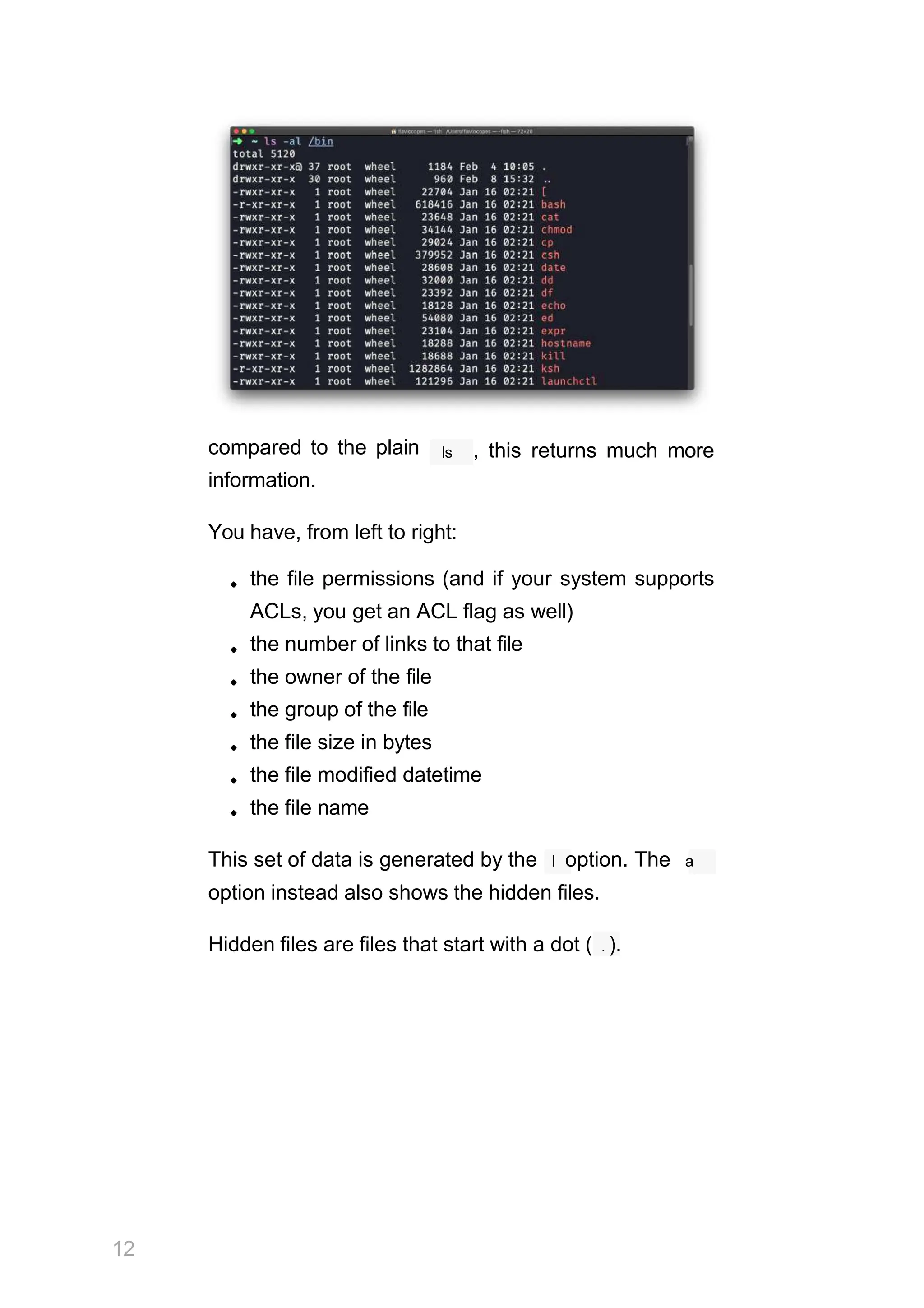
ls –al /bin
compared to the plain
information.
ls , this returns much more
You have, from left to right:
the file permissions (and if your system supports
ACLs, you get an ACL flag as well)
the number of links to that file
the owner of the file
the group of the file
the file size in bytes
the file modified datetime
the file name
This set of data is generated by the l option. The a
option instead also shows the hidden files.
Hidden files are files that start with a dot ( . ).
12
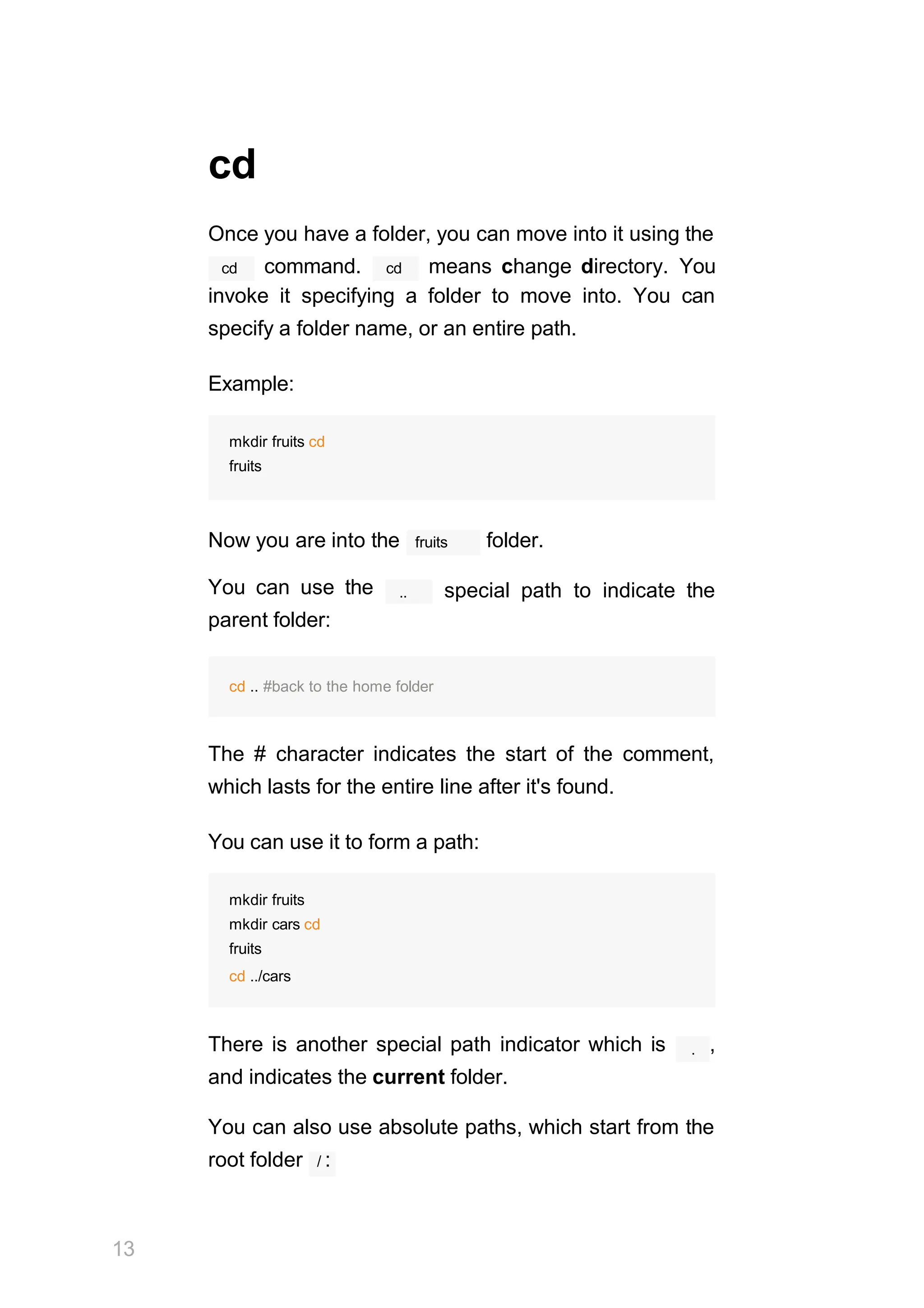
cd
Once you have a folder, you can move into it using the
cd cd
command. means change directory. You
invoke it specifying a folder to move into. You can
specify a folder name, or an entire path.
Example:
mkdir fruits cd
fruits
fruits
Now you are into the folder.
You can use the
parent folder:
.. special path to indicate the
cd .. #back to the home folder
The # character indicates the start of the comment,
which lasts for the entire line after it's found.
You can use it to form a path:
mkdir fruits
mkdir cars cd
fruits
cd ../cars
.
There is another special path indicator which is ,
and indicates the current folder.
You can also use absolute paths, which start from the
root folder / :
13
cd /etc
14
This command works on Linux, macOS, WSL,
and anywhere you have a UNIX environment
15
pwd
Whenever you feel lost in the filesystem, call the
command to know where you are:
pwd
pwd
It will print the current folder path.
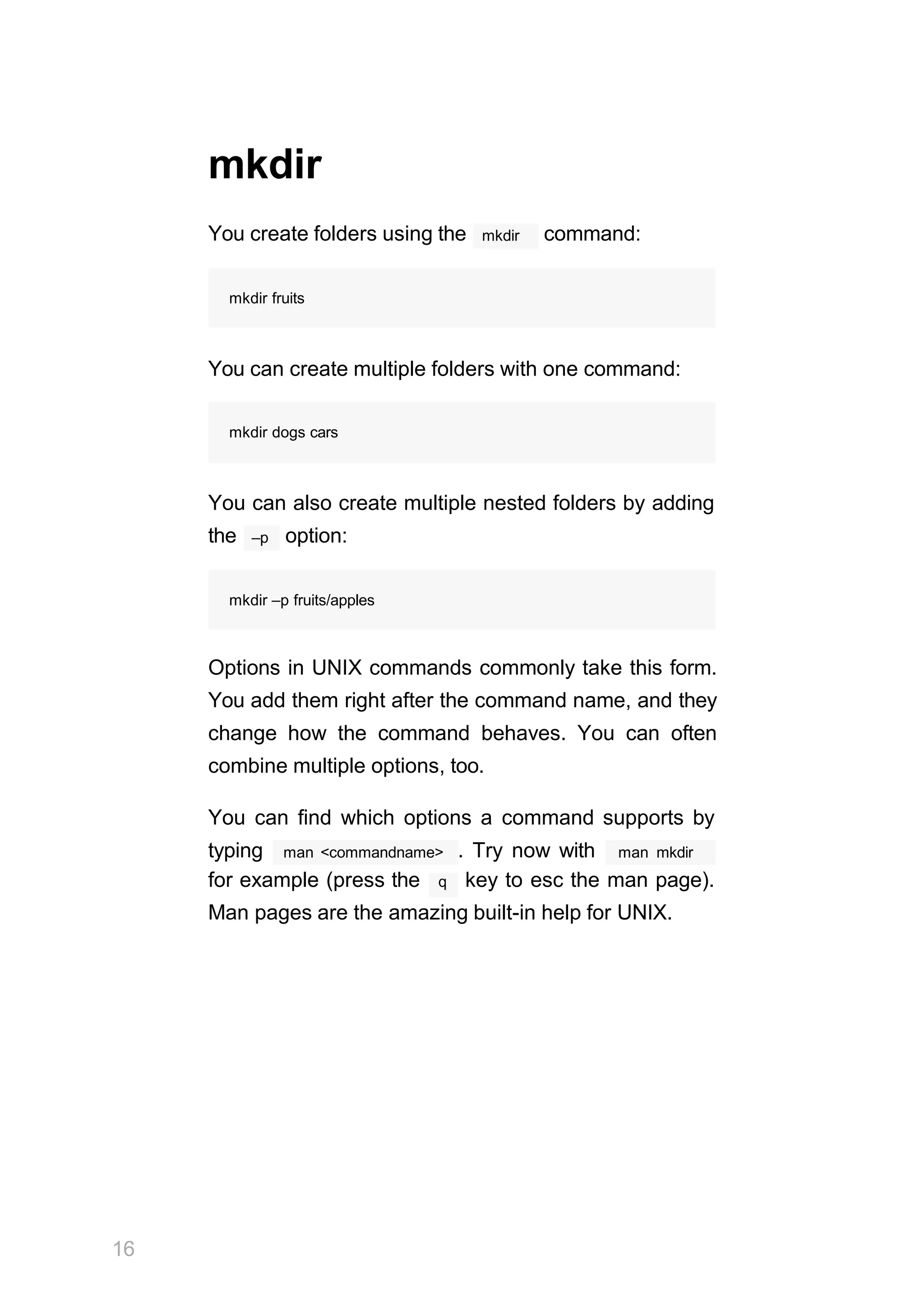
mkdir
mkdir
You create folders using the command:
mkdir fruits
You can create multiple folders with one command:
mkdir dogs cars
You can also create multiple nested folders by adding
–p
the option:
mkdir –p fruits/apples
Options in UNIX commands commonly take this form.
You add them right after the command name, and they
change how the command behaves. You can often
combine multiple options, too.
You can find which options a command supports by
man <commandname>
typing . Try now with man mkdir
for example (press the q key to esc the man page).
Man pages are the amazing built-in help for UNIX.
16
17
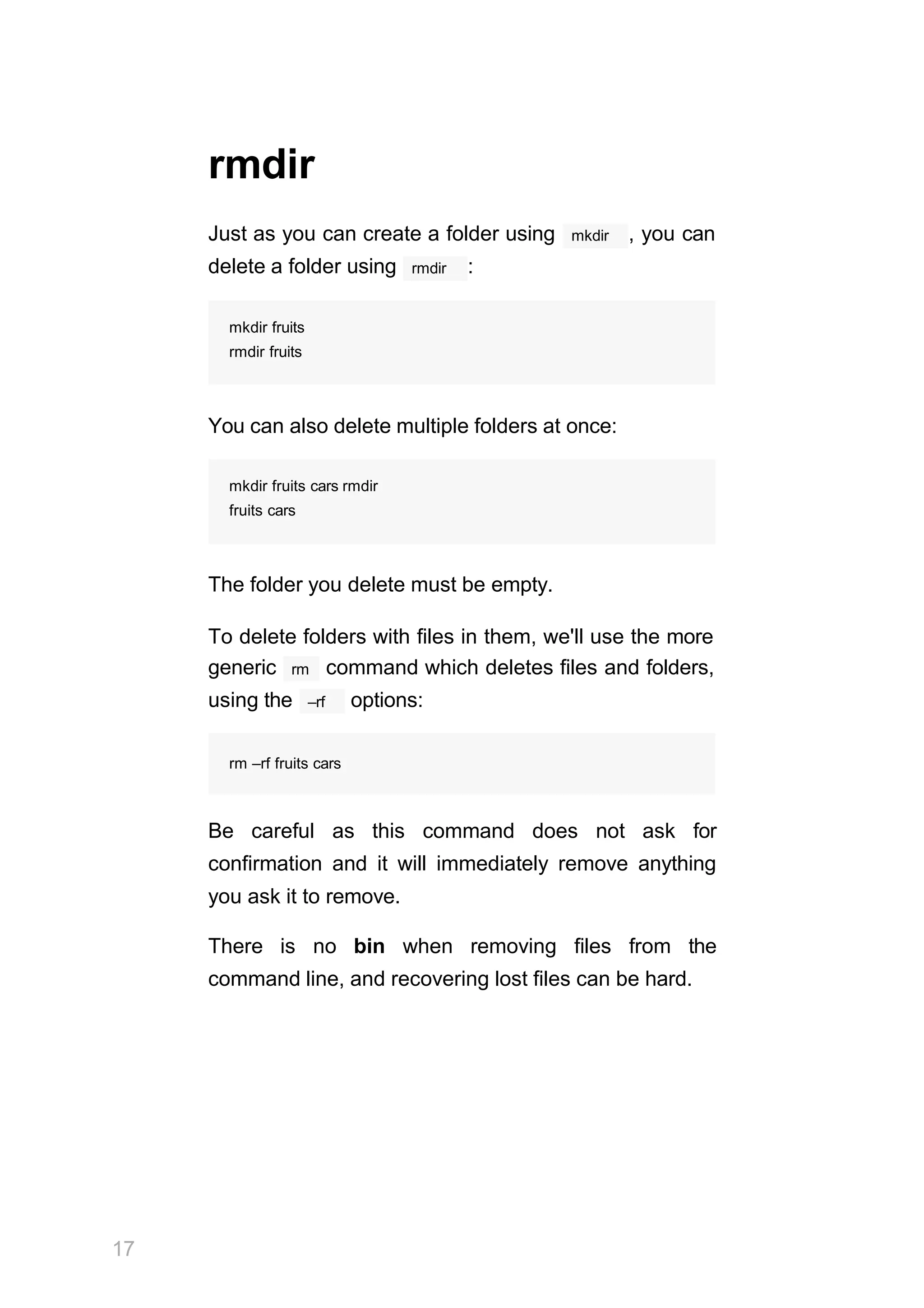
rmdir
Just as you can create a folder using mkdir , you can
rmdir
delete a folder using :
mkdir fruits
rmdir fruits
You can also delete multiple folders at once:
mkdir fruits cars rmdir
fruits cars
The folder you delete must be empty.
To delete folders with files in them, we'll use the more
rm
generic command which deletes files and folders,
–rf
using the options:
rm –rf fruits cars
Be careful as this command does not ask for
confirmation and it will immediately remove anything
you ask it to remove.
There is no bin when removing files from the
command line, and recovering lost files can be hard.
18
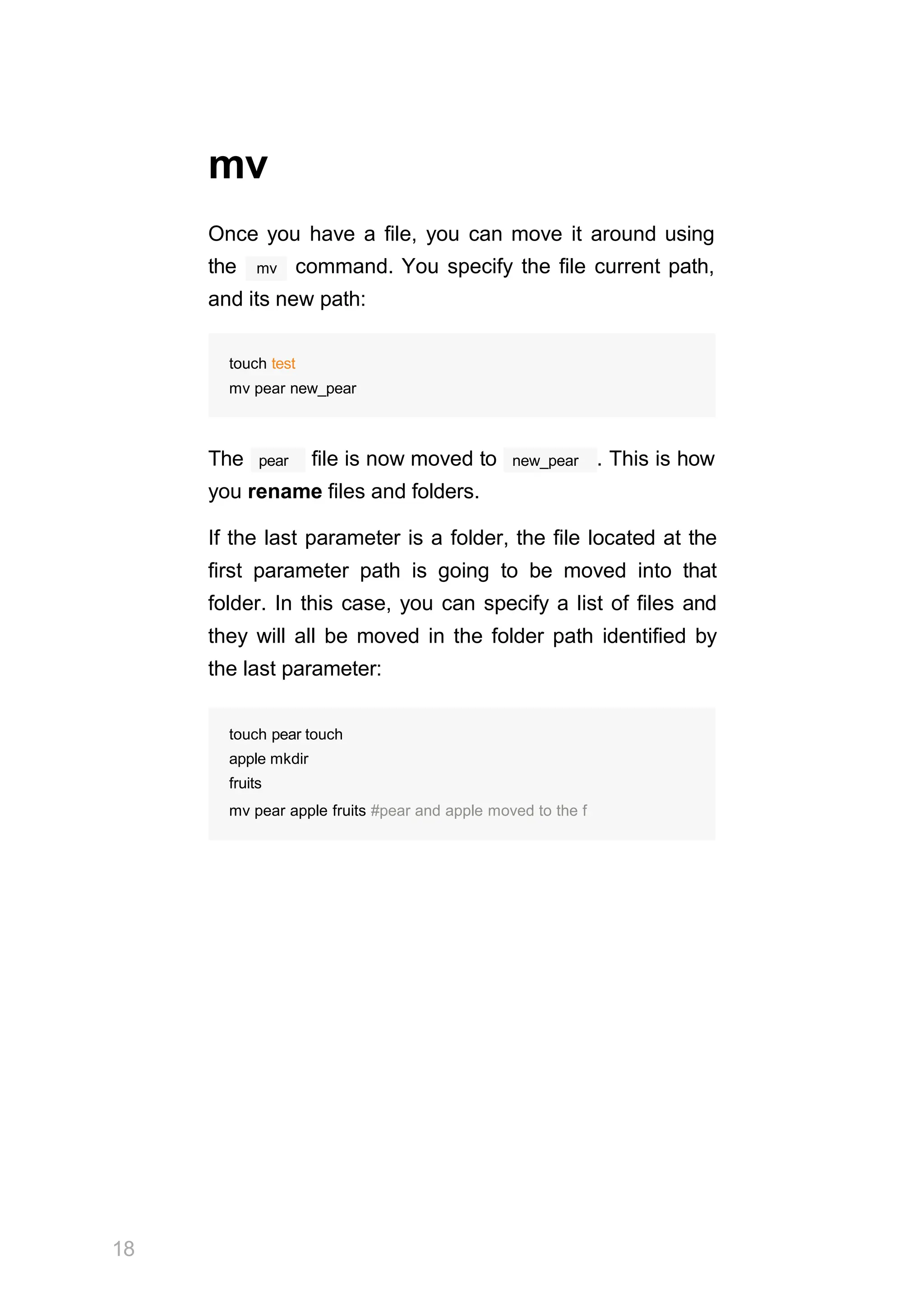
mv
Once you have a file, you can move it around using
mv
the command. You specify the file current path,
and its new path:
touch test
mv pear new_pear
pear
The file is now moved to new_pear . This is how
you rename files and folders.
If the last parameter is a folder, the file located at the
first parameter path is going to be moved into that
folder. In this case, you can specify a list of files and
they will all be moved in the folder path identified by
the last parameter:
touch pear touch
apple mkdir
fruits
mv pear apple fruits #pear and apple moved to the f
19
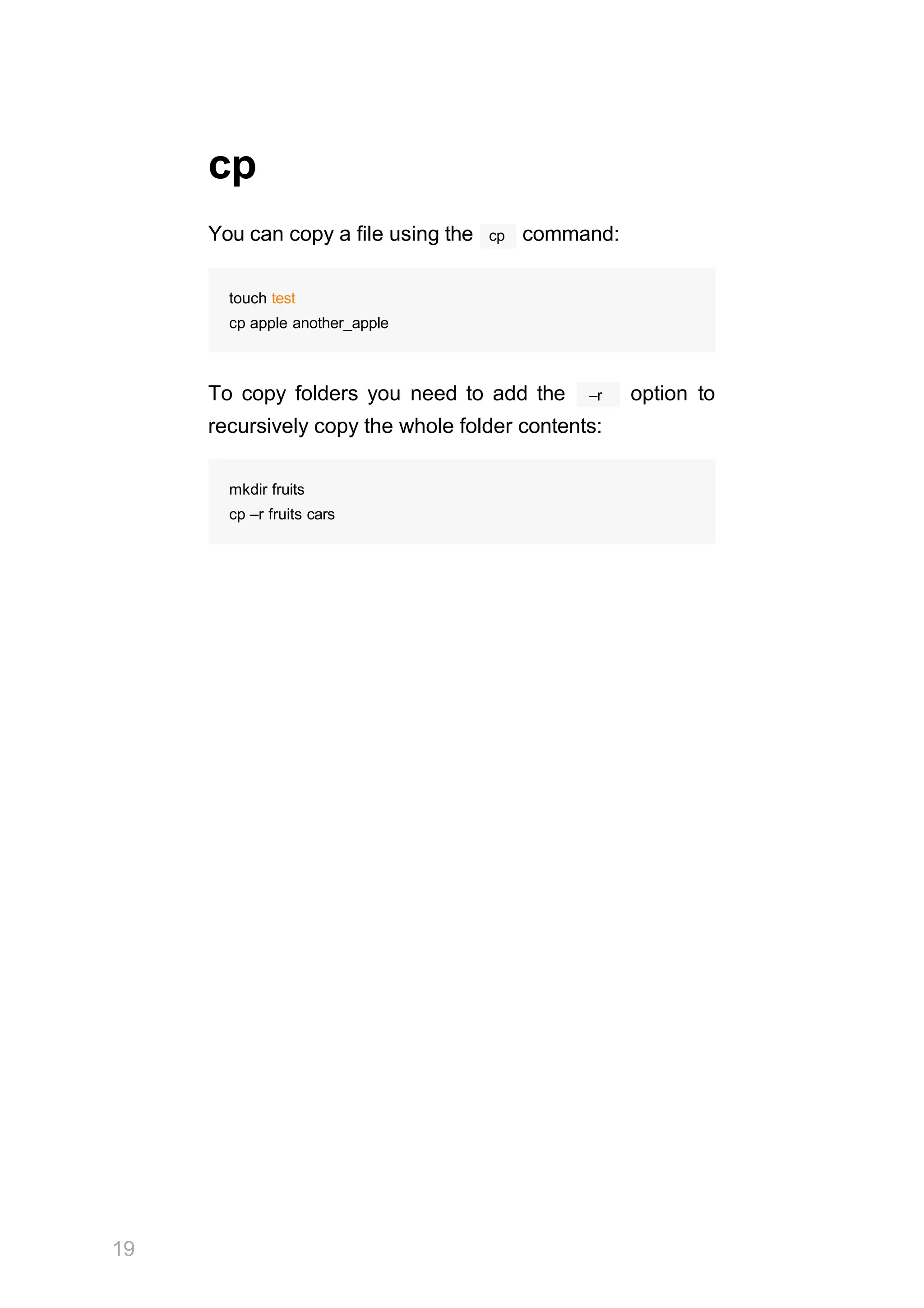
cp
cp
You can copy a file using the command:
touch test
cp apple another_apple
–r
To copy folders you need to add the option to
recursively copy the whole folder contents:
mkdir fruits
cp –r fruits cars
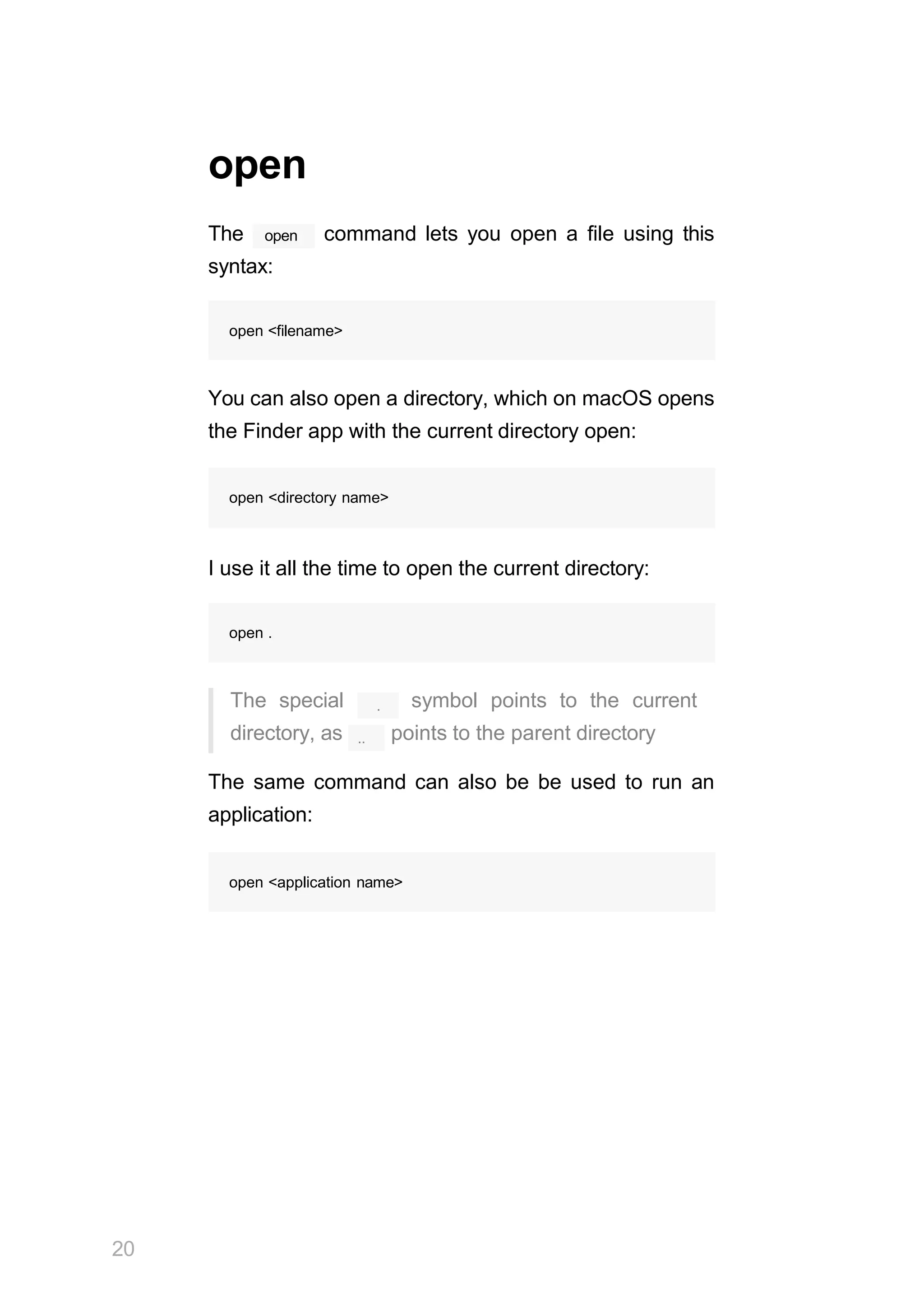
open
20
The open command lets you open a file using this
syntax:
open <filename>
You can also open a directory, which on macOS opens
the Finder app with the current directory open:
open <directory name>
I use it all the time to open the current directory:
open .
.
..
The special symbol points to the current
directory, as points to the parent directory
The same command can also be be used to run an
application:
open <application name>
21
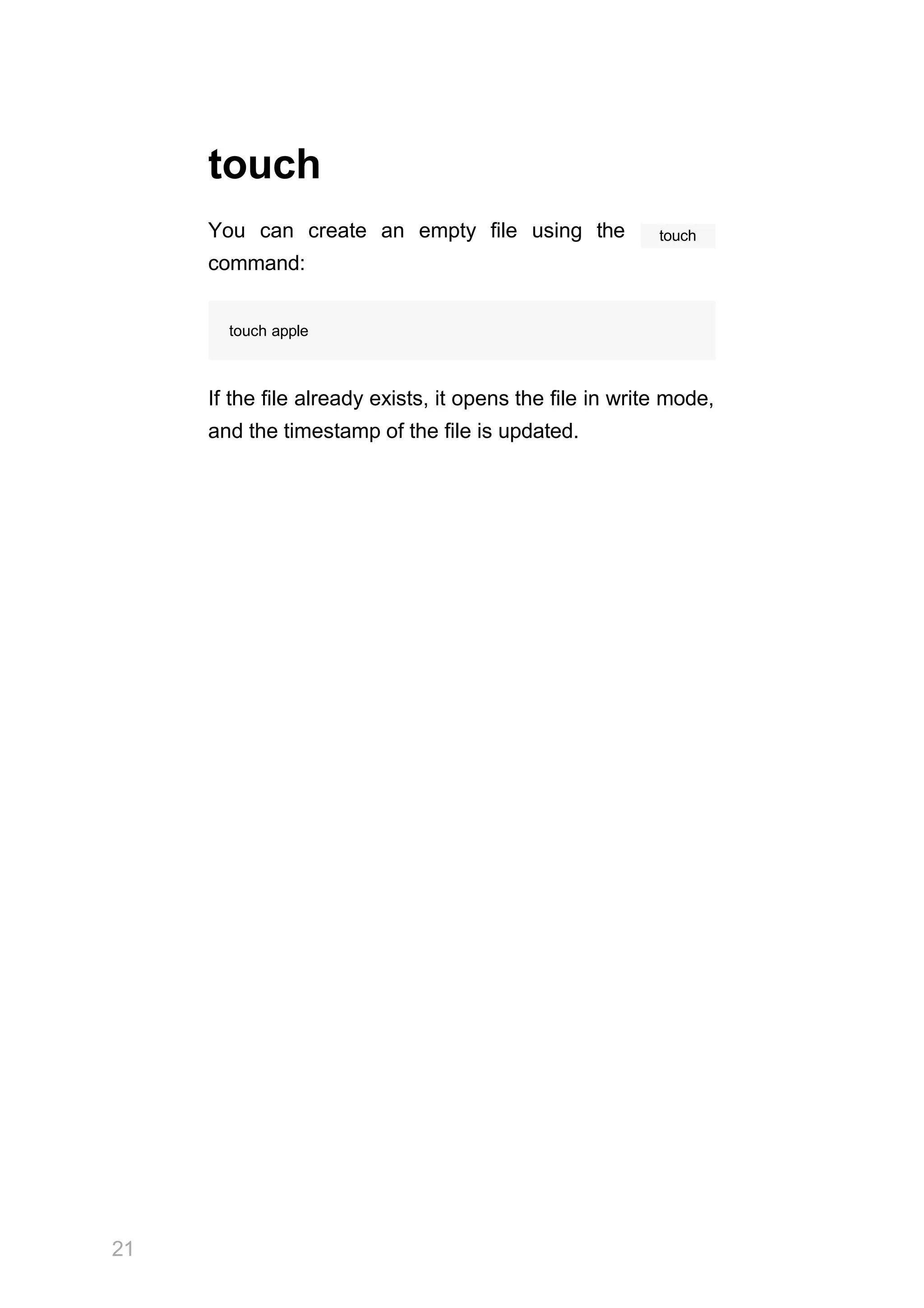
touch
You can create an empty file using the
command:
touch
touch apple
If the file already exists, it opens the file in write mode,
and the timestamp of the file is updated.
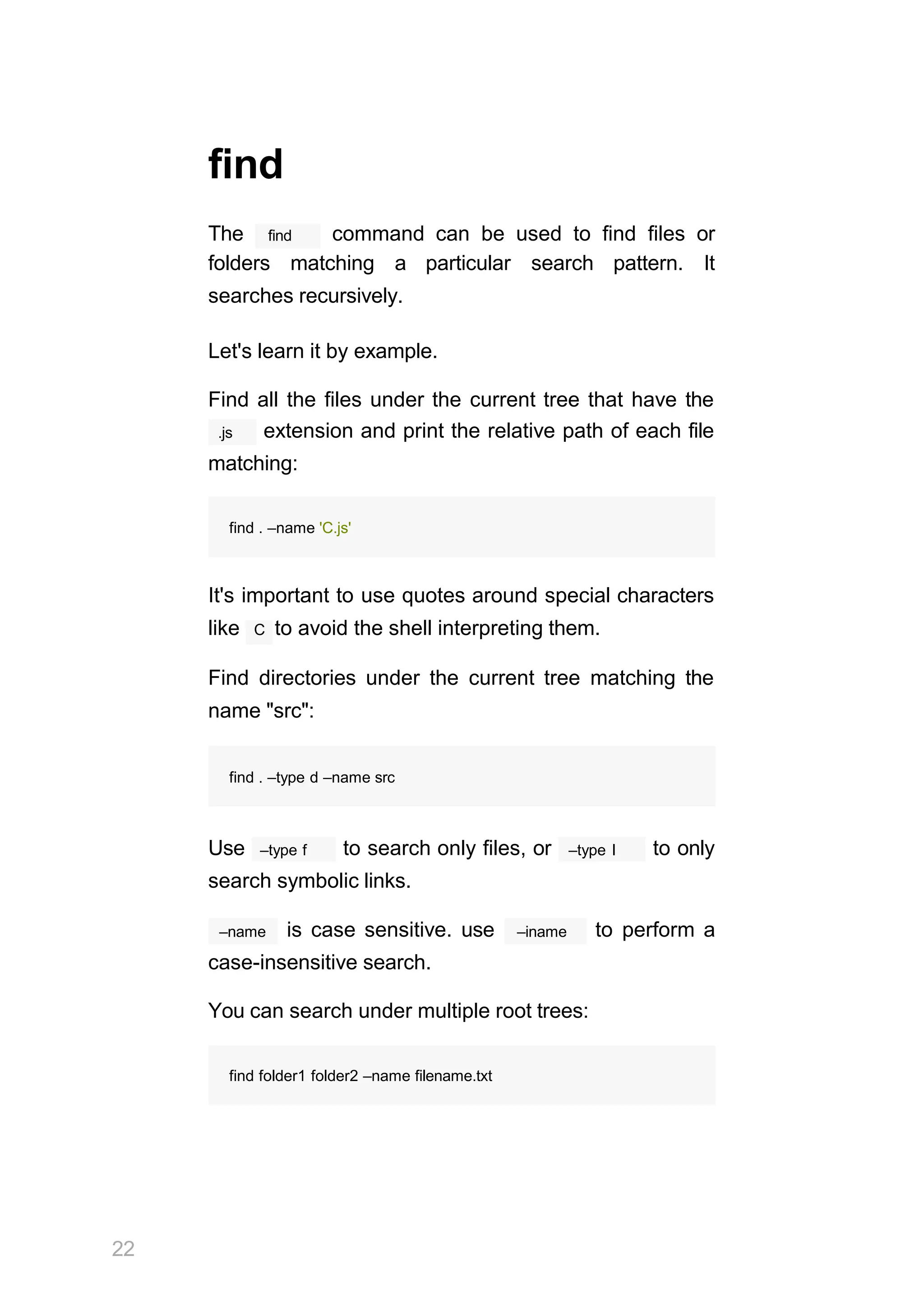
find
The find command can be used to find files or
folders matching a particular search pattern. It
searches recursively.
Let's learn it by example.
Find all the files under the current tree that have the
.js extension and print the relative path of each file
matching:
find . –name 'C.js'
It's important to use quotes around special characters
like C to avoid the shell interpreting them.
Find directories under the current tree matching the
name "src":
22
find . –type d –name src
–type f
Use to search only files, or –type l to only
search symbolic links.
–name is case sensitive. use –iname to perform a
case-insensitive search.
You can search under multiple root trees:
find folder1 folder2 –name filename.txt
23
Find directories under the current tree matching the
name "node_modules" or 'public':
–not –path
You can also exclude a path, using :
You can search files that have more than 100
characters (bytes) in them:
find . –type f –size +1θθc
Search files bigger than 100KB but smaller than 1MB:
find . –type f –size +1θθk –size –1M
Search files edited more than 3 days ago
find . –type f –mtime +3
Search files edited in the last 24 hours
find . –type f –mtime –1
You can delete all the files matching a search by
–delete
adding the option. This deletes all the files
edited in the last 24 hours:
find . –type f –mtime –1 –delete
find . –type d –name node_modules –or –name public
find . –type d –name 'C.md' –not –path 'node_module
24
You can execute a command on each result of the
cat
search. In this example we run to print the file
content:
find . –type f –exec cat {} ;
;
notice the terminating . {} is filled with the file
name at execution time.
25
ln
ln
The command is part of the Linux file system
commands.
It's used to create links. What is a link? It's like a
pointer to another file. A file that points to another file.
You might be familiar with Windows shortcuts. They're
similar.
We have 2 types of links: hard links and soft links.
Hard links
Hard links are rarely used. They have a few
limitations: you can't link to directories, and you can't
link to external filesystems (disks).
A hard link is created using
ln <original> <link>
For example, say you have a file called recipes.txt.
You can create a hard link to it using:
ln recipes.txt newrecipes.txt
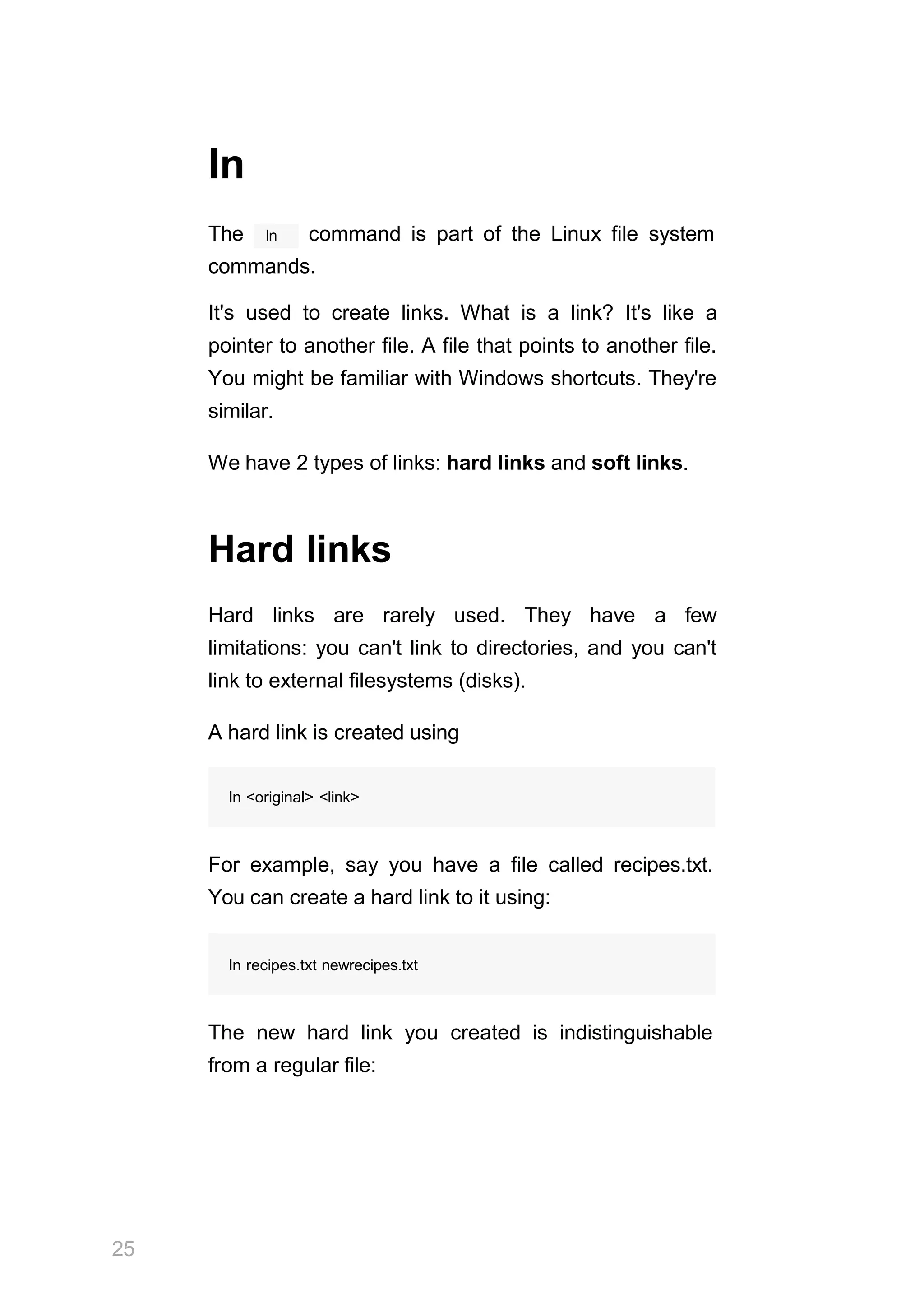
The new hard link you created is indistinguishable
from a regular file:
Now any time you edit any of those files, the content
will be updated for both.
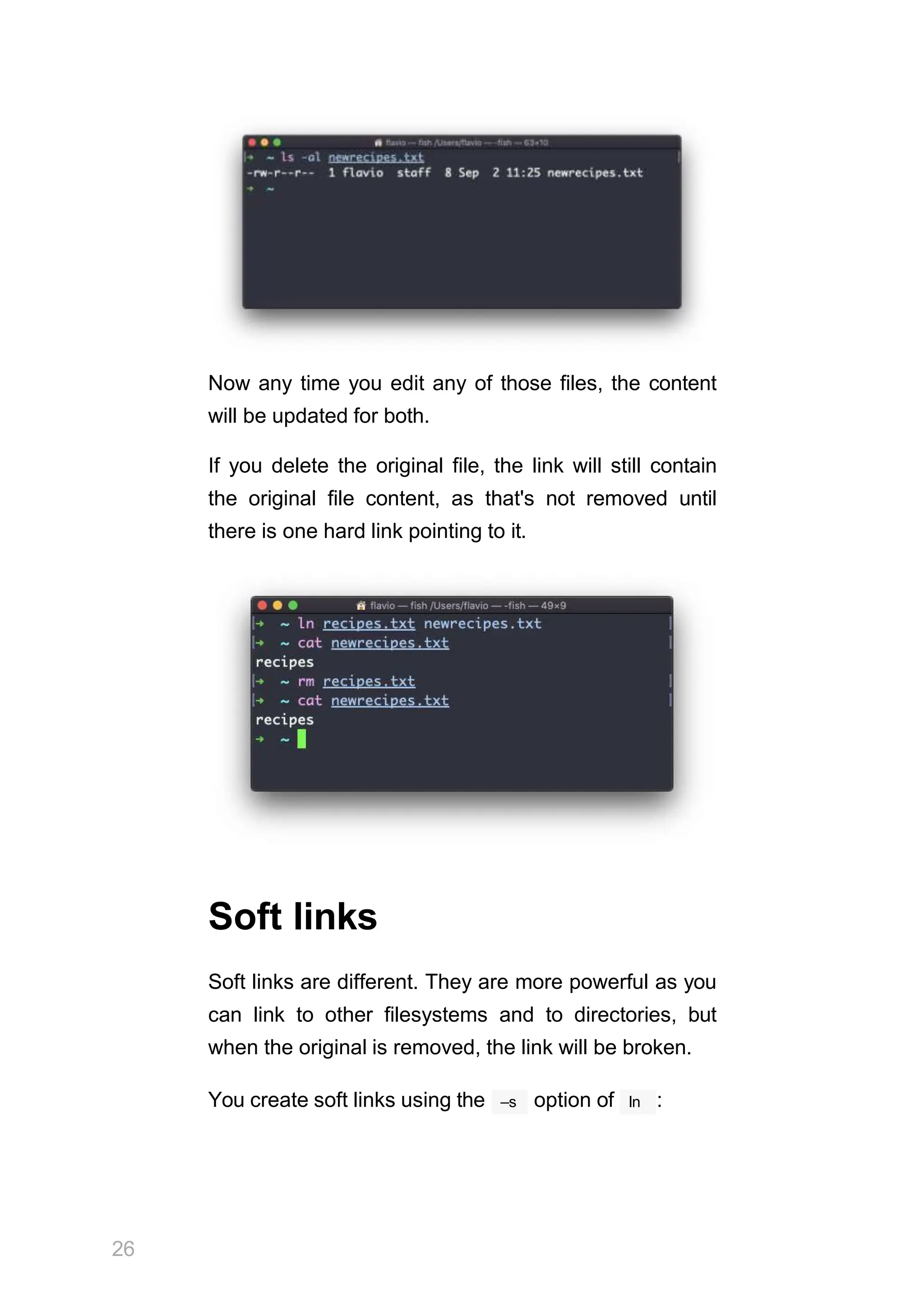
If you delete the original file, the link will still contain
the original file content, as that's not removed until
there is one hard link pointing to it.
Soft links
Soft links are different. They are more powerful as you
can link to other filesystems and to directories, but
when the original is removed, the link will be broken.
26
–s ln
You create soft links using the option of :
ln –s <original> <link>
For example, say you have a file called recipes.txt.
You can create a soft link to it using:
ln –s recipes.txt newrecipes.txt
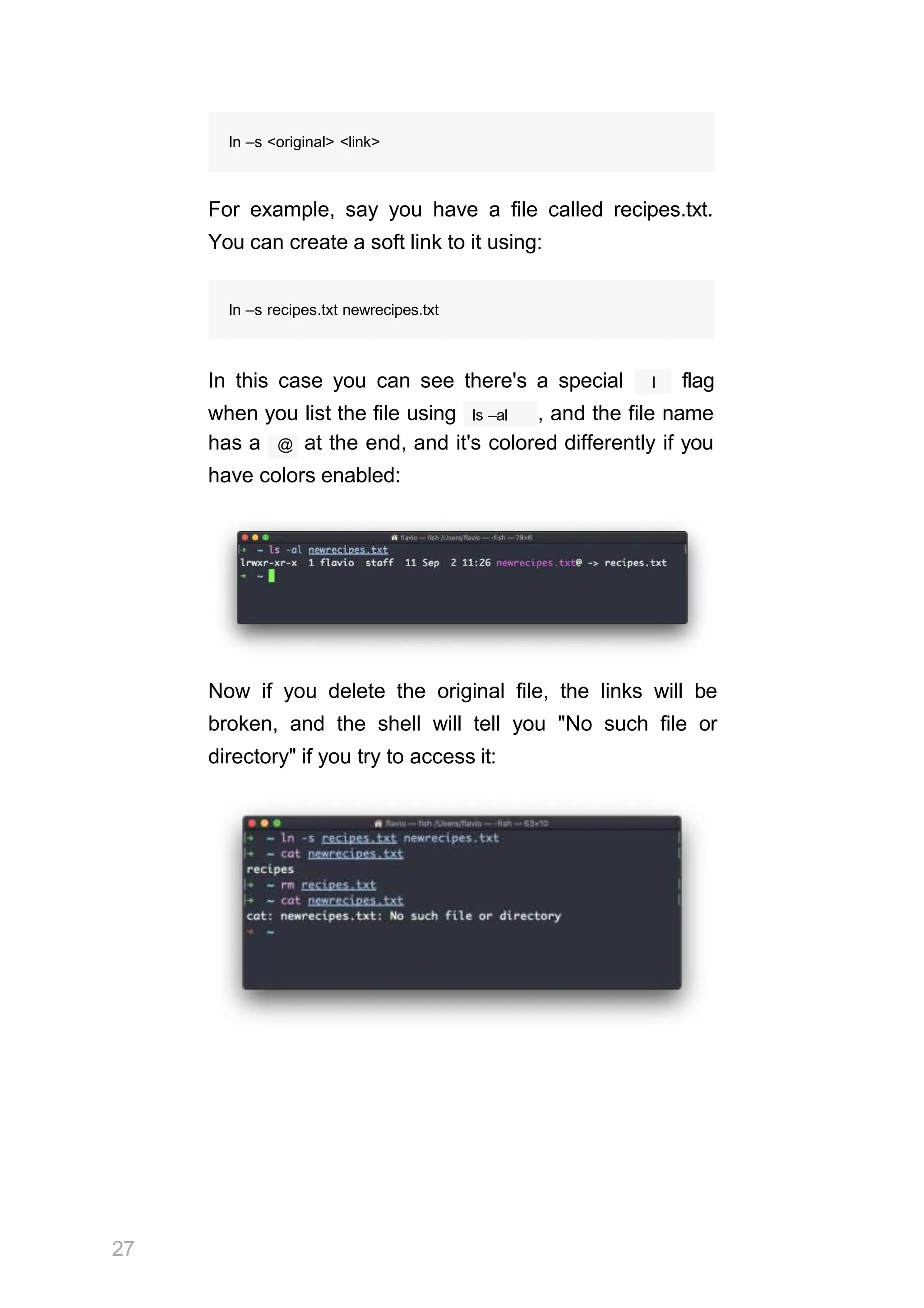
l
In this case you can see there's a special flag
ls –al
when you list the file using , and the file name
has a @ at the end, and it's colored differently if you
have colors enabled:
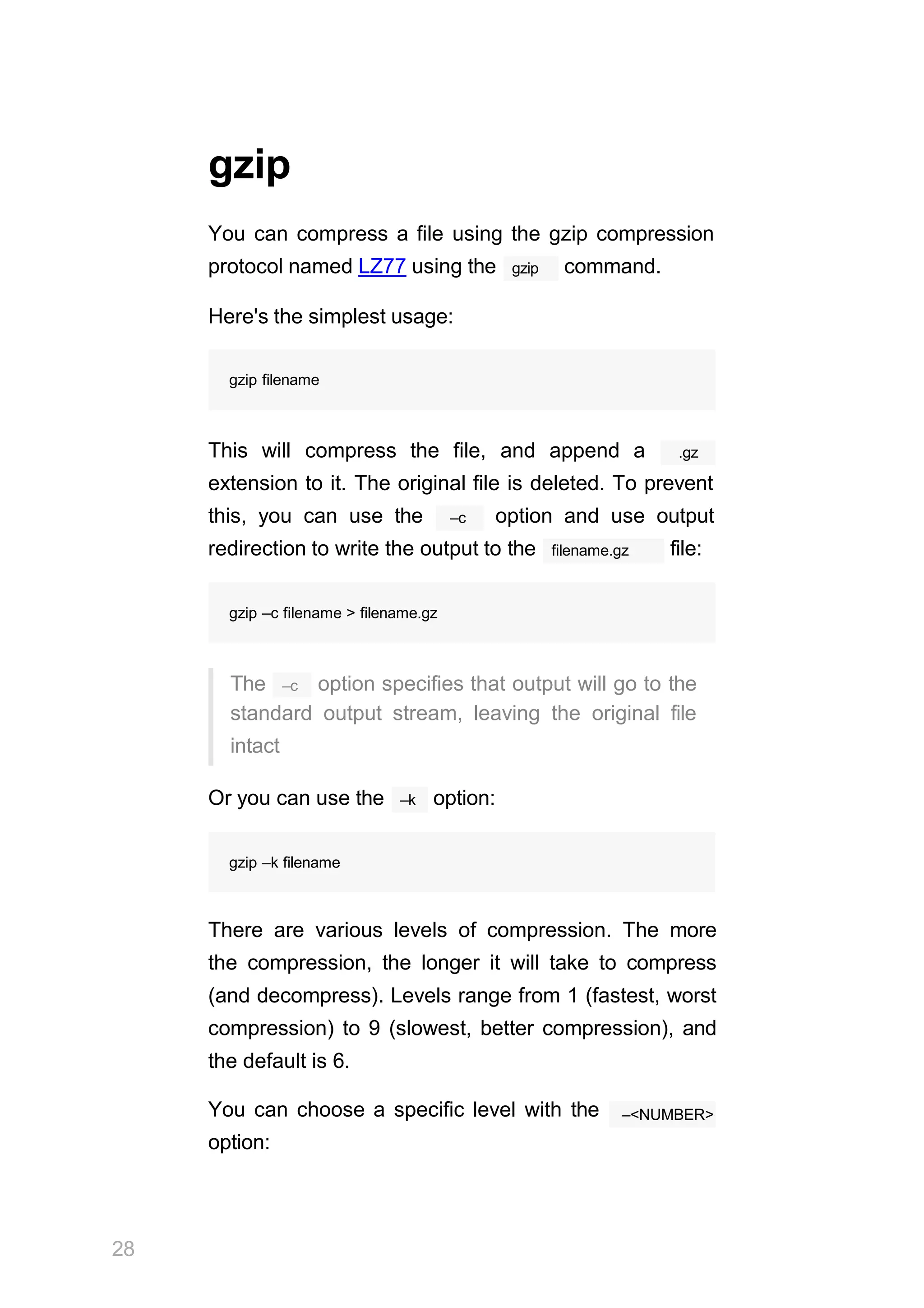
Now if you delete the original file, the links will be
broken, and the shell will tell you "No such file or
directory" if you try to access it:
27
gzip
28
You can compress a file using the gzip compression
gzip
protocol named LZ77 using the command.
Here's the simplest usage:
gzip filename
This will compress the file, and append a .gz
extension to it. The original file is deleted. To prevent
–c
this, you can use the option and use output
filename.gz
redirection to write the output to the file:
gzip –c filename > filename.gz
–c
The option specifies that output will go to the
standard output stream, leaving the original file
intact
–k
Or you can use the option:
gzip –k filename
There are various levels of compression. The more
the compression, the longer it will take to compress
(and decompress). Levels range from 1 (fastest, worst
compression) to 9 (slowest, better compression), and
the default is 6.
You can choose a specific level with the
option:
–<NUMBER>
gzip –1 filename
You can compress multiple files by listing them:
gzip filename1 filename2
You can compress all the files in a directory,
–r
recursively, using the option:
gzip –r a_folder
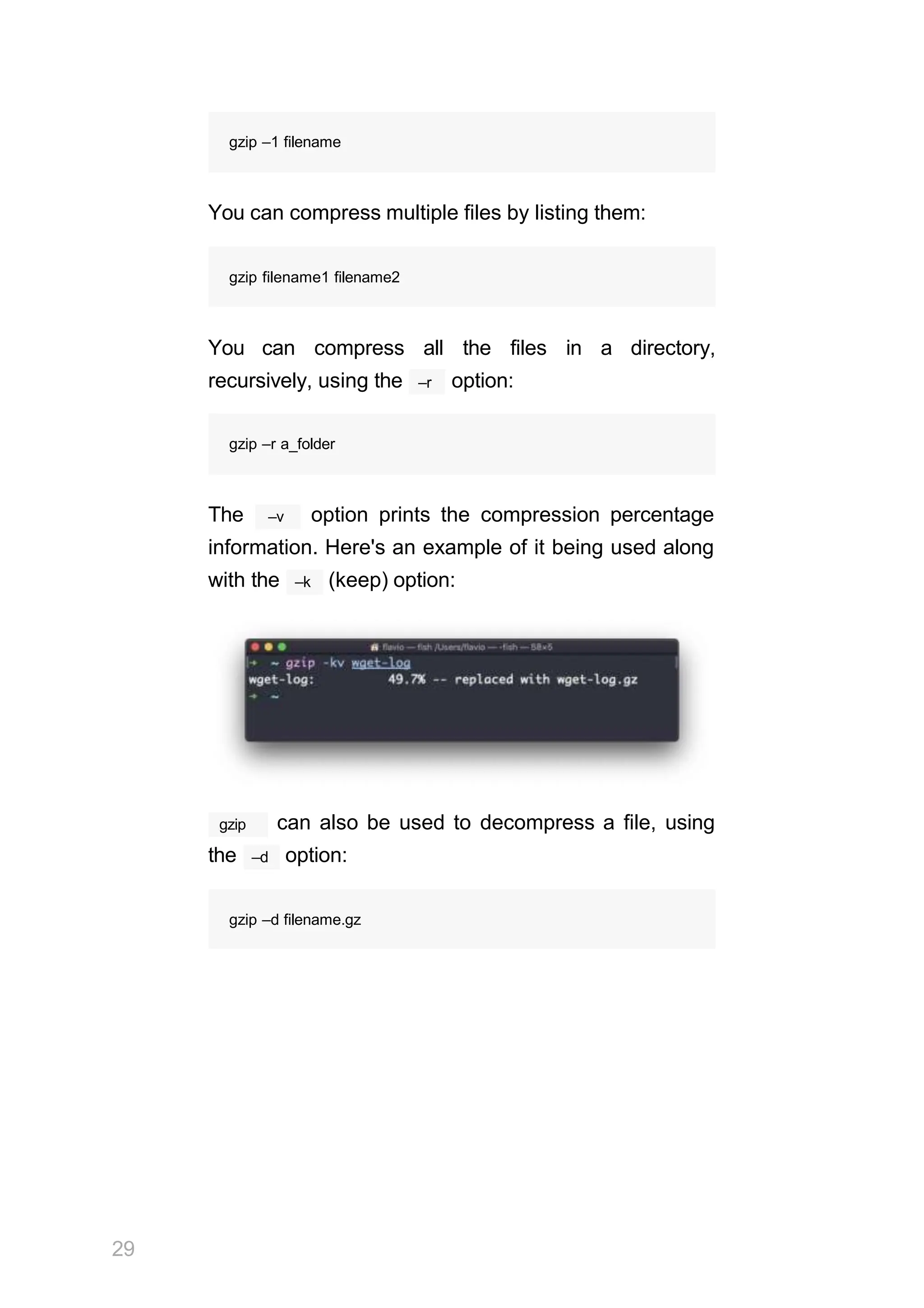
–v
The option prints the compression percentage
information. Here's an example of it being used along
–k
with the (keep) option:
gzip
29
can also be used to decompress a file, using
–d
the option:
gzip –d filename.gz
30
gunzip
The gunzip command is basically equivalent to the
gzip –d
command, except the option is always
enabled by default.
The command can be invoked in this way:
gunzip filename.gz
.gz
This will gunzip and will remove the extension,
putting the result in the
it will overwrite that.
filename file. If that file exists,
You can extract to a different filename using output
–c
redirection using the option:
gunzip –c filename.gz > anotherfilename
tar
tar
The command is used to create an archive,
grouping multiple files in a single file.
Its name comes from the past and means tape
archive. Back when archives were stored on tapes.
This command creates an archive named
archive.tar file1
with the content of and file2 :
tar –cf archive.tar file1 file2
The c option stands for create. The f option is
used to write to file the archive.
To extract files from an archive in the current folder,
use:
tar –xf archive.tar
the x option stands for extract
and to extract them to a specific directory, use:
31
tar –xf archive.tar –C directory
You can also just list the files contained in an archive:
tar is often used to create a compressed archive,
gzipping the archive.
This is done using the z option:
32
tar –czf archive.tar.gz file1 file2
This is just like creating a tar archive, and then running
gzip on it.
To unarchive a gzipped archive, you can use gunzip ,
gzip –d
or , and then unarchive it, but tar –xf will
recognize it's a gzipped archive, and do it for you:
tar –xf archive.tar.gz
alias
It's common to always run a program with a set of
options you like using.
ls
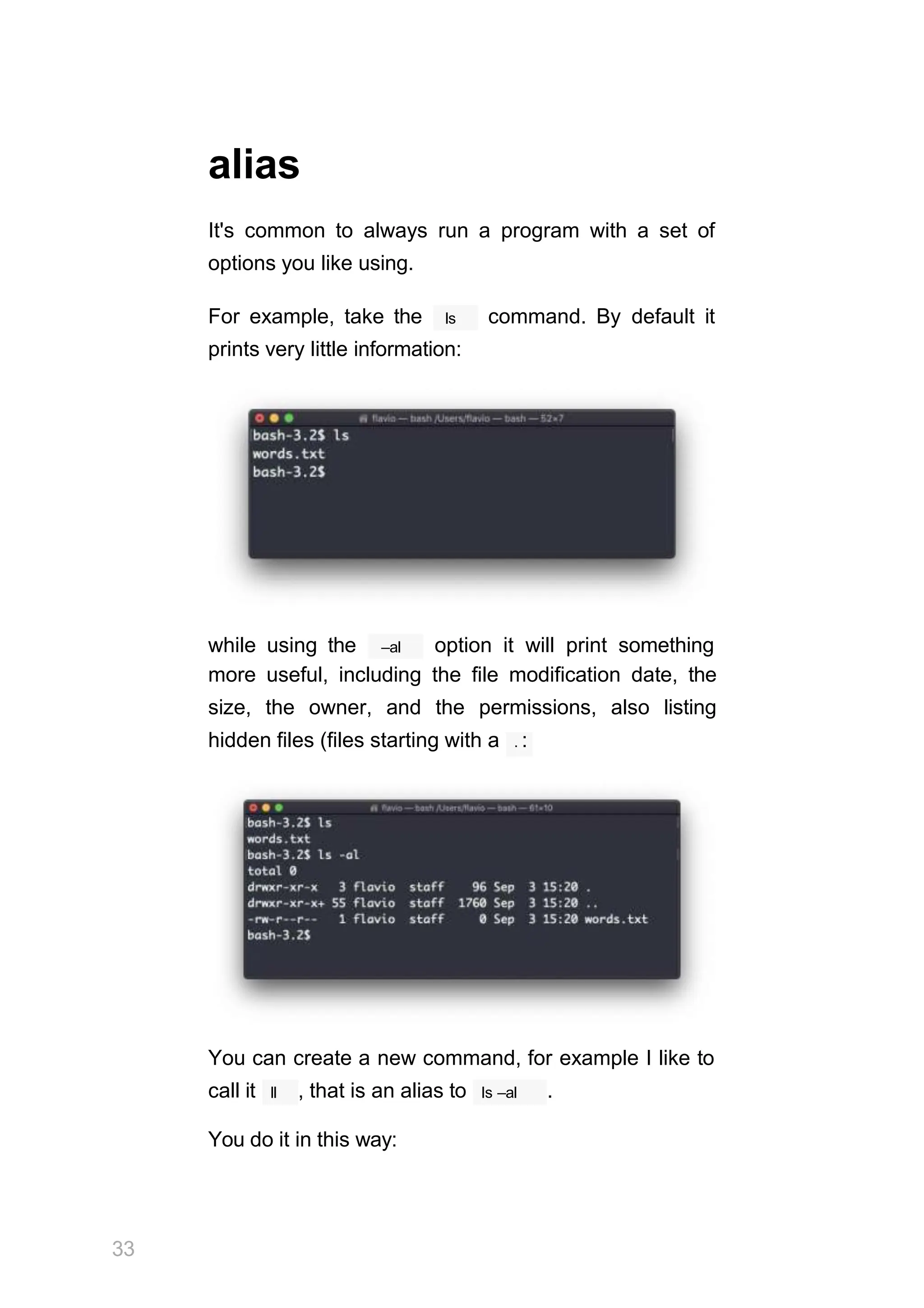
For example, take the command. By default it
prints very little information:
–al
while using the option it will print something
more useful, including the file modification date, the
size, the owner, and the permissions, also listing
hidden files (files starting with a . :
You can create a new command, for example I like to
33
ll
call it , that is an alias to ls –al .
You do it in this way:
alias ll='ls –al'
ll
Once you do, you can call just like it was a
regular UNIX command:
Now calling alias without any option will list the
aliases defined:
The alias will work until the terminal session is closed.
To make it permanent, you need to add it to the shell
34
configuration, which could be ~/.bashrc or
~/.profile or ~/.bash_profile if you use the Bash
shell, depending on the use case.
Be careful with quotes if you have variables in the
command: using double quotes the variable is
resolved at definition time, using single quotes it's
resolved at invocation time. Those 2 are different:
35
alias lsthis="ls $PWD" alias
lscurrent='ls $PWD'
$PWD refers to the current folder the shell is into. If
you now navigate away to a new folder, lscurrent
lsthis
lists the files in the new folder, still lists the
files in the folder you were when you defined the alias.
tail
cat
Similar to in some way, we have cat . Except
cat can also add content to a file, and this makes it
super powerful.
In its simplest usage,
standard output:
cat prints a file's content to the
cat file
You can print the content of multiple files:
cat file1 file2
and using the output redirection operator > you can
concatenate the content of multiple files into a new
file:
36
cat file1 file2 > file3
>>
Using you can append the content of multiple files
into a new file, creating it if it does not exist:
cat file1 file2 >> file3
When watching source code files it's great to see the
cat
line numbers, and you can have print them using
–n
the option:
cat –n file1
You can only add a number to non-blank lines using –
b , or you can also remove all the multiple empty lines
–s
using .
cat is often used in combination with the pipe
operator | to feed a file content as input to another
37
cat file1 | anothercommand
command: .
less
less
The command is one I use a lot. It shows you
the content stored inside a file, in a nice and
interactive UI.
less <filename>
Usage: .
less session, you can quit by
Once you are inside a
pressing q .
You can navigate the file contents using the up and
down space bar
keys, or using the and b to
navigate page by page. You can also jump to the end
G
of the file pressing and jump back to the start
pressing g .
You can search contents inside the file by pressing /
and typing a word to search. This searches forward.
38
?
You can search backwards using the symbol and
typing a word.
This command just visualises the file's content. You
vim
39
can directly open an editor by pressing v . It will use
the system editor, which in most cases is .
F
Pressing the key enters follow mode, or watch
mode. When the file is changed by someone else, like
from another program, you get to see the changes
live. By default this is not happening, and you only see
the file version at the time you opened it. You need to
ctrl–C
press to quit this mode. In this case the
behaviour is similar to running the tail –f
<filename> command.
You can open multiple files, and navigate through
:n
them using (to go to the next file) and :p (to go
to the previous).
tail
The best use case of tail in my opinion is when called
–f
with the option. It opens the file at the end, and
watches for file changes. Any time there is new
content in the file, it is printed in the window. This is
great for watching log files, for example:
tail –f /var/log/system.log
ctrl–C
To exit, press .
You can print the last 10 lines in a file:
tail –n 1θ <filename>
You can print the whole file content starting from a
specific line using + before the line number:
40
tail –n +1θ <filename>
tail can do much more and as always my advice is
to check man tail .
41
wc
wc
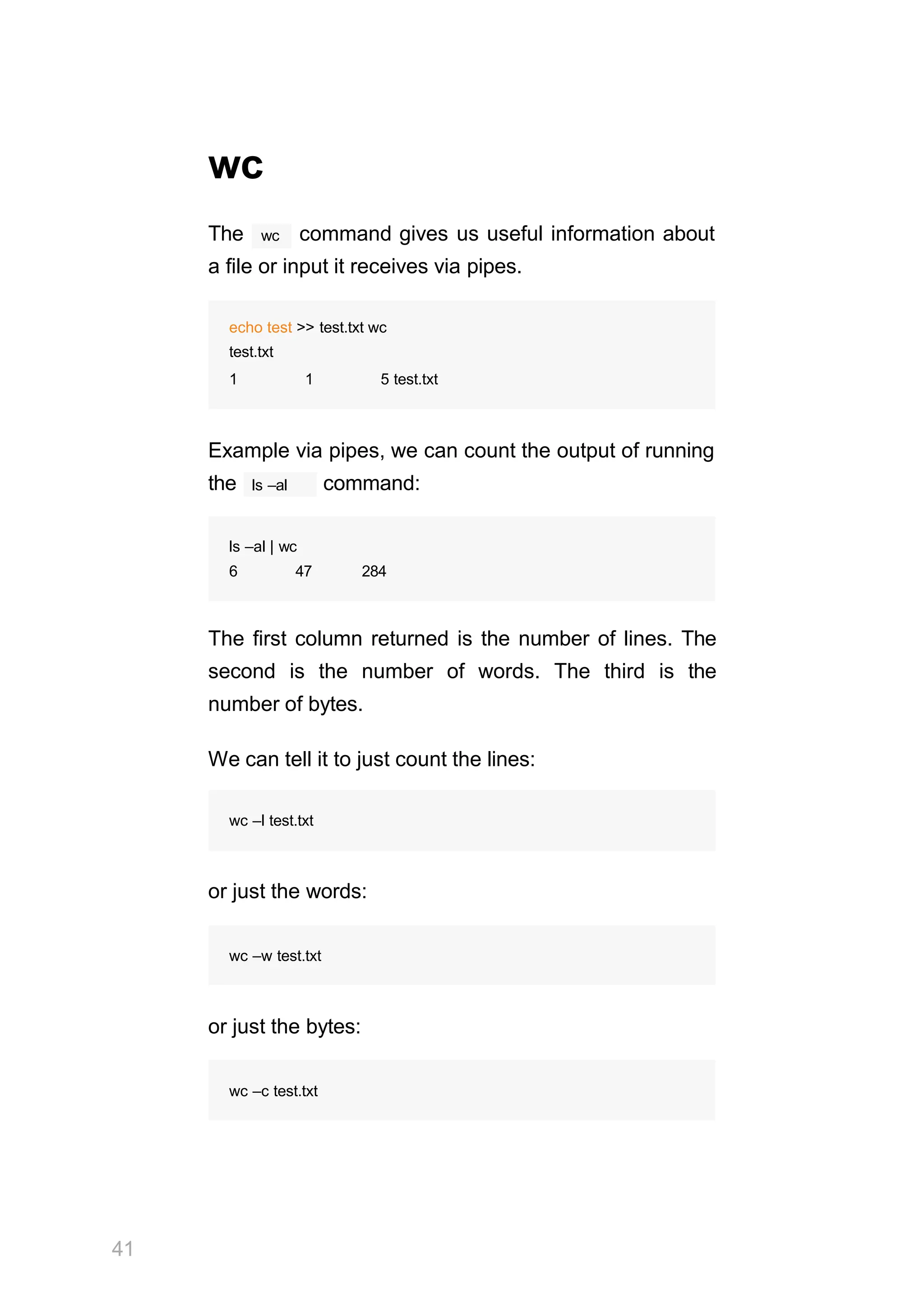
The command gives us useful information about
a file or input it receives via pipes.
echo test >> test.txt wc
test.txt
1 1 5 test.txt
Example via pipes, we can count the output of running
ls –al
the command:
ls –al | wc
6 47 284
The first column returned is the number of lines. The
second is the number of words. The third is the
number of bytes.
We can tell it to just count the lines:
wc –l test.txt
or just the words:
wc –w test.txt
or just the bytes:
wc –c test.txt
42
Bytes in ASCII charsets equate to characters, but with
non-ASCII charsets, the number of characters might
differ because some characters might take multiple
bytes, for example this happens in Unicode.
–m
In this case the flag will help getting the correct
value:
wc –m test.txt
grep
grep
The command is a very useful tool, that when
you master will help you tremendously in your day to
day.
grep
If you're wondering, stands for global
regular expression print
grep
You can use to search in files, or combine it
with pipes to filter the output of another command.
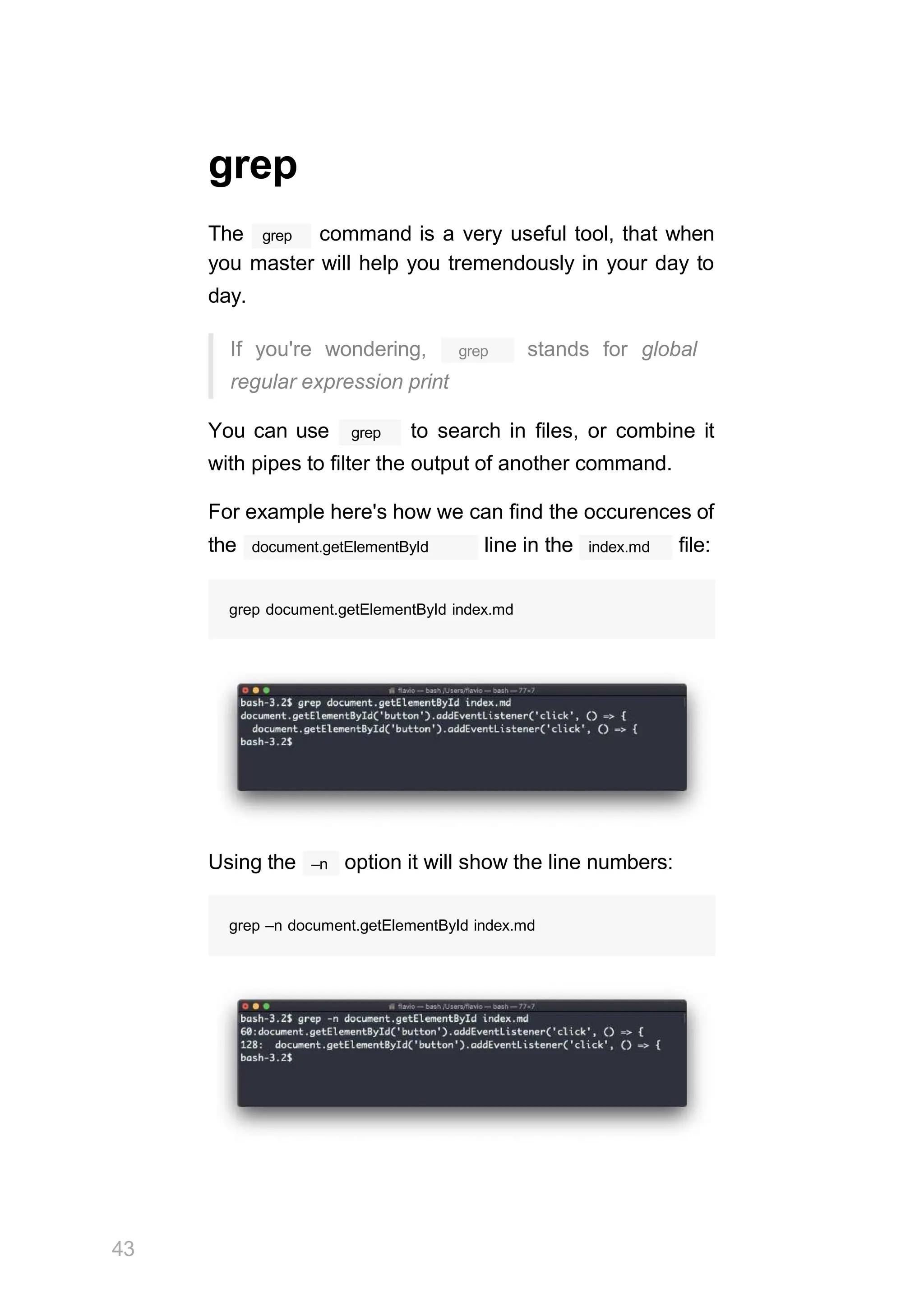
For example here's how we can find the occurences of
document.getElementById
the line in the index.md file:
grep document.getElementById index.md
–n
Using the option it will show the line numbers:
grep –n document.getElementById index.md
43
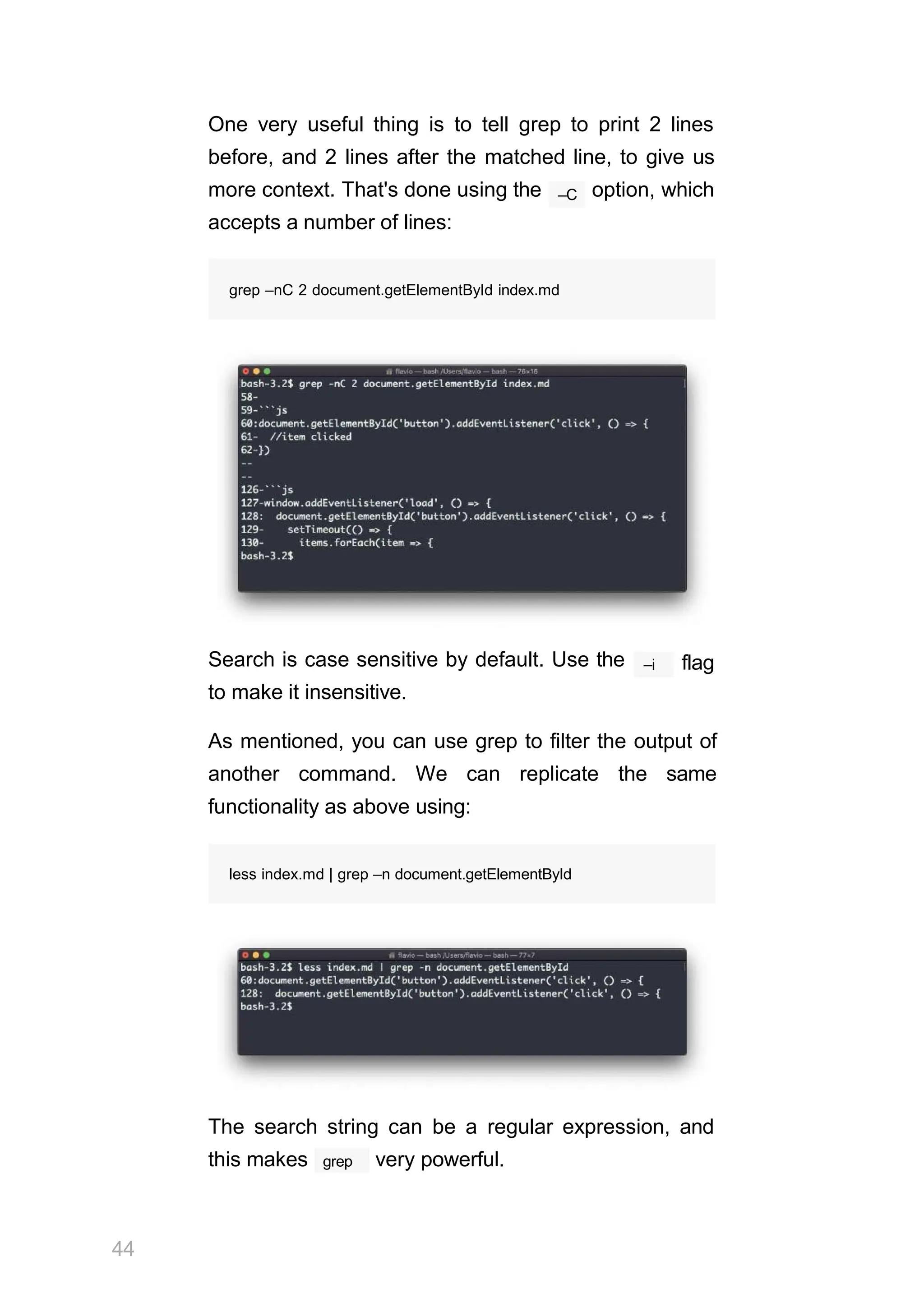
One very useful thing is to tell grep to print 2 lines
before, and 2 lines after the matched line, to give us
–C
more context. That's done using the option, which
accepts a number of lines:
grep –nC 2 document.getElementById index.md
Search is case sensitive by default. Use the
to make it insensitive.
–i flag
As mentioned, you can use grep to filter the output of
another command. We can replicate the same
functionality as above using:
less index.md | grep –n document.getElementById
The search string can be a regular expression, and
44
grep
this makes very powerful.
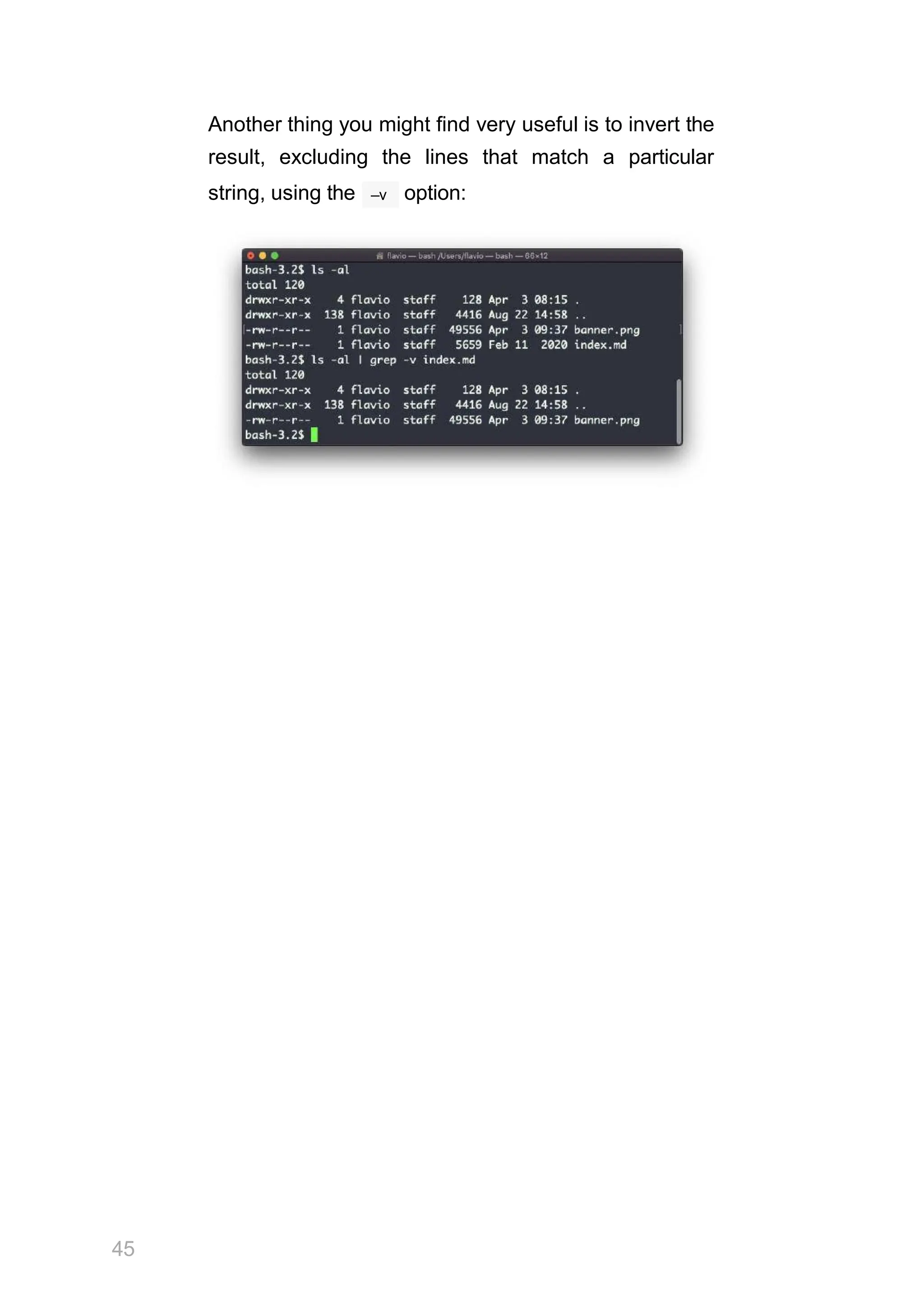
Another thing you might find very useful is to invert the
result, excluding the lines that match a particular
–v
string, using the option:
45
sort
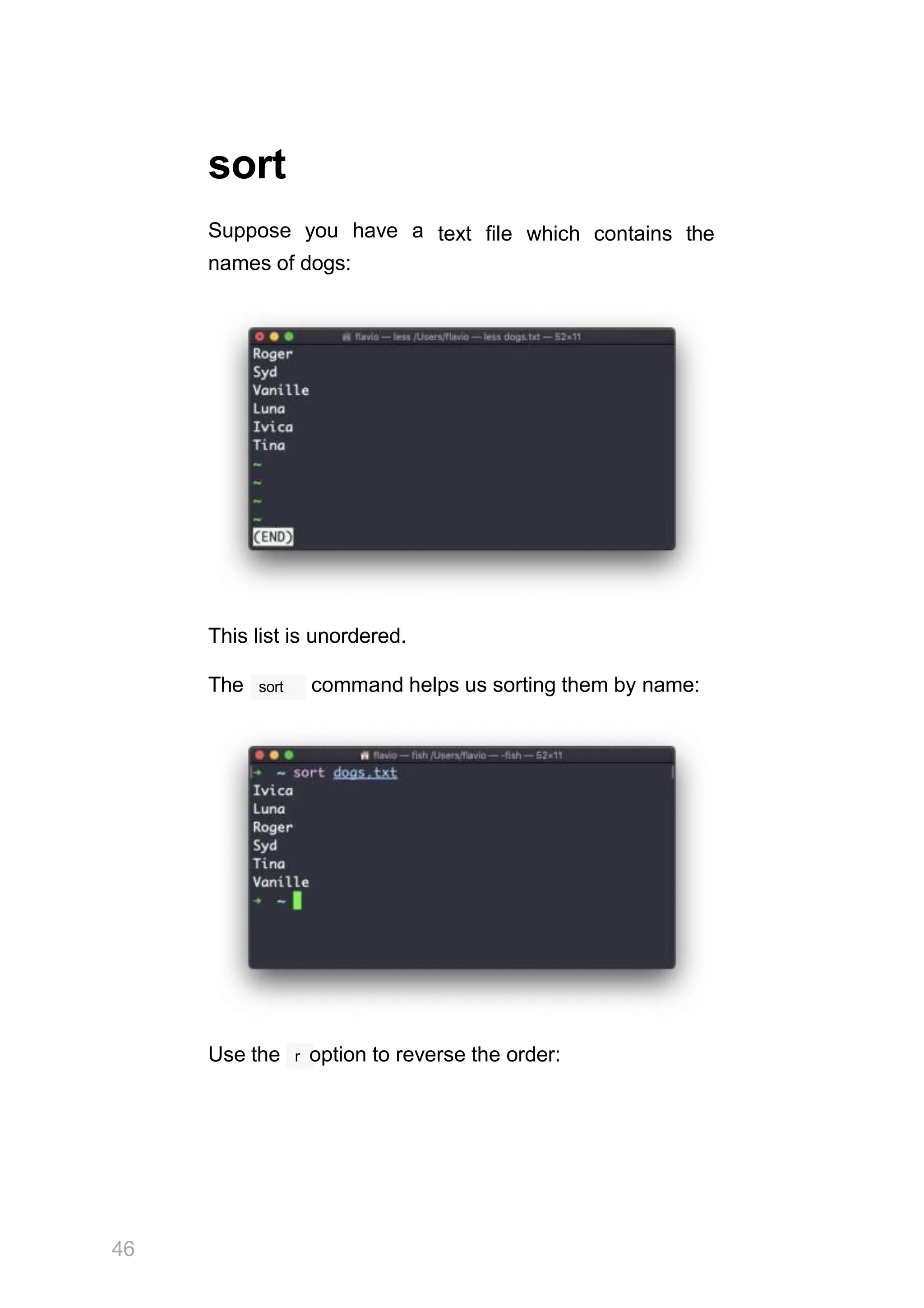
Suppose you have a
names of dogs:
text file which contains the
This list is unordered.
sort
The command helps us sorting them by name:
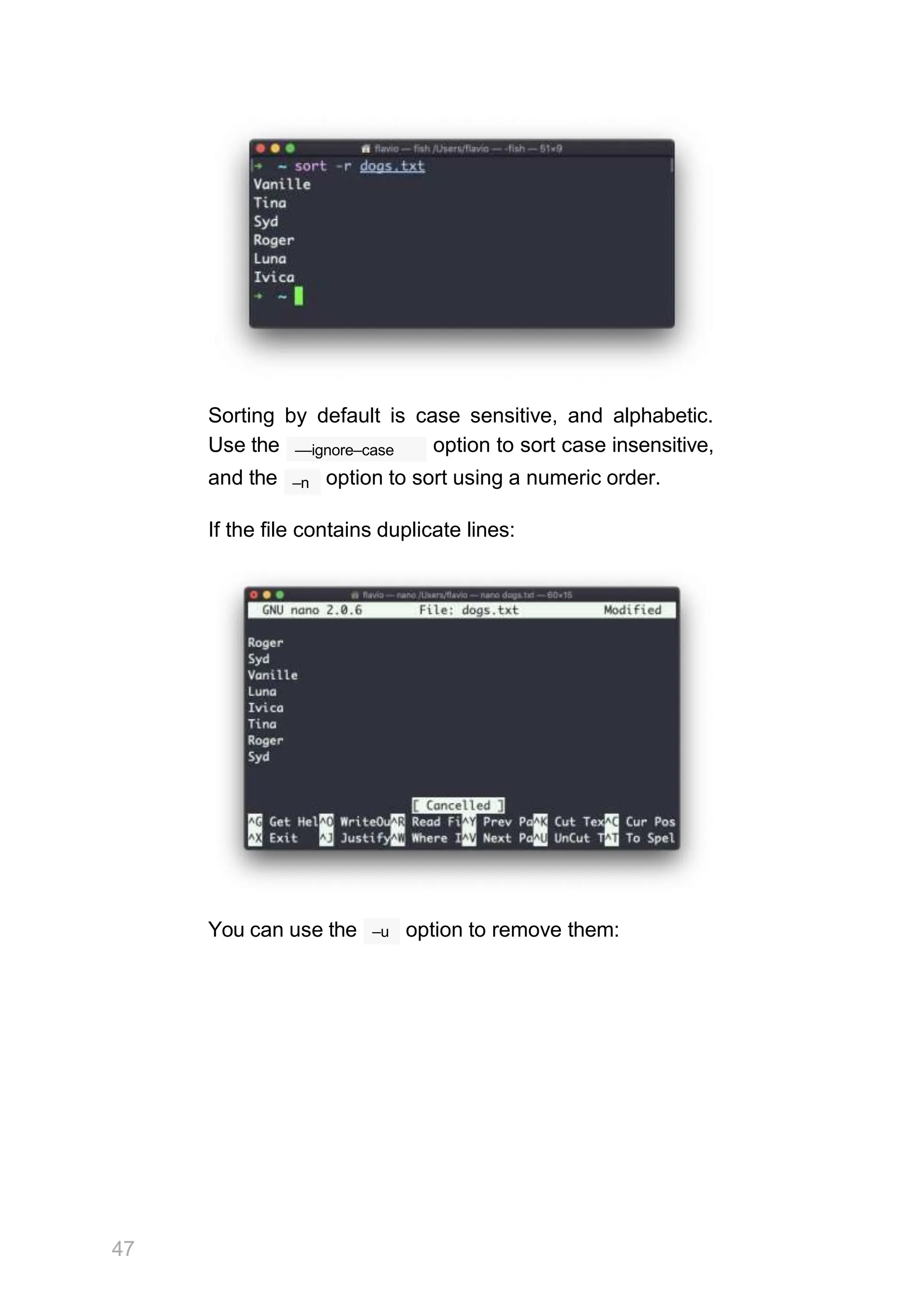
Use the r option to reverse the order:
46
Sorting by default is case sensitive, and alphabetic.
––ignore–case
–n
Use the option to sort case insensitive,
and the option to sort using a numeric order.
If the file contains duplicate lines:
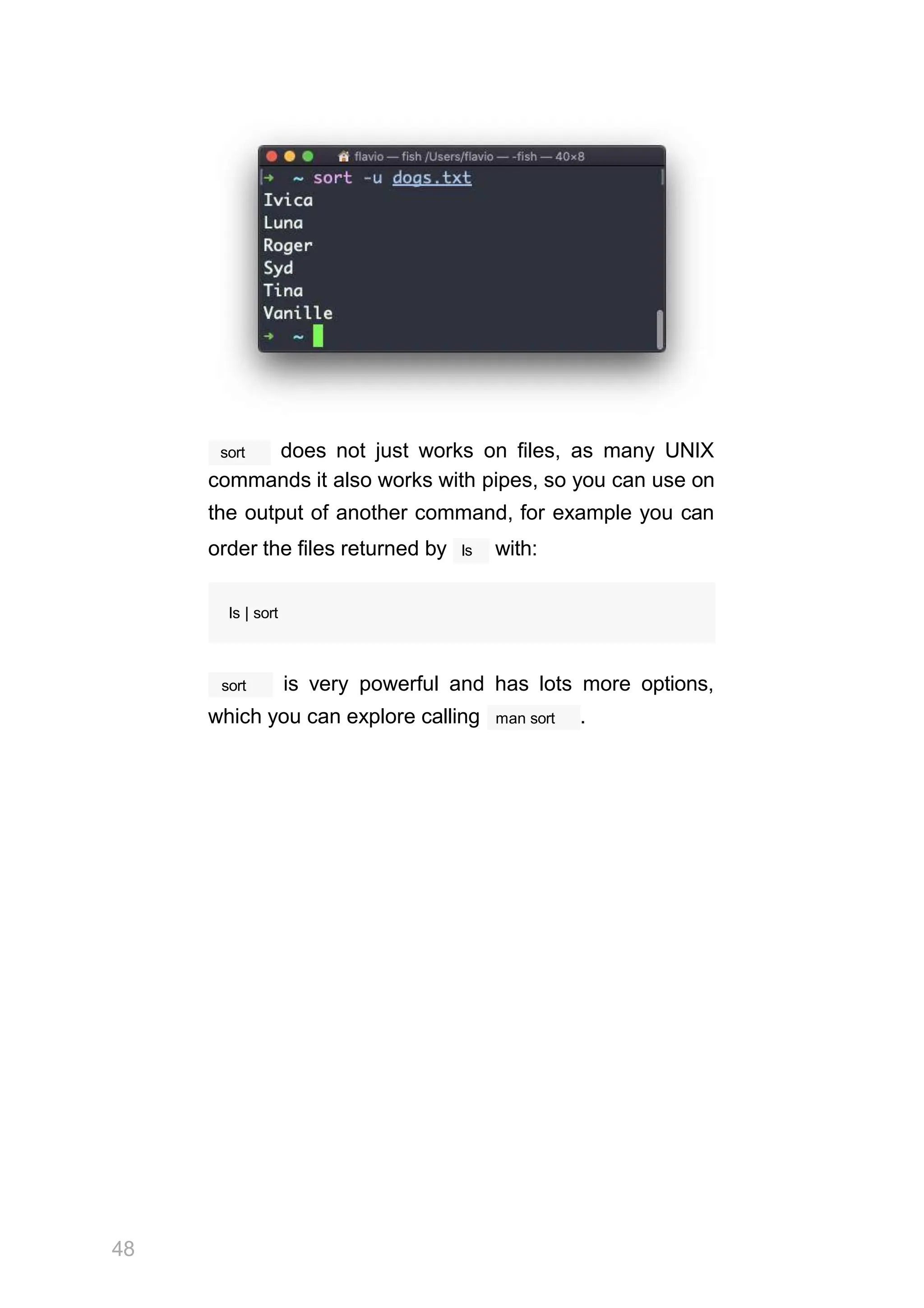
You can use the
47
–u option to remove them:
sort
48
does not just works on files, as many UNIX
commands it also works with pipes, so you can use on
the output of another command, for example you can
ls
order the files returned by with:
ls | sort
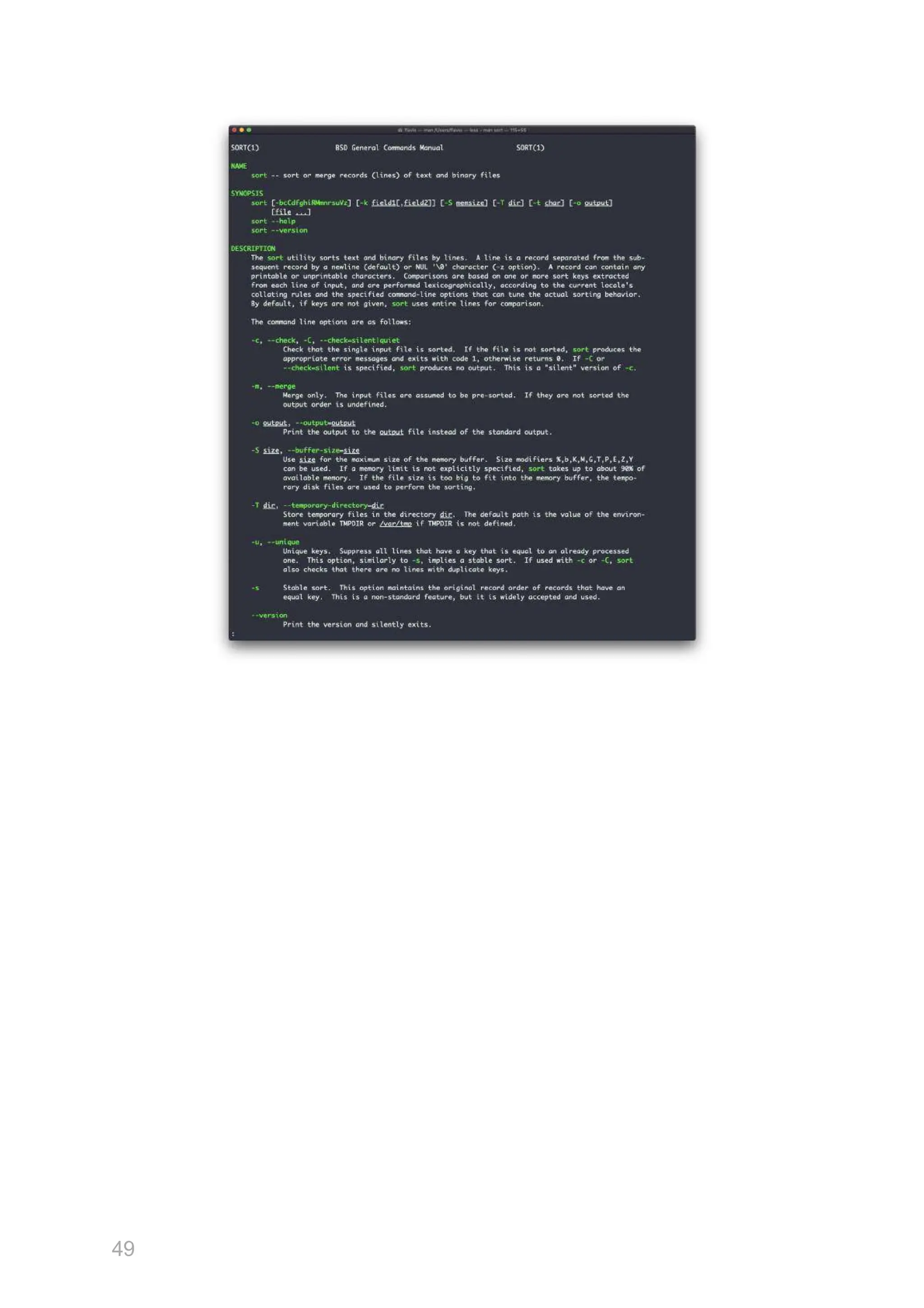
sort is very powerful and has lots more options,
which you can explore calling man sort .
49
50
uniq
uniq is a command useful to sort lines of text.
You can get those lines from a file, or using pipes from
the output of another command:
uniq dogs.txt
ls | uniq
uniq
You need to consider this key thing: will only
detect adjacent duplicate lines.
This implies that you will most likely use it along with
sort :
sort dogs.txt | uniq
sort
The command has its own way to remove
–u uniq
duplicates with the (unique) option. But has
more power.
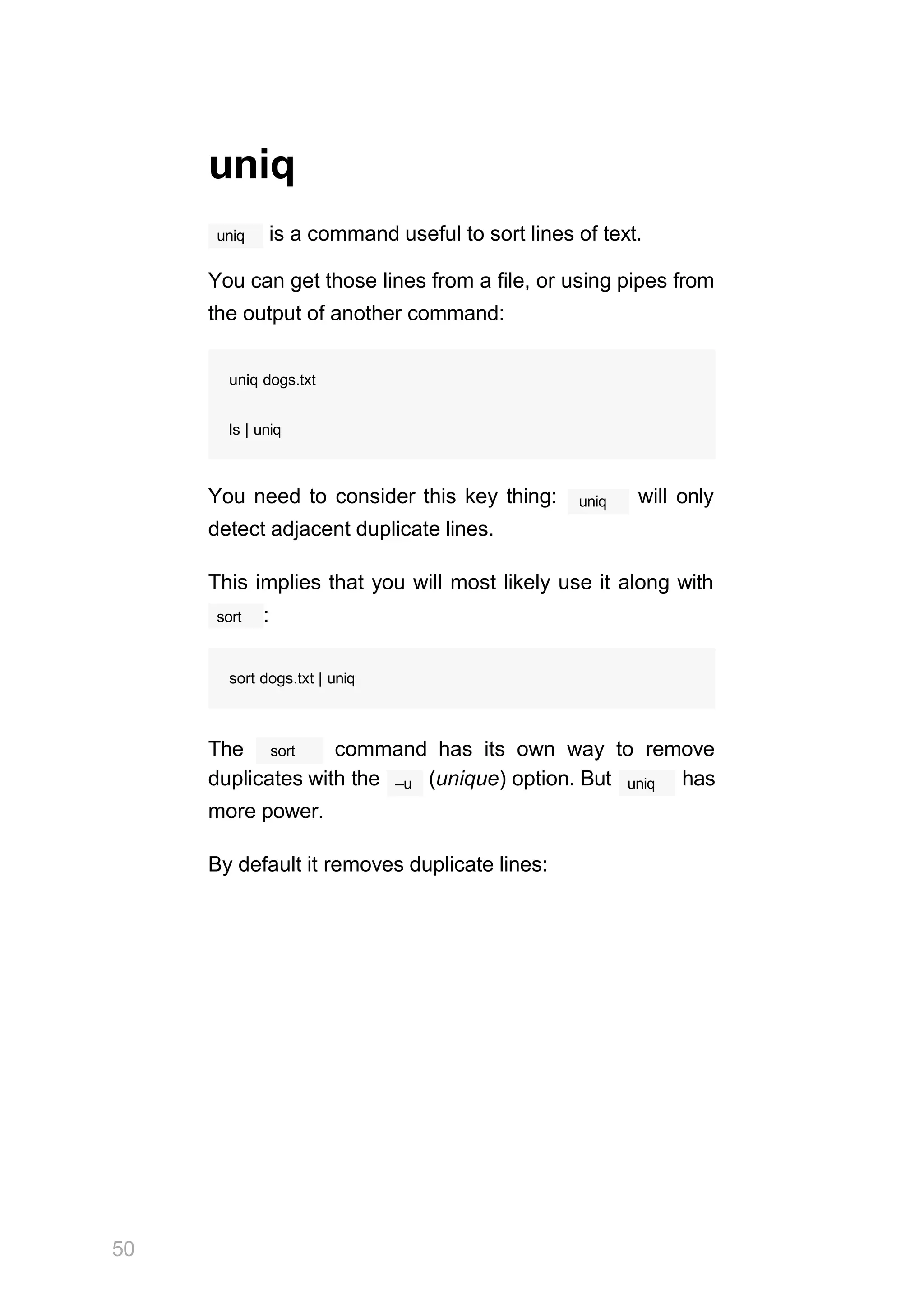
By default it removes duplicate lines:
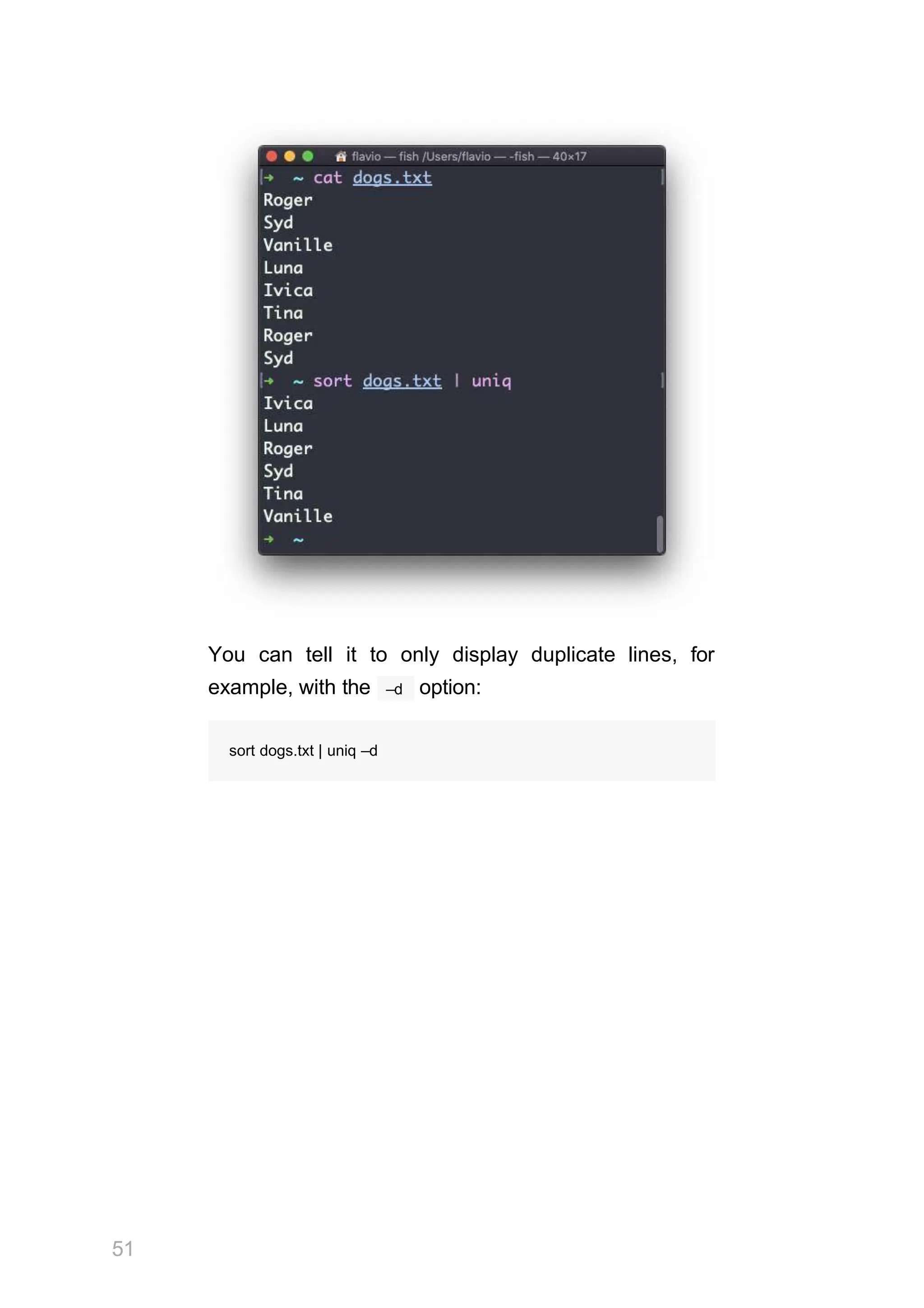
You can tell it to only display duplicate lines, for
51
–d
example, with the option:
sort dogs.txt | uniq –d
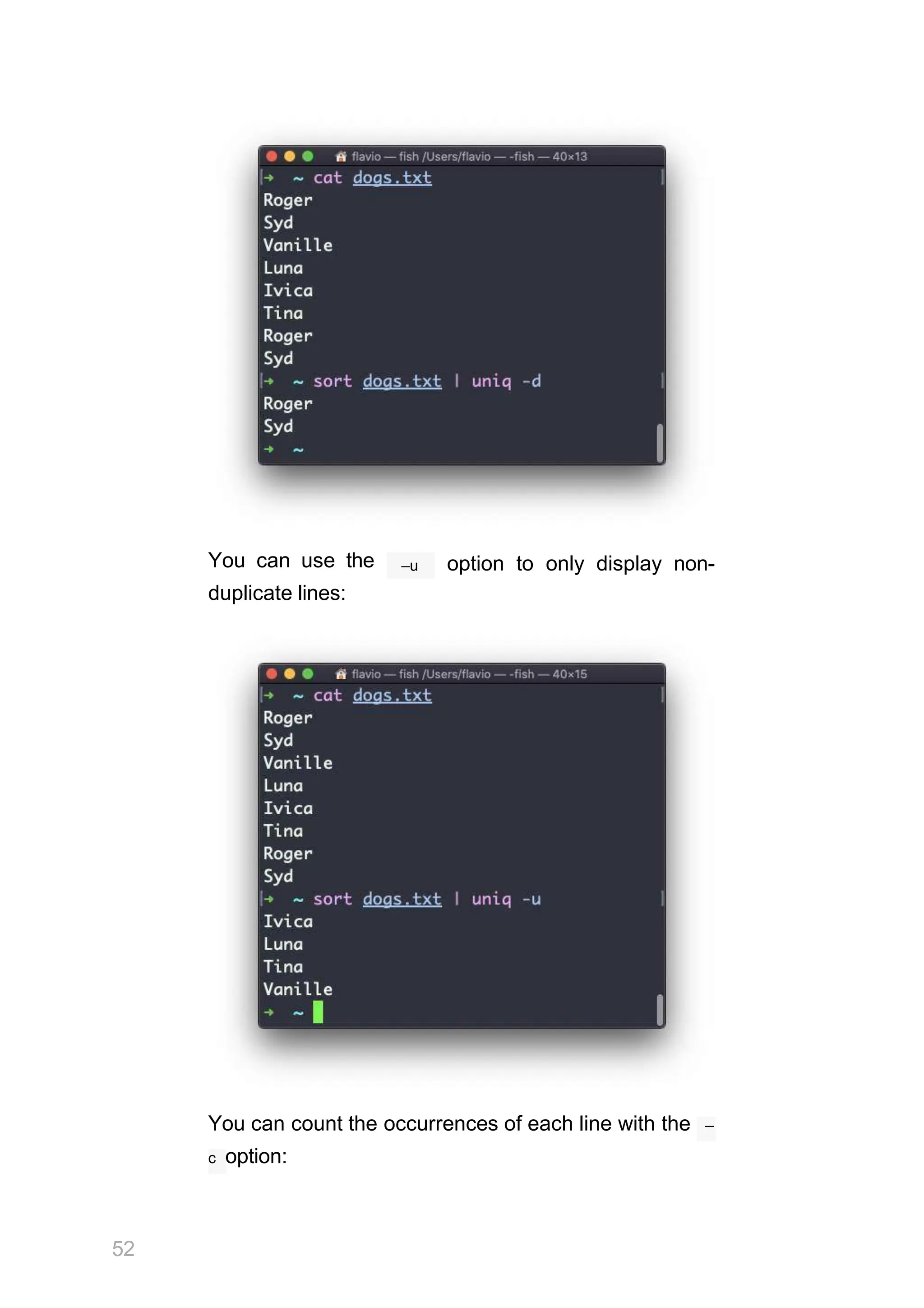
You can use the
duplicate lines:
–u option to only display non-
You can count the occurrences of each line with the –
c option:
52
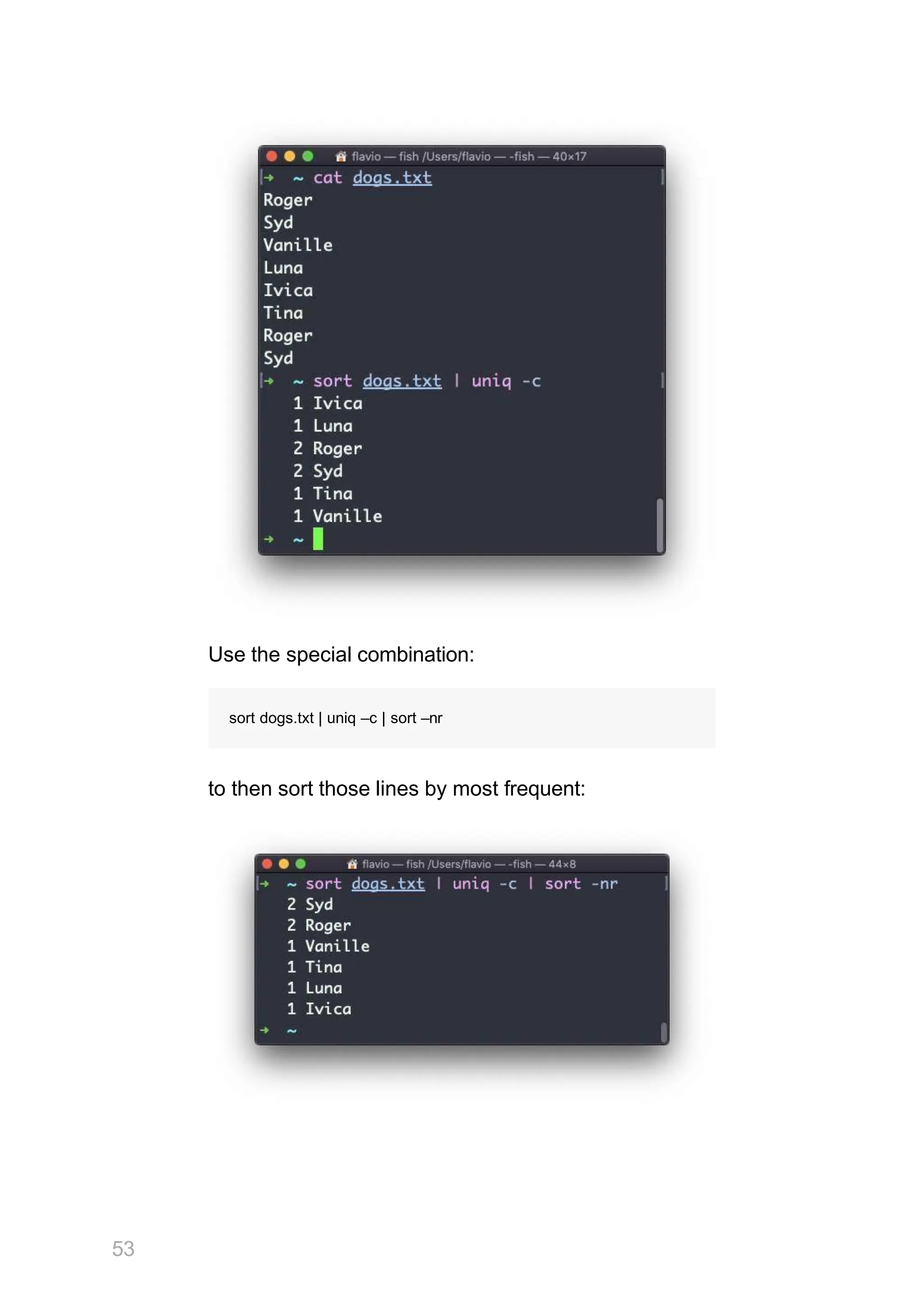
Use the special combination:
sort dogs.txt | uniq –c | sort –nr
to then sort those lines by most frequent:
53
diff
diff is a handy command. Suppose you have 2
files, which contain almost the same information, but
you can't find the difference between the two.
diff will process the files and will tell you what's the
difference.
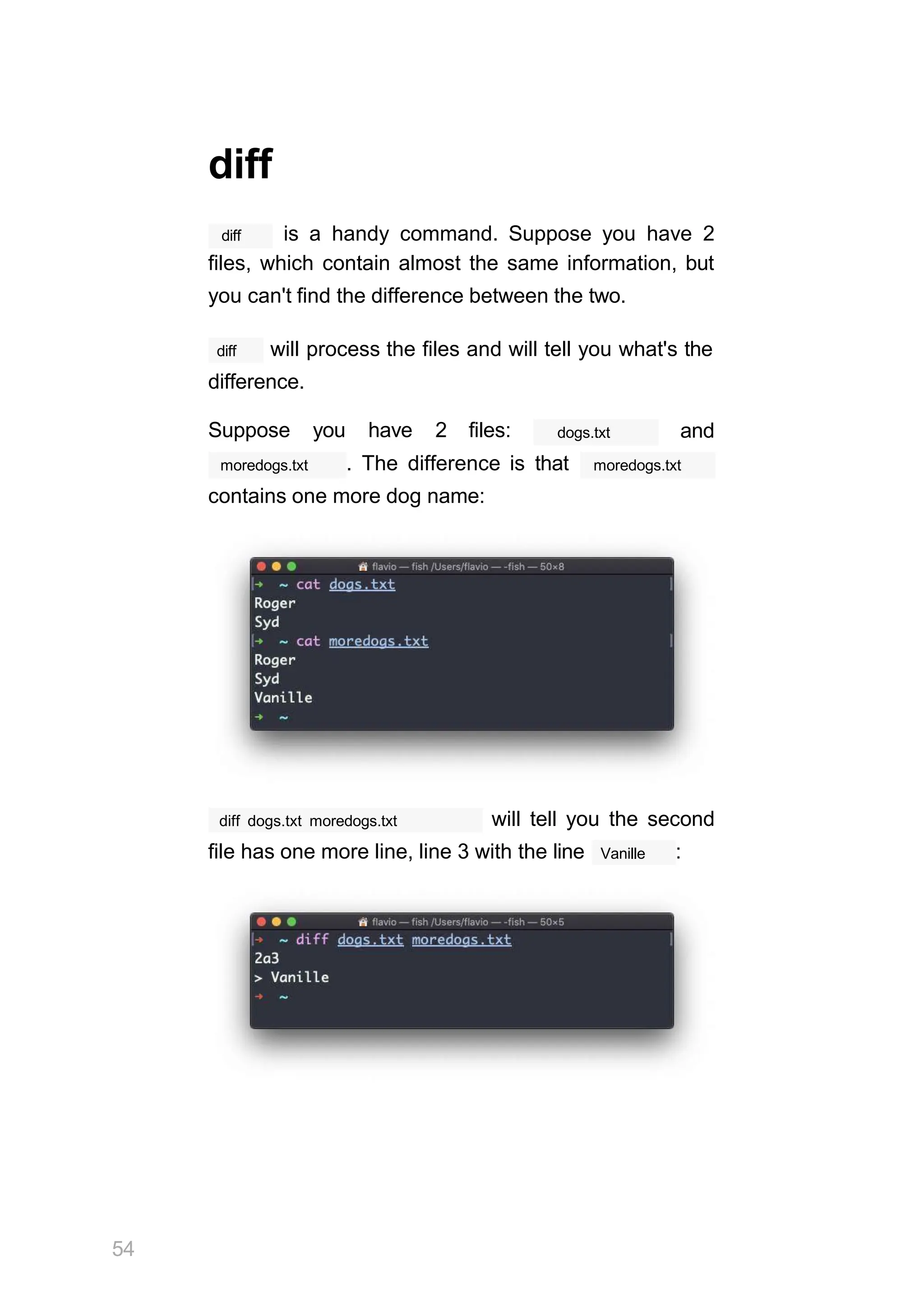
Suppose you have 2 files: dogs.txt and
moredogs.txt . The difference is that moredogs.txt
contains one more dog name:
diff dogs.txt moredogs.txt will tell you the second
file has one more line, line 3 with the line Vanille :
54
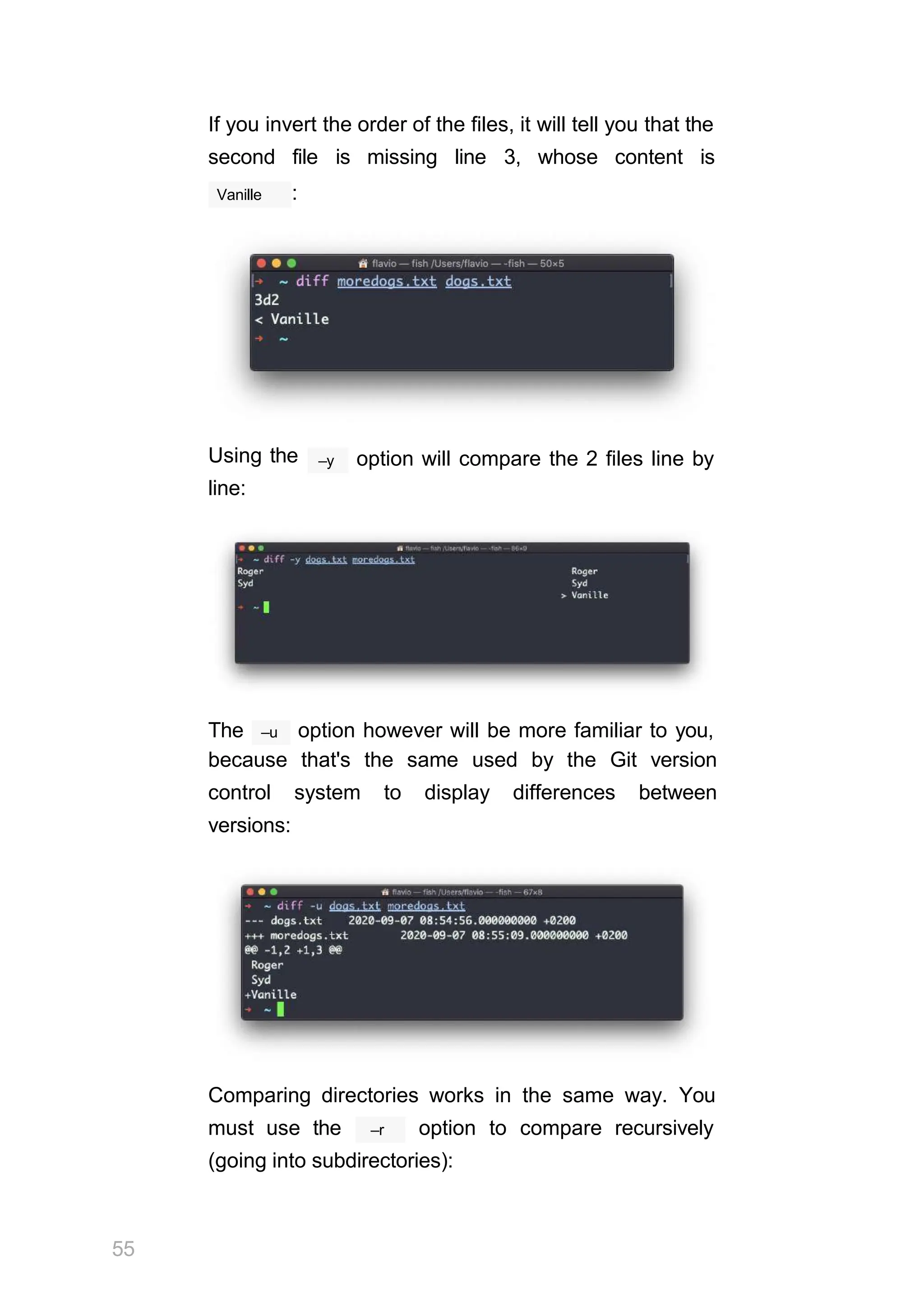
If you invert the order of the files, it will tell you that the
second file is missing line 3, whose content is
Vanille :
Using the
line:
–y option will compare the 2 files line by
–u
The option however will be more familiar to you,
because that's the same used by the Git version
control system to display differences between
versions:
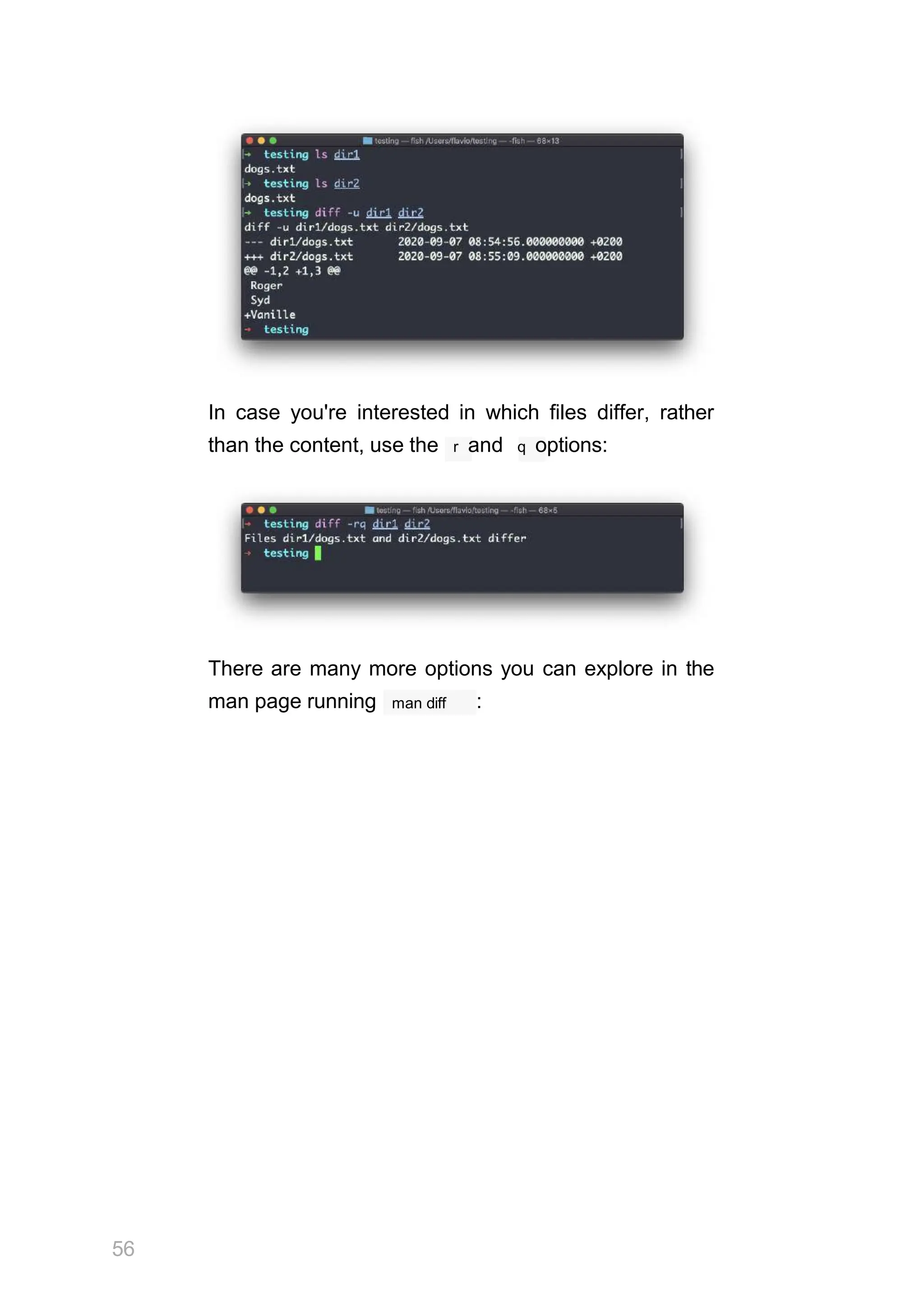
Comparing directories works in the same way. You
55
–r
must use the option to compare recursively
(going into subdirectories):
In case you're interested in which files differ, rather
than the content, use the r and q options:
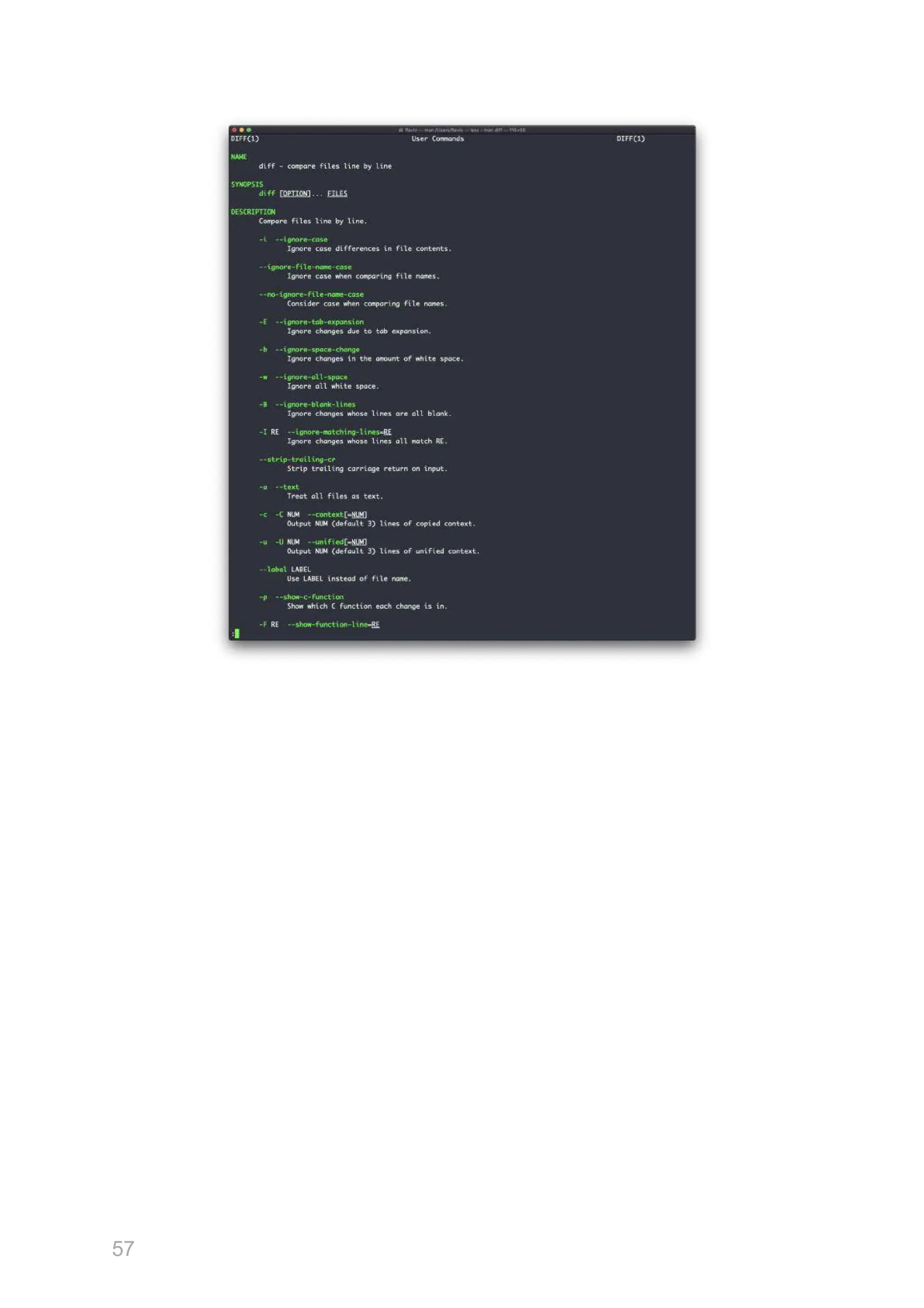
There are many more options you can explore in the
56
man diff
man page running :
57
echo
echo
The command does one simple job: it prints to
the output the argument passed to it.
This example:
echo "hello"
hello
will print to the terminal.
We can append the output to a file:
echo "hello" >> output.txt
We can interpolate environment variables:
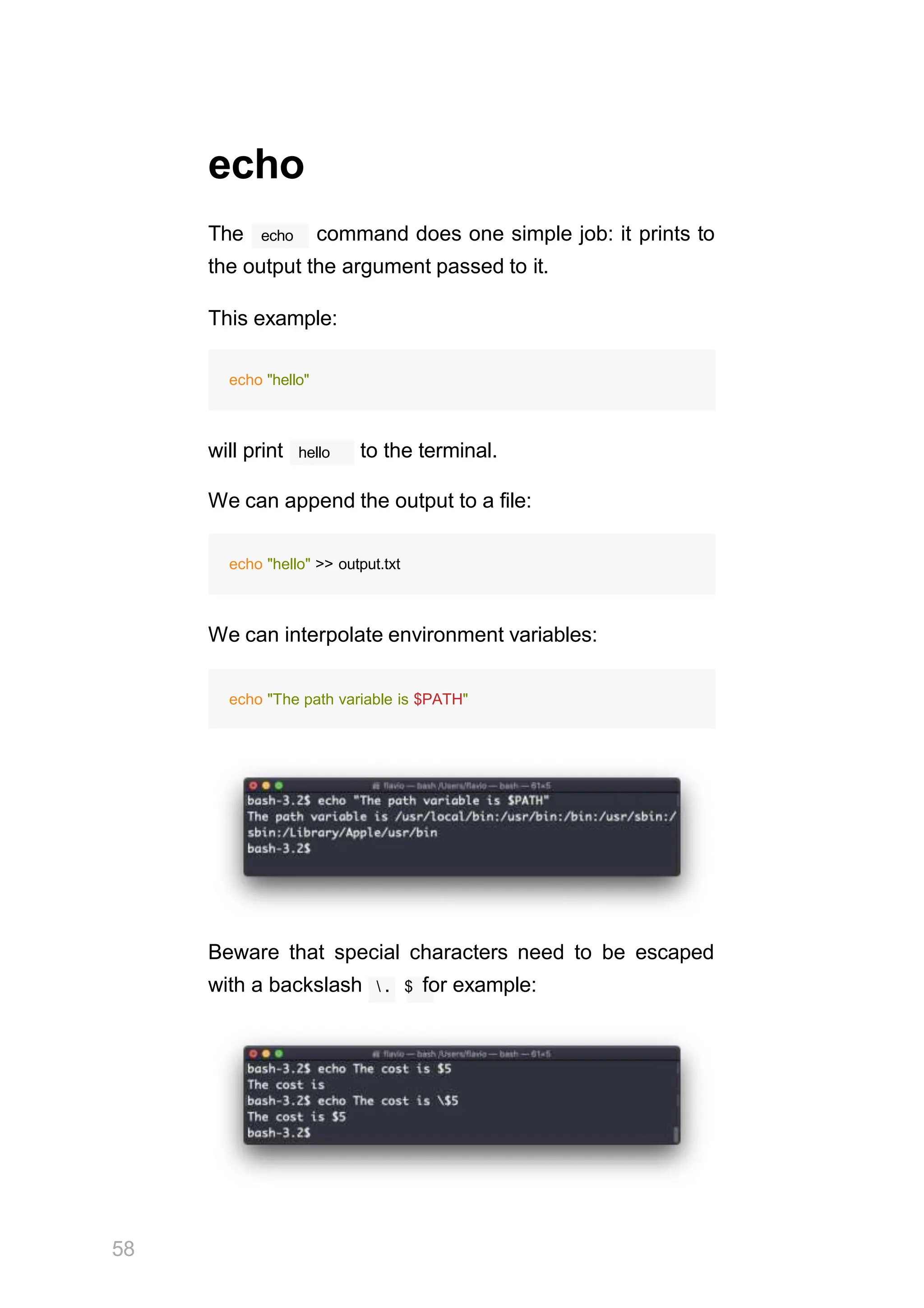
echo "The path variable is $PATH"
Beware that special characters need to be escaped
with a backslash  . $ for example:
58
This is just the start. We can do some nice things
when it comes to interacting with the shell features.
We can echo the files in the current folder:
echo C
We can echo the files in the current folder that start
with the letter o :
echo oC
Any valid Bash (or any shell you are using) command
and feature can be used here.
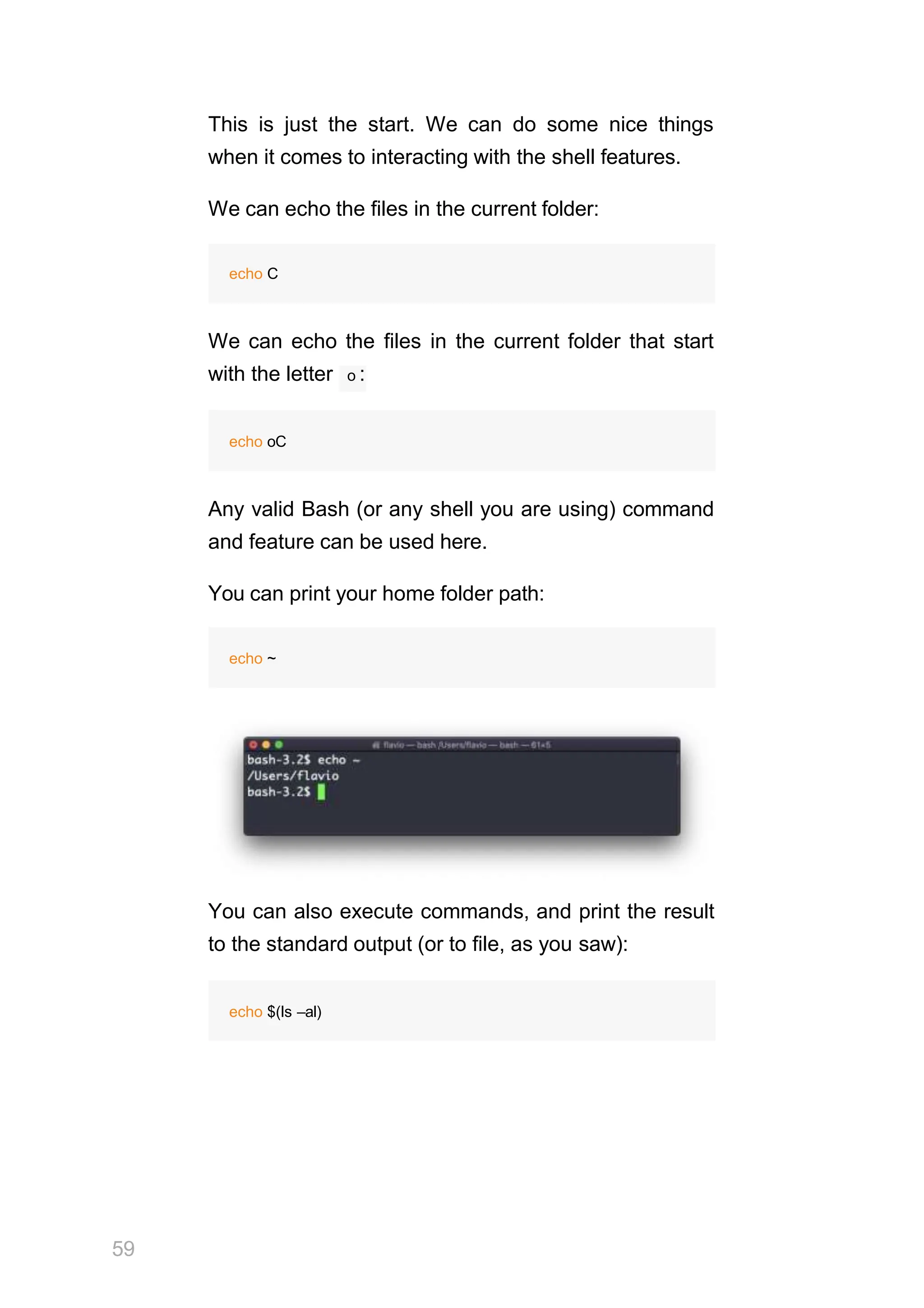
You can print your home folder path:
echo ~
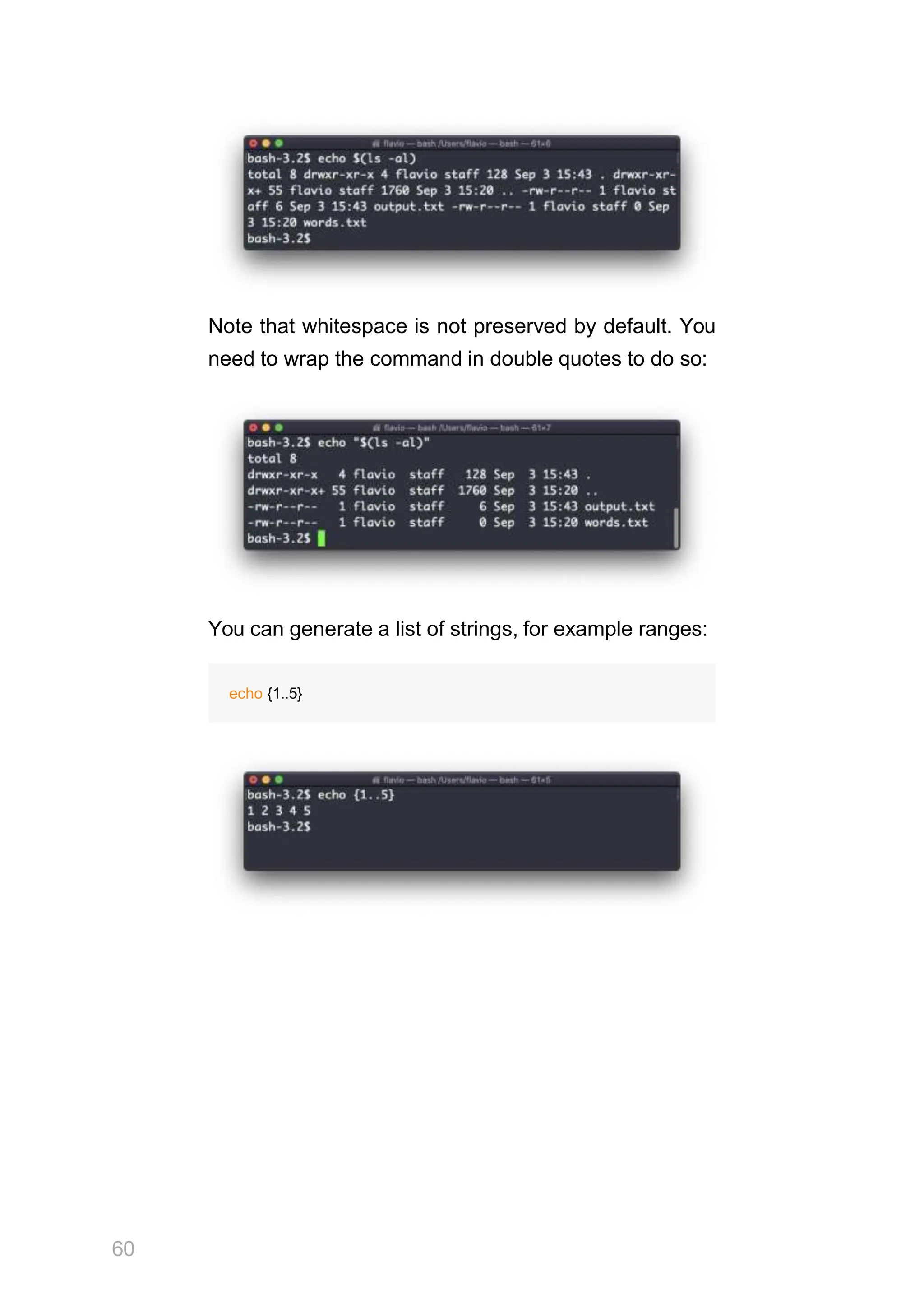
You can also execute commands, and print the result
to the standard output (or to file, as you saw):
59
echo $(ls –al)
Note that whitespace is not preserved by default. You
need to wrap the command in double quotes to do so:
You can generate a list of strings, for example ranges:
echo {1..5}
60
chown
Every file/directory in an Operating System like Linux
or macOS (and every UNIX systems in general) has
an owner.
The owner of a file can do everything with it. It can
decide the fate of that file.
root
The owner (and the user) can change the
owner to another user, too, using the
command:
chown
chown <owner> <file>
Like this:
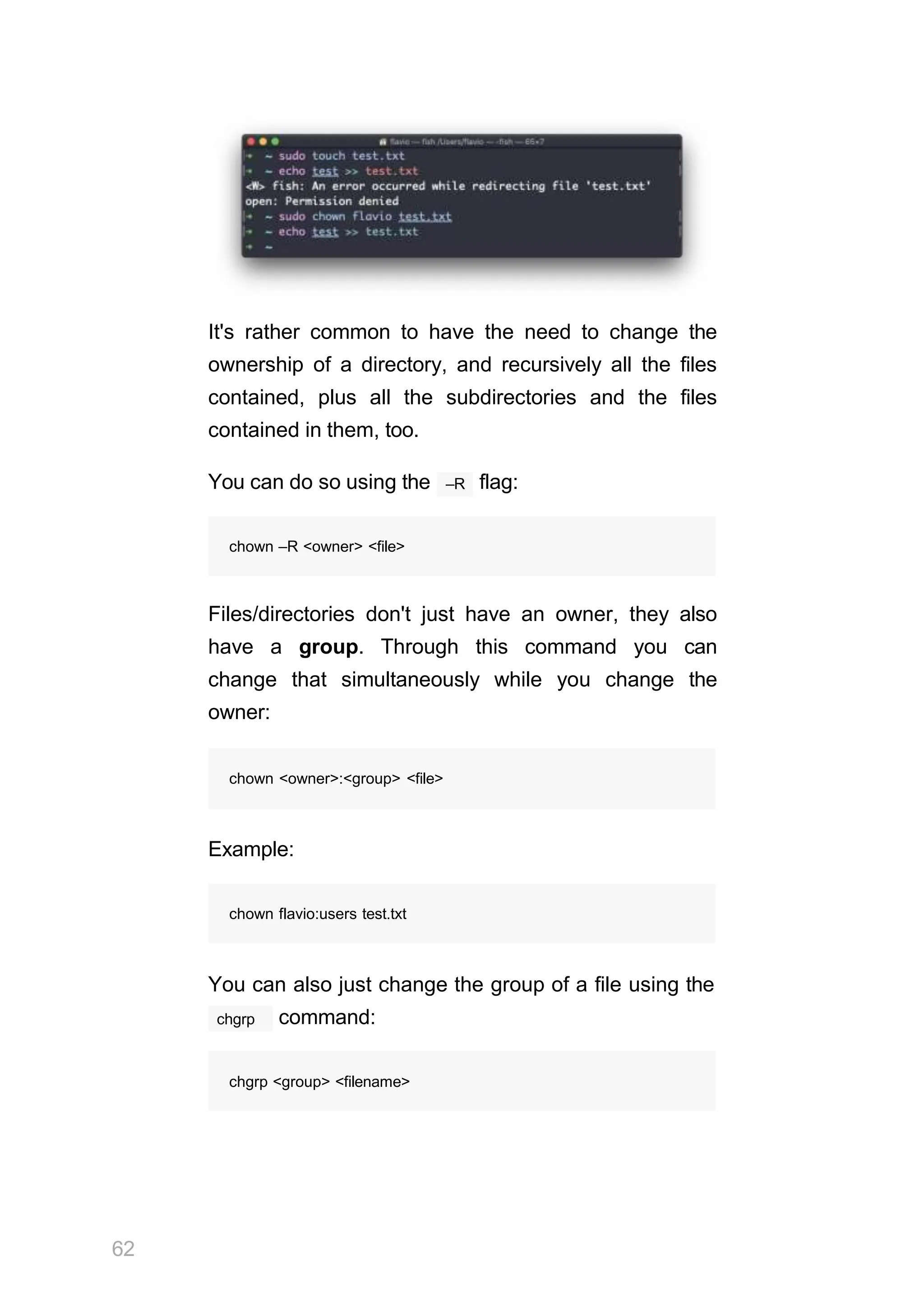
chown flavio test.txt
root
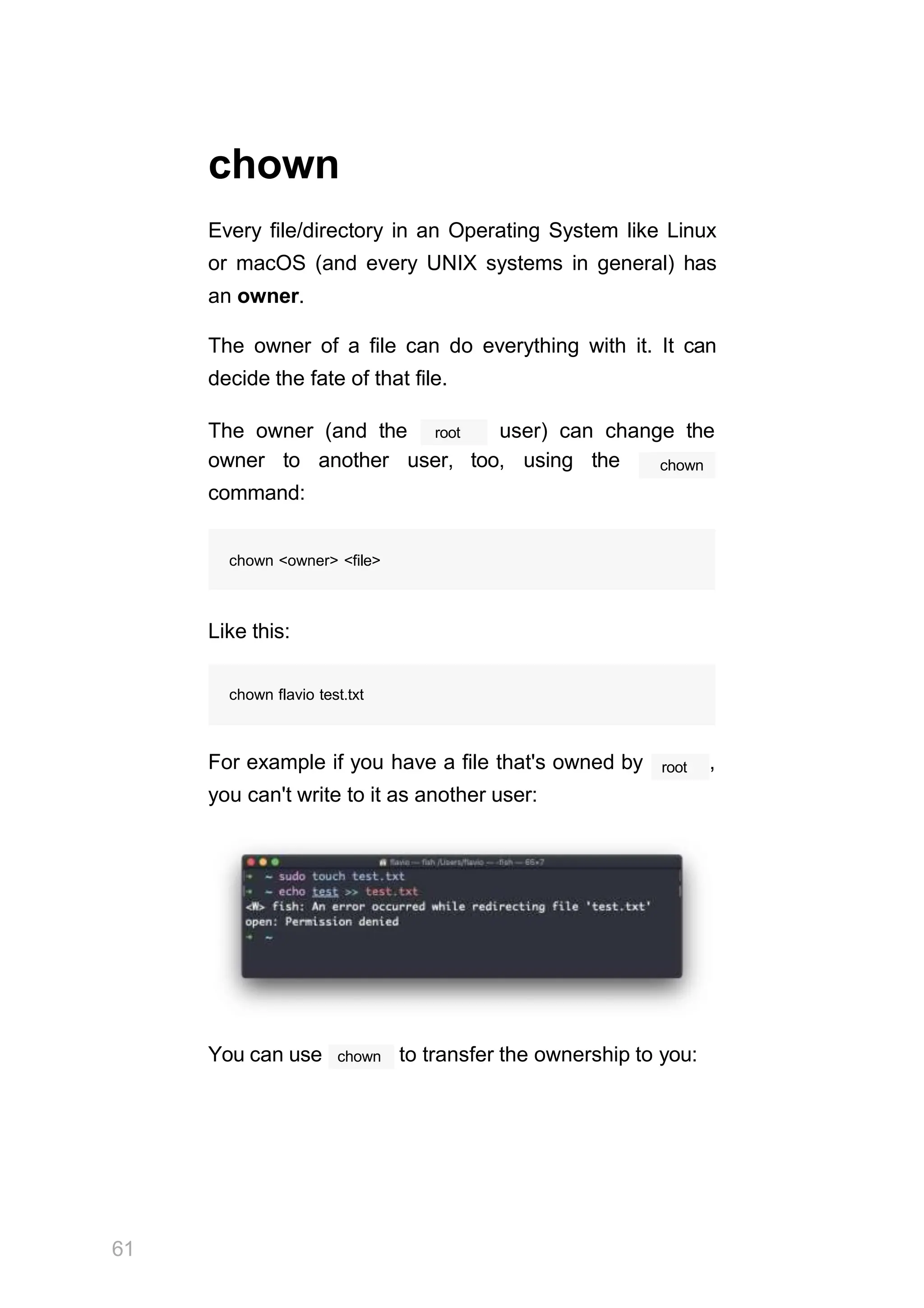
For example if you have a file that's owned by ,
you can't write to it as another user:
You can use
61
chown to transfer the ownership to you:
It's rather common to have the need to change the
ownership of a directory, and recursively all the files
contained, plus all the subdirectories and the files
contained in them, too.
62
–R
You can do so using the flag:
chown –R <owner> <file>
Files/directories don't just have an owner, they also
have a group. Through this command you can
change that simultaneously while you change the
owner:
chown <owner>:<group> <file>
Example:
chown flavio:users test.txt
You can also just change the group of a file using the
chgrp command:
chgrp <group> <filename>
chmod
Every file in the Linux / macOS Operating Systems
(and UNIX systems in general) has 3 permissions:
Read, write, execute.
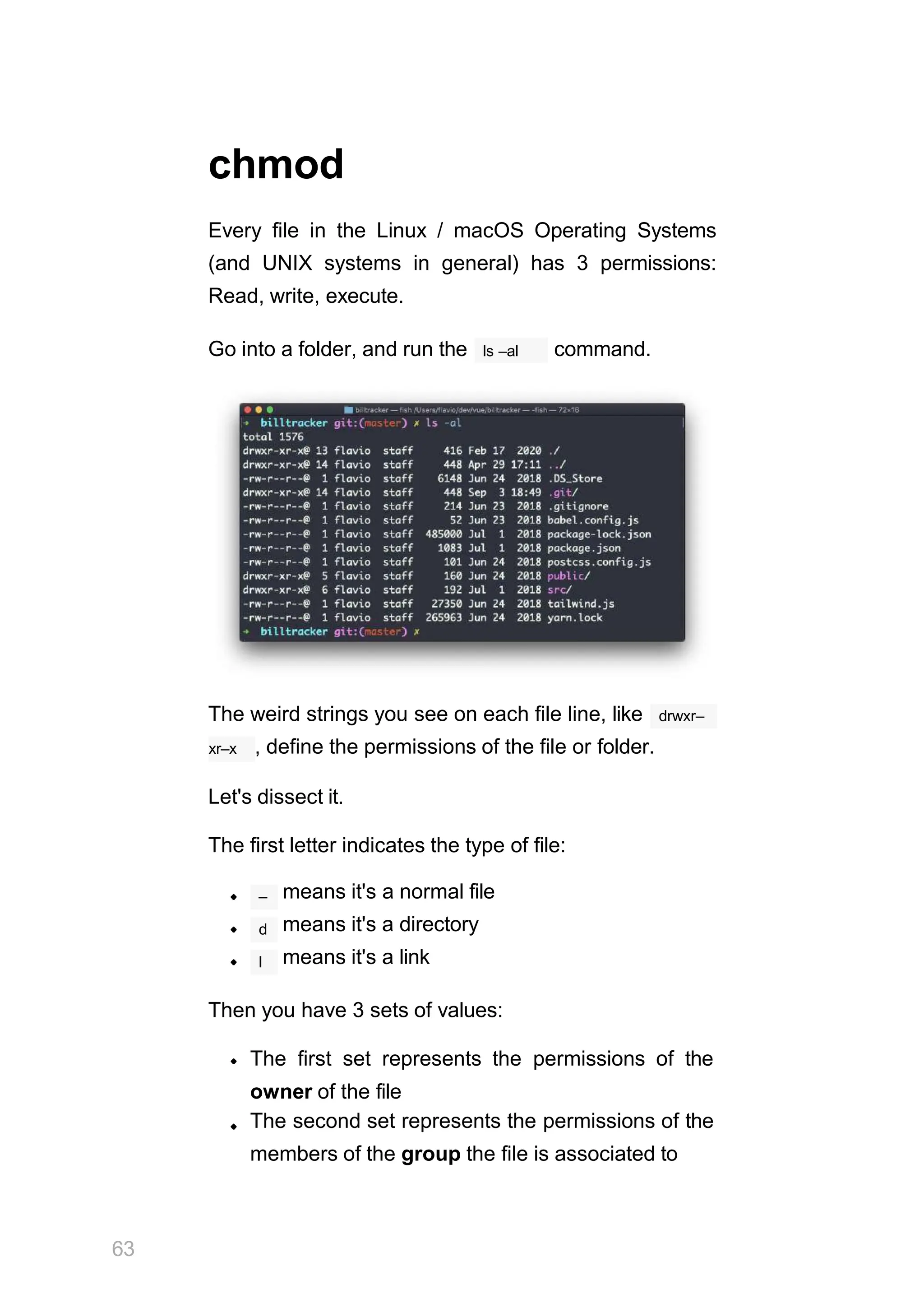
ls –al
Go into a folder, and run the command.
The weird strings you see on each file line, like drwxr–
xr–x , define the permissions of the file or folder.
Let's dissect it.
The first letter indicates the type of file:
– means it's a normal file
means it's a directory
means it's a link
d
l
Then you have 3 sets of values:
The first set represents the permissions of the
owner of the file
The second set represents the permissions of the
members of the group the file is associated to
63
The third set represents the permissions of the
everyone else
rwx
Those sets are composed by 3 values. means
that specific persona has read, write and execution
access. Anything that is removed is swapped with a
– , which lets you form various combinations of
values and relative permissions:
and so on.
rw– r––
, , r–x ,
You can change the permissions given to a file using
chmod
the command.
chmod can be used in 2 ways. The first is using
symbolic arguments, the second is using numeric
arguments. Let's start with symbols first, which is more
intuitive.
chmod
You type followed by a space, and a letter:
a stands for all
u stands for user
g stands for group
o stands for others
Then you type either + or – to add a permission, or
to remove it. Then you enter one or more permissions
symbols ( r , w , x ).
All followed by the file or folder name.
Here are some examples:
64
chmod a+r filename #everyone can now read
chmod a+rw filename #everyone can now read and writ chmod o–rwx
filename #others (not the owner, not in
You can apply the same permissions to multiple
personas by adding multiple letters before the + / – :
In case you are editing a folder, you can apply the
permissions to every file contained in that folder using
–r
the (recursive) flag.
Numeric arguments are faster but I find them hard to
remember when you are not using them day to day.
You use a digit that represents the permissions of the
persona. This number value can be a maximum of 7,
and it's calculated in this way:
1 if has execution permission
if has write permission
if has read permission
2
4
This gives us 4 combinations:
θ no permissions
1 can execute
2 can write
3 can write, execute
4 can read
5 can read, execute
6 can read, write
7 can read, write and execute
We use them in pairs of 3, to set the permissions of all
the 3 groups altogether:
65
chmod og–r filename #other and group can't read any
chmod 777 filename
chmod 755 filename
chmod 644 filename
66
umask
When you create a file, you don't have to decide
permissions up front. Permissions have defaults.
Those defaults can be controlled and modified using
umask
the command.
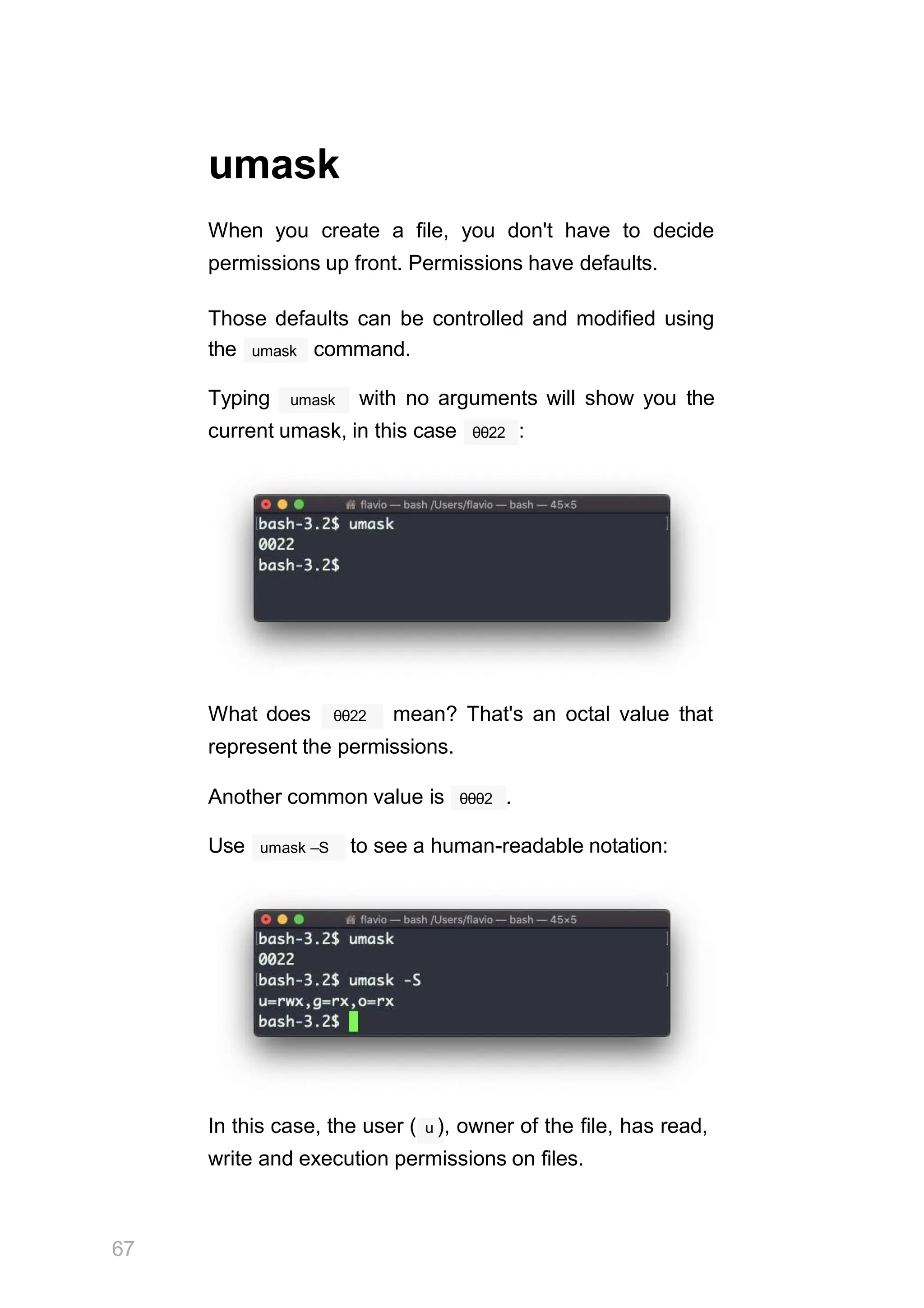
umask
Typing with no arguments will show you the
θθ22
current umask, in this case :
θθ22
What does mean? That's an octal value that
represent the permissions.
Another common value is θθθ2 .
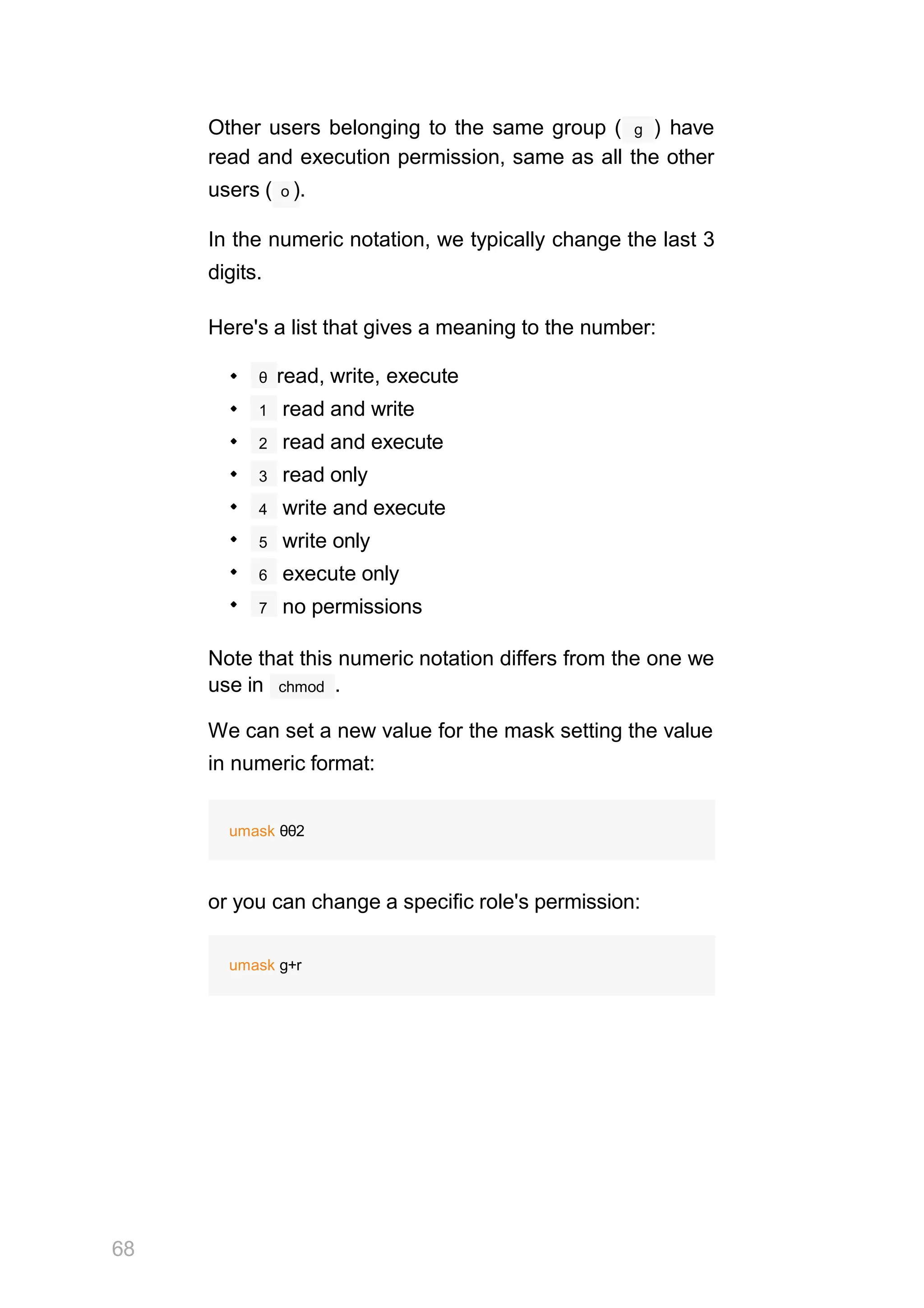
umask –S
Use to see a human-readable notation:
In this case, the user ( u ), owner of the file, has read,
write and execution permissions on files.
67
g
Other users belonging to the same group ( ) have
read and execution permission, same as all the other
users ( o ).
In the numeric notation, we typically change the last 3
digits.
Here's a list that gives a meaning to the number:
θ read, write, execute
1 read and write
2 read and execute
3 read only
4 write and execute
5 write only
6 execute only
7 no permissions
Note that this numeric notation differs from the one we
68
chmod
use in .
We can set a new value for the mask setting the value
in numeric format:
umask θθ2
or you can change a specific role's permission:
umask g+r
du
du
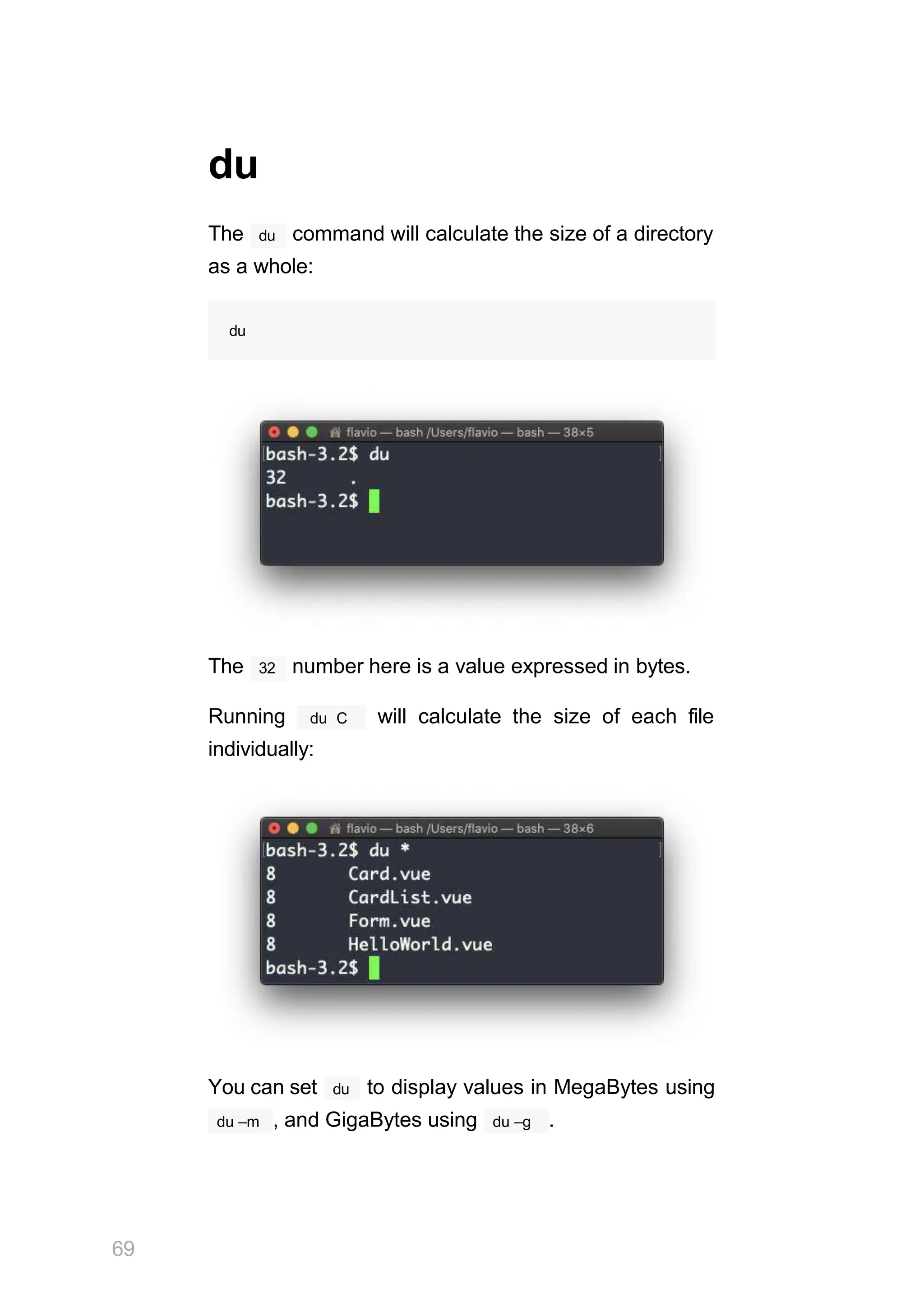
The command will calculate the size of a directory
as a whole:
du
The 32 number here is a value expressed in bytes.
Running du C will calculate the size of each file
individually:
You can set
69
du to display values in MegaBytes using
du –m , and GigaBytes using du –g .
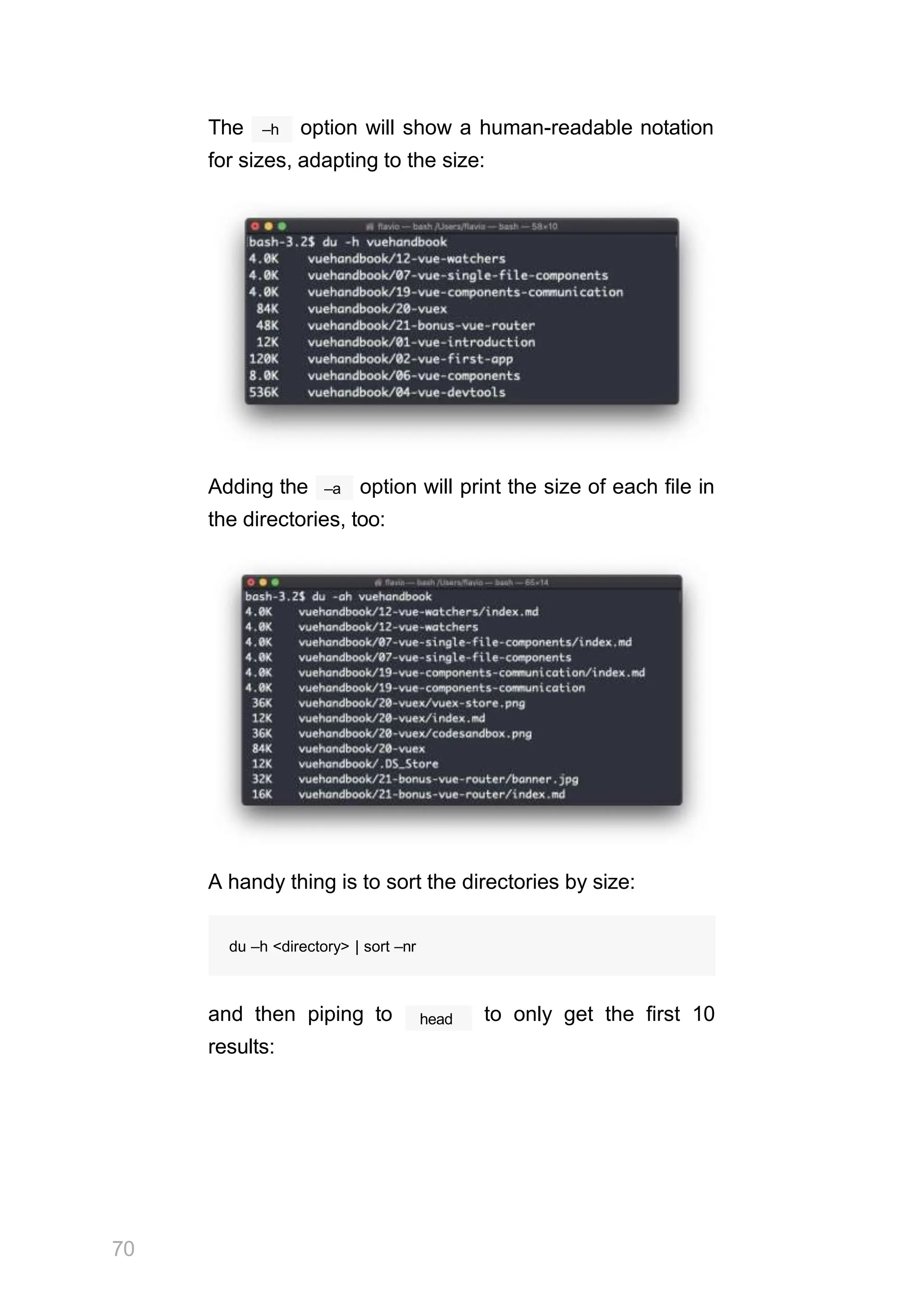
–h
The option will show a human-readable notation
for sizes, adapting to the size:
–a
Adding the option will print the size of each file in
the directories, too:
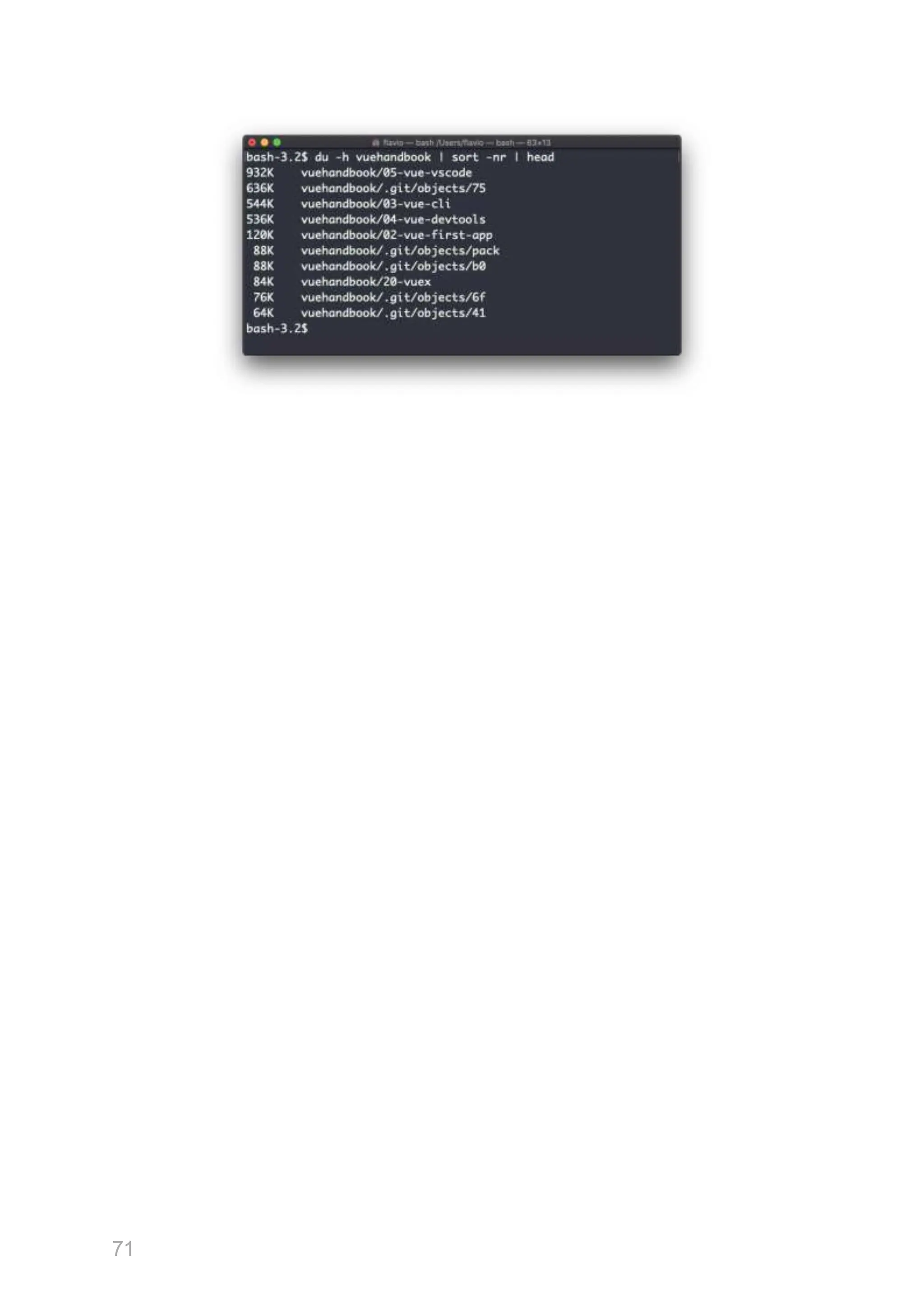
A handy thing is to sort the directories by size:
70
du –h <directory> | sort –nr
head
and then piping to to only get the first 10
results:
71
df
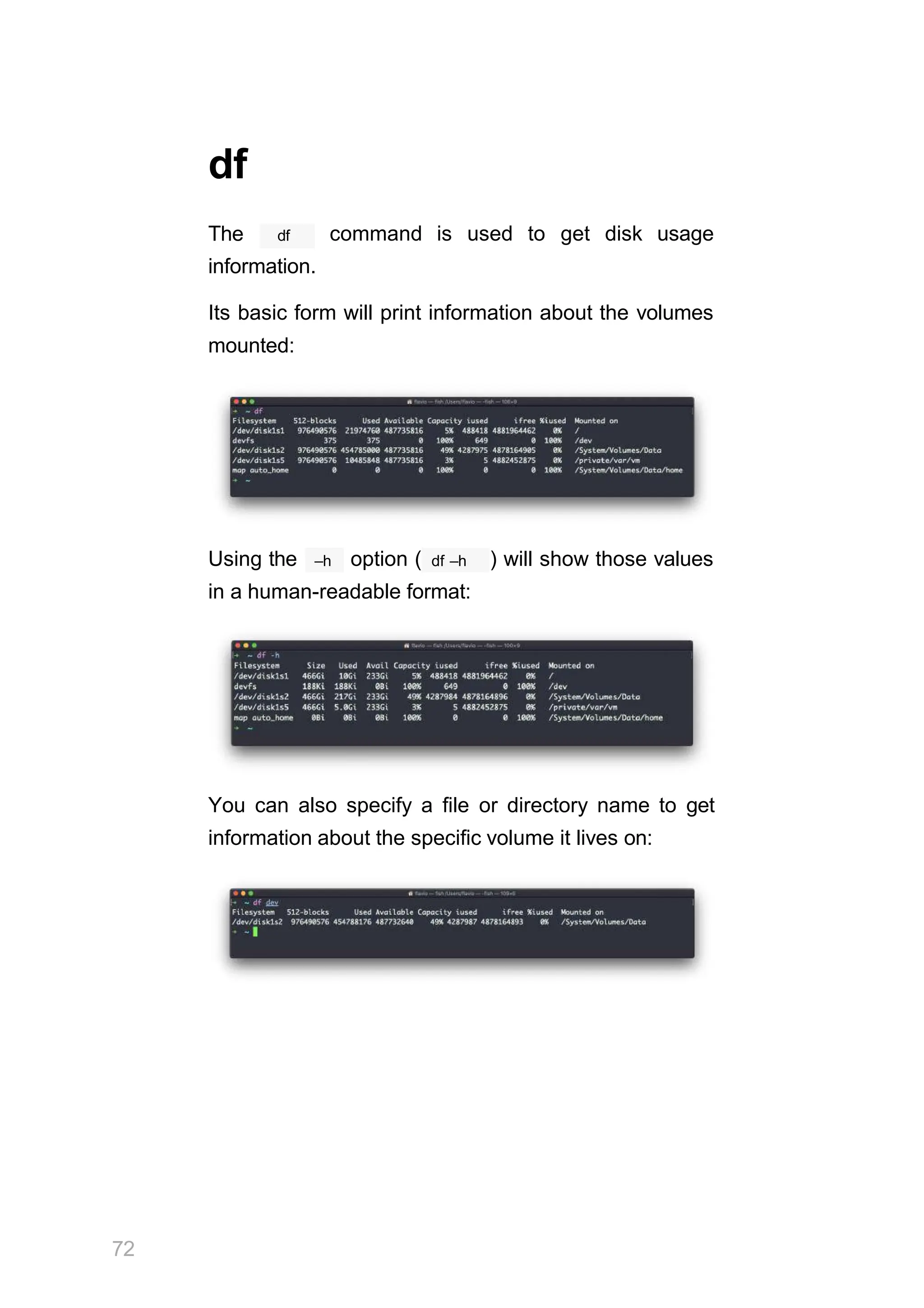
The df command is used to get disk usage
information.
Its basic form will print information about the volumes
mounted:
–h
Using the option ( df –h ) will show those values
in a human-readable format:
You can also specify a file or directory name to get
information about the specific volume it lives on:
72
basename
a file, for example
/Users/flavio/test.txt
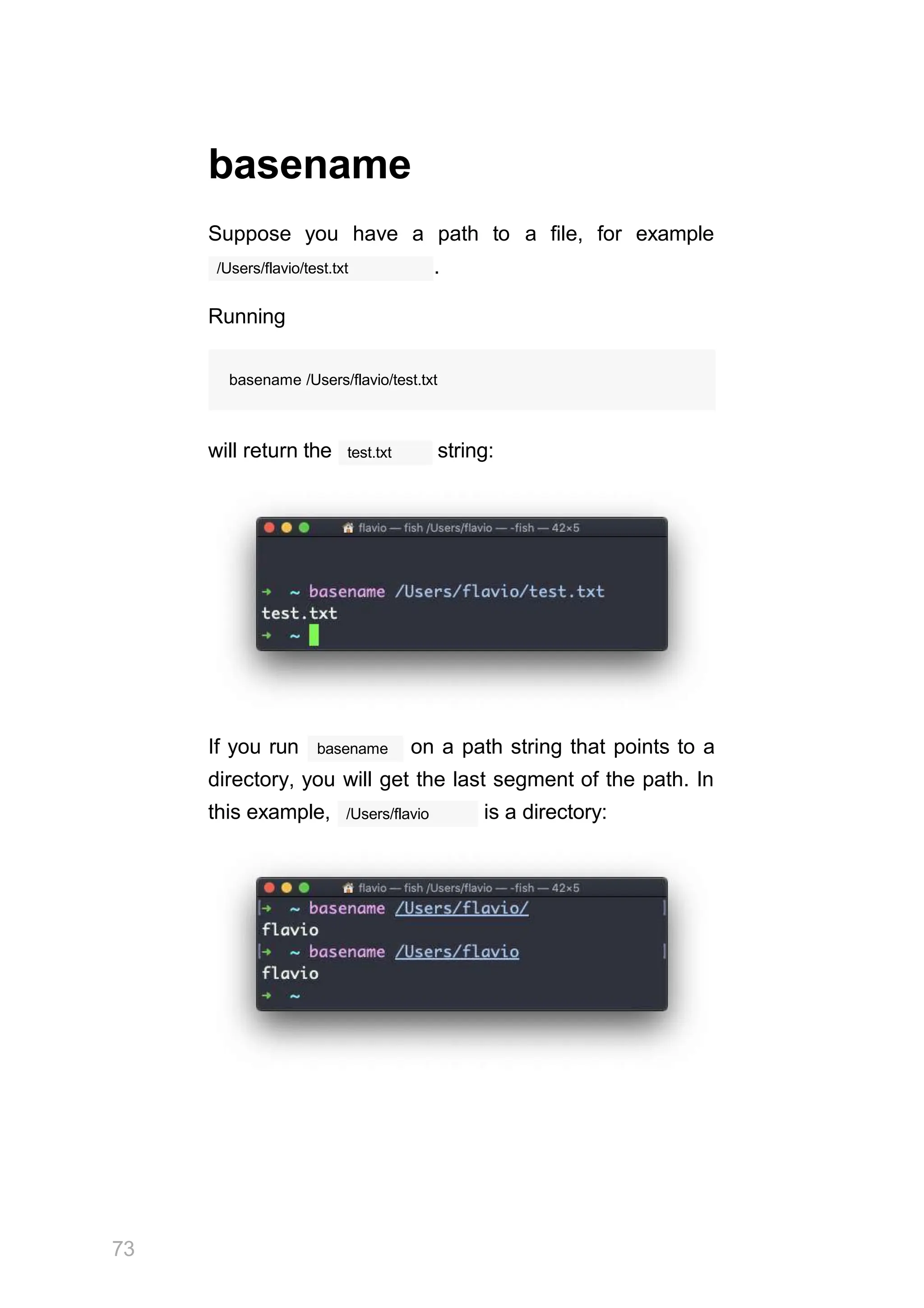
Suppose you have a path to
.
Running
basename /Users/flavio/test.txt
test.txt
will return the string:
basename
If you run on a path string that points to a
directory, you will get the last segment of the path. In
/Users/flavio
this example, is a directory:
73
dirname
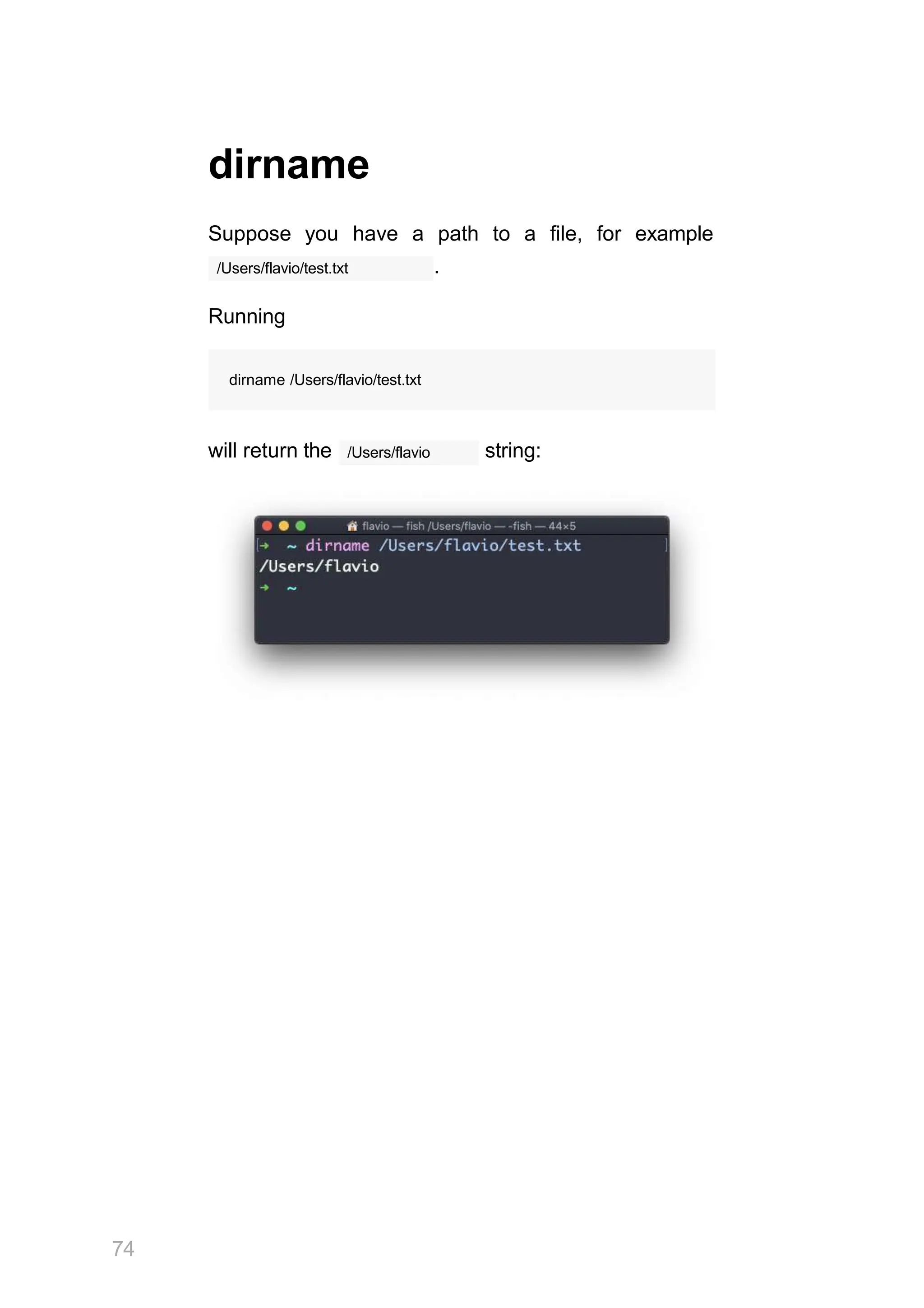
Suppose you have a path to a file, for example
/Users/flavio/test.txt .
Running
dirname /Users/flavio/test.txt
/Users/flavio
will return the string:
74
ps
Your computer is running, at all times, tons of different
processes.
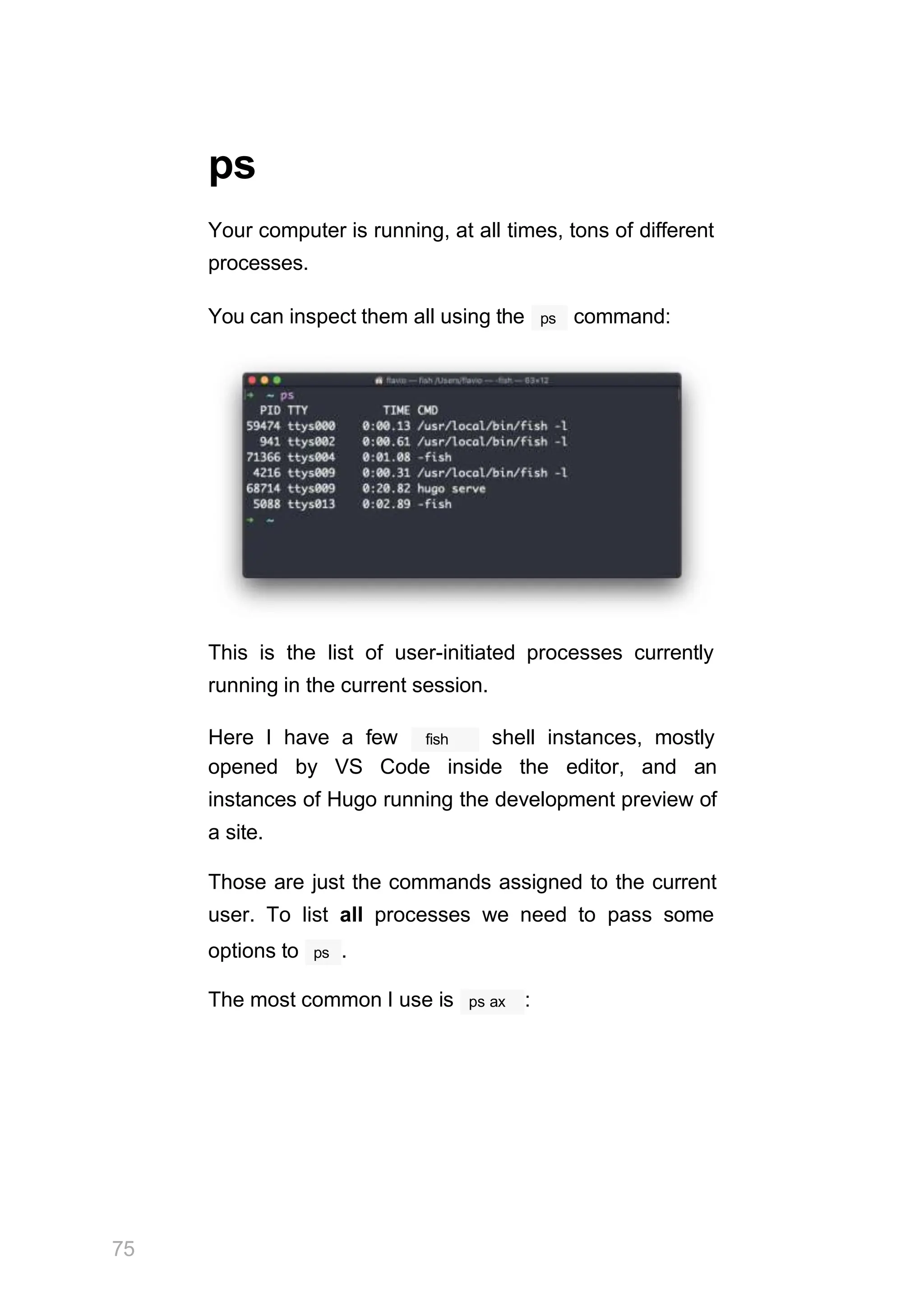
ps
You can inspect them all using the command:
This is the list of user-initiated processes currently
running in the current session.
75
fish
Here I have a few shell instances, mostly
opened by VS Code inside the editor, and an
instances of Hugo running the development preview of
a site.
Those are just the commands assigned to the current
user. To list all processes we need to pass some
ps
options to .
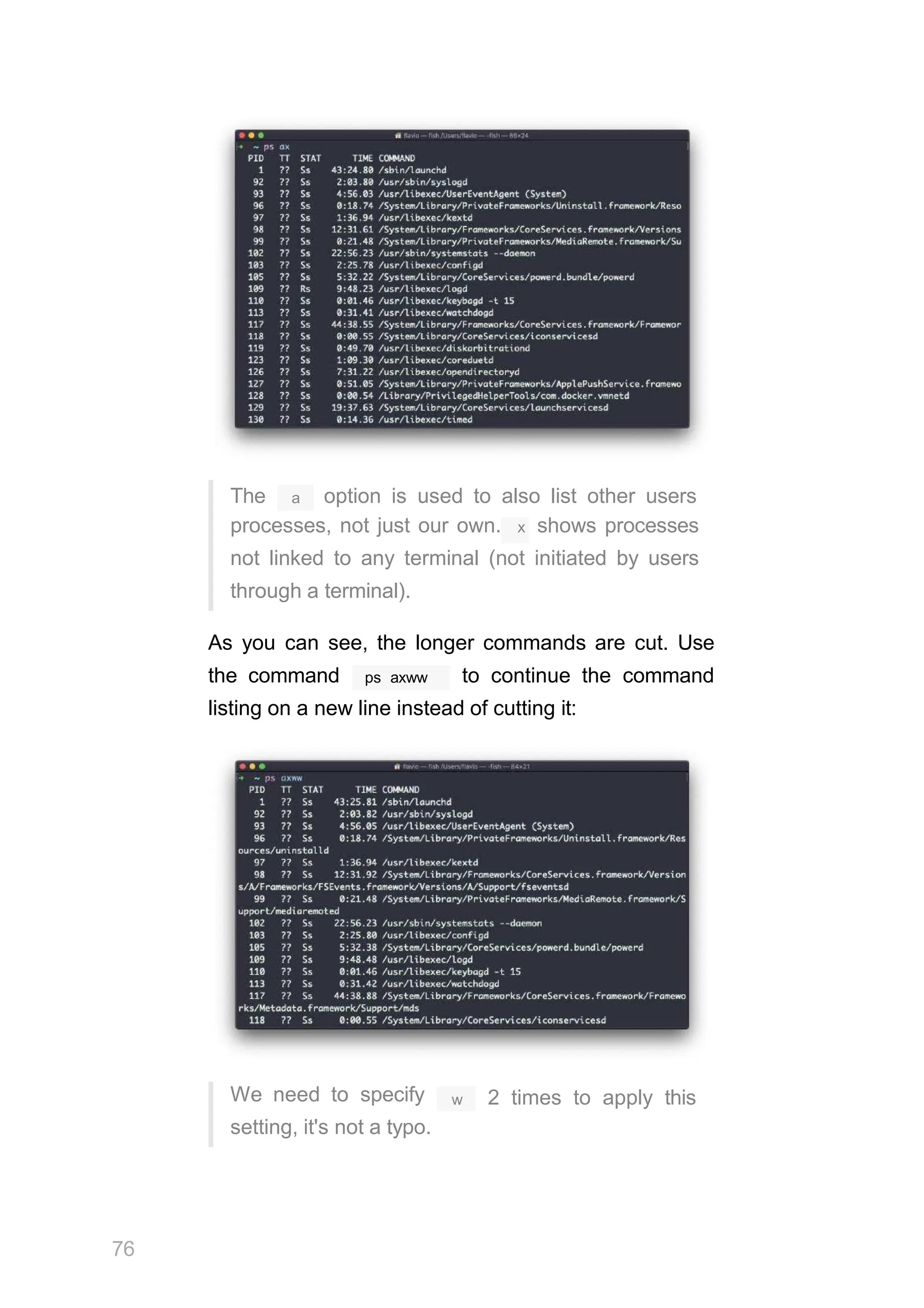
The most common I use is ps ax :
a
The option is used to also list other users
processes, not just our own. x shows processes
not linked to any terminal (not initiated by users
through a terminal).
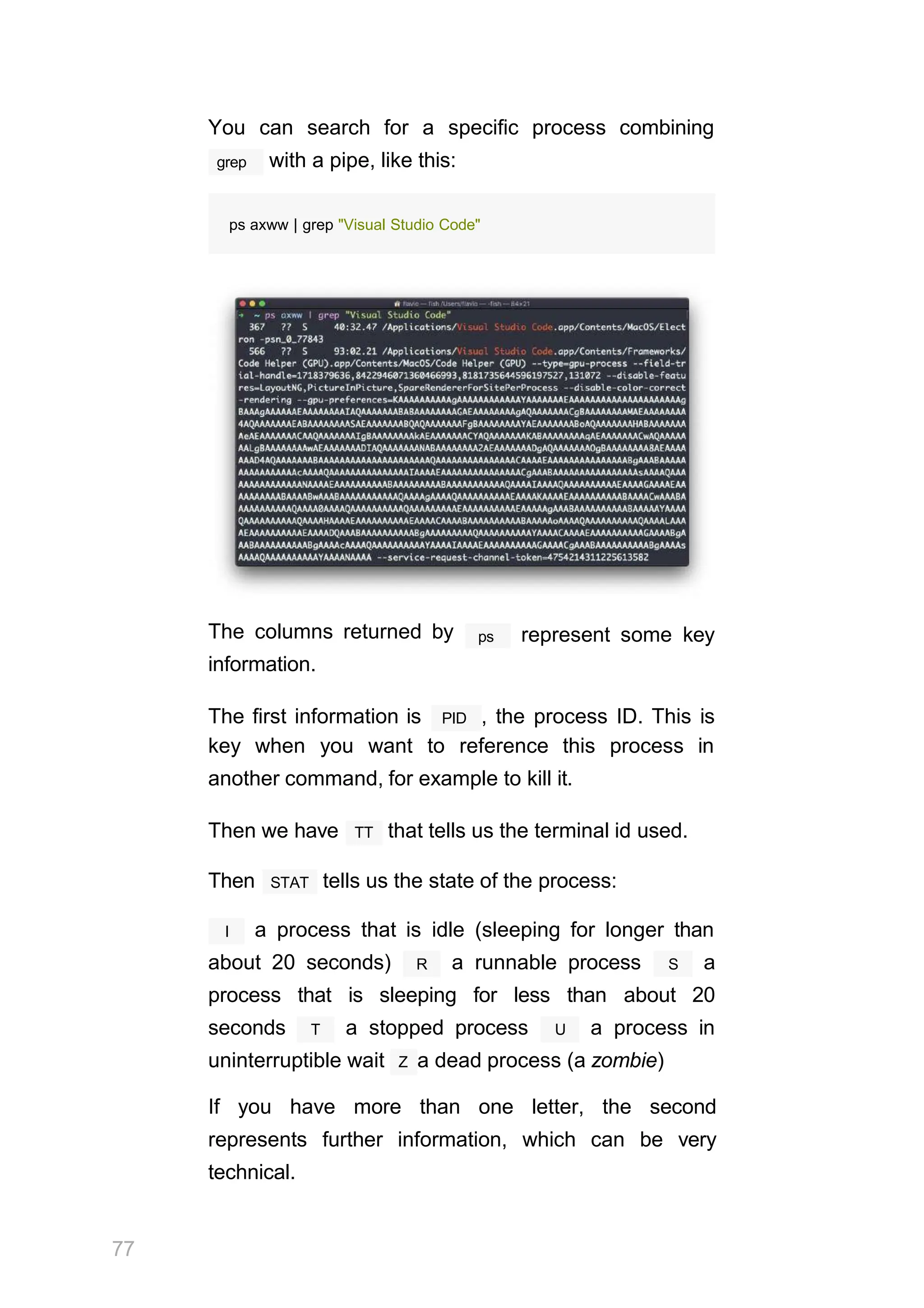
As you can see, the longer commands are cut. Use
ps axww
the command to continue the command
listing on a new line instead of cutting it:
We need to specify
setting, it's not a typo.
76
w 2 times to apply this
You can search for a specific process combining
grep with a pipe, like this:
ps axww | grep "Visual Studio Code"
The columns returned by
information.
ps represent some key
PID
The first information is , the process ID. This is
key when you want to reference this process in
another command, for example to kill it.
TT
Then we have that tells us the terminal id used.
STAT
Then tells us the state of the process:
I a process that is idle (sleeping for longer than
R
about 20 seconds) a runnable process S a
process that is sleeping for less than about 20
T
seconds a stopped process U a process in
uninterruptible wait Z a dead process (a zombie)
If you have more than one letter, the second
represents further information, which can be very
technical.
77
It's common to have + which indicates the process is
78
s
in the foreground in its terminal. means the
process is a session leader.
TIME tells us how long the process has been running.
top
top
A quick guide to the command, used to list the
processes running in real time
top
The command is used to display dynamic real-
time information about running processes in the
system.
It's really handy to understand what is going on.
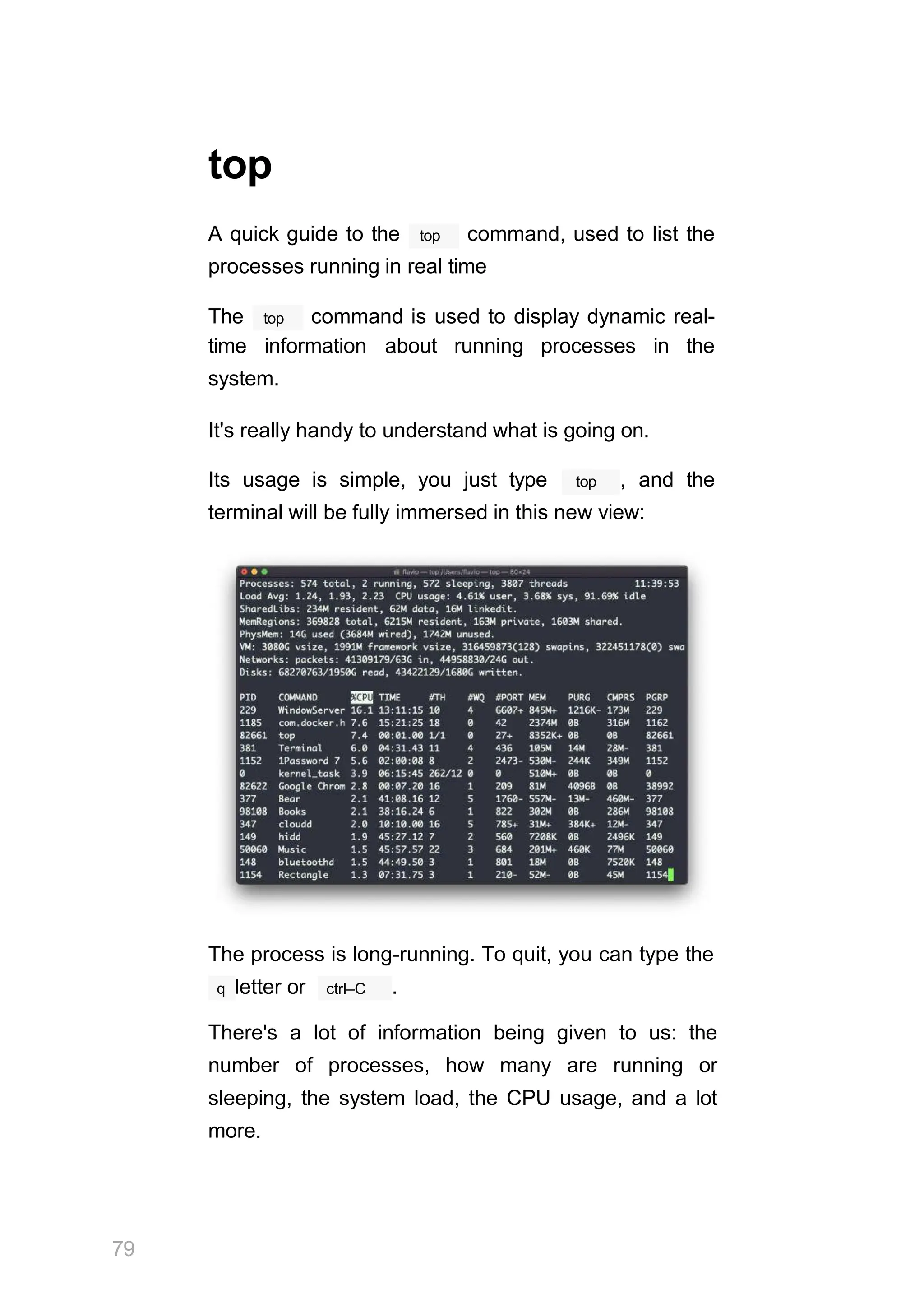
top
Its usage is simple, you just type , and the
terminal will be fully immersed in this new view:
The process is long-running. To quit, you can type the
ctrl–C
79
q letter or .
There's a lot of information being given to us: the
number of processes, how many are running or
sleeping, the system load, the CPU usage, and a lot
more.
80
Below, the list of processes taking the most memory
and CPU is constantly updated.
%CPU
By default, as you can see from the column
highlighted, they are sorted by the CPU used.
You can add a flag to sort processes by memory
utilized:
top –o mem
81
kill
Linux processes can receive signals and react to
them.
That's one way we can interact with running programs.
kill
The program can send a variety of signals to a
program.
It's not just used to terminate a program, like the name
would suggest, but that's its main job.
We use it in this way:
kill <PID>
TERM
By default, this sends the signal to the process
id specified.
We can use flags to send other signals, including:
kill –HUP <PID> kill –
INT <PID> kill –KILL
<PID> kill –TERM
<PID> kill –CONT
<PID> kill –STOP
<PID>
HUP means hang up. It's sent automatically when a
terminal window that started a process is closed
before terminating the process.
INT means interrupt, and it sends the same signal
ctrl–C
used when we press in the terminal, which
usually terminates the process.
KILL is not sent to the process, but to the operating
system kernel, which immediately stops and
terminates the process.
TERM means terminate. The process will receive it
and terminate itself. It's the default signal sent by
kill .
CONT means continue. It can be used to resume a
stopped process.
STOP is not sent to the process, but to the operating
system kernel, which immediately stops (but does not
terminate) the process.
You might see numbers used instead, like kill –1
<PID> . In this case,
1 corresponds to HUP . 2 corresponds to INT . 9
corresponds to KILL . 15 corresponds to TERM
.
18 corresponds to
82
CONT . 15 corresponds to
STOP .
83
killall
kill killall
Similar to the command, instead of
sending a signal to a specific process id will send the
signal to multiple processes at once.
This is the syntax:
killall <name>
name
where is the name of a program. For example
top
you can have multiple instances of the program
killall top
running, and will terminate them all.
kill
You can specify the signal, like with (and check
kill
the tutorial to read more about the specific
kinds of signals we can send), for example:
killall –HUP top
jobs
When we run a command in Linux / macOS, we can
&
set it to run in the background using the symbol
top
after the command. For example we can run in
the background:
top &
This is very handy for long-running programs.
We can get back to that program using the fg
command. This works fine if we just have one job in
the background, otherwise we need to use the job
fg 1
number: , fg 2 and so on. To get the job
command.
number, we use the jobs
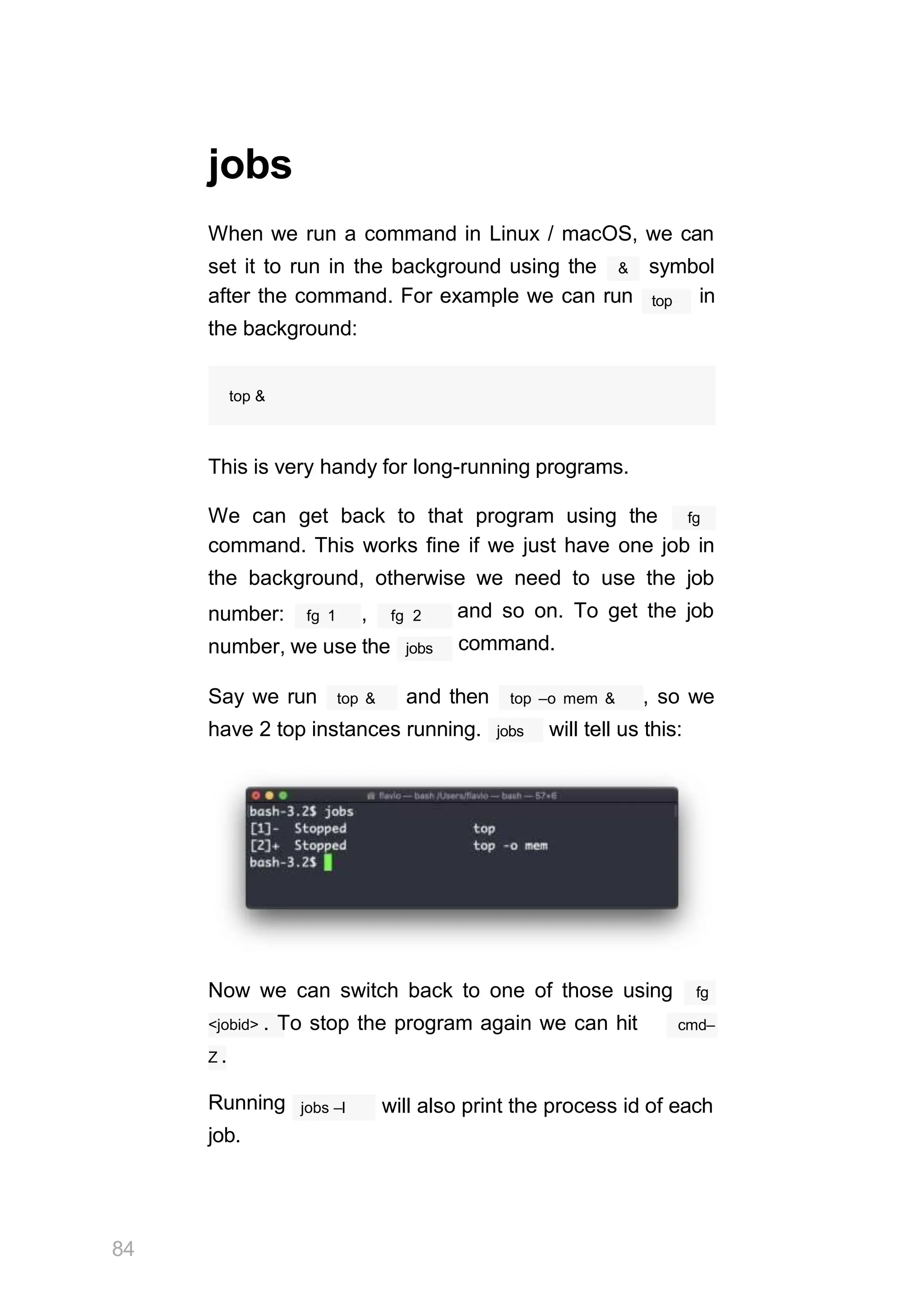
top &
Say we run and then top –o mem & , so we
have 2 top instances running. jobs will tell us this:
Now we can switch back to one of those using fg
<jobid> . To stop the program again we can hit cmd–
Z .
84
Running
job.
jobs –l will also print the process id of each
bg
When a command is running you can suspend it using
ctrl–Z .
The command will immediately stop, and you get back
to the shell terminal.
You can resume the execution of the command in the
background, so it will keep running but it will not
prevent you from doing other work in the terminal.
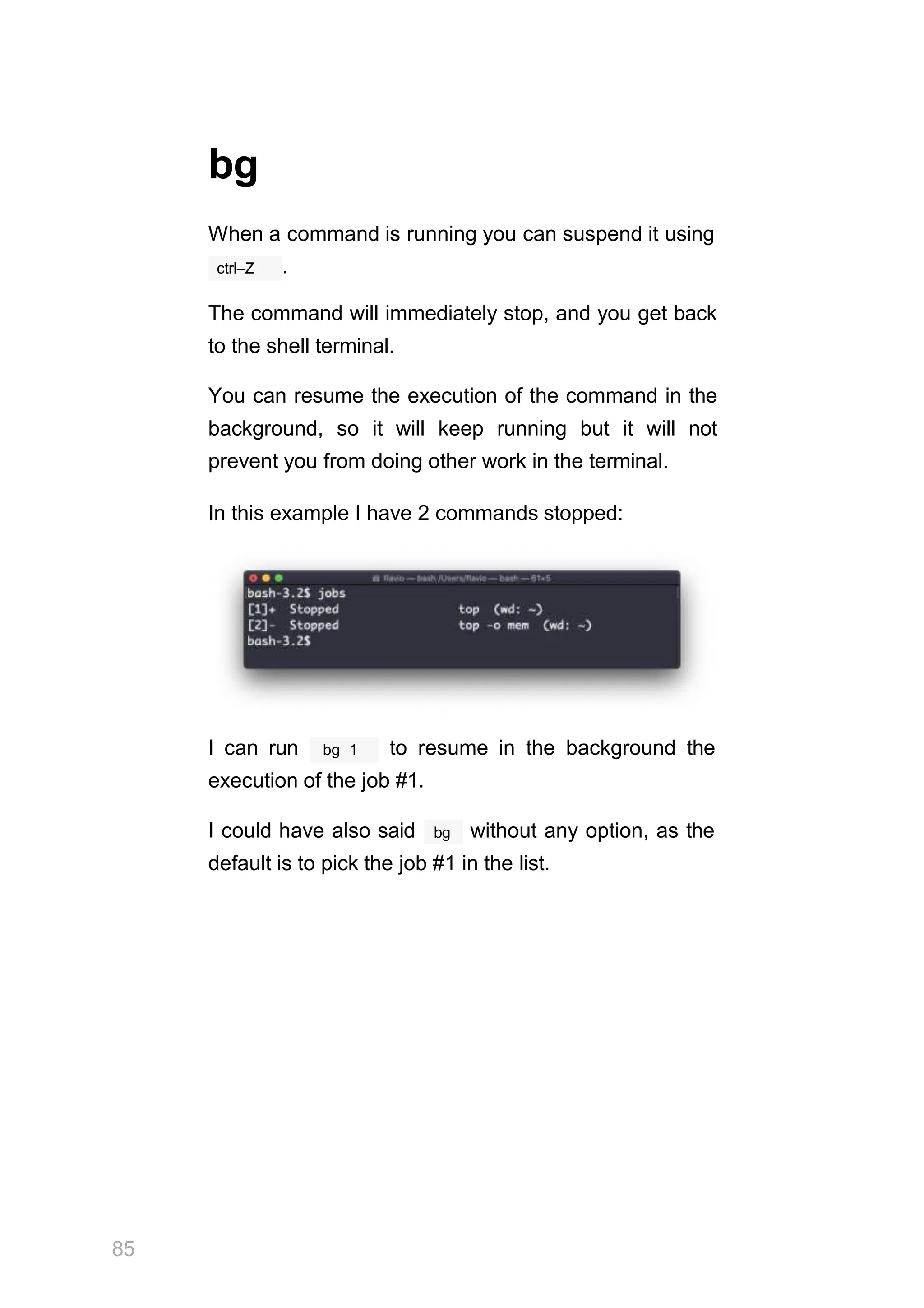
In this example I have 2 commands stopped:
bg 1
85
I can run to resume in the background the
execution of the job #1.
bg
I could have also said without any option, as the
default is to pick the job #1 in the list.
fg
When a command is running in the background,
&
because you started it with at the end (example:
top & or because you put it in the background with
the bg command, you can put it to the foreground
fg
using .
Running
fg
will resume to the foreground the last job that was
suspended.
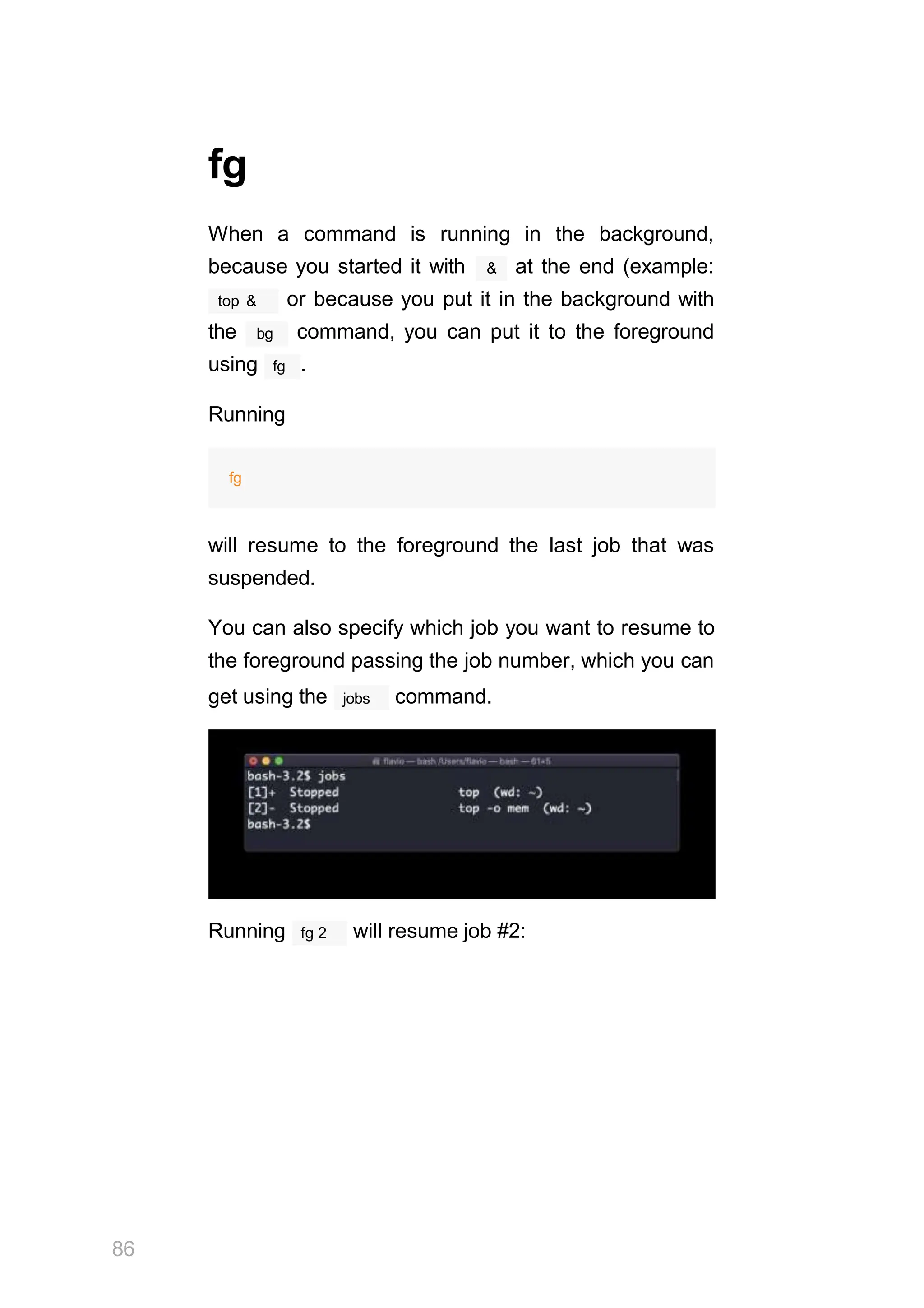
You can also specify which job you want to resume to
the foreground passing the job number, which you can
jobs
get using the command.
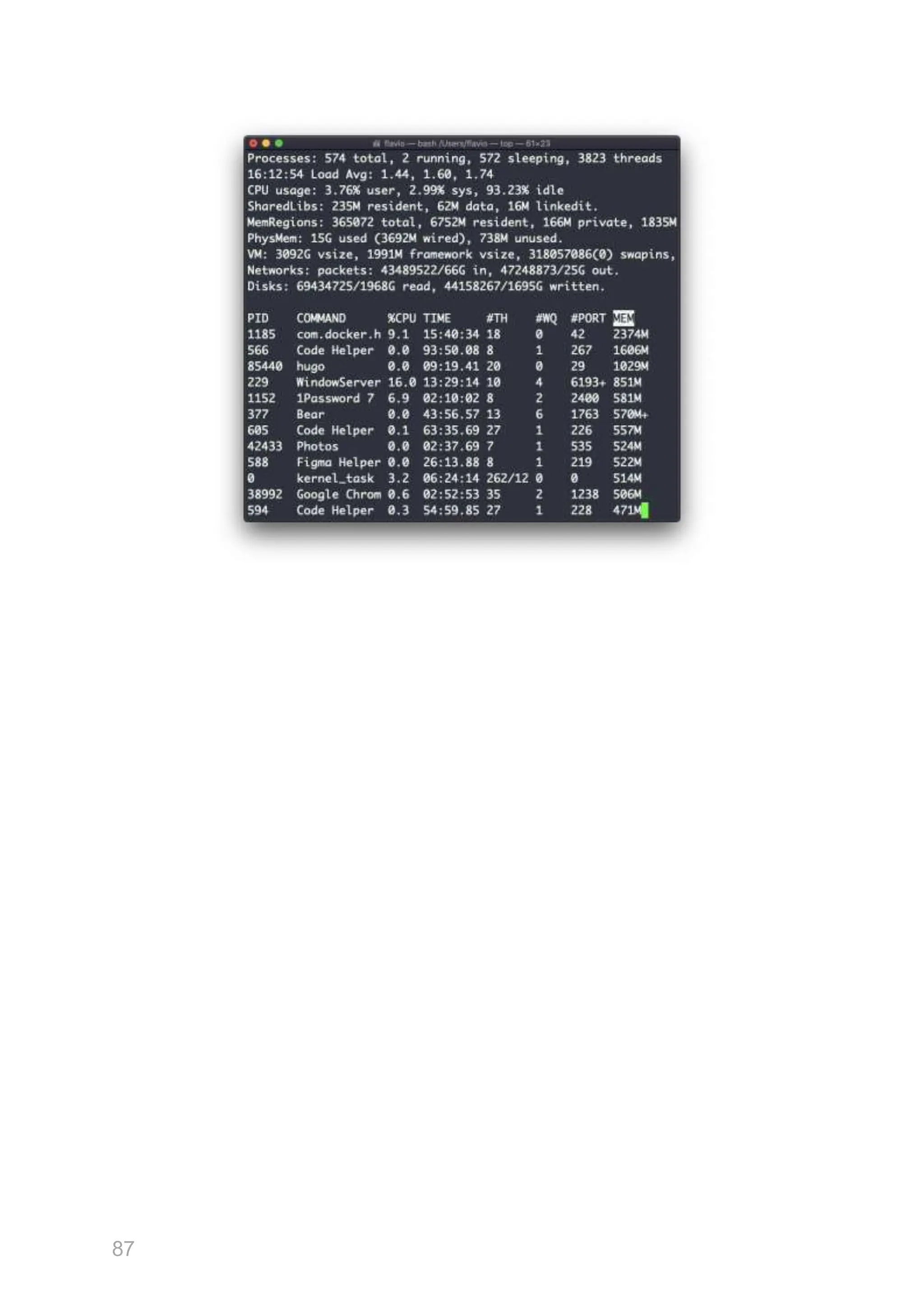
Running
86
fg 2 will resume job #2:
87
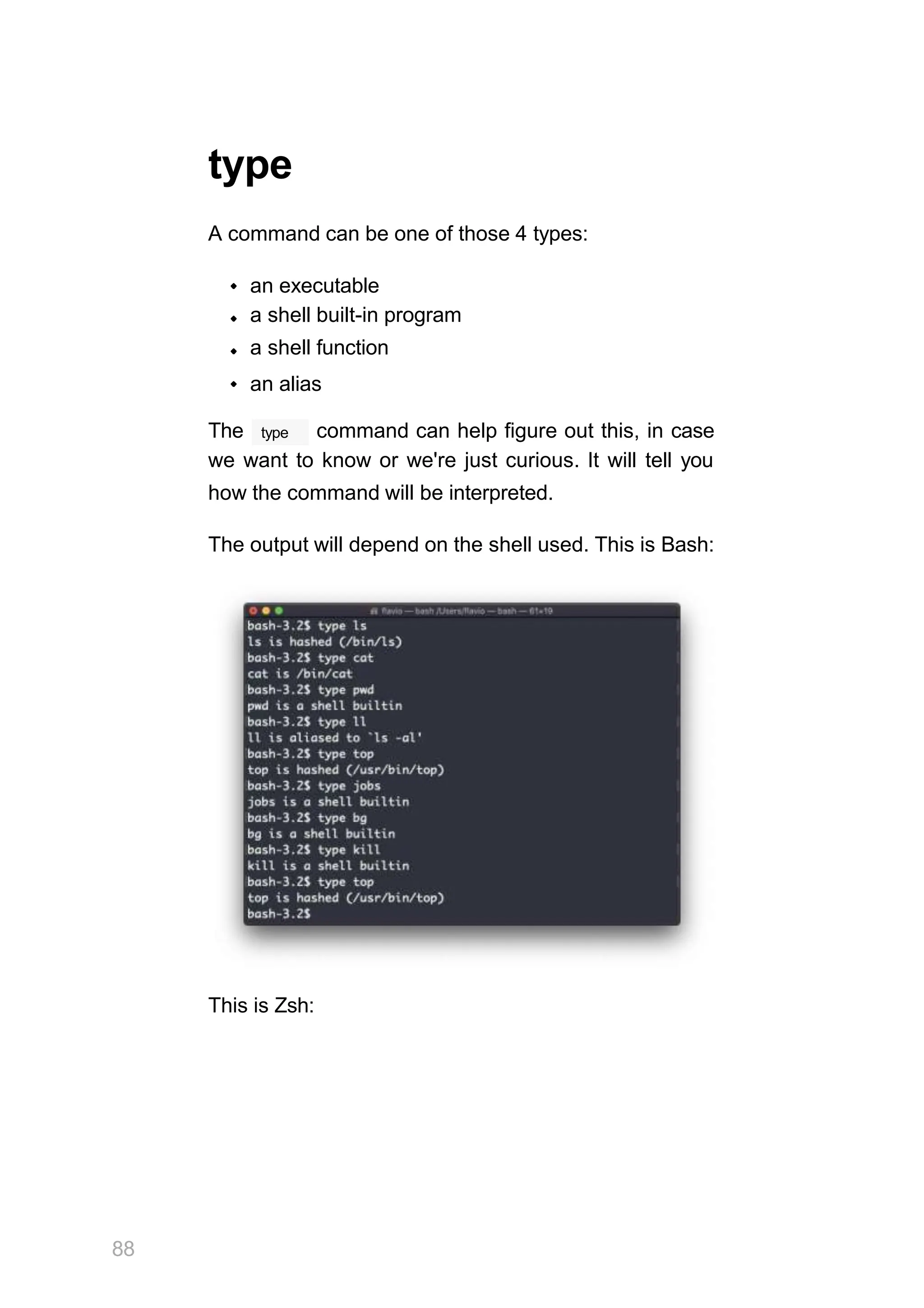
type
A command can be one of those 4 types:
an executable
a shell built-in program
a shell function
an alias
type
The command can help figure out this, in case
we want to know or we're just curious. It will tell you
how the command will be interpreted.
The output will depend on the shell used. This is Bash:
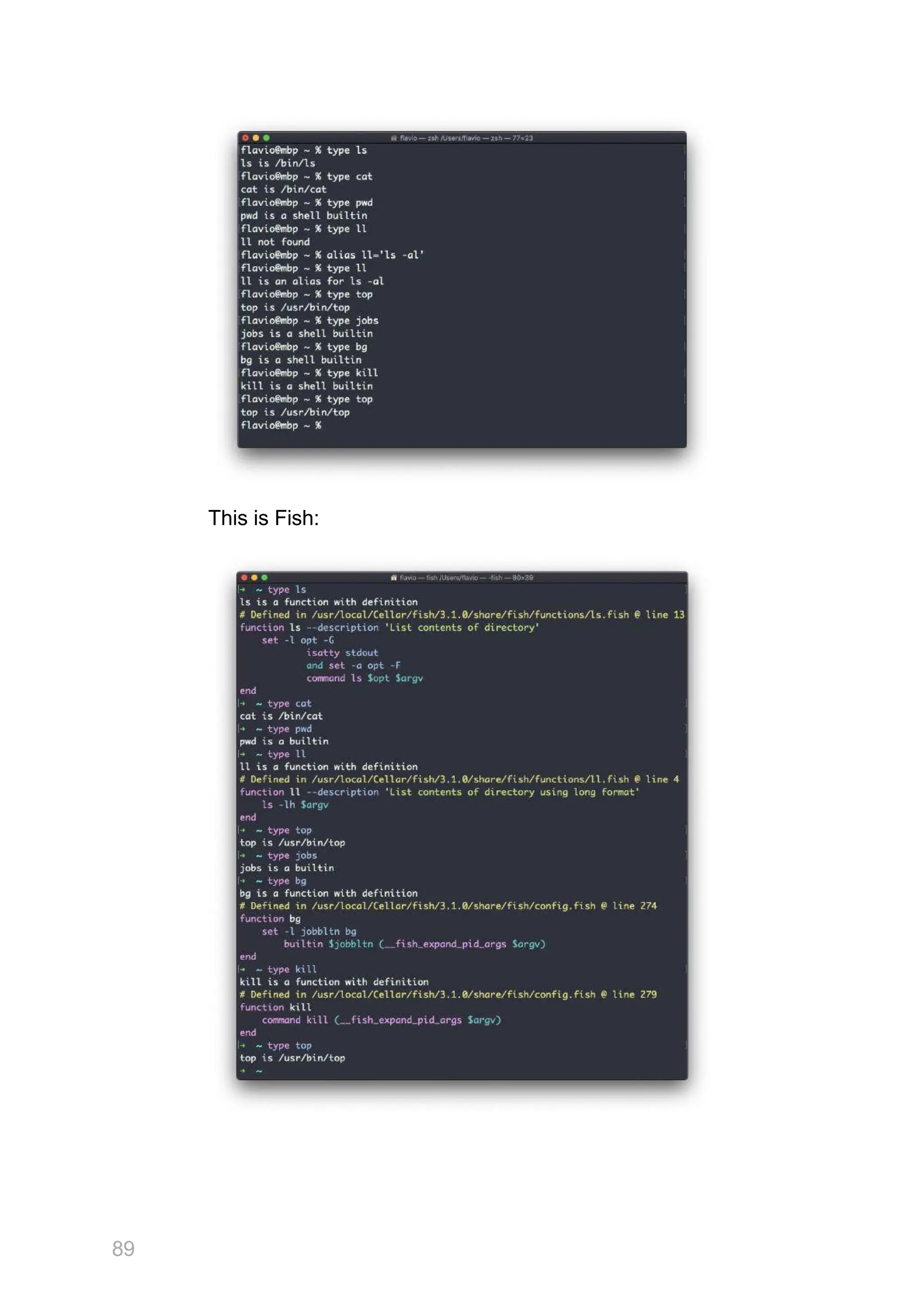
This is Zsh:
88
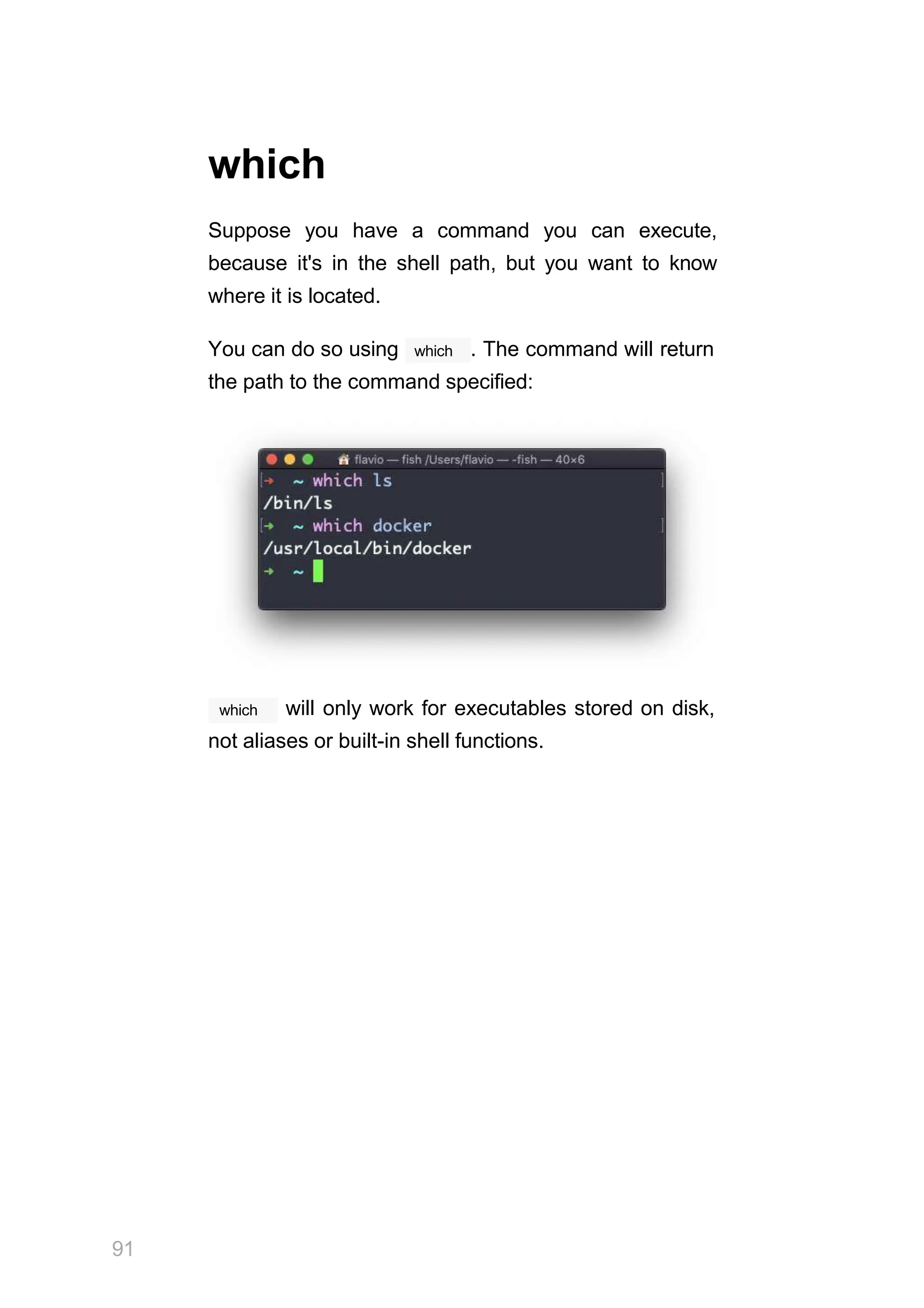
This is Fish:
89
90
One of the most interesting things here is that for
aliases it will tell you what is aliasing to. You can see
ll
the alias, in the case of Bash and Zsh, but Fish
provides it by default, so it will tell you it's a built-in
shell function.
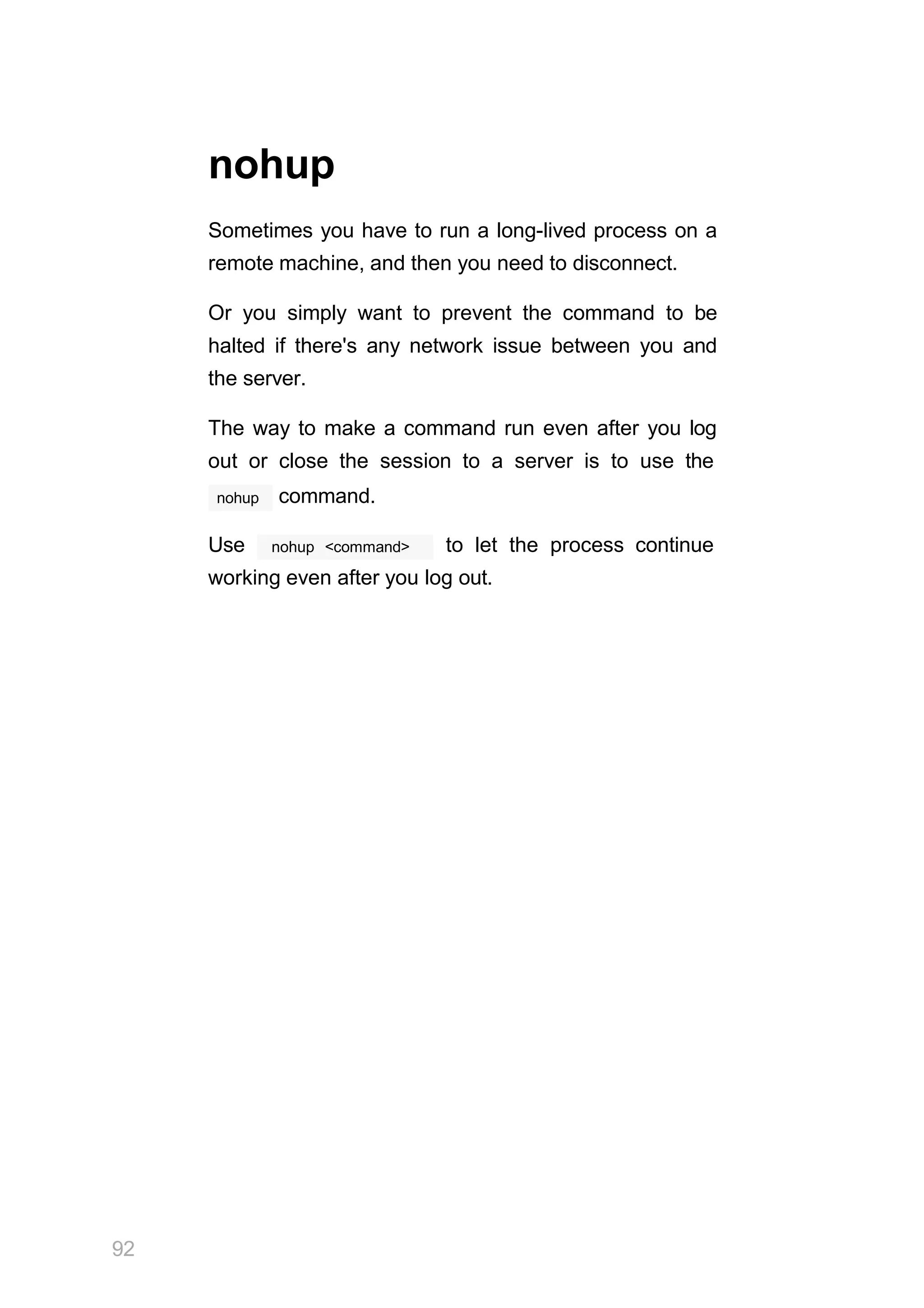
which
Suppose you have a command you can execute,
because it's in the shell path, but you want to know
where it is located.
which
You can do so using . The command will return
the path to the command specified:
which
91
will only work for executables stored on disk,
not aliases or built-in shell functions.
92
nohup
Sometimes you have to run a long-lived process on a
remote machine, and then you need to disconnect.
Or you simply want to prevent the command to be
halted if there's any network issue between you and
the server.
The way to make a command run even after you log
out or close the session to a server is to use the
nohup command.
nohup <command>
Use to let the process continue
working even after you log out.
xargs
xargs
The command is used in a UNIX shell to
convert input from standard input into arguments to a
command.
xargs
In other words, through the use of the output
of a command is used as the input of another
command.
Here's the syntax you will use:
command1 | xargs command2
xargs
We use a pipe ( | ) to pass the output to . That
command2
will take care of running the command,
command1
using the output of as its argument(s).
Let's do a simple example. You want to remove some
specific files from a directory. Those files are listed
inside a text file.
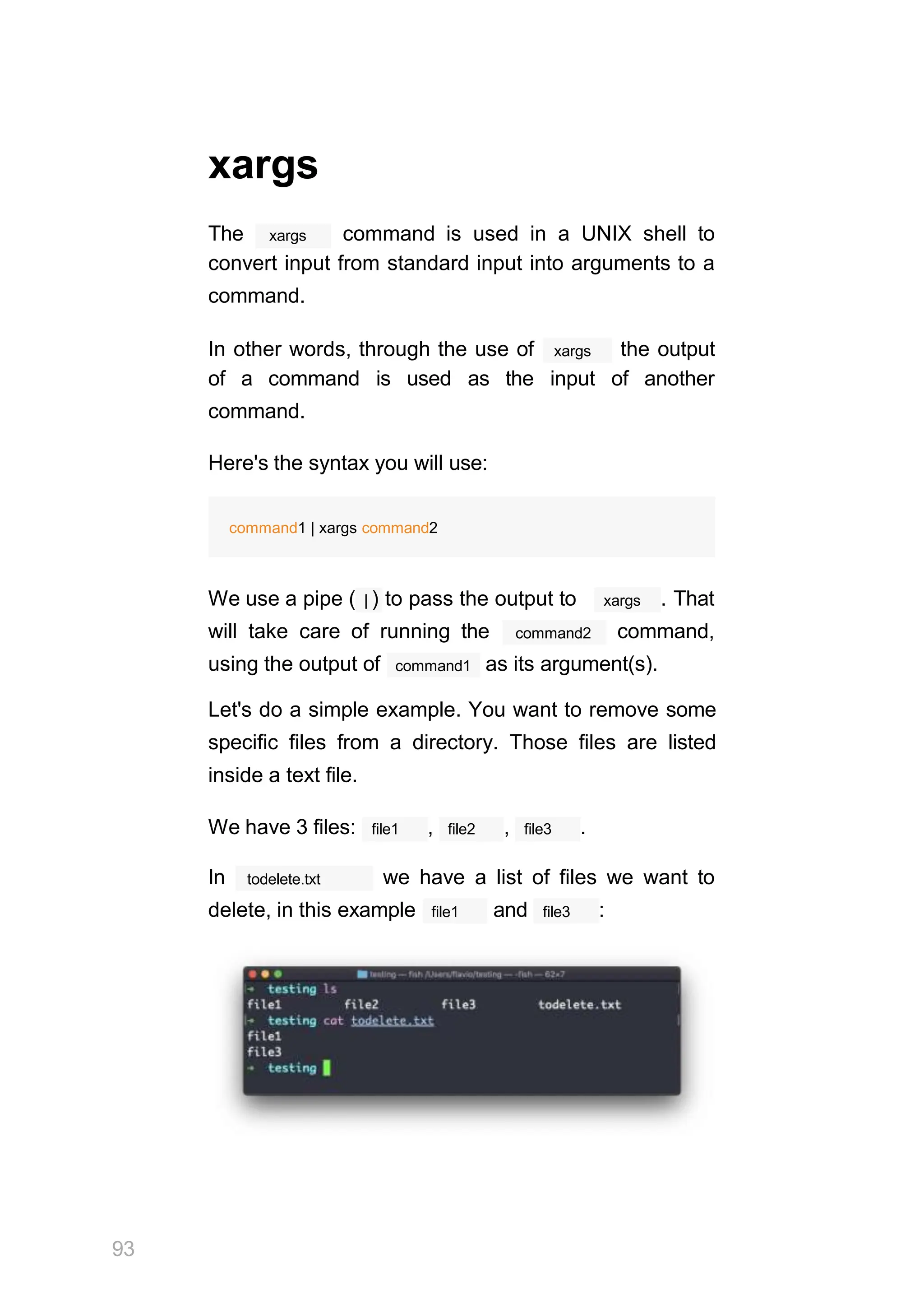
file1
We have 3 files: , file2 , file3 .
todelete.txt
In we have a list of files we want to
file1
delete, in this example and file3 :
93
We will channel the output of cat todelete.txt to the
rm command, through xargs .
In this way:
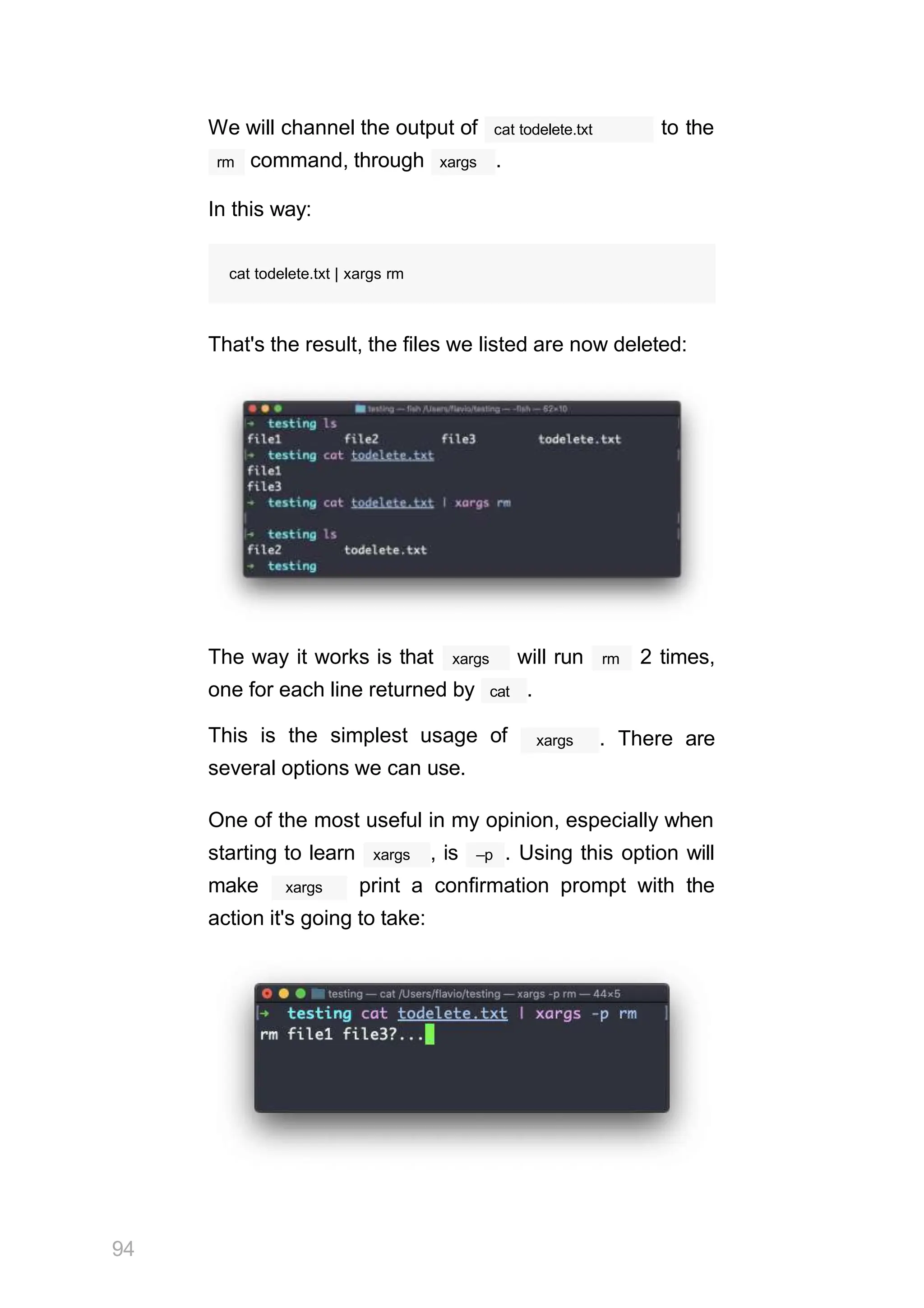
cat todelete.txt | xargs rm
That's the result, the files we listed are now deleted:
The way it works is that xargs will run rm 2 times,
one for each line returned by cat .
This is the simplest usage of
several options we can use.
xargs . There are
One of the most useful in my opinion, especially when
xargs
starting to learn , is –p . Using this option will
xargs
make print a confirmation prompt with the
action it's going to take:
94
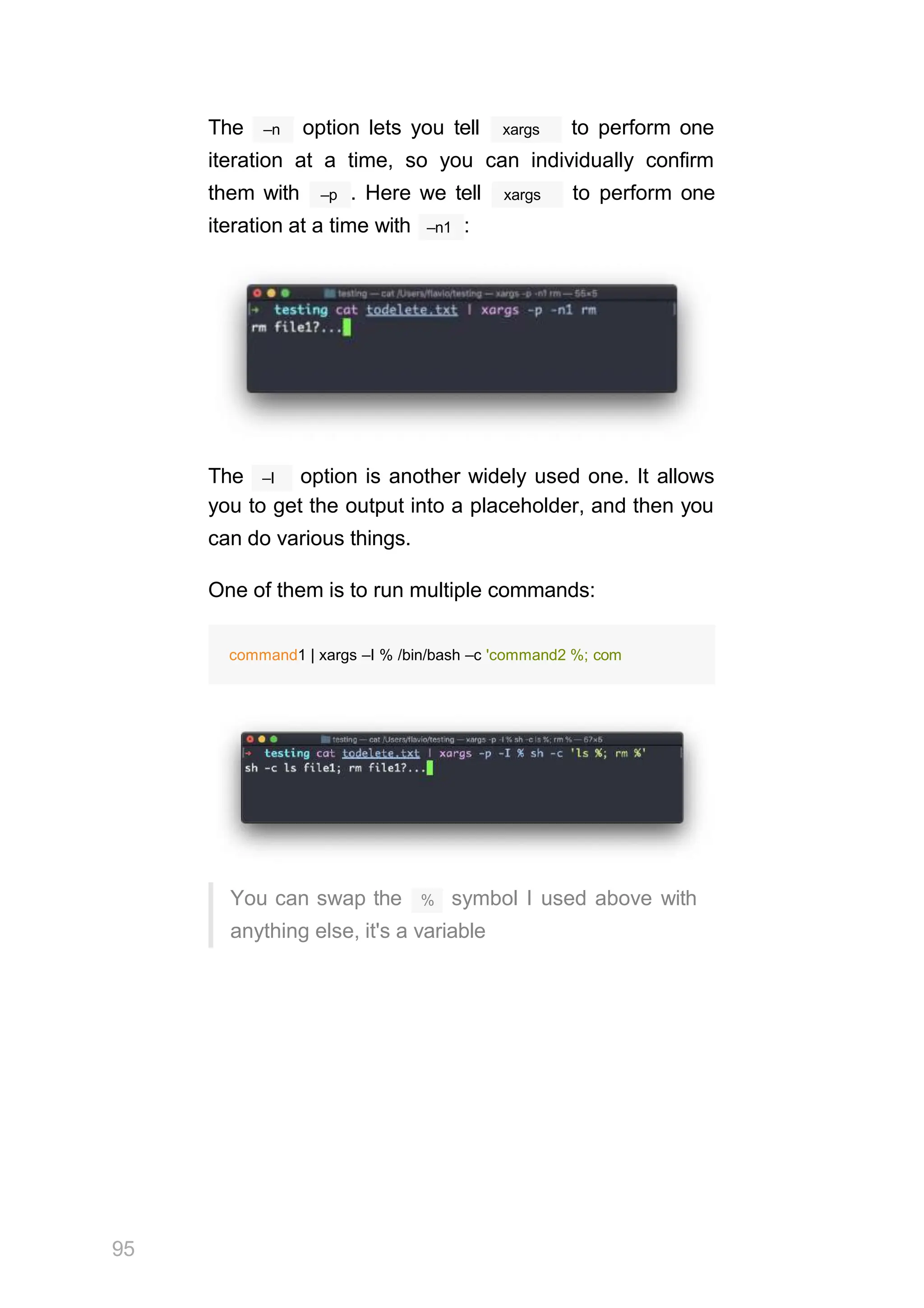
–n
The option lets you tell xargs to perform one
iteration at a time, so you can individually confirm
–p
them with . Here we tell xargs to perform one
–n1
iteration at a time with :
–I
The option is another widely used one. It allows
you to get the output into a placeholder, and then you
can do various things.
One of them is to run multiple commands:
%
95
You can swap the symbol I used above with
anything else, it's a variable
command1 | xargs –I % /bin/bash –c 'command2 %; com
vim
vim is a very popular file editor, especially among
programmers. It's actively developed and frequently
updated, and there's a very big community around it.
There's even a Vim conference!
vi vim
in modern systems is just an alias to , which
vi
means i m proved.
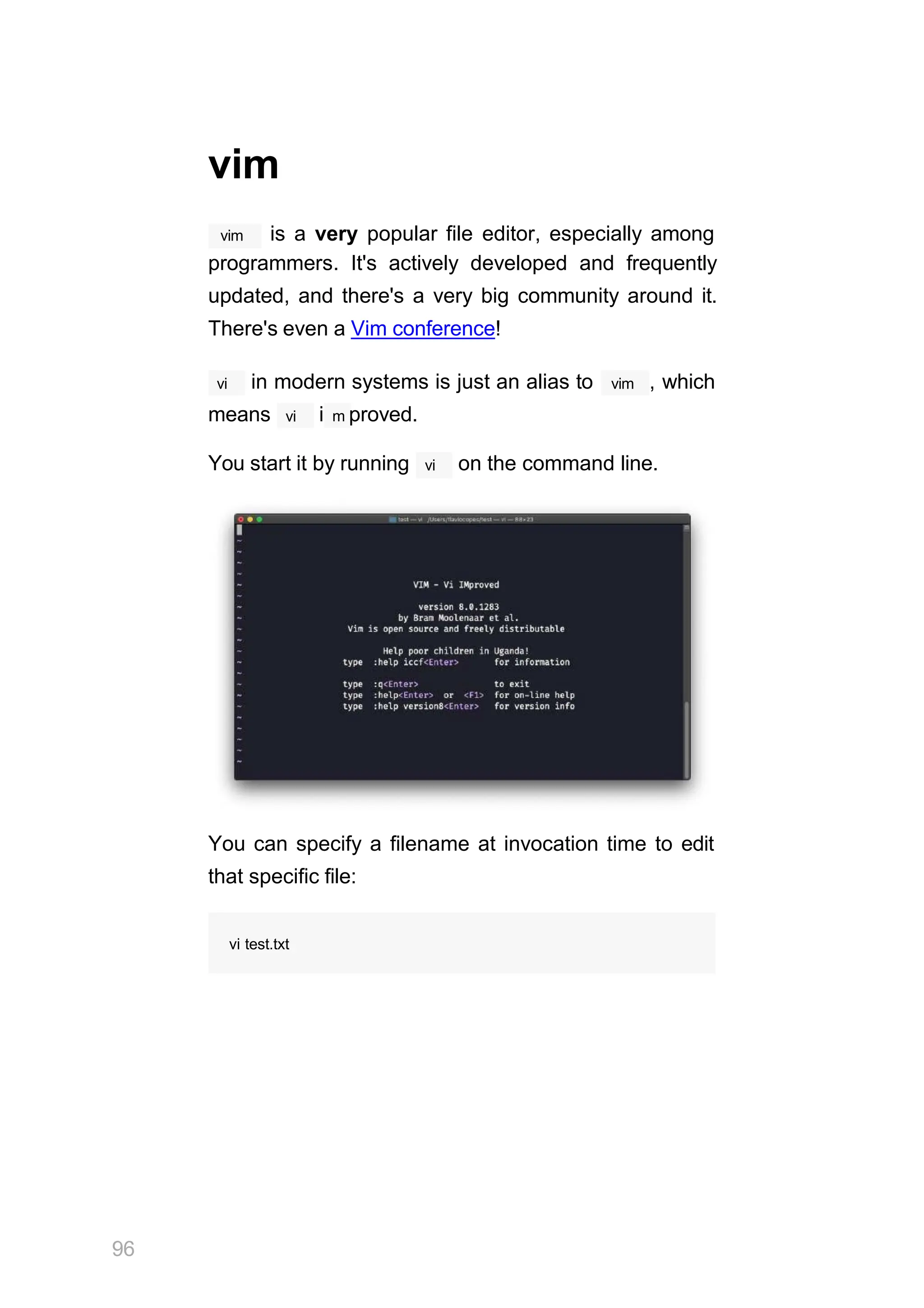
You start it by running vi on the command line.
You can specify a filename at invocation time to edit
that specific file:
96
vi test.txt
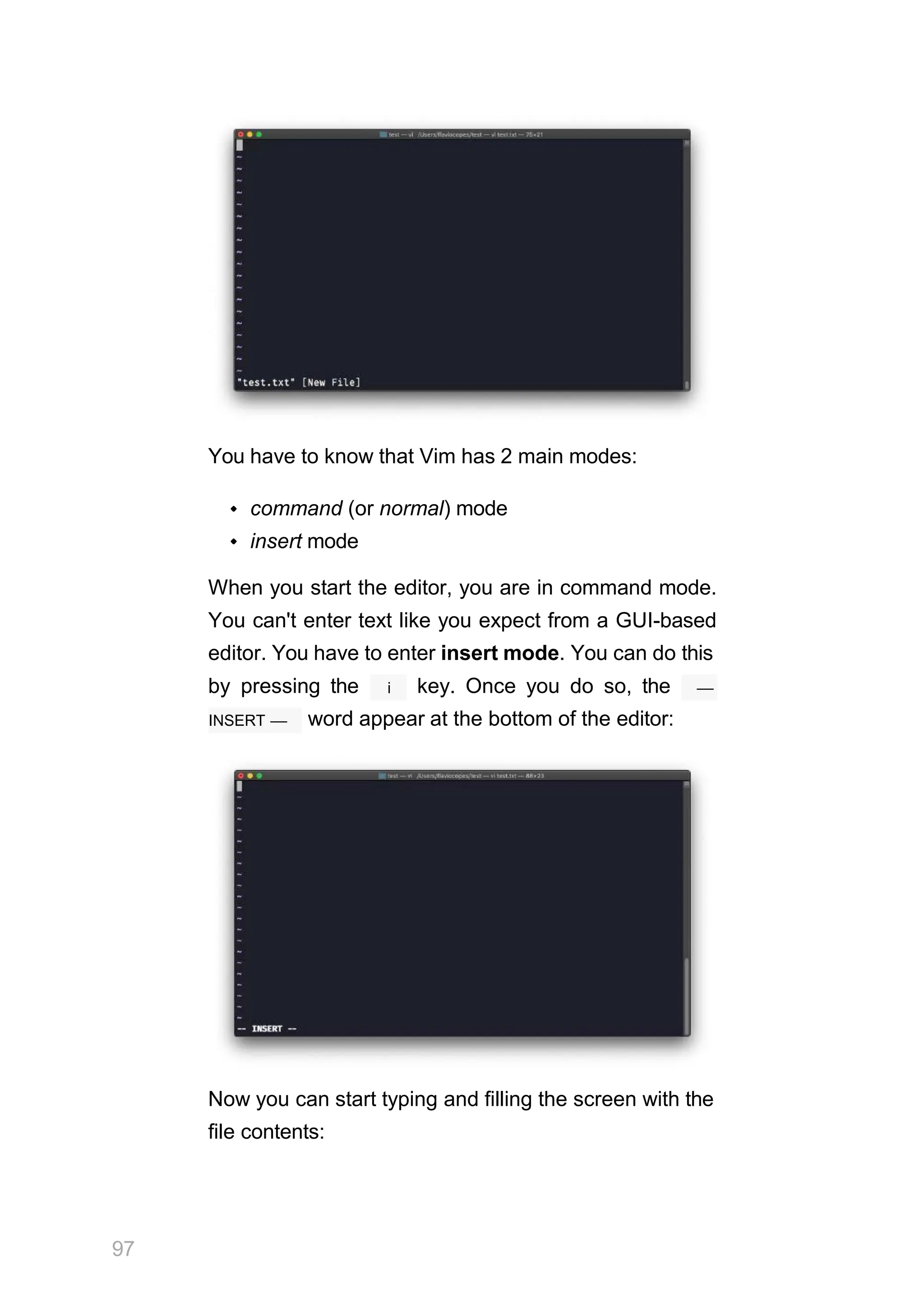
You have to know that Vim has 2 main modes:
command (or normal) mode
insert mode
When you start the editor, you are in command mode.
You can't enter text like you expect from a GUI-based
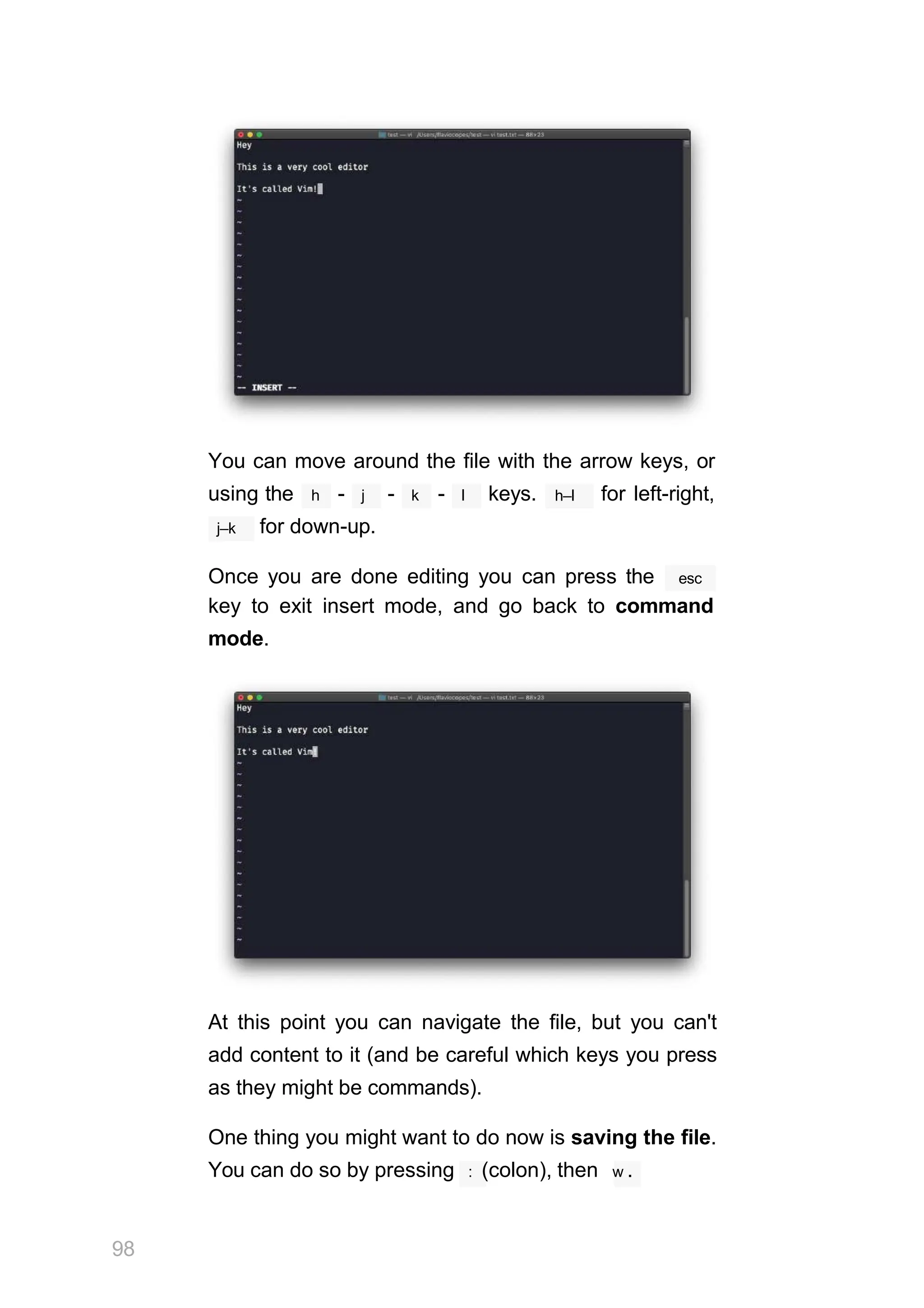
editor. You have to enter insert mode. You can do this
i
by pressing the key. Once you do so, the ––
INSERT –– word appear at the bottom of the editor:
Now you can start typing and filling the screen with the
file contents:
97
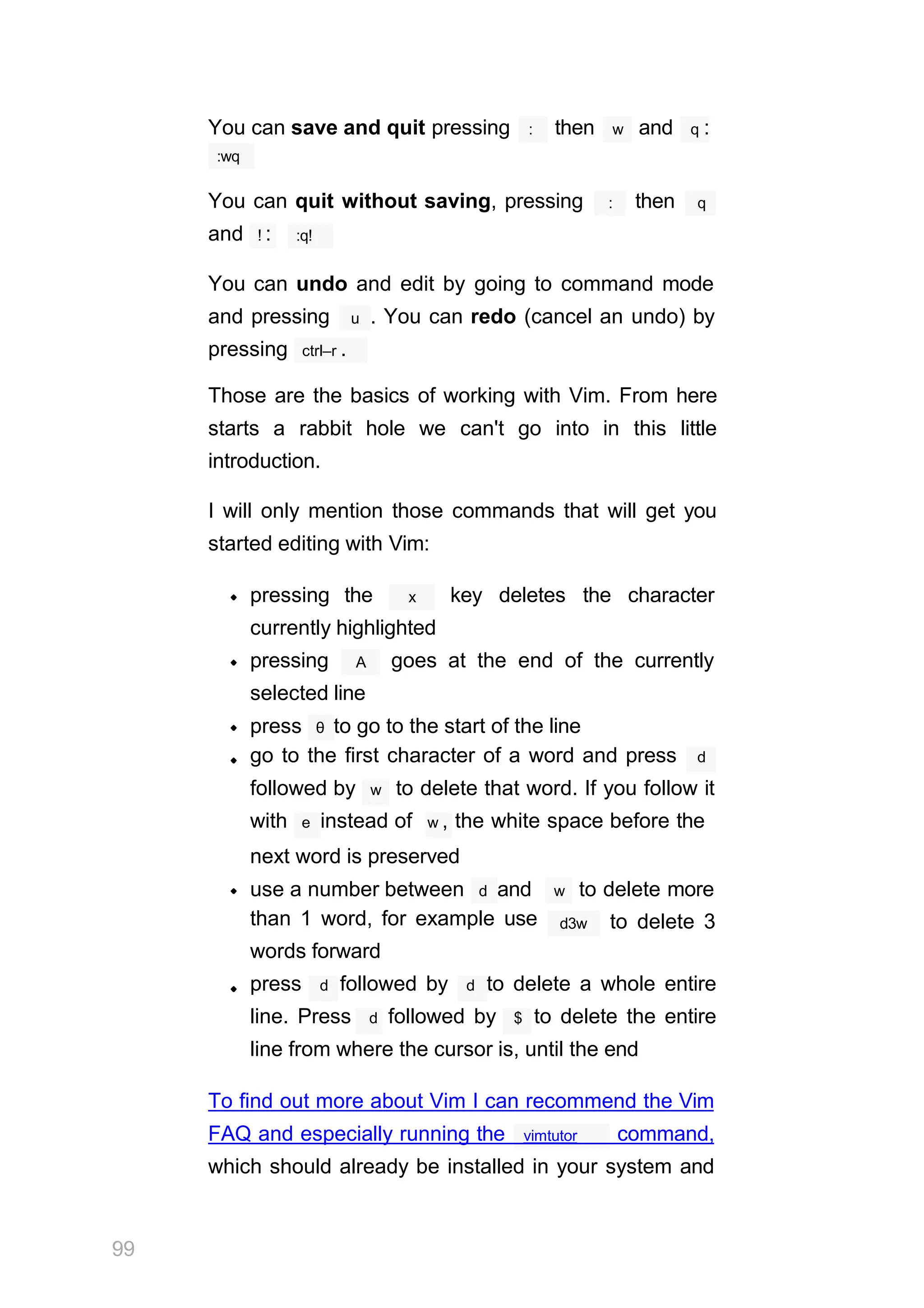
You can move around the file with the arrow keys, or
using the h - j - k - l keys. h–l for left-right,
j–k for down-up.
Once you are done editing you can press the esc
key to exit insert mode, and go back to command
mode.
At this point you can navigate the file, but you can't
add content to it (and be careful which keys you press
as they might be commands).
One thing you might want to do now is saving the file.
You can do so by pressing : (colon), then w .
98
You can save and quit pressing : then w and q :
:wq
You can quit without saving, pressing : then q
and ! : :q!
You can undo and edit by going to command mode
u
and pressing . You can redo (cancel an undo) by
pressing ctrl–r .
Those are the basics of working with Vim. From here
starts a rabbit hole we can't go into in this little
introduction.
I will only mention those commands that will get you
started editing with Vim:
x
pressing the key deletes the character
currently highlighted
A
pressing goes at the end of the currently
selected line
press θ to go to the start of the line
go to the first character of a word and press d
followed by w to delete that word. If you follow it
with e instead of w , the white space before the
w
next word is preserved
use a number between d and to delete more
than 1 word, for example use
words forward
d3w to delete 3
press d followed by d to delete a whole entire
line. Press d followed by $ to delete the entire
line from where the cursor is, until the end
To find out more about Vim I can recommend the Vim
99
vimtutor
FAQ and especially running the command,
which should already be installed in your system and
100
will greatly help you start your vim explorations.
emacs
emacs is an awesome editor and it's historically
regarded as the editor for UNIX systems. Famously
vi emacs
vs flame wars and heated discussions
caused many unproductive hours for developers
around the world.
emacs is very powerful. Some people use it all day
long as a kind of operating system
(https://news.ycombinator.com/item?id=19127258).
We'll just talk about the basics here.
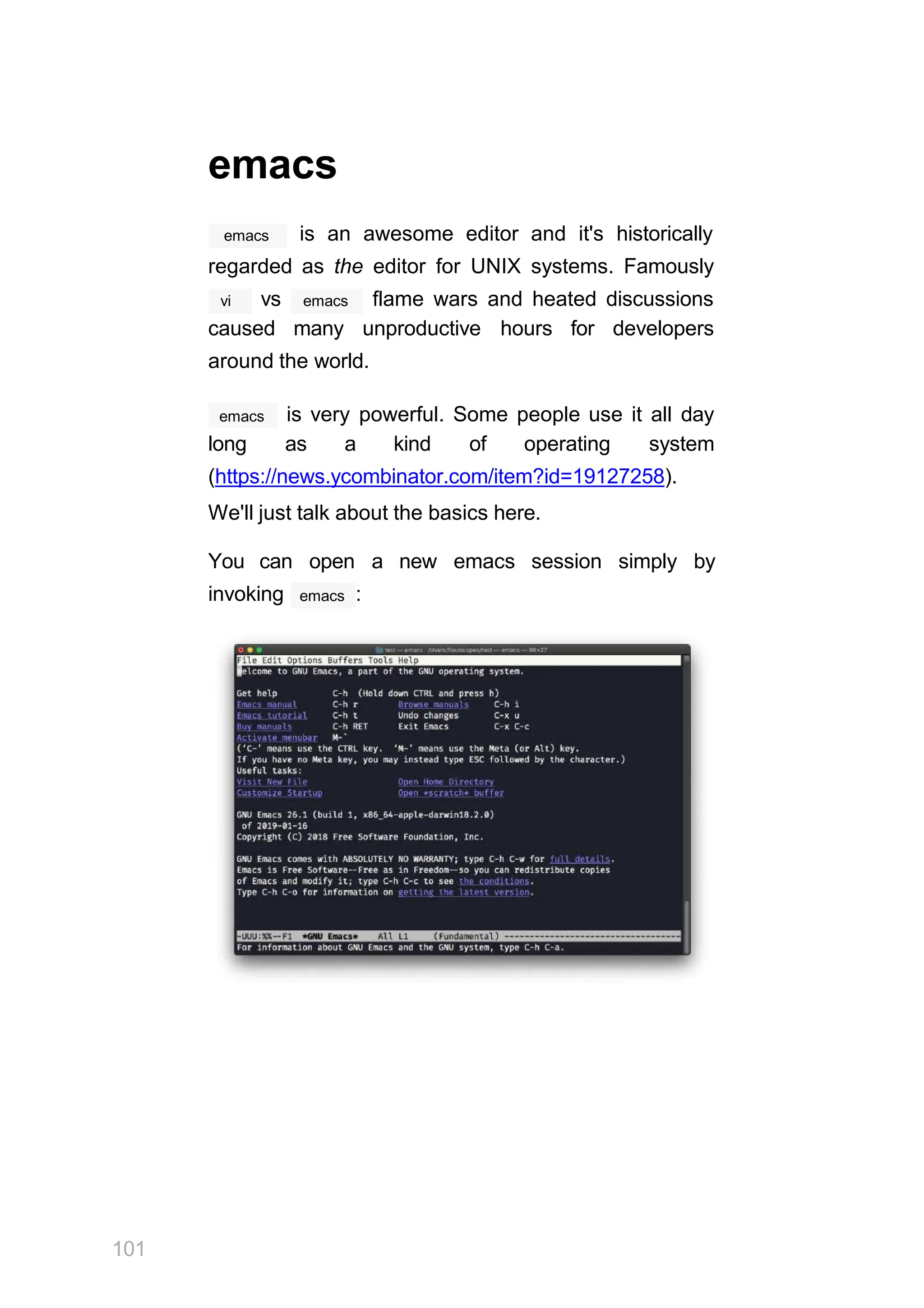
You can open a new emacs session simply by
emacs
invoking :
101
macOS users, stop a second now. If you are on
Linux there are no problems, but macOS does not
ship applications using GPLv3, and every built-in
UNIX command that has been updated to GPLv3
has not been updated. While there is a little
problem with the commands I listed up to now, in
this case using an emacs version from 2007 is not
exactly the same as using a version with 12 years
of improvements and change. This is not a
problem with Vim, which is up to date. To fix this,
brew install emacs
run and running emacs will
use the new version from Homebrew (make sure
you have Homebrew installed)
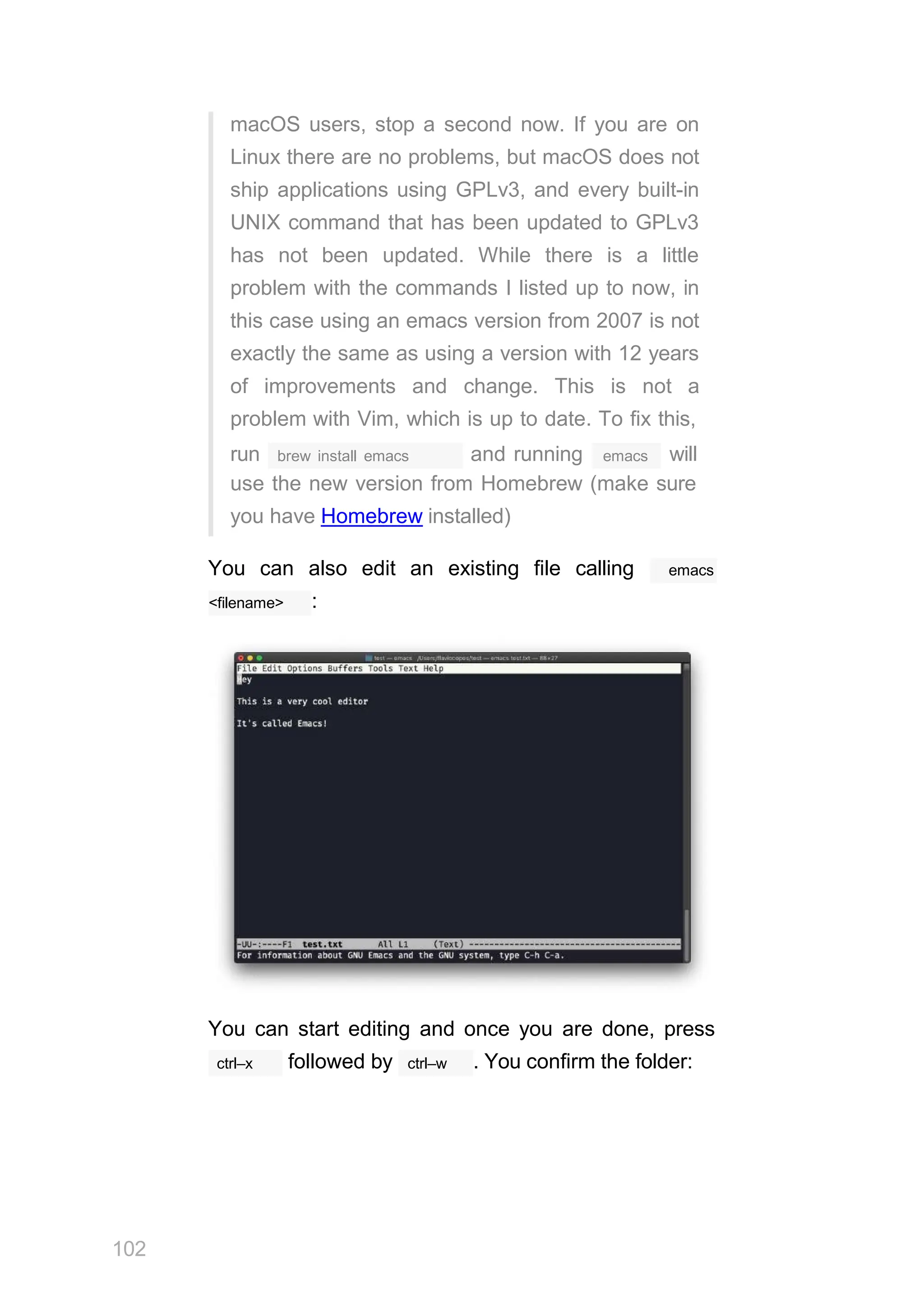
You can also edit an existing file calling emacs
<filename> :
You can start editing and once you are done, press
102
ctrl–x ctrl–w
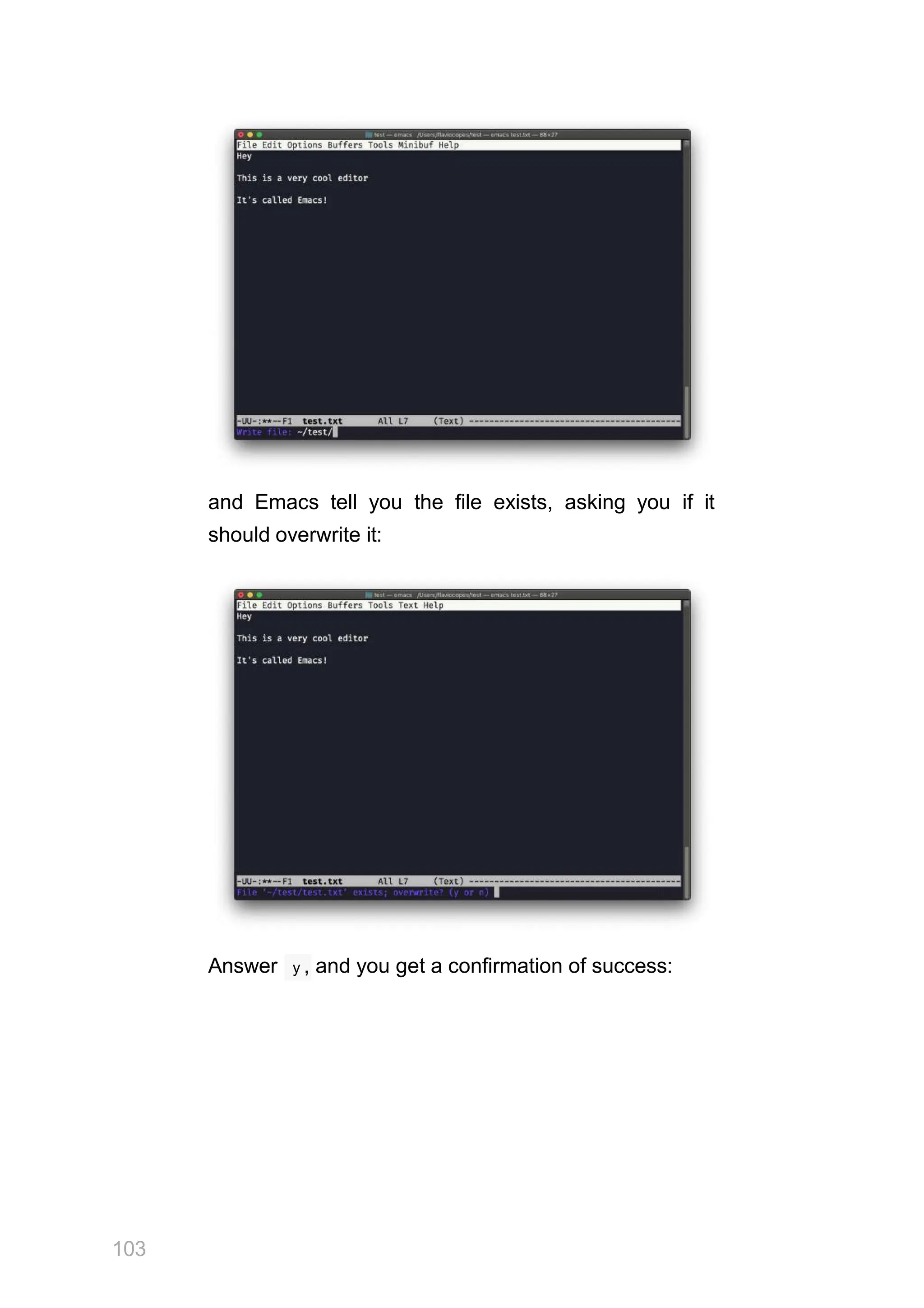
followed by . You confirm the folder:
and Emacs tell you the file exists, asking you if it
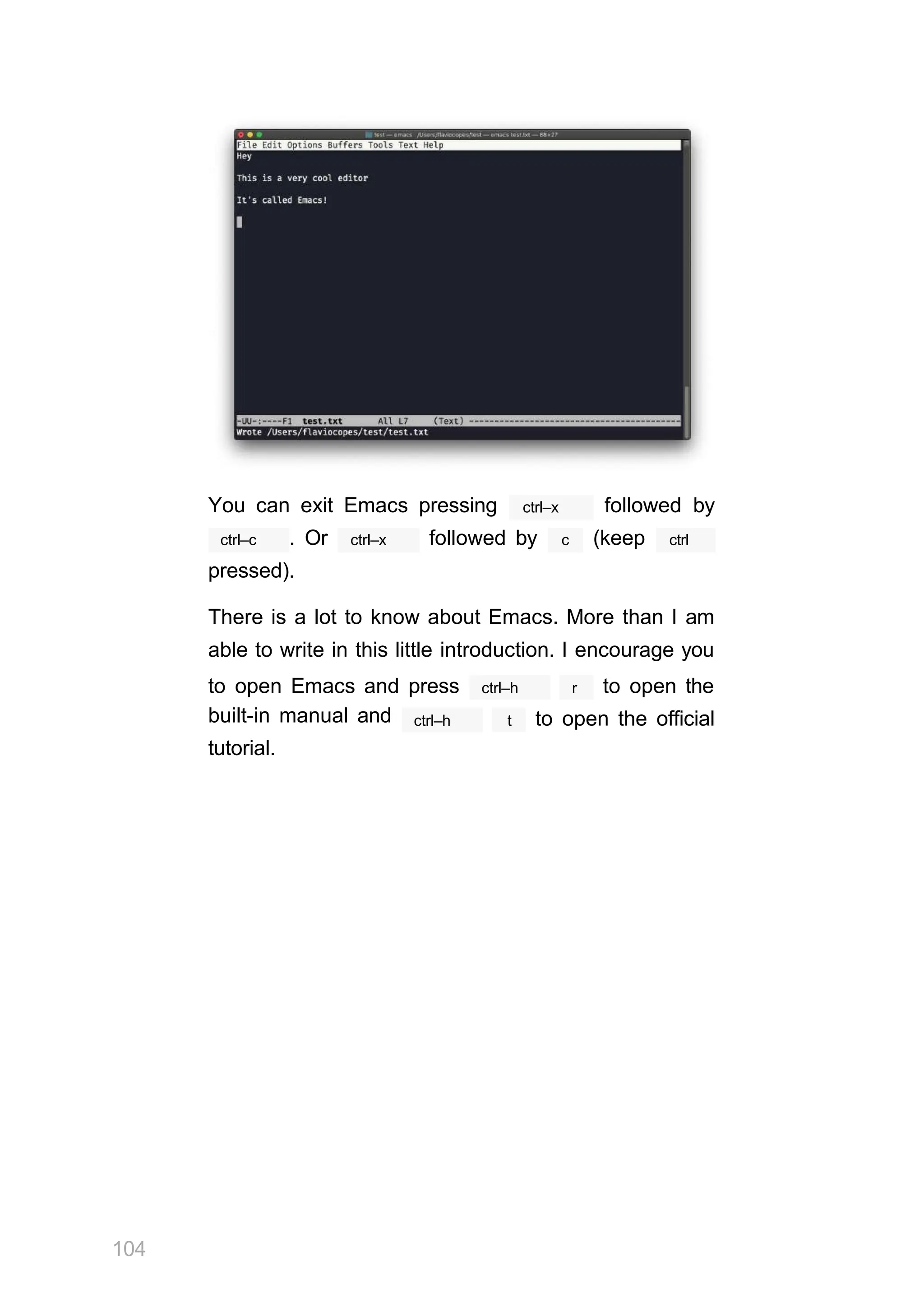
should overwrite it:
Answer y , and you get a confirmation of success:
103
You can exit Emacs pressing ctrl–x followed by
ctrl–c ctrl–x
. Or followed by c (keep ctrl
pressed).
There is a lot to know about Emacs. More than I am
able to write in this little introduction. I encourage you
ctrl–h r
104
to open Emacs and press to open the
built-in manual and
tutorial.
ctrl–h t to open the official
nano
nano is a beginner friendly editor.
nano <filename>
Run it using .
You can directly type characters into the file without
worrying about modes.
ctrl–X
You can quit without editing using . If you
edited the file buffer, the editor will ask you for
confirmation and you can save the edits, or discard
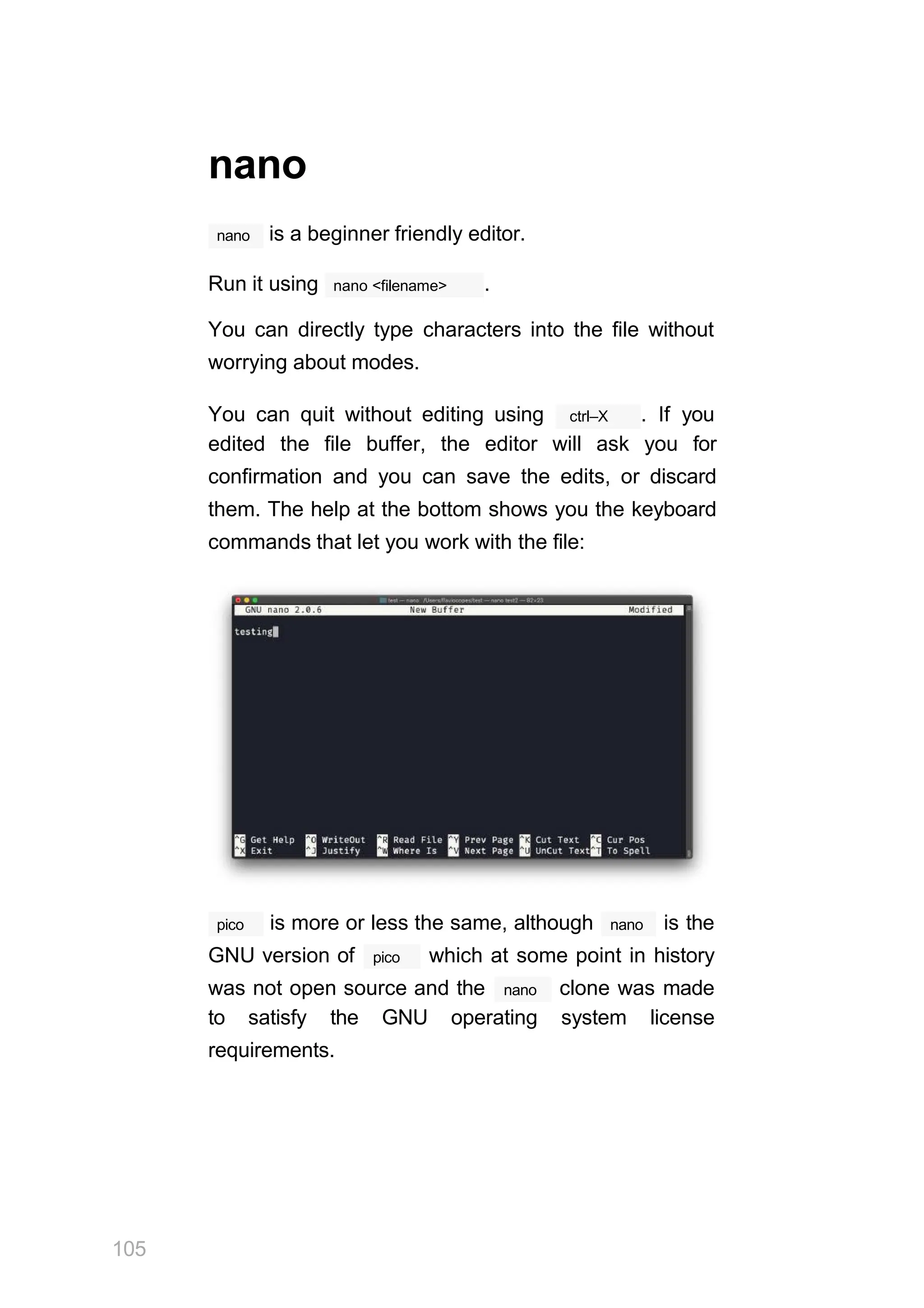
them. The help at the bottom shows you the keyboard
commands that let you work with the file:
pico
105
nano
is more or less the same, although is the
pico
GNU version of which at some point in history
nano
was not open source and the clone was made
to satisfy the GNU operating system license
requirements.
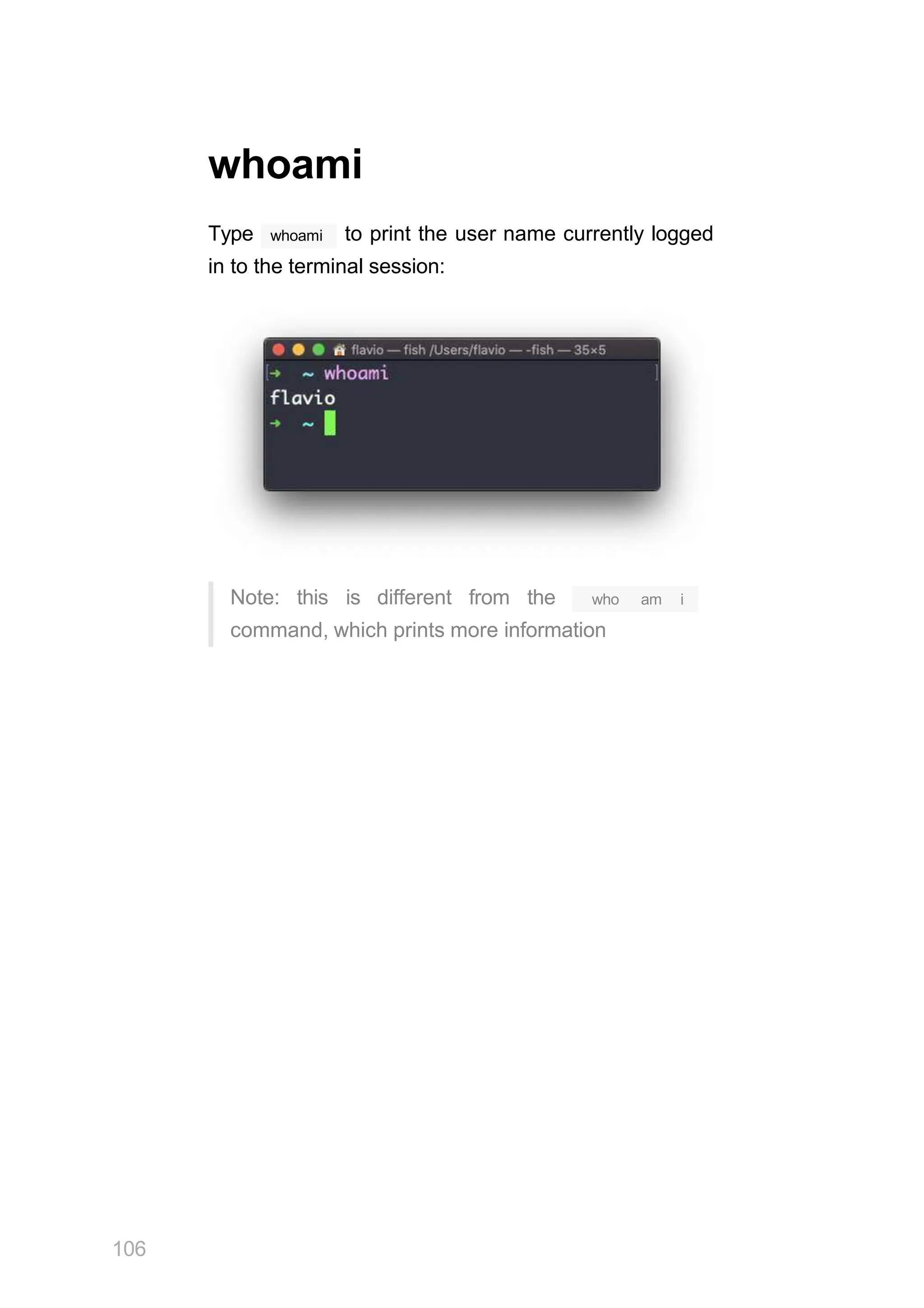
whoami
whoami
Type to print the user name currently logged
in to the terminal session:
Note: this is different from the
106
who am i
command, which prints more information
who
The who command displays the users logged in to
the system.
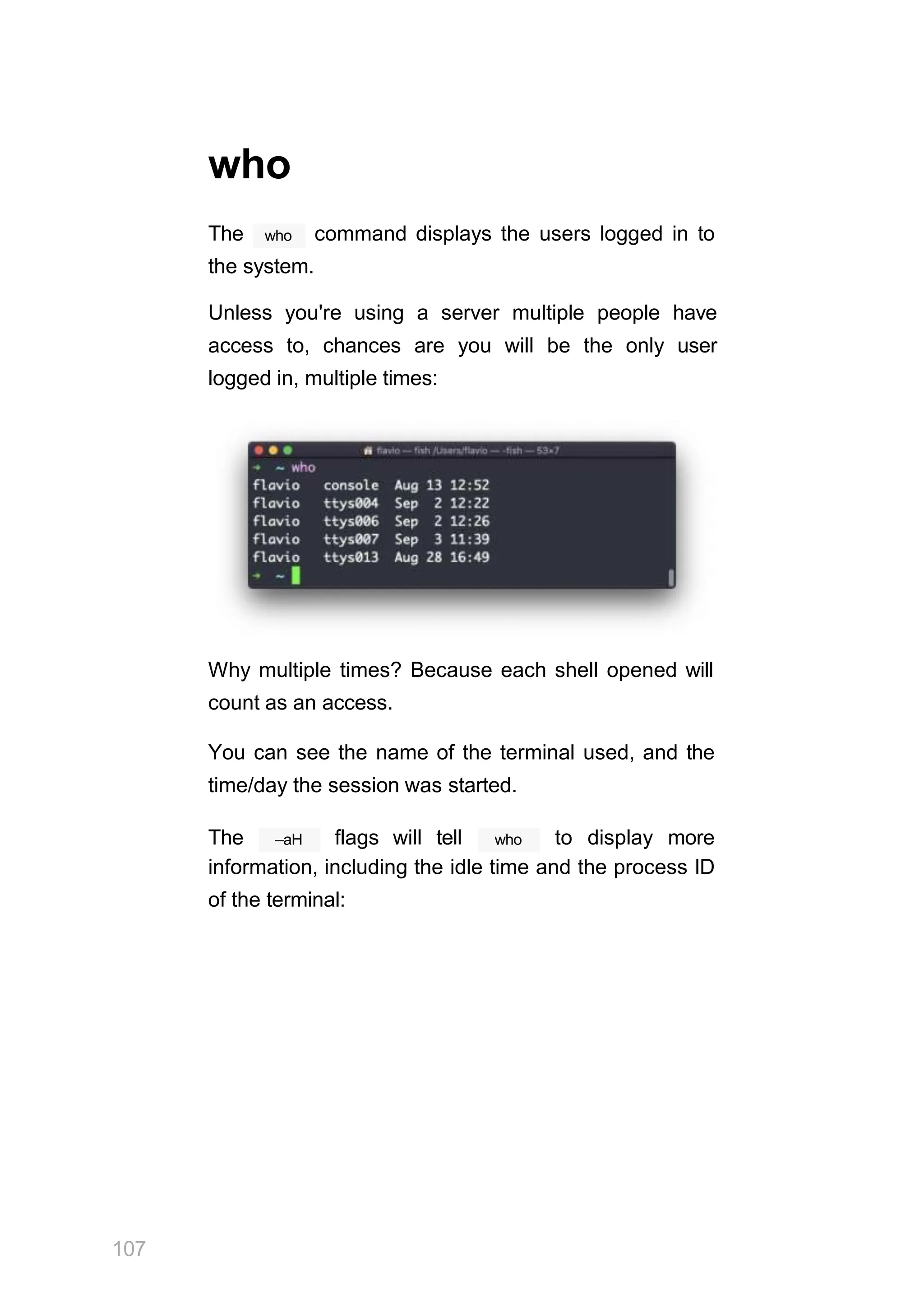
Unless you're using a server multiple people have
access to, chances are you will be the only user
logged in, multiple times:
Why multiple times? Because each shell opened will
count as an access.
You can see the name of the terminal used, and the
time/day the session was started.
107
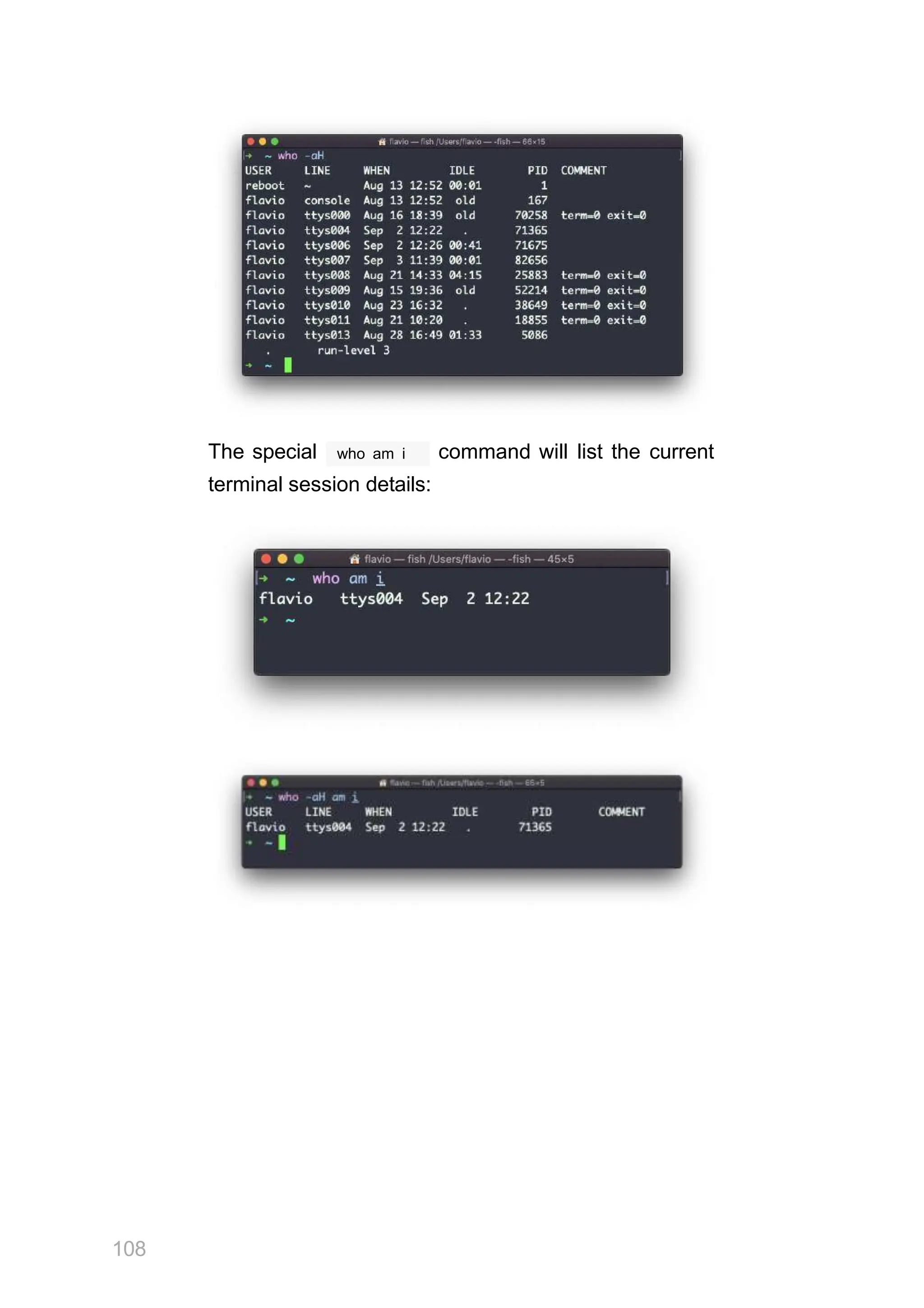
–aH
The flags will tell who to display more
information, including the idle time and the process ID
of the terminal:
The special who am i command will list the current
terminal session details:
108
su
While you're logged in to the terminal shell with one
user, you might have the need to switch to another
user.
For example you're logged in as root to perform some
maintenance, but then you want to switch to a user
account.
su
You can do so with the command:
su <username>
su flavio
For example: .
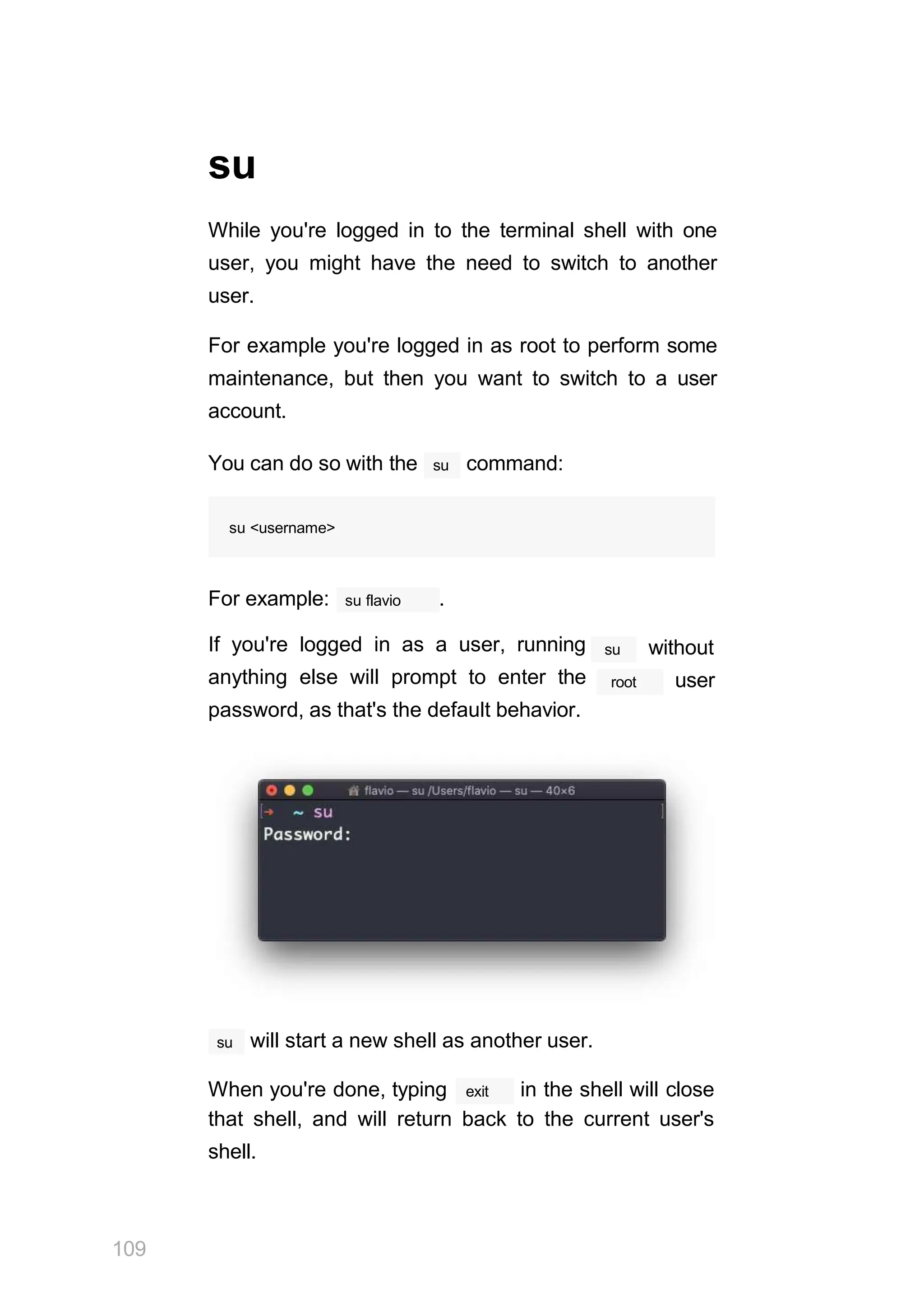
If you're logged in as a user, running
anything else will prompt to enter the
password, as that's the default behavior.
su without
root user
su
109
will start a new shell as another user.
exit
When you're done, typing in the shell will close
that shell, and will return back to the current user's
shell.
sudo
sudo is commonly used to run a command as root.
sudo
You must be enabled to use , and once you do,
you can run commands as root by entering your user's
password (not the root user password).
The permissions are highly configurable, which is
great especially in a multi-user server environment,
and some users can be granted access to running
sudo
specific commands through .
For example you can edit a system configuration file:
sudo nano /etc/hosts
which would otherwise fail to save since you don't
have the permissions for it.
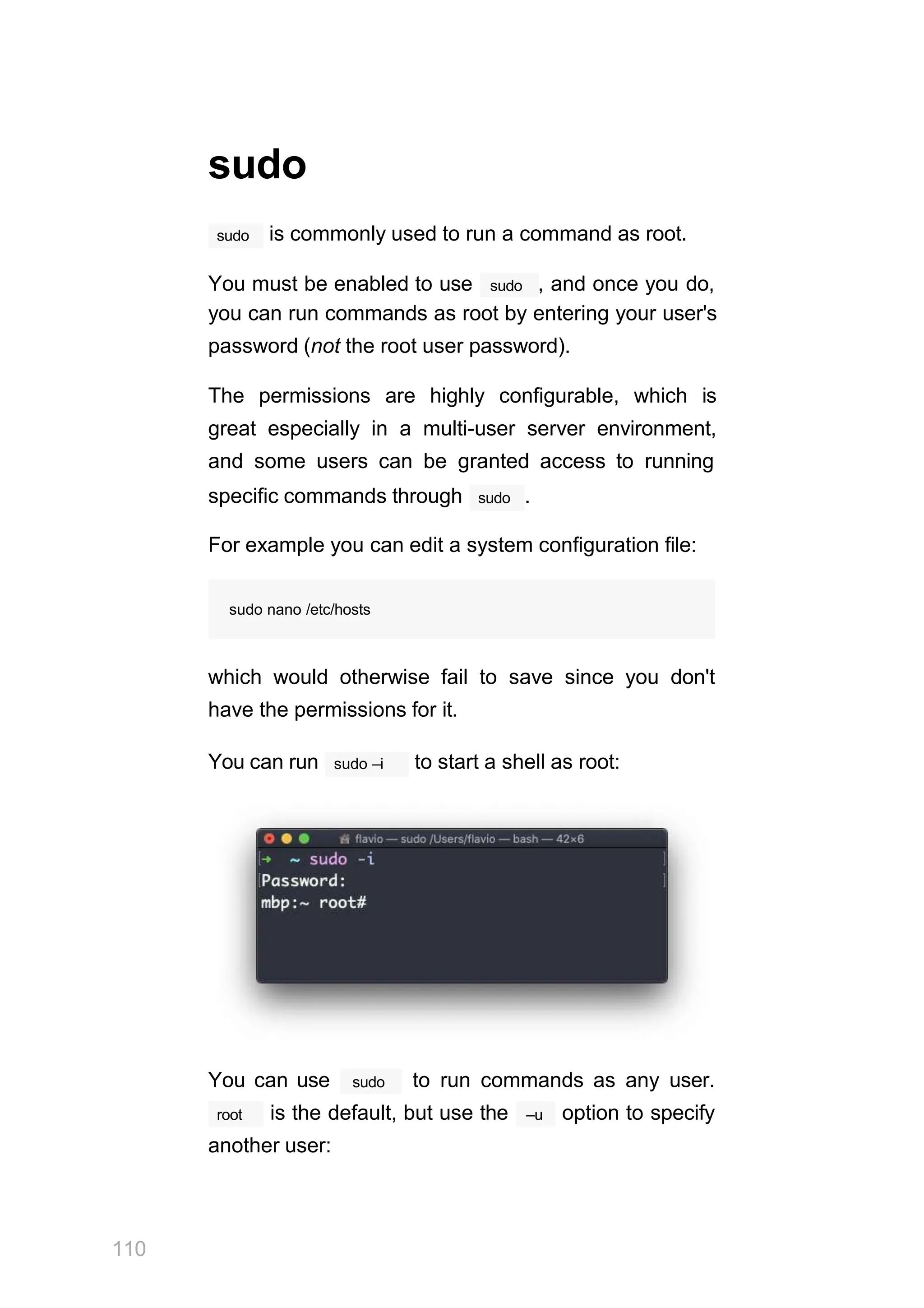
sudo –i
You can run to start a shell as root:
You can use
110
sudo to run commands as any user.
root –u
is the default, but use the option to specify
another user:
111
sudo –u flavio ls /Users/flavio
passwd
Users in Linux have a password assigned. You can
passwd
change the password using the command.
There are two situations here.
The first is when you want to change your password.
In this case you type:
passwd
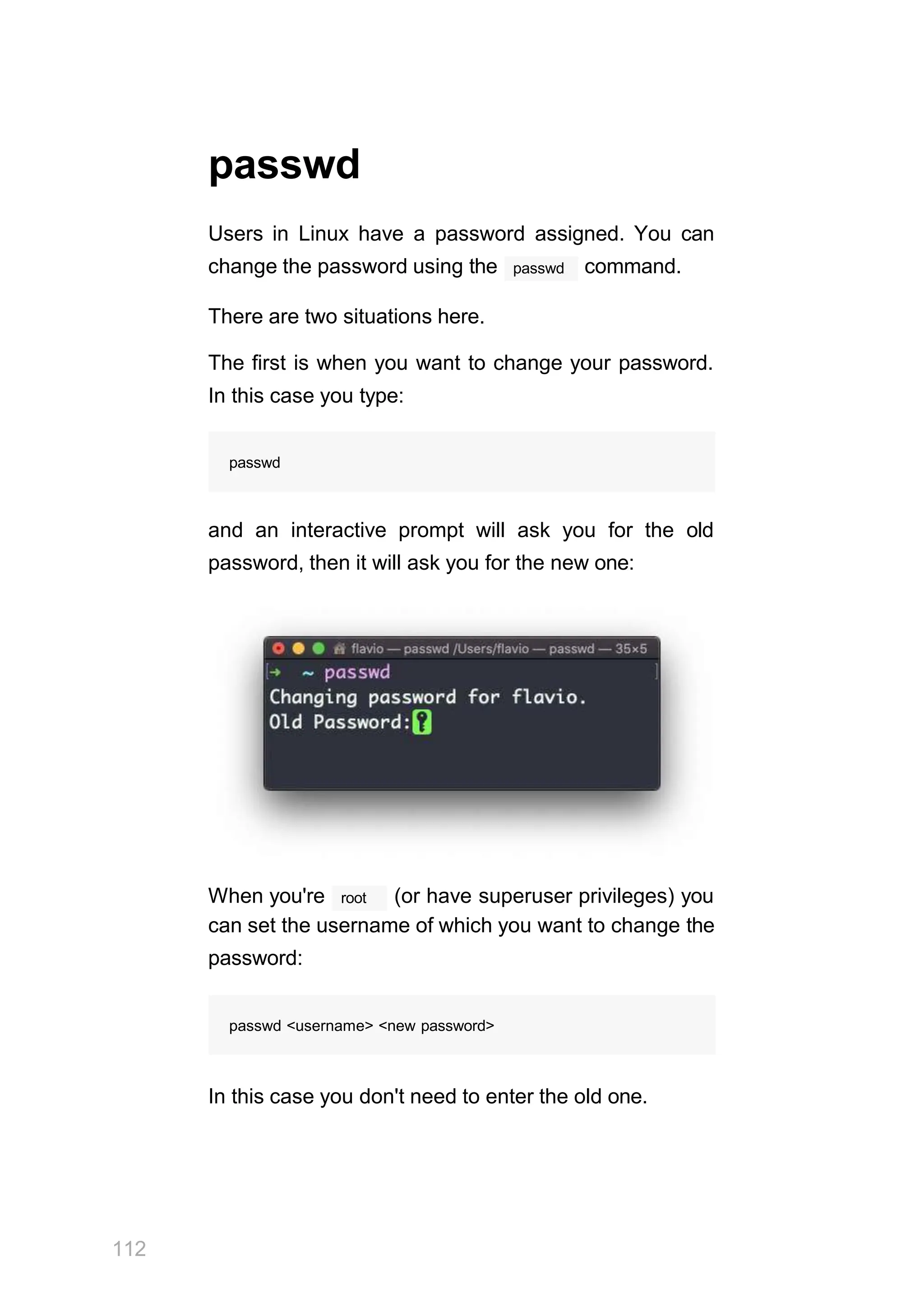
and an interactive prompt will ask you for the old
password, then it will ask you for the new one:
root
112
When you're (or have superuser privileges) you
can set the username of which you want to change the
password:
passwd <username> <new password>
In this case you don't need to enter the old one.
ping
ping
The command pings a specific network host, on
the local network or on the Internet.
ping <host>
You use it with the syntax where
<host> could be a domain name, or an IP address.
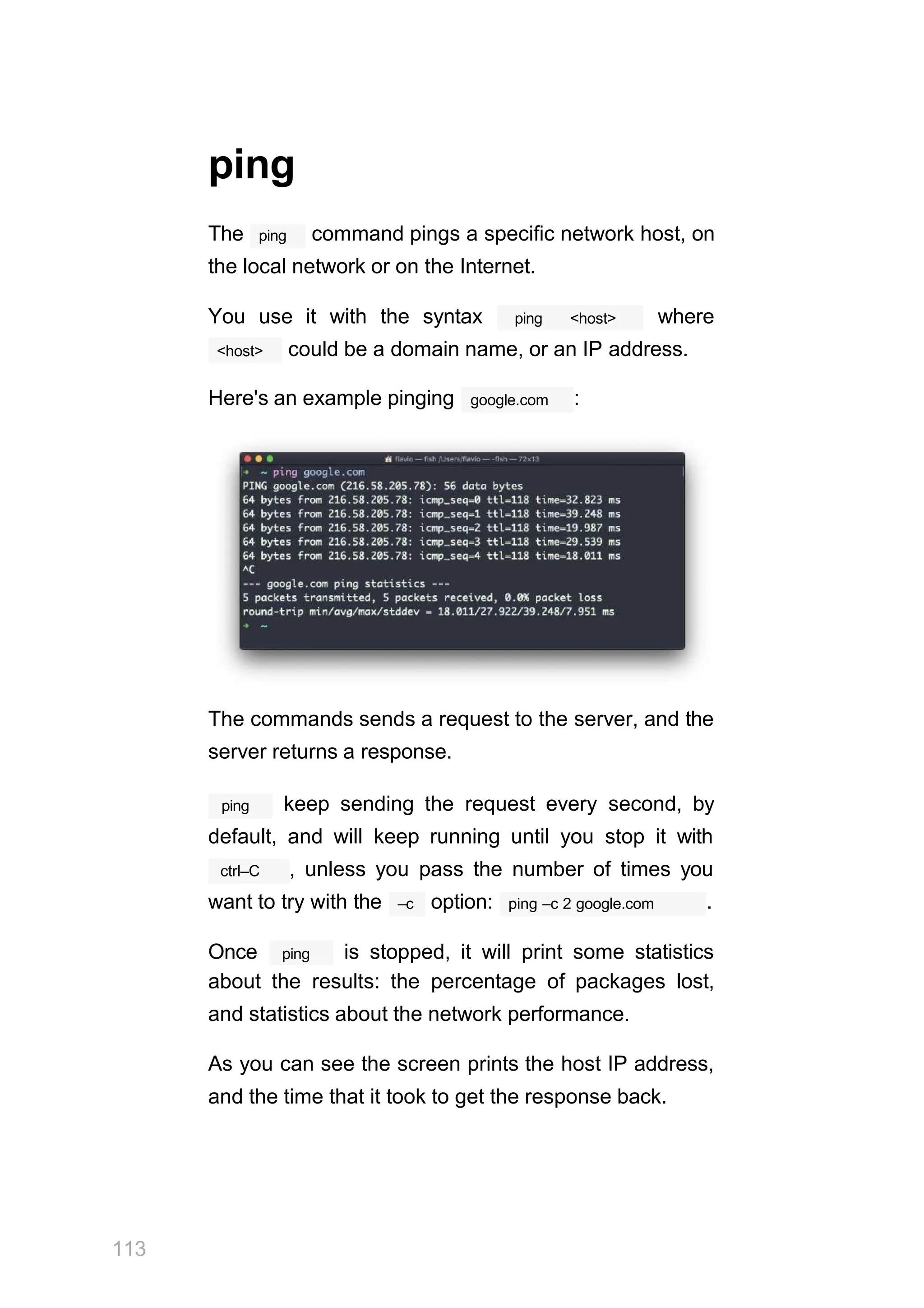
Here's an example pinging google.com :
The commands sends a request to the server, and the
server returns a response.
113
ping keep sending the request every second, by
default, and will keep running until you stop it with
ctrl–C , unless you pass the number of times you
–c
want to try with the option: ping –c 2 google.com .
ping
Once is stopped, it will print some statistics
about the results: the percentage of packages lost,
and statistics about the network performance.
As you can see the screen prints the host IP address,
and the time that it took to get the response back.
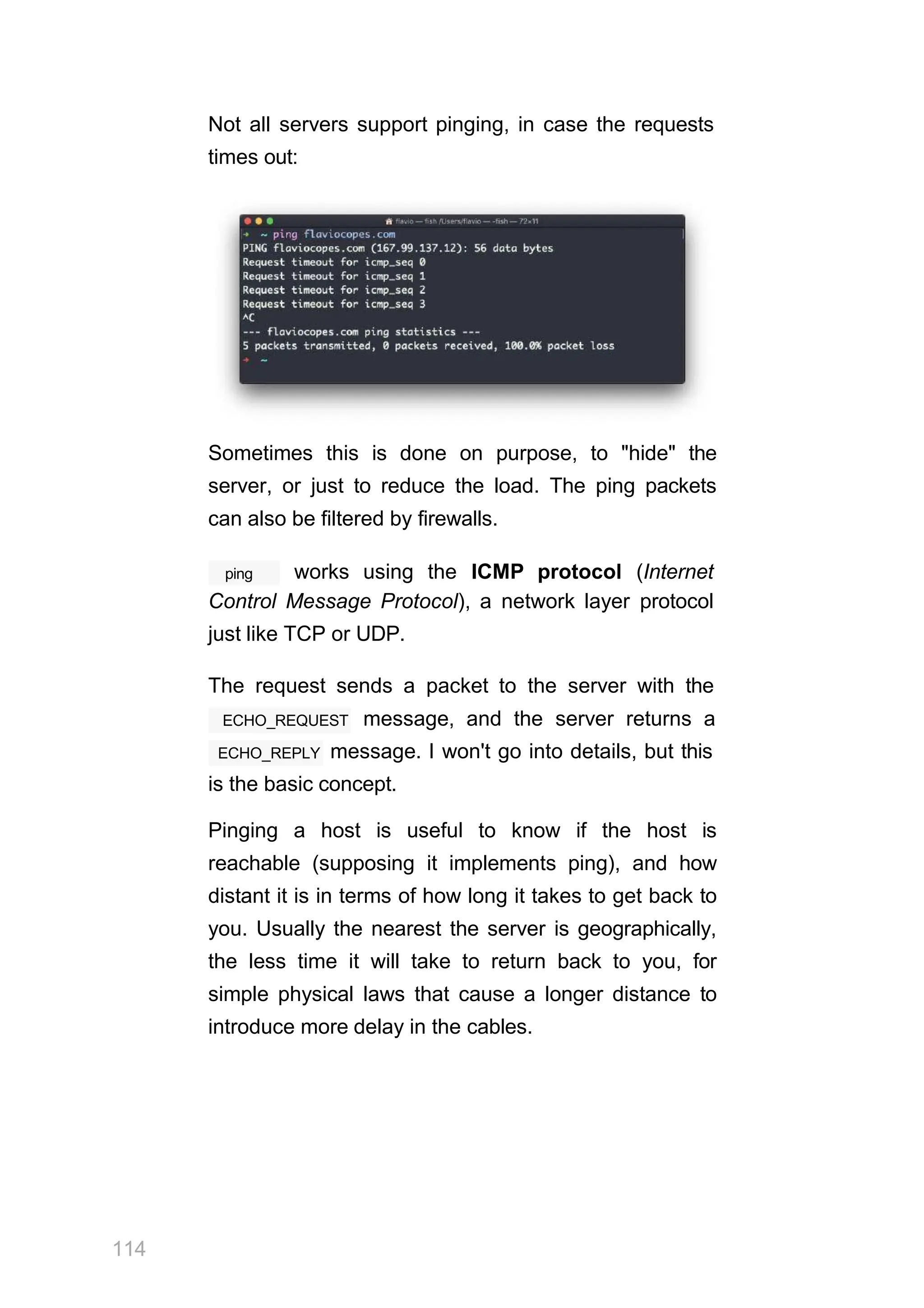
Not all servers support pinging, in case the requests
times out:
Sometimes this is done on purpose, to "hide" the
server, or just to reduce the load. The ping packets
can also be filtered by firewalls.
114
ping works using the ICMP protocol (Internet
Control Message Protocol), a network layer protocol
just like TCP or UDP.
The request sends a packet to the server with the
ECHO_REQUEST message, and the server returns a
ECHO_REPLY message. I won't go into details, but this
is the basic concept.
Pinging a host is useful to know if the host is
reachable (supposing it implements ping), and how
distant it is in terms of how long it takes to get back to
you. Usually the nearest the server is geographically,
the less time it will take to return back to you, for
simple physical laws that cause a longer distance to
introduce more delay in the cables.
traceroute
When you try to reach a host on the Internet, you go
through your home router, then you reach your ISP
network, which in turn goes through its own upstream
network router, and so on, until you finally reach the
host.
Have you ever wanted to know what are the steps that
your packets go through to do that?
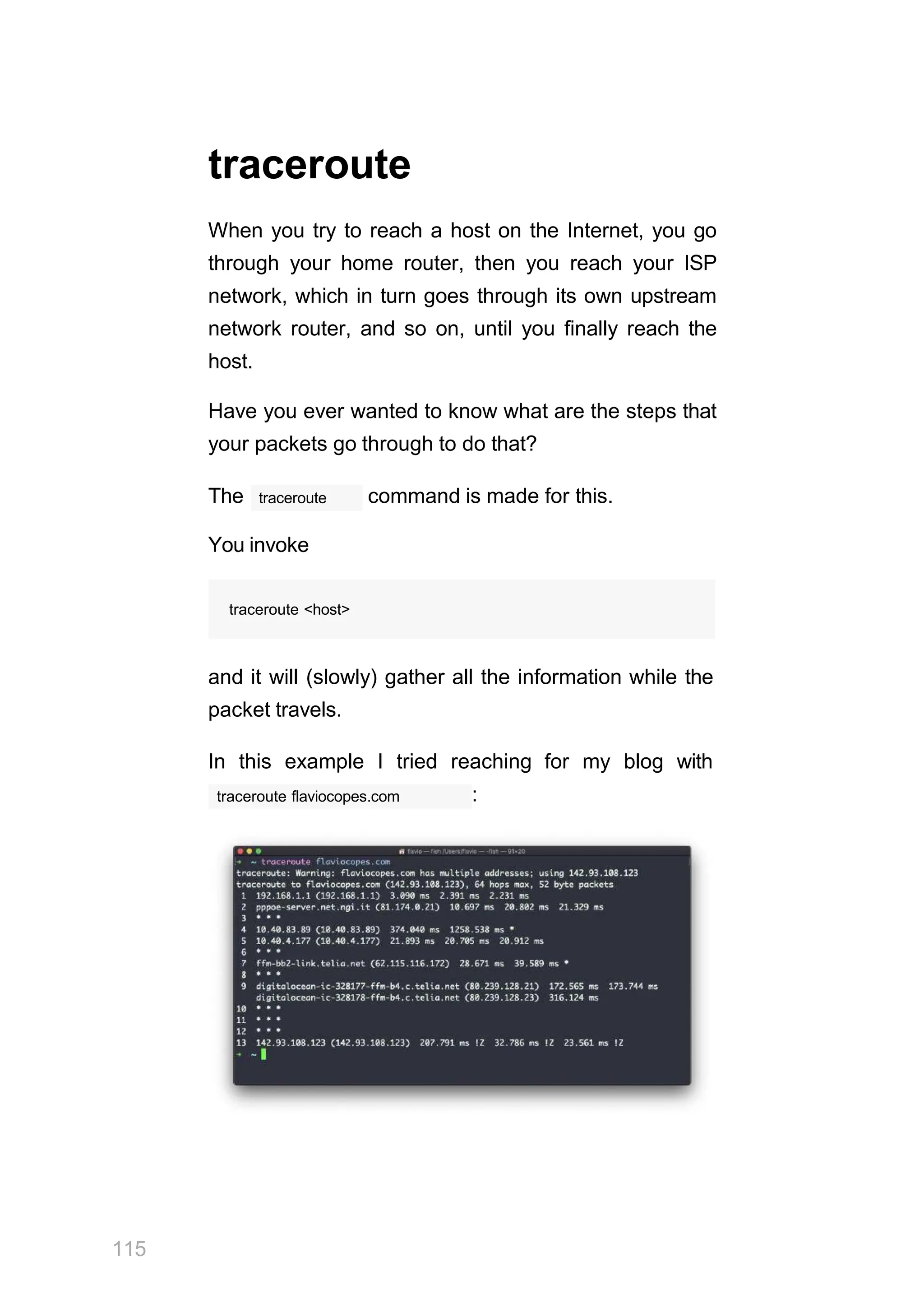
traceroute
The command is made for this.
You invoke
traceroute <host>
and it will (slowly) gather all the information while the
packet travels.
In this example I tried reaching for my blog with
traceroute flaviocopes.com :
115
Not every router travelled returns us information. In
traceroute
this case, prints C C C . Otherwise, we
can see the hostname, the IP address, and some
performance indicator.
For every router we can see 3 samples, which means
traceroute tries by default 3 times to get you a good
indication of the time needed to reach it. This is why it
traceroute
takes this long to execute compared to
ping
simply doing a to that host.
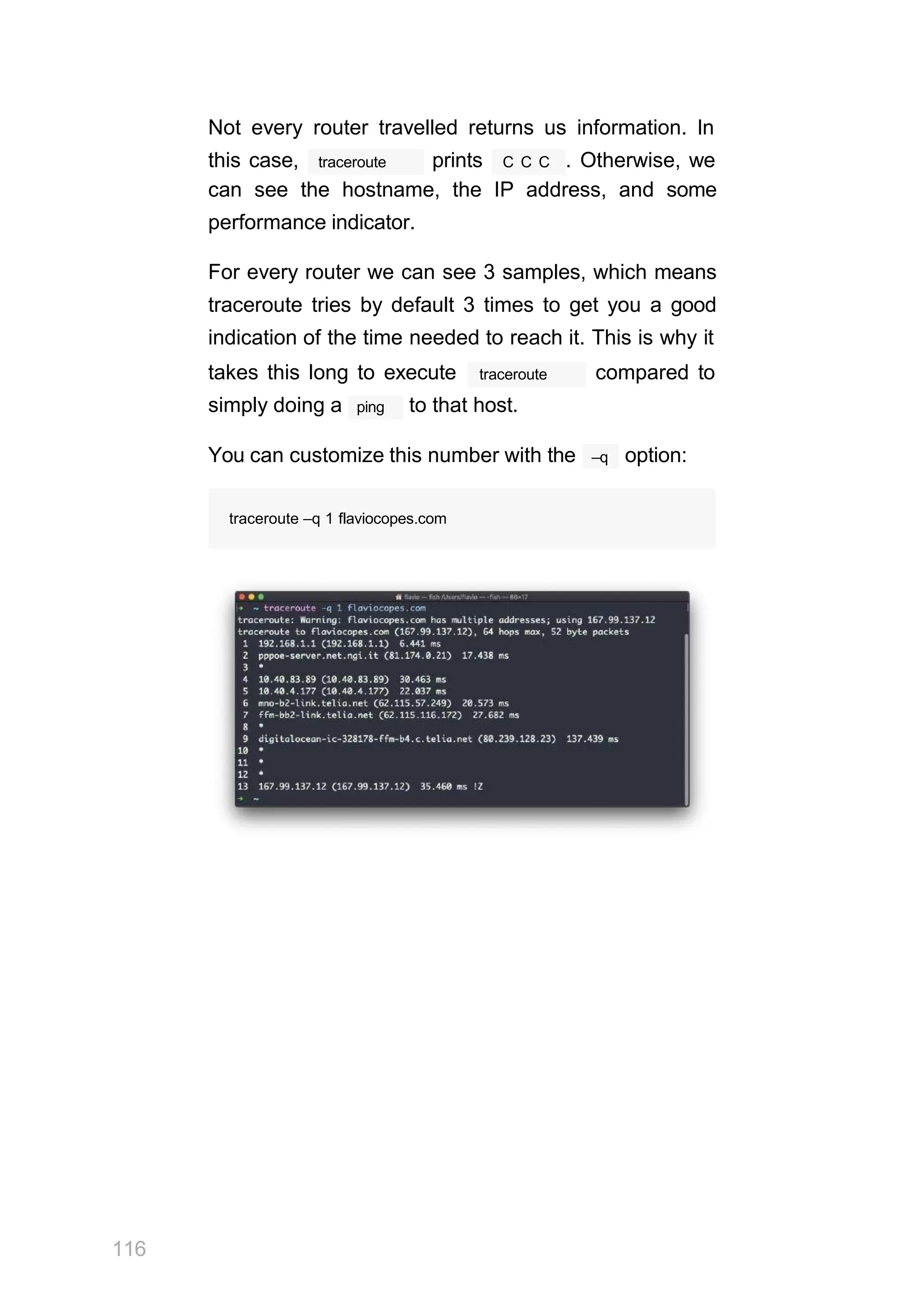
–q
You can customize this number with the option:
traceroute –q 1 flaviocopes.com
116
clear
clear
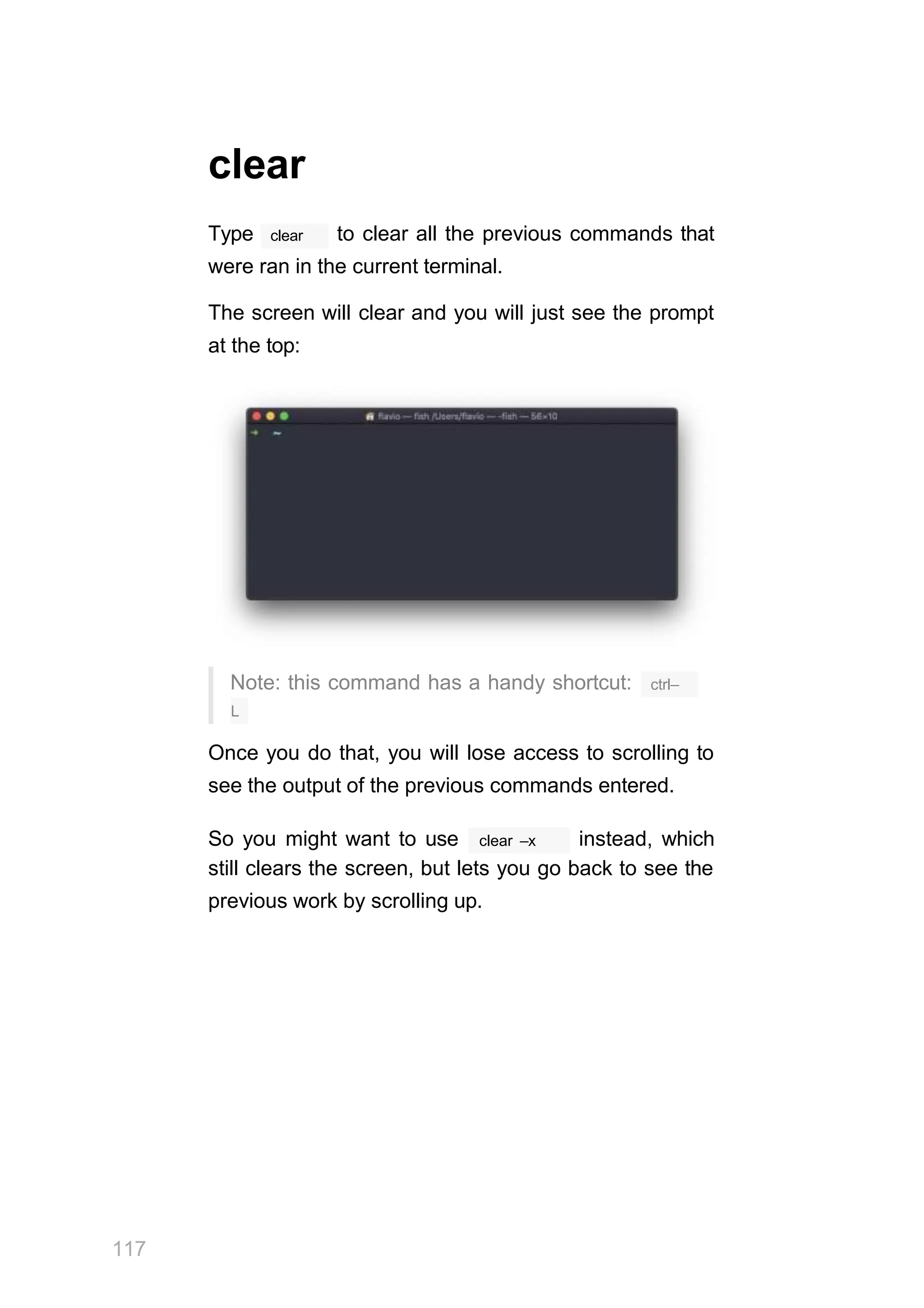
Type to clear all the previous commands that
were ran in the current terminal.
The screen will clear and you will just see the prompt
at the top:
Note: this command has a handy shortcut:
117
ctrl–
L
Once you do that, you will lose access to scrolling to
see the output of the previous commands entered.
clear –x
So you might want to use instead, which
still clears the screen, but lets you go back to see the
previous work by scrolling up.
history
Every time we run a command, that's memorized in
the history.
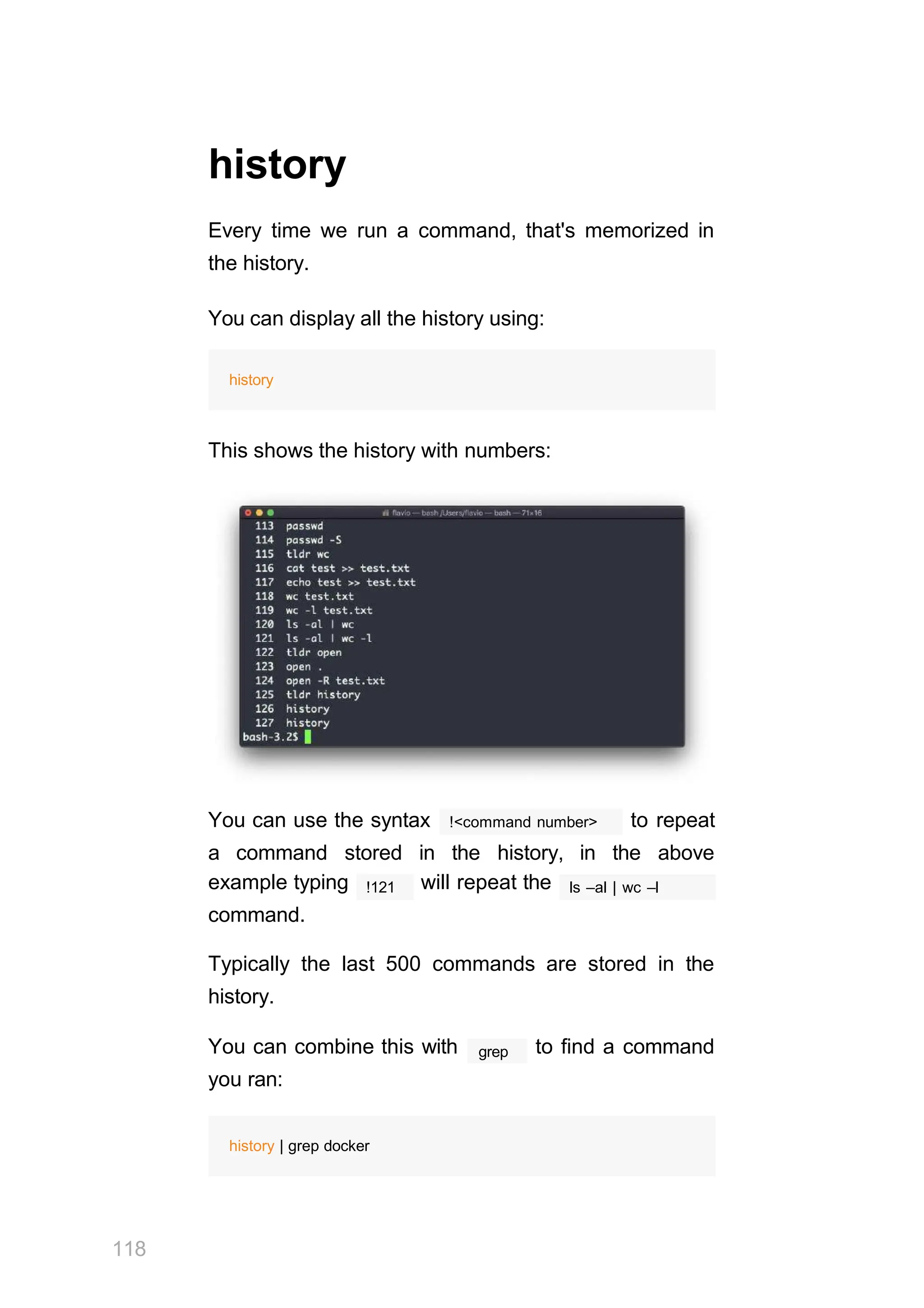
You can display all the history using:
history
This shows the history with numbers:
You can use the syntax
118
!<command number> to repeat
a command stored in the history, in the above
!121
example typing will repeat the
command.
ls –al | wc –l
Typically the last 500 commands are stored in the
history.
grep
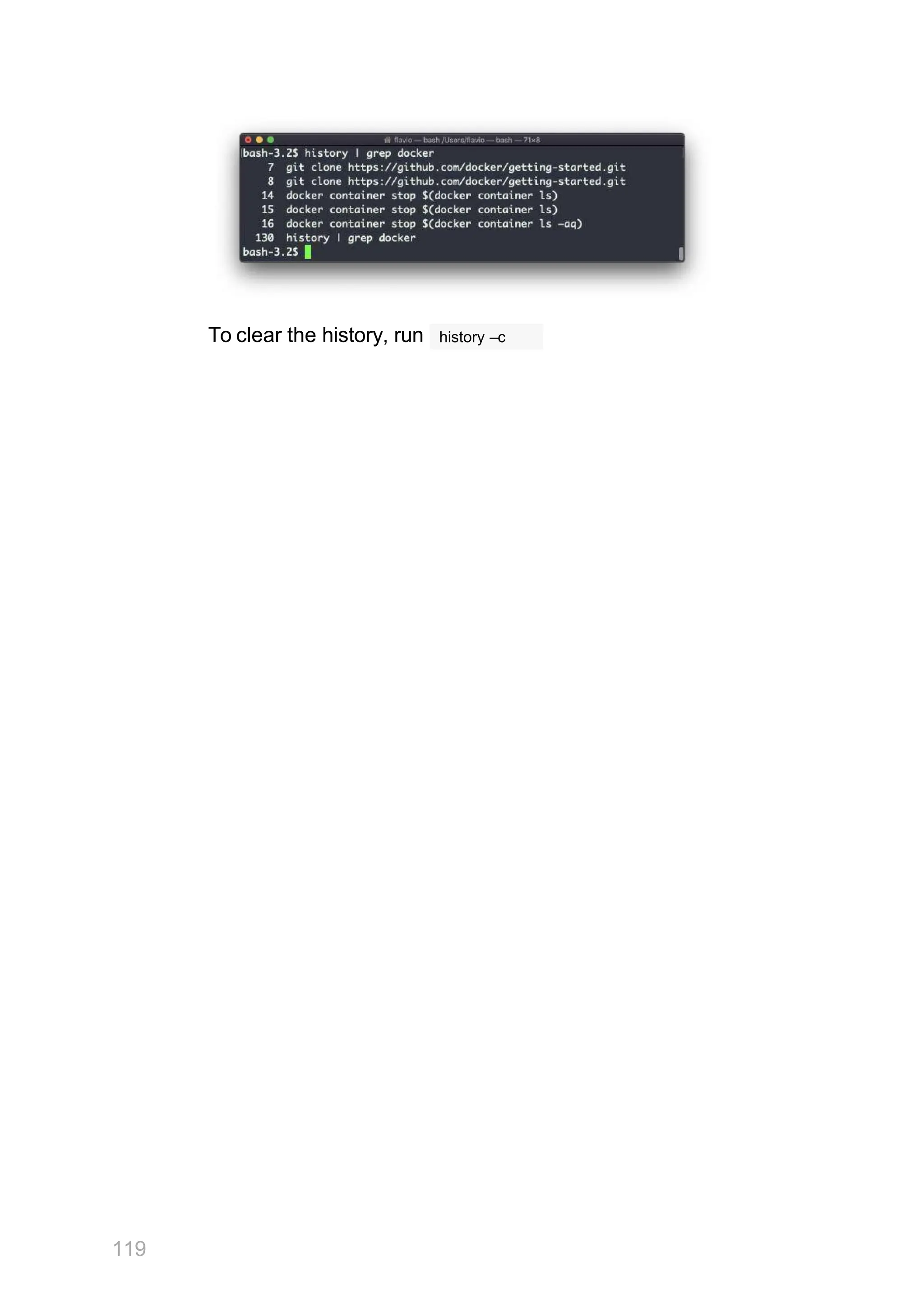
You can combine this with to find a command
you ran:
history | grep docker
To clear the history, run
119
history –c
export
export
The command is used to export variables to
child processes.
What does this mean?
Suppose you have a variable TEST defined in this
way:
TEST="test"
echo $TEST
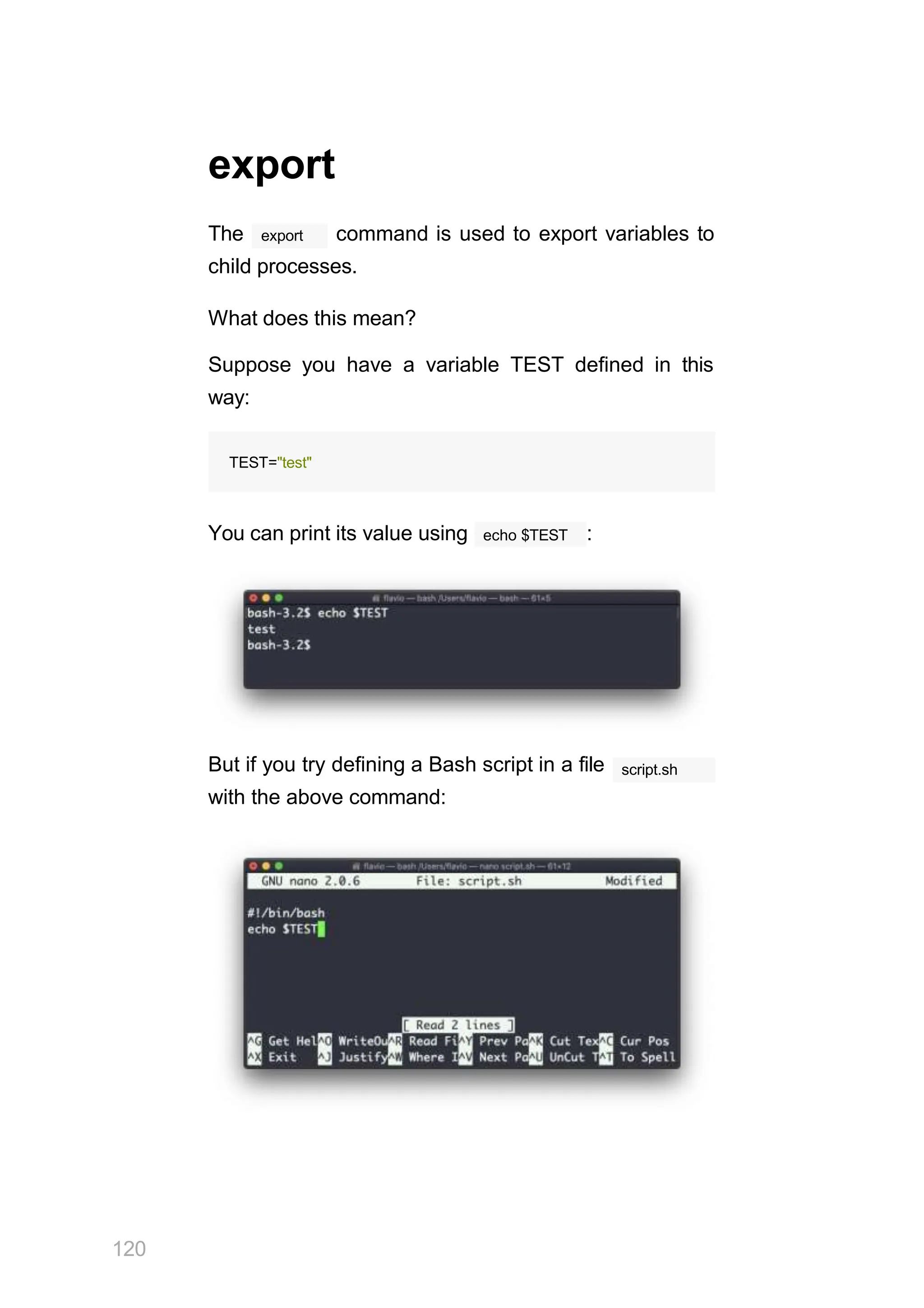
You can print its value using :
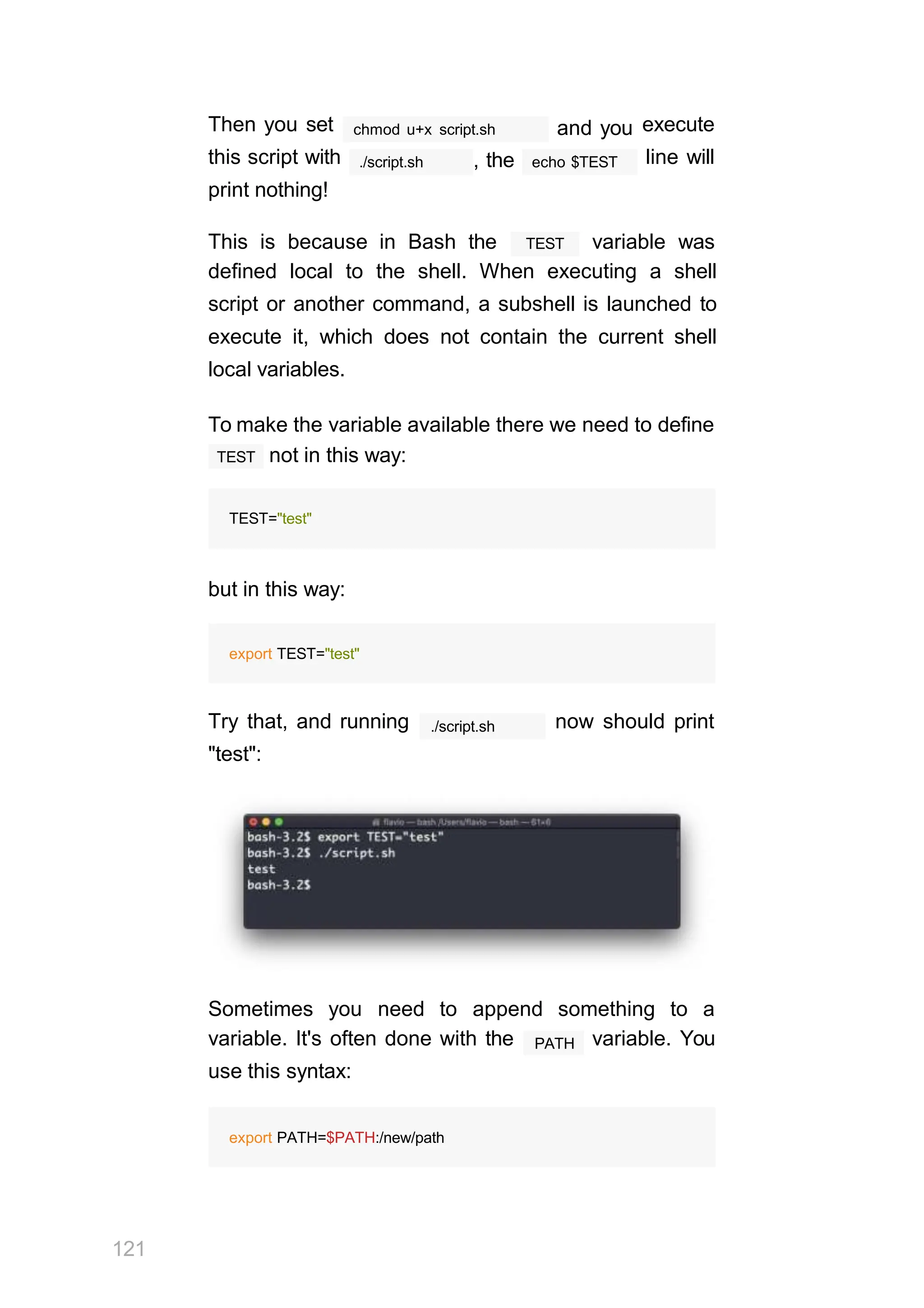
But if you try defining a Bash script in a file
with the above command:
script.sh
120
chmod u+x script.sh and you
./script.sh , the echo $TEST
Then you set
this script with
print nothing!
execute
line will
TEST
This is because in Bash the variable was
defined local to the shell. When executing a shell
script or another command, a subshell is launched to
execute it, which does not contain the current shell
local variables.
To make the variable available there we need to define
TEST not in this way:
TEST="test"
but in this way:
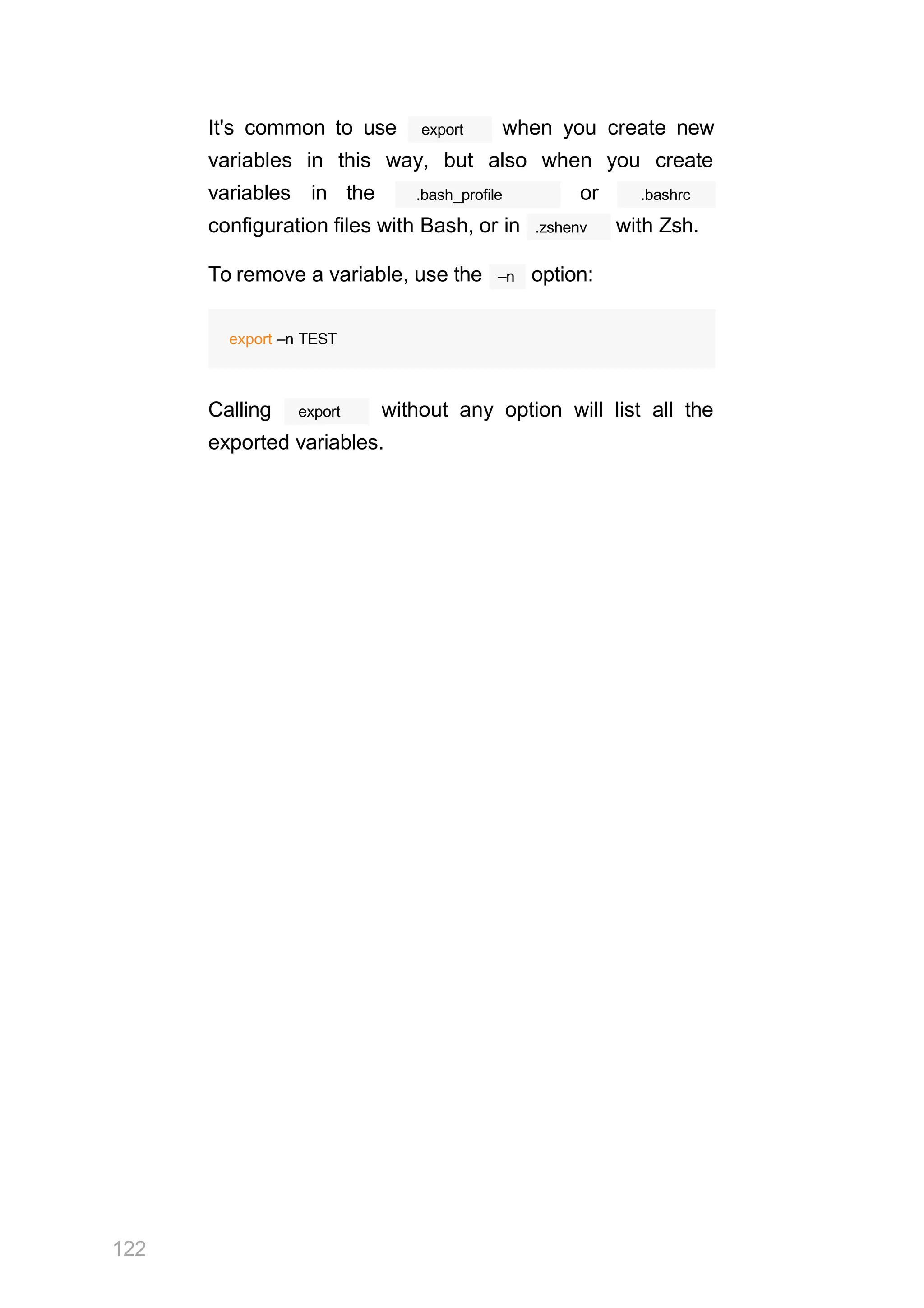
export TEST="test"
./script.sh
Try that, and running now should print
"test":
Sometimes you need to append something to a
121
PATH
variable. It's often done with the variable. You
use this syntax:
export PATH=$PATH:/new/path
122
It's common to use export when you create new
variables in this way, but also when you create
variables in the .bash_profile or .bashrc
configuration files with Bash, or in .zshenv with Zsh.
–n
To remove a variable, use the option:
export –n TEST
export
Calling without any option will list all the
exported variables.
crontab
Cron jobs are jobs that are scheduled to run at specific
intervals. You might have a command perform
something every hour, or every day, or every 2 weeks.
Or on weekends. They are very powerful, especially
on servers to perform maintenance and automations.
crontab
The command is the entry point to work with
cron jobs.
The first thing you can do is to explore which cron jobs
are defined by you:
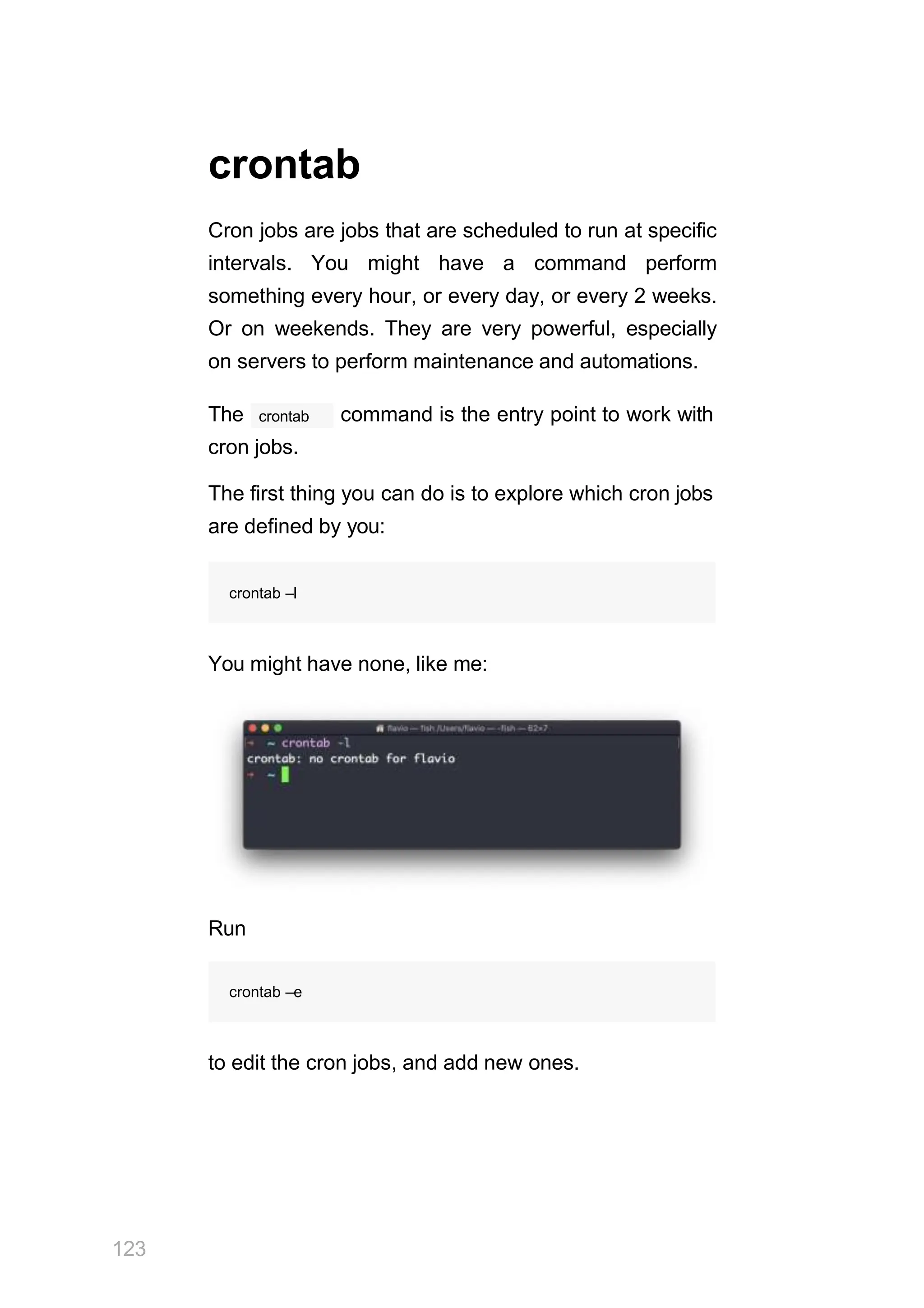
crontab –l
You might have none, like me:
Run
123
crontab –e
to edit the cron jobs, and add new ones.
By default this opens with the default editor, which is
vim
usually . I like nano more, you can use this line
to use a different editor:
EDITOR=nano crontab –e
Now you can add one line for each cron job.
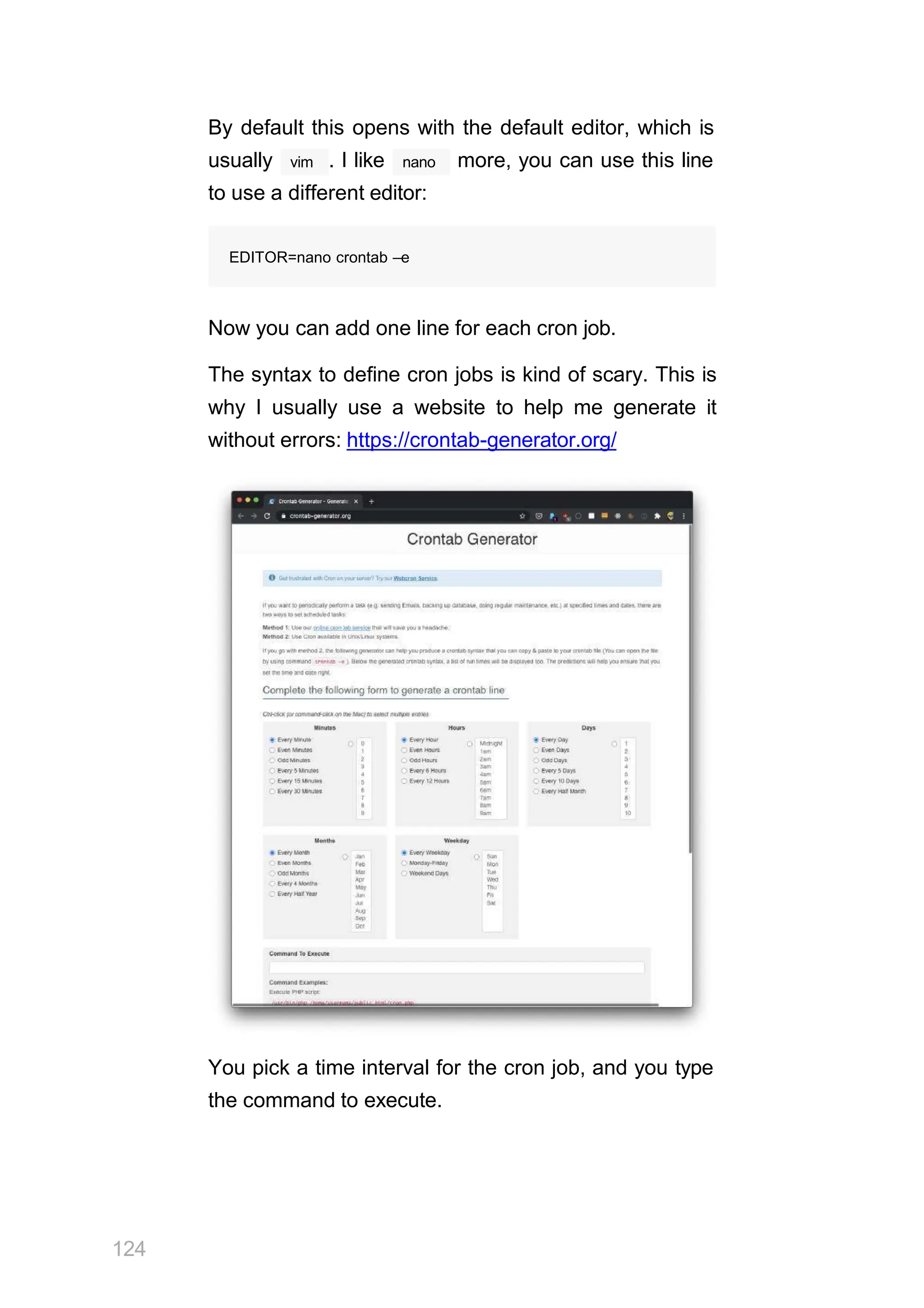
The syntax to define cron jobs is kind of scary. This is
why I usually use a website to help me generate it
without errors: https://crontab-generator.org/
You pick a time interval for the cron job, and you type
the command to execute.
124
I chose to run a script located in
every 12 hours. This is the
/Users/flavio/test.sh
crontab line I need to run:
crontab –e
I run :
EDITOR=nano crontab –e
ctrl–X
and I add that line, then I press and press
to save.
y
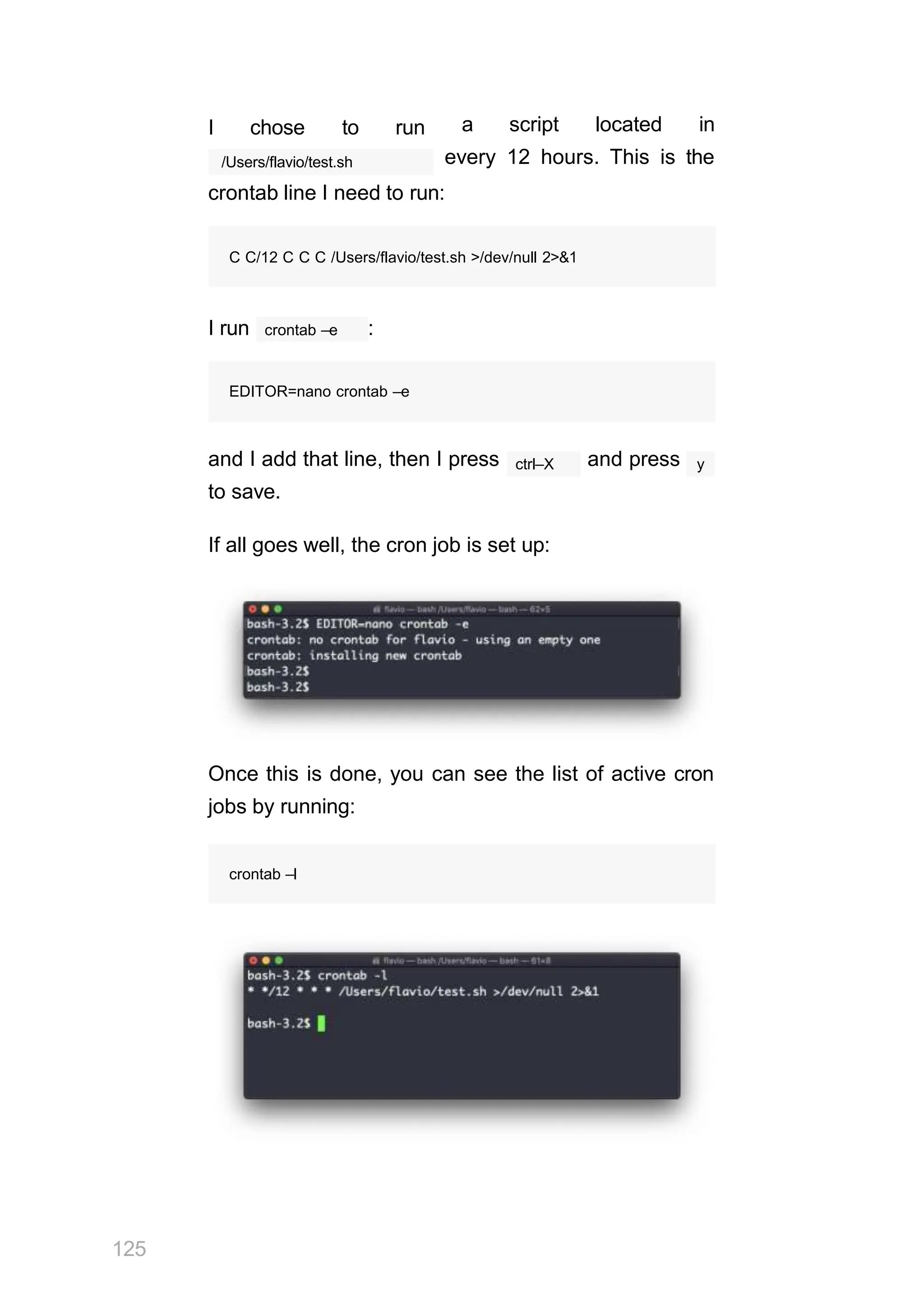
If all goes well, the cron job is set up:
Once this is done, you can see the list of active cron
jobs by running:
crontab –l
C C/12 C C C /Users/flavio/test.sh >/dev/null 2>&1
125
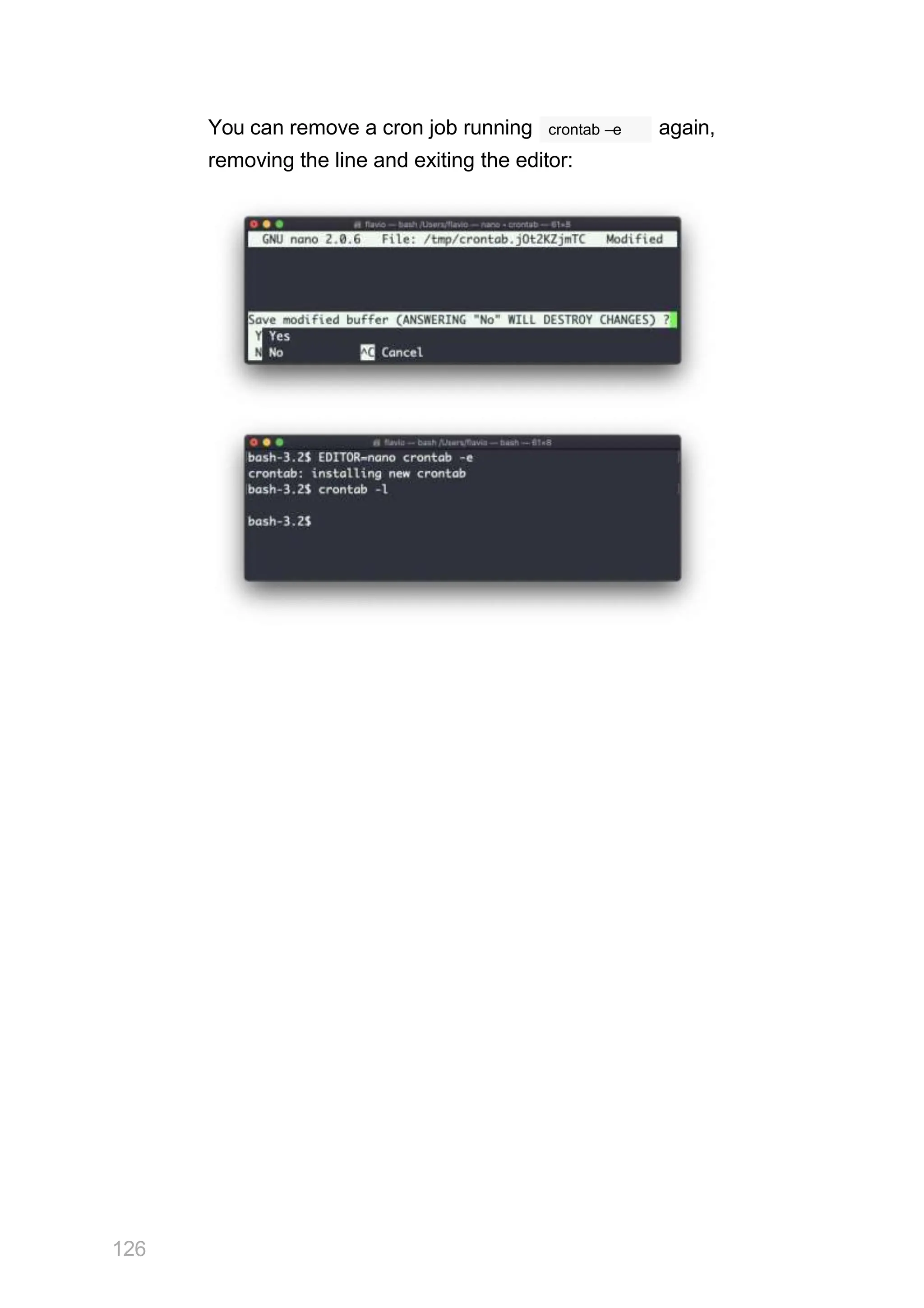
You can remove a cron job running crontab –e again,
removing the line and exiting the editor:
126
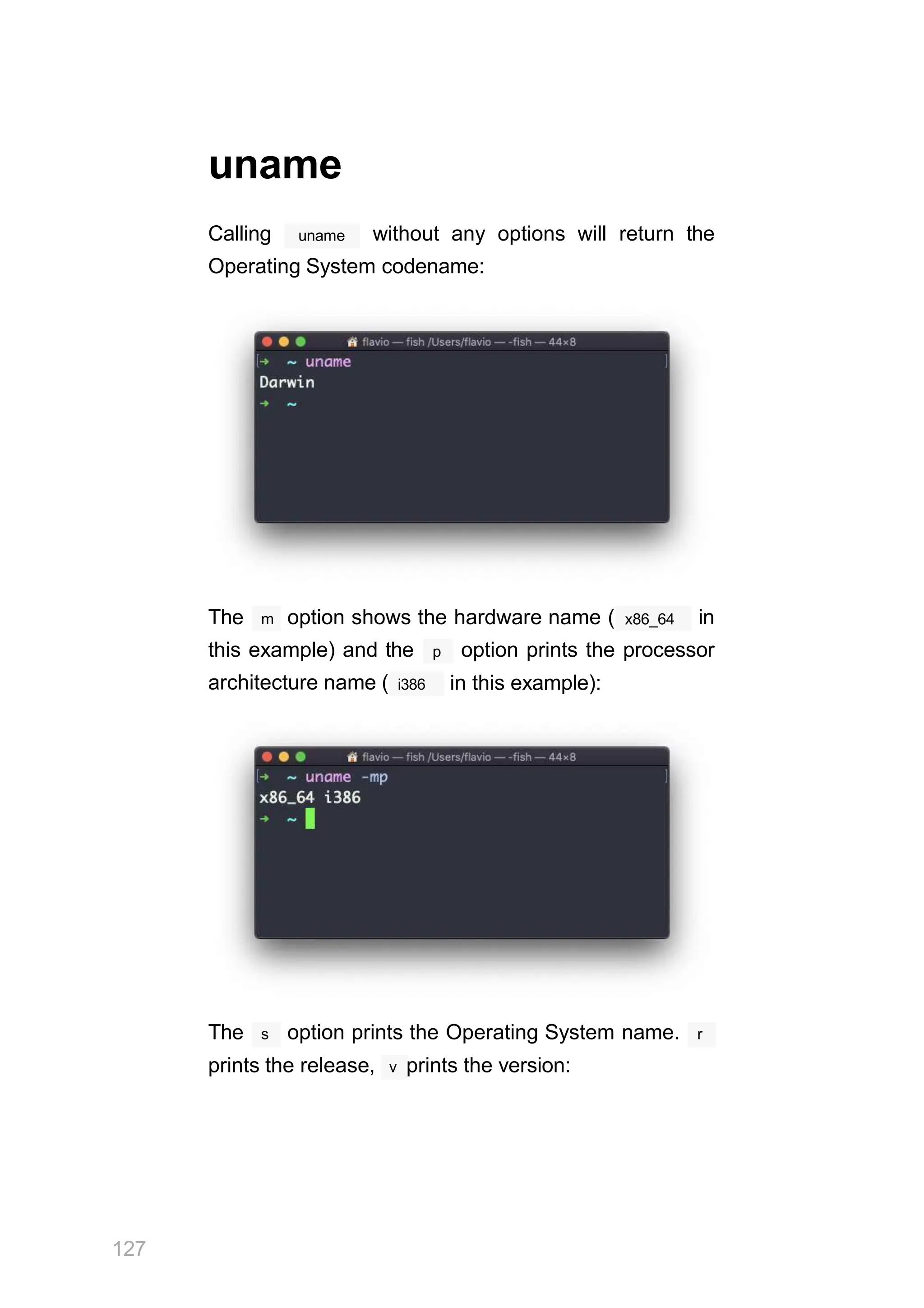
uname
uname
Calling without any options will return the
Operating System codename:
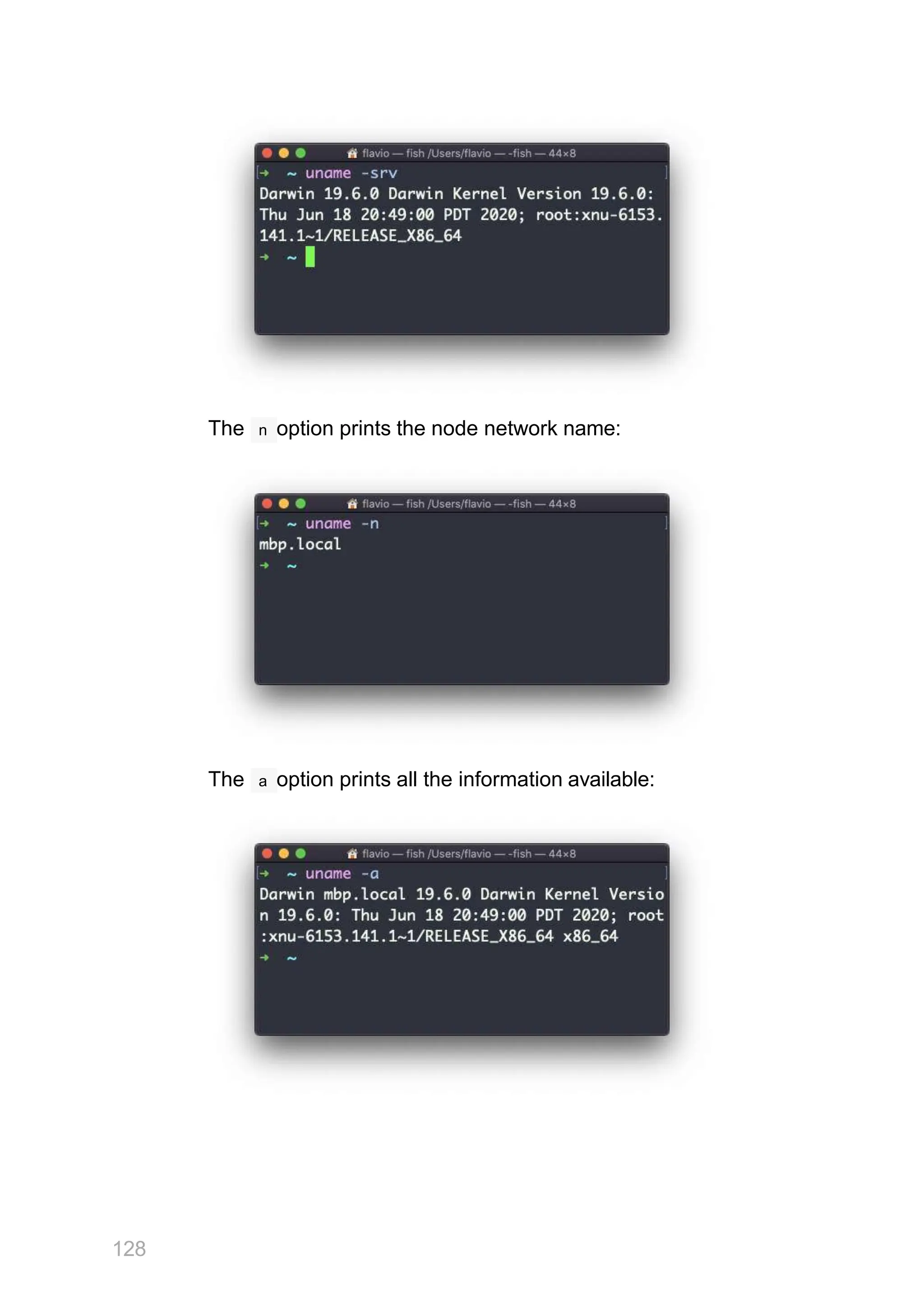
The m option shows the hardware name ( x86_64 in
architecture name ( i386
this example) and the p option prints the processor
in this example):
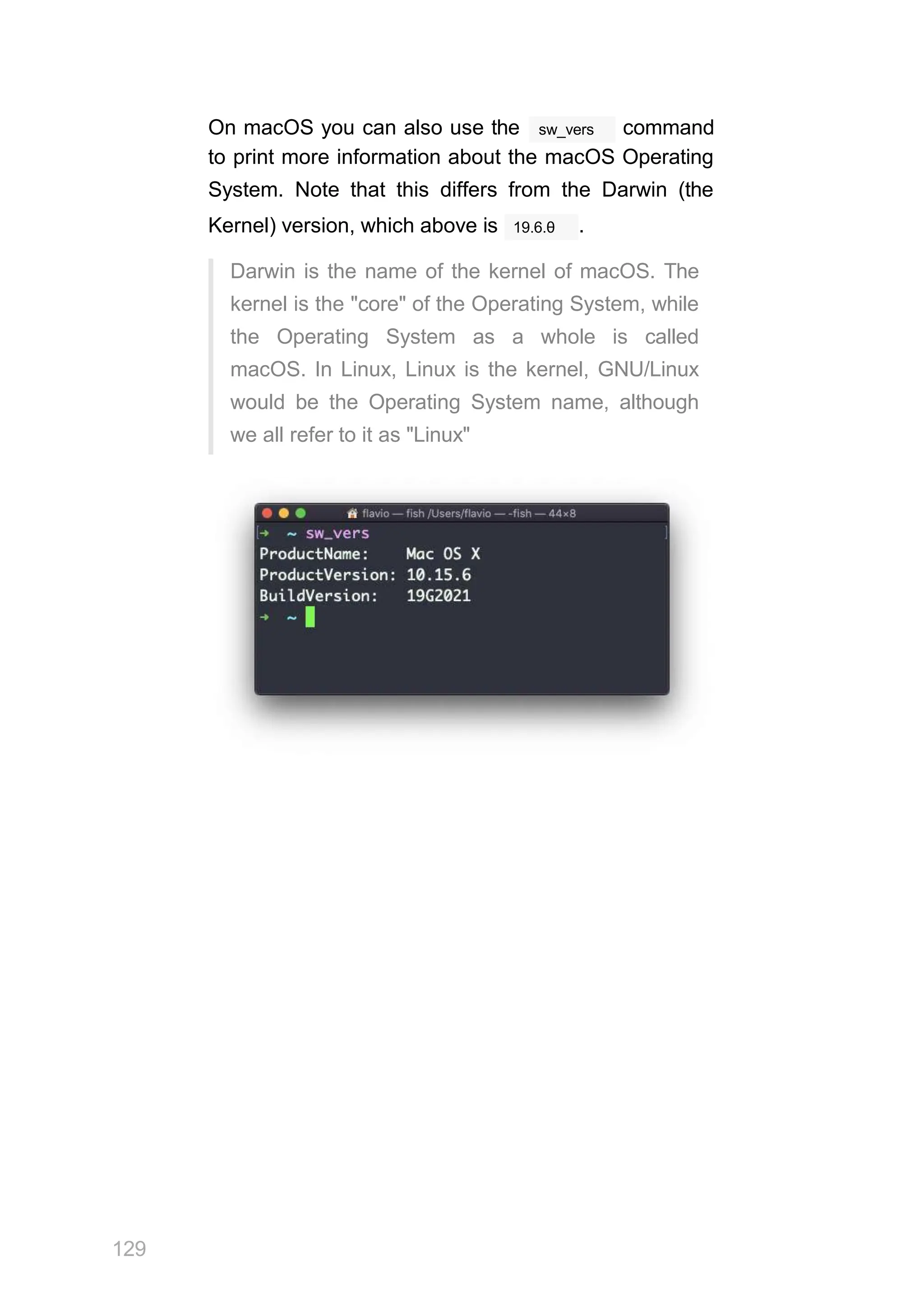
The s option prints the Operating System name. r
prints the release, v prints the version:
127
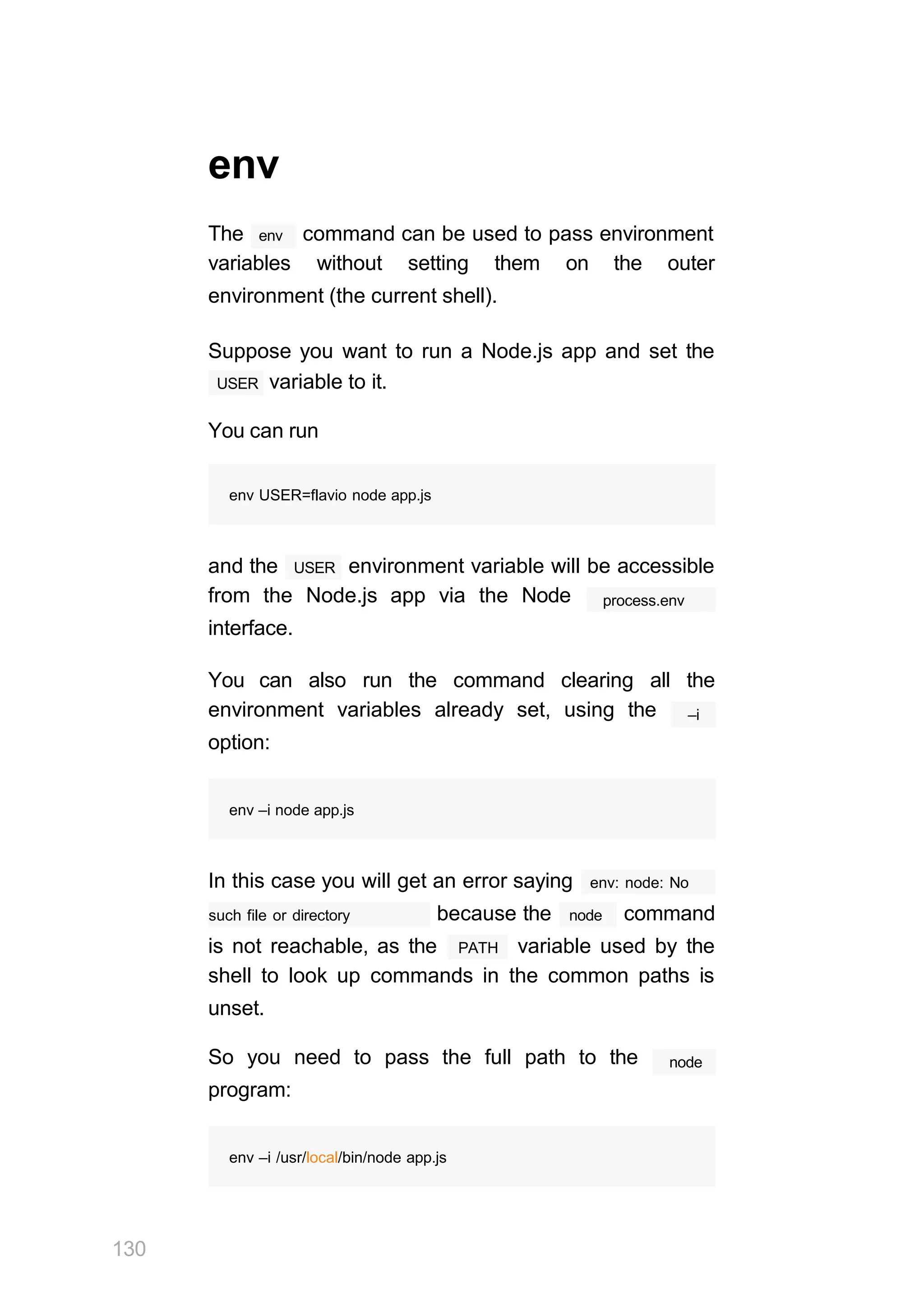
The n option prints the node network name:
The a option prints all the information available:
128
sw_vers
On macOS you can also use the command
to print more information about the macOS Operating
System. Note that this differs from the Darwin (the
19.6.θ
Kernel) version, which above is .
Darwin is the name of the kernel of macOS. The
kernel is the "core" of the Operating System, while
the Operating System as a whole is called
macOS. In Linux, Linux is the kernel, GNU/Linux
would be the Operating System name, although
we all refer to it as "Linux"
129
130
env
The env command can be used to pass environment
variables without setting them on the outer
environment (the current shell).
Suppose you want to run a Node.js app and set the
USER variable to it.
You can run
env USER=flavio node app.js
USER
and the environment variable will be accessible
from the Node.js app via the Node
interface.
process.env
You can also run the command clearing all the
environment variables already set, using the
option:
–i
env –i node app.js
In this case you will get an error saying env: node: No
such file or directory node
because the command
PATH
is not reachable, as the variable used by the
shell to look up commands in the common paths is
unset.
So you need to pass the full path to the
program:
node
env –i /usr/local/bin/node app.js
app.js
Try with a simple file with this content:
console.log(process.env.NAME)
console.log(process.env.PATH)
You will see the output being
undefined
undefined
You can pass an env variable:
env –i NAME=flavio node app.js
and the output will be
flavio
undefined
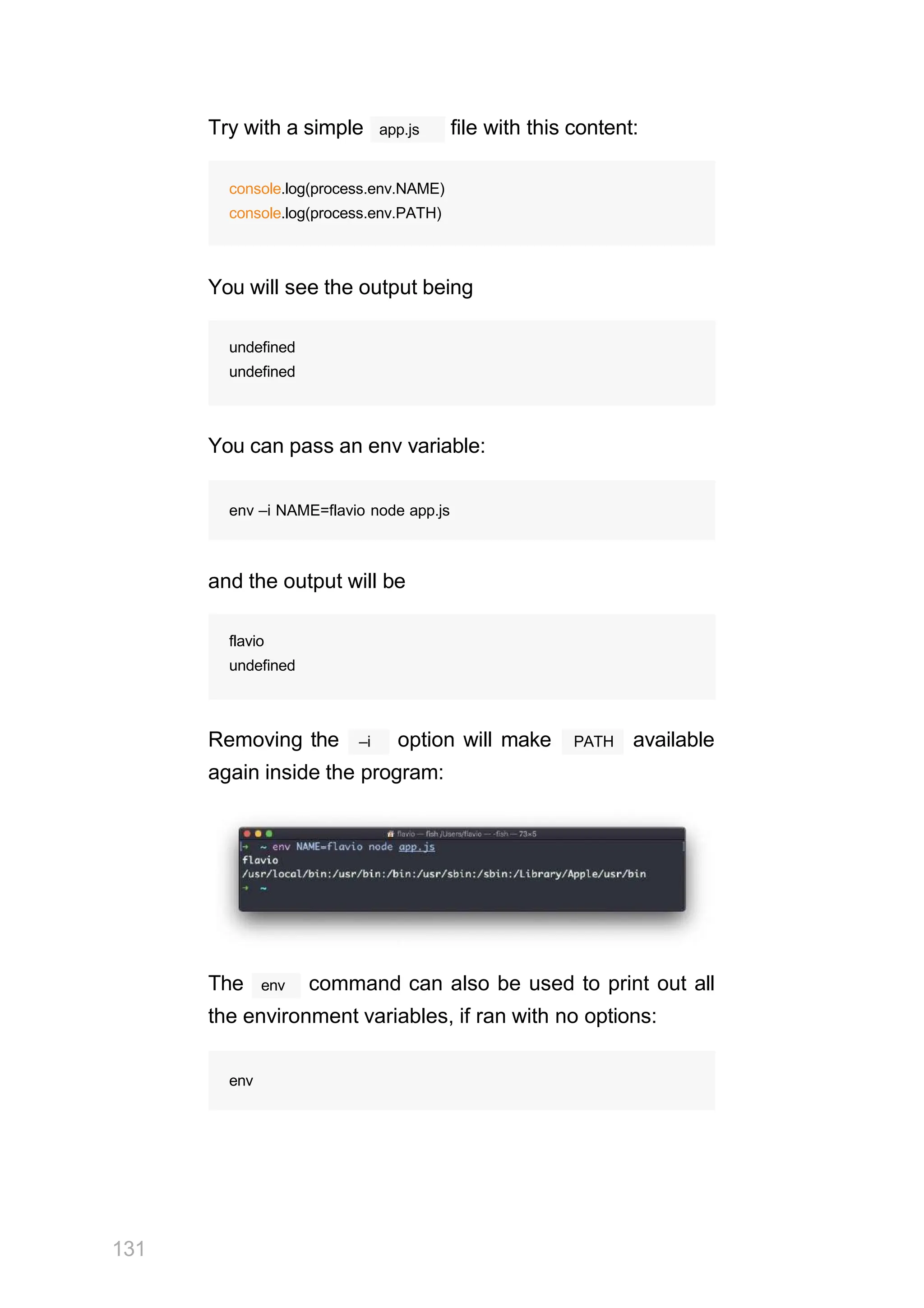
–i
Removing the option will make PATH available
again inside the program:
env
131
The command can also be used to print out all
the environment variables, if ran with no options:
env
132
it will return a list of the environment variables set, for
example:
You can also make a variable inaccessible inside the
program you run, using the –u option, for example
variable from the
this code removes the
command environment:
HOME
env –u HOME node app.js
HOME=/Users/flavio
LOGNAME=flavio
PATH=/usr/local/bin:/usr/bin:/bin:/usr/sbin:/sbin:/ PWD=/Users/flavio
SHELL=/usr/local/bin/fish
printenv
printenv
A quick guide to the command, used to
print the values of environment variables
In any shell there are a good number of environment
variables, set either by the system, or by your own
shell scripts and configuration.
You can print them all to the terminal using the
printenv command. The output will be something
like this:
with a few more lines, usually.
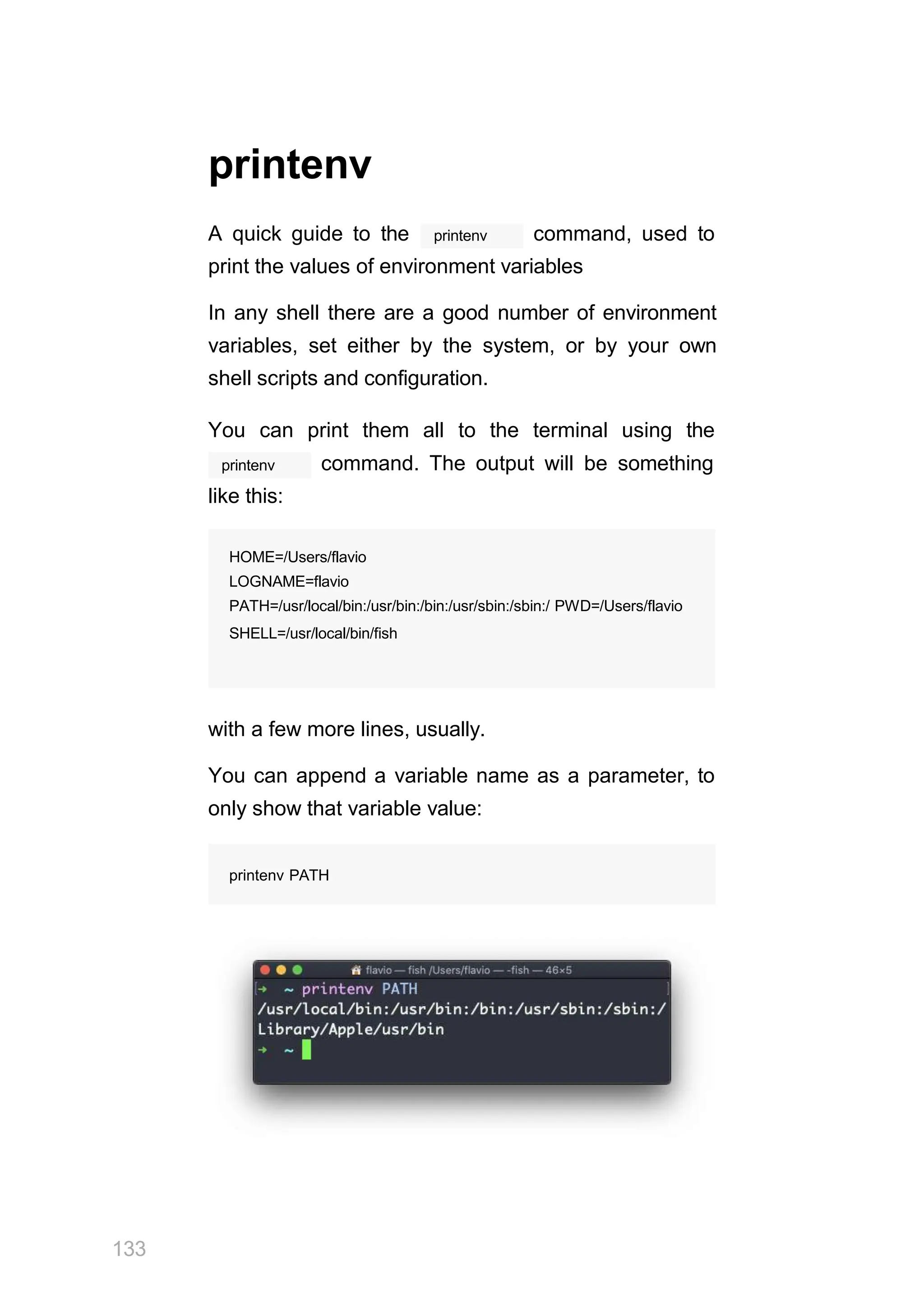
You can append a variable name as a parameter, to
only show that variable value:
printenv PATH
HOME=/Users/flavio
LOGNAME=flavio
PATH=/usr/local/bin:/usr/bin:/bin:/usr/sbin:/sbin:/ PWD=/Users/flavio
SHELL=/usr/local/bin/fish
133
134
Conclusion
Thanks a lot for reading this book.
I hope it will inspire you to know more about Linux and
its capabilities.
To learn more, check out my blog flaviocopes.com.
Send any feedback, errata or opinions at
hey@flaviocopes.com

linux system administration for system admin jobs

  • 2.
    Table of Contents Preface Introductionto Linux and shells man ls cd pwd mkdir rmdir mv cp open touch find ln gzip gunzip tar alias cat less tail wc grep sort 1
  • 3.
  • 4.
  • 5.
    4 Preface The Linux CommandsHandbook follows the 80/20 rule: learn in 20% of the time the 80% of a topic. I find this approach gives a well-rounded overview. This book does not try to cover everything under the sun related to Linux and its commands. It focuses on the small core commands that you will use the 80% or 90% of the time, trying to simplify the usage of the more complex ones. All those commands work on Linux, macOS, WSL, and anywhere you have a UNIX environment. I hope the contents of this book will help you achieve what you want: get comfortable with Linux. This book is written by Flavio. I publish programming tutorials every day on my website flaviocopes.com. You can reach me on Twitter @flaviocopes. Enjoy!
  • 6.
    5 Introduction to Linuxand shells Linux is an operating system, like macOS or Windows. It is also the most popular Open Source and free, as in freedom, operating system. It powers the vast majority of the servers that compose the Internet. It's the base upon which everything is built upon. But not just that. Android is based on (a modified version of) Linux. The Linux "core" (called kernel) was born in 1991 in Finland, and it went a really long way from its humble beginnings. It went on to be the kernel of the GNU Operating System, creating the duo GNU/Linux. There's one thing about Linux that corporations like Microsoft and Apple, or Google, will never be able to offer: the freedom to do whatever you want with your computer. They're actually going in the opposite direction, building walled gardens, especially on the mobile side. Linux is the ultimate freedom. It is developed by volunteers, some paid by companies that rely on it, some independently, but there's no single commercial company that can dictate what goes into Linux, or the project priorities.
  • 7.
    6 Linux can alsobe used as your day to day computer. I use macOS because I really enjoy the applications, the design and I also used to be an iOS and Mac apps developer, but before using it I used Linux as my main computer Operating System. No one can dictate which apps you can run, or "call home" with apps that track you, your position, and more. Linux is also special because there's not just "one Linux", like it happens on Windows or macOS. Instead, we have distributions. A "distro" is made by a company or organization and packages the Linux core with additional programs and tooling. For example you have Debian, Red Hat, and Ubuntu, probably the most popular. Many, many more exist. You can create your own distribution, too. But most likely you'll use a popular one, one that has lots of users and a community of people around it, so you can do what you need to do without losing too much time reinventing the wheel and figuring out answers to common problems. Some desktop computers and laptops ship with Linux preinstalled. Or you can install it on your Windows- based computer, or on a Mac. But you don't need to disrupt your existing computer just to get an idea of how Linux works. I don't have a Linux computer.
  • 8.
    If you usea Mac you need to know that under the hood macOS is a UNIX Operating System, and it shares a lot of the same ideas and software that a GNU/Linux system uses, because GNU/Linux is a free alternative to UNIX. UNIX is an umbrella term that groups many operating systems used in big corporations and institutions, starting from the 70's The macOS terminal gives you access to the same exact commands I'll describe in the rest of this handbook. Microsoft has an official Windows Subsystem for Linux which you can (and should!) install on Windows. This will give you the ability to run Linux in a very easy way on your PC. But the vast majority of the time you will run a Linux computer in the cloud via a VPS (Virtual Private Server) like DigitalOcean. A shell is a command interpreter that exposes to the user an interface to work with the underlying operating system. It allows you to execute operations using text and commands, and it provides users advanced features like being able to create scripts. This is important: shells let you perform things in a more optimized way than a GUI (Graphical User Interface) could ever possibly let you do. Command line tools can offer many different configuration options without being too complex to use. 7
  • 9.
    8 There are manydifferent kind of shells. This post focuses on Unix shells, the ones that you will find commonly on Linux and macOS computers. Many different kind of shells were created for those systems over time, and a few of them dominate the space: Bash, Csh, Zsh, Fish and many more! sh All shells originate from the Bourne Shell, called . "Bourne" because its creator was Steve Bourne. sh Bash means Bourne-again shell. was proprietary and not open source, and Bash was created in 1989 to create a free alternative for the GNU project and the Free Software Foundation. Since projects had to pay to use the Bourne shell, Bash became very popular. If you use a Mac, try opening your Mac terminal. That by default is running ZSH. (or, pre-Catalina, Bash) You can set up your system to run any kind of shell, for example I use the Fish shell. Each single shell has its own unique features and advanced usage, but they all share a common functionality: they can let you execute programs, and they can be programmed. In the rest of this handbook we'll see in detail the most common commands you will use.
  • 10.
    man The first commandI want to introduce is a command that will help you understand all the other commands. Every time I don't know how to use a command, I type man <command> to get the manual: This is a man (from manual) page. Man pages are an essential tool to learn, as a developer. They contain so much information that sometimes it's almost too much. The above screenshot is just 1 of 14 screens of 9 ls explanation for the command. Most of the times when I'm in need to learn a command quickly I use this site called tldr pages: https://tldr.sh/. It's a command you can install, then tldr <command> you run it like this: , which gives you a very quick overview of a command, with some handy examples of common usage scenarios:
  • 11.
    This is nota substitute for 10 man , but a handy tool to avoid losing yourself in the huge amount of information present in a man page. Then you can use the man page to explore all the different options and parameters you can use on a command.
  • 12.
    ls Inside a folderyou can list all the files that the folder ls contains using the command: ls If you add a folder name or path, it will print that folder contents: ls /bin ls 11 accepts a lot of options. One of my favorite –al options combinations is . Try it: ls –al /bin
  • 13.
    compared to theplain information. ls , this returns much more You have, from left to right: the file permissions (and if your system supports ACLs, you get an ACL flag as well) the number of links to that file the owner of the file the group of the file the file size in bytes the file modified datetime the file name This set of data is generated by the l option. The a option instead also shows the hidden files. Hidden files are files that start with a dot ( . ). 12
  • 14.
    cd Once you havea folder, you can move into it using the cd cd command. means change directory. You invoke it specifying a folder to move into. You can specify a folder name, or an entire path. Example: mkdir fruits cd fruits fruits Now you are into the folder. You can use the parent folder: .. special path to indicate the cd .. #back to the home folder The # character indicates the start of the comment, which lasts for the entire line after it's found. You can use it to form a path: mkdir fruits mkdir cars cd fruits cd ../cars . There is another special path indicator which is , and indicates the current folder. You can also use absolute paths, which start from the root folder / : 13
  • 15.
    cd /etc 14 This commandworks on Linux, macOS, WSL, and anywhere you have a UNIX environment
  • 16.
    15 pwd Whenever you feellost in the filesystem, call the command to know where you are: pwd pwd It will print the current folder path.
  • 17.
    mkdir mkdir You create foldersusing the command: mkdir fruits You can create multiple folders with one command: mkdir dogs cars You can also create multiple nested folders by adding –p the option: mkdir –p fruits/apples Options in UNIX commands commonly take this form. You add them right after the command name, and they change how the command behaves. You can often combine multiple options, too. You can find which options a command supports by man <commandname> typing . Try now with man mkdir for example (press the q key to esc the man page). Man pages are the amazing built-in help for UNIX. 16
  • 18.
    17 rmdir Just as youcan create a folder using mkdir , you can rmdir delete a folder using : mkdir fruits rmdir fruits You can also delete multiple folders at once: mkdir fruits cars rmdir fruits cars The folder you delete must be empty. To delete folders with files in them, we'll use the more rm generic command which deletes files and folders, –rf using the options: rm –rf fruits cars Be careful as this command does not ask for confirmation and it will immediately remove anything you ask it to remove. There is no bin when removing files from the command line, and recovering lost files can be hard.
  • 19.
    18 mv Once you havea file, you can move it around using mv the command. You specify the file current path, and its new path: touch test mv pear new_pear pear The file is now moved to new_pear . This is how you rename files and folders. If the last parameter is a folder, the file located at the first parameter path is going to be moved into that folder. In this case, you can specify a list of files and they will all be moved in the folder path identified by the last parameter: touch pear touch apple mkdir fruits mv pear apple fruits #pear and apple moved to the f
  • 20.
    19 cp cp You can copya file using the command: touch test cp apple another_apple –r To copy folders you need to add the option to recursively copy the whole folder contents: mkdir fruits cp –r fruits cars
  • 21.
    open 20 The open commandlets you open a file using this syntax: open <filename> You can also open a directory, which on macOS opens the Finder app with the current directory open: open <directory name> I use it all the time to open the current directory: open . . .. The special symbol points to the current directory, as points to the parent directory The same command can also be be used to run an application: open <application name>
  • 22.
    21 touch You can createan empty file using the command: touch touch apple If the file already exists, it opens the file in write mode, and the timestamp of the file is updated.
  • 23.
    find The find commandcan be used to find files or folders matching a particular search pattern. It searches recursively. Let's learn it by example. Find all the files under the current tree that have the .js extension and print the relative path of each file matching: find . –name 'C.js' It's important to use quotes around special characters like C to avoid the shell interpreting them. Find directories under the current tree matching the name "src": 22 find . –type d –name src –type f Use to search only files, or –type l to only search symbolic links. –name is case sensitive. use –iname to perform a case-insensitive search. You can search under multiple root trees: find folder1 folder2 –name filename.txt
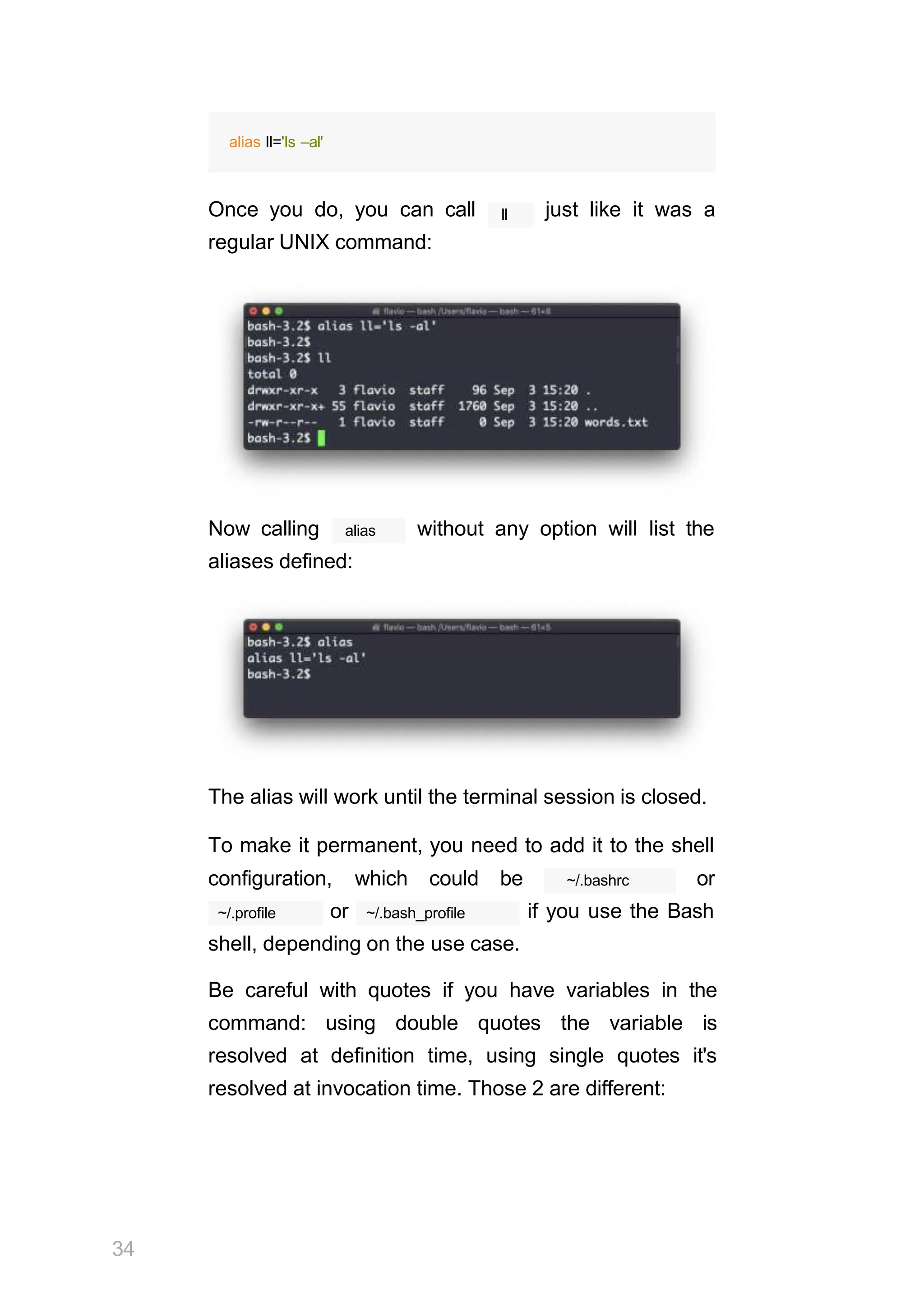
  • 24.
    23 Find directories underthe current tree matching the name "node_modules" or 'public': –not –path You can also exclude a path, using : You can search files that have more than 100 characters (bytes) in them: find . –type f –size +1θθc Search files bigger than 100KB but smaller than 1MB: find . –type f –size +1θθk –size –1M Search files edited more than 3 days ago find . –type f –mtime +3 Search files edited in the last 24 hours find . –type f –mtime –1 You can delete all the files matching a search by –delete adding the option. This deletes all the files edited in the last 24 hours: find . –type f –mtime –1 –delete find . –type d –name node_modules –or –name public find . –type d –name 'C.md' –not –path 'node_module
  • 25.
    24 You can executea command on each result of the cat search. In this example we run to print the file content: find . –type f –exec cat {} ; ; notice the terminating . {} is filled with the file name at execution time.
  • 26.
    25 ln ln The command ispart of the Linux file system commands. It's used to create links. What is a link? It's like a pointer to another file. A file that points to another file. You might be familiar with Windows shortcuts. They're similar. We have 2 types of links: hard links and soft links. Hard links Hard links are rarely used. They have a few limitations: you can't link to directories, and you can't link to external filesystems (disks). A hard link is created using ln <original> <link> For example, say you have a file called recipes.txt. You can create a hard link to it using: ln recipes.txt newrecipes.txt The new hard link you created is indistinguishable from a regular file:
  • 27.
    Now any timeyou edit any of those files, the content will be updated for both. If you delete the original file, the link will still contain the original file content, as that's not removed until there is one hard link pointing to it. Soft links Soft links are different. They are more powerful as you can link to other filesystems and to directories, but when the original is removed, the link will be broken. 26 –s ln You create soft links using the option of :
  • 28.
    ln –s <original><link> For example, say you have a file called recipes.txt. You can create a soft link to it using: ln –s recipes.txt newrecipes.txt l In this case you can see there's a special flag ls –al when you list the file using , and the file name has a @ at the end, and it's colored differently if you have colors enabled: Now if you delete the original file, the links will be broken, and the shell will tell you "No such file or directory" if you try to access it: 27
  • 29.
    gzip 28 You can compressa file using the gzip compression gzip protocol named LZ77 using the command. Here's the simplest usage: gzip filename This will compress the file, and append a .gz extension to it. The original file is deleted. To prevent –c this, you can use the option and use output filename.gz redirection to write the output to the file: gzip –c filename > filename.gz –c The option specifies that output will go to the standard output stream, leaving the original file intact –k Or you can use the option: gzip –k filename There are various levels of compression. The more the compression, the longer it will take to compress (and decompress). Levels range from 1 (fastest, worst compression) to 9 (slowest, better compression), and the default is 6. You can choose a specific level with the option: –<NUMBER>
  • 30.
    gzip –1 filename Youcan compress multiple files by listing them: gzip filename1 filename2 You can compress all the files in a directory, –r recursively, using the option: gzip –r a_folder –v The option prints the compression percentage information. Here's an example of it being used along –k with the (keep) option: gzip 29 can also be used to decompress a file, using –d the option: gzip –d filename.gz
  • 31.
    30 gunzip The gunzip commandis basically equivalent to the gzip –d command, except the option is always enabled by default. The command can be invoked in this way: gunzip filename.gz .gz This will gunzip and will remove the extension, putting the result in the it will overwrite that. filename file. If that file exists, You can extract to a different filename using output –c redirection using the option: gunzip –c filename.gz > anotherfilename
  • 32.
    tar tar The command isused to create an archive, grouping multiple files in a single file. Its name comes from the past and means tape archive. Back when archives were stored on tapes. This command creates an archive named archive.tar file1 with the content of and file2 : tar –cf archive.tar file1 file2 The c option stands for create. The f option is used to write to file the archive. To extract files from an archive in the current folder, use: tar –xf archive.tar the x option stands for extract and to extract them to a specific directory, use: 31 tar –xf archive.tar –C directory You can also just list the files contained in an archive:
  • 33.
    tar is oftenused to create a compressed archive, gzipping the archive. This is done using the z option: 32 tar –czf archive.tar.gz file1 file2 This is just like creating a tar archive, and then running gzip on it. To unarchive a gzipped archive, you can use gunzip , gzip –d or , and then unarchive it, but tar –xf will recognize it's a gzipped archive, and do it for you: tar –xf archive.tar.gz
  • 34.
    alias It's common toalways run a program with a set of options you like using. ls For example, take the command. By default it prints very little information: –al while using the option it will print something more useful, including the file modification date, the size, the owner, and the permissions, also listing hidden files (files starting with a . : You can create a new command, for example I like to 33 ll call it , that is an alias to ls –al . You do it in this way:
  • 35.
    alias ll='ls –al' ll Onceyou do, you can call just like it was a regular UNIX command: Now calling alias without any option will list the aliases defined: The alias will work until the terminal session is closed. To make it permanent, you need to add it to the shell 34 configuration, which could be ~/.bashrc or ~/.profile or ~/.bash_profile if you use the Bash shell, depending on the use case. Be careful with quotes if you have variables in the command: using double quotes the variable is resolved at definition time, using single quotes it's resolved at invocation time. Those 2 are different:
  • 36.
    35 alias lsthis="ls $PWD"alias lscurrent='ls $PWD' $PWD refers to the current folder the shell is into. If you now navigate away to a new folder, lscurrent lsthis lists the files in the new folder, still lists the files in the folder you were when you defined the alias.
  • 37.
    tail cat Similar to insome way, we have cat . Except cat can also add content to a file, and this makes it super powerful. In its simplest usage, standard output: cat prints a file's content to the cat file You can print the content of multiple files: cat file1 file2 and using the output redirection operator > you can concatenate the content of multiple files into a new file: 36 cat file1 file2 > file3 >> Using you can append the content of multiple files into a new file, creating it if it does not exist: cat file1 file2 >> file3 When watching source code files it's great to see the cat line numbers, and you can have print them using –n the option: cat –n file1
  • 38.
    You can onlyadd a number to non-blank lines using – b , or you can also remove all the multiple empty lines –s using . cat is often used in combination with the pipe operator | to feed a file content as input to another 37 cat file1 | anothercommand command: .
  • 39.
    less less The command isone I use a lot. It shows you the content stored inside a file, in a nice and interactive UI. less <filename> Usage: . less session, you can quit by Once you are inside a pressing q . You can navigate the file contents using the up and down space bar keys, or using the and b to navigate page by page. You can also jump to the end G of the file pressing and jump back to the start pressing g . You can search contents inside the file by pressing / and typing a word to search. This searches forward. 38 ? You can search backwards using the symbol and typing a word.
  • 40.
    This command justvisualises the file's content. You vim 39 can directly open an editor by pressing v . It will use the system editor, which in most cases is . F Pressing the key enters follow mode, or watch mode. When the file is changed by someone else, like from another program, you get to see the changes live. By default this is not happening, and you only see the file version at the time you opened it. You need to ctrl–C press to quit this mode. In this case the behaviour is similar to running the tail –f <filename> command. You can open multiple files, and navigate through :n them using (to go to the next file) and :p (to go to the previous).
  • 41.
    tail The best usecase of tail in my opinion is when called –f with the option. It opens the file at the end, and watches for file changes. Any time there is new content in the file, it is printed in the window. This is great for watching log files, for example: tail –f /var/log/system.log ctrl–C To exit, press . You can print the last 10 lines in a file: tail –n 1θ <filename> You can print the whole file content starting from a specific line using + before the line number: 40 tail –n +1θ <filename> tail can do much more and as always my advice is to check man tail .
  • 42.
    41 wc wc The command givesus useful information about a file or input it receives via pipes. echo test >> test.txt wc test.txt 1 1 5 test.txt Example via pipes, we can count the output of running ls –al the command: ls –al | wc 6 47 284 The first column returned is the number of lines. The second is the number of words. The third is the number of bytes. We can tell it to just count the lines: wc –l test.txt or just the words: wc –w test.txt or just the bytes: wc –c test.txt
  • 43.
    42 Bytes in ASCIIcharsets equate to characters, but with non-ASCII charsets, the number of characters might differ because some characters might take multiple bytes, for example this happens in Unicode. –m In this case the flag will help getting the correct value: wc –m test.txt
  • 44.
    grep grep The command isa very useful tool, that when you master will help you tremendously in your day to day. grep If you're wondering, stands for global regular expression print grep You can use to search in files, or combine it with pipes to filter the output of another command. For example here's how we can find the occurences of document.getElementById the line in the index.md file: grep document.getElementById index.md –n Using the option it will show the line numbers: grep –n document.getElementById index.md 43
  • 45.
    One very usefulthing is to tell grep to print 2 lines before, and 2 lines after the matched line, to give us –C more context. That's done using the option, which accepts a number of lines: grep –nC 2 document.getElementById index.md Search is case sensitive by default. Use the to make it insensitive. –i flag As mentioned, you can use grep to filter the output of another command. We can replicate the same functionality as above using: less index.md | grep –n document.getElementById The search string can be a regular expression, and 44 grep this makes very powerful.
  • 46.
    Another thing youmight find very useful is to invert the result, excluding the lines that match a particular –v string, using the option: 45
  • 47.
    sort Suppose you havea names of dogs: text file which contains the This list is unordered. sort The command helps us sorting them by name: Use the r option to reverse the order: 46
  • 48.
    Sorting by defaultis case sensitive, and alphabetic. ––ignore–case –n Use the option to sort case insensitive, and the option to sort using a numeric order. If the file contains duplicate lines: You can use the 47 –u option to remove them:
  • 49.
    sort 48 does not justworks on files, as many UNIX commands it also works with pipes, so you can use on the output of another command, for example you can ls order the files returned by with: ls | sort sort is very powerful and has lots more options, which you can explore calling man sort .
  • 50.
  • 51.
    50 uniq uniq is acommand useful to sort lines of text. You can get those lines from a file, or using pipes from the output of another command: uniq dogs.txt ls | uniq uniq You need to consider this key thing: will only detect adjacent duplicate lines. This implies that you will most likely use it along with sort : sort dogs.txt | uniq sort The command has its own way to remove –u uniq duplicates with the (unique) option. But has more power. By default it removes duplicate lines:
  • 52.
    You can tellit to only display duplicate lines, for 51 –d example, with the option: sort dogs.txt | uniq –d
  • 53.
    You can usethe duplicate lines: –u option to only display non- You can count the occurrences of each line with the – c option: 52
  • 54.
    Use the specialcombination: sort dogs.txt | uniq –c | sort –nr to then sort those lines by most frequent: 53
  • 55.
    diff diff is ahandy command. Suppose you have 2 files, which contain almost the same information, but you can't find the difference between the two. diff will process the files and will tell you what's the difference. Suppose you have 2 files: dogs.txt and moredogs.txt . The difference is that moredogs.txt contains one more dog name: diff dogs.txt moredogs.txt will tell you the second file has one more line, line 3 with the line Vanille : 54
  • 56.
    If you invertthe order of the files, it will tell you that the second file is missing line 3, whose content is Vanille : Using the line: –y option will compare the 2 files line by –u The option however will be more familiar to you, because that's the same used by the Git version control system to display differences between versions: Comparing directories works in the same way. You 55 –r must use the option to compare recursively (going into subdirectories):
  • 57.
    In case you'reinterested in which files differ, rather than the content, use the r and q options: There are many more options you can explore in the 56 man diff man page running :
  • 58.
  • 59.
    echo echo The command doesone simple job: it prints to the output the argument passed to it. This example: echo "hello" hello will print to the terminal. We can append the output to a file: echo "hello" >> output.txt We can interpolate environment variables: echo "The path variable is $PATH" Beware that special characters need to be escaped with a backslash . $ for example: 58
  • 60.
    This is justthe start. We can do some nice things when it comes to interacting with the shell features. We can echo the files in the current folder: echo C We can echo the files in the current folder that start with the letter o : echo oC Any valid Bash (or any shell you are using) command and feature can be used here. You can print your home folder path: echo ~ You can also execute commands, and print the result to the standard output (or to file, as you saw): 59 echo $(ls –al)
  • 61.
    Note that whitespaceis not preserved by default. You need to wrap the command in double quotes to do so: You can generate a list of strings, for example ranges: echo {1..5} 60
  • 62.
    chown Every file/directory inan Operating System like Linux or macOS (and every UNIX systems in general) has an owner. The owner of a file can do everything with it. It can decide the fate of that file. root The owner (and the user) can change the owner to another user, too, using the command: chown chown <owner> <file> Like this: chown flavio test.txt root For example if you have a file that's owned by , you can't write to it as another user: You can use 61 chown to transfer the ownership to you:
  • 63.
    It's rather commonto have the need to change the ownership of a directory, and recursively all the files contained, plus all the subdirectories and the files contained in them, too. 62 –R You can do so using the flag: chown –R <owner> <file> Files/directories don't just have an owner, they also have a group. Through this command you can change that simultaneously while you change the owner: chown <owner>:<group> <file> Example: chown flavio:users test.txt You can also just change the group of a file using the chgrp command: chgrp <group> <filename>
  • 64.
    chmod Every file inthe Linux / macOS Operating Systems (and UNIX systems in general) has 3 permissions: Read, write, execute. ls –al Go into a folder, and run the command. The weird strings you see on each file line, like drwxr– xr–x , define the permissions of the file or folder. Let's dissect it. The first letter indicates the type of file: – means it's a normal file means it's a directory means it's a link d l Then you have 3 sets of values: The first set represents the permissions of the owner of the file The second set represents the permissions of the members of the group the file is associated to 63
  • 65.
    The third setrepresents the permissions of the everyone else rwx Those sets are composed by 3 values. means that specific persona has read, write and execution access. Anything that is removed is swapped with a – , which lets you form various combinations of values and relative permissions: and so on. rw– r–– , , r–x , You can change the permissions given to a file using chmod the command. chmod can be used in 2 ways. The first is using symbolic arguments, the second is using numeric arguments. Let's start with symbols first, which is more intuitive. chmod You type followed by a space, and a letter: a stands for all u stands for user g stands for group o stands for others Then you type either + or – to add a permission, or to remove it. Then you enter one or more permissions symbols ( r , w , x ). All followed by the file or folder name. Here are some examples: 64 chmod a+r filename #everyone can now read chmod a+rw filename #everyone can now read and writ chmod o–rwx filename #others (not the owner, not in
  • 66.
    You can applythe same permissions to multiple personas by adding multiple letters before the + / – : In case you are editing a folder, you can apply the permissions to every file contained in that folder using –r the (recursive) flag. Numeric arguments are faster but I find them hard to remember when you are not using them day to day. You use a digit that represents the permissions of the persona. This number value can be a maximum of 7, and it's calculated in this way: 1 if has execution permission if has write permission if has read permission 2 4 This gives us 4 combinations: θ no permissions 1 can execute 2 can write 3 can write, execute 4 can read 5 can read, execute 6 can read, write 7 can read, write and execute We use them in pairs of 3, to set the permissions of all the 3 groups altogether: 65 chmod og–r filename #other and group can't read any
  • 67.
    chmod 777 filename chmod755 filename chmod 644 filename 66
  • 68.
    umask When you createa file, you don't have to decide permissions up front. Permissions have defaults. Those defaults can be controlled and modified using umask the command. umask Typing with no arguments will show you the θθ22 current umask, in this case : θθ22 What does mean? That's an octal value that represent the permissions. Another common value is θθθ2 . umask –S Use to see a human-readable notation: In this case, the user ( u ), owner of the file, has read, write and execution permissions on files. 67
  • 69.
    g Other users belongingto the same group ( ) have read and execution permission, same as all the other users ( o ). In the numeric notation, we typically change the last 3 digits. Here's a list that gives a meaning to the number: θ read, write, execute 1 read and write 2 read and execute 3 read only 4 write and execute 5 write only 6 execute only 7 no permissions Note that this numeric notation differs from the one we 68 chmod use in . We can set a new value for the mask setting the value in numeric format: umask θθ2 or you can change a specific role's permission: umask g+r
  • 70.
    du du The command willcalculate the size of a directory as a whole: du The 32 number here is a value expressed in bytes. Running du C will calculate the size of each file individually: You can set 69 du to display values in MegaBytes using du –m , and GigaBytes using du –g .
  • 71.
    –h The option willshow a human-readable notation for sizes, adapting to the size: –a Adding the option will print the size of each file in the directories, too: A handy thing is to sort the directories by size: 70 du –h <directory> | sort –nr head and then piping to to only get the first 10 results:
  • 72.
  • 73.
    df The df commandis used to get disk usage information. Its basic form will print information about the volumes mounted: –h Using the option ( df –h ) will show those values in a human-readable format: You can also specify a file or directory name to get information about the specific volume it lives on: 72
  • 74.
    basename a file, forexample /Users/flavio/test.txt Suppose you have a path to . Running basename /Users/flavio/test.txt test.txt will return the string: basename If you run on a path string that points to a directory, you will get the last segment of the path. In /Users/flavio this example, is a directory: 73
  • 75.
    dirname Suppose you havea path to a file, for example /Users/flavio/test.txt . Running dirname /Users/flavio/test.txt /Users/flavio will return the string: 74
  • 76.
    ps Your computer isrunning, at all times, tons of different processes. ps You can inspect them all using the command: This is the list of user-initiated processes currently running in the current session. 75 fish Here I have a few shell instances, mostly opened by VS Code inside the editor, and an instances of Hugo running the development preview of a site. Those are just the commands assigned to the current user. To list all processes we need to pass some ps options to . The most common I use is ps ax :
  • 77.
    a The option isused to also list other users processes, not just our own. x shows processes not linked to any terminal (not initiated by users through a terminal). As you can see, the longer commands are cut. Use ps axww the command to continue the command listing on a new line instead of cutting it: We need to specify setting, it's not a typo. 76 w 2 times to apply this
  • 78.
    You can searchfor a specific process combining grep with a pipe, like this: ps axww | grep "Visual Studio Code" The columns returned by information. ps represent some key PID The first information is , the process ID. This is key when you want to reference this process in another command, for example to kill it. TT Then we have that tells us the terminal id used. STAT Then tells us the state of the process: I a process that is idle (sleeping for longer than R about 20 seconds) a runnable process S a process that is sleeping for less than about 20 T seconds a stopped process U a process in uninterruptible wait Z a dead process (a zombie) If you have more than one letter, the second represents further information, which can be very technical. 77
  • 79.
    It's common tohave + which indicates the process is 78 s in the foreground in its terminal. means the process is a session leader. TIME tells us how long the process has been running.
  • 80.
    top top A quick guideto the command, used to list the processes running in real time top The command is used to display dynamic real- time information about running processes in the system. It's really handy to understand what is going on. top Its usage is simple, you just type , and the terminal will be fully immersed in this new view: The process is long-running. To quit, you can type the ctrl–C 79 q letter or . There's a lot of information being given to us: the number of processes, how many are running or sleeping, the system load, the CPU usage, and a lot more.
  • 81.
    80 Below, the listof processes taking the most memory and CPU is constantly updated. %CPU By default, as you can see from the column highlighted, they are sorted by the CPU used. You can add a flag to sort processes by memory utilized: top –o mem
  • 82.
    81 kill Linux processes canreceive signals and react to them. That's one way we can interact with running programs. kill The program can send a variety of signals to a program. It's not just used to terminate a program, like the name would suggest, but that's its main job. We use it in this way: kill <PID> TERM By default, this sends the signal to the process id specified. We can use flags to send other signals, including: kill –HUP <PID> kill – INT <PID> kill –KILL <PID> kill –TERM <PID> kill –CONT <PID> kill –STOP <PID> HUP means hang up. It's sent automatically when a terminal window that started a process is closed before terminating the process.
  • 83.
    INT means interrupt,and it sends the same signal ctrl–C used when we press in the terminal, which usually terminates the process. KILL is not sent to the process, but to the operating system kernel, which immediately stops and terminates the process. TERM means terminate. The process will receive it and terminate itself. It's the default signal sent by kill . CONT means continue. It can be used to resume a stopped process. STOP is not sent to the process, but to the operating system kernel, which immediately stops (but does not terminate) the process. You might see numbers used instead, like kill –1 <PID> . In this case, 1 corresponds to HUP . 2 corresponds to INT . 9 corresponds to KILL . 15 corresponds to TERM . 18 corresponds to 82 CONT . 15 corresponds to STOP .
  • 84.
    83 killall kill killall Similar tothe command, instead of sending a signal to a specific process id will send the signal to multiple processes at once. This is the syntax: killall <name> name where is the name of a program. For example top you can have multiple instances of the program killall top running, and will terminate them all. kill You can specify the signal, like with (and check kill the tutorial to read more about the specific kinds of signals we can send), for example: killall –HUP top
  • 85.
    jobs When we runa command in Linux / macOS, we can & set it to run in the background using the symbol top after the command. For example we can run in the background: top & This is very handy for long-running programs. We can get back to that program using the fg command. This works fine if we just have one job in the background, otherwise we need to use the job fg 1 number: , fg 2 and so on. To get the job command. number, we use the jobs top & Say we run and then top –o mem & , so we have 2 top instances running. jobs will tell us this: Now we can switch back to one of those using fg <jobid> . To stop the program again we can hit cmd– Z . 84 Running job. jobs –l will also print the process id of each
  • 86.
    bg When a commandis running you can suspend it using ctrl–Z . The command will immediately stop, and you get back to the shell terminal. You can resume the execution of the command in the background, so it will keep running but it will not prevent you from doing other work in the terminal. In this example I have 2 commands stopped: bg 1 85 I can run to resume in the background the execution of the job #1. bg I could have also said without any option, as the default is to pick the job #1 in the list.
  • 87.
    fg When a commandis running in the background, & because you started it with at the end (example: top & or because you put it in the background with the bg command, you can put it to the foreground fg using . Running fg will resume to the foreground the last job that was suspended. You can also specify which job you want to resume to the foreground passing the job number, which you can jobs get using the command. Running 86 fg 2 will resume job #2:
  • 88.
  • 89.
    type A command canbe one of those 4 types: an executable a shell built-in program a shell function an alias type The command can help figure out this, in case we want to know or we're just curious. It will tell you how the command will be interpreted. The output will depend on the shell used. This is Bash: This is Zsh: 88
  • 90.
  • 91.
    90 One of themost interesting things here is that for aliases it will tell you what is aliasing to. You can see ll the alias, in the case of Bash and Zsh, but Fish provides it by default, so it will tell you it's a built-in shell function.
  • 92.
    which Suppose you havea command you can execute, because it's in the shell path, but you want to know where it is located. which You can do so using . The command will return the path to the command specified: which 91 will only work for executables stored on disk, not aliases or built-in shell functions.
  • 93.
    92 nohup Sometimes you haveto run a long-lived process on a remote machine, and then you need to disconnect. Or you simply want to prevent the command to be halted if there's any network issue between you and the server. The way to make a command run even after you log out or close the session to a server is to use the nohup command. nohup <command> Use to let the process continue working even after you log out.
  • 94.
    xargs xargs The command isused in a UNIX shell to convert input from standard input into arguments to a command. xargs In other words, through the use of the output of a command is used as the input of another command. Here's the syntax you will use: command1 | xargs command2 xargs We use a pipe ( | ) to pass the output to . That command2 will take care of running the command, command1 using the output of as its argument(s). Let's do a simple example. You want to remove some specific files from a directory. Those files are listed inside a text file. file1 We have 3 files: , file2 , file3 . todelete.txt In we have a list of files we want to file1 delete, in this example and file3 : 93
  • 95.
    We will channelthe output of cat todelete.txt to the rm command, through xargs . In this way: cat todelete.txt | xargs rm That's the result, the files we listed are now deleted: The way it works is that xargs will run rm 2 times, one for each line returned by cat . This is the simplest usage of several options we can use. xargs . There are One of the most useful in my opinion, especially when xargs starting to learn , is –p . Using this option will xargs make print a confirmation prompt with the action it's going to take: 94
  • 96.
    –n The option letsyou tell xargs to perform one iteration at a time, so you can individually confirm –p them with . Here we tell xargs to perform one –n1 iteration at a time with : –I The option is another widely used one. It allows you to get the output into a placeholder, and then you can do various things. One of them is to run multiple commands: % 95 You can swap the symbol I used above with anything else, it's a variable command1 | xargs –I % /bin/bash –c 'command2 %; com
  • 97.
    vim vim is avery popular file editor, especially among programmers. It's actively developed and frequently updated, and there's a very big community around it. There's even a Vim conference! vi vim in modern systems is just an alias to , which vi means i m proved. You start it by running vi on the command line. You can specify a filename at invocation time to edit that specific file: 96 vi test.txt
  • 98.
    You have toknow that Vim has 2 main modes: command (or normal) mode insert mode When you start the editor, you are in command mode. You can't enter text like you expect from a GUI-based editor. You have to enter insert mode. You can do this i by pressing the key. Once you do so, the –– INSERT –– word appear at the bottom of the editor: Now you can start typing and filling the screen with the file contents: 97
  • 99.
    You can movearound the file with the arrow keys, or using the h - j - k - l keys. h–l for left-right, j–k for down-up. Once you are done editing you can press the esc key to exit insert mode, and go back to command mode. At this point you can navigate the file, but you can't add content to it (and be careful which keys you press as they might be commands). One thing you might want to do now is saving the file. You can do so by pressing : (colon), then w . 98
  • 100.
    You can saveand quit pressing : then w and q : :wq You can quit without saving, pressing : then q and ! : :q! You can undo and edit by going to command mode u and pressing . You can redo (cancel an undo) by pressing ctrl–r . Those are the basics of working with Vim. From here starts a rabbit hole we can't go into in this little introduction. I will only mention those commands that will get you started editing with Vim: x pressing the key deletes the character currently highlighted A pressing goes at the end of the currently selected line press θ to go to the start of the line go to the first character of a word and press d followed by w to delete that word. If you follow it with e instead of w , the white space before the w next word is preserved use a number between d and to delete more than 1 word, for example use words forward d3w to delete 3 press d followed by d to delete a whole entire line. Press d followed by $ to delete the entire line from where the cursor is, until the end To find out more about Vim I can recommend the Vim 99 vimtutor FAQ and especially running the command, which should already be installed in your system and
  • 101.
    100 will greatly helpyou start your vim explorations.
  • 102.
    emacs emacs is anawesome editor and it's historically regarded as the editor for UNIX systems. Famously vi emacs vs flame wars and heated discussions caused many unproductive hours for developers around the world. emacs is very powerful. Some people use it all day long as a kind of operating system (https://news.ycombinator.com/item?id=19127258). We'll just talk about the basics here. You can open a new emacs session simply by emacs invoking : 101
  • 103.
    macOS users, stopa second now. If you are on Linux there are no problems, but macOS does not ship applications using GPLv3, and every built-in UNIX command that has been updated to GPLv3 has not been updated. While there is a little problem with the commands I listed up to now, in this case using an emacs version from 2007 is not exactly the same as using a version with 12 years of improvements and change. This is not a problem with Vim, which is up to date. To fix this, brew install emacs run and running emacs will use the new version from Homebrew (make sure you have Homebrew installed) You can also edit an existing file calling emacs <filename> : You can start editing and once you are done, press 102 ctrl–x ctrl–w followed by . You confirm the folder:
  • 104.
    and Emacs tellyou the file exists, asking you if it should overwrite it: Answer y , and you get a confirmation of success: 103
  • 105.
    You can exitEmacs pressing ctrl–x followed by ctrl–c ctrl–x . Or followed by c (keep ctrl pressed). There is a lot to know about Emacs. More than I am able to write in this little introduction. I encourage you ctrl–h r 104 to open Emacs and press to open the built-in manual and tutorial. ctrl–h t to open the official
  • 106.
    nano nano is abeginner friendly editor. nano <filename> Run it using . You can directly type characters into the file without worrying about modes. ctrl–X You can quit without editing using . If you edited the file buffer, the editor will ask you for confirmation and you can save the edits, or discard them. The help at the bottom shows you the keyboard commands that let you work with the file: pico 105 nano is more or less the same, although is the pico GNU version of which at some point in history nano was not open source and the clone was made to satisfy the GNU operating system license requirements.
  • 107.
    whoami whoami Type to printthe user name currently logged in to the terminal session: Note: this is different from the 106 who am i command, which prints more information
  • 108.
    who The who commanddisplays the users logged in to the system. Unless you're using a server multiple people have access to, chances are you will be the only user logged in, multiple times: Why multiple times? Because each shell opened will count as an access. You can see the name of the terminal used, and the time/day the session was started. 107 –aH The flags will tell who to display more information, including the idle time and the process ID of the terminal:
  • 109.
    The special whoam i command will list the current terminal session details: 108
  • 110.
    su While you're loggedin to the terminal shell with one user, you might have the need to switch to another user. For example you're logged in as root to perform some maintenance, but then you want to switch to a user account. su You can do so with the command: su <username> su flavio For example: . If you're logged in as a user, running anything else will prompt to enter the password, as that's the default behavior. su without root user su 109 will start a new shell as another user. exit When you're done, typing in the shell will close that shell, and will return back to the current user's shell.
  • 111.
    sudo sudo is commonlyused to run a command as root. sudo You must be enabled to use , and once you do, you can run commands as root by entering your user's password (not the root user password). The permissions are highly configurable, which is great especially in a multi-user server environment, and some users can be granted access to running sudo specific commands through . For example you can edit a system configuration file: sudo nano /etc/hosts which would otherwise fail to save since you don't have the permissions for it. sudo –i You can run to start a shell as root: You can use 110 sudo to run commands as any user. root –u is the default, but use the option to specify another user:
  • 112.
    111 sudo –u flaviols /Users/flavio
  • 113.
    passwd Users in Linuxhave a password assigned. You can passwd change the password using the command. There are two situations here. The first is when you want to change your password. In this case you type: passwd and an interactive prompt will ask you for the old password, then it will ask you for the new one: root 112 When you're (or have superuser privileges) you can set the username of which you want to change the password: passwd <username> <new password> In this case you don't need to enter the old one.
  • 114.
    ping ping The command pingsa specific network host, on the local network or on the Internet. ping <host> You use it with the syntax where <host> could be a domain name, or an IP address. Here's an example pinging google.com : The commands sends a request to the server, and the server returns a response. 113 ping keep sending the request every second, by default, and will keep running until you stop it with ctrl–C , unless you pass the number of times you –c want to try with the option: ping –c 2 google.com . ping Once is stopped, it will print some statistics about the results: the percentage of packages lost, and statistics about the network performance. As you can see the screen prints the host IP address, and the time that it took to get the response back.
  • 115.
    Not all serverssupport pinging, in case the requests times out: Sometimes this is done on purpose, to "hide" the server, or just to reduce the load. The ping packets can also be filtered by firewalls. 114 ping works using the ICMP protocol (Internet Control Message Protocol), a network layer protocol just like TCP or UDP. The request sends a packet to the server with the ECHO_REQUEST message, and the server returns a ECHO_REPLY message. I won't go into details, but this is the basic concept. Pinging a host is useful to know if the host is reachable (supposing it implements ping), and how distant it is in terms of how long it takes to get back to you. Usually the nearest the server is geographically, the less time it will take to return back to you, for simple physical laws that cause a longer distance to introduce more delay in the cables.
  • 116.
    traceroute When you tryto reach a host on the Internet, you go through your home router, then you reach your ISP network, which in turn goes through its own upstream network router, and so on, until you finally reach the host. Have you ever wanted to know what are the steps that your packets go through to do that? traceroute The command is made for this. You invoke traceroute <host> and it will (slowly) gather all the information while the packet travels. In this example I tried reaching for my blog with traceroute flaviocopes.com : 115
  • 117.
    Not every routertravelled returns us information. In traceroute this case, prints C C C . Otherwise, we can see the hostname, the IP address, and some performance indicator. For every router we can see 3 samples, which means traceroute tries by default 3 times to get you a good indication of the time needed to reach it. This is why it traceroute takes this long to execute compared to ping simply doing a to that host. –q You can customize this number with the option: traceroute –q 1 flaviocopes.com 116
  • 118.
    clear clear Type to clearall the previous commands that were ran in the current terminal. The screen will clear and you will just see the prompt at the top: Note: this command has a handy shortcut: 117 ctrl– L Once you do that, you will lose access to scrolling to see the output of the previous commands entered. clear –x So you might want to use instead, which still clears the screen, but lets you go back to see the previous work by scrolling up.
  • 119.
    history Every time werun a command, that's memorized in the history. You can display all the history using: history This shows the history with numbers: You can use the syntax 118 !<command number> to repeat a command stored in the history, in the above !121 example typing will repeat the command. ls –al | wc –l Typically the last 500 commands are stored in the history. grep You can combine this with to find a command you ran: history | grep docker
  • 120.
    To clear thehistory, run 119 history –c
  • 121.
    export export The command isused to export variables to child processes. What does this mean? Suppose you have a variable TEST defined in this way: TEST="test" echo $TEST You can print its value using : But if you try defining a Bash script in a file with the above command: script.sh 120
  • 122.
    chmod u+x script.shand you ./script.sh , the echo $TEST Then you set this script with print nothing! execute line will TEST This is because in Bash the variable was defined local to the shell. When executing a shell script or another command, a subshell is launched to execute it, which does not contain the current shell local variables. To make the variable available there we need to define TEST not in this way: TEST="test" but in this way: export TEST="test" ./script.sh Try that, and running now should print "test": Sometimes you need to append something to a 121 PATH variable. It's often done with the variable. You use this syntax: export PATH=$PATH:/new/path
  • 123.
    122 It's common touse export when you create new variables in this way, but also when you create variables in the .bash_profile or .bashrc configuration files with Bash, or in .zshenv with Zsh. –n To remove a variable, use the option: export –n TEST export Calling without any option will list all the exported variables.
  • 124.
    crontab Cron jobs arejobs that are scheduled to run at specific intervals. You might have a command perform something every hour, or every day, or every 2 weeks. Or on weekends. They are very powerful, especially on servers to perform maintenance and automations. crontab The command is the entry point to work with cron jobs. The first thing you can do is to explore which cron jobs are defined by you: crontab –l You might have none, like me: Run 123 crontab –e to edit the cron jobs, and add new ones.
  • 125.
    By default thisopens with the default editor, which is vim usually . I like nano more, you can use this line to use a different editor: EDITOR=nano crontab –e Now you can add one line for each cron job. The syntax to define cron jobs is kind of scary. This is why I usually use a website to help me generate it without errors: https://crontab-generator.org/ You pick a time interval for the cron job, and you type the command to execute. 124
  • 126.
    I chose torun a script located in every 12 hours. This is the /Users/flavio/test.sh crontab line I need to run: crontab –e I run : EDITOR=nano crontab –e ctrl–X and I add that line, then I press and press to save. y If all goes well, the cron job is set up: Once this is done, you can see the list of active cron jobs by running: crontab –l C C/12 C C C /Users/flavio/test.sh >/dev/null 2>&1 125
  • 127.
    You can removea cron job running crontab –e again, removing the line and exiting the editor: 126
  • 128.
    uname uname Calling without anyoptions will return the Operating System codename: The m option shows the hardware name ( x86_64 in architecture name ( i386 this example) and the p option prints the processor in this example): The s option prints the Operating System name. r prints the release, v prints the version: 127
  • 129.
    The n optionprints the node network name: The a option prints all the information available: 128
  • 130.
    sw_vers On macOS youcan also use the command to print more information about the macOS Operating System. Note that this differs from the Darwin (the 19.6.θ Kernel) version, which above is . Darwin is the name of the kernel of macOS. The kernel is the "core" of the Operating System, while the Operating System as a whole is called macOS. In Linux, Linux is the kernel, GNU/Linux would be the Operating System name, although we all refer to it as "Linux" 129
  • 131.
    130 env The env commandcan be used to pass environment variables without setting them on the outer environment (the current shell). Suppose you want to run a Node.js app and set the USER variable to it. You can run env USER=flavio node app.js USER and the environment variable will be accessible from the Node.js app via the Node interface. process.env You can also run the command clearing all the environment variables already set, using the option: –i env –i node app.js In this case you will get an error saying env: node: No such file or directory node because the command PATH is not reachable, as the variable used by the shell to look up commands in the common paths is unset. So you need to pass the full path to the program: node env –i /usr/local/bin/node app.js
  • 132.
    app.js Try with asimple file with this content: console.log(process.env.NAME) console.log(process.env.PATH) You will see the output being undefined undefined You can pass an env variable: env –i NAME=flavio node app.js and the output will be flavio undefined –i Removing the option will make PATH available again inside the program: env 131 The command can also be used to print out all the environment variables, if ran with no options: env
  • 133.
    132 it will returna list of the environment variables set, for example: You can also make a variable inaccessible inside the program you run, using the –u option, for example variable from the this code removes the command environment: HOME env –u HOME node app.js HOME=/Users/flavio LOGNAME=flavio PATH=/usr/local/bin:/usr/bin:/bin:/usr/sbin:/sbin:/ PWD=/Users/flavio SHELL=/usr/local/bin/fish
  • 134.
    printenv printenv A quick guideto the command, used to print the values of environment variables In any shell there are a good number of environment variables, set either by the system, or by your own shell scripts and configuration. You can print them all to the terminal using the printenv command. The output will be something like this: with a few more lines, usually. You can append a variable name as a parameter, to only show that variable value: printenv PATH HOME=/Users/flavio LOGNAME=flavio PATH=/usr/local/bin:/usr/bin:/bin:/usr/sbin:/sbin:/ PWD=/Users/flavio SHELL=/usr/local/bin/fish 133
  • 135.
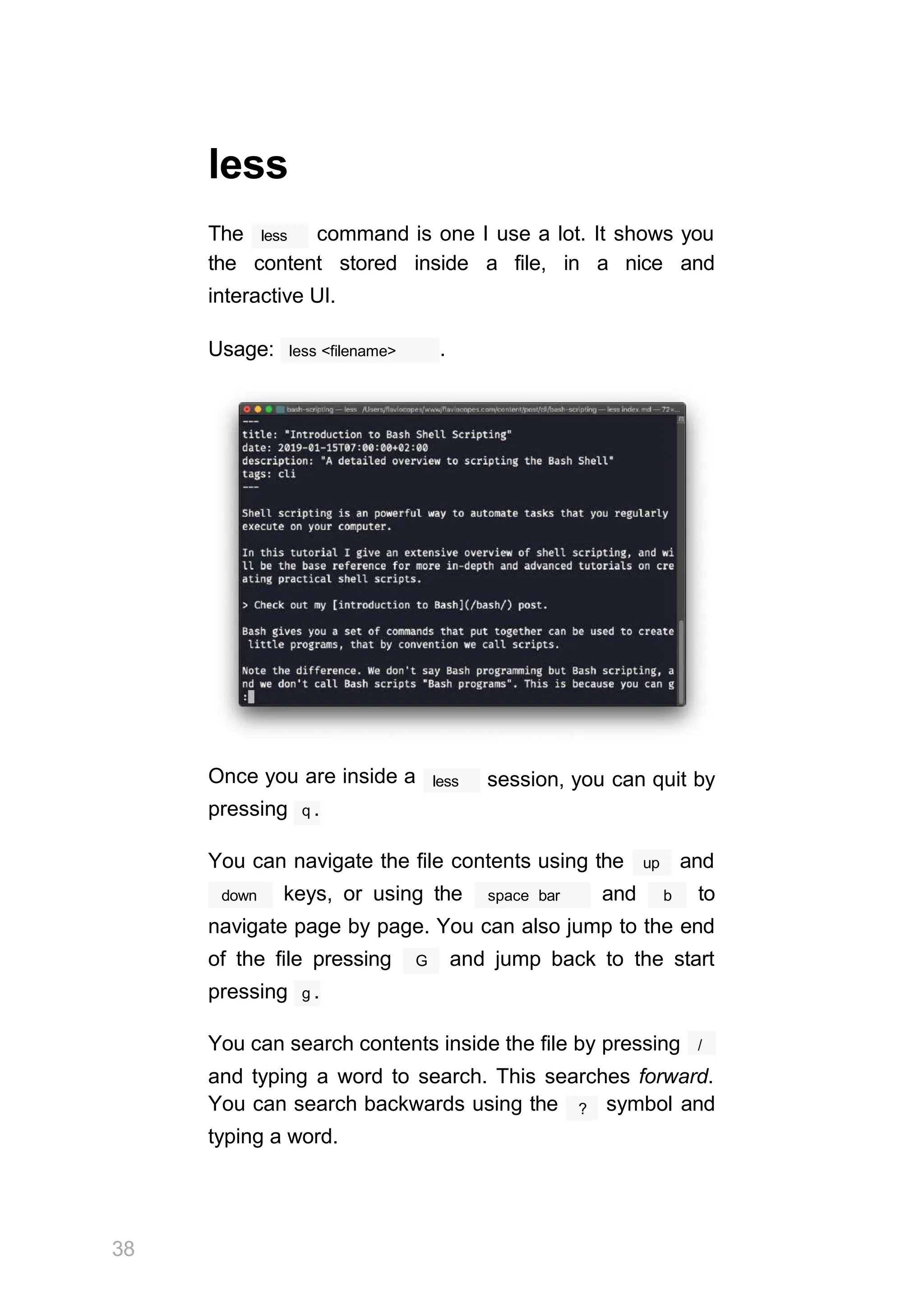
    134 Conclusion Thanks a lotfor reading this book. I hope it will inspire you to know more about Linux and its capabilities. To learn more, check out my blog flaviocopes.com. Send any feedback, errata or opinions at hey@flaviocopes.com