
Using Excel with Cognos BI and TM1
CAFE (COGNOS ANALYSIS FOR EXCEL)
• Presenters Introduction
• Overview – What is CAFE?
• Demo
• Conclusions
• Senturus Overview
• Special Offers
• Additional Resources
• Q&A
Agenda
2Copyright 2015 Senturus, Inc. All Rights Reserved
Introduction: Today’s Presenters
Copyright 2015 Senturus, Inc. All Rights Reserved 3
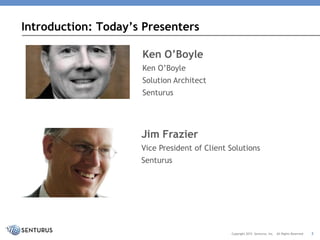
Ken O’Boyle
Ken O’Boyle
Solution Architect
Senturus
Jim Frazier
Vice President of Client Solutions
Senturus
This slide deck is from the CAFE (Cognos Analysis for
Excel): Using Excel with Cognos BI and TM1 recorded
webinar.
To view the FREE recording of the presentation, download
this deck and view Q & A go to:
www.senturus.com/resources/cognos-cafe/
Hear the Recording
4Copyright 2015 Senturus, Inc. All Rights Reserved
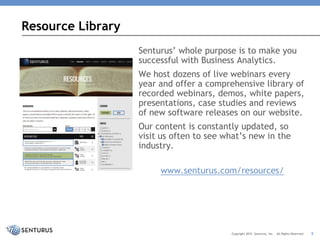
Resource Library
Senturus’ whole purpose is to make you
successful with Business Analytics.
We host dozens of live webinars every
year and offer a comprehensive library of
recorded webinars, demos, white papers,
presentations, case studies and reviews
of new software releases on our website.
Our content is constantly updated, so
visit us often to see what’s new in the
industry.
www.senturus.com/resources/
5Copyright 2015 Senturus, Inc. All Rights Reserved
AUDIENCE POLL QUESTIONS
With which product do you have the most experience?
• Cognos Business Intelligence
• Cognos TM1
• Microsoft Excel
Question #1
7Copyright 2015 Senturus, Inc. All Rights Reserved
What is the status of CAFE in your organization?
• Currently using CAFE
• Considering using CAFE
• No plans to use CAFE
Question #2
8Copyright 2015 Senturus, Inc. All Rights Reserved
OVERVIEW
What is CAFE?
This slide deck is from the CAFE (Cognos Analysis for
Excel): Using Excel with Cognos BI and TM1 recorded
webinar.
To view the FREE recording of the presentation, download
this deck and view Q & A go to:
CAFE Webinar
The Senturus comprehensive library of recorded
webinars, demos, white papers, presentations and case
studies is available on our website:
Senturus
Hear the Recording
10Copyright 2015 Senturus, Inc. All Rights Reserved
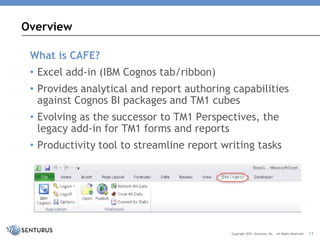
What is CAFE?
• Excel add-in (IBM Cognos tab/ribbon)
• Provides analytical and report authoring capabilities
against Cognos BI packages and TM1 cubes
• Evolving as the successor to TM1 Perspectives, the
legacy add-in for TM1 forms and reports
• Productivity tool to streamline report writing tasks
Overview
11Copyright 2015 Senturus, Inc. All Rights Reserved
Why Use CAFE?
• Excel is the most widely used reporting tool with
estimates of nearly 1 billion users – many reports are
done in Excel; CAFE can make the task more
productive, reliable and accurate
• Leveraging Excel skills can broaden authoring and self-
service capabilities within your organization
• Enables IT/BI groups to focus on high priority, high
impact projects, and delegate some report writing to
business users
• Best of both worlds: Excel ease-of-use, cell-based
calculations and formatting, charting, print precision
combined with refreshable links to governed, system of
record data
Overview
12Copyright 2015 Senturus, Inc. All Rights Reserved
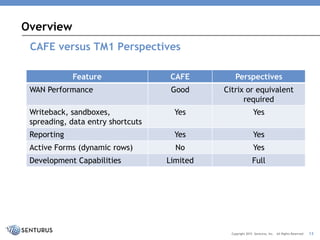
CAFE versus TM1 Perspectives
Overview
13Copyright 2015 Senturus, Inc. All Rights Reserved
Feature CAFE Perspectives
WAN Performance Good Citrix or equivalent
required
Writeback, sandboxes,
spreading, data entry shortcuts
Yes Yes
Reporting Yes Yes
Active Forms (dynamic rows) No Yes
Development Capabilities Limited Full
DEMO
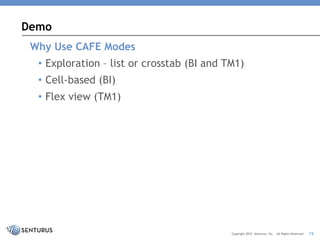
Why Use CAFE Modes
• Exploration – list or crosstab (BI and TM1)
• Cell-based (BI)
• Flex view (TM1)
Demo
15Copyright 2015 Senturus, Inc. All Rights Reserved
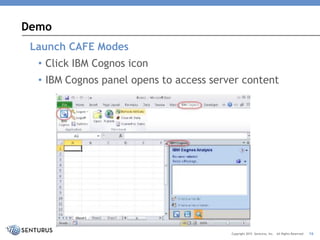
Launch CAFE Modes
• Click IBM Cognos icon
• IBM Cognos panel opens to access server content
Demo
16Copyright 2015 Senturus, Inc. All Rights Reserved
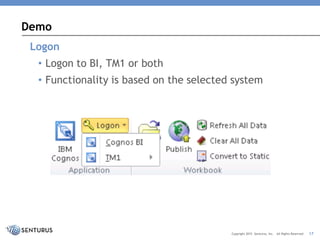
Logon
• Logon to BI, TM1 or both
• Functionality is based on the selected system
Demo
17Copyright 2015 Senturus, Inc. All Rights Reserved
Exploration Overview
• Works with both BI and TM1 data sources
• Behaves like Analysis Studio/TM1 Cube viewer within
Excel
• Limit: one exploration per worksheet/tab
• Each exploration can reference a different data
source within a single Excel workbook
• Governed data can be combined with local, cell-level
calculations, formatting and commentary
• Starting point for other modes
Demo
18Copyright 2015 Senturus, Inc. All Rights Reserved
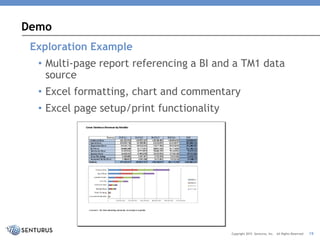
Exploration Example
• Multi-page report referencing a BI and a TM1 data
source
• Excel formatting, chart and commentary
• Excel page setup/print functionality
Demo
19Copyright 2015 Senturus, Inc. All Rights Reserved
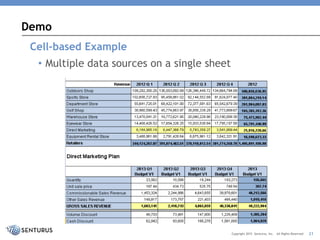
Cell-based Overview
• Works with BI sources only (TM1 can be configured as
a BI source)
• Data from multiple sources can be included on a
single sheet
• Data access implemented with Excel functions
(COGNAME and COGVAL)
• No IBM Cognos toolbar, limited right-mouse menu
Demo
20Copyright 2015 Senturus, Inc. All Rights Reserved
Cell-based Example
• Multiple data sources on a single sheet
Demo
21Copyright 2015 Senturus, Inc. All Rights Reserved
Flex View Overview
• Works with TM1 sources only
• Ability to combine data from multiple cubes/servers
on a single sheet
• Views can be linked to each other to share
parameters
• TM1 functionality includes write back, spreading and
sandboxes
• Excel cell-level calculations, formatting and
commentary
Demo
22Copyright 2015 Senturus, Inc. All Rights Reserved
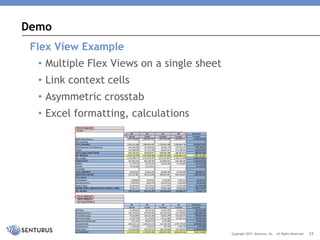
Flex View Example
• Multiple Flex Views on a single sheet
• Link context cells
• Asymmetric crosstab
• Excel formatting, calculations
Demo
23Copyright 2015 Senturus, Inc. All Rights Reserved
CONCLUSIONS
This slide deck is from the CAFE (Cognos Analysis for
Excel): Using Excel with Cognos BI and TM1 recorded
webinar.
To view the FREE recording of the presentation, download
this deck and view Q & A go to:
CAFE Webinar
The Senturus comprehensive library of recorded
webinars, demos, white papers, presentations and case
studies is available on our website:
Senturus
Hear the Recording
25Copyright 2015 Senturus, Inc. All Rights Reserved
CAFE Advantages
• Enables IT to focus on data management and
enterprise wide reporting and delegate some report
writing to business users
• Improves productivity
• Combines governed data with local data,
calculations, formatting and commentary
• Easy to reference multiple data sources in a single
workbook and a single sheet in some cases
• Business users can overcome technically challenging
authoring by leveraging Excel skills
Conclusions
26Copyright 2015 Senturus, Inc. All Rights Reserved
CAFE Advice
• Train CAFE users on BI/TM1 exploration tools –
experience with Excel does not eliminate the need
for Cognos BI or TM1 knowledge
• Develop guidelines within your organization for when
to use CAFE versus Cognos BI for report development
• Leverage CAFE as tool for business users to prototype
and provide specifications for BI report requests
• Do not use CAFE to download large data sets – there
are more efficient ways to move large amounts of
data to the desktop
Conclusions
27Copyright 2015 Senturus, Inc. All Rights Reserved
SENTURUS OVERVIEW
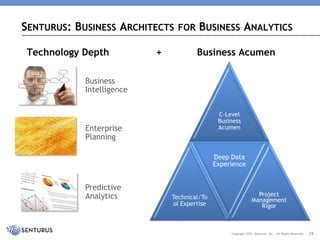
Technology Depth + Business Acumen
SENTURUS: BUSINESS ARCHITECTS FOR BUSINESS ANALYTICS
29Copyright 2015 Senturus, Inc. All Rights Reserved
C-Level
Business
Acumen
Technical/To
ol Expertise
Deep Data
Experience
Project
Management
Rigor
Business
Intelligence
Enterprise
Planning
Predictive
Analytics
900+ CLIENTS, 15 YEARS EXPERIENCE, 2000 PROJECTS
30Copyright 2015 Senturus, Inc. All Rights Reserved
SPECIAL OFFERS
Senturus will provide your business users with a
customized demonstration of CAFE
• We'll address your specific user adoption challenges
and highlight how CAFE can address them
Contact info@senturus.com or 888.601.6010 ext. 85
Free CAFE Workshop
32Copyright 2015 Senturus, Inc. All Rights Reserved
Includes
• CAFE workstation installation and configuration
• Customized documentation of the installation
procedures for enterprise wide deployment
• Development of an initial CAFE workbook
• Publish to Cognos Connection
• Knowledge transfer session
• All for only $1995
For more details and prerequisites contact
info@senturus.com or 888.601.6010 ext. 85
CAFE Quick Start Program
33Copyright 2015 Senturus, Inc. All Rights Reserved
Senturus is offer the best deals if you’re planning on
attending IBM Insight 2015. These offers are only
available through September 18:
• Save $400 on registration: use code SC15SENTURUS
– You’ll receive an additional $100 off of the IBM Insight Early
Bird registration rate for a total saving of $400
• Receive a $200 Senturus training credit – good towards any
of our live, instructor-led Cognos and Tableau online
training classes
We offer hundreds of classes annually: view our training
schedule
LAST CHANCE for IBM Insight Discounts – Register by
September 18 to Save $400
34Copyright 2015 Senturus, Inc. All Rights Reserved
ADDITIONAL RESOURCES
Resources at Senturus
36Copyright 2015 Senturus, Inc. All Rights Reserved
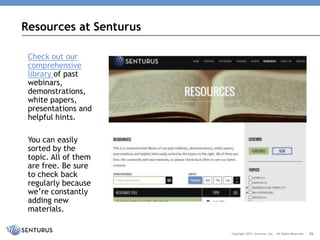
Check out our
comprehensive
library of past
webinars,
demonstrations,
white papers,
presentations and
helpful hints.
You can easily
sorted by the
topic. All of them
are free. Be sure
to check back
regularly because
we’re constantly
adding new
materials.
Upcoming Events
37Copyright 2015 Senturus, Inc. All Rights Reserved
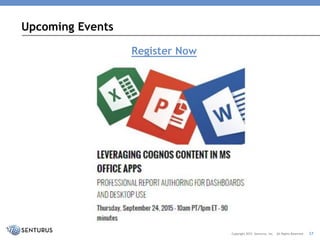
Register Now
Q & A
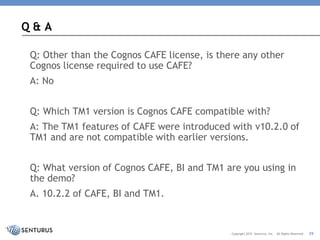
Q: Other than the Cognos CAFE license, is there any other
Cognos license required to use CAFE?
A: No
Q: Which TM1 version is Cognos CAFE compatible with?
A: The TM1 features of CAFE were introduced with v10.2.0 of
TM1 and are not compatible with earlier versions.
Q: What version of Cognos CAFE, BI and TM1 are you using in
the demo?
A. 10.2.2 of CAFE, BI and TM1.
Q & A
39Copyright 2015 Senturus, Inc. All Rights Reserved
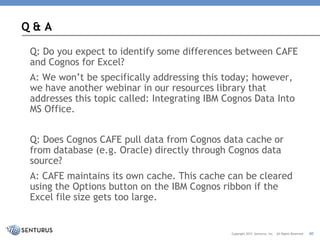
Q: Do you expect to identify some differences between CAFE
and Cognos for Excel?
A: We won’t be specifically addressing this today; however,
we have another webinar in our resources library that
addresses this topic called: Integrating IBM Cognos Data Into
MS Office.
Q: Does Cognos CAFE pull data from Cognos data cache or
from database (e.g. Oracle) directly through Cognos data
source?
A: CAFE maintains its own cache. This cache can be cleared
using the Options button on the IBM Cognos ribbon if the
Excel file size gets too large.
Q & A
40Copyright 2015 Senturus, Inc. All Rights Reserved
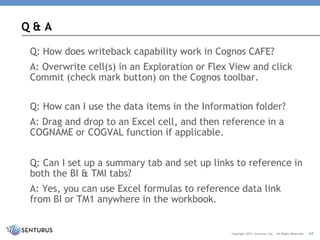
Q: How does writeback capability work in Cognos CAFE?
A: Overwrite cell(s) in an Exploration or Flex View and click
Commit (check mark button) on the Cognos toolbar.
Q: How can I use the data items in the Information folder?
A: Drag and drop to an Excel cell, and then reference in a
COGNAME or COGVAL function if applicable.
Q: Can I set up a summary tab and set up links to reference in
both the BI & TMI tabs?
A: Yes, you can use Excel formulas to reference data link
from BI or TM1 anywhere in the workbook.
Q & A
41Copyright 2015 Senturus, Inc. All Rights Reserved
Q: Does the security in TM1 carry over to Cognos CAFE?
A: Yes, the security carries over when querying or refreshing
data security; however, this feature is available based on the
permissions assigned to the account used to logon.
Q: I have a relational database in BI; can this do a simple list?
A. Yes, use the ‘Create a new list’ option instead of a
crosstab.
Q: Can Cognos CAFE open with both relationally modeled
sources and OLAP sources such as cubes?
A. Yes, CAFE can be used with relationally modeled sources.
Q & A
42Copyright 2015 Senturus, Inc. All Rights Reserved
Q: Is there a shortcut key for refreshing data and if not, can I
add a button to the cell area to run a macro to refresh?
A. The Refresh button is on the toolbar and ribbon.
Q: How does Cognos CAFE deal with Excel updates? For
example, reports written using VBA have to be updated with
each new release of Excel and will CAFE reports have to be
updated as well?
A: No updates need to be made to CAFE reports for Excel
updates. CAFE is fully supported for Excel 2007, 2010, 2013
and future fix packs for each. For Excel 2016, you will likely
need to upgrade to a new release of CAFE.
Q & A
43Copyright 2015 Senturus, Inc. All Rights Reserved
Q: If I create a sheet using a BI source, can I save it as an
.xlsx document and retrieve it as an independent spreadsheet
without reconnecting with the Cognos BI package?
A. Yes, data saved in .xlsx can be viewed without
reconnecting with the Cognos BI package or by an Excel user
without CAFE.
Q: When connecting to a BI source, how do I apply data
filters?
A. For a List Report use the Filter button on the Cognos
toolbar. For a crosstab, use the Context area and right-click
on the Edit Set.
Q & A
44Copyright 2015 Senturus, Inc. All Rights Reserved
Q: How is a Sandbox in the flex mode used?
A: Sandboxes are available in TM1 to enable you to evaluate
different scenarios (what-if analysis) for your slice of data.
Q: How can I access the attribute of a dimension in TM1?
A. You can right-click a dimension hierarchy and select Search
Metadata; otherwise there is no access to TM1 attributes in
the current release.
Q: Do I have to hardcode Excel workbooks before I send them
to a user without access to BI or TM1?
A. No, but there is an option to convert linked data static
values if you have other reasons to do so.
Q & A
45Copyright 2015 Senturus, Inc. All Rights Reserved
Q: How do I create a single sign-on for TM1 or BI?
A. On the Cognos ribbon, click Options and under
Authentication there is a checkbox to enable single sign-on.
Q: Can I use predefined standalone filters against relational
models?
A. When connecting to a relational BI source a Filters or
Filters and Calculations folder appears, so if filters are
present in the source, they would be available in CAFE.
Q: Is Cognos CAFE primarily for crosstabs?
A. In our opinion, it is, but CAFE does have List Report
capabilities similar to Query Studio, which can be combined
with local Excel functionality.
Q & A
46Copyright 2015 Senturus, Inc. All Rights Reserved
Q: Where are Flex View saves actually stored: on the TM1
server or locally in the user's Cognos CAFE configuration?
A. They are stored locally in the Excel file.
Q: How does write back work in Cognos CAFE?
A. You can overwrite cell values and use the Commit button
on the Cognos toolbar.
Q: Where can I open previous Flex Views in the tree?
A. If you have a TM1 source selected, there is a Current Flex
Views folder that appears at the bottom that will expand to
show Flex Views in the current workbook.
Q & A
47Copyright 2015 Senturus, Inc. All Rights Reserved
Q: Can I drill down or expand/burst the details from the
"exploration" or "cell-based" data into an Excel workbook?
A. In Exploration mode, double-click to drill down or up. You
can also right click on the IBM Cognos Analysis menu to access
the information. There is no bursting capability.
Q: Can I use subsets in Flex View?
A. Yes, if you expand a dimension for a TM1 source, you will
see the subsets.
Q: Why does Cognos CAFE not support dynamic rows?
A. TM1 Active Forms have not been added to the feature set,
but are likely on the roadmap for a future release.
Q & A
48Copyright 2015 Senturus, Inc. All Rights Reserved
Q: Can you provide guidelines for when to use or not use Cognos CAFE?
A. The following are some criteria that might factor into guidelines:
• Frequency – one-time analyses and reports that are rarely run are
probably not worth developing with Cognos BI
• Many reports with multiple data sources or complex
layout/formatting/calculations may be too costly to justify doing
in Cognos BI
• Requirements related to SOX, audits and regulations might exclude
certain reports from being done in Excel
• Reports supporting recurring business processes or reaching a
broad audience are better suited for Cognos BI
The main point is that Excel has maintenance challenges, is error prone
and can often fall outside of prudent management and control. So the
intent of these guidelines is to inform you of situations where self-
service is okay versus when report requests should go through IT.
Q & A
49Copyright 2015 Senturus, Inc. All Rights Reserved
Q: What version of Excel does Cognos CAFE work with?
A. CAFE 10.2.x works fully supported for Excel 2007, 2010,
2013 and future fix packs for each.
Q: When using integrated Cognos BI auth I get a writeback
error. It disappears when switching to auth method 1. Is this a
common error?
A. In the webinar demo environment, the TM1 servers are
configured with security mode 5 (CAM integration), but not
single sign-on. We have not encountered any errors with
writeback.
Q & A
50Copyright 2015 Senturus, Inc. All Rights Reserved
THANK YOU!
www.senturus.com
888.601.6010
info@senturus.com
Copyright 2015 by Senturus, Inc.
This entire presentation is copyrighted and may not be
reused or distributed without the written consent of
Senturus, Inc.

CAFE (Cognos Analysis for Excel): Using Excel with Cognos BI and TM1

  • 1.
    Using Excel withCognos BI and TM1 CAFE (COGNOS ANALYSIS FOR EXCEL)
  • 2.
    • Presenters Introduction •Overview – What is CAFE? • Demo • Conclusions • Senturus Overview • Special Offers • Additional Resources • Q&A Agenda 2Copyright 2015 Senturus, Inc. All Rights Reserved
  • 3.
    Introduction: Today’s Presenters Copyright2015 Senturus, Inc. All Rights Reserved 3 Ken O’Boyle Ken O’Boyle Solution Architect Senturus Jim Frazier Vice President of Client Solutions Senturus
  • 4.
    This slide deckis from the CAFE (Cognos Analysis for Excel): Using Excel with Cognos BI and TM1 recorded webinar. To view the FREE recording of the presentation, download this deck and view Q & A go to: www.senturus.com/resources/cognos-cafe/ Hear the Recording 4Copyright 2015 Senturus, Inc. All Rights Reserved
  • 5.
    Resource Library Senturus’ wholepurpose is to make you successful with Business Analytics. We host dozens of live webinars every year and offer a comprehensive library of recorded webinars, demos, white papers, presentations, case studies and reviews of new software releases on our website. Our content is constantly updated, so visit us often to see what’s new in the industry. www.senturus.com/resources/ 5Copyright 2015 Senturus, Inc. All Rights Reserved
  • 6.
  • 7.
    With which productdo you have the most experience? • Cognos Business Intelligence • Cognos TM1 • Microsoft Excel Question #1 7Copyright 2015 Senturus, Inc. All Rights Reserved
  • 8.
    What is thestatus of CAFE in your organization? • Currently using CAFE • Considering using CAFE • No plans to use CAFE Question #2 8Copyright 2015 Senturus, Inc. All Rights Reserved
  • 9.
  • 10.
    This slide deckis from the CAFE (Cognos Analysis for Excel): Using Excel with Cognos BI and TM1 recorded webinar. To view the FREE recording of the presentation, download this deck and view Q & A go to: CAFE Webinar The Senturus comprehensive library of recorded webinars, demos, white papers, presentations and case studies is available on our website: Senturus Hear the Recording 10Copyright 2015 Senturus, Inc. All Rights Reserved
  • 11.
    What is CAFE? •Excel add-in (IBM Cognos tab/ribbon) • Provides analytical and report authoring capabilities against Cognos BI packages and TM1 cubes • Evolving as the successor to TM1 Perspectives, the legacy add-in for TM1 forms and reports • Productivity tool to streamline report writing tasks Overview 11Copyright 2015 Senturus, Inc. All Rights Reserved
  • 12.
    Why Use CAFE? •Excel is the most widely used reporting tool with estimates of nearly 1 billion users – many reports are done in Excel; CAFE can make the task more productive, reliable and accurate • Leveraging Excel skills can broaden authoring and self- service capabilities within your organization • Enables IT/BI groups to focus on high priority, high impact projects, and delegate some report writing to business users • Best of both worlds: Excel ease-of-use, cell-based calculations and formatting, charting, print precision combined with refreshable links to governed, system of record data Overview 12Copyright 2015 Senturus, Inc. All Rights Reserved
  • 13.
    CAFE versus TM1Perspectives Overview 13Copyright 2015 Senturus, Inc. All Rights Reserved Feature CAFE Perspectives WAN Performance Good Citrix or equivalent required Writeback, sandboxes, spreading, data entry shortcuts Yes Yes Reporting Yes Yes Active Forms (dynamic rows) No Yes Development Capabilities Limited Full
  • 14.
  • 15.
    Why Use CAFEModes • Exploration – list or crosstab (BI and TM1) • Cell-based (BI) • Flex view (TM1) Demo 15Copyright 2015 Senturus, Inc. All Rights Reserved
  • 16.
    Launch CAFE Modes •Click IBM Cognos icon • IBM Cognos panel opens to access server content Demo 16Copyright 2015 Senturus, Inc. All Rights Reserved
  • 17.
    Logon • Logon toBI, TM1 or both • Functionality is based on the selected system Demo 17Copyright 2015 Senturus, Inc. All Rights Reserved
  • 18.
    Exploration Overview • Workswith both BI and TM1 data sources • Behaves like Analysis Studio/TM1 Cube viewer within Excel • Limit: one exploration per worksheet/tab • Each exploration can reference a different data source within a single Excel workbook • Governed data can be combined with local, cell-level calculations, formatting and commentary • Starting point for other modes Demo 18Copyright 2015 Senturus, Inc. All Rights Reserved
  • 19.
    Exploration Example • Multi-pagereport referencing a BI and a TM1 data source • Excel formatting, chart and commentary • Excel page setup/print functionality Demo 19Copyright 2015 Senturus, Inc. All Rights Reserved
  • 20.
    Cell-based Overview • Workswith BI sources only (TM1 can be configured as a BI source) • Data from multiple sources can be included on a single sheet • Data access implemented with Excel functions (COGNAME and COGVAL) • No IBM Cognos toolbar, limited right-mouse menu Demo 20Copyright 2015 Senturus, Inc. All Rights Reserved
  • 21.
    Cell-based Example • Multipledata sources on a single sheet Demo 21Copyright 2015 Senturus, Inc. All Rights Reserved
  • 22.
    Flex View Overview •Works with TM1 sources only • Ability to combine data from multiple cubes/servers on a single sheet • Views can be linked to each other to share parameters • TM1 functionality includes write back, spreading and sandboxes • Excel cell-level calculations, formatting and commentary Demo 22Copyright 2015 Senturus, Inc. All Rights Reserved
  • 23.
    Flex View Example •Multiple Flex Views on a single sheet • Link context cells • Asymmetric crosstab • Excel formatting, calculations Demo 23Copyright 2015 Senturus, Inc. All Rights Reserved
  • 24.
  • 25.
    This slide deckis from the CAFE (Cognos Analysis for Excel): Using Excel with Cognos BI and TM1 recorded webinar. To view the FREE recording of the presentation, download this deck and view Q & A go to: CAFE Webinar The Senturus comprehensive library of recorded webinars, demos, white papers, presentations and case studies is available on our website: Senturus Hear the Recording 25Copyright 2015 Senturus, Inc. All Rights Reserved
  • 26.
    CAFE Advantages • EnablesIT to focus on data management and enterprise wide reporting and delegate some report writing to business users • Improves productivity • Combines governed data with local data, calculations, formatting and commentary • Easy to reference multiple data sources in a single workbook and a single sheet in some cases • Business users can overcome technically challenging authoring by leveraging Excel skills Conclusions 26Copyright 2015 Senturus, Inc. All Rights Reserved
  • 27.
    CAFE Advice • TrainCAFE users on BI/TM1 exploration tools – experience with Excel does not eliminate the need for Cognos BI or TM1 knowledge • Develop guidelines within your organization for when to use CAFE versus Cognos BI for report development • Leverage CAFE as tool for business users to prototype and provide specifications for BI report requests • Do not use CAFE to download large data sets – there are more efficient ways to move large amounts of data to the desktop Conclusions 27Copyright 2015 Senturus, Inc. All Rights Reserved
  • 28.
  • 29.
    Technology Depth +Business Acumen SENTURUS: BUSINESS ARCHITECTS FOR BUSINESS ANALYTICS 29Copyright 2015 Senturus, Inc. All Rights Reserved C-Level Business Acumen Technical/To ol Expertise Deep Data Experience Project Management Rigor Business Intelligence Enterprise Planning Predictive Analytics
  • 30.
    900+ CLIENTS, 15YEARS EXPERIENCE, 2000 PROJECTS 30Copyright 2015 Senturus, Inc. All Rights Reserved
  • 31.
  • 32.
    Senturus will provideyour business users with a customized demonstration of CAFE • We'll address your specific user adoption challenges and highlight how CAFE can address them Contact info@senturus.com or 888.601.6010 ext. 85 Free CAFE Workshop 32Copyright 2015 Senturus, Inc. All Rights Reserved
  • 33.
    Includes • CAFE workstationinstallation and configuration • Customized documentation of the installation procedures for enterprise wide deployment • Development of an initial CAFE workbook • Publish to Cognos Connection • Knowledge transfer session • All for only $1995 For more details and prerequisites contact info@senturus.com or 888.601.6010 ext. 85 CAFE Quick Start Program 33Copyright 2015 Senturus, Inc. All Rights Reserved
  • 34.
    Senturus is offerthe best deals if you’re planning on attending IBM Insight 2015. These offers are only available through September 18: • Save $400 on registration: use code SC15SENTURUS – You’ll receive an additional $100 off of the IBM Insight Early Bird registration rate for a total saving of $400 • Receive a $200 Senturus training credit – good towards any of our live, instructor-led Cognos and Tableau online training classes We offer hundreds of classes annually: view our training schedule LAST CHANCE for IBM Insight Discounts – Register by September 18 to Save $400 34Copyright 2015 Senturus, Inc. All Rights Reserved
  • 35.
  • 36.
    Resources at Senturus 36Copyright2015 Senturus, Inc. All Rights Reserved Check out our comprehensive library of past webinars, demonstrations, white papers, presentations and helpful hints. You can easily sorted by the topic. All of them are free. Be sure to check back regularly because we’re constantly adding new materials.
  • 37.
    Upcoming Events 37Copyright 2015Senturus, Inc. All Rights Reserved Register Now
  • 38.
  • 39.
    Q: Other thanthe Cognos CAFE license, is there any other Cognos license required to use CAFE? A: No Q: Which TM1 version is Cognos CAFE compatible with? A: The TM1 features of CAFE were introduced with v10.2.0 of TM1 and are not compatible with earlier versions. Q: What version of Cognos CAFE, BI and TM1 are you using in the demo? A. 10.2.2 of CAFE, BI and TM1. Q & A 39Copyright 2015 Senturus, Inc. All Rights Reserved
  • 40.
    Q: Do youexpect to identify some differences between CAFE and Cognos for Excel? A: We won’t be specifically addressing this today; however, we have another webinar in our resources library that addresses this topic called: Integrating IBM Cognos Data Into MS Office. Q: Does Cognos CAFE pull data from Cognos data cache or from database (e.g. Oracle) directly through Cognos data source? A: CAFE maintains its own cache. This cache can be cleared using the Options button on the IBM Cognos ribbon if the Excel file size gets too large. Q & A 40Copyright 2015 Senturus, Inc. All Rights Reserved
  • 41.
    Q: How doeswriteback capability work in Cognos CAFE? A: Overwrite cell(s) in an Exploration or Flex View and click Commit (check mark button) on the Cognos toolbar. Q: How can I use the data items in the Information folder? A: Drag and drop to an Excel cell, and then reference in a COGNAME or COGVAL function if applicable. Q: Can I set up a summary tab and set up links to reference in both the BI & TMI tabs? A: Yes, you can use Excel formulas to reference data link from BI or TM1 anywhere in the workbook. Q & A 41Copyright 2015 Senturus, Inc. All Rights Reserved
  • 42.
    Q: Does thesecurity in TM1 carry over to Cognos CAFE? A: Yes, the security carries over when querying or refreshing data security; however, this feature is available based on the permissions assigned to the account used to logon. Q: I have a relational database in BI; can this do a simple list? A. Yes, use the ‘Create a new list’ option instead of a crosstab. Q: Can Cognos CAFE open with both relationally modeled sources and OLAP sources such as cubes? A. Yes, CAFE can be used with relationally modeled sources. Q & A 42Copyright 2015 Senturus, Inc. All Rights Reserved
  • 43.
    Q: Is therea shortcut key for refreshing data and if not, can I add a button to the cell area to run a macro to refresh? A. The Refresh button is on the toolbar and ribbon. Q: How does Cognos CAFE deal with Excel updates? For example, reports written using VBA have to be updated with each new release of Excel and will CAFE reports have to be updated as well? A: No updates need to be made to CAFE reports for Excel updates. CAFE is fully supported for Excel 2007, 2010, 2013 and future fix packs for each. For Excel 2016, you will likely need to upgrade to a new release of CAFE. Q & A 43Copyright 2015 Senturus, Inc. All Rights Reserved
  • 44.
    Q: If Icreate a sheet using a BI source, can I save it as an .xlsx document and retrieve it as an independent spreadsheet without reconnecting with the Cognos BI package? A. Yes, data saved in .xlsx can be viewed without reconnecting with the Cognos BI package or by an Excel user without CAFE. Q: When connecting to a BI source, how do I apply data filters? A. For a List Report use the Filter button on the Cognos toolbar. For a crosstab, use the Context area and right-click on the Edit Set. Q & A 44Copyright 2015 Senturus, Inc. All Rights Reserved
  • 45.
    Q: How isa Sandbox in the flex mode used? A: Sandboxes are available in TM1 to enable you to evaluate different scenarios (what-if analysis) for your slice of data. Q: How can I access the attribute of a dimension in TM1? A. You can right-click a dimension hierarchy and select Search Metadata; otherwise there is no access to TM1 attributes in the current release. Q: Do I have to hardcode Excel workbooks before I send them to a user without access to BI or TM1? A. No, but there is an option to convert linked data static values if you have other reasons to do so. Q & A 45Copyright 2015 Senturus, Inc. All Rights Reserved
  • 46.
    Q: How doI create a single sign-on for TM1 or BI? A. On the Cognos ribbon, click Options and under Authentication there is a checkbox to enable single sign-on. Q: Can I use predefined standalone filters against relational models? A. When connecting to a relational BI source a Filters or Filters and Calculations folder appears, so if filters are present in the source, they would be available in CAFE. Q: Is Cognos CAFE primarily for crosstabs? A. In our opinion, it is, but CAFE does have List Report capabilities similar to Query Studio, which can be combined with local Excel functionality. Q & A 46Copyright 2015 Senturus, Inc. All Rights Reserved
  • 47.
    Q: Where areFlex View saves actually stored: on the TM1 server or locally in the user's Cognos CAFE configuration? A. They are stored locally in the Excel file. Q: How does write back work in Cognos CAFE? A. You can overwrite cell values and use the Commit button on the Cognos toolbar. Q: Where can I open previous Flex Views in the tree? A. If you have a TM1 source selected, there is a Current Flex Views folder that appears at the bottom that will expand to show Flex Views in the current workbook. Q & A 47Copyright 2015 Senturus, Inc. All Rights Reserved
  • 48.
    Q: Can Idrill down or expand/burst the details from the "exploration" or "cell-based" data into an Excel workbook? A. In Exploration mode, double-click to drill down or up. You can also right click on the IBM Cognos Analysis menu to access the information. There is no bursting capability. Q: Can I use subsets in Flex View? A. Yes, if you expand a dimension for a TM1 source, you will see the subsets. Q: Why does Cognos CAFE not support dynamic rows? A. TM1 Active Forms have not been added to the feature set, but are likely on the roadmap for a future release. Q & A 48Copyright 2015 Senturus, Inc. All Rights Reserved
  • 49.
    Q: Can youprovide guidelines for when to use or not use Cognos CAFE? A. The following are some criteria that might factor into guidelines: • Frequency – one-time analyses and reports that are rarely run are probably not worth developing with Cognos BI • Many reports with multiple data sources or complex layout/formatting/calculations may be too costly to justify doing in Cognos BI • Requirements related to SOX, audits and regulations might exclude certain reports from being done in Excel • Reports supporting recurring business processes or reaching a broad audience are better suited for Cognos BI The main point is that Excel has maintenance challenges, is error prone and can often fall outside of prudent management and control. So the intent of these guidelines is to inform you of situations where self- service is okay versus when report requests should go through IT. Q & A 49Copyright 2015 Senturus, Inc. All Rights Reserved
  • 50.
    Q: What versionof Excel does Cognos CAFE work with? A. CAFE 10.2.x works fully supported for Excel 2007, 2010, 2013 and future fix packs for each. Q: When using integrated Cognos BI auth I get a writeback error. It disappears when switching to auth method 1. Is this a common error? A. In the webinar demo environment, the TM1 servers are configured with security mode 5 (CAM integration), but not single sign-on. We have not encountered any errors with writeback. Q & A 50Copyright 2015 Senturus, Inc. All Rights Reserved
  • 51.
    THANK YOU! www.senturus.com 888.601.6010 info@senturus.com Copyright 2015by Senturus, Inc. This entire presentation is copyrighted and may not be reused or distributed without the written consent of Senturus, Inc.