1
April 5, 2019
Brightspace Rubrics:
Everything you always wanted to know,
but were too afraid to ask
Suzanne Schlangen, Kim Vossen, Karen Wenz
Minnesota State system office
2
BRIGHTSPACE RUBRICS
Essence of a Rubric
1. Provides students with expectations and criteria upon
which they will be evaluated
2. Provides consistency in teacher assessments by stating
criteria and evaluating student performance uniformly via
rubriclevels
3. Fosters student reflection and self-evaluation
4. Saves time grading by connecting to grade items and
setting up initial feedback
3
Holistic Rubric
• 1-dimensional
• Assess overall achievement
• Scoring: Percentage or Text Only
• Multiple levels, but single criteria (row)
Analytic Rubric
• 2-dimensional
• Assess with different criteria
• Scoring: Points, Custom Points, or Text Only
• Multiple levels and multiple criteria (rows)
BRIGHTSPACE RUBRICS
Brightspace Rubrics Terminology
4
Creating a rubric: Levels & Criteria
• Levels = Grade Levels
(i.e. A,B,C,D)
• Score = Points
• Criteria = Categories of an
assignment
• Criteria Description = How a
corresponding level matches
the criteria
• Initial Feedback = Feedback
automatically set for the
selected level and criteria
BRIGHTSPACE RUBRICS
5
BRIGHTSPACE RUBRICS
Initial Feedback
Add Feedback to Save Time Grading
6
Rubric Statuses and Associations
BRIGHTSPACE RUBRICS
Is it Possible to: Draft
(status)
Published
(status)
Archived
(status)
Locked Linked
Edit Properties Yes Yes No* No* Yes
Edit Levels and
Criteria
Yes Yes Yes No Yes
Set Status Yes Yes Yes Yes Yes
Copy Yes Yes Yes Yes Yes
Delete Yes Yes Yes No No
Associate rubric with
learning activity (e.g.
Discussion,
Assignment)
No Yes No Yes Yes
* Note: The rubric's Name, Level, Criteria, and Description cannot be edited, however, the Options
can be edited.
A rubric becomes linked when it is associated with an assessment item or learning activity.
A rubric becomes locked when it is used to grade an assessment item or learning activity.
7
CONNECTING RUBRICS TO
ASSESSMENTS
How to associate rubrics with assessment activities
BRIGHTSPACE RUBRICS
8
Tool Item Where Knowledge Article #
Assignments Folder Properties 1381
Competencies Objective Edit Structure 1100
Discussions Topic Assessment 875
ePortfolio Various Items Attach to item Rubrics and ePortfolio
Grades Item Properties 901
BRIGHTSPACE RUBRICS
How to Add Rubrics to Assessment Items
9
Why can’t I add a rubric to an assessment item?
• Deactivated course tools
• Rubric status
• Rubric associations
BRIGHTSPACE RUBRICS
Rubric Troubleshooting
Why can't I add a rubric to an assessment item? View Knowledge Article #1273 for help.
10
Competencies tool is turned off
(Course Admin > Tools > Status)
Rubric is Draft or Archived
(Rubrics Tool > Rubric > Status)
Comps “Associations” is unchecked
(Rubrics > Edit Rubric > Options)
BRIGHTSPACE RUBRICS
Why can’t I add a rubric?
11
Rubrics link in Discussions
(View in Reading View only)
Rubric grid in Assignments
(View rubric prior to submitting assignment)
BRIGHTSPACE RUBRICS
How Students View Rubrics
12
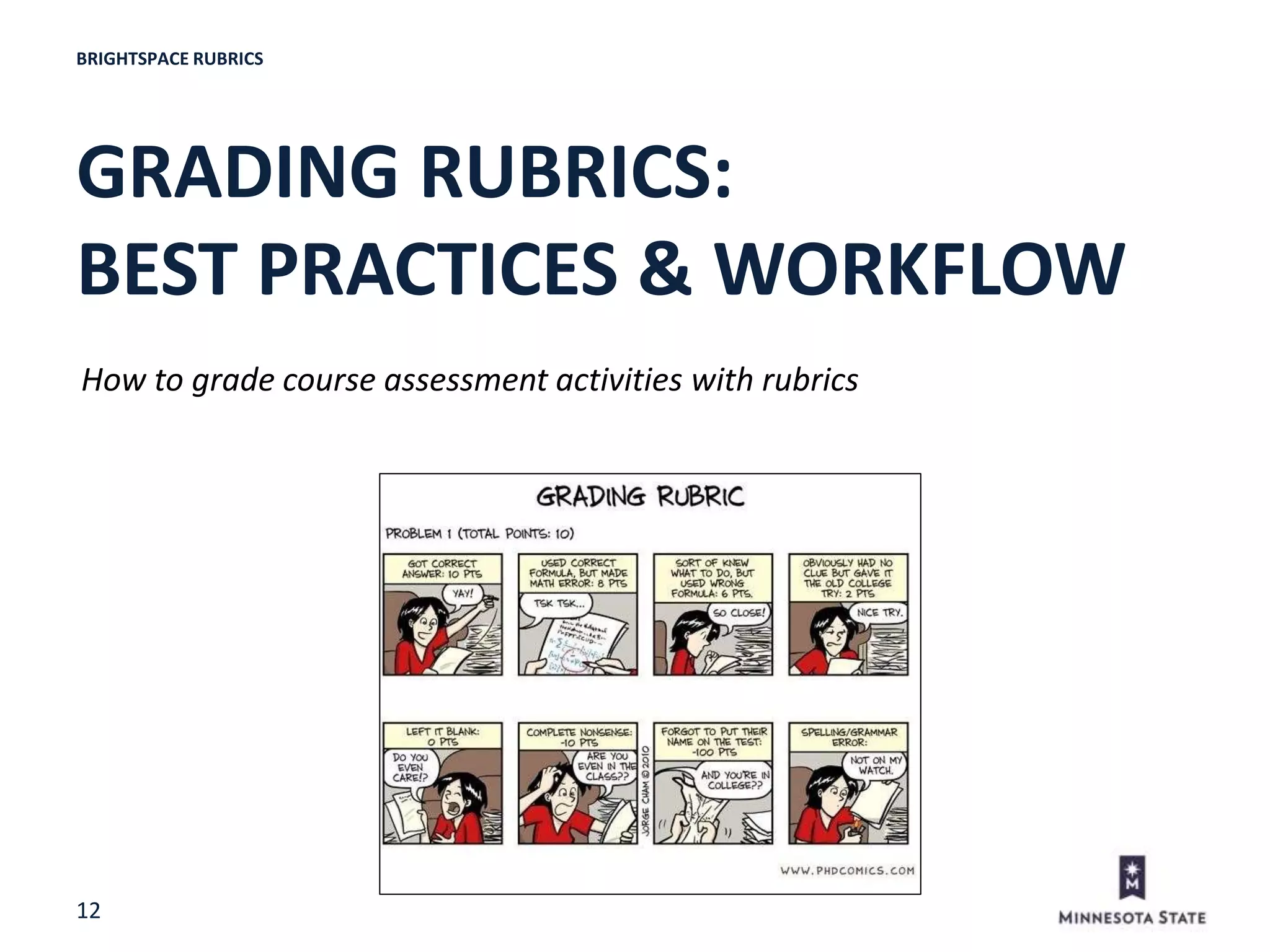
GRADING RUBRICS:
BEST PRACTICES & WORKFLOW
How to grade course assessment activities with rubrics
BRIGHTSPACE RUBRICS
13
• View submission and rubric from same page
• Rubric icon in Evaluation panel
• Graded rubric transfers directly to gradebook
• Updated Grading Experience – Rubric score (not feedback) transfers to
assignment score
BRIGHTSPACE RUBRICS
Assignments - Assess Rubric
14
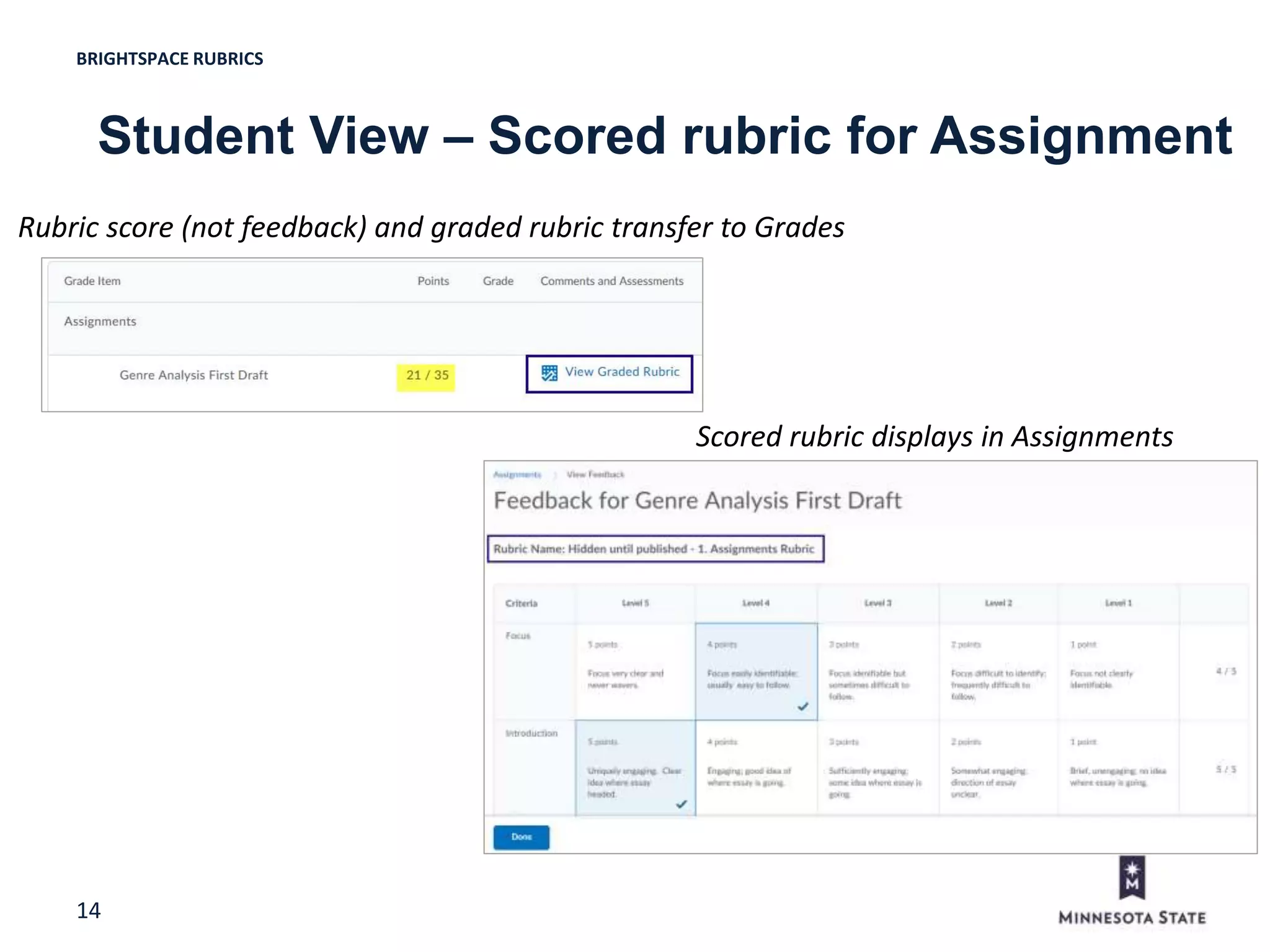
Student View – Scored rubric for Assignment
BRIGHTSPACE RUBRICS
Rubric score (not feedback) and graded rubric transfer to Grades
Scored rubric displays in Assignments
15
BRIGHTSPACE RUBRICS
• View submission and score rubric from same page
• Graded rubric automatically transfers to gradebook
• Rubric score/feedback do not transfer to discussion score/feedback
Discussions – Assess Rubric
16
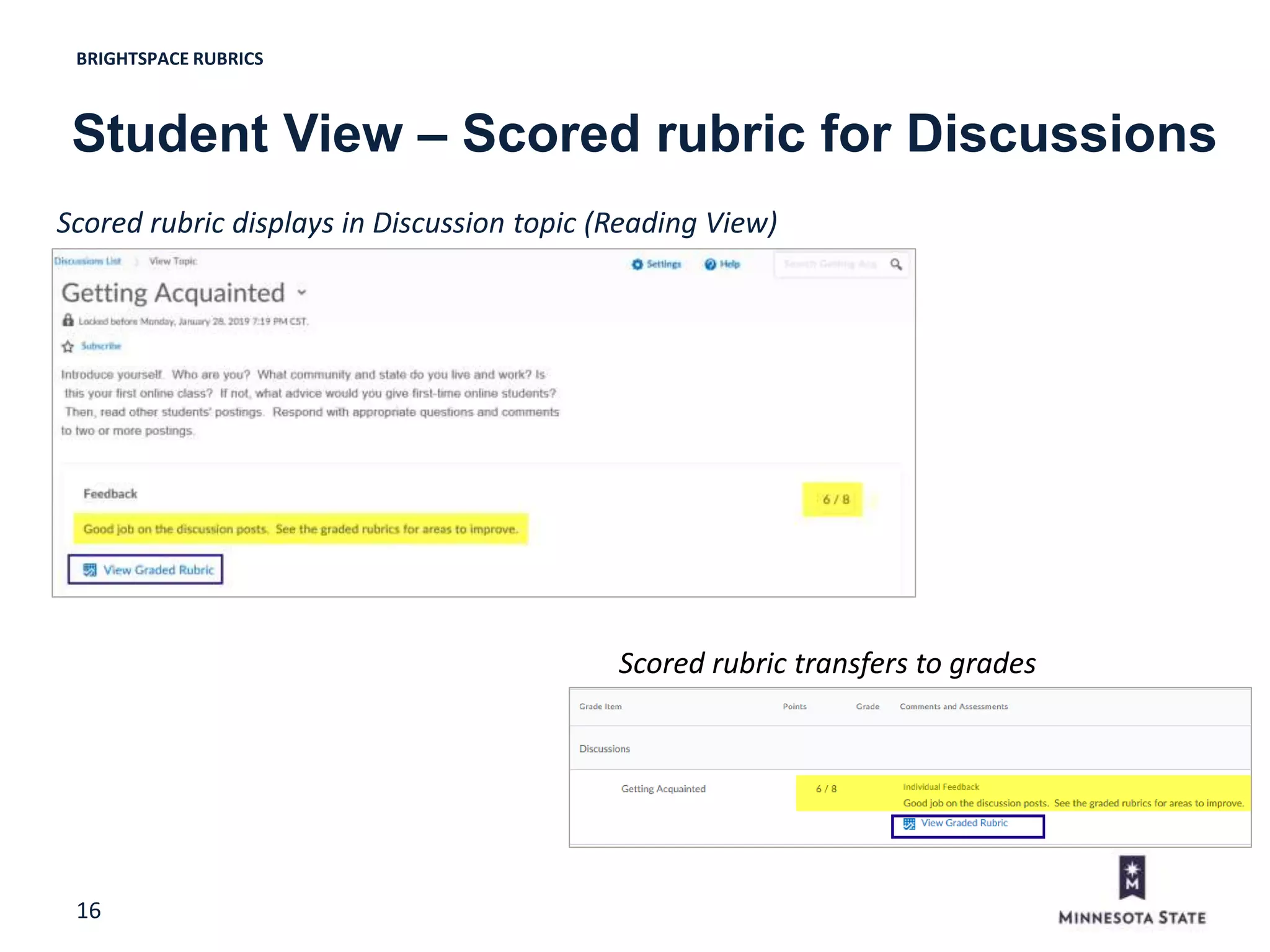
Scored rubric displays in Discussion topic (Reading View)
BRIGHTSPACE RUBRICS
Student View – Scored rubric for Discussions
Scored rubric transfers to grades
17
BRIGHTSPACE RUBRICS
• View submission and score rubric from same page
• Rubric score (not feedback) transfers to grade item
• Graded rubric automatically transfers to gradebook
Grade Item – Assess Rubric
Grade item’s score and graded rubric visible to students
18
• Assignments: Assess rubric from Assignments
• Discussions: Assess rubric from Discussions
• Grades: Assess rubric not associated with course assessment
Tool Assess
from tool
screen
Assess from
grade item
Does rubric score and/or
feedback transfer to tool?
Student can
view scored
rubric
Graded rubric
transfers to
gradebook
Assignments Dialog
window
from Rubric
icon in
Evaluate
section
Two icons: students with
submission (assignment
icon) vs.
students without
submission (rubric icon)
Yes – rubric score/feedback
transfer to assignment (classic
grading experience)
Yes – rubric score (but not
feedback) transfer to assignment
(updated grading experience)
Yes – On an
assignment’s view
feedback screen
Yes – upon clicking
Publish for a student
Discussions Pop-up
window
from Assess
Topic or
Assess
Student
Two icons:
students with posts
(discussion icon) vs.
students without posts
(rubric icon)
No – neither transfer*
*Rubric score transfers to
discussion score only if accessing
overall, not individual posts
(note: student may see partially
graded rubric as you grade it)
Yes – Reading
View only on View
Topic page
Yes – upon clicking
Publish for a student
Grades Pop-up
window in
grade item
One rubric icon for each
student
Yes – score transfers only Yes – View graded
rubric link
Yes – upon clicking Save
for the grade item.
BRIGHTSPACE RUBRICS
Best Practices – Summary
19
Resources
Minnesota State Resources:
• D2L IMS site (https://mnscu.sharepoint.com/sites/IMS)
• D2L Support site (https://mnscu.sharepoint.com/sites/D2Lsupport)
– Students: Use YourStarID@go.minnstate.edu and StarID password
– Faculty and Staff: Use YourStarID@minnstate.edu and StarID password
– View how to login instructions at the Minnesota State public web page
• Faculty knowledge articles:
– View Article 1026 Create and Manage Rubrics
– View Article 1273 How to grade a rubric in a course assessment
– View Article 1318 Where can students see a rubric?
• Faculty webinar videos (login with StarID credentials):
– Intro to Rubrics (36 minutes)
– Grading with Rubrics (37 minutes)
D2L Faculty Resources:
• Instructor D2L Brightspace Documentation
• D2L YouTube Channel > Instructor Playlists
• Product Ideas Exchange (PIE) feature requests (https://community.brightspace.com/s)
Rubric Creation Tool:
• Create and search for shared rubrics at the Rubistar website
BRIGHTSPACE RUBRICS
20
Thank you,
Contact us with questions.
Suzanne Schlangen
Suzanne.Schlangen@MinnState.edu
Kim Vossen
Kim.Vossen@MinnState.edu
Karen Wenz
Karen.Wenz@MinnState.edu
Minnesota State system office

Brightspace Rubrics: Everything you Always Wanted to Know - April 2019

  • 1.
    1 April 5, 2019 BrightspaceRubrics: Everything you always wanted to know, but were too afraid to ask Suzanne Schlangen, Kim Vossen, Karen Wenz Minnesota State system office
  • 2.
    2 BRIGHTSPACE RUBRICS Essence ofa Rubric 1. Provides students with expectations and criteria upon which they will be evaluated 2. Provides consistency in teacher assessments by stating criteria and evaluating student performance uniformly via rubriclevels 3. Fosters student reflection and self-evaluation 4. Saves time grading by connecting to grade items and setting up initial feedback
  • 3.
    3 Holistic Rubric • 1-dimensional •Assess overall achievement • Scoring: Percentage or Text Only • Multiple levels, but single criteria (row) Analytic Rubric • 2-dimensional • Assess with different criteria • Scoring: Points, Custom Points, or Text Only • Multiple levels and multiple criteria (rows) BRIGHTSPACE RUBRICS Brightspace Rubrics Terminology
  • 4.
    4 Creating a rubric:Levels & Criteria • Levels = Grade Levels (i.e. A,B,C,D) • Score = Points • Criteria = Categories of an assignment • Criteria Description = How a corresponding level matches the criteria • Initial Feedback = Feedback automatically set for the selected level and criteria BRIGHTSPACE RUBRICS
  • 5.
    5 BRIGHTSPACE RUBRICS Initial Feedback AddFeedback to Save Time Grading
  • 6.
    6 Rubric Statuses andAssociations BRIGHTSPACE RUBRICS Is it Possible to: Draft (status) Published (status) Archived (status) Locked Linked Edit Properties Yes Yes No* No* Yes Edit Levels and Criteria Yes Yes Yes No Yes Set Status Yes Yes Yes Yes Yes Copy Yes Yes Yes Yes Yes Delete Yes Yes Yes No No Associate rubric with learning activity (e.g. Discussion, Assignment) No Yes No Yes Yes * Note: The rubric's Name, Level, Criteria, and Description cannot be edited, however, the Options can be edited. A rubric becomes linked when it is associated with an assessment item or learning activity. A rubric becomes locked when it is used to grade an assessment item or learning activity.
  • 7.
    7 CONNECTING RUBRICS TO ASSESSMENTS Howto associate rubrics with assessment activities BRIGHTSPACE RUBRICS
  • 8.
    8 Tool Item WhereKnowledge Article # Assignments Folder Properties 1381 Competencies Objective Edit Structure 1100 Discussions Topic Assessment 875 ePortfolio Various Items Attach to item Rubrics and ePortfolio Grades Item Properties 901 BRIGHTSPACE RUBRICS How to Add Rubrics to Assessment Items
  • 9.
    9 Why can’t Iadd a rubric to an assessment item? • Deactivated course tools • Rubric status • Rubric associations BRIGHTSPACE RUBRICS Rubric Troubleshooting Why can't I add a rubric to an assessment item? View Knowledge Article #1273 for help.
  • 10.
    10 Competencies tool isturned off (Course Admin > Tools > Status) Rubric is Draft or Archived (Rubrics Tool > Rubric > Status) Comps “Associations” is unchecked (Rubrics > Edit Rubric > Options) BRIGHTSPACE RUBRICS Why can’t I add a rubric?
  • 11.
    11 Rubrics link inDiscussions (View in Reading View only) Rubric grid in Assignments (View rubric prior to submitting assignment) BRIGHTSPACE RUBRICS How Students View Rubrics
  • 12.
    12 GRADING RUBRICS: BEST PRACTICES& WORKFLOW How to grade course assessment activities with rubrics BRIGHTSPACE RUBRICS
  • 13.
    13 • View submissionand rubric from same page • Rubric icon in Evaluation panel • Graded rubric transfers directly to gradebook • Updated Grading Experience – Rubric score (not feedback) transfers to assignment score BRIGHTSPACE RUBRICS Assignments - Assess Rubric
  • 14.
    14 Student View –Scored rubric for Assignment BRIGHTSPACE RUBRICS Rubric score (not feedback) and graded rubric transfer to Grades Scored rubric displays in Assignments
  • 15.
    15 BRIGHTSPACE RUBRICS • Viewsubmission and score rubric from same page • Graded rubric automatically transfers to gradebook • Rubric score/feedback do not transfer to discussion score/feedback Discussions – Assess Rubric
  • 16.
    16 Scored rubric displaysin Discussion topic (Reading View) BRIGHTSPACE RUBRICS Student View – Scored rubric for Discussions Scored rubric transfers to grades
  • 17.
    17 BRIGHTSPACE RUBRICS • Viewsubmission and score rubric from same page • Rubric score (not feedback) transfers to grade item • Graded rubric automatically transfers to gradebook Grade Item – Assess Rubric Grade item’s score and graded rubric visible to students
  • 18.
    18 • Assignments: Assessrubric from Assignments • Discussions: Assess rubric from Discussions • Grades: Assess rubric not associated with course assessment Tool Assess from tool screen Assess from grade item Does rubric score and/or feedback transfer to tool? Student can view scored rubric Graded rubric transfers to gradebook Assignments Dialog window from Rubric icon in Evaluate section Two icons: students with submission (assignment icon) vs. students without submission (rubric icon) Yes – rubric score/feedback transfer to assignment (classic grading experience) Yes – rubric score (but not feedback) transfer to assignment (updated grading experience) Yes – On an assignment’s view feedback screen Yes – upon clicking Publish for a student Discussions Pop-up window from Assess Topic or Assess Student Two icons: students with posts (discussion icon) vs. students without posts (rubric icon) No – neither transfer* *Rubric score transfers to discussion score only if accessing overall, not individual posts (note: student may see partially graded rubric as you grade it) Yes – Reading View only on View Topic page Yes – upon clicking Publish for a student Grades Pop-up window in grade item One rubric icon for each student Yes – score transfers only Yes – View graded rubric link Yes – upon clicking Save for the grade item. BRIGHTSPACE RUBRICS Best Practices – Summary
  • 19.
    19 Resources Minnesota State Resources: •D2L IMS site (https://mnscu.sharepoint.com/sites/IMS) • D2L Support site (https://mnscu.sharepoint.com/sites/D2Lsupport) – Students: Use YourStarID@go.minnstate.edu and StarID password – Faculty and Staff: Use YourStarID@minnstate.edu and StarID password – View how to login instructions at the Minnesota State public web page • Faculty knowledge articles: – View Article 1026 Create and Manage Rubrics – View Article 1273 How to grade a rubric in a course assessment – View Article 1318 Where can students see a rubric? • Faculty webinar videos (login with StarID credentials): – Intro to Rubrics (36 minutes) – Grading with Rubrics (37 minutes) D2L Faculty Resources: • Instructor D2L Brightspace Documentation • D2L YouTube Channel > Instructor Playlists • Product Ideas Exchange (PIE) feature requests (https://community.brightspace.com/s) Rubric Creation Tool: • Create and search for shared rubrics at the Rubistar website BRIGHTSPACE RUBRICS
  • 20.
    20 Thank you, Contact uswith questions. Suzanne Schlangen Suzanne.Schlangen@MinnState.edu Kim Vossen Kim.Vossen@MinnState.edu Karen Wenz Karen.Wenz@MinnState.edu Minnesota State system office

Editor's Notes

  • #4 Based on your rubric criteria and levels, you can choose between two types of rubrics: Holistic and Analytic. For Holistic rubrics: you assess students on their overall work using 1 criterion You can use Text only, or include a Percentage. The example is a percentage rubric with 1 criterion and 4 levels. For Analytic rubrics: you assess students on multiple criteria. The most common method is to use Points, which sums up the points a student receives for each separate criteria. In this example, a student could receive 3 points on Spelling, 4 on Grammar, and 2 on Topic Details, for a total of 9 points (or Level 3).