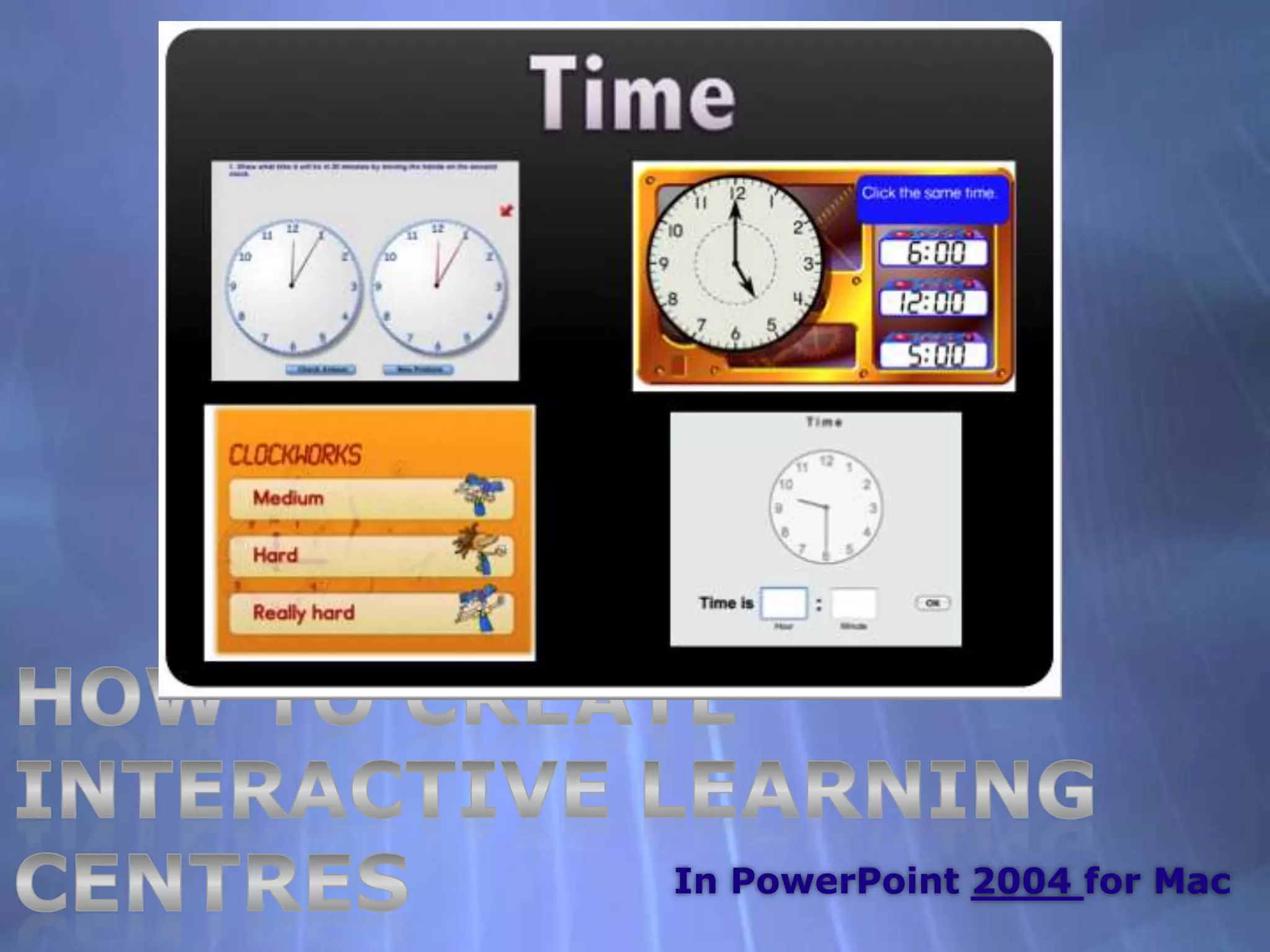
How to create Interactive Learning CentresIn PowerPoint 2004 for Mac
Interactive Learning CentresA great way to direct students to the websites you want them to use, is to create hyperlinked interactive pages in PowerPoint or Keynote.These can be organised into Curriculum and or Group areas.Maths groups,  Reading groups, Individualised activity pages or Subject specific!
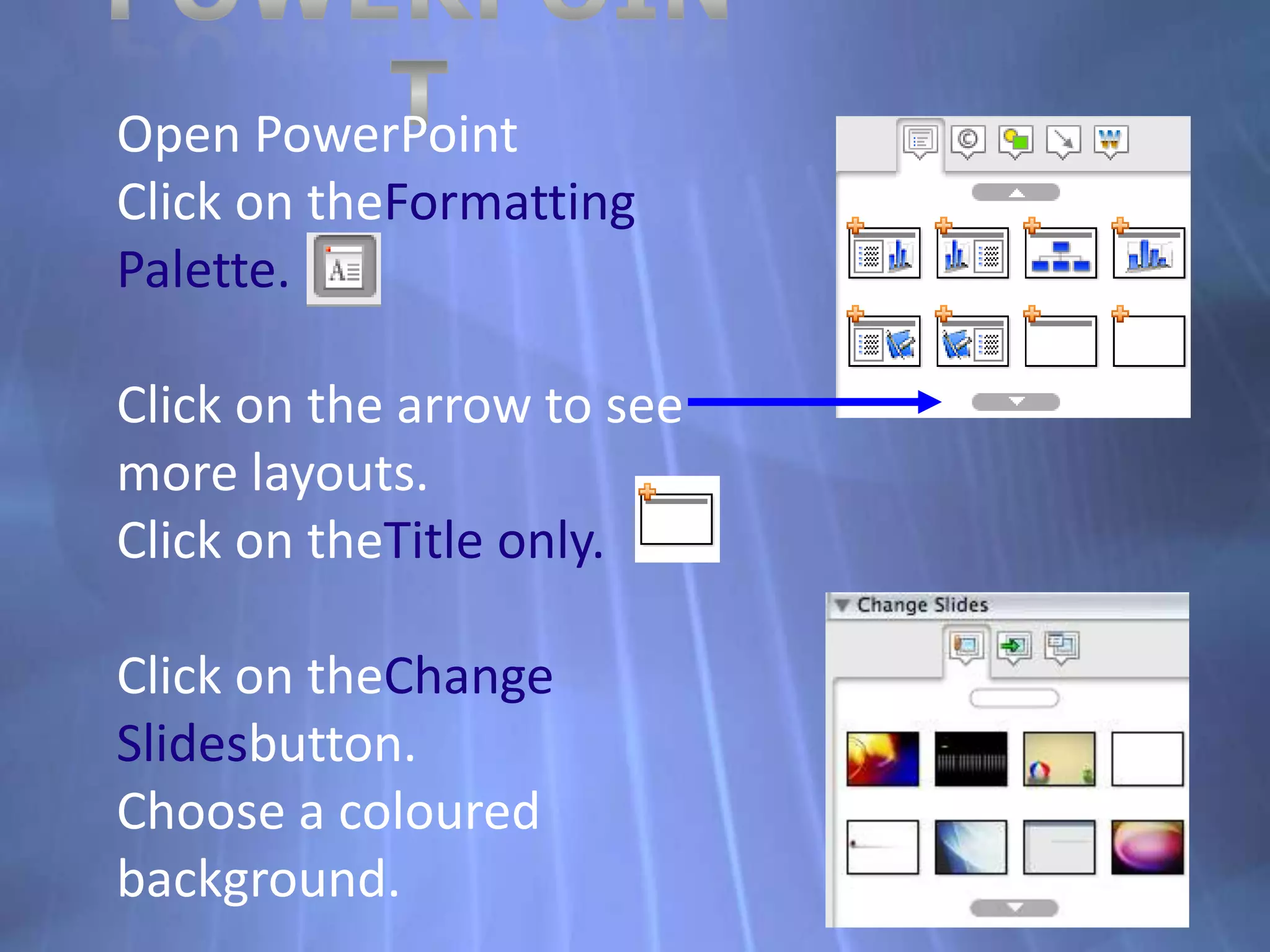
PowerPointOpen PowerPointClick on theFormatting Palette.Click on the arrow to see more layouts.Click on theTitle only.Click on theChange Slidesbutton.Choose a coloured background.
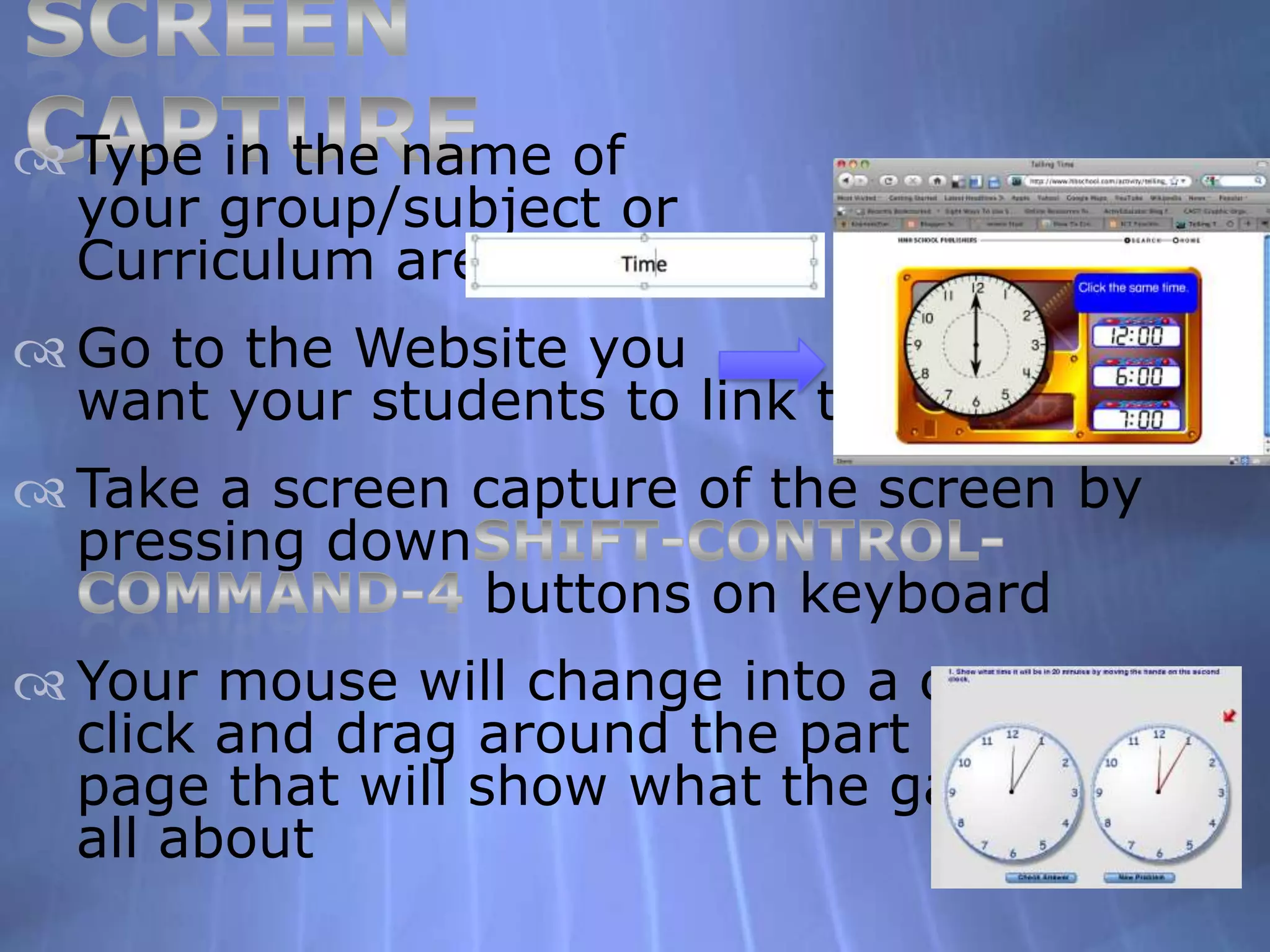
Screen CaptureType in the name of your group/subject or Curriculum area
Go to the Website you want your students to link to
Take a screen capture of the screen by pressing downShift-Control-Command-4 buttons on keyboard
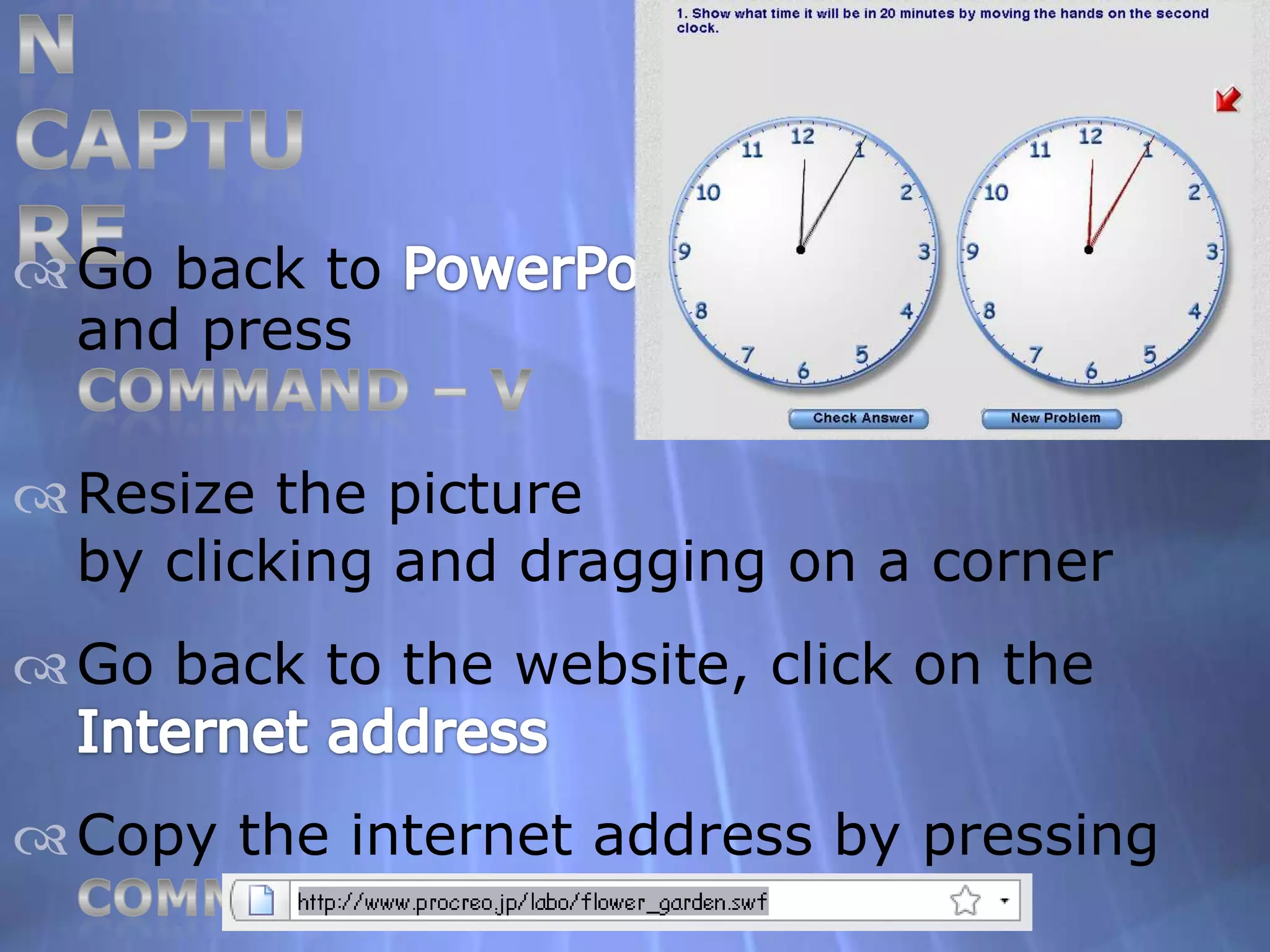
Your mouse will change into a cross, click and drag around the part of the page that will show what the game isall aboutScreen CaptureGo back to PowerPointand press Command – V

How To Create Interactive Learning Centres For Mac 2004

  • 1.
    How to createInteractive Learning CentresIn PowerPoint 2004 for Mac
  • 2.
    Interactive Learning CentresAgreat way to direct students to the websites you want them to use, is to create hyperlinked interactive pages in PowerPoint or Keynote.These can be organised into Curriculum and or Group areas.Maths groups, Reading groups, Individualised activity pages or Subject specific!
  • 3.
    PowerPointOpen PowerPointClick ontheFormatting Palette.Click on the arrow to see more layouts.Click on theTitle only.Click on theChange Slidesbutton.Choose a coloured background.
  • 4.
    Screen CaptureType inthe name of your group/subject or Curriculum area
  • 5.
    Go to theWebsite you want your students to link to
  • 6.
    Take a screencapture of the screen by pressing downShift-Control-Command-4 buttons on keyboard
  • 7.
    Your mouse willchange into a cross, click and drag around the part of the page that will show what the game isall aboutScreen CaptureGo back to PowerPointand press Command – V
  • 8.
    Resize the pictureby clicking and dragging on a corner
  • 9.
    Go back tothe website, click on the Internet address
  • 10.
    Copy the internetaddress by pressing Command - CHyperlinkingGo back to your PowerPoint
  • 11.
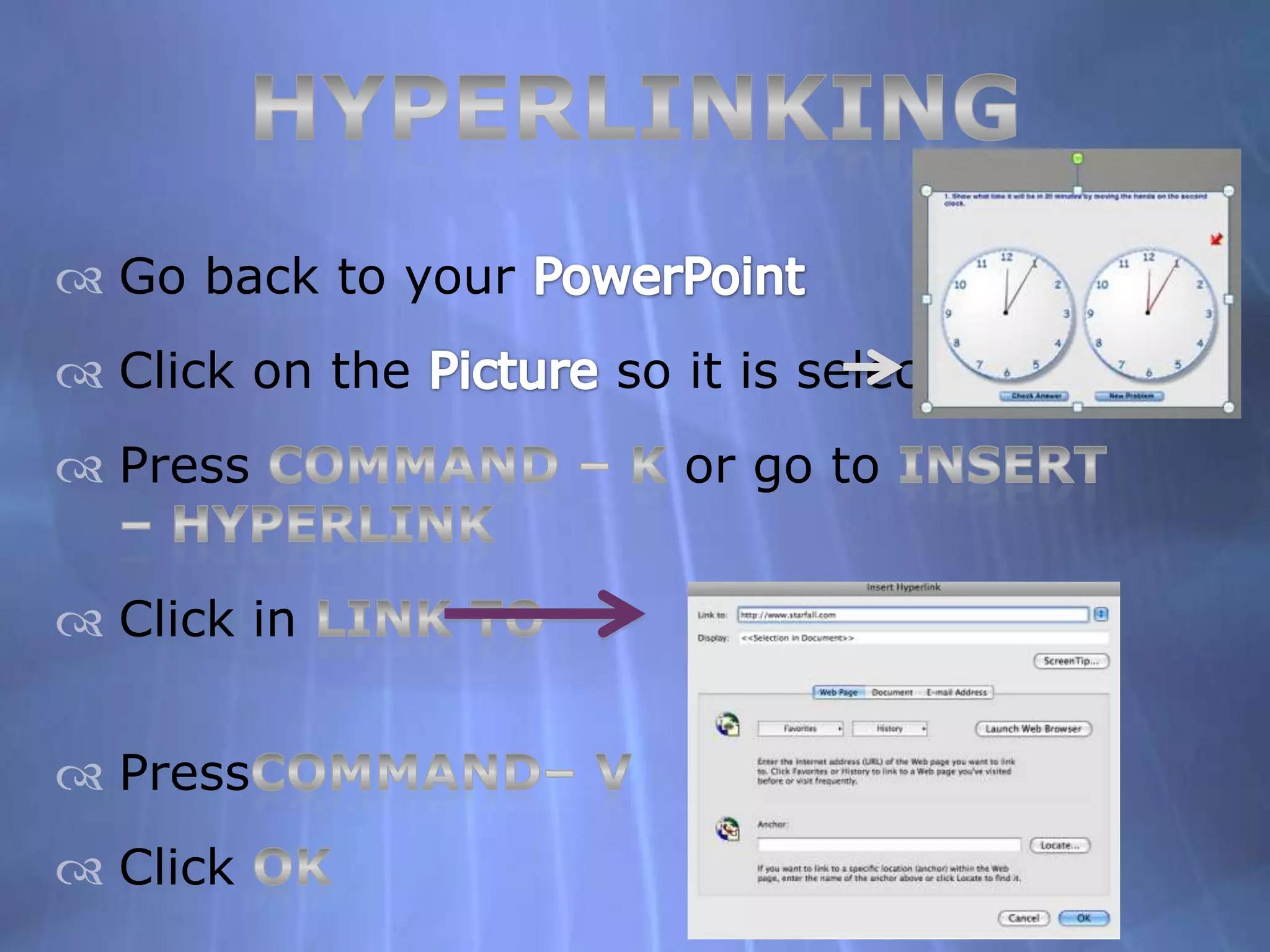
    Click on thePicture so it is selected
  • 12.
    Press Command –K or go to Insert – Hyperlink
  • 13.
  • 14.
  • 15.
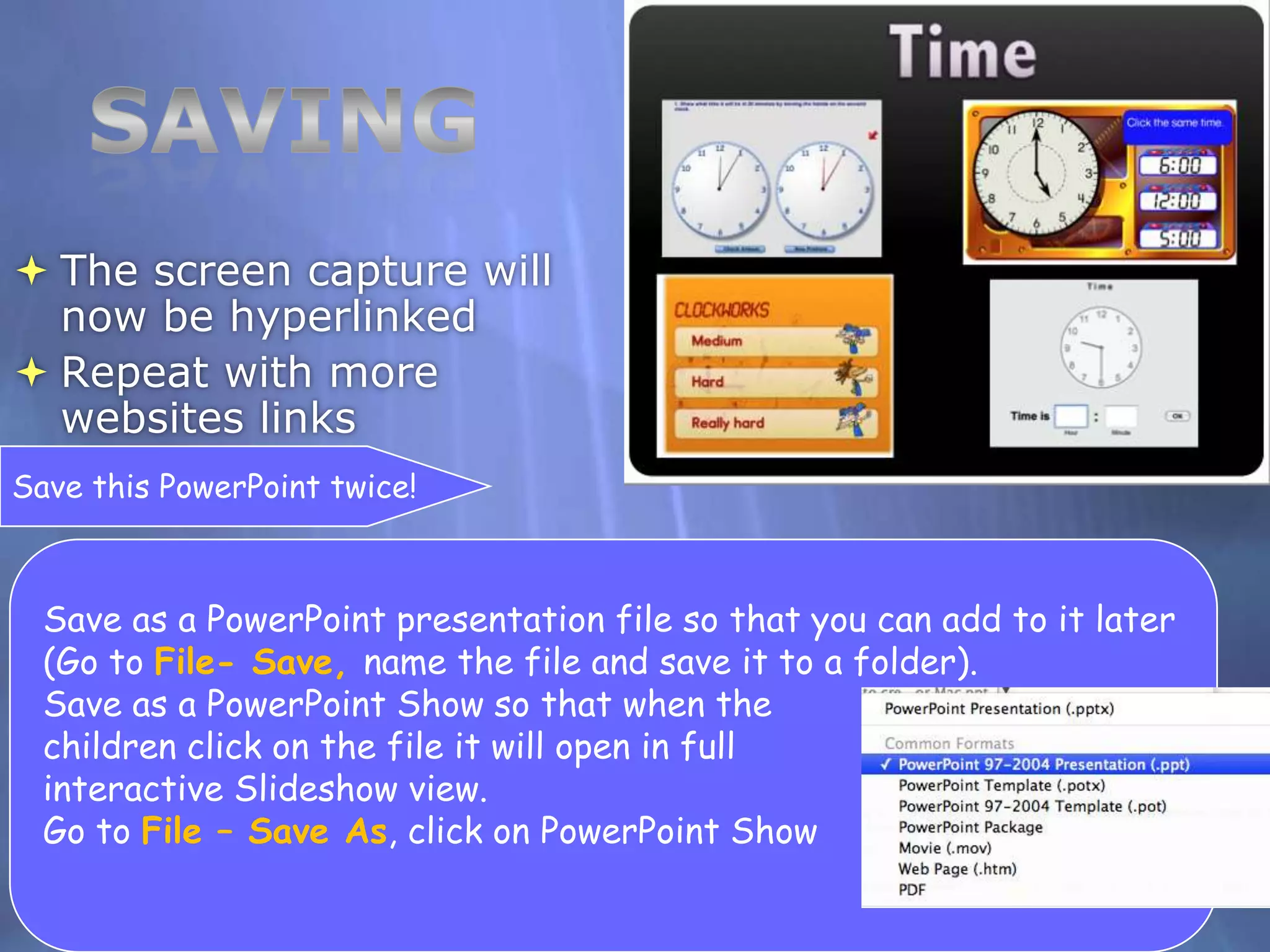
    Click OKSaving Thescreen capture will now be hyperlinkedRepeat with more websites linksSave this PowerPoint twice!Save as a PowerPoint presentation file so that you can add to it later (Go to File- Save, name the file and save it to a folder).Save as a PowerPoint Show so that when the children click on the file it will open in full interactive Slideshow view. Go to File – Save As, click on PowerPoint Show