How to create Interactive Learning CentresIn PowerPoint 2007
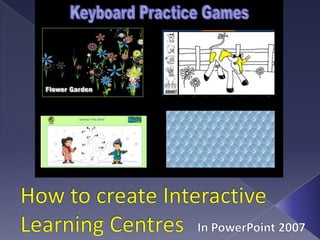
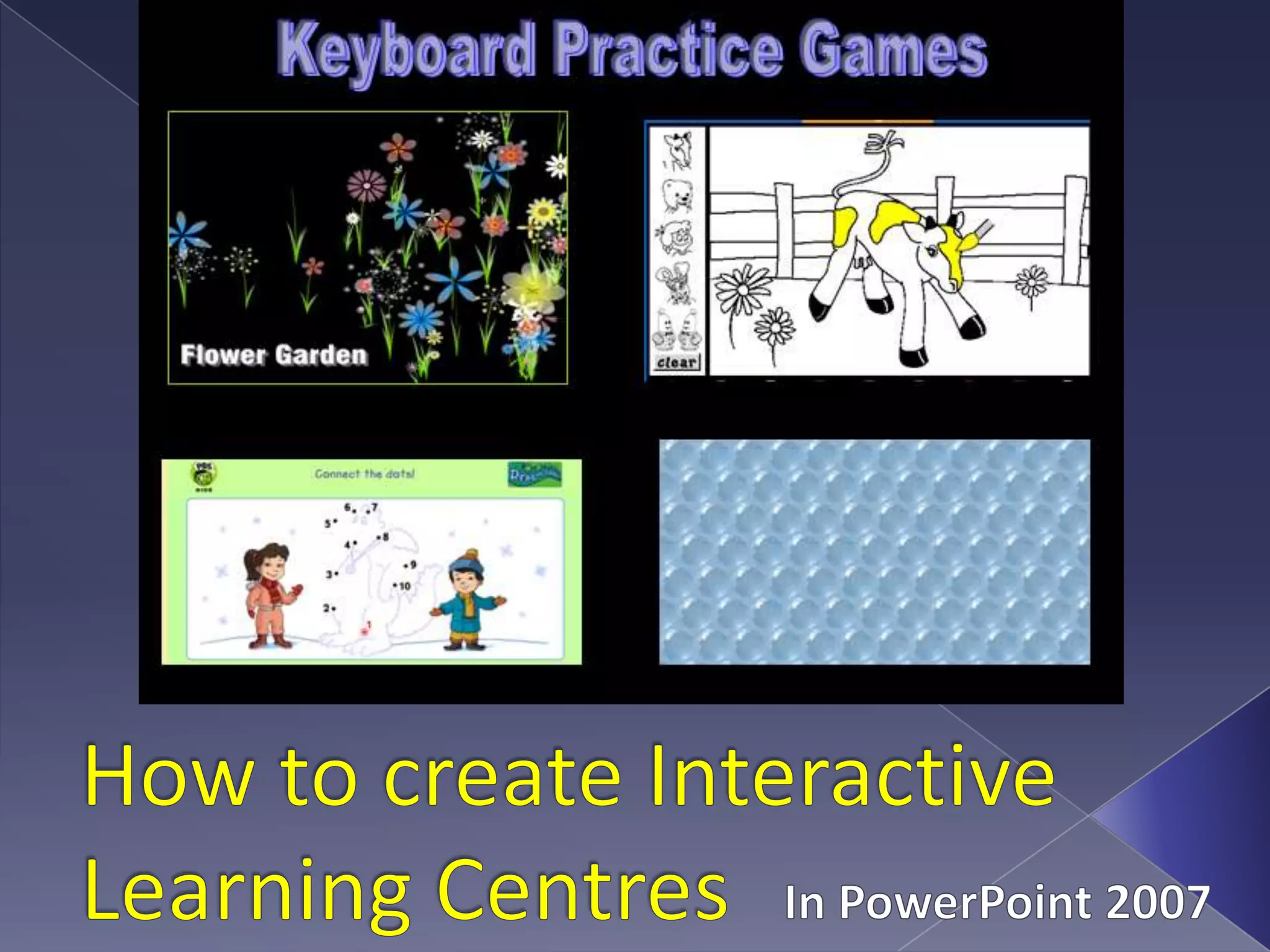
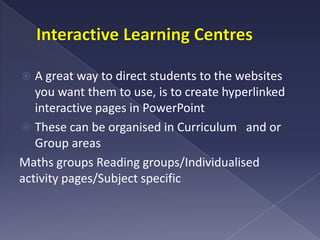
Interactive Learning CentresA great way to direct students to the websites you want them to use, is to create hyperlinked interactive pages in PowerPoint These can be organised in Curriculum   and or Group areasMaths groups Reading groups/Individualisedactivity pages/Subject specific
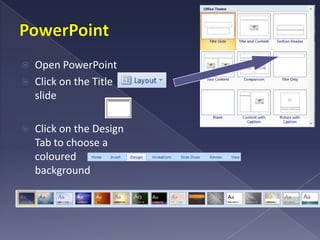
PowerPointOpen PowerPointClick on the Title slide Click on the Design Tab to choose a coloured background
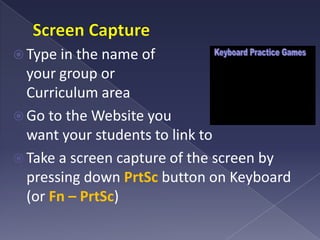
Screen CaptureType in the name of your group or Curriculum areaGo to the Website you want your students to link toTake a screen capture of the screen by pressing down PrtSc button on Keyboard (or Fn – PrtSc)
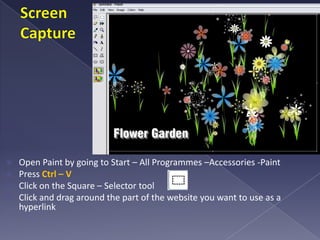
Screen CaptureOpen Paint by going to Start – All Programmes –Accessories -PaintPress Ctrl – V Click on the Square – Selector toolClick and drag around the part of the website you want to use as a hyperlink
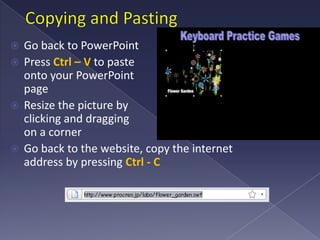
Copying and PastingGo back to PowerPointPress Ctrl – V to paste onto your PowerPoint pageResize the picture by clicking and dragging on a cornerGo back to the website, copy the internet address by pressing Ctrl - C
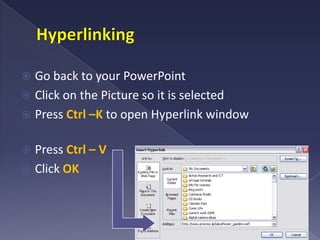
HyperlinkingGo back to your PowerPointClick on the Picture so it is selectedPress Ctrl –K to open Hyperlink windowPress Ctrl – VClick OK
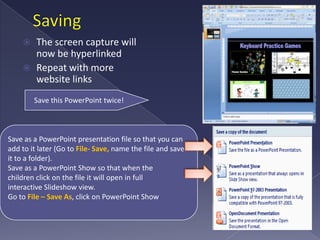
Saving The screen capture will now be hyperlinkedRepeat with more website linksSave this PowerPoint twice!Save as a PowerPoint presentation file so that you can add to it later (Go to File- Save, name the file and save it to a folder).Save as a PowerPoint Show so that when the children click on the file it will open in full interactive Slideshow view. Go to File – Save As, click on PowerPoint Show

How To Create Interactive Learning Centres Power Point 2007

  • 1.
    How to createInteractive Learning CentresIn PowerPoint 2007
  • 2.
    Interactive Learning CentresAgreat way to direct students to the websites you want them to use, is to create hyperlinked interactive pages in PowerPoint These can be organised in Curriculum and or Group areasMaths groups Reading groups/Individualisedactivity pages/Subject specific
  • 3.
    PowerPointOpen PowerPointClick onthe Title slide Click on the Design Tab to choose a coloured background
  • 4.
    Screen CaptureType inthe name of your group or Curriculum areaGo to the Website you want your students to link toTake a screen capture of the screen by pressing down PrtSc button on Keyboard (or Fn – PrtSc)
  • 5.
    Screen CaptureOpen Paintby going to Start – All Programmes –Accessories -PaintPress Ctrl – V Click on the Square – Selector toolClick and drag around the part of the website you want to use as a hyperlink
  • 6.
    Copying and PastingGoback to PowerPointPress Ctrl – V to paste onto your PowerPoint pageResize the picture by clicking and dragging on a cornerGo back to the website, copy the internet address by pressing Ctrl - C
  • 7.
    HyperlinkingGo back toyour PowerPointClick on the Picture so it is selectedPress Ctrl –K to open Hyperlink windowPress Ctrl – VClick OK
  • 8.
    Saving The screencapture will now be hyperlinkedRepeat with more website linksSave this PowerPoint twice!Save as a PowerPoint presentation file so that you can add to it later (Go to File- Save, name the file and save it to a folder).Save as a PowerPoint Show so that when the children click on the file it will open in full interactive Slideshow view. Go to File – Save As, click on PowerPoint Show