A Look at Virtual Boards
                Carroll ISD
  Instructional Technology Specialist
             Kristie Johnson
What is Pinterest?
• Virtual board…like a corkboard
    Create boards based on interests
    Upload pictures and/or websites as pins to boards
    Uploads are called pins to boards
    Add details to pins you repin or create
    Can link repins to Facebook and/or Twitter
    Follow other users boards
Why Use Pinterest?
• Gather new ideas.
• Share your interests with others.
• Organize ideas.
Setting up an Account
• You need an invite.
• You can apply through Facebook.
• Once you have an invite you will
  need to login in using Facebook or
  Twitter to get to the registration page.
 (once registered you can turn that feature off)
• Do not choose “areas of interest”
  when registering…they sent you
  friends automatically.
Account Settings
• Email notifications
    • Group
      pins, comments, likes, repins, follows, frequency, Dig
      est, News)
•   Name – makes it easier to be found in search
•   User name – attaches to Pinterest URL
•   About – create a blurb about yourself
•   Location – identify where you are located
•   Website – add your personal website/blog
•   Image – upload a profile image
•   Facebook/Twitter – connect to social media
•   Visibility
    • Public engine searchs…ex. – Google/Yahoo search
Friends
• You can invite friends via email or
  Facebook.
• There’s no security settings for
  blocking friends from following you.
• You can follow a user or choose a
  specific board to follow.
• You can unfollow someone by
  opening their profile page.
Home Page
• Categories you see there:
 • Everything
   • You can choose a specific category using
     the dropdown arrow
 • Videos
   • Not categorized in any order
 • Popular
   • Items with the most repins, likes, comments
 • Gifts
   • Categorized by cost
Boards
• Upon creating your account, you
  automatically have boards that
  appear. You can change the name
  or delete those boards.
• Click “add” to create a new board
• Edit board allows you to change
  title, description, who can
  pin, category or delete the board
  entirely.
Pins
• These are the actual things you
  find that you like.
• You can comment, repin, or edit
  pins that you add.
• Editing pins allows you to write a
  description, add a link, choose the
  board to link it to, or delete the pin
  entirely.
How to Search
• Start by clicking the search icon
  first.
• From there choose if you are
  searching for pins, boards, or
  people.
• Then enter the name of what you
  are searching for in the search
  window.
Creating your Own
• Click the ADD button
  • To create a new board choose Create
    a Board
  • To create a Pin you have two options
   • Add a Pin – enter the link to a website
     and it will find the image
   • Upload a Pin – upload the image and
     then add the link in the edit version. (I like
    this way better because I can choose what
    image I want uploaded)
Helpful Hints
• Pin it Button – add to toolbar
• Under the About Section – Help is there
• Follow Button can be added to your
  website or blog (You find the embed code for
 the button under About/Goodies)
• Turn off Facebook if you do not want
  your pins or boards to appear there.
• Be sure to categorize your pins…it helps
  others to search for specific pins based
  on categories.
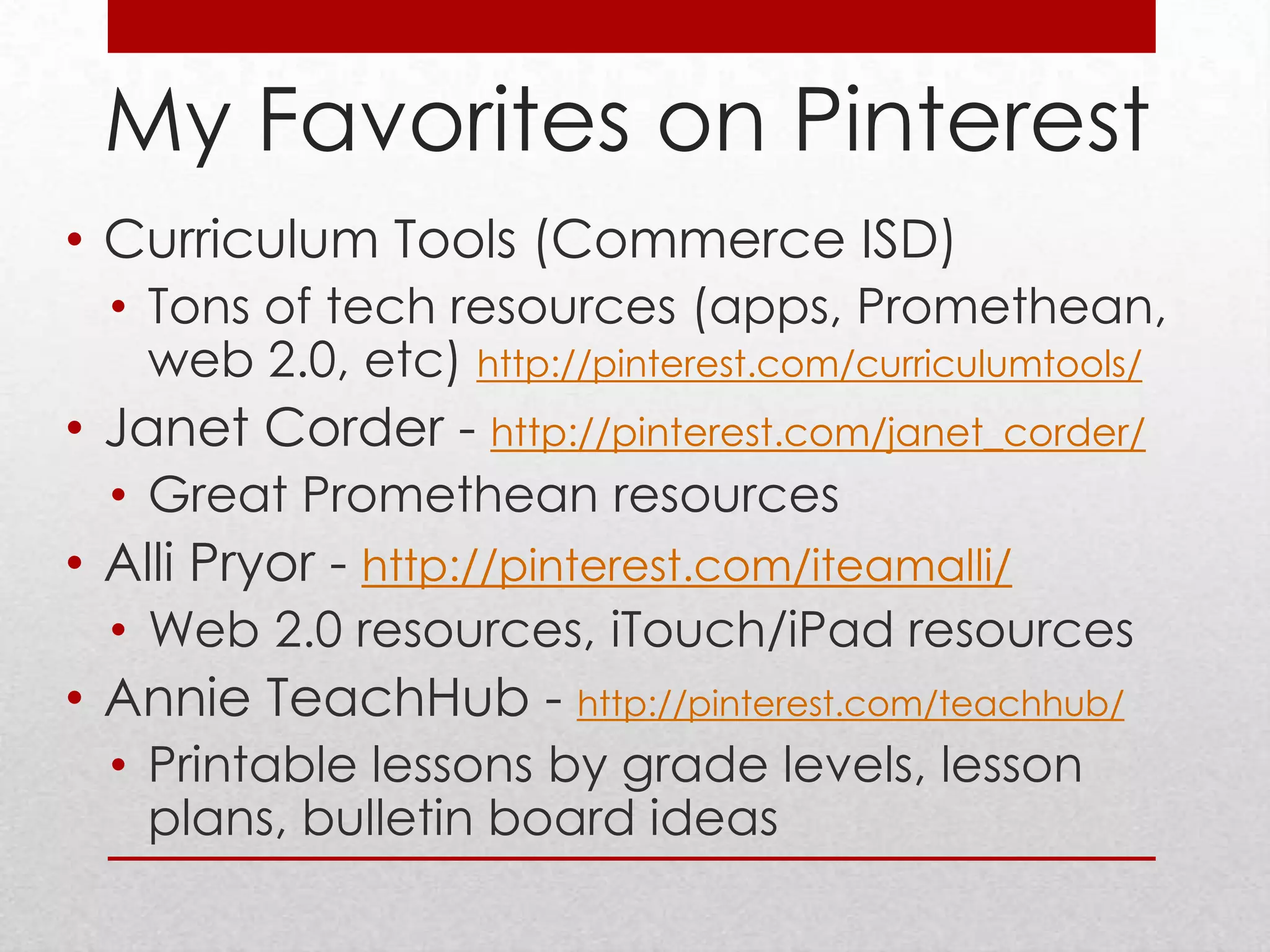
My Favorites on Pinterest
• Curriculum Tools (Commerce ISD)
  • Tons of tech resources (apps, Promethean,
    web 2.0, etc) http://pinterest.com/curriculumtools/
• Janet Corder - http://pinterest.com/janet_corder/
  • Great Promethean resources
• Alli Pryor - http://pinterest.com/iteamalli/
  • Web 2.0 resources, iTouch/iPad resources
• Annie TeachHub - http://pinterest.com/teachhub/
  • Printable lessons by grade levels, lesson
    plans, bulletin board ideas
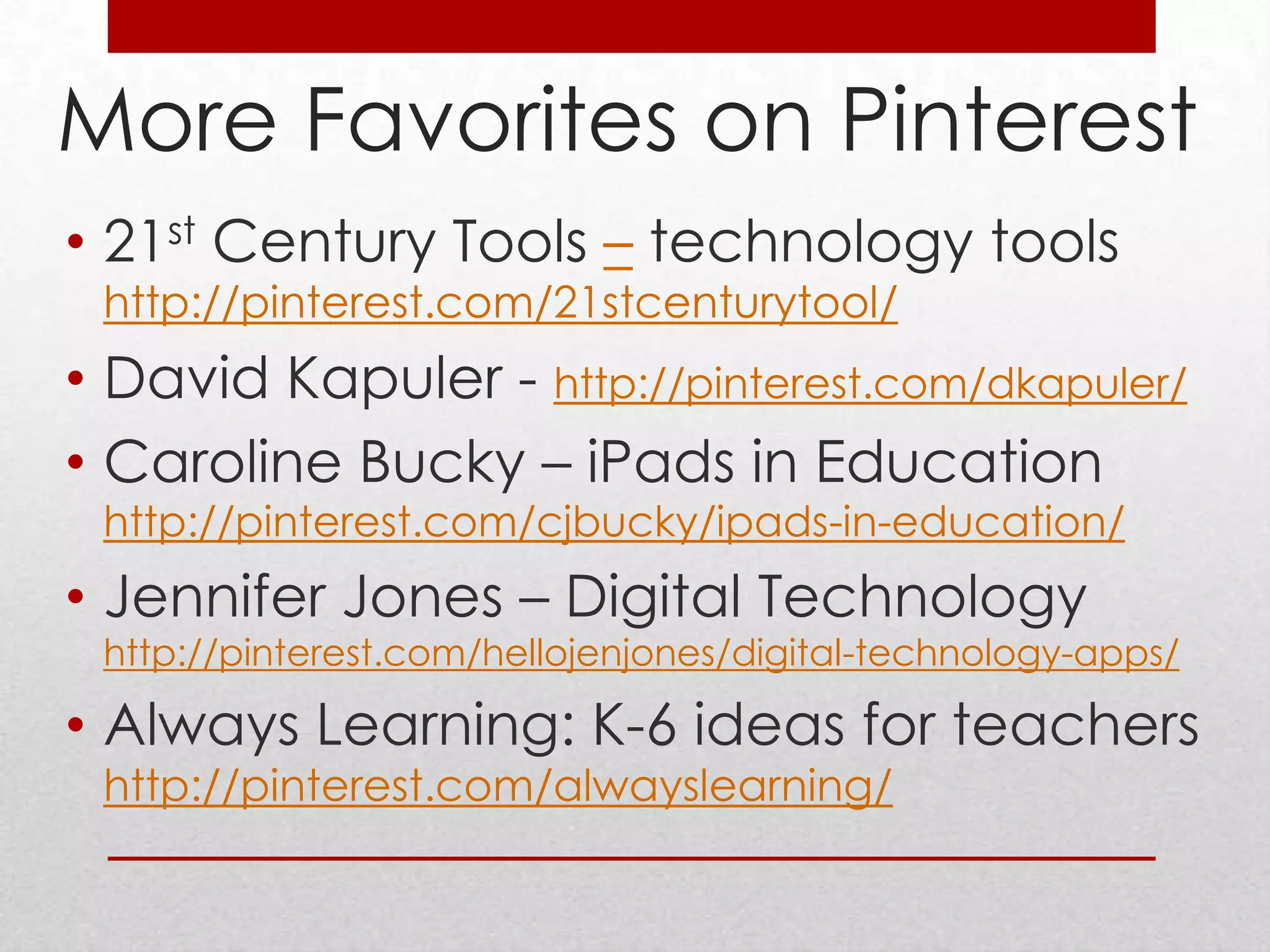
More Favorites on Pinterest
• 21st Century Tools – technology tools
 http://pinterest.com/21stcenturytool/
• David Kapuler - http://pinterest.com/dkapuler/
• Caroline Bucky – iPads in Education
 http://pinterest.com/cjbucky/ipads-in-education/
• Jennifer Jones – Digital Technology
 http://pinterest.com/hellojenjones/digital-technology-apps/

• Always Learning: K-6 ideas for teachers
 http://pinterest.com/alwayslearning/

Pinterest SlideShare

  • 1.
    A Look atVirtual Boards Carroll ISD Instructional Technology Specialist Kristie Johnson
  • 2.
    What is Pinterest? •Virtual board…like a corkboard  Create boards based on interests  Upload pictures and/or websites as pins to boards  Uploads are called pins to boards  Add details to pins you repin or create  Can link repins to Facebook and/or Twitter  Follow other users boards
  • 3.
    Why Use Pinterest? •Gather new ideas. • Share your interests with others. • Organize ideas.
  • 4.
    Setting up anAccount • You need an invite. • You can apply through Facebook. • Once you have an invite you will need to login in using Facebook or Twitter to get to the registration page. (once registered you can turn that feature off) • Do not choose “areas of interest” when registering…they sent you friends automatically.
  • 5.
    Account Settings • Emailnotifications • Group pins, comments, likes, repins, follows, frequency, Dig est, News) • Name – makes it easier to be found in search • User name – attaches to Pinterest URL • About – create a blurb about yourself • Location – identify where you are located • Website – add your personal website/blog • Image – upload a profile image • Facebook/Twitter – connect to social media • Visibility • Public engine searchs…ex. – Google/Yahoo search
  • 6.
    Friends • You caninvite friends via email or Facebook. • There’s no security settings for blocking friends from following you. • You can follow a user or choose a specific board to follow. • You can unfollow someone by opening their profile page.
  • 7.
    Home Page • Categoriesyou see there: • Everything • You can choose a specific category using the dropdown arrow • Videos • Not categorized in any order • Popular • Items with the most repins, likes, comments • Gifts • Categorized by cost
  • 8.
    Boards • Upon creatingyour account, you automatically have boards that appear. You can change the name or delete those boards. • Click “add” to create a new board • Edit board allows you to change title, description, who can pin, category or delete the board entirely.
  • 9.
    Pins • These arethe actual things you find that you like. • You can comment, repin, or edit pins that you add. • Editing pins allows you to write a description, add a link, choose the board to link it to, or delete the pin entirely.
  • 10.
    How to Search •Start by clicking the search icon first. • From there choose if you are searching for pins, boards, or people. • Then enter the name of what you are searching for in the search window.
  • 11.
    Creating your Own •Click the ADD button • To create a new board choose Create a Board • To create a Pin you have two options • Add a Pin – enter the link to a website and it will find the image • Upload a Pin – upload the image and then add the link in the edit version. (I like this way better because I can choose what image I want uploaded)
  • 12.
    Helpful Hints • Pinit Button – add to toolbar • Under the About Section – Help is there • Follow Button can be added to your website or blog (You find the embed code for the button under About/Goodies) • Turn off Facebook if you do not want your pins or boards to appear there. • Be sure to categorize your pins…it helps others to search for specific pins based on categories.
  • 13.
    My Favorites onPinterest • Curriculum Tools (Commerce ISD) • Tons of tech resources (apps, Promethean, web 2.0, etc) http://pinterest.com/curriculumtools/ • Janet Corder - http://pinterest.com/janet_corder/ • Great Promethean resources • Alli Pryor - http://pinterest.com/iteamalli/ • Web 2.0 resources, iTouch/iPad resources • Annie TeachHub - http://pinterest.com/teachhub/ • Printable lessons by grade levels, lesson plans, bulletin board ideas
  • 14.
    More Favorites onPinterest • 21st Century Tools – technology tools http://pinterest.com/21stcenturytool/ • David Kapuler - http://pinterest.com/dkapuler/ • Caroline Bucky – iPads in Education http://pinterest.com/cjbucky/ipads-in-education/ • Jennifer Jones – Digital Technology http://pinterest.com/hellojenjones/digital-technology-apps/ • Always Learning: K-6 ideas for teachers http://pinterest.com/alwayslearning/