The MsgBox Function and the MessageBox Class

• MsgBox function, is         a part    of   the
  Microsoft.VisualBasic namespace .
• MessageBox is the class. Part of
  System.Windows.MessageBox
The MsgBox Function
• The MsgBox function displays a message in a dialog box,
  waits for the user to click a button, and returns an Integer
  indicating which button the user clicked.
• Syntax:
   – MsgBox(prompt[, buttons] [, title])
   – - or –
   – IntegerVariable = MsgBox(prompt[, buttons] [, title])
• The MsgBox function syntax has these parts:
• Part
• prompt
   – Required. String expression displayed as the message in the
     dialog box. The maximum length of prompt is approximately
     1024 characters, depending on the width of the characters
     used.
• buttons
   – Optional. Numeric expression that is the sum of values
     specifying the number and type of buttons to display, the
     icon style to use, the identity of the default button, and
     the modality of the message box. If omitted, the default
     value for buttons is 0 (which causes only an OK button to
     be displayed with no icon). The buttons argument is
     explained in more detail below.
• title
   – Optional. String expression displayed in the title bar of the
     dialog box. If you omit title, the application name is placed
     in the title bar.
The buttons argument
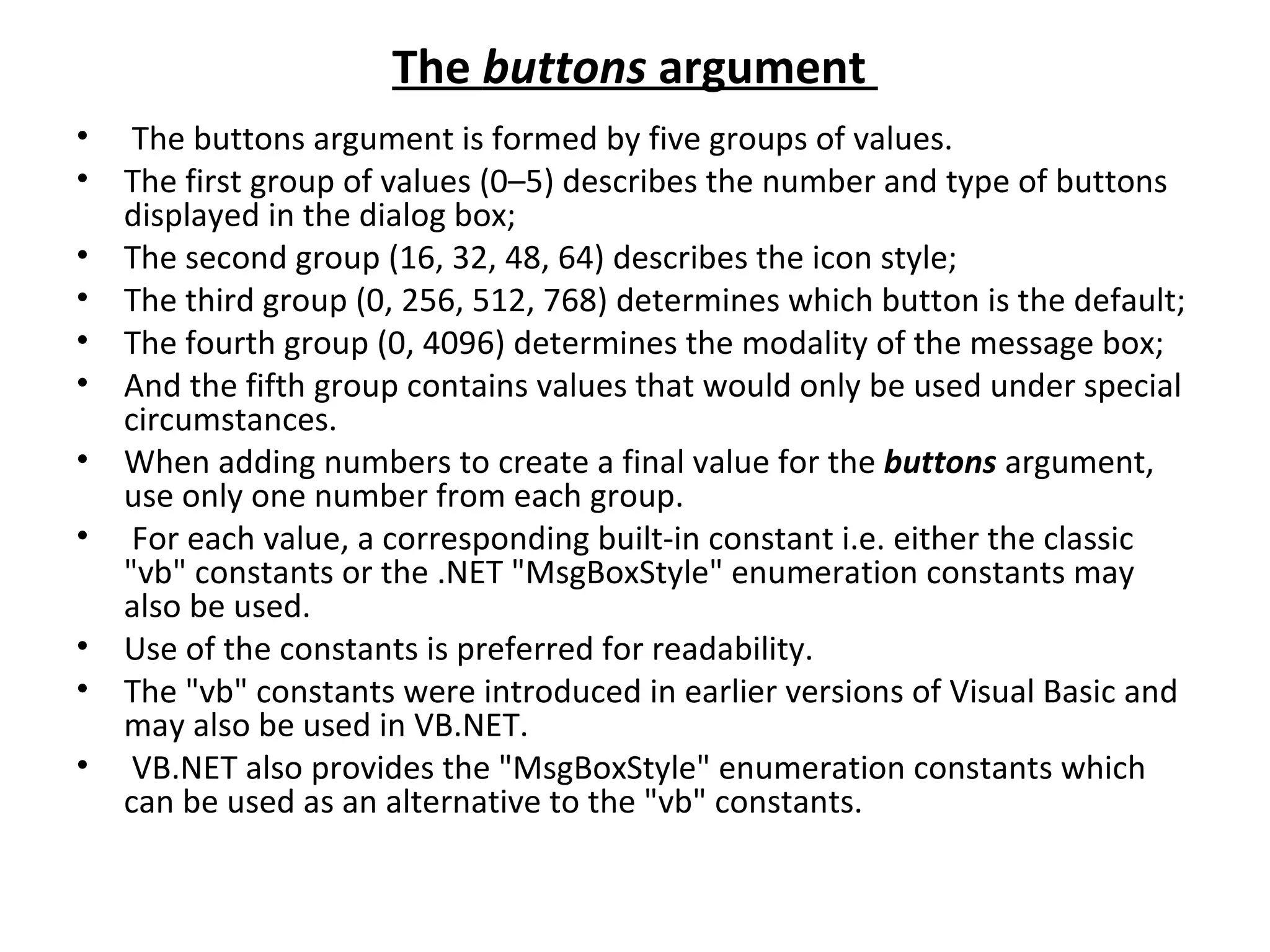
•    The buttons argument is formed by five groups of values.
•   The first group of values (0–5) describes the number and type of buttons
    displayed in the dialog box;
•   The second group (16, 32, 48, 64) describes the icon style;
•   The third group (0, 256, 512, 768) determines which button is the default;
•   The fourth group (0, 4096) determines the modality of the message box;
•   And the fifth group contains values that would only be used under special
    circumstances.
•   When adding numbers to create a final value for the buttons argument,
    use only one number from each group.
•    For each value, a corresponding built-in constant i.e. either the classic
    "vb" constants or the .NET "MsgBoxStyle" enumeration constants may
    also be used.
•   Use of the constants is preferred for readability.
•   The "vb" constants were introduced in earlier versions of Visual Basic and
    may also be used in VB.NET.
•    VB.NET also provides the "MsgBoxStyle" enumeration constants which
    can be used as an alternative to the "vb" constants.
First Group: Determines which buttons to display:
Constant                   Value      Description

vbOKOnly                   0          Display OK button only.
- or -
MsgBoxStyle.OKOnly
vbOKCancel                 1          Display OK and Cancel
- or -                                buttons.
MsgBoxStyle.OKCancel
vbAbortRetryIgnore         2          Display Abort, Retry,
- or -                                and Ignore buttons.
MsgBoxStyle.AbortRetryIg
nore
vbYesNoCancel              3          Display Yes, No, and
- or -                                Cancel buttons.
MsgBoxStyle.YesNoCanc
el
vbYesNo                    4          Display Yes and No
- or -                                buttons.
MsgBoxStyle.YesNo
vbRetryCancel              5          Display Retry and
- or -                                Cancel buttons.
MsgBoxStyle.RetryCancel
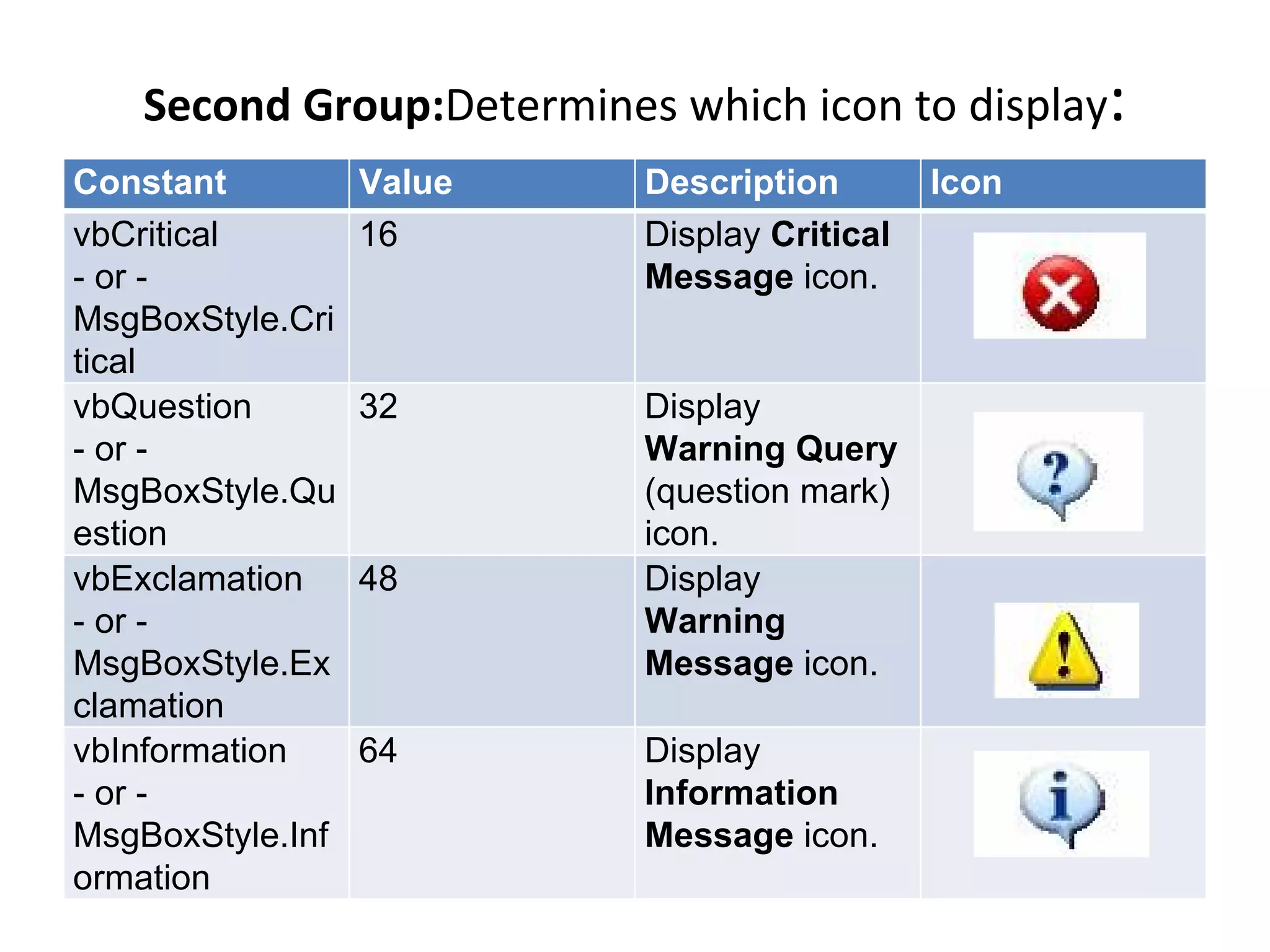
Second Group:Determines which icon to display:
Constant          Value    Description        Icon
vbCritical        16       Display Critical
- or -                     Message icon.
MsgBoxStyle.Cri
tical
vbQuestion        32       Display
- or -                     Warning Query
MsgBoxStyle.Qu             (question mark)
estion                     icon.
vbExclamation     48       Display
- or -                     Warning
MsgBoxStyle.Ex             Message icon.
clamation
vbInformation     64       Display
- or -                     Information
MsgBoxStyle.Inf            Message icon.
ormation
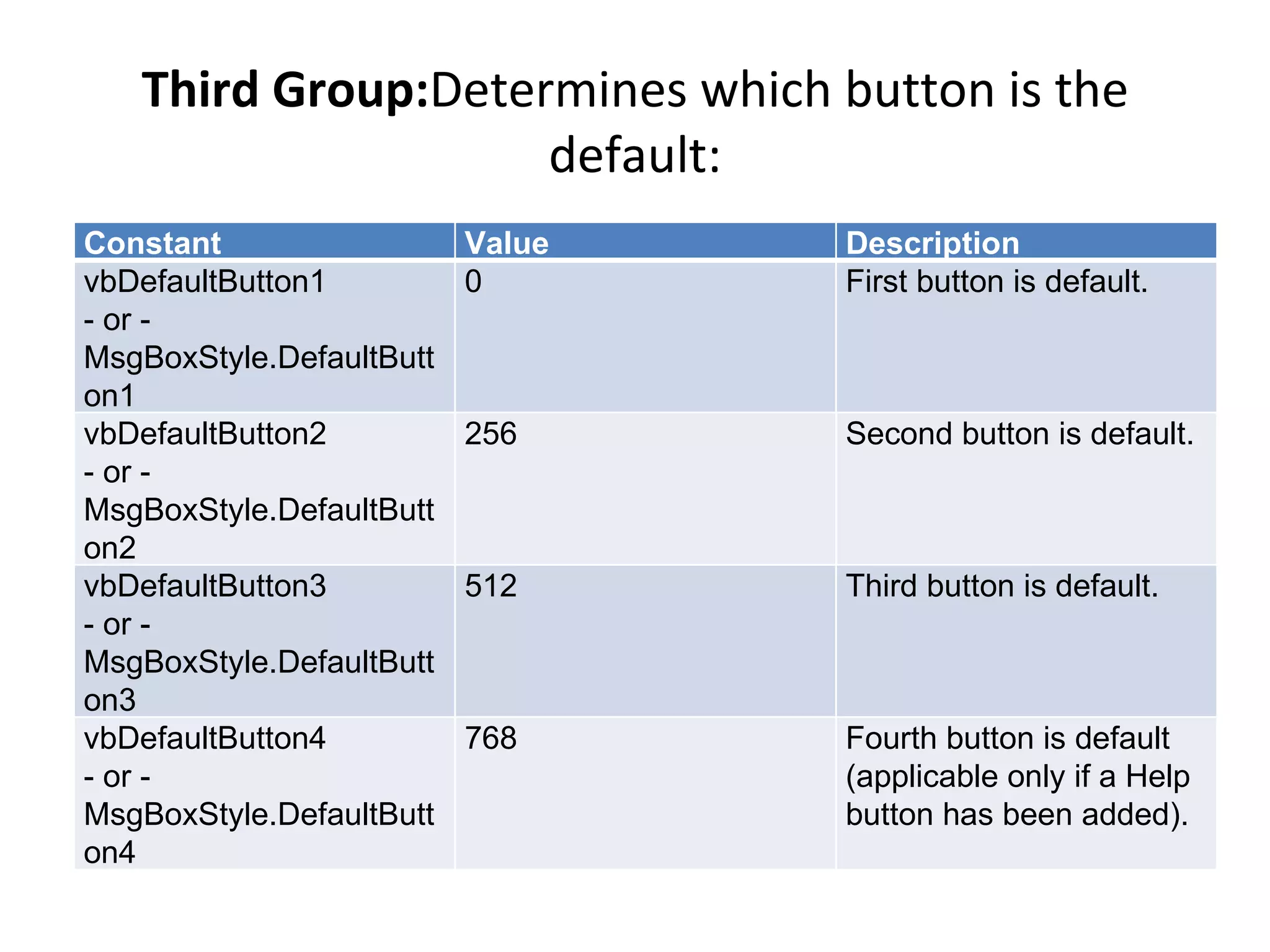
Third Group:Determines which button is the
                    default:
Constant                  Value   Description
vbDefaultButton1          0       First button is default.
- or -
MsgBoxStyle.DefaultButt
on1
vbDefaultButton2          256     Second button is default.
- or -
MsgBoxStyle.DefaultButt
on2
vbDefaultButton3          512     Third button is default.
- or -
MsgBoxStyle.DefaultButt
on3
vbDefaultButton4          768     Fourth button is default
- or -                            (applicable only if a Help
MsgBoxStyle.DefaultButt           button has been added).
on4
Fourth Group:
Determines the modality of the message box.
Generally, you would not need to use a constant from this group, as you would want
to use the default (application modal). If you specified "system modal", you would be
"hogging" Windows – i.e., if a user had open another app , like Word or Excel, they
would not be able to get back to it until they responded to your app's message box.

Constant                     Value                        Description
vbApplicationModal    0                                   Application modal; the
- or -                                                    user must respond to
MsgBoxStyle.Applicati                                     the message box
onModal                                                   before continuing work
                                                          in the current
                                                          application.

vbSystemModal                4096                         System modal; all
- or -                                                    applications are
MsgBoxStyle.System                                        suspended until the
Modal                                                     user responds to the
                                                          message box.
The fifth group of constants that can be used for the buttons argument would
                   only be used under special circumstances:

Constant                 Value                     Description
vbMsgBoxHelpButton    16384                        Adds Help button to the
- or -                                             message box
MsgBoxStyle.MsgBoxHel
pButton
vbMsgBoxSetForeground 65536                        Specifies the message
- or -                                             box window as the
MsgBoxStyle.MsgBoxSet                              foreground window
Foreground
vbMsgBoxRight         524288                       Text is right aligned
- or -
MsgBoxStyle.MsgBoxRig
ht
vbMsgBoxRtlReading       1048576                   Specifies text should
- or -                                             appear as right-to-left
MsgBoxStyle.MsgBoxRtl                              reading on Hebrew and
Reading                                            Arabic systems
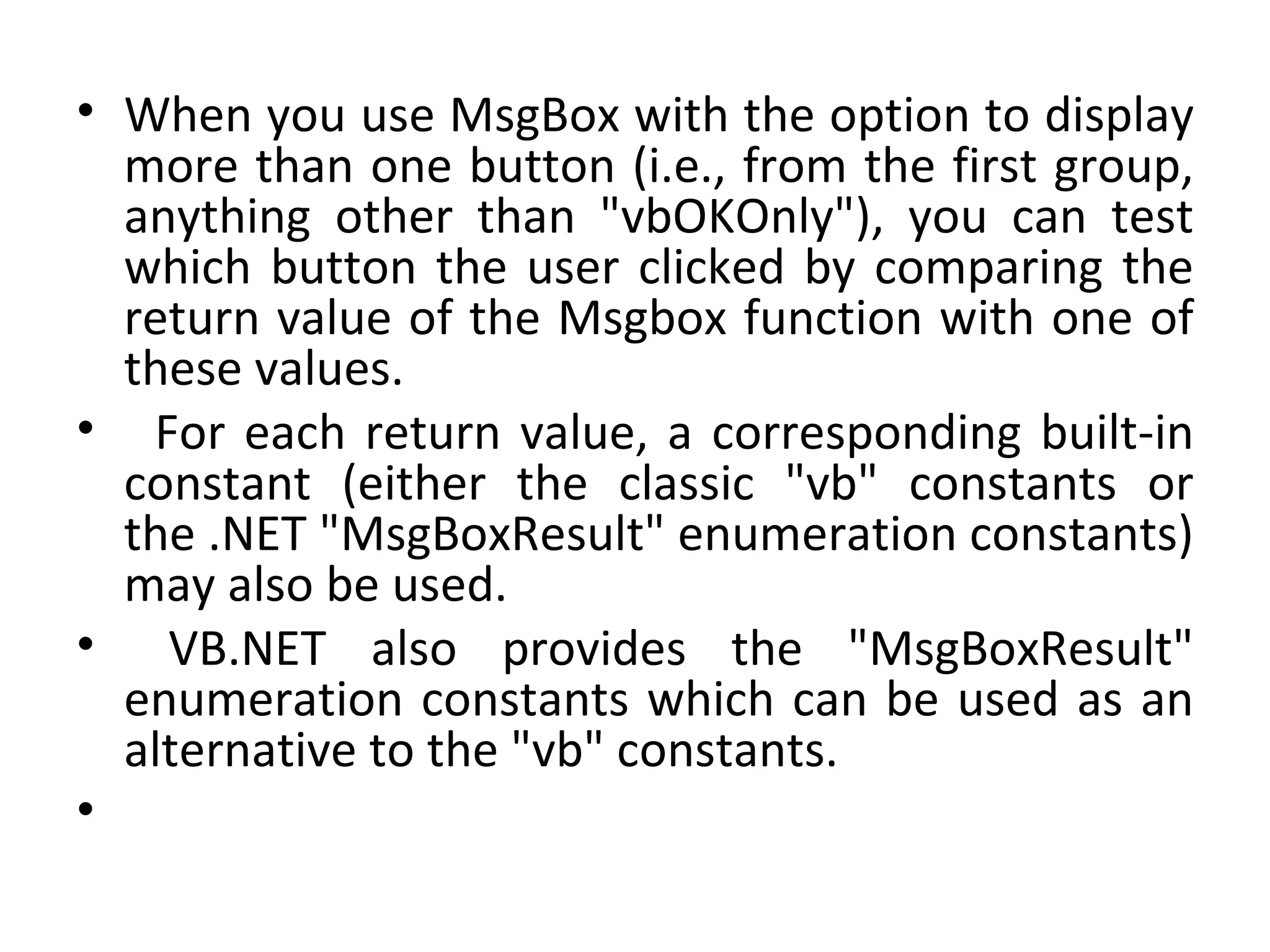
• When you use MsgBox with the option to display
  more than one button (i.e., from the first group,
  anything other than "vbOKOnly"), you can test
  which button the user clicked by comparing the
  return value of the Msgbox function with one of
  these values.
• For each return value, a corresponding built-in
  constant (either the classic "vb" constants or
  the .NET "MsgBoxResult" enumeration constants)
  may also be used.
• VB.NET also provides the "MsgBoxResult"
  enumeration constants which can be used as an
  alternative to the "vb" constants.
•
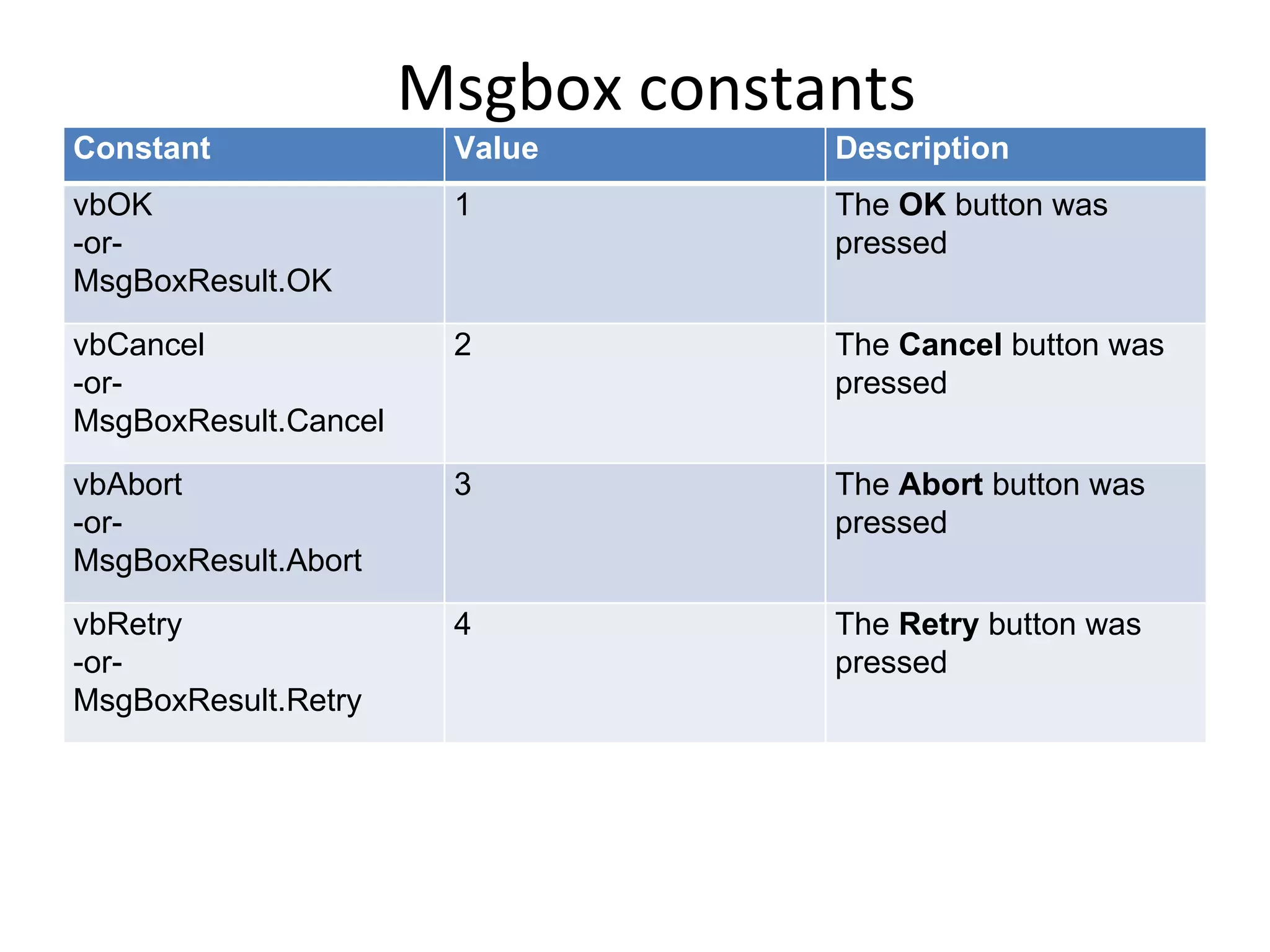
Msgbox constants
Constant               Value       Description
vbOK                   1           The OK button was
-or-                               pressed
MsgBoxResult.OK

vbCancel               2           The Cancel button was
-or-                               pressed
MsgBoxResult.Cancel

vbAbort                3           The Abort button was
-or-                               pressed
MsgBoxResult.Abort

vbRetry                4           The Retry button was
-or-                               pressed
MsgBoxResult.Retry
vbIgnore              5   The Ignore button was
-or-                      pressed
MsgBoxResult.Ignore
vbYes                 6   The Yes button was
-or-                      pressed
MsgBoxResult.Yes
vbNo                  7   The No button was
-or-                      pressed
MsgBoxResult.No
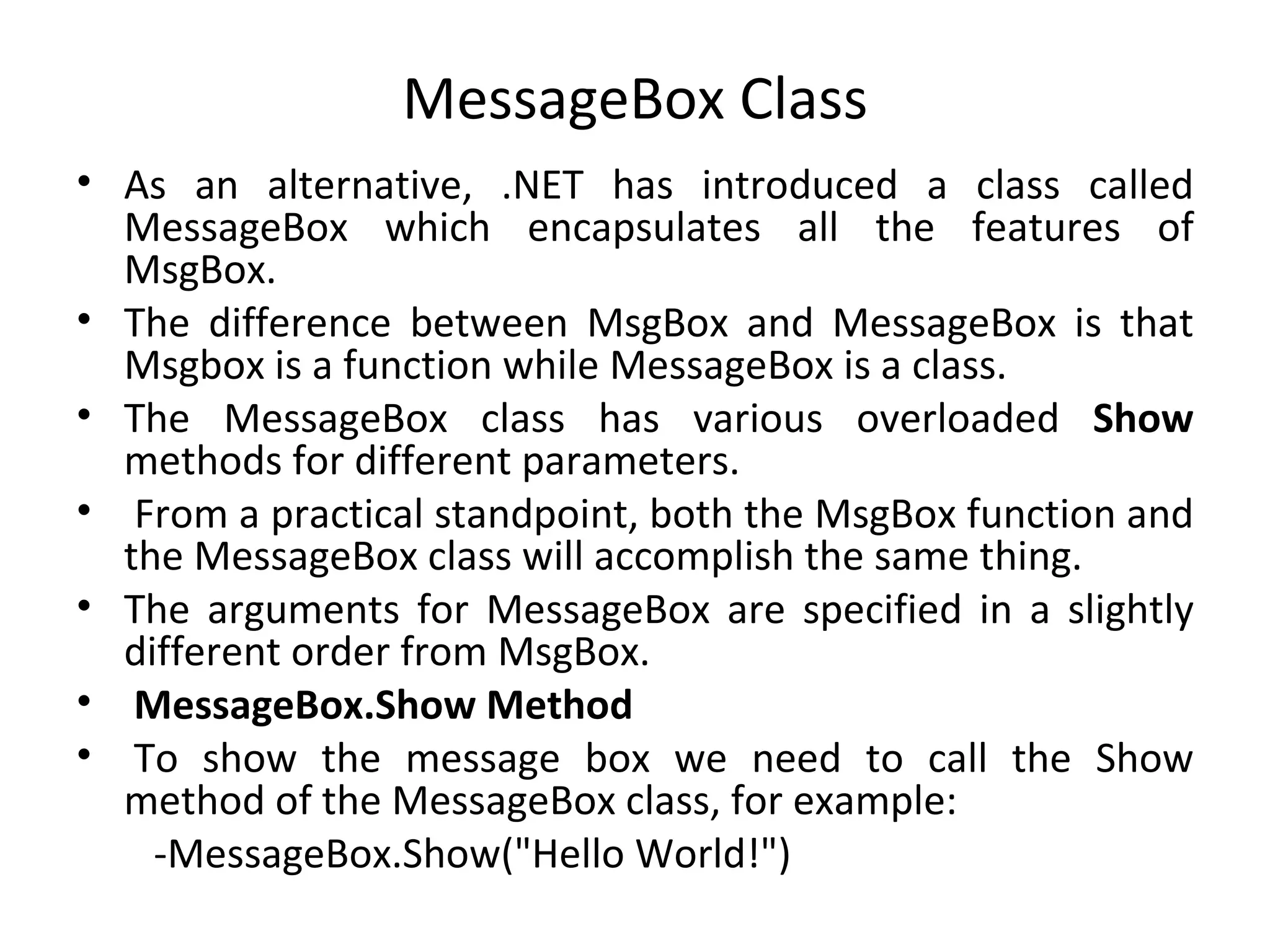
MessageBox Class
• As an alternative, .NET has introduced a class called
  MessageBox which encapsulates all the features of
  MsgBox.
• The difference between MsgBox and MessageBox is that
  Msgbox is a function while MessageBox is a class.
• The MessageBox class has various overloaded Show
  methods for different parameters.
• From a practical standpoint, both the MsgBox function and
  the MessageBox class will accomplish the same thing.
• The arguments for MessageBox are specified in a slightly
  different order from MsgBox.
• MessageBox.Show Method
• To show the message box we need to call the Show
  method of the MessageBox class, for example:
    -MessageBox.Show("Hello World!")
• The Show method has various overloaded
  forms.
• syntax
  – [DialogResult = ] MessageBox.Show([window ,]
  -                           prompt
  –                                   [, caption]
  –                                   [, MessageBoxButtons]
  –                                   [, MessageBoxIcon]
  –                                   [, MessageBoxDefaultButton]
  –                                  [, MessageBoxOptions])
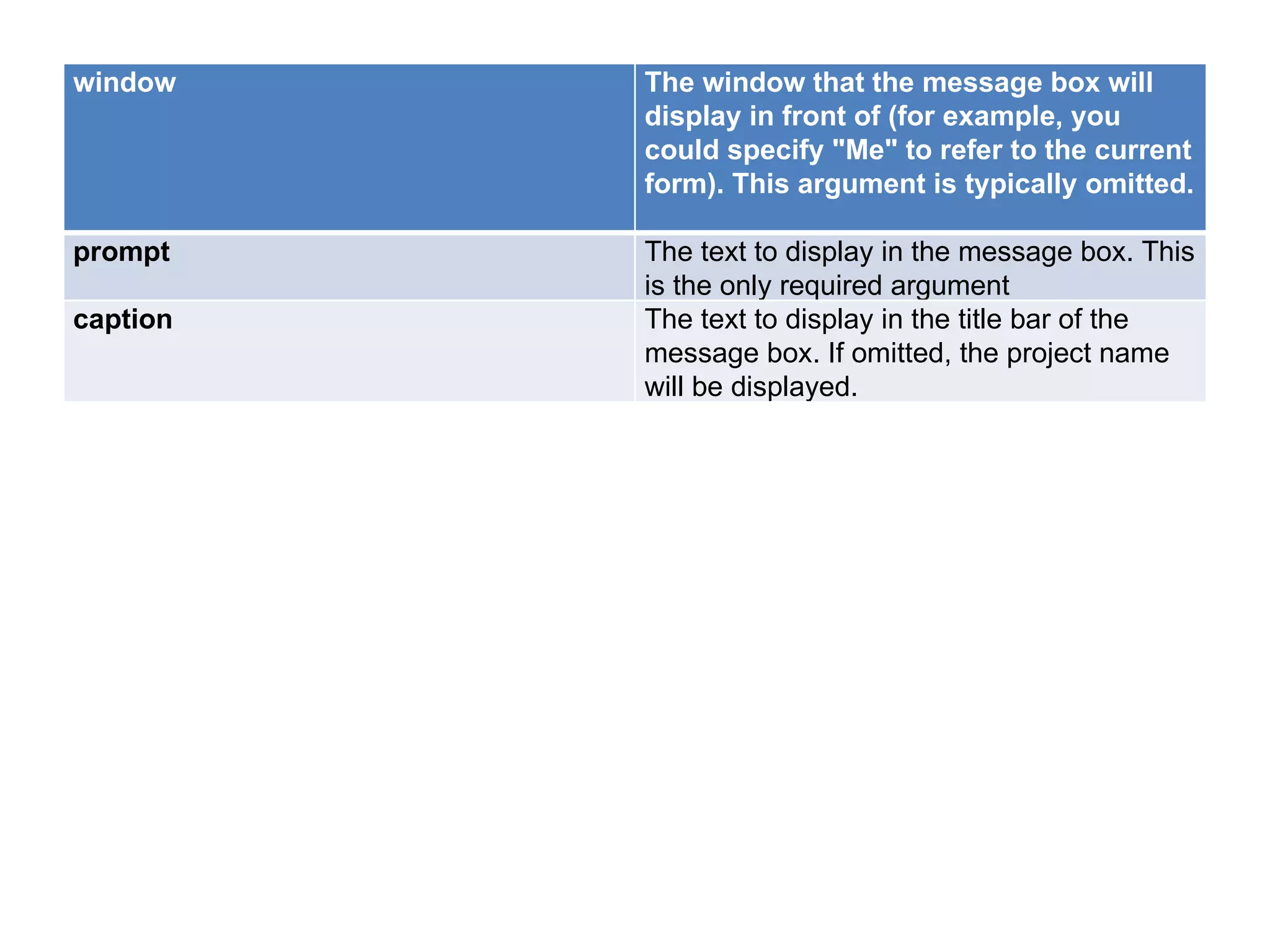
window    The window that the message box will
          display in front of (for example, you
          could specify "Me" to refer to the current
          form). This argument is typically omitted.

prompt    The text to display in the message box. This
          is the only required argument
caption   The text to display in the title bar of the
          message box. If omitted, the project name
          will be displayed.
MessageBoxButtons   Specifies which buttons to display on
                    the message box. Possible values are:
                    •MessageBoxButtons.AbortRetryIgnore
                    (displays the Abort, Retry, and Ignore
                    buttons)
                    •MessageBoxButtons.OK (displays the
                    OK button)
                    •MessageBoxButtons.OKCancel
                    (displays the OK and Cancel buttons)
                    •MessageBoxButtons.RetryCancel
                    (displays the Retry and Cancel buttons)
                    •MessageBoxButtons.YesNo (displays
                    the Yes and No buttons)
                    •MessageBoxButtons.YesNoCancel
                    (displays the Yes, No, and Cancel
                    buttons)
MessageBoxIcon              Specifies which icon to display on
                            the message box. Possible values
                            are:
Value                                      Icon
MessageBoxIcon.Error
- or -
MessageBoxIcon.Hand
- or -
MessageBoxIcon.Stop

MessageBoxIcon.Question
 
MessageBoxIcon.Exclamatio
n
- or -
MessageBoxIcon.Warning
 
MessageBoxIcon.Asterisk
- or -
MessageBoxIcon.Informatio
n
                                          (none)
MessageBoxIcon.None
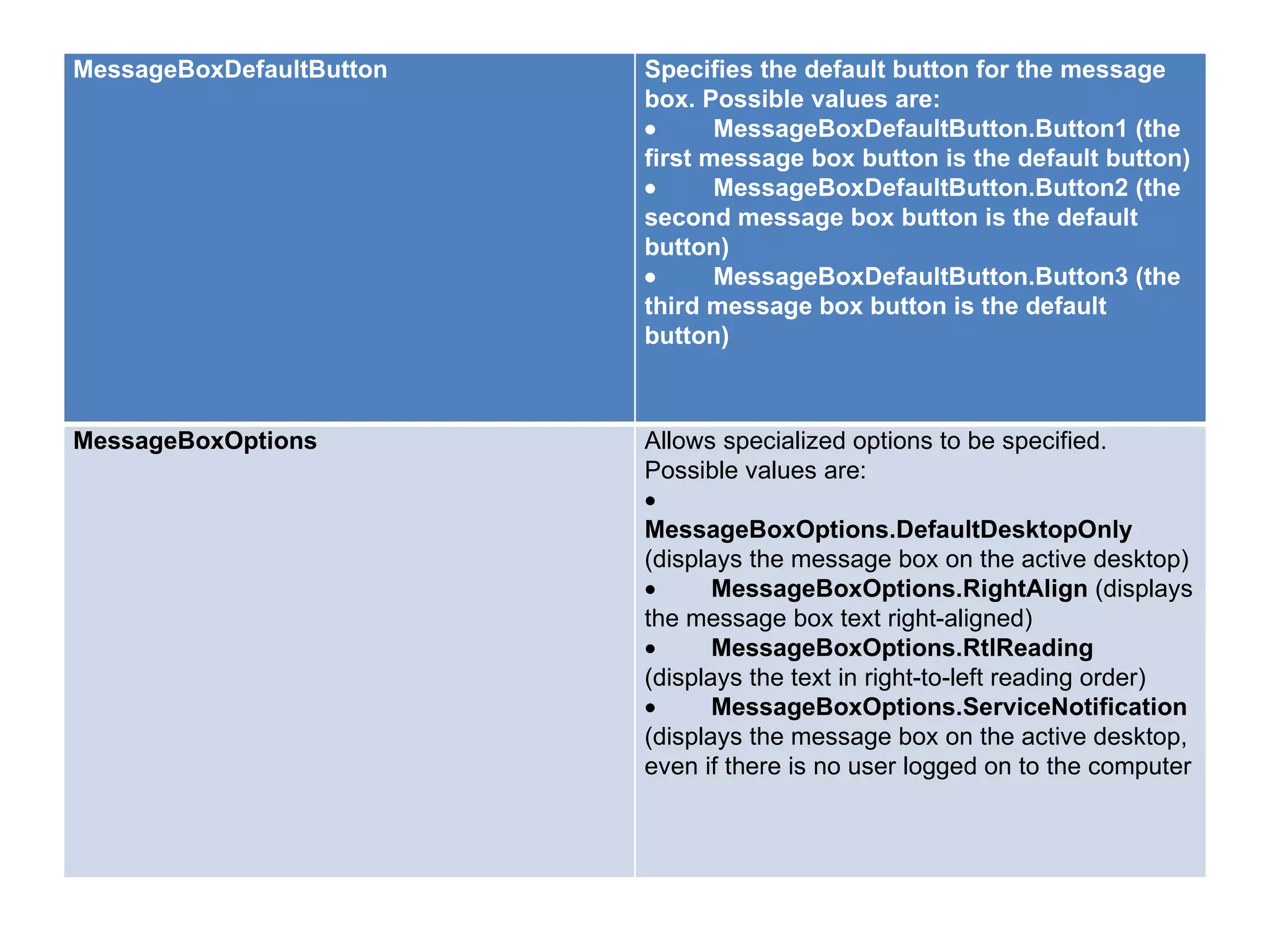
MessageBoxDefaultButton   Specifies the default button for the message
                          box. Possible values are:
                          •      MessageBoxDefaultButton.Button1 (the
                          first message box button is the default button)
                          •      MessageBoxDefaultButton.Button2 (the
                          second message box button is the default
                          button)
                          •      MessageBoxDefaultButton.Button3 (the
                          third message box button is the default
                          button)


MessageBoxOptions         Allows specialized options to be specified.
                          Possible values are:
                          •         
                          MessageBoxOptions.DefaultDesktopOnly
                          (displays the message box on the active desktop)
                          •         MessageBoxOptions.RightAlign (displays
                          the message box text right-aligned)
                          •         MessageBoxOptions.RtlReading
                          (displays the text in right-to-left reading order)
                          •         MessageBoxOptions.ServiceNotification
                          (displays the message box on the active desktop,
                          even if there is no user logged on to the computer
Value                 Description
DialogResult.OK       The OK button was pressed
DialogResult.Cancel   The Cancel button was pressed
DialogResult.Abort    The Abort button was pressed
DialogResult.Retry    The Retry button was pressed
DialogResult.Ignore   The Ignore button was pressed
DialogResult.Yes      The Yes button was pressed
DialogResult.No       The No button was pressed
DialogResult.None     Nothing is returned from the dialog
                      box. This means that the modal dialog
                      continues running.
InputBox( ) function
• An InputBox( ) function will display a message box where the user
  can enter a value or a message in the form of text.
• Syntax
    – myMessage=InputBox(Prompt, Title, default_text, x-position, y-
      position)
• myMessage is a string type but which accept the message input by
  the users. The arguments are explained as follows:
• Prompt       - The message displayed normally as a question asked.
• Title       - The title of the Input Box.
• default-text - The default text that appears in the input field where
  users can use it as his intended input or he may change to the
  message he wish to enter.
• x-position and y-position - the position or the coordinates of the
  input box.
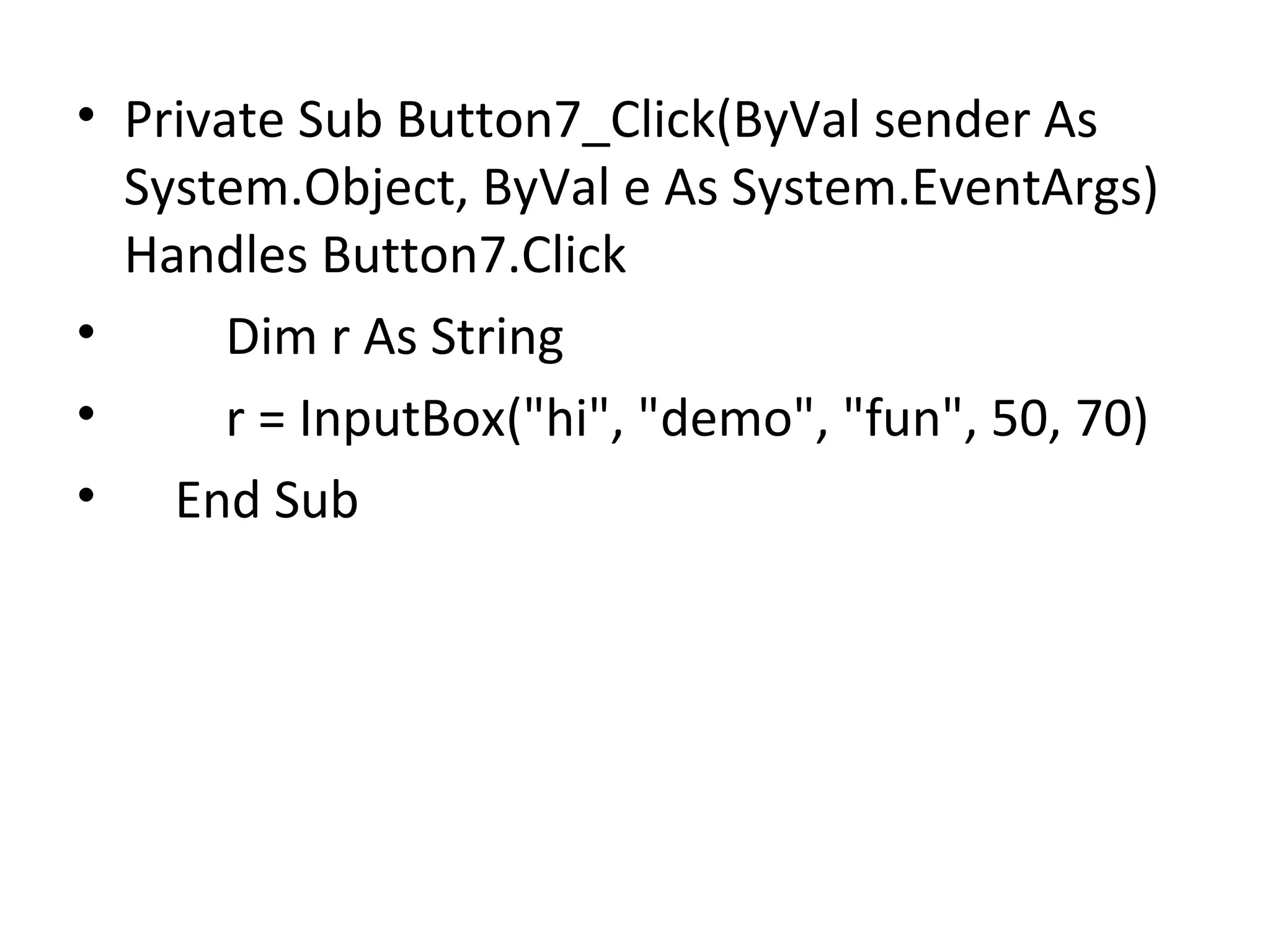
• Private Sub Button7_Click(ByVal sender As
  System.Object, ByVal e As System.EventArgs)
  Handles Button7.Click
•      Dim r As String
•      r = InputBox("hi", "demo", "fun", 50, 70)
• End Sub

The msg box function and the messagebox class

  • 1.
    The MsgBox Functionand the MessageBox Class • MsgBox function, is a part of the Microsoft.VisualBasic namespace . • MessageBox is the class. Part of System.Windows.MessageBox
  • 2.
    The MsgBox Function •The MsgBox function displays a message in a dialog box, waits for the user to click a button, and returns an Integer indicating which button the user clicked. • Syntax: – MsgBox(prompt[, buttons] [, title]) – - or – – IntegerVariable = MsgBox(prompt[, buttons] [, title]) • The MsgBox function syntax has these parts: • Part • prompt – Required. String expression displayed as the message in the dialog box. The maximum length of prompt is approximately 1024 characters, depending on the width of the characters used.
  • 3.
    • buttons – Optional. Numeric expression that is the sum of values specifying the number and type of buttons to display, the icon style to use, the identity of the default button, and the modality of the message box. If omitted, the default value for buttons is 0 (which causes only an OK button to be displayed with no icon). The buttons argument is explained in more detail below. • title – Optional. String expression displayed in the title bar of the dialog box. If you omit title, the application name is placed in the title bar.
  • 4.
    The buttons argument • The buttons argument is formed by five groups of values. • The first group of values (0–5) describes the number and type of buttons displayed in the dialog box; • The second group (16, 32, 48, 64) describes the icon style; • The third group (0, 256, 512, 768) determines which button is the default; • The fourth group (0, 4096) determines the modality of the message box; • And the fifth group contains values that would only be used under special circumstances. • When adding numbers to create a final value for the buttons argument, use only one number from each group. • For each value, a corresponding built-in constant i.e. either the classic "vb" constants or the .NET "MsgBoxStyle" enumeration constants may also be used. • Use of the constants is preferred for readability. • The "vb" constants were introduced in earlier versions of Visual Basic and may also be used in VB.NET. • VB.NET also provides the "MsgBoxStyle" enumeration constants which can be used as an alternative to the "vb" constants.
  • 5.
    First Group: Determineswhich buttons to display: Constant Value Description vbOKOnly 0 Display OK button only. - or - MsgBoxStyle.OKOnly vbOKCancel 1 Display OK and Cancel - or - buttons. MsgBoxStyle.OKCancel vbAbortRetryIgnore 2 Display Abort, Retry, - or - and Ignore buttons. MsgBoxStyle.AbortRetryIg nore vbYesNoCancel 3 Display Yes, No, and - or - Cancel buttons. MsgBoxStyle.YesNoCanc el vbYesNo 4 Display Yes and No - or - buttons. MsgBoxStyle.YesNo vbRetryCancel 5 Display Retry and - or - Cancel buttons. MsgBoxStyle.RetryCancel
  • 6.
    Second Group:Determines whichicon to display: Constant Value Description Icon vbCritical 16 Display Critical - or - Message icon. MsgBoxStyle.Cri tical vbQuestion 32 Display - or - Warning Query MsgBoxStyle.Qu (question mark) estion icon. vbExclamation 48 Display - or - Warning MsgBoxStyle.Ex Message icon. clamation vbInformation 64 Display - or - Information MsgBoxStyle.Inf Message icon. ormation
  • 7.
    Third Group:Determines whichbutton is the default: Constant Value Description vbDefaultButton1 0 First button is default. - or - MsgBoxStyle.DefaultButt on1 vbDefaultButton2 256 Second button is default. - or - MsgBoxStyle.DefaultButt on2 vbDefaultButton3 512 Third button is default. - or - MsgBoxStyle.DefaultButt on3 vbDefaultButton4 768 Fourth button is default - or - (applicable only if a Help MsgBoxStyle.DefaultButt button has been added). on4
  • 8.
    Fourth Group: Determines themodality of the message box. Generally, you would not need to use a constant from this group, as you would want to use the default (application modal). If you specified "system modal", you would be "hogging" Windows – i.e., if a user had open another app , like Word or Excel, they would not be able to get back to it until they responded to your app's message box. Constant Value Description vbApplicationModal 0 Application modal; the - or - user must respond to MsgBoxStyle.Applicati the message box onModal before continuing work in the current application. vbSystemModal 4096 System modal; all - or - applications are MsgBoxStyle.System suspended until the Modal user responds to the message box.
  • 9.
    The fifth groupof constants that can be used for the buttons argument would only be used under special circumstances: Constant Value Description vbMsgBoxHelpButton 16384 Adds Help button to the - or - message box MsgBoxStyle.MsgBoxHel pButton vbMsgBoxSetForeground 65536 Specifies the message - or - box window as the MsgBoxStyle.MsgBoxSet foreground window Foreground vbMsgBoxRight 524288 Text is right aligned - or - MsgBoxStyle.MsgBoxRig ht vbMsgBoxRtlReading 1048576 Specifies text should - or - appear as right-to-left MsgBoxStyle.MsgBoxRtl reading on Hebrew and Reading Arabic systems
  • 10.
    • When youuse MsgBox with the option to display more than one button (i.e., from the first group, anything other than "vbOKOnly"), you can test which button the user clicked by comparing the return value of the Msgbox function with one of these values. • For each return value, a corresponding built-in constant (either the classic "vb" constants or the .NET "MsgBoxResult" enumeration constants) may also be used. • VB.NET also provides the "MsgBoxResult" enumeration constants which can be used as an alternative to the "vb" constants. •
  • 11.
    Msgbox constants Constant Value Description vbOK 1 The OK button was -or- pressed MsgBoxResult.OK vbCancel 2 The Cancel button was -or- pressed MsgBoxResult.Cancel vbAbort 3 The Abort button was -or- pressed MsgBoxResult.Abort vbRetry 4 The Retry button was -or- pressed MsgBoxResult.Retry
  • 12.
    vbIgnore 5 The Ignore button was -or- pressed MsgBoxResult.Ignore vbYes 6 The Yes button was -or- pressed MsgBoxResult.Yes vbNo 7 The No button was -or- pressed MsgBoxResult.No
  • 13.
    MessageBox Class • Asan alternative, .NET has introduced a class called MessageBox which encapsulates all the features of MsgBox. • The difference between MsgBox and MessageBox is that Msgbox is a function while MessageBox is a class. • The MessageBox class has various overloaded Show methods for different parameters. • From a practical standpoint, both the MsgBox function and the MessageBox class will accomplish the same thing. • The arguments for MessageBox are specified in a slightly different order from MsgBox. • MessageBox.Show Method • To show the message box we need to call the Show method of the MessageBox class, for example: -MessageBox.Show("Hello World!")
  • 14.
    • The Showmethod has various overloaded forms. • syntax – [DialogResult = ] MessageBox.Show([window ,] - prompt –                                   [, caption] – [, MessageBoxButtons] – [, MessageBoxIcon] – [, MessageBoxDefaultButton] – [, MessageBoxOptions])
  • 15.
    window The window that the message box will display in front of (for example, you could specify "Me" to refer to the current form). This argument is typically omitted. prompt The text to display in the message box. This is the only required argument caption The text to display in the title bar of the message box. If omitted, the project name will be displayed.
  • 16.
    MessageBoxButtons Specifies which buttons to display on the message box. Possible values are: •MessageBoxButtons.AbortRetryIgnore (displays the Abort, Retry, and Ignore buttons) •MessageBoxButtons.OK (displays the OK button) •MessageBoxButtons.OKCancel (displays the OK and Cancel buttons) •MessageBoxButtons.RetryCancel (displays the Retry and Cancel buttons) •MessageBoxButtons.YesNo (displays the Yes and No buttons) •MessageBoxButtons.YesNoCancel (displays the Yes, No, and Cancel buttons)
  • 17.
    MessageBoxIcon Specifies which icon to display on the message box. Possible values are: Value Icon MessageBoxIcon.Error - or - MessageBoxIcon.Hand - or - MessageBoxIcon.Stop MessageBoxIcon.Question   MessageBoxIcon.Exclamatio n - or - MessageBoxIcon.Warning   MessageBoxIcon.Asterisk - or - MessageBoxIcon.Informatio n (none) MessageBoxIcon.None
  • 18.
    MessageBoxDefaultButton Specifies the default button for the message box. Possible values are: • MessageBoxDefaultButton.Button1 (the first message box button is the default button) • MessageBoxDefaultButton.Button2 (the second message box button is the default button) • MessageBoxDefaultButton.Button3 (the third message box button is the default button) MessageBoxOptions Allows specialized options to be specified. Possible values are: •          MessageBoxOptions.DefaultDesktopOnly (displays the message box on the active desktop) •         MessageBoxOptions.RightAlign (displays the message box text right-aligned) •         MessageBoxOptions.RtlReading (displays the text in right-to-left reading order) •         MessageBoxOptions.ServiceNotification (displays the message box on the active desktop, even if there is no user logged on to the computer
  • 19.
    Value Description DialogResult.OK The OK button was pressed DialogResult.Cancel The Cancel button was pressed DialogResult.Abort The Abort button was pressed DialogResult.Retry The Retry button was pressed DialogResult.Ignore The Ignore button was pressed DialogResult.Yes The Yes button was pressed DialogResult.No The No button was pressed DialogResult.None Nothing is returned from the dialog box. This means that the modal dialog continues running.
  • 20.
    InputBox( ) function •An InputBox( ) function will display a message box where the user can enter a value or a message in the form of text. • Syntax – myMessage=InputBox(Prompt, Title, default_text, x-position, y- position) • myMessage is a string type but which accept the message input by the users. The arguments are explained as follows: • Prompt - The message displayed normally as a question asked. • Title - The title of the Input Box. • default-text - The default text that appears in the input field where users can use it as his intended input or he may change to the message he wish to enter. • x-position and y-position - the position or the coordinates of the input box.
  • 21.
    • Private SubButton7_Click(ByVal sender As System.Object, ByVal e As System.EventArgs) Handles Button7.Click • Dim r As String • r = InputBox("hi", "demo", "fun", 50, 70) • End Sub