Engineering on My Tablet
Jim Swain
Agenda – Engineering On My Tablet
12:15 Get your lunch
12:30 Presentation
slides, demos, the good stuff
1:15 Wrap up
Time for break, emails, etc. before the
next sessions start
Disclaimers
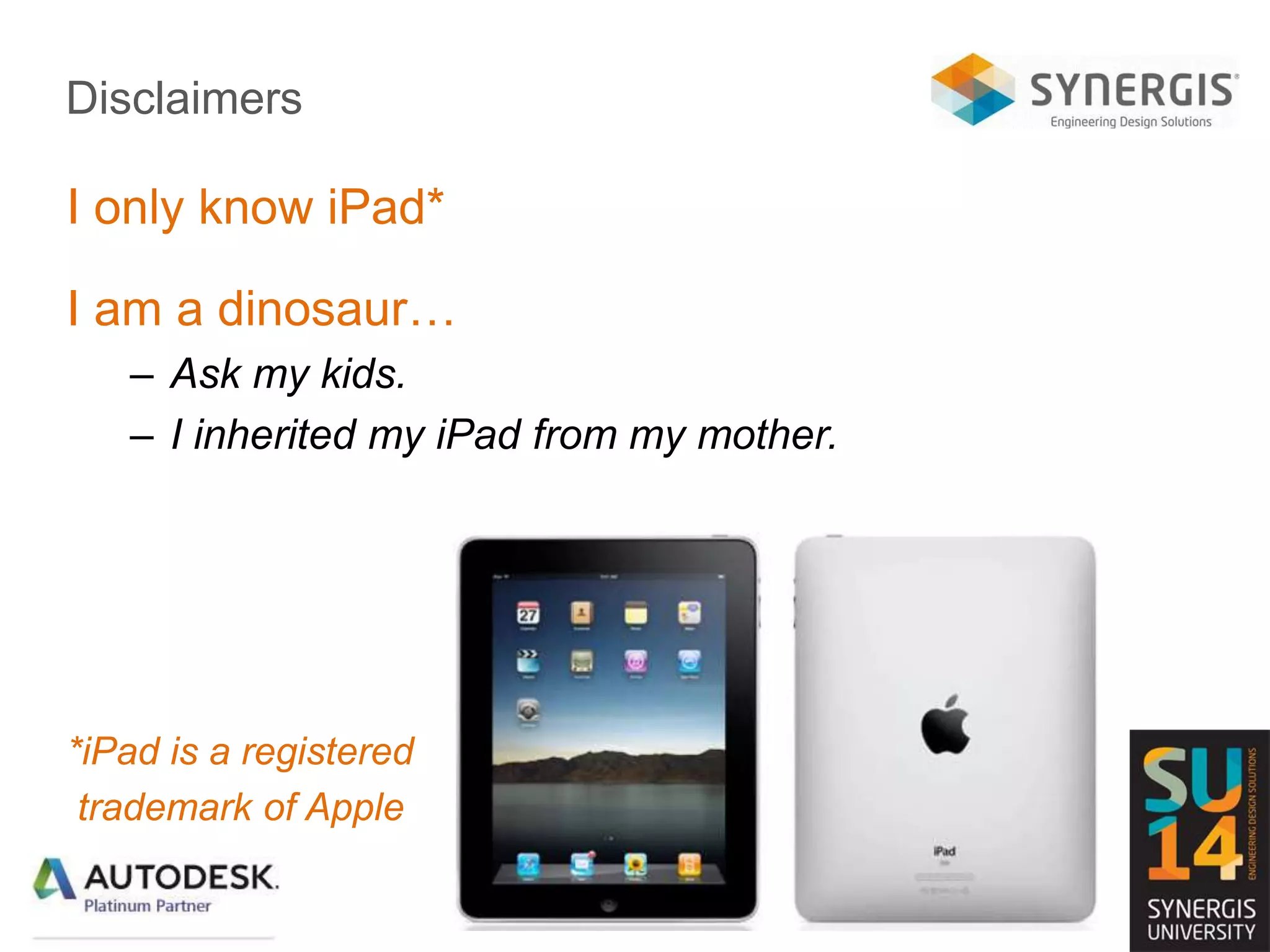
I only know iPad*
I am a dinosaur…
– Ask my kids.
– I inherited my iPad from my mother.
*iPad is a registered
trademark of Apple
Autodesk’s iPad App Offerings
• Configurator 360
• ForceEffect
• ForceEffect Motion
• ForceEffect Flow
• AutoCAD 360
• 360 Mobile
• SketchBook Express
• InfraWorks 360
• BIM 360 Glue
• BIM 360 Field
• Inventor Publisher Mobile
Viewer
• Constructware Field
• FormIt
• Buzzsaw
• Digital STEAM educational
apps
• 123D Design
• 123D Catch
• Electrical
• Factory
• Autodesk Remote
Note:
This partial list may already be
out of date!
Other Engineering iPad App Offerings
• Instructables – DIY
• TinkerBox
• GrabCAD
• And more and more and more…
A couple of other lists…
• GrabCAD blog:
– http://blog.grabcad.com/blog/2014/04/03/best-mobile-apps-
engineers/
• ASME
– https://www.asme.org/engineering-topics/articles/technology-
and-society/5-mobile-apps-for-engineers
• Scientia Blogger
– http://www.mastersinengineering.org/25-ipad-apps-every-
engineer-needs
• Design News
– http://www.designnews.com/document.asp?dfpPParams=aid_23
6155&dfpLayout=article&doc_id=236155&image_number=1
Narrowing It Down For Today
• Collaboration
– Autodesk 360 Mobile
– BIM 360 Glue
– BIM 360 Field
• Presentation
– InfraWorks 360
– Configurator 360
• Design and Analysis
– AutoCAD 360
– SketchBook Express
– ForceEffect Motion
– ForceEffect
– ForceEffect Flow
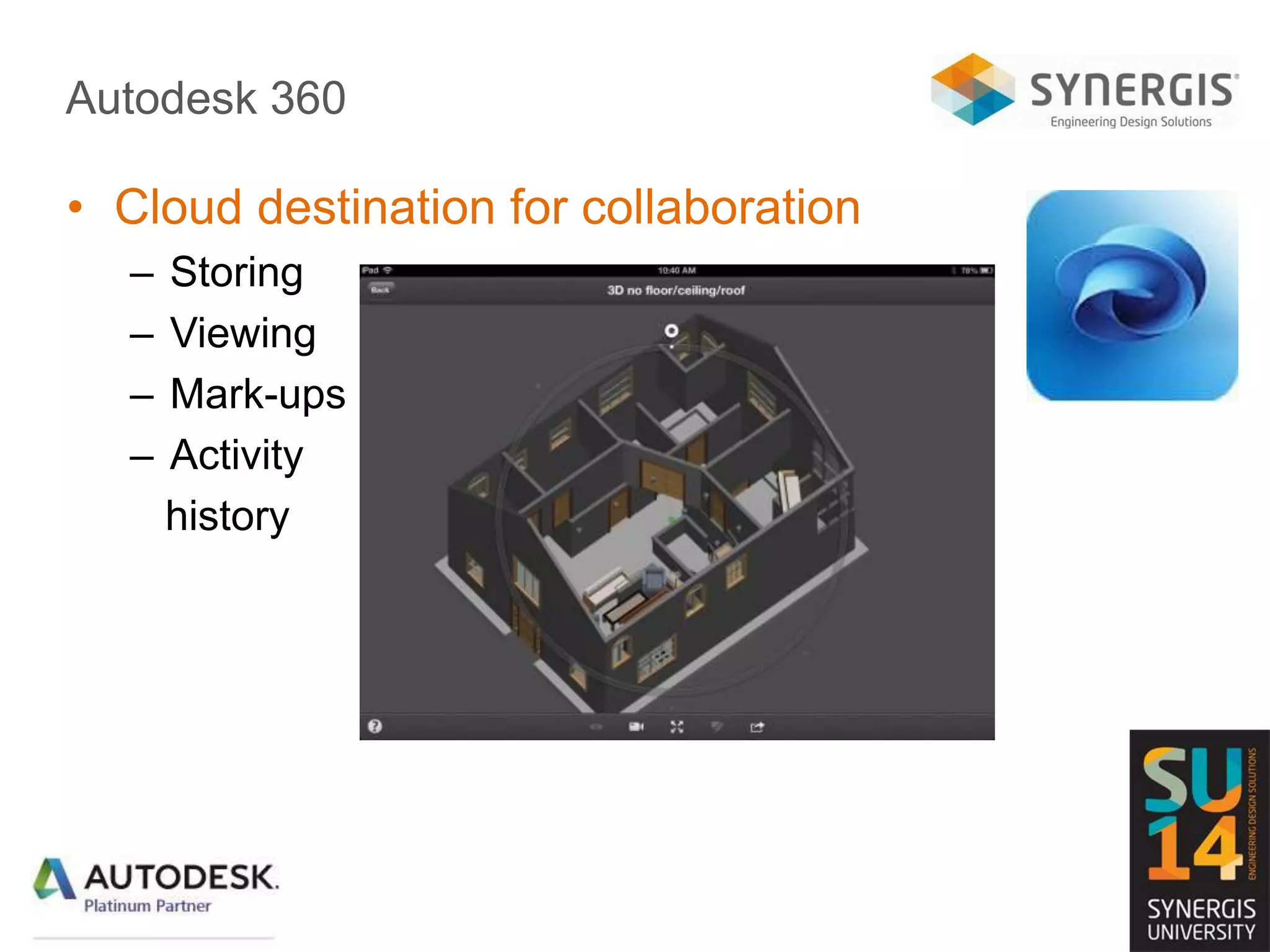
Autodesk 360
• Cloud destination for collaboration
– Storing
– Viewing
– Mark-ups
– Activity
history
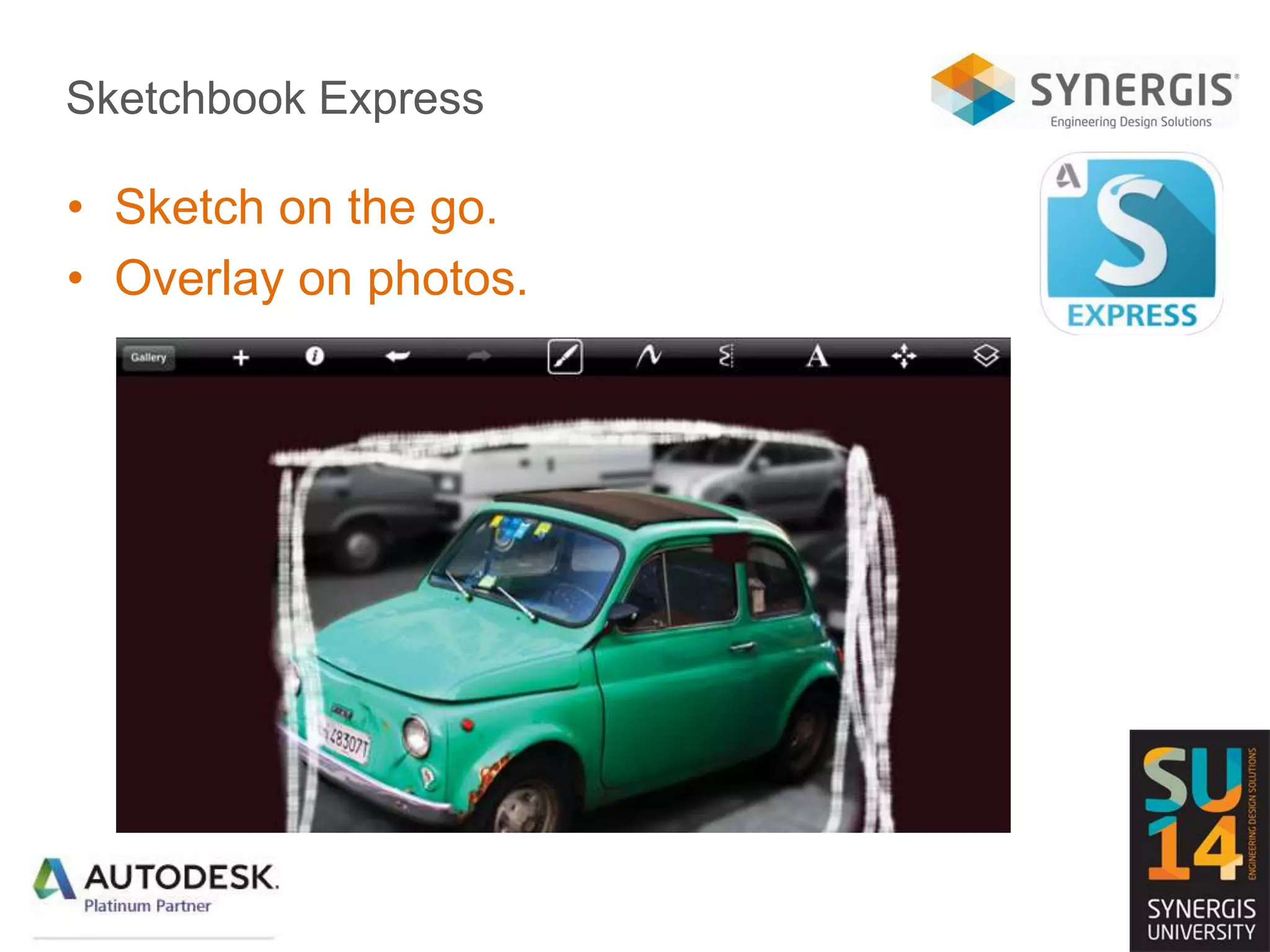
Sketchbook Express
• Sketch on the go.
• Overlay on photos.
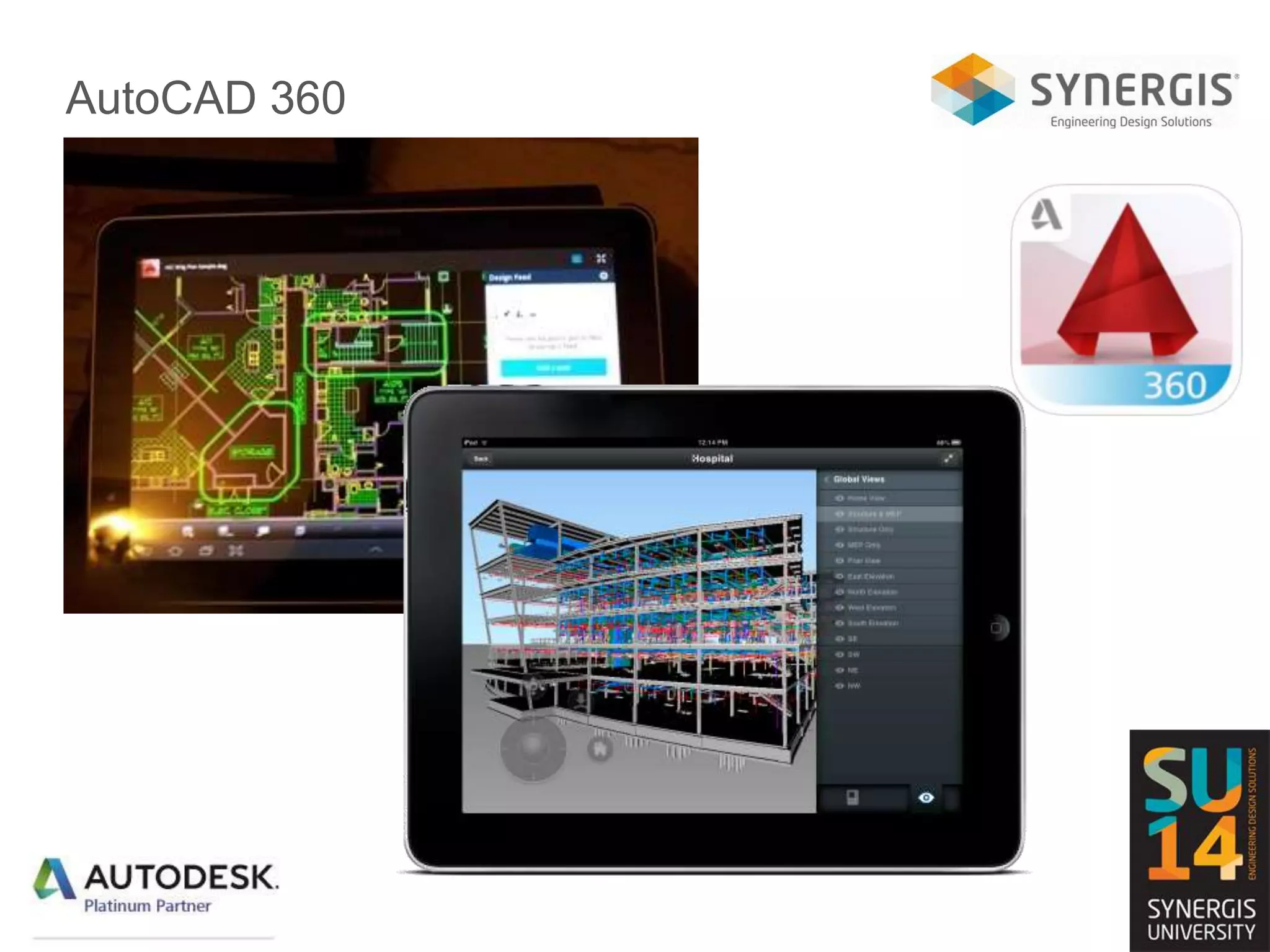
AutoCAD 360
• Works with any DWG file.
– that is stored in the cloud.
• Basic AutoCAD tools
– Markups
– Simple draw commands
– Layer visibility
• Pro version (not free)
– Large file support
– Layers, Properties, Blocks
– More drawing tools
– Create new drawings
AutoCAD 360
Some AEC Tools
• Collaboration
– Autodesk 360 Mobile
– BIM 360 Glue
– BIM 360 Field
• Presentation
– InfraWorks 360
• Design and Analysis
– AutoCAD 360
– Sketchbook Express
InfraWorks 360
• View project models and scenarios.
• View
– Thumbnails for easier visual identification
– On-canvas scenario list
– Download and view 3D scenarios while online or offline
– Use iPad location to view scenarios in augmented reality mode
• Easy to Access
– Search collections of scenarios
– Filter on status or proximity
• Collaborate
– Create comments using Design Feed
– View and reply to comments created from all InfraWorks 360
clients
– Give comments context by placing markers on the scene
BIM 360 Glue
• Select, hide, and reveal individual discipline
models and objects.
• Walk through the model
– Gravity-assisted navigation.
• View project model details
– Gyroscope-enabled look-around.
• Review and annotate project models
– Send notifications to the team.
• Respond to markups received from BIM 360
Glue project members
– Anytime, anywhere.
• Access large project models and data
– Online or offline.
BIM 360 Field
• Commisioning and Handover Projects
– Review issues, punch lists, etc.
– Mark up drawings and photos to illustrate issues
– Fill out quality, safety, and commissioning checklists
– View and navigate BIM models of different types
– Share your model using the BIM 360 Field Library
– Link your models to the BIM 360 Field equipment
database
– Share data with your whole project
– Tag issues and checklists to locations and responsible
companies
– Audit trails show authors, dates, and times
Buzzsaw
• Buzzsaw users can securely access AEC project
designs and documents from anywhere.
• View Revit and Navisworks models.
– Saved views
– Object metadata
• View 2D and 3D DWF® files and data elements.
• Download AutoCAD DWG and DXF files from
Buzzsaw
– Open with AutoCAD 360
• View all your project files
– Photos and images
– PDF, Word, Excel, and PowerPoint documents.
• Fully supports all 8 Buzzsaw permission levels.
Some Manufacturing Tools
• Collaboration
– Autodesk 360 Mobile
• Presentation
– Configurator 360
• Design and Analysis
– AutoCAD 360
– SketchBook Express
– ForceEffect Motion
– ForceEffect
– ForceEffect Flow
Configurator 360
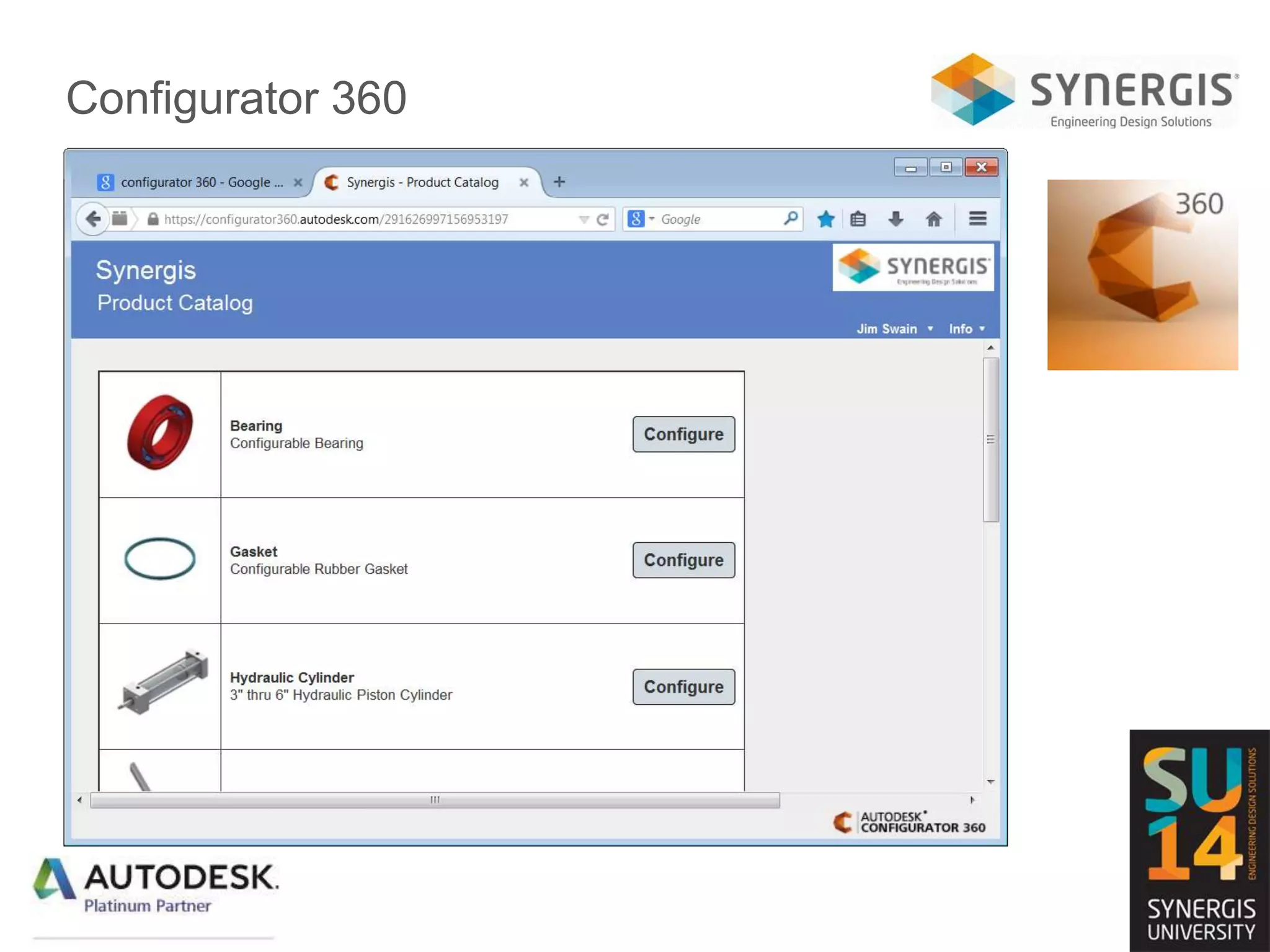
• Inventor models:
– iParts, iAssemblies
– iLogic
– ETO
• Try variations over the web.
• Request a quote.
• Download the underlying
Inventor files.
Configurator 360
Force Effect
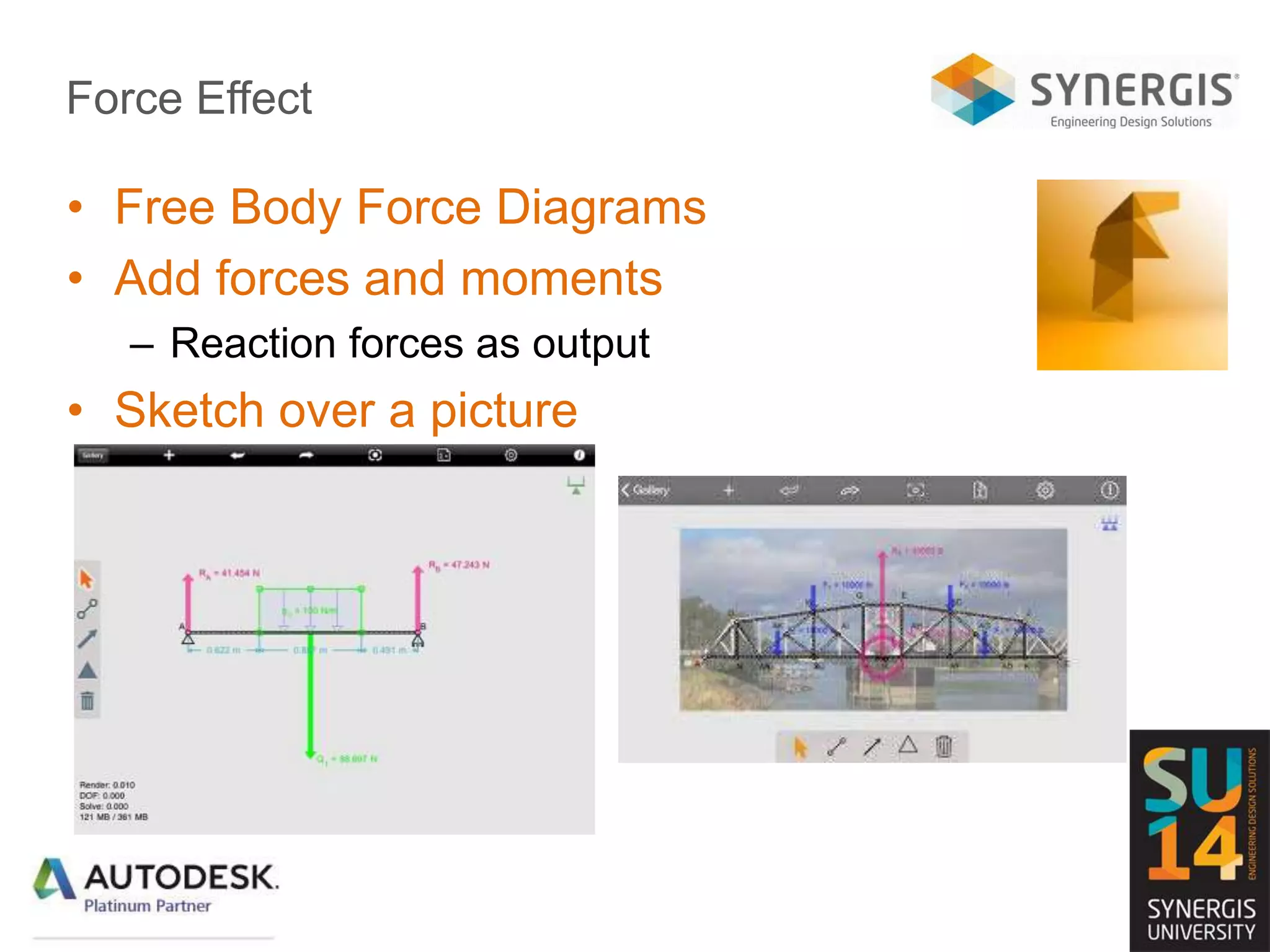
• Free Body Force Diagrams
• Add forces and moments
– Reaction forces as output
• Sketch over a picture
ForceEffect Motion
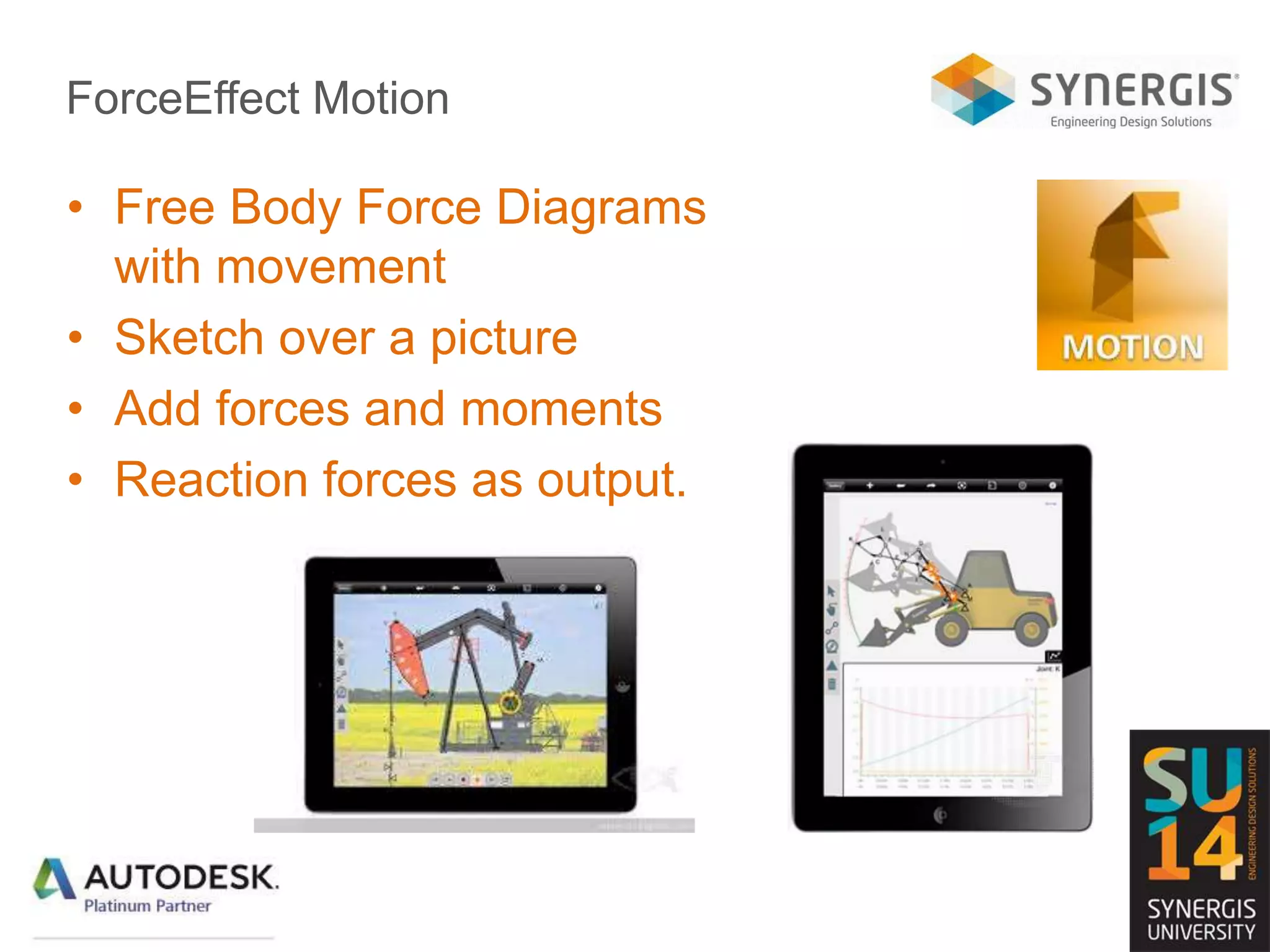
• Free Body Force Diagrams
with movement
• Sketch over a picture
• Add forces and moments
• Reaction forces as output.
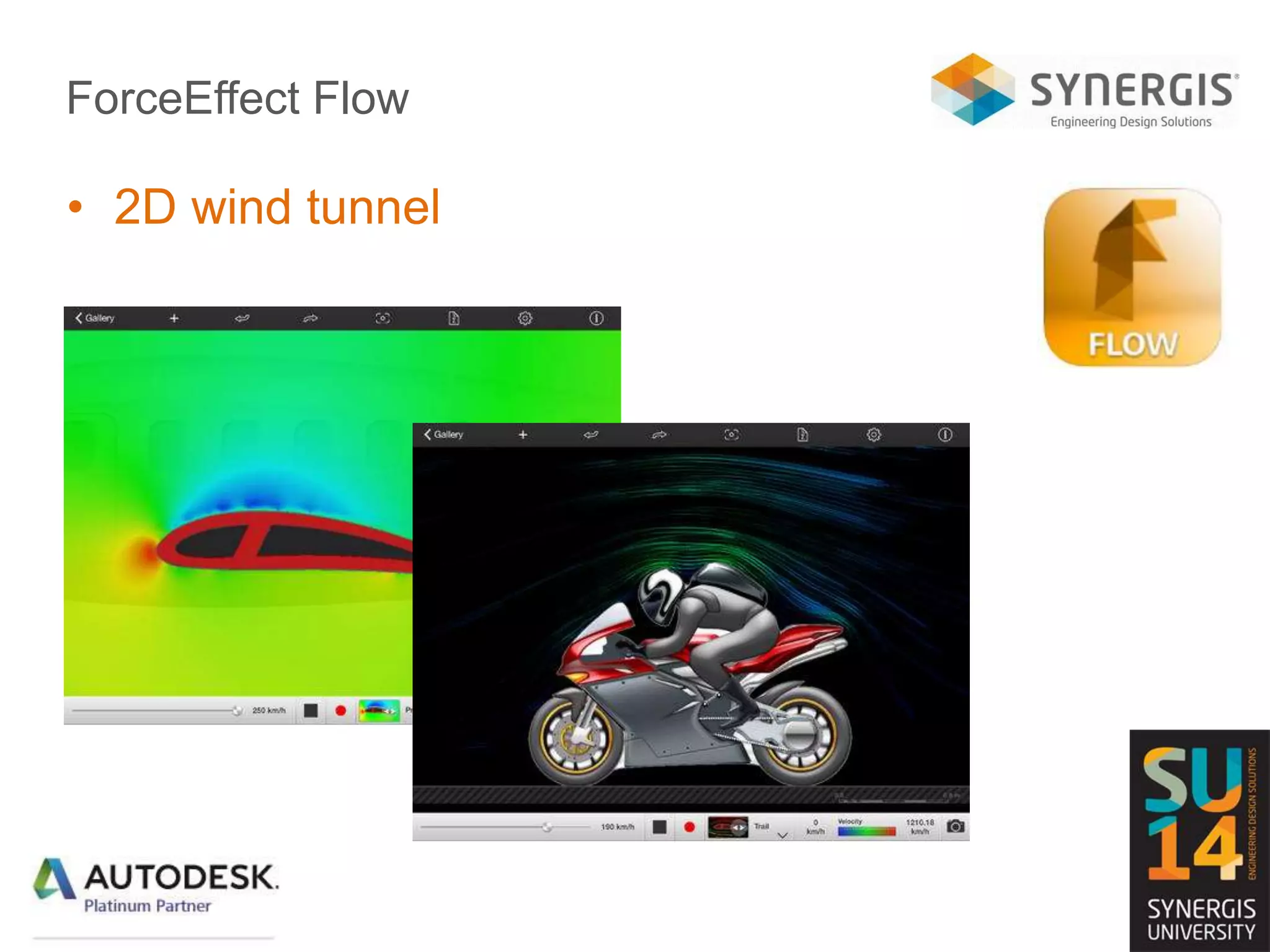
ForceEffect Flow
• 2D wind tunnel
Wrap-up
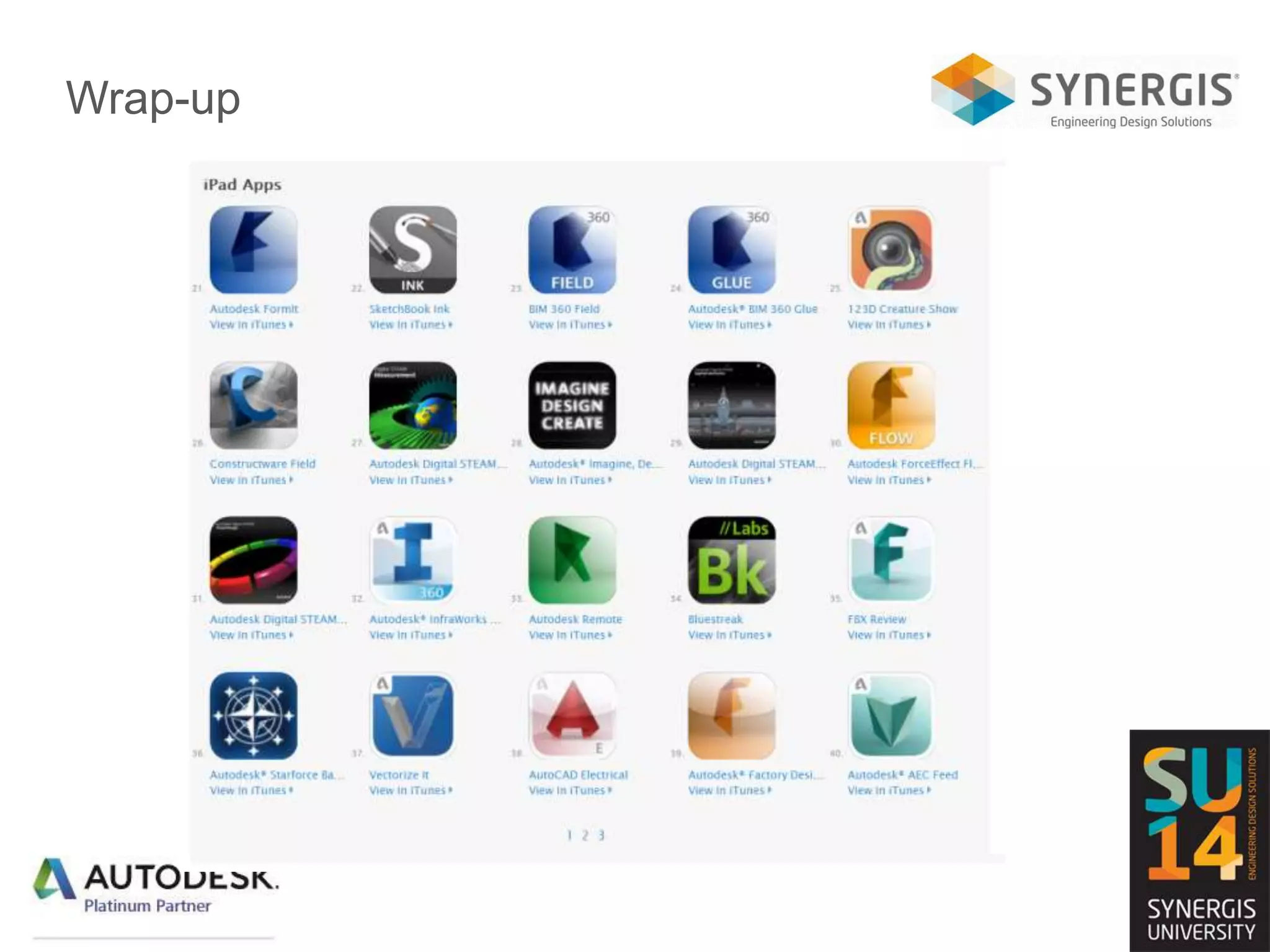
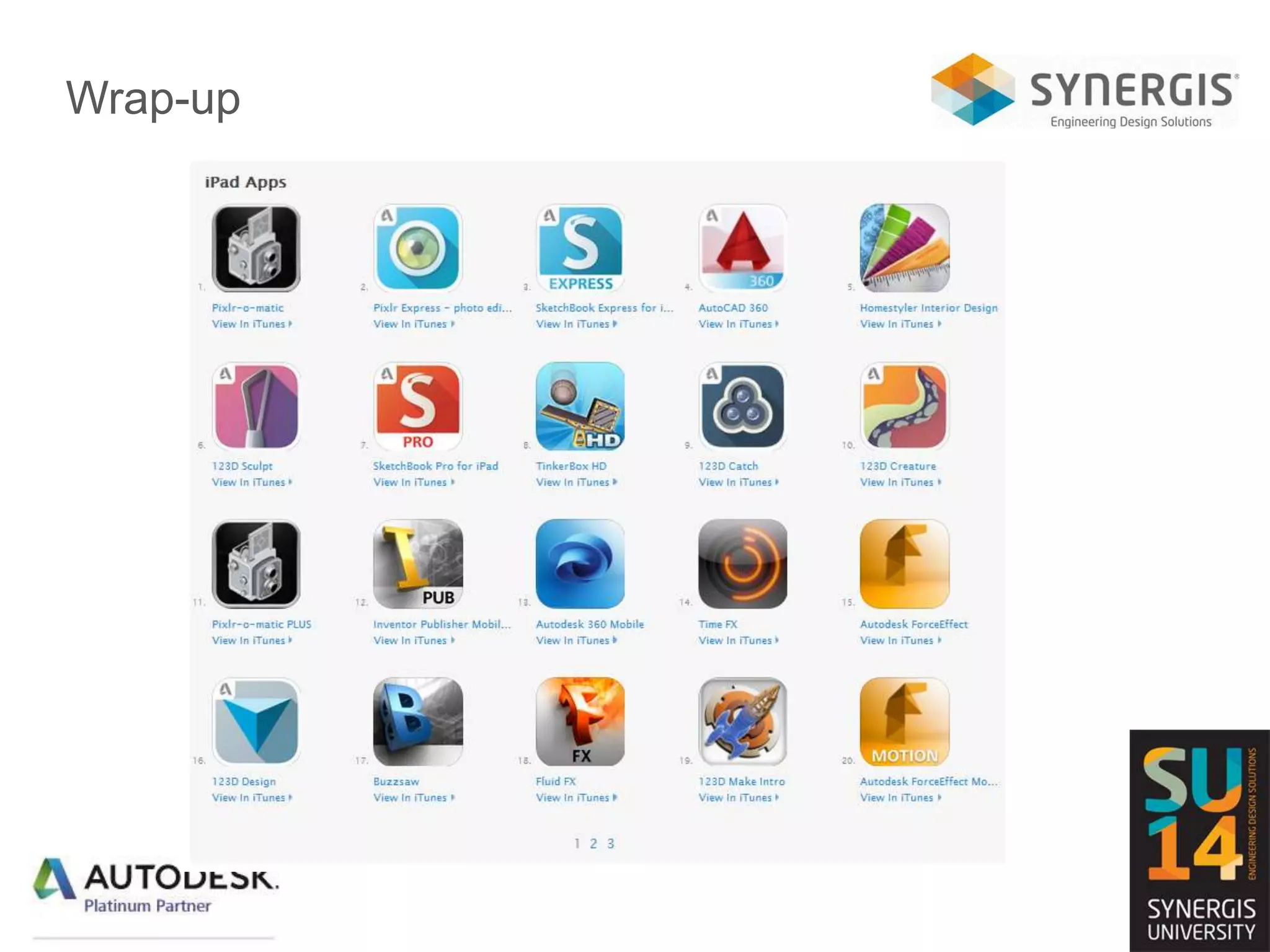
• I just scratched the surface.
– And the list seems to change daily.
• Much of what I showed here is free.
• I wish I had had these when I was in college.
• Thank you
Wrap-up
Wrap-up

Synergis University 2014-Engineering on My Tablet

  • 1.
    Engineering on MyTablet Jim Swain
  • 2.
    Agenda – EngineeringOn My Tablet 12:15 Get your lunch 12:30 Presentation slides, demos, the good stuff 1:15 Wrap up Time for break, emails, etc. before the next sessions start
  • 3.
    Disclaimers I only knowiPad* I am a dinosaur… – Ask my kids. – I inherited my iPad from my mother. *iPad is a registered trademark of Apple
  • 4.
    Autodesk’s iPad AppOfferings • Configurator 360 • ForceEffect • ForceEffect Motion • ForceEffect Flow • AutoCAD 360 • 360 Mobile • SketchBook Express • InfraWorks 360 • BIM 360 Glue • BIM 360 Field • Inventor Publisher Mobile Viewer • Constructware Field • FormIt • Buzzsaw • Digital STEAM educational apps • 123D Design • 123D Catch • Electrical • Factory • Autodesk Remote Note: This partial list may already be out of date!
  • 5.
    Other Engineering iPadApp Offerings • Instructables – DIY • TinkerBox • GrabCAD • And more and more and more…
  • 6.
    A couple ofother lists… • GrabCAD blog: – http://blog.grabcad.com/blog/2014/04/03/best-mobile-apps- engineers/ • ASME – https://www.asme.org/engineering-topics/articles/technology- and-society/5-mobile-apps-for-engineers • Scientia Blogger – http://www.mastersinengineering.org/25-ipad-apps-every- engineer-needs • Design News – http://www.designnews.com/document.asp?dfpPParams=aid_23 6155&dfpLayout=article&doc_id=236155&image_number=1
  • 7.
    Narrowing It DownFor Today • Collaboration – Autodesk 360 Mobile – BIM 360 Glue – BIM 360 Field • Presentation – InfraWorks 360 – Configurator 360 • Design and Analysis – AutoCAD 360 – SketchBook Express – ForceEffect Motion – ForceEffect – ForceEffect Flow
  • 8.
    Autodesk 360 • Clouddestination for collaboration – Storing – Viewing – Mark-ups – Activity history
  • 9.
    Sketchbook Express • Sketchon the go. • Overlay on photos.
  • 10.
    AutoCAD 360 • Workswith any DWG file. – that is stored in the cloud. • Basic AutoCAD tools – Markups – Simple draw commands – Layer visibility • Pro version (not free) – Large file support – Layers, Properties, Blocks – More drawing tools – Create new drawings
  • 11.
  • 12.
    Some AEC Tools •Collaboration – Autodesk 360 Mobile – BIM 360 Glue – BIM 360 Field • Presentation – InfraWorks 360 • Design and Analysis – AutoCAD 360 – Sketchbook Express
  • 13.
    InfraWorks 360 • Viewproject models and scenarios. • View – Thumbnails for easier visual identification – On-canvas scenario list – Download and view 3D scenarios while online or offline – Use iPad location to view scenarios in augmented reality mode • Easy to Access – Search collections of scenarios – Filter on status or proximity • Collaborate – Create comments using Design Feed – View and reply to comments created from all InfraWorks 360 clients – Give comments context by placing markers on the scene
  • 14.
    BIM 360 Glue •Select, hide, and reveal individual discipline models and objects. • Walk through the model – Gravity-assisted navigation. • View project model details – Gyroscope-enabled look-around. • Review and annotate project models – Send notifications to the team. • Respond to markups received from BIM 360 Glue project members – Anytime, anywhere. • Access large project models and data – Online or offline.
  • 15.
    BIM 360 Field •Commisioning and Handover Projects – Review issues, punch lists, etc. – Mark up drawings and photos to illustrate issues – Fill out quality, safety, and commissioning checklists – View and navigate BIM models of different types – Share your model using the BIM 360 Field Library – Link your models to the BIM 360 Field equipment database – Share data with your whole project – Tag issues and checklists to locations and responsible companies – Audit trails show authors, dates, and times
  • 16.
    Buzzsaw • Buzzsaw userscan securely access AEC project designs and documents from anywhere. • View Revit and Navisworks models. – Saved views – Object metadata • View 2D and 3D DWF® files and data elements. • Download AutoCAD DWG and DXF files from Buzzsaw – Open with AutoCAD 360 • View all your project files – Photos and images – PDF, Word, Excel, and PowerPoint documents. • Fully supports all 8 Buzzsaw permission levels.
  • 17.
    Some Manufacturing Tools •Collaboration – Autodesk 360 Mobile • Presentation – Configurator 360 • Design and Analysis – AutoCAD 360 – SketchBook Express – ForceEffect Motion – ForceEffect – ForceEffect Flow
  • 18.
    Configurator 360 • Inventormodels: – iParts, iAssemblies – iLogic – ETO • Try variations over the web. • Request a quote. • Download the underlying Inventor files.
  • 19.
  • 20.
    Force Effect • FreeBody Force Diagrams • Add forces and moments – Reaction forces as output • Sketch over a picture
  • 21.
    ForceEffect Motion • FreeBody Force Diagrams with movement • Sketch over a picture • Add forces and moments • Reaction forces as output.
  • 22.
  • 23.
    Wrap-up • I justscratched the surface. – And the list seems to change daily. • Much of what I showed here is free. • I wish I had had these when I was in college. • Thank you
  • 24.
  • 25.

Editor's Notes

  • #4 I am a Mechanical Engineer. I will stay with what I know.
  • #9 Secure storage bin. Safety deposit box?
  • #11 Used to be AutoCAD WS. Works with any AutoCAD or LT file.
  • #12 Used to be AutoCAD WS. Works with any AutoCAD or LT file.
  • #19 Think of this as your version of the “build a car” websites. This is running Inventor on the cloud. The performance is a bit slow for my tastes, but I have already seen improvements. Dave Breiner will hit this some more in the next session. Note – this isn’t a free product.
  • #20 Think of this as your version of the “build a car” websites. This is running Inventor on the cloud. The performance is a bit slow for my tastes, but I have already seen improvements. Dave Breiner will hit this some more in the next session. Note – this isn’t a free product.
  • #24 Subscription customers get free web storage. Many of these are free, some have fees. Configurator 360 and Force Effect FLOW are also pay products.
  • #25 Subscription customers get free web storage. Many of these are free, some have fees. Configurator 360 and Force Effect FLOW are also pay products.
  • #26 Subscription customers get free web storage. Many of these are free, some have fees. Configurator 360 and Force Effect FLOW are also pay products.