

Implementing Engineering
Standards through Autodesk
Vault
Joe Corson
John Kavusak
• Manage Templates and Design Data inside Vault
• Automatic file naming
• Property Configuration
• Property Dropdowns
• Property Compliance
• Vault Data Standard
• Property Edits
• Job Server
Class Overview
Create Custom Categories
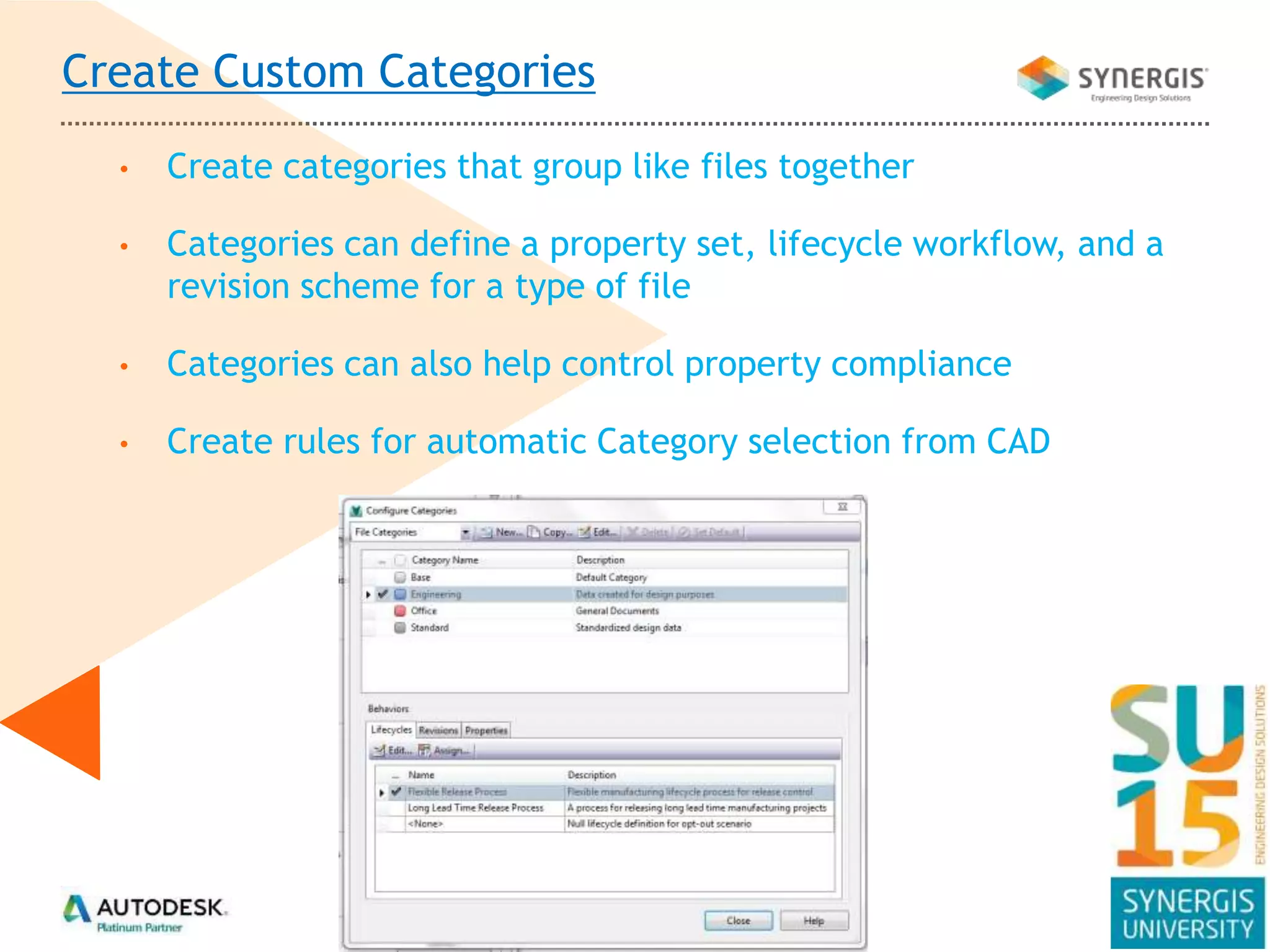
• Create categories that group like files together
• Categories can define a property set, lifecycle workflow, and a
revision scheme for a type of file
• Categories can also help control property compliance
• Create rules for automatic Category selection from CAD
UPD – User Defined Properties
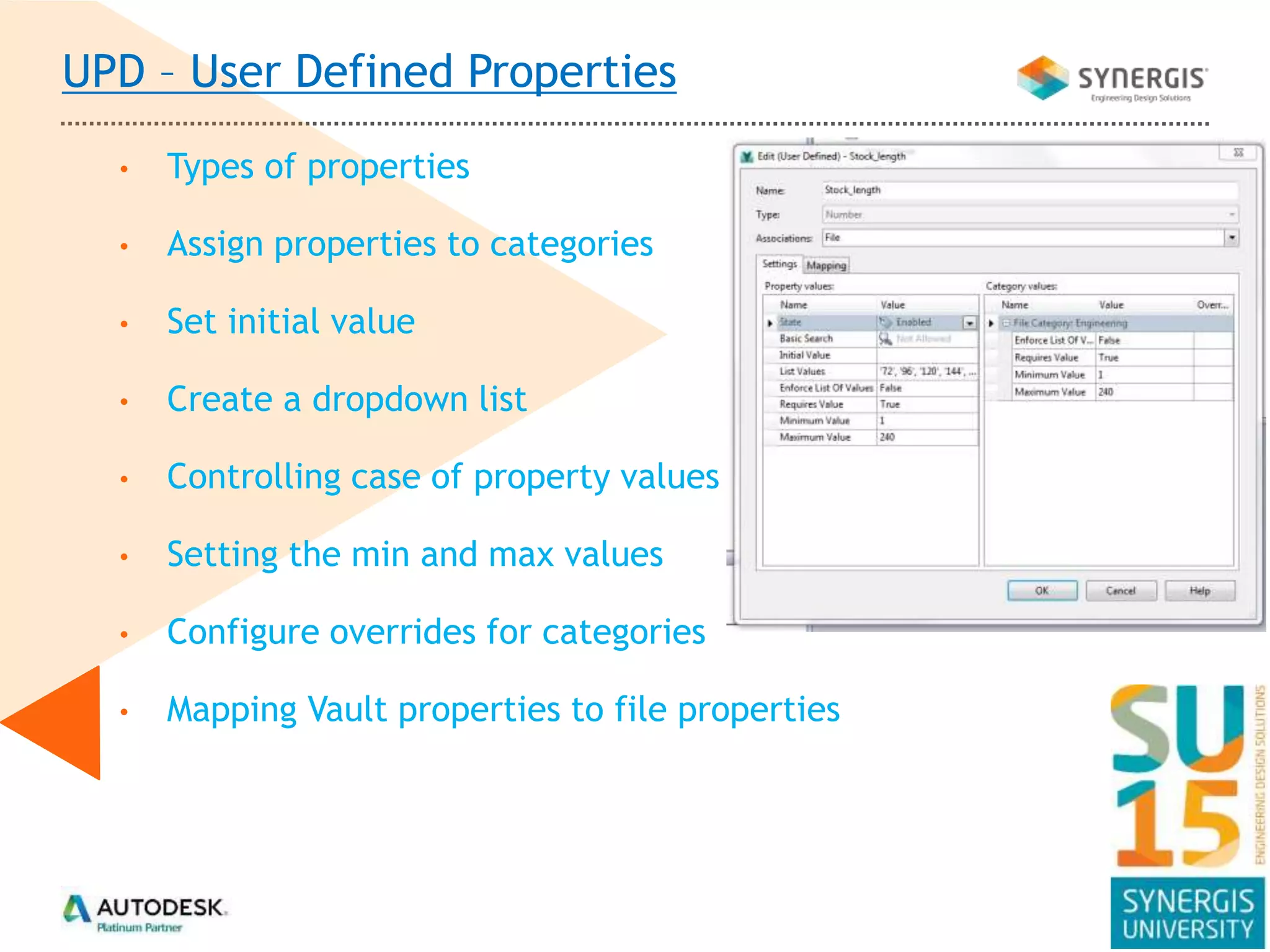
• Types of properties
• Assign properties to categories
• Set initial value
• Create a dropdown list
• Controlling case of property values
• Setting the min and max values
• Configure overrides for categories
• Mapping Vault properties to file properties
Numbering Scheme
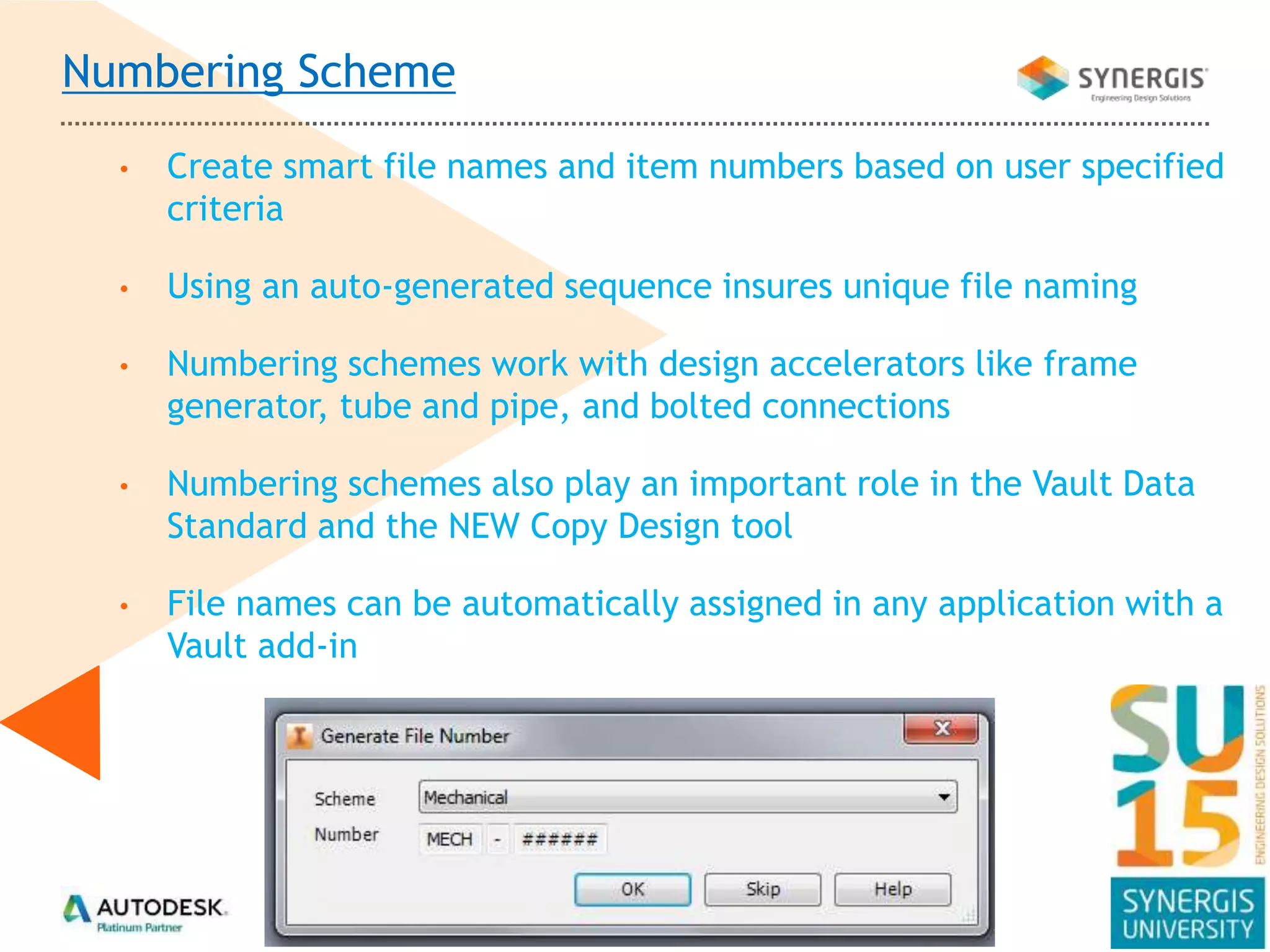
• Create smart file names and item numbers based on user specified
criteria
• Using an auto-generated sequence insures unique file naming
• Numbering schemes work with design accelerators like frame
generator, tube and pipe, and bolted connections
• Numbering schemes also play an important role in the Vault Data
Standard and the NEW Copy Design tool
• File names can be automatically assigned in any application with a
Vault add-in
Vault Data Standard
• The Vault Data Standard is a data control feature that enforces
users to enter data for new or existing files in a standard format
• Works inside of Inventor, AutoCAD, and the Vault client
• Controls category, file naming, property compliance, and file path
• Very easy to use with dropdown pick boxes and text boxes to enter
all data in a single form
• From within Vault the data standard can be used to create new
blank files populated with property data for virtually any file type
• Available to subscription users of Vault Workgroup and Professional
Job Server
• The Job Server is used to take the dwf creation process away from
the check-in process, create dwfs after state or category changes,
and to sync properties after a lifecycle change has occurred
• The Job Server consist of two components: Job Queue and the Job
Processor
• The Job Queue is the list of files that are to be processed. Files can
be submitted to the queue thru Inventor, AutoCAD, Vault, or the
AutoLoader.
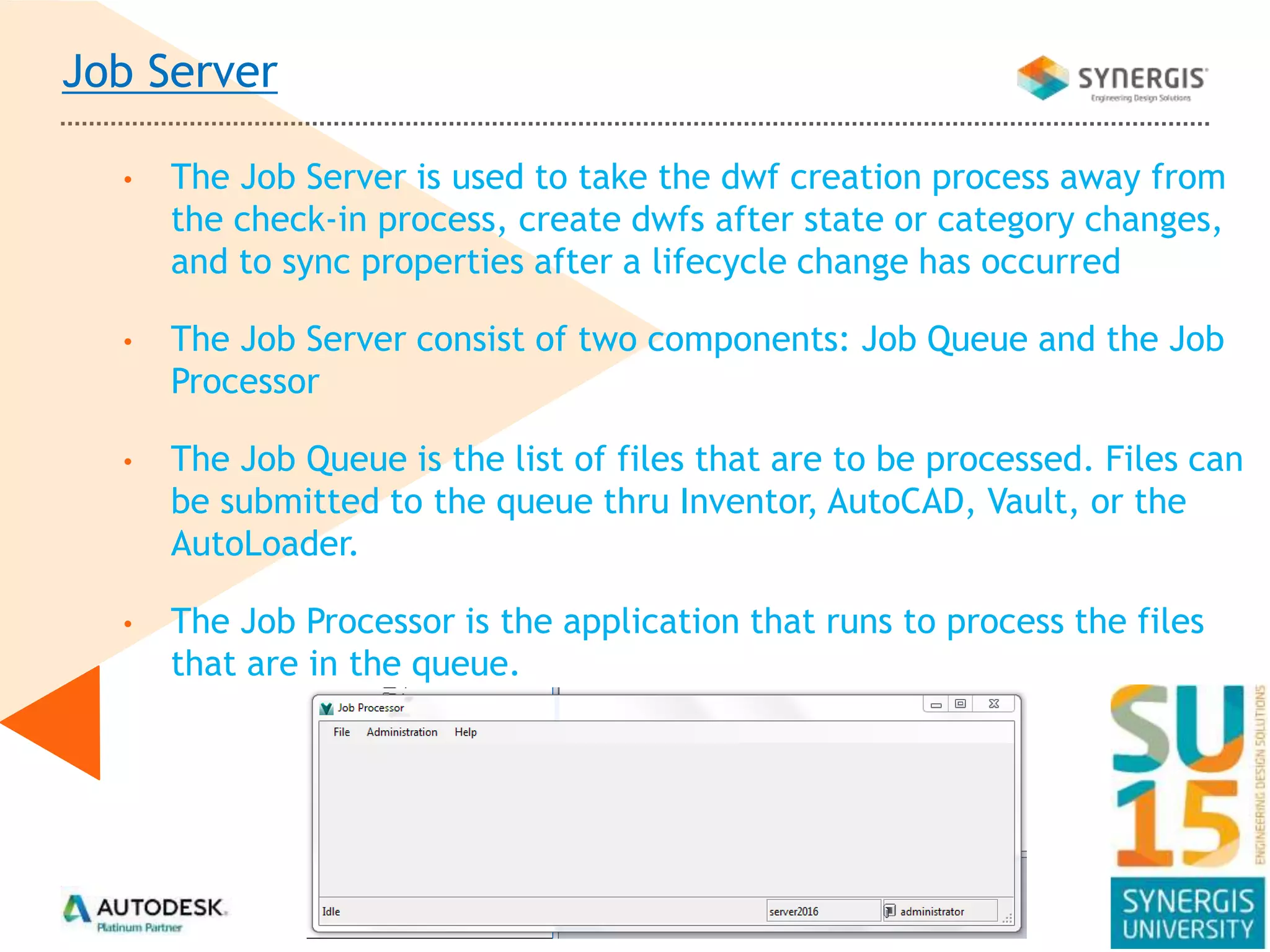
• The Job Processor is the application that runs to process the files
that are in the queue.
Thank you!

Implementing Engineering Standards through Autodesk Vault

  • 1.
    Implementing Engineering Standards throughAutodesk Vault Joe Corson John Kavusak
  • 2.
    • Manage Templatesand Design Data inside Vault • Automatic file naming • Property Configuration • Property Dropdowns • Property Compliance • Vault Data Standard • Property Edits • Job Server Class Overview
  • 3.
    Create Custom Categories •Create categories that group like files together • Categories can define a property set, lifecycle workflow, and a revision scheme for a type of file • Categories can also help control property compliance • Create rules for automatic Category selection from CAD
  • 4.
    UPD – UserDefined Properties • Types of properties • Assign properties to categories • Set initial value • Create a dropdown list • Controlling case of property values • Setting the min and max values • Configure overrides for categories • Mapping Vault properties to file properties
  • 5.
    Numbering Scheme • Createsmart file names and item numbers based on user specified criteria • Using an auto-generated sequence insures unique file naming • Numbering schemes work with design accelerators like frame generator, tube and pipe, and bolted connections • Numbering schemes also play an important role in the Vault Data Standard and the NEW Copy Design tool • File names can be automatically assigned in any application with a Vault add-in
  • 6.
    Vault Data Standard •The Vault Data Standard is a data control feature that enforces users to enter data for new or existing files in a standard format • Works inside of Inventor, AutoCAD, and the Vault client • Controls category, file naming, property compliance, and file path • Very easy to use with dropdown pick boxes and text boxes to enter all data in a single form • From within Vault the data standard can be used to create new blank files populated with property data for virtually any file type • Available to subscription users of Vault Workgroup and Professional
  • 7.
    Job Server • TheJob Server is used to take the dwf creation process away from the check-in process, create dwfs after state or category changes, and to sync properties after a lifecycle change has occurred • The Job Server consist of two components: Job Queue and the Job Processor • The Job Queue is the list of files that are to be processed. Files can be submitted to the queue thru Inventor, AutoCAD, Vault, or the AutoLoader. • The Job Processor is the application that runs to process the files that are in the queue.
  • 8.

Editor's Notes

  • #4 Create new categories: show new and copy Production_Parts – make new -Orange -Finished forged parts Lifecycle – Flexible Revision – Alphabetic Properties – select a bunch In_House_Tools – make new -Blue -Tools Made In House Lifecycle – Basic Revision – Alphabetic Properties – select a bunch Outsourced_Tools – copy from IN_HOUSE_TOOLS -Yellow -Tools purchased outside Explain: How to assign Lifecycles Edit Here you can create new lifecycles Assign Here you assign a lifecycle scheme or schemes and select your default How to assign Revision scheme Add properties to category
  • #5 Create new properties -Tool_Type (for rule for category selection) -Text -Associations ---File ---Select IN_HOUSE_TOOLS & OUTSOURCED_TOOLS -State – Enabled -Search – Enabled -Initial Value – leave blank -List Values ---2 tools categories created and ‘-’ ---set default to ‘-’ ------show initial value changed to what you selected as default -Enforce List Values – True -Requires value – True Map property to inventor template file standard.ipt -Manufacture -Text -Associations ---File ---Select OUTSOURCED_TOOLS -State – Enabled -Search – Enabled -Initial Value – leave blank -Enforce List Values – false -Requires value – false Map property to inventor template file standard.ipt -MFG_Part_Number -Text -Associations ---File ---Select OUTSOURCED_TOOLS -State – Enabled -Search – Enabled -Initial Value – leave blank -Enforce List Values – false -Requires value – false Map property to inventor template file standard.ipt -Lead_Time -Number -Associations ---File ---Select PRODUCTION_PARTS -State – Enabled -Initial Value – leave blank -List Values ---30,45,60,75,90 ---set initial to ‘30’ ------show initial value changed to what you selected as default -Enforce List Values – True -Requires value – True Map property to inventor template file standard.ipt Create rules for category selection for Tool_Type for IN_HOUSE_TOOLS & OUTSOURCED_TOOLS
  • #6 Create numbering schemes PRODUCTION_PART Finished Part – Fixed Text – FP Delimiter – ‘~’ Part Number – Auto-generated – 4 digits TOOLS Predefined List – Run Machine – “-,FP1 – Forging Press 1, FP2 – Forging Press 2, FP3 – Forging Press 3” Delimiter – ‘-’ Free Text – Finished Part Number – ‘EnterPartNumber’ Delimiter – ‘-’ Predefined list – ‘OP’ – ‘~,1,2,3’ Predefined list – ‘Abbreviation’ – D – DIE S – SPRING P – PIN E – EJECTOR K – KNIFE Force to uppercase! MAKE SURE BOTH ARE ACTIVE! Assign to categories! PRODUCTION_PART TO PRODUCTION_PARTS TOOLS TO IN_HOUSE_TOOLS & OUTSOURCED_TOOLS
  • #7 Show thru Vault for a part and a document and thru Inventor