Moving from AutoCAD® to
AutoCAD® Electrical
Todd Schmoock
Applications Consultant
Moving from AutoCAD® to AutoCAD® Electrical
What’s New in AutoCAD Electrical 2016
Project Manager Changes:
Interoperability with Inventor:
Moving from AutoCAD® to AutoCAD® Electrical
What’s New in AutoCAD Electrical 2016
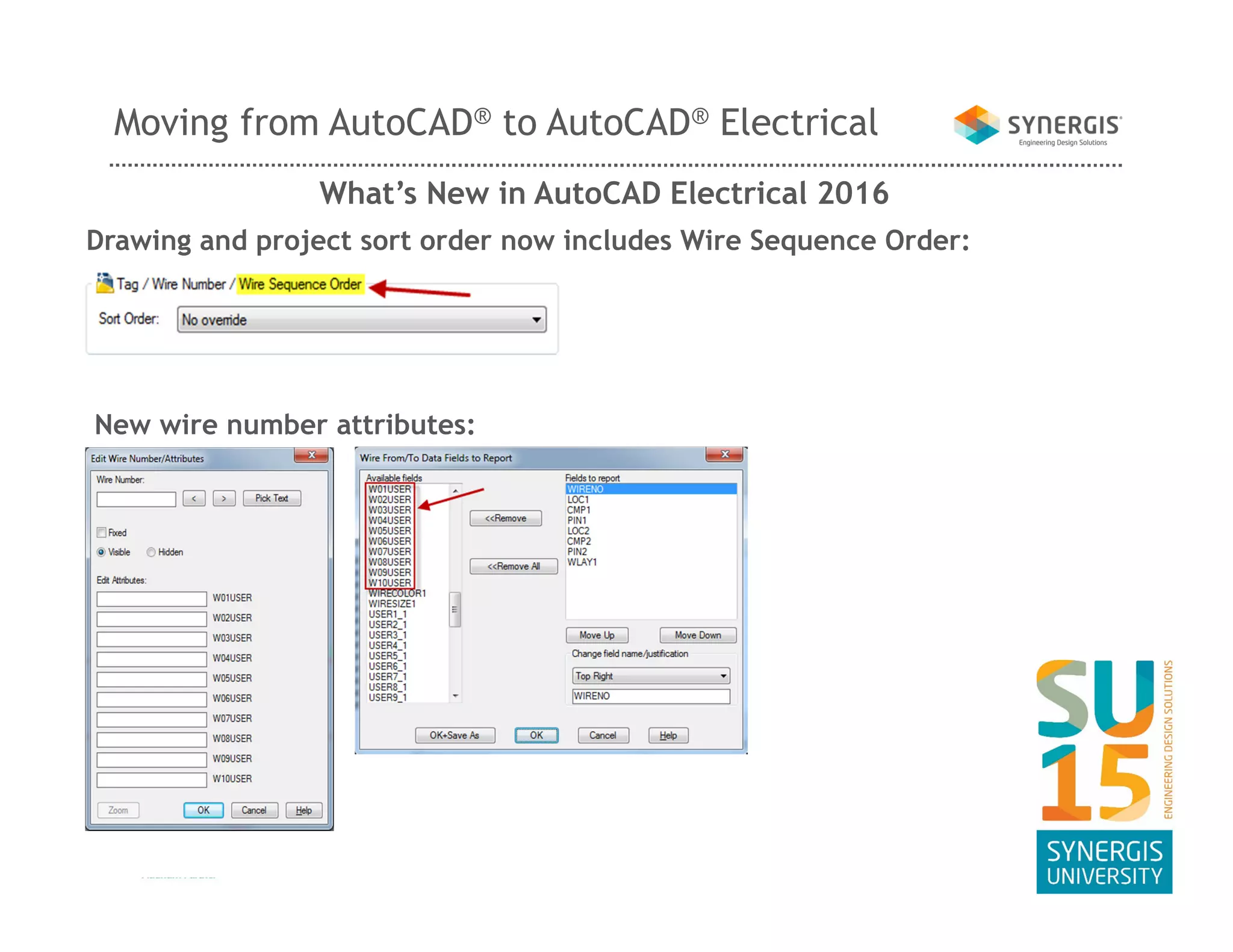
Drawing and project sort order now includes Wire Sequence Order:
New wire number attributes:
Moving from AutoCAD® to AutoCAD® Electrical
What’s New in AutoCAD Electrical 2016
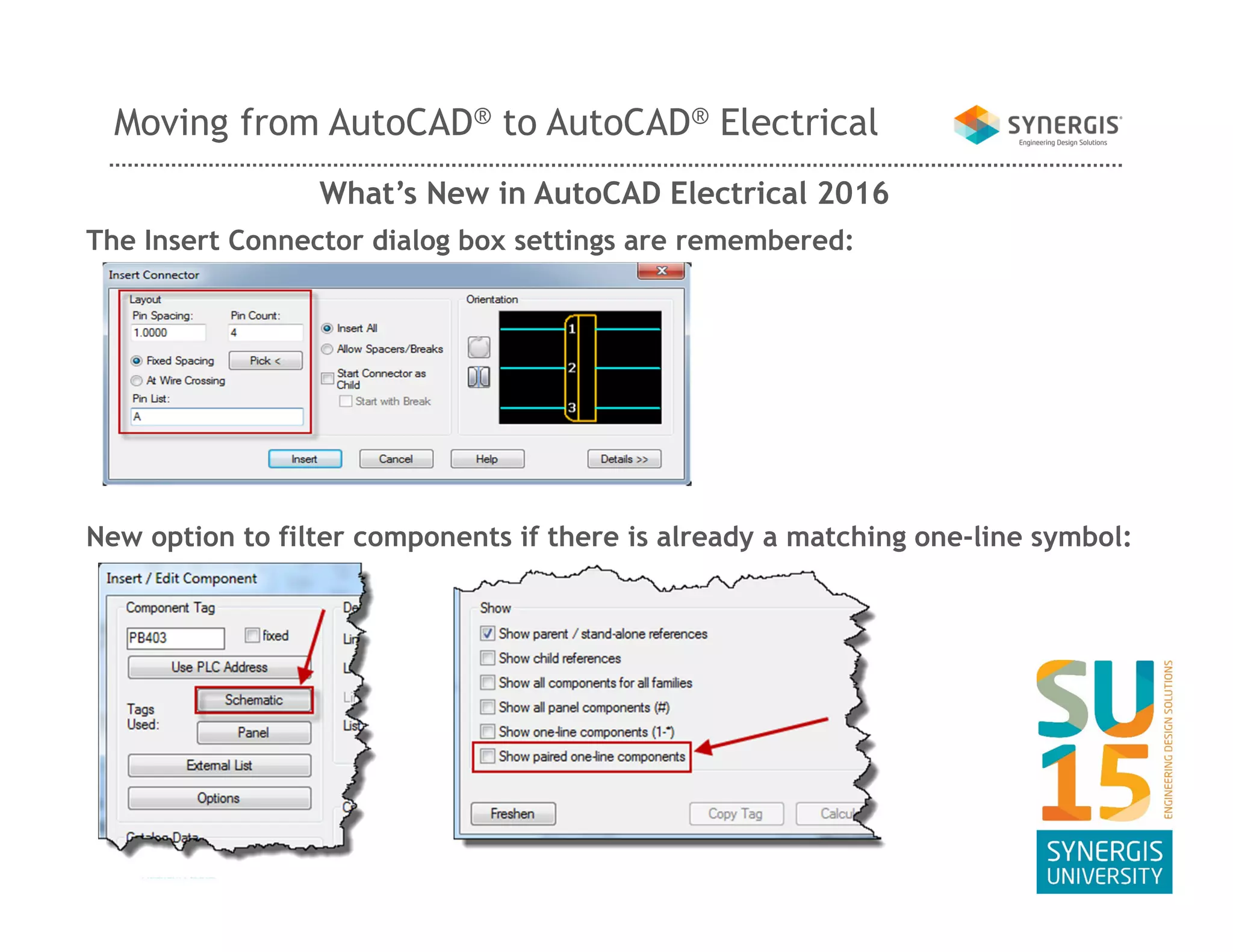
The Insert Connector dialog box settings are remembered:
New option to filter components if there is already a matching one-line symbol:
Moving from AutoCAD® to AutoCAD® Electrical
What’s New in AutoCAD Electrical 2016
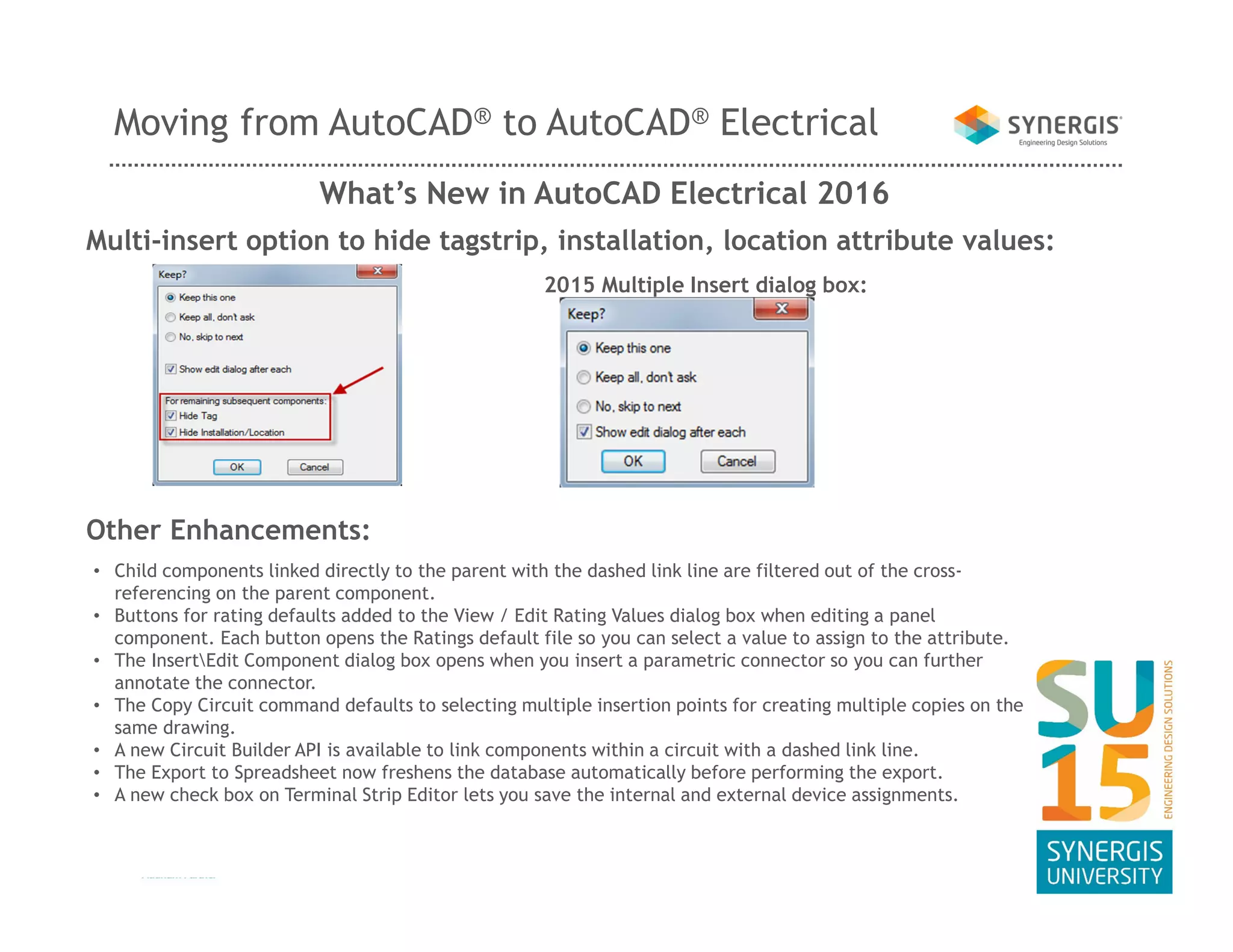
Multi-insert option to hide tagstrip, installation, location attribute values:
Other Enhancements:
2015 Multiple Insert dialog box:
• Child components linked directly to the parent with the dashed link line are filtered out of the cross-
referencing on the parent component.
• Buttons for rating defaults added to the View / Edit Rating Values dialog box when editing a panel
component. Each button opens the Ratings default file so you can select a value to assign to the attribute.
• The InsertEdit Component dialog box opens when you insert a parametric connector so you can further
annotate the connector.
• The Copy Circuit command defaults to selecting multiple insertion points for creating multiple copies on the
same drawing.
• A new Circuit Builder API is available to link components within a circuit with a dashed link line.
• The Export to Spreadsheet now freshens the database automatically before performing the export.
• A new check box on Terminal Strip Editor lets you save the internal and external device assignments.
Moving from AutoCAD® to AutoCAD® Electrical
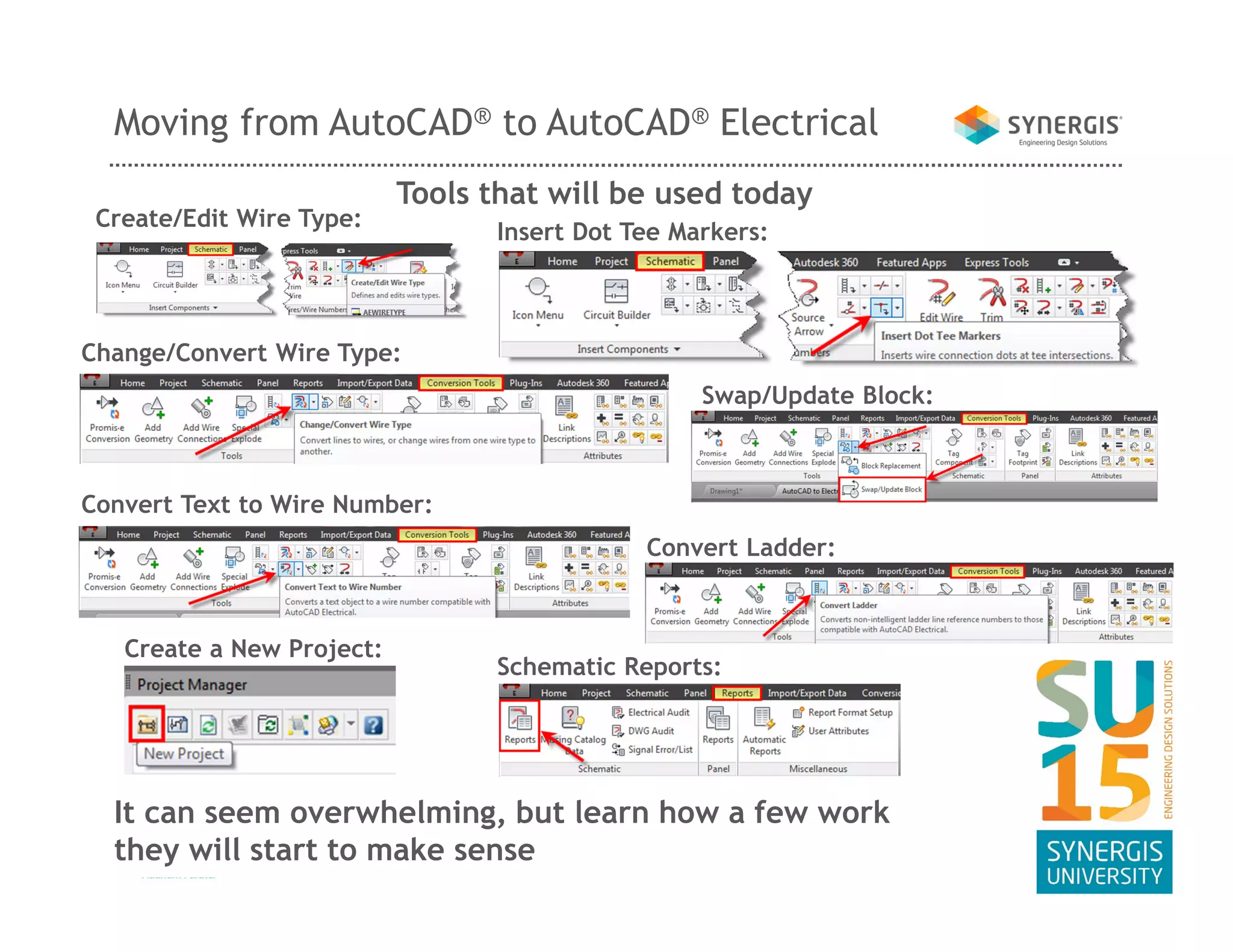
Create/Edit Wire Type:
Change/Convert Wire Type:
Tools that will be used today
Convert Text to Wire Number:
Insert Dot Tee Markers:
Convert Ladder:
Swap/Update Block:
Create a New Project:
Schematic Reports:
It can seem overwhelming, but learn how a few work
they will start to make sense
Moving from AutoCAD® to AutoCAD® Electrical
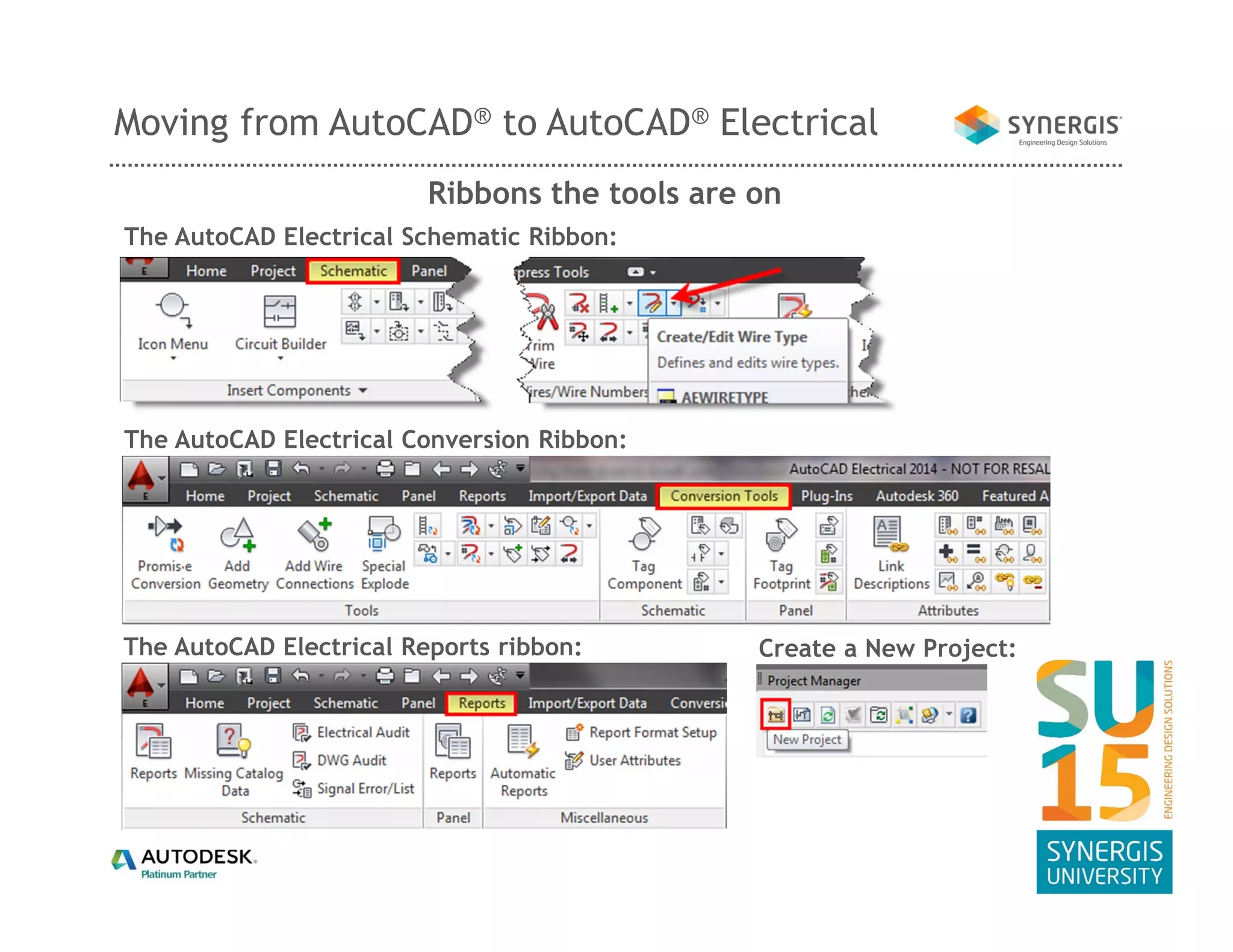
The AutoCAD Electrical Schematic Ribbon:
The AutoCAD Electrical Conversion Ribbon:
The AutoCAD Electrical Reports ribbon: Create a New Project:
Ribbons the tools are on
Thanks!
Todd Schmoock
Applications Consultant
todd.schmoock@synergis.com
Moving from AutoCAD® to AutoCAD® Electrical

Moving From AutoCAD to Electrical and What's New in AutoCAD Electrcial

  • 1.
    Moving from AutoCAD®to AutoCAD® Electrical Todd Schmoock Applications Consultant
  • 2.
    Moving from AutoCAD®to AutoCAD® Electrical
  • 3.
    Moving from AutoCAD®to AutoCAD® Electrical What’s New in AutoCAD Electrical 2016 Project Manager Changes: Interoperability with Inventor:
  • 4.
    Moving from AutoCAD®to AutoCAD® Electrical What’s New in AutoCAD Electrical 2016 Drawing and project sort order now includes Wire Sequence Order: New wire number attributes:
  • 5.
    Moving from AutoCAD®to AutoCAD® Electrical What’s New in AutoCAD Electrical 2016 The Insert Connector dialog box settings are remembered: New option to filter components if there is already a matching one-line symbol:
  • 6.
    Moving from AutoCAD®to AutoCAD® Electrical What’s New in AutoCAD Electrical 2016 Multi-insert option to hide tagstrip, installation, location attribute values: Other Enhancements: 2015 Multiple Insert dialog box: • Child components linked directly to the parent with the dashed link line are filtered out of the cross- referencing on the parent component. • Buttons for rating defaults added to the View / Edit Rating Values dialog box when editing a panel component. Each button opens the Ratings default file so you can select a value to assign to the attribute. • The InsertEdit Component dialog box opens when you insert a parametric connector so you can further annotate the connector. • The Copy Circuit command defaults to selecting multiple insertion points for creating multiple copies on the same drawing. • A new Circuit Builder API is available to link components within a circuit with a dashed link line. • The Export to Spreadsheet now freshens the database automatically before performing the export. • A new check box on Terminal Strip Editor lets you save the internal and external device assignments.
  • 7.
    Moving from AutoCAD®to AutoCAD® Electrical Create/Edit Wire Type: Change/Convert Wire Type: Tools that will be used today Convert Text to Wire Number: Insert Dot Tee Markers: Convert Ladder: Swap/Update Block: Create a New Project: Schematic Reports: It can seem overwhelming, but learn how a few work they will start to make sense
  • 8.
    Moving from AutoCAD®to AutoCAD® Electrical The AutoCAD Electrical Schematic Ribbon: The AutoCAD Electrical Conversion Ribbon: The AutoCAD Electrical Reports ribbon: Create a New Project: Ribbons the tools are on
  • 9.