Uses of Ms. Word
Mrs. Sonia Anwar
Content
• Introduction
• How to start Ms. Word?
• Introduce the “Ribbon”
• Uses of tabs
• Hot Keys
• Formatting of text
• Alignment of Paragraphs
• Use Styles
• Draw and formatting of table
• Uses of header and footer
• Uses of text
• Page setting
• Review
• View
• Activities
Introduction
Ms. Word software is a computer
program that allows to create letters,
memos and many other documents.
How to start Ms. Word?
• There are two method to start Ms. Word.
Method I
Double click the icon of Microsoft Word(if available
on desktop).
Method II
I. Click on the start button to open start menu.
II. Choose “All Programs” option from the list.
III. Choose Microsoft Office.
IV. Choose and click Microsoft Word 2010.
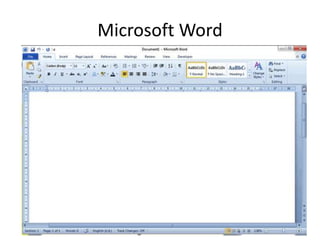
Microsoft Word
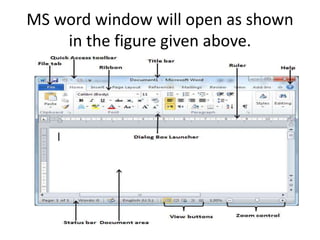
MS word window will open as shown
in the figure given above.
• Title Bar
• Quick Access Toolbar
• Windows Controls
• Ribbon
• Office Button
• Status Bar
• Text Area
• Help Button
• Ruler
• Scroll Bars
Title Bar, Status Bar, Rulers, Text Area
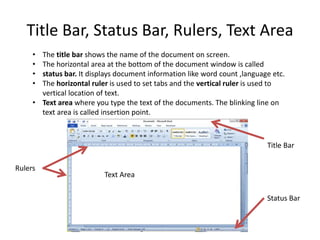
• The title bar shows the name of the document on screen.
• The horizontal area at the bottom of the document window is called
• status bar. It displays document information like word count ,language etc.
• The horizontal ruler is used to set tabs and the vertical ruler is used to
vertical location of text.
• Text area where you type the text of the documents. The blinking line on
text area is called insertion point.
Text Area
Rulers
Status Bar
Title Bar
Quick Access Toolbar
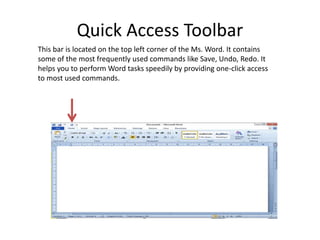
This bar is located on the top left corner of the Ms. Word. It contains
some of the most frequently used commands like Save, Undo, Redo. It
helps you to perform Word tasks speedily by providing one-click access
to most used commands.
Windows Control
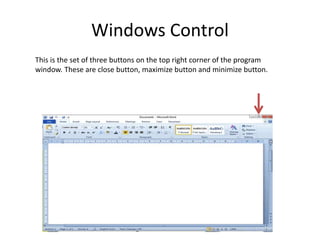
This is the set of three buttons on the top right corner of the program
window. These are close button, maximize button and minimize button.
Ribbon
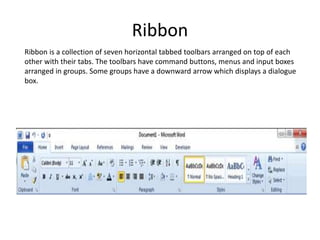
Ribbon is a collection of seven horizontal tabbed toolbars arranged on top of each
other with their tabs. The toolbars have command buttons, menus and input boxes
arranged in groups. Some groups have a downward arrow which displays a dialogue
box.
Hot Keys
• The key combinations of keyboard used to
apply different commands are called Hot keys.
For Example:
To save a file you can use Ctrl + S hot key.
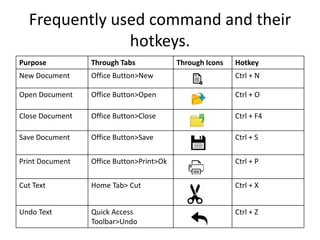
Frequently used command and their
hotkeys.
Purpose Through Tabs Through Icons Hotkey
New Document Office Button>New Ctrl + N
Open Document Office Button>Open Ctrl + O
Close Document Office Button>Close Ctrl + F4
Save Document Office Button>Save Ctrl + S
Print Document Office Button>Print>Ok Ctrl + P
Cut Text Home Tab> Cut Ctrl + X
Undo Text Quick Access
Toolbar>Undo
Ctrl + Z
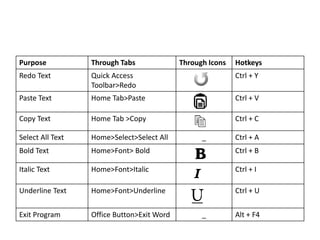
Purpose Through Tabs Through Icons Hotkeys
Redo Text Quick Access
Toolbar>Redo
Ctrl + Y
Paste Text Home Tab>Paste Ctrl + V
Copy Text Home Tab >Copy Ctrl + C
Select All Text Home>Select>Select All _ Ctrl + A
Bold Text Home>Font> Bold Ctrl + B
Italic Text Home>Font>Italic Ctrl + I
Underline Text Home>Font>Underline Ctrl + U
Exit Program Office Button>Exit Word _ Alt + F4
Font Formatting-Change Font Style,
size & color.
Cut/Paste Text
Highlight the text you wish to move, Click
Move your cursor to the desired location Click
Copy/Paste Text
Highlight the text you wish to copy, Click
Move your cursor to the desired location Click
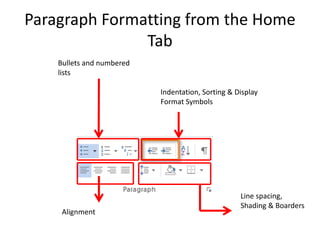
Paragraph Formatting from the Home
Tab
Bullets and numbered
lists
Alignment
Line spacing,
Shading & Boarders
Indentation, Sorting & Display
Format Symbols
Page Layout
Page Setup
Contain options to specify the
layout of a page
• Margins
• Orientation
• Page size
Page Background
• Watermark
• Page color
• Page Border
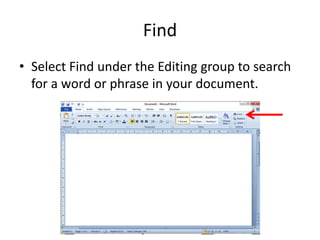
Find
• Select Find under the Editing group to search
for a word or phrase in your document.
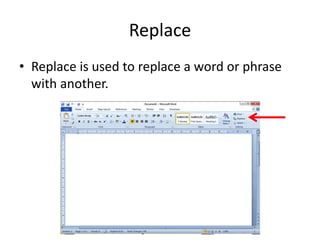
Replace
• Replace is used to replace a word or phrase
with another.
Review Tab
This tab is used to review tour document
including proofing the document, adding
comments etc.
Proofing
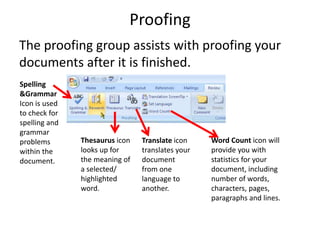
The proofing group assists with proofing your
documents after it is finished.
Spelling
&Grammar
Icon is used
to check for
spelling and
grammar
problems
within the
document.
Thesaurus icon
looks up for
the meaning of
a selected/
highlighted
word.
Word Count icon will
provide you with
statistics for your
document, including
number of words,
characters, pages,
paragraphs and lines.
Translate icon
translates your
document
from one
language to
another.
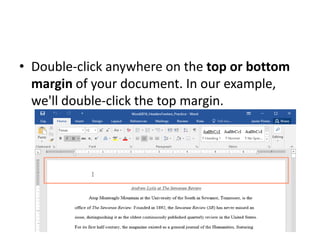
• Double-click anywhere on the top or bottom
margin of your document. In our example,
we'll double-click the top margin.
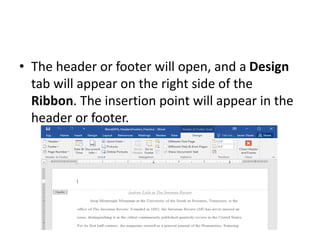
• The header or footer will open, and a Design
tab will appear on the right side of the
Ribbon. The insertion point will appear in the
header or footer.
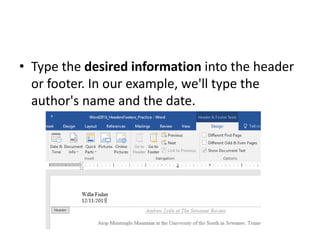
• Type the desired information into the header
or footer. In our example, we'll type the
author's name and the date.
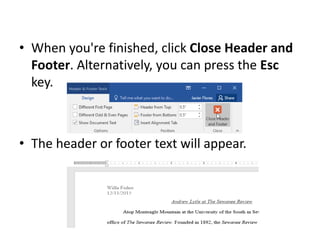
• When you're finished, click Close Header and
Footer. Alternatively, you can press the Esc
key.
• The header or footer text will appear.
Activity
Activity #1:
Insert a picture into a Word document.
Activity #2 :
Add a button to the Quick Access Toolbar in
MS.Word.
MS. Word

MS. Word

  • 1.
    Uses of Ms.Word Mrs. Sonia Anwar
  • 2.
    Content • Introduction • Howto start Ms. Word? • Introduce the “Ribbon” • Uses of tabs • Hot Keys • Formatting of text • Alignment of Paragraphs • Use Styles
  • 3.
    • Draw andformatting of table • Uses of header and footer • Uses of text • Page setting • Review • View • Activities
  • 4.
    Introduction Ms. Word softwareis a computer program that allows to create letters, memos and many other documents.
  • 5.
    How to startMs. Word? • There are two method to start Ms. Word. Method I Double click the icon of Microsoft Word(if available on desktop). Method II I. Click on the start button to open start menu. II. Choose “All Programs” option from the list. III. Choose Microsoft Office. IV. Choose and click Microsoft Word 2010.
  • 6.
  • 7.
    MS word windowwill open as shown in the figure given above.
  • 8.
    • Title Bar •Quick Access Toolbar • Windows Controls • Ribbon • Office Button • Status Bar • Text Area • Help Button • Ruler • Scroll Bars
  • 9.
    Title Bar, StatusBar, Rulers, Text Area • The title bar shows the name of the document on screen. • The horizontal area at the bottom of the document window is called • status bar. It displays document information like word count ,language etc. • The horizontal ruler is used to set tabs and the vertical ruler is used to vertical location of text. • Text area where you type the text of the documents. The blinking line on text area is called insertion point. Text Area Rulers Status Bar Title Bar
  • 10.
    Quick Access Toolbar Thisbar is located on the top left corner of the Ms. Word. It contains some of the most frequently used commands like Save, Undo, Redo. It helps you to perform Word tasks speedily by providing one-click access to most used commands.
  • 11.
    Windows Control This isthe set of three buttons on the top right corner of the program window. These are close button, maximize button and minimize button.
  • 12.
    Ribbon Ribbon is acollection of seven horizontal tabbed toolbars arranged on top of each other with their tabs. The toolbars have command buttons, menus and input boxes arranged in groups. Some groups have a downward arrow which displays a dialogue box.
  • 13.
    Hot Keys • Thekey combinations of keyboard used to apply different commands are called Hot keys. For Example: To save a file you can use Ctrl + S hot key.
  • 14.
    Frequently used commandand their hotkeys. Purpose Through Tabs Through Icons Hotkey New Document Office Button>New Ctrl + N Open Document Office Button>Open Ctrl + O Close Document Office Button>Close Ctrl + F4 Save Document Office Button>Save Ctrl + S Print Document Office Button>Print>Ok Ctrl + P Cut Text Home Tab> Cut Ctrl + X Undo Text Quick Access Toolbar>Undo Ctrl + Z
  • 15.
    Purpose Through TabsThrough Icons Hotkeys Redo Text Quick Access Toolbar>Redo Ctrl + Y Paste Text Home Tab>Paste Ctrl + V Copy Text Home Tab >Copy Ctrl + C Select All Text Home>Select>Select All _ Ctrl + A Bold Text Home>Font> Bold Ctrl + B Italic Text Home>Font>Italic Ctrl + I Underline Text Home>Font>Underline Ctrl + U Exit Program Office Button>Exit Word _ Alt + F4
  • 16.
    Font Formatting-Change FontStyle, size & color. Cut/Paste Text Highlight the text you wish to move, Click Move your cursor to the desired location Click Copy/Paste Text Highlight the text you wish to copy, Click Move your cursor to the desired location Click
  • 17.
    Paragraph Formatting fromthe Home Tab Bullets and numbered lists Alignment Line spacing, Shading & Boarders Indentation, Sorting & Display Format Symbols
  • 18.
    Page Layout Page Setup Containoptions to specify the layout of a page • Margins • Orientation • Page size Page Background • Watermark • Page color • Page Border
  • 19.
    Find • Select Findunder the Editing group to search for a word or phrase in your document.
  • 20.
    Replace • Replace isused to replace a word or phrase with another.
  • 21.
    Review Tab This tabis used to review tour document including proofing the document, adding comments etc.
  • 22.
    Proofing The proofing groupassists with proofing your documents after it is finished. Spelling &Grammar Icon is used to check for spelling and grammar problems within the document. Thesaurus icon looks up for the meaning of a selected/ highlighted word. Word Count icon will provide you with statistics for your document, including number of words, characters, pages, paragraphs and lines. Translate icon translates your document from one language to another.
  • 23.
    • Double-click anywhereon the top or bottom margin of your document. In our example, we'll double-click the top margin.
  • 24.
    • The headeror footer will open, and a Design tab will appear on the right side of the Ribbon. The insertion point will appear in the header or footer.
  • 25.
    • Type thedesired information into the header or footer. In our example, we'll type the author's name and the date.
  • 26.
    • When you'refinished, click Close Header and Footer. Alternatively, you can press the Esc key. • The header or footer text will appear.
  • 27.
    Activity Activity #1: Insert apicture into a Word document. Activity #2 : Add a button to the Quick Access Toolbar in MS.Word.