Presented By: Ms. Briana Taylor
                         Saint Vincent College


Teaching & Learning
Online
Agenda


 Advantages    Example of   Blackboard
 of Learning    Teaching    Elluminate
    Online                  Interactive
                 Online        Demo
Advantages of Learning
Online


            Benefits Students & Teachers
Learning Online

Should included both Synchronous (real-time) and
asynchronous (anytime) interactions.

  • Synchronous                • Asynchronous
     • Web Conferencing           • Discussion Boards
       (Blackboard
       Collaborate, WebEx)        • Individual
                                    Assignments
     • Live Chat
                                  • Email
     • Application or Screen
       Sharing
     • Virtual Whiteboard
Advantages to Online Learning


• Attend Class from different
  locations
   – Makes courses more accessible
   – Eliminates travel
• Engaging Multimedia
  Presentations
• Interactive & Collaborative
   – Chat box, microphone, web-cameras
• Fits Your Schedule
   – Anytime, Anywhere
Advantages to Teaching Online


• Monitor participation and assess
  learning
   – Online hand raising
   – Ask multiple choice & true/false
     questions during the lesson
• Record online sessions
   – Students can watch the session again
   – Absentees have access to the material
• Instructor Convenience
   – Teach from any location
   – Have online office hours
   – Hybrid Courses: blend on campus
     meetings and online instruction
Blackboard’s Elluminate Live
Example of Teaching
Online
Video Clip of Blackboard’s Elluminate Live

        Clip 1: http://youtu.be/AkkER5JKIKA

       Clip 2: http://youtu.be/5Ey0V3hSVpk
Blackboard’s
Elluminate Live!
Interactive Demo
Please Click the Meeting Link in your email or on Blackboard
                  to join the Live Session.
What to Expect When Connecting to Elluminate Live:

       1. Click the Link
       2. Type your name and click login
       3. Wait for the meeting download to being.
                 --Elluminate will download a Java file to your computer.
                 --You may have to confirm the download by right clicking and
                 selecting download file or by clicking Open with Java, Ok.
                 --Please Click Allow, Start, or Run on the pop-up screens for the
                 meeting
       4. A window should let you know Java is starting
       5. Select your connection speed
                 --Wireless
                 --Cable/DSL
                 --LAN (Local Area Network – such as St. Vincent)
Parts of the Screen
Can you hear me?


                   Yes = Green Check
                   No = Red X

                   Click the button to submit
                   your response.
Audio Configuration

• Elluminate Live has audio configuration
   – Tools -> Audio -> Adjust Speaker Level or Select Device


• Testing Sound
   – Make sure that the power switch on your speakers or
     headphone is turned on and the volume is set.
   – Is there a volume or sound control on your computer?
       • You may have to switch from computer audio to headphone device.
Voice over Internet


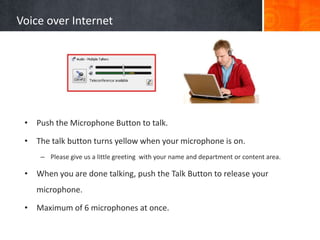
 • Push the Microphone Button to talk.

 • The talk button turns yellow when your microphone is on.
     – Please give us a little greeting with your name and department or content area.

 • When you are done talking, push the Talk Button to release your
    microphone.

 • Maximum of 6 microphones at once.
Web Cameras


 1. Click Show Video Icon
 2. Click Preview
    –   Option for gray or color
 3. Click Transmit to begin
    sharing
    – If you would like to speak, don’t
      forget to also click the
      microphone button.
    – Give us a hello or share your
      plans for summer. Are you
      teaching, going on vacation, or
      perhaps just working?
 4. Click Transmit again to turn
    your web camera off
Live Chat


   What are the benefits to using Live Chat during lessons when you may also be
                      using microphones and web cameras?
Participants Window


                      Privileges for
                      •Microphone
                      •Web Camera
                      •Chat
                      •Screen Sharing
                      •White Board

                      Highlight when in use
Polling

Moderators can change the Polling Options under tools.
Polling


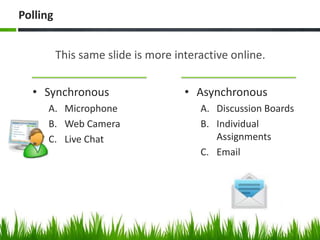
          This same slide is more interactive online.

  • Synchronous                     • Asynchronous
      A. Microphone                    A. Discussion Boards
      B. Web Camera                    B. Individual
      C. Live Chat                        Assignments
                                       C. Email
Whiteboard


•   Line
•   Shapes
•   Pen
•   Text
•   Highlighter
•   Images
•   Pointer
•   Upload Power Points

             Circle or Highlight your favorite whiteboard feature.
How to Upload a PowerPoint in Elluminate
?
    Which interactive tool do you like
    the most in Elluminate:
    A. Poll Questions
    B. Chat Box
    C. White Board
    D. Microphone and/or Webcamera
?
    Have your views of online
    learning changed after seeing
    Blackboard Elluminate?
Conclusion to Teaching and
                        Learning Online


Thank you!

Elluminate2013

  • 1.
    Presented By: Ms.Briana Taylor Saint Vincent College Teaching & Learning Online
  • 2.
    Agenda Advantages Example of Blackboard of Learning Teaching Elluminate Online Interactive Online Demo
  • 3.
    Advantages of Learning Online Benefits Students & Teachers
  • 4.
    Learning Online Should includedboth Synchronous (real-time) and asynchronous (anytime) interactions. • Synchronous • Asynchronous • Web Conferencing • Discussion Boards (Blackboard Collaborate, WebEx) • Individual Assignments • Live Chat • Email • Application or Screen Sharing • Virtual Whiteboard
  • 5.
    Advantages to OnlineLearning • Attend Class from different locations – Makes courses more accessible – Eliminates travel • Engaging Multimedia Presentations • Interactive & Collaborative – Chat box, microphone, web-cameras • Fits Your Schedule – Anytime, Anywhere
  • 6.
    Advantages to TeachingOnline • Monitor participation and assess learning – Online hand raising – Ask multiple choice & true/false questions during the lesson • Record online sessions – Students can watch the session again – Absentees have access to the material • Instructor Convenience – Teach from any location – Have online office hours – Hybrid Courses: blend on campus meetings and online instruction
  • 7.
  • 8.
  • 9.
    Video Clip ofBlackboard’s Elluminate Live Clip 1: http://youtu.be/AkkER5JKIKA Clip 2: http://youtu.be/5Ey0V3hSVpk
  • 10.
  • 11.
    Please Click theMeeting Link in your email or on Blackboard to join the Live Session.
  • 12.
    What to ExpectWhen Connecting to Elluminate Live: 1. Click the Link 2. Type your name and click login 3. Wait for the meeting download to being. --Elluminate will download a Java file to your computer. --You may have to confirm the download by right clicking and selecting download file or by clicking Open with Java, Ok. --Please Click Allow, Start, or Run on the pop-up screens for the meeting 4. A window should let you know Java is starting 5. Select your connection speed --Wireless --Cable/DSL --LAN (Local Area Network – such as St. Vincent)
  • 13.
  • 14.
    Can you hearme? Yes = Green Check No = Red X Click the button to submit your response.
  • 15.
    Audio Configuration • ElluminateLive has audio configuration – Tools -> Audio -> Adjust Speaker Level or Select Device • Testing Sound – Make sure that the power switch on your speakers or headphone is turned on and the volume is set. – Is there a volume or sound control on your computer? • You may have to switch from computer audio to headphone device.
  • 16.
    Voice over Internet • Push the Microphone Button to talk. • The talk button turns yellow when your microphone is on. – Please give us a little greeting with your name and department or content area. • When you are done talking, push the Talk Button to release your microphone. • Maximum of 6 microphones at once.
  • 17.
    Web Cameras 1.Click Show Video Icon 2. Click Preview – Option for gray or color 3. Click Transmit to begin sharing – If you would like to speak, don’t forget to also click the microphone button. – Give us a hello or share your plans for summer. Are you teaching, going on vacation, or perhaps just working? 4. Click Transmit again to turn your web camera off
  • 18.
    Live Chat What are the benefits to using Live Chat during lessons when you may also be using microphones and web cameras?
  • 19.
    Participants Window Privileges for •Microphone •Web Camera •Chat •Screen Sharing •White Board Highlight when in use
  • 20.
    Polling Moderators can changethe Polling Options under tools.
  • 21.
    Polling This same slide is more interactive online. • Synchronous • Asynchronous A. Microphone A. Discussion Boards B. Web Camera B. Individual C. Live Chat Assignments C. Email
  • 22.
    Whiteboard • Line • Shapes • Pen • Text • Highlighter • Images • Pointer • Upload Power Points Circle or Highlight your favorite whiteboard feature.
  • 23.
    How to Uploada PowerPoint in Elluminate
  • 24.
    ? Which interactive tool do you like the most in Elluminate: A. Poll Questions B. Chat Box C. White Board D. Microphone and/or Webcamera
  • 25.
    ? Have your views of online learning changed after seeing Blackboard Elluminate?
  • 26.
    Conclusion to Teachingand Learning Online Thank you!