From Zero To
WordPress publish
Michele Butcher
@michele_butcher
http://cantspeakgeek.com
MICHELE
BUTCHER
• WordPress Specialist at WP Security Lock
• Instructor at John A Logan College
• WordPress Evangelist for InMotion Hosting
• Lead Organizer of Southern Illinois WordPress Meetup
• Crazy woman behind Can’t Speak Geek
• Hostess of Safe WP Weekly Security Webinar
• Photographer
• Mother to the next gen WordPress user
Get ready for the
ride to WordPress
The most important step is the first step
What will your website be about?
Once you have this figured out the rest is a cake walk
Now lets pick a
domain name
You have lots of choices here!
.com
.co
.net
.club
.io
.de
.org
.website
.gov
.me
.pw
.nyc
.us
.tv
.ca
.link
.eu
.edu
.es
.in
.info
.mobi
.consulting
.click
.help
.dentist
.rehab
.auction
.software
.business
.auction
.network
.forsale
.pizza
.paris
.property
.hosting
.diet
.rocks
.website
.guru
.loans
.healthcare
.restaurant
.gifts
.engineer
.sarl
.airforce
.army
.navy
.market
.mortgage
.vet
.deals
.direct
.soy
.okinawa
.attorney
.lawyer
.desi
.surf
.press
.place
.life
.beer
.uk
.au
.ninja
.city
.guide
.country
.cooking
and many many
more
Plus the places to buy
a domain are endless
Once you have your name picked out
and what you want to do for your
site, it is now time to talk hosting
Hosting is like a hard drive for you website. It
is where all the files live. It is typically called a
server. There re different types of hosting and
many different hosting companies.
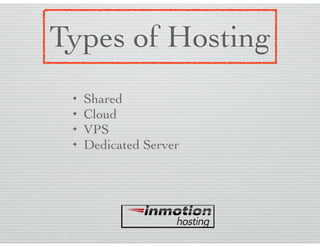
Types of Hosting
✦ Shared
✦ Cloud
✦ VPS
✦ Dedicated Server
Hosting Companies
(There are many and some are here!)
✦ InMotion Hosting
✦ SiteGround
✦ GoDaddy
✦ WP Engine
✦ FlyWheel
Your hosting company will give you an IP address
and nameservers for your domain. You will enter the
IP or the nameservers where you purchased your
domain.
Example taken from
So now you have purchased your
domain and your site hosting, plus
you have the domain pointed in the
right direction…


Time to build you a website!!!!
https://wordpress.org/download/
First you will
need to make a
database for
your website.
You will got to
the “MySQL
Database
Wizard”.
Once there follow the directions on how to make the
database. Remember to write down or copy/paste
your database name, database user name, and the
passwords. You will need these later! Give the user
full admin roles. If not the site will not work
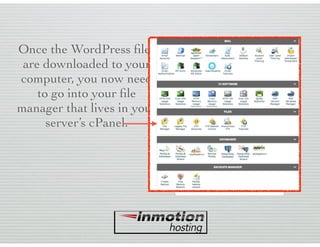
Once the WordPress files
are downloaded to your
computer, you now need
to go into your file
manager that lives in your
server’s cPanel.
Once in the file manager, upload your
WordPress zip file to your server.
Your upload screen will look like this. Do not
navigate off this screen until the gray box in the
bottom right states the upload is complete.
Once uploaded you will extract the zip
file. Then click the reload button.
If your file manager now looks like this,
you may delete the zip file.
This step is the trickiest step of them all. We must
move all the files from the WordPress folder into
the .public_html folder
1. Highlight all of the folders within
the WordPress folder
2. Click the move file button
3. Delete out the “wordpress”in the box
4. Click “move files”
5. Click the “Up One Level” button
6. Delete the “wordpress” folder
since it is now empty
7. Click the reload button
The 5 Minute Install
1. Go to you site
2. Pick you language
3. Click “Let’s go”
The first time
you go to
your new
website, this
is what you
should see.
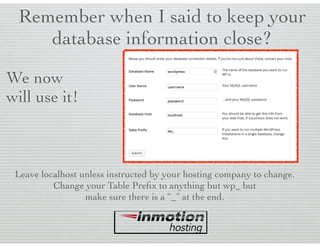
Remember when I said to keep your
database information close?
We now
will use it!
Leave localhost unless instructed by your hosting company to change.
Change your Table Prefix to anything but wp_ but
make sure there is a “_” at the end.
Next step Sparky is
to run that install!
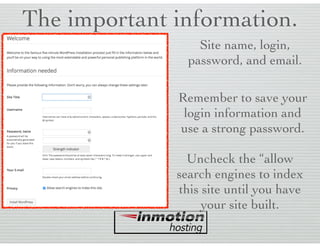
The important information.
Site name, login,
password, and email.
Remember to save your
login information and
use a strong password.
Uncheck the “allow
search engines to index
this site until you have
your site built.
Congratulations!
You now have a website!
To log in to your dashboard you will use
the login
http://yourdomain.com/wp-login.php
Now to look around
the dashboard
Posts VS Pages
Posts are entries listed in reverse
chronological order on the blog home pages
or the page set for the posts.
Pages are static and are not listed by date.
Themes
✦ It is the “pretty” of your site

✦ It is what gives it color and layout

✦ It is NOT the functions of your site
Favorites include getting from StudioPress, and the
WordPress repository
Plugins
✦ Gives your site functionality

✦ Does a specific job

✦ Thousands on the WordPress.org/plugins repository
Typical plugins include security, performance, and
functions
Media
✦ Images
✦ PDF’s
✦ Videos
Comments
✦ Gives your readers a chance to interact
✦ Can be spam if not using a spam blocker
✦ Set up a spam blocker like Akismet
Questions?

Zero To WordPress Plubish