
Wordpress for
 Dummies
       JELLYWEEK Bangkok
         on17 January 2013
 at HUBBA coworking space, Thailand
               Bow Kraivanich
          bow@inmysmallroom.com
        http://www.inmysmallroom.com
0. INTRODUCTION


 0. INTRODUCTION
 - How the web works
 - How can I have my own website
 - Planning your website
0. INTRODUCTION


     Let’s talk about the Web

              corporate website /
               facebook / blog /
              webboard / mobile
             website / web services
0. INTRODUCTION


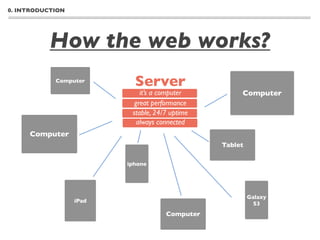
           How the web works?
            Computer
                           Server
                             it’s a computer         Computer
                           great performance
                          stable, 24/7 uptime
                            always connected
     Computer
                                                Tablet

                         iphone


                                                         Galaxy
                  iPad                                     S3
                                     Computer
0. INTRODUCTION


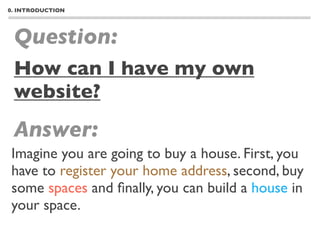
 Question:
 How can I have my own
 website?
 Answer:
Imagine you are going to buy a house. First, you
have to register your home address, second, buy
some spaces and finally, you can build a house in
your space.
0. INTRODUCTION


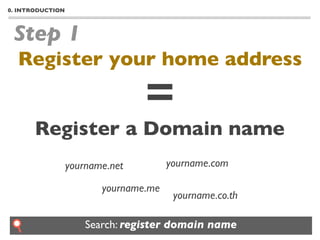
 Step 1
  Register your home address

                                 =
       Register a Domain name
                  yourname.net         yourname.com

                         yourname.me
                                        yourname.co.th

                      Search: register domain name
0. INTRODUCTION


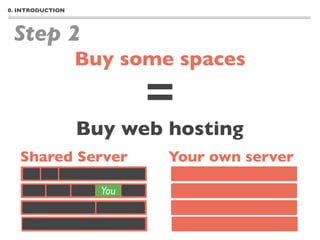
 Step 2
                  Buy some spaces

                          =
                  Buy web hosting
   Shared Server          Your own server

                    You
0. INTRODUCTION


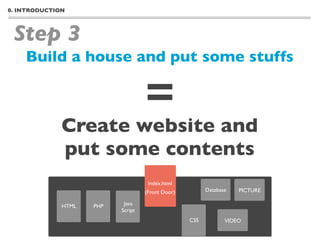
 Step 3
    Build a house and put some stuffs

                                    =
              Create website and
              put some contents
                                     index.html
                                    (Front Door)         Database   PICTURE

              HTML   PHP    Java
                           Script
                                                   CSS          VIDEO
0. INTRODUCTION


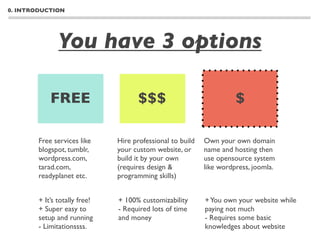
               You have 3 options

            FREE                     $$$                              $

        Free services like     Hire professional to build   Own your own domain
        blogspot, tumblr,      your custom website, or      name and hosting then
        wordpress.com,         build it by your own         use opensource system
        tarad.com,             (requires design &           like wordpress, joomla.
        readyplanet etc.       programming skills)


        + It’s totally free!   + 100% customizability       + You own your website while
        + Super easy to        - Required lots of time      paying not much
        setup and running      and money                    - Requires some basic
        - Limitationssss.                                   knowledges about website
0. INTRODUCTION


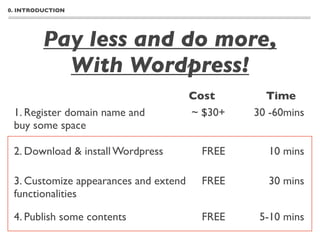
         Pay less and do more,
           With Wordpress!
                                       Cost       Time
 1. Register domain name and           ~ $30+   30 -60mins
 buy some space

 2. Download & install Wordpress         FREE     10 mins

 3. Customize appearances and extend     FREE     30 mins
 functionalities

 4. Publish some contents                FREE    5-10 mins
0. INTRODUCTION


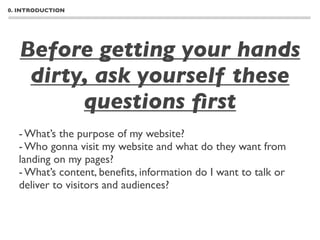
   Before getting your hands
    dirty, ask yourself these
         questions first
  - What’s the purpose of my website?
  - Who gonna visit my website and what do they want from
  landing on my pages?
  - What’s content, benefits, information do I want to talk or
  deliver to visitors and audiences?
0. INTRODUCTION


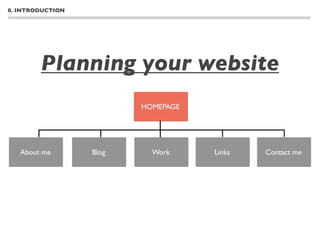
        Planning your website
                         HOMEPAGE


   About me       Blog     Work     Links   Contact me
4. CREATING POSTS


 4. CREATING POSTS
 - Understanding the difference between posts
 and pages
 - Creating a new post
 - Text formatting, links, images
 - Adding Categories, tags, post formats, excerpts and
 other elements
 - Publishing a post
4. CREATING POSTS


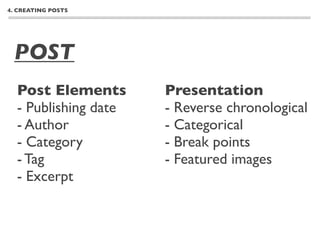
 POST
  Post Elements       Presentation
  - Publishing date   - Reverse chronological
  - Author            - Categorical
  - Category          - Break points
  - Tag               - Featured images
  - Excerpt
4. CREATING POSTS


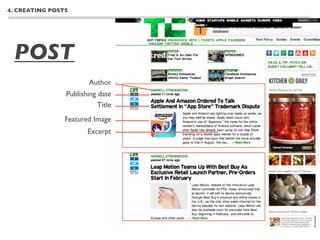
 POST
                        Author
                Publishing date
                           Title
                Featured Image
                       Excerpt
4. CREATING POSTS


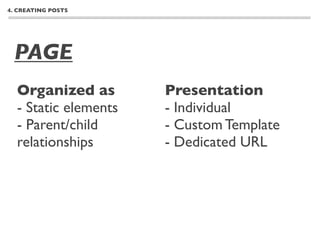
 PAGE
  Organized as        Presentation
  - Static elements   - Individual
  - Parent/child      - Custom Template
  relationships       - Dedicated URL
4. CREATING POSTS


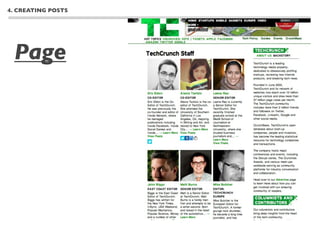
 Page
4. CREATING POSTS


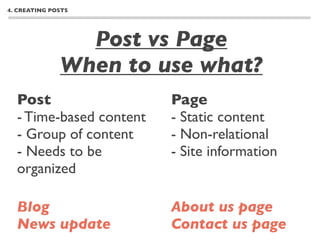
                Post vs Page
              When to use what?
  Post                   Page
  - Time-based content   - Static content
  - Group of content     - Non-relational
  - Needs to be          - Site information
  organized

  Blog                   About us page
  News update            Contact us page
4. CREATING POSTS


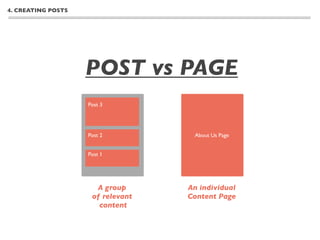
                    POST vs PAGE
                    Post 3


                    Post 2          About Us Page


                    Post 1


                      A group      An individual
                     of relevant   Content Page
                       content
4. CREATING POSTS


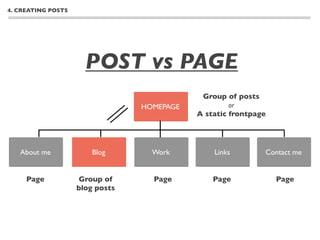
                      POST vs PAGE
                                             Group of posts
                                 HOMEPAGE            or
                                            A static frontpage


   About me             Blog       Work         Links        Contact me


     Page            Group of      Page         Page             Page
                    blog posts
4. CREATING POSTS


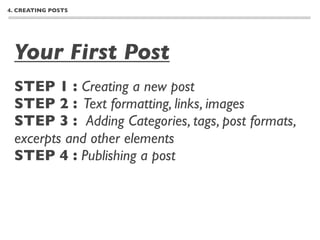
 Your First Post
 STEP 1 : Creating a new post
 STEP 2 : Text formatting, links, images
 STEP 3 : Adding Categories, tags, post formats,
 excerpts and other elements
 STEP 4 : Publishing a post
5. CREATING PAGES


 5. CREATING PAGES
 - Creating a basic page
 - Organizing page hierarchy
 - Using page template
 - Creating a static front page (homepage)
4. CREATING POSTS


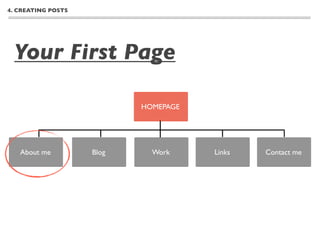
 Your First Page

                           HOMEPAGE


   About me         Blog     Work     Links   Contact me
4. CREATING POSTS


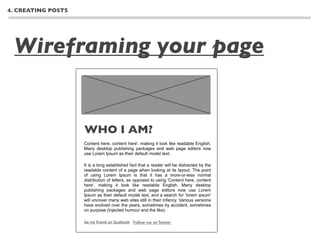
 Wireframing your page


                    WHO I AM?
                    Content here, content here', making it look like readable English.
                    Many desktop publishing packages and web page editors now
                    use Lorem Ipsum as their default model text.

                    It is a long established fact that a reader will be distracted by the
                    readable content of a page when looking at its layout. The point
                    of using Lorem Ipsum is that it has a more-or-less normal
                    distribution of letters, as opposed to using 'Content here, content
                    here', making it look like readable English. Many desktop
                    publishing packages and web page editors now use Lorem
                    Ipsum as their default model text, and a search for 'lorem ipsum'
                    will uncover many web sites still in their infancy. Various versions
                    have evolved over the years, sometimes by accident, sometimes
                    on purpose (injected humour and the like).

                    be my friend on facebook Follow me on Twitter
4. CREATING POSTS


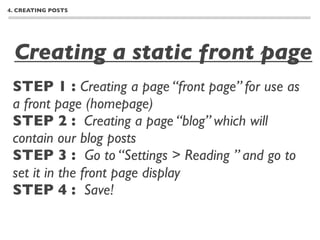
 Creating a static front page
 STEP 1 : Creating a page “front page” for use as
 a front page (homepage)
 STEP 2 : Creating a page “blog” which will
 contain our blog posts
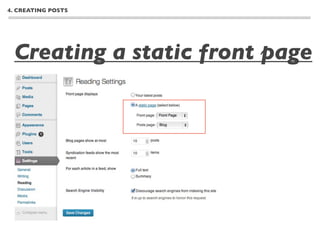
 STEP 3 : Go to “Settings > Reading ” and go to
 set it in the front page display
 STEP 4 : Save!
4. CREATING POSTS


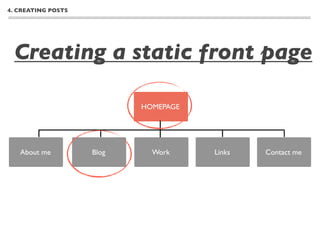
 Creating a static front page

                           HOMEPAGE


   About me         Blog     Work     Links   Contact me
4. CREATING POSTS


 Creating a static front page
7. WORKING WITH THEME


 7. WORKING WITH
 THEME: Theme is the
 funniest part of Wordpress!
 - Installing new themes from the Wordpress directory
 - Installing new themes from the Internet
 - Configuring themes
 - Best practices for working with themes
 - Customizing Wordpress for smartphones and tablets
7. WORKING WITH THEME


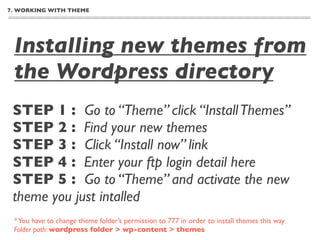
 Installing new themes from
 the Wordpress directory
 STEP 1 : Go to “Theme” click “Install Themes”
 STEP 2 : Find your new themes
 STEP 3 : Click “Install now” link
 STEP 4 : Enter your ftp login detail here
 STEP 5 : Go to “Theme” and activate the new
 theme you just intalled
 * You have to change theme folder’s permission to 777 in order to install themes this way
 Folder path: wordpress folder > wp-content > themes
7. WORKING WITH THEME


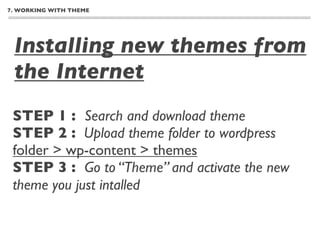
 Installing new themes from
 the Internet
 STEP 1 : Search and download theme
 STEP 2 : Upload theme folder to wordpress
 folder > wp-content > themes
 STEP 3 : Go to “Theme” and activate the new
 theme you just intalled
7. WORKING WITH THEME


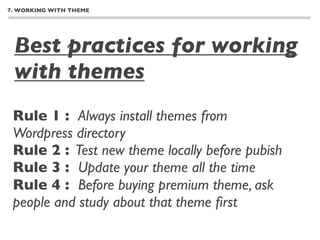
 Best practices for working
 with themes
 Rule 1 : Always install themes from
 Wordpress directory
 Rule 2 : Test new theme locally before pubish
 Rule 3 : Update your theme all the time
 Rule 4 : Before buying premium theme, ask
 people and study about that theme first
7. WORKING WITH THEME


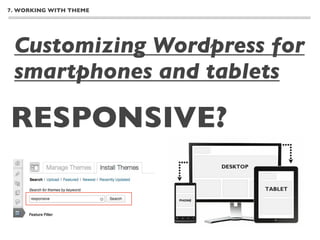
 Customizing Wordpress for
 smartphones and tablets

RESPONSIVE?
7. WORKING WITH THEME


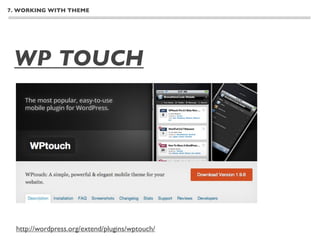
 WP TOUCH


  http://wordpress.org/extend/plugins/wptouch/
8. WORDPRESS SETTINGS


  8. WORDPRESS SETTINGS
 - Managing site users
 - Using Disqus to handle comments and avoid spam
8. WORDPRESS SETTINGS


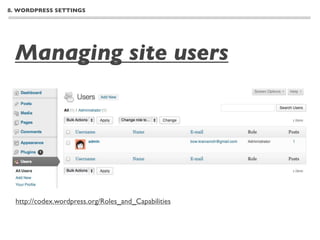
  Managing site users


  http://codex.wordpress.org/Roles_and_Capabilities
8. WORDPRESS SETTINGS


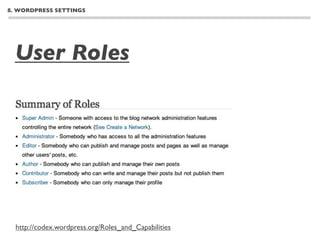
  User Roles


  http://codex.wordpress.org/Roles_and_Capabilities
8. WORDPRESS SETTINGS


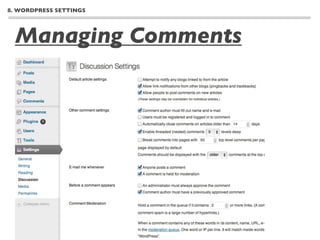
  Managing Comments
8. WORDPRESS SETTINGS


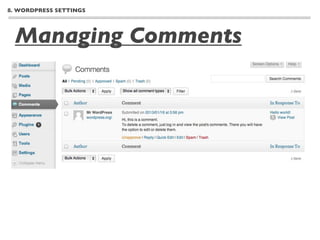
  Managing Comments
8. WORDPRESS SETTINGS


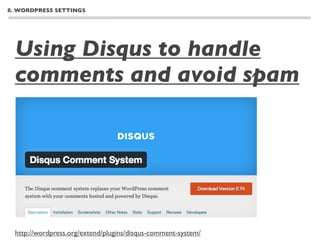
  Using Disqus to handle
  comments and avoid spam


  http://wordpress.org/extend/plugins/disqus-comment-system/
8. WORDPRESS SETTINGS


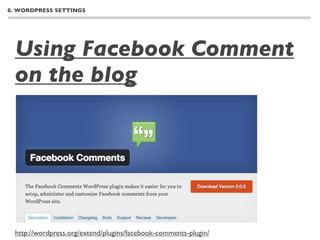
  Using Facebook Comment
  on the blog


  http://wordpress.org/extend/plugins/facebook-comments-plugin/
10. MORE TO EXPLORE


  10. It’s just started!
10. MORE TO EXPLORE


 FREE&PREMIUM
 THEMES
 FREE
 WP Shower http://wpshower.com

 PREMIUM
 themeforest http://themeforest.net/category/wordpress

 Membeship
 Woo Themes http://www.woothemes.com
 Graph Paper Press http://graphpaperpress.com/themes/
10. MORE TO EXPLORE


 WORDPRESS ARTICLE
 & RESOURCES
 WORDPRESS.ORG
 http://codex.wordpress.org/Getting_Started_with_WordPress

 WP Beginner
 http://www.wpbeginner.com

 wp tuts+
 http://wp.tutsplus.com

 DIGGING INTO WORDPRESS
 http://digwp.com
THANK YOU

  ☺      Bow Kraivanich
    bow@inmysmallroom.com
  http://www.inmysmallroom.com

Wordpress for Dummies

  • 1.
    Wordpress for Dummies JELLYWEEK Bangkok on17 January 2013 at HUBBA coworking space, Thailand Bow Kraivanich bow@inmysmallroom.com http://www.inmysmallroom.com
  • 2.
    0. INTRODUCTION 0.INTRODUCTION - How the web works - How can I have my own website - Planning your website
  • 3.
    0. INTRODUCTION Let’s talk about the Web corporate website / facebook / blog / webboard / mobile website / web services
  • 4.
    0. INTRODUCTION How the web works? Computer Server it’s a computer Computer great performance stable, 24/7 uptime always connected Computer Tablet iphone Galaxy iPad S3 Computer
  • 5.
    0. INTRODUCTION Question: How can I have my own website? Answer: Imagine you are going to buy a house. First, you have to register your home address, second, buy some spaces and finally, you can build a house in your space.
  • 6.
    0. INTRODUCTION Step1 Register your home address = Register a Domain name yourname.net yourname.com yourname.me yourname.co.th Search: register domain name
  • 7.
    0. INTRODUCTION Step2 Buy some spaces = Buy web hosting Shared Server Your own server You
  • 8.
    0. INTRODUCTION Step3 Build a house and put some stuffs = Create website and put some contents index.html (Front Door) Database PICTURE HTML PHP Java Script CSS VIDEO
  • 9.
    0. INTRODUCTION You have 3 options FREE $$$ $ Free services like Hire professional to build Own your own domain blogspot, tumblr, your custom website, or name and hosting then wordpress.com, build it by your own use opensource system tarad.com, (requires design & like wordpress, joomla. readyplanet etc. programming skills) + It’s totally free! + 100% customizability + You own your website while + Super easy to - Required lots of time paying not much setup and running and money - Requires some basic - Limitationssss. knowledges about website
  • 10.
    0. INTRODUCTION Pay less and do more, With Wordpress! Cost Time 1. Register domain name and ~ $30+ 30 -60mins buy some space 2. Download & install Wordpress FREE 10 mins 3. Customize appearances and extend FREE 30 mins functionalities 4. Publish some contents FREE 5-10 mins
  • 11.
    0. INTRODUCTION Before getting your hands dirty, ask yourself these questions first - What’s the purpose of my website? - Who gonna visit my website and what do they want from landing on my pages? - What’s content, benefits, information do I want to talk or deliver to visitors and audiences?
  • 12.
    0. INTRODUCTION Planning your website HOMEPAGE About me Blog Work Links Contact me
  • 13.
    4. CREATING POSTS 4. CREATING POSTS - Understanding the difference between posts and pages - Creating a new post - Text formatting, links, images - Adding Categories, tags, post formats, excerpts and other elements - Publishing a post
  • 14.
    4. CREATING POSTS POST Post Elements Presentation - Publishing date - Reverse chronological - Author - Categorical - Category - Break points - Tag - Featured images - Excerpt
  • 15.
    4. CREATING POSTS POST Author Publishing date Title Featured Image Excerpt
  • 16.
    4. CREATING POSTS PAGE Organized as Presentation - Static elements - Individual - Parent/child - Custom Template relationships - Dedicated URL
  • 17.
  • 18.
    4. CREATING POSTS Post vs Page When to use what? Post Page - Time-based content - Static content - Group of content - Non-relational - Needs to be - Site information organized Blog About us page News update Contact us page
  • 19.
    4. CREATING POSTS POST vs PAGE Post 3 Post 2 About Us Page Post 1 A group An individual of relevant Content Page content
  • 20.
    4. CREATING POSTS POST vs PAGE Group of posts HOMEPAGE or A static frontpage About me Blog Work Links Contact me Page Group of Page Page Page blog posts
  • 21.
    4. CREATING POSTS Your First Post STEP 1 : Creating a new post STEP 2 : Text formatting, links, images STEP 3 : Adding Categories, tags, post formats, excerpts and other elements STEP 4 : Publishing a post
  • 22.
    5. CREATING PAGES 5. CREATING PAGES - Creating a basic page - Organizing page hierarchy - Using page template - Creating a static front page (homepage)
  • 23.
    4. CREATING POSTS Your First Page HOMEPAGE About me Blog Work Links Contact me
  • 24.
    4. CREATING POSTS Wireframing your page WHO I AM? Content here, content here', making it look like readable English. Many desktop publishing packages and web page editors now use Lorem Ipsum as their default model text. It is a long established fact that a reader will be distracted by the readable content of a page when looking at its layout. The point of using Lorem Ipsum is that it has a more-or-less normal distribution of letters, as opposed to using 'Content here, content here', making it look like readable English. Many desktop publishing packages and web page editors now use Lorem Ipsum as their default model text, and a search for 'lorem ipsum' will uncover many web sites still in their infancy. Various versions have evolved over the years, sometimes by accident, sometimes on purpose (injected humour and the like). be my friend on facebook Follow me on Twitter
  • 25.
    4. CREATING POSTS Creating a static front page STEP 1 : Creating a page “front page” for use as a front page (homepage) STEP 2 : Creating a page “blog” which will contain our blog posts STEP 3 : Go to “Settings > Reading ” and go to set it in the front page display STEP 4 : Save!
  • 26.
    4. CREATING POSTS Creating a static front page HOMEPAGE About me Blog Work Links Contact me
  • 27.
    4. CREATING POSTS Creating a static front page
  • 28.
    7. WORKING WITHTHEME 7. WORKING WITH THEME: Theme is the funniest part of Wordpress! - Installing new themes from the Wordpress directory - Installing new themes from the Internet - Configuring themes - Best practices for working with themes - Customizing Wordpress for smartphones and tablets
  • 29.
    7. WORKING WITHTHEME Installing new themes from the Wordpress directory STEP 1 : Go to “Theme” click “Install Themes” STEP 2 : Find your new themes STEP 3 : Click “Install now” link STEP 4 : Enter your ftp login detail here STEP 5 : Go to “Theme” and activate the new theme you just intalled * You have to change theme folder’s permission to 777 in order to install themes this way Folder path: wordpress folder > wp-content > themes
  • 30.
    7. WORKING WITHTHEME Installing new themes from the Internet STEP 1 : Search and download theme STEP 2 : Upload theme folder to wordpress folder > wp-content > themes STEP 3 : Go to “Theme” and activate the new theme you just intalled
  • 31.
    7. WORKING WITHTHEME Best practices for working with themes Rule 1 : Always install themes from Wordpress directory Rule 2 : Test new theme locally before pubish Rule 3 : Update your theme all the time Rule 4 : Before buying premium theme, ask people and study about that theme first
  • 32.
    7. WORKING WITHTHEME Customizing Wordpress for smartphones and tablets RESPONSIVE?
  • 33.
    7. WORKING WITHTHEME WP TOUCH http://wordpress.org/extend/plugins/wptouch/
  • 34.
    8. WORDPRESS SETTINGS 8. WORDPRESS SETTINGS - Managing site users - Using Disqus to handle comments and avoid spam
  • 35.
    8. WORDPRESS SETTINGS Managing site users http://codex.wordpress.org/Roles_and_Capabilities
  • 36.
    8. WORDPRESS SETTINGS User Roles http://codex.wordpress.org/Roles_and_Capabilities
  • 37.
    8. WORDPRESS SETTINGS Managing Comments
  • 38.
    8. WORDPRESS SETTINGS Managing Comments
  • 39.
    8. WORDPRESS SETTINGS Using Disqus to handle comments and avoid spam http://wordpress.org/extend/plugins/disqus-comment-system/
  • 40.
    8. WORDPRESS SETTINGS Using Facebook Comment on the blog http://wordpress.org/extend/plugins/facebook-comments-plugin/
  • 41.
    10. MORE TOEXPLORE 10. It’s just started!
  • 42.
    10. MORE TOEXPLORE FREE&PREMIUM THEMES FREE WP Shower http://wpshower.com PREMIUM themeforest http://themeforest.net/category/wordpress Membeship Woo Themes http://www.woothemes.com Graph Paper Press http://graphpaperpress.com/themes/
  • 43.
    10. MORE TOEXPLORE WORDPRESS ARTICLE & RESOURCES WORDPRESS.ORG http://codex.wordpress.org/Getting_Started_with_WordPress WP Beginner http://www.wpbeginner.com wp tuts+ http://wp.tutsplus.com DIGGING INTO WORDPRESS http://digwp.com
  • 44.
    THANK YOU ☺ Bow Kraivanich bow@inmysmallroom.com http://www.inmysmallroom.com