
WordPress 2.5 Workshop Rich Media Institute  Brendan Sera-Shriar BackSpaceStudios.com
WordPress 2.5 Workshop What is WordPress and why 2.5? What can WordPress be used for? Basic Installation and Setup Basic Configuration The Dashboard Plug-ins WP Architecture Template Files Conditional Tags WordPress and CSS Resources
What is WordPress and why 2.5? “ WordPress  is a state-of-the-art publishing platform with a focus on aesthetics, web standards, and usability. WordPress is both free and priceless at the same time.” – WordPress.org  Basically WordPress can be used for any web based application or portal that requires the use of a CMS (Content Management System). Why 2.5? There is little difference between 2.5 and 2.6 WordPress 205 is the most commonly used version
What can WordPress be used for? WordPress has changed a lot since its inception. WordPress was originally developed as blogging software. Today it can be used for anything that requires a CMS! WordPress can power Standard Blogs, Online Communities, and Commercial or Personal Websites. At BackSpaceStudios, we use WordPress for almost all our CMS development at level of business, development, and design, we are even using WordPress now to power  Flash Sites!
Basic Installation and Setup There are 2 ways to install WordPress: A lot of Web Host Providers have “One Click Installs” for WP. *However this is not recommended! Do it yourself!  Install you MySQL database, setup the  wp-config file and run the install.
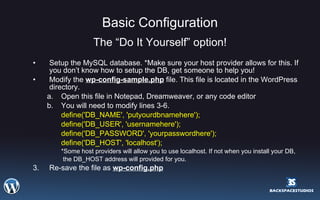
Basic Configuration The “Do It Yourself” option! Setup the MySQL database. *Make sure your host provider allows for this. If you don’t know how to setup the DB, get someone to help you! Modify the  wp-config-sample.php  file. This file is located in the WordPress directory.  Open this file in Notepad, Dreamweaver, or any code editor You will need to modify lines 3-6. define('DB_NAME', 'putyourdbnamehere');  define('DB_USER', 'usernamehere');  define('DB_PASSWORD', 'yourpasswordhere');  define('DB_HOST', 'localhost');  *Some host providers will allow you to use localhost. If not when you install your DB,    the DB_HOST address will provided for you. 3. Re-save the file as  wp-config.php
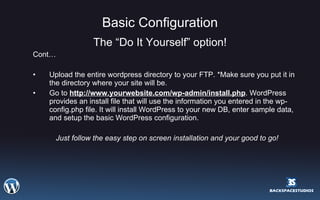
Basic Configuration The “Do It Yourself” option! Cont… Upload the entire wordpress directory to your FTP. *Make sure you put it in the directory where your site will be. Go to  http://www.yourwebsite.com/wp-admin/install.php . WordPress provides an install file that will use the information you entered in the wp-config.php file. It will install WordPress to your new DB, enter sample data, and setup the basic WordPress configuration. Just follow the easy step on screen installation and your good to go!
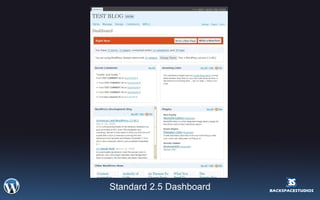
The Dashboard The Dashboard tells you about recent activity both at your site and in the WordPress community at large.  The Dashboard SubPanel provides you a number of links to start writing Posts or Pages, statistics and links on the number of posts, pages, Categories, and Tags. A Recent Comments box shows the number of Comments awaiting moderation and a list of the recent comments. Configurable boxes of Incoming Links, and RSS feeds from the WordPress Development Blog, the Plug-ins blog, and Planet WordPress are also displayed.
Standard 2.5 Dashboard
Login into your WordPress account and we will walk through the Dashboard.
Plug-ins “ Plug-ins can extend WordPress to do almost anything you can imagine.” -WordPress.org Well almost!  There is a limit to what a plug-in can do. Quite often in order to achieve the desired functionality there is some customization of code required.  WordPress plug-ins  help  enhance  and  simplify  the blogging experience of  advanced users , especially web developers and designers.
Plug-ins vs. Widgets What is a Widget? WordPress Widgets are WordPress Plug-ins or add-ons exclusive to your sidebar. WordPress Widgets allow the easy addition of design elements, content, images, etc., without knowing HTML, PHP, or any code. Many WordPress Plug-ins now come with a Widget version to allow easy addition to the sidebar.  Widgets are great for individuals who are not developers but manage a WordPress site. They require very little customization and are easy to manage. Cons You can’t customize a widget! This means you have to use them as is which makes it difficult to add the functionality you need. Widgets are very basic and do not allow for extending, modifying beyond the bundled options, skinning, and anything else you can do with a plug-in.
Login into your WordPress account and we will walk through plug-ins and widgets. You will need to download these files. http://www.backspacestudios.com/RMI/cforms.5.52.zip ( A basic contact form plug-in ) http://www.backspacestudios.com/RMI/wp-polls.2.31.zip ( A basic poll widget )
Customizing WP Plug-ins Not all plug-ins work out of the box!  A good majority of powerful and essential plug-ins will require some customization. This means  CODE!   A blogger  with basic to expert knowledge of HTML/CSS, and for a lot plug-ins, PHP and MySQL experience is highly recommended. A blogger  who needs to display complex content in posts and pages like displaying and colorizing code snippets, running custom scripts only on certain posts or pages, incorporating custom web forms, etc. A blogger who knows what they’re doing  - The default configuration of WordPress is too &quot;fool-proof&quot;. For example, with the visual editor turned on, it will add unexpected indents and line breaks even inside <pre> tags. Additionally, it blocks you from adding <div> tags, automatically &quot;sanitizing&quot; them into <p> tags.
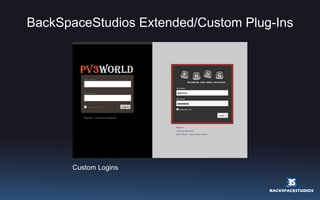
BackSpaceStudios Extended/Custom Plug-Ins Custom Logins
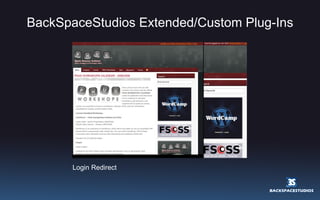
BackSpaceStudios Extended/Custom Plug-Ins Login Redirect
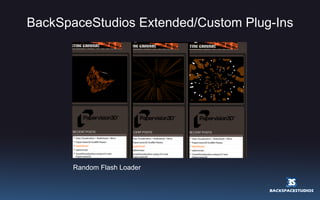
BackSpaceStudios Extended/Custom Plug-Ins Random Flash Loader
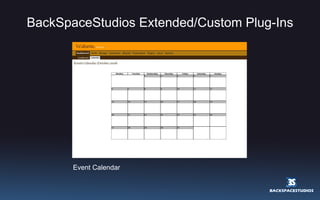
BackSpaceStudios Extended/Custom Plug-Ins Event Calendar
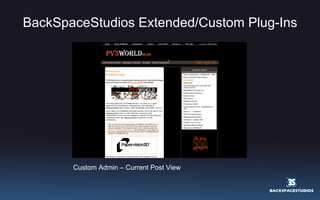
BackSpaceStudios Extended/Custom Plug-Ins Custom Admin – Current Post View
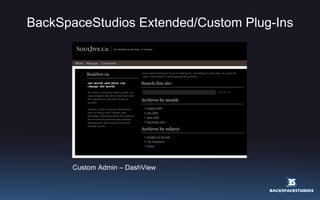
BackSpaceStudios Extended/Custom Plug-Ins Custom Admin – DashView
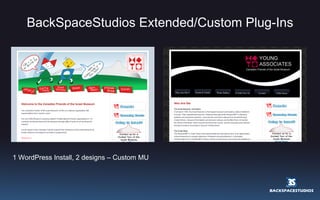
BackSpaceStudios Extended/Custom Plug-Ins 1 WordPress Install, 2 designs – Custom MU
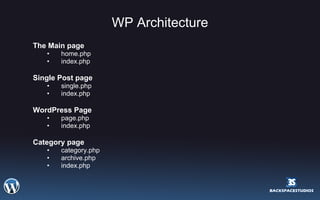
WP Architecture The Main page  home.php  index.php  Single Post page  single.php  index.php  WordPress Page  page.php  index.php  Category page  category.php  archive.php  index.php
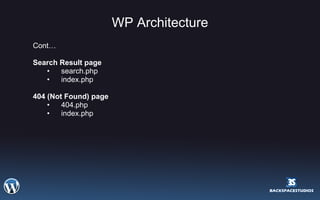
WP Architecture Cont… Search Result page  search.php  index.php  404 (Not Found) page  404.php  index.php
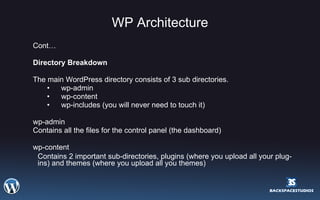
WP Architecture Cont… Directory Breakdown The main WordPress directory consists of 3 sub directories. wp-admin wp-content wp-includes (you will never need to touch it) wp-admin Contains all the files for the control panel (the dashboard) wp-content Contains 2 important sub-directories, plugins (where you upload all your plug-ins) and themes (where you upload all you themes)
Template Files WordPress Templates fit together like the pieces of a puzzle to generate the web pages on your WordPress site. Some templates (the header and footer template files for example) are used on all the web pages, while others are used only under specific conditions.  There are 2 kinds of Templates in WordPress, first, the standard Template files discussed in ‘WP Architecture’, and second, custom Templates used to develop a modified/custom theme.
Template Files Cont… Why should you build your own WordPress Theme?  It's an opportunity to learn more about CSS, HTML/XHTML, and PHP.  It's an opportunity to put your expertise with CSS, HTML/XHTML, and PHP to work.  It's creative.  It's fun (most of the time).  If you release it to the public, you can feel good that you shared and gave something back to the WordPress Community (okay, bragging rights!)  Most importantly, you can add all the functionality and designed required for your project.
Template Files Cont… The WordPress Page Structure   A simple WordPress web page structure is made up of three basic building &quot;blocks&quot;: a header, the content, and a footer. Each of these blocks is generated by a template file in your current WordPress Theme.  The  header  contains all the information that needs to be at the  top  — i.e. inside the  <head>  tag — of your XHTML web page, such as the  <meta>  tags and links to style sheets. It also includes the opening  <body>  tag and the visible header of your blog (which typically includes the title of your site, and may also include navigation menus, a logo bar, etc.).  The  content  block contains the posts and pages of your blog, i.e. the &quot;meat&quot; of your site.  The  footer  contains the information that goes at the bottom of your page, such as links, copyright and contact information, and other details.
Template Files Cont… Basic Template Files  To generate such a structure within a WordPress Theme, start with an  index.php  template file in your Theme's directory. This file has two main functions:  Include or &quot;call&quot; the other template files  Include the  WordPress Loop  to gather information from the database (posts, pages, categories, etc.)  For our simple structure, we only need to include two other template files: the  header  and the  footer . These must be named  header.php  and  footer.php . The Template Tags that include them look like this:  <?php get_header(); ?> <?php get_footer(); ?>  In order to display the posts and pages of your blog (and to customize how they are being displayed), your  index.php  file should run the WordPress Loop between the header and footer calls.
Template Files Cont… More Complex Page Structures  Header  Content  Sidebar  Footer  Many WordPress themes include one or several  sidebars  that contains navigation features and more information about your website. The sidebar is generated by a template file called  sidebar.php . It can be included in your  index.php  template file with the following template tag:   <?php get_sidebar(); ?>
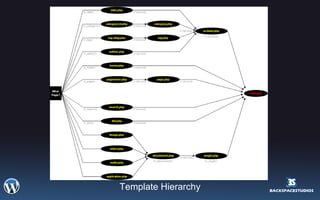
Template Hierarchy
Let’s take a look at the code.  Download the following files. http://www.backspacestudios.com/RMI/VectorLover1-0.zip ( A basic CSS theme we will modify ) http://www.backspacestudios.com/RMI/npp.4.8.5.Installer.zip ( A great open source code editor, this is optional )
Conditional Tags The Conditional Tags can be used in your Template files to change what content is displayed and how that content is displayed on a particular page depending on what  conditions  that page matches. For example, you might want to display a snippet of text above the series of posts, but only on the main page of your blog. With the  is_home()  Conditional Tag, that task is made easy.  Conditional tags are easy ways to call WP functions without having to write lines of code. You can write complex functions using a combination of Tags and PHP in order to achieve a function or method that does not exist in the WP codex.  Also, by using a combination of Tags and PHP you can customize how your content is being displayed  without having to write 100’s of lines of code.
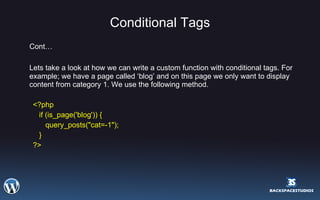
Conditional Tags Cont… Lets take a look at how we can write a custom function with conditional tags. For example; we have a page called ‘blog’ and on this page we only want to display content from category 1. We use the following method. <?php if (is_page('blog')) { query_posts(&quot;cat=-1&quot;); } ?>
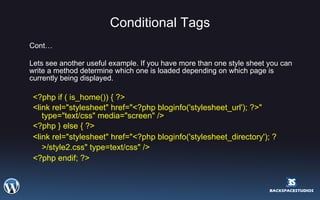
Conditional Tags Cont… Lets see another useful example. If you have more than one style sheet you can write a method determine which one is loaded depending on which page is currently being displayed. <?php if ( is_home()) { ?> <link rel=&quot;stylesheet&quot; href=&quot;<?php bloginfo('stylesheet_url'); ?>&quot; type=&quot;text/css&quot; media=&quot;screen&quot; /> <?php } else { ?> <link rel=&quot;stylesheet&quot; href=&quot;<?php bloginfo('stylesheet_directory'); ?>/style2.css&quot; type=text/css&quot; />   <?php endif; ?>
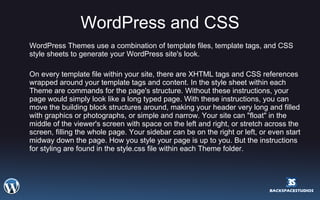
WordPress and CSS WordPress Themes use a combination of template files, template tags, and CSS style sheets to generate your WordPress site's look. On every template file within your site, there are XHTML tags and CSS references wrapped around your template tags and content. In the style sheet within each Theme are commands for the page's structure. Without these instructions, your page would simply look like a long typed page. With these instructions, you can move the building block structures around, making your header very long and filled with graphics or photographs, or simple and narrow. Your site can &quot;float&quot; in the middle of the viewer's screen with space on the left and right, or stretch across the screen, filling the whole page. Your sidebar can be on the right or left, or even start midway down the page. How you style your page is up to you. But the instructions for styling are found in the style.css file within each Theme folder.
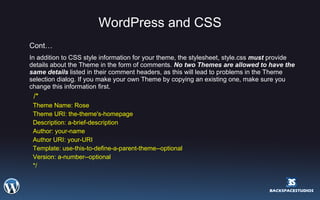
WordPress and CSS Cont… In addition to CSS style information for your theme, the stylesheet, style.css  must  provide details about the Theme in the form of comments.  No two Themes are allowed to have the same details  listed in their comment headers, as this will lead to problems in the Theme selection dialog. If you make your own Theme by copying an existing one, make sure you change this information first.    /*  Theme Name: Rose  Theme URI: the-theme's-homepage  Description: a-brief-description  Author: your-name  Author URI: your-URI  Template: use-this-to-define-a-parent-theme--optional  Version: a-number--optional  */
Lets take a look at style.css.
Bridging Two Worlds! FlashPress  is an extension to WordPress, which allows Flash designers/developers to use the WordPress engine to communicate with a Flash site. The use of the WordPress CMS in Flash overcomes many obstacles involved with maintaining and updating a Flash site. The  FlashPress  development thread is restricted to contributors of this group. If you would like to contribute to this project please contact us at  [email_address]   Launching soon http://www.flashpress.ca and http://www.flashpressdevelopers.com We will be launching FlashPress at FITC Toronto 2009!
FREE PHUG Workshops Current Scheduled Workshops: FlashPress – Flash management Solutions by PHUG Drupal Papervision3D - Using Papervision3D and Parallax to build environments Firefox UI Design Flash Media Server and BeatMaker Open Source in the Real World Adopting Opens Source Commercially We would like to thank some of our sponsors and affiliates: PHUG, Lifecapture Interactive Inc., BackSpaceStudios, Mozilla Firefox, WordPress.org, Drupal.org,  BNOTIONS, FITC ( Flash In The Can ), RMI ( Rich Media Institute ) If you would like to present or no someone who does we are still taking applications. Please send us an email at  [email_address] http://workshops.phug.ca
Resources http://www.backspacestudios.com http://www.phug.ca  http://codex.wordpress.org/Working_with_WordPress#WordPress_Features http://codex.wordpress.org/Template_Hierarchy  http://codex.wordpress.org/Conditional_Tags  http://codex.wordpress.org/Templates  http://codex.wordpress.org/Customizing_Your_Sidebar  http://www.tamba2.org.uk/wordpress/graphicalcss/ http://www.ndesign-studio.com http://www.webdesignerwall.com http://bloggingsquared.com http://automattic.com http://www.blog.spoongraphics.co.uk http://www.webappers.com http://www.wppotential.com
Thank You WordPress 2.5 Workshop at RMI Brendan Sera-Shriar, Owner BackSpaceStudios http://www.backspacestudios.com [email_address] Founder of PHUG – Open Source Culture http://www.phug.ca

WordPress 2.5 Overview - Rich Media Institute

  • 1.
    WordPress 2.5 WorkshopRich Media Institute Brendan Sera-Shriar BackSpaceStudios.com
  • 2.
    WordPress 2.5 WorkshopWhat is WordPress and why 2.5? What can WordPress be used for? Basic Installation and Setup Basic Configuration The Dashboard Plug-ins WP Architecture Template Files Conditional Tags WordPress and CSS Resources
  • 3.
    What is WordPressand why 2.5? “ WordPress is a state-of-the-art publishing platform with a focus on aesthetics, web standards, and usability. WordPress is both free and priceless at the same time.” – WordPress.org Basically WordPress can be used for any web based application or portal that requires the use of a CMS (Content Management System). Why 2.5? There is little difference between 2.5 and 2.6 WordPress 205 is the most commonly used version
  • 4.
    What can WordPressbe used for? WordPress has changed a lot since its inception. WordPress was originally developed as blogging software. Today it can be used for anything that requires a CMS! WordPress can power Standard Blogs, Online Communities, and Commercial or Personal Websites. At BackSpaceStudios, we use WordPress for almost all our CMS development at level of business, development, and design, we are even using WordPress now to power Flash Sites!
  • 5.
    Basic Installation andSetup There are 2 ways to install WordPress: A lot of Web Host Providers have “One Click Installs” for WP. *However this is not recommended! Do it yourself! Install you MySQL database, setup the wp-config file and run the install.
  • 6.
    Basic Configuration The“Do It Yourself” option! Setup the MySQL database. *Make sure your host provider allows for this. If you don’t know how to setup the DB, get someone to help you! Modify the wp-config-sample.php file. This file is located in the WordPress directory. Open this file in Notepad, Dreamweaver, or any code editor You will need to modify lines 3-6. define('DB_NAME', 'putyourdbnamehere'); define('DB_USER', 'usernamehere'); define('DB_PASSWORD', 'yourpasswordhere'); define('DB_HOST', 'localhost'); *Some host providers will allow you to use localhost. If not when you install your DB, the DB_HOST address will provided for you. 3. Re-save the file as wp-config.php
  • 7.
    Basic Configuration The“Do It Yourself” option! Cont… Upload the entire wordpress directory to your FTP. *Make sure you put it in the directory where your site will be. Go to http://www.yourwebsite.com/wp-admin/install.php . WordPress provides an install file that will use the information you entered in the wp-config.php file. It will install WordPress to your new DB, enter sample data, and setup the basic WordPress configuration. Just follow the easy step on screen installation and your good to go!
  • 8.
    The Dashboard TheDashboard tells you about recent activity both at your site and in the WordPress community at large. The Dashboard SubPanel provides you a number of links to start writing Posts or Pages, statistics and links on the number of posts, pages, Categories, and Tags. A Recent Comments box shows the number of Comments awaiting moderation and a list of the recent comments. Configurable boxes of Incoming Links, and RSS feeds from the WordPress Development Blog, the Plug-ins blog, and Planet WordPress are also displayed.
  • 9.
  • 10.
    Login into yourWordPress account and we will walk through the Dashboard.
  • 11.
    Plug-ins “ Plug-inscan extend WordPress to do almost anything you can imagine.” -WordPress.org Well almost! There is a limit to what a plug-in can do. Quite often in order to achieve the desired functionality there is some customization of code required. WordPress plug-ins help enhance and simplify the blogging experience of advanced users , especially web developers and designers.
  • 12.
    Plug-ins vs. WidgetsWhat is a Widget? WordPress Widgets are WordPress Plug-ins or add-ons exclusive to your sidebar. WordPress Widgets allow the easy addition of design elements, content, images, etc., without knowing HTML, PHP, or any code. Many WordPress Plug-ins now come with a Widget version to allow easy addition to the sidebar. Widgets are great for individuals who are not developers but manage a WordPress site. They require very little customization and are easy to manage. Cons You can’t customize a widget! This means you have to use them as is which makes it difficult to add the functionality you need. Widgets are very basic and do not allow for extending, modifying beyond the bundled options, skinning, and anything else you can do with a plug-in.
  • 13.
    Login into yourWordPress account and we will walk through plug-ins and widgets. You will need to download these files. http://www.backspacestudios.com/RMI/cforms.5.52.zip ( A basic contact form plug-in ) http://www.backspacestudios.com/RMI/wp-polls.2.31.zip ( A basic poll widget )
  • 14.
    Customizing WP Plug-insNot all plug-ins work out of the box! A good majority of powerful and essential plug-ins will require some customization. This means CODE! A blogger with basic to expert knowledge of HTML/CSS, and for a lot plug-ins, PHP and MySQL experience is highly recommended. A blogger who needs to display complex content in posts and pages like displaying and colorizing code snippets, running custom scripts only on certain posts or pages, incorporating custom web forms, etc. A blogger who knows what they’re doing - The default configuration of WordPress is too &quot;fool-proof&quot;. For example, with the visual editor turned on, it will add unexpected indents and line breaks even inside <pre> tags. Additionally, it blocks you from adding <div> tags, automatically &quot;sanitizing&quot; them into <p> tags.
  • 15.
  • 16.
  • 17.
  • 18.
  • 19.
    BackSpaceStudios Extended/Custom Plug-InsCustom Admin – Current Post View
  • 20.
  • 21.
    BackSpaceStudios Extended/Custom Plug-Ins1 WordPress Install, 2 designs – Custom MU
  • 22.
    WP Architecture TheMain page home.php index.php Single Post page single.php index.php WordPress Page page.php index.php Category page category.php archive.php index.php
  • 23.
    WP Architecture Cont…Search Result page search.php index.php 404 (Not Found) page 404.php index.php
  • 24.
    WP Architecture Cont…Directory Breakdown The main WordPress directory consists of 3 sub directories. wp-admin wp-content wp-includes (you will never need to touch it) wp-admin Contains all the files for the control panel (the dashboard) wp-content Contains 2 important sub-directories, plugins (where you upload all your plug-ins) and themes (where you upload all you themes)
  • 25.
    Template Files WordPressTemplates fit together like the pieces of a puzzle to generate the web pages on your WordPress site. Some templates (the header and footer template files for example) are used on all the web pages, while others are used only under specific conditions. There are 2 kinds of Templates in WordPress, first, the standard Template files discussed in ‘WP Architecture’, and second, custom Templates used to develop a modified/custom theme.
  • 26.
    Template Files Cont…Why should you build your own WordPress Theme? It's an opportunity to learn more about CSS, HTML/XHTML, and PHP. It's an opportunity to put your expertise with CSS, HTML/XHTML, and PHP to work. It's creative. It's fun (most of the time). If you release it to the public, you can feel good that you shared and gave something back to the WordPress Community (okay, bragging rights!) Most importantly, you can add all the functionality and designed required for your project.
  • 27.
    Template Files Cont…The WordPress Page Structure A simple WordPress web page structure is made up of three basic building &quot;blocks&quot;: a header, the content, and a footer. Each of these blocks is generated by a template file in your current WordPress Theme. The header contains all the information that needs to be at the top — i.e. inside the <head> tag — of your XHTML web page, such as the <meta> tags and links to style sheets. It also includes the opening <body> tag and the visible header of your blog (which typically includes the title of your site, and may also include navigation menus, a logo bar, etc.). The content block contains the posts and pages of your blog, i.e. the &quot;meat&quot; of your site. The footer contains the information that goes at the bottom of your page, such as links, copyright and contact information, and other details.
  • 28.
    Template Files Cont…Basic Template Files To generate such a structure within a WordPress Theme, start with an index.php template file in your Theme's directory. This file has two main functions: Include or &quot;call&quot; the other template files Include the WordPress Loop to gather information from the database (posts, pages, categories, etc.) For our simple structure, we only need to include two other template files: the header and the footer . These must be named header.php and footer.php . The Template Tags that include them look like this: <?php get_header(); ?> <?php get_footer(); ?> In order to display the posts and pages of your blog (and to customize how they are being displayed), your index.php file should run the WordPress Loop between the header and footer calls.
  • 29.
    Template Files Cont…More Complex Page Structures Header Content Sidebar Footer Many WordPress themes include one or several sidebars that contains navigation features and more information about your website. The sidebar is generated by a template file called sidebar.php . It can be included in your index.php template file with the following template tag: <?php get_sidebar(); ?>
  • 30.
  • 31.
    Let’s take alook at the code. Download the following files. http://www.backspacestudios.com/RMI/VectorLover1-0.zip ( A basic CSS theme we will modify ) http://www.backspacestudios.com/RMI/npp.4.8.5.Installer.zip ( A great open source code editor, this is optional )
  • 32.
    Conditional Tags TheConditional Tags can be used in your Template files to change what content is displayed and how that content is displayed on a particular page depending on what conditions that page matches. For example, you might want to display a snippet of text above the series of posts, but only on the main page of your blog. With the is_home() Conditional Tag, that task is made easy. Conditional tags are easy ways to call WP functions without having to write lines of code. You can write complex functions using a combination of Tags and PHP in order to achieve a function or method that does not exist in the WP codex. Also, by using a combination of Tags and PHP you can customize how your content is being displayed without having to write 100’s of lines of code.
  • 33.
    Conditional Tags Cont…Lets take a look at how we can write a custom function with conditional tags. For example; we have a page called ‘blog’ and on this page we only want to display content from category 1. We use the following method. <?php if (is_page('blog')) { query_posts(&quot;cat=-1&quot;); } ?>
  • 34.
    Conditional Tags Cont…Lets see another useful example. If you have more than one style sheet you can write a method determine which one is loaded depending on which page is currently being displayed. <?php if ( is_home()) { ?> <link rel=&quot;stylesheet&quot; href=&quot;<?php bloginfo('stylesheet_url'); ?>&quot; type=&quot;text/css&quot; media=&quot;screen&quot; /> <?php } else { ?> <link rel=&quot;stylesheet&quot; href=&quot;<?php bloginfo('stylesheet_directory'); ?>/style2.css&quot; type=text/css&quot; /> <?php endif; ?>
  • 35.
    WordPress and CSSWordPress Themes use a combination of template files, template tags, and CSS style sheets to generate your WordPress site's look. On every template file within your site, there are XHTML tags and CSS references wrapped around your template tags and content. In the style sheet within each Theme are commands for the page's structure. Without these instructions, your page would simply look like a long typed page. With these instructions, you can move the building block structures around, making your header very long and filled with graphics or photographs, or simple and narrow. Your site can &quot;float&quot; in the middle of the viewer's screen with space on the left and right, or stretch across the screen, filling the whole page. Your sidebar can be on the right or left, or even start midway down the page. How you style your page is up to you. But the instructions for styling are found in the style.css file within each Theme folder.
  • 36.
    WordPress and CSSCont… In addition to CSS style information for your theme, the stylesheet, style.css must provide details about the Theme in the form of comments. No two Themes are allowed to have the same details listed in their comment headers, as this will lead to problems in the Theme selection dialog. If you make your own Theme by copying an existing one, make sure you change this information first. /* Theme Name: Rose Theme URI: the-theme's-homepage Description: a-brief-description Author: your-name Author URI: your-URI Template: use-this-to-define-a-parent-theme--optional Version: a-number--optional */
  • 37.
    Lets take alook at style.css.
  • 38.
    Bridging Two Worlds!FlashPress is an extension to WordPress, which allows Flash designers/developers to use the WordPress engine to communicate with a Flash site. The use of the WordPress CMS in Flash overcomes many obstacles involved with maintaining and updating a Flash site. The FlashPress development thread is restricted to contributors of this group. If you would like to contribute to this project please contact us at [email_address] Launching soon http://www.flashpress.ca and http://www.flashpressdevelopers.com We will be launching FlashPress at FITC Toronto 2009!
  • 39.
    FREE PHUG WorkshopsCurrent Scheduled Workshops: FlashPress – Flash management Solutions by PHUG Drupal Papervision3D - Using Papervision3D and Parallax to build environments Firefox UI Design Flash Media Server and BeatMaker Open Source in the Real World Adopting Opens Source Commercially We would like to thank some of our sponsors and affiliates: PHUG, Lifecapture Interactive Inc., BackSpaceStudios, Mozilla Firefox, WordPress.org, Drupal.org, BNOTIONS, FITC ( Flash In The Can ), RMI ( Rich Media Institute ) If you would like to present or no someone who does we are still taking applications. Please send us an email at [email_address] http://workshops.phug.ca
  • 40.
    Resources http://www.backspacestudios.com http://www.phug.ca http://codex.wordpress.org/Working_with_WordPress#WordPress_Features http://codex.wordpress.org/Template_Hierarchy http://codex.wordpress.org/Conditional_Tags http://codex.wordpress.org/Templates http://codex.wordpress.org/Customizing_Your_Sidebar http://www.tamba2.org.uk/wordpress/graphicalcss/ http://www.ndesign-studio.com http://www.webdesignerwall.com http://bloggingsquared.com http://automattic.com http://www.blog.spoongraphics.co.uk http://www.webappers.com http://www.wppotential.com
  • 41.
    Thank You WordPress2.5 Workshop at RMI Brendan Sera-Shriar, Owner BackSpaceStudios http://www.backspacestudios.com [email_address] Founder of PHUG – Open Source Culture http://www.phug.ca