Working with Callbacks
1
Objectives
• Learn to build interactive programs using GLUT callbacks
• Mouse
• Keyboard
• Reshape
• Introduce menus in GLUT
2
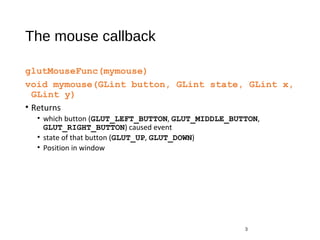
The mouse callback
glutMouseFunc(mymouse)
void mymouse(GLint button, GLint state, GLint x,
GLint y)
• Returns
• which button (GLUT_LEFT_BUTTON, GLUT_MIDDLE_BUTTON,
GLUT_RIGHT_BUTTON) caused event
• state of that button (GLUT_UP, GLUT_DOWN)
• Position in window
3
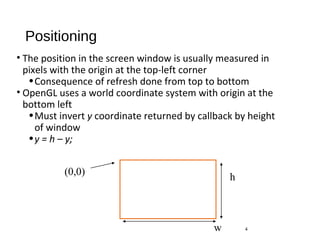
Positioning
• The position in the screen window is usually measured in
pixels with the origin at the top-left corner
•Consequence of refresh done from top to bottom
• OpenGL uses a world coordinate system with origin at the
bottom left
•Must invert y coordinate returned by callback by height
of window
•y = h – y;
4
(0,0)
h
w
Obtaining the window size
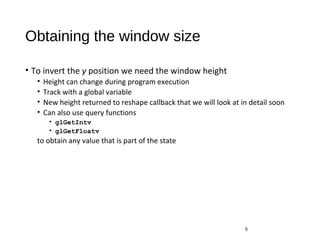
• To invert the y position we need the window height
• Height can change during program execution
• Track with a global variable
• New height returned to reshape callback that we will look at in detail soon
• Can also use query functions
• glGetIntv
• glGetFloatv
to obtain any value that is part of the state
5
Terminating a program
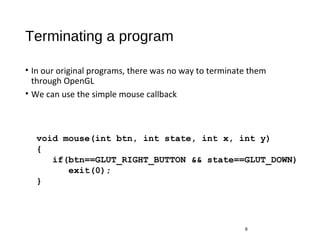
• In our original programs, there was no way to terminate them
through OpenGL
• We can use the simple mouse callback
6
void mouse(int btn, int state, int x, int y)
{
if(btn==GLUT_RIGHT_BUTTON && state==GLUT_DOWN)
exit(0);
}
Using the mouse position
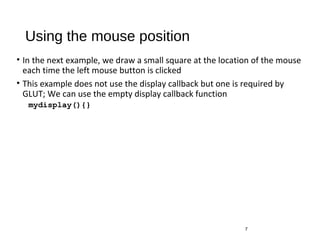
• In the next example, we draw a small square at the location of the mouse
each time the left mouse button is clicked
• This example does not use the display callback but one is required by
GLUT; We can use the empty display callback function
mydisplay(){}
7
Drawing squares at cursor location
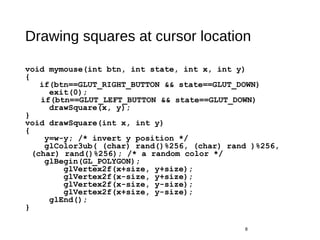
void mymouse(int btn, int state, int x, int y)
{
if(btn==GLUT_RIGHT_BUTTON && state==GLUT_DOWN)
exit(0);
if(btn==GLUT_LEFT_BUTTON && state==GLUT_DOWN)
drawSquare(x, y);
}
void drawSquare(int x, int y)
{
y=w-y; /* invert y position */
glColor3ub( (char) rand()%256, (char) rand )%256,
(char) rand()%256); /* a random color */
glBegin(GL_POLYGON);
glVertex2f(x+size, y+size);
glVertex2f(x-size, y+size);
glVertex2f(x-size, y-size);
glVertex2f(x+size, y-size);
glEnd();
}
8
Using the motion callback
• We can draw squares (or anything else) continuously as long as a
mouse button is depressed by using the motion callback
• glutMotionFunc(drawSquare)
• We can draw squares without depressing a button using the passive
motion callback
• glutPassiveMotionFunc(drawSquare)
9
Using the keyboard
glutKeyboardFunc(mykey)
void mykey(unsigned char key,
int x, int y)
• Returns ASCII code of key depressed and mouse location
10
void mykey()
{
if(key == ‘Q’ | key == ‘q’)
exit(0);
}
Special and Modifier Keys
•GLUT defines the special keys in glut.h
• Function key 1: GLUT_KEY_F1
• Up arrow key: GLUT_KEY_UP
• if(key == ‘GLUT_KEY_F1’ ……
•Can also check of one of the modifiers
• GLUT_ACTIVE_SHIFT
• GLUT_ACTIVE_CTRL
• GLUT_ACTIVE_ALT
is depressed by
glutGetModifiers()
• Allows emulation of three-button mouse with one- or two-
button mice
11
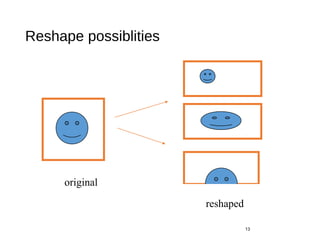
Reshaping the window
• We can reshape and resize the OpenGL display window by pulling the
corner of the window
• What happens to the display?
• Must redraw from application
• Two possibilities
• Display part of world
• Display whole world but force to fit in new window
• Can alter aspect ratio
12
Reshape possiblities
13
original
reshaped
The Reshape callback
glutReshapeFunc(myreshape)
void myreshape( int w, int h)
• Returns width and height of new window (in pixels)
• A redisplay is posted automatically at end of execution of the callback
• GLUT has a default reshape callback but you probably want to define your own
• The reshape callback is good place to put viewing functions because it is
invoked when the window is first opened
14
Example Reshape
• This reshape preserves shapes by making the viewport and
world window have the same aspect ratio
15
void myReshape(int w, int h)
{
glViewport(0, 0, w, h);
glMatrixMode(GL_PROJECTION); /* switch matrix mode */
glLoadIdentity();
if (w <= h)
gluOrtho2D(-2.0, 2.0, -2.0 * (GLfloat) h / (GLfloat) w,
2.0 * (GLfloat) h / (GLfloat) w);
else gluOrtho2D(-2.0 * (GLfloat) w / (GLfloat) h, 2.0 *
(GLfloat) w / (GLfloat) h, -2.0, 2.0);
glMatrixMode(GL_MODELVIEW); /* return to modelview mode */
}
Toolkits and Widgets
•Most window systems provide a toolkit or library of
functions for building user interfaces that use special
types of windows called widgets
•Widget sets include tools such as
• Menus
• Slidebars
• Dials
• Input boxes
•But toolkits tend to be platform dependent
•GLUT provides a few widgets including menus
16
Menus
• GLUT supports pop-up menus
• A menu can have submenus
• Three steps
• Define entries for the menu
• Define action for each menu item
• Action carried out if entry selected
• Attach menu to a mouse button
17
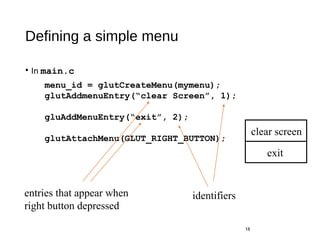
Defining a simple menu
• In main.c
18
menu_id = glutCreateMenu(mymenu);
glutAddmenuEntry(“clear Screen”, 1);
gluAddMenuEntry(“exit”, 2);
glutAttachMenu(GLUT_RIGHT_BUTTON);
entries that appear when
right button depressed
identifiers
clear screen
exit
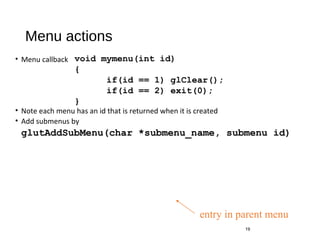
Menu actions
• Menu callback
• Note each menu has an id that is returned when it is created
• Add submenus by
glutAddSubMenu(char *submenu_name, submenu id)
19
void mymenu(int id)
{
if(id == 1) glClear();
if(id == 2) exit(0);
}
entry in parent menu
Other functions in GLUT
• Dynamic Windows
• Create and destroy during execution
• Subwindows
• Multiple Windows
• Changing callbacks during execution
• Timers
• Portable fonts
• glutBitmapCharacter
• glutStrokeCharacter
20

Working with Callbacks

  • 1.
  • 2.
    Objectives • Learn tobuild interactive programs using GLUT callbacks • Mouse • Keyboard • Reshape • Introduce menus in GLUT 2
  • 3.
    The mouse callback glutMouseFunc(mymouse) voidmymouse(GLint button, GLint state, GLint x, GLint y) • Returns • which button (GLUT_LEFT_BUTTON, GLUT_MIDDLE_BUTTON, GLUT_RIGHT_BUTTON) caused event • state of that button (GLUT_UP, GLUT_DOWN) • Position in window 3
  • 4.
    Positioning • The positionin the screen window is usually measured in pixels with the origin at the top-left corner •Consequence of refresh done from top to bottom • OpenGL uses a world coordinate system with origin at the bottom left •Must invert y coordinate returned by callback by height of window •y = h – y; 4 (0,0) h w
  • 5.
    Obtaining the windowsize • To invert the y position we need the window height • Height can change during program execution • Track with a global variable • New height returned to reshape callback that we will look at in detail soon • Can also use query functions • glGetIntv • glGetFloatv to obtain any value that is part of the state 5
  • 6.
    Terminating a program •In our original programs, there was no way to terminate them through OpenGL • We can use the simple mouse callback 6 void mouse(int btn, int state, int x, int y) { if(btn==GLUT_RIGHT_BUTTON && state==GLUT_DOWN) exit(0); }
  • 7.
    Using the mouseposition • In the next example, we draw a small square at the location of the mouse each time the left mouse button is clicked • This example does not use the display callback but one is required by GLUT; We can use the empty display callback function mydisplay(){} 7
  • 8.
    Drawing squares atcursor location void mymouse(int btn, int state, int x, int y) { if(btn==GLUT_RIGHT_BUTTON && state==GLUT_DOWN) exit(0); if(btn==GLUT_LEFT_BUTTON && state==GLUT_DOWN) drawSquare(x, y); } void drawSquare(int x, int y) { y=w-y; /* invert y position */ glColor3ub( (char) rand()%256, (char) rand )%256, (char) rand()%256); /* a random color */ glBegin(GL_POLYGON); glVertex2f(x+size, y+size); glVertex2f(x-size, y+size); glVertex2f(x-size, y-size); glVertex2f(x+size, y-size); glEnd(); } 8
  • 9.
    Using the motioncallback • We can draw squares (or anything else) continuously as long as a mouse button is depressed by using the motion callback • glutMotionFunc(drawSquare) • We can draw squares without depressing a button using the passive motion callback • glutPassiveMotionFunc(drawSquare) 9
  • 10.
    Using the keyboard glutKeyboardFunc(mykey) voidmykey(unsigned char key, int x, int y) • Returns ASCII code of key depressed and mouse location 10 void mykey() { if(key == ‘Q’ | key == ‘q’) exit(0); }
  • 11.
    Special and ModifierKeys •GLUT defines the special keys in glut.h • Function key 1: GLUT_KEY_F1 • Up arrow key: GLUT_KEY_UP • if(key == ‘GLUT_KEY_F1’ …… •Can also check of one of the modifiers • GLUT_ACTIVE_SHIFT • GLUT_ACTIVE_CTRL • GLUT_ACTIVE_ALT is depressed by glutGetModifiers() • Allows emulation of three-button mouse with one- or two- button mice 11
  • 12.
    Reshaping the window •We can reshape and resize the OpenGL display window by pulling the corner of the window • What happens to the display? • Must redraw from application • Two possibilities • Display part of world • Display whole world but force to fit in new window • Can alter aspect ratio 12
  • 13.
  • 14.
    The Reshape callback glutReshapeFunc(myreshape) voidmyreshape( int w, int h) • Returns width and height of new window (in pixels) • A redisplay is posted automatically at end of execution of the callback • GLUT has a default reshape callback but you probably want to define your own • The reshape callback is good place to put viewing functions because it is invoked when the window is first opened 14
  • 15.
    Example Reshape • Thisreshape preserves shapes by making the viewport and world window have the same aspect ratio 15 void myReshape(int w, int h) { glViewport(0, 0, w, h); glMatrixMode(GL_PROJECTION); /* switch matrix mode */ glLoadIdentity(); if (w <= h) gluOrtho2D(-2.0, 2.0, -2.0 * (GLfloat) h / (GLfloat) w, 2.0 * (GLfloat) h / (GLfloat) w); else gluOrtho2D(-2.0 * (GLfloat) w / (GLfloat) h, 2.0 * (GLfloat) w / (GLfloat) h, -2.0, 2.0); glMatrixMode(GL_MODELVIEW); /* return to modelview mode */ }
  • 16.
    Toolkits and Widgets •Mostwindow systems provide a toolkit or library of functions for building user interfaces that use special types of windows called widgets •Widget sets include tools such as • Menus • Slidebars • Dials • Input boxes •But toolkits tend to be platform dependent •GLUT provides a few widgets including menus 16
  • 17.
    Menus • GLUT supportspop-up menus • A menu can have submenus • Three steps • Define entries for the menu • Define action for each menu item • Action carried out if entry selected • Attach menu to a mouse button 17
  • 18.
    Defining a simplemenu • In main.c 18 menu_id = glutCreateMenu(mymenu); glutAddmenuEntry(“clear Screen”, 1); gluAddMenuEntry(“exit”, 2); glutAttachMenu(GLUT_RIGHT_BUTTON); entries that appear when right button depressed identifiers clear screen exit
  • 19.
    Menu actions • Menucallback • Note each menu has an id that is returned when it is created • Add submenus by glutAddSubMenu(char *submenu_name, submenu id) 19 void mymenu(int id) { if(id == 1) glClear(); if(id == 2) exit(0); } entry in parent menu
  • 20.
    Other functions inGLUT • Dynamic Windows • Create and destroy during execution • Subwindows • Multiple Windows • Changing callbacks during execution • Timers • Portable fonts • glutBitmapCharacter • glutStrokeCharacter 20