Computer Graphics using OpenGL
Chapter 2
Initial Steps in Drawing
Figures
Using Open-GL
• Files: .h, .lib, .dll
– The entire folder gl is placed in the Include
directory of Visual C++
– The individual lib files are placed in the lib
directory of Visual C++
– The individual dll files are placed in
C:WindowsSystem32
Using Open-GL (2)
• Includes:
– <windows.h>
– <gl/gl.h>
– <gl/glu.h>
– <gl/glut.h>
– <gl/glui.h> (if used)
• Include in order given. If you use capital
letters for any file or directory, use them in
your include statement also.
Using Open-GL (3)
• Changing project settings: Visual C++ 6.0
– Project menu, Settings entry
– In Object/library modules move to the end of
the line and add glui32.lib glut32.lib glu32.lib
opengl32.lib (separated by spaces from last
entry and each other)
– In Project Options, scroll down to end of box
and add same set of .lib files
– Close Project menu and save workspace
Using Open-GL (3)
• Changing Project Settings: Visual C++
.NET 2003
– Project, Properties, Linker, Command Line
– In the white space at the bottom, add
glui32.lib glut32.lib glu32.lib opengl32.lib
– Close Project menu and save your solution
Getting Started Making Pictures
• Graphics display: Entire screen (a);
windows system (b); [both have usual
screen coordinates, with y-axis down];
windows system [inverted coordinates] (c)
Basic System Drawing Commands
• setPixel(x, y, color)
– Pixel at location (x, y) gets color specified by
color
– Other names: putPixel(), SetPixel(), or
drawPoint()
• line(x1, y1, x2, y2)
– Draws a line between (x1, y1) and (x2, y2)
– Other names: drawLine() or Line().
Alternative Basic Drawing
• current position (cp), specifies where the
system is drawing now.
• moveTo(x,y) moves the pen invisibly to the
location (x, y) and then updates the
current position to this position.
• lineTo(x,y) draws a straight line from the
current position to (x, y) and then updates
the cp to (x, y).
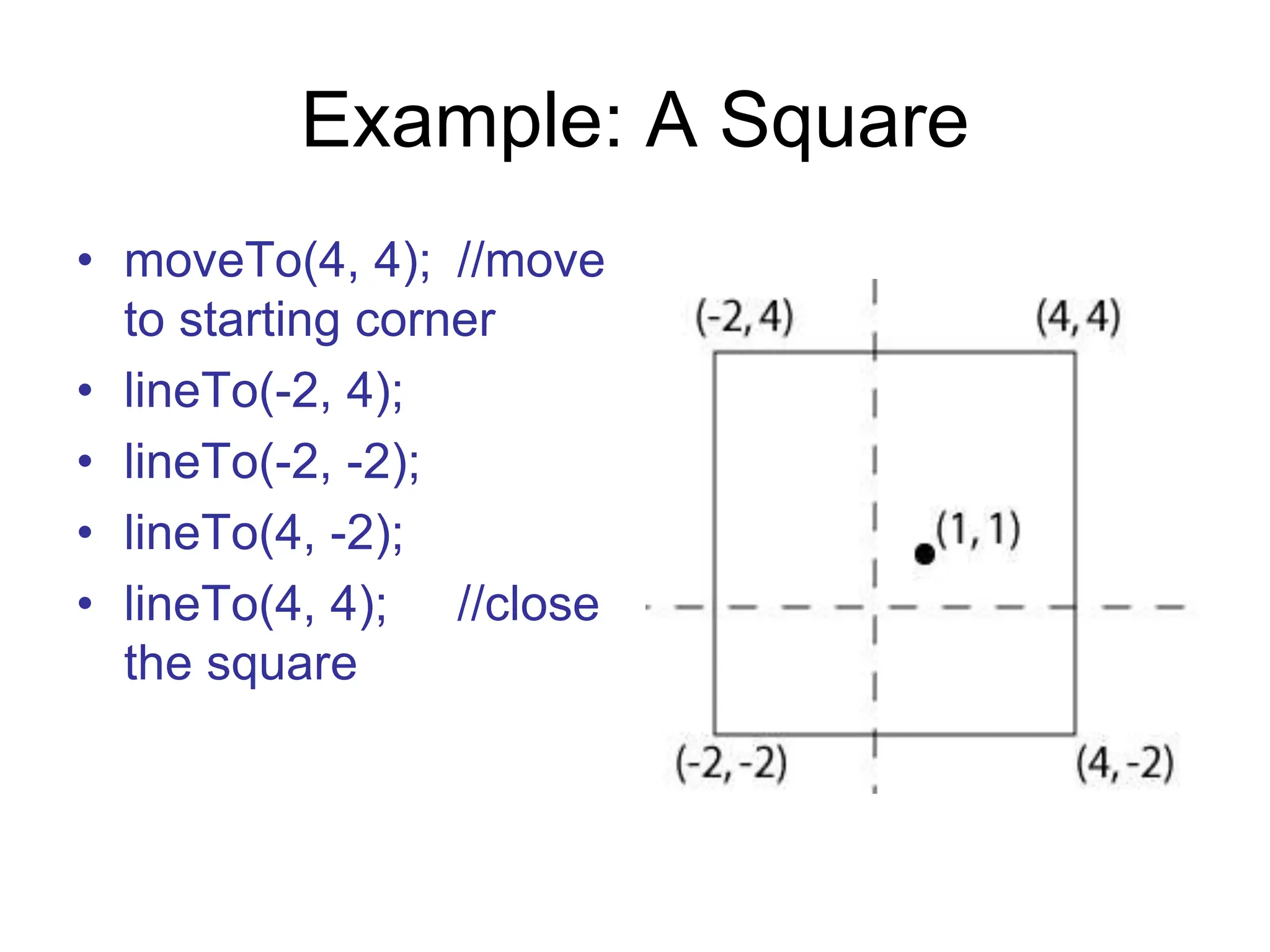
Example: A Square
• moveTo(4, 4); //move
to starting corner
• lineTo(-2, 4);
• lineTo(-2, -2);
• lineTo(4, -2);
• lineTo(4, 4); //close
the square
Device Independent Graphics and
OpenGL
• Allows same graphics program to be run
on many different machine types with
nearly identical output.
– .dll files must be with program
• OpenGL is an API: it controls whatever
hardware you are using, and you use its
functions instead of controlling the
hardware directly.
• OpenGL is open source (free).
Event-driven Programs
• Respond to events, such as mouse click
or move, key press, or window reshape or
resize. System manages event queue.
• Programmer provides “call-back” functions
to handle each event.
• Call-back functions must be registered
with OpenGL to let it know which function
handles which event.
• Registering function does *not* call it!
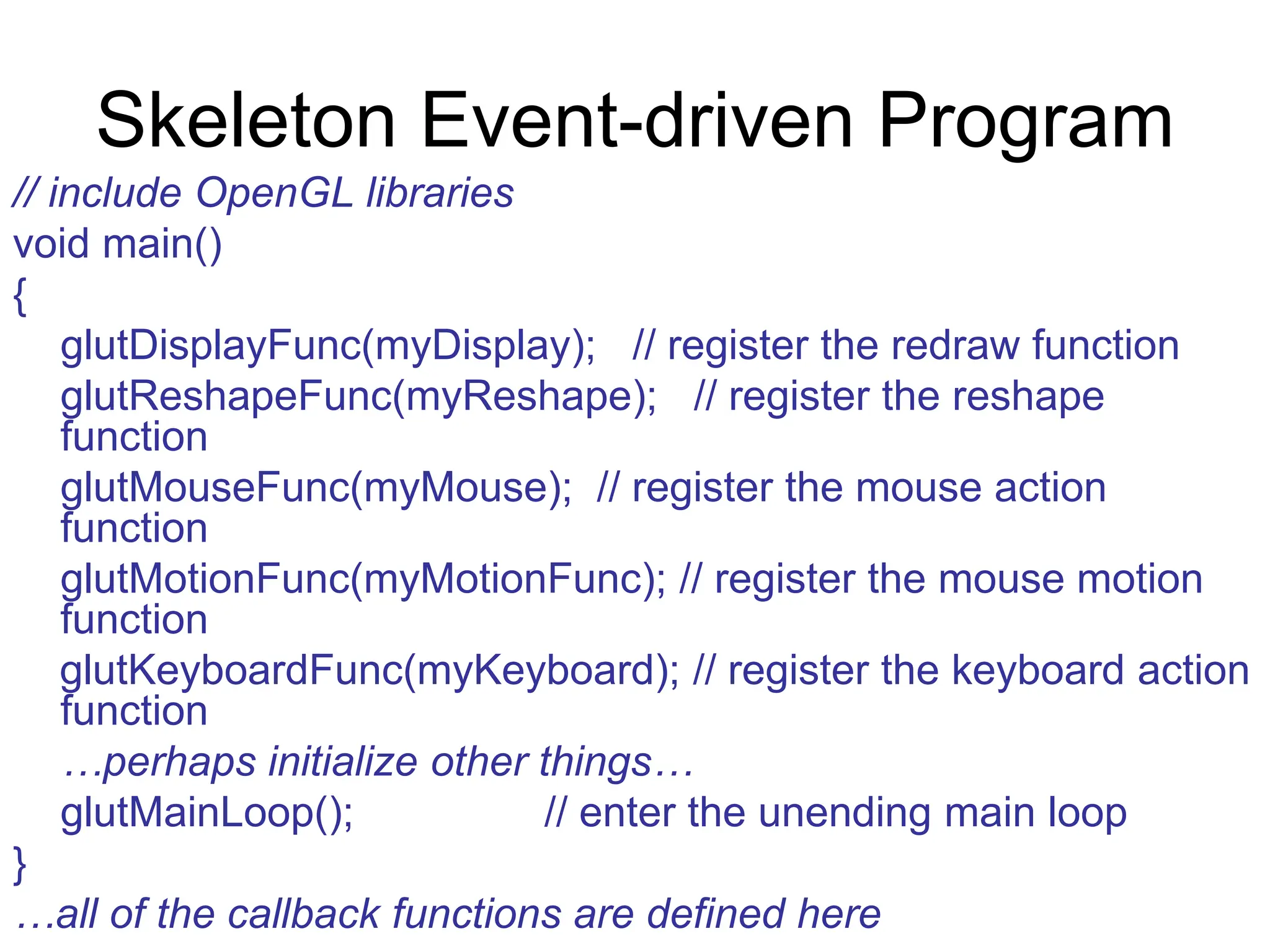
Skeleton Event-driven Program
// include OpenGL libraries
void main()
{
glutDisplayFunc(myDisplay); // register the redraw function
glutReshapeFunc(myReshape); // register the reshape
function
glutMouseFunc(myMouse); // register the mouse action
function
glutMotionFunc(myMotionFunc); // register the mouse motion
function
glutKeyboardFunc(myKeyboard); // register the keyboard action
function
…perhaps initialize other things…
glutMainLoop(); // enter the unending main loop
}
…all of the callback functions are defined here
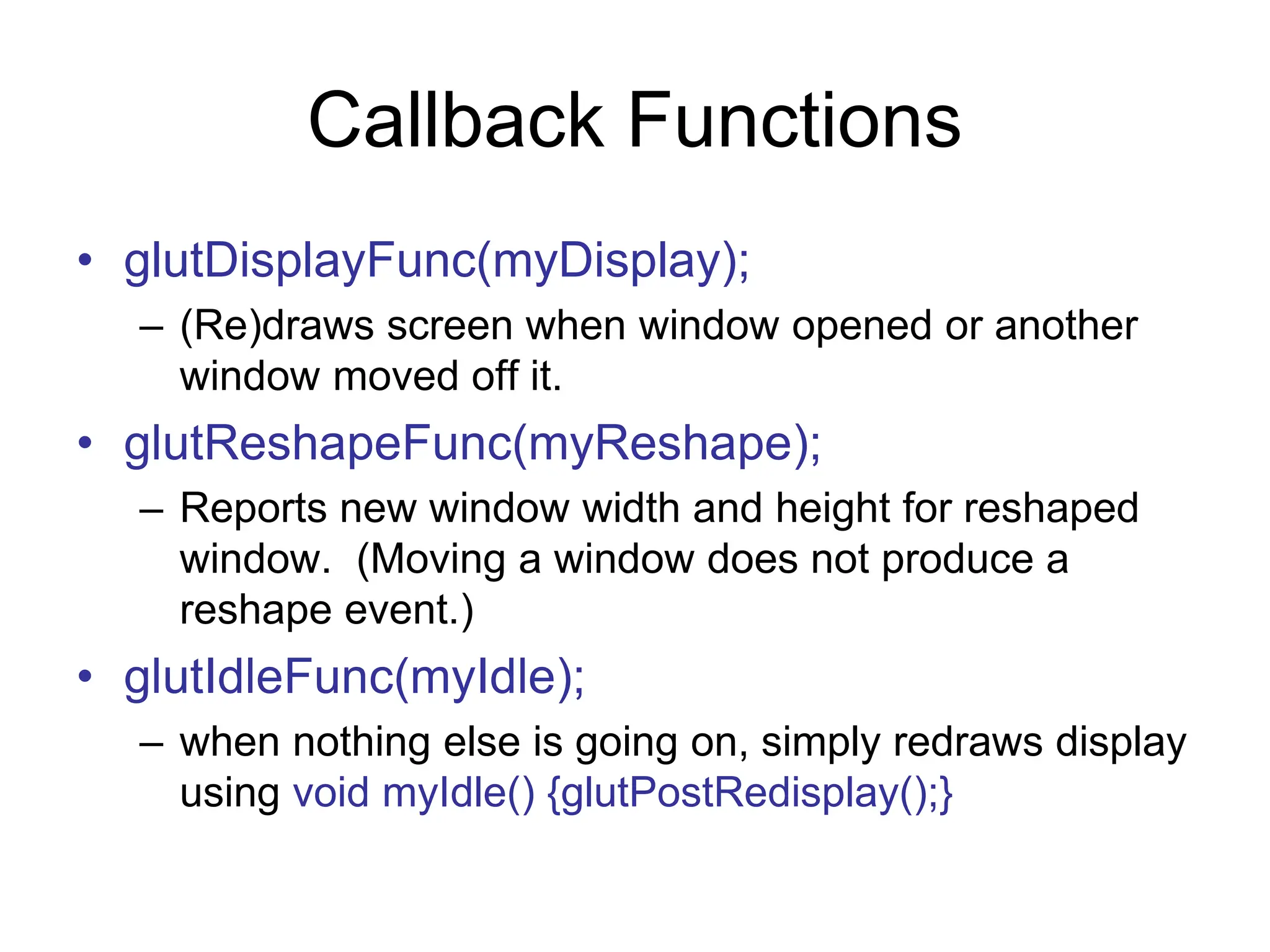
Callback Functions
• glutDisplayFunc(myDisplay);
– (Re)draws screen when window opened or another
window moved off it.
• glutReshapeFunc(myReshape);
– Reports new window width and height for reshaped
window. (Moving a window does not produce a
reshape event.)
• glutIdleFunc(myIdle);
– when nothing else is going on, simply redraws display
using void myIdle() {glutPostRedisplay();}
Callback Functions (2)
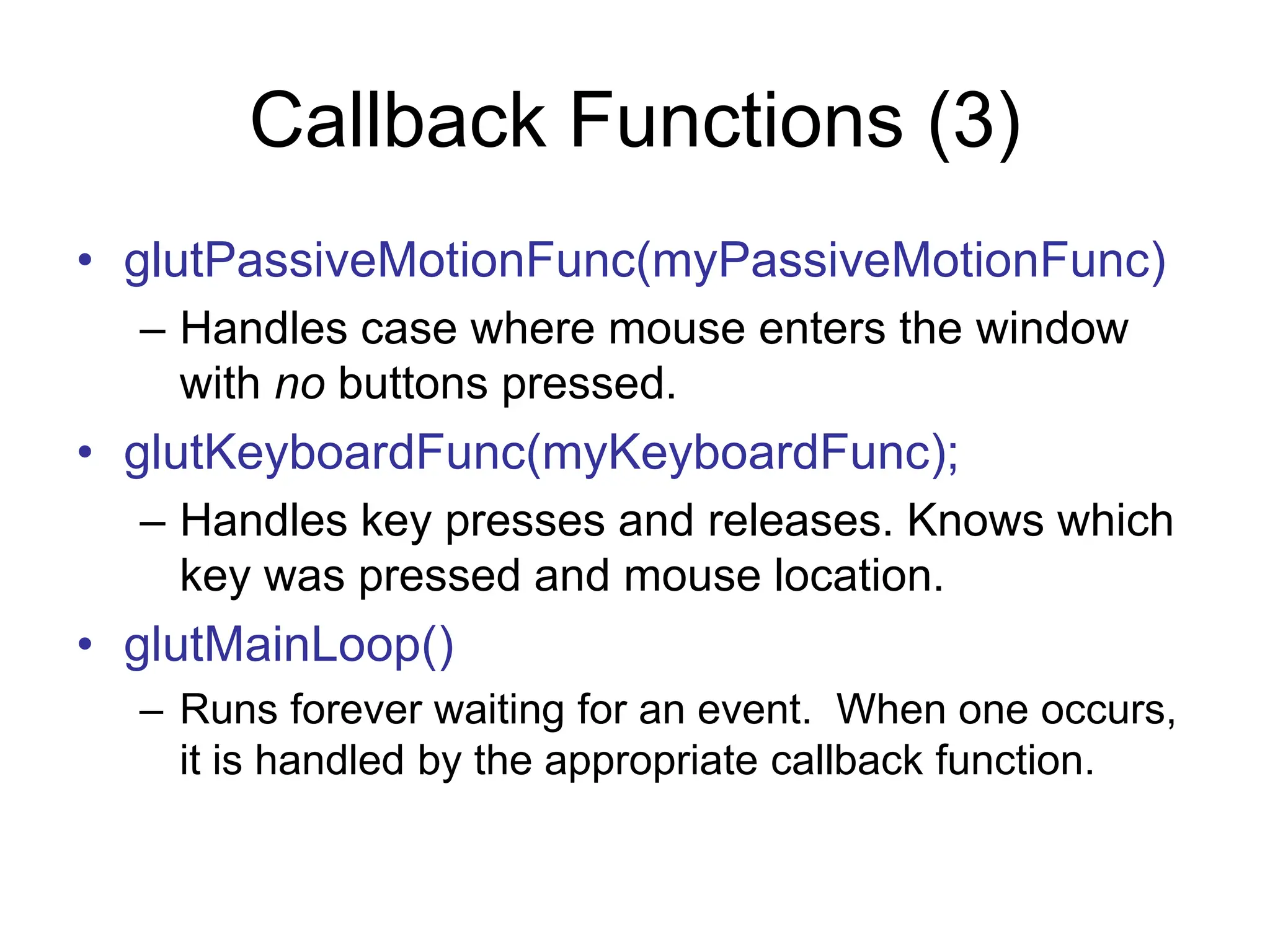
• glutMouseFunc(myMouse);
– Handles mouse button presses. Knows
mouse location and nature of button (up or
down and which button).
• glutMotionFunc(myMotionFunc);
– Handles case when the mouse is moved with
one or more mouse buttons pressed.
Callback Functions (3)
• glutPassiveMotionFunc(myPassiveMotionFunc)
– Handles case where mouse enters the window
with no buttons pressed.
• glutKeyboardFunc(myKeyboardFunc);
– Handles key presses and releases. Knows which
key was pressed and mouse location.
• glutMainLoop()
– Runs forever waiting for an event. When one occurs,
it is handled by the appropriate callback function.
Libraries to Include
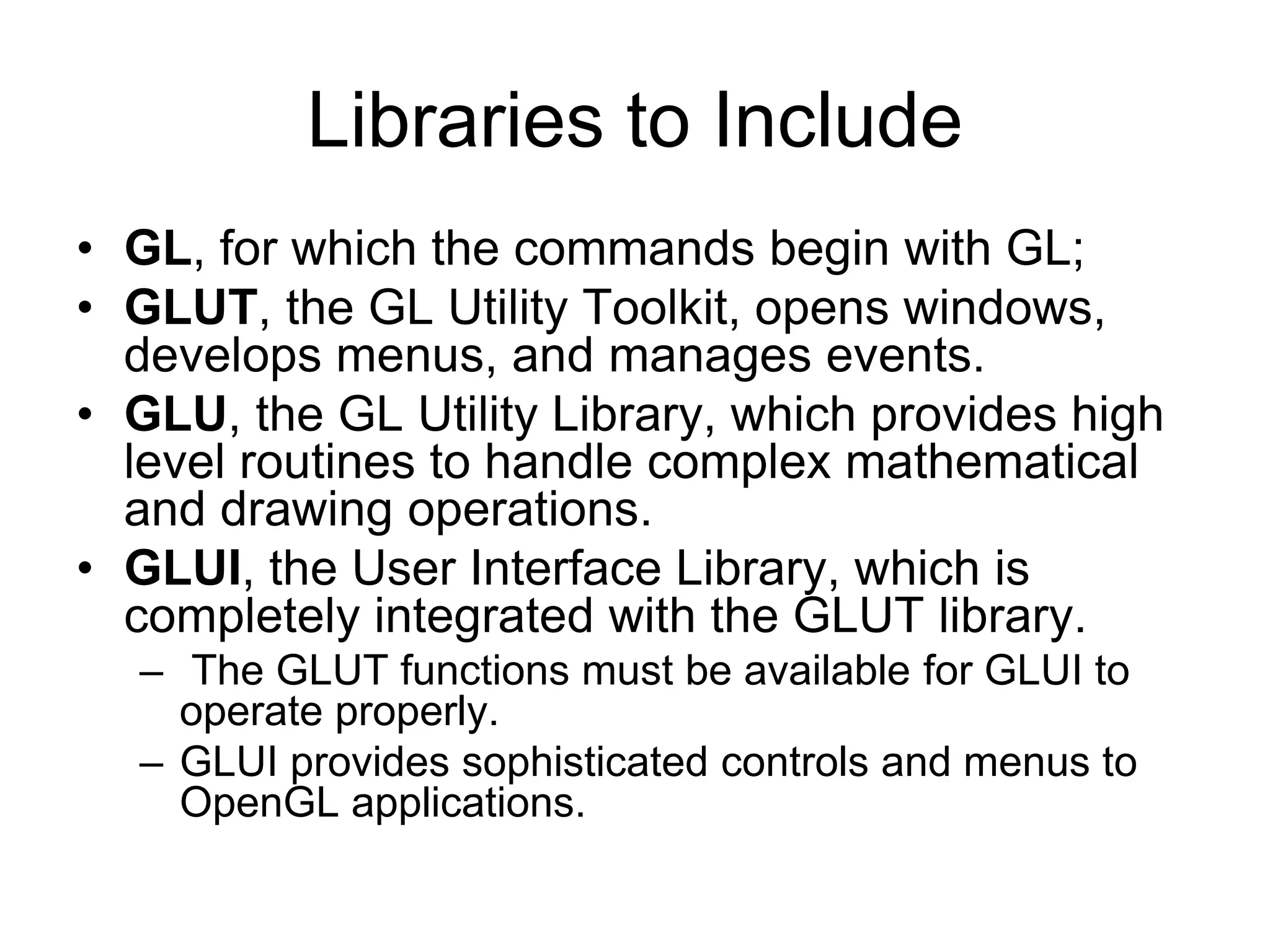
• GL, for which the commands begin with GL;
• GLUT, the GL Utility Toolkit, opens windows,
develops menus, and manages events.
• GLU, the GL Utility Library, which provides high
level routines to handle complex mathematical
and drawing operations.
• GLUI, the User Interface Library, which is
completely integrated with the GLUT library.
– The GLUT functions must be available for GLUI to
operate properly.
– GLUI provides sophisticated controls and menus to
OpenGL applications.
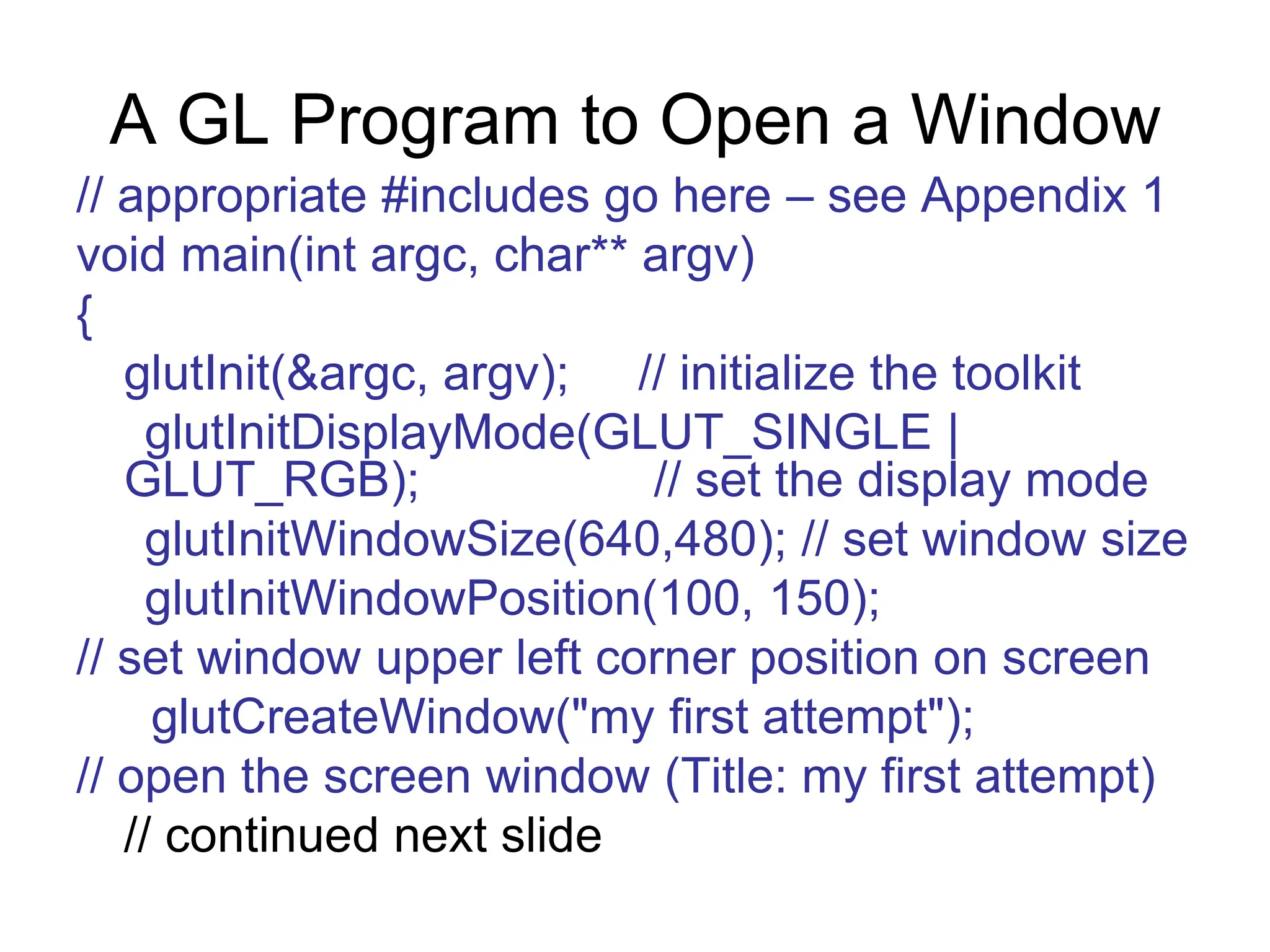
A GL Program to Open a Window
// appropriate #includes go here – see Appendix 1
void main(int argc, char** argv)
{
glutInit(&argc, argv); // initialize the toolkit
glutInitDisplayMode(GLUT_SINGLE |
GLUT_RGB); // set the display mode
glutInitWindowSize(640,480); // set window size
glutInitWindowPosition(100, 150);
// set window upper left corner position on screen
glutCreateWindow("my first attempt");
// open the screen window (Title: my first attempt)
// continued next slide
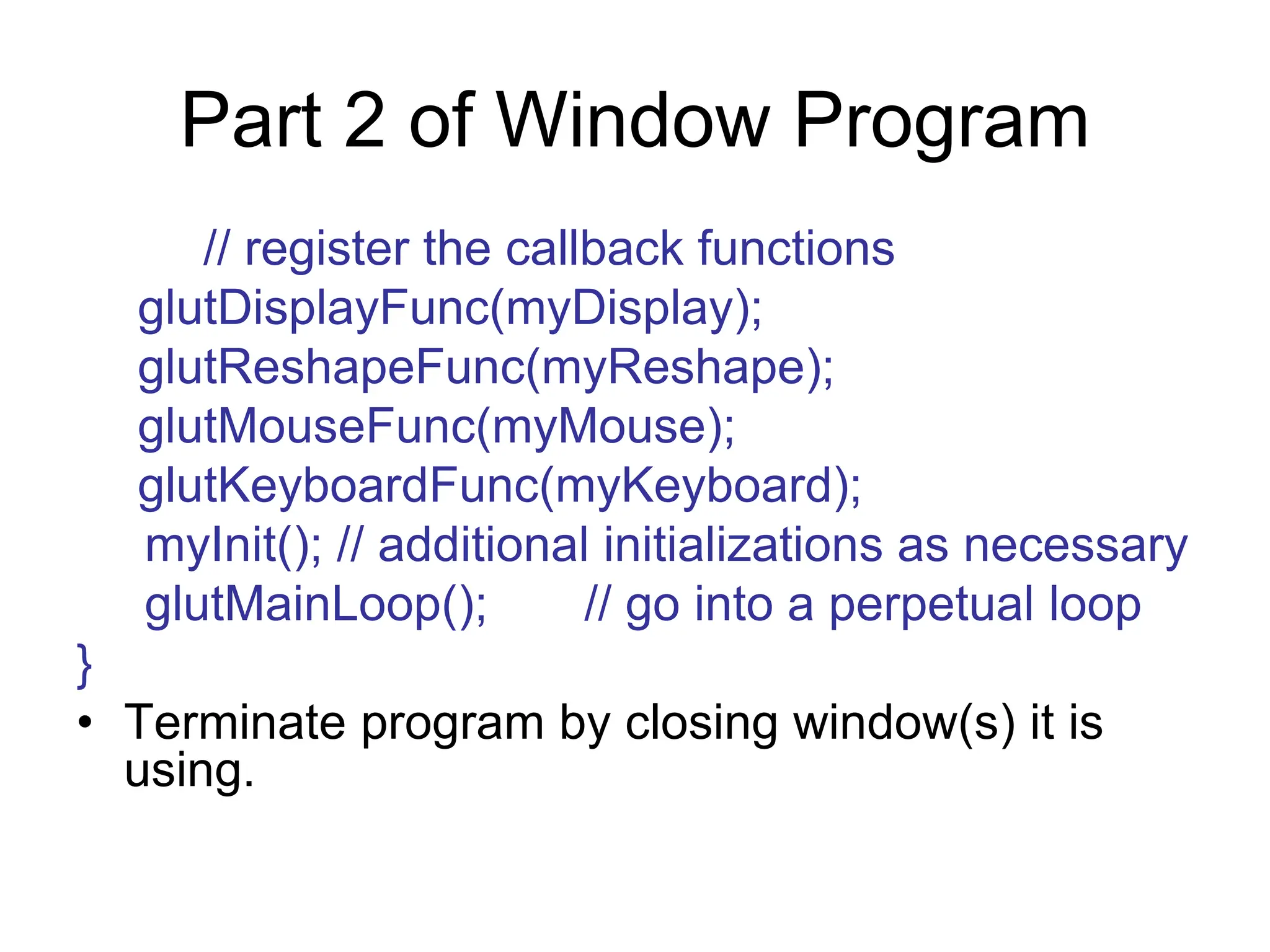
Part 2 of Window Program
// register the callback functions
glutDisplayFunc(myDisplay);
glutReshapeFunc(myReshape);
glutMouseFunc(myMouse);
glutKeyboardFunc(myKeyboard);
myInit(); // additional initializations as necessary
glutMainLoop(); // go into a perpetual loop
}
• Terminate program by closing window(s) it is
using.
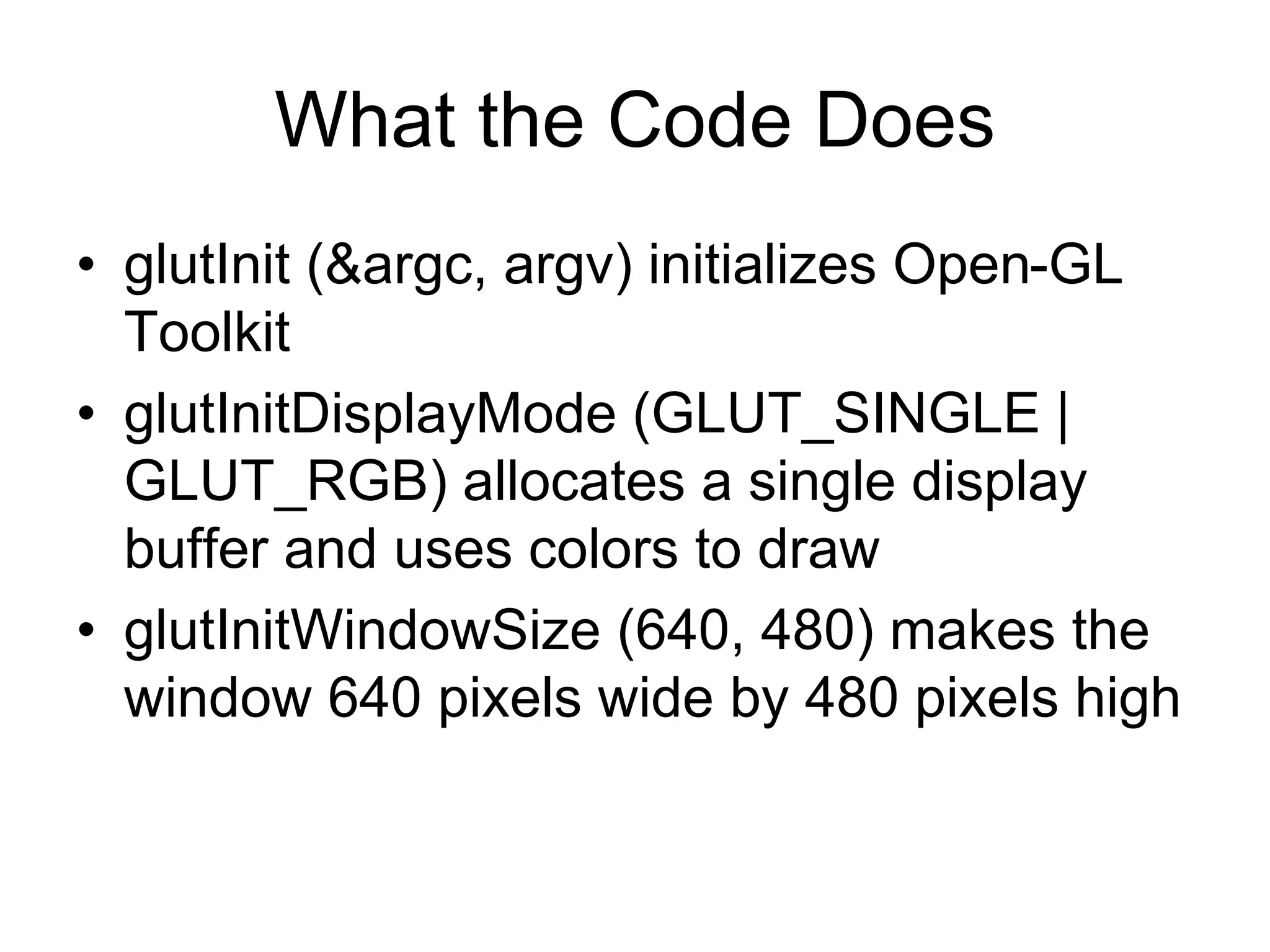
What the Code Does
• glutInit (&argc, argv) initializes Open-GL
Toolkit
• glutInitDisplayMode (GLUT_SINGLE |
GLUT_RGB) allocates a single display
buffer and uses colors to draw
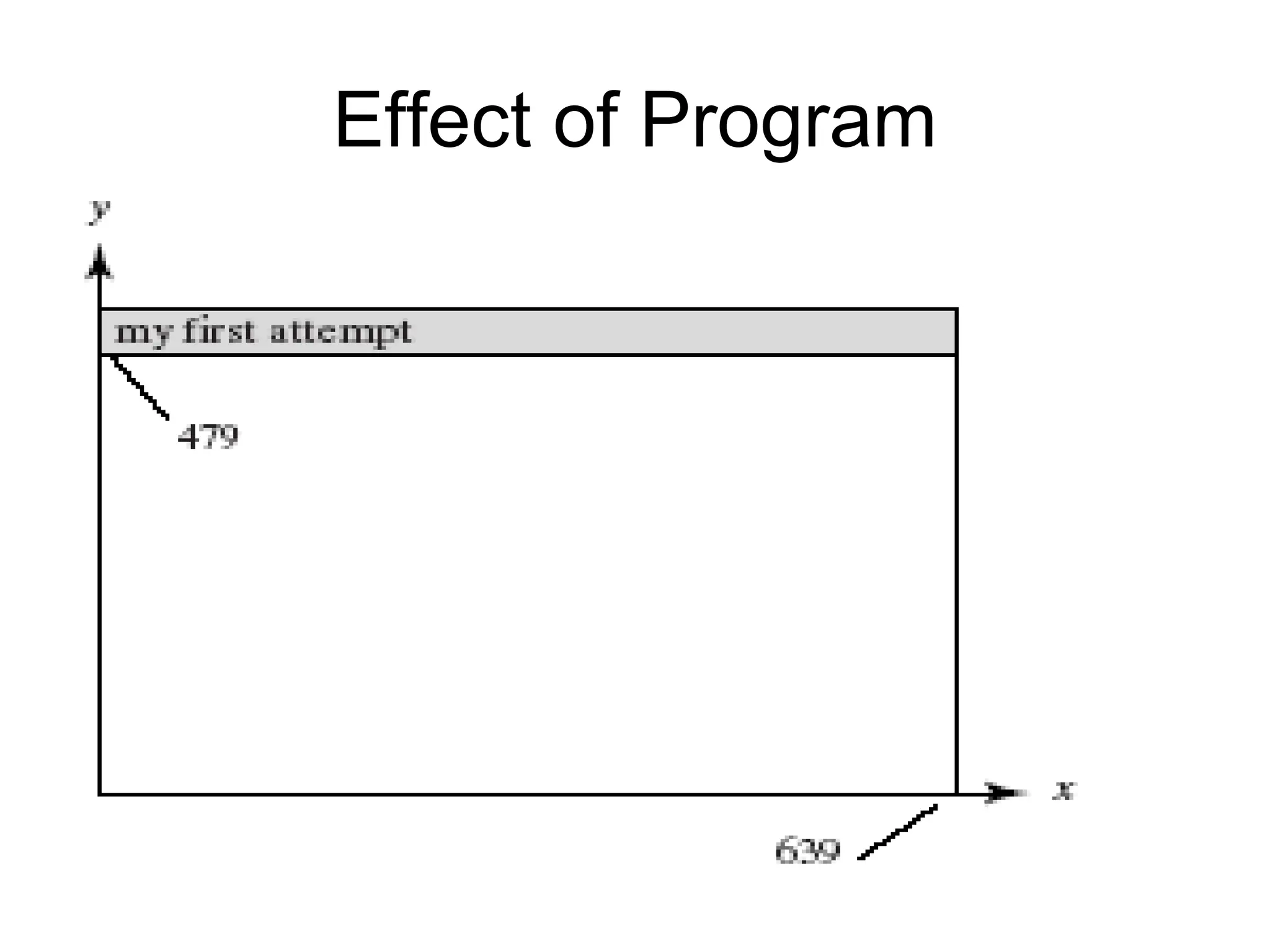
• glutInitWindowSize (640, 480) makes the
window 640 pixels wide by 480 pixels high
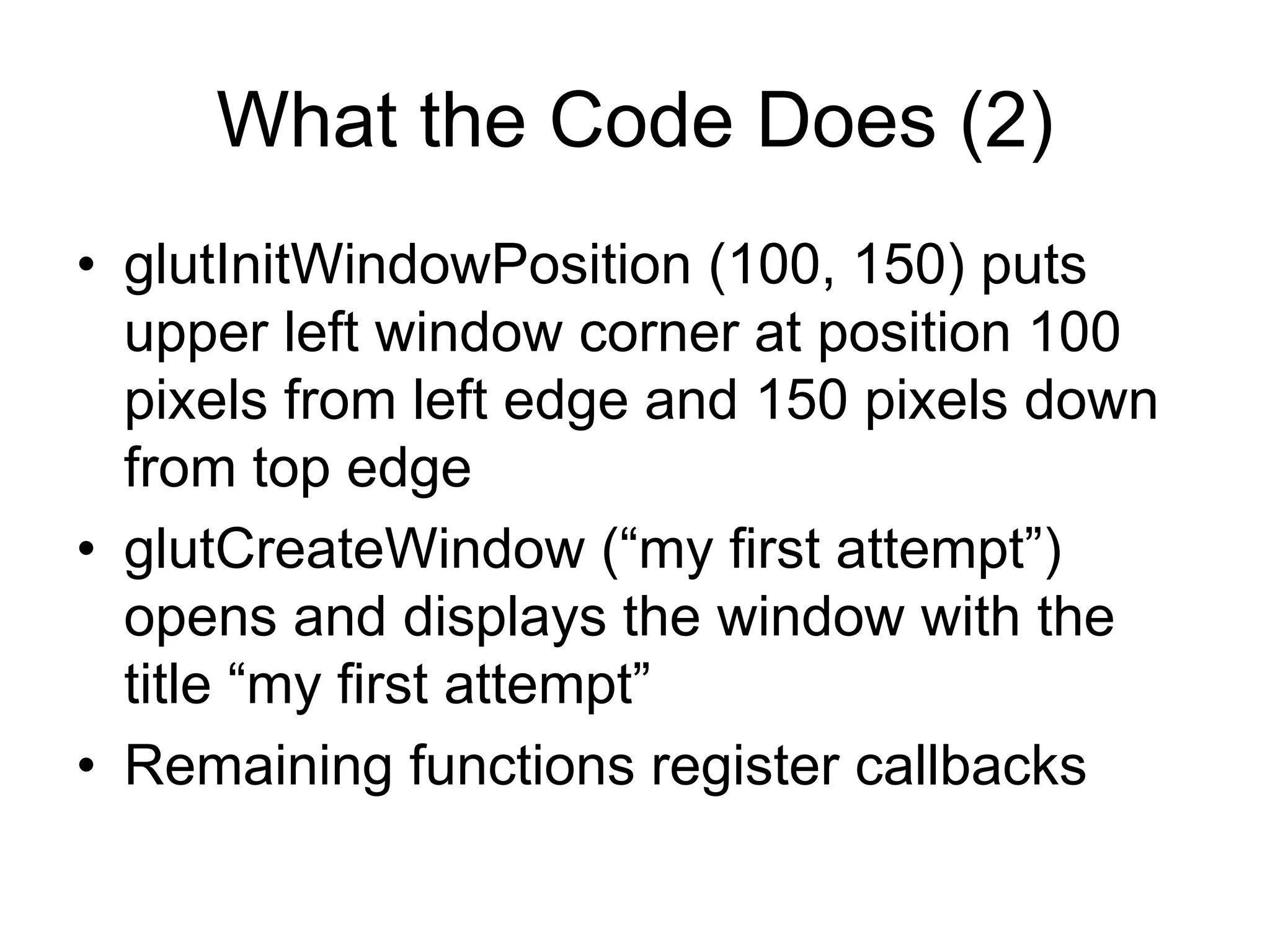
What the Code Does (2)
• glutInitWindowPosition (100, 150) puts
upper left window corner at position 100
pixels from left edge and 150 pixels down
from top edge
• glutCreateWindow (“my first attempt”)
opens and displays the window with the
title “my first attempt”
• Remaining functions register callbacks
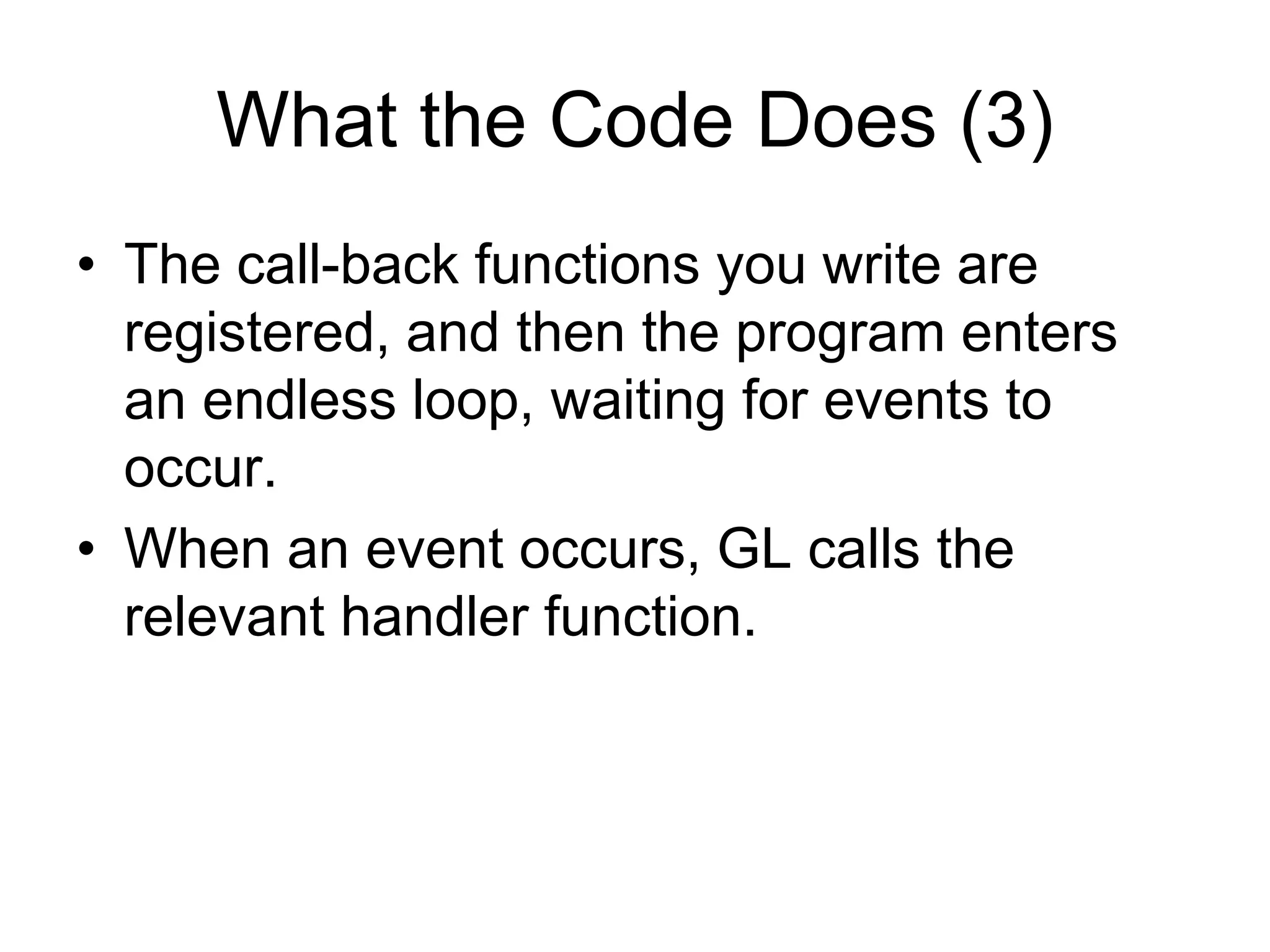
What the Code Does (3)
• The call-back functions you write are
registered, and then the program enters
an endless loop, waiting for events to
occur.
• When an event occurs, GL calls the
relevant handler function.
Effect of Program
Drawing Dots in OpenGL
• We start with a coordinate system based
on the window just created: 0 to 679 in x
and 0 to 479 in y.
• OpenGL drawing is based on vertices
(corners). To draw an object in OpenGL,
you pass it a list of vertices.
– The list starts with glBegin(arg); and ends with
glEnd();
– Arg determines what is drawn.
– glEnd() sends drawing data down the
OpenGL pipeline.
Example
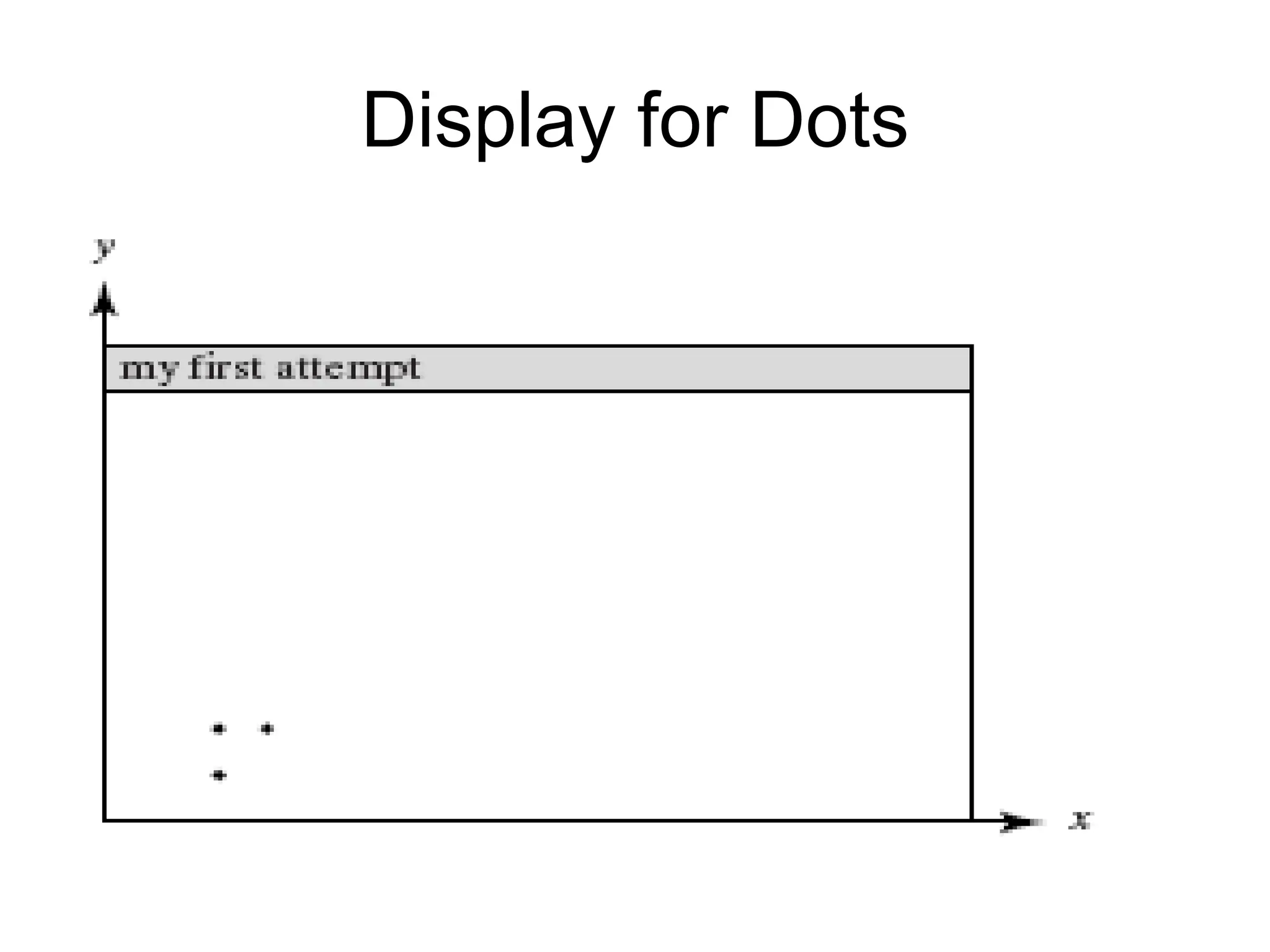
• glBegin (GL_POINTS);
– glVertex2i (100, 50);
– glVertex2i (100, 130);
– glVertex2i (150, 130);
• glEnd();
• GL_POINTS is constant built-into Open-
GL (also GL_LINES, GL_POLYGON, …)
• Complete code to draw the 3 dots is in Fig.
2.11.
Display for Dots
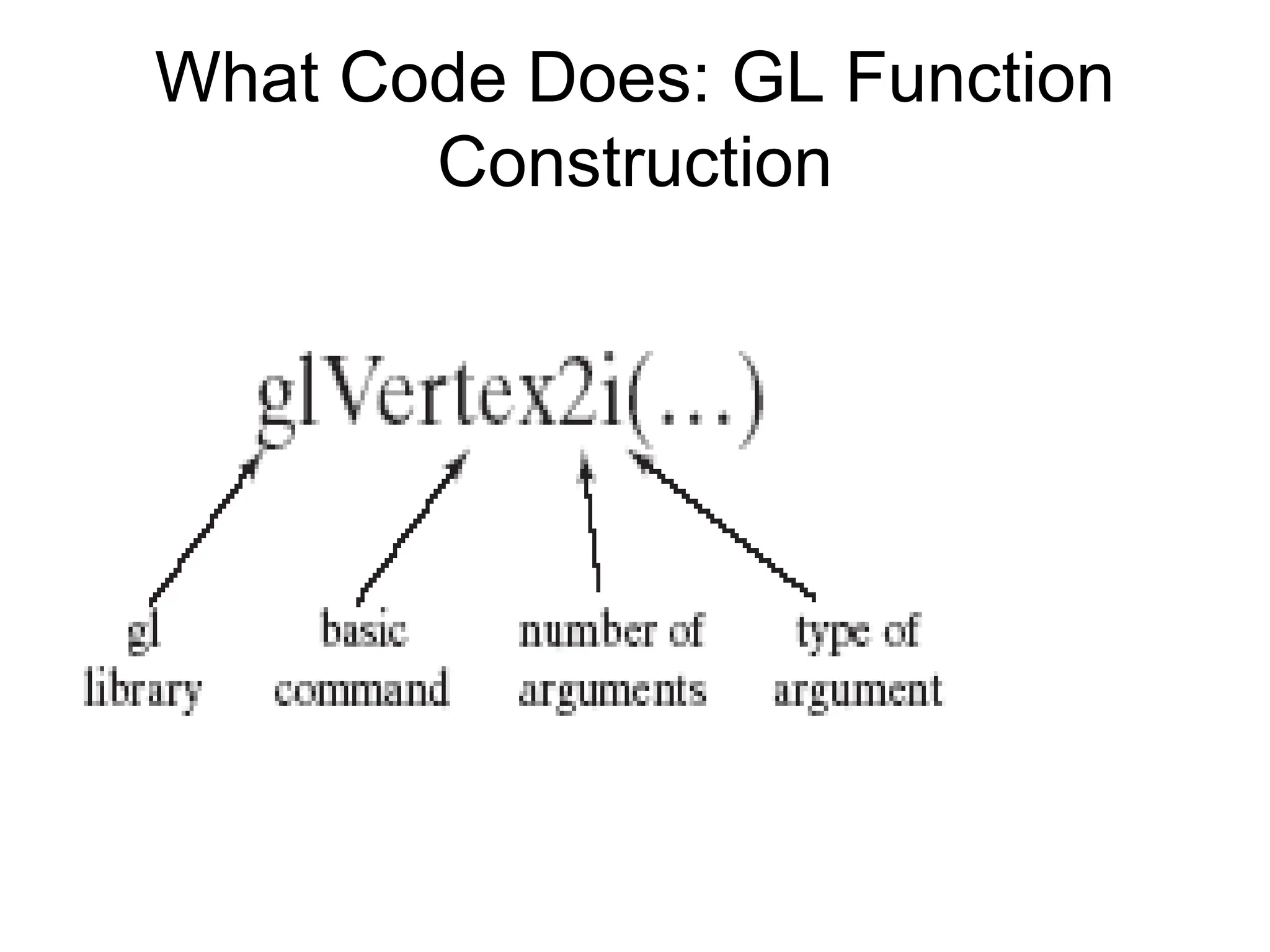
What Code Does: GL Function
Construction
Example of Construction
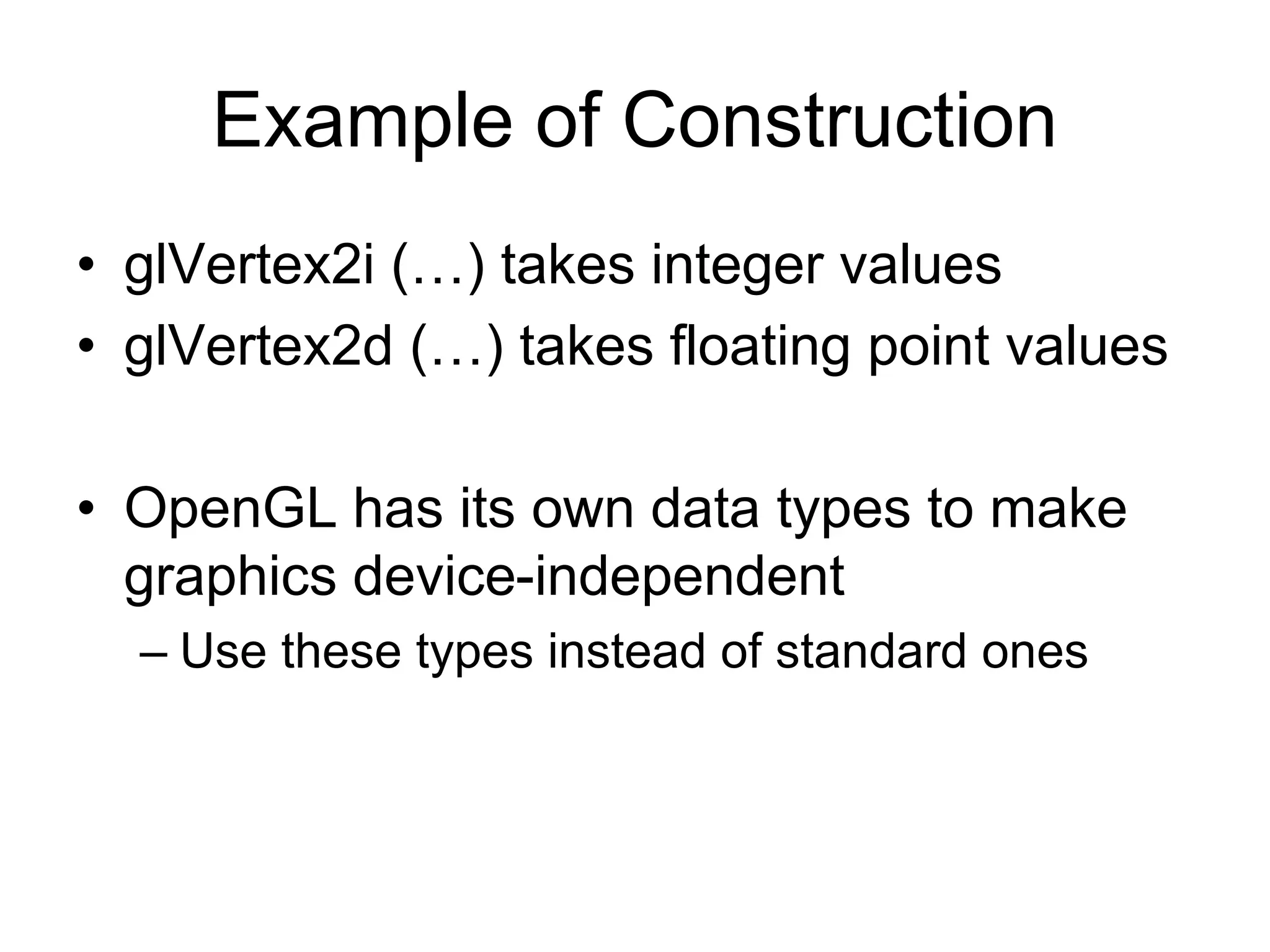
• glVertex2i (…) takes integer values
• glVertex2d (…) takes floating point values
• OpenGL has its own data types to make
graphics device-independent
– Use these types instead of standard ones
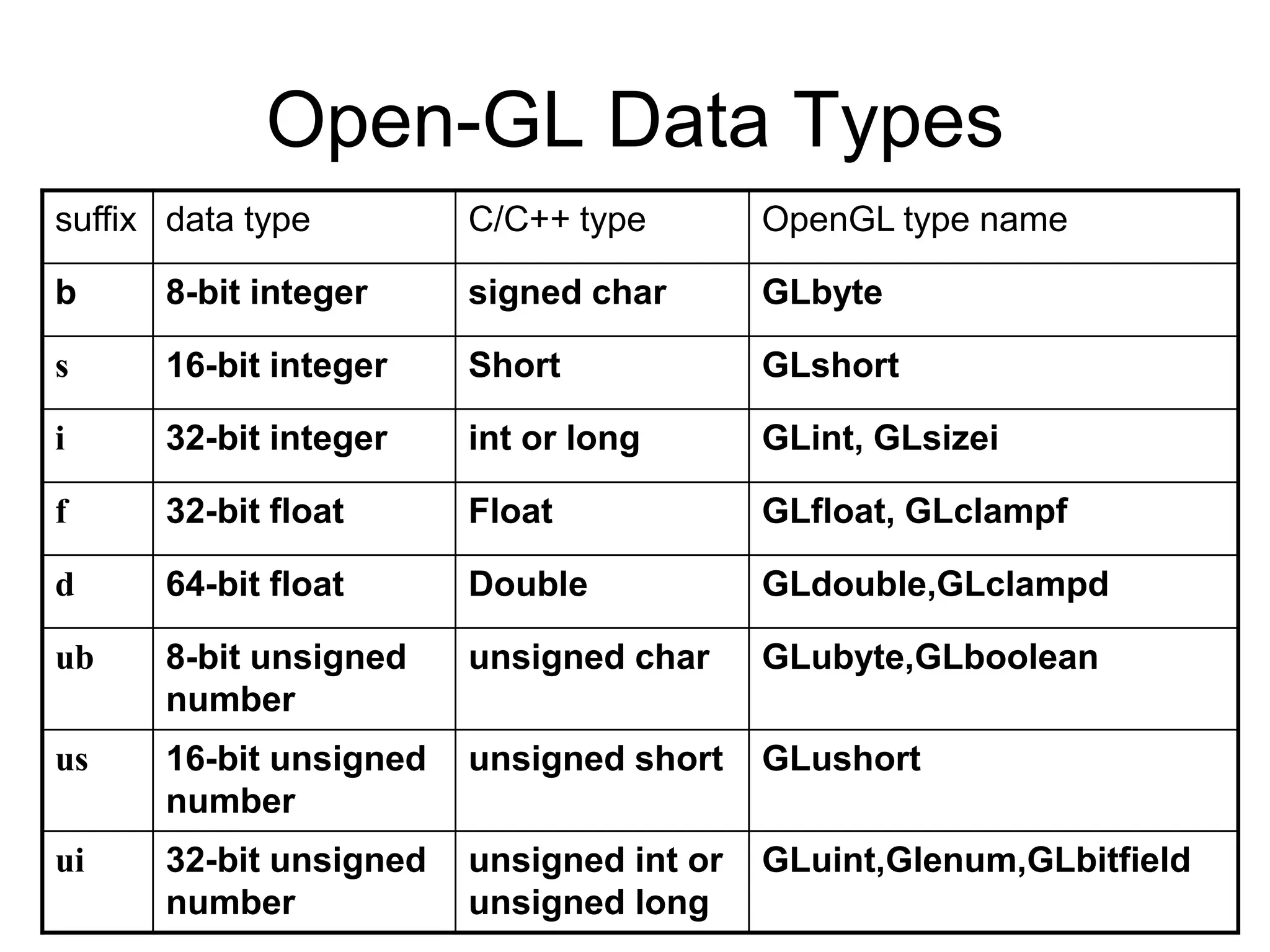
Open-GL Data Types
suffix data type C/C++ type OpenGL type name
b 8-bit integer signed char GLbyte
s 16-bit integer Short GLshort
i 32-bit integer int or long GLint, GLsizei
f 32-bit float Float GLfloat, GLclampf
d 64-bit float Double GLdouble,GLclampd
ub 8-bit unsigned
number
unsigned char GLubyte,GLboolean
us 16-bit unsigned
number
unsigned short GLushort
ui 32-bit unsigned
number
unsigned int or
unsigned long
GLuint,Glenum,GLbitfield
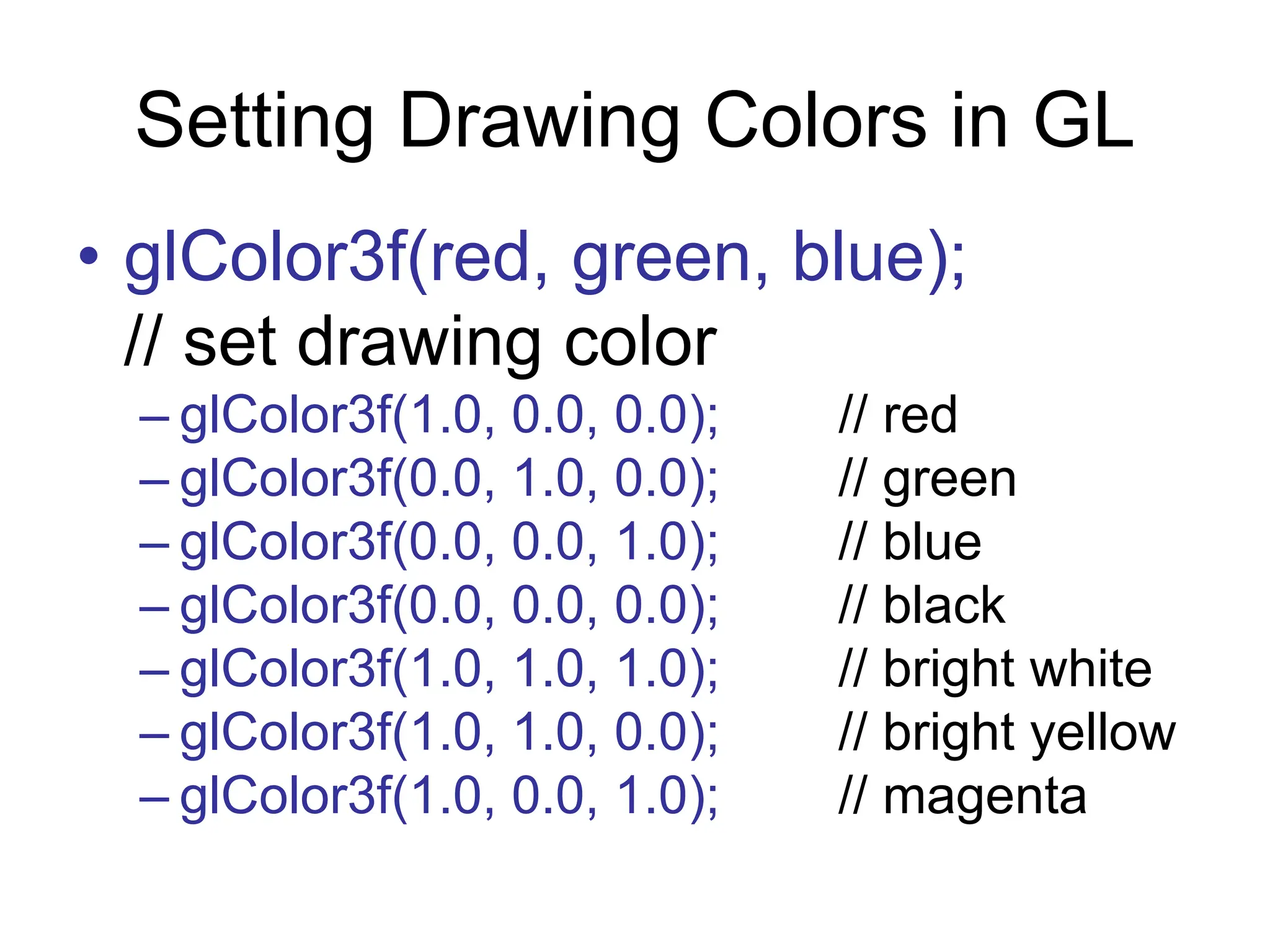
Setting Drawing Colors in GL
• glColor3f(red, green, blue);
// set drawing color
– glColor3f(1.0, 0.0, 0.0); // red
– glColor3f(0.0, 1.0, 0.0); // green
– glColor3f(0.0, 0.0, 1.0); // blue
– glColor3f(0.0, 0.0, 0.0); // black
– glColor3f(1.0, 1.0, 1.0); // bright white
– glColor3f(1.0, 1.0, 0.0); // bright yellow
– glColor3f(1.0, 0.0, 1.0); // magenta
Setting Background Color in GL
• glClearColor (red, green, blue, alpha);
– Sets background color.
– Alpha is degree of transparency; use 0.0 for
now.
• glClear(GL_COLOR_BUFFER_BIT);
– clears window to background color
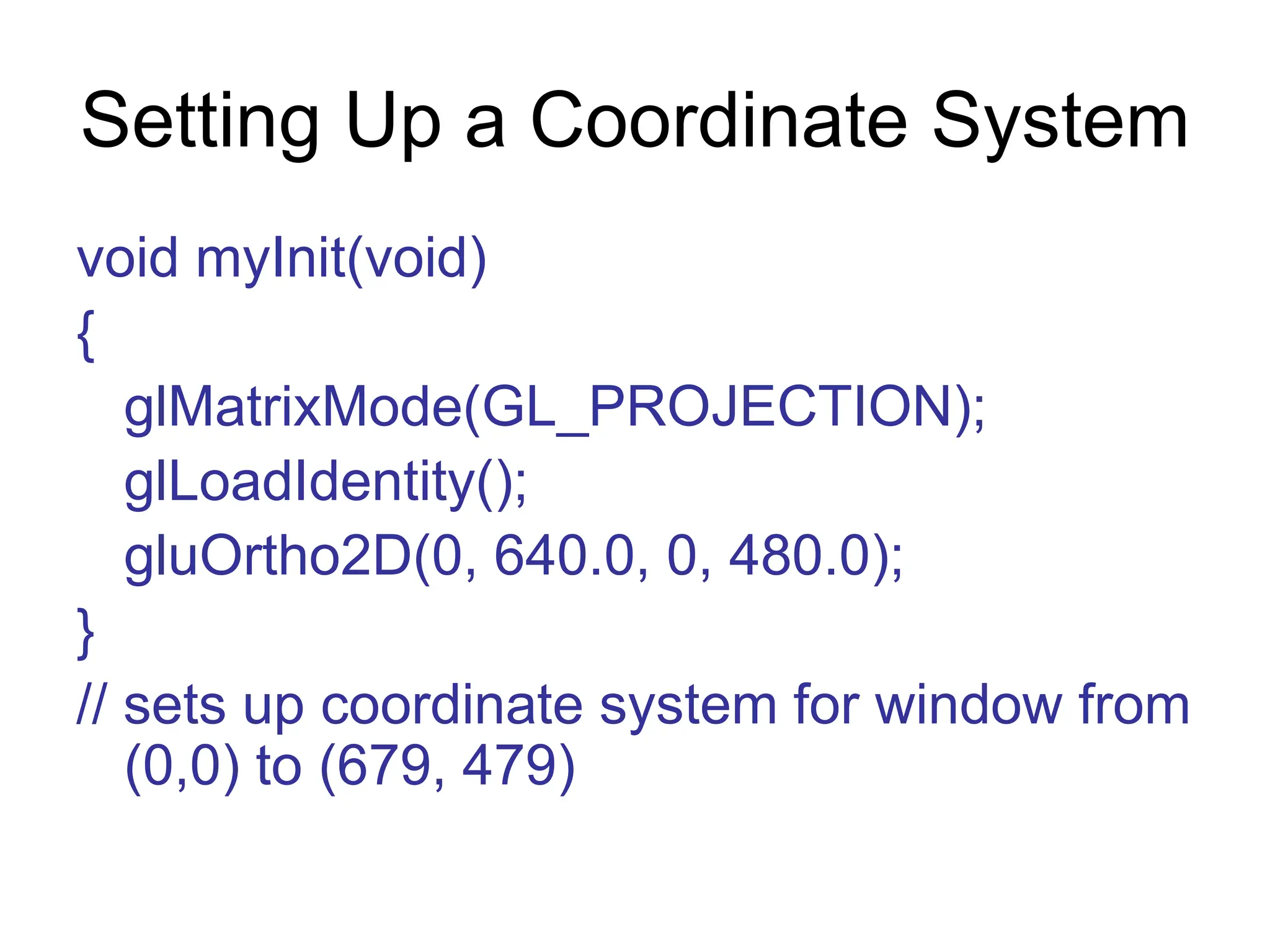
Setting Up a Coordinate System
void myInit(void)
{
glMatrixMode(GL_PROJECTION);
glLoadIdentity();
gluOrtho2D(0, 640.0, 0, 480.0);
}
// sets up coordinate system for window from
(0,0) to (679, 479)
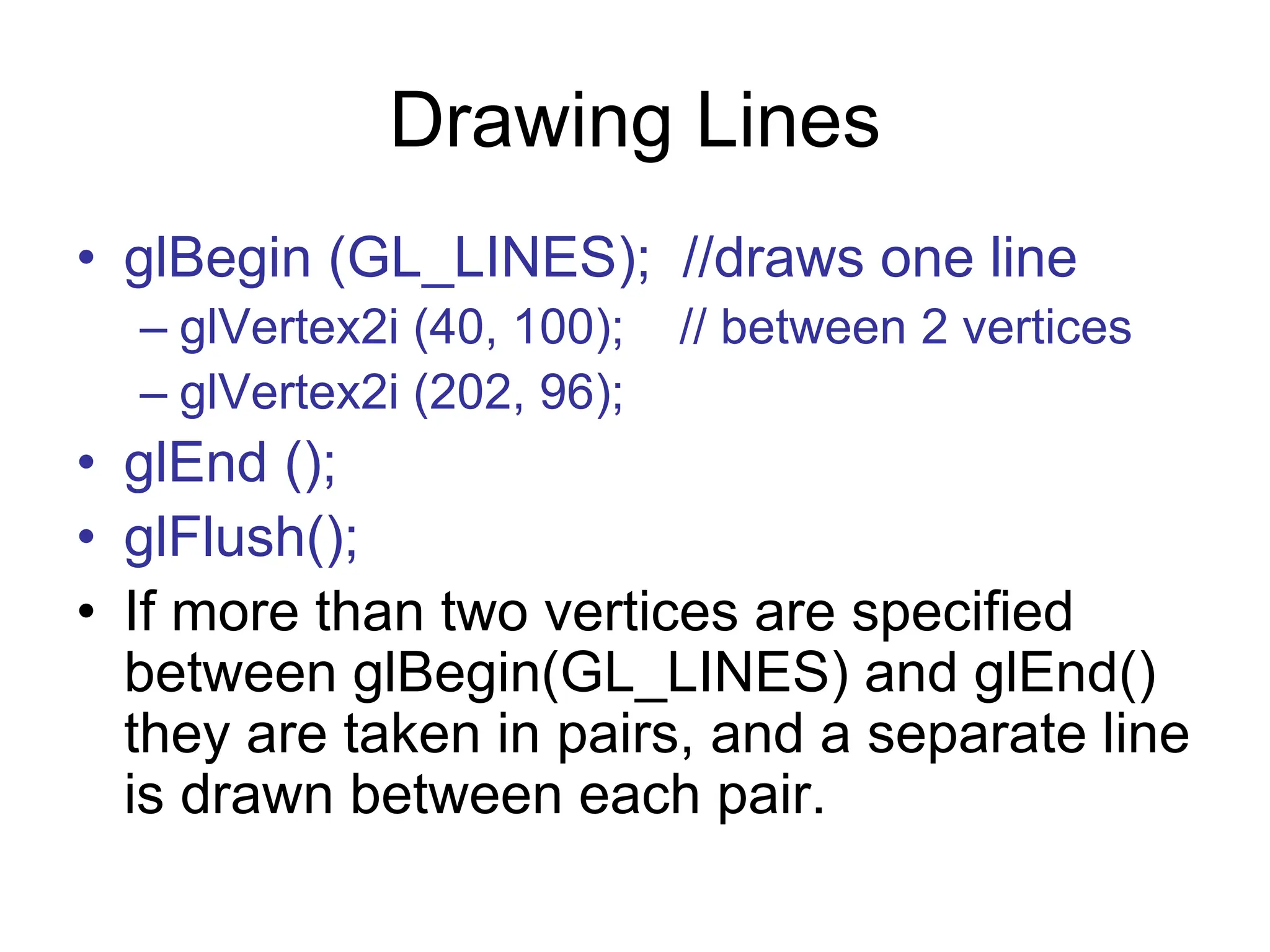
Drawing Lines
• glBegin (GL_LINES); //draws one line
– glVertex2i (40, 100); // between 2 vertices
– glVertex2i (202, 96);
• glEnd ();
• glFlush();
• If more than two vertices are specified
between glBegin(GL_LINES) and glEnd()
they are taken in pairs, and a separate line
is drawn between each pair.
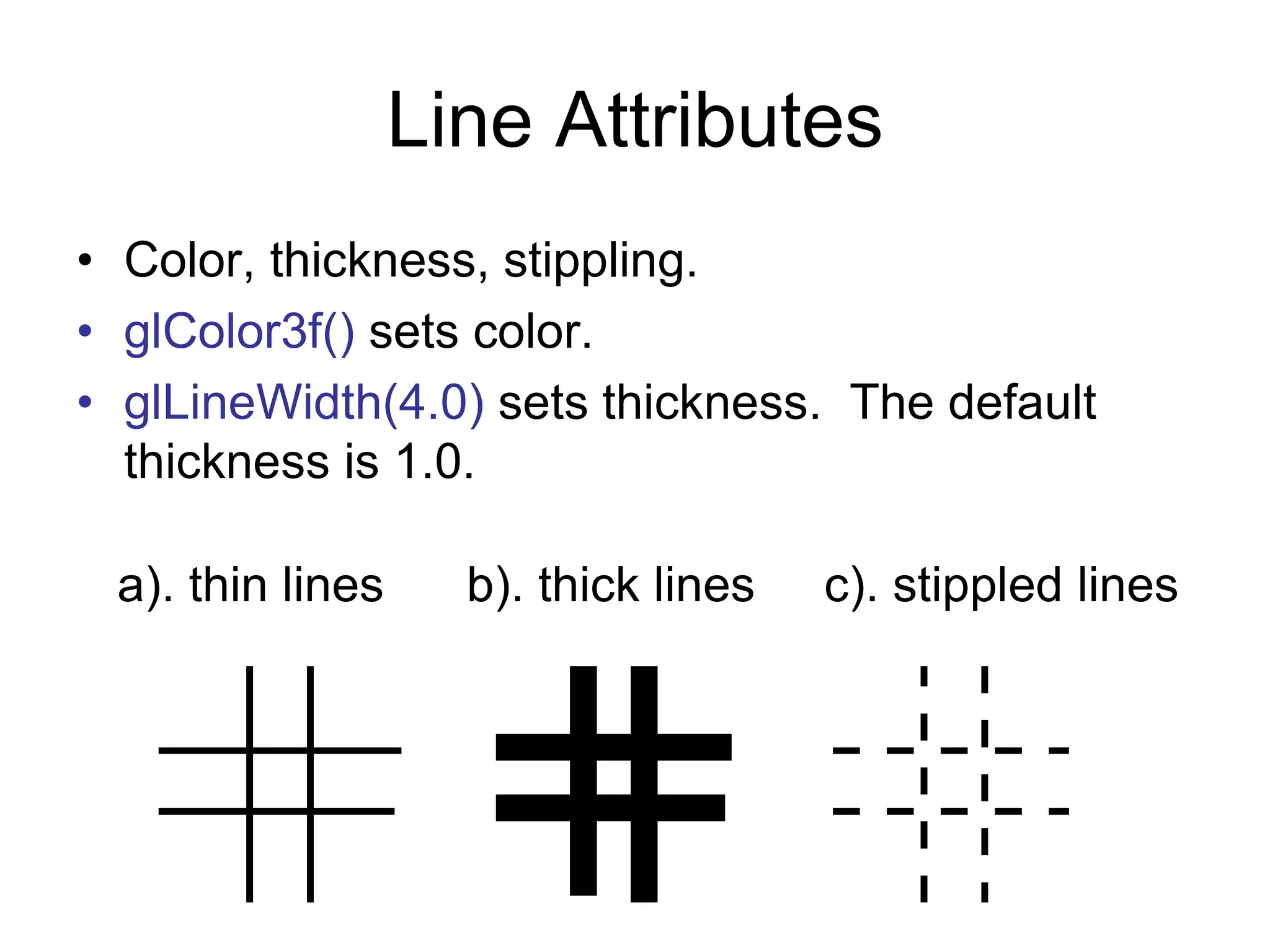
Line Attributes
• Color, thickness, stippling.
• glColor3f() sets color.
• glLineWidth(4.0) sets thickness. The default
thickness is 1.0.
a). thin lines b). thick lines c). stippled lines
Setting Line Parameters
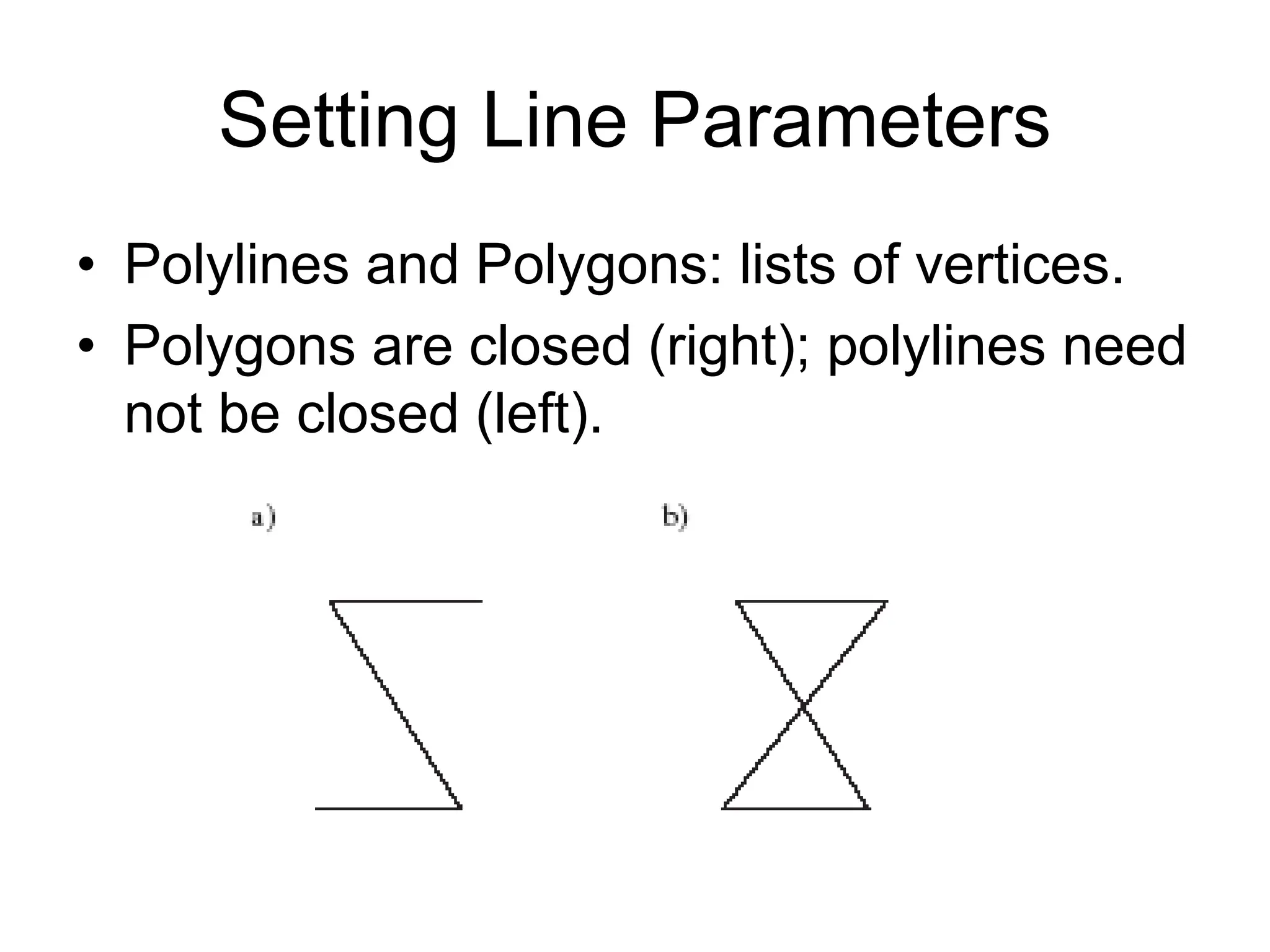
• Polylines and Polygons: lists of vertices.
• Polygons are closed (right); polylines need
not be closed (left).
Polyline/Polygon Drawing
• glBegin (GL_LINE_STRIP);
• // GL_LINE_LOOP to close polyline (make
it a polygon)
– // glVertex2i () calls go here
• glEnd ();
• glFlush ();
• A GL_LINE_LOOP cannot be filled with
color
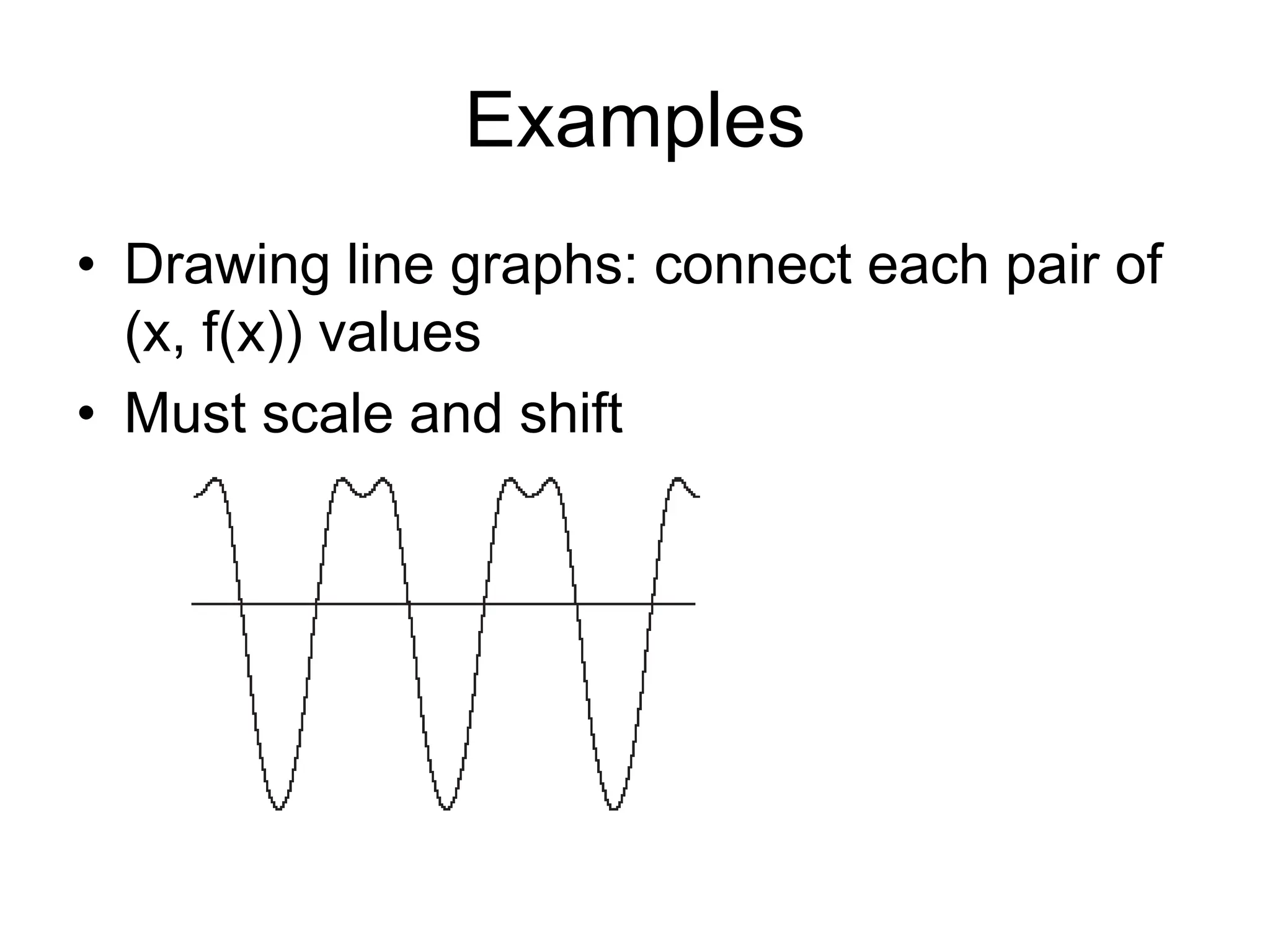
Examples
• Drawing line graphs: connect each pair of
(x, f(x)) values
• Must scale and shift
Examples (2)
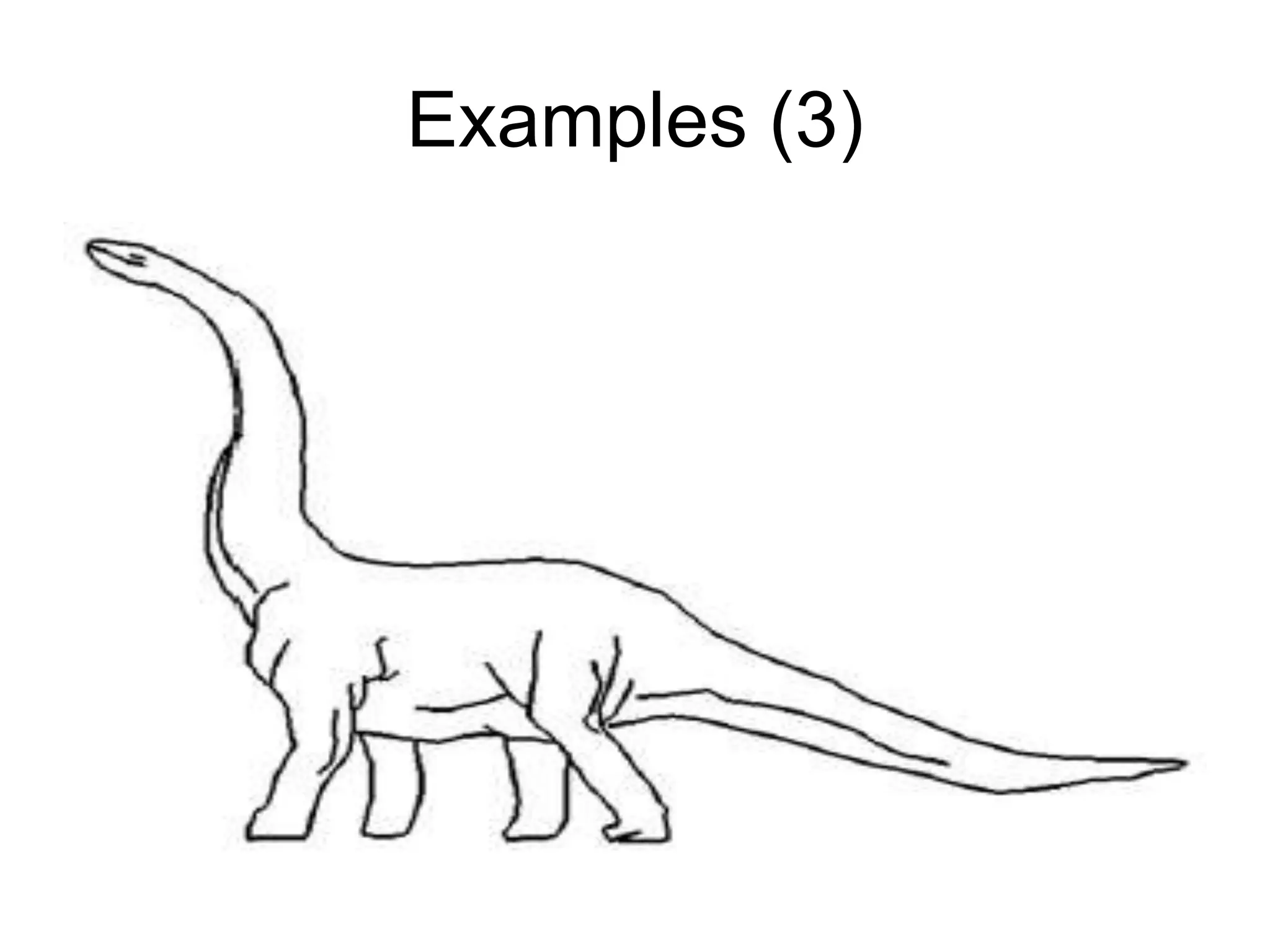
• Drawing polyline from vertices in a file
– # polylines
– # vertices in first polyline
– Coordinates of vertices, x y, one pair per line
– Repeat last 2 lines as necessary
• File for dinosaur available from Web site
• Code to draw polylines/polygons in Fig.
2.24.
Examples (3)
Examples (4)
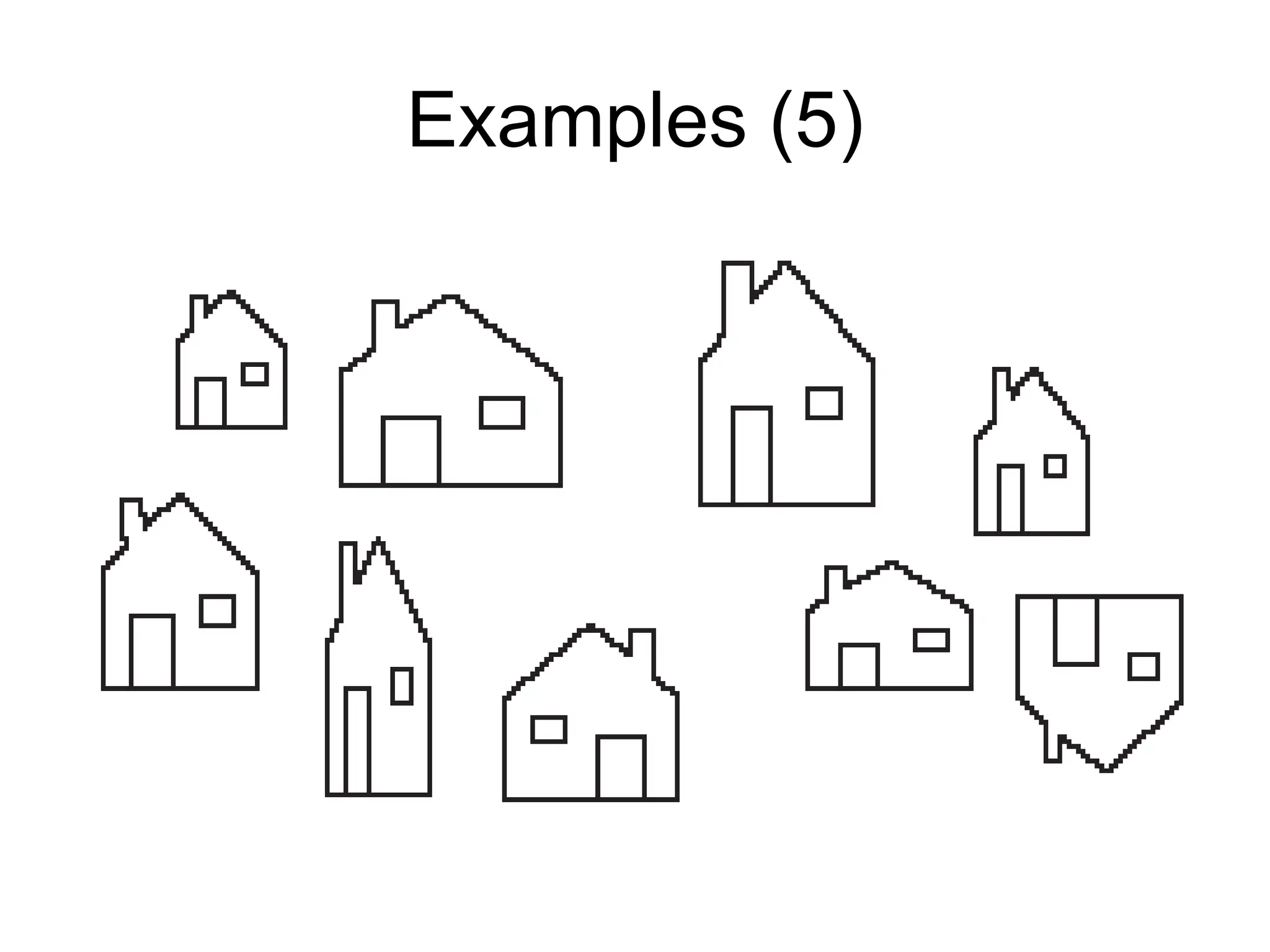
• Parameterizing Drawings: allows making
them different sizes and aspect ratios
• Code for a parameterized house is in Fig.
2.27.
Examples (5)
Examples (6)
• Polyline Drawing
• Code to set up an array of vertices is in
Fig. 2.29.
• Code to draw the polyline is in Fig. 2.30.
Relative Line Drawing
• Requires keeping track of current position on
screen (CP).
• moveTo(x, y); set CP to (x, y)
• lineTo(x, y); draw a line from CP to (x, y), and
then update CP to (x, y).
• Code is in Fig. 2.31.
• Caution! CP is a global variable, and therefore
vulnerable to tampering from instructions at
other points in your program.
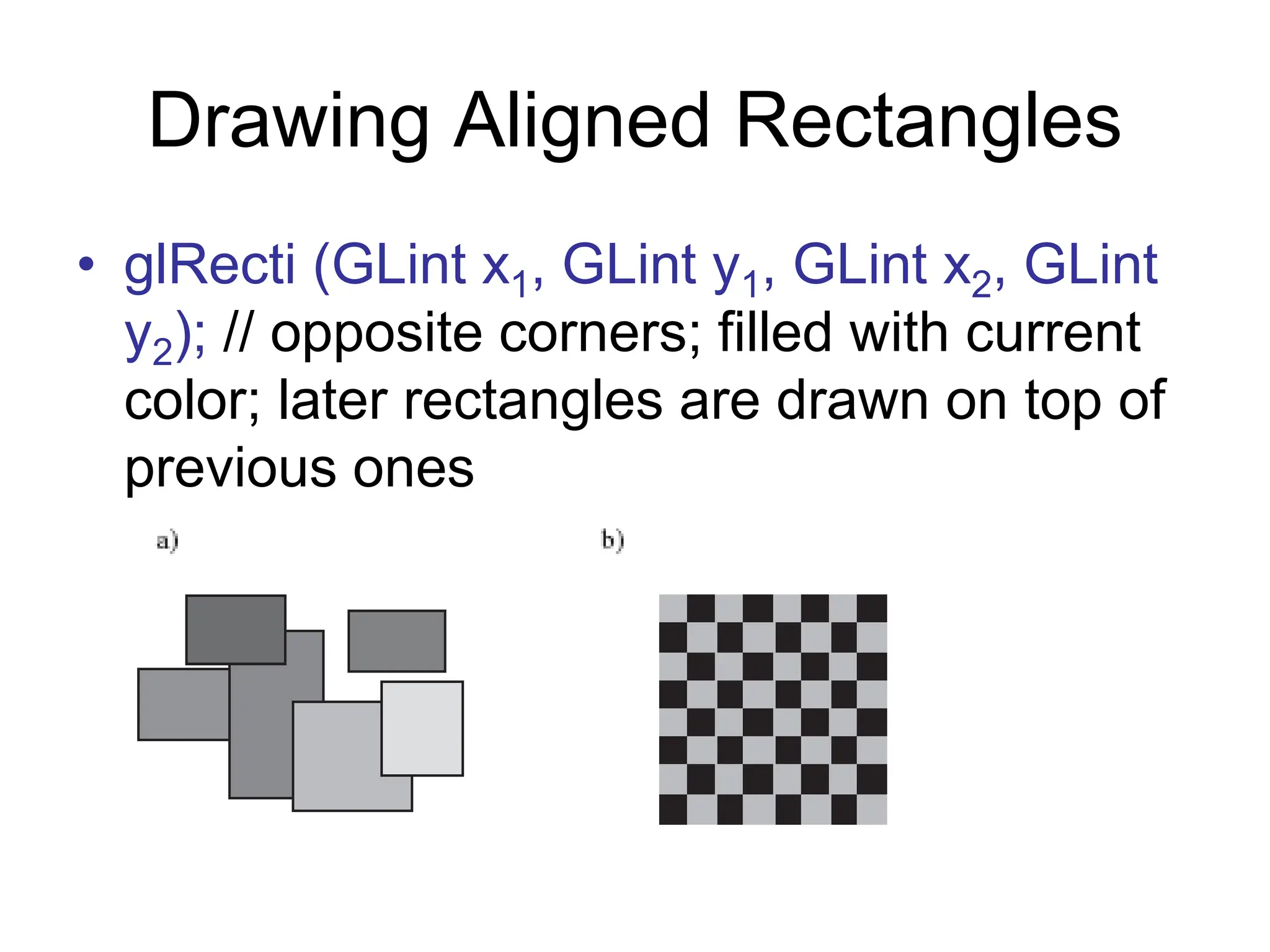
Drawing Aligned Rectangles
• glRecti (GLint x1, GLint y1, GLint x2, GLint
y2); // opposite corners; filled with current
color; later rectangles are drawn on top of
previous ones
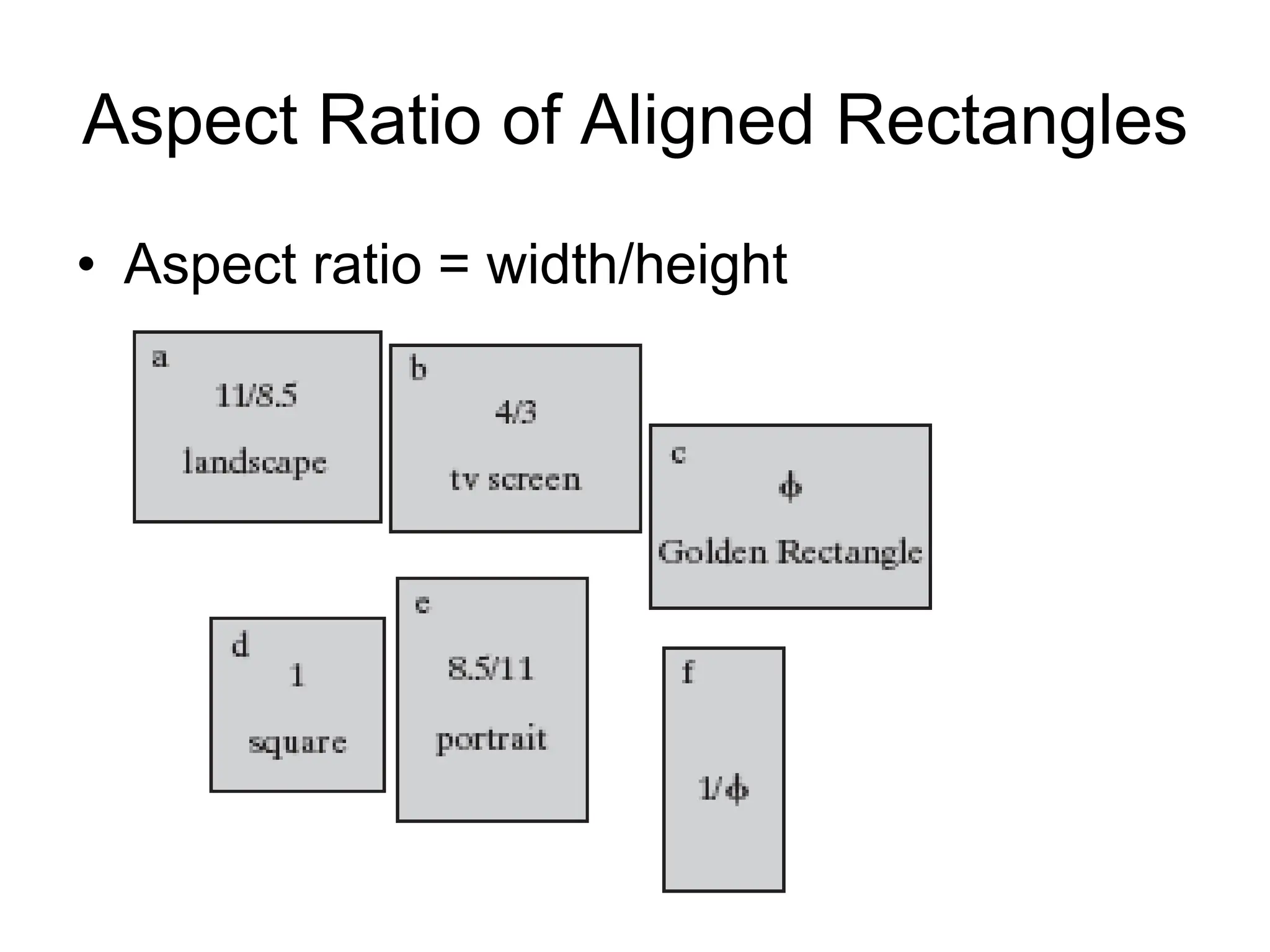
Aspect Ratio of Aligned Rectangles
• Aspect ratio = width/height
Filling Polygons with Color
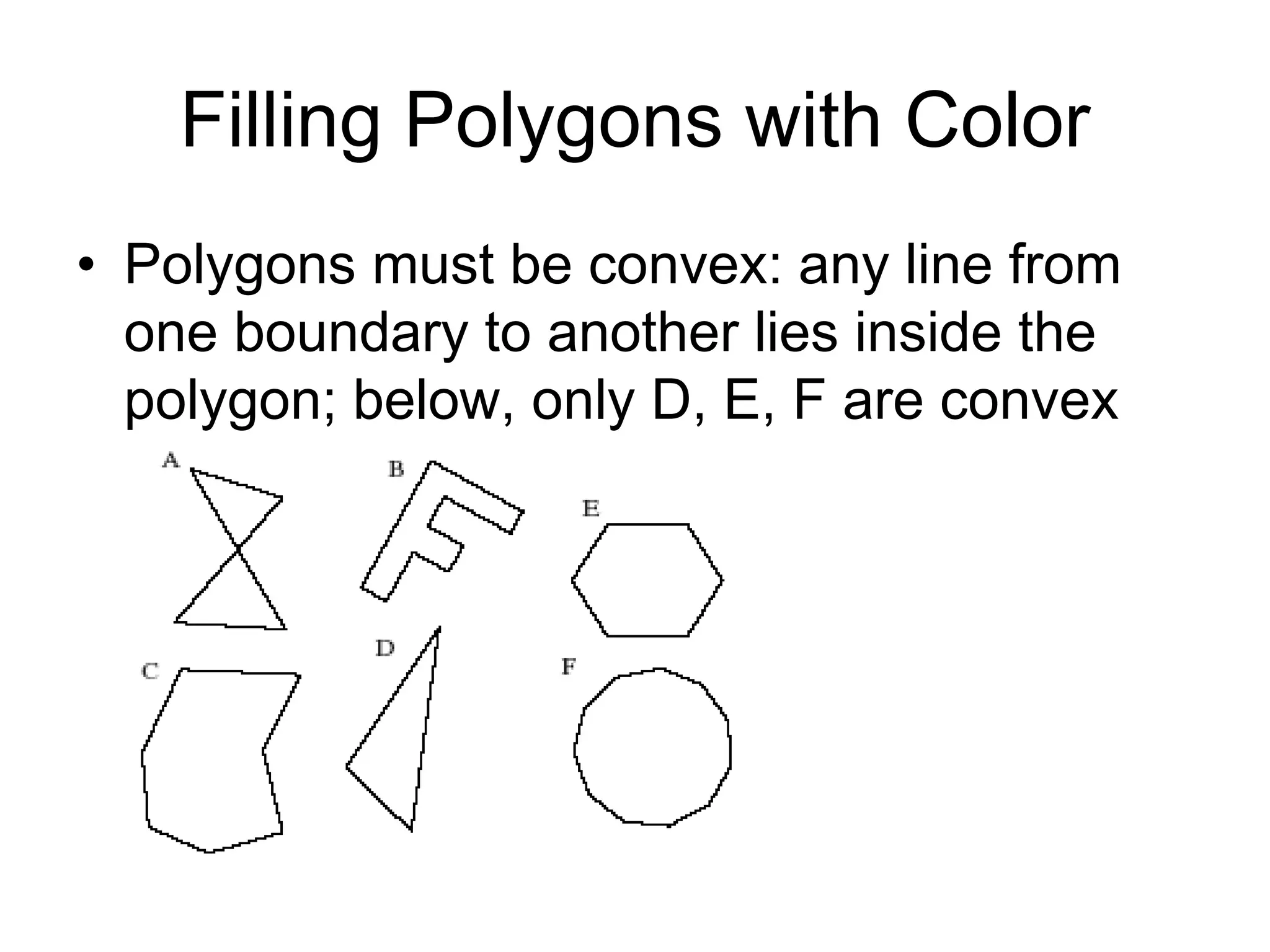
• Polygons must be convex: any line from
one boundary to another lies inside the
polygon; below, only D, E, F are convex
Filling Polygons with Color (2)
• glBegin (GL_POLYGON);
– //glVertex2f (…); calls go here
• glEnd ();
• Polygon is filled with the current drawing
color
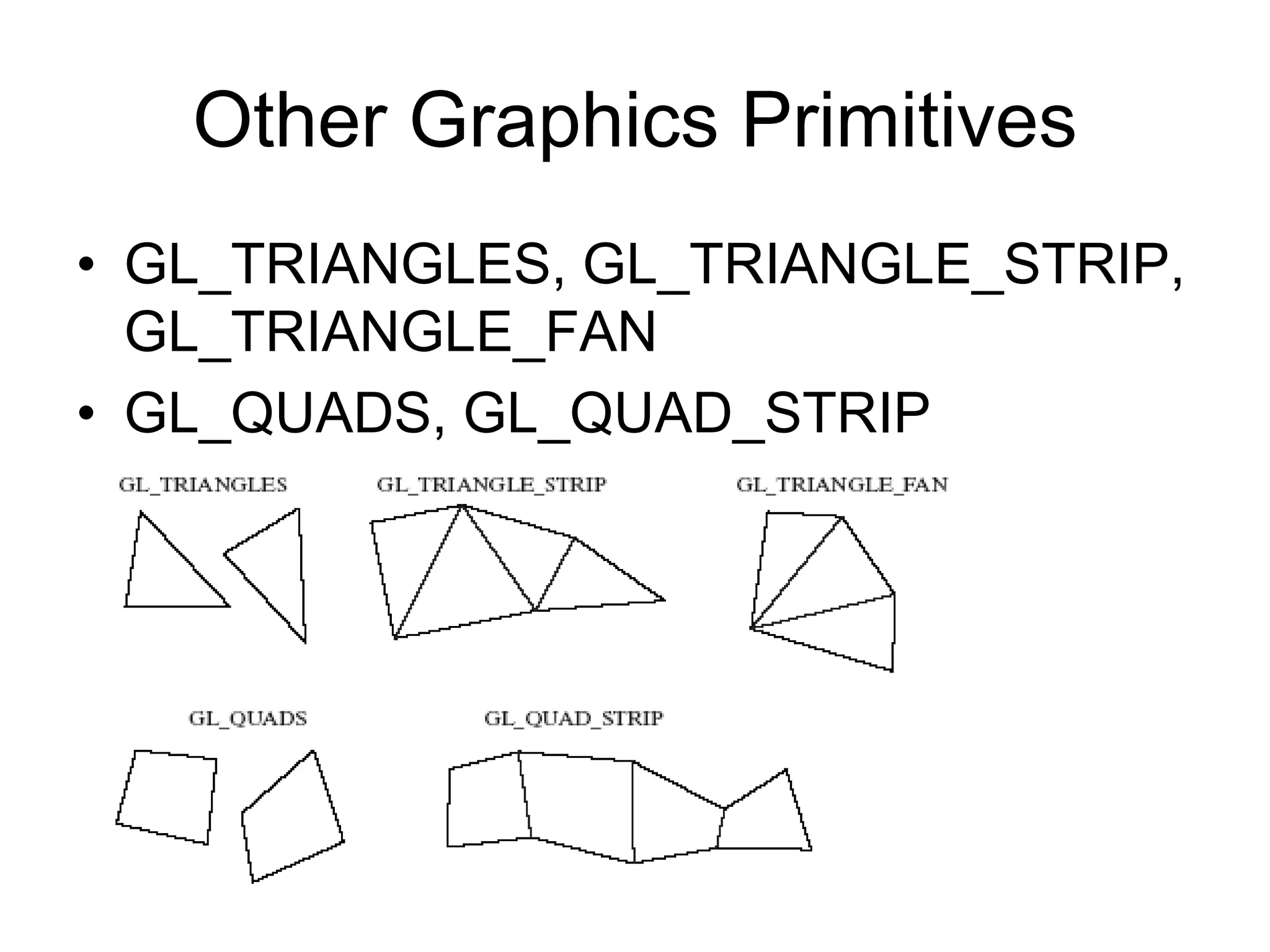
Other Graphics Primitives
• GL_TRIANGLES, GL_TRIANGLE_STRIP,
GL_TRIANGLE_FAN
• GL_QUADS, GL_QUAD_STRIP
Simple User Interaction with Mouse
and Keyboard
• Register functions:
– glutMouseFunc (myMouse);
– glutKeyboardFunc (myKeyboard);
• Write the function(s)
• NOTE that any drawing you do when you
use these functions must be done IN the
mouse or keyboard function (or in a
function called from within mouse or
keyboard callback functions).
Example Mouse Function
• void myMouse(int button, int state, int x, int
y);
• Button is one of GLUT_LEFT_BUTTON,
GLUT_MIDDLE_BUTTON, or
GLUT_RIGHT_BUTTON.
• State is GLUT_UP or GLUT_DOWN.
• X and y are mouse position at the time of
the event.
Example Mouse Function (2)
• The x value is the number of pixels from the left
of the window.
• The y value is the number of pixels down from
the top of the window.
• In order to see the effects of some activity of the
mouse or keyboard, the mouse or keyboard
handler must call either myDisplay() or
glutPostRedisplay().
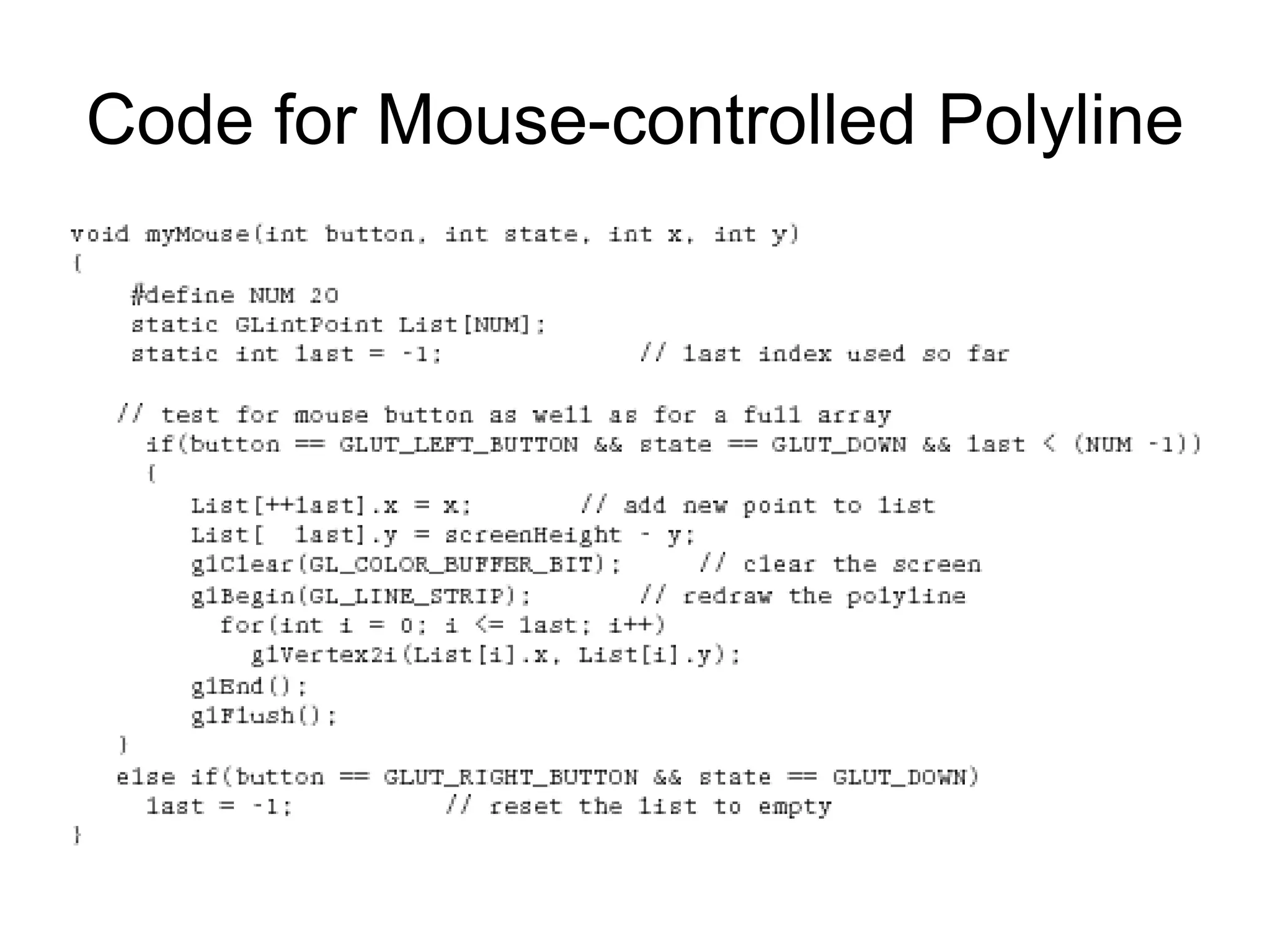
• Code for an example myMouse() is in Fig. 2.40.
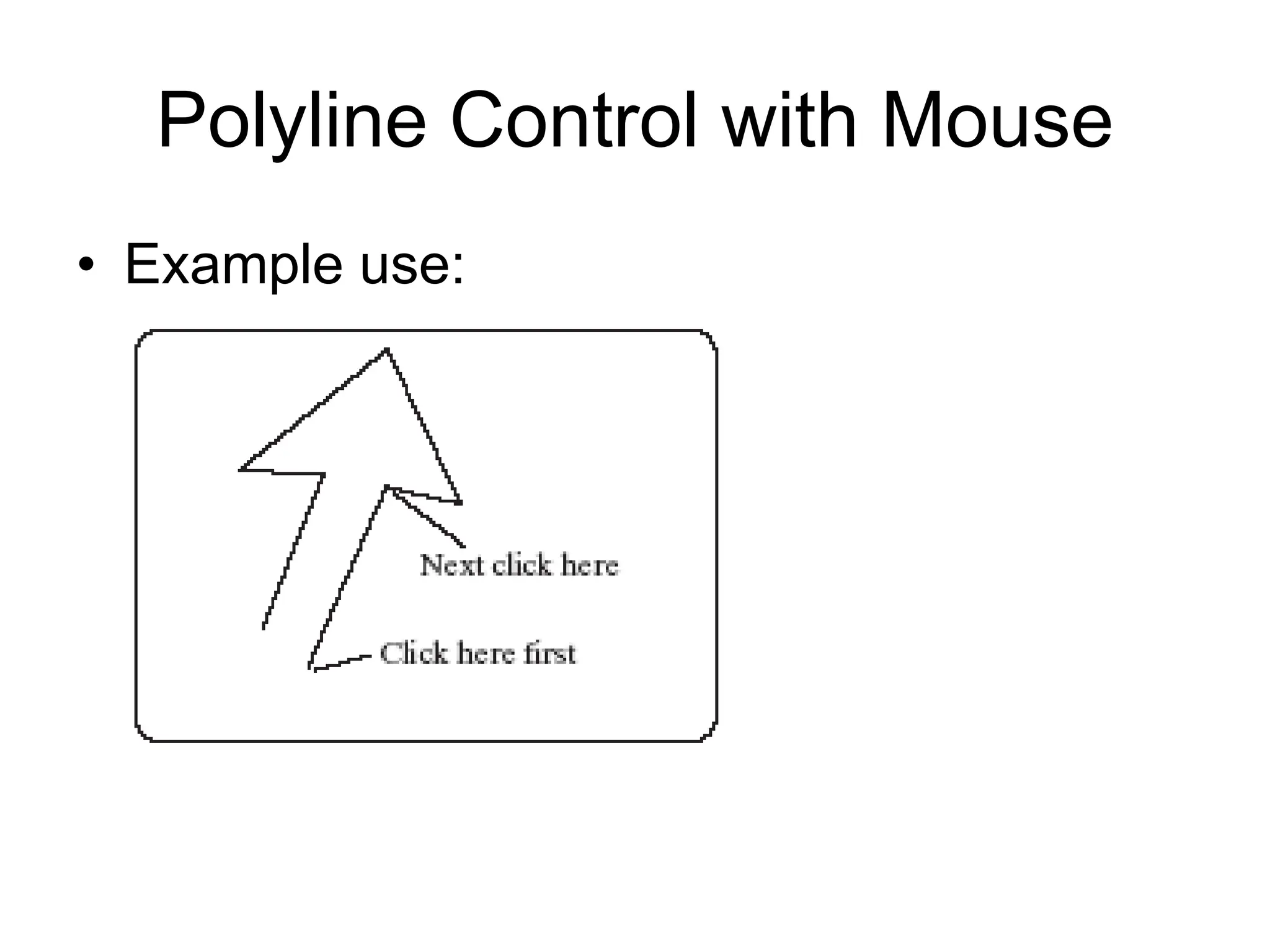
Polyline Control with Mouse
• Example use:
Code for Mouse-controlled Polyline
Using Mouse Motion Functions
• glutMotionFunc(myMovedMouse); //
moved with button held down
• glutPassiveMotionFunc(myMovedMouse);
// moved with buttons up
• myMovedMouse(int x, int y); x and y are
the position of the mouse when the event
occurred.
• Code for drawing rubber rectangles using
these functions is in Fig. 2.41.
Example Keyboard Function
void myKeyboard(unsigned char theKey, int
mouseX, int mouseY)
{
GLint x = mouseX;
GLint y = screenHeight - mouseY; // flip y value
switch(theKey)
{case ‘p’: drawDot(x, y); break;
// draw dot at mouse position
case ‘E’: exit(-1); //terminate the program
default: break; // do nothing
}
}
Example Keyboard Function (2)
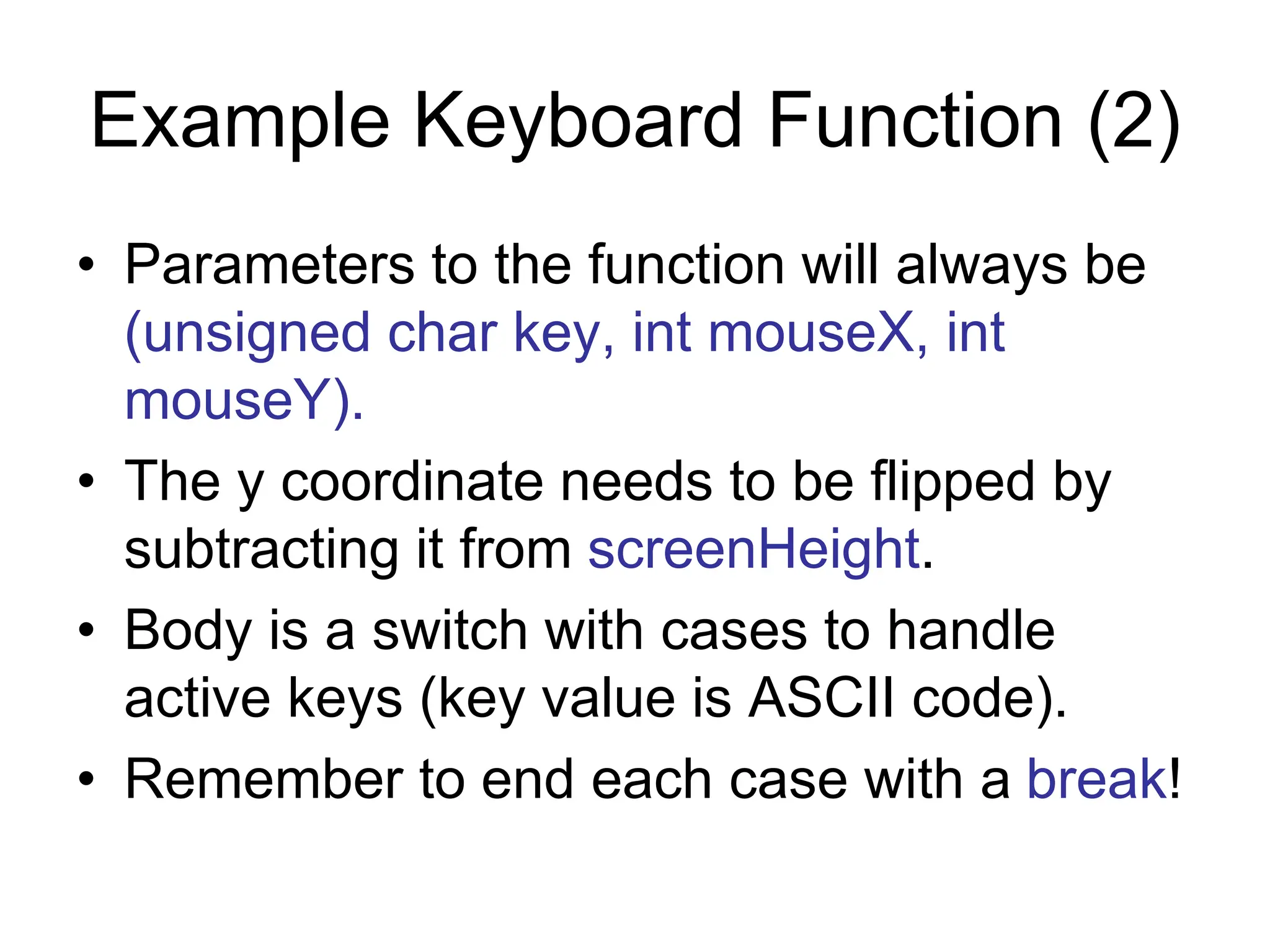
• Parameters to the function will always be
(unsigned char key, int mouseX, int
mouseY).
• The y coordinate needs to be flipped by
subtracting it from screenHeight.
• Body is a switch with cases to handle
active keys (key value is ASCII code).
• Remember to end each case with a break!
Using Menus
• Both GLUT and GLUI make menus
available.
• GLUT menus are simple, and GLUI menus
are more powerful.
• We will build a single menu that will allow
the user to change the color of a triangle,
which is undulating back and forth as the
application proceeds.
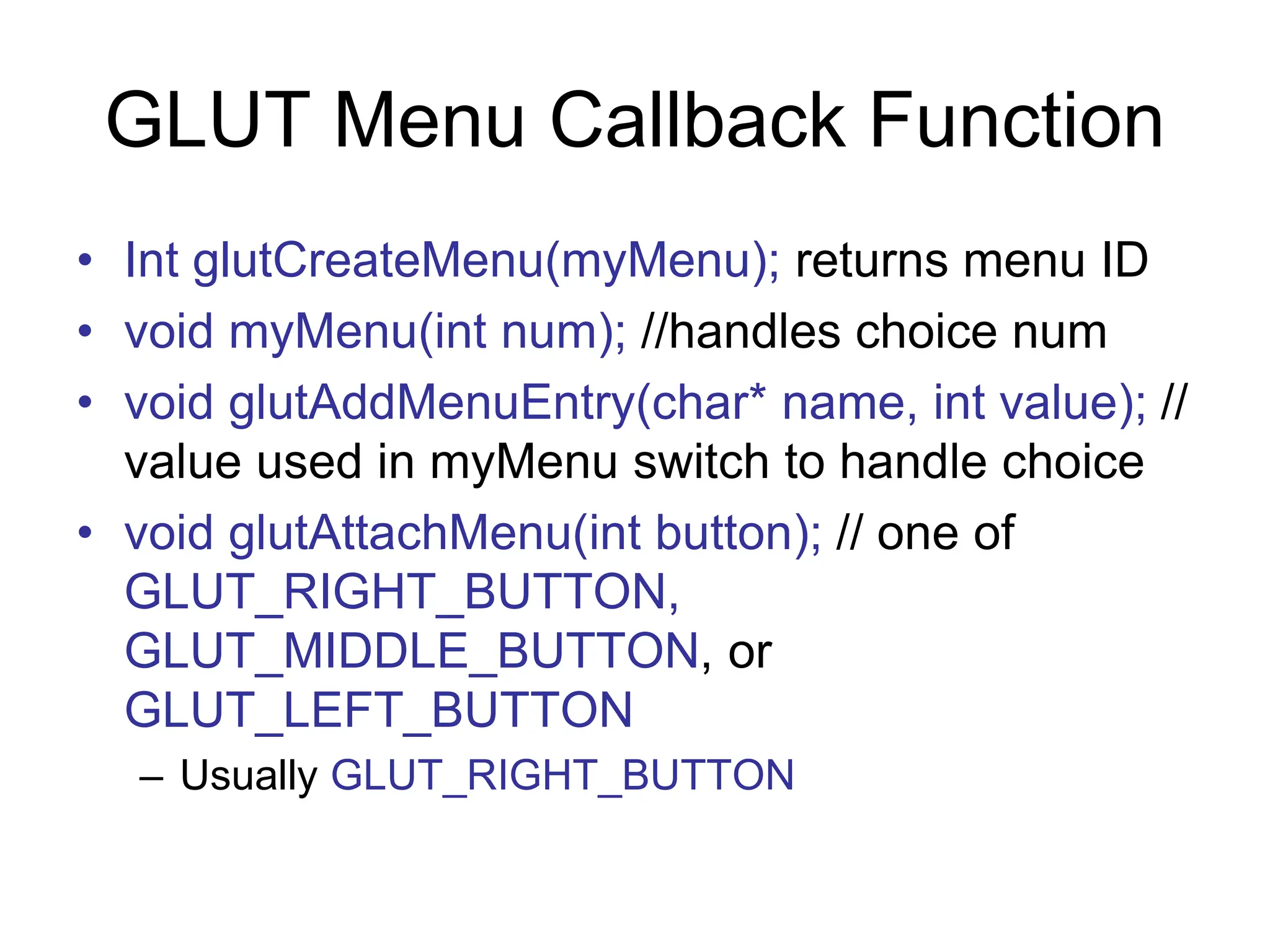
GLUT Menu Callback Function
• Int glutCreateMenu(myMenu); returns menu ID
• void myMenu(int num); //handles choice num
• void glutAddMenuEntry(char* name, int value); //
value used in myMenu switch to handle choice
• void glutAttachMenu(int button); // one of
GLUT_RIGHT_BUTTON,
GLUT_MIDDLE_BUTTON, or
GLUT_LEFT_BUTTON
– Usually GLUT_RIGHT_BUTTON
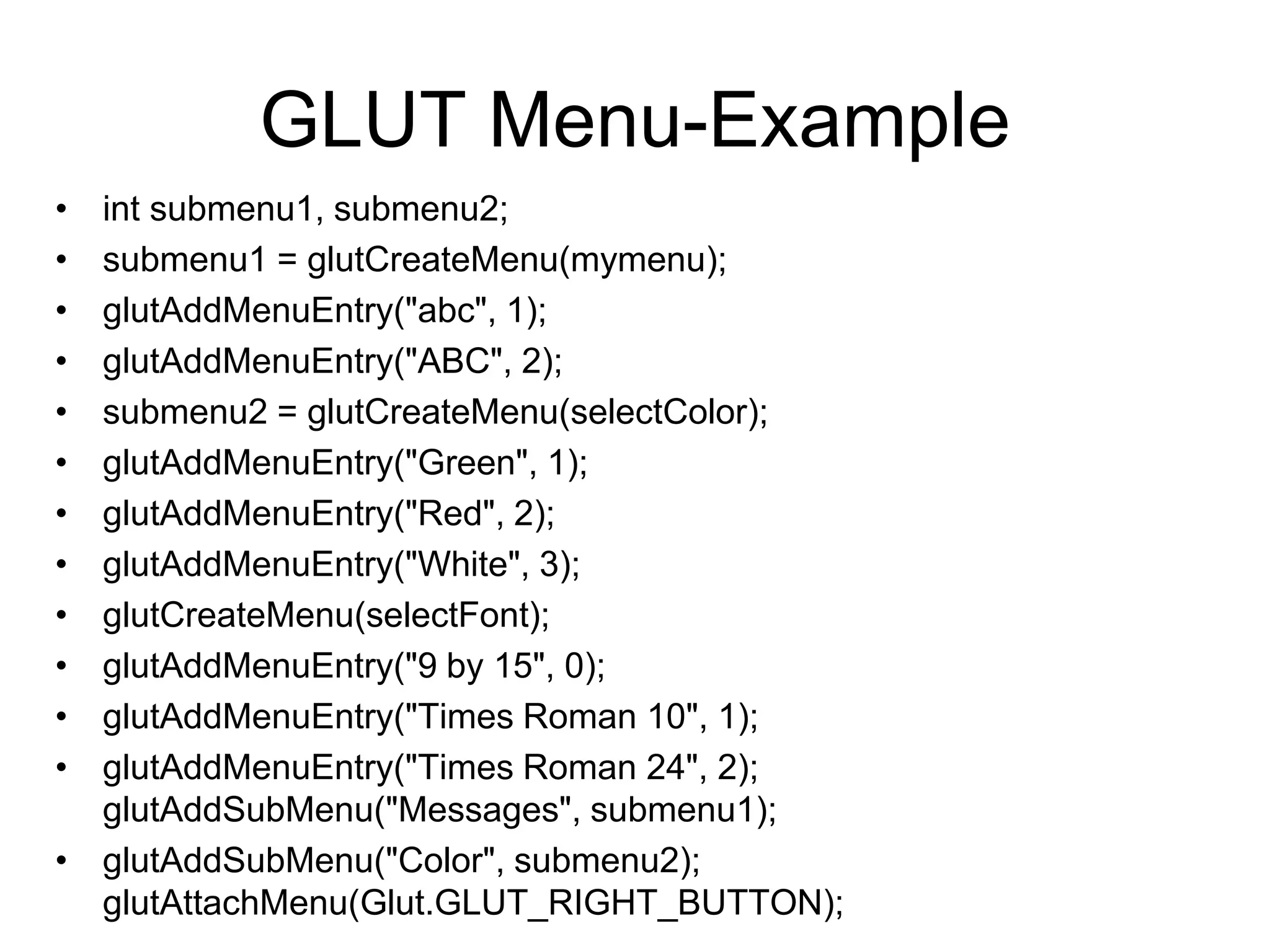
GLUT Menu-Example
• int submenu1, submenu2;
• submenu1 = glutCreateMenu(mymenu);
• glutAddMenuEntry("abc", 1);
• glutAddMenuEntry("ABC", 2);
• submenu2 = glutCreateMenu(selectColor);
• glutAddMenuEntry("Green", 1);
• glutAddMenuEntry("Red", 2);
• glutAddMenuEntry("White", 3);
• glutCreateMenu(selectFont);
• glutAddMenuEntry("9 by 15", 0);
• glutAddMenuEntry("Times Roman 10", 1);
• glutAddMenuEntry("Times Roman 24", 2);
glutAddSubMenu("Messages", submenu1);
• glutAddSubMenu("Color", submenu2);
glutAttachMenu(Glut.GLUT_RIGHT_BUTTON);
GLUT subMenus
• Create a subMenu first, using menu commands,
then add it to main menu.
– A submenu pops up when a main menu item is
selected.
• glutAddSubMenu (char* name, int menuID); //
menuID is the value returned by glutCreateMenu
when the submenu was created
• Complete code for a GLUT Menu application is
in Fig. 2.44. (No submenus are used.)
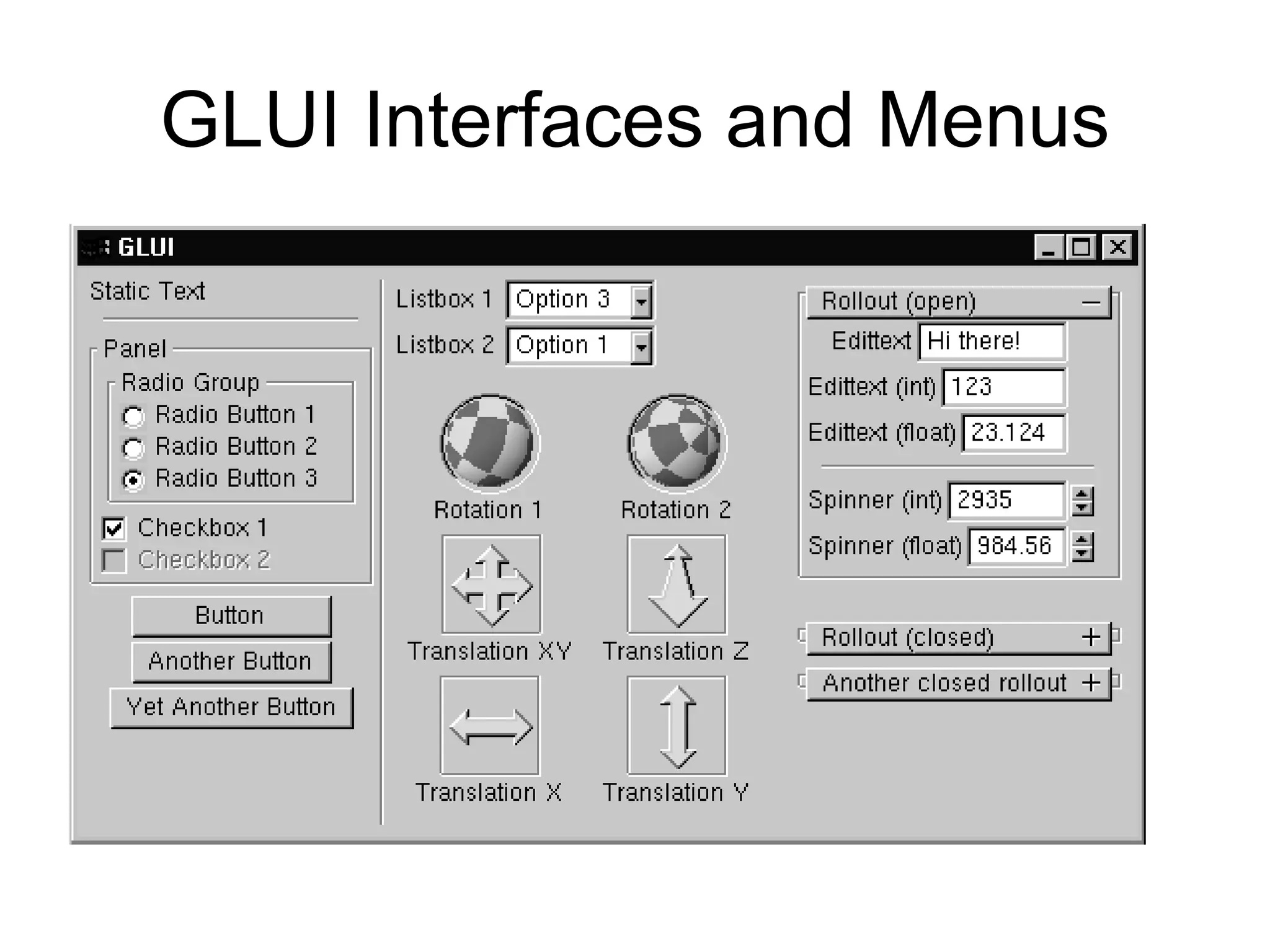
GLUI Interfaces and Menus
GLUI Interfaces
• An example program illustrating how to
use GLUI interface options is available on
book web site.
• Most of the work has been done for you;
you may cut and paste from the example
programs in the GLUI distribution.

Computer Graphics with OpenGL presentation Slides.pptx

  • 1.
    Computer Graphics usingOpenGL Chapter 2 Initial Steps in Drawing Figures
  • 2.
    Using Open-GL • Files:.h, .lib, .dll – The entire folder gl is placed in the Include directory of Visual C++ – The individual lib files are placed in the lib directory of Visual C++ – The individual dll files are placed in C:WindowsSystem32
  • 3.
    Using Open-GL (2) •Includes: – <windows.h> – <gl/gl.h> – <gl/glu.h> – <gl/glut.h> – <gl/glui.h> (if used) • Include in order given. If you use capital letters for any file or directory, use them in your include statement also.
  • 4.
    Using Open-GL (3) •Changing project settings: Visual C++ 6.0 – Project menu, Settings entry – In Object/library modules move to the end of the line and add glui32.lib glut32.lib glu32.lib opengl32.lib (separated by spaces from last entry and each other) – In Project Options, scroll down to end of box and add same set of .lib files – Close Project menu and save workspace
  • 5.
    Using Open-GL (3) •Changing Project Settings: Visual C++ .NET 2003 – Project, Properties, Linker, Command Line – In the white space at the bottom, add glui32.lib glut32.lib glu32.lib opengl32.lib – Close Project menu and save your solution
  • 6.
    Getting Started MakingPictures • Graphics display: Entire screen (a); windows system (b); [both have usual screen coordinates, with y-axis down]; windows system [inverted coordinates] (c)
  • 7.
    Basic System DrawingCommands • setPixel(x, y, color) – Pixel at location (x, y) gets color specified by color – Other names: putPixel(), SetPixel(), or drawPoint() • line(x1, y1, x2, y2) – Draws a line between (x1, y1) and (x2, y2) – Other names: drawLine() or Line().
  • 8.
    Alternative Basic Drawing •current position (cp), specifies where the system is drawing now. • moveTo(x,y) moves the pen invisibly to the location (x, y) and then updates the current position to this position. • lineTo(x,y) draws a straight line from the current position to (x, y) and then updates the cp to (x, y).
  • 9.
    Example: A Square •moveTo(4, 4); //move to starting corner • lineTo(-2, 4); • lineTo(-2, -2); • lineTo(4, -2); • lineTo(4, 4); //close the square
  • 10.
    Device Independent Graphicsand OpenGL • Allows same graphics program to be run on many different machine types with nearly identical output. – .dll files must be with program • OpenGL is an API: it controls whatever hardware you are using, and you use its functions instead of controlling the hardware directly. • OpenGL is open source (free).
  • 11.
    Event-driven Programs • Respondto events, such as mouse click or move, key press, or window reshape or resize. System manages event queue. • Programmer provides “call-back” functions to handle each event. • Call-back functions must be registered with OpenGL to let it know which function handles which event. • Registering function does *not* call it!
  • 12.
    Skeleton Event-driven Program //include OpenGL libraries void main() { glutDisplayFunc(myDisplay); // register the redraw function glutReshapeFunc(myReshape); // register the reshape function glutMouseFunc(myMouse); // register the mouse action function glutMotionFunc(myMotionFunc); // register the mouse motion function glutKeyboardFunc(myKeyboard); // register the keyboard action function …perhaps initialize other things… glutMainLoop(); // enter the unending main loop } …all of the callback functions are defined here
  • 13.
    Callback Functions • glutDisplayFunc(myDisplay); –(Re)draws screen when window opened or another window moved off it. • glutReshapeFunc(myReshape); – Reports new window width and height for reshaped window. (Moving a window does not produce a reshape event.) • glutIdleFunc(myIdle); – when nothing else is going on, simply redraws display using void myIdle() {glutPostRedisplay();}
  • 14.
    Callback Functions (2) •glutMouseFunc(myMouse); – Handles mouse button presses. Knows mouse location and nature of button (up or down and which button). • glutMotionFunc(myMotionFunc); – Handles case when the mouse is moved with one or more mouse buttons pressed.
  • 15.
    Callback Functions (3) •glutPassiveMotionFunc(myPassiveMotionFunc) – Handles case where mouse enters the window with no buttons pressed. • glutKeyboardFunc(myKeyboardFunc); – Handles key presses and releases. Knows which key was pressed and mouse location. • glutMainLoop() – Runs forever waiting for an event. When one occurs, it is handled by the appropriate callback function.
  • 16.
    Libraries to Include •GL, for which the commands begin with GL; • GLUT, the GL Utility Toolkit, opens windows, develops menus, and manages events. • GLU, the GL Utility Library, which provides high level routines to handle complex mathematical and drawing operations. • GLUI, the User Interface Library, which is completely integrated with the GLUT library. – The GLUT functions must be available for GLUI to operate properly. – GLUI provides sophisticated controls and menus to OpenGL applications.
  • 17.
    A GL Programto Open a Window // appropriate #includes go here – see Appendix 1 void main(int argc, char** argv) { glutInit(&argc, argv); // initialize the toolkit glutInitDisplayMode(GLUT_SINGLE | GLUT_RGB); // set the display mode glutInitWindowSize(640,480); // set window size glutInitWindowPosition(100, 150); // set window upper left corner position on screen glutCreateWindow("my first attempt"); // open the screen window (Title: my first attempt) // continued next slide
  • 18.
    Part 2 ofWindow Program // register the callback functions glutDisplayFunc(myDisplay); glutReshapeFunc(myReshape); glutMouseFunc(myMouse); glutKeyboardFunc(myKeyboard); myInit(); // additional initializations as necessary glutMainLoop(); // go into a perpetual loop } • Terminate program by closing window(s) it is using.
  • 19.
    What the CodeDoes • glutInit (&argc, argv) initializes Open-GL Toolkit • glutInitDisplayMode (GLUT_SINGLE | GLUT_RGB) allocates a single display buffer and uses colors to draw • glutInitWindowSize (640, 480) makes the window 640 pixels wide by 480 pixels high
  • 20.
    What the CodeDoes (2) • glutInitWindowPosition (100, 150) puts upper left window corner at position 100 pixels from left edge and 150 pixels down from top edge • glutCreateWindow (“my first attempt”) opens and displays the window with the title “my first attempt” • Remaining functions register callbacks
  • 21.
    What the CodeDoes (3) • The call-back functions you write are registered, and then the program enters an endless loop, waiting for events to occur. • When an event occurs, GL calls the relevant handler function.
  • 22.
  • 23.
    Drawing Dots inOpenGL • We start with a coordinate system based on the window just created: 0 to 679 in x and 0 to 479 in y. • OpenGL drawing is based on vertices (corners). To draw an object in OpenGL, you pass it a list of vertices. – The list starts with glBegin(arg); and ends with glEnd(); – Arg determines what is drawn. – glEnd() sends drawing data down the OpenGL pipeline.
  • 24.
    Example • glBegin (GL_POINTS); –glVertex2i (100, 50); – glVertex2i (100, 130); – glVertex2i (150, 130); • glEnd(); • GL_POINTS is constant built-into Open- GL (also GL_LINES, GL_POLYGON, …) • Complete code to draw the 3 dots is in Fig. 2.11.
  • 25.
  • 26.
    What Code Does:GL Function Construction
  • 27.
    Example of Construction •glVertex2i (…) takes integer values • glVertex2d (…) takes floating point values • OpenGL has its own data types to make graphics device-independent – Use these types instead of standard ones
  • 28.
    Open-GL Data Types suffixdata type C/C++ type OpenGL type name b 8-bit integer signed char GLbyte s 16-bit integer Short GLshort i 32-bit integer int or long GLint, GLsizei f 32-bit float Float GLfloat, GLclampf d 64-bit float Double GLdouble,GLclampd ub 8-bit unsigned number unsigned char GLubyte,GLboolean us 16-bit unsigned number unsigned short GLushort ui 32-bit unsigned number unsigned int or unsigned long GLuint,Glenum,GLbitfield
  • 29.
    Setting Drawing Colorsin GL • glColor3f(red, green, blue); // set drawing color – glColor3f(1.0, 0.0, 0.0); // red – glColor3f(0.0, 1.0, 0.0); // green – glColor3f(0.0, 0.0, 1.0); // blue – glColor3f(0.0, 0.0, 0.0); // black – glColor3f(1.0, 1.0, 1.0); // bright white – glColor3f(1.0, 1.0, 0.0); // bright yellow – glColor3f(1.0, 0.0, 1.0); // magenta
  • 30.
    Setting Background Colorin GL • glClearColor (red, green, blue, alpha); – Sets background color. – Alpha is degree of transparency; use 0.0 for now. • glClear(GL_COLOR_BUFFER_BIT); – clears window to background color
  • 31.
    Setting Up aCoordinate System void myInit(void) { glMatrixMode(GL_PROJECTION); glLoadIdentity(); gluOrtho2D(0, 640.0, 0, 480.0); } // sets up coordinate system for window from (0,0) to (679, 479)
  • 32.
    Drawing Lines • glBegin(GL_LINES); //draws one line – glVertex2i (40, 100); // between 2 vertices – glVertex2i (202, 96); • glEnd (); • glFlush(); • If more than two vertices are specified between glBegin(GL_LINES) and glEnd() they are taken in pairs, and a separate line is drawn between each pair.
  • 33.
    Line Attributes • Color,thickness, stippling. • glColor3f() sets color. • glLineWidth(4.0) sets thickness. The default thickness is 1.0. a). thin lines b). thick lines c). stippled lines
  • 34.
    Setting Line Parameters •Polylines and Polygons: lists of vertices. • Polygons are closed (right); polylines need not be closed (left).
  • 35.
    Polyline/Polygon Drawing • glBegin(GL_LINE_STRIP); • // GL_LINE_LOOP to close polyline (make it a polygon) – // glVertex2i () calls go here • glEnd (); • glFlush (); • A GL_LINE_LOOP cannot be filled with color
  • 36.
    Examples • Drawing linegraphs: connect each pair of (x, f(x)) values • Must scale and shift
  • 37.
    Examples (2) • Drawingpolyline from vertices in a file – # polylines – # vertices in first polyline – Coordinates of vertices, x y, one pair per line – Repeat last 2 lines as necessary • File for dinosaur available from Web site • Code to draw polylines/polygons in Fig. 2.24.
  • 38.
  • 39.
    Examples (4) • ParameterizingDrawings: allows making them different sizes and aspect ratios • Code for a parameterized house is in Fig. 2.27.
  • 40.
  • 41.
    Examples (6) • PolylineDrawing • Code to set up an array of vertices is in Fig. 2.29. • Code to draw the polyline is in Fig. 2.30.
  • 42.
    Relative Line Drawing •Requires keeping track of current position on screen (CP). • moveTo(x, y); set CP to (x, y) • lineTo(x, y); draw a line from CP to (x, y), and then update CP to (x, y). • Code is in Fig. 2.31. • Caution! CP is a global variable, and therefore vulnerable to tampering from instructions at other points in your program.
  • 43.
    Drawing Aligned Rectangles •glRecti (GLint x1, GLint y1, GLint x2, GLint y2); // opposite corners; filled with current color; later rectangles are drawn on top of previous ones
  • 44.
    Aspect Ratio ofAligned Rectangles • Aspect ratio = width/height
  • 45.
    Filling Polygons withColor • Polygons must be convex: any line from one boundary to another lies inside the polygon; below, only D, E, F are convex
  • 46.
    Filling Polygons withColor (2) • glBegin (GL_POLYGON); – //glVertex2f (…); calls go here • glEnd (); • Polygon is filled with the current drawing color
  • 47.
    Other Graphics Primitives •GL_TRIANGLES, GL_TRIANGLE_STRIP, GL_TRIANGLE_FAN • GL_QUADS, GL_QUAD_STRIP
  • 48.
    Simple User Interactionwith Mouse and Keyboard • Register functions: – glutMouseFunc (myMouse); – glutKeyboardFunc (myKeyboard); • Write the function(s) • NOTE that any drawing you do when you use these functions must be done IN the mouse or keyboard function (or in a function called from within mouse or keyboard callback functions).
  • 49.
    Example Mouse Function •void myMouse(int button, int state, int x, int y); • Button is one of GLUT_LEFT_BUTTON, GLUT_MIDDLE_BUTTON, or GLUT_RIGHT_BUTTON. • State is GLUT_UP or GLUT_DOWN. • X and y are mouse position at the time of the event.
  • 50.
    Example Mouse Function(2) • The x value is the number of pixels from the left of the window. • The y value is the number of pixels down from the top of the window. • In order to see the effects of some activity of the mouse or keyboard, the mouse or keyboard handler must call either myDisplay() or glutPostRedisplay(). • Code for an example myMouse() is in Fig. 2.40.
  • 51.
    Polyline Control withMouse • Example use:
  • 52.
  • 53.
    Using Mouse MotionFunctions • glutMotionFunc(myMovedMouse); // moved with button held down • glutPassiveMotionFunc(myMovedMouse); // moved with buttons up • myMovedMouse(int x, int y); x and y are the position of the mouse when the event occurred. • Code for drawing rubber rectangles using these functions is in Fig. 2.41.
  • 54.
    Example Keyboard Function voidmyKeyboard(unsigned char theKey, int mouseX, int mouseY) { GLint x = mouseX; GLint y = screenHeight - mouseY; // flip y value switch(theKey) {case ‘p’: drawDot(x, y); break; // draw dot at mouse position case ‘E’: exit(-1); //terminate the program default: break; // do nothing } }
  • 55.
    Example Keyboard Function(2) • Parameters to the function will always be (unsigned char key, int mouseX, int mouseY). • The y coordinate needs to be flipped by subtracting it from screenHeight. • Body is a switch with cases to handle active keys (key value is ASCII code). • Remember to end each case with a break!
  • 56.
    Using Menus • BothGLUT and GLUI make menus available. • GLUT menus are simple, and GLUI menus are more powerful. • We will build a single menu that will allow the user to change the color of a triangle, which is undulating back and forth as the application proceeds.
  • 57.
    GLUT Menu CallbackFunction • Int glutCreateMenu(myMenu); returns menu ID • void myMenu(int num); //handles choice num • void glutAddMenuEntry(char* name, int value); // value used in myMenu switch to handle choice • void glutAttachMenu(int button); // one of GLUT_RIGHT_BUTTON, GLUT_MIDDLE_BUTTON, or GLUT_LEFT_BUTTON – Usually GLUT_RIGHT_BUTTON
  • 58.
    GLUT Menu-Example • intsubmenu1, submenu2; • submenu1 = glutCreateMenu(mymenu); • glutAddMenuEntry("abc", 1); • glutAddMenuEntry("ABC", 2); • submenu2 = glutCreateMenu(selectColor); • glutAddMenuEntry("Green", 1); • glutAddMenuEntry("Red", 2); • glutAddMenuEntry("White", 3); • glutCreateMenu(selectFont); • glutAddMenuEntry("9 by 15", 0); • glutAddMenuEntry("Times Roman 10", 1); • glutAddMenuEntry("Times Roman 24", 2); glutAddSubMenu("Messages", submenu1); • glutAddSubMenu("Color", submenu2); glutAttachMenu(Glut.GLUT_RIGHT_BUTTON);
  • 59.
    GLUT subMenus • Createa subMenu first, using menu commands, then add it to main menu. – A submenu pops up when a main menu item is selected. • glutAddSubMenu (char* name, int menuID); // menuID is the value returned by glutCreateMenu when the submenu was created • Complete code for a GLUT Menu application is in Fig. 2.44. (No submenus are used.)
  • 60.
  • 61.
    GLUI Interfaces • Anexample program illustrating how to use GLUI interface options is available on book web site. • Most of the work has been done for you; you may cut and paste from the example programs in the GLUI distribution.