© 2016 Aras aras.com
What’s New in Visual Collaboration
John Sperling
VP Product Management, Aras
© 2016 Aras aras.com
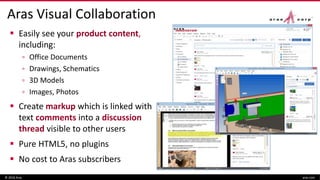
Aras Visual Collaboration
 Easily see your product content,
including:
▫ Office Documents
▫ Drawings, Schematics
▫ 3D Models
▫ Images, Photos
 Create markup which is linked with
text comments into a discussion
thread visible to other users
 Pure HTML5, no plugins
 No cost to Aras subscribers
© 2016 Aras aras.com
Overview
 Enhancements have been made to Visual Collaboration in
every service pack since its introduction in 11.0, including:
▫ Performance
▫ Viewer windowing and toolbars
▫ PDF viewer technology
▫ Viewer functions
 And lots more is planned on the roadmap
Slide 4
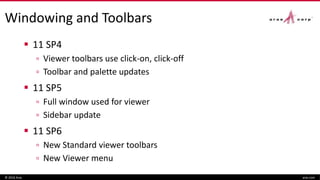
Windowing and Toolbars
 11 SP4
▫ Viewer toolbars use click-on, click-off
▫ Toolbar and palette updates
 11 SP5
▫ Full window used for viewer
▫ Sidebar update
 11 SP6
▫ New Standard viewer toolbars
▫ New Viewer menu
© 2016 Aras aras.com
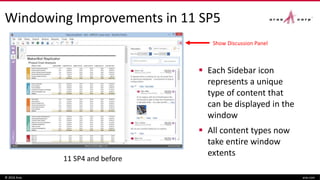
Windowing Improvements in 11 SP5
© 2016 Aras aras.com
 Each Sidebar icon
represents a unique
type of content that
can be displayed in the
window
 All content types now
take entire window
extents
Show Discussion Panel
11 SP4 and before
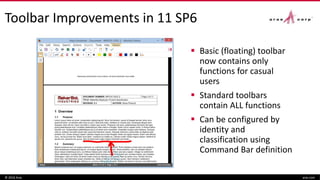
Toolbar Improvements in 11 SP6
© 2016 Aras aras.com
 Basic (floating) toolbar
now contains only
functions for casual
users
 Standard toolbars
contain ALL functions
 Can be configured by
identity and
classification using
Command Bar definition
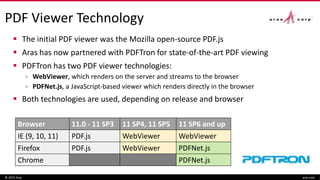
PDF Viewer Technology
Browser 11.0 - 11 SP3 11 SP4, 11 SP5 11 SP6 and up
IE (9, 10, 11) PDF.js WebViewer WebViewer
Firefox PDF.js WebViewer PDFNet.js
Chrome PDFNet.js
© 2015 Aras aras.com
 The initial PDF viewer was the Mozilla open-source PDF.js
 Aras has now partnered with PDFTron for state-of-the-art PDF viewing
 PDFTron has two PDF viewer technologies:
▫ WebViewer, which renders on the server and streams to the browser
▫ PDFNet.js, a JavaScript-based viewer which renders directly in the browser
 Both technologies are used, depending on release and browser
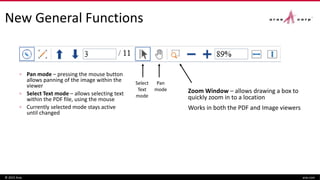
New General Functions
▫ Pan mode – pressing the mouse button
allows panning of the image within the
viewer
▫ Select Text mode – allows selecting text
within the PDF file, using the mouse
▫ Currently selected mode stays active
until changed
© 2015 Aras aras.com
Pan
mode
Select
Text
mode
Zoom Window – allows drawing a box to
quickly zoom in to a location
Works in both the PDF and Image viewers
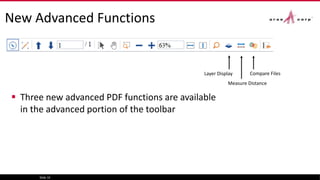
New Advanced Functions
 Three new advanced PDF functions are available
in the advanced portion of the toolbar
Slide 10
Layer Display Compare Files
Measure Distance
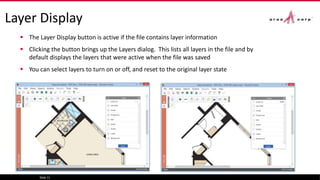
Layer Display
 The Layer Display button is active if the file contains layer information
 Clicking the button brings up the Layers dialog. This lists all layers in the file and by
default displays the layers that were active when the file was saved
 You can select layers to turn on or off, and reset to the original layer state
Slide 11
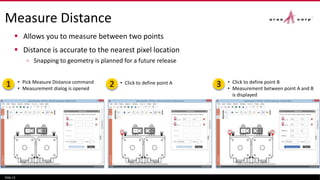
Measure Distance
 Allows you to measure between two points
 Distance is accurate to the nearest pixel location
▫ Snapping to geometry is planned for a future release
Slide 12
• Pick Measure Distance command
• Measurement dialog is opened
• Click to define point A • Click to define point B
• Measurement between point A and B
is displayed
1 2 3
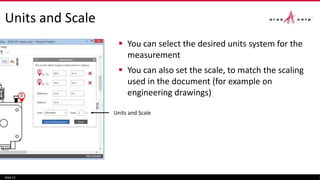
Units and Scale
 You can select the desired units system for the
measurement
 You can also set the scale, to match the scaling
used in the document (for example on
engineering drawings)
Slide 13
Units and Scale
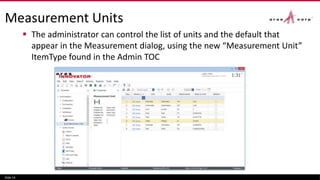
Measurement Units
 The administrator can control the list of units and the default that
appear in the Measurement dialog, using the new “Measurement Unit”
ItemType found in the Admin TOC
Slide 14
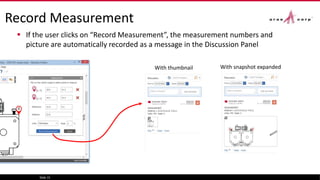
Record Measurement
 If the user clicks on “Record Measurement”, the measurement numbers and
picture are automatically recorded as a message in the Discussion Panel
Slide 15
With thumbnail With snapshot expanded
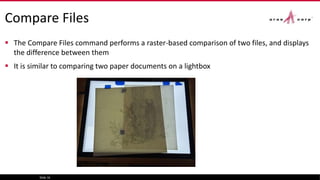
Compare Files
 The Compare Files command performs a raster-based comparison of two files, and displays
the difference between them
 It is similar to comparing two paper documents on a lightbox
Slide 16
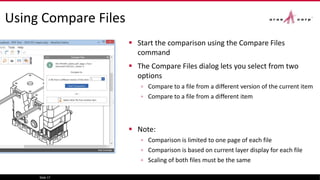
Using Compare Files
 Start the comparison using the Compare Files
command
 The Compare Files dialog lets you select from two
options
▫ Compare to a file from a different version of the current item
▫ Compare to a file from a different item
 Note:
▫ Comparison is limited to one page of each file
▫ Comparison is based on current layer display for each file
▫ Scaling of both files must be the same
Slide 17
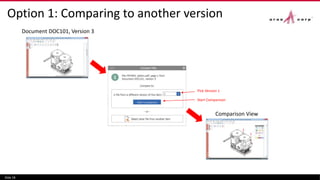
Option 1: Comparing to another version
Slide 18
Document DOC101, Version 3
Comparison View
Start Comparison
Pick Version 1
Slide 19
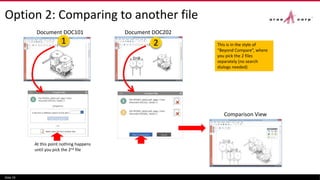
Document DOC202
At this point nothing happens
until you pick the 2nd file
This is in the style of
“Beyond Compare”, where
you pick the 2 files
separately (no search
dialogs needed)
Option 2: Comparing to another file
Document DOC101
Comparison View
1 2
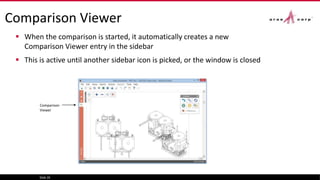
Comparison Viewer
 When the comparison is started, it automatically creates a new
Comparison Viewer entry in the sidebar
 This is active until another sidebar icon is picked, or the window is closed
Slide 20
Comparison
Viewer
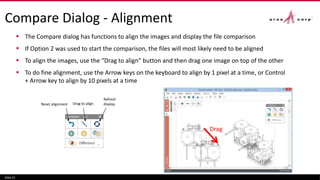
Compare Dialog - Alignment
 The Compare dialog has functions to align the images and display the file comparison
 If Option 2 was used to start the comparison, the files will most likely need to be aligned
 To align the images, use the “Drag to align” button and then drag one image on top of the other
 To do fine alignment, use the Arrow keys on the keyboard to align by 1 pixel at a time, or Control
+ Arrow key to align by 10 pixels at a time
Slide 21
Reset alignment Drag to align
Refresh
display
Drag
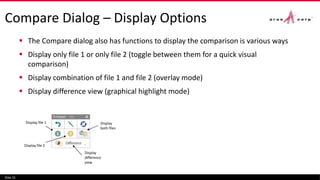
Compare Dialog – Display Options
 The Compare dialog also has functions to display the comparison is various ways
 Display only file 1 or only file 2 (toggle between them for a quick visual
comparison)
 Display combination of file 1 and file 2 (overlay mode)
 Display difference view (graphical highlight mode)
Slide 22
Display
both files
Display
difference
view
Display file 2
Display file 1
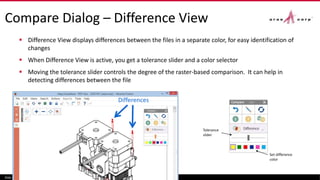
Compare Dialog – Difference View
 Difference View displays differences between the files in a separate color, for easy identification of
changes
 When Difference View is active, you get a tolerance slider and a color selector
 Moving the tolerance slider controls the degree of the raster-based comparison. It can help in
detecting differences between the file
Slide 23
Set difference
color
Tolerance
slider
Differences
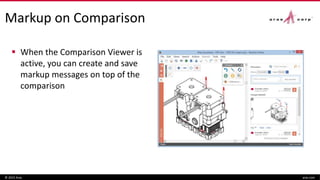
Markup on Comparison
 When the Comparison Viewer is
active, you can create and save
markup messages on top of the
comparison
© 2015 Aras aras.com
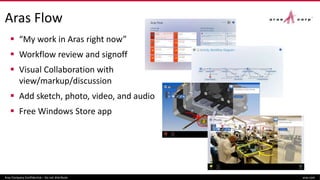
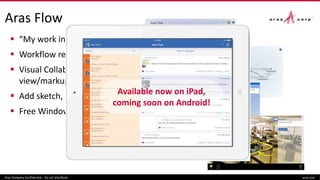
Aras Flow
 “My work in Aras right now”
 Workflow review and signoff
 Visual Collaboration with
view/markup/discussion
 Add sketch, photo, video, and audio
 Free Windows Store app
Aras Company Confidential – Do not distribute aras.com
Aras Flow
 “My work in Aras right now”
 Workflow review and signoff
 Visual Collaboration with
view/markup/discussion
 Add sketch, photo, video, and audio
 Free Windows Store app
Aras Company Confidential – Do not distribute aras.com
Available now on iPad,
coming soon on Android!
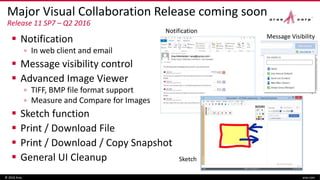
Major Visual Collaboration Release coming soon
Release 11 SP7 – Q2 2016
 Notification
▫ In web client and email
 Message visibility control
 Advanced Image Viewer
▫ TIFF, BMP file format support
▫ Measure and Compare for Images
 Sketch function
 Print / Download File
 Print / Download / Copy Snapshot
 General UI Cleanup
© 2016 Aras aras.com
Notification
Sketch
Message Visibility
And looking ahead
 Enhancements to 3D conversion and viewing
 Collaboration review sessions
 Linking informal collaboration to formal workflow
 Any other ideas?
© 2016 Aras aras.com

Whats New in Visual Collaboration 2016

  • 1.
    © 2016 Arasaras.com
  • 2.
    What’s New inVisual Collaboration John Sperling VP Product Management, Aras © 2016 Aras aras.com
  • 3.
    Aras Visual Collaboration Easily see your product content, including: ▫ Office Documents ▫ Drawings, Schematics ▫ 3D Models ▫ Images, Photos  Create markup which is linked with text comments into a discussion thread visible to other users  Pure HTML5, no plugins  No cost to Aras subscribers © 2016 Aras aras.com
  • 4.
    Overview  Enhancements havebeen made to Visual Collaboration in every service pack since its introduction in 11.0, including: ▫ Performance ▫ Viewer windowing and toolbars ▫ PDF viewer technology ▫ Viewer functions  And lots more is planned on the roadmap Slide 4
  • 5.
    Windowing and Toolbars 11 SP4 ▫ Viewer toolbars use click-on, click-off ▫ Toolbar and palette updates  11 SP5 ▫ Full window used for viewer ▫ Sidebar update  11 SP6 ▫ New Standard viewer toolbars ▫ New Viewer menu © 2016 Aras aras.com
  • 6.
    Windowing Improvements in11 SP5 © 2016 Aras aras.com  Each Sidebar icon represents a unique type of content that can be displayed in the window  All content types now take entire window extents Show Discussion Panel 11 SP4 and before
  • 7.
    Toolbar Improvements in11 SP6 © 2016 Aras aras.com  Basic (floating) toolbar now contains only functions for casual users  Standard toolbars contain ALL functions  Can be configured by identity and classification using Command Bar definition
  • 8.
    PDF Viewer Technology Browser11.0 - 11 SP3 11 SP4, 11 SP5 11 SP6 and up IE (9, 10, 11) PDF.js WebViewer WebViewer Firefox PDF.js WebViewer PDFNet.js Chrome PDFNet.js © 2015 Aras aras.com  The initial PDF viewer was the Mozilla open-source PDF.js  Aras has now partnered with PDFTron for state-of-the-art PDF viewing  PDFTron has two PDF viewer technologies: ▫ WebViewer, which renders on the server and streams to the browser ▫ PDFNet.js, a JavaScript-based viewer which renders directly in the browser  Both technologies are used, depending on release and browser
  • 9.
    New General Functions ▫Pan mode – pressing the mouse button allows panning of the image within the viewer ▫ Select Text mode – allows selecting text within the PDF file, using the mouse ▫ Currently selected mode stays active until changed © 2015 Aras aras.com Pan mode Select Text mode Zoom Window – allows drawing a box to quickly zoom in to a location Works in both the PDF and Image viewers
  • 10.
    New Advanced Functions Three new advanced PDF functions are available in the advanced portion of the toolbar Slide 10 Layer Display Compare Files Measure Distance
  • 11.
    Layer Display  TheLayer Display button is active if the file contains layer information  Clicking the button brings up the Layers dialog. This lists all layers in the file and by default displays the layers that were active when the file was saved  You can select layers to turn on or off, and reset to the original layer state Slide 11
  • 12.
    Measure Distance  Allowsyou to measure between two points  Distance is accurate to the nearest pixel location ▫ Snapping to geometry is planned for a future release Slide 12 • Pick Measure Distance command • Measurement dialog is opened • Click to define point A • Click to define point B • Measurement between point A and B is displayed 1 2 3
  • 13.
    Units and Scale You can select the desired units system for the measurement  You can also set the scale, to match the scaling used in the document (for example on engineering drawings) Slide 13 Units and Scale
  • 14.
    Measurement Units  Theadministrator can control the list of units and the default that appear in the Measurement dialog, using the new “Measurement Unit” ItemType found in the Admin TOC Slide 14
  • 15.
    Record Measurement  Ifthe user clicks on “Record Measurement”, the measurement numbers and picture are automatically recorded as a message in the Discussion Panel Slide 15 With thumbnail With snapshot expanded
  • 16.
    Compare Files  TheCompare Files command performs a raster-based comparison of two files, and displays the difference between them  It is similar to comparing two paper documents on a lightbox Slide 16
  • 17.
    Using Compare Files Start the comparison using the Compare Files command  The Compare Files dialog lets you select from two options ▫ Compare to a file from a different version of the current item ▫ Compare to a file from a different item  Note: ▫ Comparison is limited to one page of each file ▫ Comparison is based on current layer display for each file ▫ Scaling of both files must be the same Slide 17
  • 18.
    Option 1: Comparingto another version Slide 18 Document DOC101, Version 3 Comparison View Start Comparison Pick Version 1
  • 19.
    Slide 19 Document DOC202 Atthis point nothing happens until you pick the 2nd file This is in the style of “Beyond Compare”, where you pick the 2 files separately (no search dialogs needed) Option 2: Comparing to another file Document DOC101 Comparison View 1 2
  • 20.
    Comparison Viewer  Whenthe comparison is started, it automatically creates a new Comparison Viewer entry in the sidebar  This is active until another sidebar icon is picked, or the window is closed Slide 20 Comparison Viewer
  • 21.
    Compare Dialog -Alignment  The Compare dialog has functions to align the images and display the file comparison  If Option 2 was used to start the comparison, the files will most likely need to be aligned  To align the images, use the “Drag to align” button and then drag one image on top of the other  To do fine alignment, use the Arrow keys on the keyboard to align by 1 pixel at a time, or Control + Arrow key to align by 10 pixels at a time Slide 21 Reset alignment Drag to align Refresh display Drag
  • 22.
    Compare Dialog –Display Options  The Compare dialog also has functions to display the comparison is various ways  Display only file 1 or only file 2 (toggle between them for a quick visual comparison)  Display combination of file 1 and file 2 (overlay mode)  Display difference view (graphical highlight mode) Slide 22 Display both files Display difference view Display file 2 Display file 1
  • 23.
    Compare Dialog –Difference View  Difference View displays differences between the files in a separate color, for easy identification of changes  When Difference View is active, you get a tolerance slider and a color selector  Moving the tolerance slider controls the degree of the raster-based comparison. It can help in detecting differences between the file Slide 23 Set difference color Tolerance slider Differences
  • 24.
    Markup on Comparison When the Comparison Viewer is active, you can create and save markup messages on top of the comparison © 2015 Aras aras.com
  • 25.
    Aras Flow  “Mywork in Aras right now”  Workflow review and signoff  Visual Collaboration with view/markup/discussion  Add sketch, photo, video, and audio  Free Windows Store app Aras Company Confidential – Do not distribute aras.com
  • 26.
    Aras Flow  “Mywork in Aras right now”  Workflow review and signoff  Visual Collaboration with view/markup/discussion  Add sketch, photo, video, and audio  Free Windows Store app Aras Company Confidential – Do not distribute aras.com Available now on iPad, coming soon on Android!
  • 27.
    Major Visual CollaborationRelease coming soon Release 11 SP7 – Q2 2016  Notification ▫ In web client and email  Message visibility control  Advanced Image Viewer ▫ TIFF, BMP file format support ▫ Measure and Compare for Images  Sketch function  Print / Download File  Print / Download / Copy Snapshot  General UI Cleanup © 2016 Aras aras.com Notification Sketch Message Visibility
  • 28.
    And looking ahead Enhancements to 3D conversion and viewing  Collaboration review sessions  Linking informal collaboration to formal workflow  Any other ideas? © 2016 Aras aras.com
  • 29.
    © 2016 Arasaras.com