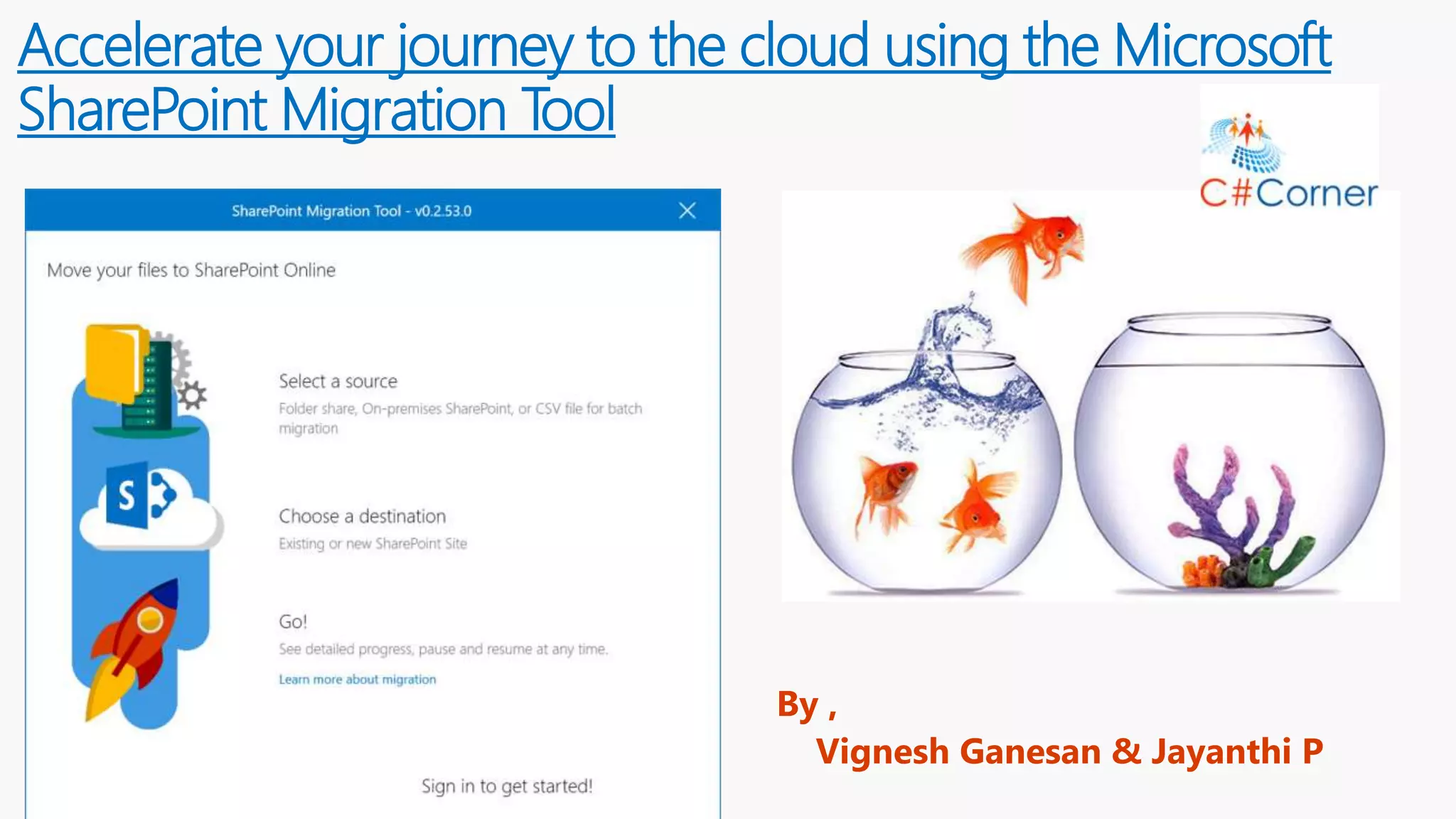




Accelerate your journey to the cloud using the Microsoft
SharePoint Migration Tool
By ,
Vignesh Ganesan & Jayanthi P
Welcome
About the speakers :
• Vignesh Ganesan ,MCSE (SharePoint & Office 365)
• SharePoint & Office 365 Technical Manager
• Three times C Sharp Corner MVP
• Active Blogger on C Sharp corner , Collab 365
community ,European SP Community & Hubfly
blogsite
• Completed 10+ Microsoft certifications
• www.vigneshsharepointthoughts.com
• Jayanthi P
• SharePoint & Office 365 Developer
• Specialized on SQL Server, Asp. Net,
SharePoint, Office 365, Dynamics
CRM & Power BI
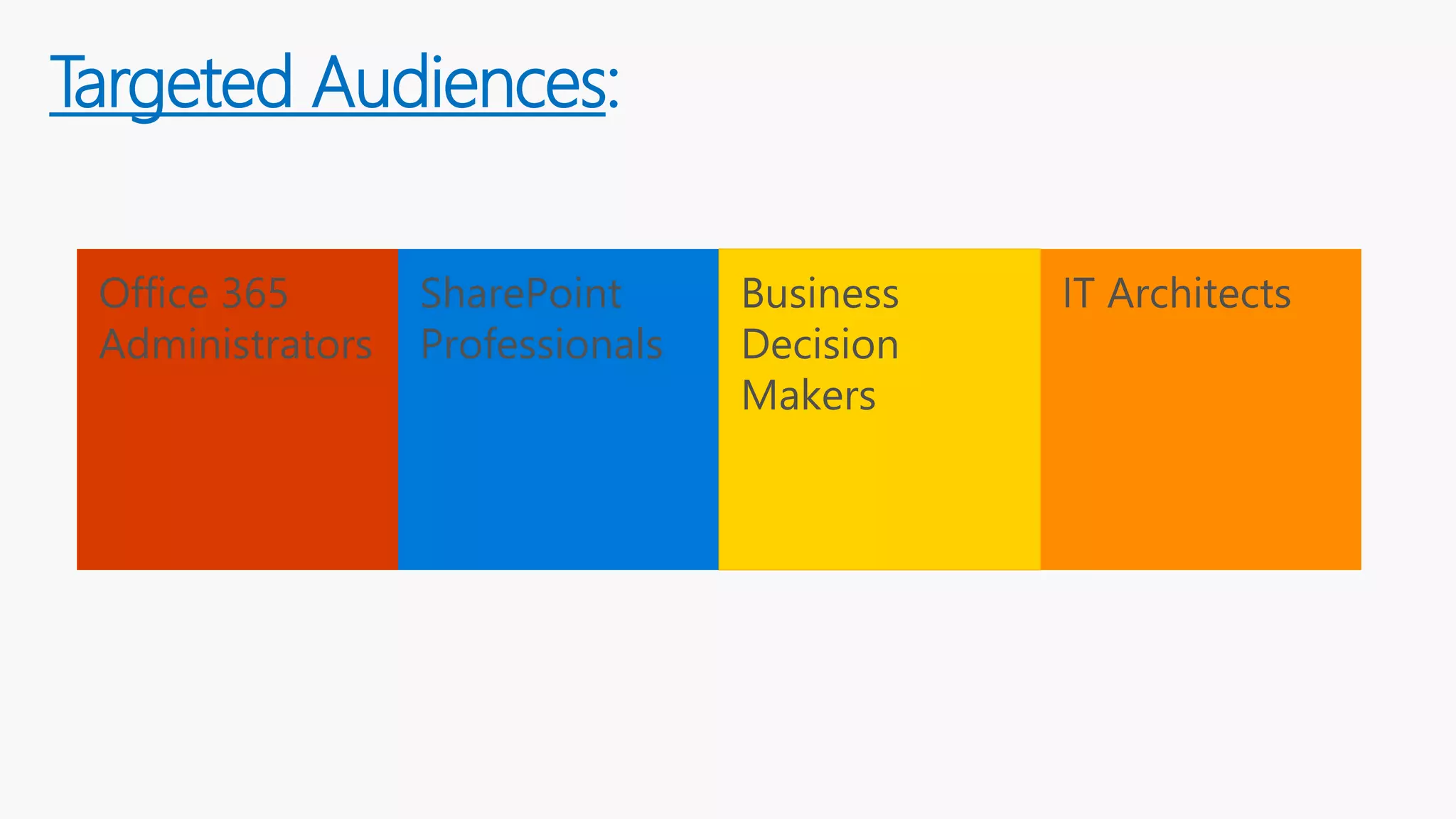
Targeted Audiences:
Office 365
Administrators
SharePoint
Professionals
IT ArchitectsBusiness
Decision
Makers
Today we will discuss….
 What’s a SharePoint Migration ?
 Why to migrate your on-premises workloads to cloud ?
 Introduction to the Microsoft SharePoint Migration Tool
 Hardware and Software requirements
 Setting the right expectations
 Demo on the Microsoft SharePoint Migration Tool
 Comparison with other third party tools
 What happens behinds the scenes when you use this tool?
 PowerShell Module
 My take on this tool
 Recap
 Conclusion
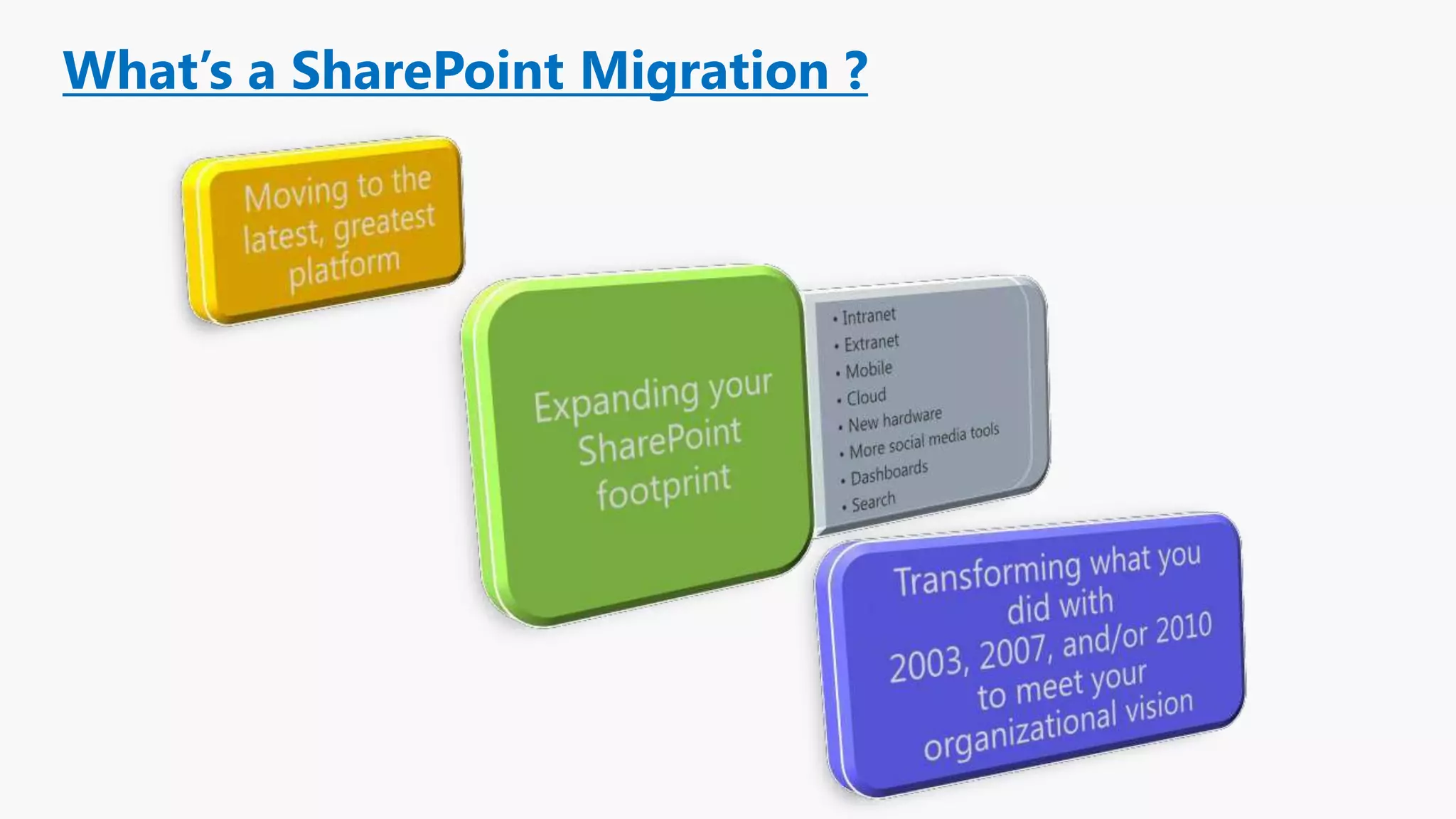
What’s a SharePoint Migration ?
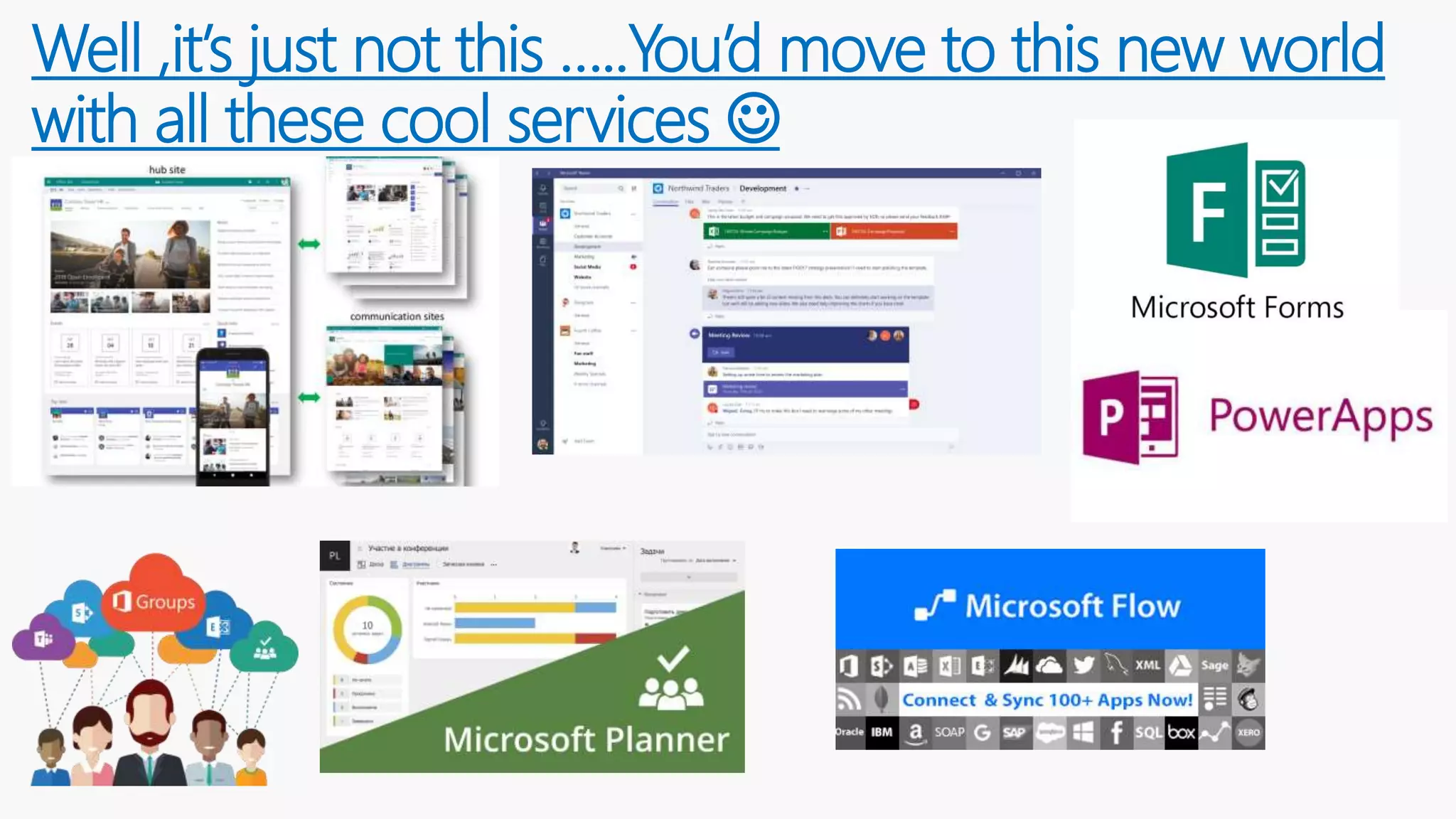
Well ,it’s just not this …..You’d move to this new world
with all these cool services 
http://www.totalsol.com/the-top-10-advantages-of-sharepoint-online/
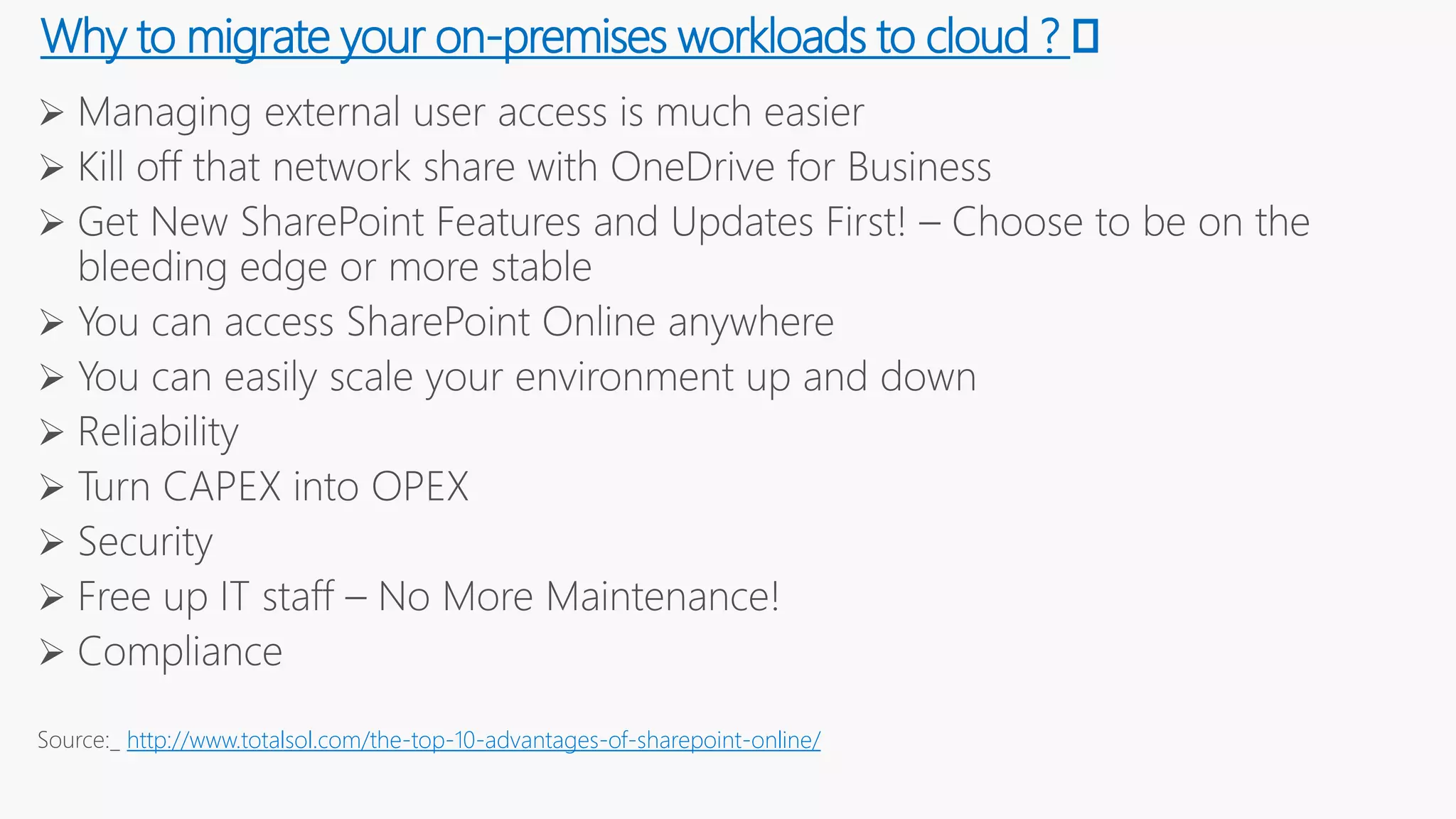
Why to migrate your on-premises workloads to cloud ? 🤔
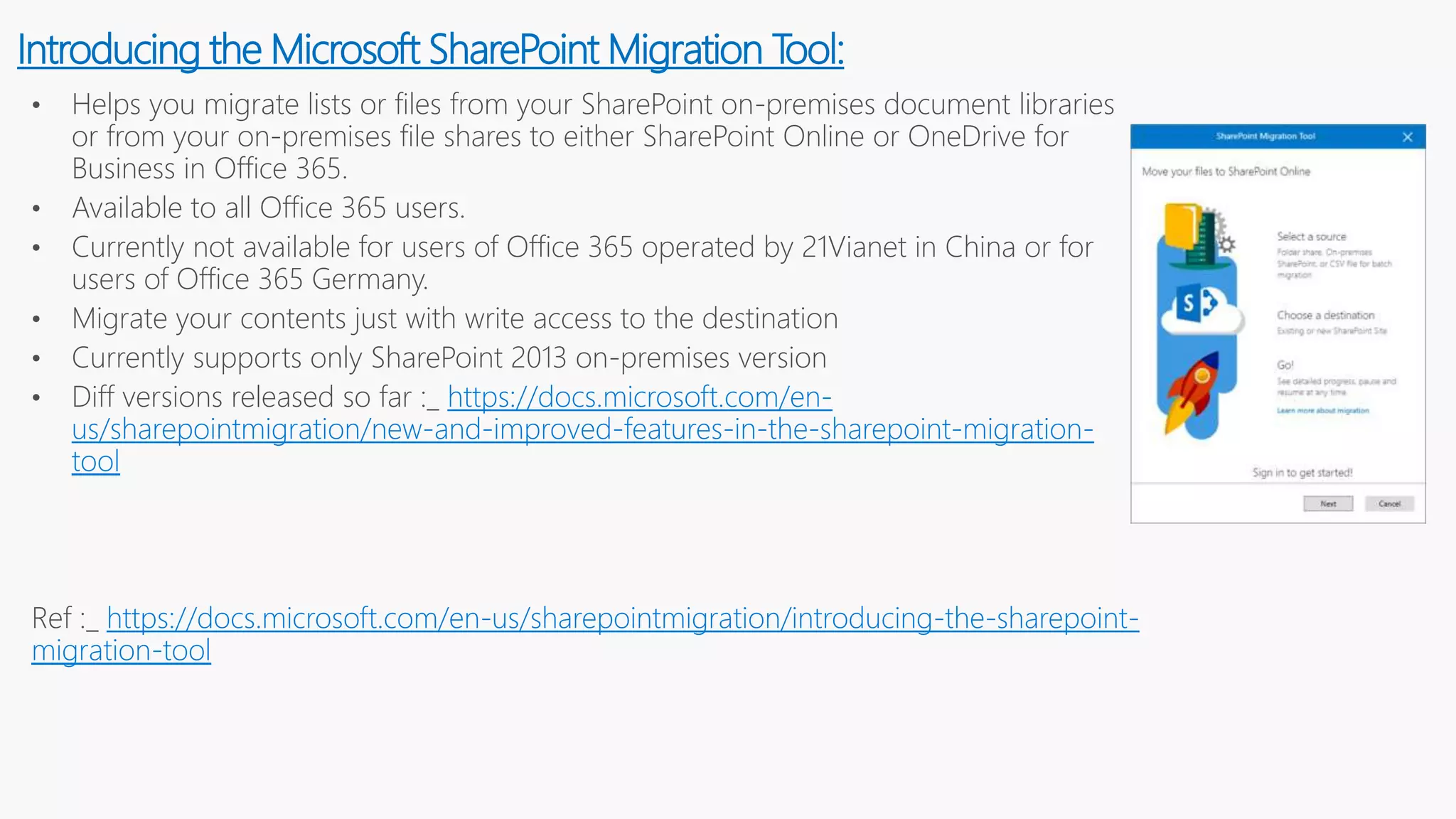
• Helps you migrate lists or files from your SharePoint on-premises document libraries
or from your on-premises file shares to either SharePoint Online or OneDrive for
Business in Office 365.
• Available to all Office 365 users.
• Currently not available for users of Office 365 operated by 21Vianet in China or for
users of Office 365 Germany.
• Migrate your contents just with write access to the destination
• Currently supports only SharePoint 2013 on-premises version
• Diff versions released so far :_ https://docs.microsoft.com/en-
us/sharepointmigration/new-and-improved-features-in-the-sharepoint-migration-
tool
Ref :_ https://docs.microsoft.com/en-us/sharepointmigration/introducing-the-sharepoint-
migration-tool
Introducing the Microsoft SharePoint Migration Tool:
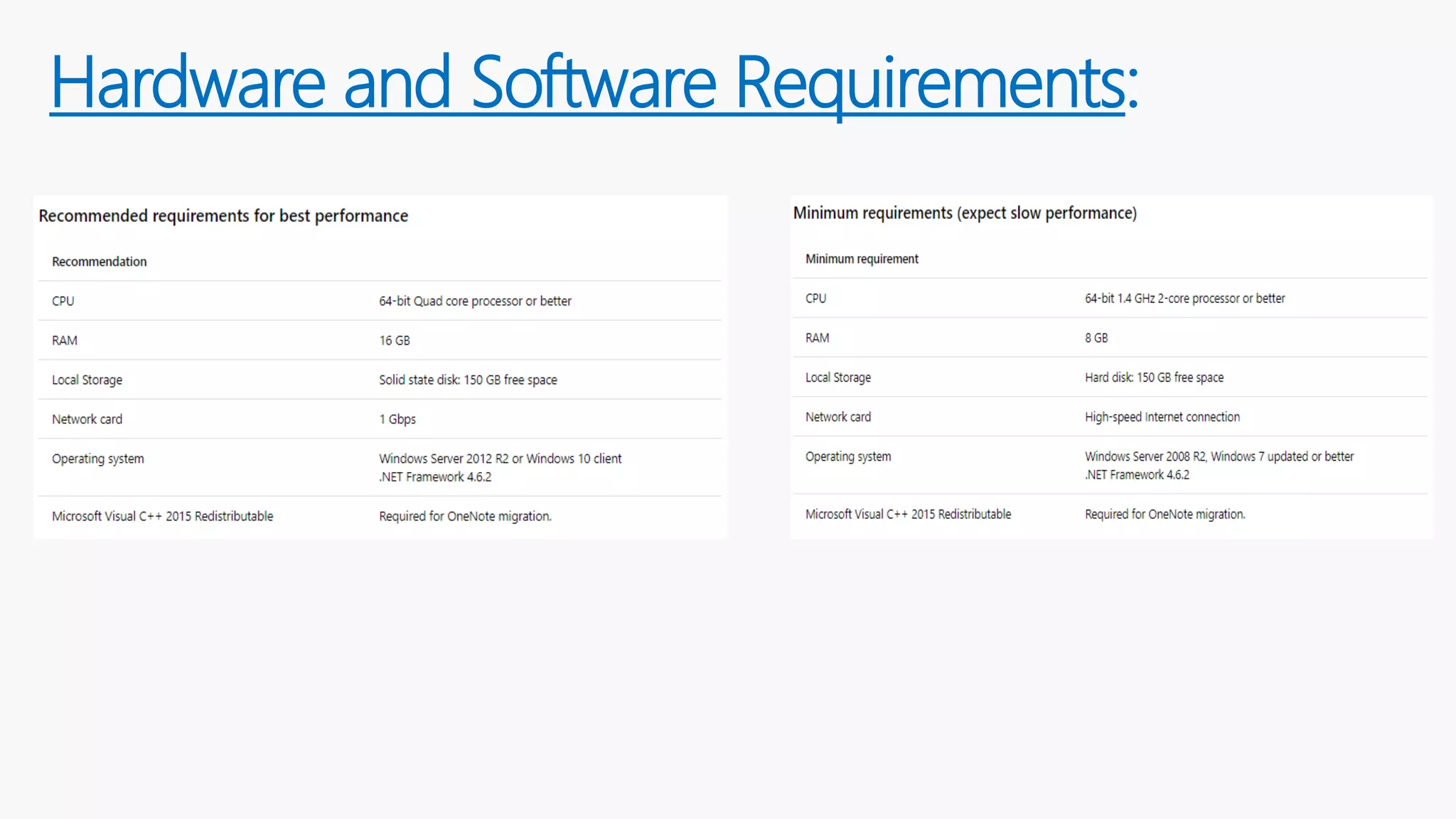
Hardware and Software Requirements:
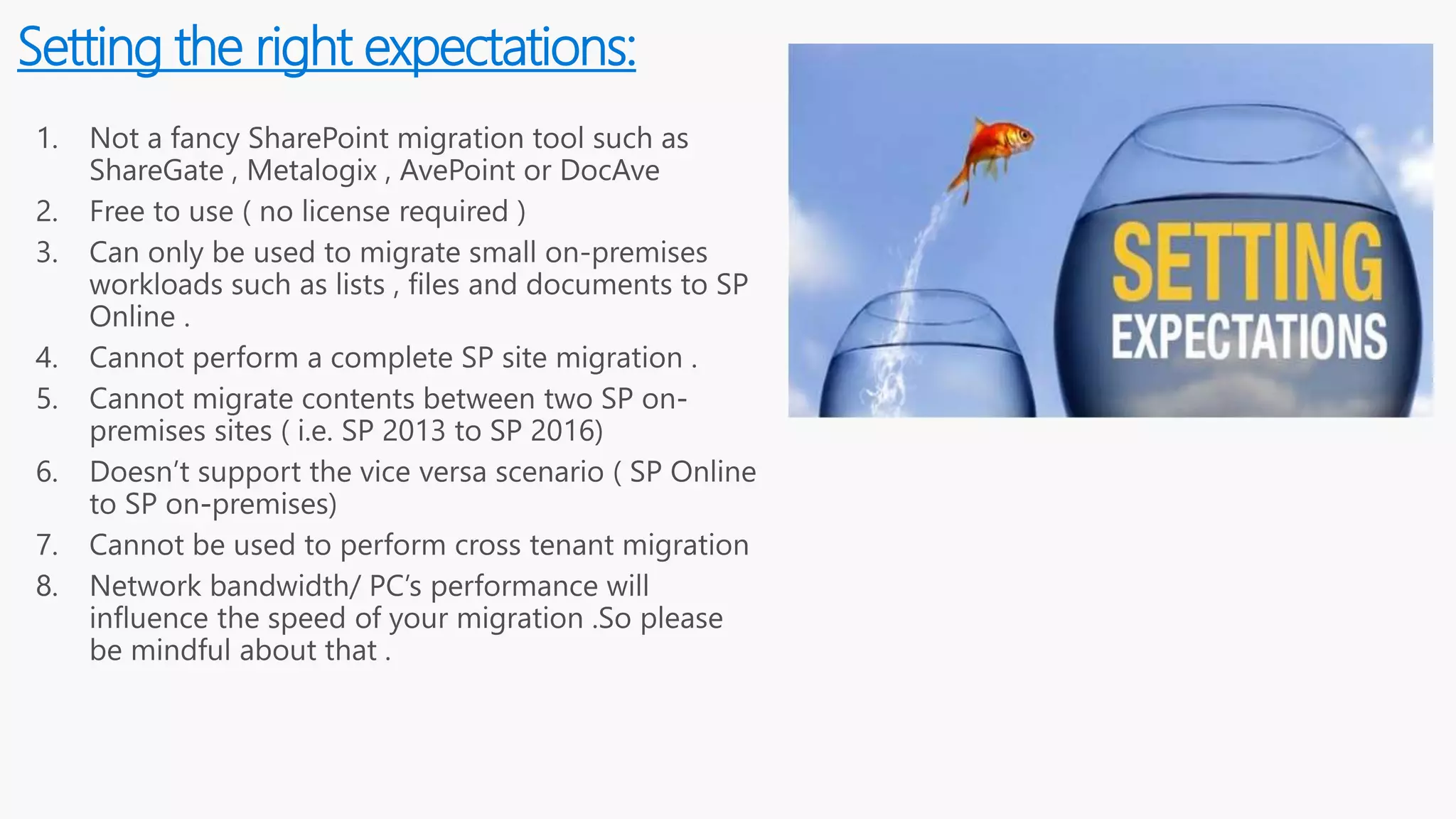
Setting the right expectations:
Walkthrough of the tool
Performing a migration from File share to SharePoint Online
Performing a migration from SharePoint on-premises to
SharePoint Online
Bulk migration / Incremental Migration
Different migration scenarios ( supported by this tool )
Permission Mapping
Understanding the migration reports
PowerShell support
What we would be demoing today ?
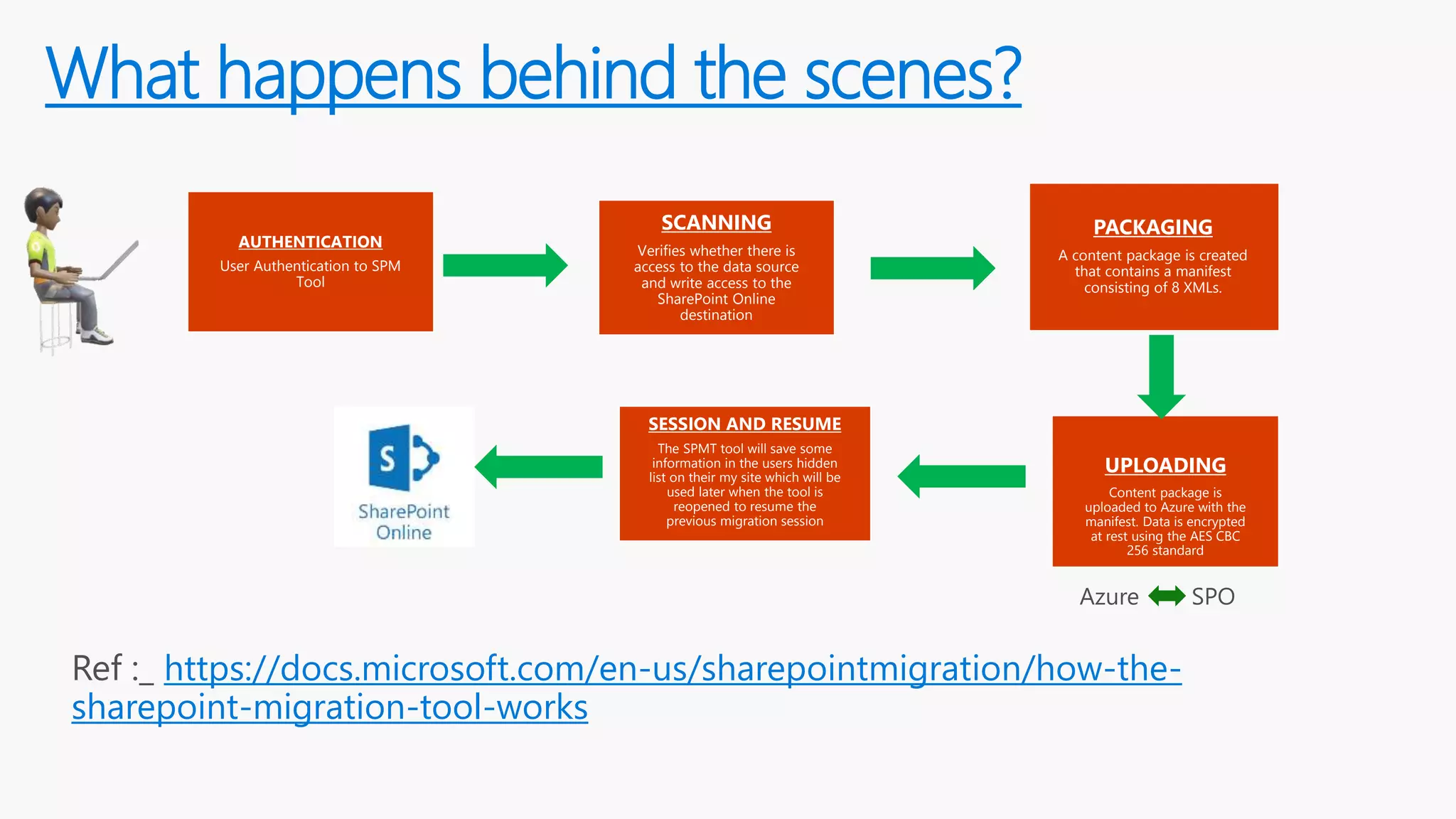
What happens behind the scenes?
AUTHENTICATION
User Authentication to SPM
Tool
SCANNING
Verifies whether there is
access to the data source
and write access to the
SharePoint Online
destination
PACKAGING
A content package is created
that contains a manifest
consisting of 8 XMLs.
UPLOADING
Content package is
uploaded to Azure with the
manifest. Data is encrypted
at rest using the AES CBC
256 standard
SESSION AND RESUME
The SPMT tool will save some
information in the users hidden
list on their my site which will be
used later when the tool is
reopened to resume the
previous migration session
https://docs.microsoft.com/en-us/sharepointmigration/how-the-
sharepoint-migration-tool-works
During the upload and import phases, data is encrypted and Azure
containers and keys are generated.
Note :
No one has direct access to the storage accounts or the containers. The
SharePoint Online service has access to the storage accounts and a select
number of engineers can run maintenance commands against them, but they
do not have direct access to the accounts. Datacentre technicians are not
prepped with knowledge of how data is laid out on disk, and do not have
ready access to equipment to mount disks. All drives are physically destroyed
before leaving the datacentre. Physical security is also in place across all of our
datacentres.
Encryption and Security:
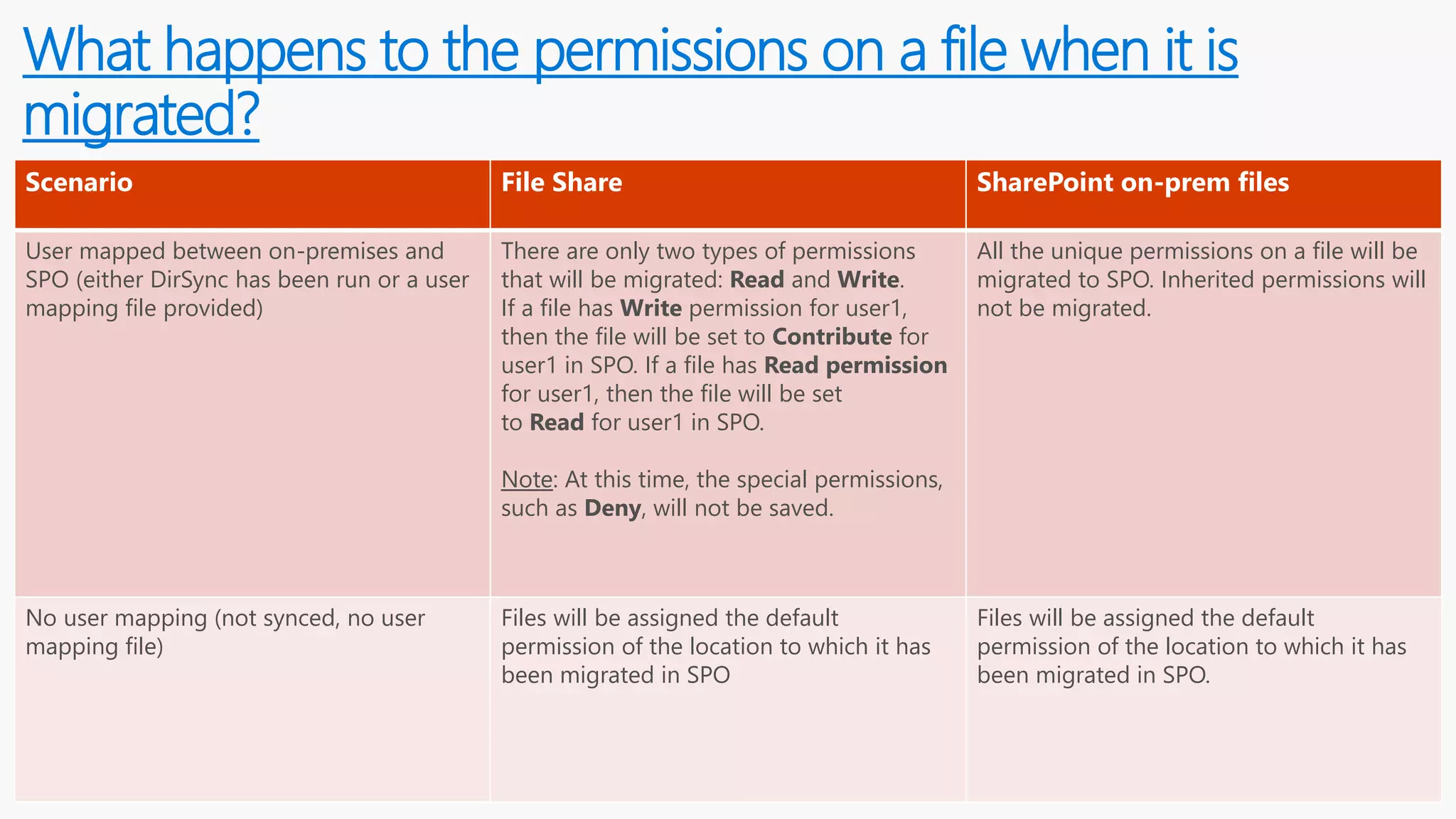
What happens to the permissions on a file when it is
migrated?
Scenario File Share SharePoint on-prem files
User mapped between on-premises and
SPO (either DirSync has been run or a user
mapping file provided)
There are only two types of permissions
that will be migrated: Read and Write.
If a file has Write permission for user1,
then the file will be set to Contribute for
user1 in SPO. If a file has Read permission
for user1, then the file will be set
to Read for user1 in SPO.
Note: At this time, the special permissions,
such as Deny, will not be saved.
All the unique permissions on a file will be
migrated to SPO. Inherited permissions will
not be migrated.
No user mapping (not synced, no user
mapping file)
Files will be assigned the default
permission of the location to which it has
been migrated in SPO
Files will be assigned the default
permission of the location to which it has
been migrated in SPO.
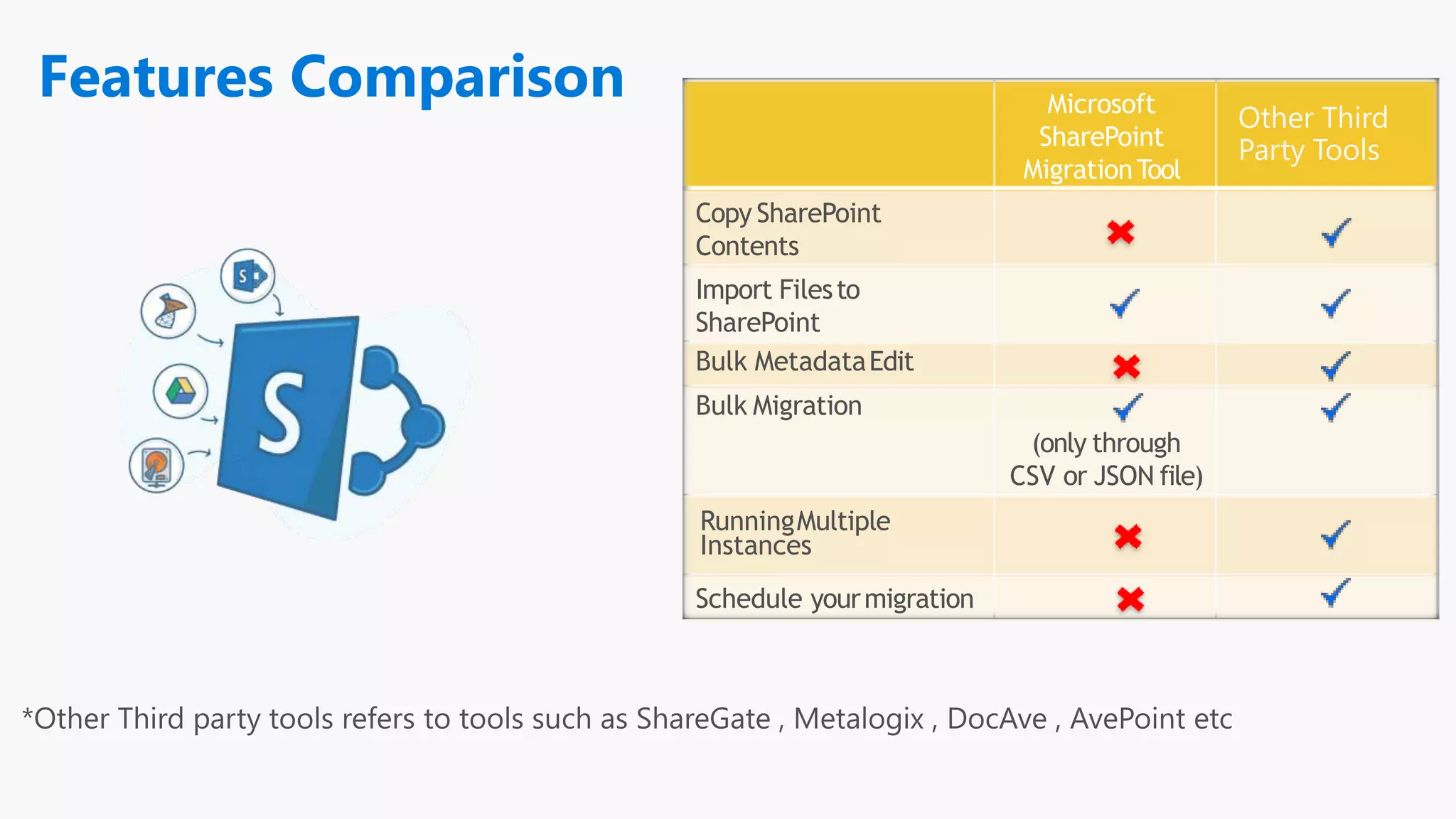
Microsoft
SharePoint
MigrationTool
Copy SharePoint
Contents
Import Filesto
SharePoint
Bulk MetadataEdit
Bulk Migration
(only through
CSV or JSON file)
RunningMultiple
Instances
Schedule yourmigration
Other Third
Party Tools
Features Comparison
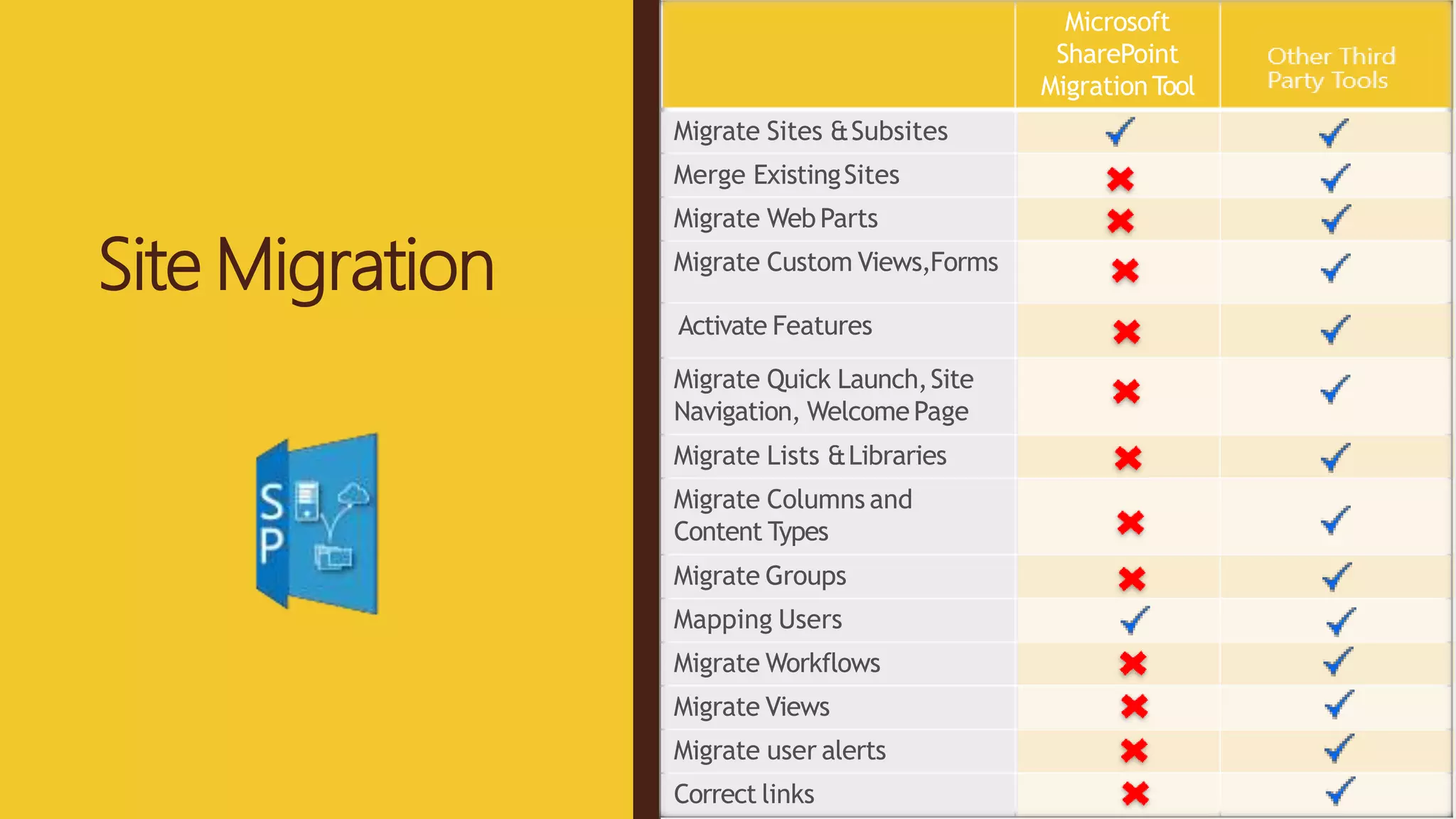
Site Migration
Microsoft
SharePoint
MigrationTool
Vyapin
Dockit Migrator
Migrate Sites &Subsites
Merge ExistingSites
Migrate Web Parts
Migrate Custom Views,Forms
Activate Features
Migrate Quick Launch,Site
Navigation, WelcomePage
Migrate Lists &Libraries
Migrate Columns and
Content Types
Migrate Groups
Mapping Users
Migrate Workflows
Migrate Views
Migrate user alerts
Correct links
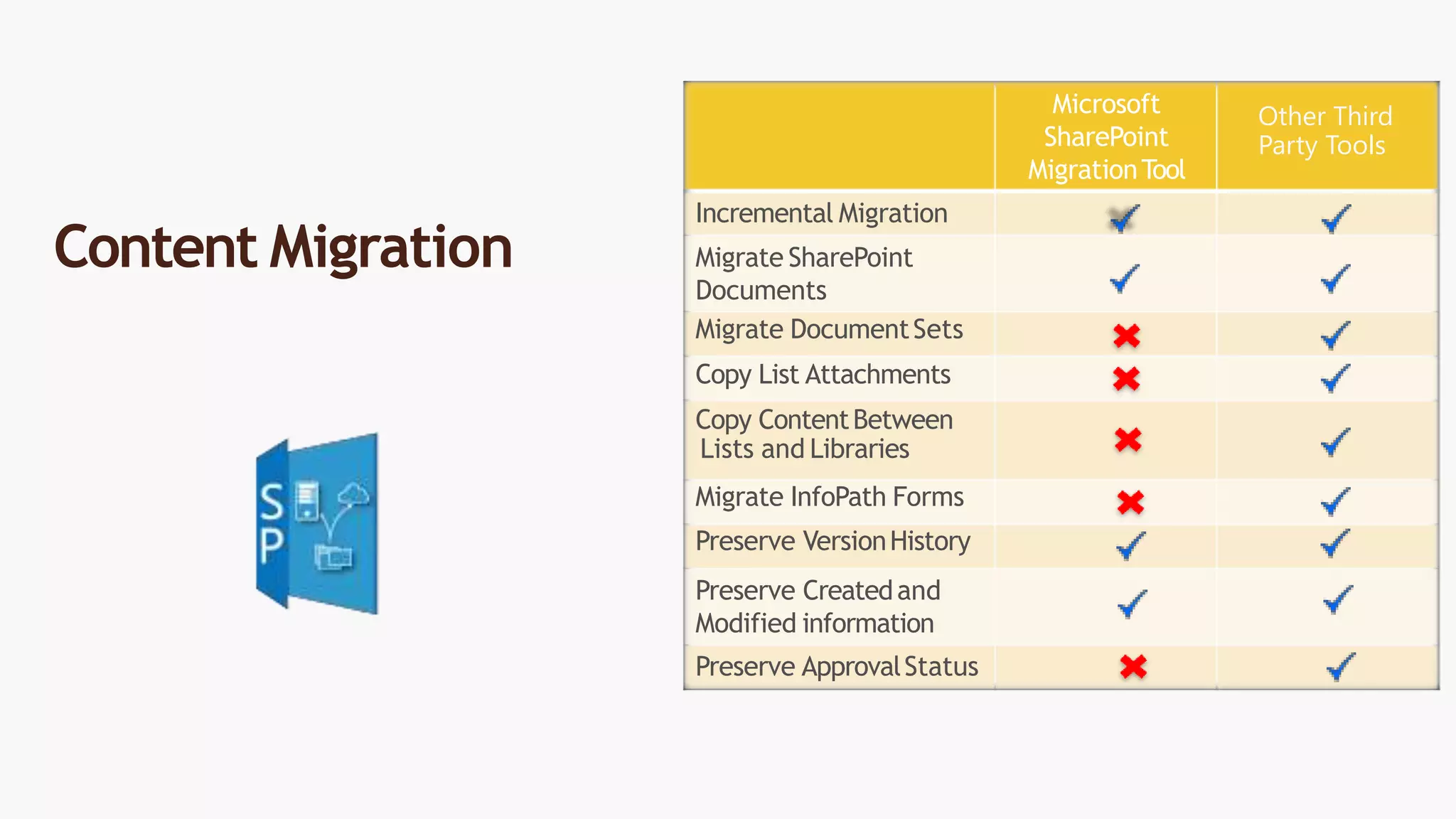
Microsoft
SharePoint
MigrationTool
Incremental Migration
Migrate SharePoint
Documents
Migrate DocumentSets
Copy List Attachments
Copy ContentBetween
Lists and Libraries
Migrate InfoPath Forms
Preserve VersionHistory
Preserve Createdand
Modified information
Preserve ApprovalStatus
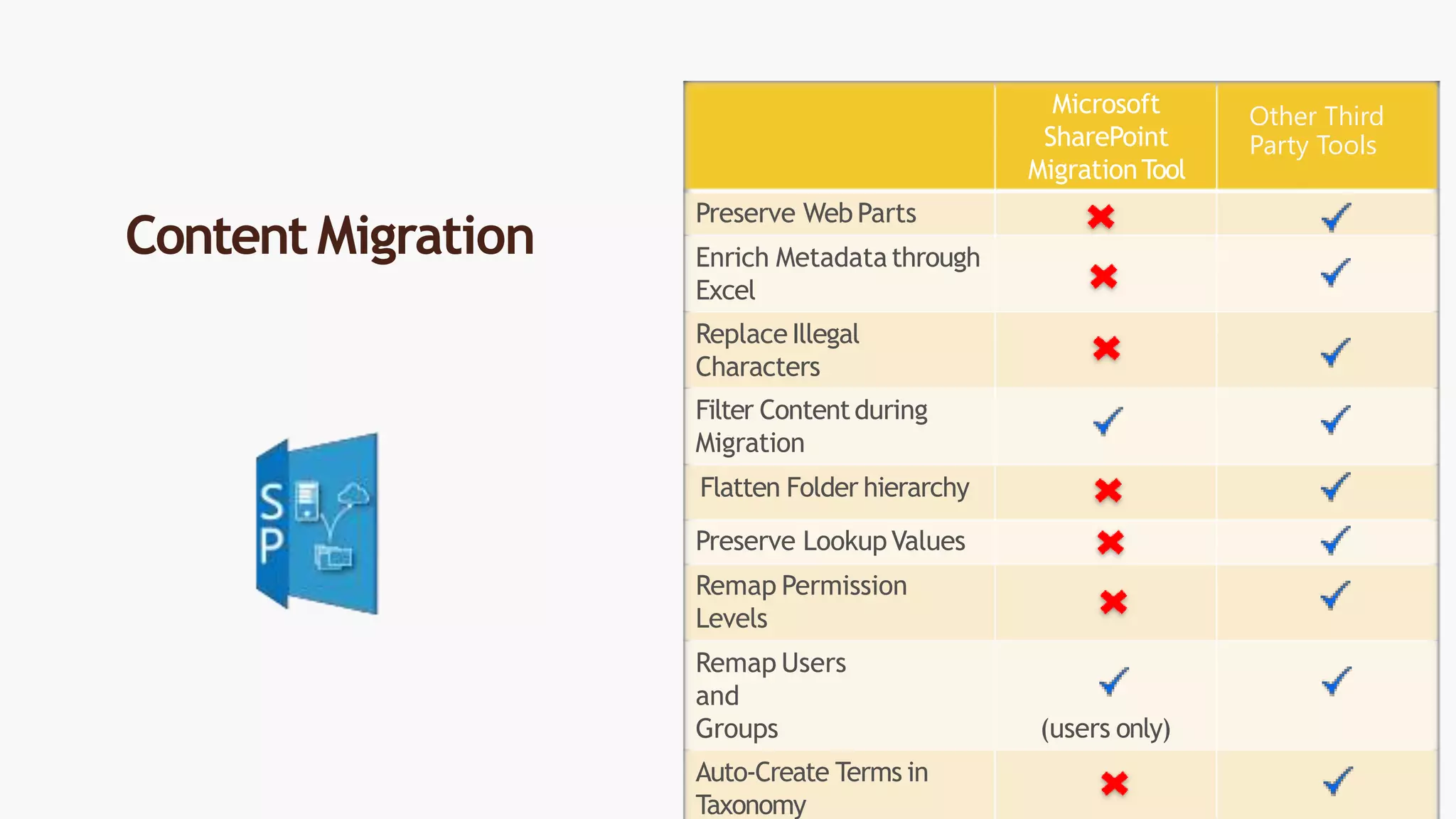
Content Migration
Other Third
Party Tools
Microsoft
SharePoint
MigrationTool
Preserve Web Parts
Enrich Metadatathrough
Excel
ReplaceIllegal
Characters
Filter Contentduring
Migration
Flatten Folder hierarchy
Preserve LookupValues
Remap Permission
Levels
Remap Users
and
Groups (users only)
Auto-Create Terms in
Taxonomy
Content Migration
Other Third
Party Tools
Microsoft
SharePoint
MigrationTool
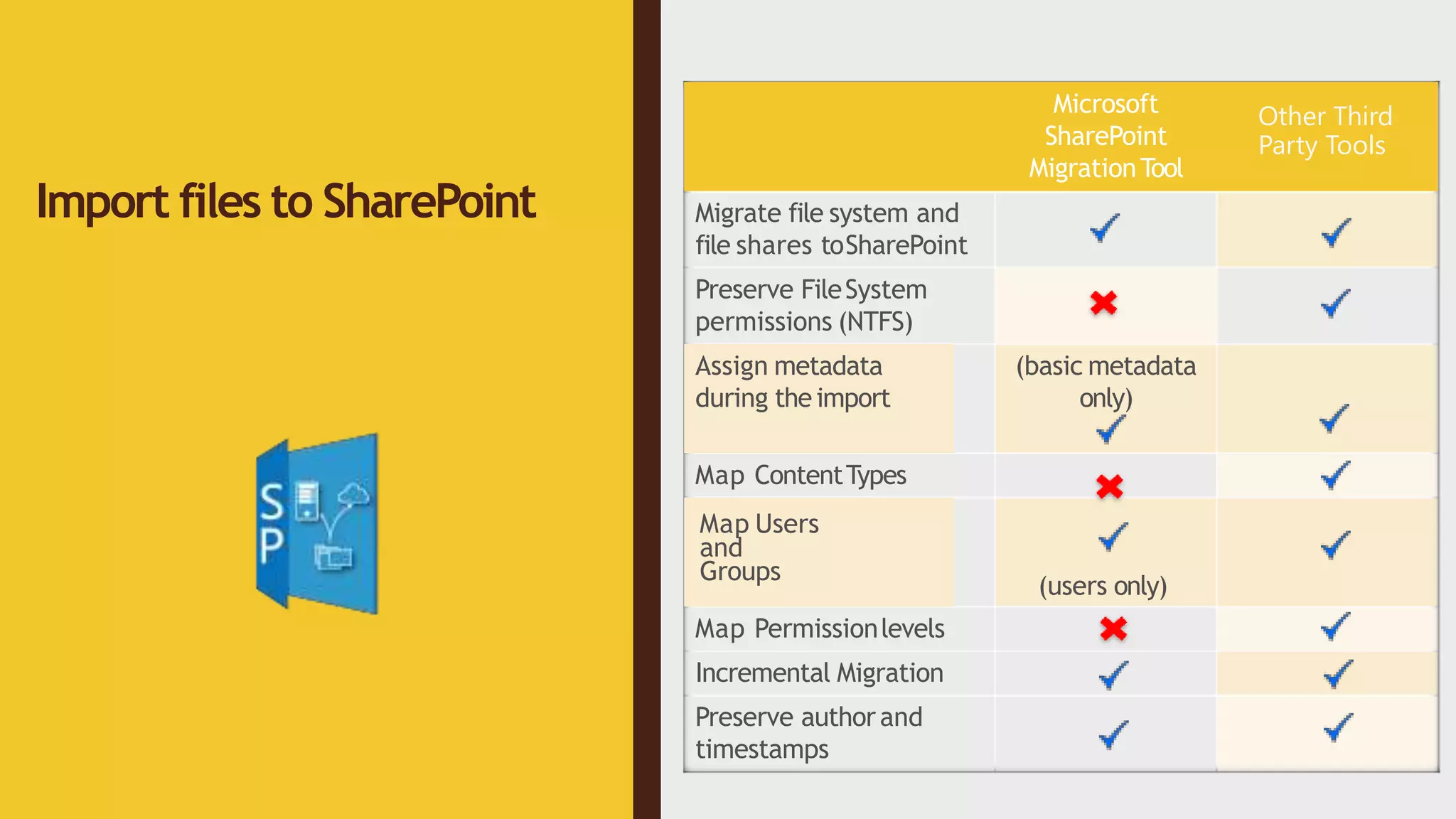
Migrate file system and
file shares toSharePoint
Preserve FileSystem
permissions (NTFS)
Assign metadata
during theimport
(basic metadata
only)
Map ContentTypes
Map Users
and
Groups
(users only)
Map Permissionlevels
Incremental Migration
Preserve authorand
timestamps
Import files to SharePoint
Other Third
Party Tools
Microsoft
SharePoint
MigrationTool
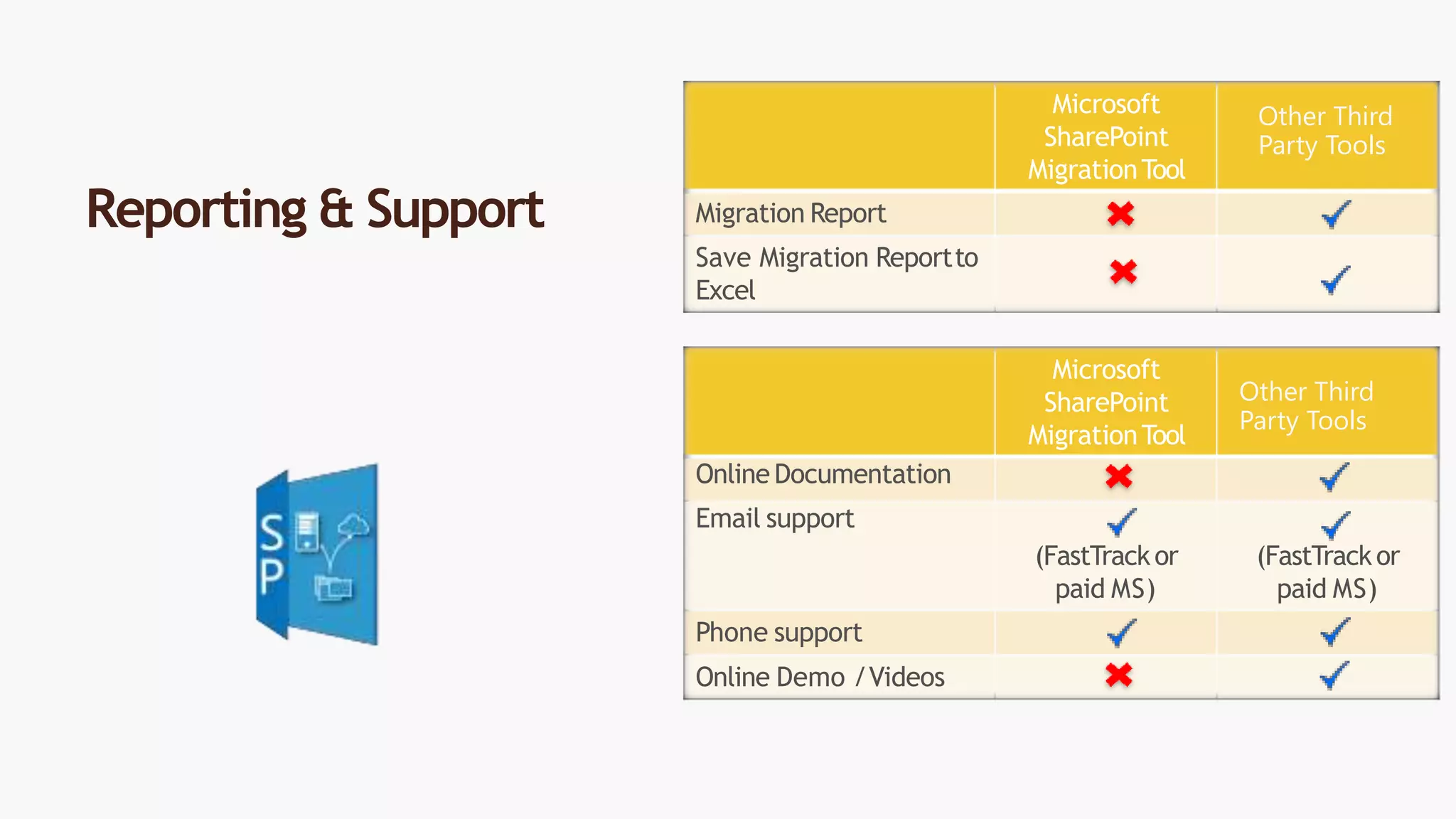
Migration Report
Save Migration Reportto
Excel
Microsoft
SharePoint
MigrationTool
OnlineDocumentation
Email support
(FastTrackor
paid MS)
(FastTrackor
paid MS)
Phone support
Online Demo /Videos
Reporting & Support
Other Third
Party Tools
Other Third
Party Tools
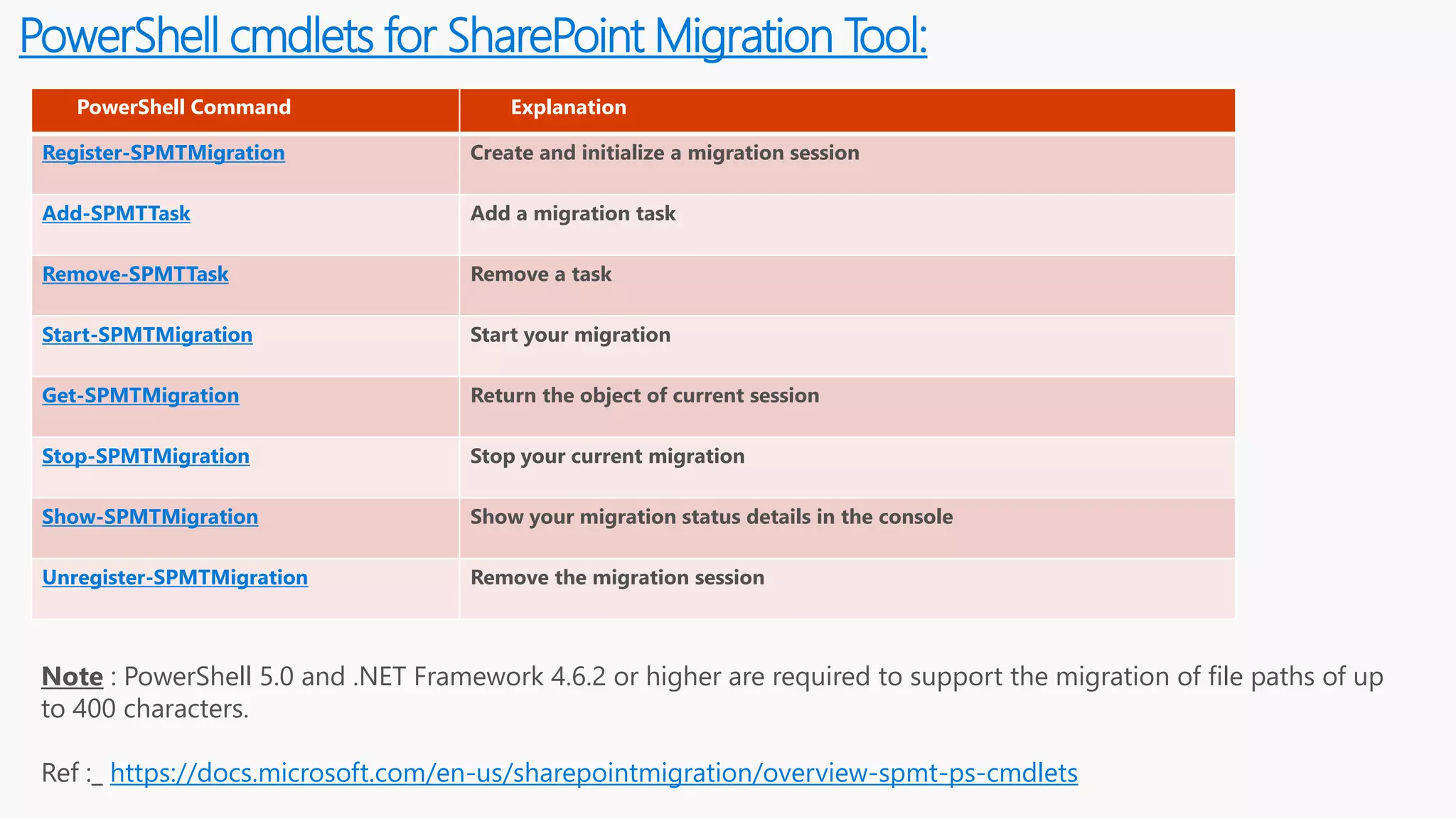
PowerShell cmdlets for SharePoint Migration Tool:
PowerShell Command Explanation
Register-SPMTMigration Create and initialize a migration session
Add-SPMTTask Add a migration task
Remove-SPMTTask Remove a task
Start-SPMTMigration Start your migration
Get-SPMTMigration Return the object of current session
Stop-SPMTMigration Stop your current migration
Show-SPMTMigration Show your migration status details in the console
Unregister-SPMTMigration Remove the migration session
Note : PowerShell 5.0 and .NET Framework 4.6.2 or higher are required to support the migration of file paths of up
to 400 characters.
Ref :_ https://docs.microsoft.com/en-us/sharepointmigration/overview-spmt-ps-cmdlets
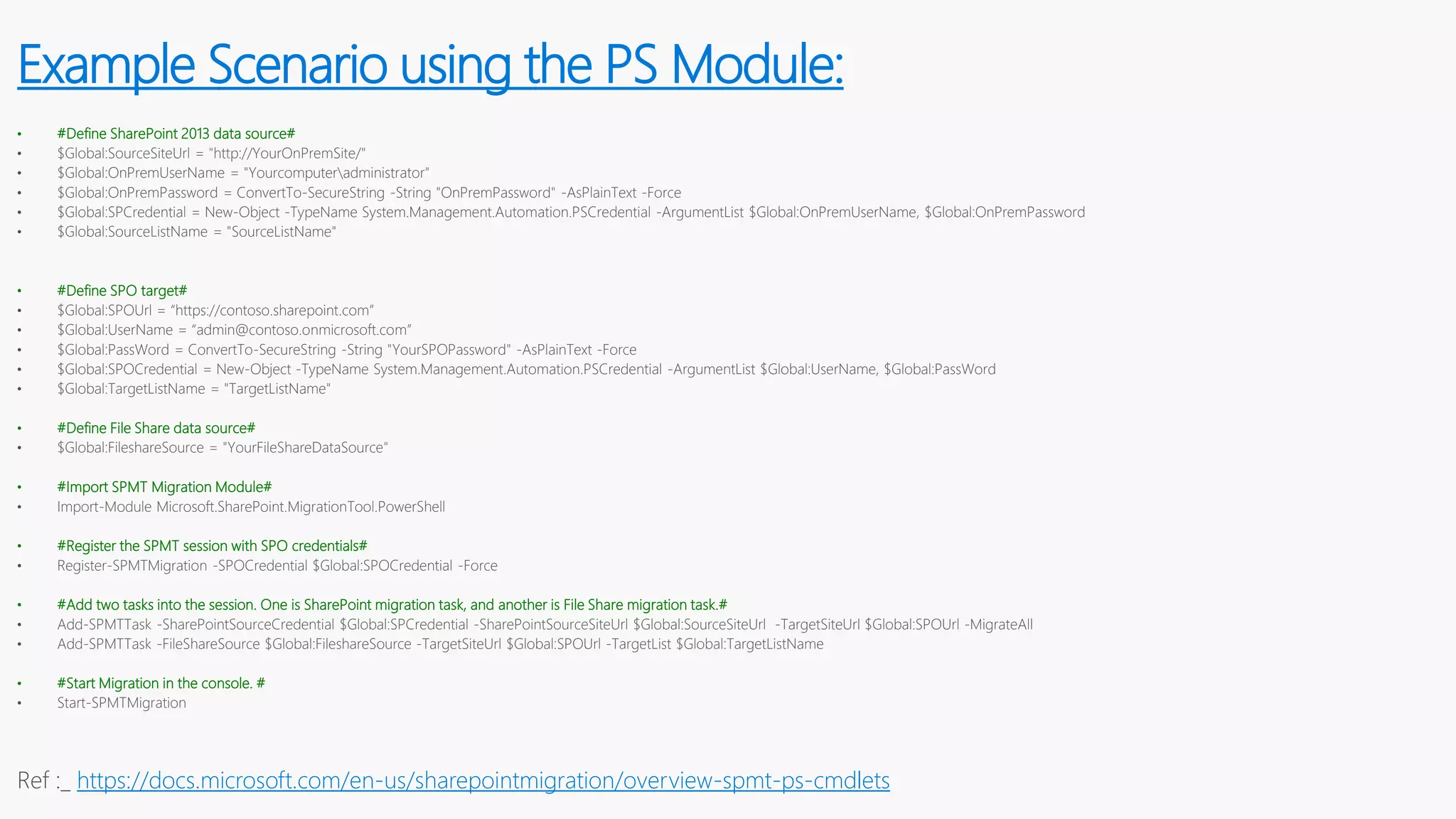
• #Define SharePoint 2013 data source#
• $Global:SourceSiteUrl = "http://YourOnPremSite/"
• $Global:OnPremUserName = "Yourcomputeradministrator"
• $Global:OnPremPassword = ConvertTo-SecureString -String "OnPremPassword" -AsPlainText -Force
• $Global:SPCredential = New-Object -TypeName System.Management.Automation.PSCredential -ArgumentList $Global:OnPremUserName, $Global:OnPremPassword
• $Global:SourceListName = "SourceListName"
• #Define SPO target#
• $Global:SPOUrl = “https://contoso.sharepoint.com”
• $Global:UserName = “admin@contoso.onmicrosoft.com”
• $Global:PassWord = ConvertTo-SecureString -String "YourSPOPassword" -AsPlainText -Force
• $Global:SPOCredential = New-Object -TypeName System.Management.Automation.PSCredential -ArgumentList $Global:UserName, $Global:PassWord
• $Global:TargetListName = "TargetListName"
• #Define File Share data source#
• $Global:FileshareSource = "YourFileShareDataSource"
• #Import SPMT Migration Module#
• Import-Module Microsoft.SharePoint.MigrationTool.PowerShell
• #Register the SPMT session with SPO credentials#
• Register-SPMTMigration -SPOCredential $Global:SPOCredential -Force
• #Add two tasks into the session. One is SharePoint migration task, and another is File Share migration task.#
• Add-SPMTTask -SharePointSourceCredential $Global:SPCredential -SharePointSourceSiteUrl $Global:SourceSiteUrl -TargetSiteUrl $Global:SPOUrl -MigrateAll
• Add-SPMTTask -FileShareSource $Global:FileshareSource -TargetSiteUrl $Global:SPOUrl -TargetList $Global:TargetListName
• #Start Migration in the console. #
• Start-SPMTMigration
Ref :_ https://docs.microsoft.com/en-us/sharepointmigration/overview-spmt-ps-cmdlets
Example Scenario using the PS Module:
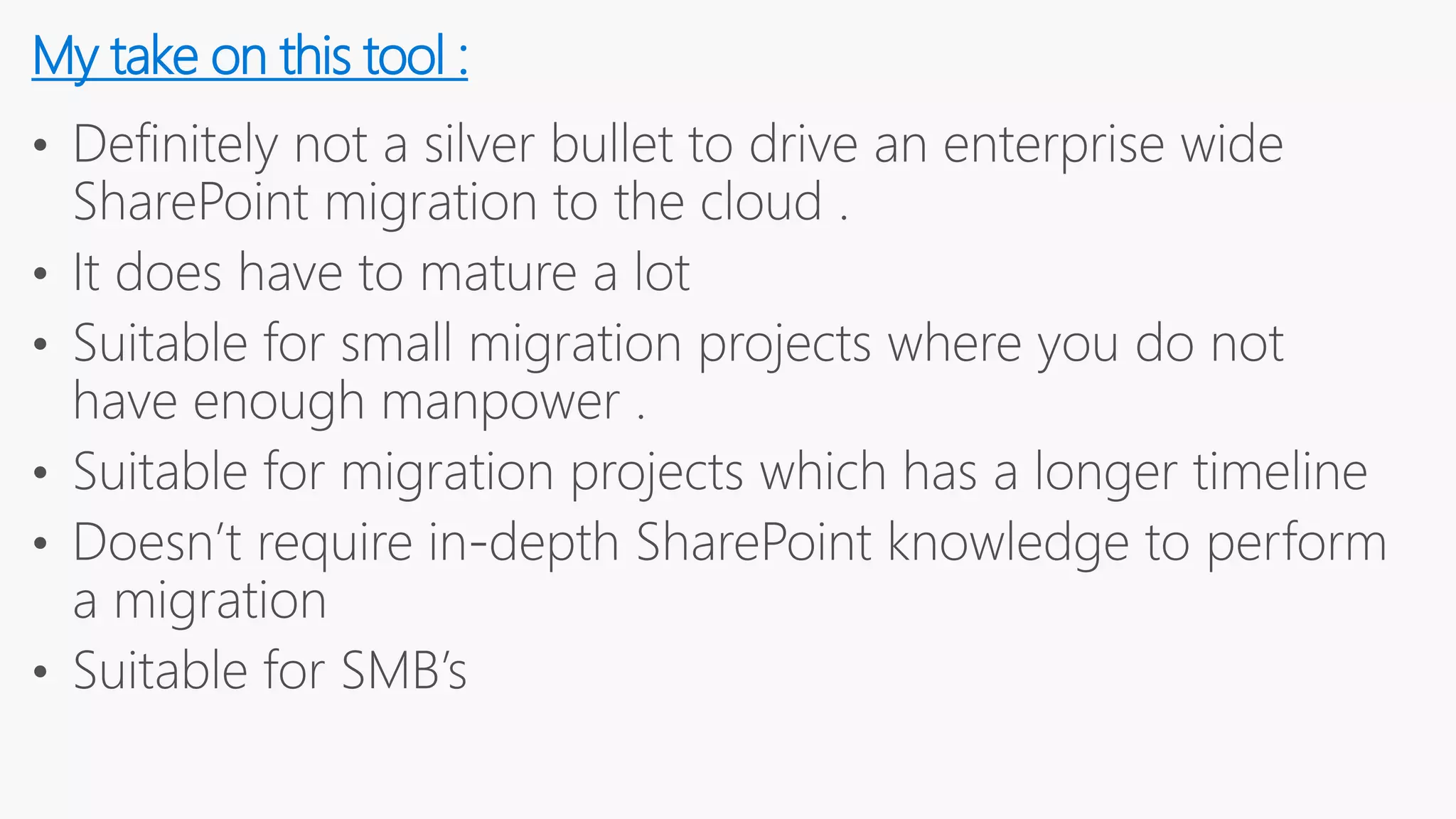
My take on this tool :
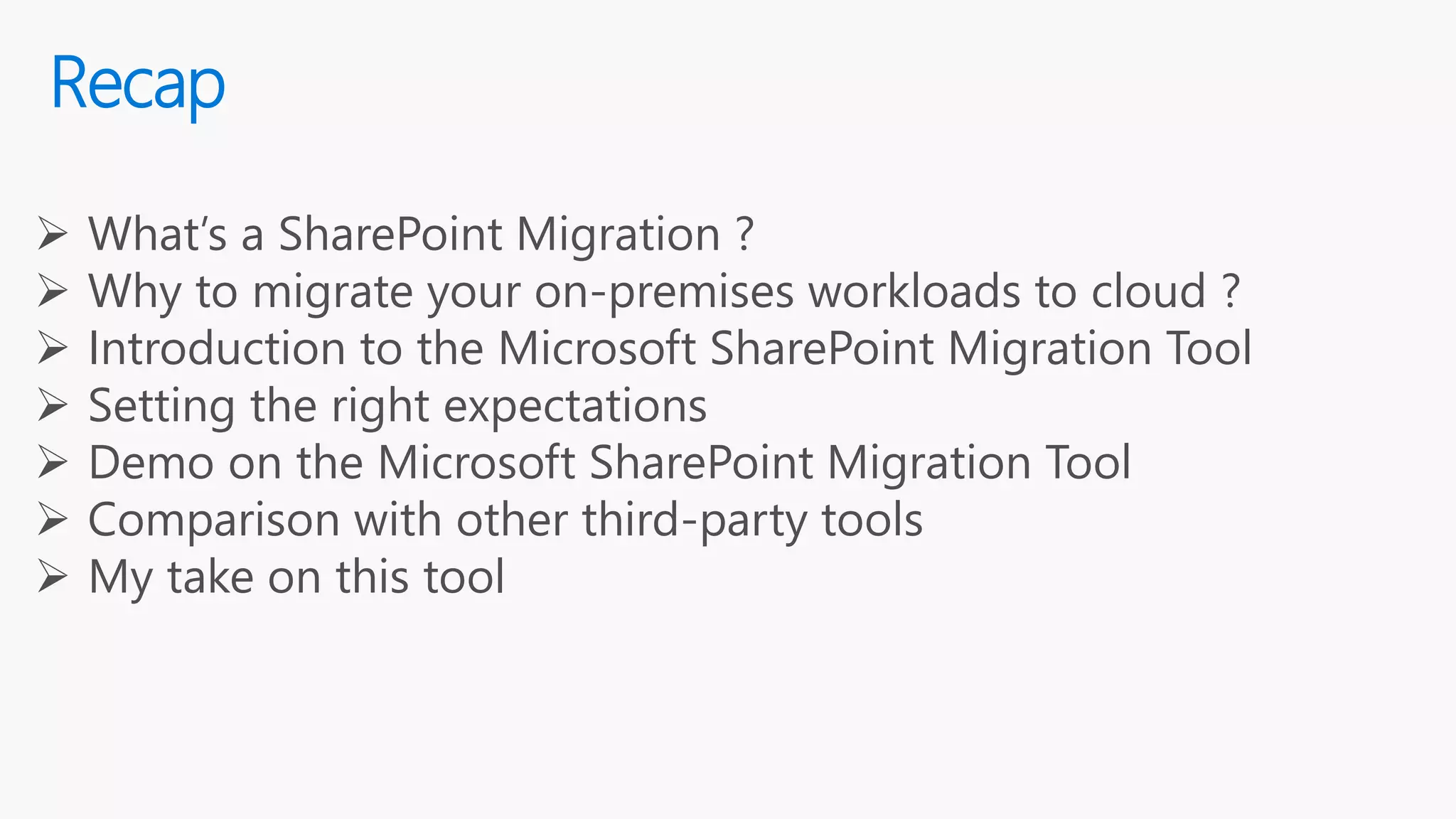
Recap
 What’s a SharePoint Migration ?
 Why to migrate your on-premises workloads to cloud ?
 Introduction to the Microsoft SharePoint Migration Tool
 Setting the right expectations
 Demo on the Microsoft SharePoint Migration Tool
 Comparison with other third-party tools
 My take on this tool
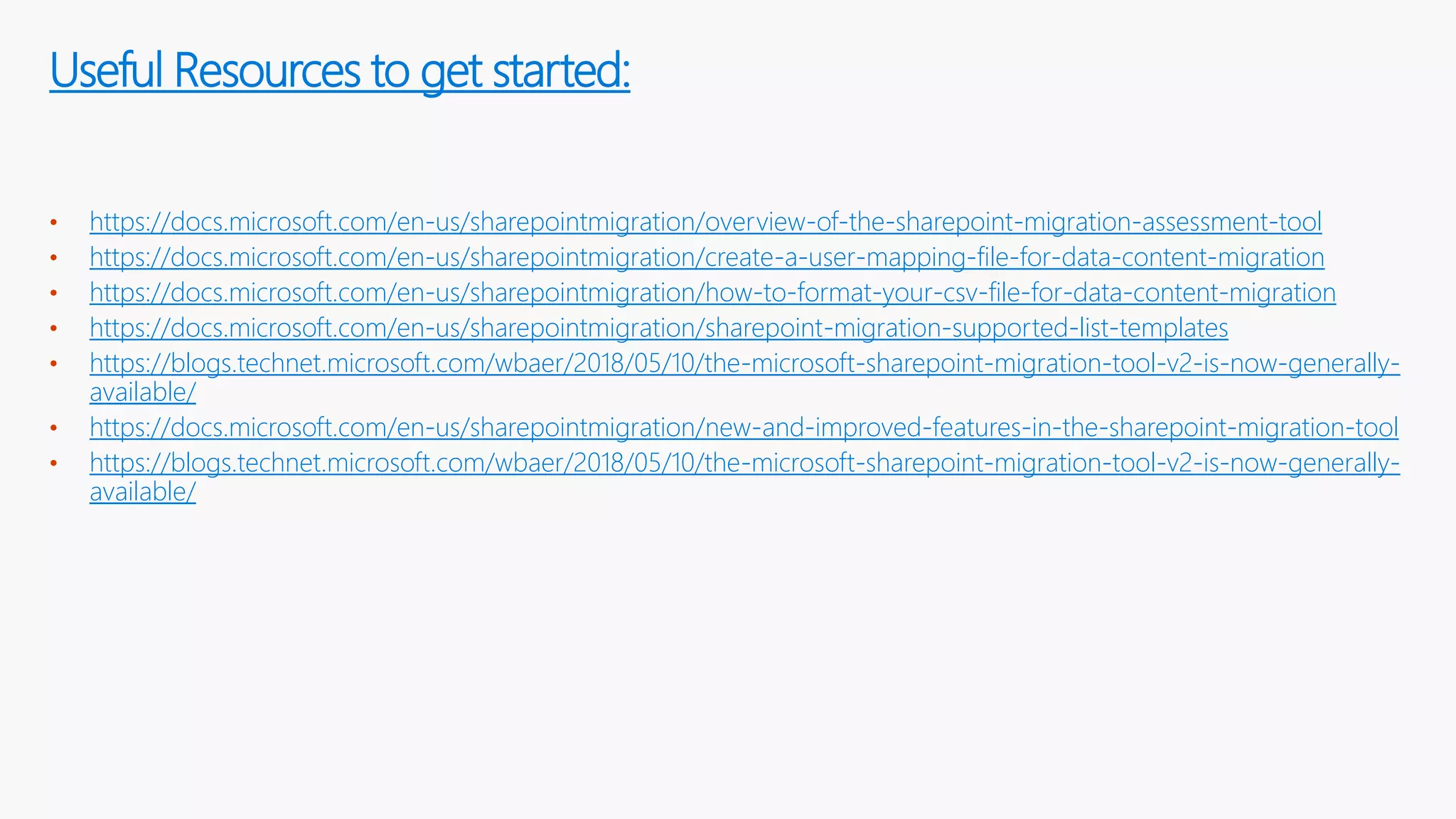
https://docs.microsoft.com/en-us/sharepointmigration/overview-of-the-sharepoint-migration-assessment-tool
https://docs.microsoft.com/en-us/sharepointmigration/create-a-user-mapping-file-for-data-content-migration
https://docs.microsoft.com/en-us/sharepointmigration/how-to-format-your-csv-file-for-data-content-migration
https://docs.microsoft.com/en-us/sharepointmigration/sharepoint-migration-supported-list-templates
https://blogs.technet.microsoft.com/wbaer/2018/05/10/the-microsoft-sharepoint-migration-tool-v2-is-now-generally-
available/
https://docs.microsoft.com/en-us/sharepointmigration/new-and-improved-features-in-the-sharepoint-migration-tool
https://blogs.technet.microsoft.com/wbaer/2018/05/10/the-microsoft-sharepoint-migration-tool-v2-is-now-generally-
available/
Useful Resources to get started:
Conclusion:
Questions ?????????
Thanks for joining us today

Accelerate your journey to the cloud using the Microsoft SharePoint Migration tool.

  • 1.
    Accelerate your journeyto the cloud using the Microsoft SharePoint Migration Tool By , Vignesh Ganesan & Jayanthi P
  • 2.
  • 3.
    About the speakers: • Vignesh Ganesan ,MCSE (SharePoint & Office 365) • SharePoint & Office 365 Technical Manager • Three times C Sharp Corner MVP • Active Blogger on C Sharp corner , Collab 365 community ,European SP Community & Hubfly blogsite • Completed 10+ Microsoft certifications • www.vigneshsharepointthoughts.com • Jayanthi P • SharePoint & Office 365 Developer • Specialized on SQL Server, Asp. Net, SharePoint, Office 365, Dynamics CRM & Power BI
  • 4.
  • 5.
    Today we willdiscuss….  What’s a SharePoint Migration ?  Why to migrate your on-premises workloads to cloud ?  Introduction to the Microsoft SharePoint Migration Tool  Hardware and Software requirements  Setting the right expectations  Demo on the Microsoft SharePoint Migration Tool  Comparison with other third party tools  What happens behinds the scenes when you use this tool?  PowerShell Module  My take on this tool  Recap  Conclusion
  • 6.
  • 7.
    Well ,it’s justnot this …..You’d move to this new world with all these cool services 
  • 8.
  • 9.
    • Helps youmigrate lists or files from your SharePoint on-premises document libraries or from your on-premises file shares to either SharePoint Online or OneDrive for Business in Office 365. • Available to all Office 365 users. • Currently not available for users of Office 365 operated by 21Vianet in China or for users of Office 365 Germany. • Migrate your contents just with write access to the destination • Currently supports only SharePoint 2013 on-premises version • Diff versions released so far :_ https://docs.microsoft.com/en- us/sharepointmigration/new-and-improved-features-in-the-sharepoint-migration- tool Ref :_ https://docs.microsoft.com/en-us/sharepointmigration/introducing-the-sharepoint- migration-tool Introducing the Microsoft SharePoint Migration Tool:
  • 10.
    Hardware and SoftwareRequirements:
  • 11.
    Setting the rightexpectations:
  • 13.
    Walkthrough of thetool Performing a migration from File share to SharePoint Online Performing a migration from SharePoint on-premises to SharePoint Online Bulk migration / Incremental Migration Different migration scenarios ( supported by this tool ) Permission Mapping Understanding the migration reports PowerShell support What we would be demoing today ?
  • 14.
    What happens behindthe scenes? AUTHENTICATION User Authentication to SPM Tool SCANNING Verifies whether there is access to the data source and write access to the SharePoint Online destination PACKAGING A content package is created that contains a manifest consisting of 8 XMLs. UPLOADING Content package is uploaded to Azure with the manifest. Data is encrypted at rest using the AES CBC 256 standard SESSION AND RESUME The SPMT tool will save some information in the users hidden list on their my site which will be used later when the tool is reopened to resume the previous migration session https://docs.microsoft.com/en-us/sharepointmigration/how-the- sharepoint-migration-tool-works
  • 15.
    During the uploadand import phases, data is encrypted and Azure containers and keys are generated. Note : No one has direct access to the storage accounts or the containers. The SharePoint Online service has access to the storage accounts and a select number of engineers can run maintenance commands against them, but they do not have direct access to the accounts. Datacentre technicians are not prepped with knowledge of how data is laid out on disk, and do not have ready access to equipment to mount disks. All drives are physically destroyed before leaving the datacentre. Physical security is also in place across all of our datacentres. Encryption and Security:
  • 16.
    What happens tothe permissions on a file when it is migrated? Scenario File Share SharePoint on-prem files User mapped between on-premises and SPO (either DirSync has been run or a user mapping file provided) There are only two types of permissions that will be migrated: Read and Write. If a file has Write permission for user1, then the file will be set to Contribute for user1 in SPO. If a file has Read permission for user1, then the file will be set to Read for user1 in SPO. Note: At this time, the special permissions, such as Deny, will not be saved. All the unique permissions on a file will be migrated to SPO. Inherited permissions will not be migrated. No user mapping (not synced, no user mapping file) Files will be assigned the default permission of the location to which it has been migrated in SPO Files will be assigned the default permission of the location to which it has been migrated in SPO.
  • 17.
    Microsoft SharePoint MigrationTool Copy SharePoint Contents Import Filesto SharePoint BulkMetadataEdit Bulk Migration (only through CSV or JSON file) RunningMultiple Instances Schedule yourmigration Other Third Party Tools Features Comparison
  • 18.
    Site Migration Microsoft SharePoint MigrationTool Vyapin Dockit Migrator MigrateSites &Subsites Merge ExistingSites Migrate Web Parts Migrate Custom Views,Forms Activate Features Migrate Quick Launch,Site Navigation, WelcomePage Migrate Lists &Libraries Migrate Columns and Content Types Migrate Groups Mapping Users Migrate Workflows Migrate Views Migrate user alerts Correct links
  • 19.
    Microsoft SharePoint MigrationTool Incremental Migration Migrate SharePoint Documents MigrateDocumentSets Copy List Attachments Copy ContentBetween Lists and Libraries Migrate InfoPath Forms Preserve VersionHistory Preserve Createdand Modified information Preserve ApprovalStatus Content Migration Other Third Party Tools
  • 20.
    Microsoft SharePoint MigrationTool Preserve Web Parts EnrichMetadatathrough Excel ReplaceIllegal Characters Filter Contentduring Migration Flatten Folder hierarchy Preserve LookupValues Remap Permission Levels Remap Users and Groups (users only) Auto-Create Terms in Taxonomy Content Migration Other Third Party Tools
  • 21.
    Microsoft SharePoint MigrationTool Migrate file systemand file shares toSharePoint Preserve FileSystem permissions (NTFS) Assign metadata during theimport (basic metadata only) Map ContentTypes Map Users and Groups (users only) Map Permissionlevels Incremental Migration Preserve authorand timestamps Import files to SharePoint Other Third Party Tools
  • 22.
    Microsoft SharePoint MigrationTool Migration Report Save MigrationReportto Excel Microsoft SharePoint MigrationTool OnlineDocumentation Email support (FastTrackor paid MS) (FastTrackor paid MS) Phone support Online Demo /Videos Reporting & Support Other Third Party Tools Other Third Party Tools
  • 23.
    PowerShell cmdlets forSharePoint Migration Tool: PowerShell Command Explanation Register-SPMTMigration Create and initialize a migration session Add-SPMTTask Add a migration task Remove-SPMTTask Remove a task Start-SPMTMigration Start your migration Get-SPMTMigration Return the object of current session Stop-SPMTMigration Stop your current migration Show-SPMTMigration Show your migration status details in the console Unregister-SPMTMigration Remove the migration session Note : PowerShell 5.0 and .NET Framework 4.6.2 or higher are required to support the migration of file paths of up to 400 characters. Ref :_ https://docs.microsoft.com/en-us/sharepointmigration/overview-spmt-ps-cmdlets
  • 24.
    • #Define SharePoint2013 data source# • $Global:SourceSiteUrl = "http://YourOnPremSite/" • $Global:OnPremUserName = "Yourcomputeradministrator" • $Global:OnPremPassword = ConvertTo-SecureString -String "OnPremPassword" -AsPlainText -Force • $Global:SPCredential = New-Object -TypeName System.Management.Automation.PSCredential -ArgumentList $Global:OnPremUserName, $Global:OnPremPassword • $Global:SourceListName = "SourceListName" • #Define SPO target# • $Global:SPOUrl = “https://contoso.sharepoint.com” • $Global:UserName = “admin@contoso.onmicrosoft.com” • $Global:PassWord = ConvertTo-SecureString -String "YourSPOPassword" -AsPlainText -Force • $Global:SPOCredential = New-Object -TypeName System.Management.Automation.PSCredential -ArgumentList $Global:UserName, $Global:PassWord • $Global:TargetListName = "TargetListName" • #Define File Share data source# • $Global:FileshareSource = "YourFileShareDataSource" • #Import SPMT Migration Module# • Import-Module Microsoft.SharePoint.MigrationTool.PowerShell • #Register the SPMT session with SPO credentials# • Register-SPMTMigration -SPOCredential $Global:SPOCredential -Force • #Add two tasks into the session. One is SharePoint migration task, and another is File Share migration task.# • Add-SPMTTask -SharePointSourceCredential $Global:SPCredential -SharePointSourceSiteUrl $Global:SourceSiteUrl -TargetSiteUrl $Global:SPOUrl -MigrateAll • Add-SPMTTask -FileShareSource $Global:FileshareSource -TargetSiteUrl $Global:SPOUrl -TargetList $Global:TargetListName • #Start Migration in the console. # • Start-SPMTMigration Ref :_ https://docs.microsoft.com/en-us/sharepointmigration/overview-spmt-ps-cmdlets Example Scenario using the PS Module:
  • 25.
    My take onthis tool :
  • 26.
    Recap  What’s aSharePoint Migration ?  Why to migrate your on-premises workloads to cloud ?  Introduction to the Microsoft SharePoint Migration Tool  Setting the right expectations  Demo on the Microsoft SharePoint Migration Tool  Comparison with other third-party tools  My take on this tool
  • 27.
    https://docs.microsoft.com/en-us/sharepointmigration/overview-of-the-sharepoint-migration-assessment-tool https://docs.microsoft.com/en-us/sharepointmigration/create-a-user-mapping-file-for-data-content-migration https://docs.microsoft.com/en-us/sharepointmigration/how-to-format-your-csv-file-for-data-content-migration https://docs.microsoft.com/en-us/sharepointmigration/sharepoint-migration-supported-list-templates https://blogs.technet.microsoft.com/wbaer/2018/05/10/the-microsoft-sharepoint-migration-tool-v2-is-now-generally- available/ https://docs.microsoft.com/en-us/sharepointmigration/new-and-improved-features-in-the-sharepoint-migration-tool https://blogs.technet.microsoft.com/wbaer/2018/05/10/the-microsoft-sharepoint-migration-tool-v2-is-now-generally- available/ Useful Resources toget started:
  • 28.
  • 29.