© Presentitude
© Presentitude 
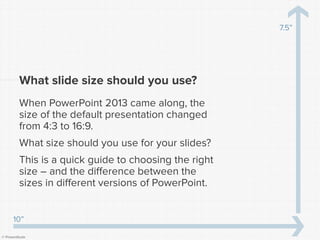
What slide size should you use? 
When PowerPoint 2013 came along, the size of the default presentation changed from 4:3 to 16:9. 
What size should you use for your slides? 
This is a quick guide to choosing the right size –and the difference between the sizes in different versions of PowerPoint. 
10” 
7.5”
© Presentitude 
What slide size should I use for a presentation?
© Presentitude 
It depends on what you are trying to create (and personal preference). 
Here are some rough guidelines.
© Presentitude 
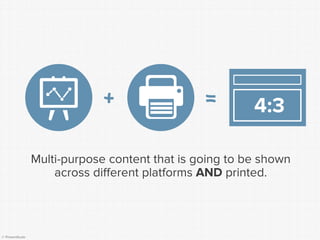
Multi-purpose content that is going to be shown across different platforms ANDprinted. 
4:3 
+ 
=
© Presentitude 
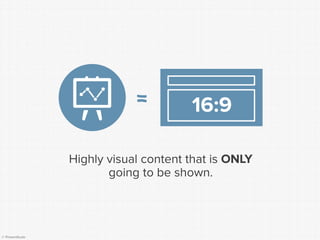
Highly visual content that is ONLYgoing to be shown. 
4:3 
= 
16:9
© Presentitude 
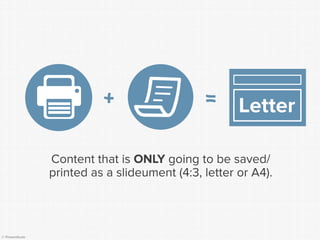
Content that is ONLYgoing to be saved/ printed as a slideument(4:3, letter or A4). 
Letter 
+ 
=
© Presentitude 
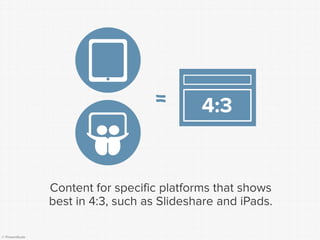
Content for specific platforms that shows best in 4:3, such as Slideshareand iPads. 
4:3 
=
© Presentitude 
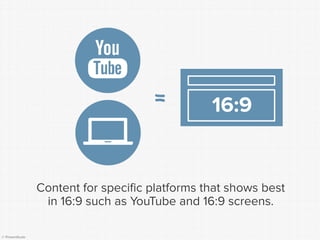
Content for specific platforms that shows best in 16:9 such as YouTube and 16:9 screens. 
= 
4:3 
16:9
© Presentitude 
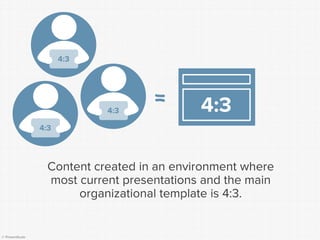
Content created in an environment where most current presentations and the main organizational template is 4:3. 
4:3 
= 
4:3 
4:3 
4:3
© Presentitude 
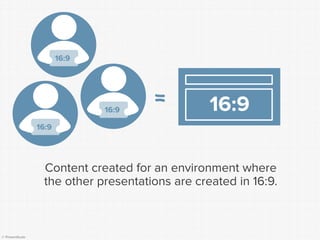
Content created for an environment where the other presentations are created in 16:9. 
= 
16:9 
16:9 
16:9 
16:9
© Presentitude 
4:3 
16:9 
+ 
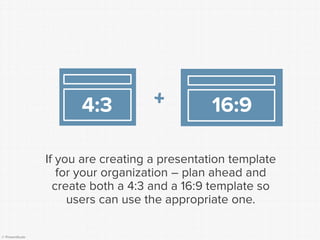
If you are creating a presentation template for your organization –plan ahead and create both a 4:3 and a 16:9 template so users can use the appropriate one.
© Presentitude 
Ohh, I can’t really choose! 
I like my 4:3 slides AND I want to show them?
© Presentitude 
Just be aware of what dimensions the projector supports and how your content might be affected.
© Presentitude 
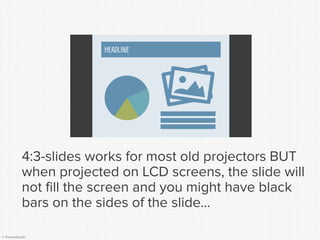
4:3-slides works for most old projectors BUT when projected on LCD screens, the slide will not fill the screen and you might have black bars on the sides of the slide... 
HEADLINE
© Presentitude 
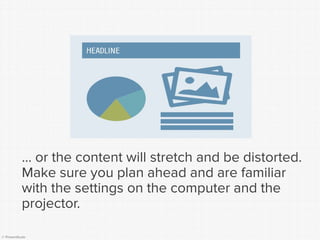
… or the content will stretch and be distorted. Make sure you plan ahead and are familiar with the settings on the computer and the projector. 
4:3
© Presentitude 
So if I use 16:9 I’m always safe when showing my slides?
© Presentitude 
It always depends on the projector in the room where you are presenting.
© Presentitude 
16:9-slides works for new projectors, Plasma/LCD screens and widescreen projectors(most boardroom projectors show 16:9) but always check the aspect ratio in advance. 
16:9
© Presentitude 
What does 4:3 and 16:9 actually mean?
© Presentitude 
“4:3” and “16:9” refers to the aspect ratio of the slide. 
But the actual sizeof a slide with the same aspect ratio can differ.
© Presentitude 
4:3 
1 
2 
3 
1 
2 
4 
3 
16:9 
8 
7 
6 
5 
4 
3 
2 
1 
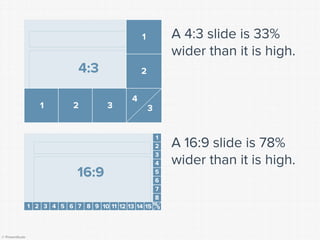
A 4:3 slide is 33% wider than it is high. 
A 16:9 slide is 78% wider than it is high. 
9 
15 
14 
13 
12 
11 
10 
9 
8 
7 
6 
5 
4 
3 
2 
1 
16
© Presentitude 
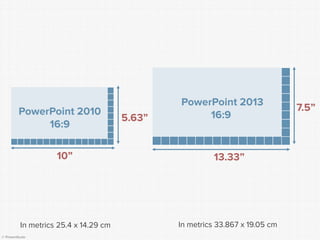
In PowerPoint 2013 a 16:9 slide has a different size compared to PowerPoint 2010.
© Presentitude 
PowerPoint 2013 
16:9 
PowerPoint 2010 
16:9 
10” 
5.63” 
13.33” 
7.5” 
In metrics 25.4 x 14.29 cm 
In metrics 33.867 x 19.05 cm
© Presentitude 
What does the difference mean?
© Presentitude 
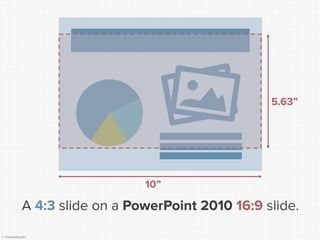
If you had content on a 4:3 slide in PowerPoint 2010 and changed it to a 16:9 slide, everything had to be resized and repositioned.
© Presentitude 
A 4:3slideon a PowerPoint 2010 16:9slide. 
10” 
5.63”
© Presentitude 
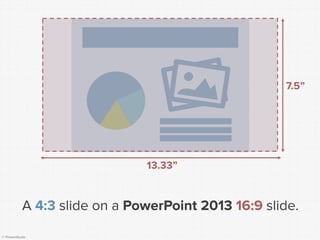
In PowerPoint 2013, if you take your content from a 4:3 slide and move it to a 16:9 slide, the content will fit better on the slide, which means it is easier to change the size.
© Presentitude 
A 4:3slideon a PowerPoint 2013 16:9slide. 
7.5” 
13.33”
© Presentitude 
But –I still have PowerPoint 2010 –so I’m stuck with the “old” 16:9 size…
© Presentitude 
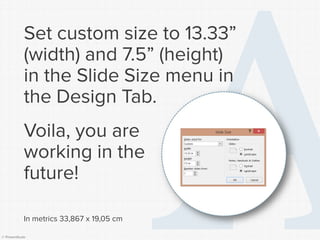
Set custom size to 13.33” (width) and 7.5” (height) in the Slide Size menu inthe Design Tab. 
Voila, you are working in the future! 
In metrics 33,867 x 19,05 cm
© Presentitude 
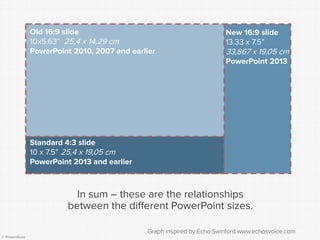
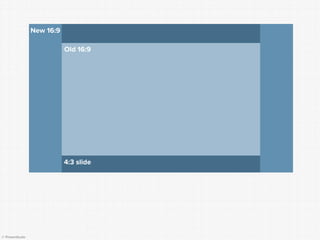
In sum –these are the relationships between the different PowerPoint sizes. 
Standard 4:3 slide 
10 x 7.5” 25,4 x 19,05 cm 
PowerPoint 2013 and earlier 
Old 16:9 slide 
10x5.63” 25,4 x 14,29 cm 
PowerPoint 2010, 2007 and earlier 
New 16:9 slide 13.33 x 7.5” 
33,867 x 19,05 cm 
PowerPoint 2013 
Graph inspired by Echo Swinfordwww.echosvoice.com
© Presentitude 
4:3 slide 
Old 16:9 
New 16:9
© Presentitude 
PRESENTITUDE 
www.presentitude.com 
2600 E. Bidwell St #215 
Folsom CA 95630 
(916) 256 2000 
Do you need help with your 
presentation design? 
Contact Presentitude at 
hello@presentitude.com or 
(916) 256-2000. 
Follow us on 
www.presentitude.com or 
@presentitude for more 
updates and tips!

What slide dimensions should you use for your presentations?

  • 1.
  • 2.
    © Presentitude Whatslide size should you use? When PowerPoint 2013 came along, the size of the default presentation changed from 4:3 to 16:9. What size should you use for your slides? This is a quick guide to choosing the right size –and the difference between the sizes in different versions of PowerPoint. 10” 7.5”
  • 3.
    © Presentitude Whatslide size should I use for a presentation?
  • 4.
    © Presentitude Itdepends on what you are trying to create (and personal preference). Here are some rough guidelines.
  • 5.
    © Presentitude Multi-purposecontent that is going to be shown across different platforms ANDprinted. 4:3 + =
  • 6.
    © Presentitude Highlyvisual content that is ONLYgoing to be shown. 4:3 = 16:9
  • 7.
    © Presentitude Contentthat is ONLYgoing to be saved/ printed as a slideument(4:3, letter or A4). Letter + =
  • 8.
    © Presentitude Contentfor specific platforms that shows best in 4:3, such as Slideshareand iPads. 4:3 =
  • 9.
    © Presentitude Contentfor specific platforms that shows best in 16:9 such as YouTube and 16:9 screens. = 4:3 16:9
  • 10.
    © Presentitude Contentcreated in an environment where most current presentations and the main organizational template is 4:3. 4:3 = 4:3 4:3 4:3
  • 11.
    © Presentitude Contentcreated for an environment where the other presentations are created in 16:9. = 16:9 16:9 16:9 16:9
  • 12.
    © Presentitude 4:3 16:9 + If you are creating a presentation template for your organization –plan ahead and create both a 4:3 and a 16:9 template so users can use the appropriate one.
  • 13.
    © Presentitude Ohh,I can’t really choose! I like my 4:3 slides AND I want to show them?
  • 14.
    © Presentitude Justbe aware of what dimensions the projector supports and how your content might be affected.
  • 15.
    © Presentitude 4:3-slidesworks for most old projectors BUT when projected on LCD screens, the slide will not fill the screen and you might have black bars on the sides of the slide... HEADLINE
  • 16.
    © Presentitude …or the content will stretch and be distorted. Make sure you plan ahead and are familiar with the settings on the computer and the projector. 4:3
  • 17.
    © Presentitude Soif I use 16:9 I’m always safe when showing my slides?
  • 18.
    © Presentitude Italways depends on the projector in the room where you are presenting.
  • 19.
    © Presentitude 16:9-slidesworks for new projectors, Plasma/LCD screens and widescreen projectors(most boardroom projectors show 16:9) but always check the aspect ratio in advance. 16:9
  • 20.
    © Presentitude Whatdoes 4:3 and 16:9 actually mean?
  • 21.
    © Presentitude “4:3”and “16:9” refers to the aspect ratio of the slide. But the actual sizeof a slide with the same aspect ratio can differ.
  • 22.
    © Presentitude 4:3 1 2 3 1 2 4 3 16:9 8 7 6 5 4 3 2 1 A 4:3 slide is 33% wider than it is high. A 16:9 slide is 78% wider than it is high. 9 15 14 13 12 11 10 9 8 7 6 5 4 3 2 1 16
  • 23.
    © Presentitude InPowerPoint 2013 a 16:9 slide has a different size compared to PowerPoint 2010.
  • 24.
    © Presentitude PowerPoint2013 16:9 PowerPoint 2010 16:9 10” 5.63” 13.33” 7.5” In metrics 25.4 x 14.29 cm In metrics 33.867 x 19.05 cm
  • 25.
    © Presentitude Whatdoes the difference mean?
  • 26.
    © Presentitude Ifyou had content on a 4:3 slide in PowerPoint 2010 and changed it to a 16:9 slide, everything had to be resized and repositioned.
  • 27.
    © Presentitude A4:3slideon a PowerPoint 2010 16:9slide. 10” 5.63”
  • 28.
    © Presentitude InPowerPoint 2013, if you take your content from a 4:3 slide and move it to a 16:9 slide, the content will fit better on the slide, which means it is easier to change the size.
  • 29.
    © Presentitude A4:3slideon a PowerPoint 2013 16:9slide. 7.5” 13.33”
  • 30.
    © Presentitude But–I still have PowerPoint 2010 –so I’m stuck with the “old” 16:9 size…
  • 31.
    © Presentitude Setcustom size to 13.33” (width) and 7.5” (height) in the Slide Size menu inthe Design Tab. Voila, you are working in the future! In metrics 33,867 x 19,05 cm
  • 32.
    © Presentitude Insum –these are the relationships between the different PowerPoint sizes. Standard 4:3 slide 10 x 7.5” 25,4 x 19,05 cm PowerPoint 2013 and earlier Old 16:9 slide 10x5.63” 25,4 x 14,29 cm PowerPoint 2010, 2007 and earlier New 16:9 slide 13.33 x 7.5” 33,867 x 19,05 cm PowerPoint 2013 Graph inspired by Echo Swinfordwww.echosvoice.com
  • 33.
    © Presentitude 4:3slide Old 16:9 New 16:9
  • 34.
    © Presentitude PRESENTITUDE www.presentitude.com 2600 E. Bidwell St #215 Folsom CA 95630 (916) 256 2000 Do you need help with your presentation design? Contact Presentitude at hello@presentitude.com or (916) 256-2000. Follow us on www.presentitude.com or @presentitude for more updates and tips!