
How to develop  Digital Library using  Green Stone (oss) @ Ashok Kumar Satapathy
What is Digital information: The information or data, which is available in the form of Computer Readable format. Born Digital or Converted Digital. Format is based on : Html, Jpg, Mp3, PDF, PPT, DOC, Excel, SCANNED MATERIALS etc. Tutorial for GS
Purpose of Digital Library   :   Create & Organise Digital Information for easy retrieval. We can Organise & Circulate in-house “gray literature”, Converted & Downloaded Digital Information to the end users.  We can develop the concept of 24 x 7 information dissemination  through network connectivity. Tutorial for GS
LET’S START THE  SESSION Tutorial for GS
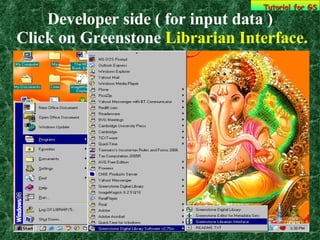
Developer side ( for input data )  Click on Greenstone  Librarian Interface. Tutorial for GS
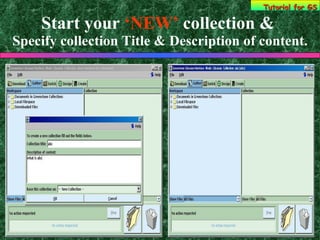
Start your  ‘NEW’  collection &   Specify collection Title & Description of content. Tutorial for GS
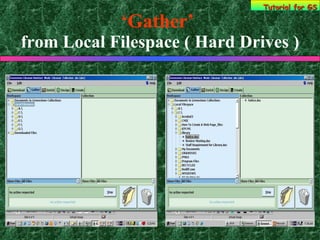
‘ Gather’   from Local Filespace ( Hard Drives ) Tutorial for GS
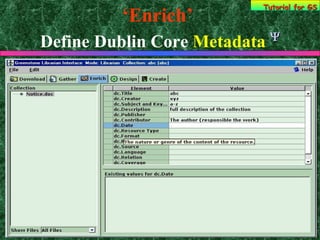
‘ Enrich’   Define Dublin Core  Metadata   Tutorial for GS
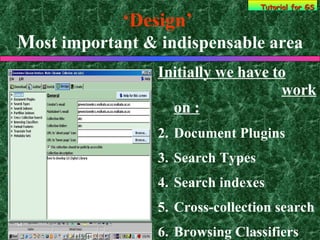
‘ Design’   M ost important & indispensable area Initially we have to     work on : Document Plugins Search Types Search indexes Cross-collection search Browsing Classifiers Tutorial for GS
‘ Design’   Document Plugins  : Introduce the format, in which the data is available We have to specify once the format in a new collection Example : For a PowerPoint file we have to select [ plugin pptplug ] Tutorial for GS
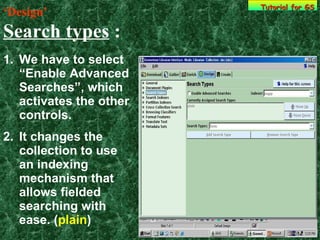
‘ Design’   Search types  : We have to select “Enable Advanced Searches”, which activates the other controls.  It changes the collection to use an indexing mechanism that allows fielded searching with ease. ( plain ) Tutorial for GS
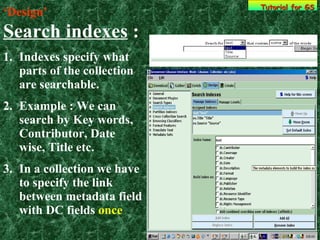
‘ Design’   Search indexes  : Indexes specify what parts of the collection are searchable. Example : We can search by Key words, Contributor, Date wise, Title etc.  In a collection we have to specify the link between metadata field with DC fields  once Tutorial for GS
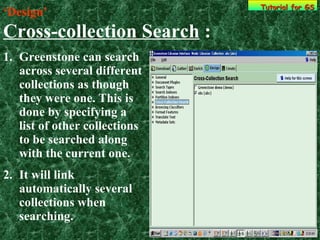
‘ Design’   Cross-collection Search  : Greenstone can search across several different collections as though they were one. This is done by specifying a list of other collections to be searched along with the current one.  It will link automatically several collections when searching. Tutorial for GS
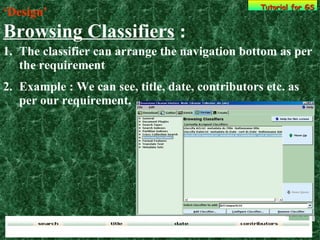
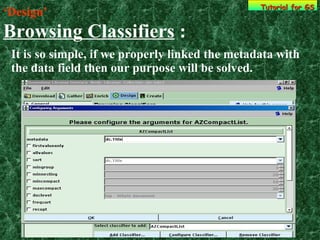
‘ Design’   Browsing Classifiers  : The classifier can arrange the navigation bottom as per the requirement Example : We can see, title, date, contributors etc. as per our requirement.  Tutorial for GS
‘ Design’   Browsing Classifiers  : It is so simple, if we properly linked the metadata with the data field then our purpose will be solved. Tutorial for GS
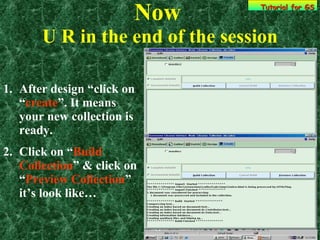
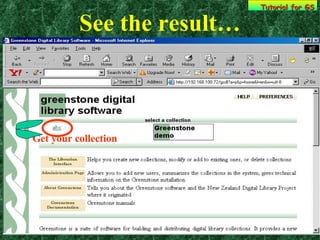
Now   U R in the end of the session After design “click on “ create ”. It means your new collection is ready. Click on “ Build Collection ” & click on “ Preview Collection ” it’s look like… Tutorial for GS
See the result… Tutorial for GS Get your collection
Tips… Tutorial for GS Gather  : Confirm the specific file format. (Whether .htm, .pdf, .mp3, .jpg, .doc, .ppt etc.) Specify the exact location, from where the data was stored.
Tips… Tutorial for GS Enrich  : Assign metadata to the files in your collection.  Example  :  dc Title : Title of the collection dc Creator : Author, Org., Inst., etc. dc Subject & key : Only keywords  dc Description : About the collection
Tips… Tutorial for GS Enrich  : dc  Contributor : Only  Author dc Date : Date of the collection dc Format : Format of the file dc Source : From where dc Language  : Which language  As per requirement we can add / delete the metadata fields.
Tips… Tutorial for GS Design  :  Cross-Collection Search  : Tick on collections for grouping search. Browsing Classifiers  : Select classifier to add AZ List => Argument is => metadata-dc Title, bottonname-title (  for title  )
Tips… Tutorial for GS Select classifier to add => Date List => Argument is => metadata-dc date, short dc date, bottonname-Date ( for date ) Select classifier to add => AZcompact List => Argument is => metadata-dc Contributor, bottonname-contributor’s  ( for contributor “Author” ) Select classifier to add => List => metadata - dc format, short - dc format bottonname-Format  ( for Format )
The End Tutorial for GS

What is Greenstone Digital Library and Tips for Development

  • 1.
    How to develop Digital Library using Green Stone (oss) @ Ashok Kumar Satapathy
  • 2.
    What is Digitalinformation: The information or data, which is available in the form of Computer Readable format. Born Digital or Converted Digital. Format is based on : Html, Jpg, Mp3, PDF, PPT, DOC, Excel, SCANNED MATERIALS etc. Tutorial for GS
  • 3.
    Purpose of DigitalLibrary  : Create & Organise Digital Information for easy retrieval. We can Organise & Circulate in-house “gray literature”, Converted & Downloaded Digital Information to the end users. We can develop the concept of 24 x 7 information dissemination through network connectivity. Tutorial for GS
  • 4.
    LET’S START THE SESSION Tutorial for GS
  • 5.
    Developer side (for input data ) Click on Greenstone Librarian Interface. Tutorial for GS
  • 6.
    Start your ‘NEW’ collection & Specify collection Title & Description of content. Tutorial for GS
  • 7.
    ‘ Gather’ from Local Filespace ( Hard Drives ) Tutorial for GS
  • 8.
    ‘ Enrich’ Define Dublin Core Metadata  Tutorial for GS
  • 9.
    ‘ Design’ M ost important & indispensable area Initially we have to work on : Document Plugins Search Types Search indexes Cross-collection search Browsing Classifiers Tutorial for GS
  • 10.
    ‘ Design’ Document Plugins : Introduce the format, in which the data is available We have to specify once the format in a new collection Example : For a PowerPoint file we have to select [ plugin pptplug ] Tutorial for GS
  • 11.
    ‘ Design’ Search types : We have to select “Enable Advanced Searches”, which activates the other controls. It changes the collection to use an indexing mechanism that allows fielded searching with ease. ( plain ) Tutorial for GS
  • 12.
    ‘ Design’ Search indexes : Indexes specify what parts of the collection are searchable. Example : We can search by Key words, Contributor, Date wise, Title etc. In a collection we have to specify the link between metadata field with DC fields once Tutorial for GS
  • 13.
    ‘ Design’ Cross-collection Search : Greenstone can search across several different collections as though they were one. This is done by specifying a list of other collections to be searched along with the current one. It will link automatically several collections when searching. Tutorial for GS
  • 14.
    ‘ Design’ Browsing Classifiers : The classifier can arrange the navigation bottom as per the requirement Example : We can see, title, date, contributors etc. as per our requirement. Tutorial for GS
  • 15.
    ‘ Design’ Browsing Classifiers : It is so simple, if we properly linked the metadata with the data field then our purpose will be solved. Tutorial for GS
  • 16.
    Now U R in the end of the session After design “click on “ create ”. It means your new collection is ready. Click on “ Build Collection ” & click on “ Preview Collection ” it’s look like… Tutorial for GS
  • 17.
    See the result…Tutorial for GS Get your collection
  • 18.
    Tips… Tutorial forGS Gather : Confirm the specific file format. (Whether .htm, .pdf, .mp3, .jpg, .doc, .ppt etc.) Specify the exact location, from where the data was stored.
  • 19.
    Tips… Tutorial forGS Enrich : Assign metadata to the files in your collection. Example : dc Title : Title of the collection dc Creator : Author, Org., Inst., etc. dc Subject & key : Only keywords dc Description : About the collection
  • 20.
    Tips… Tutorial forGS Enrich : dc Contributor : Only Author dc Date : Date of the collection dc Format : Format of the file dc Source : From where dc Language : Which language As per requirement we can add / delete the metadata fields.
  • 21.
    Tips… Tutorial forGS Design : Cross-Collection Search : Tick on collections for grouping search. Browsing Classifiers : Select classifier to add AZ List => Argument is => metadata-dc Title, bottonname-title ( for title )
  • 22.
    Tips… Tutorial forGS Select classifier to add => Date List => Argument is => metadata-dc date, short dc date, bottonname-Date ( for date ) Select classifier to add => AZcompact List => Argument is => metadata-dc Contributor, bottonname-contributor’s ( for contributor “Author” ) Select classifier to add => List => metadata - dc format, short - dc format bottonname-Format ( for Format )
  • 23.