Bharat M. Chaudhari
Introduction to DSpace
WHAT IS DSPACE
Tips and tools for creating and presenting wide format
slides
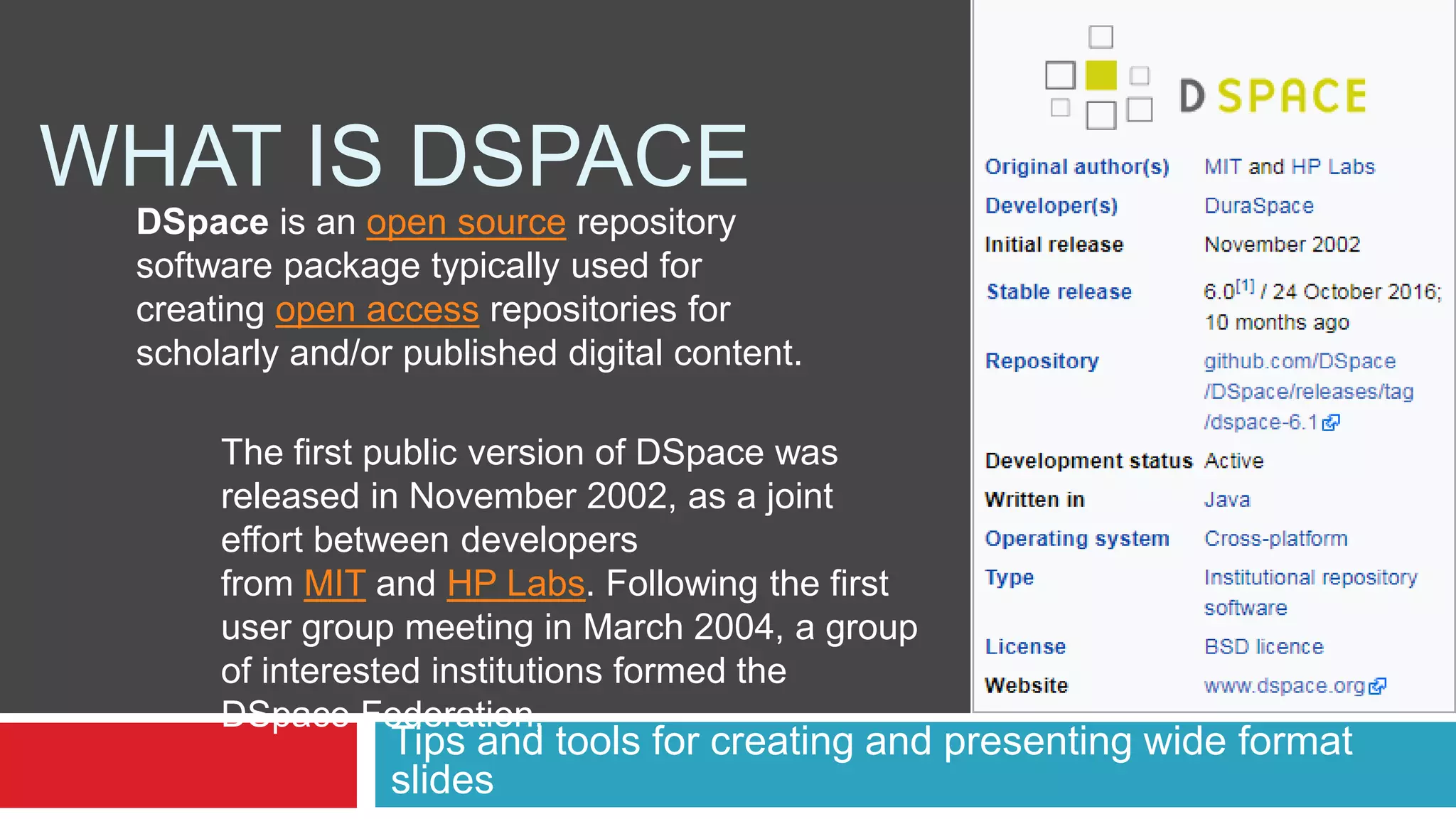
The first public version of DSpace was
released in November 2002, as a joint
effort between developers
from MIT and HP Labs. Following the first
user group meeting in March 2004, a group
of interested institutions formed the
DSpace Federation,
DSpace is an open source repository
software package typically used for
creating open access repositories for
scholarly and/or published digital content.
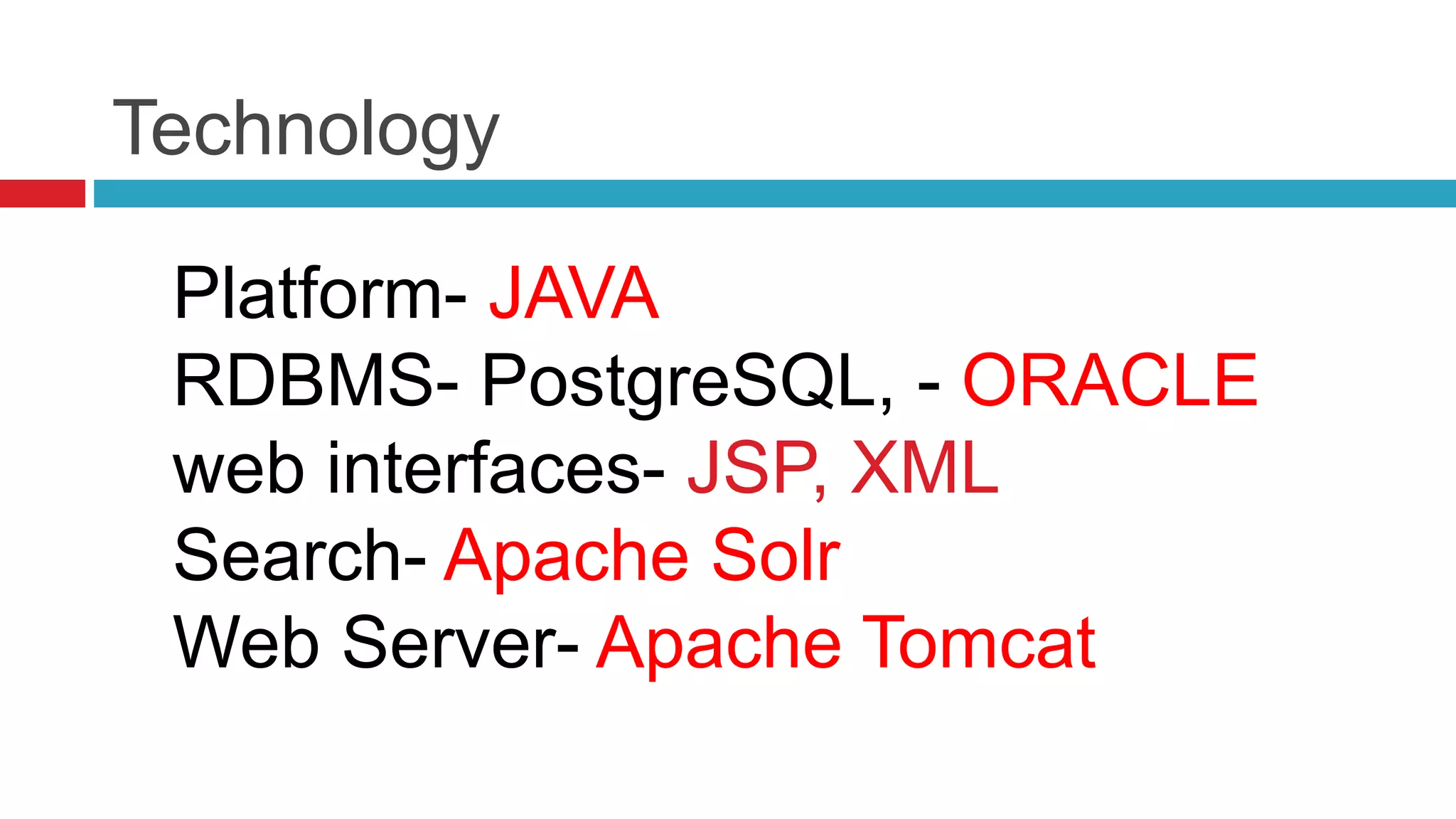
Technology
Platform- JAVA
RDBMS- PostgreSQL, - ORACLE
web interfaces- JSP, XML
Search- Apache Solr
Web Server- Apache Tomcat
The community development
model
 Open source
software
 BSD Licence
 Source code control
repository (SVN)
 Committers
 Email lists for
What can DSpace be used for?
DSpace can be used to store any type of
digital medium. Examples include
•Journal papers
•Data sets
•Electronic theses
•Reports
•Conference posters
•Videos
•Images
Features
 Full-text searchable (any text-
based file)
 Discovery: search/browse in
the DSpace interface,
handles (Faceted browse)
 Can handle any type of file
(file=bitstream); best known
for text-based files
 Optimized for indexing in
Google and Google Scholar
 Persistent URLs (Handle
system)
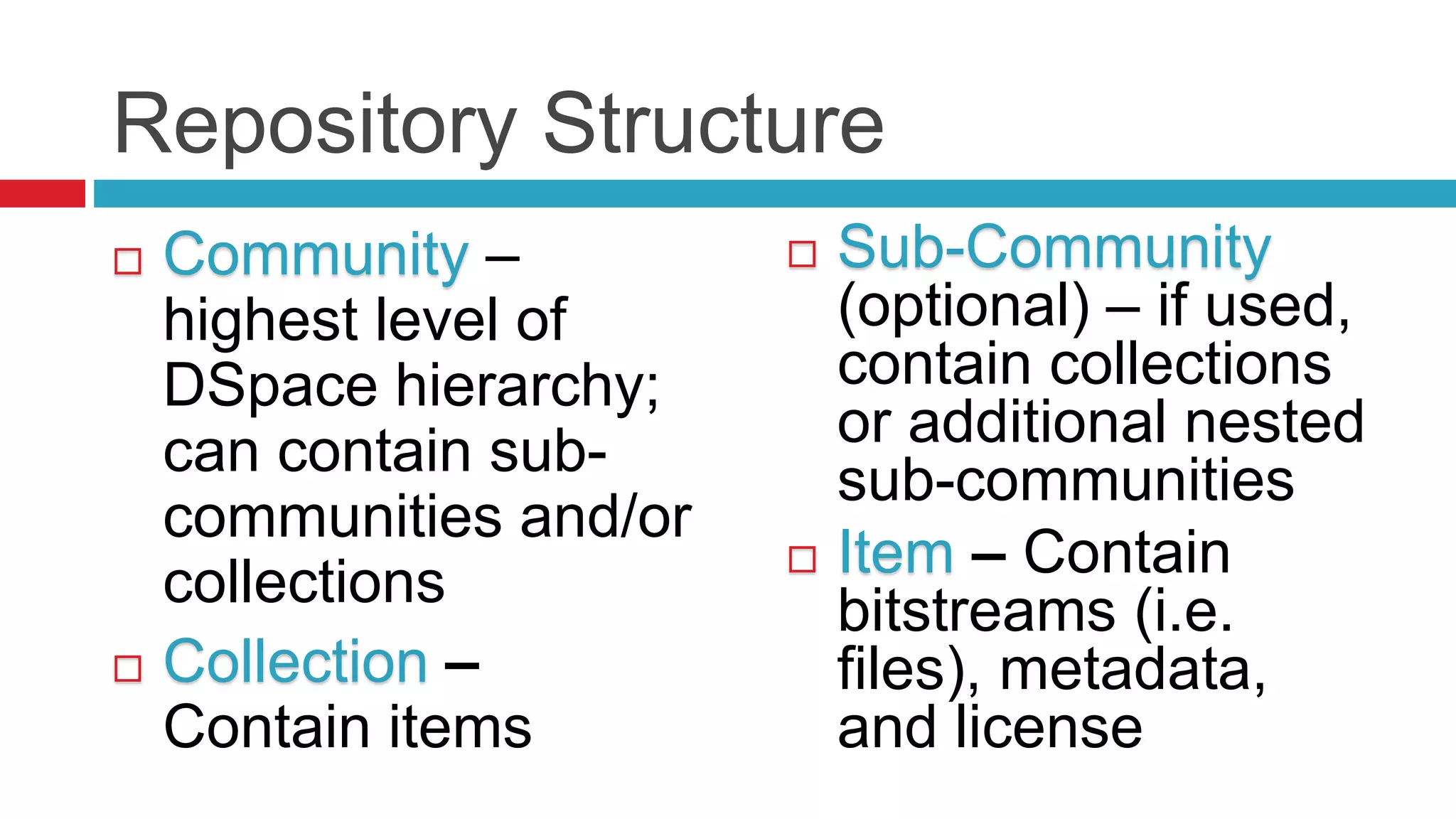
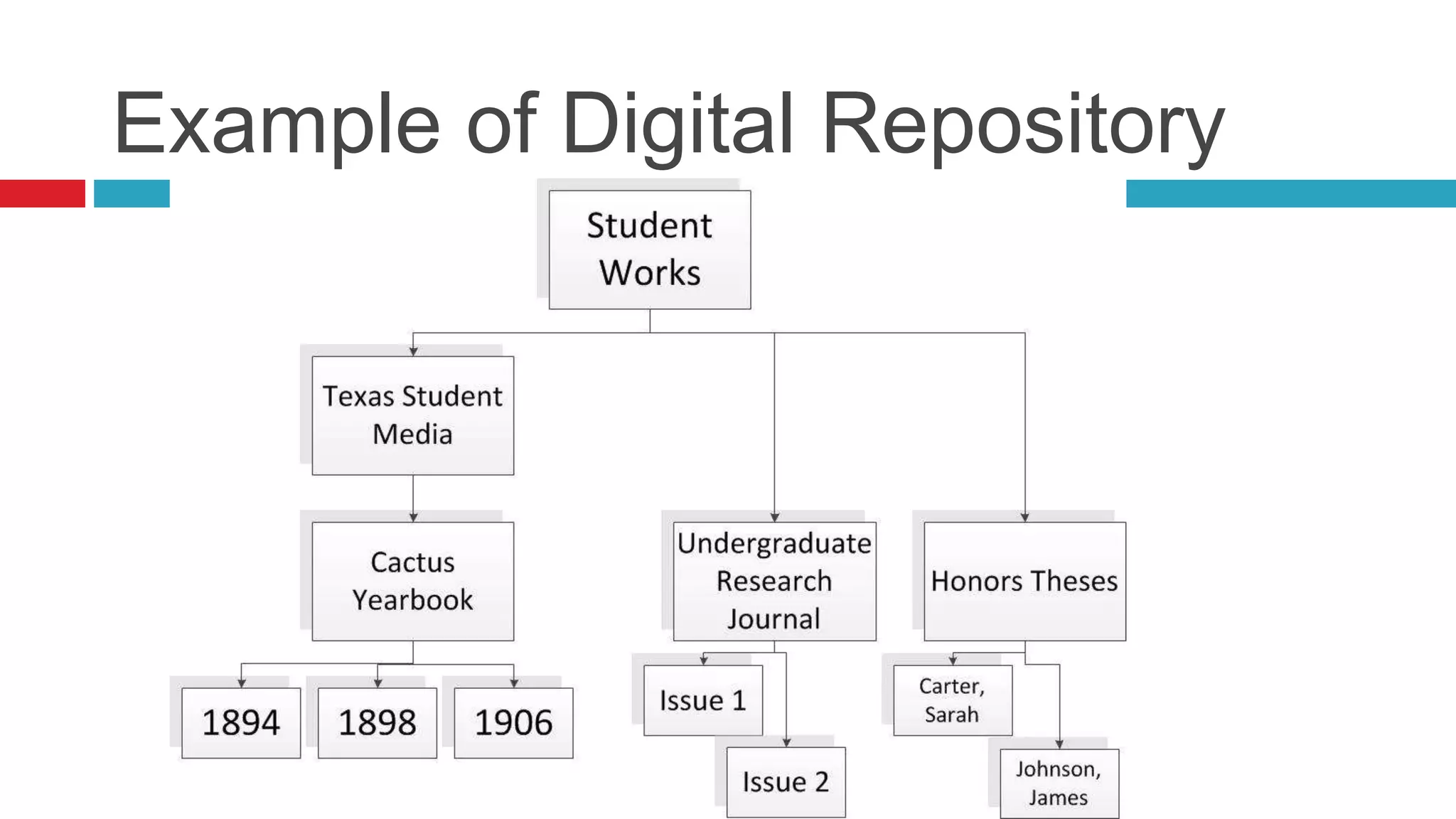
Repository Structure
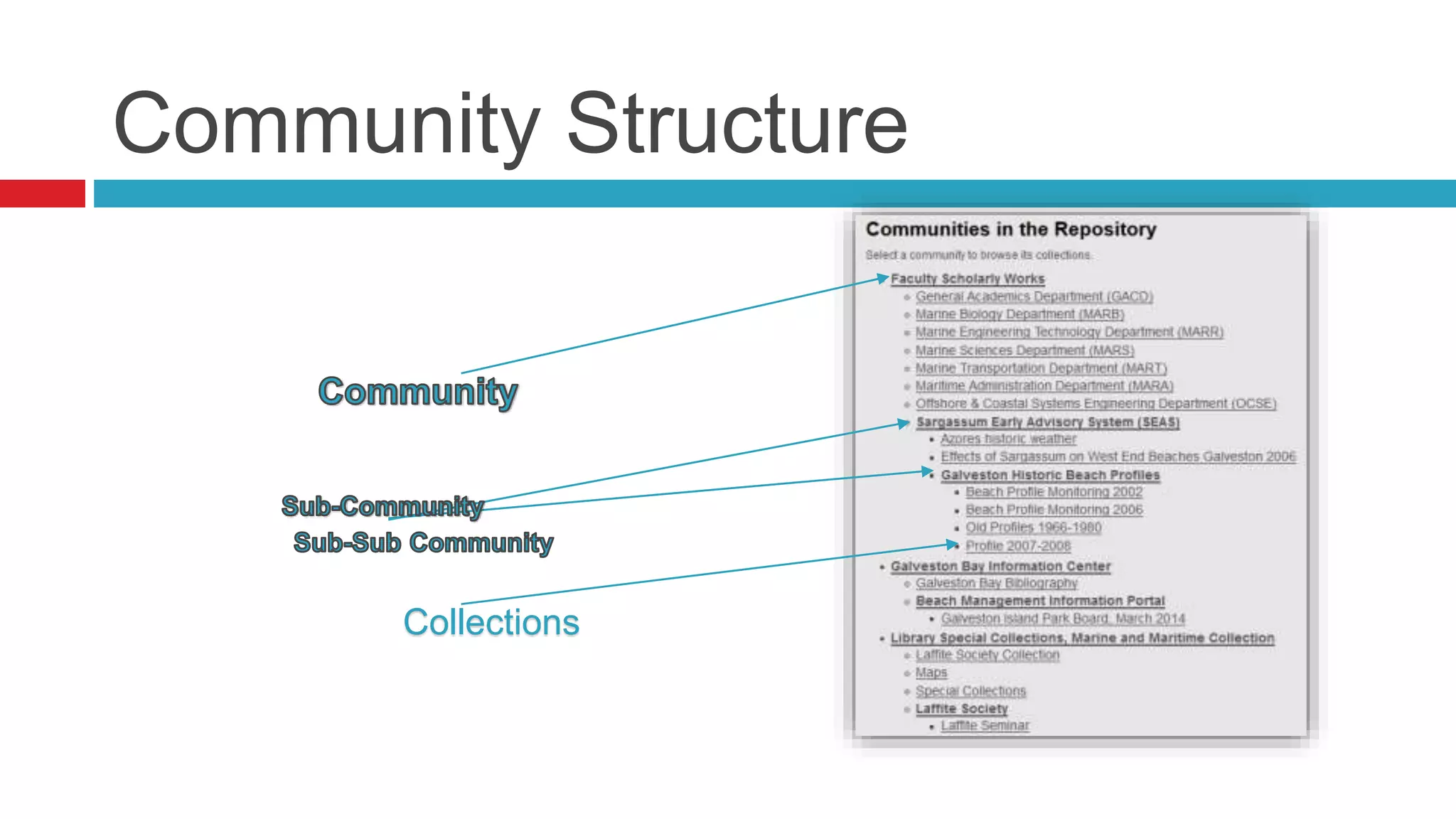
 Community –
highest level of
DSpace hierarchy;
can contain sub-
communities and/or
collections
 Collection –
Contain items
 Sub-Community
(optional) – if used,
contain collections
or additional nested
sub-communities
 Item – Contain
bitstreams (i.e.
files), metadata,
and license
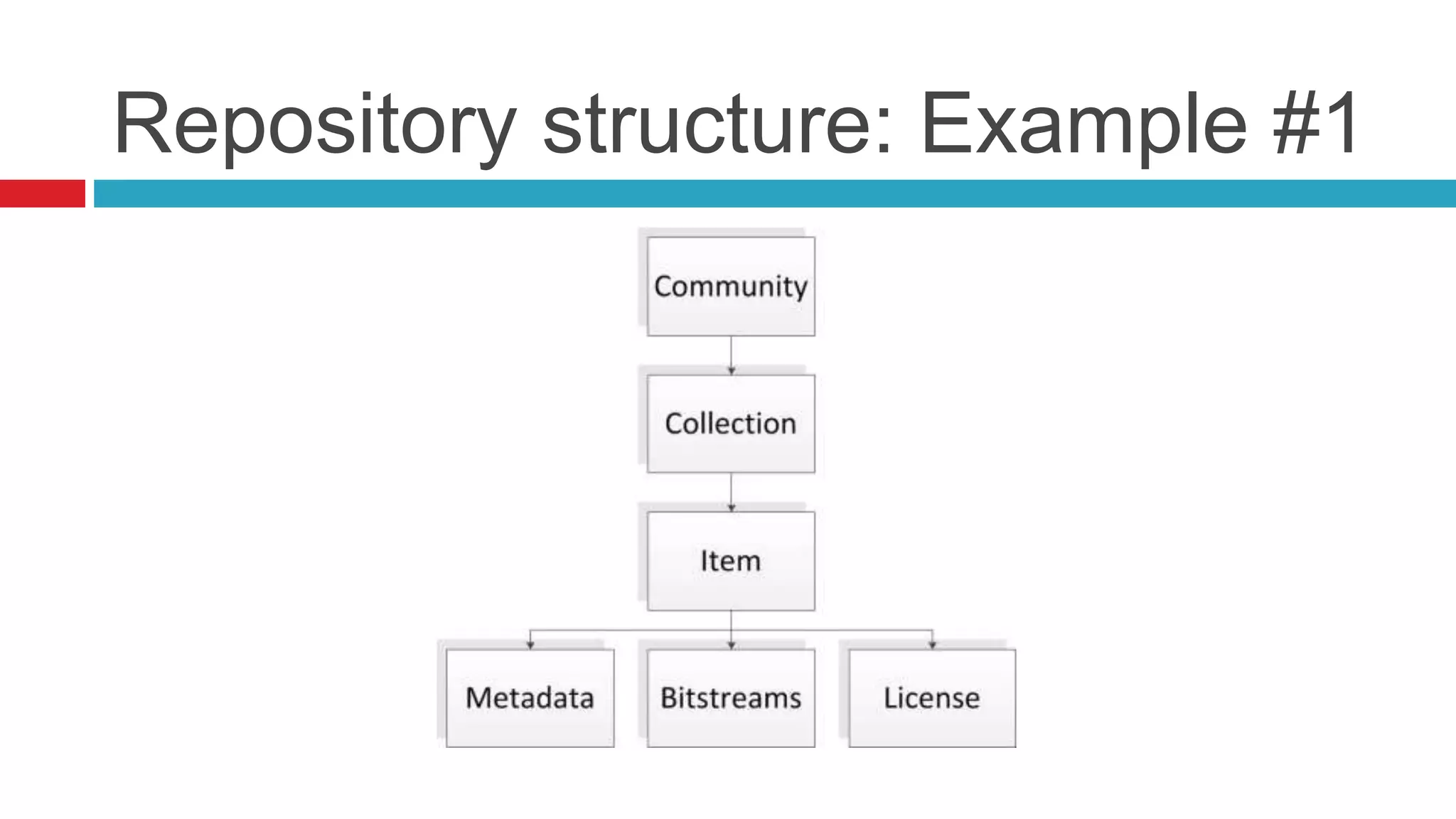
Repository structure: Example #1
Example of Digital Repository
Community Structure
Collections
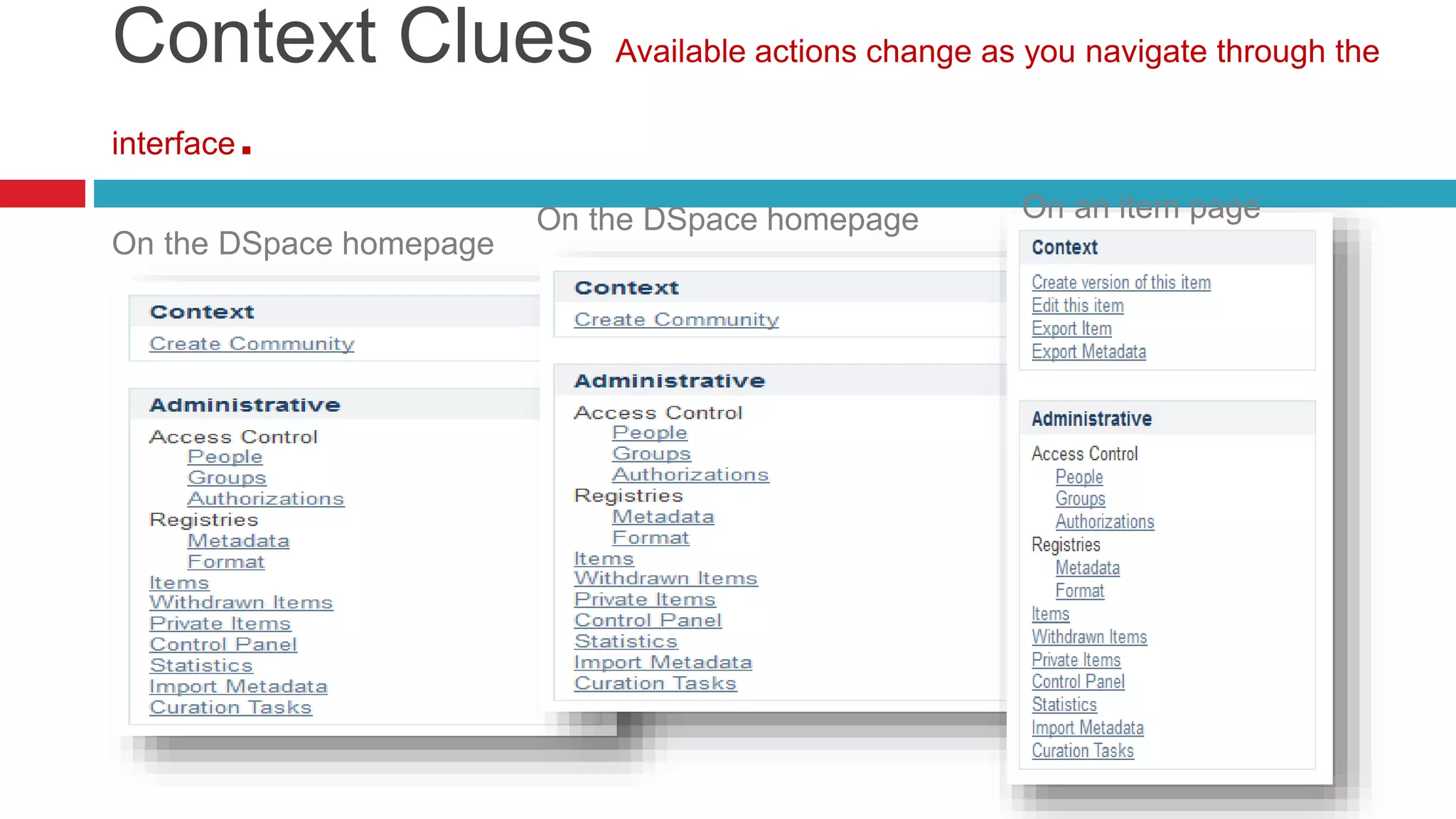
Context Clues Available actions change as you navigate through the
interface.
On the DSpace homepage
On the DSpace homepage On an item page
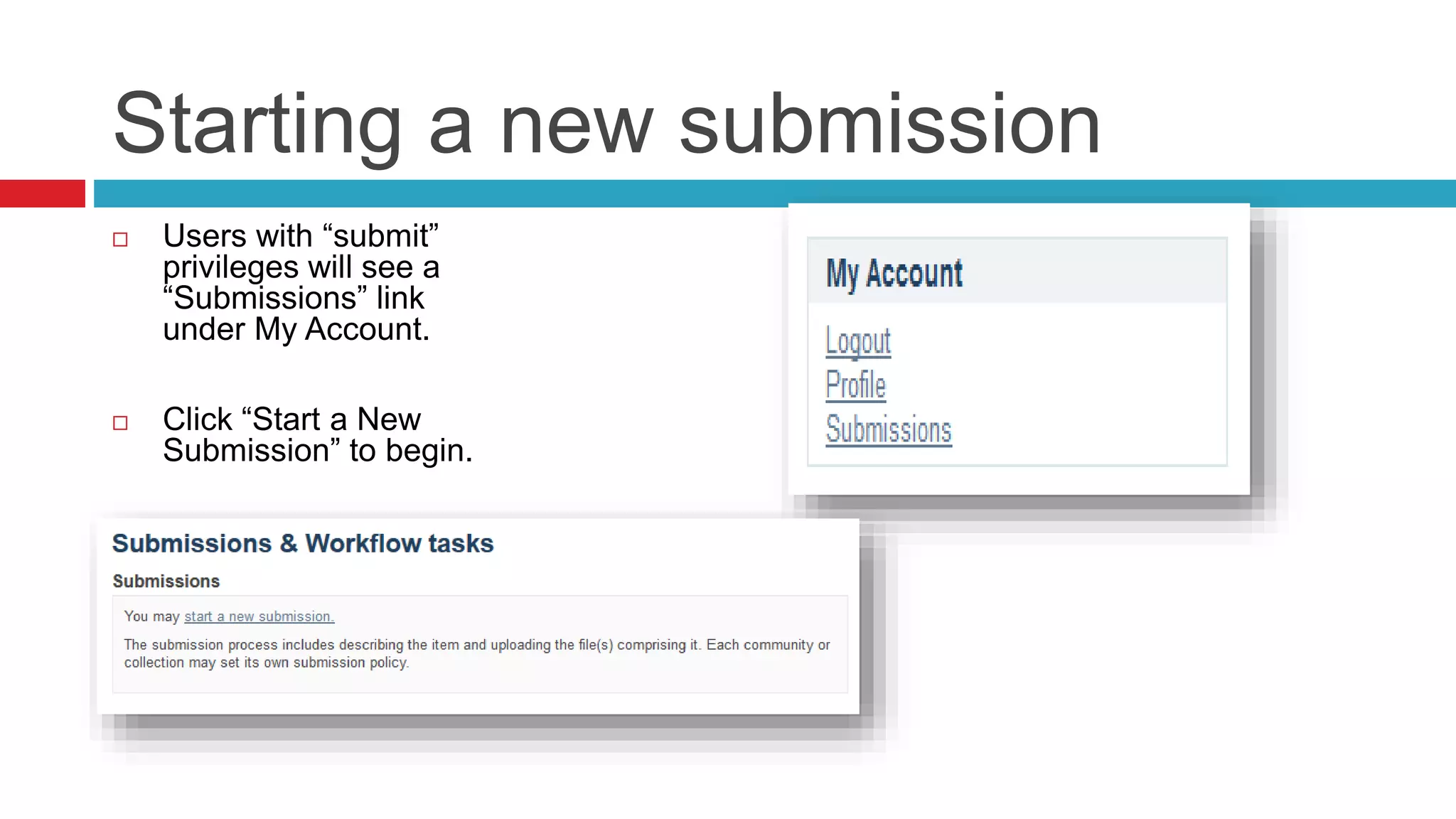
Starting a new submission
 Users with “submit”
privileges will see a
“Submissions” link
under My Account.
 Click “Start a New
Submission” to begin.
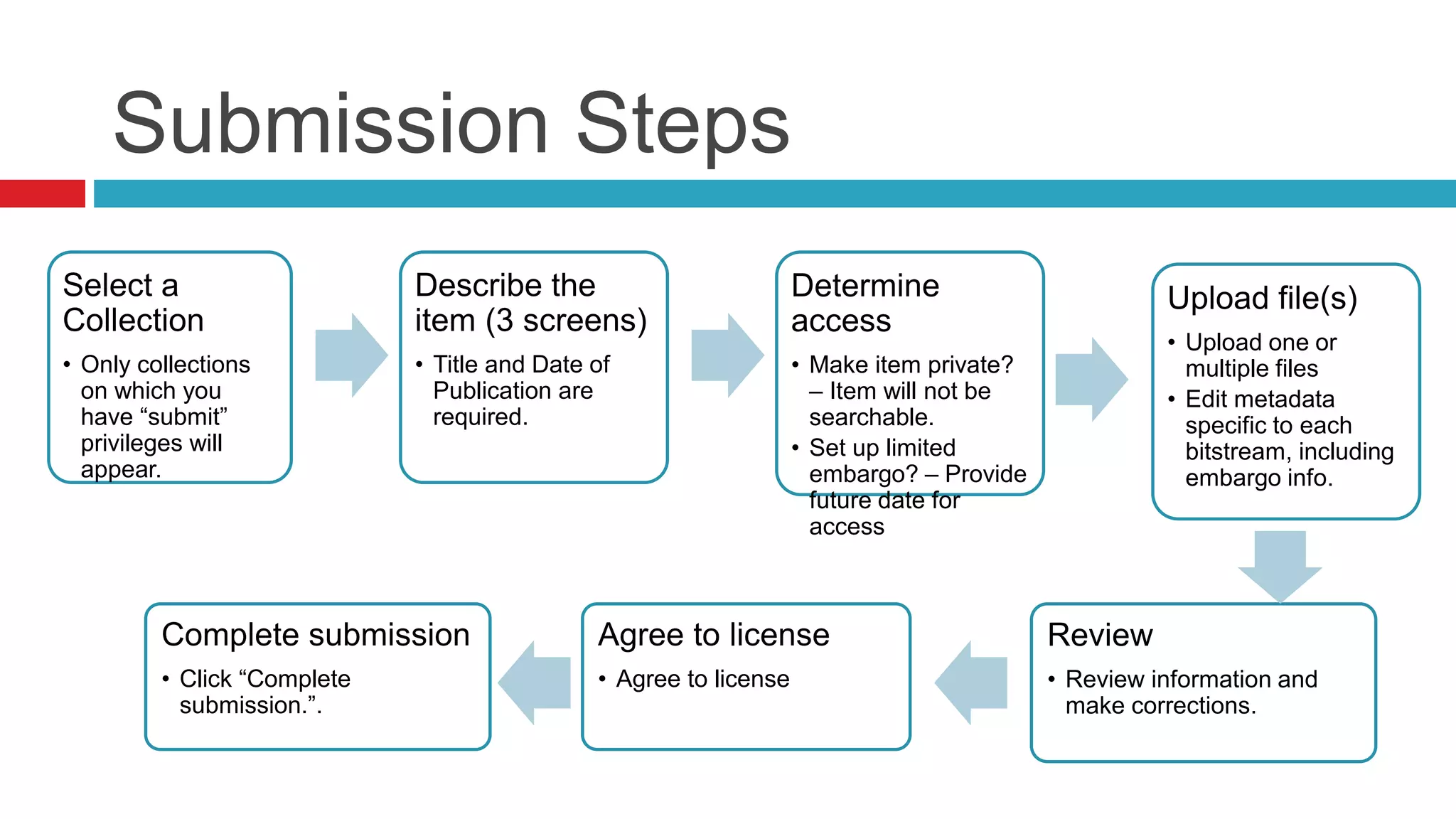
Submission Steps
Select a
Collection
• Only collections
on which you
have “submit”
privileges will
appear.
Describe the
item (3 screens)
• Title and Date of
Publication are
required.
Determine
access
• Make item private?
– Item will not be
searchable.
• Set up limited
embargo? – Provide
future date for
access
Upload file(s)
• Upload one or
multiple files
• Edit metadata
specific to each
bitstream, including
embargo info.
Complete submission
• Click “Complete
submission.”.
Review
• Review information and
make corrections.
Agree to license
• Agree to license
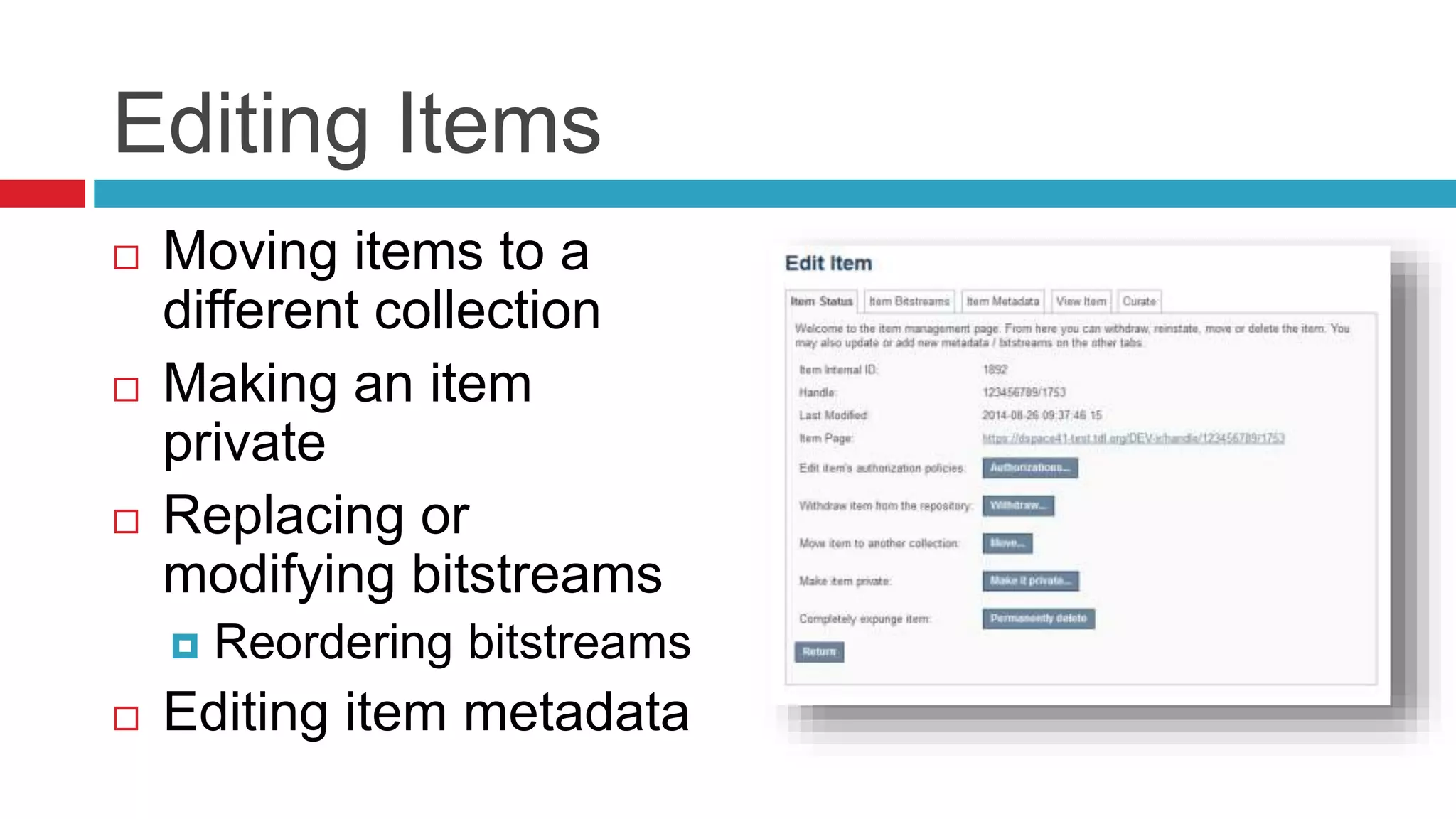
Editing Items
 Moving items to a
different collection
 Making an item
private
 Replacing or
modifying bitstreams
 Reordering bitstreams
 Editing item metadata
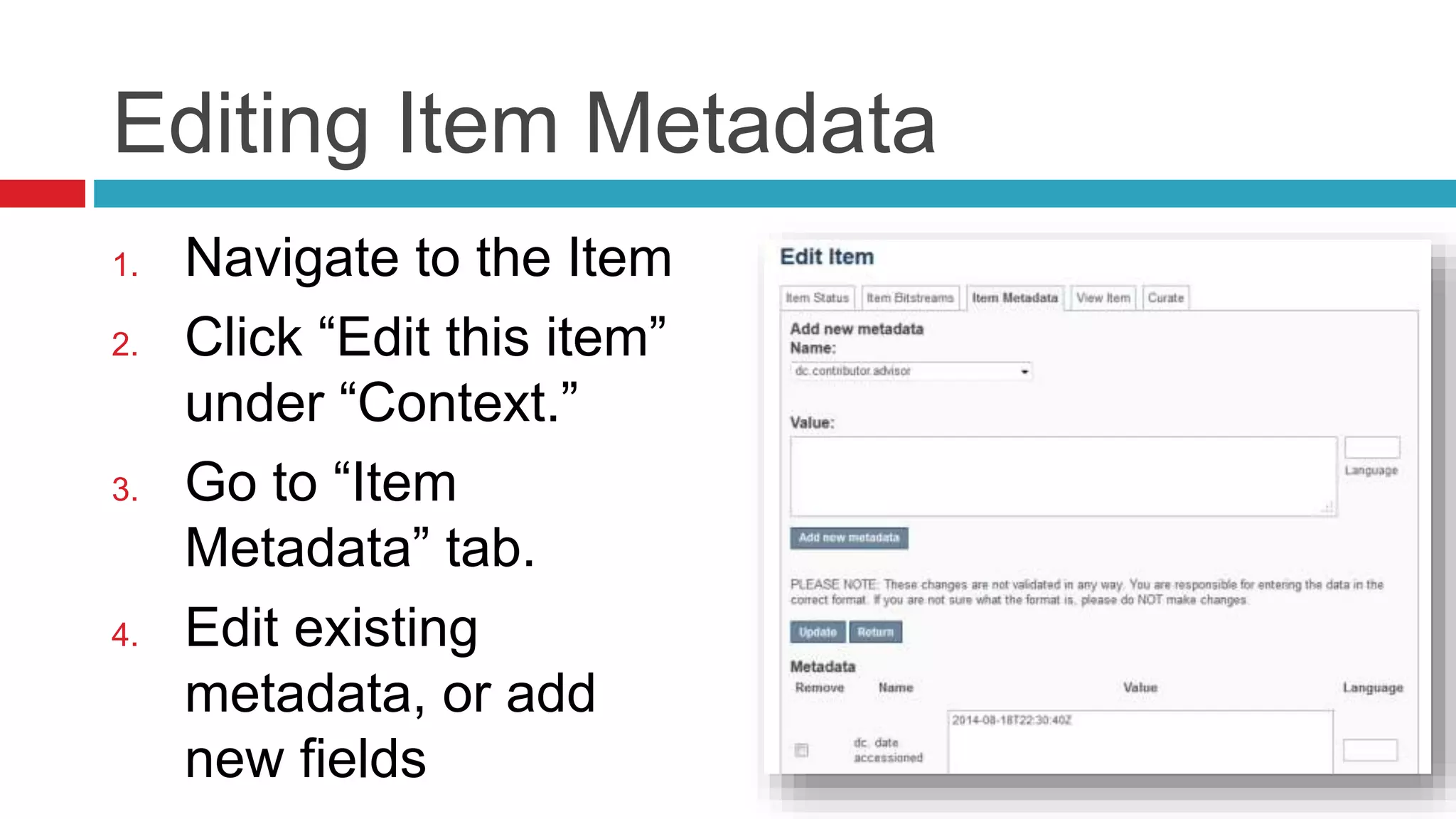
Editing Item Metadata
1. Navigate to the Item
2. Click “Edit this item”
under “Context.”
3. Go to “Item
Metadata” tab.
4. Edit existing
metadata, or add
new fields
Batch Metadata Editing
 Might be useful for:
 Batch editing of metadata (e.g.
perform an external spell check)
 Batch additions of metadata (e.g. add
an abstract to a set of items, add
controlled vocabulary such as LCSH)
 Batch find and replace of metadata
values (e.g. correct misspelled
surname across several records)
 Mass move items between collections
 Mass deletion, withdrawal, or re-
instatement of items
 Enable the batch addition of new items
(without bitstreams) via a CSV file
 Re-order the values in a list (e.g.
authors)
Steps:
1. Export CSV file
2. Edit values in CSV
file
3. Re-import CSV file
Credits
 Repository Support
Project
 http://www.rsp.ac.uk
/
 Dspace Foundation

Introduction to DSpace

  • 1.
  • 2.
    WHAT IS DSPACE Tipsand tools for creating and presenting wide format slides The first public version of DSpace was released in November 2002, as a joint effort between developers from MIT and HP Labs. Following the first user group meeting in March 2004, a group of interested institutions formed the DSpace Federation, DSpace is an open source repository software package typically used for creating open access repositories for scholarly and/or published digital content.
  • 3.
    Technology Platform- JAVA RDBMS- PostgreSQL,- ORACLE web interfaces- JSP, XML Search- Apache Solr Web Server- Apache Tomcat
  • 4.
    The community development model Open source software  BSD Licence  Source code control repository (SVN)  Committers  Email lists for
  • 5.
    What can DSpacebe used for? DSpace can be used to store any type of digital medium. Examples include •Journal papers •Data sets •Electronic theses •Reports •Conference posters •Videos •Images
  • 6.
    Features  Full-text searchable(any text- based file)  Discovery: search/browse in the DSpace interface, handles (Faceted browse)  Can handle any type of file (file=bitstream); best known for text-based files  Optimized for indexing in Google and Google Scholar  Persistent URLs (Handle system)
  • 7.
    Repository Structure  Community– highest level of DSpace hierarchy; can contain sub- communities and/or collections  Collection – Contain items  Sub-Community (optional) – if used, contain collections or additional nested sub-communities  Item – Contain bitstreams (i.e. files), metadata, and license
  • 8.
  • 9.
  • 10.
  • 11.
    Context Clues Availableactions change as you navigate through the interface. On the DSpace homepage On the DSpace homepage On an item page
  • 12.
    Starting a newsubmission  Users with “submit” privileges will see a “Submissions” link under My Account.  Click “Start a New Submission” to begin.
  • 13.
    Submission Steps Select a Collection •Only collections on which you have “submit” privileges will appear. Describe the item (3 screens) • Title and Date of Publication are required. Determine access • Make item private? – Item will not be searchable. • Set up limited embargo? – Provide future date for access Upload file(s) • Upload one or multiple files • Edit metadata specific to each bitstream, including embargo info. Complete submission • Click “Complete submission.”. Review • Review information and make corrections. Agree to license • Agree to license
  • 14.
    Editing Items  Movingitems to a different collection  Making an item private  Replacing or modifying bitstreams  Reordering bitstreams  Editing item metadata
  • 15.
    Editing Item Metadata 1.Navigate to the Item 2. Click “Edit this item” under “Context.” 3. Go to “Item Metadata” tab. 4. Edit existing metadata, or add new fields
  • 16.
    Batch Metadata Editing Might be useful for:  Batch editing of metadata (e.g. perform an external spell check)  Batch additions of metadata (e.g. add an abstract to a set of items, add controlled vocabulary such as LCSH)  Batch find and replace of metadata values (e.g. correct misspelled surname across several records)  Mass move items between collections  Mass deletion, withdrawal, or re- instatement of items  Enable the batch addition of new items (without bitstreams) via a CSV file  Re-order the values in a list (e.g. authors) Steps: 1. Export CSV file 2. Edit values in CSV file 3. Re-import CSV file
  • 17.
    Credits  Repository Support Project http://www.rsp.ac.uk /  Dspace Foundation