What Are Sections?

Sections are HTMl, JS and CSS code that you can embed at any part of your template. You can add
sections to your main template and to any content template you create.

For example: Any widget, such as carrousel, tab navigation system, modal window or any custom
programming can be setup as a section. You can easily edit each section and use it across your entire
website.

When you add a section in your main template, it will be display in all your pages. When you add a
section in a content template, it will be display only in the pages you created using that specific content
template

NOTE: Sections are relative to each account. So you can use the same sections for any design you
have created or will create under the same account.


What Are Sections? - 1
Creating, editing and deleting a section


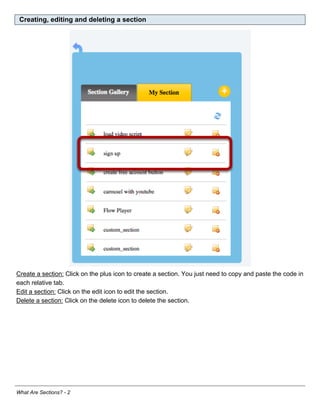
Create a section: Click on the plus icon to create a section. You just need to copy and paste the code in
each relative tab.
Edit a section: Click on the edit icon to edit the section.
Delete a section: Click on the delete icon to delete the section.


What Are Sections? - 2
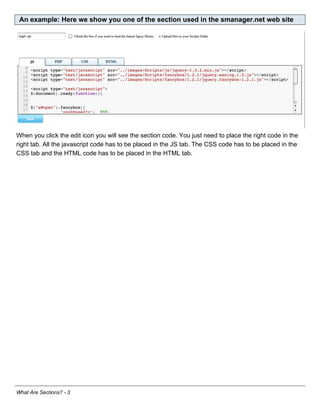
An example: Here we show you one of the section used in the smanager.net web site


When you click the edit icon you will see the section code. You just need to place the right code in the
right tab. All the javascript code has to be placed in the JS tab. The CSS code has to be placed in the
CSS tab and the HTML code has to be placed in the HTML tab.


What Are Sections? - 3
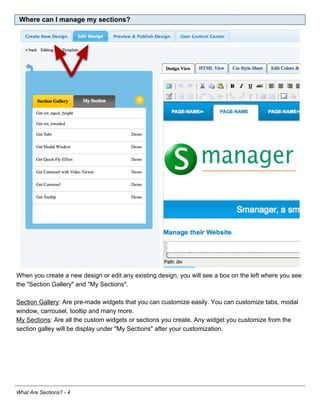
Where can I manage my sections?


When you create a new design or edit any existing design, you will see a box on the left where you see
the "Section Gallery" and "My Sections".

Section Gallery: Are pre-made widgets that you can customize easily. You can customize tabs, modal
window, carrousel, tooltip and many more.
My Sections: Are all the custom widgets or sections you create. Any widget you customize from the
section galley will be display under "My Sections" after your customization.


What Are Sections? - 4
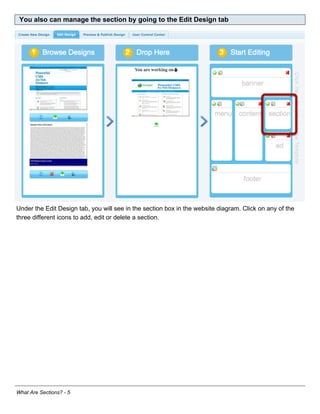
You also can manage the section by going to the Edit Design tab


Under the Edit Design tab, you will see in the section box in the website diagram. Click on any of the
three different icons to add, edit or delete a section.


What Are Sections? - 5
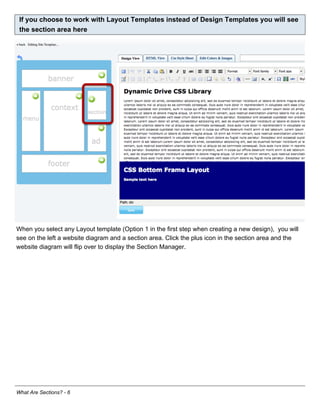
If you choose to work with Layout Templates instead of Design Templates you will see
 the section area here


When you select any Layout template (Option 1 in the first step when creating a new design), you will
see on the left a website diagram and a section area. Click the plus icon in the section area and the
website diagram will flip over to display the Section Manager.


What Are Sections? - 6
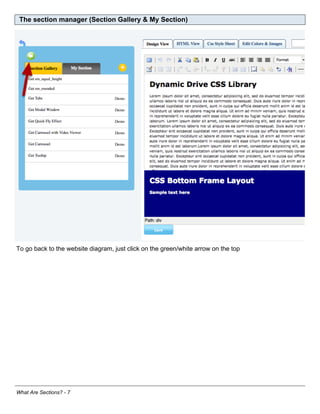
The section manager (Section Gallery & My Section)


To go back to the website diagram, just click on the green/white arrow on the top


What Are Sections? - 7
How to customize any pre-made widget


By clicking GET [widget name], window will open where you can customize any widget. For example, if
we click on "Get Tabs" we can start customizing a set of tabs for our web site.


What Are Sections? - 8
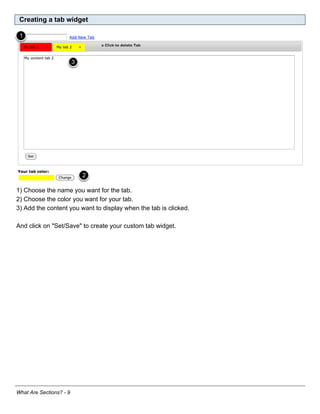
Creating a tab widget


1) Choose the name you want for the tab.
2) Choose the color you want for your tab.
3) Add the content you want to display when the tab is clicked.

And click on "Set/Save" to create your custom tab widget.


What Are Sections? - 9
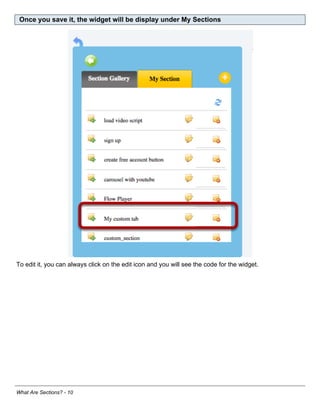
Once you save it, the widget will be display under My Sections


To edit it, you can always click on the edit icon and you will see the code for the widget.


What Are Sections? - 10
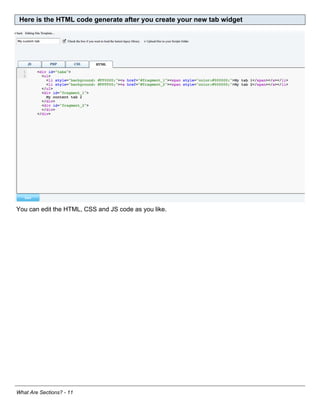
Here is the HTML code generate after you create your new tab widget


You can edit the HTML, CSS and JS code as you like.


What Are Sections? - 11
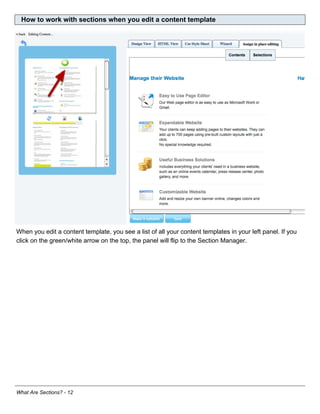
How to work with sections when you edit a content template


When you edit a content template, you see a list of all your content templates in your left panel. If you
click on the green/white arrow on the top, the panel will flip to the Section Manager.


What Are Sections? - 12
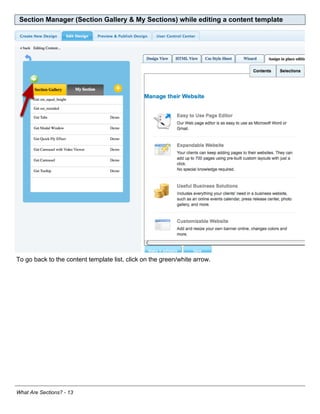
Section Manager (Section Gallery & My Sections) while editing a content template


To go back to the content template list, click on the green/white arrow.


What Are Sections? - 13
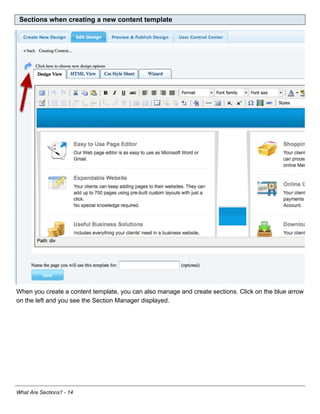
Sections when creating a new content template


When you create a content template, you can also manage and create sections. Click on the blue arrow
on the left and you see the Section Manager displayed.


What Are Sections? - 14
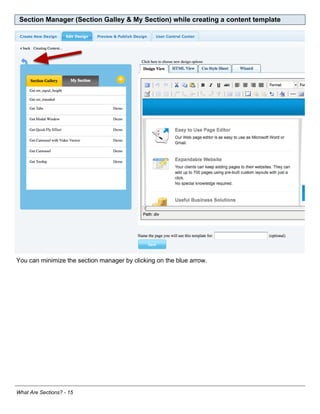
Section Manager (Section Galley & My Section) while creating a content template


You can minimize the section manager by clicking on the blue arrow.


What Are Sections? - 15

What are sections

  • 1.
    What Are Sections? Sectionsare HTMl, JS and CSS code that you can embed at any part of your template. You can add sections to your main template and to any content template you create. For example: Any widget, such as carrousel, tab navigation system, modal window or any custom programming can be setup as a section. You can easily edit each section and use it across your entire website. When you add a section in your main template, it will be display in all your pages. When you add a section in a content template, it will be display only in the pages you created using that specific content template NOTE: Sections are relative to each account. So you can use the same sections for any design you have created or will create under the same account. What Are Sections? - 1
  • 2.
    Creating, editing anddeleting a section Create a section: Click on the plus icon to create a section. You just need to copy and paste the code in each relative tab. Edit a section: Click on the edit icon to edit the section. Delete a section: Click on the delete icon to delete the section. What Are Sections? - 2
  • 3.
    An example: Herewe show you one of the section used in the smanager.net web site When you click the edit icon you will see the section code. You just need to place the right code in the right tab. All the javascript code has to be placed in the JS tab. The CSS code has to be placed in the CSS tab and the HTML code has to be placed in the HTML tab. What Are Sections? - 3
  • 4.
    Where can Imanage my sections? When you create a new design or edit any existing design, you will see a box on the left where you see the "Section Gallery" and "My Sections". Section Gallery: Are pre-made widgets that you can customize easily. You can customize tabs, modal window, carrousel, tooltip and many more. My Sections: Are all the custom widgets or sections you create. Any widget you customize from the section galley will be display under "My Sections" after your customization. What Are Sections? - 4
  • 5.
    You also canmanage the section by going to the Edit Design tab Under the Edit Design tab, you will see in the section box in the website diagram. Click on any of the three different icons to add, edit or delete a section. What Are Sections? - 5
  • 6.
    If you chooseto work with Layout Templates instead of Design Templates you will see the section area here When you select any Layout template (Option 1 in the first step when creating a new design), you will see on the left a website diagram and a section area. Click the plus icon in the section area and the website diagram will flip over to display the Section Manager. What Are Sections? - 6
  • 7.
    The section manager(Section Gallery & My Section) To go back to the website diagram, just click on the green/white arrow on the top What Are Sections? - 7
  • 8.
    How to customizeany pre-made widget By clicking GET [widget name], window will open where you can customize any widget. For example, if we click on "Get Tabs" we can start customizing a set of tabs for our web site. What Are Sections? - 8
  • 9.
    Creating a tabwidget 1) Choose the name you want for the tab. 2) Choose the color you want for your tab. 3) Add the content you want to display when the tab is clicked. And click on "Set/Save" to create your custom tab widget. What Are Sections? - 9
  • 10.
    Once you saveit, the widget will be display under My Sections To edit it, you can always click on the edit icon and you will see the code for the widget. What Are Sections? - 10
  • 11.
    Here is theHTML code generate after you create your new tab widget You can edit the HTML, CSS and JS code as you like. What Are Sections? - 11
  • 12.
    How to workwith sections when you edit a content template When you edit a content template, you see a list of all your content templates in your left panel. If you click on the green/white arrow on the top, the panel will flip to the Section Manager. What Are Sections? - 12
  • 13.
    Section Manager (SectionGallery & My Sections) while editing a content template To go back to the content template list, click on the green/white arrow. What Are Sections? - 13
  • 14.
    Sections when creatinga new content template When you create a content template, you can also manage and create sections. Click on the blue arrow on the left and you see the Section Manager displayed. What Are Sections? - 14
  • 15.
    Section Manager (SectionGalley & My Section) while creating a content template You can minimize the section manager by clicking on the blue arrow. What Are Sections? - 15