DIT341 - Lecture 10:
Mobile Development with Android (2)
Gregory Gay
(Some slides by Grischa Liebel)
2018-08-27 Chalmers University of Technology 2
This Lecture
• Testing
• Profiling
• Processes and Threads
• Services
• Broadcast Receivers
• Content Providers (if we have time)
3
Related Activities
• Activity 21: Optional
• Practice Android with Codelabs for Android
Developer Fundamentals (V2):
• https://developer.android.com/courses/fundamentals-training/toc-v2
• 2.2: Activity lifecycle and state
• 4.1: Clickable images
• 4.2: Input controls
• 4.3: Menus and pickers
• 4.4: User navigation
• 4.5: RecyclerView
4
Testing and Profiling
5
Testing
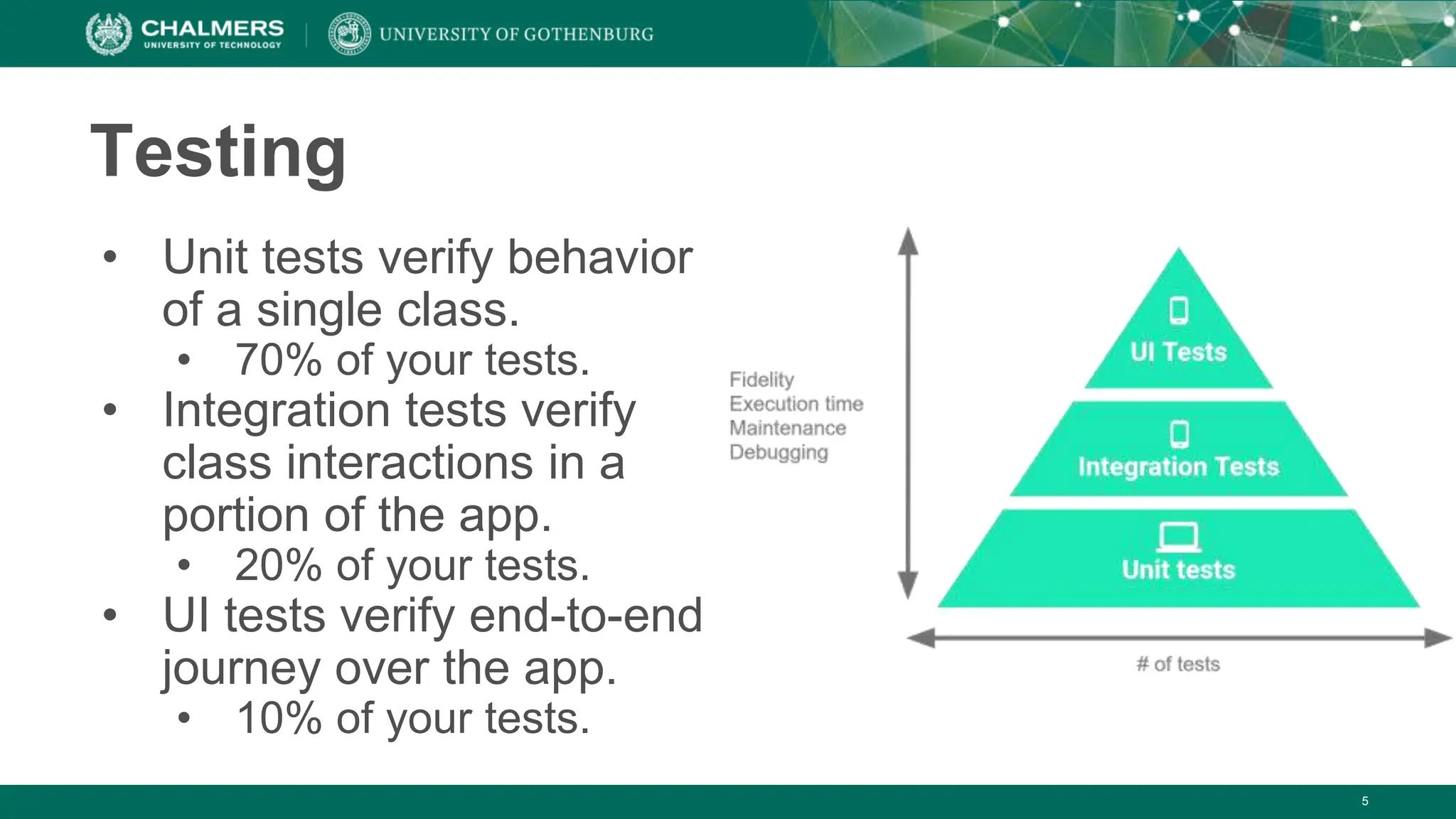
• Unit tests verify behavior
of a single class.
• 70% of your tests.
• Integration tests verify
class interactions in a
portion of the app.
• 20% of your tests.
• UI tests verify end-to-end
journey over the app.
• 10% of your tests.
6
Testing
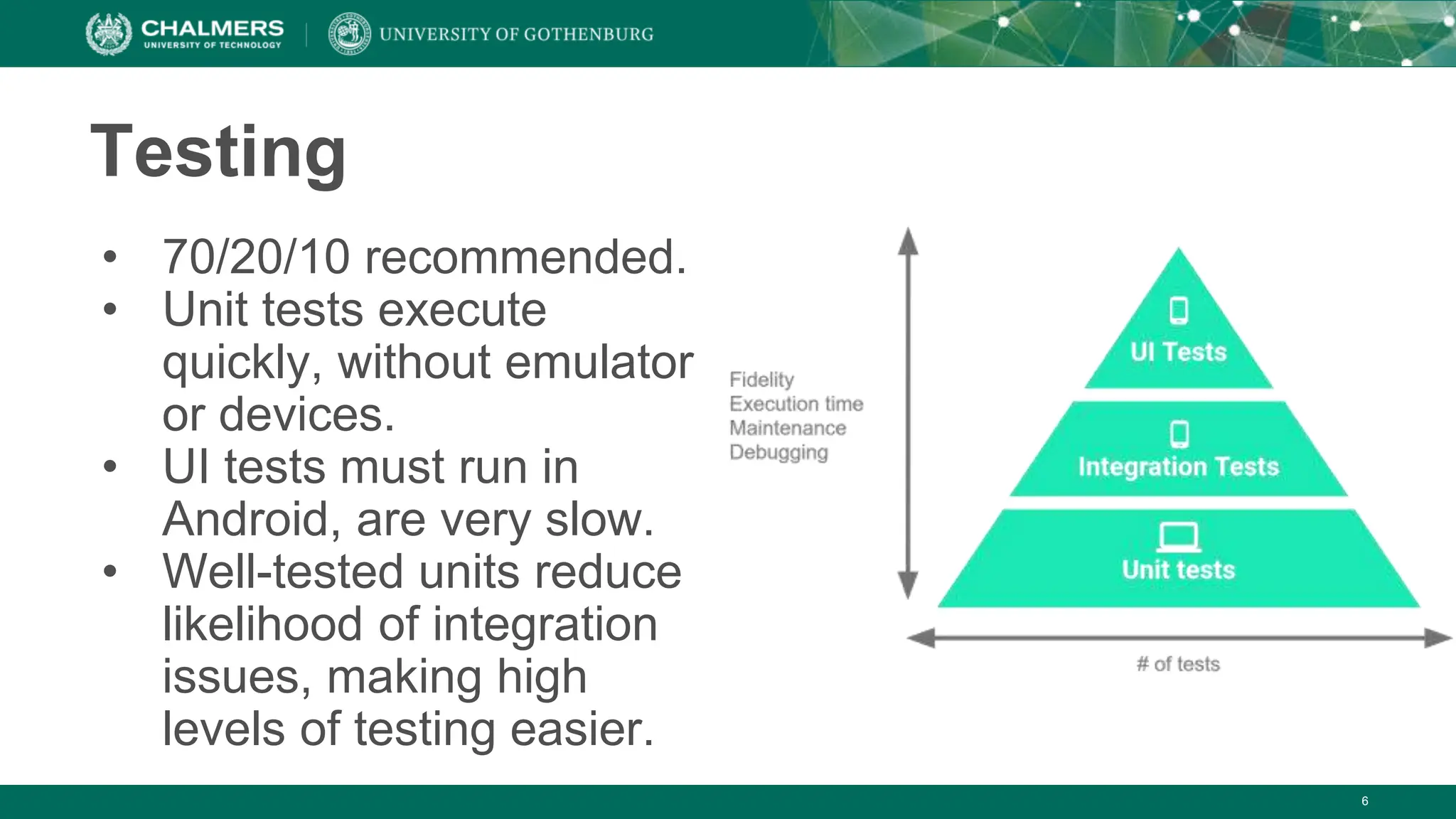
• 70/20/10 recommended.
• Unit tests execute
quickly, without emulator
or devices.
• UI tests must run in
Android, are very slow.
• Well-tested units reduce
likelihood of integration
issues, making high
levels of testing easier.
7
Testing Lifecycle
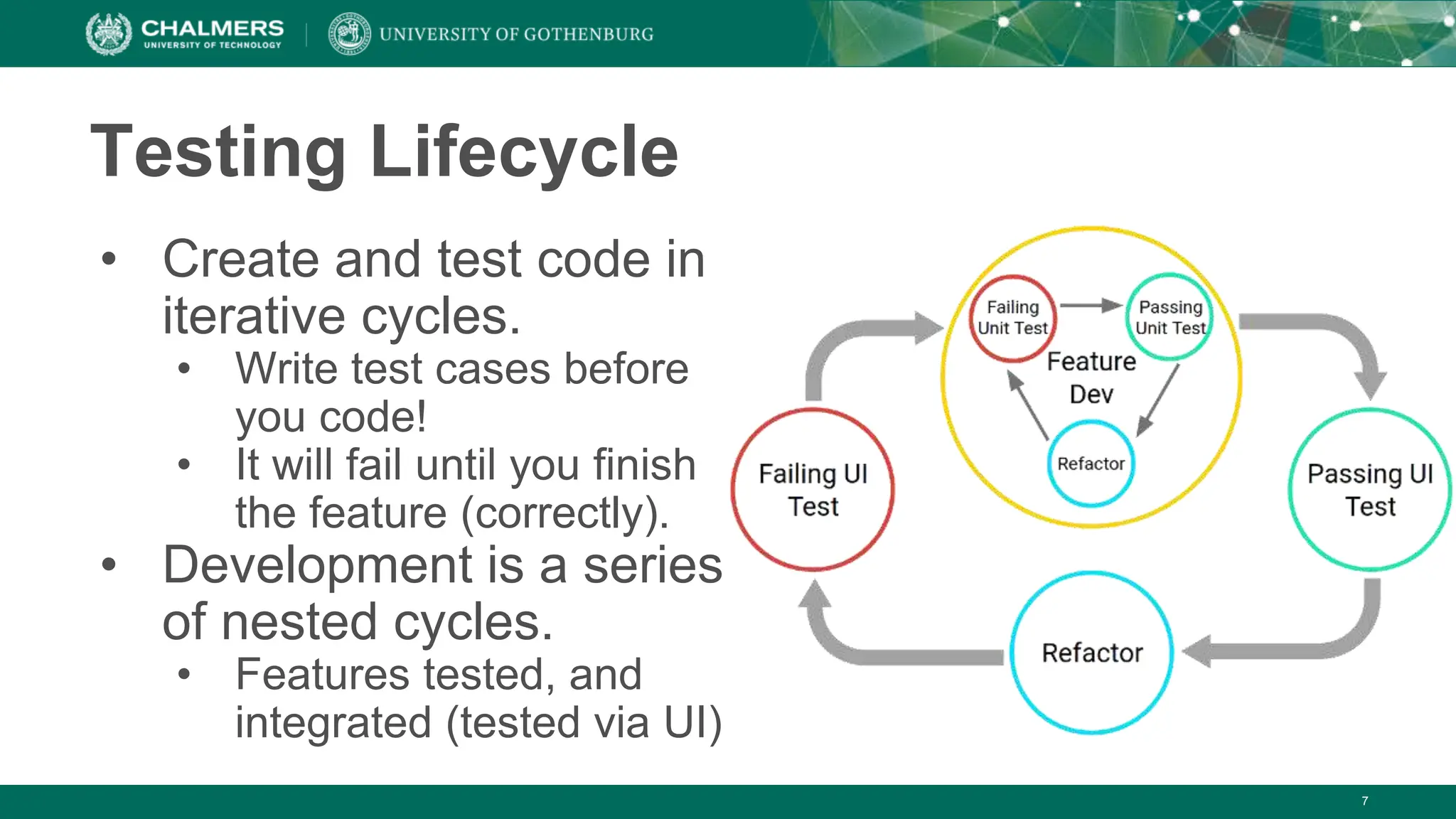
• Create and test code in
iterative cycles.
• Write test cases before
you code!
• It will fail until you finish
the feature (correctly).
• Development is a series
of nested cycles.
• Features tested, and
integrated (tested via UI)
8
Thinking in Terms of Modules
• Develop and test app as a set of modules.
• Clusters of classes centered around a task.
• Business logic, UI elements, data.
• Ex: Task List App
• Creating tasks, viewing stats, attaching photographs
• Allows iterative completion of app, independent
testing of features.
• Create consistent APIs to allow modules to interact
• Set well-defined boundaries around modules.
9
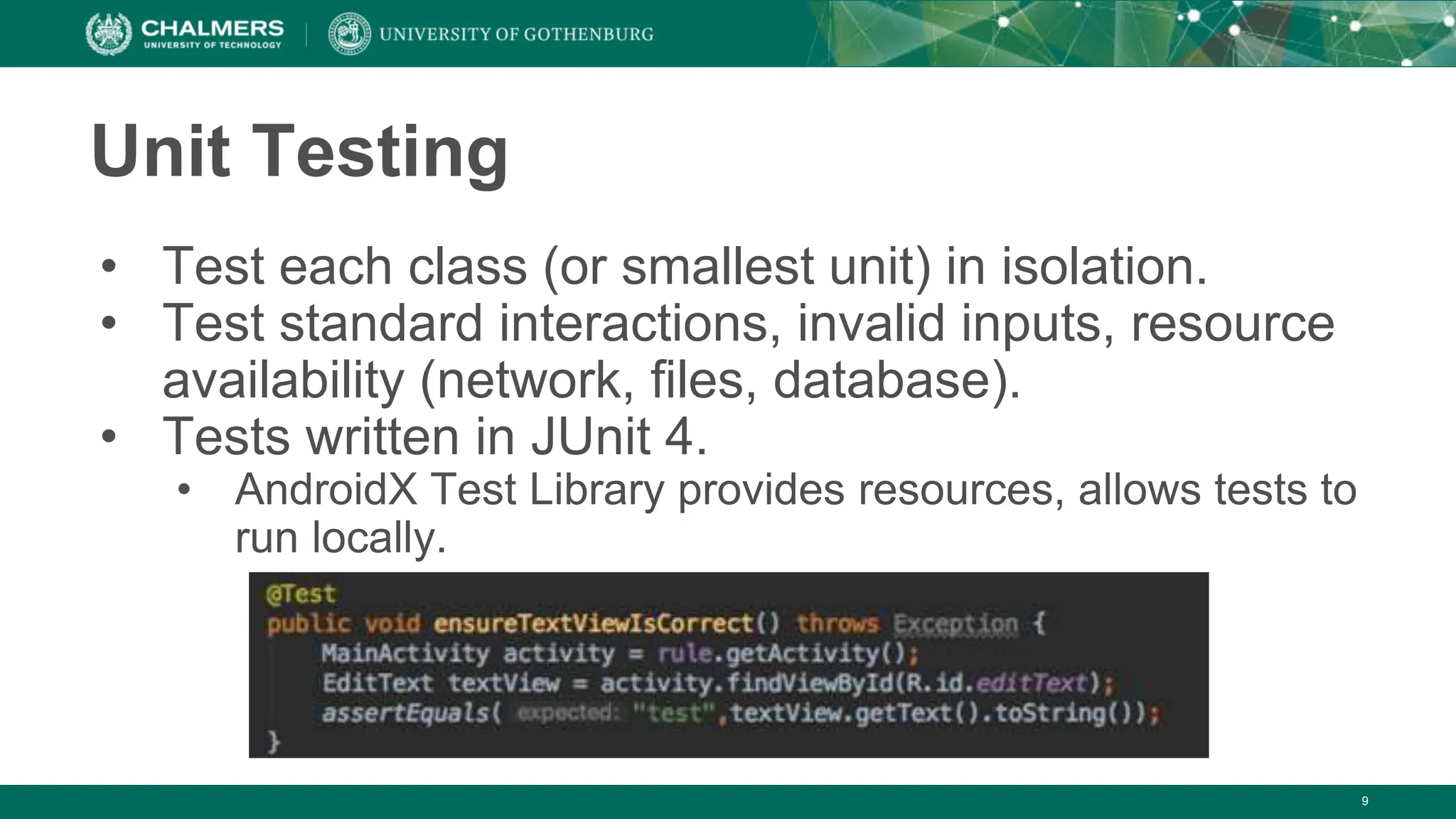
Unit Testing
• Test each class (or smallest unit) in isolation.
• Test standard interactions, invalid inputs, resource
availability (network, files, database).
• Tests written in JUnit 4.
• AndroidX Test Library provides resources, allows tests to
run locally.
Testing in Isolation
• Mock objects (AKA: test doubles) can be used to
replace dependencies.
• Simple replacements that offer static answers to method
calls and queries.
• If you’ve already tested dependencies, use those!
• If not, use mock objects.
• Mock objects also good for long operations, hard to
create configurations.
• Mockito library enables mocking.
10
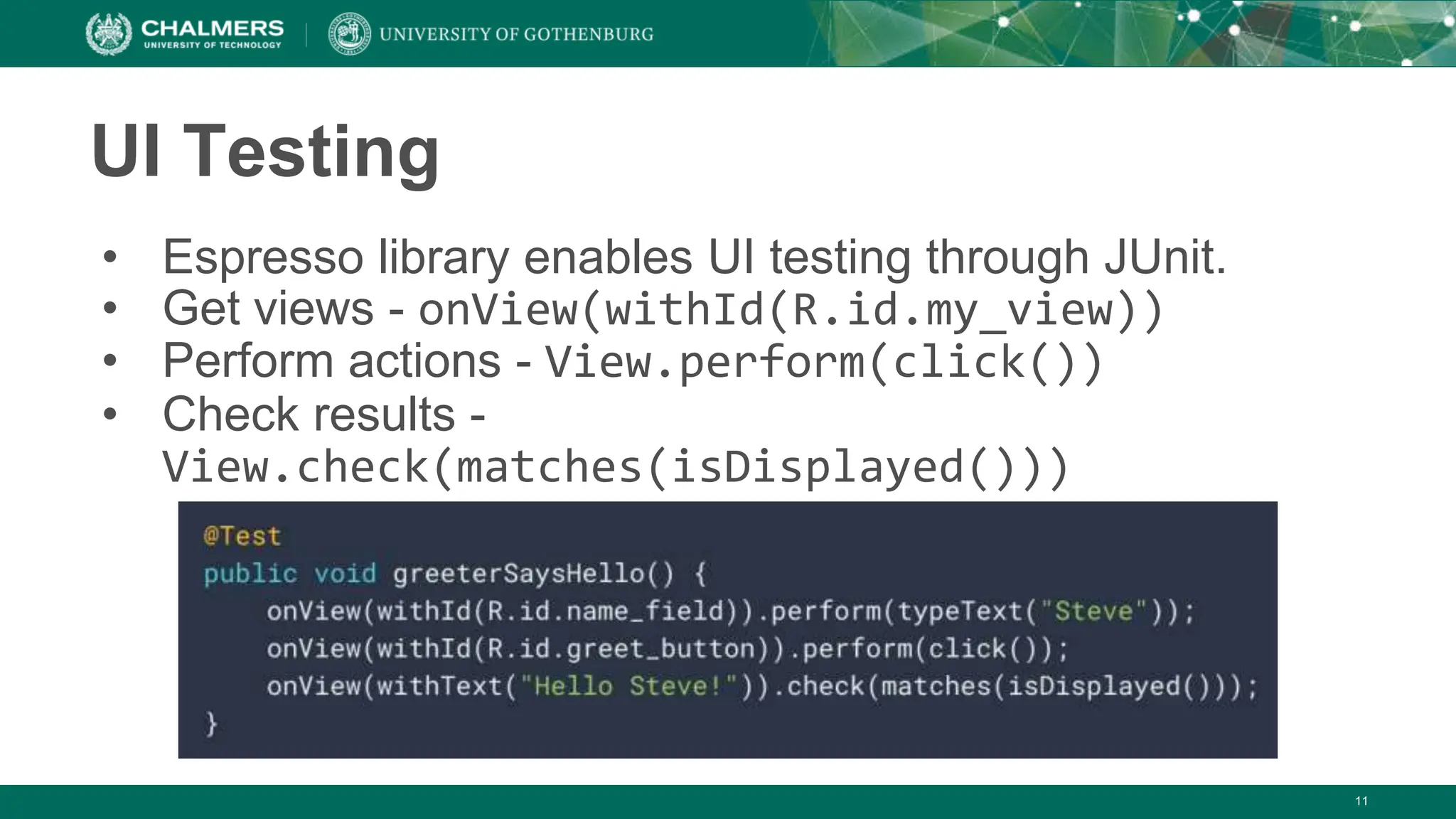
UI Testing
• Espresso library enables UI testing through JUnit.
• Get views - onView(withId(R.id.my_view))
• Perform actions - View.perform(click())
• Check results -
View.check(matches(isDisplayed()))
11
12
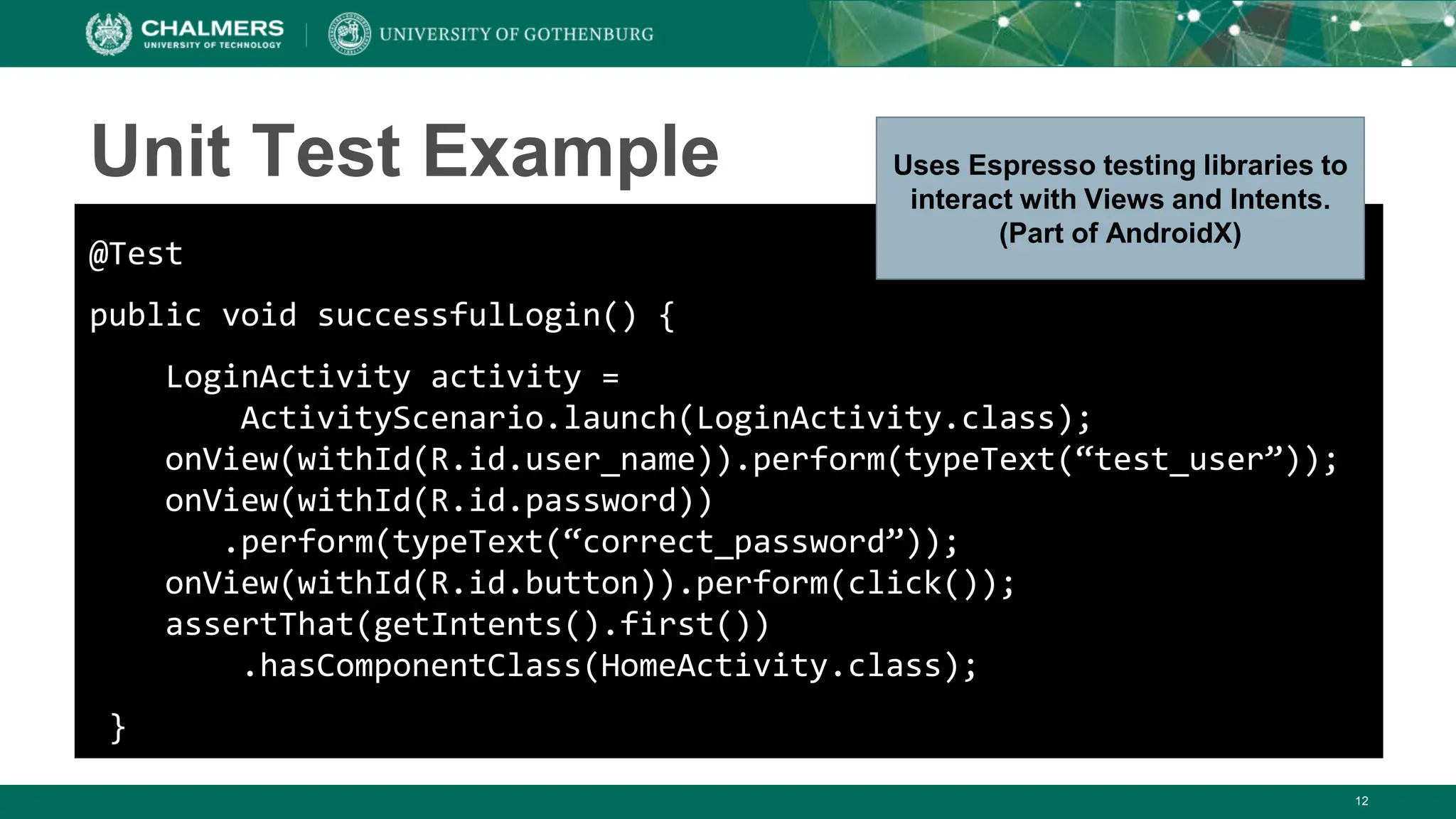
Unit Test Example
@Test
public void successfulLogin() {
LoginActivity activity =
ActivityScenario.launch(LoginActivity.class);
onView(withId(R.id.user_name)).perform(typeText(“test_user”));
onView(withId(R.id.password))
.perform(typeText(“correct_password”));
onView(withId(R.id.button)).perform(click());
assertThat(getIntents().first())
.hasComponentClass(HomeActivity.class);
}
Uses Espresso testing libraries to
interact with Views and Intents.
(Part of AndroidX)
Smoke Testing
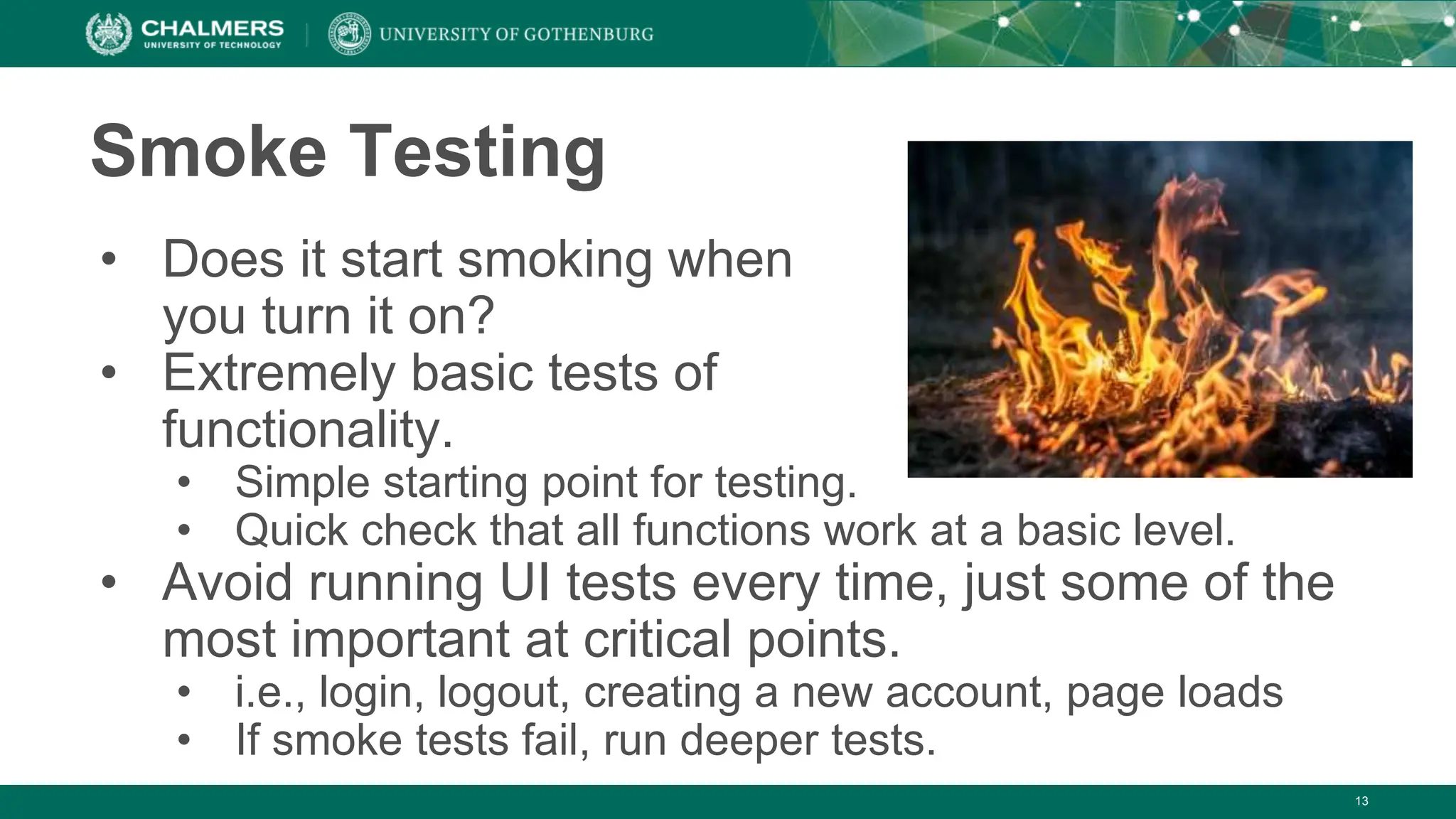
• Does it start smoking when
you turn it on?
• Extremely basic tests of
functionality.
• Simple starting point for testing.
• Quick check that all functions work at a basic level.
• Avoid running UI tests every time, just some of the
most important at critical points.
• i.e., login, logout, creating a new account, page loads
• If smoke tests fail, run deeper tests.
13
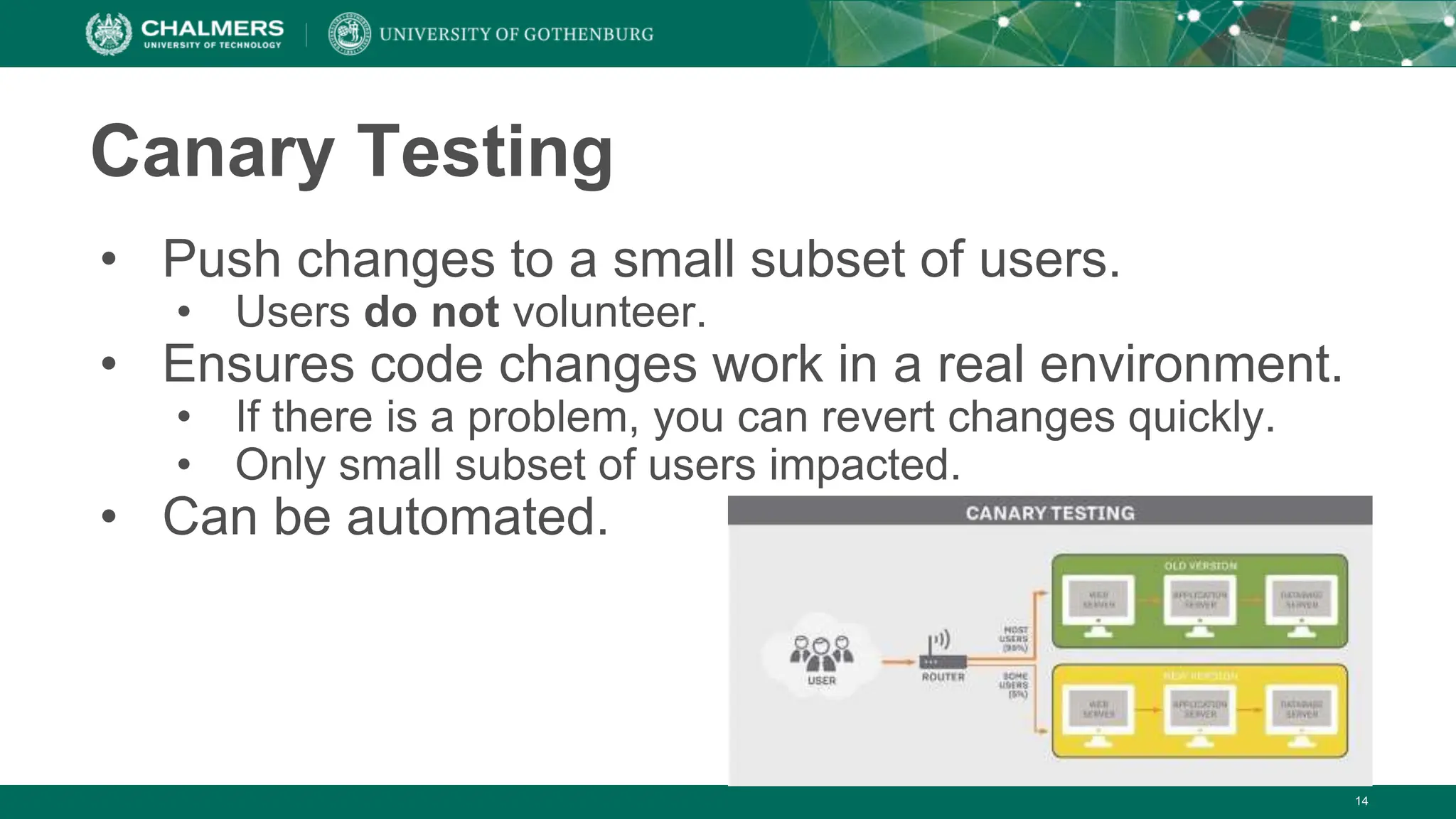
Canary Testing
• Push changes to a small subset of users.
• Users do not volunteer.
• Ensures code changes work in a real environment.
• If there is a problem, you can revert changes quickly.
• Only small subset of users impacted.
• Can be automated.
14
Monkey Testing
• Automatically stress test an app by
attacking with random input.
• UI tests not exhaustive.
• Monkey good for “filling in some gaps”.
• Tool included in Android SDK.
• Generates random keystrokes, touches,
and gestures.
• Run through command line.
15
16
Demonstration - Monkey Testing
17
Profiling
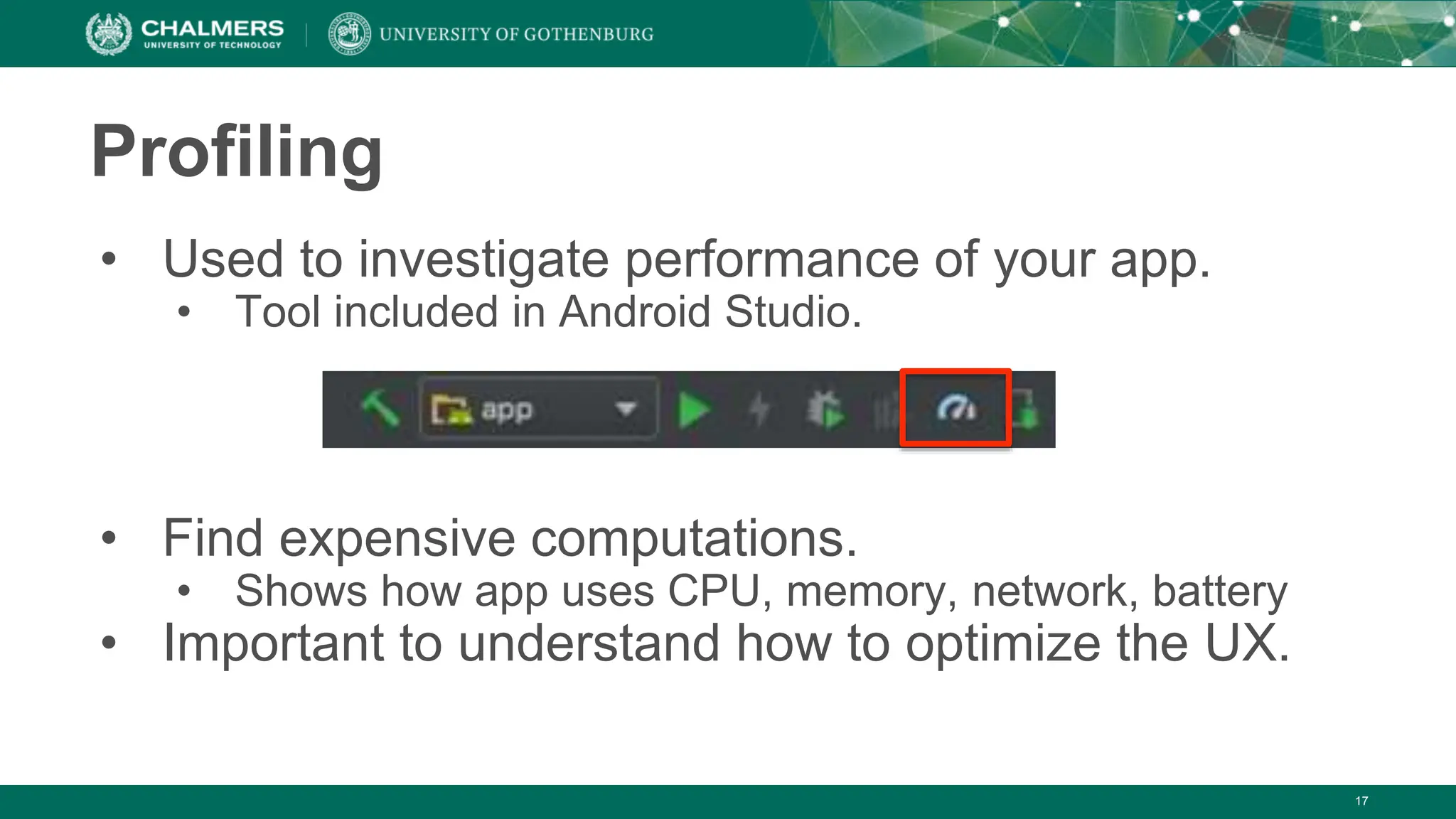
• Used to investigate performance of your app.
• Tool included in Android Studio.
• Find expensive computations.
• Shows how app uses CPU, memory, network, battery
• Important to understand how to optimize the UX.
18
Profiling
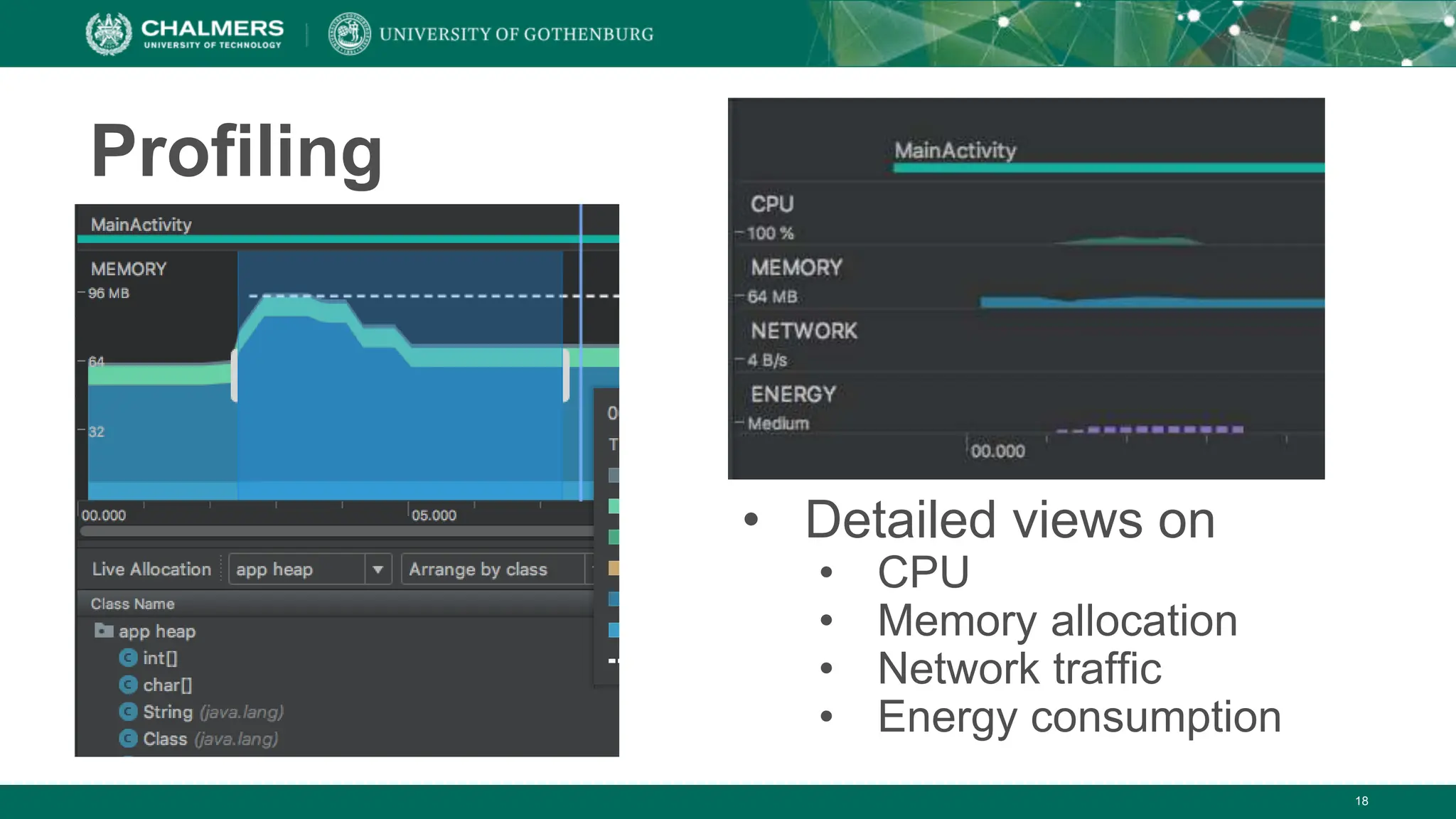
• Detailed views on
• CPU
• Memory allocation
• Network traffic
• Energy consumption
19
Backend Processing
2018-08-27 Chalmers University of Technology 20
Processes and Threads
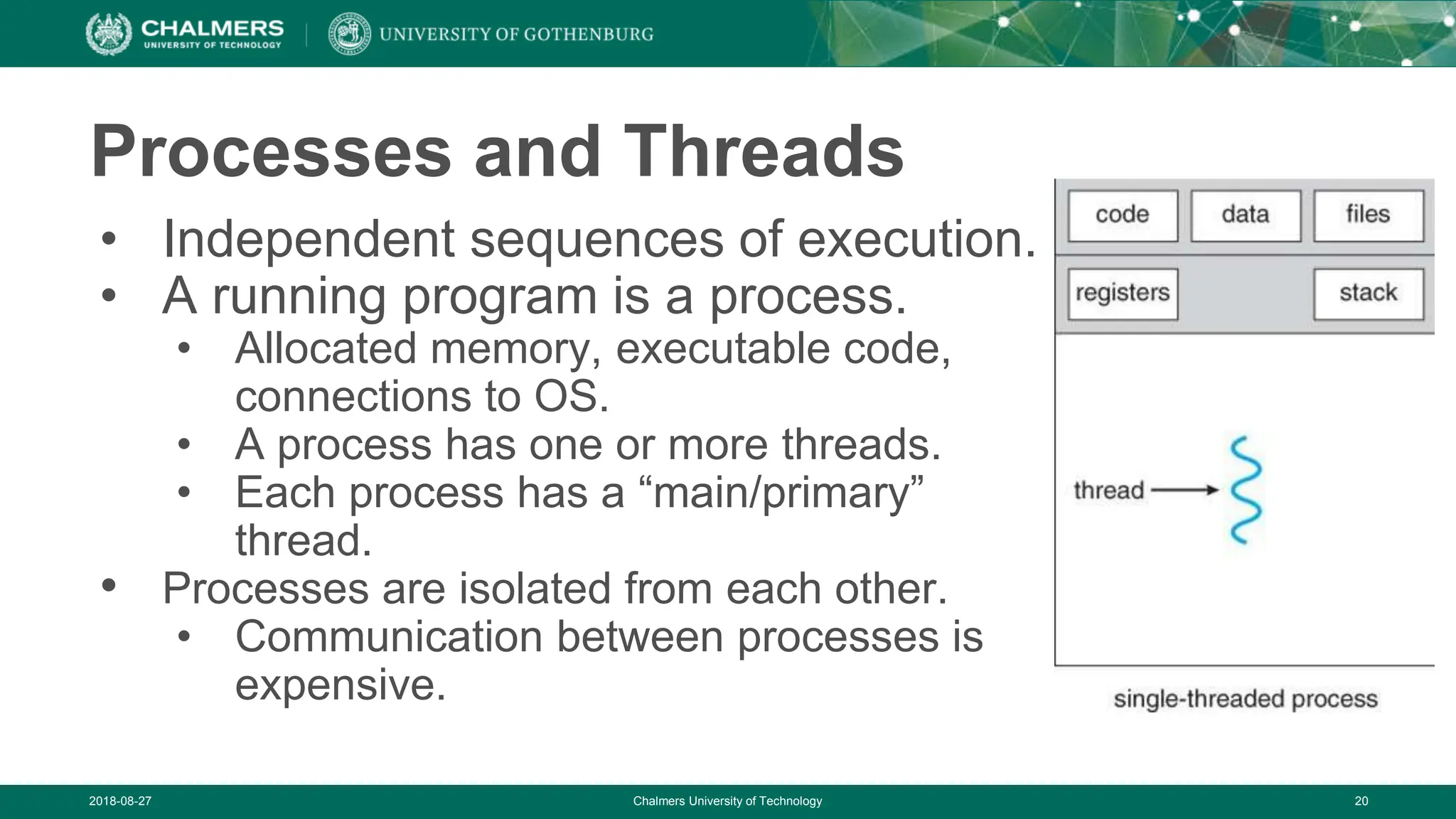
• Independent sequences of execution.
• A running program is a process.
• Allocated memory, executable code,
connections to OS.
• A process has one or more threads.
• Each process has a “main/primary”
thread.
• Processes are isolated from each other.
• Communication between processes is
expensive.
21
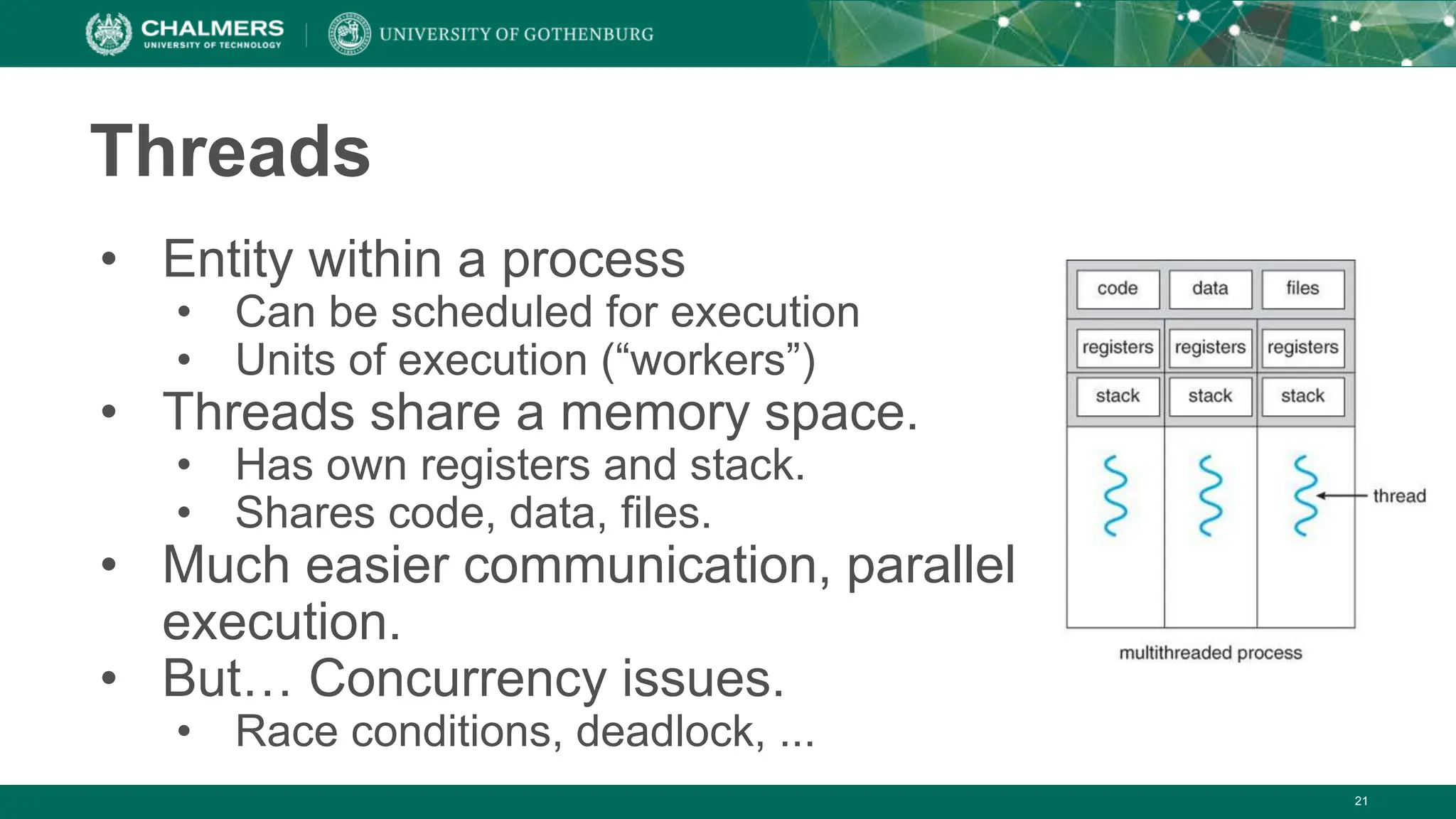
Threads
• Entity within a process
• Can be scheduled for execution
• Units of execution (“workers”)
• Threads share a memory space.
• Has own registers and stack.
• Shares code, data, files.
• Much easier communication, parallel
execution.
• But… Concurrency issues.
• Race conditions, deadlock, ...
22
Processes and Threads in Android
• Each app is (by default) started in a single process
• On startup, a main thread is created ("UI thread")
• Each component is instantiated within this thread
• Reacts to user events (input)
• Freezes if you do long-running operations in it!
• Rule: Never block the UI thread!
• (After 5s, Android asks if you want to close the app)
• Long-running operations should be done on background
threads.
• Accessing disk, performing network requests.
23
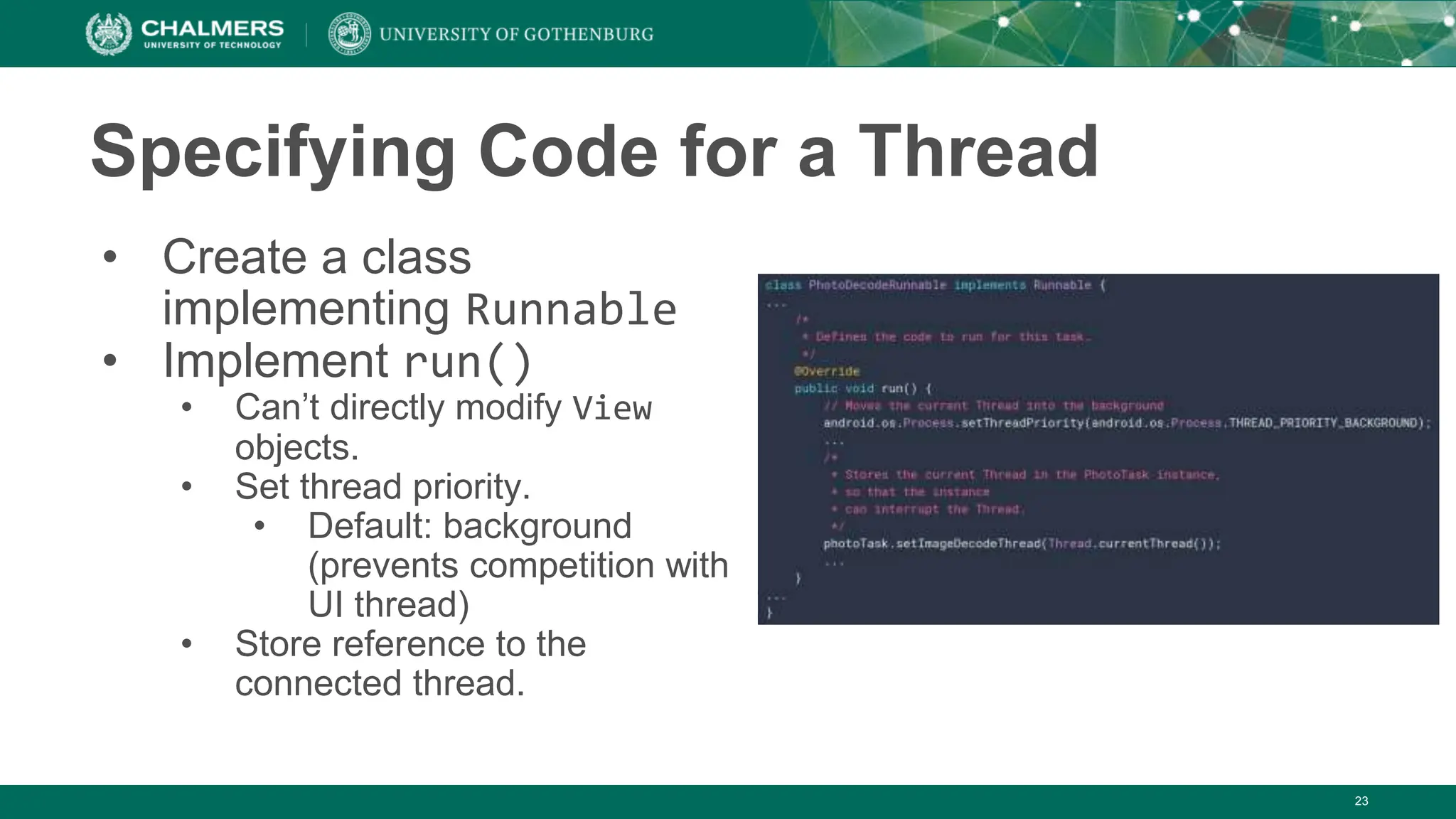
Specifying Code for a Thread
• Create a class
implementing Runnable
• Implement run()
• Can’t directly modify View
objects.
• Set thread priority.
• Default: background
(prevents competition with
UI thread)
• Store reference to the
connected thread.
24
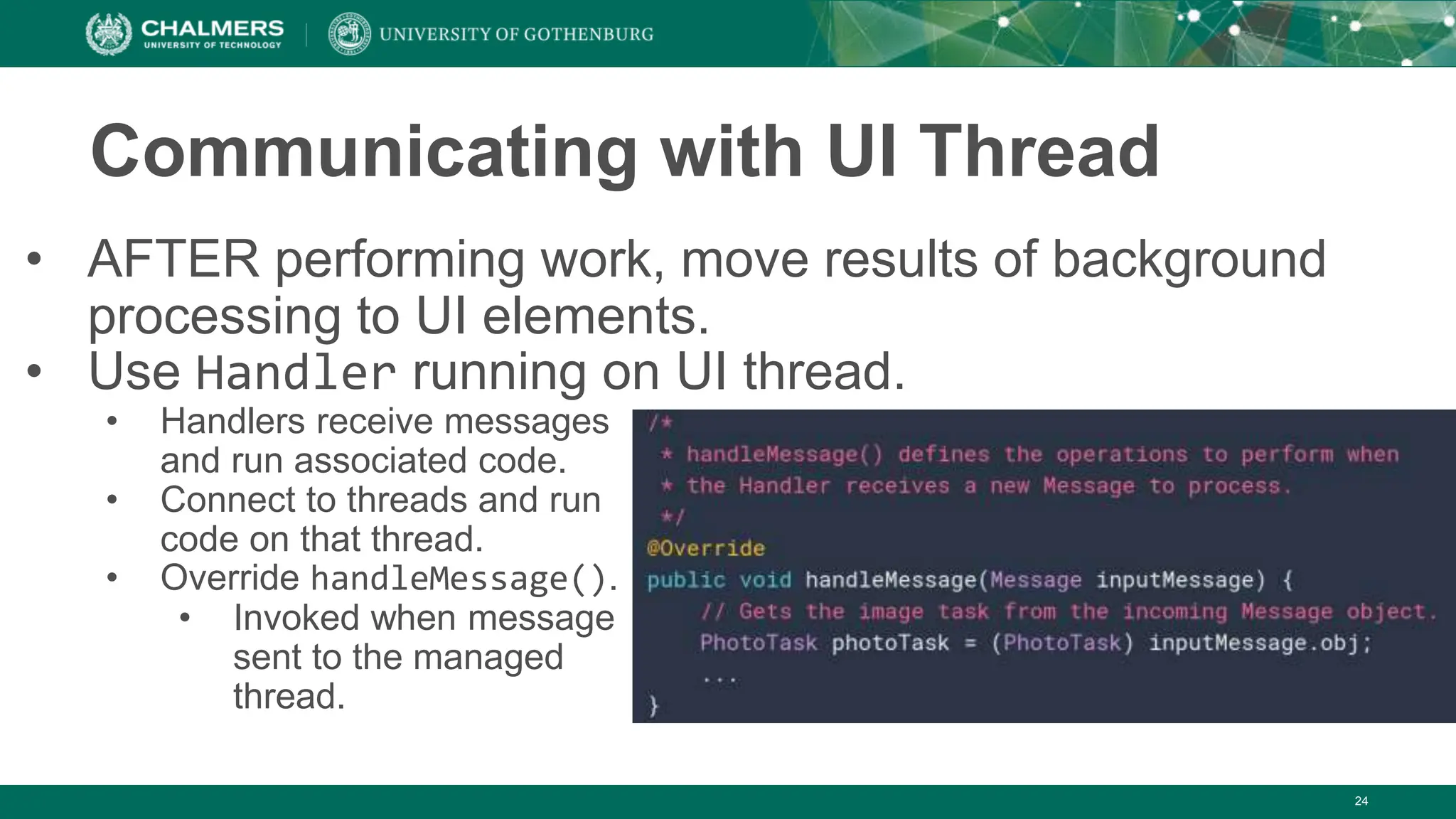
Communicating with UI Thread
• AFTER performing work, move results of background
processing to UI elements.
• Use Handler running on UI thread.
• Handlers receive messages
and run associated code.
• Connect to threads and run
code on that thread.
• Override handleMessage().
• Invoked when message
sent to the managed
thread.
25
Support for Background Processing
• WorkManager
• Library that runs background tasks when conditions
(network availability, battery) are satisfied.
• For work that can be put off until later.
• Foreground Services
• Background process without UI.
• Work that must run immediately and be completed.
• Prevents OS from killing process.
26
Support for Background Processing
• AlarmManager
• Launches a process at a scheduled time.
• WorkManager better balances system resources, but
AlarmManager is needed for specific timed processes.
• Use WorkManager for tasks that execute every hour. Use
AlarmManager for tasks executing at 6:38 AM.
• DownloadManager
• Performs background downloading tasks.
• Provide URI, library handles HTTP interactions, retries,
connectivity changes.
27
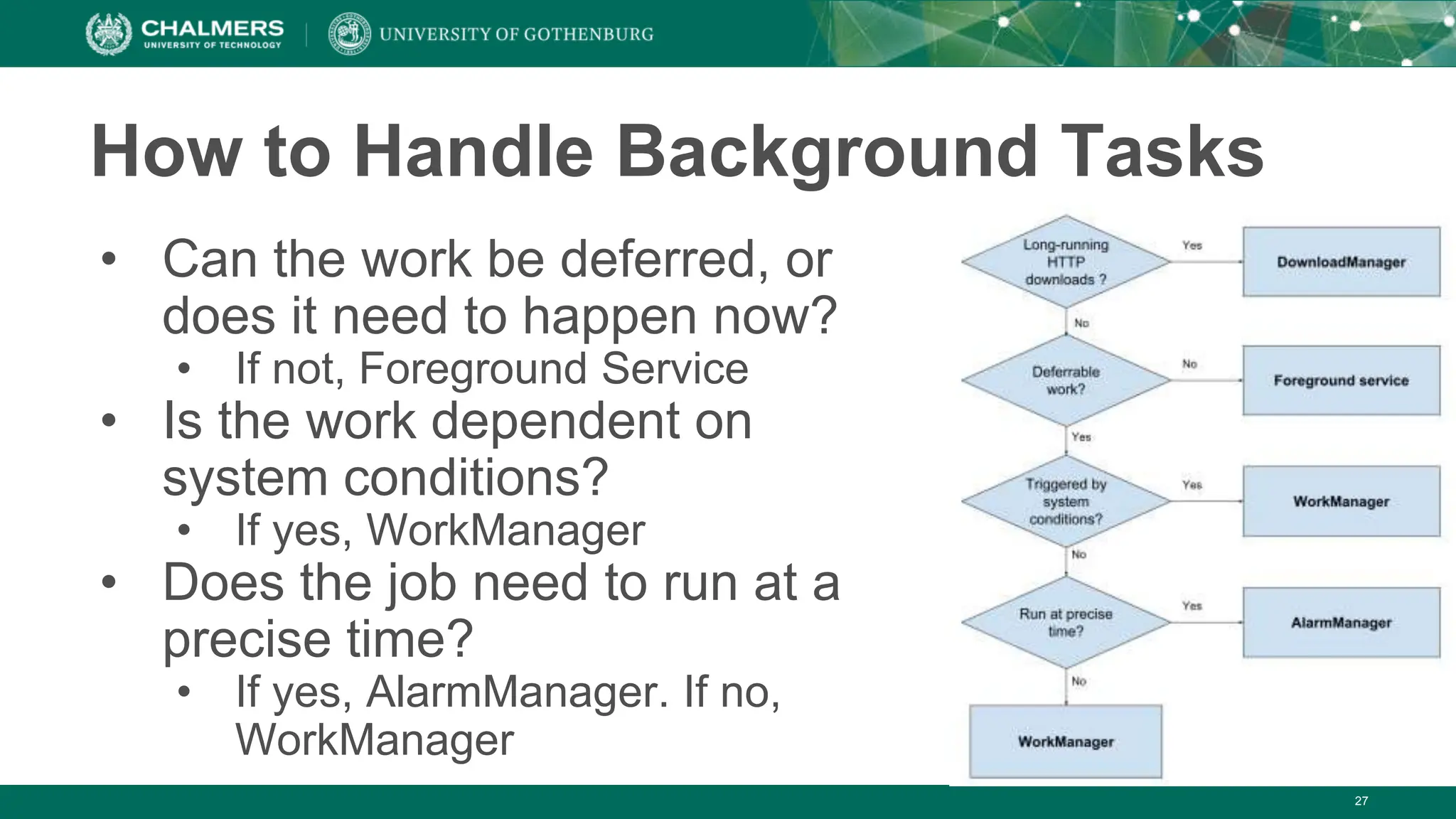
How to Handle Background Tasks
• Can the work be deferred, or
does it need to happen now?
• If not, Foreground Service
• Is the work dependent on
system conditions?
• If yes, WorkManager
• Does the job need to run at a
precise time?
• If yes, AlarmManager. If no,
WorkManager
28
Let’s Take a Break
29
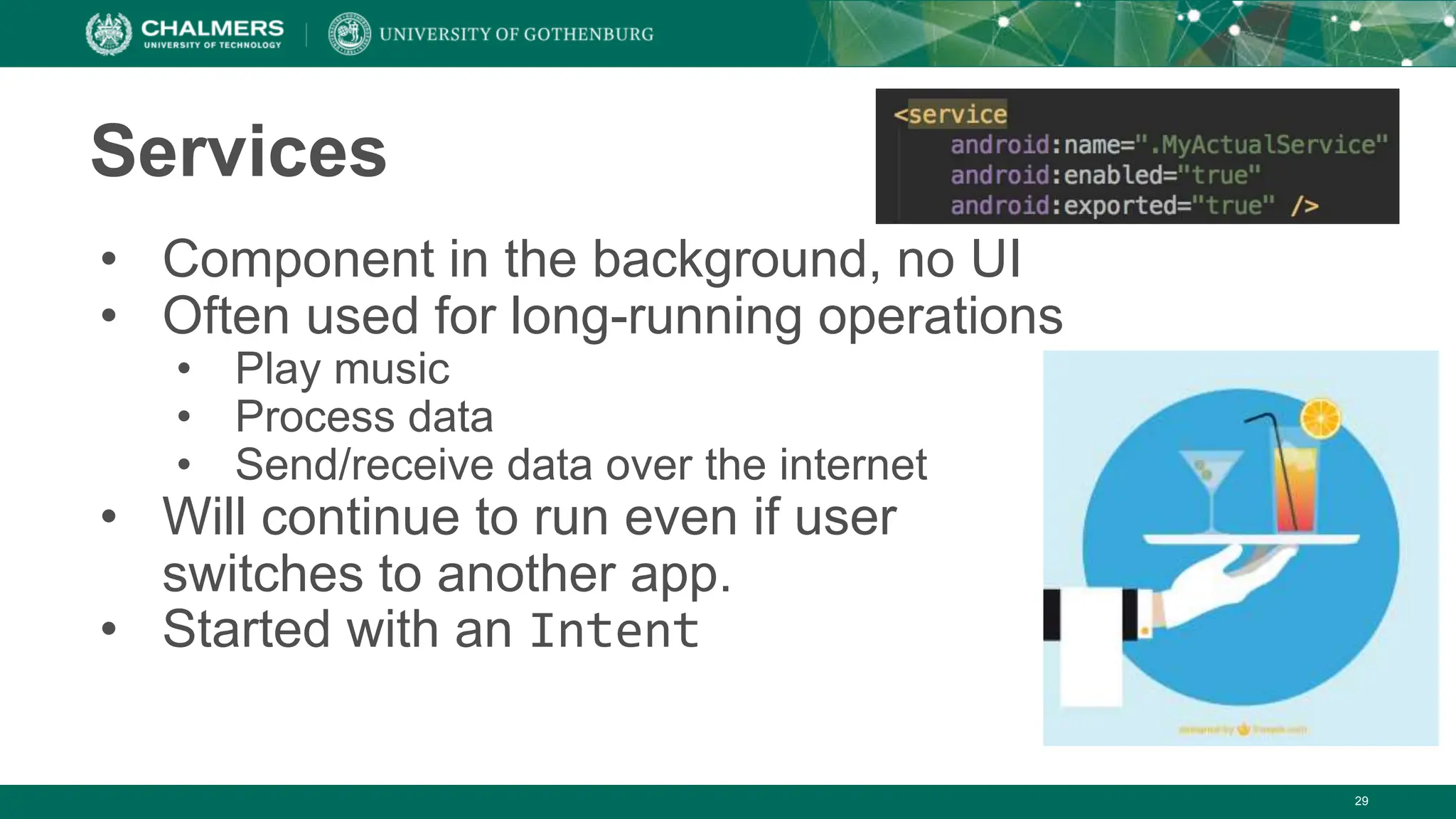
Services
• Component in the background, no UI
• Often used for long-running operations
• Play music
• Process data
• Send/receive data over the internet
• Will continue to run even if user
switches to another app.
• Started with an Intent
30
Services
• Foreground Services
• Perform an operation that users notice.
• Play music
• Must display notification.
• Keep running even if user isn’t interacting with them.
• Background Services
• Perform operation not noticeable to user.
• Compress files
31
Bound Services
• Service bound to component using bindService()
• Offers a client-server interface allowing
components to interact with the service.
• Send requests/receive results
• Across processes (allowing process communication)
• Multiple components can be bound to one service.
• Service destroyed when all unbind.
32
Services vs Threads
• Rule of thumb:
• Operation should run, even if user doesn't interact with
the app (or closes it): Service
• Long-running operation, while the user is active: Thread
• Example: Alarm clock
• Alarm should go off, even if you close the clock app.
• Service!
• Example: Buffer video
• Video should stop if the app is closed.
• Thread!
33
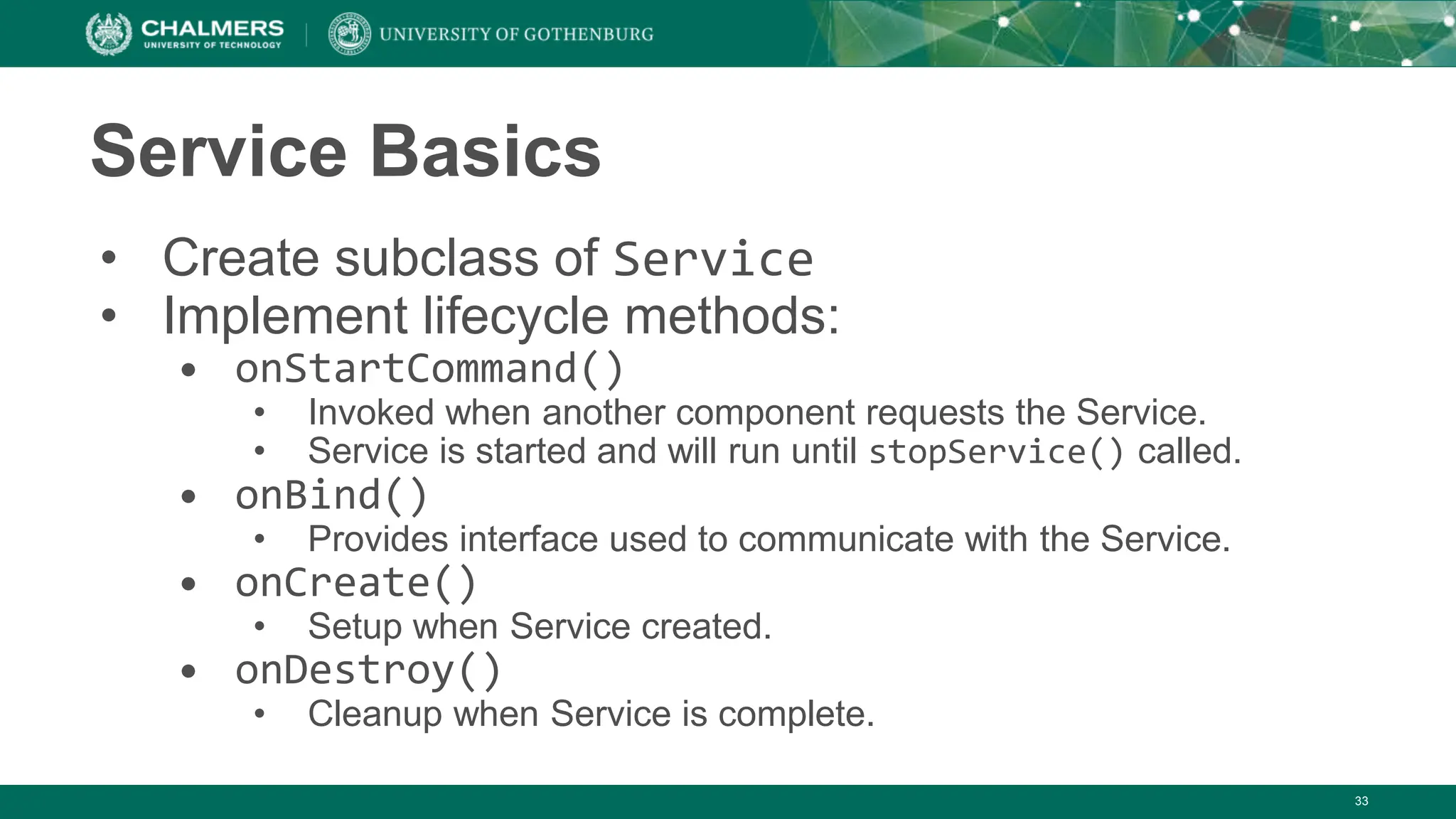
Service Basics
• Create subclass of Service
• Implement lifecycle methods:
• onStartCommand()
• Invoked when another component requests the Service.
• Service is started and will run until stopService() called.
• onBind()
• Provides interface used to communicate with the Service.
• onCreate()
• Setup when Service created.
• onDestroy()
• Cleanup when Service is complete.
34
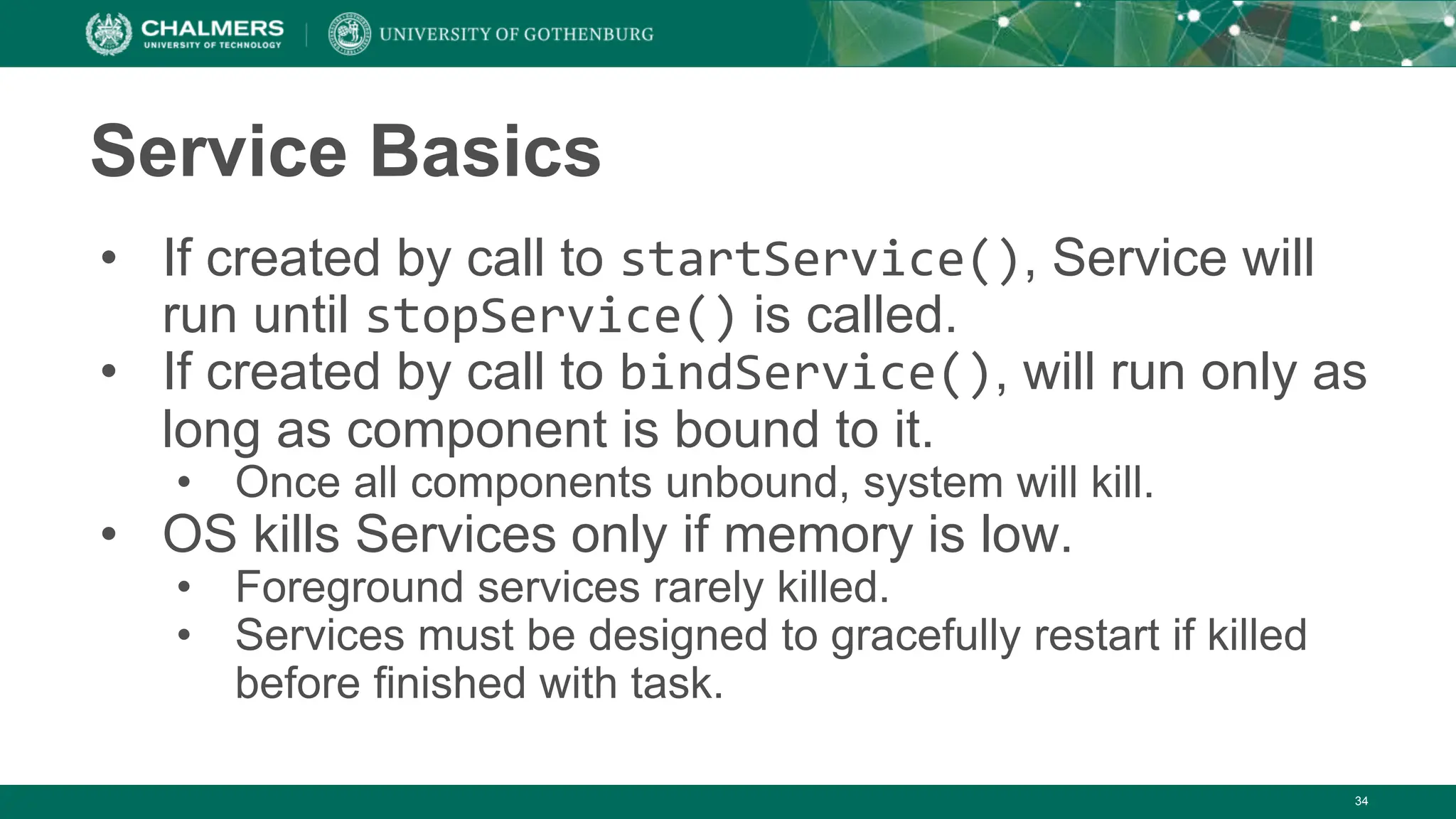
Service Basics
• If created by call to startService(), Service will
run until stopService() is called.
• If created by call to bindService(), will run only as
long as component is bound to it.
• Once all components unbound, system will kill.
• OS kills Services only if memory is low.
• Foreground services rarely killed.
• Services must be designed to gracefully restart if killed
before finished with task.
35
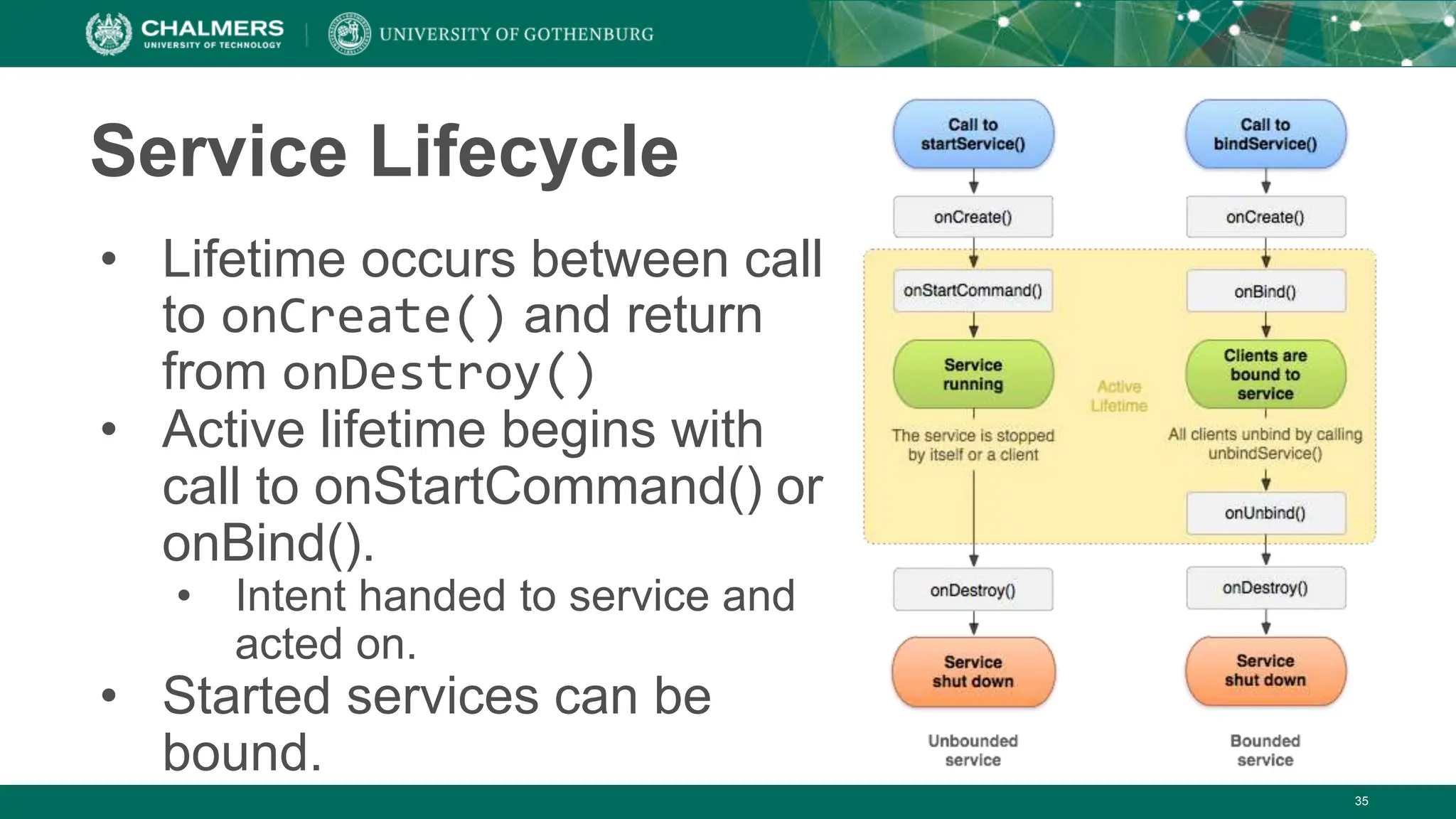
Service Lifecycle
• Lifetime occurs between call
to onCreate() and return
from onDestroy()
• Active lifetime begins with
call to onStartCommand() or
onBind().
• Intent handed to service and
acted on.
• Started services can be
bound.
36
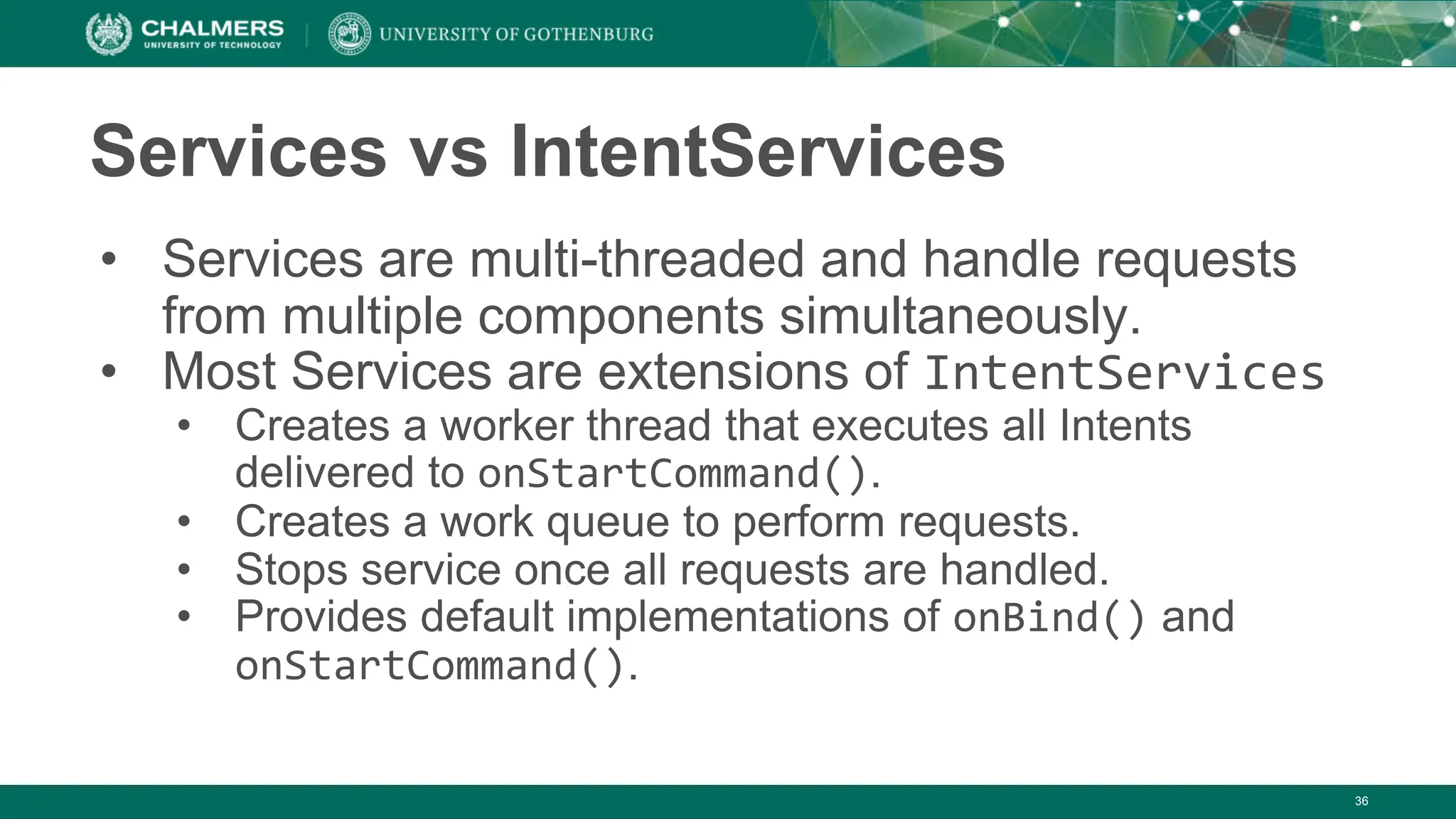
Services vs IntentServices
• Services are multi-threaded and handle requests
from multiple components simultaneously.
• Most Services are extensions of IntentServices
• Creates a worker thread that executes all Intents
delivered to onStartCommand().
• Creates a work queue to perform requests.
• Stops service once all requests are handled.
• Provides default implementations of onBind() and
onStartCommand().
37
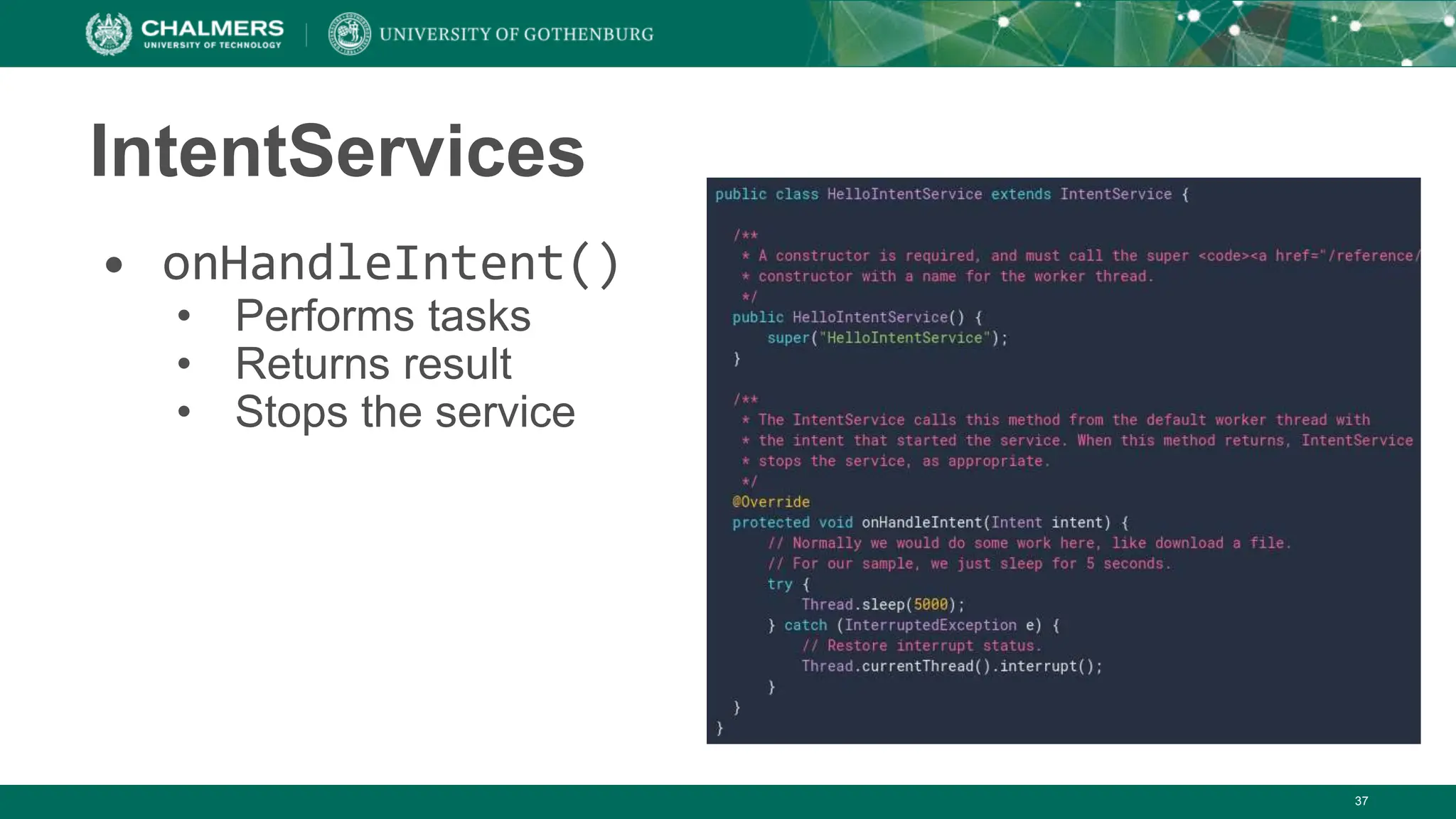
IntentServices
• onHandleIntent()
• Performs tasks
• Returns result
• Stops the service
38
Word of Warning
• Services are difficult to get right!
• Much more to cover than fit the
slides/time
• If you want to implement a service,
read up on what you need to know:
https://developer.android.com/guide/components/services
Broadcast Receivers
• Apps may send or receive broadcasts from the OS
or other apps.
• Sent when events of interest occur.
• Phone plugged into power outlet.
• Apps can register to receive specific broadcasts.
• OS routes broadcasts to registered apps.
• Messaging system across apps.
• Allows starting and stopping of Services.
39
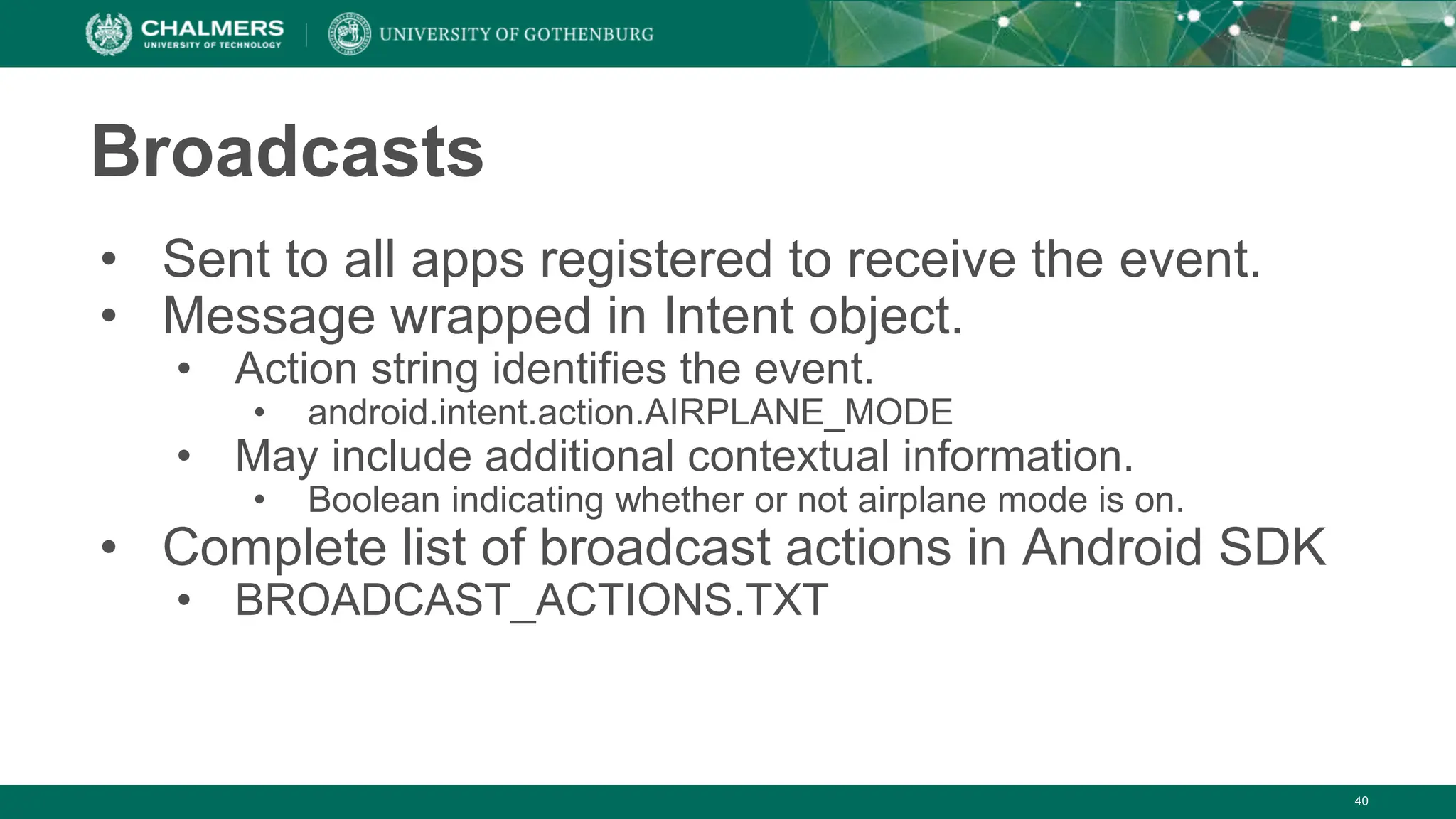
Broadcasts
• Sent to all apps registered to receive the event.
• Message wrapped in Intent object.
• Action string identifies the event.
• android.intent.action.AIRPLANE_MODE
• May include additional contextual information.
• Boolean indicating whether or not airplane mode is on.
• Complete list of broadcast actions in Android SDK
• BROADCAST_ACTIONS.TXT
40
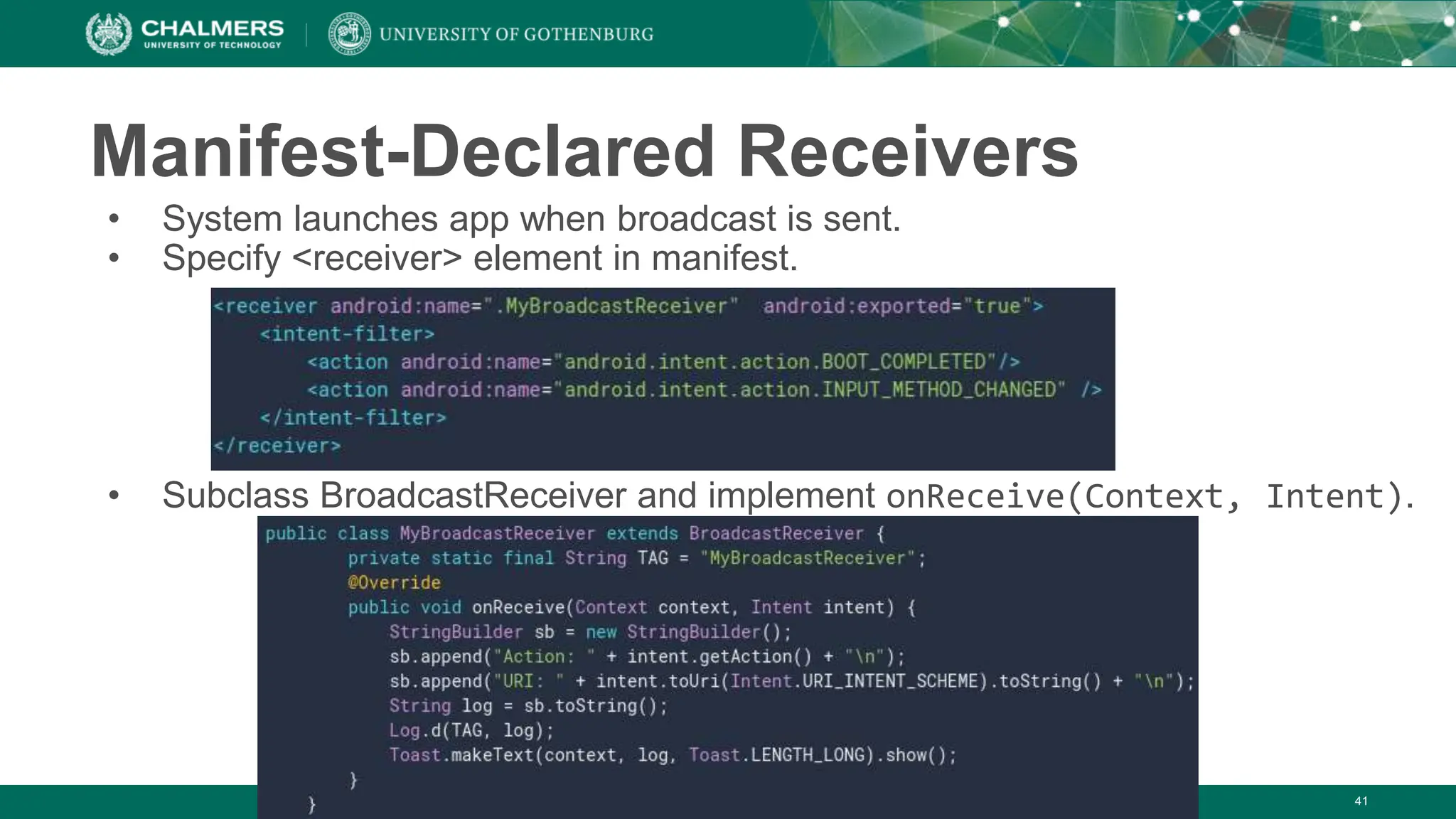
Manifest-Declared Receivers
• System launches app when broadcast is sent.
• Specify <receiver> element in manifest.
• Subclass BroadcastReceiver and implement onReceive(Context, Intent).
41
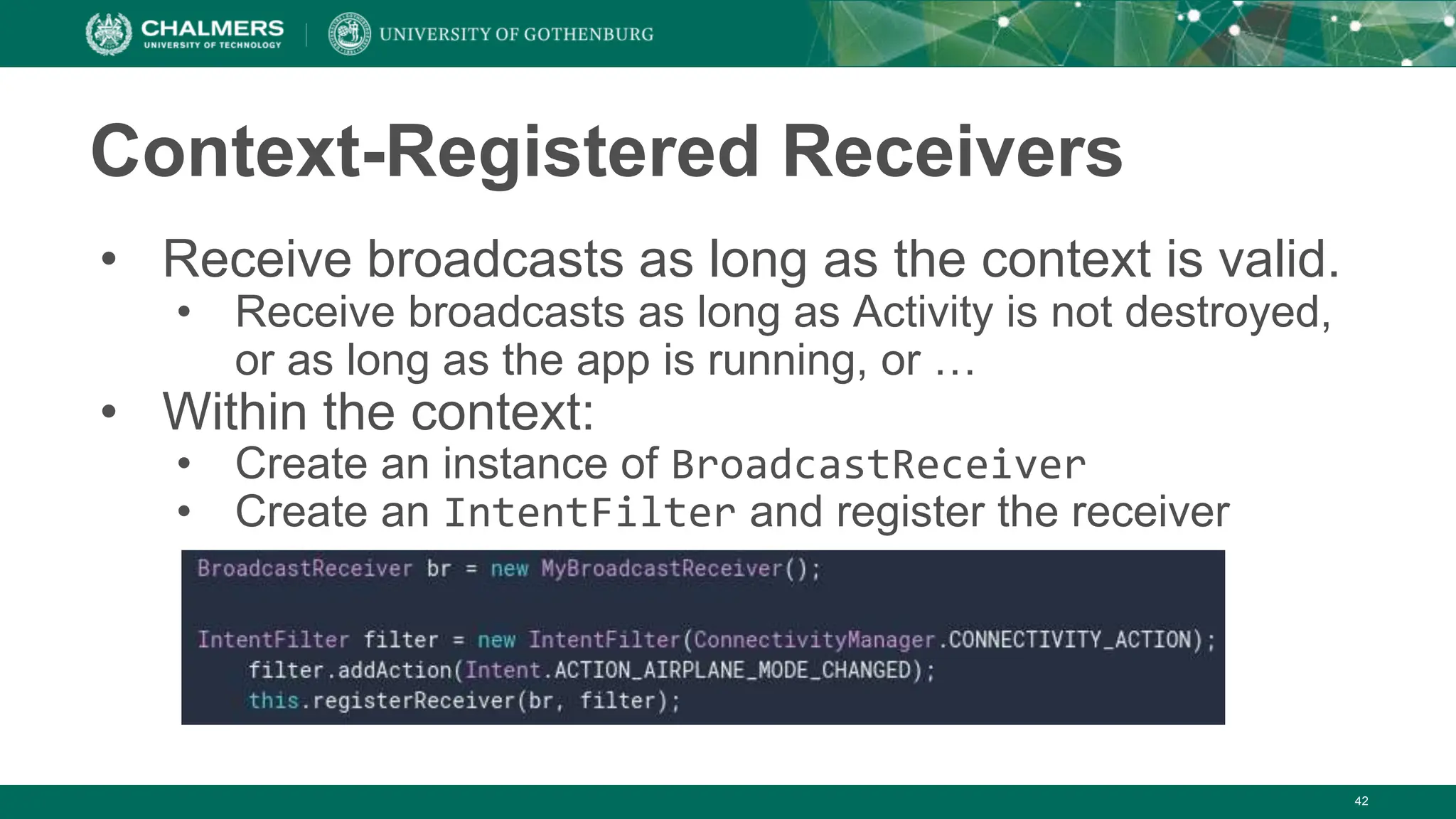
Context-Registered Receivers
• Receive broadcasts as long as the context is valid.
• Receive broadcasts as long as Activity is not destroyed,
or as long as the app is running, or …
• Within the context:
• Create an instance of BroadcastReceiver
• Create an IntentFilter and register the receiver
42
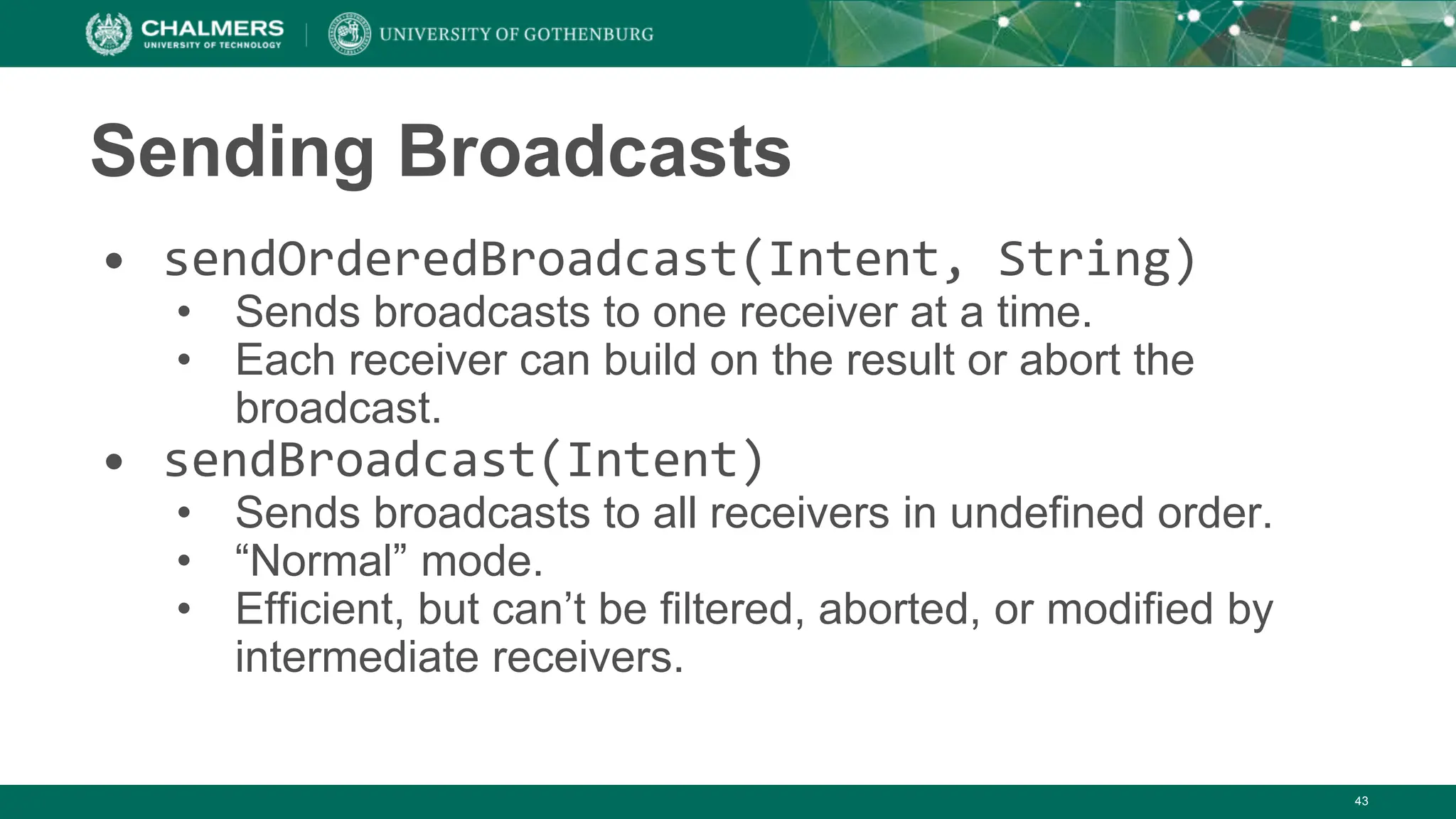
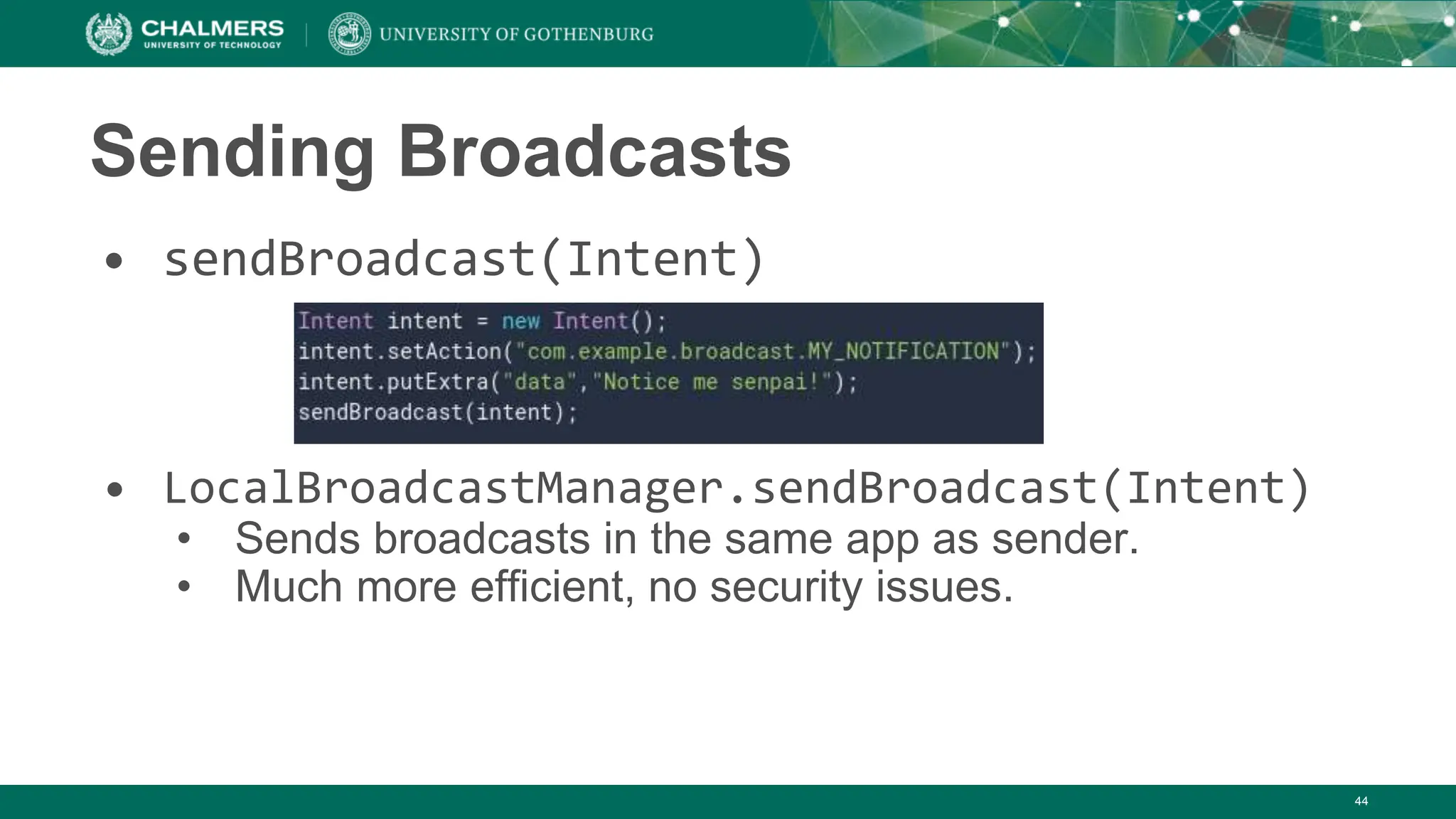
Sending Broadcasts
• sendOrderedBroadcast(Intent, String)
• Sends broadcasts to one receiver at a time.
• Each receiver can build on the result or abort the
broadcast.
• sendBroadcast(Intent)
• Sends broadcasts to all receivers in undefined order.
• “Normal” mode.
• Efficient, but can’t be filtered, aborted, or modified by
intermediate receivers.
43
Sending Broadcasts
• sendBroadcast(Intent)
• LocalBroadcastManager.sendBroadcast(Intent)
• Sends broadcasts in the same app as sender.
• Much more efficient, no security issues.
44
Broadcast Best Practices
• Use local broadcasts as general purpose
publisher/subscriber method in app.
• If many apps subscribe to a broadcast in manifest,
they will all launch when broadcast is sent.
• Use context-registered receivers to add restrictions.
• Android forces the use of context in some cases.
• Do not broadcast sensitive information with implicit
intents. Specify permissions, packages, or use local
broadcasts.
45
Broadcast Best Practices
• Apps can send malicious broadcasts.
• Use permissions to block broadcasts, declare
“android:exported” false in manifest, use local broadcasts
• Broadcasts use global namespace.
• Be careful not to conflict when naming.
• onReceive(..) runs on main thread.
• Should execute and return quickly.
• Do not start activities from broadcast receivers.
• Notifications are more common.
46
47
Content Providers
48
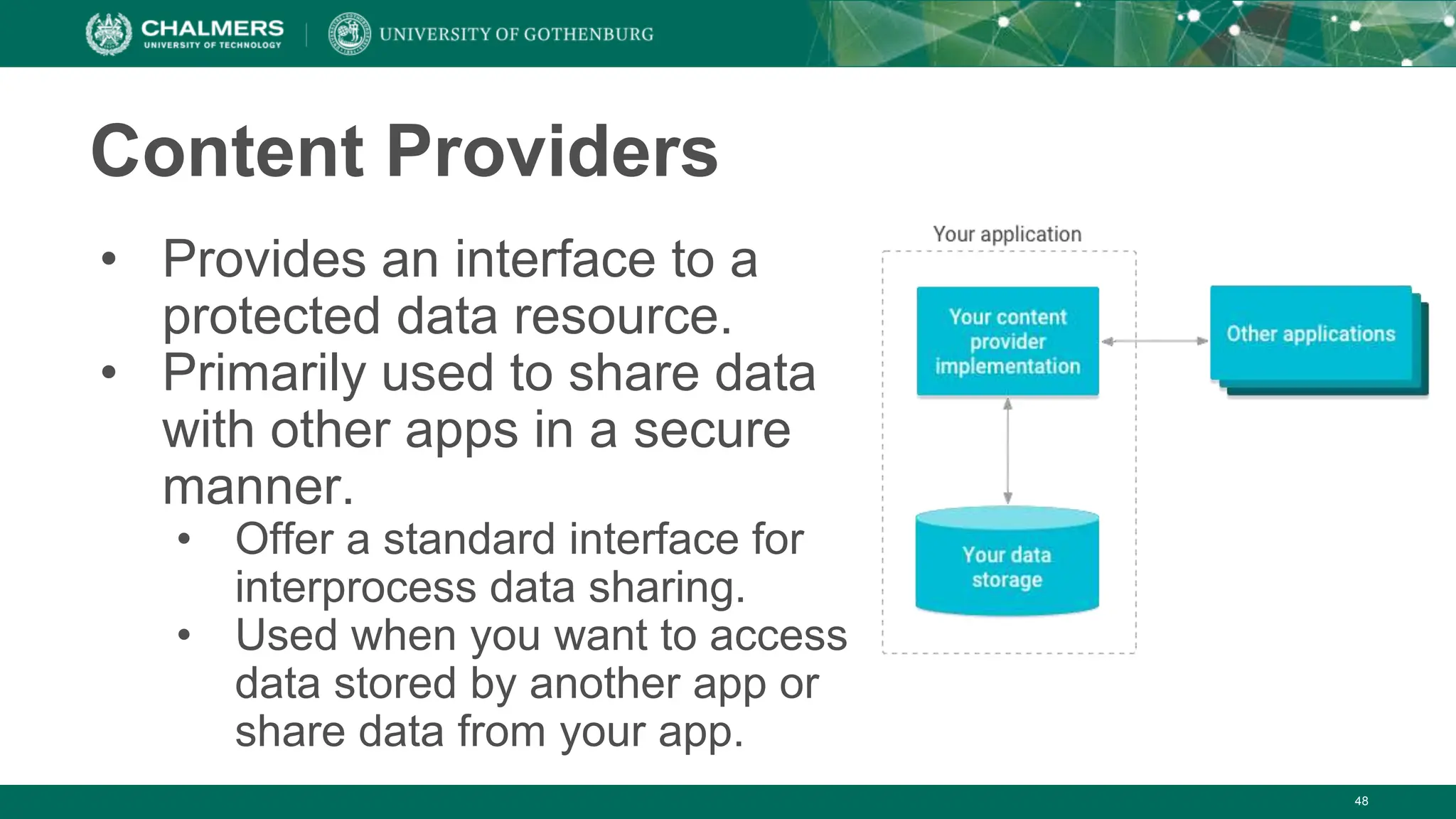
Content Providers
• Provides an interface to a
protected data resource.
• Primarily used to share data
with other apps in a secure
manner.
• Offer a standard interface for
interprocess data sharing.
• Used when you want to access
data stored by another app or
share data from your app.
49
Content Provider Advantages
• Offer control over permissions for accessing data.
• Can restrict access from within your application, grant
access to other applications.
• Control reading and writing of data.
• Abstracts details of how data is accessed.
• Data storage type does not matter.
• CursorLoader objects offer seamless way to query
Content Providers to fill UI elements.
50
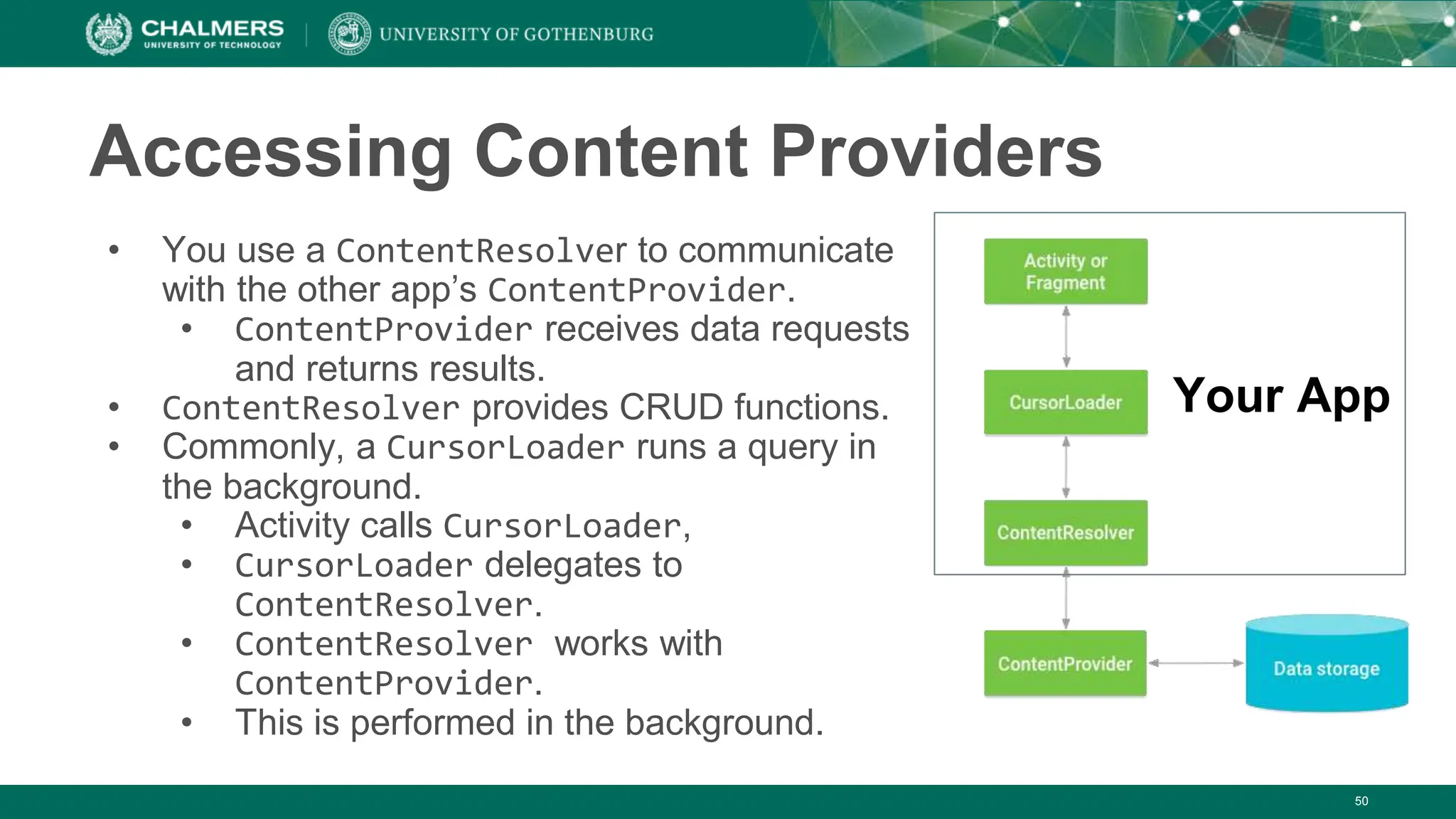
Accessing Content Providers
• You use a ContentResolver to communicate
with the other app’s ContentProvider.
• ContentProvider receives data requests
and returns results.
• ContentResolver provides CRUD functions.
• Commonly, a CursorLoader runs a query in
the background.
• Activity calls CursorLoader,
• CursorLoader delegates to
ContentResolver.
• ContentResolver works with
ContentProvider.
• This is performed in the background.
Your App
51
Accessing Content Providers
• Android has several built-in Content Providers.
• One example: user dictionary
• Rows = words not in a standard dictionary
• Columns = data attributes associated with the word
• Includes primary key ID
• To access, call ContentResolver.query().
• Calls ContentProvider.query() defined by the app
surfacing the provider.
52
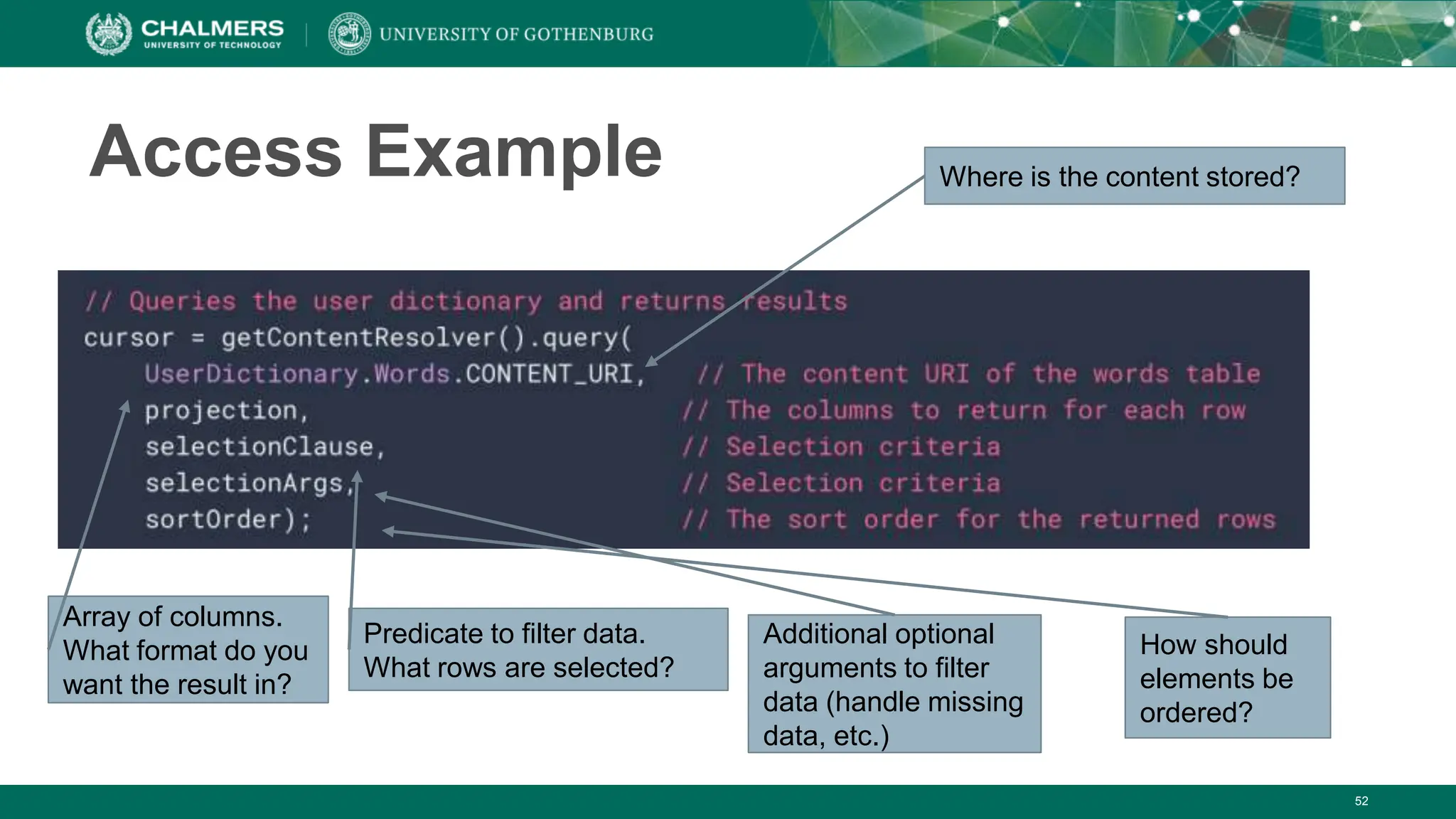
Access Example Where is the content stored?
Array of columns.
What format do you
want the result in?
Predicate to filter data.
What rows are selected?
Additional optional
arguments to filter
data (handle missing
data, etc.)
How should
elements be
ordered?
53
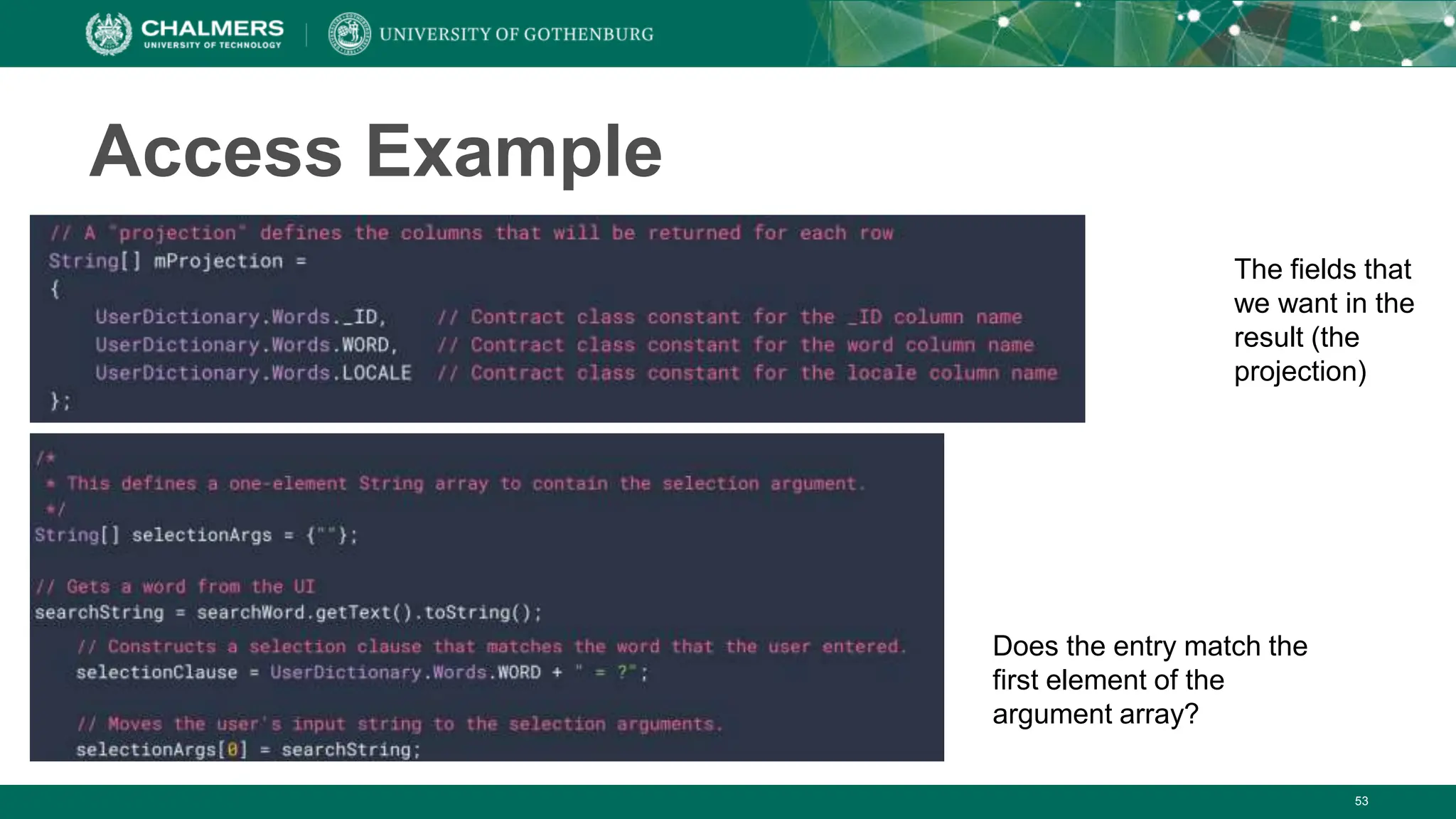
Access Example
The fields that
we want in the
result (the
projection)
Does the entry match the
first element of the
argument array?
54
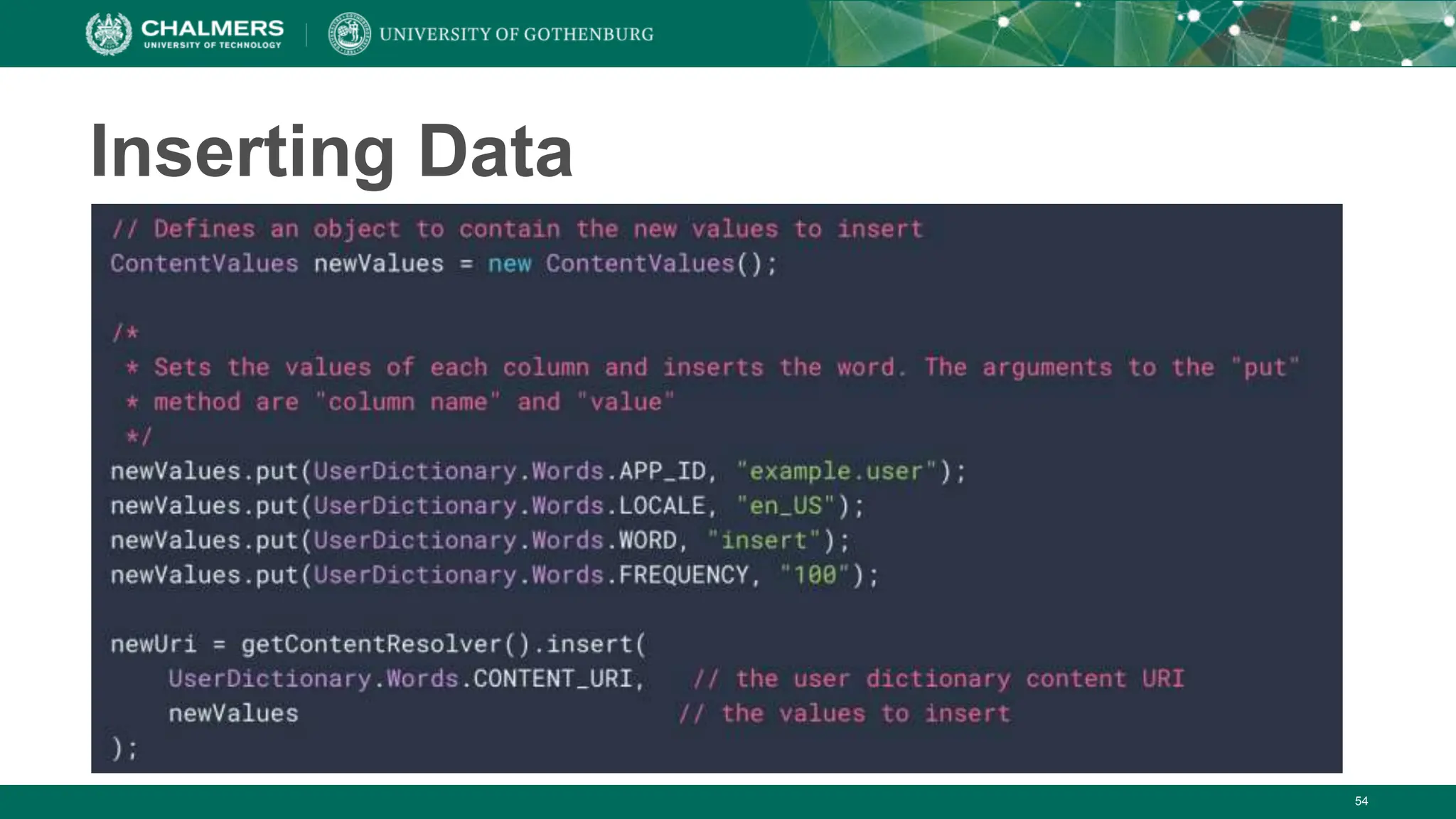
Inserting Data
55
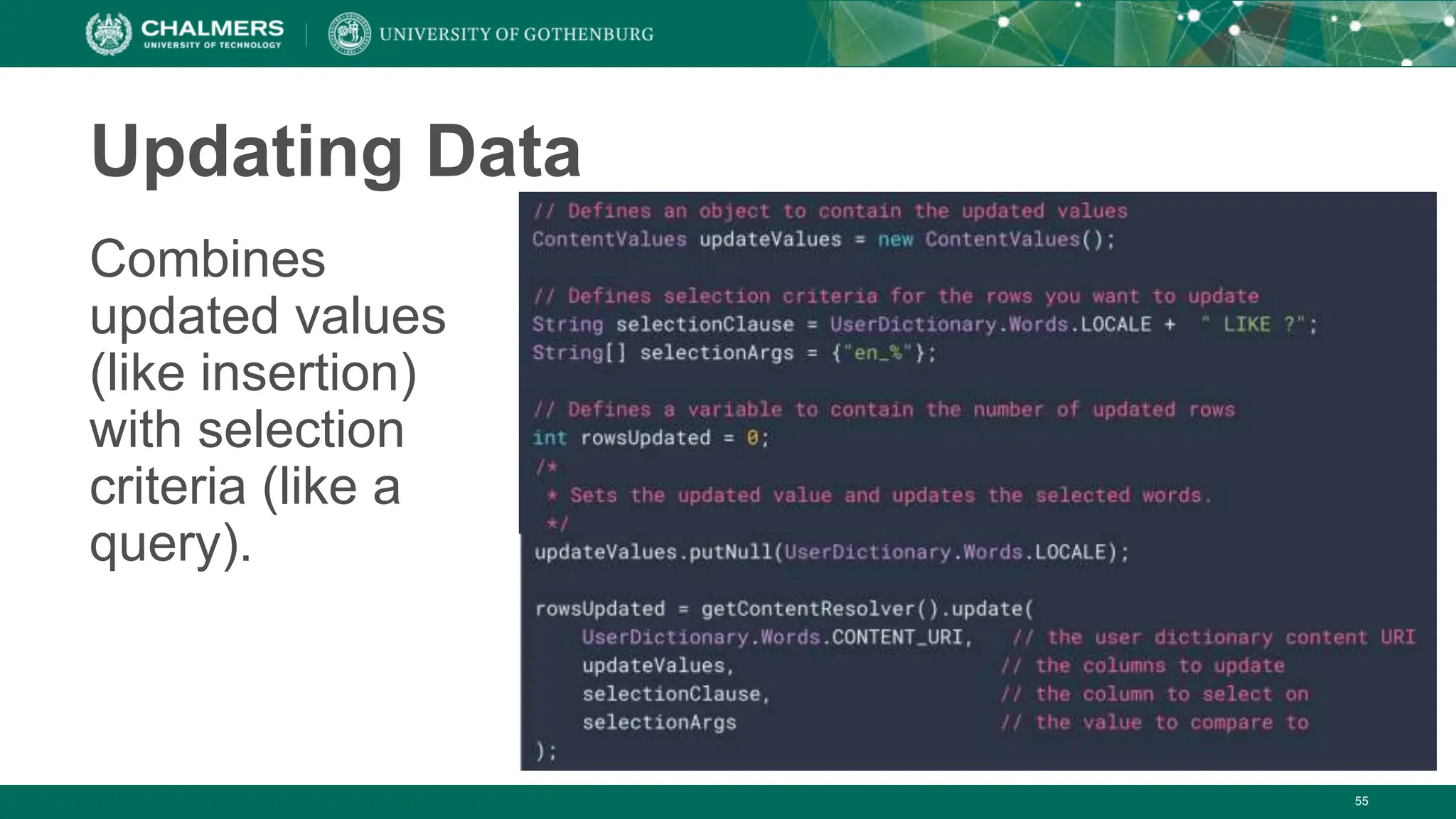
Updating Data
Combines
updated values
(like insertion)
with selection
criteria (like a
query).
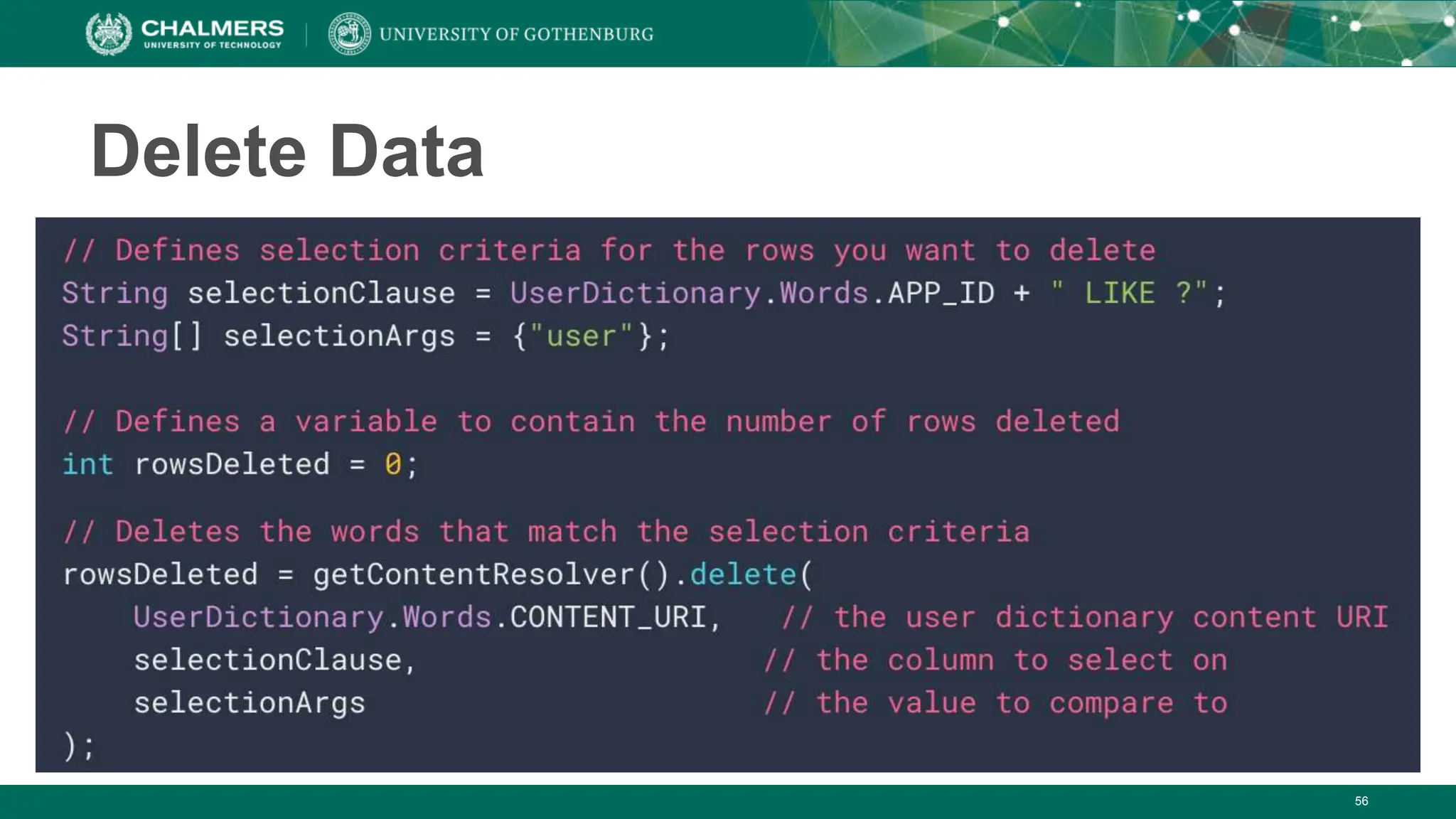
56
Delete Data
57
Not Covered
• So much more!
• Creating ContentProviders
• Notifications
• Security
• Packaging/Signing/Publishing Apps
• App Versions
• …
• More resources: https://developer.android.com/
58
What’s Next?
• Friday: Project Follow-Up
• Monday: Cloud Deployment
• Milestone 3
• Android + Presentation
mobile development with androiddfdgdfhdgfdhf.pptx

mobile development with androiddfdgdfhdgfdhf.pptx

  • 1.
    DIT341 - Lecture10: Mobile Development with Android (2) Gregory Gay (Some slides by Grischa Liebel)
  • 2.
    2018-08-27 Chalmers Universityof Technology 2 This Lecture • Testing • Profiling • Processes and Threads • Services • Broadcast Receivers • Content Providers (if we have time)
  • 3.
    3 Related Activities • Activity21: Optional • Practice Android with Codelabs for Android Developer Fundamentals (V2): • https://developer.android.com/courses/fundamentals-training/toc-v2 • 2.2: Activity lifecycle and state • 4.1: Clickable images • 4.2: Input controls • 4.3: Menus and pickers • 4.4: User navigation • 4.5: RecyclerView
  • 4.
  • 5.
    5 Testing • Unit testsverify behavior of a single class. • 70% of your tests. • Integration tests verify class interactions in a portion of the app. • 20% of your tests. • UI tests verify end-to-end journey over the app. • 10% of your tests.
  • 6.
    6 Testing • 70/20/10 recommended. •Unit tests execute quickly, without emulator or devices. • UI tests must run in Android, are very slow. • Well-tested units reduce likelihood of integration issues, making high levels of testing easier.
  • 7.
    7 Testing Lifecycle • Createand test code in iterative cycles. • Write test cases before you code! • It will fail until you finish the feature (correctly). • Development is a series of nested cycles. • Features tested, and integrated (tested via UI)
  • 8.
    8 Thinking in Termsof Modules • Develop and test app as a set of modules. • Clusters of classes centered around a task. • Business logic, UI elements, data. • Ex: Task List App • Creating tasks, viewing stats, attaching photographs • Allows iterative completion of app, independent testing of features. • Create consistent APIs to allow modules to interact • Set well-defined boundaries around modules.
  • 9.
    9 Unit Testing • Testeach class (or smallest unit) in isolation. • Test standard interactions, invalid inputs, resource availability (network, files, database). • Tests written in JUnit 4. • AndroidX Test Library provides resources, allows tests to run locally.
  • 10.
    Testing in Isolation •Mock objects (AKA: test doubles) can be used to replace dependencies. • Simple replacements that offer static answers to method calls and queries. • If you’ve already tested dependencies, use those! • If not, use mock objects. • Mock objects also good for long operations, hard to create configurations. • Mockito library enables mocking. 10
  • 11.
    UI Testing • Espressolibrary enables UI testing through JUnit. • Get views - onView(withId(R.id.my_view)) • Perform actions - View.perform(click()) • Check results - View.check(matches(isDisplayed())) 11
  • 12.
    12 Unit Test Example @Test publicvoid successfulLogin() { LoginActivity activity = ActivityScenario.launch(LoginActivity.class); onView(withId(R.id.user_name)).perform(typeText(“test_user”)); onView(withId(R.id.password)) .perform(typeText(“correct_password”)); onView(withId(R.id.button)).perform(click()); assertThat(getIntents().first()) .hasComponentClass(HomeActivity.class); } Uses Espresso testing libraries to interact with Views and Intents. (Part of AndroidX)
  • 13.
    Smoke Testing • Doesit start smoking when you turn it on? • Extremely basic tests of functionality. • Simple starting point for testing. • Quick check that all functions work at a basic level. • Avoid running UI tests every time, just some of the most important at critical points. • i.e., login, logout, creating a new account, page loads • If smoke tests fail, run deeper tests. 13
  • 14.
    Canary Testing • Pushchanges to a small subset of users. • Users do not volunteer. • Ensures code changes work in a real environment. • If there is a problem, you can revert changes quickly. • Only small subset of users impacted. • Can be automated. 14
  • 15.
    Monkey Testing • Automaticallystress test an app by attacking with random input. • UI tests not exhaustive. • Monkey good for “filling in some gaps”. • Tool included in Android SDK. • Generates random keystrokes, touches, and gestures. • Run through command line. 15
  • 16.
  • 17.
    17 Profiling • Used toinvestigate performance of your app. • Tool included in Android Studio. • Find expensive computations. • Shows how app uses CPU, memory, network, battery • Important to understand how to optimize the UX.
  • 18.
    18 Profiling • Detailed viewson • CPU • Memory allocation • Network traffic • Energy consumption
  • 19.
  • 20.
    2018-08-27 Chalmers Universityof Technology 20 Processes and Threads • Independent sequences of execution. • A running program is a process. • Allocated memory, executable code, connections to OS. • A process has one or more threads. • Each process has a “main/primary” thread. • Processes are isolated from each other. • Communication between processes is expensive.
  • 21.
    21 Threads • Entity withina process • Can be scheduled for execution • Units of execution (“workers”) • Threads share a memory space. • Has own registers and stack. • Shares code, data, files. • Much easier communication, parallel execution. • But… Concurrency issues. • Race conditions, deadlock, ...
  • 22.
    22 Processes and Threadsin Android • Each app is (by default) started in a single process • On startup, a main thread is created ("UI thread") • Each component is instantiated within this thread • Reacts to user events (input) • Freezes if you do long-running operations in it! • Rule: Never block the UI thread! • (After 5s, Android asks if you want to close the app) • Long-running operations should be done on background threads. • Accessing disk, performing network requests.
  • 23.
    23 Specifying Code fora Thread • Create a class implementing Runnable • Implement run() • Can’t directly modify View objects. • Set thread priority. • Default: background (prevents competition with UI thread) • Store reference to the connected thread.
  • 24.
    24 Communicating with UIThread • AFTER performing work, move results of background processing to UI elements. • Use Handler running on UI thread. • Handlers receive messages and run associated code. • Connect to threads and run code on that thread. • Override handleMessage(). • Invoked when message sent to the managed thread.
  • 25.
    25 Support for BackgroundProcessing • WorkManager • Library that runs background tasks when conditions (network availability, battery) are satisfied. • For work that can be put off until later. • Foreground Services • Background process without UI. • Work that must run immediately and be completed. • Prevents OS from killing process.
  • 26.
    26 Support for BackgroundProcessing • AlarmManager • Launches a process at a scheduled time. • WorkManager better balances system resources, but AlarmManager is needed for specific timed processes. • Use WorkManager for tasks that execute every hour. Use AlarmManager for tasks executing at 6:38 AM. • DownloadManager • Performs background downloading tasks. • Provide URI, library handles HTTP interactions, retries, connectivity changes.
  • 27.
    27 How to HandleBackground Tasks • Can the work be deferred, or does it need to happen now? • If not, Foreground Service • Is the work dependent on system conditions? • If yes, WorkManager • Does the job need to run at a precise time? • If yes, AlarmManager. If no, WorkManager
  • 28.
  • 29.
    29 Services • Component inthe background, no UI • Often used for long-running operations • Play music • Process data • Send/receive data over the internet • Will continue to run even if user switches to another app. • Started with an Intent
  • 30.
    30 Services • Foreground Services •Perform an operation that users notice. • Play music • Must display notification. • Keep running even if user isn’t interacting with them. • Background Services • Perform operation not noticeable to user. • Compress files
  • 31.
    31 Bound Services • Servicebound to component using bindService() • Offers a client-server interface allowing components to interact with the service. • Send requests/receive results • Across processes (allowing process communication) • Multiple components can be bound to one service. • Service destroyed when all unbind.
  • 32.
    32 Services vs Threads •Rule of thumb: • Operation should run, even if user doesn't interact with the app (or closes it): Service • Long-running operation, while the user is active: Thread • Example: Alarm clock • Alarm should go off, even if you close the clock app. • Service! • Example: Buffer video • Video should stop if the app is closed. • Thread!
  • 33.
    33 Service Basics • Createsubclass of Service • Implement lifecycle methods: • onStartCommand() • Invoked when another component requests the Service. • Service is started and will run until stopService() called. • onBind() • Provides interface used to communicate with the Service. • onCreate() • Setup when Service created. • onDestroy() • Cleanup when Service is complete.
  • 34.
    34 Service Basics • Ifcreated by call to startService(), Service will run until stopService() is called. • If created by call to bindService(), will run only as long as component is bound to it. • Once all components unbound, system will kill. • OS kills Services only if memory is low. • Foreground services rarely killed. • Services must be designed to gracefully restart if killed before finished with task.
  • 35.
    35 Service Lifecycle • Lifetimeoccurs between call to onCreate() and return from onDestroy() • Active lifetime begins with call to onStartCommand() or onBind(). • Intent handed to service and acted on. • Started services can be bound.
  • 36.
    36 Services vs IntentServices •Services are multi-threaded and handle requests from multiple components simultaneously. • Most Services are extensions of IntentServices • Creates a worker thread that executes all Intents delivered to onStartCommand(). • Creates a work queue to perform requests. • Stops service once all requests are handled. • Provides default implementations of onBind() and onStartCommand().
  • 37.
    37 IntentServices • onHandleIntent() • Performstasks • Returns result • Stops the service
  • 38.
    38 Word of Warning •Services are difficult to get right! • Much more to cover than fit the slides/time • If you want to implement a service, read up on what you need to know: https://developer.android.com/guide/components/services
  • 39.
    Broadcast Receivers • Appsmay send or receive broadcasts from the OS or other apps. • Sent when events of interest occur. • Phone plugged into power outlet. • Apps can register to receive specific broadcasts. • OS routes broadcasts to registered apps. • Messaging system across apps. • Allows starting and stopping of Services. 39
  • 40.
    Broadcasts • Sent toall apps registered to receive the event. • Message wrapped in Intent object. • Action string identifies the event. • android.intent.action.AIRPLANE_MODE • May include additional contextual information. • Boolean indicating whether or not airplane mode is on. • Complete list of broadcast actions in Android SDK • BROADCAST_ACTIONS.TXT 40
  • 41.
    Manifest-Declared Receivers • Systemlaunches app when broadcast is sent. • Specify <receiver> element in manifest. • Subclass BroadcastReceiver and implement onReceive(Context, Intent). 41
  • 42.
    Context-Registered Receivers • Receivebroadcasts as long as the context is valid. • Receive broadcasts as long as Activity is not destroyed, or as long as the app is running, or … • Within the context: • Create an instance of BroadcastReceiver • Create an IntentFilter and register the receiver 42
  • 43.
    Sending Broadcasts • sendOrderedBroadcast(Intent,String) • Sends broadcasts to one receiver at a time. • Each receiver can build on the result or abort the broadcast. • sendBroadcast(Intent) • Sends broadcasts to all receivers in undefined order. • “Normal” mode. • Efficient, but can’t be filtered, aborted, or modified by intermediate receivers. 43
  • 44.
    Sending Broadcasts • sendBroadcast(Intent) •LocalBroadcastManager.sendBroadcast(Intent) • Sends broadcasts in the same app as sender. • Much more efficient, no security issues. 44
  • 45.
    Broadcast Best Practices •Use local broadcasts as general purpose publisher/subscriber method in app. • If many apps subscribe to a broadcast in manifest, they will all launch when broadcast is sent. • Use context-registered receivers to add restrictions. • Android forces the use of context in some cases. • Do not broadcast sensitive information with implicit intents. Specify permissions, packages, or use local broadcasts. 45
  • 46.
    Broadcast Best Practices •Apps can send malicious broadcasts. • Use permissions to block broadcasts, declare “android:exported” false in manifest, use local broadcasts • Broadcasts use global namespace. • Be careful not to conflict when naming. • onReceive(..) runs on main thread. • Should execute and return quickly. • Do not start activities from broadcast receivers. • Notifications are more common. 46
  • 47.
  • 48.
    48 Content Providers • Providesan interface to a protected data resource. • Primarily used to share data with other apps in a secure manner. • Offer a standard interface for interprocess data sharing. • Used when you want to access data stored by another app or share data from your app.
  • 49.
    49 Content Provider Advantages •Offer control over permissions for accessing data. • Can restrict access from within your application, grant access to other applications. • Control reading and writing of data. • Abstracts details of how data is accessed. • Data storage type does not matter. • CursorLoader objects offer seamless way to query Content Providers to fill UI elements.
  • 50.
    50 Accessing Content Providers •You use a ContentResolver to communicate with the other app’s ContentProvider. • ContentProvider receives data requests and returns results. • ContentResolver provides CRUD functions. • Commonly, a CursorLoader runs a query in the background. • Activity calls CursorLoader, • CursorLoader delegates to ContentResolver. • ContentResolver works with ContentProvider. • This is performed in the background. Your App
  • 51.
    51 Accessing Content Providers •Android has several built-in Content Providers. • One example: user dictionary • Rows = words not in a standard dictionary • Columns = data attributes associated with the word • Includes primary key ID • To access, call ContentResolver.query(). • Calls ContentProvider.query() defined by the app surfacing the provider.
  • 52.
    52 Access Example Whereis the content stored? Array of columns. What format do you want the result in? Predicate to filter data. What rows are selected? Additional optional arguments to filter data (handle missing data, etc.) How should elements be ordered?
  • 53.
    53 Access Example The fieldsthat we want in the result (the projection) Does the entry match the first element of the argument array?
  • 54.
  • 55.
    55 Updating Data Combines updated values (likeinsertion) with selection criteria (like a query).
  • 56.
  • 57.
    57 Not Covered • Somuch more! • Creating ContentProviders • Notifications • Security • Packaging/Signing/Publishing Apps • App Versions • … • More resources: https://developer.android.com/
  • 58.
    58 What’s Next? • Friday:Project Follow-Up • Monday: Cloud Deployment • Milestone 3 • Android + Presentation