Beginning HTML 
Web Design 101-
         HTML Coding Basics

• HTML code looks much scarier than it is.
  The letters stand for:

  – Hyper Text Markup Language


• but it's really just a way to get text onto
  the web.
Beginning HTML 
Web Design 101-
         HTML Coding Basics
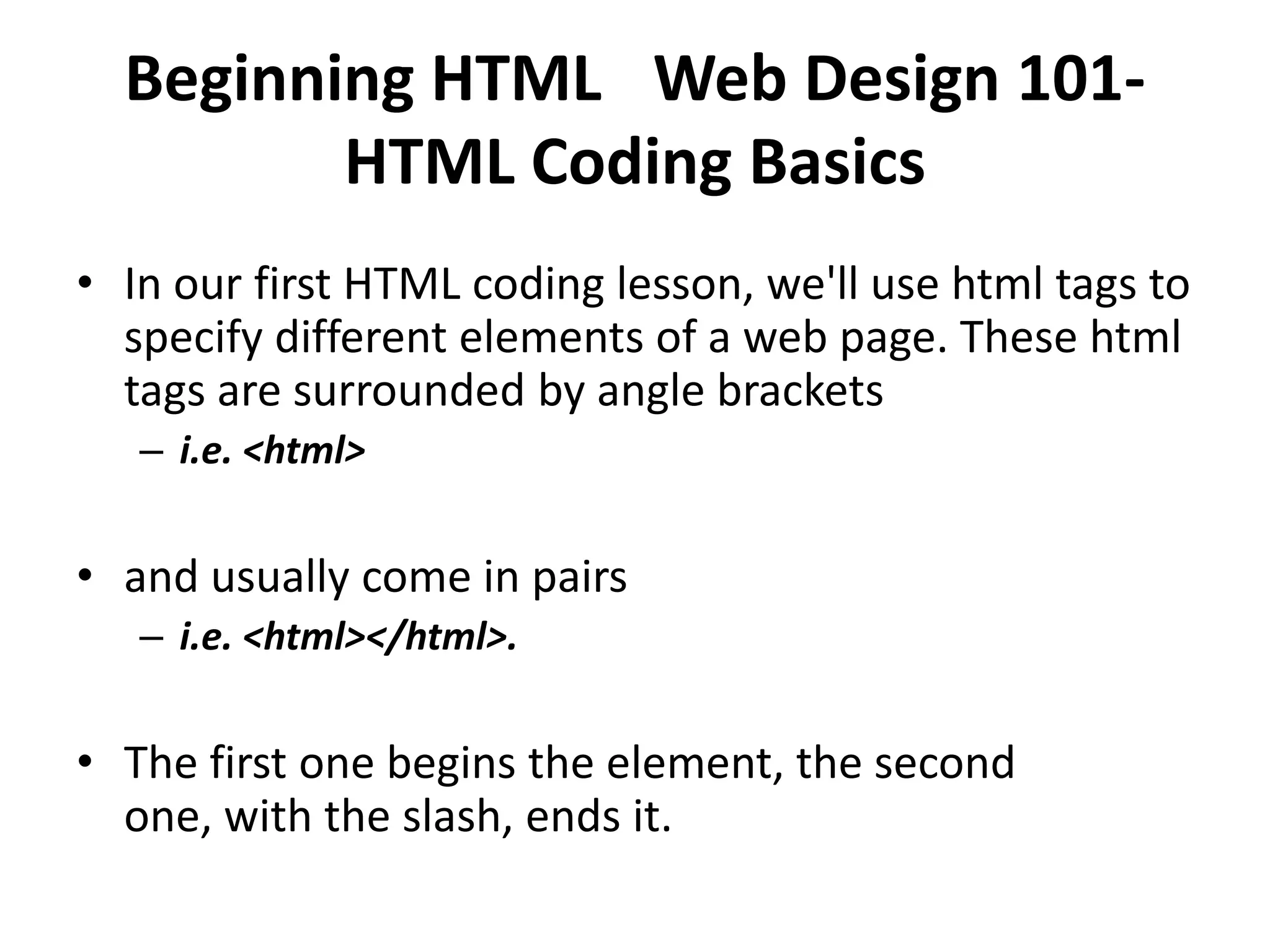
• In our first HTML coding lesson, we'll use html tags to
  specify different elements of a web page. These html
  tags are surrounded by angle brackets
   – i.e. <html>


• and usually come in pairs
   – i.e. <html></html>.


• The first one begins the element, the second
  one, with the slash, ends it.
Beginning HTML 
Web Design 101-
         HTML Coding Basics

• Step 1: Open Notepad.
  – Note: For OSX users, change the preferences from "Rich text" to "Plain
    text". Then choose "Ignore rich text commands in HTML files".
    Otherwise, your HTML might not work correctly.
Beginning HTML 
Web Design 101-
          HTML Coding Basics

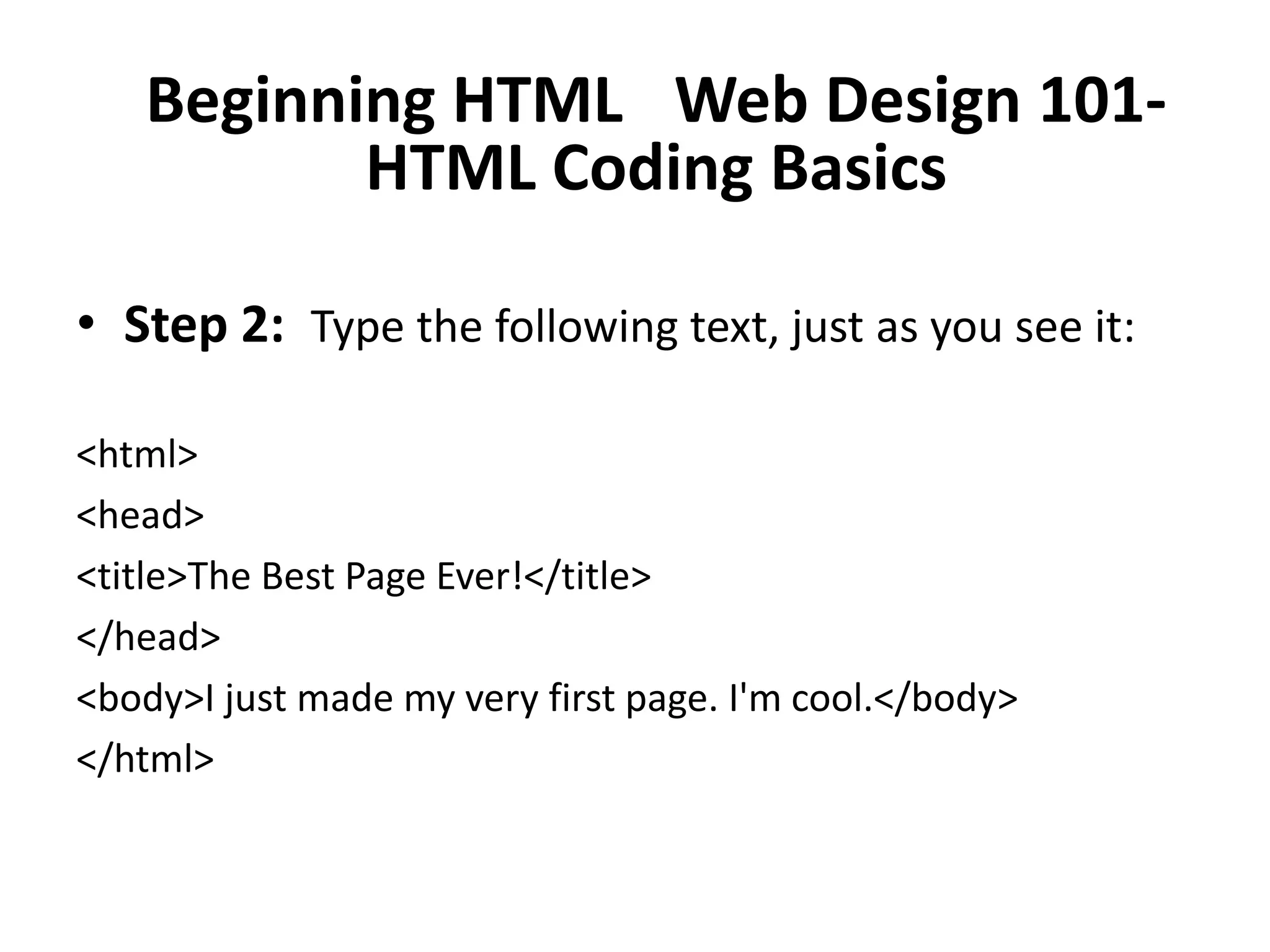
• Step 2: Type the following text, just as you see it:

<html>
<head>
<title>The Best Page Ever!</title>
</head>
<body>I just made my very first page. I'm cool.</body>
</html>
Beginning HTML 
Web Design 101-
          HTML Coding Basics

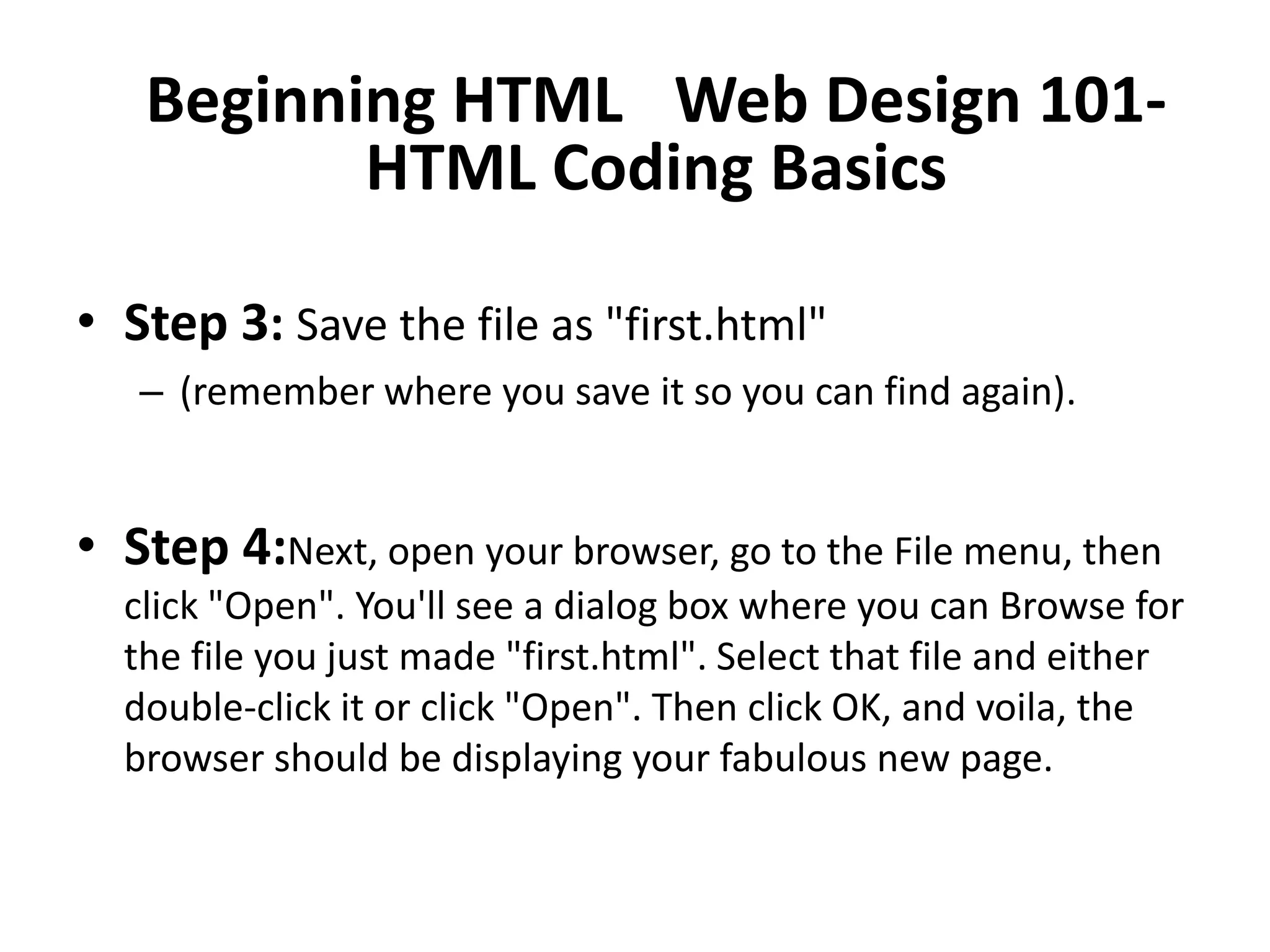
• Step 3: Save the file as "first.html"
   – (remember where you save it so you can find again).


• Step 4:Next, open your browser, go to the File menu, then
  click "Open". You'll see a dialog box where you can Browse for
  the file you just made "first.html". Select that file and either
  double-click it or click "Open". Then click OK, and voila, the
  browser should be displaying your fabulous new page.
Beginning HTML 
Web Design 101-
          HTML Coding Basics

• Where’s all the other stuff I typed?
  – Stuff in the header section of webpages isn't seen by you
    or your visitors, it's meant for search engines and
    browsers. With this in mind, you won't see the title in the
    main area of your webpage, but if you look at the top of
    your browser window, you'll see it there.
Beginning HTML 
Web Design 101-
          HTML Coding Basics
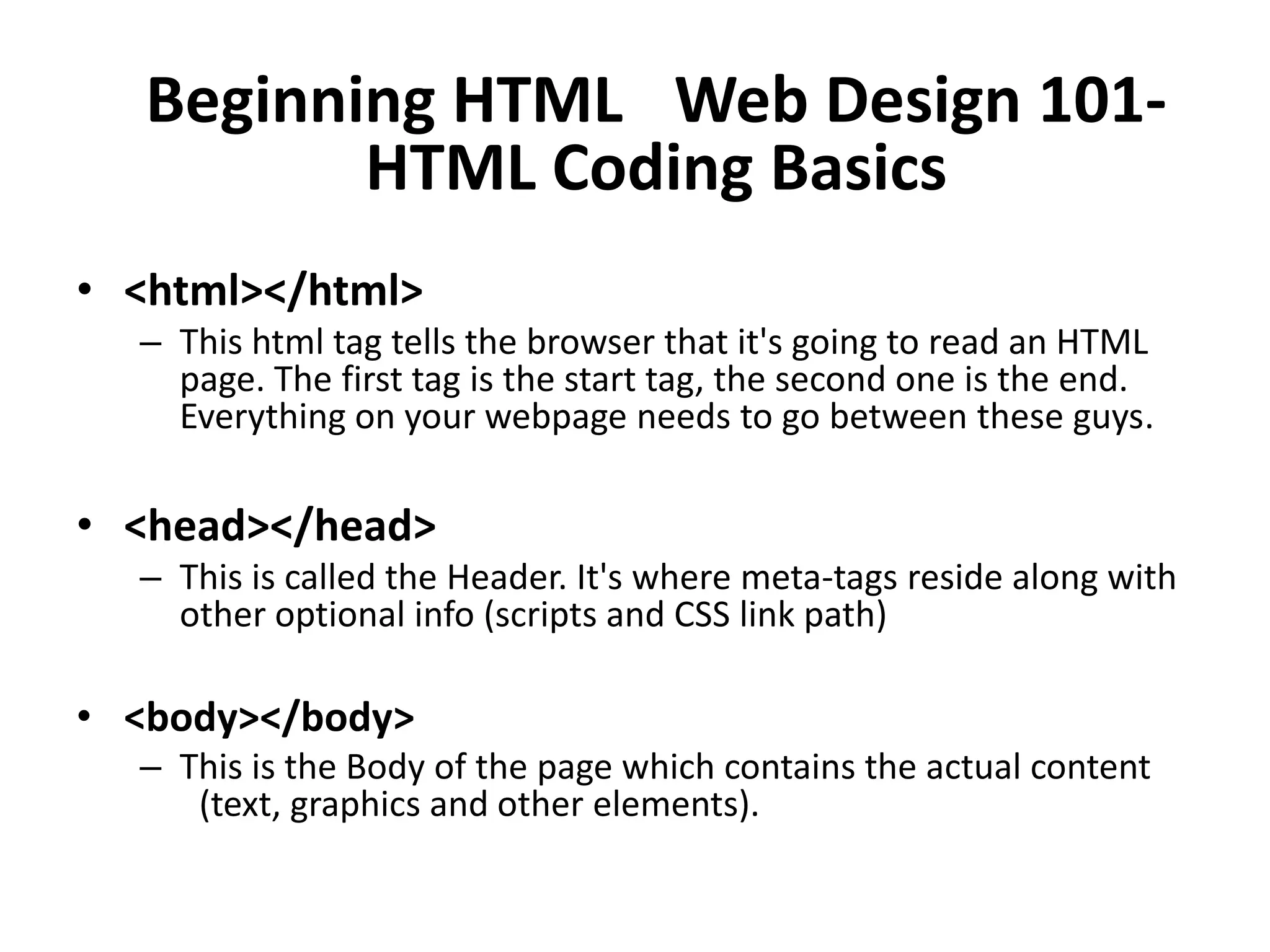
• <html></html>
  – This html tag tells the browser that it's going to read an HTML
    page. The first tag is the start tag, the second one is the end.
    Everything on your webpage needs to go between these guys.

• <head></head>
  – This is called the Header. It's where meta-tags reside along with
    other optional info (scripts and CSS link path)

• <body></body>
  – This is the Body of the page which contains the actual content
    
(text, graphics and other elements).
Creative Commons License

• This work is licensed under the Creative
  Commons Attribution 3.0 Unported License.
  To view a copy of this license, visit
  http://creativecommons.org/licenses/by/3.
  0

• http://www.websitebeginner.com

Web design 101

  • 1.
    Beginning HTML 
WebDesign 101- HTML Coding Basics • HTML code looks much scarier than it is. The letters stand for: – Hyper Text Markup Language • but it's really just a way to get text onto the web.
  • 2.
    Beginning HTML 
WebDesign 101- HTML Coding Basics • In our first HTML coding lesson, we'll use html tags to specify different elements of a web page. These html tags are surrounded by angle brackets – i.e. <html> • and usually come in pairs – i.e. <html></html>. • The first one begins the element, the second one, with the slash, ends it.
  • 3.
    Beginning HTML 
WebDesign 101- HTML Coding Basics • Step 1: Open Notepad. – Note: For OSX users, change the preferences from "Rich text" to "Plain text". Then choose "Ignore rich text commands in HTML files". Otherwise, your HTML might not work correctly.
  • 4.
    Beginning HTML 
WebDesign 101- HTML Coding Basics • Step 2: Type the following text, just as you see it: <html> <head> <title>The Best Page Ever!</title> </head> <body>I just made my very first page. I'm cool.</body> </html>
  • 5.
    Beginning HTML 
WebDesign 101- HTML Coding Basics • Step 3: Save the file as "first.html" – (remember where you save it so you can find again). • Step 4:Next, open your browser, go to the File menu, then click "Open". You'll see a dialog box where you can Browse for the file you just made "first.html". Select that file and either double-click it or click "Open". Then click OK, and voila, the browser should be displaying your fabulous new page.
  • 6.
    Beginning HTML 
WebDesign 101- HTML Coding Basics • Where’s all the other stuff I typed? – Stuff in the header section of webpages isn't seen by you or your visitors, it's meant for search engines and browsers. With this in mind, you won't see the title in the main area of your webpage, but if you look at the top of your browser window, you'll see it there.
  • 7.
    Beginning HTML 
WebDesign 101- HTML Coding Basics • <html></html> – This html tag tells the browser that it's going to read an HTML page. The first tag is the start tag, the second one is the end. Everything on your webpage needs to go between these guys. • <head></head> – This is called the Header. It's where meta-tags reside along with other optional info (scripts and CSS link path) • <body></body> – This is the Body of the page which contains the actual content 
(text, graphics and other elements).
  • 8.
    Creative Commons License •This work is licensed under the Creative Commons Attribution 3.0 Unported License. To view a copy of this license, visit http://creativecommons.org/licenses/by/3. 0 • http://www.websitebeginner.com