Blogging 104
 Getting Visual!
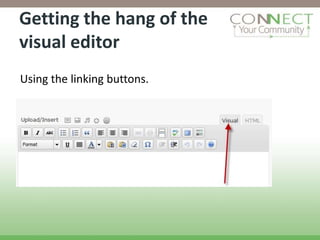
Getting the hang of the
visual editor
Using the linking buttons.
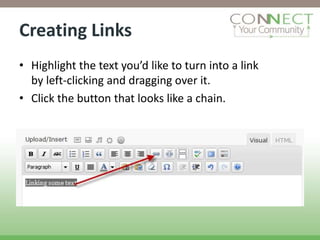
Creating Links
• Highlight the text you’d like to turn into a link
  by left-clicking and dragging over it.
• Click the button that looks like a chain.
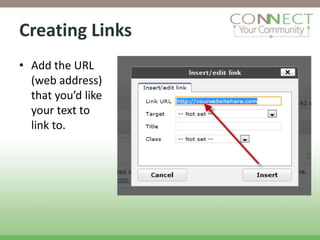
Creating Links
• Add the URL
  (web address)
  that you’d like
  your text to
  link to.
Creating Links
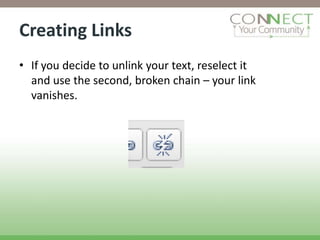
• If you decide to unlink your text, reselect it
  and use the second, broken chain – your link
  vanishes.
Editing
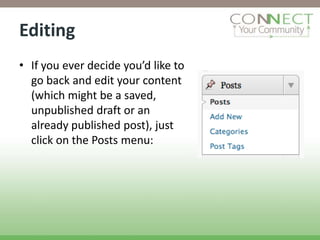
• If you ever decide you’d like to
  go back and edit your content
  (which might be a saved,
  unpublished draft or an
  already published post), just
  click on the Posts menu:
Editing
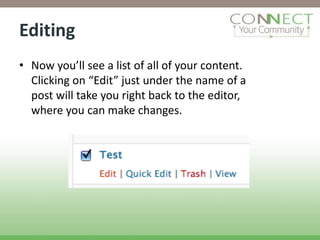
• Now you’ll see a list of all of your content.
  Clicking on “Edit” just under the name of a
  post will take you right back to the editor,
  where you can make changes.
Congratulations!
• You can now:
  – create and edit content.
  – Add links to your blog.
  – Delete posts.
Resources
• http://learn.wordpress.com/
• http://wordpress.org/support/
• http://codex.wordpress.org/New_To_WordPre
  ss_-_Where_to_Start
• http://theory.isthereason.com/?p=499
• http://wordpresshelp.org/
Creative Commons
License
• This work is licensed under the
  Creative Commons Attribution 3.0
  Unported License. To view a copy
  of this license, visit
  http://creativecommons.org/lice
  nses/by/3.0


                                     15

6 word press module 1f

Editor's Notes

  • #2 By that I mean learning to use the Visual Editor to enhance your blogging experience…..
  • #3 A blogger’s best friend is our nifty visual editor. To get the hang of it better, let’s take a look at one of the most commonly used features of the editor — the linking buttons. First, what are links? Links are bits of coded text that take you to another webpage when you click on them.
  • #8 From this same list you can also delete posts. Let’s kill the default “Hello World” post (which is automatically added to all new blogs!). Hover your mouse over “Hello World” and you’ll see an option called “Trash.” Click on that, and it’s gone. No more Hello World.