A web browser is an application that enables users to view web pages on the internet by interpreting various web languages like HTML and CSS, though it does not provide internet access. Key components of web browsers include the title bar, address bar, and control box, among others, which help manage and navigate web content. Examples of popular web browsers include Microsoft Edge, Google Chrome, and Mozilla Firefox.
❏ A webbrowser is a computer application used to
view web pages on the internet. It helps to locate,
retrieve and display content on the World Wide
Web (WWW).
❏ Web pages are written in different languages. Some
of these languages are HyperText Markup
Language (HTML), Cascading Style Sheets (CSS),
Extensible Markup Language (XML), Personal
Home Page (PHP), JavaScript etc. The web
browser helps to interpret these languages to
human language.
❏ Note that the web browser does not give internet
access but only helps to view web pages when
connected to the internet.
3.
EXAMPLES OF WEBBROWSERS
MICROSOFT
EDGE
GOOGLE
CHROME
MOZILLA
FIREFOX
OPERA
BROWSER
4.
EXAMPLES OF WEBBROWSERS
INTERNET
EXPLORER
GOOGLE
CHROMIUM
SAFARI CAMINO
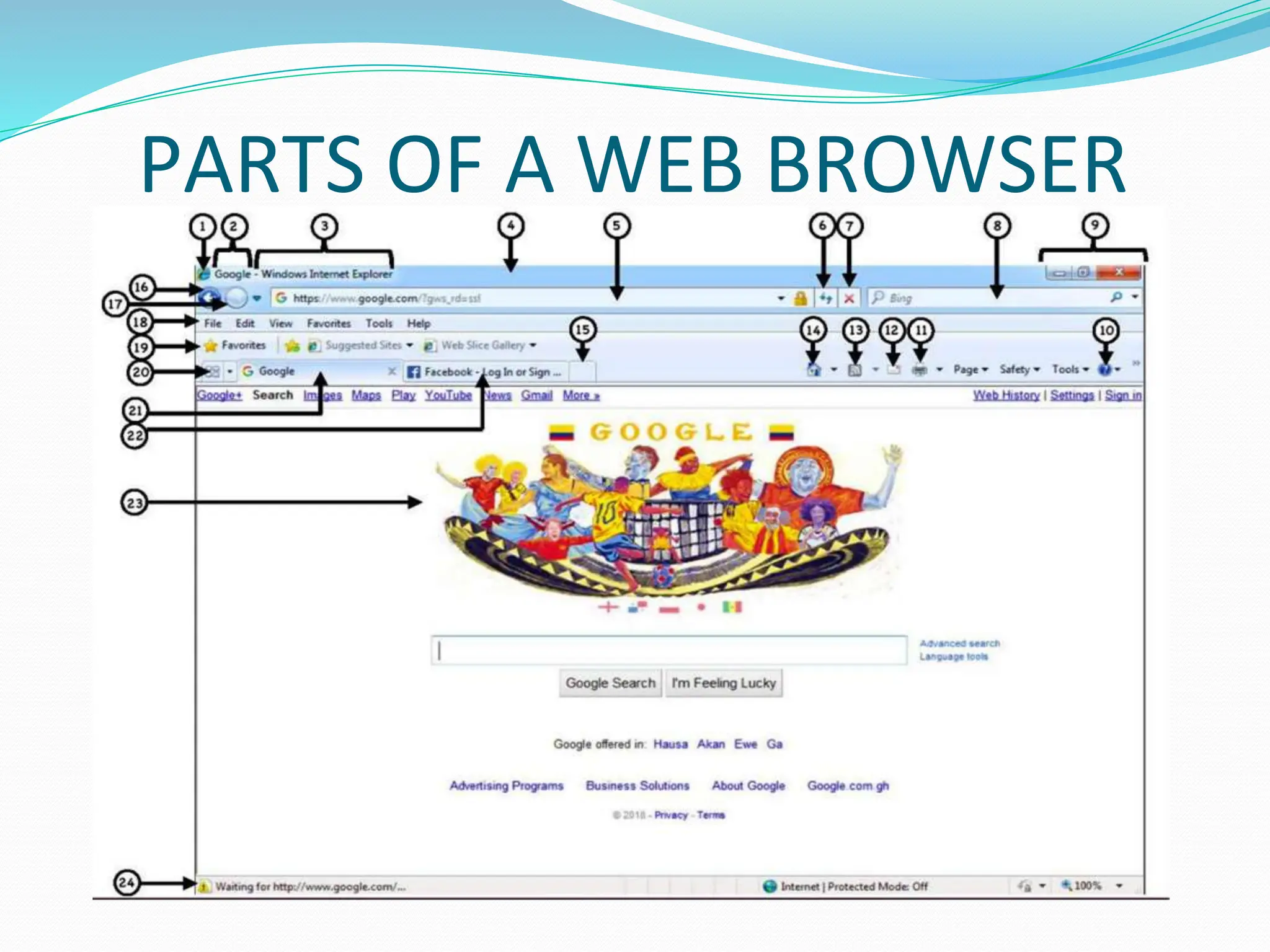
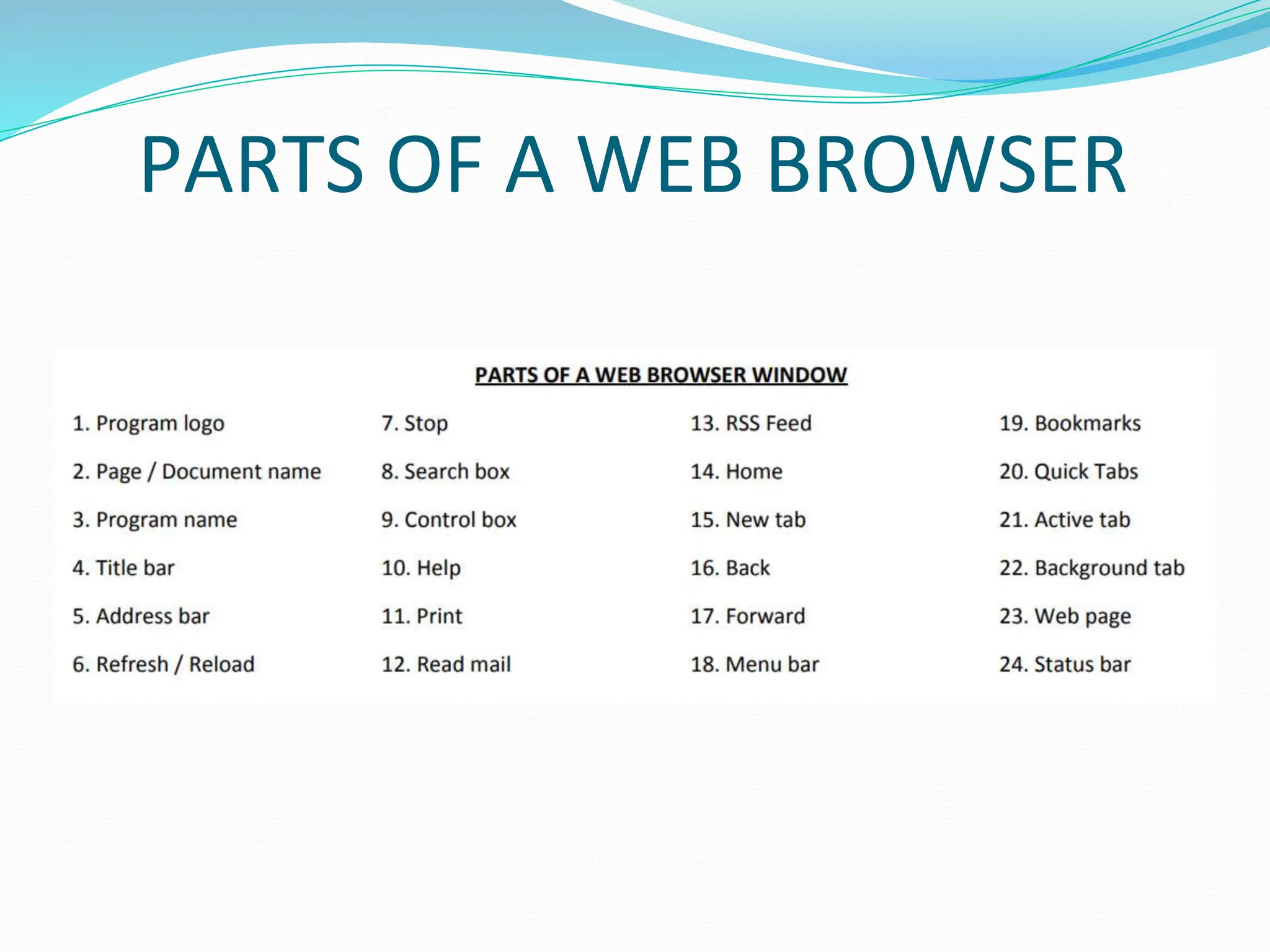
PARTS OF AWEB BROWSER
1. Program logo: It is a unique picture used to identify a
program on the computer. It is usually displayed as an
icon.
2. Title bar: It is a horizontal bar located at the top of a
window that displays the program logo, program name,
document / file name and control box. It also displays
the context menu when you right - click on it. The
context menu is a pop - up menu that provides the user
with additional ways of managing the window without
using the control box.
9.
3. Address bar:It is the space below the title bar that
displays the location of a web page. It also allows the
user to type any website they want to visit.
4. Search box: It is the area that allows the user to find
information from various websites within the browser.
It uses search engines to locate information on the
World Wide Web (WWW) based on the search criteria.
5. Control box: It is a group of commands used to
manage the window eg. Minimize, Maximize / Restore
and Close. Minimize reduces the window to a tab on
the taskbar, Maximize increases the window to fill the
desktop screen, Restore brings the window back to its
original size and Close exits a window.
10.
6. Help: Itis a button used to provide the user with
information on how to use the application effectively. It
includes steps and tutorials on how to perform a
particular action.
7. RSS (Really Simple Syndication) feed: is a type of web
feed that allows users and applications to receive
regular updates from a website or blog of their choice.
8. Home: This button sends the user to the start-up or
default web page of the browser.
9. Back: It sends the user the previous page.
10. Forward: It sends the user to an earlier page he / she
opened.
11.
11. Menu bar:It is a group of dropdown menus which
contain commands used to perform specific actions in a
window. Eg. File, Edit, View etc.
12. Bookmarks / Favourites: It is a button used to record
web pages visited by the user to enable easy access in
the future.
13. Tab: It is an area within a window that displays a
separate page. The user can create a new tab, switch
between tabs and view all opened tabs using the quick
tabs button.
14. Status bar: It is the horizontal area below the
browser that displays information about the current
web page.