EXPAND A VIRTUAL DISK IN
VMWARE OR VIRTUALBOX
VMware andVirtualBox are 2 popular virtualization software, which enables
us to operate several systems in one physical computer. When you create a
virtual machine on them, a virtual disk is needed to be made firstly and you
can allocate the maximum space for it.What’s more, the maximum space is
changeable, which means that you can increase the disk space when it’s not
enough for usage. So, how can you expand a virtual disk inVMware or
VirtualBox? Here, you can get 3 helpful answers.
Preparations
before
applying the
following
ways:
• Back up files on the virtual disk
which will be expanded.
• Remove all the snapshots from
the virtual machine.
• Power off the virtual machine.
Part One: Expand a Virtual Disk in VMware
Solution 1:
Increase the
Disk Space in
VMware with its
Extend Function
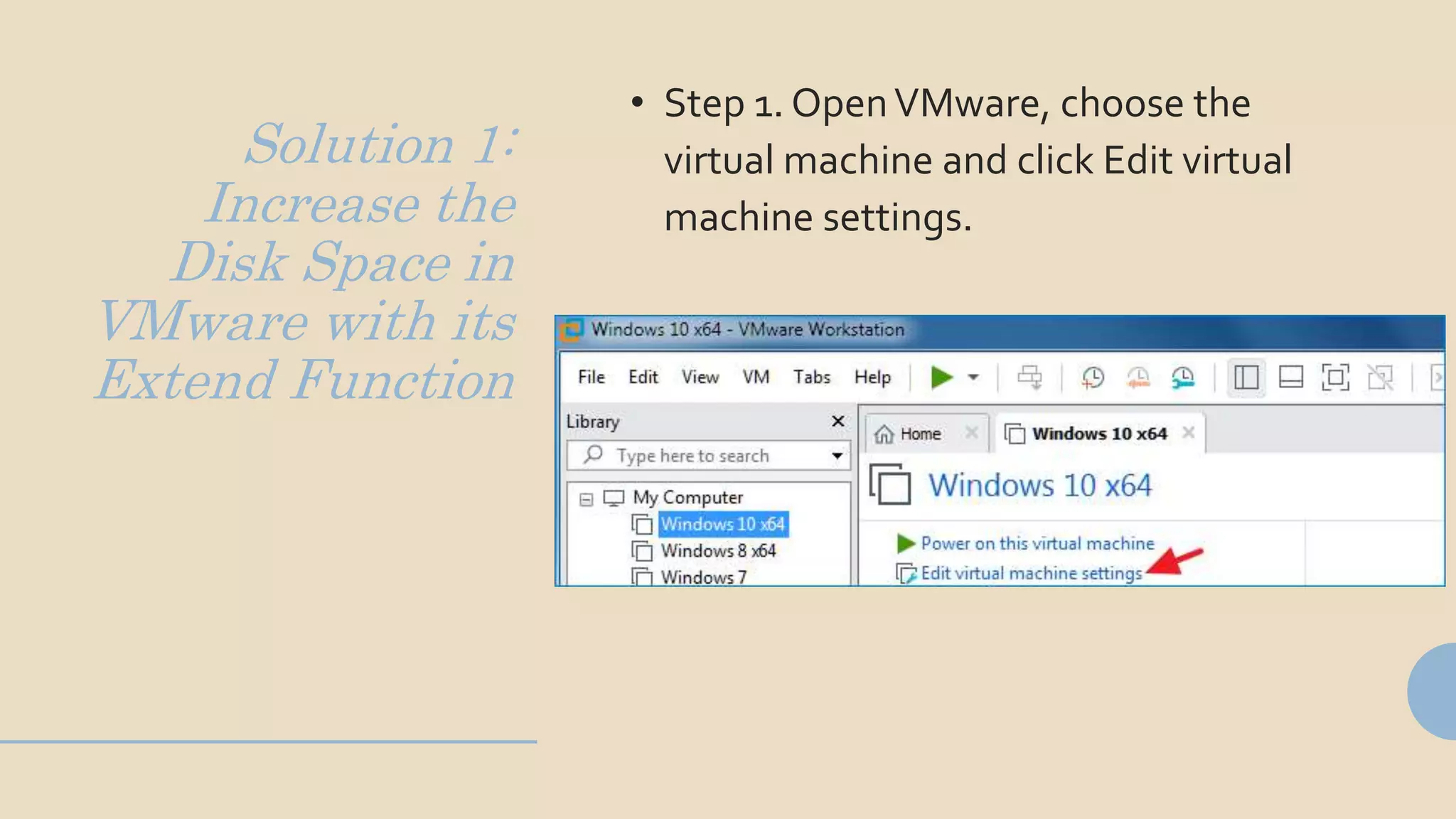
• Step 1. OpenVMware, choose the
virtual machine and click Edit virtual
machine settings.
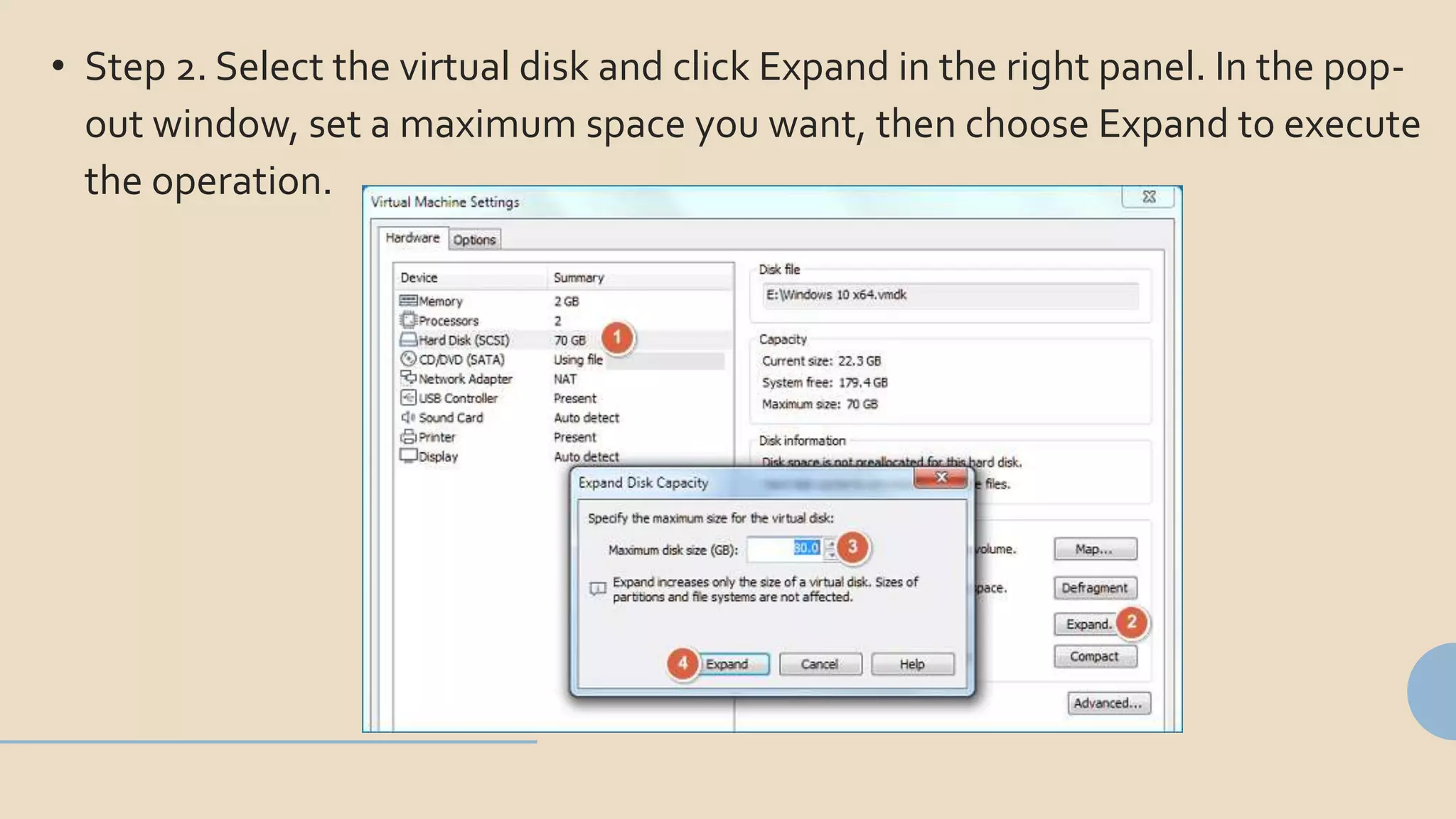
• Step 2. Select the virtual disk and click Expand in the right panel. In the pop-
out window, set a maximum space you want, then choose Expand to execute
the operation.
• Step 3. Start the virtual machine > go to Computer Management > select
Disk Management. And you will see that the disk space is enlarged to the
storage you set.
Solution 2: Add
Disk Space to
VMware via
Command
Prompt
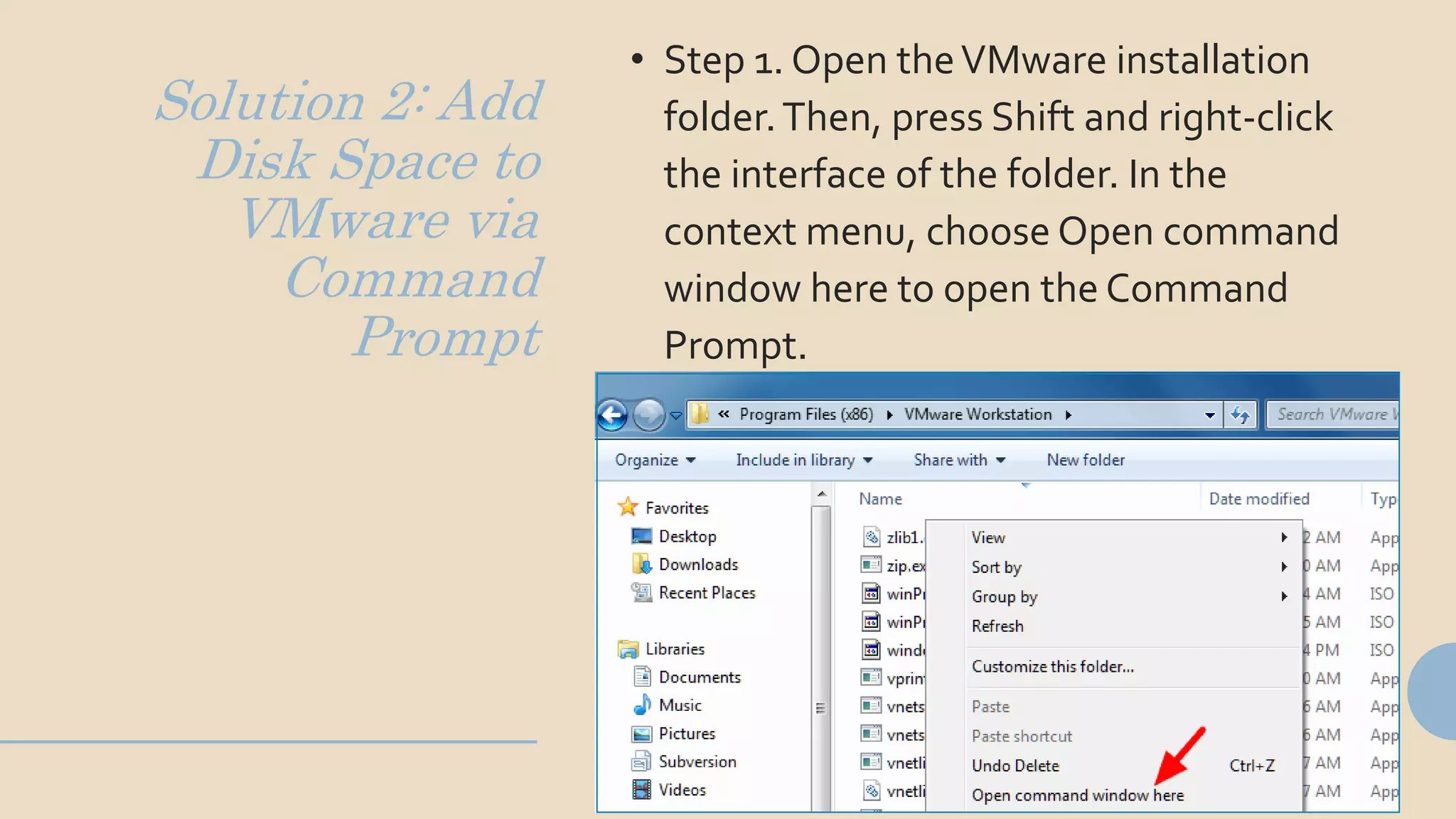
• Step 1. Open theVMware installation
folder.Then, press Shift and right-click
the interface of the folder. In the
context menu, choose Open command
window here to open the Command
Prompt.
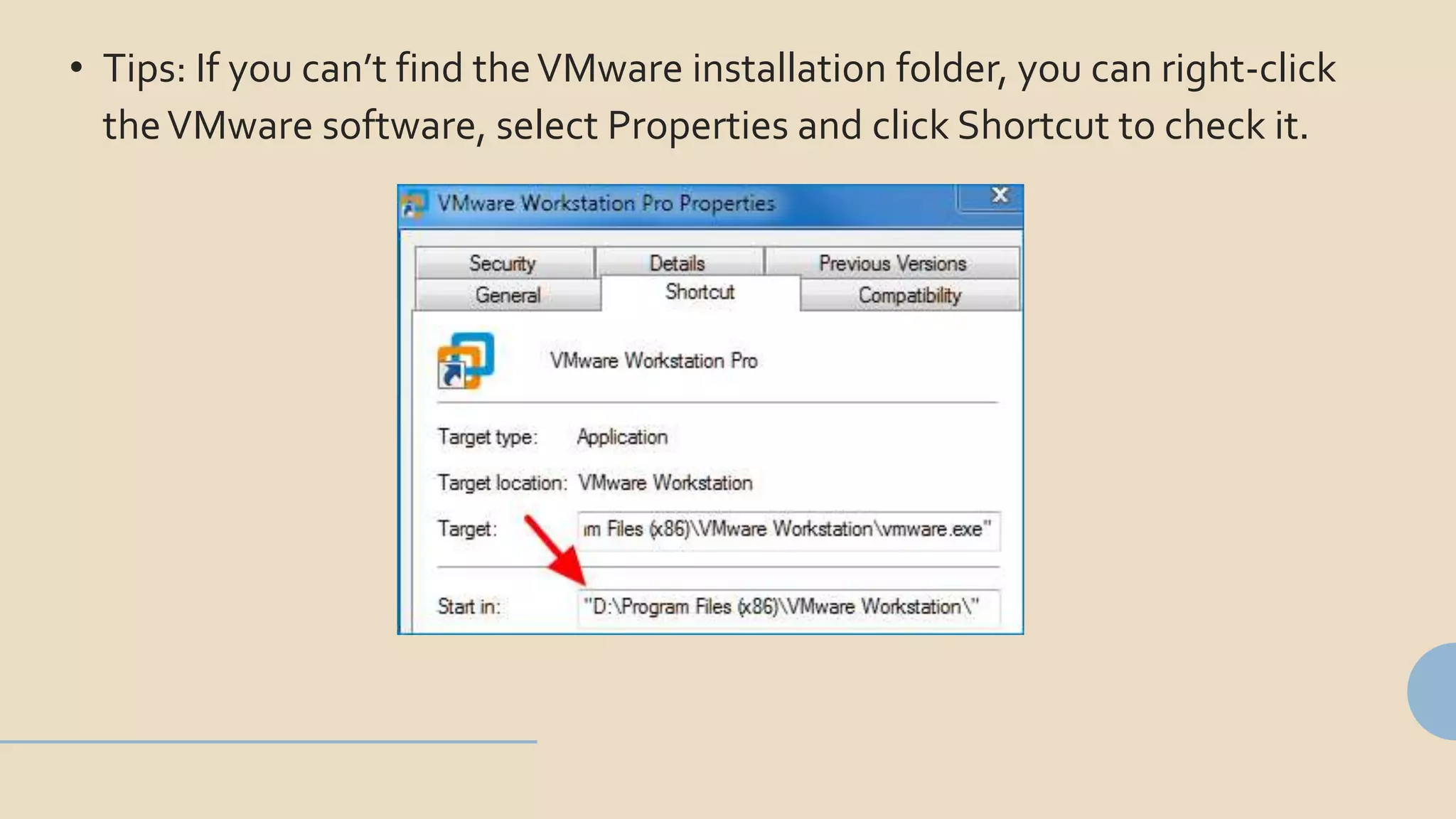
• Tips: If you can’t find theVMware installation folder, you can right-click
theVMware software, select Properties and click Shortcut to check it.
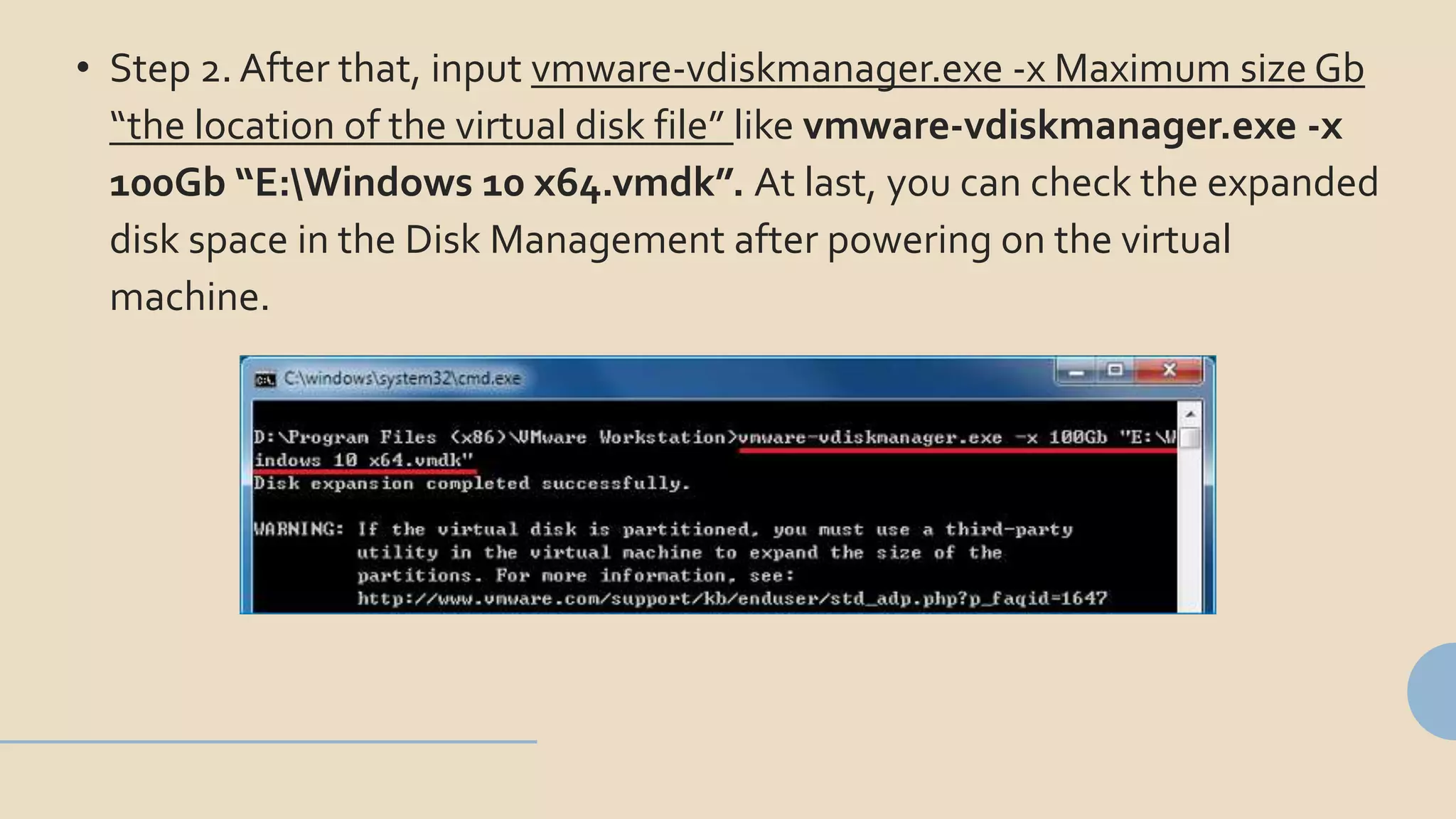
• Step 2. After that, input vmware-vdiskmanager.exe -x Maximum size Gb
“the location of the virtual disk file” like vmware-vdiskmanager.exe -x
100Gb “E:Windows 10 x64.vmdk”. At last, you can check the expanded
disk space in the Disk Management after powering on the virtual
machine.
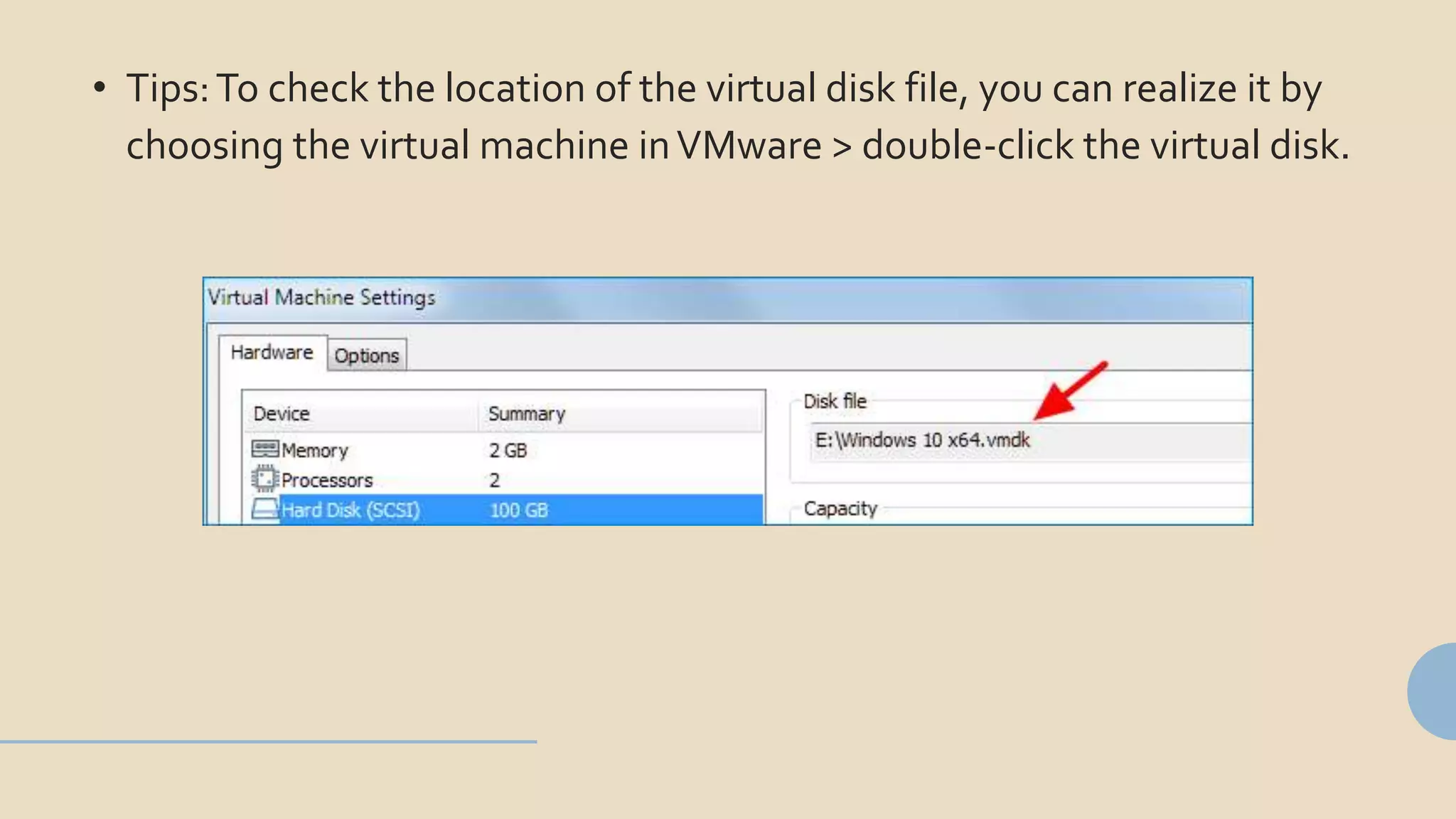
• Tips:To check the location of the virtual disk file, you can realize it by
choosing the virtual machine inVMware > double-click the virtual disk.
Part Two: Expand a Virtual Disk in VirtualBox
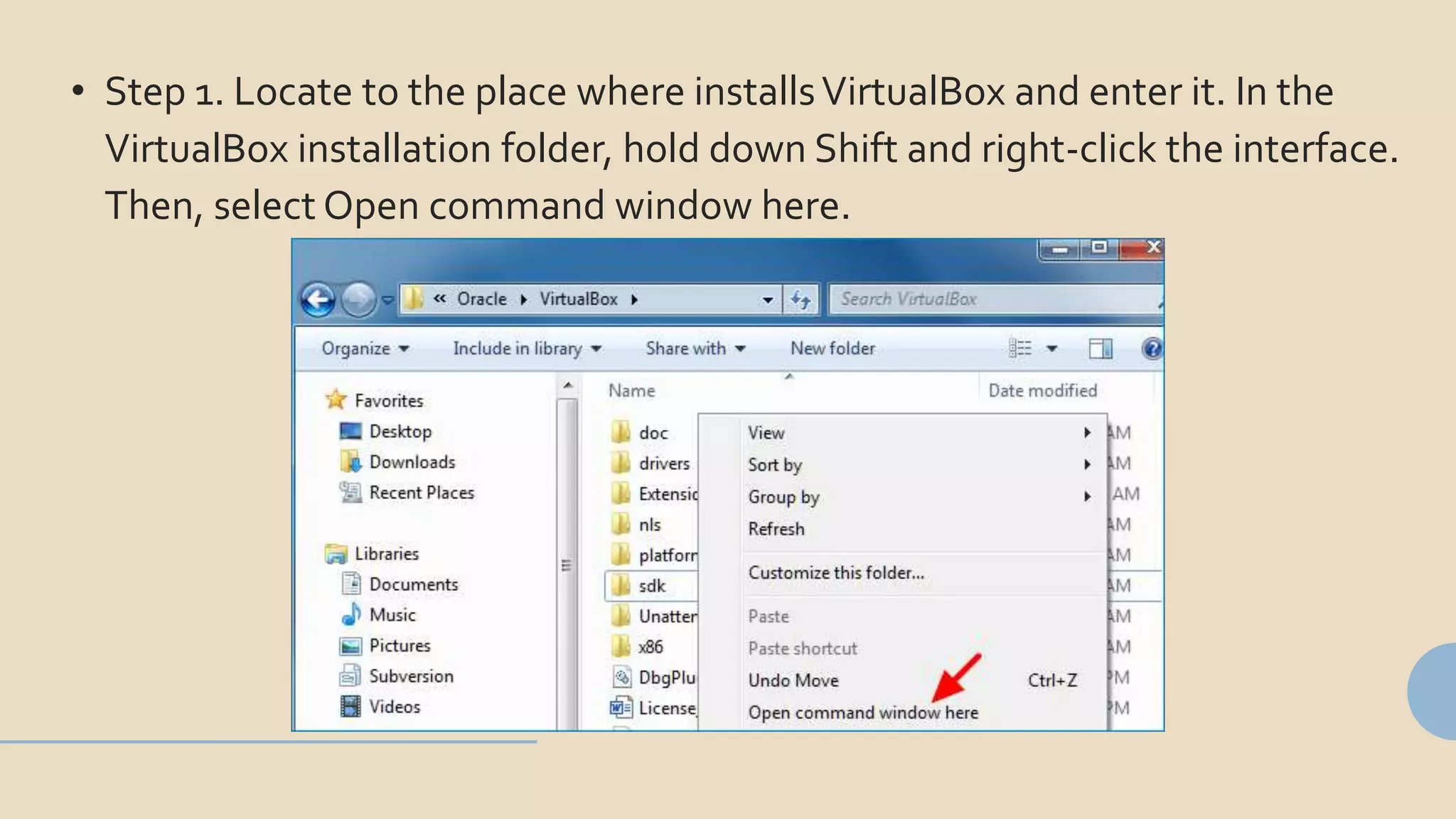
• Step 1. Locate to the place where installsVirtualBox and enter it. In the
VirtualBox installation folder, hold down Shift and right-click the interface.
Then, select Open command window here.
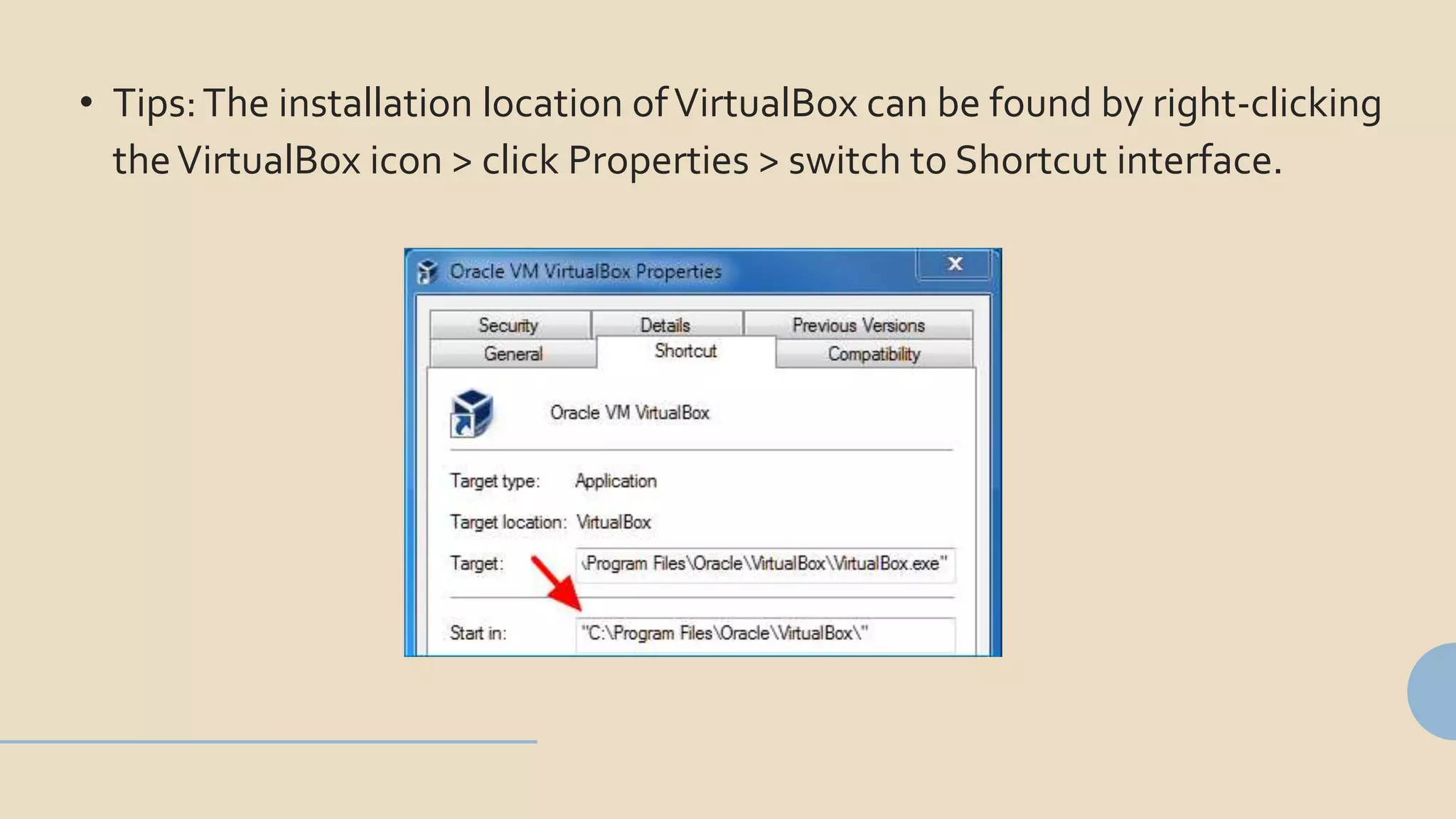
• Tips:The installation location ofVirtualBox can be found by right-clicking
theVirtualBox icon > click Properties > switch to Shortcut interface.
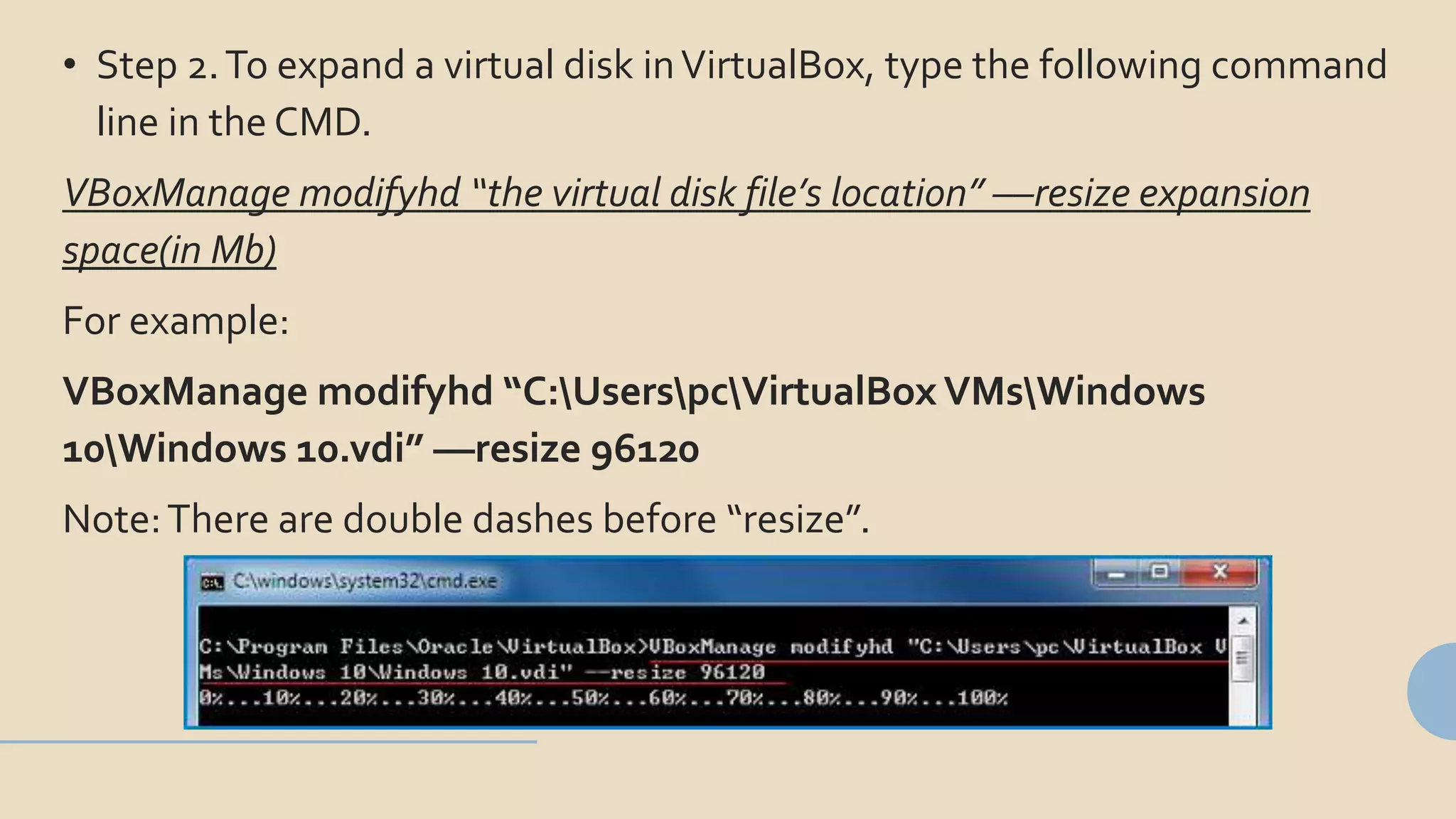
• Step 2.To expand a virtual disk inVirtualBox, type the following command
line in the CMD.
VBoxManage modifyhd “the virtual disk file’s location” ––resize expansion
space(in Mb)
For example:
VBoxManage modifyhd “C:UserspcVirtualBox VMsWindows
10Windows 10.vdi” ––resize 96120
Note:There are double dashes before “resize”.
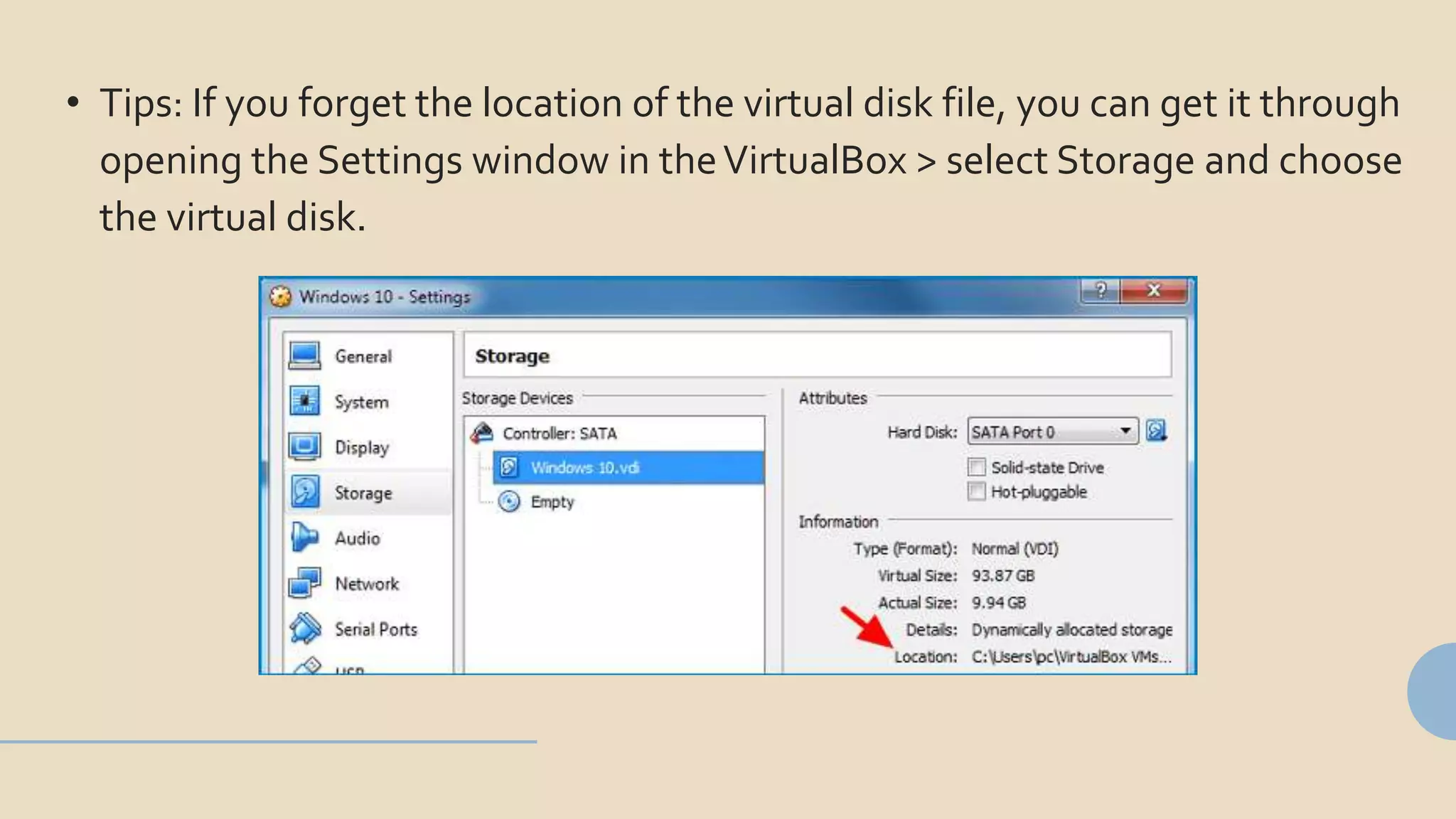
• Tips: If you forget the location of the virtual disk file, you can get it through
opening the Settings window in theVirtualBox > select Storage and choose
the virtual disk.
• Step 3.When the virtual disk is expanded successfully, there is unallocated
space for the virtual disk in the Disk Management.
To use the unallocated space, you can add it to the adjacent
partition by the ExtendVolume option or create a new
volume with it.
https://www.isunshare.com/blog/how-to-expand-a-
virtual-disk-in-vmware-or-virtualbox/
ThankYou
Get More Details:

3 Ways to Expand a Virtual Disk in VMware or VirtualBox

  • 1.
    EXPAND A VIRTUALDISK IN VMWARE OR VIRTUALBOX
  • 2.
    VMware andVirtualBox are2 popular virtualization software, which enables us to operate several systems in one physical computer. When you create a virtual machine on them, a virtual disk is needed to be made firstly and you can allocate the maximum space for it.What’s more, the maximum space is changeable, which means that you can increase the disk space when it’s not enough for usage. So, how can you expand a virtual disk inVMware or VirtualBox? Here, you can get 3 helpful answers.
  • 3.
    Preparations before applying the following ways: • Backup files on the virtual disk which will be expanded. • Remove all the snapshots from the virtual machine. • Power off the virtual machine.
  • 4.
    Part One: Expanda Virtual Disk in VMware
  • 5.
    Solution 1: Increase the DiskSpace in VMware with its Extend Function • Step 1. OpenVMware, choose the virtual machine and click Edit virtual machine settings.
  • 6.
    • Step 2.Select the virtual disk and click Expand in the right panel. In the pop- out window, set a maximum space you want, then choose Expand to execute the operation.
  • 7.
    • Step 3.Start the virtual machine > go to Computer Management > select Disk Management. And you will see that the disk space is enlarged to the storage you set.
  • 8.
    Solution 2: Add DiskSpace to VMware via Command Prompt • Step 1. Open theVMware installation folder.Then, press Shift and right-click the interface of the folder. In the context menu, choose Open command window here to open the Command Prompt.
  • 9.
    • Tips: Ifyou can’t find theVMware installation folder, you can right-click theVMware software, select Properties and click Shortcut to check it.
  • 10.
    • Step 2.After that, input vmware-vdiskmanager.exe -x Maximum size Gb “the location of the virtual disk file” like vmware-vdiskmanager.exe -x 100Gb “E:Windows 10 x64.vmdk”. At last, you can check the expanded disk space in the Disk Management after powering on the virtual machine.
  • 11.
    • Tips:To checkthe location of the virtual disk file, you can realize it by choosing the virtual machine inVMware > double-click the virtual disk.
  • 12.
    Part Two: Expanda Virtual Disk in VirtualBox
  • 13.
    • Step 1.Locate to the place where installsVirtualBox and enter it. In the VirtualBox installation folder, hold down Shift and right-click the interface. Then, select Open command window here.
  • 14.
    • Tips:The installationlocation ofVirtualBox can be found by right-clicking theVirtualBox icon > click Properties > switch to Shortcut interface.
  • 15.
    • Step 2.Toexpand a virtual disk inVirtualBox, type the following command line in the CMD. VBoxManage modifyhd “the virtual disk file’s location” ––resize expansion space(in Mb) For example: VBoxManage modifyhd “C:UserspcVirtualBox VMsWindows 10Windows 10.vdi” ––resize 96120 Note:There are double dashes before “resize”.
  • 16.
    • Tips: Ifyou forget the location of the virtual disk file, you can get it through opening the Settings window in theVirtualBox > select Storage and choose the virtual disk.
  • 17.
    • Step 3.Whenthe virtual disk is expanded successfully, there is unallocated space for the virtual disk in the Disk Management. To use the unallocated space, you can add it to the adjacent partition by the ExtendVolume option or create a new volume with it.
  • 18.