Use Journals
The VLE @ GSA
How to…
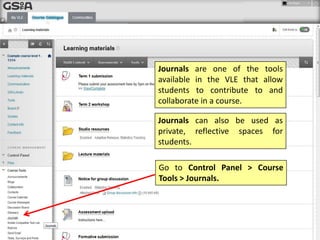
Journals are one of the tools
available in the VLE that allow
students to contribute to and
collaborate in a course.
Journals can also be used as
private, reflective spaces for
students.
Go to Control Panel > Course
Tools > Journals.
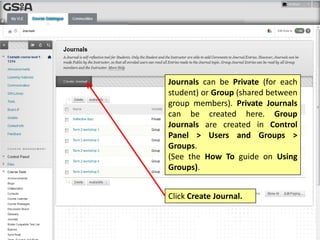
Journals can be Private (for each
student) or Group (shared between
group members). Private Journals
can be created here. Group
Journals are created in Control
Panel > Users and Groups >
Groups.
(See the How To guide on Using
Groups).
Click Create Journal.
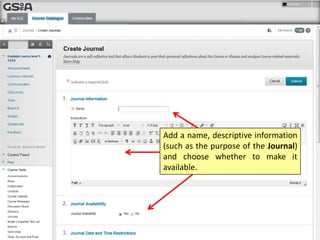
Add a name, descriptive information
(such as the purpose of the Journal)
and choose whether to make it
available.
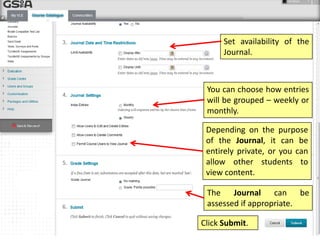
Depending on the purpose
of the Journal, it can be
entirely private, or you can
allow other students to
view content.
You can choose how entries
will be grouped – weekly or
monthly.
The Journal can be
assessed if appropriate.
Click Submit.
Set availability of the
Journal.
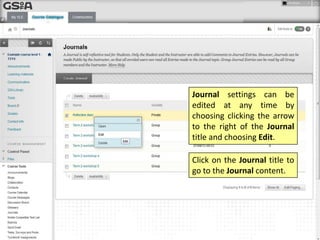
Journal settings can be
edited at any time by
choosing clicking the arrow
to the right of the Journal
title and choosing Edit.
Click on the Journal title to
go to the Journal content.
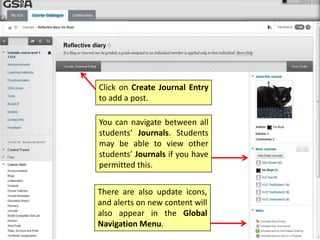
Click on Create Journal Entry
to add a post.
You can navigate between all
students’ Journals. Students
may be able to view other
students’ Journals if you have
permitted this.
There are also update icons,
and alerts on new content will
also appear in the Global
Navigation Menu.
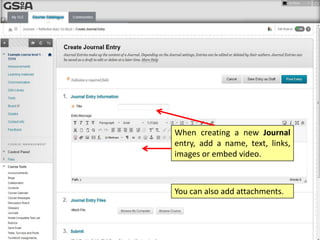
When creating a new Journal
entry, add a name, text, links,
images or embed video.
You can also add attachments.
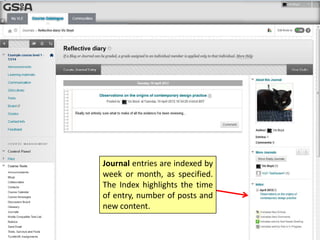
Journal entries are indexed by
week or month, as specified.
The Index highlights the time
of entry, number of posts and
new content.
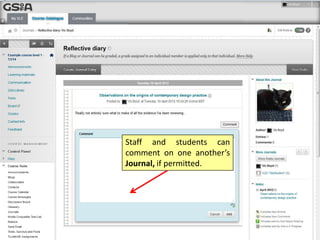
Staff and students can
comment on one another’s
Journal, if permitted.
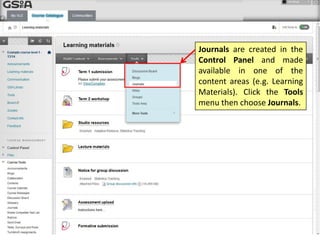
Journals are created in the
Control Panel and made
available in one of the
content areas (e.g. Learning
Materials). Click the Tools
menu then choose Journals.
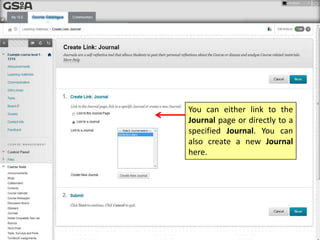
You can either link to the
Journal page or directly to a
specified Journal. You can
also create a new Journal
here.
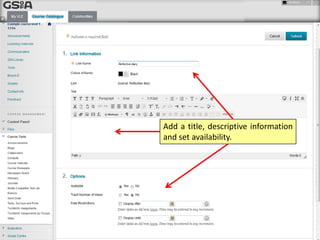
Add a title, descriptive information
and set availability.
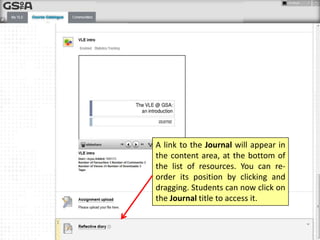
A link to the Journal will appear in
the content area, at the bottom of
the list of resources. You can re-
order its position by clicking and
dragging. Students can now click on
the Journal title to access it.

VLE GSA - How to use Journals

  • 1.
    Use Journals The VLE@ GSA How to…
  • 2.
    Journals are oneof the tools available in the VLE that allow students to contribute to and collaborate in a course. Journals can also be used as private, reflective spaces for students. Go to Control Panel > Course Tools > Journals.
  • 3.
    Journals can bePrivate (for each student) or Group (shared between group members). Private Journals can be created here. Group Journals are created in Control Panel > Users and Groups > Groups. (See the How To guide on Using Groups). Click Create Journal.
  • 4.
    Add a name,descriptive information (such as the purpose of the Journal) and choose whether to make it available.
  • 5.
    Depending on thepurpose of the Journal, it can be entirely private, or you can allow other students to view content. You can choose how entries will be grouped – weekly or monthly. The Journal can be assessed if appropriate. Click Submit. Set availability of the Journal.
  • 6.
    Journal settings canbe edited at any time by choosing clicking the arrow to the right of the Journal title and choosing Edit. Click on the Journal title to go to the Journal content.
  • 7.
    Click on CreateJournal Entry to add a post. You can navigate between all students’ Journals. Students may be able to view other students’ Journals if you have permitted this. There are also update icons, and alerts on new content will also appear in the Global Navigation Menu.
  • 8.
    When creating anew Journal entry, add a name, text, links, images or embed video. You can also add attachments.
  • 9.
    Journal entries areindexed by week or month, as specified. The Index highlights the time of entry, number of posts and new content.
  • 10.
    Staff and studentscan comment on one another’s Journal, if permitted.
  • 11.
    Journals are createdin the Control Panel and made available in one of the content areas (e.g. Learning Materials). Click the Tools menu then choose Journals.
  • 12.
    You can eitherlink to the Journal page or directly to a specified Journal. You can also create a new Journal here.
  • 13.
    Add a title,descriptive information and set availability.
  • 14.
    A link tothe Journal will appear in the content area, at the bottom of the list of resources. You can re- order its position by clicking and dragging. Students can now click on the Journal title to access it.