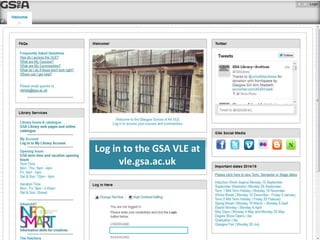
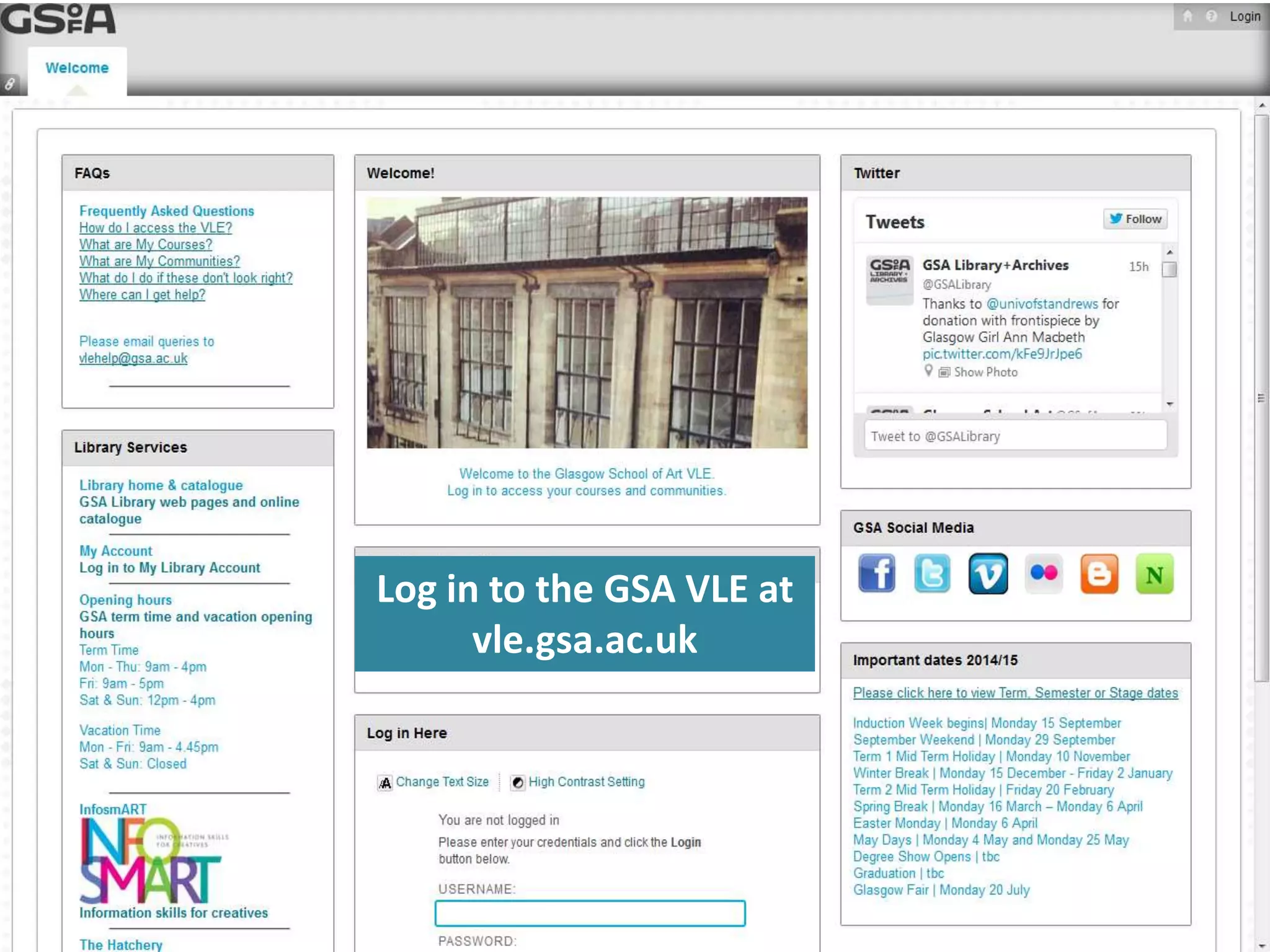
Log in to the GSA VLE at 
vle.gsa.ac.uk
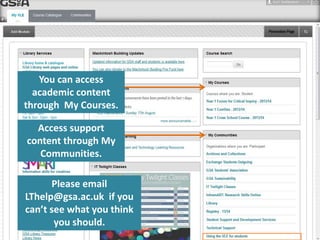
You can access 
academic content 
through My Courses. 
Access support 
content through My 
Communities. 
Please email 
LThelp@gsa.ac.uk if you 
can’t see what you think 
you should.
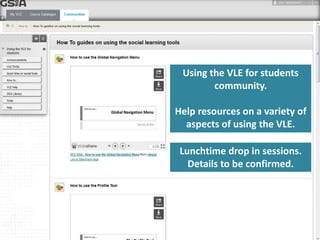
Using the VLE for students 
community. 
Help resources on a variety of 
aspects of using the VLE. 
Lunchtime drop in sessions. 
Details to be confirmed.
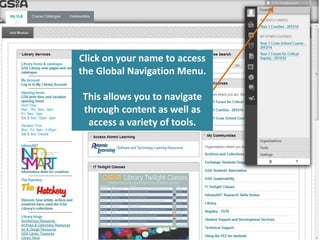
Click on your name to access 
the Global Navigation Menu. 
This allows you to navigate 
through content as well as 
access a variety of tools.
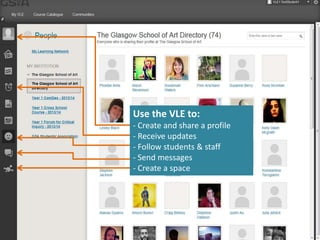
Use the VLE to: 
- Create and share a profile 
- Receive updates 
- Follow students & staff 
- Send messages 
- Create a space
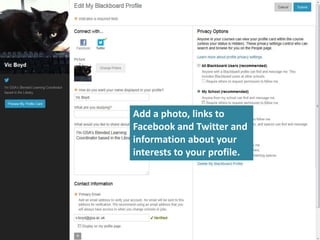
Add a photo, links to 
Facebook and Twitter and 
information about your 
interests to your profile.
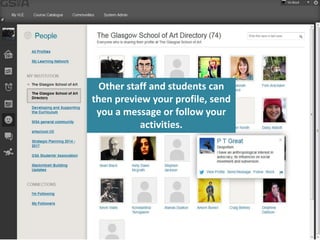
Other staff and students can 
then preview your profile, send 
you a message or follow your 
activities.
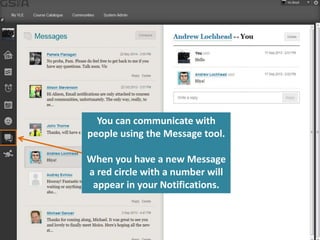
You can communicate with 
people using the Message tool. 
When you have a new Message 
a red circle with a number will 
appear in your Notifications.
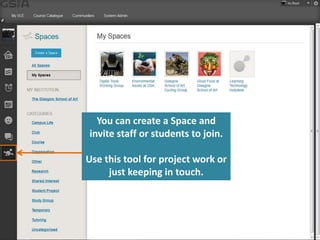
You can create a Space and 
invite staff or students to join. 
Use this tool for project work or 
just keeping in touch.

The VLE at GSA for new students

  • 1.
    Log in tothe GSA VLE at vle.gsa.ac.uk
  • 2.
    You can access academic content through My Courses. Access support content through My Communities. Please email LThelp@gsa.ac.uk if you can’t see what you think you should.
  • 3.
    Using the VLEfor students community. Help resources on a variety of aspects of using the VLE. Lunchtime drop in sessions. Details to be confirmed.
  • 4.
    Click on yourname to access the Global Navigation Menu. This allows you to navigate through content as well as access a variety of tools.
  • 5.
    Use the VLEto: - Create and share a profile - Receive updates - Follow students & staff - Send messages - Create a space
  • 6.
    Add a photo,links to Facebook and Twitter and information about your interests to your profile.
  • 7.
    Other staff andstudents can then preview your profile, send you a message or follow your activities.
  • 8.
    You can communicatewith people using the Message tool. When you have a new Message a red circle with a number will appear in your Notifications.
  • 9.
    You can createa Space and invite staff or students to join. Use this tool for project work or just keeping in touch.