Understanding Virtualization’s Role in Auditing and SecurityGreg Shields, MVP, vExpertAuthor / Instructor / Speaker / Consultant / All Around Good Guywww.ConcentratedTech.com
This slide deck was used in one of our many conference presentations. We hope you enjoy it, and invite you to use it within your own organization however you like.For more information on our company, including information on private classes and upcoming conference appearances, please visit our Web site, www.ConcentratedTech.com. For links to newly-posted decks, follow us on Twitter:@concentrateddon or @concentratdgregThis work is copyright ©Concentrated Technology, LLC
Who Am I?Greg Shields, MVP, vExpertNearly 15 years of Windows administration and engineering experience.Consultant – Multiple engagements all across the countryConference speaker – TechMentor, Windows Connections, MMS, Tech Ed, ISACA, FOSE, VMworld, Tech TrifectaAuthor – Eleven books, including The Shortcut Guide to Implementing Virtualization in the Small Environment, The Shortcut Guide to Virtualization & Service Automation, and The Shortcut Guide to Selecting the Right Virtualization SolutionColumnist – TechNet Magazine, IT EXPERT Magazine, Redmond Magazine, Virtualization Review Magazine, MCPmag.comVideo Trainer – CBT Nuggets, including video series’ on Hyper-V, ESX 3.5, and vSphereBlogger – www.concentratedtech.comAll-around good guy…
Who is Concentrated Technology?A collaboration between IT gurus Greg Shields andDon Jones, www.ConcentratedTech.com is a place for concise, helpful IT news and education.Our emphasis is on concise…We believe in the open sharing of our slide decks.Couldn’t make Tech Ed?No time for VMworld?We hit them all, and want to share them with you…If you’re interested in these slides, as well as every other deckwe’ve presented this year……at the end of the session today, let’s trade email addresses.  We’ll add you to our newsletter list.4
4½ Modules to Virtual Excellence…Module 0:  So…What is Virtualization?Module 1:  The Seven Elements of a Successful Virtualization ArchitectureModule 2:  Understanding the Technologies Behind VMware vSphere VirtualizationLunch!Module 3: Understanding the Technologies Behind Hyper-V VirtualizationModule 4:  Formal Guidance in Securing & Auditing the vSphere Environment, Beyond the Physical
So, What is Virtualization?Virtualization:Virtualization is involved with the abstraction of computer resources.Virtualization decouples physical hardware from installed operating systems.Leverages a “hypervisor” layer that is installed directly atop physical hardware.This hypervisor abstracts physical resources to create a unified platform upon which all virtual machines reside.6
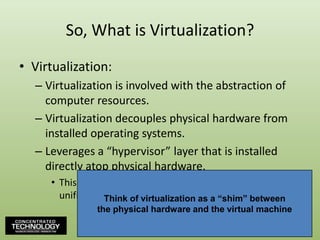
So, What is Virtualization?Virtualization:Virtualization is involved with the abstraction of computer resources.Virtualization decouples physical hardware from installed operating systems.Leverages a “hypervisor” layer that is installed directly atop physical hardware.This hypervisor abstracts physical resources to create a unified platform upon which all virtual machines reside.Think of virtualization as a “shim” betweenthe physical hardware and the virtual machine7
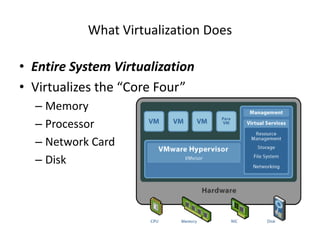
What Virtualization DoesEntire System VirtualizationVirtualizes the “Core Four”MemoryProcessorNetwork CardDisk
What Virtualization DoesMemorySystem memory shared between the host system and the VM’s.VM memory is not addressable by the system and vice versa.ProcessorProcesses in the virtual machines run on the host.The host distributes requests among available physical processors.Network CardVirtual network cards share available physical network cards.Virtual network cards can communicate privately with other VM’s or can route to the external network.Ability to create internal virtual networks.DiskVirtual disks exist as a series of files on the host.
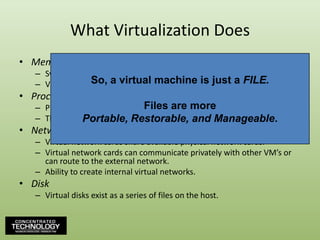
What Virtualization DoesMemorySystem memory shared between the host system and the VM’s.VM memory is not addressable by the system and vice versa.ProcessorProcesses in the virtual machines run on the host.The host distributes requests among available physical processors.Network CardVirtual network cards share available physical network cards.Virtual network cards can communicate privately with other VM’s or can route to the external network.Ability to create internal virtual networks.DiskVirtual disks exist as a series of files on the host.So, a virtual machine is just a FILE.Files are morePortable, Restorable, and Manageable.
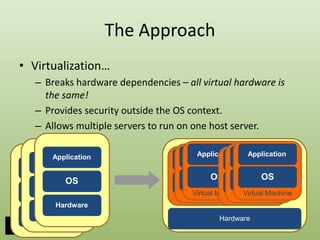
The ApproachVirtualization…Breaks hardware dependencies – all virtual hardware is the same!Provides security outside the OS context.Allows multiple servers to run on one host server.ApplicationApplicationApplicationApplicationApplicationApplicationApplicationApplicationApplicationOSOSOSOSOSOSOSOSOSVirtual MachineVirtual MachineVirtual MachineVirtual MachineVirtual MachineVirtual MachineHardwareHardwareHardwareHardware
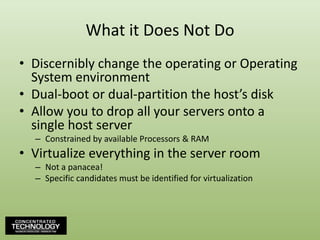
What it Does Not DoDiscernibly change the operating or Operating System environmentDual-boot or dual-partition the host’s diskAllow you to drop all your servers onto a single host serverConstrained by available Processors & RAMVirtualize everything in the server roomNot a panacea!Specific candidates must be identified for virtualization
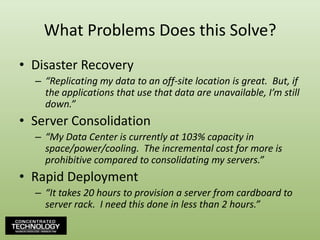
What Problems Does this Solve?Disaster Recovery“Replicating my data to an off-site location is great.  But, if the applications that use that data are unavailable, I’m still down.”Server Consolidation“My Data Center is currently at 103% capacity in space/power/cooling.  The incremental cost for more is prohibitive compared to consolidating my servers.”Rapid Deployment“It takes 20 hours to provision a server from cardboard to server rack.  I need this done in less than 2 hours.”
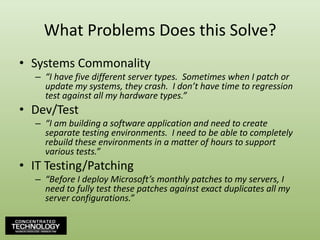
What Problems Does this Solve?Systems Commonality“I have five different server types.  Sometimes when I patch or update my systems, they crash.  I don’t have time to regression test against all my hardware types.”Dev/Test“I am building a software application and need to create separate testing environments.  I need to be able to completely rebuild these environments in a matter of hours to support various tests.”IT Testing/Patching“Before I deploy Microsoft’s monthly patches to my servers, I need to fully test these patches against exact duplicates all my server configurations.”
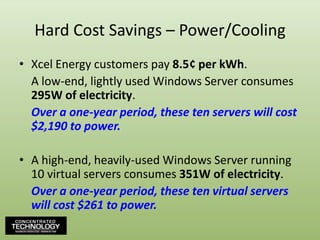
Hard Cost Savings – Power/CoolingXcel Energy customers pay 8.5¢ per kWh.	A low-end, lightly used Windows Server consumes 295W of electricity.	Over a one-year period, these ten servers will cost $2,190 to power.A high-end, heavily-used Windows Server running 10 virtual servers consumes 351W of electricity.	Over a one-year period, these ten virtual servers will cost $261 to power.
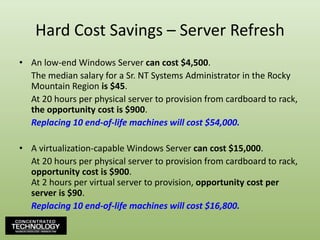
Hard Cost Savings – Server RefreshAn low-end Windows Server can cost $4,500.	The median salary for a Sr. NT Systems Administrator in the Rocky Mountain Region is $45.	At 20 hours per physical server to provision from cardboard to rack, the opportunity cost is $900.	Replacing 10 end-of-life machines will cost $54,000.A virtualization-capable Windows Server can cost $15,000.	At 20 hours per physical server to provision from cardboard to rack, opportunity cost is $900.At 2 hours per virtual server to provision, opportunity cost per server is $90.	Replacing 10 end-of-life machines will cost $16,800.
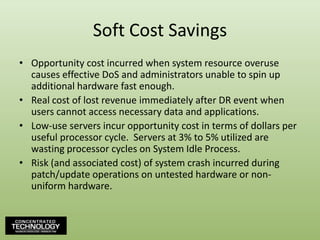
Soft Cost SavingsOpportunity cost incurred when system resource overuse causes effective DoS and administrators unable to spin up additional hardware fast enough.Real cost of lost revenue immediately after DR event when users cannot access necessary data and applications.Low-use servers incur opportunity cost in terms of dollars per useful processor cycle.  Servers at 3% to 5% utilized are wasting processor cycles on System Idle Process.Risk (and associated cost) of system crash incurred during patch/update operations on untested hardware or non-uniform hardware.
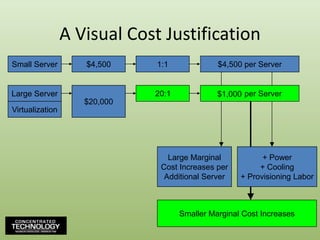
A Visual Cost JustificationSmall Server$4,5001:1$4,500 per Server8:1Large Server$15,000$20,000$2,500 per Server20:1$1,33315:1$1,000Virtualization$5,000Large MarginalCost Increases perAdditional Server+ Power+ Cooling+ Provisioning LaborSmaller Marginal Cost Increases
The Seven Elements of a Successful Virtualization ArchitectureGreg Shields, MVP, vExpertAuthor / Instructor / Speaker / Consultant / All Around Good Guywww.ConcentratedTech.com
44% of Virtualization Deployments FailAccording to a CA announcement from 2007.Inability to quantify ROIInsufficient administrator trainingExpectations not aligned with resultsSuccess =Measure performanceDiligent inventoryLoad DistributionThorough Investigation of Technology
55% Experience More Problems than Benefits with VirtualizationAccording to an Interop survey in May, 2009.Lack of visibilityLack of tools to troubleshoot performance problemsInsufficient education on virtual infrastructure softwareStatistics:27% could not visualize / manage performance25% cite training shortfalls21% unable to secure the infrastructure50% say that implementation costs are too high
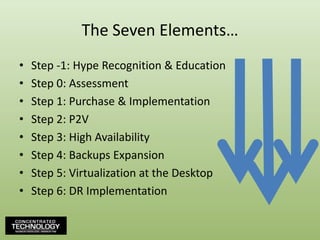
The Seven Elements…Step -1: Hype Recognition & EducationStep 0: AssessmentStep 1: Purchase & ImplementationStep 2: P2VStep 3: High AvailabilityStep 4: Backups ExpansionStep 5: Virtualization at the DesktopStep 6: DR Implementation
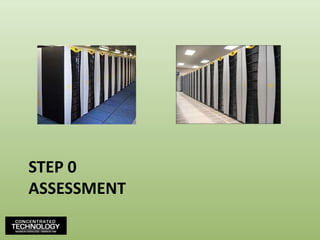
Step 0Assessment
The Virtualization AssessmentSuccessful rollouts need a virtualization assessment.You must analyze your environment before you act.Virtualization assessment should include:Inventory of serversInventory of attached peripheralsPerformance characteristics of serversAnalysis of performance characteristicsAnalysis of hardware needs to support virtualized serversBackups AnalysisDisaster Recovery Analysis (Hot vs. warm vs. cold)Initial virtual resource assignment suggestions
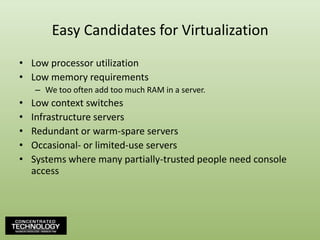
Easy Candidates for VirtualizationLow processor utilizationLow memory requirementsWe too often add too much RAM in a server.Low context switchesInfrastructure serversRedundant or warm-spare serversOccasional- or limited-use serversSystems where many partially-trusted people need console access
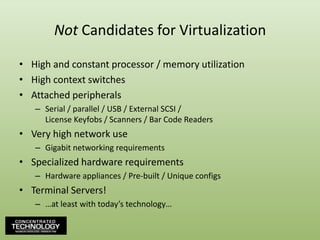
Not Candidates for VirtualizationHigh and constant processor / memory utilizationHigh context switchesAttached peripheralsSerial / parallel / USB / External SCSI /License Keyfobs / Scanners / Bar Code ReadersVery high network useGigabit networking requirementsSpecialized hardware requirementsHardware appliances / Pre-built / Unique configsTerminal Servers!…at least with today’s technology…
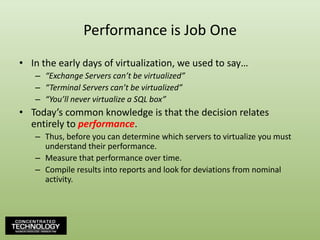
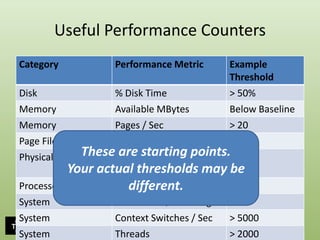
Performance is Job OneIn the early days of virtualization, we used to say…“Exchange Servers can’t be virtualized”“Terminal Servers can’t be virtualized”“You’ll never virtualize a SQL box”Today’s common knowledge is that the decision relates entirely to performance.Thus, before you can determine which servers to virtualize you must understand their performance.Measure that performance over time.Compile results into reports and look for deviations from nominal activity.
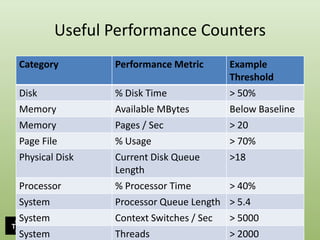
Useful Performance Counters
Useful Performance CountersThese are starting points.Your actual thresholds may be different.
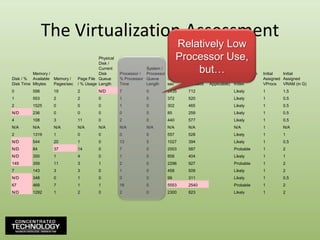
The Virtualization Assessment
The Virtualization AssessmentRelatively Low Processor Use,but…
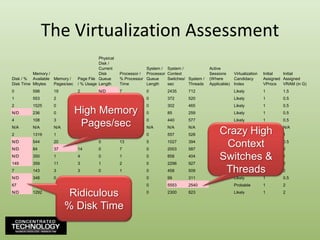
The Virtualization AssessmentHigh Memory Pages/secCrazy High Context Switches & ThreadsRidiculous% Disk Time
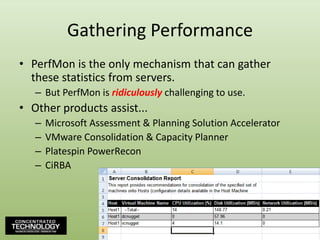
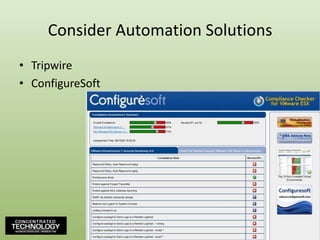
Gathering PerformancePerfMon is the only mechanism that can gather these statistics from servers.But PerfMon is ridiculouslychallenging to use.Other products assist...Microsoft Assessment & Planning Solution AcceleratorVMware Consolidation & Capacity PlannerPlatespinPowerReconCiRBA
Step 1Purchase & Implementation
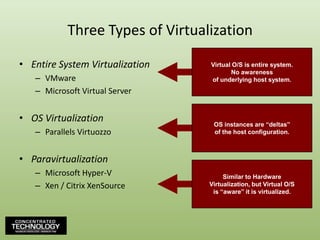
Three Types of VirtualizationEntire System VirtualizationVMwareMicrosoft Virtual ServerOS VirtualizationParallels VirtuozzoParavirtualizationMicrosoft Hyper-VXen / Citrix XenSourceVirtual O/S is entire system.No awarenessof underlying host system.OS instances are “deltas”of the host configuration.Similar to HardwareVirtualization, but Virtual O/Sis “aware” it is virtualized.
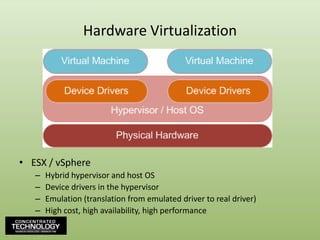
Hardware VirtualizationESX / vSphereHybrid hypervisor and host OSDevice drivers in the hypervisorEmulation (translation from emulated driver to real driver)High cost, high availability, high performance
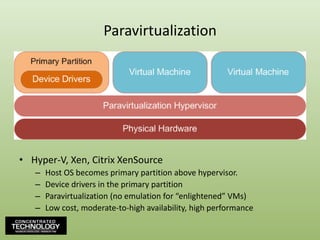
ParavirtualizationHyper-V, Xen, Citrix XenSourceHost OS becomes primary partition above hypervisor.Device drivers in the primary partitionParavirtualization (no emulation for “enlightened” VMs)Low cost, moderate-to-high availability, high performance
Hardware VirtualizationMicrosoft Virtual ServerHypervisor above host OS.  Installed to host OS.Device drivers in hypervisorEmulation (translation from emulated driver to real driver)Low cost, low availability, low performance
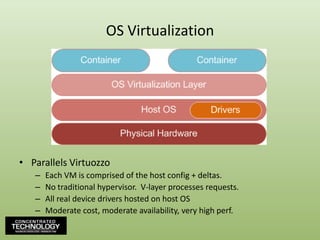
OS VirtualizationParallels VirtuozzoEach VM is comprised of the host config + deltas.No traditional hypervisor.  V-layer processes requests.All real device drivers hosted on host OSModerate cost, moderate availability, very high perf.
Step 2P2V
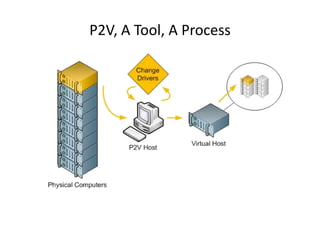
P2V, A Tool, A ProcessAfter environment stand-up, P2V process converts physical machines to virtual ones.A “ghost” + a “driver injection”Numerous applications can do this in one step.SCVMM, Converter, 3rd PartiesThese days, P2V process is commodity.Everyone has their own version.Some are faster.  Some muchslower.Paid options == faster.
P2V, A Tool, A Process
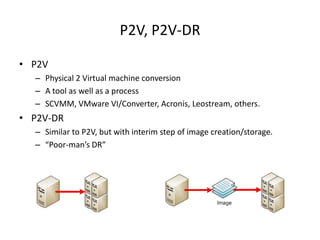
P2V, P2V-DRP2VPhysical 2 Virtual machine conversionA tool as well as a processSCVMM, VMware VI/Converter, Acronis, Leostream, others.P2V-DRSimilar to P2V, but with interim step of image creation/storage.“Poor-man’s DR”
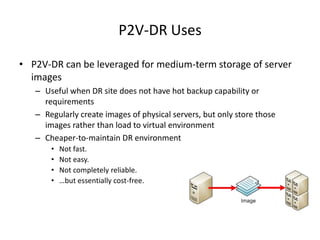
P2V-DR UsesP2V-DR can be leveraged for medium-term storage of server imagesUseful when DR site does not have hot backup capability or requirementsRegularly create images of physical servers, but only store those images rather than load to virtual environmentCheaper-to-maintain DR environmentNot fast.Not easy.Not completely reliable.…but essentially cost-free.
Step 3High Availability
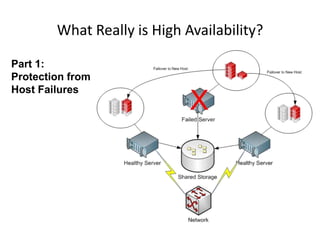
What Really is High Availability?Part 1:  Protection from Host Failures
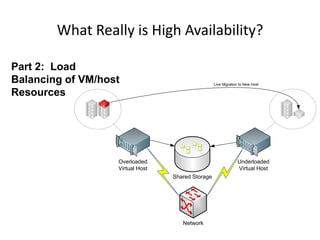
What Really is High Availability?Part 2:  Load Balancing of VM/host Resources
Costs vs. BenefitsHigh-availability adds dramatically greater uptime for virtual machines.Protection against host failuresProtection against resource overuseProtection against scheduled/unscheduled downtimeHigh-availability also adds much greater cost…Shared storage between hostsConnectivityHigher (and more expensive) software editionsNot every environment needs HA!
Common Features in High-End PlatformsLive migration enables running virtual machines to be moved to an alternate host before a host failure.Automated relocation to new hardware and restart of virtual machines immediately upon a host failure.Load balancing calculations that manually or automatically re-balance running virtual machines across hosts to prevent resource contention.Disk storage migration that enables the zero-impact relocation of virtual machine disk files to alternate storage.Automated replication features that copy backed up virtual machines to alternate locations for disaster recovery purposes.
Step 4Backups Expansion
Backup TerminologyFile-Level BackupBackup Agent in the Virtual MachineBlock-Level BackupBackup Agent on the Virtual HostQuiescenceQuieting the file system to prep for a backupO/S Crash ConsistencyCapability for post-restore O/S functionalityApplication Crash ConsistencyCapability for post-restore application functionality
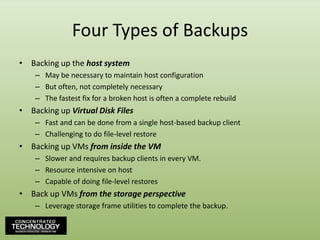
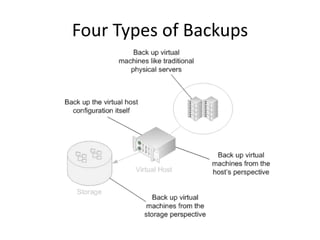
Four Types of BackupsBacking up the host systemMay be necessary to maintain host configurationBut often, not completely necessaryThe fastest fix for a broken host is often a complete rebuildBacking up Virtual Disk FilesFast and can be done from a single host-based backup clientChallenging to do file-level restoreBacking up VMs from inside the VMSlower and requires backup clients in every VM.Resource intensive on hostCapable of doing file-level restoresBack up VMs from the storage perspectiveLeverage storage frame utilities to complete the backup.
Four Types of Backups
The Problem with Transactional DatabasesO/S Crash Consistency is easy to obtain.Just quiesce the file system before beginning the backup.Application Crash Consistency much harder.Transactional databases like AD, Exchange, SQL don’t quiesce when the file system does.Need to stop these databases before quiescing.Or, need an agent in the VM that handles DB quiescing.Restoration without crash consistency will lose data.DB restores into “inconsistent” state.
The Problem with Transactional DatabasesFor VMs, must consider file-level backups and block-level backups.“Top-down” vs. “Bottom-up”File-level backups provide individual file restorabilityFile-level backups provide transactional database crash consistency.Block-level backups provide whole-server restorability.Not all block-level backups provide app crash consistency.Windows VSS can quiesce apps prior to snapping a backup.Advantage:  Hyper-V!
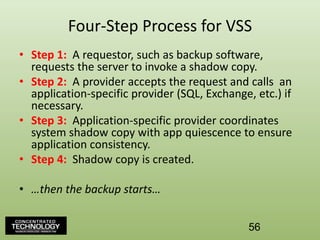
Four-Step Process for VSSStep 1:  A requestor, such as backup software, requests the server to invoke a shadow copy.Step 2:  A provider accepts the request and calls  an application-specific provider (SQL, Exchange, etc.) if necessary.Step 3:  Application-specific provider coordinates system shadow copy with app quiescence to ensure application consistency.Step 4:  Shadow copy is created.…then the backup starts…56
Step 5Virtualization at the Desktop
Desktop Virtualization = VDI = Hosted DesktopsOnce you fully embrace virtualization for your servers, desktop are a next common focus.VDI is all about the apps.HOWEVER, BEWARE VDI!VDI is a much more complex beast than Terminal Services, Citrix XenApp, or other presentation virtualization platforms.It is also dramatically more expensive.Potential VDI’s Use CasesApplications that simply don’t work atop RDS/CitrixHigh-utilization apps that require remote accessPeripherals
Step 6DR Implementation
Disaster RecoveryWhat is Disaster Recovery?Disaster Recovery intends to provide continuity of business services after a critical event.Disaster Recovery is invoked after the large-scale loss of primary business services.DR is not the restoration of a critical server.DR is not the restoration of a critical business service.Why the distinction?DR solutions do not resolve daily operational issues.Often, failback is challenging.
DR, meet Virtualization…Early all-physical attempts at DR were cost-prohibitive and operationally complex.Identical server inventory at primary and backup site.Management cost of identical server configuration.  Change management costs prohibitive.Virtualization eliminates many previous barriers.Virtual servers are chassis independent.Image-level backup == image-level restore.Hot sites become only one of many options – cold & warm sites.Numerous cost-effective solutions available.Don’t believe the hype.Make decisions based on need.
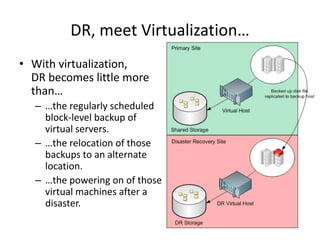
DR, meet Virtualization…With virtualization,DR becomes little morethan……the regularly scheduledblock-level backup ofvirtual servers.…the relocation of thosebackups to an alternatelocation.…the powering on of thosevirtual machines after adisaster.
DR, meet Virtualization…So, what do you need?…a backup site.…alternate servers and a virtual platform.…VM-aware (and VSS-aware) backup software.…a replication mechanism.
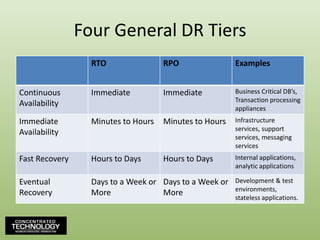
Four General DR Tiers
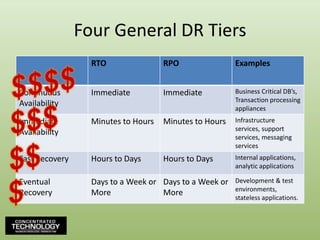
Four General DR Tiers$$$$$$$$$$
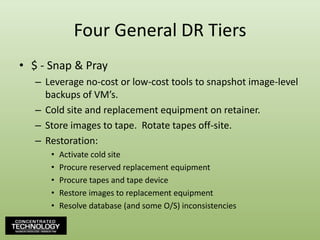
Four General DR Tiers$ - Snap & PrayLeverage no-cost or low-cost tools to snapshot image-level backups of VM’s.Cold site and replacement equipment on retainer.Store images to tape.  Rotate tapes off-site.Restoration:Activate cold siteProcure reserved replacement equipmentProcure tapes and tape deviceRestore images to replacement equipmentResolve database (and some O/S) inconsistencies
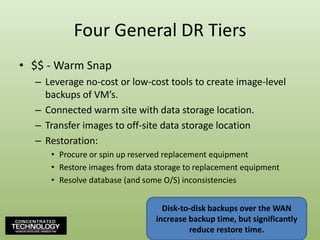
Four General DR Tiers$$ - Warm SnapLeverage no-cost or low-cost tools to create image-level backups of VM’s.Connected warm site with data storage location.Transfer images to off-site data storage locationRestoration:Procure or spin up reserved replacement equipmentRestore images from data storage to replacement equipmentResolve database (and some O/S) inconsistenciesDisk-to-disk backups over the WAN increase backup time, but significantly reduce restore time.67
Four General DR Tiers$$$ - Inconsistent SAN-to-SANWarm site.  Both sites using SAN.  SAN-to-SAN replication instantiated between sites.SAN data is automatically replicated to remote site.Greater support for incrementals.  Less WAN usage.Restoration:Procure or spin up reserved replacement equipmentAttach virtual machines to replacement equipment and hit the “green VCR button”.Resolve database (and some O/S) inconsistenciesSAN replication is often not aware of quiescence, so this solution can be problematic.68
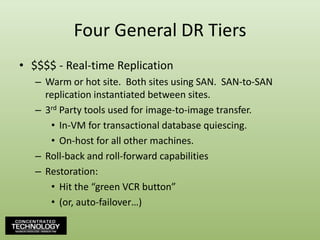
Four General DR Tiers$$$$ - Real-time ReplicationWarm or hot site.  Both sites using SAN.  SAN-to-SAN replication instantiated between sites.3rd Party tools used for image-to-image transfer.In-VM for transactional database quiescing.On-host for all other machines.Roll-back and roll-forward capabilitiesRestoration:Hit the “green VCR button”(or, auto-failover…)
Understanding the Technologies Behind VMware vSphereGreg Shields, MVP, vExpertAuthor / Instructor / Speaker / Consultant / All Around Good Guywww.ConcentratedTech.com
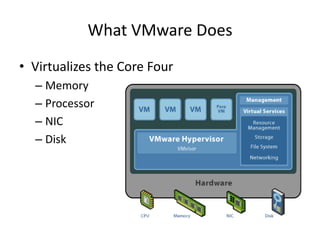
What VMware DoesVirtualizes the Core FourMemoryProcessorNICDisk
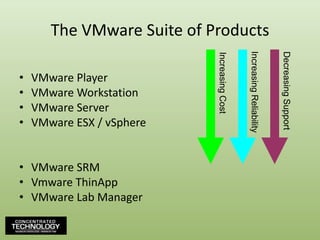
The VMware Suite of ProductsVMware PlayerVMware WorkstationVMware ServerVMware ESX / vSphereVMware SRMVmwareThinAppVMware Lab ManagerIncreasing CostDecreasing SupportIncreasing Reliability
VMware vSphereAn OS all unto itself.Leverages a highly-customized RHEL v3 (Kernel 2.6.18-128.ESX) instance for its management partition.  ESXi eliminates the RHEL instance in favor of a proprietary VMware management partition.  Smaller.VMware suggests RHEL may be going away completely in future versions.A file system all unto itself.VMFS file system extremely efficient.Specially designed to handle...…extremely large files…multiple simultaneous server access…high disk utilization.
VMware vSphereVery specific hardware and O/S requirementsVMware’s use of drivers in the hypervisor means a small HCL for hardware.If your hardware is not on the VMware supportability matrix, ESX simply won’t load.More limited VM compatibilityDue to concerns about reliability.  Higher testing standards.Fewer OSs than other versions.Yet “the OSs you’ll want” are all available.Expensive in up-front costs, but can be less expensive in total cost per deployed server.
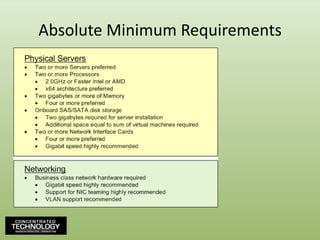
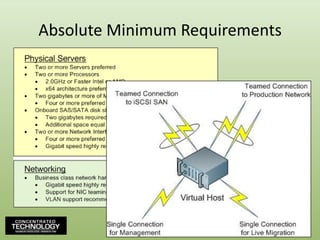
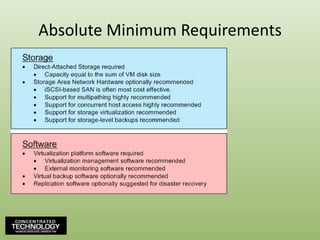
Absolute Minimum Requirements
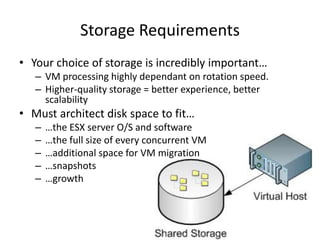
Storage RequirementsYour choice of storage is incredibly important…VM processing highly dependant on rotation speed.Higher-quality storage = better experience, better scalabilityMust architect disk space to fit……the ESX server O/S and software…the full size of every concurrent VM…additional space for VM migration…snapshots…growth
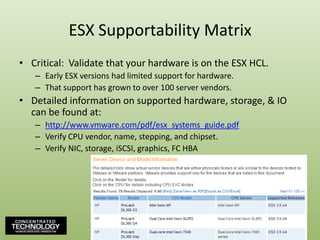
ESX Supportability MatrixCritical:  Validate that your hardware is on the ESX HCL.Early ESX versions had limited support for hardware.  That support has grown to over 100 server vendors.Detailed information on supported hardware, storage, & IO can be found at:http://www.vmware.com/pdf/esx_systems_guide.pdfVerify CPU vendor, name, stepping, and chipset.Verify NIC, storage, iSCSI, graphics, FC HBA79
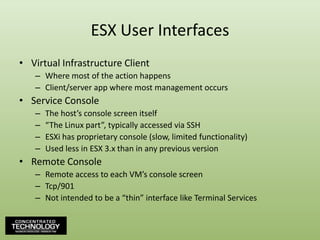
ESX User InterfacesVirtual Infrastructure ClientWhere most of the action happensClient/server app where most management occursService ConsoleThe host’s console screen itself“The Linux part”, typically accessed via SSHESXi has proprietary console (slow, limited functionality)Used less in ESX 3.x than in any previous versionRemote ConsoleRemote access to each VM’s console screenTcp/901Not intended to be a “thin” interface like Terminal Services
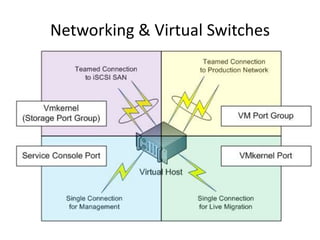
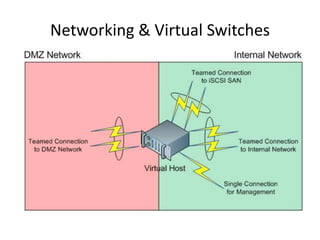
Networking & Virtual SwitchesVirtual Switches allow for rich intra-ESX network manipulation…Between two hosts on the same boxBetween a host and the “outside world”For the service console and VI ClientFor IP-based storageSupports complex networking arrangementsVLAN’s and security policiesTraffic shapingNIC teaming
Networking & Virtual Switches
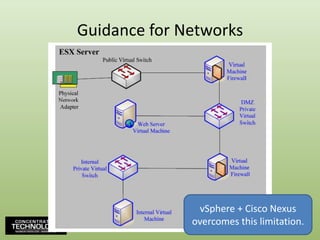
Distributed Virtual SwitchesVirtual switches are host-dependent.When virtual machines VMotion, one must hope that the target virtual switch is correctly configured.Virtual switches are Layer 2 devices.No capacity for ACLing traffic between virtual machines on the same host.Virtual machines can collocate in inappropriate ways, which eliminates network protections.Distributed Virtual Switches create a “GIANT SWITCH” across an entire vCenter infrastructure.No longer host dependent, dVSs are managed by vCenter.Support for Private VLANs (PVLANs), virtualized DMZs.Available natively in vSphere, Cisco Nexus 1000V is 3rd party solution that adds more capabilities.
New Networking Features in 4.0VMDirectPath – Adds ability to connect VMs directly to physical NICs.40Gbps output per ESX/ESXi host – Improves raw performance across teamed connections.VMXNET3 – A new paravirtualized network driver for added performance.MTU Exposure – Admins can adjust MTU sizes.CDP Support – Support for Cisco Discovery Protocol, aids in network mapping within an ESX host.VLAN Trunking– Now able to trunk VLANs directly to VMs as opposed to terminating at the host boundary.
Storage OptionsESX can work with many types of storage.DASFibre ChannelWith attached HBAiSCSI SAN-attachedUsing both hardware and software initiatorsNAS & NFS-based storageCreates low-performance VMFS partitions on Unix/Linux NFS shares or SFU-proxied Windows CIFS sharesGrowing in use.Make sure to disable the ESX firewall for iSCSI and NFS connections!
DEMOViewing ESX Host Configurations
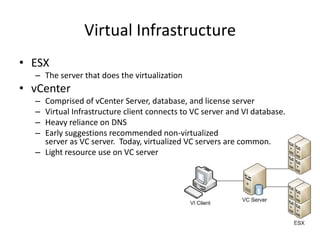
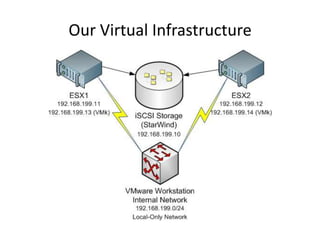
Virtual InfrastructureESXThe server that does the virtualizationvCenterComprised of vCenter Server, database, and license serverVirtual Infrastructure client connects to VC server and VI database.Heavy reliance on DNSEarly suggestions recommended non-virtualizedserver as VC server.  Today, virtualized VC servers are common.Light resource use on VC server
Our Virtual Infrastructure
DEMOReviewing vCenter Configurations
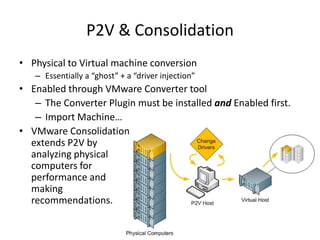
P2V & ConsolidationPhysical to Virtual machine conversionEssentially a “ghost” + a “driver injection”Enabled through VMware Converter toolThe Converter Plugin must be installed and Enabled first.Import Machine…VMware Consolidationextends P2V byanalyzing physicalcomputers forperformance andmakingrecommendations.
VMotioningCold migration vs. hot migrationVM is powered off for cold migrationVM is powered on for hot migrationAll migrations leverage VMotion interface unless one is not assigned.Then, all migrations use service console interfaceVMotion interface is not automatically createdEnsure network connectivity and DNS resolution at target chassisEspecially during cross-site DR migrations.
Processor Gotcha’sBe aware of processor gotcha’s for VMotioning!Can VMotion between processors of different speeds, cache sizes, and number of cores.However, cannot VMotion between different processor classesIntel to AMD, AMD to IntelP3 to P4, P4 to P3, “all-the-other-combinations”Intel’s XD and AMD’s NX bit are functionally similar, but not compatibleEnhanced VMotion Compatibility improves the range of cross-processor VMotion capabilitiesHandles processor instruction masking for youMORAL:  Be careful before you buy hardware.94
Processor Gotcha’sVMotion CPU Compatibility for Intel processors:http://kb.vmware.com/selfservice/microsites/search.do?language=en_US&cmd=displayKC&externalId=1991VMotion CPU Compatibility for AMD processors:http://kb.vmware.com/selfservice/microsites/search.do?language=en_US&cmd=displayKC&externalId=1992Unsupported mechanism for manually masking processor instructionshttp://kb.vmware.com/selfservice/microsites/search.do?language=en_US&cmd=displayKC&externalId=1993http://www.realtime-windowsserver.com/podcast/2007/06/extending_the_reach_of_vmotion.htmMORAL:  Be careful before you buy hardware.95
DEMOVMotion
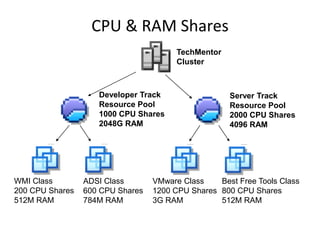
Resource ManagementDataCentersThe boundary of a VI infrastructure (& VMotion)ClustersCollections of chassis resources for centralized managementPools of CPU and Memory, bounded by the individual chassisResource PoolsSub-collections of clusters for distribution of resourcesAllows for carving up of resources and distributing to collections of Virtual Machines
Shares, Reservations, & LimitsSharesIdentifies the percent of resources a VM can consumeOnly used during resource contentionReservationsIdentifies minimum resources used by a particular VMWhat resources must a VM always haveEnsures performance when calculating resource load balancing during resource contentionLimitsIdentifies maximum resources used by a particular VMProtects against resource overuse (spiking)These all factor into DRS cluster automation calculations
CPU & RAM SharesTechMentorClusterDeveloper TrackResource Pool1000 CPU Shares2048G RAMServer TrackResource Pool2000 CPU Shares4096 RAMWMI Class200 CPU Shares512M RAMADSI Class600 CPU Shares784M RAMVMware Class1200 CPU Shares3G RAMBest Free Tools Class800 CPU Shares512M RAM
DEMOControlling Utilization with Shares, Reservations, & Limits
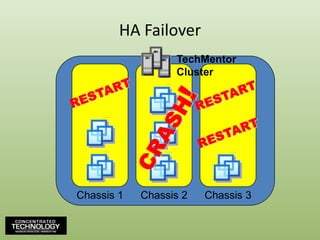
HA FailoverVMware HA must be configured for each Virtual Machine.Enables virtual machines to reboot onto other hosts when a host failure occurs.HA leverages DRS calculations for retargeting.DRS analyzes resource load of the system at an HA event and decides where to restart the failed server.Crashed system will restart on new chassis.Will incur an outage, but that outage will be short.
HA FailoverChassis 1Chassis 2Chassis 3TechMentorClusterRESTARTRESTARTCRASH!RESTART
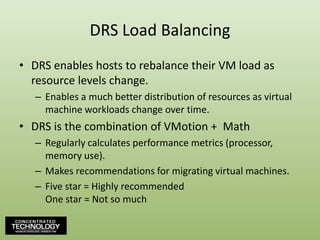
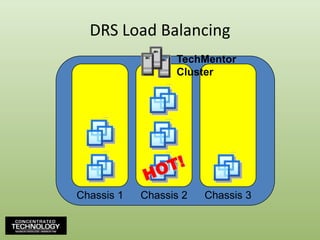
DRS Load BalancingDRS enables hosts to rebalance their VM load as resource levels change.Enables a much better distribution of resources as virtual machine workloads change over time.DRS is the combination of VMotion +  MathRegularly calculates performance metrics (processor, memory use).Makes recommendations for migrating virtual machines.Five star = Highly recommendedOne star = Not so much
DRS Load BalancingChassis 1Chassis 2Chassis 3TechMentorClusterHOT!
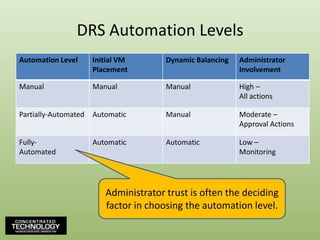
DRS Automation LevelsAdministrator trust is often the decidingfactor in choosing the automation level.
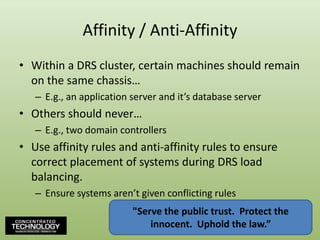
Affinity / Anti-AffinityWithin a DRS cluster, certain machines should remain on the same chassis…E.g., an application server and it’s database serverOthers should never…E.g., two domain controllersUse affinity rules and anti-affinity rules to ensure correct placement of systems during DRS load balancing.Ensure systems aren’t given conflicting rules"Serve the public trust.  Protect the innocent.  Uphold the law.”106
DEMOHA, DRS, and Affinity
Delegated AdministrationGregCluster AdminTomPool AdminJaneVM Admin
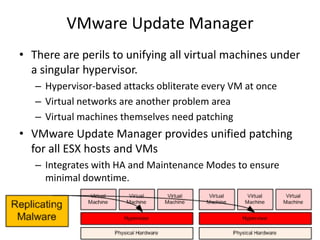
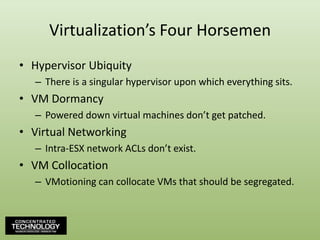
VMware Update ManagerThere are perils to unifying all virtual machines under a singular hypervisor.Hypervisor-based attacks obliterate every VM at onceVirtual networks are another problem areaVirtual machines themselves need patchingVMware Update Manager provides unified patching for all ESX hosts and VMsIntegrates with HA and Maintenance Modes to ensure minimal downtime.109
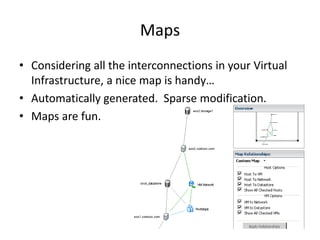
MapsConsidering all the interconnections in your Virtual Infrastructure, a nice map is handy…Automatically generated.  Sparse modification.Maps are fun.
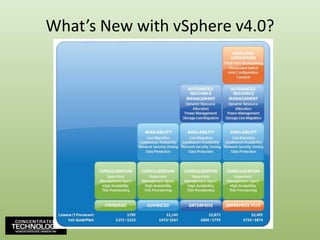
What’s New with vSphere v4.0?VMware Data RecoveryAgentless backup and restore for virtual machines.VMware Fault ToleranceContinuous availability through replication/replay of log files.VMware Hot AddAdd CPU and memory without powering down VMs.VMware Host ProfilesGolden images / Rapid deployment for ESX hosts.More addressable memory, processors, other resourcesTransaction performance boostPartially through code optimizationsPartially through Intel VT-x/EPT & AMD-V/RVI HW extensions.
What’s New with vSphere v4.0?
What’s New with vSphere v4.0?(Some Cautions…)Don’t be overly swayed by VMware’s “Cloud” or “Private Cloud” marketing.vSphere will be recognizably similar to what is available today.“Private Clouds” ==Dynamic workload balancing ==You-don’t-care-where-you’re-VM-is-hosted ==DRS, HA, ESX, VI, etc…Be careful of price points…Be careful of capabilities at each price point…
Introducing Hyper-V:Fast, Cost-Effective VirtualizationGreg Shields, MVP, vExpertAuthor / Instructor / Speaker / Consultant / All Around Good Guywww.ConcentratedTech.com
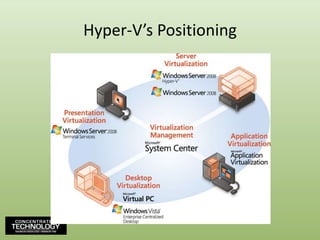
Hyper-V’s Positioning
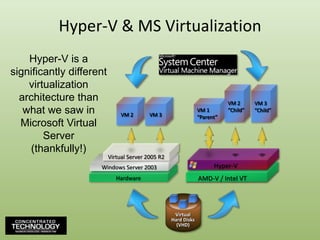
VirtualHard Disks(VHD)Hyper-V & MS VirtualizationHyper-V is a significantly different virtualization architecture than what we saw in Microsoft Virtual Server(thankfully!)VM 2“Child”VM 3“Child”VM 2VM 3VM 1“Parent”Virtual Server 2005 R2Windows Server 2003Hardware           Hyper-V       AMD-V / Intel VT
Hyper-V & MS VirtualizationHyper-V replaces Microsoft Virtual Server as Microsoft’s server virtualization solution.Replaces MVS’s Type-2 virtualization architecture with a Microkernelized Type-1 architecture.Type-1 means that the hypervisor does not rest atop an existing OS instance.  Much faster.Microkernelized means that drivers are not installed into the hypervisor.  This is different than ESX.  More efficient.117
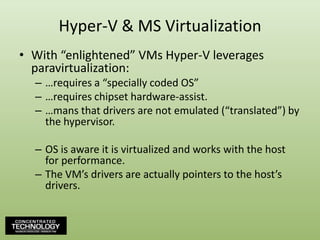
Hyper-V & MS VirtualizationWith “enlightened” VMs Hyper-V leverages paravirtualization:…requires a “specially coded OS”…requires chipset hardware-assist.…mans that drivers are not emulated (“translated”) by the hypervisor.OS is aware it is virtualized and works with the host for performance.The VM’s drivers are actually pointers to the host’s drivers.
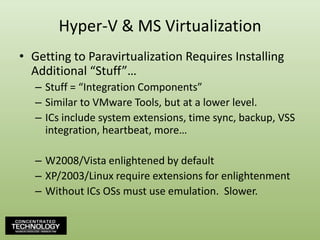
Hyper-V & MS VirtualizationGetting to Paravirtualization Requires Installing Additional “Stuff”…Stuff = “Integration Components”Similar to VMware Tools, but at a lower level.ICs include system extensions, time sync, backup, VSS integration, heartbeat, more…W2008/Vista enlightened by defaultXP/2003/Linux require extensions for enlightenmentWithout ICs OSs must use emulation.  Slower.
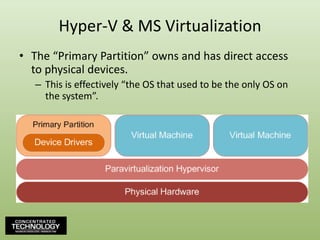
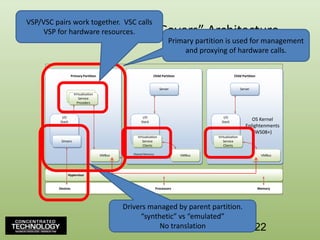
Hyper-V & MS VirtualizationThe “Primary Partition” owns and has direct access to physical devices.This is effectively “the OS that used to be the only OS on the system”.
The Primary PartitionUsed for managing the system.Can be Full W2008 or Core W2008.Core W2008 requires fewer resources.A smaller primary partition == more resources for VMs.Hosts the memory manager, management APIs, and virtualized I/O devices.With no drivers, Hyper-V’s hypervisor is ~260K as compared to VMware’s 32M++.Smaller == less code == faster == more secure.
Hyper-V “Under the Covers” ArchitecturePrimary PartitionChild PartitionChild PartitionServerServerVSPsVirtualizationServiceProvidersI/OStackI/OStackI/OStackOS Kernel Enlightenments (WS08+)DriversVirtualizationServiceClientsVirtualizationServiceClientsVMBusVMBusVMBusShared MemoryHypervisor						DevicesProcessorsMemoryVSP/VSC pairs work together.  VSC calls VSP for hardware resources.Primary partition is used for management and proxying of hardware calls.Drivers managed by parent partition.“synthetic” vs “emulated”No translation122
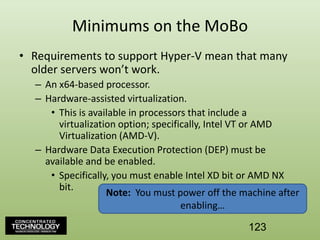
Minimums on the MoBoRequirements to support Hyper-V mean that many older servers won’t work.An x64-based processor. Hardware-assisted virtualization.This is available in processors that include a virtualization option; specifically, Intel VT or AMD Virtualization (AMD-V). Hardware Data Execution Protection (DEP) must be available and be enabled.Specifically, you must enable Intel XD bit or AMD NX bit.Note:  You must power off the machine after enabling…123
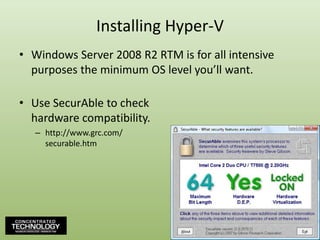
Installing Hyper-VWindows Server 2008 R2 RTM is for all intensive purposes the minimum OS level you’ll want.Use SecurAble to checkhardware compatibility.http://www.grc.com/securable.htm124
SupportabilityHyper-V can support…Up to 4x vCPUs per VM.Up to 2T RAM per host.  Up to 64G RAM per VM.Up to 8x vNICs per VM.Up to 4x vSCSI Controllers per VM.WSFC cluster support for up to 16 nodes.DAS, FC SAN, or iSCSI support for storing VMsPass-through storage device supportSmart move for high I/O workloadsVSS support for live VM backupsThis is extraordinary.  Provides for crash consistent backups.VHD format, fully compatible with XenSource125
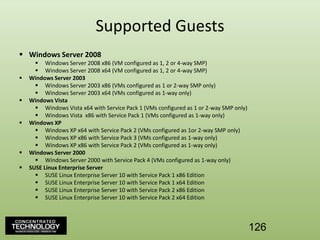
Supported GuestsWindows Server 2008
Windows Server 2008 x86 (VM configured as 1, 2 or 4-way SMP)
Windows Server 2008 x64 (VM configured as 1, 2 or 4-way SMP)
Windows Server 2003
Windows Server 2003 x86 (VMs configured as 1 or 2-way SMP only)
Windows Server 2003 x64 (VMs configured as 1-way only)
Windows Vista
Windows Vista x64 with Service Pack 1 (VMs configured as 1 or 2-way SMP only)
Windows Vista  x86 with Service Pack 1 (VMs configured as 1-way only)
Windows XP
Windows XP x64 with Service Pack 2 (VMs configured as 1or 2-way SMP only)
Windows XP x86 with Service Pack 3 (VMs configured as 1-way only)
Windows XP x86 with Service Pack 2 (VMs configured as 1-way only)
Windows Server 2000
Windows Server 2000 with Service Pack 4 (VMs configured as 1-way only)
SUSE Linux Enterprise Server
SUSE Linux Enterprise Server 10 with Service Pack 1 x86 Edition
SUSE Linux Enterprise Server 10 with Service Pack 1 x64 Edition
SUSE Linux Enterprise Server 10 with Service Pack 2 x86 Edition
SUSE Linux Enterprise Server 10 with Service Pack 2 x64 Edition126
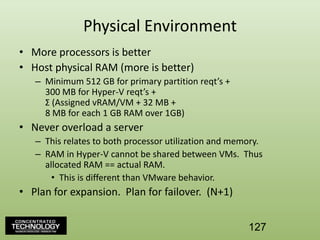
Physical EnvironmentMore processors is betterHost physical RAM (more is better)Minimum 512 GB for primary partition reqt’s +300 MB for Hyper-V reqt’s + Σ (Assigned vRAM/VM + 32 MB +8 MB for each 1 GB RAM over 1GB)Never overload a serverThis relates to both processor utilization and memory.RAM in Hyper-V cannot be shared between VMs.  Thus allocated RAM == actual RAM.This is different than VMware behavior.Plan for expansion.  Plan for failover.  (N+1)127
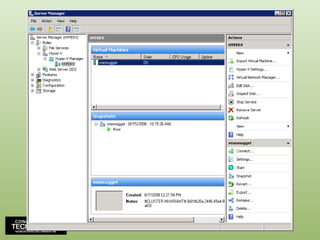
Hyper-V Console128
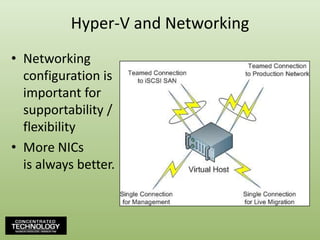
Hyper-V and NetworkingNetworking configuration is important for supportability / flexibilityMore NICsis always better.
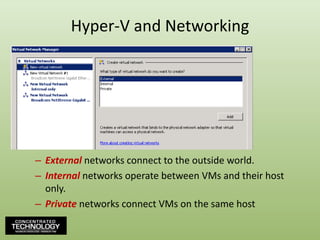
Hyper-V and NetworkingExternalnetworks connect to the outside world.Internalnetworks operate between VMs and their host only.Private networks connect VMs on the same host
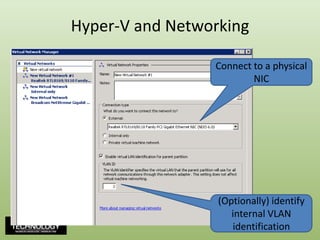
Hyper-V and NetworkingConnect to a physical NIC(Optionally) identify internal VLAN identification131
Formal Guidance in Securing & Auditing the Virtual Environment, Beyond the Physical…Greg Shields, MVP, vExpertAuthor / Instructor / Speaker / Consultant / All Around Good Guywww.ConcentratedTech.com
Four Documents of NoteIn Order of UsefulnessVMware’s VI3.5 Security Hardening GuideHigh-level guidance for security and auditing.The DISA’s STIG for ESX Server & “Virtual Computing”Very specific guidance on security.  Required if DoD-connected.“Virtual Computing” STIG is more general, possibly outdated.CIS’s VMware ESX Server 3.0 BenchmarkThis document is aged, but serves as an additional data point for learning / education on common ESX topics.CIS’s Virtual Machine Security GuidelinesThis document, while also aged, is fairly general in its guidance.
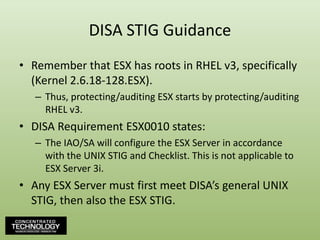
DISA STIG GuidanceRemember that ESX has roots in RHEL v3, specifically(Kernel 2.6.18-128.ESX).Thus, protecting/auditing ESX starts by protecting/auditing RHEL v3.DISA Requirement ESX0010 states:The IAO/SA will configure the ESX Server in accordance with the UNIX STIG and Checklist. This is not applicable to ESX Server 3i.Any ESX Server must first meet DISA’s general UNIX STIG, then also the ESX STIG.
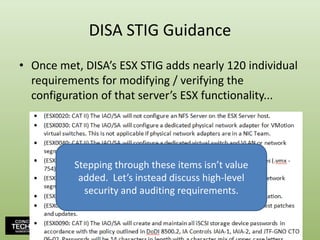
DISA STIG GuidanceOnce met, DISA’s ESX STIG adds nearly 120 individual requirements for modifying / verifying the configuration of that server’s ESX functionality...
DISA STIG GuidanceOnce met, DISA’s ESX STIG adds nearly 120 individual requirements for modifying / verifying the configuration of that server’s ESX functionality...Stepping through these items isn’t value added.  Let’s instead discuss high-level security and auditing requirements.
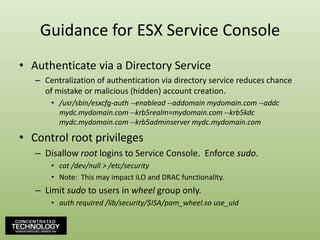
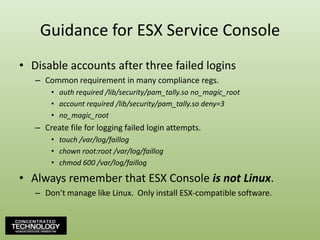
Guidance for Virtual MachinesSecure virtual machines in the same ways you would physical machines.Updates, A/V, A/M, firewalls.Disable unnecessary functions.OS services, physical devices, screen savers (particularly important).Leverage templates when possibleTemplates ensure that every VM has a common start point, common security/auditing settings.Eases config documentation.
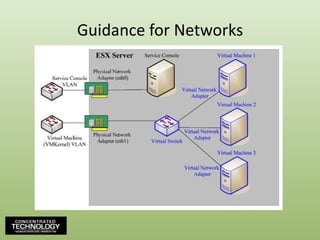
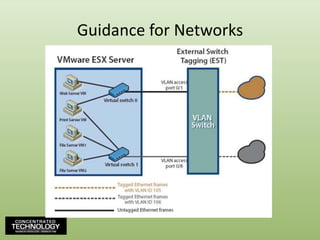
Guidance for Virtual MachinesSet Limits/Reservations to prevent resource overuse.Greg’s Advice:  Be careful with setting too many limits/reservations.Don’t forget host reserve to protect host functions.Isolate VM networks.Physically separate VM interfaces from VMotion & management connection interfaces to prevent data leakage.  Very important.Leverage VLANs if your security policies allow.Use dVSs when possible to reduce configuration error, centralize management of virtual switches.Create isolated management network with high security level.Spec ESX hosts with lots of network cards!
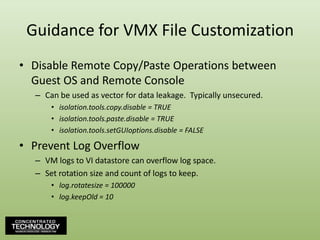
Guidance for VMX File CustomizationDisable Remote Copy/Paste Operations between Guest OS and Remote ConsoleCan be used as vector for data leakage.  Typically unsecured.isolation.tools.copy.disable = TRUEisolation.tools.paste.disable = TRUEisolation.tools.setGUIoptions.disable = FALSEPrevent Log OverflowVM logs to VI datastore can overflow log space. Set rotation size and count of logs to keep.log.rotatesize = 100000log.keepOld = 10
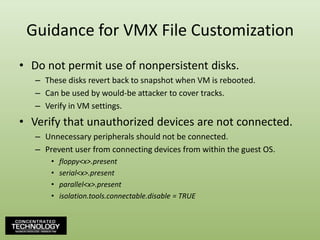
Guidance for VMX File CustomizationDo not permit use of nonpersistent disks.These disks revert back to snapshot when VM is rebooted.Can be used by would-be attacker to cover tracks.Verify in VM settings.Verify that unauthorized devices are not connected.Unnecessary peripherals should not be connected.Prevent user from connecting devices from within the guest OS.floppy<x>.presentserial<x>.presentparallel<x>.presentisolation.tools.connectable.disable = TRUE
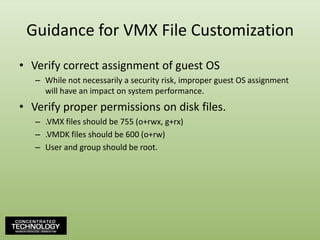
Guidance for VMX File CustomizationVerify correct assignment of guest OSWhile not necessarily a security risk, improper guest OS assignment will have an impact on system performance.Verify proper permissions on disk files..VMX files should be 755 (o+rwx, g+rx).VMDK files should be 600 (o+rw)User and group should be root.

Virtualization auditing & security deck v1.0

  • 1.
    Understanding Virtualization’s Rolein Auditing and SecurityGreg Shields, MVP, vExpertAuthor / Instructor / Speaker / Consultant / All Around Good Guywww.ConcentratedTech.com
  • 2.
    This slide deckwas used in one of our many conference presentations. We hope you enjoy it, and invite you to use it within your own organization however you like.For more information on our company, including information on private classes and upcoming conference appearances, please visit our Web site, www.ConcentratedTech.com. For links to newly-posted decks, follow us on Twitter:@concentrateddon or @concentratdgregThis work is copyright ©Concentrated Technology, LLC
  • 3.
    Who Am I?GregShields, MVP, vExpertNearly 15 years of Windows administration and engineering experience.Consultant – Multiple engagements all across the countryConference speaker – TechMentor, Windows Connections, MMS, Tech Ed, ISACA, FOSE, VMworld, Tech TrifectaAuthor – Eleven books, including The Shortcut Guide to Implementing Virtualization in the Small Environment, The Shortcut Guide to Virtualization & Service Automation, and The Shortcut Guide to Selecting the Right Virtualization SolutionColumnist – TechNet Magazine, IT EXPERT Magazine, Redmond Magazine, Virtualization Review Magazine, MCPmag.comVideo Trainer – CBT Nuggets, including video series’ on Hyper-V, ESX 3.5, and vSphereBlogger – www.concentratedtech.comAll-around good guy…
  • 4.
    Who is ConcentratedTechnology?A collaboration between IT gurus Greg Shields andDon Jones, www.ConcentratedTech.com is a place for concise, helpful IT news and education.Our emphasis is on concise…We believe in the open sharing of our slide decks.Couldn’t make Tech Ed?No time for VMworld?We hit them all, and want to share them with you…If you’re interested in these slides, as well as every other deckwe’ve presented this year……at the end of the session today, let’s trade email addresses. We’ll add you to our newsletter list.4
  • 5.
    4½ Modules toVirtual Excellence…Module 0: So…What is Virtualization?Module 1: The Seven Elements of a Successful Virtualization ArchitectureModule 2: Understanding the Technologies Behind VMware vSphere VirtualizationLunch!Module 3: Understanding the Technologies Behind Hyper-V VirtualizationModule 4: Formal Guidance in Securing & Auditing the vSphere Environment, Beyond the Physical
  • 6.
    So, What isVirtualization?Virtualization:Virtualization is involved with the abstraction of computer resources.Virtualization decouples physical hardware from installed operating systems.Leverages a “hypervisor” layer that is installed directly atop physical hardware.This hypervisor abstracts physical resources to create a unified platform upon which all virtual machines reside.6
  • 7.
    So, What isVirtualization?Virtualization:Virtualization is involved with the abstraction of computer resources.Virtualization decouples physical hardware from installed operating systems.Leverages a “hypervisor” layer that is installed directly atop physical hardware.This hypervisor abstracts physical resources to create a unified platform upon which all virtual machines reside.Think of virtualization as a “shim” betweenthe physical hardware and the virtual machine7
  • 8.
    What Virtualization DoesEntireSystem VirtualizationVirtualizes the “Core Four”MemoryProcessorNetwork CardDisk
  • 9.
    What Virtualization DoesMemorySystemmemory shared between the host system and the VM’s.VM memory is not addressable by the system and vice versa.ProcessorProcesses in the virtual machines run on the host.The host distributes requests among available physical processors.Network CardVirtual network cards share available physical network cards.Virtual network cards can communicate privately with other VM’s or can route to the external network.Ability to create internal virtual networks.DiskVirtual disks exist as a series of files on the host.
  • 10.
    What Virtualization DoesMemorySystemmemory shared between the host system and the VM’s.VM memory is not addressable by the system and vice versa.ProcessorProcesses in the virtual machines run on the host.The host distributes requests among available physical processors.Network CardVirtual network cards share available physical network cards.Virtual network cards can communicate privately with other VM’s or can route to the external network.Ability to create internal virtual networks.DiskVirtual disks exist as a series of files on the host.So, a virtual machine is just a FILE.Files are morePortable, Restorable, and Manageable.
  • 11.
    The ApproachVirtualization…Breaks hardwaredependencies – all virtual hardware is the same!Provides security outside the OS context.Allows multiple servers to run on one host server.ApplicationApplicationApplicationApplicationApplicationApplicationApplicationApplicationApplicationOSOSOSOSOSOSOSOSOSVirtual MachineVirtual MachineVirtual MachineVirtual MachineVirtual MachineVirtual MachineHardwareHardwareHardwareHardware
  • 12.
    What it DoesNot DoDiscernibly change the operating or Operating System environmentDual-boot or dual-partition the host’s diskAllow you to drop all your servers onto a single host serverConstrained by available Processors & RAMVirtualize everything in the server roomNot a panacea!Specific candidates must be identified for virtualization
  • 13.
    What Problems Doesthis Solve?Disaster Recovery“Replicating my data to an off-site location is great. But, if the applications that use that data are unavailable, I’m still down.”Server Consolidation“My Data Center is currently at 103% capacity in space/power/cooling. The incremental cost for more is prohibitive compared to consolidating my servers.”Rapid Deployment“It takes 20 hours to provision a server from cardboard to server rack. I need this done in less than 2 hours.”
  • 14.
    What Problems Doesthis Solve?Systems Commonality“I have five different server types. Sometimes when I patch or update my systems, they crash. I don’t have time to regression test against all my hardware types.”Dev/Test“I am building a software application and need to create separate testing environments. I need to be able to completely rebuild these environments in a matter of hours to support various tests.”IT Testing/Patching“Before I deploy Microsoft’s monthly patches to my servers, I need to fully test these patches against exact duplicates all my server configurations.”
  • 15.
    Hard Cost Savings– Power/CoolingXcel Energy customers pay 8.5¢ per kWh. A low-end, lightly used Windows Server consumes 295W of electricity. Over a one-year period, these ten servers will cost $2,190 to power.A high-end, heavily-used Windows Server running 10 virtual servers consumes 351W of electricity. Over a one-year period, these ten virtual servers will cost $261 to power.
  • 16.
    Hard Cost Savings– Server RefreshAn low-end Windows Server can cost $4,500. The median salary for a Sr. NT Systems Administrator in the Rocky Mountain Region is $45. At 20 hours per physical server to provision from cardboard to rack, the opportunity cost is $900. Replacing 10 end-of-life machines will cost $54,000.A virtualization-capable Windows Server can cost $15,000. At 20 hours per physical server to provision from cardboard to rack, opportunity cost is $900.At 2 hours per virtual server to provision, opportunity cost per server is $90. Replacing 10 end-of-life machines will cost $16,800.
  • 17.
    Soft Cost SavingsOpportunitycost incurred when system resource overuse causes effective DoS and administrators unable to spin up additional hardware fast enough.Real cost of lost revenue immediately after DR event when users cannot access necessary data and applications.Low-use servers incur opportunity cost in terms of dollars per useful processor cycle. Servers at 3% to 5% utilized are wasting processor cycles on System Idle Process.Risk (and associated cost) of system crash incurred during patch/update operations on untested hardware or non-uniform hardware.
  • 18.
    A Visual CostJustificationSmall Server$4,5001:1$4,500 per Server8:1Large Server$15,000$20,000$2,500 per Server20:1$1,33315:1$1,000Virtualization$5,000Large MarginalCost Increases perAdditional Server+ Power+ Cooling+ Provisioning LaborSmaller Marginal Cost Increases
  • 19.
    The Seven Elementsof a Successful Virtualization ArchitectureGreg Shields, MVP, vExpertAuthor / Instructor / Speaker / Consultant / All Around Good Guywww.ConcentratedTech.com
  • 20.
    44% of VirtualizationDeployments FailAccording to a CA announcement from 2007.Inability to quantify ROIInsufficient administrator trainingExpectations not aligned with resultsSuccess =Measure performanceDiligent inventoryLoad DistributionThorough Investigation of Technology
  • 21.
    55% Experience MoreProblems than Benefits with VirtualizationAccording to an Interop survey in May, 2009.Lack of visibilityLack of tools to troubleshoot performance problemsInsufficient education on virtual infrastructure softwareStatistics:27% could not visualize / manage performance25% cite training shortfalls21% unable to secure the infrastructure50% say that implementation costs are too high
  • 22.
    The Seven Elements…Step-1: Hype Recognition & EducationStep 0: AssessmentStep 1: Purchase & ImplementationStep 2: P2VStep 3: High AvailabilityStep 4: Backups ExpansionStep 5: Virtualization at the DesktopStep 6: DR Implementation
  • 23.
  • 24.
    The Virtualization AssessmentSuccessfulrollouts need a virtualization assessment.You must analyze your environment before you act.Virtualization assessment should include:Inventory of serversInventory of attached peripheralsPerformance characteristics of serversAnalysis of performance characteristicsAnalysis of hardware needs to support virtualized serversBackups AnalysisDisaster Recovery Analysis (Hot vs. warm vs. cold)Initial virtual resource assignment suggestions
  • 25.
    Easy Candidates forVirtualizationLow processor utilizationLow memory requirementsWe too often add too much RAM in a server.Low context switchesInfrastructure serversRedundant or warm-spare serversOccasional- or limited-use serversSystems where many partially-trusted people need console access
  • 26.
    Not Candidates forVirtualizationHigh and constant processor / memory utilizationHigh context switchesAttached peripheralsSerial / parallel / USB / External SCSI /License Keyfobs / Scanners / Bar Code ReadersVery high network useGigabit networking requirementsSpecialized hardware requirementsHardware appliances / Pre-built / Unique configsTerminal Servers!…at least with today’s technology…
  • 27.
    Performance is JobOneIn the early days of virtualization, we used to say…“Exchange Servers can’t be virtualized”“Terminal Servers can’t be virtualized”“You’ll never virtualize a SQL box”Today’s common knowledge is that the decision relates entirely to performance.Thus, before you can determine which servers to virtualize you must understand their performance.Measure that performance over time.Compile results into reports and look for deviations from nominal activity.
  • 28.
  • 29.
    Useful Performance CountersTheseare starting points.Your actual thresholds may be different.
  • 30.
  • 31.
  • 32.
    The Virtualization AssessmentHighMemory Pages/secCrazy High Context Switches & ThreadsRidiculous% Disk Time
  • 33.
    Gathering PerformancePerfMon isthe only mechanism that can gather these statistics from servers.But PerfMon is ridiculouslychallenging to use.Other products assist...Microsoft Assessment & Planning Solution AcceleratorVMware Consolidation & Capacity PlannerPlatespinPowerReconCiRBA
  • 34.
    Step 1Purchase &Implementation
  • 35.
    Three Types ofVirtualizationEntire System VirtualizationVMwareMicrosoft Virtual ServerOS VirtualizationParallels VirtuozzoParavirtualizationMicrosoft Hyper-VXen / Citrix XenSourceVirtual O/S is entire system.No awarenessof underlying host system.OS instances are “deltas”of the host configuration.Similar to HardwareVirtualization, but Virtual O/Sis “aware” it is virtualized.
  • 36.
    Hardware VirtualizationESX /vSphereHybrid hypervisor and host OSDevice drivers in the hypervisorEmulation (translation from emulated driver to real driver)High cost, high availability, high performance
  • 37.
    ParavirtualizationHyper-V, Xen, CitrixXenSourceHost OS becomes primary partition above hypervisor.Device drivers in the primary partitionParavirtualization (no emulation for “enlightened” VMs)Low cost, moderate-to-high availability, high performance
  • 38.
    Hardware VirtualizationMicrosoft VirtualServerHypervisor above host OS. Installed to host OS.Device drivers in hypervisorEmulation (translation from emulated driver to real driver)Low cost, low availability, low performance
  • 39.
    OS VirtualizationParallels VirtuozzoEachVM is comprised of the host config + deltas.No traditional hypervisor. V-layer processes requests.All real device drivers hosted on host OSModerate cost, moderate availability, very high perf.
  • 40.
  • 41.
    P2V, A Tool,A ProcessAfter environment stand-up, P2V process converts physical machines to virtual ones.A “ghost” + a “driver injection”Numerous applications can do this in one step.SCVMM, Converter, 3rd PartiesThese days, P2V process is commodity.Everyone has their own version.Some are faster. Some muchslower.Paid options == faster.
  • 42.
    P2V, A Tool,A Process
  • 43.
    P2V, P2V-DRP2VPhysical 2Virtual machine conversionA tool as well as a processSCVMM, VMware VI/Converter, Acronis, Leostream, others.P2V-DRSimilar to P2V, but with interim step of image creation/storage.“Poor-man’s DR”
  • 44.
    P2V-DR UsesP2V-DR canbe leveraged for medium-term storage of server imagesUseful when DR site does not have hot backup capability or requirementsRegularly create images of physical servers, but only store those images rather than load to virtual environmentCheaper-to-maintain DR environmentNot fast.Not easy.Not completely reliable.…but essentially cost-free.
  • 45.
  • 46.
    What Really isHigh Availability?Part 1: Protection from Host Failures
  • 47.
    What Really isHigh Availability?Part 2: Load Balancing of VM/host Resources
  • 48.
    Costs vs. BenefitsHigh-availabilityadds dramatically greater uptime for virtual machines.Protection against host failuresProtection against resource overuseProtection against scheduled/unscheduled downtimeHigh-availability also adds much greater cost…Shared storage between hostsConnectivityHigher (and more expensive) software editionsNot every environment needs HA!
  • 49.
    Common Features inHigh-End PlatformsLive migration enables running virtual machines to be moved to an alternate host before a host failure.Automated relocation to new hardware and restart of virtual machines immediately upon a host failure.Load balancing calculations that manually or automatically re-balance running virtual machines across hosts to prevent resource contention.Disk storage migration that enables the zero-impact relocation of virtual machine disk files to alternate storage.Automated replication features that copy backed up virtual machines to alternate locations for disaster recovery purposes.
  • 50.
  • 51.
    Backup TerminologyFile-Level BackupBackupAgent in the Virtual MachineBlock-Level BackupBackup Agent on the Virtual HostQuiescenceQuieting the file system to prep for a backupO/S Crash ConsistencyCapability for post-restore O/S functionalityApplication Crash ConsistencyCapability for post-restore application functionality
  • 52.
    Four Types ofBackupsBacking up the host systemMay be necessary to maintain host configurationBut often, not completely necessaryThe fastest fix for a broken host is often a complete rebuildBacking up Virtual Disk FilesFast and can be done from a single host-based backup clientChallenging to do file-level restoreBacking up VMs from inside the VMSlower and requires backup clients in every VM.Resource intensive on hostCapable of doing file-level restoresBack up VMs from the storage perspectiveLeverage storage frame utilities to complete the backup.
  • 53.
  • 54.
    The Problem withTransactional DatabasesO/S Crash Consistency is easy to obtain.Just quiesce the file system before beginning the backup.Application Crash Consistency much harder.Transactional databases like AD, Exchange, SQL don’t quiesce when the file system does.Need to stop these databases before quiescing.Or, need an agent in the VM that handles DB quiescing.Restoration without crash consistency will lose data.DB restores into “inconsistent” state.
  • 55.
    The Problem withTransactional DatabasesFor VMs, must consider file-level backups and block-level backups.“Top-down” vs. “Bottom-up”File-level backups provide individual file restorabilityFile-level backups provide transactional database crash consistency.Block-level backups provide whole-server restorability.Not all block-level backups provide app crash consistency.Windows VSS can quiesce apps prior to snapping a backup.Advantage: Hyper-V!
  • 56.
    Four-Step Process forVSSStep 1: A requestor, such as backup software, requests the server to invoke a shadow copy.Step 2: A provider accepts the request and calls an application-specific provider (SQL, Exchange, etc.) if necessary.Step 3: Application-specific provider coordinates system shadow copy with app quiescence to ensure application consistency.Step 4: Shadow copy is created.…then the backup starts…56
  • 57.
  • 58.
    Desktop Virtualization =VDI = Hosted DesktopsOnce you fully embrace virtualization for your servers, desktop are a next common focus.VDI is all about the apps.HOWEVER, BEWARE VDI!VDI is a much more complex beast than Terminal Services, Citrix XenApp, or other presentation virtualization platforms.It is also dramatically more expensive.Potential VDI’s Use CasesApplications that simply don’t work atop RDS/CitrixHigh-utilization apps that require remote accessPeripherals
  • 59.
  • 60.
    Disaster RecoveryWhat isDisaster Recovery?Disaster Recovery intends to provide continuity of business services after a critical event.Disaster Recovery is invoked after the large-scale loss of primary business services.DR is not the restoration of a critical server.DR is not the restoration of a critical business service.Why the distinction?DR solutions do not resolve daily operational issues.Often, failback is challenging.
  • 61.
    DR, meet Virtualization…Earlyall-physical attempts at DR were cost-prohibitive and operationally complex.Identical server inventory at primary and backup site.Management cost of identical server configuration. Change management costs prohibitive.Virtualization eliminates many previous barriers.Virtual servers are chassis independent.Image-level backup == image-level restore.Hot sites become only one of many options – cold & warm sites.Numerous cost-effective solutions available.Don’t believe the hype.Make decisions based on need.
  • 62.
    DR, meet Virtualization…Withvirtualization,DR becomes little morethan……the regularly scheduledblock-level backup ofvirtual servers.…the relocation of thosebackups to an alternatelocation.…the powering on of thosevirtual machines after adisaster.
  • 63.
    DR, meet Virtualization…So,what do you need?…a backup site.…alternate servers and a virtual platform.…VM-aware (and VSS-aware) backup software.…a replication mechanism.
  • 64.
  • 65.
    Four General DRTiers$$$$$$$$$$
  • 66.
    Four General DRTiers$ - Snap & PrayLeverage no-cost or low-cost tools to snapshot image-level backups of VM’s.Cold site and replacement equipment on retainer.Store images to tape. Rotate tapes off-site.Restoration:Activate cold siteProcure reserved replacement equipmentProcure tapes and tape deviceRestore images to replacement equipmentResolve database (and some O/S) inconsistencies
  • 67.
    Four General DRTiers$$ - Warm SnapLeverage no-cost or low-cost tools to create image-level backups of VM’s.Connected warm site with data storage location.Transfer images to off-site data storage locationRestoration:Procure or spin up reserved replacement equipmentRestore images from data storage to replacement equipmentResolve database (and some O/S) inconsistenciesDisk-to-disk backups over the WAN increase backup time, but significantly reduce restore time.67
  • 68.
    Four General DRTiers$$$ - Inconsistent SAN-to-SANWarm site. Both sites using SAN. SAN-to-SAN replication instantiated between sites.SAN data is automatically replicated to remote site.Greater support for incrementals. Less WAN usage.Restoration:Procure or spin up reserved replacement equipmentAttach virtual machines to replacement equipment and hit the “green VCR button”.Resolve database (and some O/S) inconsistenciesSAN replication is often not aware of quiescence, so this solution can be problematic.68
  • 69.
    Four General DRTiers$$$$ - Real-time ReplicationWarm or hot site. Both sites using SAN. SAN-to-SAN replication instantiated between sites.3rd Party tools used for image-to-image transfer.In-VM for transactional database quiescing.On-host for all other machines.Roll-back and roll-forward capabilitiesRestoration:Hit the “green VCR button”(or, auto-failover…)
  • 70.
    Understanding the TechnologiesBehind VMware vSphereGreg Shields, MVP, vExpertAuthor / Instructor / Speaker / Consultant / All Around Good Guywww.ConcentratedTech.com
  • 71.
    What VMware DoesVirtualizesthe Core FourMemoryProcessorNICDisk
  • 72.
    The VMware Suiteof ProductsVMware PlayerVMware WorkstationVMware ServerVMware ESX / vSphereVMware SRMVmwareThinAppVMware Lab ManagerIncreasing CostDecreasing SupportIncreasing Reliability
  • 73.
    VMware vSphereAn OSall unto itself.Leverages a highly-customized RHEL v3 (Kernel 2.6.18-128.ESX) instance for its management partition. ESXi eliminates the RHEL instance in favor of a proprietary VMware management partition. Smaller.VMware suggests RHEL may be going away completely in future versions.A file system all unto itself.VMFS file system extremely efficient.Specially designed to handle...…extremely large files…multiple simultaneous server access…high disk utilization.
  • 74.
    VMware vSphereVery specifichardware and O/S requirementsVMware’s use of drivers in the hypervisor means a small HCL for hardware.If your hardware is not on the VMware supportability matrix, ESX simply won’t load.More limited VM compatibilityDue to concerns about reliability. Higher testing standards.Fewer OSs than other versions.Yet “the OSs you’ll want” are all available.Expensive in up-front costs, but can be less expensive in total cost per deployed server.
  • 75.
  • 76.
  • 77.
  • 78.
    Storage RequirementsYour choiceof storage is incredibly important…VM processing highly dependant on rotation speed.Higher-quality storage = better experience, better scalabilityMust architect disk space to fit……the ESX server O/S and software…the full size of every concurrent VM…additional space for VM migration…snapshots…growth
  • 79.
    ESX Supportability MatrixCritical: Validate that your hardware is on the ESX HCL.Early ESX versions had limited support for hardware. That support has grown to over 100 server vendors.Detailed information on supported hardware, storage, & IO can be found at:http://www.vmware.com/pdf/esx_systems_guide.pdfVerify CPU vendor, name, stepping, and chipset.Verify NIC, storage, iSCSI, graphics, FC HBA79
  • 80.
    ESX User InterfacesVirtualInfrastructure ClientWhere most of the action happensClient/server app where most management occursService ConsoleThe host’s console screen itself“The Linux part”, typically accessed via SSHESXi has proprietary console (slow, limited functionality)Used less in ESX 3.x than in any previous versionRemote ConsoleRemote access to each VM’s console screenTcp/901Not intended to be a “thin” interface like Terminal Services
  • 81.
    Networking & VirtualSwitchesVirtual Switches allow for rich intra-ESX network manipulation…Between two hosts on the same boxBetween a host and the “outside world”For the service console and VI ClientFor IP-based storageSupports complex networking arrangementsVLAN’s and security policiesTraffic shapingNIC teaming
  • 82.
  • 83.
  • 84.
  • 85.
    Distributed Virtual SwitchesVirtualswitches are host-dependent.When virtual machines VMotion, one must hope that the target virtual switch is correctly configured.Virtual switches are Layer 2 devices.No capacity for ACLing traffic between virtual machines on the same host.Virtual machines can collocate in inappropriate ways, which eliminates network protections.Distributed Virtual Switches create a “GIANT SWITCH” across an entire vCenter infrastructure.No longer host dependent, dVSs are managed by vCenter.Support for Private VLANs (PVLANs), virtualized DMZs.Available natively in vSphere, Cisco Nexus 1000V is 3rd party solution that adds more capabilities.
  • 86.
    New Networking Featuresin 4.0VMDirectPath – Adds ability to connect VMs directly to physical NICs.40Gbps output per ESX/ESXi host – Improves raw performance across teamed connections.VMXNET3 – A new paravirtualized network driver for added performance.MTU Exposure – Admins can adjust MTU sizes.CDP Support – Support for Cisco Discovery Protocol, aids in network mapping within an ESX host.VLAN Trunking– Now able to trunk VLANs directly to VMs as opposed to terminating at the host boundary.
  • 87.
    Storage OptionsESX canwork with many types of storage.DASFibre ChannelWith attached HBAiSCSI SAN-attachedUsing both hardware and software initiatorsNAS & NFS-based storageCreates low-performance VMFS partitions on Unix/Linux NFS shares or SFU-proxied Windows CIFS sharesGrowing in use.Make sure to disable the ESX firewall for iSCSI and NFS connections!
  • 88.
    DEMOViewing ESX HostConfigurations
  • 89.
    Virtual InfrastructureESXThe serverthat does the virtualizationvCenterComprised of vCenter Server, database, and license serverVirtual Infrastructure client connects to VC server and VI database.Heavy reliance on DNSEarly suggestions recommended non-virtualizedserver as VC server. Today, virtualized VC servers are common.Light resource use on VC server
  • 90.
  • 91.
  • 92.
    P2V & ConsolidationPhysicalto Virtual machine conversionEssentially a “ghost” + a “driver injection”Enabled through VMware Converter toolThe Converter Plugin must be installed and Enabled first.Import Machine…VMware Consolidationextends P2V byanalyzing physicalcomputers forperformance andmakingrecommendations.
  • 93.
    VMotioningCold migration vs.hot migrationVM is powered off for cold migrationVM is powered on for hot migrationAll migrations leverage VMotion interface unless one is not assigned.Then, all migrations use service console interfaceVMotion interface is not automatically createdEnsure network connectivity and DNS resolution at target chassisEspecially during cross-site DR migrations.
  • 94.
    Processor Gotcha’sBe awareof processor gotcha’s for VMotioning!Can VMotion between processors of different speeds, cache sizes, and number of cores.However, cannot VMotion between different processor classesIntel to AMD, AMD to IntelP3 to P4, P4 to P3, “all-the-other-combinations”Intel’s XD and AMD’s NX bit are functionally similar, but not compatibleEnhanced VMotion Compatibility improves the range of cross-processor VMotion capabilitiesHandles processor instruction masking for youMORAL: Be careful before you buy hardware.94
  • 95.
    Processor Gotcha’sVMotion CPUCompatibility for Intel processors:http://kb.vmware.com/selfservice/microsites/search.do?language=en_US&cmd=displayKC&externalId=1991VMotion CPU Compatibility for AMD processors:http://kb.vmware.com/selfservice/microsites/search.do?language=en_US&cmd=displayKC&externalId=1992Unsupported mechanism for manually masking processor instructionshttp://kb.vmware.com/selfservice/microsites/search.do?language=en_US&cmd=displayKC&externalId=1993http://www.realtime-windowsserver.com/podcast/2007/06/extending_the_reach_of_vmotion.htmMORAL: Be careful before you buy hardware.95
  • 96.
  • 97.
    Resource ManagementDataCentersThe boundaryof a VI infrastructure (& VMotion)ClustersCollections of chassis resources for centralized managementPools of CPU and Memory, bounded by the individual chassisResource PoolsSub-collections of clusters for distribution of resourcesAllows for carving up of resources and distributing to collections of Virtual Machines
  • 98.
    Shares, Reservations, &LimitsSharesIdentifies the percent of resources a VM can consumeOnly used during resource contentionReservationsIdentifies minimum resources used by a particular VMWhat resources must a VM always haveEnsures performance when calculating resource load balancing during resource contentionLimitsIdentifies maximum resources used by a particular VMProtects against resource overuse (spiking)These all factor into DRS cluster automation calculations
  • 99.
    CPU & RAMSharesTechMentorClusterDeveloper TrackResource Pool1000 CPU Shares2048G RAMServer TrackResource Pool2000 CPU Shares4096 RAMWMI Class200 CPU Shares512M RAMADSI Class600 CPU Shares784M RAMVMware Class1200 CPU Shares3G RAMBest Free Tools Class800 CPU Shares512M RAM
  • 100.
    DEMOControlling Utilization withShares, Reservations, & Limits
  • 101.
    HA FailoverVMware HAmust be configured for each Virtual Machine.Enables virtual machines to reboot onto other hosts when a host failure occurs.HA leverages DRS calculations for retargeting.DRS analyzes resource load of the system at an HA event and decides where to restart the failed server.Crashed system will restart on new chassis.Will incur an outage, but that outage will be short.
  • 102.
    HA FailoverChassis 1Chassis2Chassis 3TechMentorClusterRESTARTRESTARTCRASH!RESTART
  • 103.
    DRS Load BalancingDRSenables hosts to rebalance their VM load as resource levels change.Enables a much better distribution of resources as virtual machine workloads change over time.DRS is the combination of VMotion + MathRegularly calculates performance metrics (processor, memory use).Makes recommendations for migrating virtual machines.Five star = Highly recommendedOne star = Not so much
  • 104.
    DRS Load BalancingChassis1Chassis 2Chassis 3TechMentorClusterHOT!
  • 105.
    DRS Automation LevelsAdministratortrust is often the decidingfactor in choosing the automation level.
  • 106.
    Affinity / Anti-AffinityWithina DRS cluster, certain machines should remain on the same chassis…E.g., an application server and it’s database serverOthers should never…E.g., two domain controllersUse affinity rules and anti-affinity rules to ensure correct placement of systems during DRS load balancing.Ensure systems aren’t given conflicting rules"Serve the public trust. Protect the innocent. Uphold the law.”106
  • 107.
  • 108.
  • 109.
    VMware Update ManagerThereare perils to unifying all virtual machines under a singular hypervisor.Hypervisor-based attacks obliterate every VM at onceVirtual networks are another problem areaVirtual machines themselves need patchingVMware Update Manager provides unified patching for all ESX hosts and VMsIntegrates with HA and Maintenance Modes to ensure minimal downtime.109
  • 110.
    MapsConsidering all theinterconnections in your Virtual Infrastructure, a nice map is handy…Automatically generated. Sparse modification.Maps are fun.
  • 111.
    What’s New withvSphere v4.0?VMware Data RecoveryAgentless backup and restore for virtual machines.VMware Fault ToleranceContinuous availability through replication/replay of log files.VMware Hot AddAdd CPU and memory without powering down VMs.VMware Host ProfilesGolden images / Rapid deployment for ESX hosts.More addressable memory, processors, other resourcesTransaction performance boostPartially through code optimizationsPartially through Intel VT-x/EPT & AMD-V/RVI HW extensions.
  • 112.
    What’s New withvSphere v4.0?
  • 113.
    What’s New withvSphere v4.0?(Some Cautions…)Don’t be overly swayed by VMware’s “Cloud” or “Private Cloud” marketing.vSphere will be recognizably similar to what is available today.“Private Clouds” ==Dynamic workload balancing ==You-don’t-care-where-you’re-VM-is-hosted ==DRS, HA, ESX, VI, etc…Be careful of price points…Be careful of capabilities at each price point…
  • 114.
    Introducing Hyper-V:Fast, Cost-EffectiveVirtualizationGreg Shields, MVP, vExpertAuthor / Instructor / Speaker / Consultant / All Around Good Guywww.ConcentratedTech.com
  • 115.
  • 116.
    VirtualHard Disks(VHD)Hyper-V &MS VirtualizationHyper-V is a significantly different virtualization architecture than what we saw in Microsoft Virtual Server(thankfully!)VM 2“Child”VM 3“Child”VM 2VM 3VM 1“Parent”Virtual Server 2005 R2Windows Server 2003Hardware Hyper-V AMD-V / Intel VT
  • 117.
    Hyper-V & MSVirtualizationHyper-V replaces Microsoft Virtual Server as Microsoft’s server virtualization solution.Replaces MVS’s Type-2 virtualization architecture with a Microkernelized Type-1 architecture.Type-1 means that the hypervisor does not rest atop an existing OS instance. Much faster.Microkernelized means that drivers are not installed into the hypervisor. This is different than ESX. More efficient.117
  • 118.
    Hyper-V & MSVirtualizationWith “enlightened” VMs Hyper-V leverages paravirtualization:…requires a “specially coded OS”…requires chipset hardware-assist.…mans that drivers are not emulated (“translated”) by the hypervisor.OS is aware it is virtualized and works with the host for performance.The VM’s drivers are actually pointers to the host’s drivers.
  • 119.
    Hyper-V & MSVirtualizationGetting to Paravirtualization Requires Installing Additional “Stuff”…Stuff = “Integration Components”Similar to VMware Tools, but at a lower level.ICs include system extensions, time sync, backup, VSS integration, heartbeat, more…W2008/Vista enlightened by defaultXP/2003/Linux require extensions for enlightenmentWithout ICs OSs must use emulation. Slower.
  • 120.
    Hyper-V & MSVirtualizationThe “Primary Partition” owns and has direct access to physical devices.This is effectively “the OS that used to be the only OS on the system”.
  • 121.
    The Primary PartitionUsedfor managing the system.Can be Full W2008 or Core W2008.Core W2008 requires fewer resources.A smaller primary partition == more resources for VMs.Hosts the memory manager, management APIs, and virtualized I/O devices.With no drivers, Hyper-V’s hypervisor is ~260K as compared to VMware’s 32M++.Smaller == less code == faster == more secure.
  • 122.
    Hyper-V “Under theCovers” ArchitecturePrimary PartitionChild PartitionChild PartitionServerServerVSPsVirtualizationServiceProvidersI/OStackI/OStackI/OStackOS Kernel Enlightenments (WS08+)DriversVirtualizationServiceClientsVirtualizationServiceClientsVMBusVMBusVMBusShared MemoryHypervisor DevicesProcessorsMemoryVSP/VSC pairs work together. VSC calls VSP for hardware resources.Primary partition is used for management and proxying of hardware calls.Drivers managed by parent partition.“synthetic” vs “emulated”No translation122
  • 123.
    Minimums on theMoBoRequirements to support Hyper-V mean that many older servers won’t work.An x64-based processor. Hardware-assisted virtualization.This is available in processors that include a virtualization option; specifically, Intel VT or AMD Virtualization (AMD-V). Hardware Data Execution Protection (DEP) must be available and be enabled.Specifically, you must enable Intel XD bit or AMD NX bit.Note: You must power off the machine after enabling…123
  • 124.
    Installing Hyper-VWindows Server2008 R2 RTM is for all intensive purposes the minimum OS level you’ll want.Use SecurAble to checkhardware compatibility.http://www.grc.com/securable.htm124
  • 125.
    SupportabilityHyper-V can support…Upto 4x vCPUs per VM.Up to 2T RAM per host. Up to 64G RAM per VM.Up to 8x vNICs per VM.Up to 4x vSCSI Controllers per VM.WSFC cluster support for up to 16 nodes.DAS, FC SAN, or iSCSI support for storing VMsPass-through storage device supportSmart move for high I/O workloadsVSS support for live VM backupsThis is extraordinary. Provides for crash consistent backups.VHD format, fully compatible with XenSource125
  • 126.
  • 127.
    Windows Server 2008x86 (VM configured as 1, 2 or 4-way SMP)
  • 128.
    Windows Server 2008x64 (VM configured as 1, 2 or 4-way SMP)
  • 129.
  • 130.
    Windows Server 2003x86 (VMs configured as 1 or 2-way SMP only)
  • 131.
    Windows Server 2003x64 (VMs configured as 1-way only)
  • 132.
  • 133.
    Windows Vista x64with Service Pack 1 (VMs configured as 1 or 2-way SMP only)
  • 134.
    Windows Vista  x86with Service Pack 1 (VMs configured as 1-way only)
  • 135.
  • 136.
    Windows XP x64with Service Pack 2 (VMs configured as 1or 2-way SMP only)
  • 137.
    Windows XP x86with Service Pack 3 (VMs configured as 1-way only)
  • 138.
    Windows XP x86with Service Pack 2 (VMs configured as 1-way only)
  • 139.
  • 140.
    Windows Server 2000with Service Pack 4 (VMs configured as 1-way only)
  • 141.
  • 142.
    SUSE Linux EnterpriseServer 10 with Service Pack 1 x86 Edition
  • 143.
    SUSE Linux EnterpriseServer 10 with Service Pack 1 x64 Edition
  • 144.
    SUSE Linux EnterpriseServer 10 with Service Pack 2 x86 Edition
  • 145.
    SUSE Linux EnterpriseServer 10 with Service Pack 2 x64 Edition126
  • 146.
    Physical EnvironmentMore processorsis betterHost physical RAM (more is better)Minimum 512 GB for primary partition reqt’s +300 MB for Hyper-V reqt’s + Σ (Assigned vRAM/VM + 32 MB +8 MB for each 1 GB RAM over 1GB)Never overload a serverThis relates to both processor utilization and memory.RAM in Hyper-V cannot be shared between VMs. Thus allocated RAM == actual RAM.This is different than VMware behavior.Plan for expansion. Plan for failover. (N+1)127
  • 147.
  • 148.
    Hyper-V and NetworkingNetworkingconfiguration is important for supportability / flexibilityMore NICsis always better.
  • 149.
    Hyper-V and NetworkingExternalnetworksconnect to the outside world.Internalnetworks operate between VMs and their host only.Private networks connect VMs on the same host
  • 150.
    Hyper-V and NetworkingConnectto a physical NIC(Optionally) identify internal VLAN identification131
  • 151.
    Formal Guidance inSecuring & Auditing the Virtual Environment, Beyond the Physical…Greg Shields, MVP, vExpertAuthor / Instructor / Speaker / Consultant / All Around Good Guywww.ConcentratedTech.com
  • 152.
    Four Documents ofNoteIn Order of UsefulnessVMware’s VI3.5 Security Hardening GuideHigh-level guidance for security and auditing.The DISA’s STIG for ESX Server & “Virtual Computing”Very specific guidance on security. Required if DoD-connected.“Virtual Computing” STIG is more general, possibly outdated.CIS’s VMware ESX Server 3.0 BenchmarkThis document is aged, but serves as an additional data point for learning / education on common ESX topics.CIS’s Virtual Machine Security GuidelinesThis document, while also aged, is fairly general in its guidance.
  • 153.
    DISA STIG GuidanceRememberthat ESX has roots in RHEL v3, specifically(Kernel 2.6.18-128.ESX).Thus, protecting/auditing ESX starts by protecting/auditing RHEL v3.DISA Requirement ESX0010 states:The IAO/SA will configure the ESX Server in accordance with the UNIX STIG and Checklist. This is not applicable to ESX Server 3i.Any ESX Server must first meet DISA’s general UNIX STIG, then also the ESX STIG.
  • 154.
    DISA STIG GuidanceOncemet, DISA’s ESX STIG adds nearly 120 individual requirements for modifying / verifying the configuration of that server’s ESX functionality...
  • 155.
    DISA STIG GuidanceOncemet, DISA’s ESX STIG adds nearly 120 individual requirements for modifying / verifying the configuration of that server’s ESX functionality...Stepping through these items isn’t value added. Let’s instead discuss high-level security and auditing requirements.
  • 156.
    Guidance for VirtualMachinesSecure virtual machines in the same ways you would physical machines.Updates, A/V, A/M, firewalls.Disable unnecessary functions.OS services, physical devices, screen savers (particularly important).Leverage templates when possibleTemplates ensure that every VM has a common start point, common security/auditing settings.Eases config documentation.
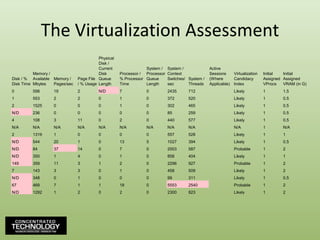
  • 157.
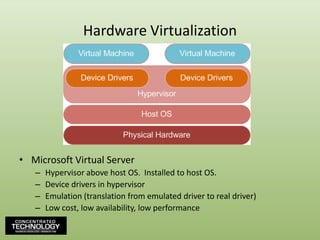
    Guidance for VirtualMachinesSet Limits/Reservations to prevent resource overuse.Greg’s Advice: Be careful with setting too many limits/reservations.Don’t forget host reserve to protect host functions.Isolate VM networks.Physically separate VM interfaces from VMotion & management connection interfaces to prevent data leakage. Very important.Leverage VLANs if your security policies allow.Use dVSs when possible to reduce configuration error, centralize management of virtual switches.Create isolated management network with high security level.Spec ESX hosts with lots of network cards!
  • 158.
    Guidance for VMXFile CustomizationDisable Remote Copy/Paste Operations between Guest OS and Remote ConsoleCan be used as vector for data leakage. Typically unsecured.isolation.tools.copy.disable = TRUEisolation.tools.paste.disable = TRUEisolation.tools.setGUIoptions.disable = FALSEPrevent Log OverflowVM logs to VI datastore can overflow log space. Set rotation size and count of logs to keep.log.rotatesize = 100000log.keepOld = 10
  • 159.
    Guidance for VMXFile CustomizationDo not permit use of nonpersistent disks.These disks revert back to snapshot when VM is rebooted.Can be used by would-be attacker to cover tracks.Verify in VM settings.Verify that unauthorized devices are not connected.Unnecessary peripherals should not be connected.Prevent user from connecting devices from within the guest OS.floppy<x>.presentserial<x>.presentparallel<x>.presentisolation.tools.connectable.disable = TRUE
  • 160.
    Guidance for VMXFile CustomizationVerify correct assignment of guest OSWhile not necessarily a security risk, improper guest OS assignment will have an impact on system performance.Verify proper permissions on disk files..VMX files should be 755 (o+rwx, g+rx).VMDK files should be 600 (o+rw)User and group should be root.

Editor's Notes

  • #21 Source: http://www.virtualization.info/2007/03/44-of-companies-unable-to-declare-their.html
  • #22 http://www.infoworld.com/d/virtualization/virtualization-cost-savings-hard-come-interop-survey-finds-196?source=IFWNLE_nlt_wrapup_2009-05-20