Venture*21
Essentials
JOE PALZKILL
Session Goals
• Module Overview
• Key Functions
• Forecast Methods
• Default Forecasts
• Events
• SKU Allocations: Default Size
Templates
• Forecast Volatility Exception
Reporting
• Additional Features
• Review of Screens
• Administration
Overview of Venture*21
• Highly automated weekly demand forecasting – utilizing
statistical engine
• Features allow the user to remain in control
Overview of Venture*21
• Multiple forecasting methods
• Forecast at all levels of the merchandise hierarchy
• Top-down bottom-up forecast alignment
• New item forecasting
• Manage demand associated with promotions (a.k.a. Events)
• Calculates lost sales and considers in future forecasts
• Exception management
• Integrated with Master Scheduling
KEY FUNCTIONS:
Forecast Methods
Forecast Methods: Expert
• Statistical Forecasting Method
• “Expertly” selects one of the following:
• Exponential Smoothing
• 12 Models
• Curve Fitting
• Croston’s Intermittent Demand
• Box-Jenkins, Including Seasonal Models
• ARIMA Models
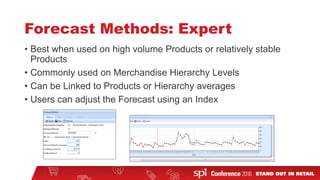
Forecast Methods: Expert
• Best when used on high volume Products or relatively stable
Products
• Commonly used on Merchandise Hierarchy Levels
• Can be Linked to Products or Hierarchy averages
• Users can adjust the Forecast using an Index
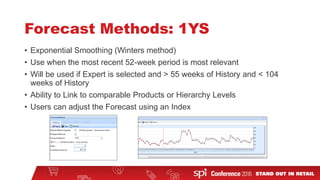
Forecast Methods: 1YS
• Exponential Smoothing (Winters method)
• Use when the most recent 52-week period is most relevant
• Will be used if Expert is selected and > 55 weeks of History and < 104
weeks of History
• Ability to Link to comparable Products or Hierarchy Levels
• Users can adjust the Forecast using an Index
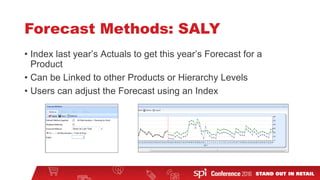
Forecast Methods: SALY
• Index last year’s Actuals to get this year’s Forecast for a
Product
• Can be Linked to other Products or Hierarchy Levels
• Users can adjust the Forecast using an Index
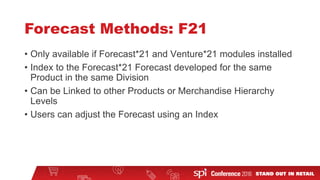
Forecast Methods: F21
• Only available if Forecast*21 and Venture*21 modules installed
• Index to the Forecast*21 Forecast developed for the same
Product in the same Division
• Can be Linked to other Products or Merchandise Hierarchy
Levels
• Users can adjust the Forecast using an Index
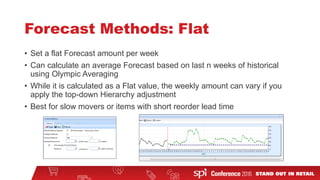
Forecast Methods: Flat
• Set a flat Forecast amount per week
• Can calculate an average Forecast based on last n weeks of historical
using Olympic Averaging
• While it is calculated as a Flat value, the weekly amount can vary if you
apply the top-down Hierarchy adjustment
• Best for slow movers or items with short reorder lead time
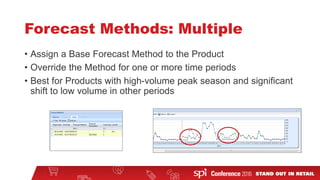
Forecast Methods: Multiple
• Assign a Base Forecast Method to the Product
• Override the Method for one or more time periods
• Best for Products with high-volume peak season and significant
shift to low volume in other periods
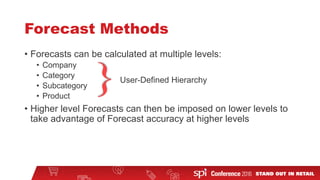
Forecast Methods
• Forecasts can be calculated at multiple levels:
• Company
• Category
• Subcategory
• Product
• Higher level Forecasts can then be imposed on lower levels to
take advantage of Forecast accuracy at higher levels
User-Defined Hierarchy
KEY FUNCTIONS:
Default Forecast Methods
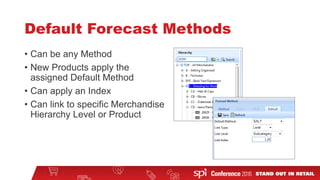
• Can be any Method
• New Products apply the
assigned Default Method
• Can apply an Index
• Can link to specific Merchandise
Hierarchy Level or Product
Default Forecast Methods
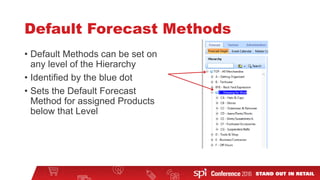
• Default Methods can be set on
any level of the Hierarchy
• Identified by the blue dot
• Sets the Default Forecast
Method for assigned Products
below that Level
Default Forecast Methods
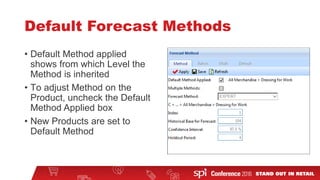
• Default Method applied
shows from which Level the
Method is inherited
• To adjust Method on the
Product, uncheck the Default
Method Applied box
• New Products are set to
Default Method
KEY FUNCTIONS:
Events
Events
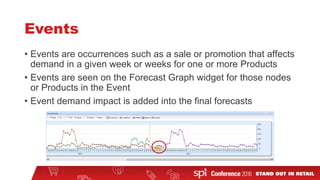
• Events are occurrences such as a sale or promotion that affects
demand in a given week or weeks for one or more Products
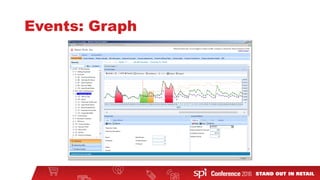
• Events are seen on the Forecast Graph widget for those nodes
or Products in the Event
• Event demand impact is added into the final forecasts
Events: Graph
Events: Effect
Events
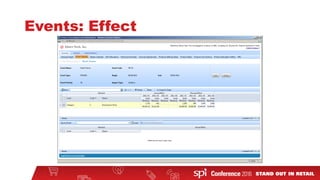
• Actual Effect is calculated using Statistical Methods
• Planned Effect can be set by looking at performance of Other
Events
• Impact Types
• Additive – uses static unit and revenue values
• Multiplicative – uses indexed units and revenue values
• Planned Effect can only be applied to a single event based on
the event priority
• Planned Events can be imported from Excel spreadsheet
KEY FUNCTIONS:
SKU Allocations: Default Size Templates
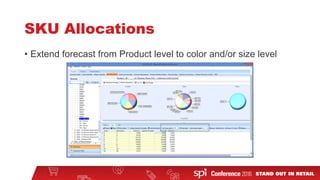
SKU Allocations
• Extend forecast from Product level to color and/or size level
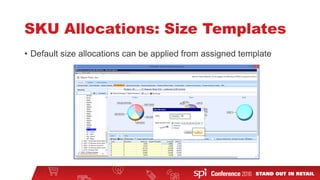
SKU Allocations: Size Templates
• Default size allocations can be applied from assigned template
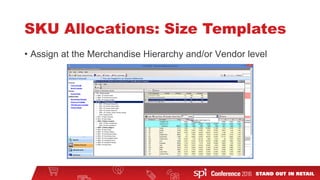
SKU Allocations: Size Templates
• Assign at the Merchandise Hierarchy and/or Vendor level
KEY FUNCTIONS:
Forecast Volatility
Forecast Volatility
• Measures the change in forecast from prior week to current
week for the future 6-week time period
• Purpose is to provide the user with forward-looking exception
reporting of significant changes in Product level forecast that
could create a negative impact on inventory service levels
Forecast Volatility
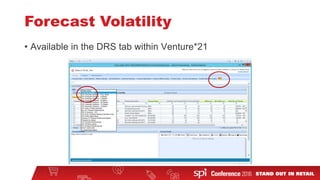
• Available in the DRS tab within Venture*21
Forecast Volatility
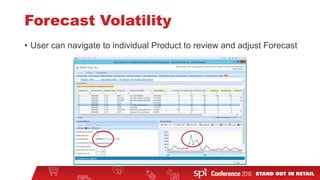
• User can navigate to individual Product to review and adjust Forecast
OTHER FEATURES
Other Features
• Supports a User-Defined Hierarchy
• Category, Subcategory
• Family, Department, Class
• Accommodates Products with different Beginning and Ending
Dates
• Input weekly Revenue Plan and monitor Forecast versus the
Revenue Plan
• View and manage Forecasts in Units or Revenue
Other Features
• View Product Image on screen
• Calculate historical Lost Sales and adjust future period
forecasts
• Calculates Forecast Variance as well as Forecast Volatility
• View Year-Over-Year Forecasts and Forecast Trends
• Common Database with other SPI Buyer Direct modules
REVIEW OF SCREENS
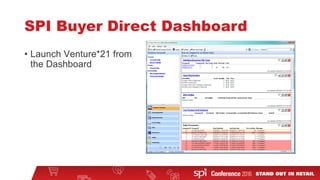
SPI Buyer Direct Dashboard
• Launch Venture*21 from
the Dashboard
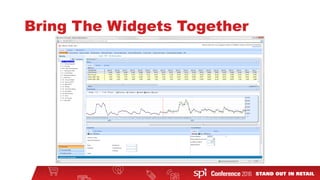
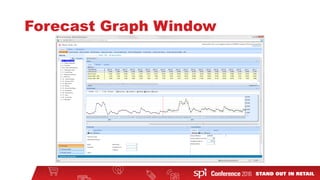
Forecast Graph Window
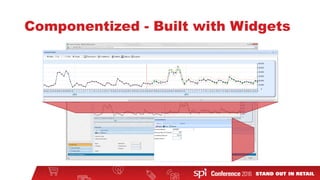
Componentized - Built with Widgets
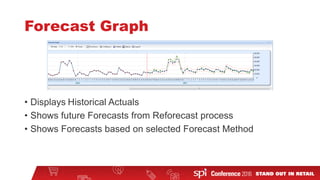
Forecast Graph
• Displays Historical Actuals
• Shows future Forecasts from Reforecast process
• Shows Forecasts based on selected Forecast Method
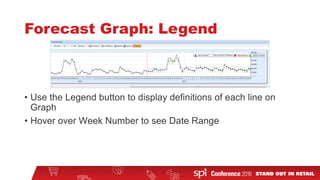
Forecast Graph: Legend
• Use the Legend button to display definitions of each line on
Graph
• Hover over Week Number to see Date Range
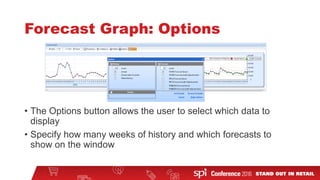
Forecast Graph: Options
• The Options button allows the user to select which data to
display
• Specify how many weeks of history and which forecasts to
show on the window
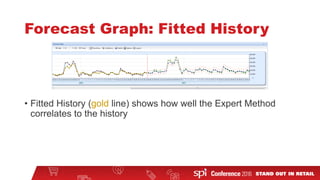
Forecast Graph: Fitted History
• Fitted History (gold line) shows how well the Expert Method
correlates to the history
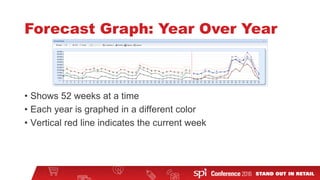
Forecast Graph: Year Over Year
• Shows 52 weeks at a time
• Each year is graphed in a different color
• Vertical red line indicates the current week
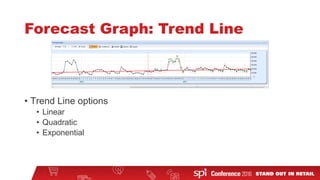
Forecast Graph: Trend Line
• Trend Line options
• Linear
• Quadratic
• Exponential
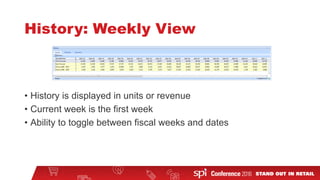
History: Weekly View
• History is displayed in units or revenue
• Current week is the first week
• Ability to toggle between fiscal weeks and dates
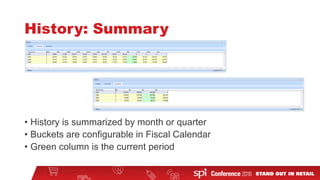
History: Summary
• History is summarized by month or quarter
• Buckets are configurable in Fiscal Calendar
• Green column is the current period
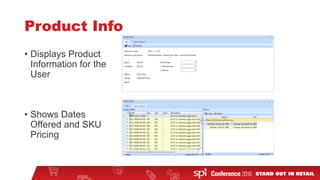
Product Info
• Displays Product
Information for the
User
• Shows Dates
Offered and SKU
Pricing
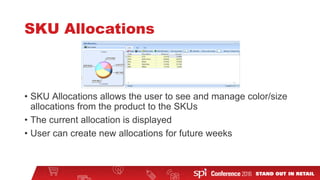
SKU Allocations
• SKU Allocations allows the user to see and manage color/size
allocations from the product to the SKUs
• The current allocation is displayed
• User can create new allocations for future weeks
Bring The Widgets Together
ADMINISTRATION
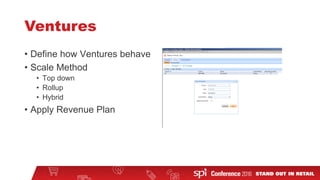
Ventures
• Define how Ventures behave
• Scale Method
• Top down
• Rollup
• Hybrid
• Apply Revenue Plan
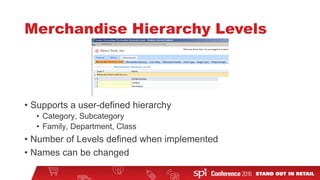
Merchandise Hierarchy Levels
• Supports a user-defined hierarchy
• Category, Subcategory
• Family, Department, Class
• Number of Levels defined when implemented
• Names can be changed
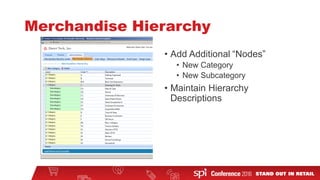
Merchandise Hierarchy
• Add Additional “Nodes”
• New Category
• New Subcategory
• Maintain Hierarchy
Descriptions
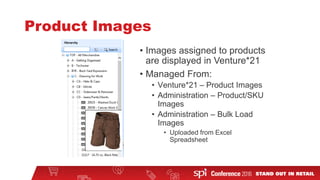
Product Images
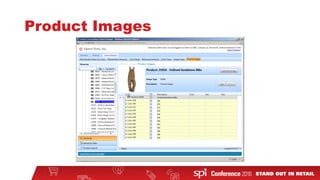
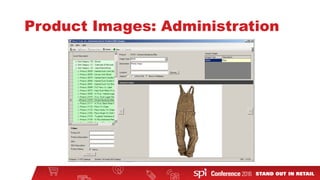
• Images assigned to products
are displayed in Venture*21
• Managed From:
• Venture*21 – Product Images
• Administration – Product/SKU
Images
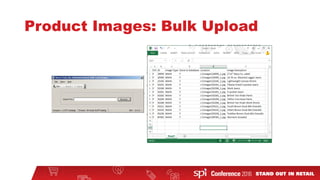
• Administration – Bulk Load
Images
• Uploaded from Excel
Spreadsheet
Product Images
Product Images: Administration
Product Images: Bulk Upload
Reforecast Schedule
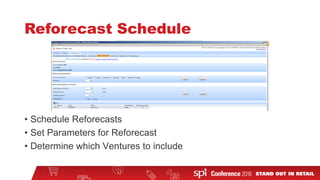
• Schedule Reforecasts
• Set Parameters for Reforecast
• Determine which Ventures to include
Recap
• Module Overview
• Key Functions
• Forecast Methods
• Default Forecasts
• Events
• SKU Allocation – Default Templates
• Forecast Volatility (exception reporting)
• Additional Features
• Review of Screens
• Administration
Questions
Contact Me
•Joe Palzkill
Email: joe.palzkill@spi.com
Phone: 608.574.8900

Venture*21 Essentials for SPI Buyer Direct

  • 1.
  • 2.
    Session Goals • ModuleOverview • Key Functions • Forecast Methods • Default Forecasts • Events • SKU Allocations: Default Size Templates • Forecast Volatility Exception Reporting • Additional Features • Review of Screens • Administration
  • 3.
    Overview of Venture*21 •Highly automated weekly demand forecasting – utilizing statistical engine • Features allow the user to remain in control
  • 4.
    Overview of Venture*21 •Multiple forecasting methods • Forecast at all levels of the merchandise hierarchy • Top-down bottom-up forecast alignment • New item forecasting • Manage demand associated with promotions (a.k.a. Events) • Calculates lost sales and considers in future forecasts • Exception management • Integrated with Master Scheduling
  • 5.
  • 6.
    Forecast Methods: Expert •Statistical Forecasting Method • “Expertly” selects one of the following: • Exponential Smoothing • 12 Models • Curve Fitting • Croston’s Intermittent Demand • Box-Jenkins, Including Seasonal Models • ARIMA Models
  • 7.
    Forecast Methods: Expert •Best when used on high volume Products or relatively stable Products • Commonly used on Merchandise Hierarchy Levels • Can be Linked to Products or Hierarchy averages • Users can adjust the Forecast using an Index
  • 8.
    Forecast Methods: 1YS •Exponential Smoothing (Winters method) • Use when the most recent 52-week period is most relevant • Will be used if Expert is selected and > 55 weeks of History and < 104 weeks of History • Ability to Link to comparable Products or Hierarchy Levels • Users can adjust the Forecast using an Index
  • 9.
    Forecast Methods: SALY •Index last year’s Actuals to get this year’s Forecast for a Product • Can be Linked to other Products or Hierarchy Levels • Users can adjust the Forecast using an Index
  • 10.
    Forecast Methods: F21 •Only available if Forecast*21 and Venture*21 modules installed • Index to the Forecast*21 Forecast developed for the same Product in the same Division • Can be Linked to other Products or Merchandise Hierarchy Levels • Users can adjust the Forecast using an Index
  • 11.
    Forecast Methods: Flat •Set a flat Forecast amount per week • Can calculate an average Forecast based on last n weeks of historical using Olympic Averaging • While it is calculated as a Flat value, the weekly amount can vary if you apply the top-down Hierarchy adjustment • Best for slow movers or items with short reorder lead time
  • 12.
    Forecast Methods: Multiple •Assign a Base Forecast Method to the Product • Override the Method for one or more time periods • Best for Products with high-volume peak season and significant shift to low volume in other periods
  • 13.
    Forecast Methods • Forecastscan be calculated at multiple levels: • Company • Category • Subcategory • Product • Higher level Forecasts can then be imposed on lower levels to take advantage of Forecast accuracy at higher levels User-Defined Hierarchy
  • 14.
  • 15.
    Default Forecast Methods •Can be any Method • New Products apply the assigned Default Method • Can apply an Index • Can link to specific Merchandise Hierarchy Level or Product
  • 16.
    Default Forecast Methods •Default Methods can be set on any level of the Hierarchy • Identified by the blue dot • Sets the Default Forecast Method for assigned Products below that Level
  • 17.
    Default Forecast Methods •Default Method applied shows from which Level the Method is inherited • To adjust Method on the Product, uncheck the Default Method Applied box • New Products are set to Default Method
  • 18.
  • 19.
    Events • Events areoccurrences such as a sale or promotion that affects demand in a given week or weeks for one or more Products • Events are seen on the Forecast Graph widget for those nodes or Products in the Event • Event demand impact is added into the final forecasts
  • 20.
  • 21.
  • 22.
    Events • Actual Effectis calculated using Statistical Methods • Planned Effect can be set by looking at performance of Other Events • Impact Types • Additive – uses static unit and revenue values • Multiplicative – uses indexed units and revenue values • Planned Effect can only be applied to a single event based on the event priority • Planned Events can be imported from Excel spreadsheet
  • 23.
    KEY FUNCTIONS: SKU Allocations:Default Size Templates
  • 24.
    SKU Allocations • Extendforecast from Product level to color and/or size level
  • 25.
    SKU Allocations: SizeTemplates • Default size allocations can be applied from assigned template
  • 26.
    SKU Allocations: SizeTemplates • Assign at the Merchandise Hierarchy and/or Vendor level
  • 27.
  • 28.
    Forecast Volatility • Measuresthe change in forecast from prior week to current week for the future 6-week time period • Purpose is to provide the user with forward-looking exception reporting of significant changes in Product level forecast that could create a negative impact on inventory service levels
  • 29.
    Forecast Volatility • Availablein the DRS tab within Venture*21
  • 30.
    Forecast Volatility • Usercan navigate to individual Product to review and adjust Forecast
  • 31.
  • 32.
    Other Features • Supportsa User-Defined Hierarchy • Category, Subcategory • Family, Department, Class • Accommodates Products with different Beginning and Ending Dates • Input weekly Revenue Plan and monitor Forecast versus the Revenue Plan • View and manage Forecasts in Units or Revenue
  • 33.
    Other Features • ViewProduct Image on screen • Calculate historical Lost Sales and adjust future period forecasts • Calculates Forecast Variance as well as Forecast Volatility • View Year-Over-Year Forecasts and Forecast Trends • Common Database with other SPI Buyer Direct modules
  • 34.
  • 35.
    SPI Buyer DirectDashboard • Launch Venture*21 from the Dashboard
  • 36.
  • 37.
  • 38.
    Forecast Graph • DisplaysHistorical Actuals • Shows future Forecasts from Reforecast process • Shows Forecasts based on selected Forecast Method
  • 39.
    Forecast Graph: Legend •Use the Legend button to display definitions of each line on Graph • Hover over Week Number to see Date Range
  • 40.
    Forecast Graph: Options •The Options button allows the user to select which data to display • Specify how many weeks of history and which forecasts to show on the window
  • 41.
    Forecast Graph: FittedHistory • Fitted History (gold line) shows how well the Expert Method correlates to the history
  • 42.
    Forecast Graph: YearOver Year • Shows 52 weeks at a time • Each year is graphed in a different color • Vertical red line indicates the current week
  • 43.
    Forecast Graph: TrendLine • Trend Line options • Linear • Quadratic • Exponential
  • 44.
    History: Weekly View •History is displayed in units or revenue • Current week is the first week • Ability to toggle between fiscal weeks and dates
  • 45.
    History: Summary • Historyis summarized by month or quarter • Buckets are configurable in Fiscal Calendar • Green column is the current period
  • 46.
    Product Info • DisplaysProduct Information for the User • Shows Dates Offered and SKU Pricing
  • 47.
    SKU Allocations • SKUAllocations allows the user to see and manage color/size allocations from the product to the SKUs • The current allocation is displayed • User can create new allocations for future weeks
  • 48.
  • 49.
  • 50.
    Ventures • Define howVentures behave • Scale Method • Top down • Rollup • Hybrid • Apply Revenue Plan
  • 51.
    Merchandise Hierarchy Levels •Supports a user-defined hierarchy • Category, Subcategory • Family, Department, Class • Number of Levels defined when implemented • Names can be changed
  • 52.
    Merchandise Hierarchy • AddAdditional “Nodes” • New Category • New Subcategory • Maintain Hierarchy Descriptions
  • 53.
    Product Images • Imagesassigned to products are displayed in Venture*21 • Managed From: • Venture*21 – Product Images • Administration – Product/SKU Images • Administration – Bulk Load Images • Uploaded from Excel Spreadsheet
  • 54.
  • 55.
  • 56.
  • 57.
    Reforecast Schedule • ScheduleReforecasts • Set Parameters for Reforecast • Determine which Ventures to include
  • 58.
    Recap • Module Overview •Key Functions • Forecast Methods • Default Forecasts • Events • SKU Allocation – Default Templates • Forecast Volatility (exception reporting) • Additional Features • Review of Screens • Administration
  • 59.
  • 60.
    Contact Me •Joe Palzkill Email:joe.palzkill@spi.com Phone: 608.574.8900