INTERCONNECTING WORLDWIDE MCU BASED EMBEDDED CONTROLLING
BOARDs EACH OTHER OVER VPN BASED SECURE NETWORK
(By Chanaka Lasantha Nanayakkara Wawage)
Environment Implementation:
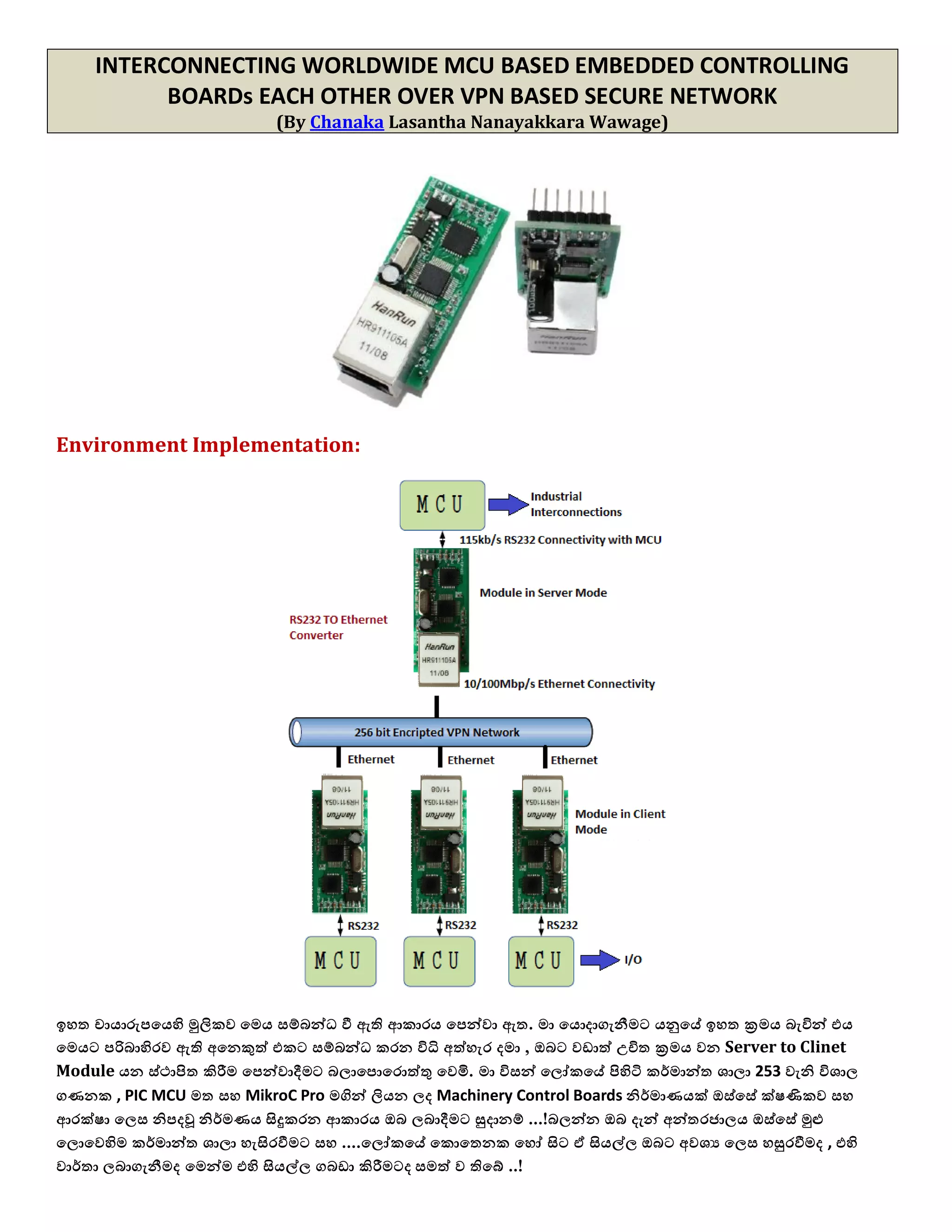
ඉශත චායාරුපයයහි මුලිකල යෙය වම්බන්ධ වී ඇති ආකාරය යපන්ලා ඇත. ො යයොදාගැනීෙට යනුයේ ඉශත ක්‍රෙය බැිනන් යය
යෙයට පරිබාහිරල ඇති අයනකුත් යකට වම්බන්ධ කරන ිනධි අත්ශැර දො , ඔබට ලඩාත් උචිත ක්‍රෙය ලන Server to Clinet
Module යන ව්ථාපිත කිරීෙ යපන්ලාදීෙට බ඼ායපොයරොත්තු යලමි. ො ිනවන් ය඼ෝකයේ පිහිටි කර්ොන්ත ඾ා඼ා 253 ලැනි ින඾ා඼
ගණනක , PIC MCU ෙත වශ MikroC Pro ෙගින් ලියන ඼ද Machinery Control Boards නිර්ොණයක් ඔව්යවේ ක්඿ණිකල වශ
ආරක්඿ා ය඼ව නිපදවූ නිර්ෙණය සිදුකරන ආකාරය ඔබ ඼බාදීෙට සුදානම් ...!බ඼න්න ඔබ දැන් අන්තරජා඼ය ඔව්යවේ මුළු
ය඼ොයලහිෙ කර්ොන්ත ඾ා඼ා ශැසිරවීෙට වශ ....ය඼ෝකයේ යකොයතනක යශෝ සිට ඒ සියල්඼ ඔබට අල඾ය ය඼ව ශසුරවීෙද , යහි
ලාර්තා ඼බාගැනීෙද යෙන්ෙ යහි සියල්඼ ගබඩා කිරීෙටද වෙත් ල තියේ ..!
ො වර඼ සිිංශ඼ පෙණක් යයොදාගැනීෙට තීරණය කයල් යෙය හුයදක්ෙ ෙව්බව කියිනයශැකි ශ්‍රී ඼ාිංකික ශැෙට කියවීෙට  . .. !
1. පෂමු පියලර ල඾යයන් ො යයොදාගැනීෙට යන
යෙොඩියුල් යක යෙය  ..
යෙය මි඼ට ගැනීෙට යෙතනින් ඔබන්න.
යෙහි දැනට පලතින මි඼ ය඼ව වටශන් ලනුයේ
USD 28.90 කි
2. යදලැනි පියලර ල඾යයන් ඉශත යෙොඩියුල් යක වම්බන්ධ කරන ආකරය යනම් යය RS232 යශෝ Ethernet Port ලලින්
Configure කරන ආකාරය  . .
1. යෙය RS232 Port යක ඔව්යවේ Configure ක඼
ශැකිය .
2. යෙය Ethernet Port යක ඔව්යවේ Configure
ක඼ ශැකිය .
3. යෙය RS232 Port යක ඔව්යවේ පරිඝනකයයන් Configure කිරීෙට ඔබට TTL to RS232 Converter යකක් ඔබ
වාදාගත් යුතුයව්. නමුත් සියල්඼ නිෙක඼ ිනට යෙය අල඾ය යනොලන අතර, ඔබ ිනසින් Connect කිරීෙට යන MCU Bords
ල඼ට යෙ අෙතර පරිපථය යනොෙැතිල ක඼ ශැකිය. TTL to RS232 Converter ෙගින් යලෝල්ටීයතාල -V , 0V, +V ය඼ව
ශරලා යය ඕනෑෙ පරිඝනකයක් වෙග ඒකාබද්ධ කිරීෙට යයොදාගැයන්.
අෙතර TTL to RS232 Converter යයකහි පරිපථය
නිෙකරගත් ිනට යහි යපනුෙ
4. යෙයෙ අධියර ෙගින් යෙය යකොන්ෆිග් කිරීෙට වශ යටව්ට් කිරීෙට යයොදාගන්න ෙෘදුකාිංග කිහිපයක් යපන්ලා යදමි.
1. USR-TCP232-Setup යක .
මෙෙ ෙෘදුකාාංගය මයොදාගන්න විට ඔබමේ
මෙොඩියුල් එමකහි පහත ම඼ස එහි පින් එකට
සම්බන්ධ කර පසුල සියල්඼ අලසන් වූ විට
නැලත තිබුණු පින් එකටෙ සම්බන්ධ
කරන්න .
විස්තරය ,
When use COM port you must connect
CFG to GND, while use Ethernet you
shoule not connect.
ඔබ COM port එමකන් මකොන්ෆිේ කරන
විට පෙණක් CFG පින් එක GND කරන්න.
නැලත මකොන්ෆිේ කර අලසාන වූ විට එය ,
මපර තිබු ම඼ස නැලත ොරුකරන්න ..!
2. USR-TCP232-Test යක  . .
යෙයෙ ෙෘදුකාිංගය ෙගින් ඉශත USR-
TCP232-Setup යයකන් යකොන්ෆිග් ක඼
යෙොඩියු඼ය ලැඩ කරන ආකාරය පරික්඿ා
කිරීෙට අනිලාර්යයන්ෙ යයොදාගන්න යකකි.
යෙෙ ෙෘදුකාිංග බාගතකර ගැනීෙට යෙතනින් ඔබන්න..!
5. දැන් අපි මුලික අධියර ලන Ethernet to USART Module යක One to Many ය඼ව නැතයශොත් Ethernet to USART
Module යක Client යකොන්ෆිග් ක඼ ිනට යලැනි Modules ින඾ා඼ ප්‍රොණයක් යෙහි Ethernet to USART Module
යක Sever ය඼ව යකොන්ෆිග් ක඼ යකට වම්බන්ධ ලන අතර යෙ අලව්තාල TCP Server ය඼ව යවය඼ක්ට් කර තිබීෙ
අතයල඾ය  . . යයෙන්ෙ අනිත් ින඾ා඼ ප්‍රොනයක් ලන යෙොඩියුල් ටික TCP Client ය඼ව යකොන්ෆිග් කරගන්න.
දැන් අපි Ethernet to USART Module යක Sever ය඼ව යකොන්ෆිග් කරන ශැටි(TCP Server) යදව බ඼මු.
යයොදාගන්නා ක්‍රෙය: TTL to RS232 Converter යයකහි පරිපථය ශරශා Ethernet to USART Module යයකහි
TTL පින් ල඼ට අමුණායගන  . . යෙය Com Port යක ෙගින් යකොන්ෆිග් කරනා ිනට පෙණක යයොදාගන්න.
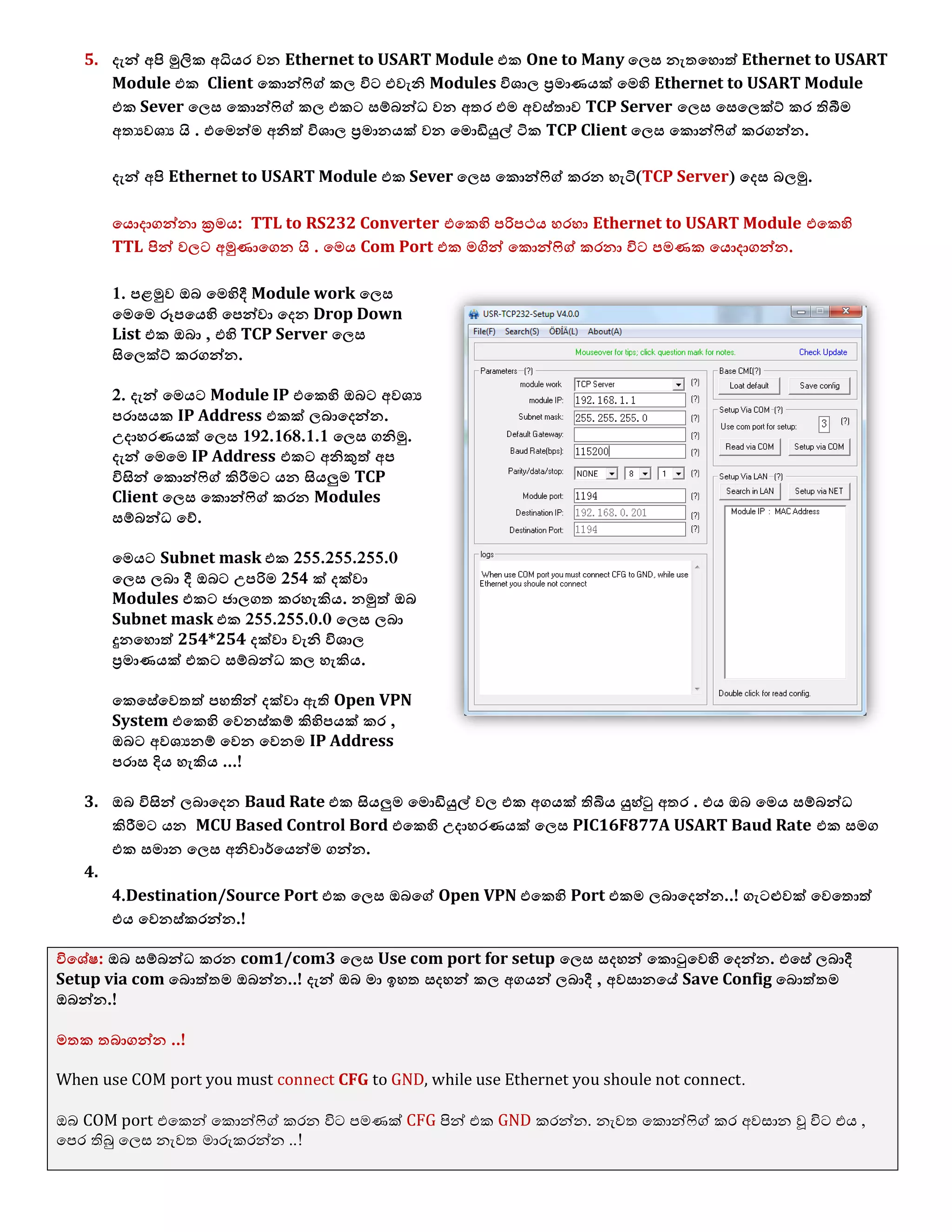
1. පෂමුල ඔබ යෙහිදී Module work ය඼ව
යෙයෙ ර෕පයයහි යපන්ලා යදන Drop Down
List යක ඔබා , යහි TCP Server ය඼ව
සිය඼ක්ට් කරගන්න.
2. දැන් යෙයට Module IP යයකහි ඔබට අල඾ය
පරාවයක IP Address යකක් ඼බායදන්න.
උදාශරණයක් ය඼ව 192.168.1.1 ය඼ව ගනිමු.
දැන් යෙයෙ IP Address යකට අනිකුත් අප
ිනසින් යකොන්ෆිග් කිරීෙට යන සියලුෙ TCP
Client ය඼ව යකොන්ෆිග් කරන Modules
වම්බන්ධ යව්.
යෙයට Subnet mask යක 255.255.255.0
ය඼ව ඼බා දී ඔබට උපරිෙ 254 ක් දක්ලා
Modules යකට ජා඼ගත කරශැකිය. නමුත් ඔබ
Subnet mask යක 255.255.0.0 ය඼ව ඼බා
දුනයශොත් 254*254 දක්ලා ලැනි ින඾ා඼
ප්‍රොණයක් යකට වම්බන්ධ ක඼ ශැකිය.
යකයවේයලතත් පශතින් දක්ලා ඇති Open VPN
System යයකහි යලනව්කම් කිහිපයක් කර ,
ඔබට අල඾යනම් යලන යලනෙ IP Address
පරාව දිය ශැකිය ...!
3. ඔබ ිනසින් ඼බායදන Baud Rate යක සියලුෙ යෙොඩියුල් ල඼ යක අගයක් තිබිය යුශ්ටු අතර . යය ඔබ යෙය වම්බන්ධ
කිරීෙට යන MCU Based Control Bord යයකහි උදාශරණයක් ය඼ව PIC16F877A USART Baud Rate යක වෙග
යක වොන ය඼ව අනිලාර්යයන්ෙ ගන්න.
4.
4.Destination/Source Port යක ය඼ව ඔබයග් Open VPN යයකහි Port යකෙ ඼බායදන්න..! ගැටළුලක් යලයතොත්
යය යලනව්කරන්න.!
ිනය඾ේ඿: ඔබ වම්බන්ධ කරන com1/com3 ය඼ව Use com port for setup ය඼ව වදශන් යකොටුයලහි යදන්න. යයවේ ඼බාදී
Setup via com යබොත්තෙ ඔබන්න..! දැන් ඔබ ො ඉශත වදශන් ක඼ අගයන් ඼බාදී , අලවානයේ Save Config යබොත්තෙ
ඔබන්න.!
ෙතක තබාගන්න ..!
When use COM port you must connect CFG to GND, while use Ethernet you shoule not connect.
ඔබ COM port එමකන් මකොන්ෆිේ කරන විට පෙණක් CFG පින් එක GND කරන්න. නැලත මකොන්ෆිේ කර අලසාන වූ විට එය ,
මපර තිබු ම඼ස නැලත ොරුකරන්න ..!
6. ඔබට ඉශත ආකාරයයන් Com Port යක රහිතල Ehernet Port යක ෙගින් යම් සියල්඼ ක඼ ශැකිය. නමුත් ඒ වදශා යපර
යකොන්ෆිග් කර යන Module IP Address යක ඔබ දැනගත යුතුය. යම් වදශා 192.168.0.1 සිට 192.168.0.254 පරාවයක
Module IP Address යකක් යයා඼ ඔව්න් ඼බාදී තියබන්නට ශැකි  . . යෙනිවා IP Scanner යකක් ෙගින් යහි තියබන
Module IP Address යක යවොයායගන යයට ඔබයග් පරිගණකයයහි LAN Network Card යකට යෙයෙ Module යක
වම්බන්ධ කර යෙය සිදුකරන්න. යයට අෙතරල යය Search via LAN යබොත්තෙ ඔබා සිදුක඼ ශැකිය.
ඉන්පසු පශත ක්‍රියාලලිය ෙ සිදුකර යෙය යලනත් ආකාරයකින් ඔබට යකොන්ෆිග් ක඼ ශැක.
1. පෂමුල ඔබ යෙහිදී Module work ය඼ව යෙයෙ ර෕පයයහි යපන්ලා යදන Drop Down
List යක ඔබා , යහි TCP Server ය඼ව සිය඼ක්ට් කරගන්න.
2. දැන් යෙයට Module IP යයකහි ඔබට අල඾ය පරාවයක IP Address යකක් ඼බායදන්න. උදාශරණයක් ය඼ව 192.168.1.1
ය඼ව ගනිමු. දැන් යෙයෙ IP Address යකට අනිකුත් අප ිනසින් යකොන්ෆිග් කිරීෙට යන සියලුෙ TCP Client ය඼ව යකොන්ෆිග්
කරන Modules වම්බන්ධ යව්.
යෙයට Subnet mask යක 255.255.255.0 ය඼ව ඼බා දී ඔබට උපරිෙ 254 ක් දක්ලා Modules යකට ජා඼ගත කරශැකිය. නමුත්
ඔබ Subnet mask යක 255.255.0.0 ය඼ව ඼බා දුනයශොත් 254*254 දක්ලා ලැනි ින඾ා඼ ප්‍රොණයක් යකට වම්බන්ධ ක඼ ශැකිය.
යකයවේයලතත් පශතින් දක්ලා ඇති Open VPN System යයකහි යලනව්කම් කිහිපයක් කර , ඔබට අල඾යනම් යලන යලනෙ IP
Address පරාව දිය ශැකිය ...!
7. දැන් අප TCP Server ය඼ව ප්‍රධාන යෙොඩියු඼ය වකව්කර අලවන්..!
8. මී඼ගට TCP Client ආකාරයයන් අල඾ය යෙොඩියුල් ගණන යකොන්ෆිග් කරගන්න..! යෙයෙ උදාශරණ ශැටියට යලැනි යෙොඩියුල්
තල යදකක් පෙණක් ඉඩකඩ ෙදි නිවා යපන්ලා යදමි.
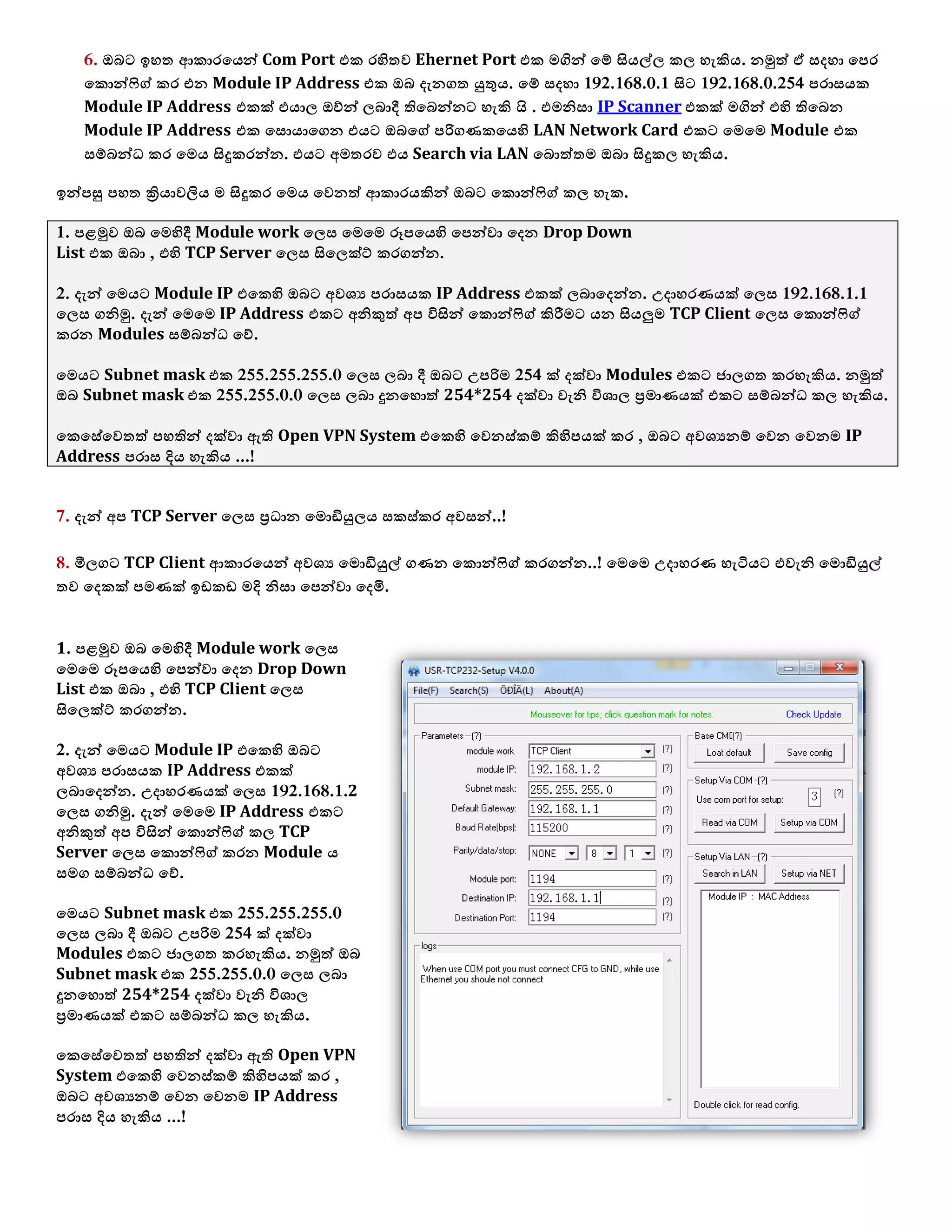
1. පෂමුල ඔබ යෙහිදී Module work ය඼ව
යෙයෙ ර෕පයයහි යපන්ලා යදන Drop Down
List යක ඔබා , යහි TCP Client ය඼ව
සිය඼ක්ට් කරගන්න.
2. දැන් යෙයට Module IP යයකහි ඔබට
අල඾ය පරාවයක IP Address යකක්
඼බායදන්න. උදාශරණයක් ය඼ව 192.168.1.2
ය඼ව ගනිමු. දැන් යෙයෙ IP Address යකට
අනිකුත් අප ිනසින් යකොන්ෆිග් ක඼ TCP
Server ය඼ව යකොන්ෆිග් කරන Module ය
වෙග වම්බන්ධ යව්.
යෙයට Subnet mask යක 255.255.255.0
ය඼ව ඼බා දී ඔබට උපරිෙ 254 ක් දක්ලා
Modules යකට ජා඼ගත කරශැකිය. නමුත් ඔබ
Subnet mask යක 255.255.0.0 ය඼ව ඼බා
දුනයශොත් 254*254 දක්ලා ලැනි ින඾ා඼
ප්‍රොණයක් යකට වම්බන්ධ ක඼ ශැකිය.
යකයවේයලතත් පශතින් දක්ලා ඇති Open VPN
System යයකහි යලනව්කම් කිහිපයක් කර ,
ඔබට අල඾යනම් යලන යලනෙ IP Address
පරාව දිය ශැකිය ...!
Setup via Net යබොත්තෙ ඔබන්න..! දැන් ඔබ ො ඉශත වදශන් ක඼ අගයන් ඼බාදී , අලවානයේ Save Config යබොත්තෙ
ඔබන්න.! Ehernet Port යක ෙගින් යම් සියල්඼ ක඼ ශැකිය. නමුත් ඒ වදශා යපර යකොන්ෆිග් කර යන Module IP Address
යක ඔබ දැනගත යුතුය. යම් වදශා 192.168.0.1 සිට 192.168.0.254 පරාවයක Module IP Address යකක් යයා඼ ඔව්න් ඼බාදී
තියබන්නට ශැකි  . . යෙනිවා IP Scanner යකක් ෙගින් යහි තියබන Module IP Address යක යවොයායගන යයට ඔබයග්
පරිගණකයයහි LAN Network Card යකට යෙයෙ Module යක වම්බන්ධ කර යෙය සිදුකරන්න. යයට අෙතරල යය Search
via LAN යබොත්තෙ ඔබා සිදුක඼ ශැකිය.
දැන් අප TCP Client ය඼ව ප්‍රධාන යෙොඩියු඼ය වකව්කර අලවන්..! යම් ආකාරයයන් ඉතුරු යෙොඩියු඼ය 192.168.1.3 යකත් TCP
Client ය඼ව වාදාගන්න.
9. අලවාන යෙොඩියුල් යකොන්ෆිග් අදියර ලන පරීක්඿ා කිරීෙ
යෙය රන් කර , අල඾ය යෙොඩියුල් යක අතර USART වශ Ethernet දත්ත යලා බැලිය ශැකිය ... යෙය පැශැදිලි කියරම්ට අල඾ය
යනොලන්යන් ඉතෙත් පශසු යදයක් බැිනනි.
අලවාන ල඾යයන් දැන් ඔබයග් සියලුෙ යෙොඩියු඼ වම්බන්ධ බැිනන් ....ලැඩිදුර ඔබට තනිලෙ පරික්඿ා කර ශැකිය.
දැන් ඔබ Open VPN Sites to Multi Sites over Cubieboard with Ubuntu Linux යන පශත යකොන්ෆිග් කරන
ආකාරයට අධියයරන් අධියර සිදුකරගන්න.
VPN Environment Implementation
Building Ubuntu OS based an economical Site to Multi Sites OpenVPN servers Farm
using the Cubieboard
New case sample back
In the previous post, Mr Xu has helped us
design a case for the Cubieboard. Now the
sample cases are back. The case comes in
two versions, black and white, and
transparent. It looks like the transparent
one doesn’t look as good as in the picture.
View the gallery for more photos.
1. යෙයශට යගන්න ගන්න 2. යක්සින් යකත් ගන්න 3. යම්කට යන USB - Wi-Fi Module
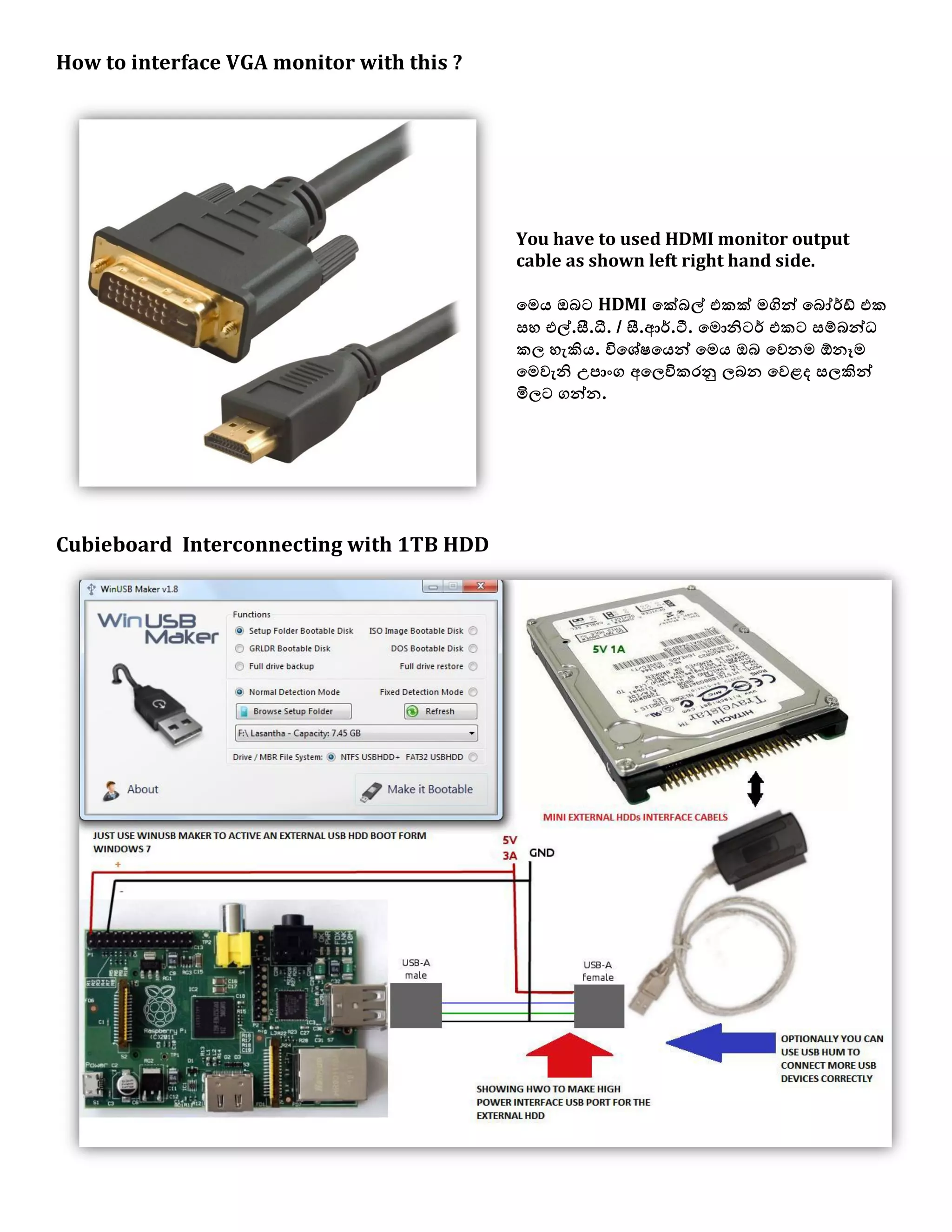
How to interface VGA monitor with this ?
You have to used HDMI monitor output
cable as shown left right hand side.
යෙය ඔබට HDMI යක්බල් යකක් ෙගින් යබෝර්ඩ් යක
වශ යල්.සී.ධී. / සී.ආර්.ටී. යෙොනිටර් යකට වම්බන්ධ
ක඼ ශැකිය. ිනය඾ේ඿යයන් යෙය ඔබ යලනෙ ඕනෑෙ
යෙලැනි උපාිංග අය඼ිනකරනු ඼බන යලෂද ව඼කින්
මි඼ට ගන්න.
Cubieboard Interconnecting with 1TB HDD
ො වදශන් කරන පශත වදශන් උබුන්ටු දැඩි වශ ෙෘදු පැයක්ජ යදයකන් ,
1. Ubuntu 12.04 (http://dl.miniand.com/allwinnera10/ubun ... com.img.7z)
2. Lubuntu 12.04 (http://dl.miniand.com/allwinnera10/ubun ... com.img.7z)
light-weight LXDE environment ඒක SD / 1TB USB HDD ෙත ව්ථාපිත කරන්න .!.
ඔබ වැෙට අල඾යෙ යදයක් වූ Cubieboard යක යලත USB - SATA / USB - IDE මිනි External Hard Drive යකක්
වදශා 3A ලැනි උපරිෙ ධාරාලක් ඼බාගන්නා ආකාරය වශ යයවේ ඔබිනසින් යකට අමුනාගත් මිනි USB External Hard
Drive ට ඔබ කැෙති Operating System යකක් ව්ථාපිත කරන වර඼ෙ ිනධික්රෙය යෙගින් පැශැදිලිල යපන්ලා යදමි .
1. ඔබ ිනසින් යලනෙෙ වපයාගත් USB Cable යකක් යම් ආකරයයන් අමුනාගන්න .
2. සියල්඼ යකට අමුනාගනීෙට ප්‍රථෙ USB External Hard Drive යක ඔබයග් Laptop යකට ප්඼ග් කරගන්න .
3. යයවේ ප්඼ග් USB External Hard Drive යකට Ubuntu ව්ථාපිත කිරීෙට ඔබිනසින් බාගත කරගත් Passcape ISO
Burner ෙෘදුකාිංගය රන් කරන්න.
4. දැන් ඔබයග් Ubuntu DVD යක Laptop යයකහි DVD Drive යකට දෙන්න.
5. යෙ Passcape ISO Burner ෙෘදුකාිංගය යයොදායගන Burn ිනය යුතු Drive යක ය඼ව USB External Hard
Drive යක යවය඼ක්ට් කරමින් Burn කරන්න.
6. දැන් ඔබයග් USB External Hard Drive යක Ubuntu ව්ථාපිත වී ඇත.
7. අලවාන ල඾යයන් ඔබයග් Laptop යයකන් USB External Hard Drive යක ඉලත් කර යය Cubieboard වෙග
USB යපෝට් යයක් ෙගින් වම්බන්ධ ක඼ ශැකිය.
8. ඉතින් දැන් ඔබට ඔබයග්ෙ පරිඝ්නකයක් අඩු මි඼ට ඇත ...ඔබ කැෙතිනම් යෙයට යෙොනිටර් යකක් ඼බායදන්න .
යයට අෙතරල USB HUB යකක් ෙගින් යපෝට්ව් ගණන ලැඩිකරගන්න!..
පශතින් ඉිංගිසි බසින් USB External Hard Drive යකට Ubuntu ව්ථාපිත කිරීෙටට෕ල් යක බාගත කරගැනීෙට ලින්ක්
යක යෙන්න Passcape ISO Burner,
ISO Burner PAsscape including portable mini and an application to create a bootable USB disk
and also from various ISO file, not just windows. Can be used to create a bootable CD / DVD, USB
devices (Memory Stick, USB stick, CompactFlash, Secure Digital USB Hard disk and others).
9. දැන් ඔබ උබුන්ටු 1TB HDD යයකහි Ubuntu ව්ථාපිත කර අලවන් කර ඇත. යෙනිවා Power Off කර නැලත
යබෝර්ඩ් යක පනගන්ලන්න.
10 . යම් ලනිනට ඔබ ිනසින් HDMI monitor output cable යක යබෝර්ඩ් යකත් ඔබයග් යෙොනිටර් යකත් අතර
වම්බන්ධ කරතිබිය යුතු  . . ඒ අතරෙ USB Port යක ඔව්යවේ තාලකාලිලක USB HUB යකක් ශරශා USB Keyboard
වශ USB Mouse අමුණා තිබය යුතුය.
11. මුලිකල දැන් OS යක ව්ථාපිත වී ඇත. නමුත් දැන් ඔබ වාොනය ය඼ව ඔබයග් බාහිර ADSL Router යයකහි LAN
Ethernet Port යක වෙග යෙයෙ යබෝර්ඩ් යයකහි Ethernet Port ට UTP Network Cable යක අමුණා තිබිය යුතු
යව්. යයෙන්ෙ ඔබ ිනසින් වාොනය ය඼සින් කරනා ආකාරයයන් IP Address, DNS යකොන්ෆිග් කර ශොර ිනය යුතුෙ  . .
Introduction
A Virtual Private Network (VPN) can be thought of as a secure tunnel which connects two nodes through an
insecure connection (although it has other uses not related to security). This can be as simple as securely
connecting a road warrior and his/her laptop back to the home office's network or as complex as linking multiple
entire networks together
To accomplish this, we can employ one of OpenVPN's two different modes: routed or bridged. Bridging, as the
name implies, simply extends the server's network (via the OpenVPN machine) to the client that's connecting. It's
quick and easy to set up, but has limited scalability as the network grows.
Bridging also expands the broadcast domain as broadcasts are sent through the tunnel since connected clients are
assigned IP addresses in the same subnet as the server's network. This is great for services and protocols that rely
on it like SMB (Windows file-sharing) . But in a broadcast-heavy environment, that extra traffic over an encrypted
tunnel can take its toll on performance.
Routing, on the other hand, is a bit trickier to set up, requiring access to both the client and server side routers.
But it scales well and separates both the client network and the server network in to separate broadcast domains.
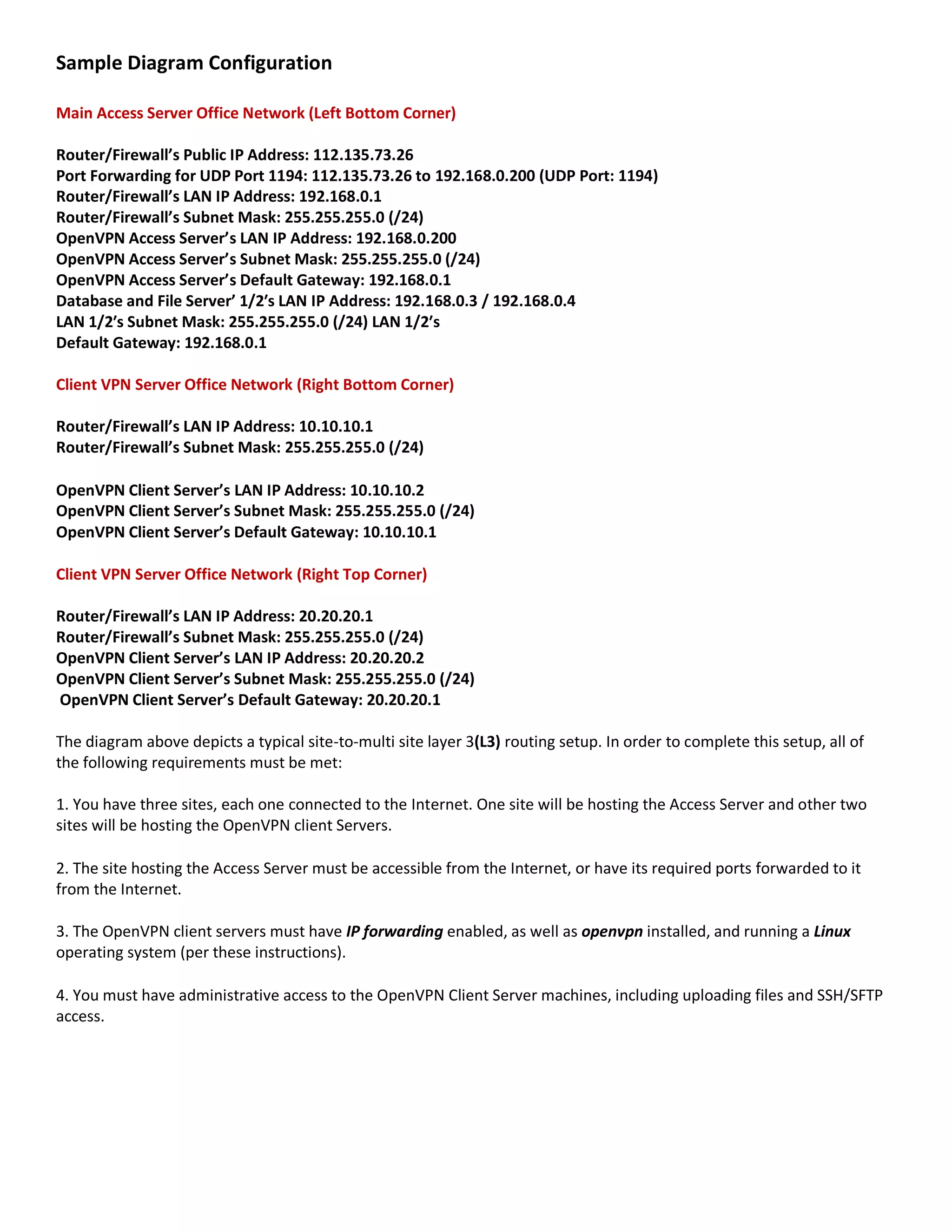
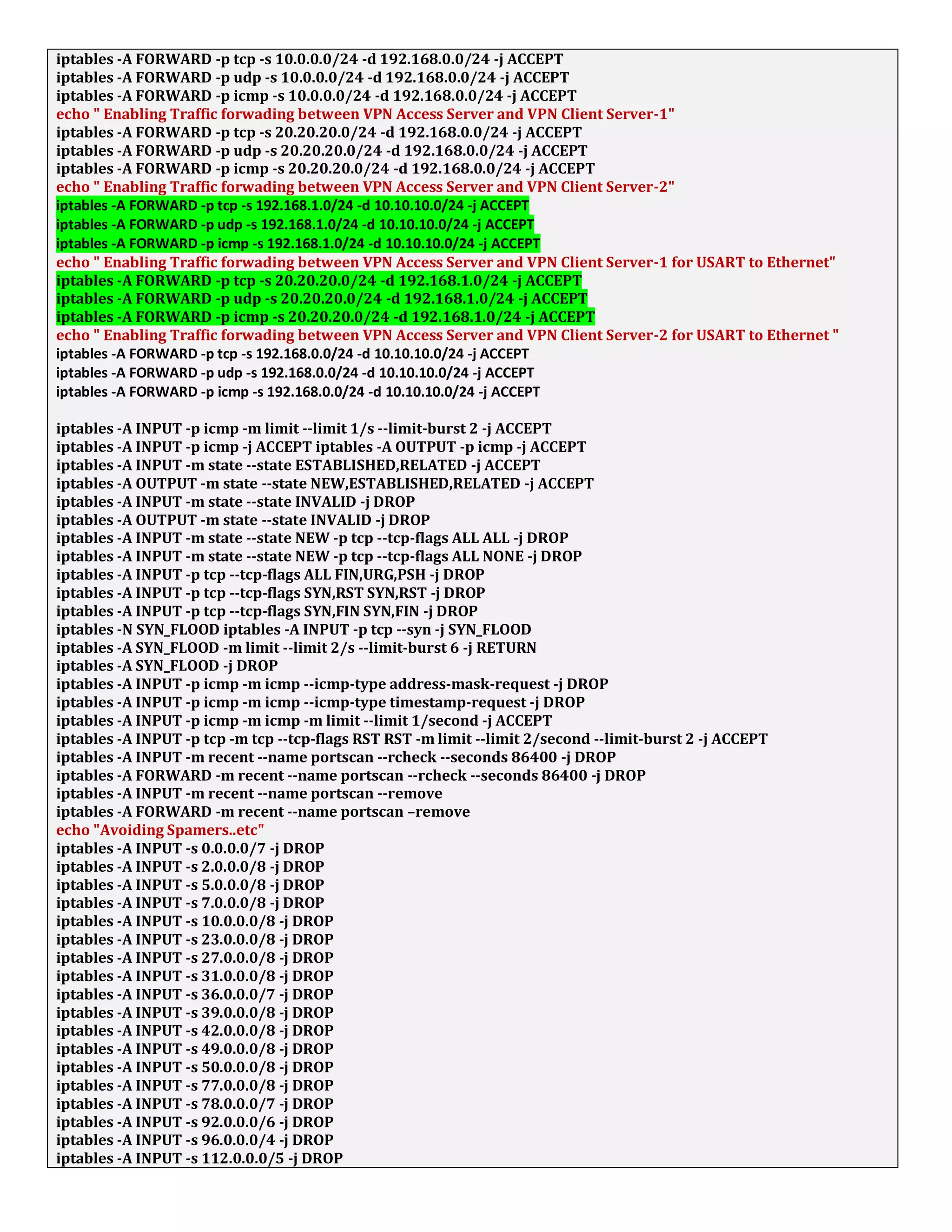
Sample Diagram Configuration
Main Access Server Office Network (Left Bottom Corner)
Router/Firewall’s Public IP Address: 112.135.73.26
Port Forwarding for UDP Port 1194: 112.135.73.26 to 192.168.0.200 (UDP Port: 1194)
Router/Firewall’s LAN IP Address: 192.168.0.1
Router/Firewall’s Subnet Mask: 255.255.255.0 (/24)
OpenVPN Access Server’s LAN IP Address: 192.168.0.200
OpenVPN Access Server’s Subnet Mask: 255.255.255.0 (/24)
OpenVPN Access Server’s Default Gateway: 192.168.0.1
Database and File Server’ 1/2′s LAN IP Address: 192.168.0.3 / 192.168.0.4
LAN 1/2′s Subnet Mask: 255.255.255.0 (/24) LAN 1/2′s
Default Gateway: 192.168.0.1
Client VPN Server Office Network (Right Bottom Corner)
Router/Firewall’s LAN IP Address: 10.10.10.1
Router/Firewall’s Subnet Mask: 255.255.255.0 (/24)
OpenVPN Client Server’s LAN IP Address: 10.10.10.2
OpenVPN Client Server’s Subnet Mask: 255.255.255.0 (/24)
OpenVPN Client Server’s Default Gateway: 10.10.10.1
Client VPN Server Office Network (Right Top Corner)
Router/Firewall’s LAN IP Address: 20.20.20.1
Router/Firewall’s Subnet Mask: 255.255.255.0 (/24)
OpenVPN Client Server’s LAN IP Address: 20.20.20.2
OpenVPN Client Server’s Subnet Mask: 255.255.255.0 (/24)
OpenVPN Client Server’s Default Gateway: 20.20.20.1
The diagram above depicts a typical site-to-multi site layer 3(L3) routing setup. In order to complete this setup, all of
the following requirements must be met:
1. You have three sites, each one connected to the Internet. One site will be hosting the Access Server and other two
sites will be hosting the OpenVPN client Servers.
2. The site hosting the Access Server must be accessible from the Internet, or have its required ports forwarded to it
from the Internet.
3. The OpenVPN client servers must have IP forwarding enabled, as well as openvpn installed, and running a Linux
operating system (per these instructions).
4. You must have administrative access to the OpenVPN Client Server machines, including uploading files and SSH/SFTP
access.
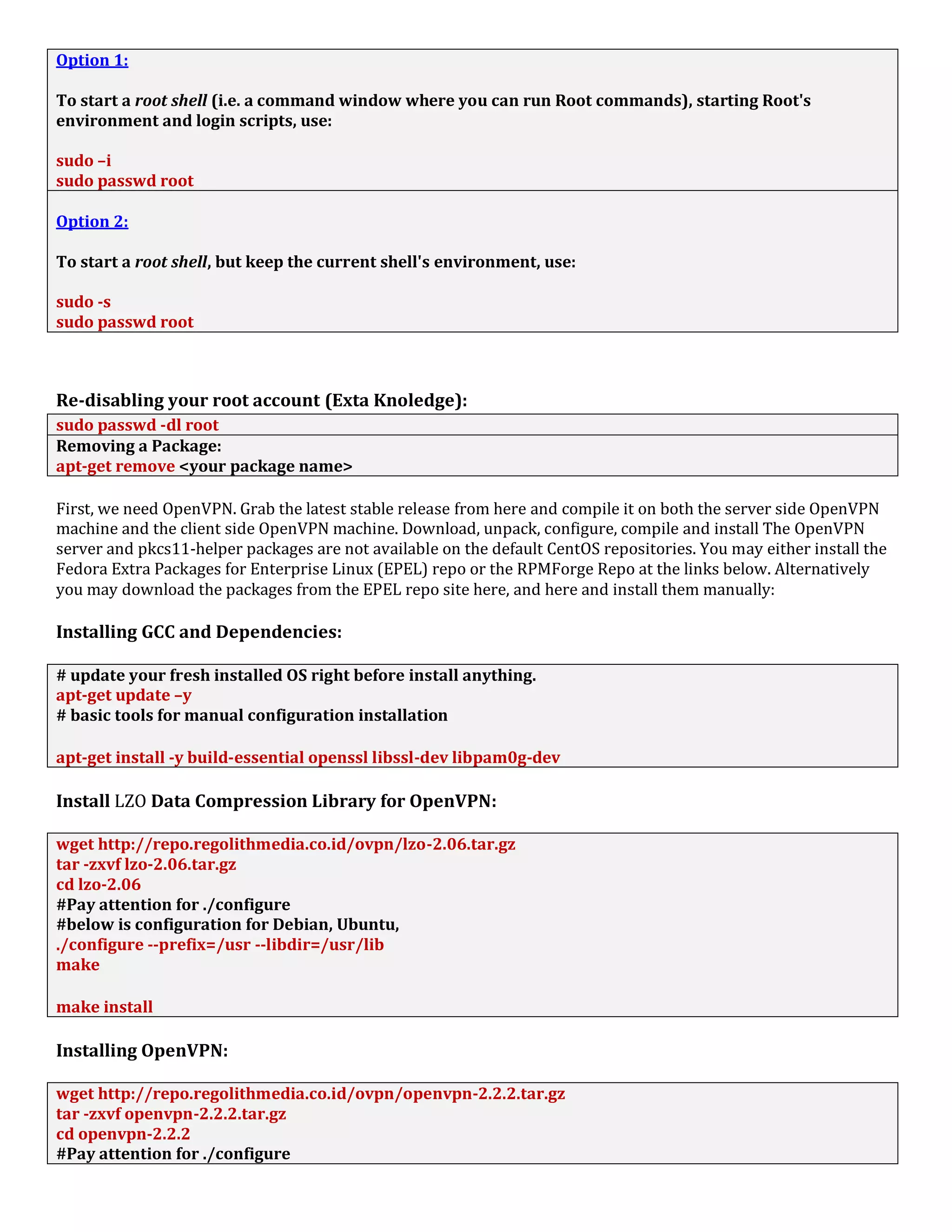
Enabling the root account for the Ubuntu Desktop/Server Edition:
Enabling the Root account is rarely necessary. Almost everything you need to do as administrator of an
Ubuntu system can be done via sudo or gksudo. If you really need a persistent Root login, the best
alternative is to simulate a Root login shell using the following command...
Option 1:
To start a root shell (i.e. a command window where you can run Root commands), starting Root's
environment and login scripts, use:
sudo –i
sudo passwd root
Option 2:
To start a root shell, but keep the current shell's environment, use:
sudo -s
sudo passwd root
Re-disabling your root account (Exta Knoledge):
sudo passwd -dl root
Removing a Package:
apt-get remove <your package name>
Installing GCC and Dependencies:
# update your fresh installed OS right before install anything.
apt-get update –y
# basic tools for manual configuration installation
apt-get install -y build-essential openssl libssl-dev libpam0g-dev
Install LZO Data Compression Library for OpenVPN:
wget http://repo.regolithmedia.co.id/ovpn/lzo-2.06.tar.gz
tar -zxvf lzo-2.06.tar.gz
cd lzo-2.06
#Pay attention for ./configure
#below is configuration for Debian, Ubuntu,
./configure --prefix=/usr --libdir=/usr/lib
make
make install
Installing OpenVPN:
wget http://repo.regolithmedia.co.id/ovpn/openvpn-2.2.2.tar.gz
tar -zxvf openvpn-2.2.2.tar.gz
cd openvpn-2.2.2
#Pay attention for ./configure
#below is configuration for Debian, Ubuntu
./configure --prefix=/usr --libdir=/usr/lib
make
make install
Copy easy-rsa folder inside it to “/etc/openvpn/easy-rsa“. Easy-rsa contains files for creating
certificate and others need by OpenVPN:
mkdir -p /etc/openvpn
cp -r easy-rsa /etc/openvpn
Openvpn authentication using SSH
cd plugin/auth-pam
make
cp openvpn-auth-pam.so /usr/lib
Client Configuration
Add user for OpenVPN authentication without SSH privilege and give it password
useradd -s /bin/false chanaka
passwd 12345567
Deleting User:
userdel [username]
This will simply remove the user account credentials, but all the files in /home/[username] directory is
not removed
userdel -r [username]
-r flag forces to remove /home/[username] directory as well while deleting the user.
Creating Certificate and Key:
cd /etc/openvpn/easy-rsa/2.0
chmod 755 *
# ----- Edit the vars file to input your institution information -----
vim vars # note: don't worry about the "export PKCS11_MODULE_PATH=changeme" line
# You may change the export KEY_SIZE=2048 line to the key size you'd like
# ----- Execute the vars script to set environment variables and prepare -----
source ./vars
cp openssl-1.0.0.cnf openssl.cnf
./clean-all
# ----- Build Cerificate Authority certificates -----
./build-ca
# ----- Build Server Certificate -----
./build-key-server server
# ----- Build a Client Certificate (For as many unique clients as you'd like) -----
./build-key branch-1
source ./vars
./build-key branch-2
# OR if you need two-factor authentication with passphrase (i.e. for PCI compliance)
source ./vars
./build-key user-1
# ----- Build the Diffie-Hellman (DH) Parameters Certificate -----
./build-dh
# ----- Generate a ta key to help block DoS attacks and UDP port flooding -----
openvpn --genkey --secret keys/ta.key
NOTE:
All the genarated keys are in “/etc/openvpn/easy-rsa/2.0/keys”. You just used WinSCP to Transfer
Form the VPN server to Clinet Server/Clinet PC.
Enable IP Forwarding (Highly Important!)
If you want your OpenVPN clients to be able to access the network, in addition to the push routes statements
above you will need to setup ip forwarding for the tunnel interface and change the 0 to a 1.
vim /etc/sysctl.conf
# ------ Edit the following line changing the 0 to a 1 -----
net.ipv4.ip_forward = 1
Save and close the file. Reload the changes by typing the following command:
Or,
echo "1" > /proc/sys/net/ipv4/ip_forward
echo "1" > /proc/sys/net/ipv4/ip_dynaddr
sysctl -p
To Veryfy,
cat /proc/sys/net/ipv4/ip_forward
cat /proc/sys/net/ipv4/ip_dynaddr
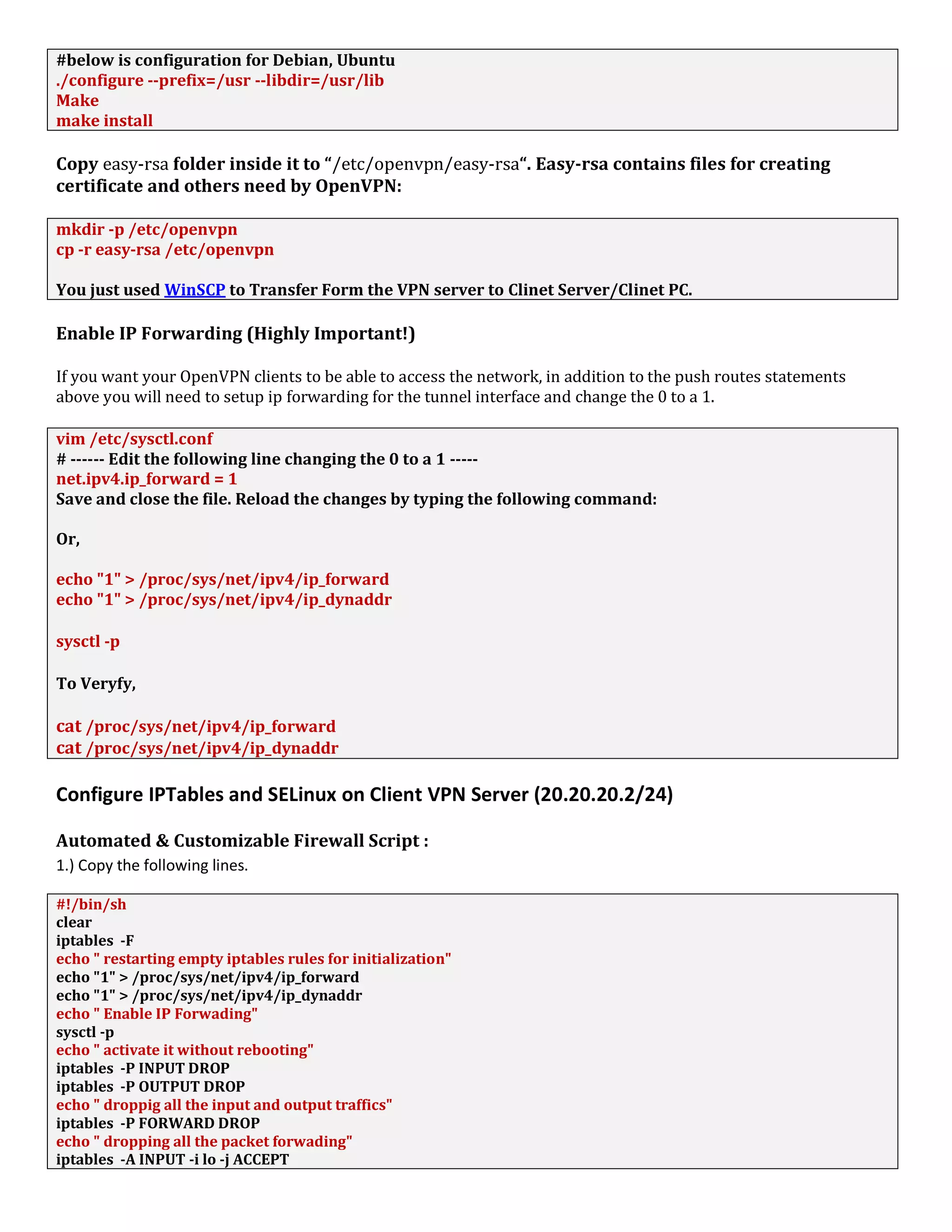
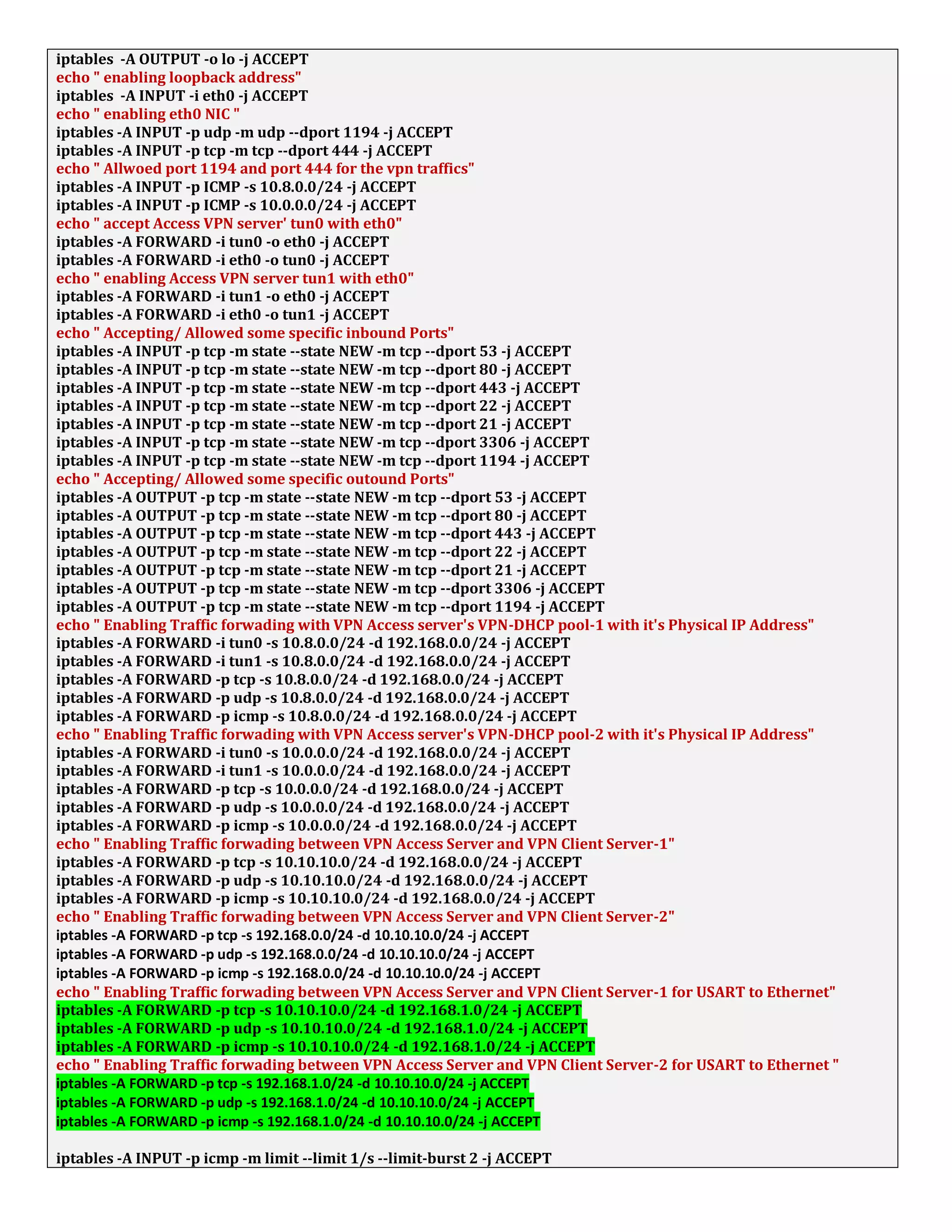
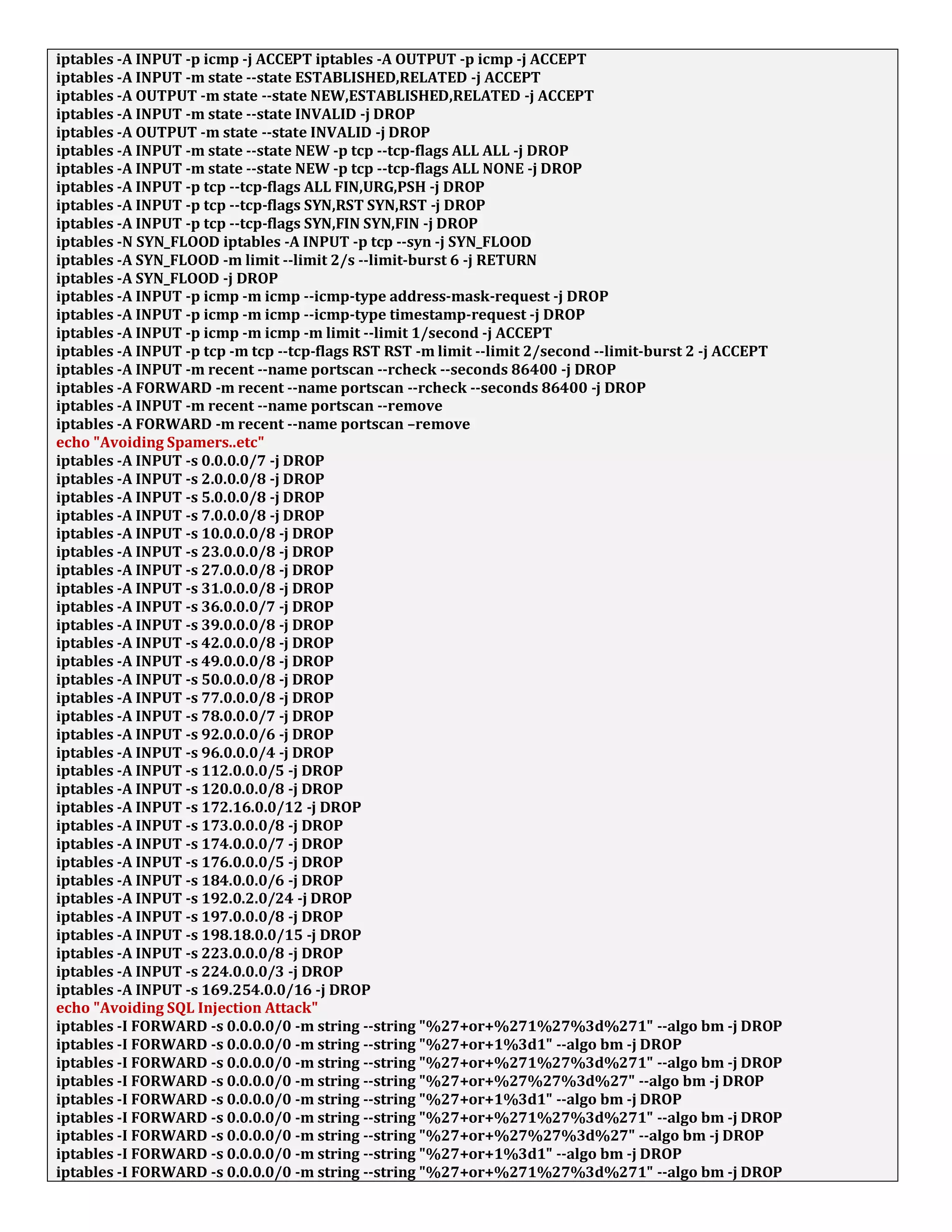
Configure IPTables and SELinux on Central VPN Server (192.168.0.200)
Automated & Customizable Firewall Script :
1.) Copy the following lines.
#!/bin/sh
clear
iptables -F
echo " restarting empty iptables rules for initialization"
echo "1" > /proc/sys/net/ipv4/ip_forward
echo "1" > /proc/sys/net/ipv4/ip_dynaddr
echo " Enable IP Forwading"
sysctl -p
echo " activate it without rebooting"
iptables -P INPUT DROP
iptables -P OUTPUT DROP
echo " droppig all the input and output traffics"
iptables -P FORWARD DROP
echo " dropping all the packet forwading"
iptables -A INPUT -i lo -j ACCEPT
iptables -A OUTPUT -o lo -j ACCEPT
echo " enabling loopback address"
iptables -A INPUT -i eth0 -j ACCEPT
echo " enabling eth0 NIC "
iptables -A INPUT -p udp -m udp --dport 1194 -j ACCEPT
iptables -A INPUT -p tcp -m tcp --dport 444 -j ACCEPT
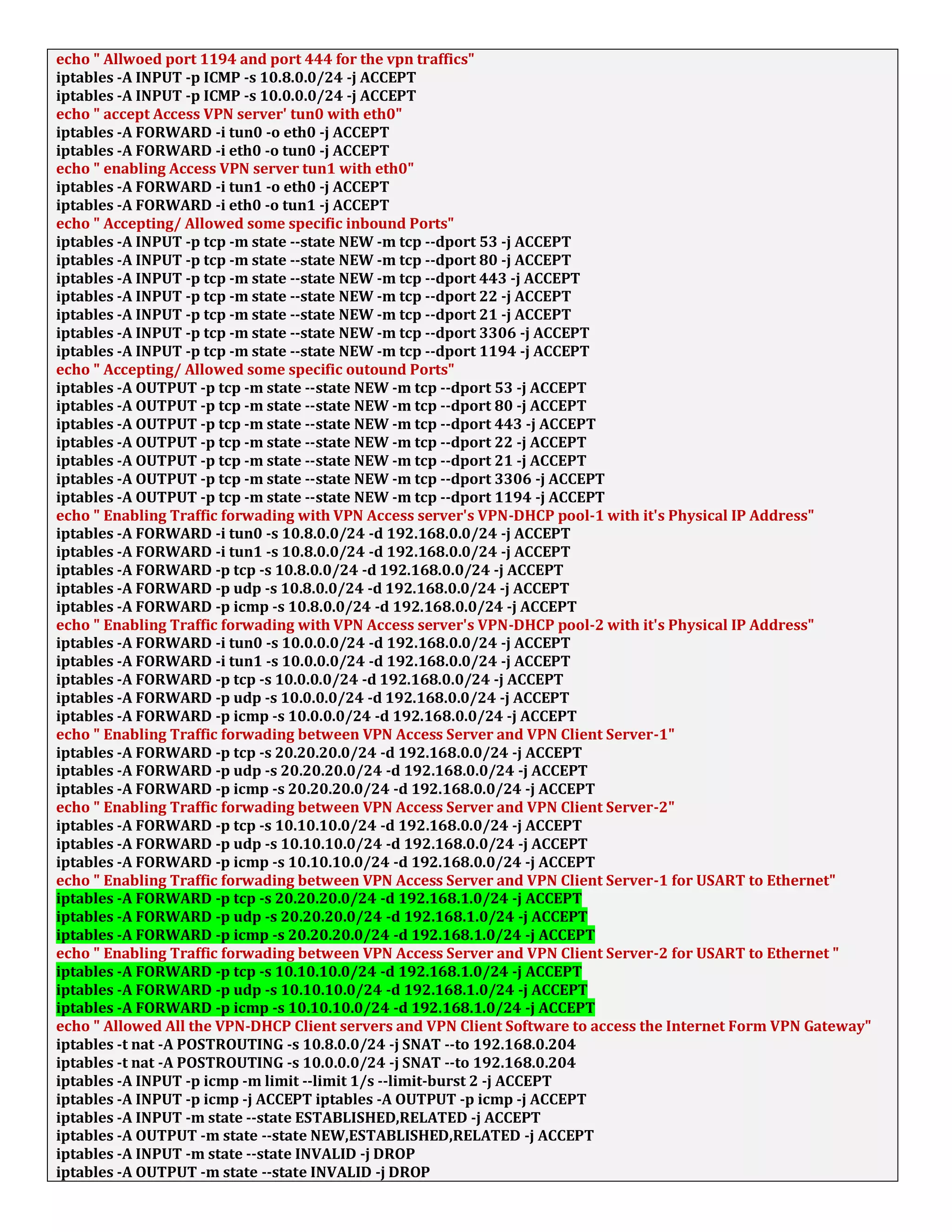
echo " Allwoed port 1194 and port 444 for the vpn traffics"
iptables -A INPUT -p ICMP -s 10.8.0.0/24 -j ACCEPT
iptables -A INPUT -p ICMP -s 10.0.0.0/24 -j ACCEPT
echo " accept Access VPN server' tun0 with eth0"
iptables -A FORWARD -i tun0 -o eth0 -j ACCEPT
iptables -A FORWARD -i eth0 -o tun0 -j ACCEPT
echo " enabling Access VPN server tun1 with eth0"
iptables -A FORWARD -i tun1 -o eth0 -j ACCEPT
iptables -A FORWARD -i eth0 -o tun1 -j ACCEPT
echo " Accepting/ Allowed some specific inbound Ports"
iptables -A INPUT -p tcp -m state --state NEW -m tcp --dport 53 -j ACCEPT
iptables -A INPUT -p tcp -m state --state NEW -m tcp --dport 80 -j ACCEPT
iptables -A INPUT -p tcp -m state --state NEW -m tcp --dport 443 -j ACCEPT
iptables -A INPUT -p tcp -m state --state NEW -m tcp --dport 22 -j ACCEPT
iptables -A INPUT -p tcp -m state --state NEW -m tcp --dport 21 -j ACCEPT
iptables -A INPUT -p tcp -m state --state NEW -m tcp --dport 3306 -j ACCEPT
iptables -A INPUT -p tcp -m state --state NEW -m tcp --dport 1194 -j ACCEPT
echo " Accepting/ Allowed some specific outound Ports"
iptables -A OUTPUT -p tcp -m state --state NEW -m tcp --dport 53 -j ACCEPT
iptables -A OUTPUT -p tcp -m state --state NEW -m tcp --dport 80 -j ACCEPT
iptables -A OUTPUT -p tcp -m state --state NEW -m tcp --dport 443 -j ACCEPT
iptables -A OUTPUT -p tcp -m state --state NEW -m tcp --dport 22 -j ACCEPT
iptables -A OUTPUT -p tcp -m state --state NEW -m tcp --dport 21 -j ACCEPT
iptables -A OUTPUT -p tcp -m state --state NEW -m tcp --dport 3306 -j ACCEPT
iptables -A OUTPUT -p tcp -m state --state NEW -m tcp --dport 1194 -j ACCEPT
echo " Enabling Traffic forwading with VPN Access server's VPN-DHCP pool-1 with it's Physical IP Address"
iptables -A FORWARD -i tun0 -s 10.8.0.0/24 -d 192.168.0.0/24 -j ACCEPT
iptables -A FORWARD -i tun1 -s 10.8.0.0/24 -d 192.168.0.0/24 -j ACCEPT
iptables -A FORWARD -p tcp -s 10.8.0.0/24 -d 192.168.0.0/24 -j ACCEPT
iptables -A FORWARD -p udp -s 10.8.0.0/24 -d 192.168.0.0/24 -j ACCEPT
iptables -A FORWARD -p icmp -s 10.8.0.0/24 -d 192.168.0.0/24 -j ACCEPT
echo " Enabling Traffic forwading with VPN Access server's VPN-DHCP pool-2 with it's Physical IP Address"
iptables -A FORWARD -i tun0 -s 10.0.0.0/24 -d 192.168.0.0/24 -j ACCEPT
iptables -A FORWARD -i tun1 -s 10.0.0.0/24 -d 192.168.0.0/24 -j ACCEPT
iptables -A FORWARD -p tcp -s 10.0.0.0/24 -d 192.168.0.0/24 -j ACCEPT
iptables -A FORWARD -p udp -s 10.0.0.0/24 -d 192.168.0.0/24 -j ACCEPT
iptables -A FORWARD -p icmp -s 10.0.0.0/24 -d 192.168.0.0/24 -j ACCEPT
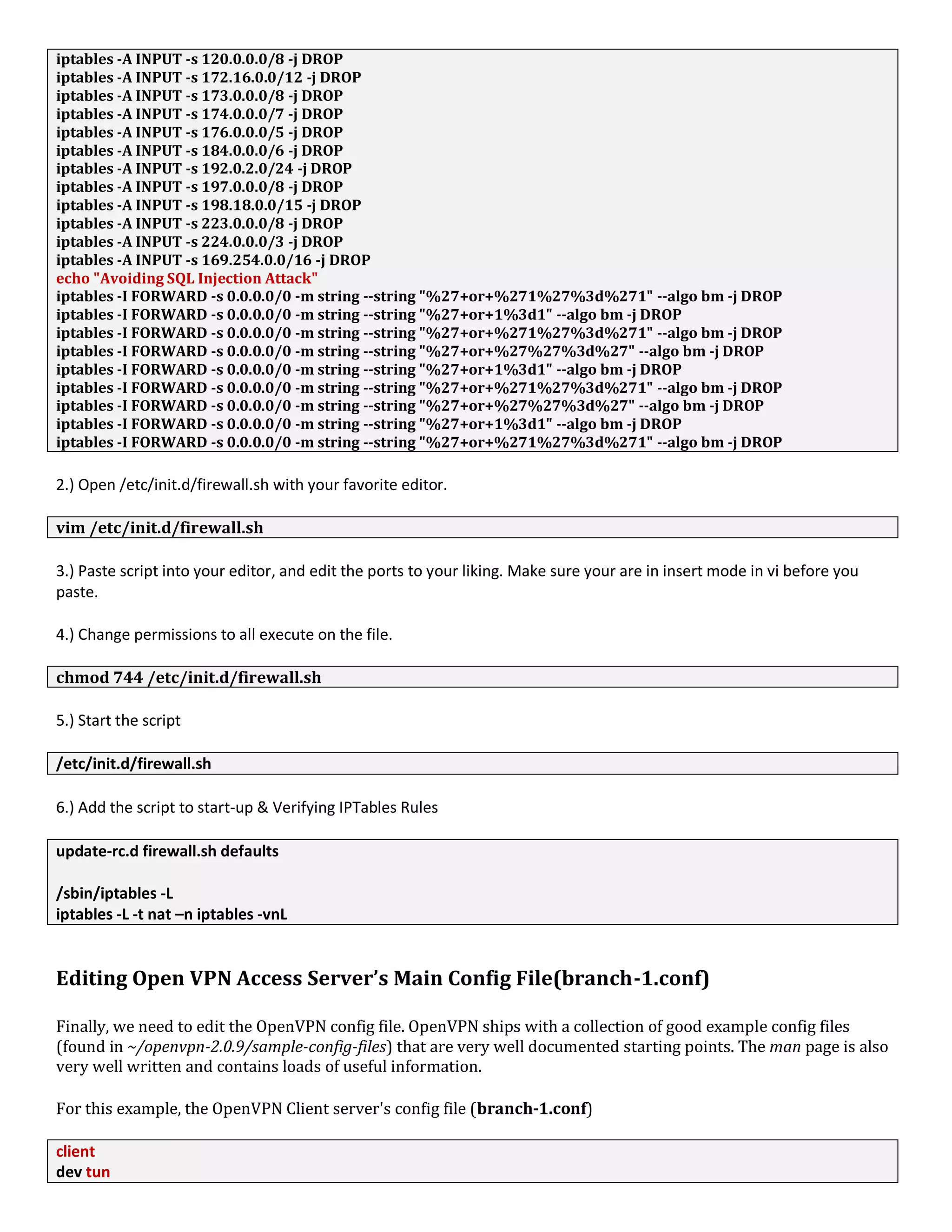
echo " Enabling Traffic forwading between VPN Access Server and VPN Client Server-1"
iptables -A FORWARD -p tcp -s 20.20.20.0/24 -d 192.168.0.0/24 -j ACCEPT
iptables -A FORWARD -p udp -s 20.20.20.0/24 -d 192.168.0.0/24 -j ACCEPT
iptables -A FORWARD -p icmp -s 20.20.20.0/24 -d 192.168.0.0/24 -j ACCEPT
echo " Enabling Traffic forwading between VPN Access Server and VPN Client Server-2"
iptables -A FORWARD -p tcp -s 10.10.10.0/24 -d 192.168.0.0/24 -j ACCEPT
iptables -A FORWARD -p udp -s 10.10.10.0/24 -d 192.168.0.0/24 -j ACCEPT
iptables -A FORWARD -p icmp -s 10.10.10.0/24 -d 192.168.0.0/24 -j ACCEPT
echo " Enabling Traffic forwading between VPN Access Server and VPN Client Server-1 for USART to Ethernet"
iptables -A FORWARD -p tcp -s 20.20.20.0/24 -d 192.168.1.0/24 -j ACCEPT
iptables -A FORWARD -p udp -s 20.20.20.0/24 -d 192.168.1.0/24 -j ACCEPT
iptables -A FORWARD -p icmp -s 20.20.20.0/24 -d 192.168.1.0/24 -j ACCEPT
echo " Enabling Traffic forwading between VPN Access Server and VPN Client Server-2 for USART to Ethernet "
iptables -A FORWARD -p tcp -s 10.10.10.0/24 -d 192.168.1.0/24 -j ACCEPT
iptables -A FORWARD -p udp -s 10.10.10.0/24 -d 192.168.1.0/24 -j ACCEPT
iptables -A FORWARD -p icmp -s 10.10.10.0/24 -d 192.168.1.0/24 -j ACCEPT
echo " Allowed All the VPN-DHCP Client servers and VPN Client Software to access the Internet Form VPN Gateway"
iptables -t nat -A POSTROUTING -s 10.8.0.0/24 -j SNAT --to 192.168.0.204
iptables -t nat -A POSTROUTING -s 10.0.0.0/24 -j SNAT --to 192.168.0.204
iptables -A INPUT -p icmp -m limit --limit 1/s --limit-burst 2 -j ACCEPT
iptables -A INPUT -p icmp -j ACCEPT iptables -A OUTPUT -p icmp -j ACCEPT
iptables -A INPUT -m state --state ESTABLISHED,RELATED -j ACCEPT
iptables -A OUTPUT -m state --state NEW,ESTABLISHED,RELATED -j ACCEPT
iptables -A INPUT -m state --state INVALID -j DROP
iptables -A OUTPUT -m state --state INVALID -j DROP
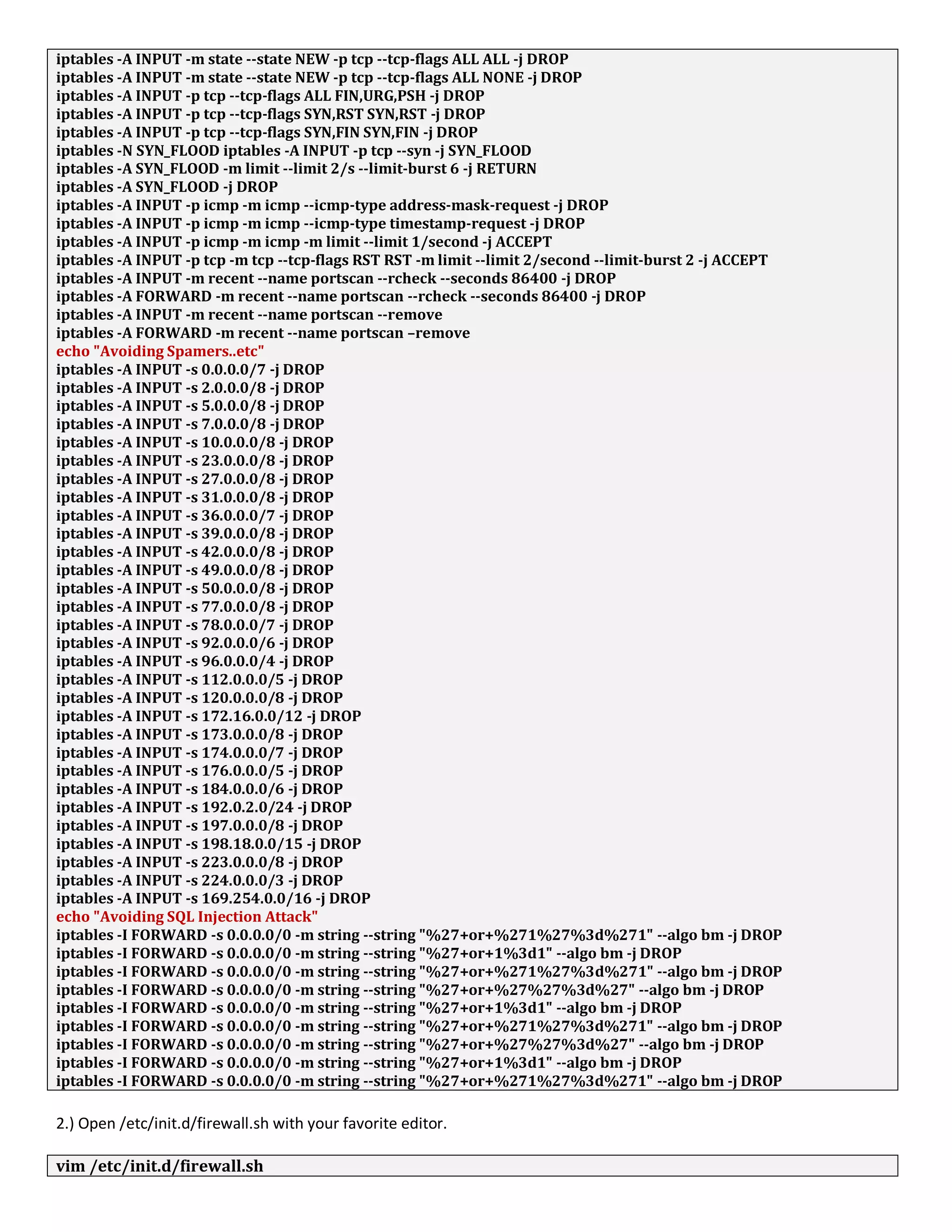
iptables -A INPUT -m state --state NEW -p tcp --tcp-flags ALL ALL -j DROP
iptables -A INPUT -m state --state NEW -p tcp --tcp-flags ALL NONE -j DROP
iptables -A INPUT -p tcp --tcp-flags ALL FIN,URG,PSH -j DROP
iptables -A INPUT -p tcp --tcp-flags SYN,RST SYN,RST -j DROP
iptables -A INPUT -p tcp --tcp-flags SYN,FIN SYN,FIN -j DROP
iptables -N SYN_FLOOD iptables -A INPUT -p tcp --syn -j SYN_FLOOD
iptables -A SYN_FLOOD -m limit --limit 2/s --limit-burst 6 -j RETURN
iptables -A SYN_FLOOD -j DROP
iptables -A INPUT -p icmp -m icmp --icmp-type address-mask-request -j DROP
iptables -A INPUT -p icmp -m icmp --icmp-type timestamp-request -j DROP
iptables -A INPUT -p icmp -m icmp -m limit --limit 1/second -j ACCEPT
iptables -A INPUT -p tcp -m tcp --tcp-flags RST RST -m limit --limit 2/second --limit-burst 2 -j ACCEPT
iptables -A INPUT -m recent --name portscan --rcheck --seconds 86400 -j DROP
iptables -A FORWARD -m recent --name portscan --rcheck --seconds 86400 -j DROP
iptables -A INPUT -m recent --name portscan --remove
iptables -A FORWARD -m recent --name portscan –remove
echo "Avoiding Spamers..etc"
iptables -A INPUT -s 0.0.0.0/7 -j DROP
iptables -A INPUT -s 2.0.0.0/8 -j DROP
iptables -A INPUT -s 5.0.0.0/8 -j DROP
iptables -A INPUT -s 7.0.0.0/8 -j DROP
iptables -A INPUT -s 10.0.0.0/8 -j DROP
iptables -A INPUT -s 23.0.0.0/8 -j DROP
iptables -A INPUT -s 27.0.0.0/8 -j DROP
iptables -A INPUT -s 31.0.0.0/8 -j DROP
iptables -A INPUT -s 36.0.0.0/7 -j DROP
iptables -A INPUT -s 39.0.0.0/8 -j DROP
iptables -A INPUT -s 42.0.0.0/8 -j DROP
iptables -A INPUT -s 49.0.0.0/8 -j DROP
iptables -A INPUT -s 50.0.0.0/8 -j DROP
iptables -A INPUT -s 77.0.0.0/8 -j DROP
iptables -A INPUT -s 78.0.0.0/7 -j DROP
iptables -A INPUT -s 92.0.0.0/6 -j DROP
iptables -A INPUT -s 96.0.0.0/4 -j DROP
iptables -A INPUT -s 112.0.0.0/5 -j DROP
iptables -A INPUT -s 120.0.0.0/8 -j DROP
iptables -A INPUT -s 172.16.0.0/12 -j DROP
iptables -A INPUT -s 173.0.0.0/8 -j DROP
iptables -A INPUT -s 174.0.0.0/7 -j DROP
iptables -A INPUT -s 176.0.0.0/5 -j DROP
iptables -A INPUT -s 184.0.0.0/6 -j DROP
iptables -A INPUT -s 192.0.2.0/24 -j DROP
iptables -A INPUT -s 197.0.0.0/8 -j DROP
iptables -A INPUT -s 198.18.0.0/15 -j DROP
iptables -A INPUT -s 223.0.0.0/8 -j DROP
iptables -A INPUT -s 224.0.0.0/3 -j DROP
iptables -A INPUT -s 169.254.0.0/16 -j DROP
echo "Avoiding SQL Injection Attack"
iptables -I FORWARD -s 0.0.0.0/0 -m string --string "%27+or+%271%27%3d%271" --algo bm -j DROP
iptables -I FORWARD -s 0.0.0.0/0 -m string --string "%27+or+1%3d1" --algo bm -j DROP
iptables -I FORWARD -s 0.0.0.0/0 -m string --string "%27+or+%271%27%3d%271" --algo bm -j DROP
iptables -I FORWARD -s 0.0.0.0/0 -m string --string "%27+or+%27%27%3d%27" --algo bm -j DROP
iptables -I FORWARD -s 0.0.0.0/0 -m string --string "%27+or+1%3d1" --algo bm -j DROP
iptables -I FORWARD -s 0.0.0.0/0 -m string --string "%27+or+%271%27%3d%271" --algo bm -j DROP
iptables -I FORWARD -s 0.0.0.0/0 -m string --string "%27+or+%27%27%3d%27" --algo bm -j DROP
iptables -I FORWARD -s 0.0.0.0/0 -m string --string "%27+or+1%3d1" --algo bm -j DROP
iptables -I FORWARD -s 0.0.0.0/0 -m string --string "%27+or+%271%27%3d%271" --algo bm -j DROP
2.) Open /etc/init.d/firewall.sh with your favorite editor.
vim /etc/init.d/firewall.sh
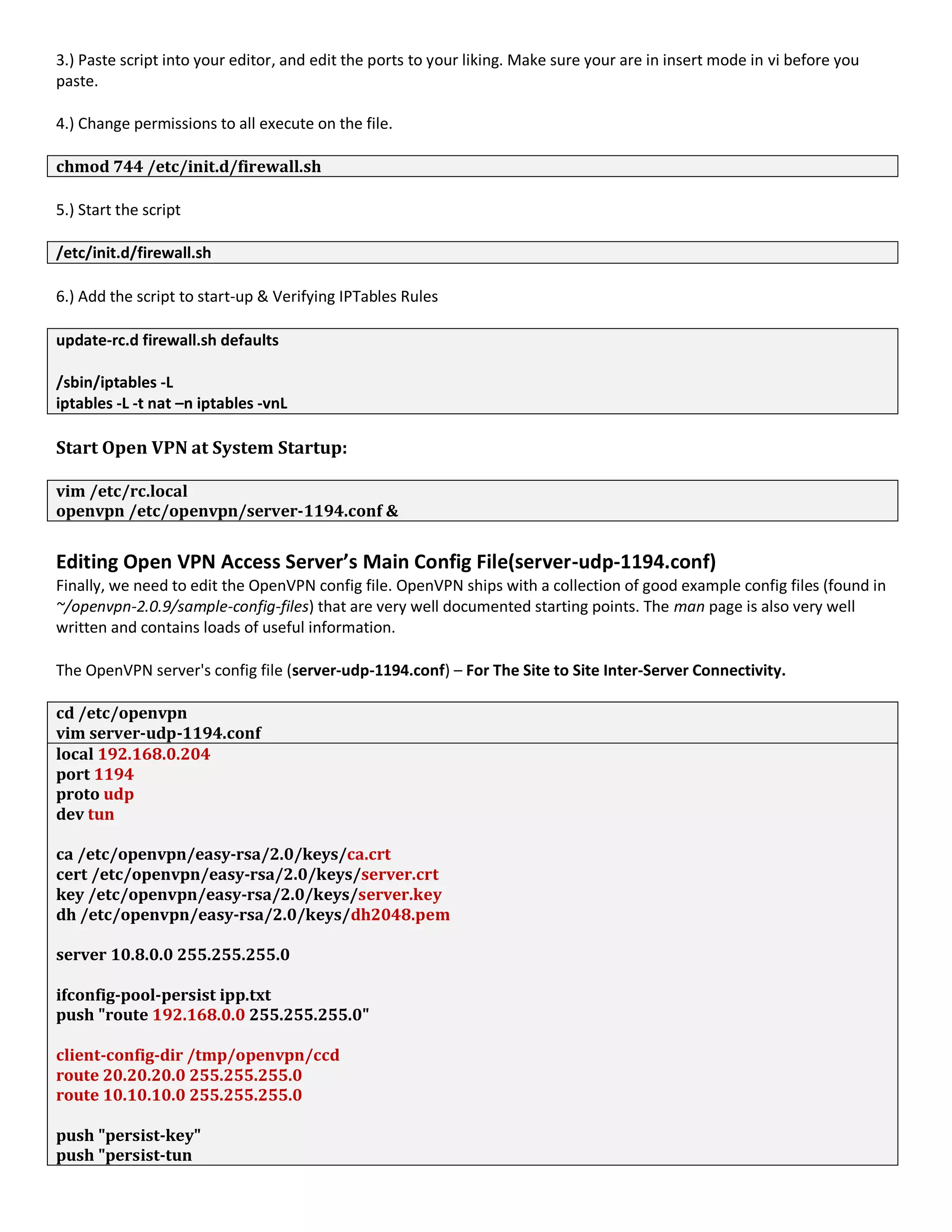
3.) Paste script into your editor, and edit the ports to your liking. Make sure your are in insert mode in vi before you
paste.
4.) Change permissions to all execute on the file.
chmod 744 /etc/init.d/firewall.sh
5.) Start the script
/etc/init.d/firewall.sh
6.) Add the script to start-up & Verifying IPTables Rules
update-rc.d firewall.sh defaults
/sbin/iptables -L
iptables -L -t nat –n iptables -vnL
Start Open VPN at System Startup:
vim /etc/rc.local
openvpn /etc/openvpn/server-1194.conf &
Editing Open VPN Access Server’s Main Config File(server-udp-1194.conf)
Finally, we need to edit the OpenVPN config file. OpenVPN ships with a collection of good example config files (found in
~/openvpn-2.0.9/sample-config-files) that are very well documented starting points. The man page is also very well
written and contains loads of useful information.
The OpenVPN server's config file (server-udp-1194.conf) – For The Site to Site Inter-Server Connectivity.
cd /etc/openvpn
vim server-udp-1194.conf
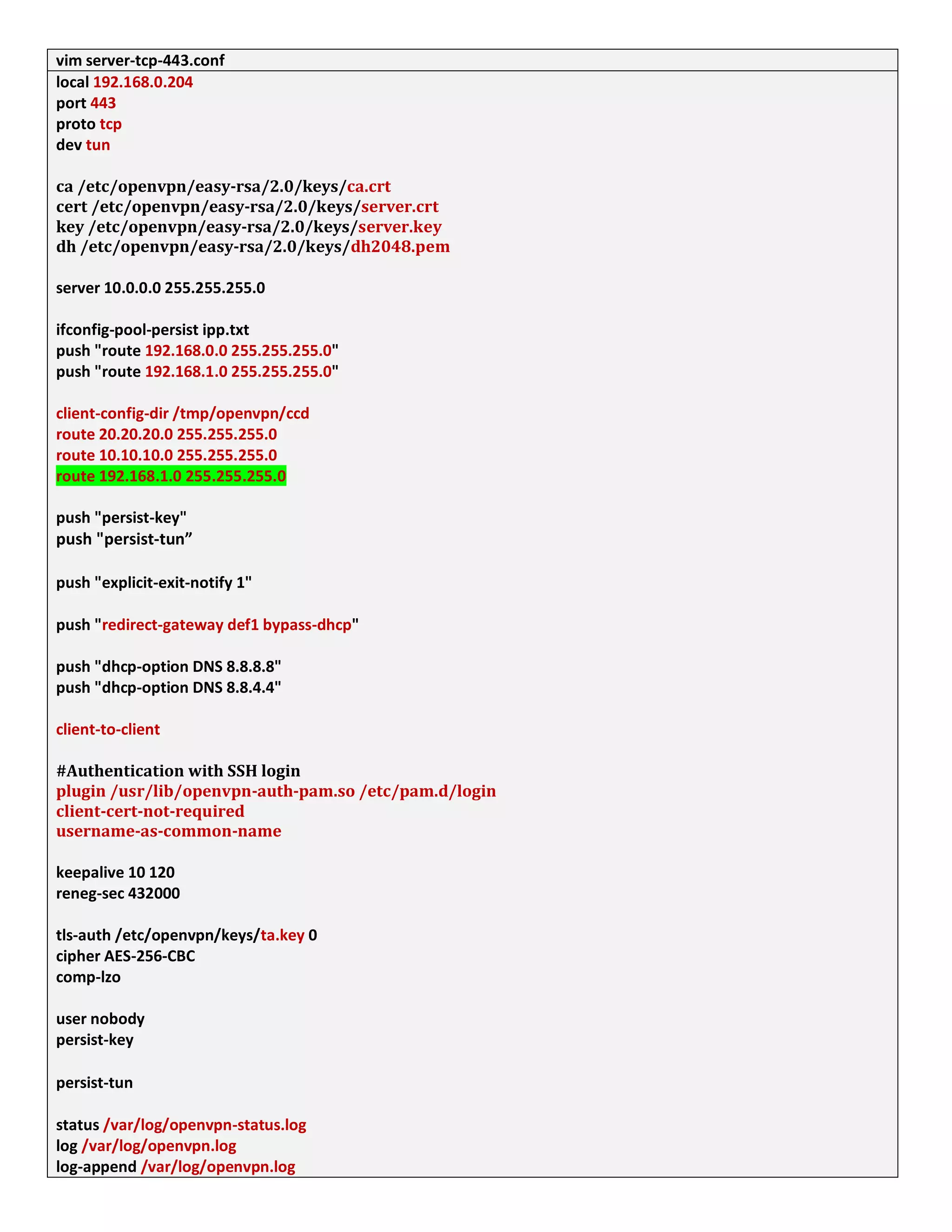
local 192.168.0.204
port 1194
proto udp
dev tun
ca /etc/openvpn/easy-rsa/2.0/keys/ca.crt
cert /etc/openvpn/easy-rsa/2.0/keys/server.crt
key /etc/openvpn/easy-rsa/2.0/keys/server.key
dh /etc/openvpn/easy-rsa/2.0/keys/dh2048.pem
server 10.8.0.0 255.255.255.0
ifconfig-pool-persist ipp.txt
push "route 192.168.0.0 255.255.255.0"
client-config-dir /tmp/openvpn/ccd
route 20.20.20.0 255.255.255.0
route 10.10.10.0 255.255.255.0
push "persist-key"
push "persist-tun
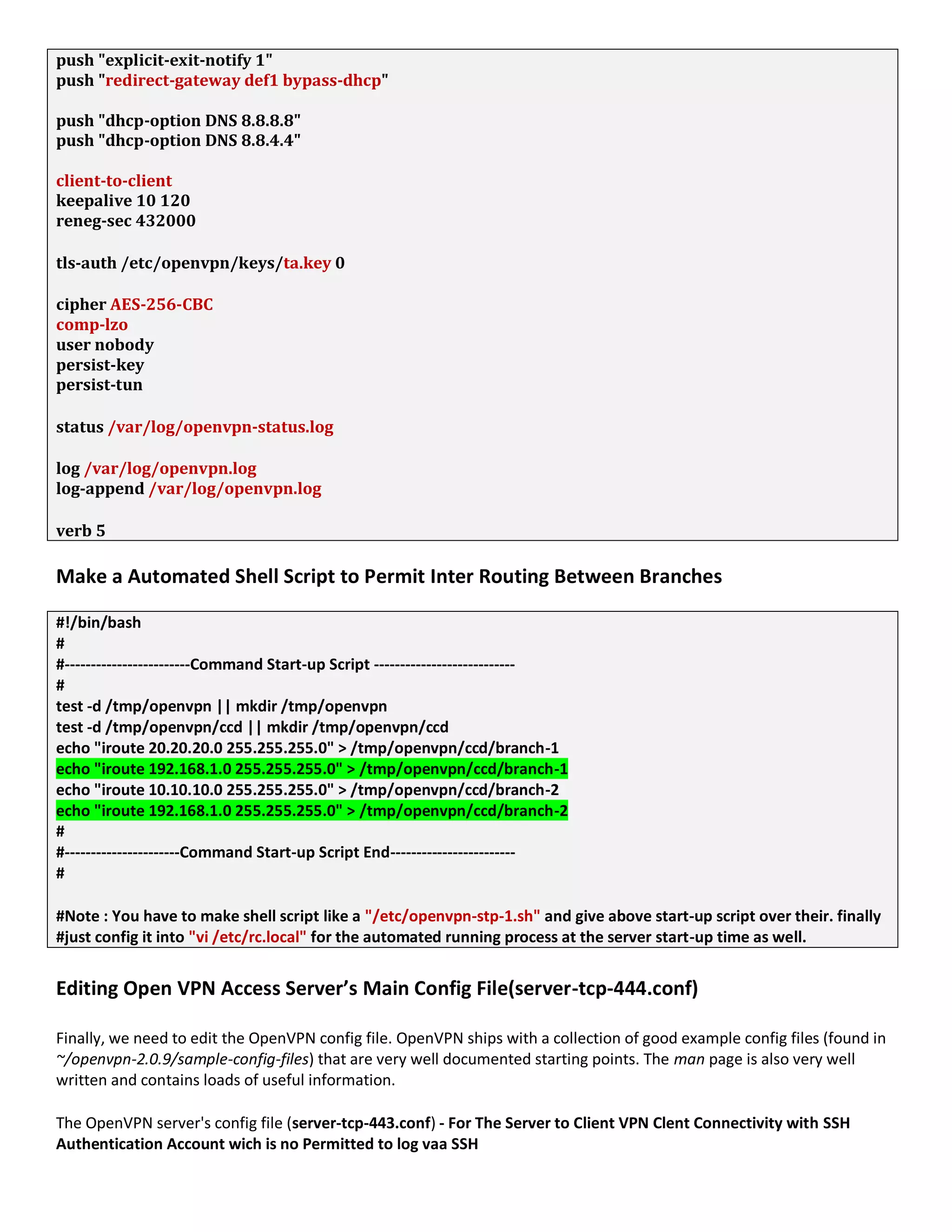
push "explicit-exit-notify 1"
push "redirect-gateway def1 bypass-dhcp"
push "dhcp-option DNS 8.8.8.8"
push "dhcp-option DNS 8.8.4.4"
client-to-client
keepalive 10 120
reneg-sec 432000
tls-auth /etc/openvpn/keys/ta.key 0
cipher AES-256-CBC
comp-lzo
user nobody
persist-key
persist-tun
status /var/log/openvpn-status.log
log /var/log/openvpn.log
log-append /var/log/openvpn.log
verb 5
Make a Automated Shell Script to Permit Inter Routing Between Branches
#!/bin/bash
#
#------------------------Command Start-up Script ---------------------------
#
test -d /tmp/openvpn || mkdir /tmp/openvpn
test -d /tmp/openvpn/ccd || mkdir /tmp/openvpn/ccd
echo "iroute 20.20.20.0 255.255.255.0" > /tmp/openvpn/ccd/branch-1
echo "iroute 192.168.1.0 255.255.255.0" > /tmp/openvpn/ccd/branch-1
echo "iroute 10.10.10.0 255.255.255.0" > /tmp/openvpn/ccd/branch-2
echo "iroute 192.168.1.0 255.255.255.0" > /tmp/openvpn/ccd/branch-2
#
#----------------------Command Start-up Script End------------------------
#
#Note : You have to make shell script like a "/etc/openvpn-stp-1.sh" and give above start-up script over their. finally
#just config it into "vi /etc/rc.local" for the automated running process at the server start-up time as well.
Editing Open VPN Access Server’s Main Config File(server-tcp-444.conf)
Finally, we need to edit the OpenVPN config file. OpenVPN ships with a collection of good example config files (found in
~/openvpn-2.0.9/sample-config-files) that are very well documented starting points. The man page is also very well
written and contains loads of useful information.
The OpenVPN server's config file (server-tcp-443.conf) - For The Server to Client VPN Clent Connectivity with SSH
Authentication Account wich is no Permitted to log vaa SSH
vim server-tcp-443.conf
local 192.168.0.204
port 443
proto tcp
dev tun
ca /etc/openvpn/easy-rsa/2.0/keys/ca.crt
cert /etc/openvpn/easy-rsa/2.0/keys/server.crt
key /etc/openvpn/easy-rsa/2.0/keys/server.key
dh /etc/openvpn/easy-rsa/2.0/keys/dh2048.pem
server 10.0.0.0 255.255.255.0
ifconfig-pool-persist ipp.txt
push "route 192.168.0.0 255.255.255.0"
push "route 192.168.1.0 255.255.255.0"
client-config-dir /tmp/openvpn/ccd
route 20.20.20.0 255.255.255.0
route 10.10.10.0 255.255.255.0
route 192.168.1.0 255.255.255.0
push "persist-key"
push "persist-tun”
push "explicit-exit-notify 1"
push "redirect-gateway def1 bypass-dhcp"
push "dhcp-option DNS 8.8.8.8"
push "dhcp-option DNS 8.8.4.4"
client-to-client
#Authentication with SSH login
plugin /usr/lib/openvpn-auth-pam.so /etc/pam.d/login
client-cert-not-required
username-as-common-name
keepalive 10 120
reneg-sec 432000
tls-auth /etc/openvpn/keys/ta.key 0
cipher AES-256-CBC
comp-lzo
user nobody
persist-key
persist-tun
status /var/log/openvpn-status.log
log /var/log/openvpn.log
log-append /var/log/openvpn.log
verb 5
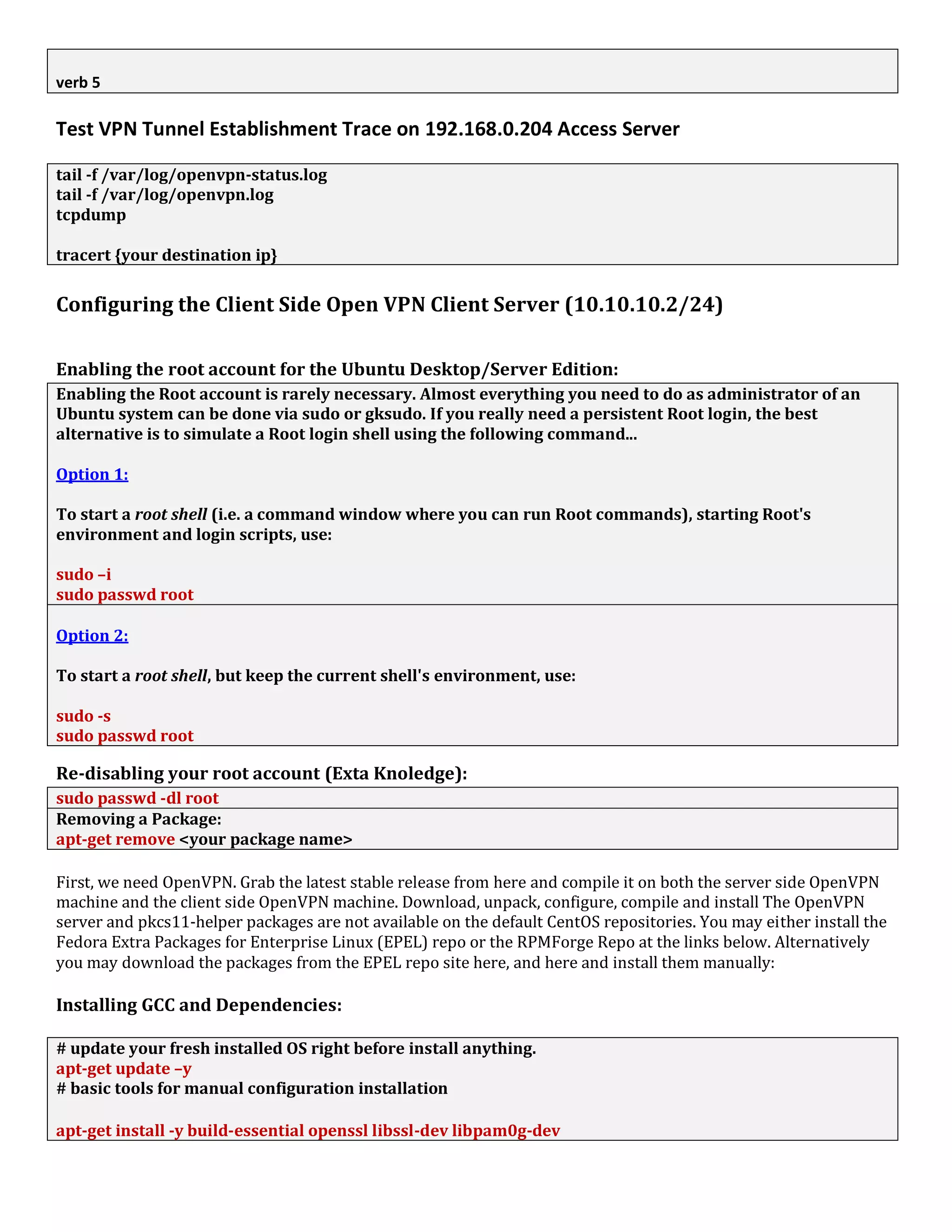
Test VPN Tunnel Establishment Trace on 192.168.0.204 Access Server
tail -f /var/log/openvpn-status.log
tail -f /var/log/openvpn.log
tcpdump
tracert {your destination ip}
Configuring the Client Side Open VPN Client Server (10.10.10.2/24)
Enabling the root account for the Ubuntu Desktop/Server Edition:
Enabling the Root account is rarely necessary. Almost everything you need to do as administrator of an
Ubuntu system can be done via sudo or gksudo. If you really need a persistent Root login, the best
alternative is to simulate a Root login shell using the following command...
Option 1:
To start a root shell (i.e. a command window where you can run Root commands), starting Root's
environment and login scripts, use:
sudo –i
sudo passwd root
Option 2:
To start a root shell, but keep the current shell's environment, use:
sudo -s
sudo passwd root
Re-disabling your root account (Exta Knoledge):
sudo passwd -dl root
Removing a Package:
apt-get remove <your package name>
First, we need OpenVPN. Grab the latest stable release from here and compile it on both the server side OpenVPN
machine and the client side OpenVPN machine. Download, unpack, configure, compile and install The OpenVPN
server and pkcs11-helper packages are not available on the default CentOS repositories. You may either install the
Fedora Extra Packages for Enterprise Linux (EPEL) repo or the RPMForge Repo at the links below. Alternatively
you may download the packages from the EPEL repo site here, and here and install them manually:
Installing GCC and Dependencies:
# update your fresh installed OS right before install anything.
apt-get update –y
# basic tools for manual configuration installation
apt-get install -y build-essential openssl libssl-dev libpam0g-dev
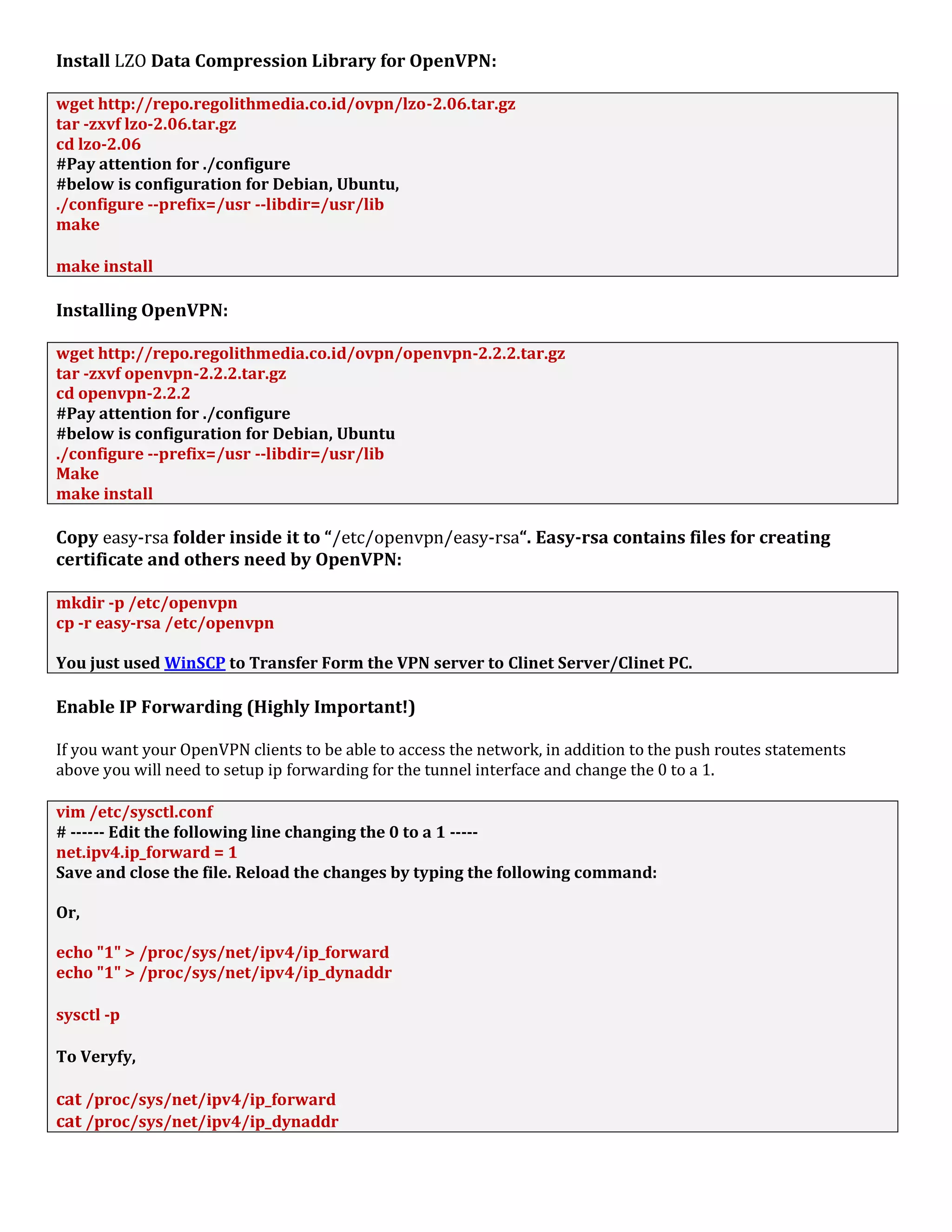
Install LZO Data Compression Library for OpenVPN:
wget http://repo.regolithmedia.co.id/ovpn/lzo-2.06.tar.gz
tar -zxvf lzo-2.06.tar.gz
cd lzo-2.06
#Pay attention for ./configure
#below is configuration for Debian, Ubuntu,
./configure --prefix=/usr --libdir=/usr/lib
make
make install
Installing OpenVPN:
wget http://repo.regolithmedia.co.id/ovpn/openvpn-2.2.2.tar.gz
tar -zxvf openvpn-2.2.2.tar.gz
cd openvpn-2.2.2
#Pay attention for ./configure
#below is configuration for Debian, Ubuntu
./configure --prefix=/usr --libdir=/usr/lib
Make
make install
Copy easy-rsa folder inside it to “/etc/openvpn/easy-rsa“. Easy-rsa contains files for creating
certificate and others need by OpenVPN:
mkdir -p /etc/openvpn
cp -r easy-rsa /etc/openvpn
You just used WinSCP to Transfer Form the VPN server to Clinet Server/Clinet PC.
Enable IP Forwarding (Highly Important!)
If you want your OpenVPN clients to be able to access the network, in addition to the push routes statements
above you will need to setup ip forwarding for the tunnel interface and change the 0 to a 1.
vim /etc/sysctl.conf
# ------ Edit the following line changing the 0 to a 1 -----
net.ipv4.ip_forward = 1
Save and close the file. Reload the changes by typing the following command:
Or,
echo "1" > /proc/sys/net/ipv4/ip_forward
echo "1" > /proc/sys/net/ipv4/ip_dynaddr
sysctl -p
To Veryfy,
cat /proc/sys/net/ipv4/ip_forward
cat /proc/sys/net/ipv4/ip_dynaddr
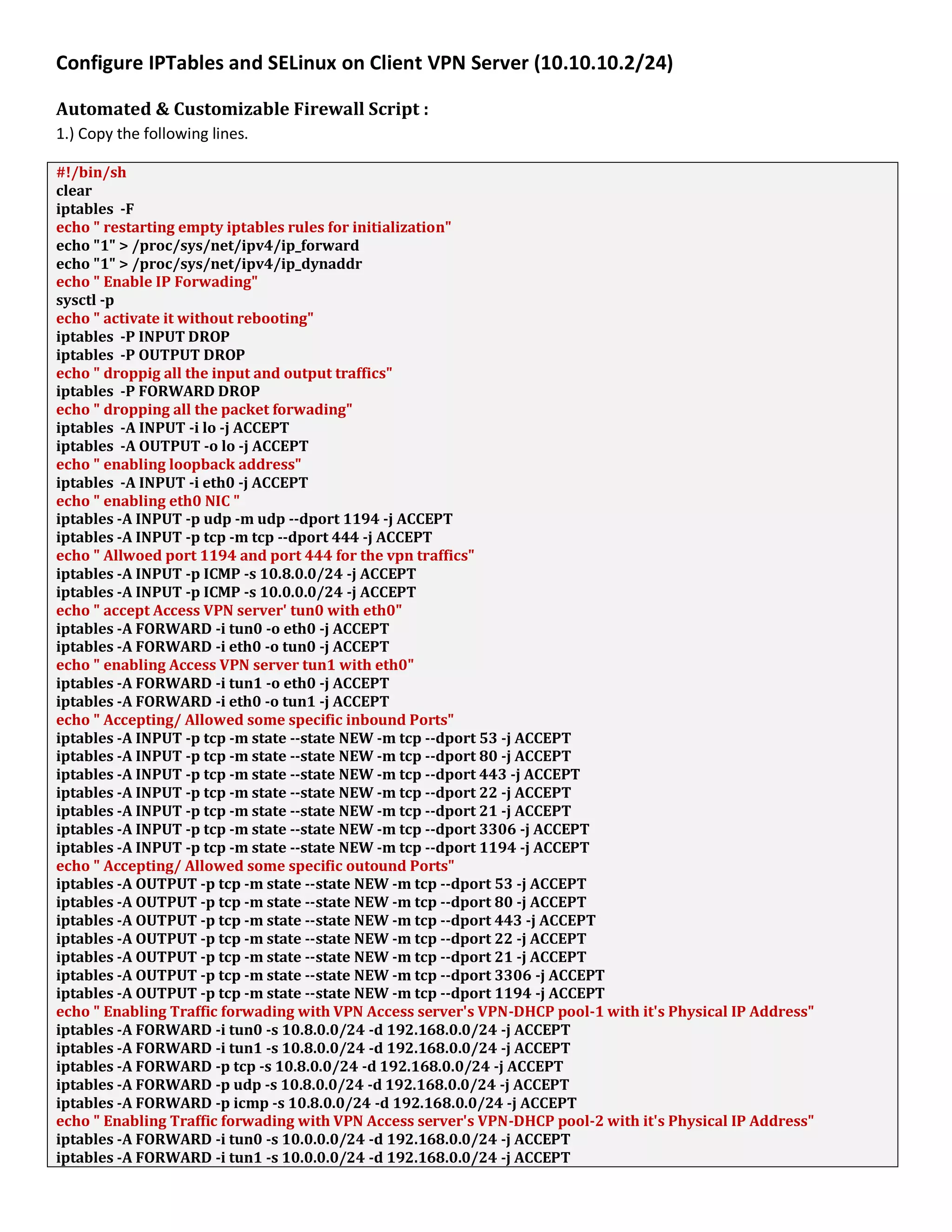
Configure IPTables and SELinux on Client VPN Server (10.10.10.2/24)
Automated & Customizable Firewall Script :
1.) Copy the following lines.
#!/bin/sh
clear
iptables -F
echo " restarting empty iptables rules for initialization"
echo "1" > /proc/sys/net/ipv4/ip_forward
echo "1" > /proc/sys/net/ipv4/ip_dynaddr
echo " Enable IP Forwading"
sysctl -p
echo " activate it without rebooting"
iptables -P INPUT DROP
iptables -P OUTPUT DROP
echo " droppig all the input and output traffics"
iptables -P FORWARD DROP
echo " dropping all the packet forwading"
iptables -A INPUT -i lo -j ACCEPT
iptables -A OUTPUT -o lo -j ACCEPT
echo " enabling loopback address"
iptables -A INPUT -i eth0 -j ACCEPT
echo " enabling eth0 NIC "
iptables -A INPUT -p udp -m udp --dport 1194 -j ACCEPT
iptables -A INPUT -p tcp -m tcp --dport 444 -j ACCEPT
echo " Allwoed port 1194 and port 444 for the vpn traffics"
iptables -A INPUT -p ICMP -s 10.8.0.0/24 -j ACCEPT
iptables -A INPUT -p ICMP -s 10.0.0.0/24 -j ACCEPT
echo " accept Access VPN server' tun0 with eth0"
iptables -A FORWARD -i tun0 -o eth0 -j ACCEPT
iptables -A FORWARD -i eth0 -o tun0 -j ACCEPT
echo " enabling Access VPN server tun1 with eth0"
iptables -A FORWARD -i tun1 -o eth0 -j ACCEPT
iptables -A FORWARD -i eth0 -o tun1 -j ACCEPT
echo " Accepting/ Allowed some specific inbound Ports"
iptables -A INPUT -p tcp -m state --state NEW -m tcp --dport 53 -j ACCEPT
iptables -A INPUT -p tcp -m state --state NEW -m tcp --dport 80 -j ACCEPT
iptables -A INPUT -p tcp -m state --state NEW -m tcp --dport 443 -j ACCEPT
iptables -A INPUT -p tcp -m state --state NEW -m tcp --dport 22 -j ACCEPT
iptables -A INPUT -p tcp -m state --state NEW -m tcp --dport 21 -j ACCEPT
iptables -A INPUT -p tcp -m state --state NEW -m tcp --dport 3306 -j ACCEPT
iptables -A INPUT -p tcp -m state --state NEW -m tcp --dport 1194 -j ACCEPT
echo " Accepting/ Allowed some specific outound Ports"
iptables -A OUTPUT -p tcp -m state --state NEW -m tcp --dport 53 -j ACCEPT
iptables -A OUTPUT -p tcp -m state --state NEW -m tcp --dport 80 -j ACCEPT
iptables -A OUTPUT -p tcp -m state --state NEW -m tcp --dport 443 -j ACCEPT
iptables -A OUTPUT -p tcp -m state --state NEW -m tcp --dport 22 -j ACCEPT
iptables -A OUTPUT -p tcp -m state --state NEW -m tcp --dport 21 -j ACCEPT
iptables -A OUTPUT -p tcp -m state --state NEW -m tcp --dport 3306 -j ACCEPT
iptables -A OUTPUT -p tcp -m state --state NEW -m tcp --dport 1194 -j ACCEPT
echo " Enabling Traffic forwading with VPN Access server's VPN-DHCP pool-1 with it's Physical IP Address"
iptables -A FORWARD -i tun0 -s 10.8.0.0/24 -d 192.168.0.0/24 -j ACCEPT
iptables -A FORWARD -i tun1 -s 10.8.0.0/24 -d 192.168.0.0/24 -j ACCEPT
iptables -A FORWARD -p tcp -s 10.8.0.0/24 -d 192.168.0.0/24 -j ACCEPT
iptables -A FORWARD -p udp -s 10.8.0.0/24 -d 192.168.0.0/24 -j ACCEPT
iptables -A FORWARD -p icmp -s 10.8.0.0/24 -d 192.168.0.0/24 -j ACCEPT
echo " Enabling Traffic forwading with VPN Access server's VPN-DHCP pool-2 with it's Physical IP Address"
iptables -A FORWARD -i tun0 -s 10.0.0.0/24 -d 192.168.0.0/24 -j ACCEPT
iptables -A FORWARD -i tun1 -s 10.0.0.0/24 -d 192.168.0.0/24 -j ACCEPT
iptables -A FORWARD -p tcp -s 10.0.0.0/24 -d 192.168.0.0/24 -j ACCEPT
iptables -A FORWARD -p udp -s 10.0.0.0/24 -d 192.168.0.0/24 -j ACCEPT
iptables -A FORWARD -p icmp -s 10.0.0.0/24 -d 192.168.0.0/24 -j ACCEPT
echo " Enabling Traffic forwading between VPN Access Server and VPN Client Server-1"
iptables -A FORWARD -p tcp -s 20.20.20.0/24 -d 192.168.0.0/24 -j ACCEPT
iptables -A FORWARD -p udp -s 20.20.20.0/24 -d 192.168.0.0/24 -j ACCEPT
iptables -A FORWARD -p icmp -s 20.20.20.0/24 -d 192.168.0.0/24 -j ACCEPT
echo " Enabling Traffic forwading between VPN Access Server and VPN Client Server-2"
iptables -A FORWARD -p tcp -s 192.168.1.0/24 -d 10.10.10.0/24 -j ACCEPT
iptables -A FORWARD -p udp -s 192.168.1.0/24 -d 10.10.10.0/24 -j ACCEPT
iptables -A FORWARD -p icmp -s 192.168.1.0/24 -d 10.10.10.0/24 -j ACCEPT
echo " Enabling Traffic forwading between VPN Access Server and VPN Client Server-1 for USART to Ethernet"
iptables -A FORWARD -p tcp -s 20.20.20.0/24 -d 192.168.1.0/24 -j ACCEPT
iptables -A FORWARD -p udp -s 20.20.20.0/24 -d 192.168.1.0/24 -j ACCEPT
iptables -A FORWARD -p icmp -s 20.20.20.0/24 -d 192.168.1.0/24 -j ACCEPT
echo " Enabling Traffic forwading between VPN Access Server and VPN Client Server-2 for USART to Ethernet "
iptables -A FORWARD -p tcp -s 192.168.0.0/24 -d 10.10.10.0/24 -j ACCEPT
iptables -A FORWARD -p udp -s 192.168.0.0/24 -d 10.10.10.0/24 -j ACCEPT
iptables -A FORWARD -p icmp -s 192.168.0.0/24 -d 10.10.10.0/24 -j ACCEPT
iptables -A INPUT -p icmp -m limit --limit 1/s --limit-burst 2 -j ACCEPT
iptables -A INPUT -p icmp -j ACCEPT iptables -A OUTPUT -p icmp -j ACCEPT
iptables -A INPUT -m state --state ESTABLISHED,RELATED -j ACCEPT
iptables -A OUTPUT -m state --state NEW,ESTABLISHED,RELATED -j ACCEPT
iptables -A INPUT -m state --state INVALID -j DROP
iptables -A OUTPUT -m state --state INVALID -j DROP
iptables -A INPUT -m state --state NEW -p tcp --tcp-flags ALL ALL -j DROP
iptables -A INPUT -m state --state NEW -p tcp --tcp-flags ALL NONE -j DROP
iptables -A INPUT -p tcp --tcp-flags ALL FIN,URG,PSH -j DROP
iptables -A INPUT -p tcp --tcp-flags SYN,RST SYN,RST -j DROP
iptables -A INPUT -p tcp --tcp-flags SYN,FIN SYN,FIN -j DROP
iptables -N SYN_FLOOD iptables -A INPUT -p tcp --syn -j SYN_FLOOD
iptables -A SYN_FLOOD -m limit --limit 2/s --limit-burst 6 -j RETURN
iptables -A SYN_FLOOD -j DROP
iptables -A INPUT -p icmp -m icmp --icmp-type address-mask-request -j DROP
iptables -A INPUT -p icmp -m icmp --icmp-type timestamp-request -j DROP
iptables -A INPUT -p icmp -m icmp -m limit --limit 1/second -j ACCEPT
iptables -A INPUT -p tcp -m tcp --tcp-flags RST RST -m limit --limit 2/second --limit-burst 2 -j ACCEPT
iptables -A INPUT -m recent --name portscan --rcheck --seconds 86400 -j DROP
iptables -A FORWARD -m recent --name portscan --rcheck --seconds 86400 -j DROP
iptables -A INPUT -m recent --name portscan --remove
iptables -A FORWARD -m recent --name portscan –remove
echo "Avoiding Spamers..etc"
iptables -A INPUT -s 0.0.0.0/7 -j DROP
iptables -A INPUT -s 2.0.0.0/8 -j DROP
iptables -A INPUT -s 5.0.0.0/8 -j DROP
iptables -A INPUT -s 7.0.0.0/8 -j DROP
iptables -A INPUT -s 10.0.0.0/8 -j DROP
iptables -A INPUT -s 23.0.0.0/8 -j DROP
iptables -A INPUT -s 27.0.0.0/8 -j DROP
iptables -A INPUT -s 31.0.0.0/8 -j DROP
iptables -A INPUT -s 36.0.0.0/7 -j DROP
iptables -A INPUT -s 39.0.0.0/8 -j DROP
iptables -A INPUT -s 42.0.0.0/8 -j DROP
iptables -A INPUT -s 49.0.0.0/8 -j DROP
iptables -A INPUT -s 50.0.0.0/8 -j DROP
iptables -A INPUT -s 77.0.0.0/8 -j DROP
iptables -A INPUT -s 78.0.0.0/7 -j DROP
iptables -A INPUT -s 92.0.0.0/6 -j DROP
iptables -A INPUT -s 96.0.0.0/4 -j DROP
iptables -A INPUT -s 112.0.0.0/5 -j DROP
iptables -A INPUT -s 120.0.0.0/8 -j DROP
iptables -A INPUT -s 172.16.0.0/12 -j DROP
iptables -A INPUT -s 173.0.0.0/8 -j DROP
iptables -A INPUT -s 174.0.0.0/7 -j DROP
iptables -A INPUT -s 176.0.0.0/5 -j DROP
iptables -A INPUT -s 184.0.0.0/6 -j DROP
iptables -A INPUT -s 192.0.2.0/24 -j DROP
iptables -A INPUT -s 197.0.0.0/8 -j DROP
iptables -A INPUT -s 198.18.0.0/15 -j DROP
iptables -A INPUT -s 223.0.0.0/8 -j DROP
iptables -A INPUT -s 224.0.0.0/3 -j DROP
iptables -A INPUT -s 169.254.0.0/16 -j DROP
echo "Avoiding SQL Injection Attack"
iptables -I FORWARD -s 0.0.0.0/0 -m string --string "%27+or+%271%27%3d%271" --algo bm -j DROP
iptables -I FORWARD -s 0.0.0.0/0 -m string --string "%27+or+1%3d1" --algo bm -j DROP
iptables -I FORWARD -s 0.0.0.0/0 -m string --string "%27+or+%271%27%3d%271" --algo bm -j DROP
iptables -I FORWARD -s 0.0.0.0/0 -m string --string "%27+or+%27%27%3d%27" --algo bm -j DROP
iptables -I FORWARD -s 0.0.0.0/0 -m string --string "%27+or+1%3d1" --algo bm -j DROP
iptables -I FORWARD -s 0.0.0.0/0 -m string --string "%27+or+%271%27%3d%271" --algo bm -j DROP
iptables -I FORWARD -s 0.0.0.0/0 -m string --string "%27+or+%27%27%3d%27" --algo bm -j DROP
iptables -I FORWARD -s 0.0.0.0/0 -m string --string "%27+or+1%3d1" --algo bm -j DROP
iptables -I FORWARD -s 0.0.0.0/0 -m string --string "%27+or+%271%27%3d%271" --algo bm -j DROP
2.) Open /etc/init.d/firewall.sh with your favorite editor.
vim /etc/init.d/firewall.sh
3.) Paste script into your editor, and edit the ports to your liking. Make sure your are in insert mode in vi before you
paste.
4.) Change permissions to all execute on the file.
chmod 744 /etc/init.d/firewall.sh
5.) Start the script
/etc/init.d/firewall.sh
6.) Add the script to start-up & Verifying IPTables Rules
update-rc.d firewall.sh defaults
/sbin/iptables -L
iptables -L -t nat –n iptables -vnL
Editing Open VPN Access Server’s Main Config File(branch-1.conf)
Finally, we need to edit the OpenVPN config file. OpenVPN ships with a collection of good example config files
(found in ~/openvpn-2.0.9/sample-config-files) that are very well documented starting points. The man page is also
very well written and contains loads of useful information.
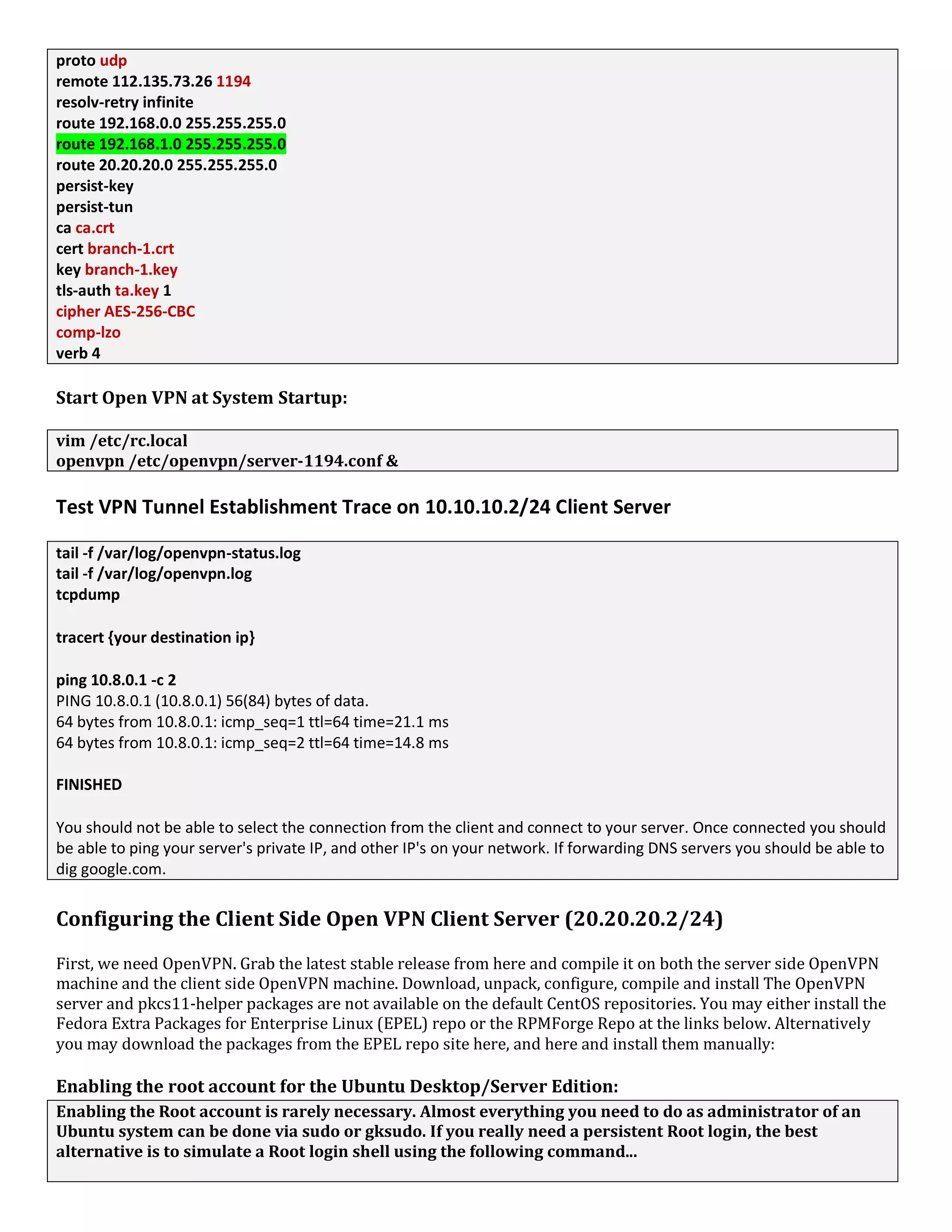
For this example, the OpenVPN Client server's config file (branch-1.conf)
client
dev tun
proto udp
remote 112.135.73.26 1194
resolv-retry infinite
route 192.168.0.0 255.255.255.0
route 192.168.1.0 255.255.255.0
route 20.20.20.0 255.255.255.0
persist-key
persist-tun
ca ca.crt
cert branch-1.crt
key branch-1.key
tls-auth ta.key 1
cipher AES-256-CBC
comp-lzo
verb 4
Start Open VPN at System Startup:
vim /etc/rc.local
openvpn /etc/openvpn/server-1194.conf &
Test VPN Tunnel Establishment Trace on 10.10.10.2/24 Client Server
tail -f /var/log/openvpn-status.log
tail -f /var/log/openvpn.log
tcpdump
tracert {your destination ip}
ping 10.8.0.1 -c 2
PING 10.8.0.1 (10.8.0.1) 56(84) bytes of data.
64 bytes from 10.8.0.1: icmp_seq=1 ttl=64 time=21.1 ms
64 bytes from 10.8.0.1: icmp_seq=2 ttl=64 time=14.8 ms
FINISHED
You should not be able to select the connection from the client and connect to your server. Once connected you should
be able to ping your server's private IP, and other IP's on your network. If forwarding DNS servers you should be able to
dig google.com.
Configuring the Client Side Open VPN Client Server (20.20.20.2/24)
First, we need OpenVPN. Grab the latest stable release from here and compile it on both the server side OpenVPN
machine and the client side OpenVPN machine. Download, unpack, configure, compile and install The OpenVPN
server and pkcs11-helper packages are not available on the default CentOS repositories. You may either install the
Fedora Extra Packages for Enterprise Linux (EPEL) repo or the RPMForge Repo at the links below. Alternatively
you may download the packages from the EPEL repo site here, and here and install them manually:
Enabling the root account for the Ubuntu Desktop/Server Edition:
Enabling the Root account is rarely necessary. Almost everything you need to do as administrator of an
Ubuntu system can be done via sudo or gksudo. If you really need a persistent Root login, the best
alternative is to simulate a Root login shell using the following command...
Option 1:
To start a root shell (i.e. a command window where you can run Root commands), starting Root's
environment and login scripts, use:
sudo –i
sudo passwd root
Option 2:
To start a root shell, but keep the current shell's environment, use:
sudo -s
sudo passwd root
Re-disabling your root account (Exta Knoledge):
sudo passwd -dl root
Removing a Package:
apt-get remove <your package name>
First, we need OpenVPN. Grab the latest stable release from here and compile it on both the server side OpenVPN
machine and the client side OpenVPN machine. Download, unpack, configure, compile and install The OpenVPN
server and pkcs11-helper packages are not available on the default CentOS repositories. You may either install the
Fedora Extra Packages for Enterprise Linux (EPEL) repo or the RPMForge Repo at the links below. Alternatively
you may download the packages from the EPEL repo site here, and here and install them manually:
Installing GCC and Dependencies:
# update your fresh installed OS right before install anything.
apt-get update –y
# basic tools for manual configuration installation
apt-get install -y build-essential openssl libssl-dev libpam0g-dev
Install LZO Data Compression Library for OpenVPN:
wget http://repo.regolithmedia.co.id/ovpn/lzo-2.06.tar.gz
tar -zxvf lzo-2.06.tar.gz
cd lzo-2.06
#Pay attention for ./configure
#below is configuration for Debian, Ubuntu,
./configure --prefix=/usr --libdir=/usr/lib
make
make install
Installing OpenVPN:
wget http://repo.regolithmedia.co.id/ovpn/openvpn-2.2.2.tar.gz
tar -zxvf openvpn-2.2.2.tar.gz
cd openvpn-2.2.2
#Pay attention for ./configure
#below is configuration for Debian, Ubuntu
./configure --prefix=/usr --libdir=/usr/lib
Make
make install
Copy easy-rsa folder inside it to “/etc/openvpn/easy-rsa“. Easy-rsa contains files for creating
certificate and others need by OpenVPN:
mkdir -p /etc/openvpn
cp -r easy-rsa /etc/openvpn
You just used WinSCP to Transfer Form the VPN server to Clinet Server/Clinet PC.
Enable IP Forwarding (Highly Important!)
If you want your OpenVPN clients to be able to access the network, in addition to the push routes statements
above you will need to setup ip forwarding for the tunnel interface and change the 0 to a 1.
vim /etc/sysctl.conf
# ------ Edit the following line changing the 0 to a 1 -----
net.ipv4.ip_forward = 1
Save and close the file. Reload the changes by typing the following command:
Or,
echo "1" > /proc/sys/net/ipv4/ip_forward
echo "1" > /proc/sys/net/ipv4/ip_dynaddr
sysctl -p
To Veryfy,
cat /proc/sys/net/ipv4/ip_forward
cat /proc/sys/net/ipv4/ip_dynaddr
Configure IPTables and SELinux on Client VPN Server (20.20.20.2/24)
Automated & Customizable Firewall Script :
1.) Copy the following lines.
#!/bin/sh
clear
iptables -F
echo " restarting empty iptables rules for initialization"
echo "1" > /proc/sys/net/ipv4/ip_forward
echo "1" > /proc/sys/net/ipv4/ip_dynaddr
echo " Enable IP Forwading"
sysctl -p
echo " activate it without rebooting"
iptables -P INPUT DROP
iptables -P OUTPUT DROP
echo " droppig all the input and output traffics"
iptables -P FORWARD DROP
echo " dropping all the packet forwading"
iptables -A INPUT -i lo -j ACCEPT
iptables -A OUTPUT -o lo -j ACCEPT
echo " enabling loopback address"
iptables -A INPUT -i eth0 -j ACCEPT
echo " enabling eth0 NIC "
iptables -A INPUT -p udp -m udp --dport 1194 -j ACCEPT
iptables -A INPUT -p tcp -m tcp --dport 444 -j ACCEPT
echo " Allwoed port 1194 and port 444 for the vpn traffics"
iptables -A INPUT -p ICMP -s 10.8.0.0/24 -j ACCEPT
iptables -A INPUT -p ICMP -s 10.0.0.0/24 -j ACCEPT
echo " accept Access VPN server' tun0 with eth0"
iptables -A FORWARD -i tun0 -o eth0 -j ACCEPT
iptables -A FORWARD -i eth0 -o tun0 -j ACCEPT
echo " enabling Access VPN server tun1 with eth0"
iptables -A FORWARD -i tun1 -o eth0 -j ACCEPT
iptables -A FORWARD -i eth0 -o tun1 -j ACCEPT
echo " Accepting/ Allowed some specific inbound Ports"
iptables -A INPUT -p tcp -m state --state NEW -m tcp --dport 53 -j ACCEPT
iptables -A INPUT -p tcp -m state --state NEW -m tcp --dport 80 -j ACCEPT
iptables -A INPUT -p tcp -m state --state NEW -m tcp --dport 443 -j ACCEPT
iptables -A INPUT -p tcp -m state --state NEW -m tcp --dport 22 -j ACCEPT
iptables -A INPUT -p tcp -m state --state NEW -m tcp --dport 21 -j ACCEPT
iptables -A INPUT -p tcp -m state --state NEW -m tcp --dport 3306 -j ACCEPT
iptables -A INPUT -p tcp -m state --state NEW -m tcp --dport 1194 -j ACCEPT
echo " Accepting/ Allowed some specific outound Ports"
iptables -A OUTPUT -p tcp -m state --state NEW -m tcp --dport 53 -j ACCEPT
iptables -A OUTPUT -p tcp -m state --state NEW -m tcp --dport 80 -j ACCEPT
iptables -A OUTPUT -p tcp -m state --state NEW -m tcp --dport 443 -j ACCEPT
iptables -A OUTPUT -p tcp -m state --state NEW -m tcp --dport 22 -j ACCEPT
iptables -A OUTPUT -p tcp -m state --state NEW -m tcp --dport 21 -j ACCEPT
iptables -A OUTPUT -p tcp -m state --state NEW -m tcp --dport 3306 -j ACCEPT
iptables -A OUTPUT -p tcp -m state --state NEW -m tcp --dport 1194 -j ACCEPT
echo " Enabling Traffic forwading with VPN Access server's VPN-DHCP pool-1 with it's Physical IP Address"
iptables -A FORWARD -i tun0 -s 10.8.0.0/24 -d 192.168.0.0/24 -j ACCEPT
iptables -A FORWARD -i tun1 -s 10.8.0.0/24 -d 192.168.0.0/24 -j ACCEPT
iptables -A FORWARD -p tcp -s 10.8.0.0/24 -d 192.168.0.0/24 -j ACCEPT
iptables -A FORWARD -p udp -s 10.8.0.0/24 -d 192.168.0.0/24 -j ACCEPT
iptables -A FORWARD -p icmp -s 10.8.0.0/24 -d 192.168.0.0/24 -j ACCEPT
echo " Enabling Traffic forwading with VPN Access server's VPN-DHCP pool-2 with it's Physical IP Address"
iptables -A FORWARD -i tun0 -s 10.0.0.0/24 -d 192.168.0.0/24 -j ACCEPT
iptables -A FORWARD -i tun1 -s 10.0.0.0/24 -d 192.168.0.0/24 -j ACCEPT
iptables -A FORWARD -p tcp -s 10.0.0.0/24 -d 192.168.0.0/24 -j ACCEPT
iptables -A FORWARD -p udp -s 10.0.0.0/24 -d 192.168.0.0/24 -j ACCEPT
iptables -A FORWARD -p icmp -s 10.0.0.0/24 -d 192.168.0.0/24 -j ACCEPT
echo " Enabling Traffic forwading between VPN Access Server and VPN Client Server-1"
iptables -A FORWARD -p tcp -s 10.10.10.0/24 -d 192.168.0.0/24 -j ACCEPT
iptables -A FORWARD -p udp -s 10.10.10.0/24 -d 192.168.0.0/24 -j ACCEPT
iptables -A FORWARD -p icmp -s 10.10.10.0/24 -d 192.168.0.0/24 -j ACCEPT
echo " Enabling Traffic forwading between VPN Access Server and VPN Client Server-2"
iptables -A FORWARD -p tcp -s 192.168.0.0/24 -d 10.10.10.0/24 -j ACCEPT
iptables -A FORWARD -p udp -s 192.168.0.0/24 -d 10.10.10.0/24 -j ACCEPT
iptables -A FORWARD -p icmp -s 192.168.0.0/24 -d 10.10.10.0/24 -j ACCEPT
echo " Enabling Traffic forwading between VPN Access Server and VPN Client Server-1 for USART to Ethernet"
iptables -A FORWARD -p tcp -s 10.10.10.0/24 -d 192.168.1.0/24 -j ACCEPT
iptables -A FORWARD -p udp -s 10.10.10.0/24 -d 192.168.1.0/24 -j ACCEPT
iptables -A FORWARD -p icmp -s 10.10.10.0/24 -d 192.168.1.0/24 -j ACCEPT
echo " Enabling Traffic forwading between VPN Access Server and VPN Client Server-2 for USART to Ethernet "
iptables -A FORWARD -p tcp -s 192.168.1.0/24 -d 10.10.10.0/24 -j ACCEPT
iptables -A FORWARD -p udp -s 192.168.1.0/24 -d 10.10.10.0/24 -j ACCEPT
iptables -A FORWARD -p icmp -s 192.168.1.0/24 -d 10.10.10.0/24 -j ACCEPT
iptables -A INPUT -p icmp -m limit --limit 1/s --limit-burst 2 -j ACCEPT
iptables -A INPUT -p icmp -j ACCEPT iptables -A OUTPUT -p icmp -j ACCEPT
iptables -A INPUT -m state --state ESTABLISHED,RELATED -j ACCEPT
iptables -A OUTPUT -m state --state NEW,ESTABLISHED,RELATED -j ACCEPT
iptables -A INPUT -m state --state INVALID -j DROP
iptables -A OUTPUT -m state --state INVALID -j DROP
iptables -A INPUT -m state --state NEW -p tcp --tcp-flags ALL ALL -j DROP
iptables -A INPUT -m state --state NEW -p tcp --tcp-flags ALL NONE -j DROP
iptables -A INPUT -p tcp --tcp-flags ALL FIN,URG,PSH -j DROP
iptables -A INPUT -p tcp --tcp-flags SYN,RST SYN,RST -j DROP
iptables -A INPUT -p tcp --tcp-flags SYN,FIN SYN,FIN -j DROP
iptables -N SYN_FLOOD iptables -A INPUT -p tcp --syn -j SYN_FLOOD
iptables -A SYN_FLOOD -m limit --limit 2/s --limit-burst 6 -j RETURN
iptables -A SYN_FLOOD -j DROP
iptables -A INPUT -p icmp -m icmp --icmp-type address-mask-request -j DROP
iptables -A INPUT -p icmp -m icmp --icmp-type timestamp-request -j DROP
iptables -A INPUT -p icmp -m icmp -m limit --limit 1/second -j ACCEPT
iptables -A INPUT -p tcp -m tcp --tcp-flags RST RST -m limit --limit 2/second --limit-burst 2 -j ACCEPT
iptables -A INPUT -m recent --name portscan --rcheck --seconds 86400 -j DROP
iptables -A FORWARD -m recent --name portscan --rcheck --seconds 86400 -j DROP
iptables -A INPUT -m recent --name portscan --remove
iptables -A FORWARD -m recent --name portscan –remove
echo "Avoiding Spamers..etc"
iptables -A INPUT -s 0.0.0.0/7 -j DROP
iptables -A INPUT -s 2.0.0.0/8 -j DROP
iptables -A INPUT -s 5.0.0.0/8 -j DROP
iptables -A INPUT -s 7.0.0.0/8 -j DROP
iptables -A INPUT -s 10.0.0.0/8 -j DROP
iptables -A INPUT -s 23.0.0.0/8 -j DROP
iptables -A INPUT -s 27.0.0.0/8 -j DROP
iptables -A INPUT -s 31.0.0.0/8 -j DROP
iptables -A INPUT -s 36.0.0.0/7 -j DROP
iptables -A INPUT -s 39.0.0.0/8 -j DROP
iptables -A INPUT -s 42.0.0.0/8 -j DROP
iptables -A INPUT -s 49.0.0.0/8 -j DROP
iptables -A INPUT -s 50.0.0.0/8 -j DROP
iptables -A INPUT -s 77.0.0.0/8 -j DROP
iptables -A INPUT -s 78.0.0.0/7 -j DROP
iptables -A INPUT -s 92.0.0.0/6 -j DROP
iptables -A INPUT -s 96.0.0.0/4 -j DROP
iptables -A INPUT -s 112.0.0.0/5 -j DROP
iptables -A INPUT -s 120.0.0.0/8 -j DROP
iptables -A INPUT -s 172.16.0.0/12 -j DROP
iptables -A INPUT -s 173.0.0.0/8 -j DROP
iptables -A INPUT -s 174.0.0.0/7 -j DROP
iptables -A INPUT -s 176.0.0.0/5 -j DROP
iptables -A INPUT -s 184.0.0.0/6 -j DROP
iptables -A INPUT -s 192.0.2.0/24 -j DROP
iptables -A INPUT -s 197.0.0.0/8 -j DROP
iptables -A INPUT -s 198.18.0.0/15 -j DROP
iptables -A INPUT -s 223.0.0.0/8 -j DROP
iptables -A INPUT -s 224.0.0.0/3 -j DROP
iptables -A INPUT -s 169.254.0.0/16 -j DROP
echo "Avoiding SQL Injection Attack"
iptables -I FORWARD -s 0.0.0.0/0 -m string --string "%27+or+%271%27%3d%271" --algo bm -j DROP
iptables -I FORWARD -s 0.0.0.0/0 -m string --string "%27+or+1%3d1" --algo bm -j DROP
iptables -I FORWARD -s 0.0.0.0/0 -m string --string "%27+or+%271%27%3d%271" --algo bm -j DROP
iptables -I FORWARD -s 0.0.0.0/0 -m string --string "%27+or+%27%27%3d%27" --algo bm -j DROP
iptables -I FORWARD -s 0.0.0.0/0 -m string --string "%27+or+1%3d1" --algo bm -j DROP
iptables -I FORWARD -s 0.0.0.0/0 -m string --string "%27+or+%271%27%3d%271" --algo bm -j DROP
iptables -I FORWARD -s 0.0.0.0/0 -m string --string "%27+or+%27%27%3d%27" --algo bm -j DROP
iptables -I FORWARD -s 0.0.0.0/0 -m string --string "%27+or+1%3d1" --algo bm -j DROP
iptables -I FORWARD -s 0.0.0.0/0 -m string --string "%27+or+%271%27%3d%271" --algo bm -j DROP
2.) Open /etc/init.d/firewall.sh with your favorite editor.
vim /etc/init.d/firewall.sh
3.) Paste script into your editor, and edit the ports to your liking. Make sure your are in insert mode in vi before you
paste.
4.) Change permissions to all execute on the file.
chmod 744 /etc/init.d/firewall.sh
5.) Start the script
/etc/init.d/firewall.sh
6.) Add the script to start-up & Verifying IPTables Rules
update-rc.d firewall.sh defaults
/sbin/iptables -L
iptables -L -t nat –n iptables -vnL
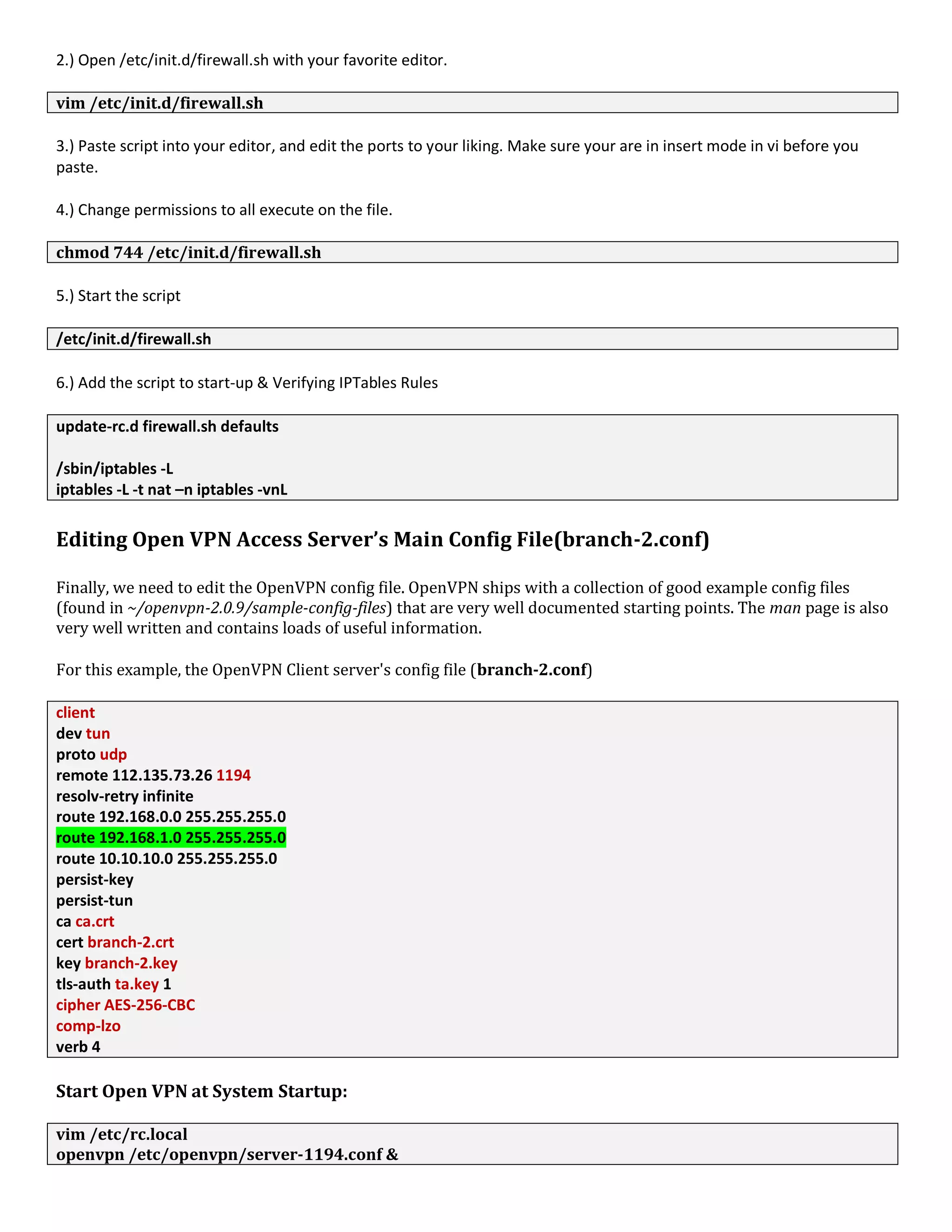
Editing Open VPN Access Server’s Main Config File(branch-2.conf)
Finally, we need to edit the OpenVPN config file. OpenVPN ships with a collection of good example config files
(found in ~/openvpn-2.0.9/sample-config-files) that are very well documented starting points. The man page is also
very well written and contains loads of useful information.
For this example, the OpenVPN Client server's config file (branch-2.conf)
client
dev tun
proto udp
remote 112.135.73.26 1194
resolv-retry infinite
route 192.168.0.0 255.255.255.0
route 192.168.1.0 255.255.255.0
route 10.10.10.0 255.255.255.0
persist-key
persist-tun
ca ca.crt
cert branch-2.crt
key branch-2.key
tls-auth ta.key 1
cipher AES-256-CBC
comp-lzo
verb 4
Start Open VPN at System Startup:
vim /etc/rc.local
openvpn /etc/openvpn/server-1194.conf &
Test VPN Tunnel Establishment Trace on 20.20.20.2/24 Client Server
tail -f /var/log/openvpn-status.log
tail -f /var/log/openvpn.log
tcpdump
tracert {your destination ip}
ping 10.8.0.1 -c 2
PING 10.8.0.1 (10.8.0.1) 56(84) bytes of data.
64 bytes from 10.8.0.1: icmp_seq=1 ttl=64 time=21.1 ms
64 bytes from 10.8.0.1: icmp_seq=2 ttl=64 time=14.8 ms
FINISHED
You should not be able to select the connection from the client and connect to your server. Once connected you should
be able to ping your server's private IP, and other IP's on your network. If forwarding DNS servers you should be able to
dig google.com.
Open VPN Visiting Client config and installing Open VPN Clinet Software (UK Client
with Loginless SSH User Athentication)
Download and install the OpenVPN client installer file from the below Link OpenVPN client Download link (works
with WindowsXP,Vista and Windows7)
Note: Installing client and initializing the VPN connection requires Administrator privileges.
After installatling OpenVPN client, Copy C:Program FilesOpenVPNsample-configclient.ovpn to C:Program
FilesOpenVPNconfigclient.ovpn And open the client.ovpn file and edit like below
Download OpenVPN for Windows OS from: http://openvpn.net/index.php/download.html and install it. Don’t
forget to run it as administrator if you are using Windows 7.
Copy the ta.key and ca.crt files form 192.168.0.204 to the your’s Laptop Open VPN Client’s -config
/Configuration folder “C:Program FilesOpenVPNconfig”
Copy C:Program FilesOpenVPNsample-configclient.ovpn to C:Program FilesOpenVPNconfigclient.ovpn
client
dev tun
proto tcp
remote 112.135.73.26 443
reneg-sec 432000
nobind
resolv-retry infinite
route 192.168.0.0 255.255.255.0
route 192.168.1.0 255.255.255.0
route 20.20.20.0 255.255.255.0
route 10.10.10.0 255.255.255.0
user nobody
group nobody
persist-tun
persist-key
ca ca.crt
tls-auth ta.key 1
cipher AES-256-CBC
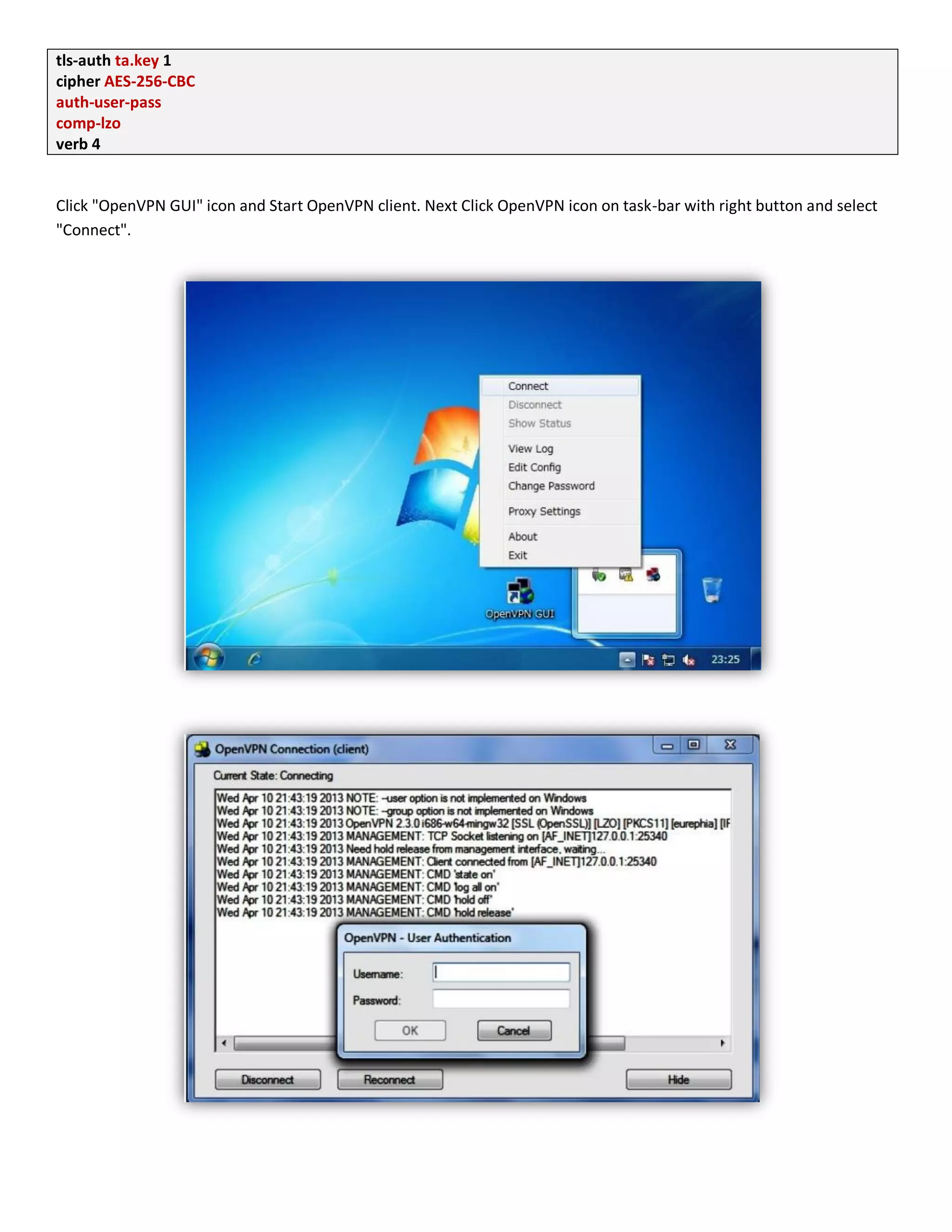
auth-user-pass
comp-lzo
verb 4
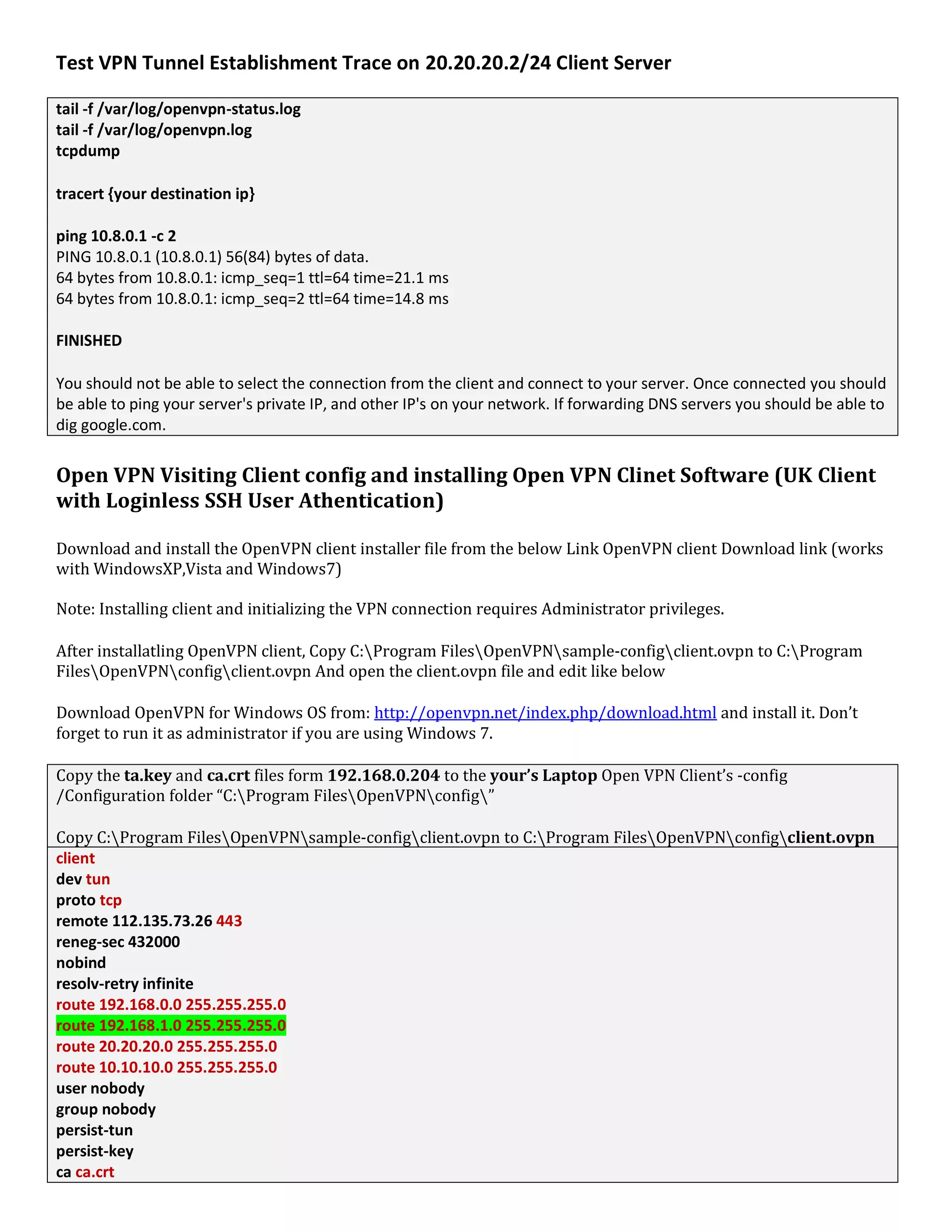
Click "OpenVPN GUI" icon and Start OpenVPN client. Next Click OpenVPN icon on task-bar with right button and select
"Connect".
Open VPN Visiting Client config and installing Open VPN Clinet Software (USA Client With
Client Private Key Athentication with Only on VPN Server)
Download and install the OpenVPN client installer file from the below Link OpenVPN client Download link (works with
WindowsXP,Vista and Windows7)
Note: Installing client and initializing the VPN connection requires Administrator privileges.
After installatling OpenVPN client, Copy C:Program FilesOpenVPNsample-configclient.ovpn to C:Program
FilesOpenVPNconfigclient.ovpn And open the client.ovpn file and edit like below,
Copy the ta.key, client-1.key, client-1.crt and ca.crt files form 192.168.2.204 to the your’s Laptop Open VPN
Client’s -config /Configuration folder “C:Program FilesOpenVPNconfig”
Copy C:Program FilesOpenVPNsample-configclient.ovpn to C:Program FilesOpenVPNconfigclient.ovpn
client
dev tun
proto tcp
remote 112.135.73.26 443
reneg-sec 432000
resolv-retry infinite
route 192.168.0.0 255.255.255.0
route 192.168.1.0 255.255.255.0
route 20.20.20.0 255.255.255.0
route 10.10.10.0 255.255.255.0
user nobody
group nobody
persist-tun
persist-key
ca ca.crt
cert client-1.crt
key client-1.key
tls-auth ta.key 1
cipher AES-256-CBC
comp-lzo
verb 4
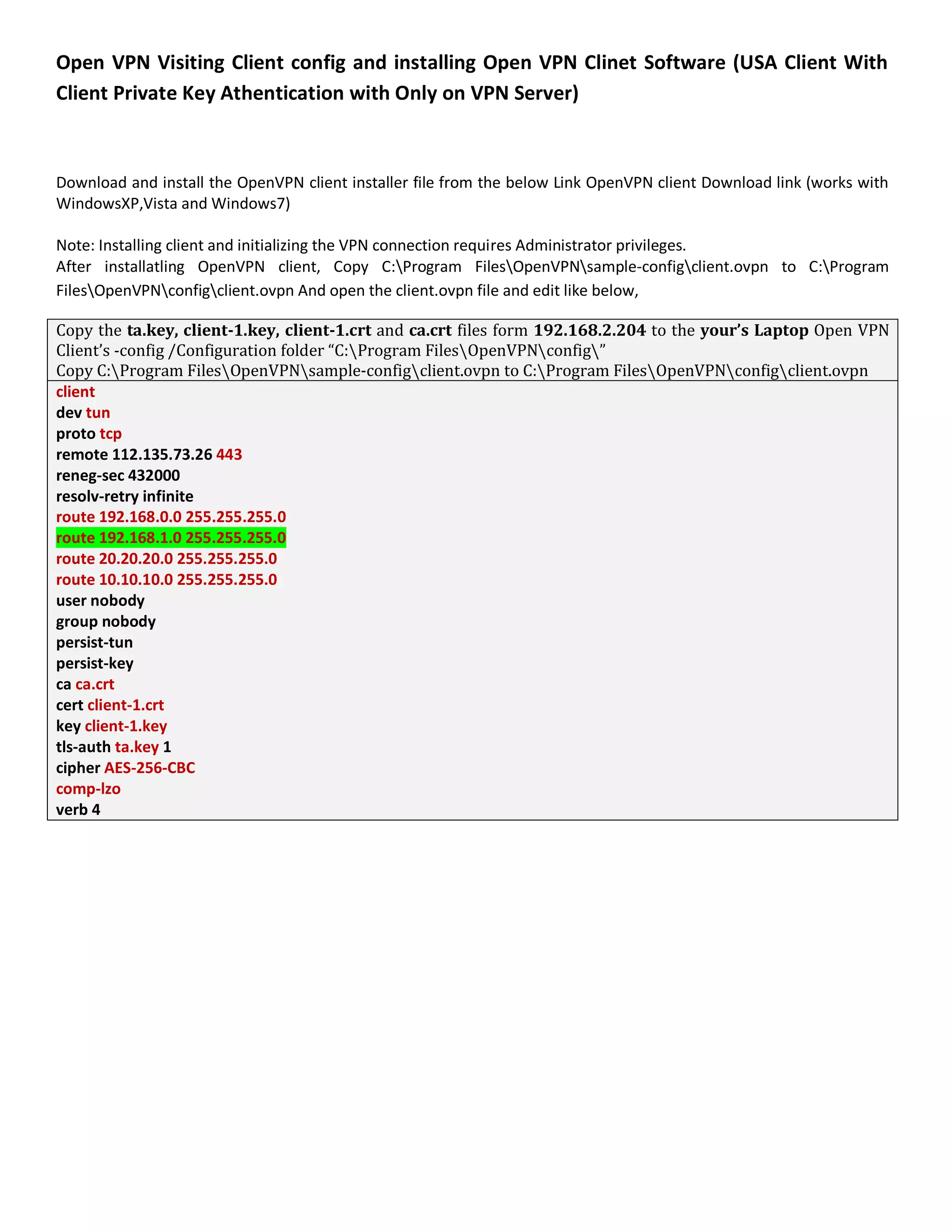
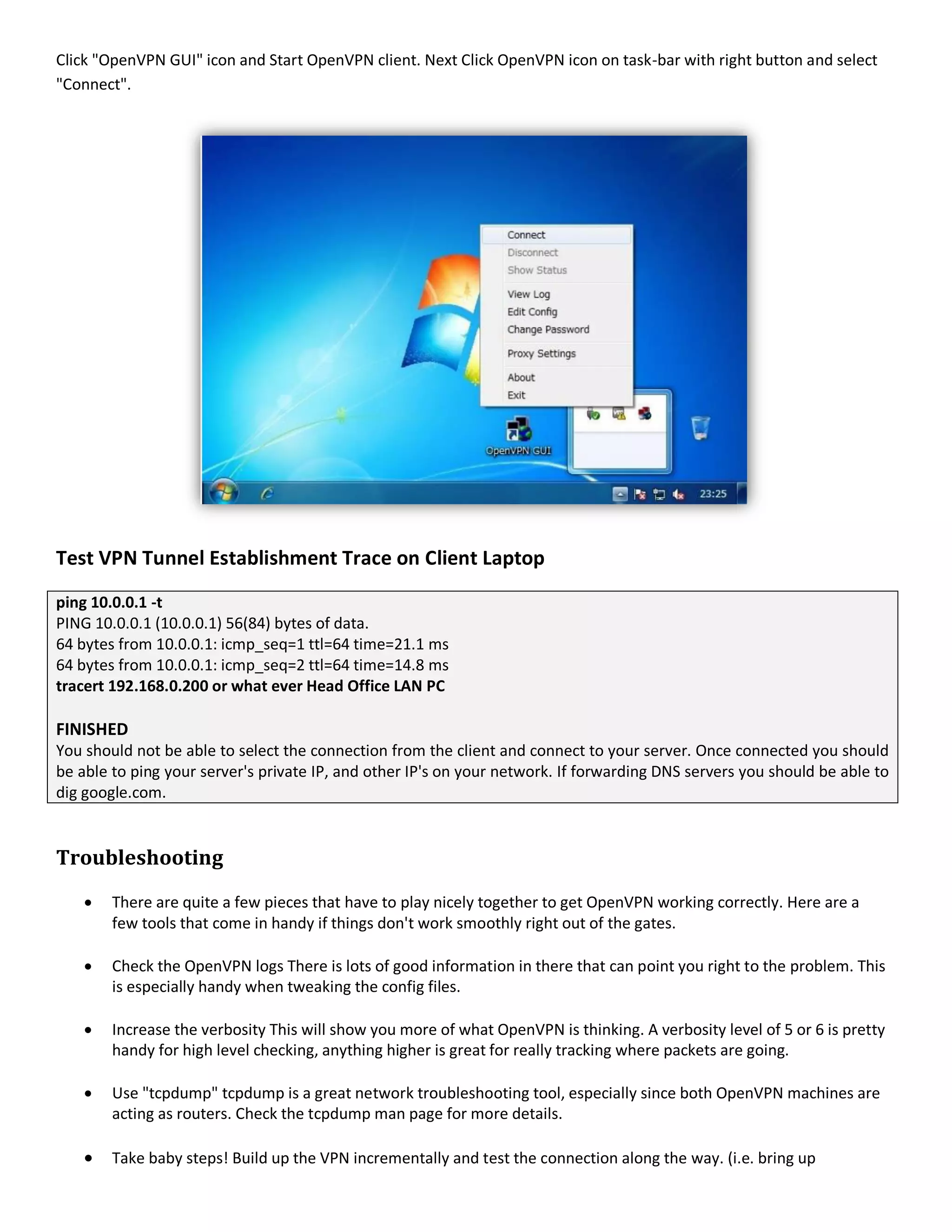
Click "OpenVPN GUI" icon and Start OpenVPN client. Next Click OpenVPN icon on task-bar with right button and select
"Connect".
Test VPN Tunnel Establishment Trace on Client Laptop
ping 10.0.0.1 -t
PING 10.0.0.1 (10.0.0.1) 56(84) bytes of data.
64 bytes from 10.0.0.1: icmp_seq=1 ttl=64 time=21.1 ms
64 bytes from 10.0.0.1: icmp_seq=2 ttl=64 time=14.8 ms
tracert 192.168.0.200 or what ever Head Office LAN PC
FINISHED
You should not be able to select the connection from the client and connect to your server. Once connected you should
be able to ping your server's private IP, and other IP's on your network. If forwarding DNS servers you should be able to
dig google.com.
Troubleshooting
 There are quite a few pieces that have to play nicely together to get OpenVPN working correctly. Here are a
few tools that come in handy if things don't work smoothly right out of the gates.
 Check the OpenVPN logs There is lots of good information in there that can point you right to the problem. This
is especially handy when tweaking the config files.
 Increase the verbosity This will show you more of what OpenVPN is thinking. A verbosity level of 5 or 6 is pretty
handy for high level checking, anything higher is great for really tracking where packets are going.
 Use "tcpdump" tcpdump is a great network troubleshooting tool, especially since both OpenVPN machines are
acting as routers. Check the tcpdump man page for more details.
 Take baby steps! Build up the VPN incrementally and test the connection along the way. (i.e. bring up

Usrt to ethernet connectivity over the wolrd cubieboard bords

  • 1.
    INTERCONNECTING WORLDWIDE MCUBASED EMBEDDED CONTROLLING BOARDs EACH OTHER OVER VPN BASED SECURE NETWORK (By Chanaka Lasantha Nanayakkara Wawage) Environment Implementation: ඉශත චායාරුපයයහි මුලිකල යෙය වම්බන්ධ වී ඇති ආකාරය යපන්ලා ඇත. ො යයොදාගැනීෙට යනුයේ ඉශත ක්‍රෙය බැිනන් යය යෙයට පරිබාහිරල ඇති අයනකුත් යකට වම්බන්ධ කරන ිනධි අත්ශැර දො , ඔබට ලඩාත් උචිත ක්‍රෙය ලන Server to Clinet Module යන ව්ථාපිත කිරීෙ යපන්ලාදීෙට බ඼ායපොයරොත්තු යලමි. ො ිනවන් ය඼ෝකයේ පිහිටි කර්ොන්ත ඾ා඼ා 253 ලැනි ින඾ා඼ ගණනක , PIC MCU ෙත වශ MikroC Pro ෙගින් ලියන ඼ද Machinery Control Boards නිර්ොණයක් ඔව්යවේ ක්඿ණිකල වශ ආරක්඿ා ය඼ව නිපදවූ නිර්ෙණය සිදුකරන ආකාරය ඔබ ඼බාදීෙට සුදානම් ...!බ඼න්න ඔබ දැන් අන්තරජා඼ය ඔව්යවේ මුළු ය඼ොයලහිෙ කර්ොන්ත ඾ා඼ා ශැසිරවීෙට වශ ....ය඼ෝකයේ යකොයතනක යශෝ සිට ඒ සියල්඼ ඔබට අල඾ය ය඼ව ශසුරවීෙද , යහි ලාර්තා ඼බාගැනීෙද යෙන්ෙ යහි සියල්඼ ගබඩා කිරීෙටද වෙත් ල තියේ ..!
  • 2.
    ො වර඼ සිිංශ඼පෙණක් යයොදාගැනීෙට තීරණය කයල් යෙය හුයදක්ෙ ෙව්බව කියිනයශැකි ශ්‍රී ඼ාිංකික ශැෙට කියවීෙට . .. ! 1. පෂමු පියලර ල඾යයන් ො යයොදාගැනීෙට යන යෙොඩියුල් යක යෙය .. යෙය මි඼ට ගැනීෙට යෙතනින් ඔබන්න. යෙහි දැනට පලතින මි඼ ය඼ව වටශන් ලනුයේ USD 28.90 කි 2. යදලැනි පියලර ල඾යයන් ඉශත යෙොඩියුල් යක වම්බන්ධ කරන ආකරය යනම් යය RS232 යශෝ Ethernet Port ලලින් Configure කරන ආකාරය . . 1. යෙය RS232 Port යක ඔව්යවේ Configure ක඼ ශැකිය . 2. යෙය Ethernet Port යක ඔව්යවේ Configure ක඼ ශැකිය . 3. යෙය RS232 Port යක ඔව්යවේ පරිඝනකයයන් Configure කිරීෙට ඔබට TTL to RS232 Converter යකක් ඔබ වාදාගත් යුතුයව්. නමුත් සියල්඼ නිෙක඼ ිනට යෙය අල඾ය යනොලන අතර, ඔබ ිනසින් Connect කිරීෙට යන MCU Bords ල඼ට යෙ අෙතර පරිපථය යනොෙැතිල ක඼ ශැකිය. TTL to RS232 Converter ෙගින් යලෝල්ටීයතාල -V , 0V, +V ය඼ව ශරලා යය ඕනෑෙ පරිඝනකයක් වෙග ඒකාබද්ධ කිරීෙට යයොදාගැයන්. අෙතර TTL to RS232 Converter යයකහි පරිපථය අෙතර TTL to RS232 Converter යයකහි පරිපථය නිෙකරගත් ිනට යහි යපනුෙ
  • 3.
    4. යෙයෙ අධියරෙගින් යෙය යකොන්ෆිග් කිරීෙට වශ යටව්ට් කිරීෙට යයොදාගන්න ෙෘදුකාිංග කිහිපයක් යපන්ලා යදමි. 1. USR-TCP232-Setup යක . මෙෙ ෙෘදුකාාංගය මයොදාගන්න විට ඔබමේ මෙොඩියුල් එමකහි පහත ම඼ස එහි පින් එකට සම්බන්ධ කර පසුල සියල්඼ අලසන් වූ විට නැලත තිබුණු පින් එකටෙ සම්බන්ධ කරන්න . විස්තරය , When use COM port you must connect CFG to GND, while use Ethernet you shoule not connect. ඔබ COM port එමකන් මකොන්ෆිේ කරන විට පෙණක් CFG පින් එක GND කරන්න. නැලත මකොන්ෆිේ කර අලසාන වූ විට එය , මපර තිබු ම඼ස නැලත ොරුකරන්න ..! 2. USR-TCP232-Test යක . . යෙයෙ ෙෘදුකාිංගය ෙගින් ඉශත USR- TCP232-Setup යයකන් යකොන්ෆිග් ක඼ යෙොඩියු඼ය ලැඩ කරන ආකාරය පරික්඿ා කිරීෙට අනිලාර්යයන්ෙ යයොදාගන්න යකකි. යෙෙ ෙෘදුකාිංග බාගතකර ගැනීෙට යෙතනින් ඔබන්න..!
  • 4.
    5. දැන් අපිමුලික අධියර ලන Ethernet to USART Module යක One to Many ය඼ව නැතයශොත් Ethernet to USART Module යක Client යකොන්ෆිග් ක඼ ිනට යලැනි Modules ින඾ා඼ ප්‍රොණයක් යෙහි Ethernet to USART Module යක Sever ය඼ව යකොන්ෆිග් ක඼ යකට වම්බන්ධ ලන අතර යෙ අලව්තාල TCP Server ය඼ව යවය඼ක්ට් කර තිබීෙ අතයල඾ය . . යයෙන්ෙ අනිත් ින඾ා඼ ප්‍රොනයක් ලන යෙොඩියුල් ටික TCP Client ය඼ව යකොන්ෆිග් කරගන්න. දැන් අපි Ethernet to USART Module යක Sever ය඼ව යකොන්ෆිග් කරන ශැටි(TCP Server) යදව බ඼මු. යයොදාගන්නා ක්‍රෙය: TTL to RS232 Converter යයකහි පරිපථය ශරශා Ethernet to USART Module යයකහි TTL පින් ල඼ට අමුණායගන . . යෙය Com Port යක ෙගින් යකොන්ෆිග් කරනා ිනට පෙණක යයොදාගන්න. 1. පෂමුල ඔබ යෙහිදී Module work ය඼ව යෙයෙ ර෕පයයහි යපන්ලා යදන Drop Down List යක ඔබා , යහි TCP Server ය඼ව සිය඼ක්ට් කරගන්න. 2. දැන් යෙයට Module IP යයකහි ඔබට අල඾ය පරාවයක IP Address යකක් ඼බායදන්න. උදාශරණයක් ය඼ව 192.168.1.1 ය඼ව ගනිමු. දැන් යෙයෙ IP Address යකට අනිකුත් අප ිනසින් යකොන්ෆිග් කිරීෙට යන සියලුෙ TCP Client ය඼ව යකොන්ෆිග් කරන Modules වම්බන්ධ යව්. යෙයට Subnet mask යක 255.255.255.0 ය඼ව ඼බා දී ඔබට උපරිෙ 254 ක් දක්ලා Modules යකට ජා඼ගත කරශැකිය. නමුත් ඔබ Subnet mask යක 255.255.0.0 ය඼ව ඼බා දුනයශොත් 254*254 දක්ලා ලැනි ින඾ා඼ ප්‍රොණයක් යකට වම්බන්ධ ක඼ ශැකිය. යකයවේයලතත් පශතින් දක්ලා ඇති Open VPN System යයකහි යලනව්කම් කිහිපයක් කර , ඔබට අල඾යනම් යලන යලනෙ IP Address පරාව දිය ශැකිය ...! 3. ඔබ ිනසින් ඼බායදන Baud Rate යක සියලුෙ යෙොඩියුල් ල඼ යක අගයක් තිබිය යුශ්ටු අතර . යය ඔබ යෙය වම්බන්ධ කිරීෙට යන MCU Based Control Bord යයකහි උදාශරණයක් ය඼ව PIC16F877A USART Baud Rate යක වෙග යක වොන ය඼ව අනිලාර්යයන්ෙ ගන්න. 4. 4.Destination/Source Port යක ය඼ව ඔබයග් Open VPN යයකහි Port යකෙ ඼බායදන්න..! ගැටළුලක් යලයතොත් යය යලනව්කරන්න.! ිනය඾ේ඿: ඔබ වම්බන්ධ කරන com1/com3 ය඼ව Use com port for setup ය඼ව වදශන් යකොටුයලහි යදන්න. යයවේ ඼බාදී Setup via com යබොත්තෙ ඔබන්න..! දැන් ඔබ ො ඉශත වදශන් ක඼ අගයන් ඼බාදී , අලවානයේ Save Config යබොත්තෙ ඔබන්න.! ෙතක තබාගන්න ..! When use COM port you must connect CFG to GND, while use Ethernet you shoule not connect. ඔබ COM port එමකන් මකොන්ෆිේ කරන විට පෙණක් CFG පින් එක GND කරන්න. නැලත මකොන්ෆිේ කර අලසාන වූ විට එය , මපර තිබු ම඼ස නැලත ොරුකරන්න ..!
  • 5.
    6. ඔබට ඉශතආකාරයයන් Com Port යක රහිතල Ehernet Port යක ෙගින් යම් සියල්඼ ක඼ ශැකිය. නමුත් ඒ වදශා යපර යකොන්ෆිග් කර යන Module IP Address යක ඔබ දැනගත යුතුය. යම් වදශා 192.168.0.1 සිට 192.168.0.254 පරාවයක Module IP Address යකක් යයා඼ ඔව්න් ඼බාදී තියබන්නට ශැකි . . යෙනිවා IP Scanner යකක් ෙගින් යහි තියබන Module IP Address යක යවොයායගන යයට ඔබයග් පරිගණකයයහි LAN Network Card යකට යෙයෙ Module යක වම්බන්ධ කර යෙය සිදුකරන්න. යයට අෙතරල යය Search via LAN යබොත්තෙ ඔබා සිදුක඼ ශැකිය. ඉන්පසු පශත ක්‍රියාලලිය ෙ සිදුකර යෙය යලනත් ආකාරයකින් ඔබට යකොන්ෆිග් ක඼ ශැක. 1. පෂමුල ඔබ යෙහිදී Module work ය඼ව යෙයෙ ර෕පයයහි යපන්ලා යදන Drop Down List යක ඔබා , යහි TCP Server ය඼ව සිය඼ක්ට් කරගන්න. 2. දැන් යෙයට Module IP යයකහි ඔබට අල඾ය පරාවයක IP Address යකක් ඼බායදන්න. උදාශරණයක් ය඼ව 192.168.1.1 ය඼ව ගනිමු. දැන් යෙයෙ IP Address යකට අනිකුත් අප ිනසින් යකොන්ෆිග් කිරීෙට යන සියලුෙ TCP Client ය඼ව යකොන්ෆිග් කරන Modules වම්බන්ධ යව්. යෙයට Subnet mask යක 255.255.255.0 ය඼ව ඼බා දී ඔබට උපරිෙ 254 ක් දක්ලා Modules යකට ජා඼ගත කරශැකිය. නමුත් ඔබ Subnet mask යක 255.255.0.0 ය඼ව ඼බා දුනයශොත් 254*254 දක්ලා ලැනි ින඾ා඼ ප්‍රොණයක් යකට වම්බන්ධ ක඼ ශැකිය. යකයවේයලතත් පශතින් දක්ලා ඇති Open VPN System යයකහි යලනව්කම් කිහිපයක් කර , ඔබට අල඾යනම් යලන යලනෙ IP Address පරාව දිය ශැකිය ...! 7. දැන් අප TCP Server ය඼ව ප්‍රධාන යෙොඩියු඼ය වකව්කර අලවන්..! 8. මී඼ගට TCP Client ආකාරයයන් අල඾ය යෙොඩියුල් ගණන යකොන්ෆිග් කරගන්න..! යෙයෙ උදාශරණ ශැටියට යලැනි යෙොඩියුල් තල යදකක් පෙණක් ඉඩකඩ ෙදි නිවා යපන්ලා යදමි. 1. පෂමුල ඔබ යෙහිදී Module work ය඼ව යෙයෙ ර෕පයයහි යපන්ලා යදන Drop Down List යක ඔබා , යහි TCP Client ය඼ව සිය඼ක්ට් කරගන්න. 2. දැන් යෙයට Module IP යයකහි ඔබට අල඾ය පරාවයක IP Address යකක් ඼බායදන්න. උදාශරණයක් ය඼ව 192.168.1.2 ය඼ව ගනිමු. දැන් යෙයෙ IP Address යකට අනිකුත් අප ිනසින් යකොන්ෆිග් ක඼ TCP Server ය඼ව යකොන්ෆිග් කරන Module ය වෙග වම්බන්ධ යව්. යෙයට Subnet mask යක 255.255.255.0 ය඼ව ඼බා දී ඔබට උපරිෙ 254 ක් දක්ලා Modules යකට ජා඼ගත කරශැකිය. නමුත් ඔබ Subnet mask යක 255.255.0.0 ය඼ව ඼බා දුනයශොත් 254*254 දක්ලා ලැනි ින඾ා඼ ප්‍රොණයක් යකට වම්බන්ධ ක඼ ශැකිය. යකයවේයලතත් පශතින් දක්ලා ඇති Open VPN System යයකහි යලනව්කම් කිහිපයක් කර , ඔබට අල඾යනම් යලන යලනෙ IP Address පරාව දිය ශැකිය ...!
  • 6.
    Setup via Netයබොත්තෙ ඔබන්න..! දැන් ඔබ ො ඉශත වදශන් ක඼ අගයන් ඼බාදී , අලවානයේ Save Config යබොත්තෙ ඔබන්න.! Ehernet Port යක ෙගින් යම් සියල්඼ ක඼ ශැකිය. නමුත් ඒ වදශා යපර යකොන්ෆිග් කර යන Module IP Address යක ඔබ දැනගත යුතුය. යම් වදශා 192.168.0.1 සිට 192.168.0.254 පරාවයක Module IP Address යකක් යයා඼ ඔව්න් ඼බාදී තියබන්නට ශැකි . . යෙනිවා IP Scanner යකක් ෙගින් යහි තියබන Module IP Address යක යවොයායගන යයට ඔබයග් පරිගණකයයහි LAN Network Card යකට යෙයෙ Module යක වම්බන්ධ කර යෙය සිදුකරන්න. යයට අෙතරල යය Search via LAN යබොත්තෙ ඔබා සිදුක඼ ශැකිය. දැන් අප TCP Client ය඼ව ප්‍රධාන යෙොඩියු඼ය වකව්කර අලවන්..! යම් ආකාරයයන් ඉතුරු යෙොඩියු඼ය 192.168.1.3 යකත් TCP Client ය඼ව වාදාගන්න. 9. අලවාන යෙොඩියුල් යකොන්ෆිග් අදියර ලන පරීක්඿ා කිරීෙ යෙය රන් කර , අල඾ය යෙොඩියුල් යක අතර USART වශ Ethernet දත්ත යලා බැලිය ශැකිය ... යෙය පැශැදිලි කියරම්ට අල඾ය යනොලන්යන් ඉතෙත් පශසු යදයක් බැිනනි. අලවාන ල඾යයන් දැන් ඔබයග් සියලුෙ යෙොඩියු඼ වම්බන්ධ බැිනන් ....ලැඩිදුර ඔබට තනිලෙ පරික්඿ා කර ශැකිය. දැන් ඔබ Open VPN Sites to Multi Sites over Cubieboard with Ubuntu Linux යන පශත යකොන්ෆිග් කරන ආකාරයට අධියයරන් අධියර සිදුකරගන්න.
  • 7.
    VPN Environment Implementation BuildingUbuntu OS based an economical Site to Multi Sites OpenVPN servers Farm using the Cubieboard New case sample back In the previous post, Mr Xu has helped us design a case for the Cubieboard. Now the sample cases are back. The case comes in two versions, black and white, and transparent. It looks like the transparent one doesn’t look as good as in the picture. View the gallery for more photos. 1. යෙයශට යගන්න ගන්න 2. යක්සින් යකත් ගන්න 3. යම්කට යන USB - Wi-Fi Module
  • 8.
    How to interfaceVGA monitor with this ? You have to used HDMI monitor output cable as shown left right hand side. යෙය ඔබට HDMI යක්බල් යකක් ෙගින් යබෝර්ඩ් යක වශ යල්.සී.ධී. / සී.ආර්.ටී. යෙොනිටර් යකට වම්බන්ධ ක඼ ශැකිය. ිනය඾ේ඿යයන් යෙය ඔබ යලනෙ ඕනෑෙ යෙලැනි උපාිංග අය඼ිනකරනු ඼බන යලෂද ව඼කින් මි඼ට ගන්න. Cubieboard Interconnecting with 1TB HDD
  • 9.
    ො වදශන් කරනපශත වදශන් උබුන්ටු දැඩි වශ ෙෘදු පැයක්ජ යදයකන් , 1. Ubuntu 12.04 (http://dl.miniand.com/allwinnera10/ubun ... com.img.7z) 2. Lubuntu 12.04 (http://dl.miniand.com/allwinnera10/ubun ... com.img.7z) light-weight LXDE environment ඒක SD / 1TB USB HDD ෙත ව්ථාපිත කරන්න .!. ඔබ වැෙට අල඾යෙ යදයක් වූ Cubieboard යක යලත USB - SATA / USB - IDE මිනි External Hard Drive යකක් වදශා 3A ලැනි උපරිෙ ධාරාලක් ඼බාගන්නා ආකාරය වශ යයවේ ඔබිනසින් යකට අමුනාගත් මිනි USB External Hard Drive ට ඔබ කැෙති Operating System යකක් ව්ථාපිත කරන වර඼ෙ ිනධික්රෙය යෙගින් පැශැදිලිල යපන්ලා යදමි . 1. ඔබ ිනසින් යලනෙෙ වපයාගත් USB Cable යකක් යම් ආකරයයන් අමුනාගන්න . 2. සියල්඼ යකට අමුනාගනීෙට ප්‍රථෙ USB External Hard Drive යක ඔබයග් Laptop යකට ප්඼ග් කරගන්න . 3. යයවේ ප්඼ග් USB External Hard Drive යකට Ubuntu ව්ථාපිත කිරීෙට ඔබිනසින් බාගත කරගත් Passcape ISO Burner ෙෘදුකාිංගය රන් කරන්න. 4. දැන් ඔබයග් Ubuntu DVD යක Laptop යයකහි DVD Drive යකට දෙන්න. 5. යෙ Passcape ISO Burner ෙෘදුකාිංගය යයොදායගන Burn ිනය යුතු Drive යක ය඼ව USB External Hard Drive යක යවය඼ක්ට් කරමින් Burn කරන්න. 6. දැන් ඔබයග් USB External Hard Drive යක Ubuntu ව්ථාපිත වී ඇත. 7. අලවාන ල඾යයන් ඔබයග් Laptop යයකන් USB External Hard Drive යක ඉලත් කර යය Cubieboard වෙග USB යපෝට් යයක් ෙගින් වම්බන්ධ ක඼ ශැකිය. 8. ඉතින් දැන් ඔබට ඔබයග්ෙ පරිඝ්නකයක් අඩු මි඼ට ඇත ...ඔබ කැෙතිනම් යෙයට යෙොනිටර් යකක් ඼බායදන්න . යයට අෙතරල USB HUB යකක් ෙගින් යපෝට්ව් ගණන ලැඩිකරගන්න!.. පශතින් ඉිංගිසි බසින් USB External Hard Drive යකට Ubuntu ව්ථාපිත කිරීෙටට෕ල් යක බාගත කරගැනීෙට ලින්ක් යක යෙන්න Passcape ISO Burner, ISO Burner PAsscape including portable mini and an application to create a bootable USB disk and also from various ISO file, not just windows. Can be used to create a bootable CD / DVD, USB devices (Memory Stick, USB stick, CompactFlash, Secure Digital USB Hard disk and others). 9. දැන් ඔබ උබුන්ටු 1TB HDD යයකහි Ubuntu ව්ථාපිත කර අලවන් කර ඇත. යෙනිවා Power Off කර නැලත යබෝර්ඩ් යක පනගන්ලන්න. 10 . යම් ලනිනට ඔබ ිනසින් HDMI monitor output cable යක යබෝර්ඩ් යකත් ඔබයග් යෙොනිටර් යකත් අතර වම්බන්ධ කරතිබිය යුතු . . ඒ අතරෙ USB Port යක ඔව්යවේ තාලකාලිලක USB HUB යකක් ශරශා USB Keyboard වශ USB Mouse අමුණා තිබය යුතුය. 11. මුලිකල දැන් OS යක ව්ථාපිත වී ඇත. නමුත් දැන් ඔබ වාොනය ය඼ව ඔබයග් බාහිර ADSL Router යයකහි LAN Ethernet Port යක වෙග යෙයෙ යබෝර්ඩ් යයකහි Ethernet Port ට UTP Network Cable යක අමුණා තිබිය යුතු යව්. යයෙන්ෙ ඔබ ිනසින් වාොනය ය඼සින් කරනා ආකාරයයන් IP Address, DNS යකොන්ෆිග් කර ශොර ිනය යුතුෙ . .
  • 10.
    Introduction A Virtual PrivateNetwork (VPN) can be thought of as a secure tunnel which connects two nodes through an insecure connection (although it has other uses not related to security). This can be as simple as securely connecting a road warrior and his/her laptop back to the home office's network or as complex as linking multiple entire networks together To accomplish this, we can employ one of OpenVPN's two different modes: routed or bridged. Bridging, as the name implies, simply extends the server's network (via the OpenVPN machine) to the client that's connecting. It's quick and easy to set up, but has limited scalability as the network grows. Bridging also expands the broadcast domain as broadcasts are sent through the tunnel since connected clients are assigned IP addresses in the same subnet as the server's network. This is great for services and protocols that rely on it like SMB (Windows file-sharing) . But in a broadcast-heavy environment, that extra traffic over an encrypted tunnel can take its toll on performance. Routing, on the other hand, is a bit trickier to set up, requiring access to both the client and server side routers. But it scales well and separates both the client network and the server network in to separate broadcast domains.
  • 11.
    Sample Diagram Configuration MainAccess Server Office Network (Left Bottom Corner) Router/Firewall’s Public IP Address: 112.135.73.26 Port Forwarding for UDP Port 1194: 112.135.73.26 to 192.168.0.200 (UDP Port: 1194) Router/Firewall’s LAN IP Address: 192.168.0.1 Router/Firewall’s Subnet Mask: 255.255.255.0 (/24) OpenVPN Access Server’s LAN IP Address: 192.168.0.200 OpenVPN Access Server’s Subnet Mask: 255.255.255.0 (/24) OpenVPN Access Server’s Default Gateway: 192.168.0.1 Database and File Server’ 1/2′s LAN IP Address: 192.168.0.3 / 192.168.0.4 LAN 1/2′s Subnet Mask: 255.255.255.0 (/24) LAN 1/2′s Default Gateway: 192.168.0.1 Client VPN Server Office Network (Right Bottom Corner) Router/Firewall’s LAN IP Address: 10.10.10.1 Router/Firewall’s Subnet Mask: 255.255.255.0 (/24) OpenVPN Client Server’s LAN IP Address: 10.10.10.2 OpenVPN Client Server’s Subnet Mask: 255.255.255.0 (/24) OpenVPN Client Server’s Default Gateway: 10.10.10.1 Client VPN Server Office Network (Right Top Corner) Router/Firewall’s LAN IP Address: 20.20.20.1 Router/Firewall’s Subnet Mask: 255.255.255.0 (/24) OpenVPN Client Server’s LAN IP Address: 20.20.20.2 OpenVPN Client Server’s Subnet Mask: 255.255.255.0 (/24) OpenVPN Client Server’s Default Gateway: 20.20.20.1 The diagram above depicts a typical site-to-multi site layer 3(L3) routing setup. In order to complete this setup, all of the following requirements must be met: 1. You have three sites, each one connected to the Internet. One site will be hosting the Access Server and other two sites will be hosting the OpenVPN client Servers. 2. The site hosting the Access Server must be accessible from the Internet, or have its required ports forwarded to it from the Internet. 3. The OpenVPN client servers must have IP forwarding enabled, as well as openvpn installed, and running a Linux operating system (per these instructions). 4. You must have administrative access to the OpenVPN Client Server machines, including uploading files and SSH/SFTP access.
  • 12.
    Enabling the rootaccount for the Ubuntu Desktop/Server Edition: Enabling the Root account is rarely necessary. Almost everything you need to do as administrator of an Ubuntu system can be done via sudo or gksudo. If you really need a persistent Root login, the best alternative is to simulate a Root login shell using the following command... Option 1: To start a root shell (i.e. a command window where you can run Root commands), starting Root's environment and login scripts, use: sudo –i sudo passwd root Option 2: To start a root shell, but keep the current shell's environment, use: sudo -s sudo passwd root Re-disabling your root account (Exta Knoledge): sudo passwd -dl root Removing a Package: apt-get remove <your package name> Installing GCC and Dependencies: # update your fresh installed OS right before install anything. apt-get update –y # basic tools for manual configuration installation apt-get install -y build-essential openssl libssl-dev libpam0g-dev Install LZO Data Compression Library for OpenVPN: wget http://repo.regolithmedia.co.id/ovpn/lzo-2.06.tar.gz tar -zxvf lzo-2.06.tar.gz cd lzo-2.06 #Pay attention for ./configure #below is configuration for Debian, Ubuntu, ./configure --prefix=/usr --libdir=/usr/lib make make install Installing OpenVPN: wget http://repo.regolithmedia.co.id/ovpn/openvpn-2.2.2.tar.gz tar -zxvf openvpn-2.2.2.tar.gz cd openvpn-2.2.2 #Pay attention for ./configure #below is configuration for Debian, Ubuntu ./configure --prefix=/usr --libdir=/usr/lib
  • 13.
    make make install Copy easy-rsafolder inside it to “/etc/openvpn/easy-rsa“. Easy-rsa contains files for creating certificate and others need by OpenVPN: mkdir -p /etc/openvpn cp -r easy-rsa /etc/openvpn Openvpn authentication using SSH cd plugin/auth-pam make cp openvpn-auth-pam.so /usr/lib Client Configuration Add user for OpenVPN authentication without SSH privilege and give it password useradd -s /bin/false chanaka passwd 12345567 Deleting User: userdel [username] This will simply remove the user account credentials, but all the files in /home/[username] directory is not removed userdel -r [username] -r flag forces to remove /home/[username] directory as well while deleting the user. Creating Certificate and Key: cd /etc/openvpn/easy-rsa/2.0 chmod 755 * # ----- Edit the vars file to input your institution information ----- vim vars # note: don't worry about the "export PKCS11_MODULE_PATH=changeme" line # You may change the export KEY_SIZE=2048 line to the key size you'd like # ----- Execute the vars script to set environment variables and prepare ----- source ./vars cp openssl-1.0.0.cnf openssl.cnf ./clean-all # ----- Build Cerificate Authority certificates ----- ./build-ca # ----- Build Server Certificate ----- ./build-key-server server # ----- Build a Client Certificate (For as many unique clients as you'd like) ----- ./build-key branch-1 source ./vars ./build-key branch-2 # OR if you need two-factor authentication with passphrase (i.e. for PCI compliance) source ./vars ./build-key user-1 # ----- Build the Diffie-Hellman (DH) Parameters Certificate ----- ./build-dh # ----- Generate a ta key to help block DoS attacks and UDP port flooding -----
  • 14.
    openvpn --genkey --secretkeys/ta.key NOTE: All the genarated keys are in “/etc/openvpn/easy-rsa/2.0/keys”. You just used WinSCP to Transfer Form the VPN server to Clinet Server/Clinet PC. Enable IP Forwarding (Highly Important!) If you want your OpenVPN clients to be able to access the network, in addition to the push routes statements above you will need to setup ip forwarding for the tunnel interface and change the 0 to a 1. vim /etc/sysctl.conf # ------ Edit the following line changing the 0 to a 1 ----- net.ipv4.ip_forward = 1 Save and close the file. Reload the changes by typing the following command: Or, echo "1" > /proc/sys/net/ipv4/ip_forward echo "1" > /proc/sys/net/ipv4/ip_dynaddr sysctl -p To Veryfy, cat /proc/sys/net/ipv4/ip_forward cat /proc/sys/net/ipv4/ip_dynaddr Configure IPTables and SELinux on Central VPN Server (192.168.0.200) Automated & Customizable Firewall Script : 1.) Copy the following lines. #!/bin/sh clear iptables -F echo " restarting empty iptables rules for initialization" echo "1" > /proc/sys/net/ipv4/ip_forward echo "1" > /proc/sys/net/ipv4/ip_dynaddr echo " Enable IP Forwading" sysctl -p echo " activate it without rebooting" iptables -P INPUT DROP iptables -P OUTPUT DROP echo " droppig all the input and output traffics" iptables -P FORWARD DROP echo " dropping all the packet forwading" iptables -A INPUT -i lo -j ACCEPT iptables -A OUTPUT -o lo -j ACCEPT echo " enabling loopback address" iptables -A INPUT -i eth0 -j ACCEPT echo " enabling eth0 NIC " iptables -A INPUT -p udp -m udp --dport 1194 -j ACCEPT iptables -A INPUT -p tcp -m tcp --dport 444 -j ACCEPT
  • 15.
    echo " Allwoedport 1194 and port 444 for the vpn traffics" iptables -A INPUT -p ICMP -s 10.8.0.0/24 -j ACCEPT iptables -A INPUT -p ICMP -s 10.0.0.0/24 -j ACCEPT echo " accept Access VPN server' tun0 with eth0" iptables -A FORWARD -i tun0 -o eth0 -j ACCEPT iptables -A FORWARD -i eth0 -o tun0 -j ACCEPT echo " enabling Access VPN server tun1 with eth0" iptables -A FORWARD -i tun1 -o eth0 -j ACCEPT iptables -A FORWARD -i eth0 -o tun1 -j ACCEPT echo " Accepting/ Allowed some specific inbound Ports" iptables -A INPUT -p tcp -m state --state NEW -m tcp --dport 53 -j ACCEPT iptables -A INPUT -p tcp -m state --state NEW -m tcp --dport 80 -j ACCEPT iptables -A INPUT -p tcp -m state --state NEW -m tcp --dport 443 -j ACCEPT iptables -A INPUT -p tcp -m state --state NEW -m tcp --dport 22 -j ACCEPT iptables -A INPUT -p tcp -m state --state NEW -m tcp --dport 21 -j ACCEPT iptables -A INPUT -p tcp -m state --state NEW -m tcp --dport 3306 -j ACCEPT iptables -A INPUT -p tcp -m state --state NEW -m tcp --dport 1194 -j ACCEPT echo " Accepting/ Allowed some specific outound Ports" iptables -A OUTPUT -p tcp -m state --state NEW -m tcp --dport 53 -j ACCEPT iptables -A OUTPUT -p tcp -m state --state NEW -m tcp --dport 80 -j ACCEPT iptables -A OUTPUT -p tcp -m state --state NEW -m tcp --dport 443 -j ACCEPT iptables -A OUTPUT -p tcp -m state --state NEW -m tcp --dport 22 -j ACCEPT iptables -A OUTPUT -p tcp -m state --state NEW -m tcp --dport 21 -j ACCEPT iptables -A OUTPUT -p tcp -m state --state NEW -m tcp --dport 3306 -j ACCEPT iptables -A OUTPUT -p tcp -m state --state NEW -m tcp --dport 1194 -j ACCEPT echo " Enabling Traffic forwading with VPN Access server's VPN-DHCP pool-1 with it's Physical IP Address" iptables -A FORWARD -i tun0 -s 10.8.0.0/24 -d 192.168.0.0/24 -j ACCEPT iptables -A FORWARD -i tun1 -s 10.8.0.0/24 -d 192.168.0.0/24 -j ACCEPT iptables -A FORWARD -p tcp -s 10.8.0.0/24 -d 192.168.0.0/24 -j ACCEPT iptables -A FORWARD -p udp -s 10.8.0.0/24 -d 192.168.0.0/24 -j ACCEPT iptables -A FORWARD -p icmp -s 10.8.0.0/24 -d 192.168.0.0/24 -j ACCEPT echo " Enabling Traffic forwading with VPN Access server's VPN-DHCP pool-2 with it's Physical IP Address" iptables -A FORWARD -i tun0 -s 10.0.0.0/24 -d 192.168.0.0/24 -j ACCEPT iptables -A FORWARD -i tun1 -s 10.0.0.0/24 -d 192.168.0.0/24 -j ACCEPT iptables -A FORWARD -p tcp -s 10.0.0.0/24 -d 192.168.0.0/24 -j ACCEPT iptables -A FORWARD -p udp -s 10.0.0.0/24 -d 192.168.0.0/24 -j ACCEPT iptables -A FORWARD -p icmp -s 10.0.0.0/24 -d 192.168.0.0/24 -j ACCEPT echo " Enabling Traffic forwading between VPN Access Server and VPN Client Server-1" iptables -A FORWARD -p tcp -s 20.20.20.0/24 -d 192.168.0.0/24 -j ACCEPT iptables -A FORWARD -p udp -s 20.20.20.0/24 -d 192.168.0.0/24 -j ACCEPT iptables -A FORWARD -p icmp -s 20.20.20.0/24 -d 192.168.0.0/24 -j ACCEPT echo " Enabling Traffic forwading between VPN Access Server and VPN Client Server-2" iptables -A FORWARD -p tcp -s 10.10.10.0/24 -d 192.168.0.0/24 -j ACCEPT iptables -A FORWARD -p udp -s 10.10.10.0/24 -d 192.168.0.0/24 -j ACCEPT iptables -A FORWARD -p icmp -s 10.10.10.0/24 -d 192.168.0.0/24 -j ACCEPT echo " Enabling Traffic forwading between VPN Access Server and VPN Client Server-1 for USART to Ethernet" iptables -A FORWARD -p tcp -s 20.20.20.0/24 -d 192.168.1.0/24 -j ACCEPT iptables -A FORWARD -p udp -s 20.20.20.0/24 -d 192.168.1.0/24 -j ACCEPT iptables -A FORWARD -p icmp -s 20.20.20.0/24 -d 192.168.1.0/24 -j ACCEPT echo " Enabling Traffic forwading between VPN Access Server and VPN Client Server-2 for USART to Ethernet " iptables -A FORWARD -p tcp -s 10.10.10.0/24 -d 192.168.1.0/24 -j ACCEPT iptables -A FORWARD -p udp -s 10.10.10.0/24 -d 192.168.1.0/24 -j ACCEPT iptables -A FORWARD -p icmp -s 10.10.10.0/24 -d 192.168.1.0/24 -j ACCEPT echo " Allowed All the VPN-DHCP Client servers and VPN Client Software to access the Internet Form VPN Gateway" iptables -t nat -A POSTROUTING -s 10.8.0.0/24 -j SNAT --to 192.168.0.204 iptables -t nat -A POSTROUTING -s 10.0.0.0/24 -j SNAT --to 192.168.0.204 iptables -A INPUT -p icmp -m limit --limit 1/s --limit-burst 2 -j ACCEPT iptables -A INPUT -p icmp -j ACCEPT iptables -A OUTPUT -p icmp -j ACCEPT iptables -A INPUT -m state --state ESTABLISHED,RELATED -j ACCEPT iptables -A OUTPUT -m state --state NEW,ESTABLISHED,RELATED -j ACCEPT iptables -A INPUT -m state --state INVALID -j DROP iptables -A OUTPUT -m state --state INVALID -j DROP
  • 16.
    iptables -A INPUT-m state --state NEW -p tcp --tcp-flags ALL ALL -j DROP iptables -A INPUT -m state --state NEW -p tcp --tcp-flags ALL NONE -j DROP iptables -A INPUT -p tcp --tcp-flags ALL FIN,URG,PSH -j DROP iptables -A INPUT -p tcp --tcp-flags SYN,RST SYN,RST -j DROP iptables -A INPUT -p tcp --tcp-flags SYN,FIN SYN,FIN -j DROP iptables -N SYN_FLOOD iptables -A INPUT -p tcp --syn -j SYN_FLOOD iptables -A SYN_FLOOD -m limit --limit 2/s --limit-burst 6 -j RETURN iptables -A SYN_FLOOD -j DROP iptables -A INPUT -p icmp -m icmp --icmp-type address-mask-request -j DROP iptables -A INPUT -p icmp -m icmp --icmp-type timestamp-request -j DROP iptables -A INPUT -p icmp -m icmp -m limit --limit 1/second -j ACCEPT iptables -A INPUT -p tcp -m tcp --tcp-flags RST RST -m limit --limit 2/second --limit-burst 2 -j ACCEPT iptables -A INPUT -m recent --name portscan --rcheck --seconds 86400 -j DROP iptables -A FORWARD -m recent --name portscan --rcheck --seconds 86400 -j DROP iptables -A INPUT -m recent --name portscan --remove iptables -A FORWARD -m recent --name portscan –remove echo "Avoiding Spamers..etc" iptables -A INPUT -s 0.0.0.0/7 -j DROP iptables -A INPUT -s 2.0.0.0/8 -j DROP iptables -A INPUT -s 5.0.0.0/8 -j DROP iptables -A INPUT -s 7.0.0.0/8 -j DROP iptables -A INPUT -s 10.0.0.0/8 -j DROP iptables -A INPUT -s 23.0.0.0/8 -j DROP iptables -A INPUT -s 27.0.0.0/8 -j DROP iptables -A INPUT -s 31.0.0.0/8 -j DROP iptables -A INPUT -s 36.0.0.0/7 -j DROP iptables -A INPUT -s 39.0.0.0/8 -j DROP iptables -A INPUT -s 42.0.0.0/8 -j DROP iptables -A INPUT -s 49.0.0.0/8 -j DROP iptables -A INPUT -s 50.0.0.0/8 -j DROP iptables -A INPUT -s 77.0.0.0/8 -j DROP iptables -A INPUT -s 78.0.0.0/7 -j DROP iptables -A INPUT -s 92.0.0.0/6 -j DROP iptables -A INPUT -s 96.0.0.0/4 -j DROP iptables -A INPUT -s 112.0.0.0/5 -j DROP iptables -A INPUT -s 120.0.0.0/8 -j DROP iptables -A INPUT -s 172.16.0.0/12 -j DROP iptables -A INPUT -s 173.0.0.0/8 -j DROP iptables -A INPUT -s 174.0.0.0/7 -j DROP iptables -A INPUT -s 176.0.0.0/5 -j DROP iptables -A INPUT -s 184.0.0.0/6 -j DROP iptables -A INPUT -s 192.0.2.0/24 -j DROP iptables -A INPUT -s 197.0.0.0/8 -j DROP iptables -A INPUT -s 198.18.0.0/15 -j DROP iptables -A INPUT -s 223.0.0.0/8 -j DROP iptables -A INPUT -s 224.0.0.0/3 -j DROP iptables -A INPUT -s 169.254.0.0/16 -j DROP echo "Avoiding SQL Injection Attack" iptables -I FORWARD -s 0.0.0.0/0 -m string --string "%27+or+%271%27%3d%271" --algo bm -j DROP iptables -I FORWARD -s 0.0.0.0/0 -m string --string "%27+or+1%3d1" --algo bm -j DROP iptables -I FORWARD -s 0.0.0.0/0 -m string --string "%27+or+%271%27%3d%271" --algo bm -j DROP iptables -I FORWARD -s 0.0.0.0/0 -m string --string "%27+or+%27%27%3d%27" --algo bm -j DROP iptables -I FORWARD -s 0.0.0.0/0 -m string --string "%27+or+1%3d1" --algo bm -j DROP iptables -I FORWARD -s 0.0.0.0/0 -m string --string "%27+or+%271%27%3d%271" --algo bm -j DROP iptables -I FORWARD -s 0.0.0.0/0 -m string --string "%27+or+%27%27%3d%27" --algo bm -j DROP iptables -I FORWARD -s 0.0.0.0/0 -m string --string "%27+or+1%3d1" --algo bm -j DROP iptables -I FORWARD -s 0.0.0.0/0 -m string --string "%27+or+%271%27%3d%271" --algo bm -j DROP 2.) Open /etc/init.d/firewall.sh with your favorite editor. vim /etc/init.d/firewall.sh
  • 17.
    3.) Paste scriptinto your editor, and edit the ports to your liking. Make sure your are in insert mode in vi before you paste. 4.) Change permissions to all execute on the file. chmod 744 /etc/init.d/firewall.sh 5.) Start the script /etc/init.d/firewall.sh 6.) Add the script to start-up & Verifying IPTables Rules update-rc.d firewall.sh defaults /sbin/iptables -L iptables -L -t nat –n iptables -vnL Start Open VPN at System Startup: vim /etc/rc.local openvpn /etc/openvpn/server-1194.conf & Editing Open VPN Access Server’s Main Config File(server-udp-1194.conf) Finally, we need to edit the OpenVPN config file. OpenVPN ships with a collection of good example config files (found in ~/openvpn-2.0.9/sample-config-files) that are very well documented starting points. The man page is also very well written and contains loads of useful information. The OpenVPN server's config file (server-udp-1194.conf) – For The Site to Site Inter-Server Connectivity. cd /etc/openvpn vim server-udp-1194.conf local 192.168.0.204 port 1194 proto udp dev tun ca /etc/openvpn/easy-rsa/2.0/keys/ca.crt cert /etc/openvpn/easy-rsa/2.0/keys/server.crt key /etc/openvpn/easy-rsa/2.0/keys/server.key dh /etc/openvpn/easy-rsa/2.0/keys/dh2048.pem server 10.8.0.0 255.255.255.0 ifconfig-pool-persist ipp.txt push "route 192.168.0.0 255.255.255.0" client-config-dir /tmp/openvpn/ccd route 20.20.20.0 255.255.255.0 route 10.10.10.0 255.255.255.0 push "persist-key" push "persist-tun
  • 18.
    push "explicit-exit-notify 1" push"redirect-gateway def1 bypass-dhcp" push "dhcp-option DNS 8.8.8.8" push "dhcp-option DNS 8.8.4.4" client-to-client keepalive 10 120 reneg-sec 432000 tls-auth /etc/openvpn/keys/ta.key 0 cipher AES-256-CBC comp-lzo user nobody persist-key persist-tun status /var/log/openvpn-status.log log /var/log/openvpn.log log-append /var/log/openvpn.log verb 5 Make a Automated Shell Script to Permit Inter Routing Between Branches #!/bin/bash # #------------------------Command Start-up Script --------------------------- # test -d /tmp/openvpn || mkdir /tmp/openvpn test -d /tmp/openvpn/ccd || mkdir /tmp/openvpn/ccd echo "iroute 20.20.20.0 255.255.255.0" > /tmp/openvpn/ccd/branch-1 echo "iroute 192.168.1.0 255.255.255.0" > /tmp/openvpn/ccd/branch-1 echo "iroute 10.10.10.0 255.255.255.0" > /tmp/openvpn/ccd/branch-2 echo "iroute 192.168.1.0 255.255.255.0" > /tmp/openvpn/ccd/branch-2 # #----------------------Command Start-up Script End------------------------ # #Note : You have to make shell script like a "/etc/openvpn-stp-1.sh" and give above start-up script over their. finally #just config it into "vi /etc/rc.local" for the automated running process at the server start-up time as well. Editing Open VPN Access Server’s Main Config File(server-tcp-444.conf) Finally, we need to edit the OpenVPN config file. OpenVPN ships with a collection of good example config files (found in ~/openvpn-2.0.9/sample-config-files) that are very well documented starting points. The man page is also very well written and contains loads of useful information. The OpenVPN server's config file (server-tcp-443.conf) - For The Server to Client VPN Clent Connectivity with SSH Authentication Account wich is no Permitted to log vaa SSH
  • 19.
    vim server-tcp-443.conf local 192.168.0.204 port443 proto tcp dev tun ca /etc/openvpn/easy-rsa/2.0/keys/ca.crt cert /etc/openvpn/easy-rsa/2.0/keys/server.crt key /etc/openvpn/easy-rsa/2.0/keys/server.key dh /etc/openvpn/easy-rsa/2.0/keys/dh2048.pem server 10.0.0.0 255.255.255.0 ifconfig-pool-persist ipp.txt push "route 192.168.0.0 255.255.255.0" push "route 192.168.1.0 255.255.255.0" client-config-dir /tmp/openvpn/ccd route 20.20.20.0 255.255.255.0 route 10.10.10.0 255.255.255.0 route 192.168.1.0 255.255.255.0 push "persist-key" push "persist-tun” push "explicit-exit-notify 1" push "redirect-gateway def1 bypass-dhcp" push "dhcp-option DNS 8.8.8.8" push "dhcp-option DNS 8.8.4.4" client-to-client #Authentication with SSH login plugin /usr/lib/openvpn-auth-pam.so /etc/pam.d/login client-cert-not-required username-as-common-name keepalive 10 120 reneg-sec 432000 tls-auth /etc/openvpn/keys/ta.key 0 cipher AES-256-CBC comp-lzo user nobody persist-key persist-tun status /var/log/openvpn-status.log log /var/log/openvpn.log log-append /var/log/openvpn.log
  • 20.
    verb 5 Test VPNTunnel Establishment Trace on 192.168.0.204 Access Server tail -f /var/log/openvpn-status.log tail -f /var/log/openvpn.log tcpdump tracert {your destination ip} Configuring the Client Side Open VPN Client Server (10.10.10.2/24) Enabling the root account for the Ubuntu Desktop/Server Edition: Enabling the Root account is rarely necessary. Almost everything you need to do as administrator of an Ubuntu system can be done via sudo or gksudo. If you really need a persistent Root login, the best alternative is to simulate a Root login shell using the following command... Option 1: To start a root shell (i.e. a command window where you can run Root commands), starting Root's environment and login scripts, use: sudo –i sudo passwd root Option 2: To start a root shell, but keep the current shell's environment, use: sudo -s sudo passwd root Re-disabling your root account (Exta Knoledge): sudo passwd -dl root Removing a Package: apt-get remove <your package name> First, we need OpenVPN. Grab the latest stable release from here and compile it on both the server side OpenVPN machine and the client side OpenVPN machine. Download, unpack, configure, compile and install The OpenVPN server and pkcs11-helper packages are not available on the default CentOS repositories. You may either install the Fedora Extra Packages for Enterprise Linux (EPEL) repo or the RPMForge Repo at the links below. Alternatively you may download the packages from the EPEL repo site here, and here and install them manually: Installing GCC and Dependencies: # update your fresh installed OS right before install anything. apt-get update –y # basic tools for manual configuration installation apt-get install -y build-essential openssl libssl-dev libpam0g-dev
  • 21.
    Install LZO DataCompression Library for OpenVPN: wget http://repo.regolithmedia.co.id/ovpn/lzo-2.06.tar.gz tar -zxvf lzo-2.06.tar.gz cd lzo-2.06 #Pay attention for ./configure #below is configuration for Debian, Ubuntu, ./configure --prefix=/usr --libdir=/usr/lib make make install Installing OpenVPN: wget http://repo.regolithmedia.co.id/ovpn/openvpn-2.2.2.tar.gz tar -zxvf openvpn-2.2.2.tar.gz cd openvpn-2.2.2 #Pay attention for ./configure #below is configuration for Debian, Ubuntu ./configure --prefix=/usr --libdir=/usr/lib Make make install Copy easy-rsa folder inside it to “/etc/openvpn/easy-rsa“. Easy-rsa contains files for creating certificate and others need by OpenVPN: mkdir -p /etc/openvpn cp -r easy-rsa /etc/openvpn You just used WinSCP to Transfer Form the VPN server to Clinet Server/Clinet PC. Enable IP Forwarding (Highly Important!) If you want your OpenVPN clients to be able to access the network, in addition to the push routes statements above you will need to setup ip forwarding for the tunnel interface and change the 0 to a 1. vim /etc/sysctl.conf # ------ Edit the following line changing the 0 to a 1 ----- net.ipv4.ip_forward = 1 Save and close the file. Reload the changes by typing the following command: Or, echo "1" > /proc/sys/net/ipv4/ip_forward echo "1" > /proc/sys/net/ipv4/ip_dynaddr sysctl -p To Veryfy, cat /proc/sys/net/ipv4/ip_forward cat /proc/sys/net/ipv4/ip_dynaddr
  • 22.
    Configure IPTables andSELinux on Client VPN Server (10.10.10.2/24) Automated & Customizable Firewall Script : 1.) Copy the following lines. #!/bin/sh clear iptables -F echo " restarting empty iptables rules for initialization" echo "1" > /proc/sys/net/ipv4/ip_forward echo "1" > /proc/sys/net/ipv4/ip_dynaddr echo " Enable IP Forwading" sysctl -p echo " activate it without rebooting" iptables -P INPUT DROP iptables -P OUTPUT DROP echo " droppig all the input and output traffics" iptables -P FORWARD DROP echo " dropping all the packet forwading" iptables -A INPUT -i lo -j ACCEPT iptables -A OUTPUT -o lo -j ACCEPT echo " enabling loopback address" iptables -A INPUT -i eth0 -j ACCEPT echo " enabling eth0 NIC " iptables -A INPUT -p udp -m udp --dport 1194 -j ACCEPT iptables -A INPUT -p tcp -m tcp --dport 444 -j ACCEPT echo " Allwoed port 1194 and port 444 for the vpn traffics" iptables -A INPUT -p ICMP -s 10.8.0.0/24 -j ACCEPT iptables -A INPUT -p ICMP -s 10.0.0.0/24 -j ACCEPT echo " accept Access VPN server' tun0 with eth0" iptables -A FORWARD -i tun0 -o eth0 -j ACCEPT iptables -A FORWARD -i eth0 -o tun0 -j ACCEPT echo " enabling Access VPN server tun1 with eth0" iptables -A FORWARD -i tun1 -o eth0 -j ACCEPT iptables -A FORWARD -i eth0 -o tun1 -j ACCEPT echo " Accepting/ Allowed some specific inbound Ports" iptables -A INPUT -p tcp -m state --state NEW -m tcp --dport 53 -j ACCEPT iptables -A INPUT -p tcp -m state --state NEW -m tcp --dport 80 -j ACCEPT iptables -A INPUT -p tcp -m state --state NEW -m tcp --dport 443 -j ACCEPT iptables -A INPUT -p tcp -m state --state NEW -m tcp --dport 22 -j ACCEPT iptables -A INPUT -p tcp -m state --state NEW -m tcp --dport 21 -j ACCEPT iptables -A INPUT -p tcp -m state --state NEW -m tcp --dport 3306 -j ACCEPT iptables -A INPUT -p tcp -m state --state NEW -m tcp --dport 1194 -j ACCEPT echo " Accepting/ Allowed some specific outound Ports" iptables -A OUTPUT -p tcp -m state --state NEW -m tcp --dport 53 -j ACCEPT iptables -A OUTPUT -p tcp -m state --state NEW -m tcp --dport 80 -j ACCEPT iptables -A OUTPUT -p tcp -m state --state NEW -m tcp --dport 443 -j ACCEPT iptables -A OUTPUT -p tcp -m state --state NEW -m tcp --dport 22 -j ACCEPT iptables -A OUTPUT -p tcp -m state --state NEW -m tcp --dport 21 -j ACCEPT iptables -A OUTPUT -p tcp -m state --state NEW -m tcp --dport 3306 -j ACCEPT iptables -A OUTPUT -p tcp -m state --state NEW -m tcp --dport 1194 -j ACCEPT echo " Enabling Traffic forwading with VPN Access server's VPN-DHCP pool-1 with it's Physical IP Address" iptables -A FORWARD -i tun0 -s 10.8.0.0/24 -d 192.168.0.0/24 -j ACCEPT iptables -A FORWARD -i tun1 -s 10.8.0.0/24 -d 192.168.0.0/24 -j ACCEPT iptables -A FORWARD -p tcp -s 10.8.0.0/24 -d 192.168.0.0/24 -j ACCEPT iptables -A FORWARD -p udp -s 10.8.0.0/24 -d 192.168.0.0/24 -j ACCEPT iptables -A FORWARD -p icmp -s 10.8.0.0/24 -d 192.168.0.0/24 -j ACCEPT echo " Enabling Traffic forwading with VPN Access server's VPN-DHCP pool-2 with it's Physical IP Address" iptables -A FORWARD -i tun0 -s 10.0.0.0/24 -d 192.168.0.0/24 -j ACCEPT iptables -A FORWARD -i tun1 -s 10.0.0.0/24 -d 192.168.0.0/24 -j ACCEPT
  • 23.
    iptables -A FORWARD-p tcp -s 10.0.0.0/24 -d 192.168.0.0/24 -j ACCEPT iptables -A FORWARD -p udp -s 10.0.0.0/24 -d 192.168.0.0/24 -j ACCEPT iptables -A FORWARD -p icmp -s 10.0.0.0/24 -d 192.168.0.0/24 -j ACCEPT echo " Enabling Traffic forwading between VPN Access Server and VPN Client Server-1" iptables -A FORWARD -p tcp -s 20.20.20.0/24 -d 192.168.0.0/24 -j ACCEPT iptables -A FORWARD -p udp -s 20.20.20.0/24 -d 192.168.0.0/24 -j ACCEPT iptables -A FORWARD -p icmp -s 20.20.20.0/24 -d 192.168.0.0/24 -j ACCEPT echo " Enabling Traffic forwading between VPN Access Server and VPN Client Server-2" iptables -A FORWARD -p tcp -s 192.168.1.0/24 -d 10.10.10.0/24 -j ACCEPT iptables -A FORWARD -p udp -s 192.168.1.0/24 -d 10.10.10.0/24 -j ACCEPT iptables -A FORWARD -p icmp -s 192.168.1.0/24 -d 10.10.10.0/24 -j ACCEPT echo " Enabling Traffic forwading between VPN Access Server and VPN Client Server-1 for USART to Ethernet" iptables -A FORWARD -p tcp -s 20.20.20.0/24 -d 192.168.1.0/24 -j ACCEPT iptables -A FORWARD -p udp -s 20.20.20.0/24 -d 192.168.1.0/24 -j ACCEPT iptables -A FORWARD -p icmp -s 20.20.20.0/24 -d 192.168.1.0/24 -j ACCEPT echo " Enabling Traffic forwading between VPN Access Server and VPN Client Server-2 for USART to Ethernet " iptables -A FORWARD -p tcp -s 192.168.0.0/24 -d 10.10.10.0/24 -j ACCEPT iptables -A FORWARD -p udp -s 192.168.0.0/24 -d 10.10.10.0/24 -j ACCEPT iptables -A FORWARD -p icmp -s 192.168.0.0/24 -d 10.10.10.0/24 -j ACCEPT iptables -A INPUT -p icmp -m limit --limit 1/s --limit-burst 2 -j ACCEPT iptables -A INPUT -p icmp -j ACCEPT iptables -A OUTPUT -p icmp -j ACCEPT iptables -A INPUT -m state --state ESTABLISHED,RELATED -j ACCEPT iptables -A OUTPUT -m state --state NEW,ESTABLISHED,RELATED -j ACCEPT iptables -A INPUT -m state --state INVALID -j DROP iptables -A OUTPUT -m state --state INVALID -j DROP iptables -A INPUT -m state --state NEW -p tcp --tcp-flags ALL ALL -j DROP iptables -A INPUT -m state --state NEW -p tcp --tcp-flags ALL NONE -j DROP iptables -A INPUT -p tcp --tcp-flags ALL FIN,URG,PSH -j DROP iptables -A INPUT -p tcp --tcp-flags SYN,RST SYN,RST -j DROP iptables -A INPUT -p tcp --tcp-flags SYN,FIN SYN,FIN -j DROP iptables -N SYN_FLOOD iptables -A INPUT -p tcp --syn -j SYN_FLOOD iptables -A SYN_FLOOD -m limit --limit 2/s --limit-burst 6 -j RETURN iptables -A SYN_FLOOD -j DROP iptables -A INPUT -p icmp -m icmp --icmp-type address-mask-request -j DROP iptables -A INPUT -p icmp -m icmp --icmp-type timestamp-request -j DROP iptables -A INPUT -p icmp -m icmp -m limit --limit 1/second -j ACCEPT iptables -A INPUT -p tcp -m tcp --tcp-flags RST RST -m limit --limit 2/second --limit-burst 2 -j ACCEPT iptables -A INPUT -m recent --name portscan --rcheck --seconds 86400 -j DROP iptables -A FORWARD -m recent --name portscan --rcheck --seconds 86400 -j DROP iptables -A INPUT -m recent --name portscan --remove iptables -A FORWARD -m recent --name portscan –remove echo "Avoiding Spamers..etc" iptables -A INPUT -s 0.0.0.0/7 -j DROP iptables -A INPUT -s 2.0.0.0/8 -j DROP iptables -A INPUT -s 5.0.0.0/8 -j DROP iptables -A INPUT -s 7.0.0.0/8 -j DROP iptables -A INPUT -s 10.0.0.0/8 -j DROP iptables -A INPUT -s 23.0.0.0/8 -j DROP iptables -A INPUT -s 27.0.0.0/8 -j DROP iptables -A INPUT -s 31.0.0.0/8 -j DROP iptables -A INPUT -s 36.0.0.0/7 -j DROP iptables -A INPUT -s 39.0.0.0/8 -j DROP iptables -A INPUT -s 42.0.0.0/8 -j DROP iptables -A INPUT -s 49.0.0.0/8 -j DROP iptables -A INPUT -s 50.0.0.0/8 -j DROP iptables -A INPUT -s 77.0.0.0/8 -j DROP iptables -A INPUT -s 78.0.0.0/7 -j DROP iptables -A INPUT -s 92.0.0.0/6 -j DROP iptables -A INPUT -s 96.0.0.0/4 -j DROP iptables -A INPUT -s 112.0.0.0/5 -j DROP
  • 24.
    iptables -A INPUT-s 120.0.0.0/8 -j DROP iptables -A INPUT -s 172.16.0.0/12 -j DROP iptables -A INPUT -s 173.0.0.0/8 -j DROP iptables -A INPUT -s 174.0.0.0/7 -j DROP iptables -A INPUT -s 176.0.0.0/5 -j DROP iptables -A INPUT -s 184.0.0.0/6 -j DROP iptables -A INPUT -s 192.0.2.0/24 -j DROP iptables -A INPUT -s 197.0.0.0/8 -j DROP iptables -A INPUT -s 198.18.0.0/15 -j DROP iptables -A INPUT -s 223.0.0.0/8 -j DROP iptables -A INPUT -s 224.0.0.0/3 -j DROP iptables -A INPUT -s 169.254.0.0/16 -j DROP echo "Avoiding SQL Injection Attack" iptables -I FORWARD -s 0.0.0.0/0 -m string --string "%27+or+%271%27%3d%271" --algo bm -j DROP iptables -I FORWARD -s 0.0.0.0/0 -m string --string "%27+or+1%3d1" --algo bm -j DROP iptables -I FORWARD -s 0.0.0.0/0 -m string --string "%27+or+%271%27%3d%271" --algo bm -j DROP iptables -I FORWARD -s 0.0.0.0/0 -m string --string "%27+or+%27%27%3d%27" --algo bm -j DROP iptables -I FORWARD -s 0.0.0.0/0 -m string --string "%27+or+1%3d1" --algo bm -j DROP iptables -I FORWARD -s 0.0.0.0/0 -m string --string "%27+or+%271%27%3d%271" --algo bm -j DROP iptables -I FORWARD -s 0.0.0.0/0 -m string --string "%27+or+%27%27%3d%27" --algo bm -j DROP iptables -I FORWARD -s 0.0.0.0/0 -m string --string "%27+or+1%3d1" --algo bm -j DROP iptables -I FORWARD -s 0.0.0.0/0 -m string --string "%27+or+%271%27%3d%271" --algo bm -j DROP 2.) Open /etc/init.d/firewall.sh with your favorite editor. vim /etc/init.d/firewall.sh 3.) Paste script into your editor, and edit the ports to your liking. Make sure your are in insert mode in vi before you paste. 4.) Change permissions to all execute on the file. chmod 744 /etc/init.d/firewall.sh 5.) Start the script /etc/init.d/firewall.sh 6.) Add the script to start-up & Verifying IPTables Rules update-rc.d firewall.sh defaults /sbin/iptables -L iptables -L -t nat –n iptables -vnL Editing Open VPN Access Server’s Main Config File(branch-1.conf) Finally, we need to edit the OpenVPN config file. OpenVPN ships with a collection of good example config files (found in ~/openvpn-2.0.9/sample-config-files) that are very well documented starting points. The man page is also very well written and contains loads of useful information. For this example, the OpenVPN Client server's config file (branch-1.conf) client dev tun
  • 25.
    proto udp remote 112.135.73.261194 resolv-retry infinite route 192.168.0.0 255.255.255.0 route 192.168.1.0 255.255.255.0 route 20.20.20.0 255.255.255.0 persist-key persist-tun ca ca.crt cert branch-1.crt key branch-1.key tls-auth ta.key 1 cipher AES-256-CBC comp-lzo verb 4 Start Open VPN at System Startup: vim /etc/rc.local openvpn /etc/openvpn/server-1194.conf & Test VPN Tunnel Establishment Trace on 10.10.10.2/24 Client Server tail -f /var/log/openvpn-status.log tail -f /var/log/openvpn.log tcpdump tracert {your destination ip} ping 10.8.0.1 -c 2 PING 10.8.0.1 (10.8.0.1) 56(84) bytes of data. 64 bytes from 10.8.0.1: icmp_seq=1 ttl=64 time=21.1 ms 64 bytes from 10.8.0.1: icmp_seq=2 ttl=64 time=14.8 ms FINISHED You should not be able to select the connection from the client and connect to your server. Once connected you should be able to ping your server's private IP, and other IP's on your network. If forwarding DNS servers you should be able to dig google.com. Configuring the Client Side Open VPN Client Server (20.20.20.2/24) First, we need OpenVPN. Grab the latest stable release from here and compile it on both the server side OpenVPN machine and the client side OpenVPN machine. Download, unpack, configure, compile and install The OpenVPN server and pkcs11-helper packages are not available on the default CentOS repositories. You may either install the Fedora Extra Packages for Enterprise Linux (EPEL) repo or the RPMForge Repo at the links below. Alternatively you may download the packages from the EPEL repo site here, and here and install them manually: Enabling the root account for the Ubuntu Desktop/Server Edition: Enabling the Root account is rarely necessary. Almost everything you need to do as administrator of an Ubuntu system can be done via sudo or gksudo. If you really need a persistent Root login, the best alternative is to simulate a Root login shell using the following command...
  • 26.
    Option 1: To starta root shell (i.e. a command window where you can run Root commands), starting Root's environment and login scripts, use: sudo –i sudo passwd root Option 2: To start a root shell, but keep the current shell's environment, use: sudo -s sudo passwd root Re-disabling your root account (Exta Knoledge): sudo passwd -dl root Removing a Package: apt-get remove <your package name> First, we need OpenVPN. Grab the latest stable release from here and compile it on both the server side OpenVPN machine and the client side OpenVPN machine. Download, unpack, configure, compile and install The OpenVPN server and pkcs11-helper packages are not available on the default CentOS repositories. You may either install the Fedora Extra Packages for Enterprise Linux (EPEL) repo or the RPMForge Repo at the links below. Alternatively you may download the packages from the EPEL repo site here, and here and install them manually: Installing GCC and Dependencies: # update your fresh installed OS right before install anything. apt-get update –y # basic tools for manual configuration installation apt-get install -y build-essential openssl libssl-dev libpam0g-dev Install LZO Data Compression Library for OpenVPN: wget http://repo.regolithmedia.co.id/ovpn/lzo-2.06.tar.gz tar -zxvf lzo-2.06.tar.gz cd lzo-2.06 #Pay attention for ./configure #below is configuration for Debian, Ubuntu, ./configure --prefix=/usr --libdir=/usr/lib make make install Installing OpenVPN: wget http://repo.regolithmedia.co.id/ovpn/openvpn-2.2.2.tar.gz tar -zxvf openvpn-2.2.2.tar.gz cd openvpn-2.2.2 #Pay attention for ./configure
  • 27.
    #below is configurationfor Debian, Ubuntu ./configure --prefix=/usr --libdir=/usr/lib Make make install Copy easy-rsa folder inside it to “/etc/openvpn/easy-rsa“. Easy-rsa contains files for creating certificate and others need by OpenVPN: mkdir -p /etc/openvpn cp -r easy-rsa /etc/openvpn You just used WinSCP to Transfer Form the VPN server to Clinet Server/Clinet PC. Enable IP Forwarding (Highly Important!) If you want your OpenVPN clients to be able to access the network, in addition to the push routes statements above you will need to setup ip forwarding for the tunnel interface and change the 0 to a 1. vim /etc/sysctl.conf # ------ Edit the following line changing the 0 to a 1 ----- net.ipv4.ip_forward = 1 Save and close the file. Reload the changes by typing the following command: Or, echo "1" > /proc/sys/net/ipv4/ip_forward echo "1" > /proc/sys/net/ipv4/ip_dynaddr sysctl -p To Veryfy, cat /proc/sys/net/ipv4/ip_forward cat /proc/sys/net/ipv4/ip_dynaddr Configure IPTables and SELinux on Client VPN Server (20.20.20.2/24) Automated & Customizable Firewall Script : 1.) Copy the following lines. #!/bin/sh clear iptables -F echo " restarting empty iptables rules for initialization" echo "1" > /proc/sys/net/ipv4/ip_forward echo "1" > /proc/sys/net/ipv4/ip_dynaddr echo " Enable IP Forwading" sysctl -p echo " activate it without rebooting" iptables -P INPUT DROP iptables -P OUTPUT DROP echo " droppig all the input and output traffics" iptables -P FORWARD DROP echo " dropping all the packet forwading" iptables -A INPUT -i lo -j ACCEPT
  • 28.
    iptables -A OUTPUT-o lo -j ACCEPT echo " enabling loopback address" iptables -A INPUT -i eth0 -j ACCEPT echo " enabling eth0 NIC " iptables -A INPUT -p udp -m udp --dport 1194 -j ACCEPT iptables -A INPUT -p tcp -m tcp --dport 444 -j ACCEPT echo " Allwoed port 1194 and port 444 for the vpn traffics" iptables -A INPUT -p ICMP -s 10.8.0.0/24 -j ACCEPT iptables -A INPUT -p ICMP -s 10.0.0.0/24 -j ACCEPT echo " accept Access VPN server' tun0 with eth0" iptables -A FORWARD -i tun0 -o eth0 -j ACCEPT iptables -A FORWARD -i eth0 -o tun0 -j ACCEPT echo " enabling Access VPN server tun1 with eth0" iptables -A FORWARD -i tun1 -o eth0 -j ACCEPT iptables -A FORWARD -i eth0 -o tun1 -j ACCEPT echo " Accepting/ Allowed some specific inbound Ports" iptables -A INPUT -p tcp -m state --state NEW -m tcp --dport 53 -j ACCEPT iptables -A INPUT -p tcp -m state --state NEW -m tcp --dport 80 -j ACCEPT iptables -A INPUT -p tcp -m state --state NEW -m tcp --dport 443 -j ACCEPT iptables -A INPUT -p tcp -m state --state NEW -m tcp --dport 22 -j ACCEPT iptables -A INPUT -p tcp -m state --state NEW -m tcp --dport 21 -j ACCEPT iptables -A INPUT -p tcp -m state --state NEW -m tcp --dport 3306 -j ACCEPT iptables -A INPUT -p tcp -m state --state NEW -m tcp --dport 1194 -j ACCEPT echo " Accepting/ Allowed some specific outound Ports" iptables -A OUTPUT -p tcp -m state --state NEW -m tcp --dport 53 -j ACCEPT iptables -A OUTPUT -p tcp -m state --state NEW -m tcp --dport 80 -j ACCEPT iptables -A OUTPUT -p tcp -m state --state NEW -m tcp --dport 443 -j ACCEPT iptables -A OUTPUT -p tcp -m state --state NEW -m tcp --dport 22 -j ACCEPT iptables -A OUTPUT -p tcp -m state --state NEW -m tcp --dport 21 -j ACCEPT iptables -A OUTPUT -p tcp -m state --state NEW -m tcp --dport 3306 -j ACCEPT iptables -A OUTPUT -p tcp -m state --state NEW -m tcp --dport 1194 -j ACCEPT echo " Enabling Traffic forwading with VPN Access server's VPN-DHCP pool-1 with it's Physical IP Address" iptables -A FORWARD -i tun0 -s 10.8.0.0/24 -d 192.168.0.0/24 -j ACCEPT iptables -A FORWARD -i tun1 -s 10.8.0.0/24 -d 192.168.0.0/24 -j ACCEPT iptables -A FORWARD -p tcp -s 10.8.0.0/24 -d 192.168.0.0/24 -j ACCEPT iptables -A FORWARD -p udp -s 10.8.0.0/24 -d 192.168.0.0/24 -j ACCEPT iptables -A FORWARD -p icmp -s 10.8.0.0/24 -d 192.168.0.0/24 -j ACCEPT echo " Enabling Traffic forwading with VPN Access server's VPN-DHCP pool-2 with it's Physical IP Address" iptables -A FORWARD -i tun0 -s 10.0.0.0/24 -d 192.168.0.0/24 -j ACCEPT iptables -A FORWARD -i tun1 -s 10.0.0.0/24 -d 192.168.0.0/24 -j ACCEPT iptables -A FORWARD -p tcp -s 10.0.0.0/24 -d 192.168.0.0/24 -j ACCEPT iptables -A FORWARD -p udp -s 10.0.0.0/24 -d 192.168.0.0/24 -j ACCEPT iptables -A FORWARD -p icmp -s 10.0.0.0/24 -d 192.168.0.0/24 -j ACCEPT echo " Enabling Traffic forwading between VPN Access Server and VPN Client Server-1" iptables -A FORWARD -p tcp -s 10.10.10.0/24 -d 192.168.0.0/24 -j ACCEPT iptables -A FORWARD -p udp -s 10.10.10.0/24 -d 192.168.0.0/24 -j ACCEPT iptables -A FORWARD -p icmp -s 10.10.10.0/24 -d 192.168.0.0/24 -j ACCEPT echo " Enabling Traffic forwading between VPN Access Server and VPN Client Server-2" iptables -A FORWARD -p tcp -s 192.168.0.0/24 -d 10.10.10.0/24 -j ACCEPT iptables -A FORWARD -p udp -s 192.168.0.0/24 -d 10.10.10.0/24 -j ACCEPT iptables -A FORWARD -p icmp -s 192.168.0.0/24 -d 10.10.10.0/24 -j ACCEPT echo " Enabling Traffic forwading between VPN Access Server and VPN Client Server-1 for USART to Ethernet" iptables -A FORWARD -p tcp -s 10.10.10.0/24 -d 192.168.1.0/24 -j ACCEPT iptables -A FORWARD -p udp -s 10.10.10.0/24 -d 192.168.1.0/24 -j ACCEPT iptables -A FORWARD -p icmp -s 10.10.10.0/24 -d 192.168.1.0/24 -j ACCEPT echo " Enabling Traffic forwading between VPN Access Server and VPN Client Server-2 for USART to Ethernet " iptables -A FORWARD -p tcp -s 192.168.1.0/24 -d 10.10.10.0/24 -j ACCEPT iptables -A FORWARD -p udp -s 192.168.1.0/24 -d 10.10.10.0/24 -j ACCEPT iptables -A FORWARD -p icmp -s 192.168.1.0/24 -d 10.10.10.0/24 -j ACCEPT iptables -A INPUT -p icmp -m limit --limit 1/s --limit-burst 2 -j ACCEPT
  • 29.
    iptables -A INPUT-p icmp -j ACCEPT iptables -A OUTPUT -p icmp -j ACCEPT iptables -A INPUT -m state --state ESTABLISHED,RELATED -j ACCEPT iptables -A OUTPUT -m state --state NEW,ESTABLISHED,RELATED -j ACCEPT iptables -A INPUT -m state --state INVALID -j DROP iptables -A OUTPUT -m state --state INVALID -j DROP iptables -A INPUT -m state --state NEW -p tcp --tcp-flags ALL ALL -j DROP iptables -A INPUT -m state --state NEW -p tcp --tcp-flags ALL NONE -j DROP iptables -A INPUT -p tcp --tcp-flags ALL FIN,URG,PSH -j DROP iptables -A INPUT -p tcp --tcp-flags SYN,RST SYN,RST -j DROP iptables -A INPUT -p tcp --tcp-flags SYN,FIN SYN,FIN -j DROP iptables -N SYN_FLOOD iptables -A INPUT -p tcp --syn -j SYN_FLOOD iptables -A SYN_FLOOD -m limit --limit 2/s --limit-burst 6 -j RETURN iptables -A SYN_FLOOD -j DROP iptables -A INPUT -p icmp -m icmp --icmp-type address-mask-request -j DROP iptables -A INPUT -p icmp -m icmp --icmp-type timestamp-request -j DROP iptables -A INPUT -p icmp -m icmp -m limit --limit 1/second -j ACCEPT iptables -A INPUT -p tcp -m tcp --tcp-flags RST RST -m limit --limit 2/second --limit-burst 2 -j ACCEPT iptables -A INPUT -m recent --name portscan --rcheck --seconds 86400 -j DROP iptables -A FORWARD -m recent --name portscan --rcheck --seconds 86400 -j DROP iptables -A INPUT -m recent --name portscan --remove iptables -A FORWARD -m recent --name portscan –remove echo "Avoiding Spamers..etc" iptables -A INPUT -s 0.0.0.0/7 -j DROP iptables -A INPUT -s 2.0.0.0/8 -j DROP iptables -A INPUT -s 5.0.0.0/8 -j DROP iptables -A INPUT -s 7.0.0.0/8 -j DROP iptables -A INPUT -s 10.0.0.0/8 -j DROP iptables -A INPUT -s 23.0.0.0/8 -j DROP iptables -A INPUT -s 27.0.0.0/8 -j DROP iptables -A INPUT -s 31.0.0.0/8 -j DROP iptables -A INPUT -s 36.0.0.0/7 -j DROP iptables -A INPUT -s 39.0.0.0/8 -j DROP iptables -A INPUT -s 42.0.0.0/8 -j DROP iptables -A INPUT -s 49.0.0.0/8 -j DROP iptables -A INPUT -s 50.0.0.0/8 -j DROP iptables -A INPUT -s 77.0.0.0/8 -j DROP iptables -A INPUT -s 78.0.0.0/7 -j DROP iptables -A INPUT -s 92.0.0.0/6 -j DROP iptables -A INPUT -s 96.0.0.0/4 -j DROP iptables -A INPUT -s 112.0.0.0/5 -j DROP iptables -A INPUT -s 120.0.0.0/8 -j DROP iptables -A INPUT -s 172.16.0.0/12 -j DROP iptables -A INPUT -s 173.0.0.0/8 -j DROP iptables -A INPUT -s 174.0.0.0/7 -j DROP iptables -A INPUT -s 176.0.0.0/5 -j DROP iptables -A INPUT -s 184.0.0.0/6 -j DROP iptables -A INPUT -s 192.0.2.0/24 -j DROP iptables -A INPUT -s 197.0.0.0/8 -j DROP iptables -A INPUT -s 198.18.0.0/15 -j DROP iptables -A INPUT -s 223.0.0.0/8 -j DROP iptables -A INPUT -s 224.0.0.0/3 -j DROP iptables -A INPUT -s 169.254.0.0/16 -j DROP echo "Avoiding SQL Injection Attack" iptables -I FORWARD -s 0.0.0.0/0 -m string --string "%27+or+%271%27%3d%271" --algo bm -j DROP iptables -I FORWARD -s 0.0.0.0/0 -m string --string "%27+or+1%3d1" --algo bm -j DROP iptables -I FORWARD -s 0.0.0.0/0 -m string --string "%27+or+%271%27%3d%271" --algo bm -j DROP iptables -I FORWARD -s 0.0.0.0/0 -m string --string "%27+or+%27%27%3d%27" --algo bm -j DROP iptables -I FORWARD -s 0.0.0.0/0 -m string --string "%27+or+1%3d1" --algo bm -j DROP iptables -I FORWARD -s 0.0.0.0/0 -m string --string "%27+or+%271%27%3d%271" --algo bm -j DROP iptables -I FORWARD -s 0.0.0.0/0 -m string --string "%27+or+%27%27%3d%27" --algo bm -j DROP iptables -I FORWARD -s 0.0.0.0/0 -m string --string "%27+or+1%3d1" --algo bm -j DROP iptables -I FORWARD -s 0.0.0.0/0 -m string --string "%27+or+%271%27%3d%271" --algo bm -j DROP
  • 30.
    2.) Open /etc/init.d/firewall.shwith your favorite editor. vim /etc/init.d/firewall.sh 3.) Paste script into your editor, and edit the ports to your liking. Make sure your are in insert mode in vi before you paste. 4.) Change permissions to all execute on the file. chmod 744 /etc/init.d/firewall.sh 5.) Start the script /etc/init.d/firewall.sh 6.) Add the script to start-up & Verifying IPTables Rules update-rc.d firewall.sh defaults /sbin/iptables -L iptables -L -t nat –n iptables -vnL Editing Open VPN Access Server’s Main Config File(branch-2.conf) Finally, we need to edit the OpenVPN config file. OpenVPN ships with a collection of good example config files (found in ~/openvpn-2.0.9/sample-config-files) that are very well documented starting points. The man page is also very well written and contains loads of useful information. For this example, the OpenVPN Client server's config file (branch-2.conf) client dev tun proto udp remote 112.135.73.26 1194 resolv-retry infinite route 192.168.0.0 255.255.255.0 route 192.168.1.0 255.255.255.0 route 10.10.10.0 255.255.255.0 persist-key persist-tun ca ca.crt cert branch-2.crt key branch-2.key tls-auth ta.key 1 cipher AES-256-CBC comp-lzo verb 4 Start Open VPN at System Startup: vim /etc/rc.local openvpn /etc/openvpn/server-1194.conf &
  • 31.
    Test VPN TunnelEstablishment Trace on 20.20.20.2/24 Client Server tail -f /var/log/openvpn-status.log tail -f /var/log/openvpn.log tcpdump tracert {your destination ip} ping 10.8.0.1 -c 2 PING 10.8.0.1 (10.8.0.1) 56(84) bytes of data. 64 bytes from 10.8.0.1: icmp_seq=1 ttl=64 time=21.1 ms 64 bytes from 10.8.0.1: icmp_seq=2 ttl=64 time=14.8 ms FINISHED You should not be able to select the connection from the client and connect to your server. Once connected you should be able to ping your server's private IP, and other IP's on your network. If forwarding DNS servers you should be able to dig google.com. Open VPN Visiting Client config and installing Open VPN Clinet Software (UK Client with Loginless SSH User Athentication) Download and install the OpenVPN client installer file from the below Link OpenVPN client Download link (works with WindowsXP,Vista and Windows7) Note: Installing client and initializing the VPN connection requires Administrator privileges. After installatling OpenVPN client, Copy C:Program FilesOpenVPNsample-configclient.ovpn to C:Program FilesOpenVPNconfigclient.ovpn And open the client.ovpn file and edit like below Download OpenVPN for Windows OS from: http://openvpn.net/index.php/download.html and install it. Don’t forget to run it as administrator if you are using Windows 7. Copy the ta.key and ca.crt files form 192.168.0.204 to the your’s Laptop Open VPN Client’s -config /Configuration folder “C:Program FilesOpenVPNconfig” Copy C:Program FilesOpenVPNsample-configclient.ovpn to C:Program FilesOpenVPNconfigclient.ovpn client dev tun proto tcp remote 112.135.73.26 443 reneg-sec 432000 nobind resolv-retry infinite route 192.168.0.0 255.255.255.0 route 192.168.1.0 255.255.255.0 route 20.20.20.0 255.255.255.0 route 10.10.10.0 255.255.255.0 user nobody group nobody persist-tun persist-key ca ca.crt
  • 32.
    tls-auth ta.key 1 cipherAES-256-CBC auth-user-pass comp-lzo verb 4 Click "OpenVPN GUI" icon and Start OpenVPN client. Next Click OpenVPN icon on task-bar with right button and select "Connect".
  • 33.
    Open VPN VisitingClient config and installing Open VPN Clinet Software (USA Client With Client Private Key Athentication with Only on VPN Server) Download and install the OpenVPN client installer file from the below Link OpenVPN client Download link (works with WindowsXP,Vista and Windows7) Note: Installing client and initializing the VPN connection requires Administrator privileges. After installatling OpenVPN client, Copy C:Program FilesOpenVPNsample-configclient.ovpn to C:Program FilesOpenVPNconfigclient.ovpn And open the client.ovpn file and edit like below, Copy the ta.key, client-1.key, client-1.crt and ca.crt files form 192.168.2.204 to the your’s Laptop Open VPN Client’s -config /Configuration folder “C:Program FilesOpenVPNconfig” Copy C:Program FilesOpenVPNsample-configclient.ovpn to C:Program FilesOpenVPNconfigclient.ovpn client dev tun proto tcp remote 112.135.73.26 443 reneg-sec 432000 resolv-retry infinite route 192.168.0.0 255.255.255.0 route 192.168.1.0 255.255.255.0 route 20.20.20.0 255.255.255.0 route 10.10.10.0 255.255.255.0 user nobody group nobody persist-tun persist-key ca ca.crt cert client-1.crt key client-1.key tls-auth ta.key 1 cipher AES-256-CBC comp-lzo verb 4
  • 34.
    Click "OpenVPN GUI"icon and Start OpenVPN client. Next Click OpenVPN icon on task-bar with right button and select "Connect". Test VPN Tunnel Establishment Trace on Client Laptop ping 10.0.0.1 -t PING 10.0.0.1 (10.0.0.1) 56(84) bytes of data. 64 bytes from 10.0.0.1: icmp_seq=1 ttl=64 time=21.1 ms 64 bytes from 10.0.0.1: icmp_seq=2 ttl=64 time=14.8 ms tracert 192.168.0.200 or what ever Head Office LAN PC FINISHED You should not be able to select the connection from the client and connect to your server. Once connected you should be able to ping your server's private IP, and other IP's on your network. If forwarding DNS servers you should be able to dig google.com. Troubleshooting  There are quite a few pieces that have to play nicely together to get OpenVPN working correctly. Here are a few tools that come in handy if things don't work smoothly right out of the gates.  Check the OpenVPN logs There is lots of good information in there that can point you right to the problem. This is especially handy when tweaking the config files.  Increase the verbosity This will show you more of what OpenVPN is thinking. A verbosity level of 5 or 6 is pretty handy for high level checking, anything higher is great for really tracking where packets are going.  Use "tcpdump" tcpdump is a great network troubleshooting tool, especially since both OpenVPN machines are acting as routers. Check the tcpdump man page for more details.  Take baby steps! Build up the VPN incrementally and test the connection along the way. (i.e. bring up