http://strominator.com 1
Using social networks to find
your next job online
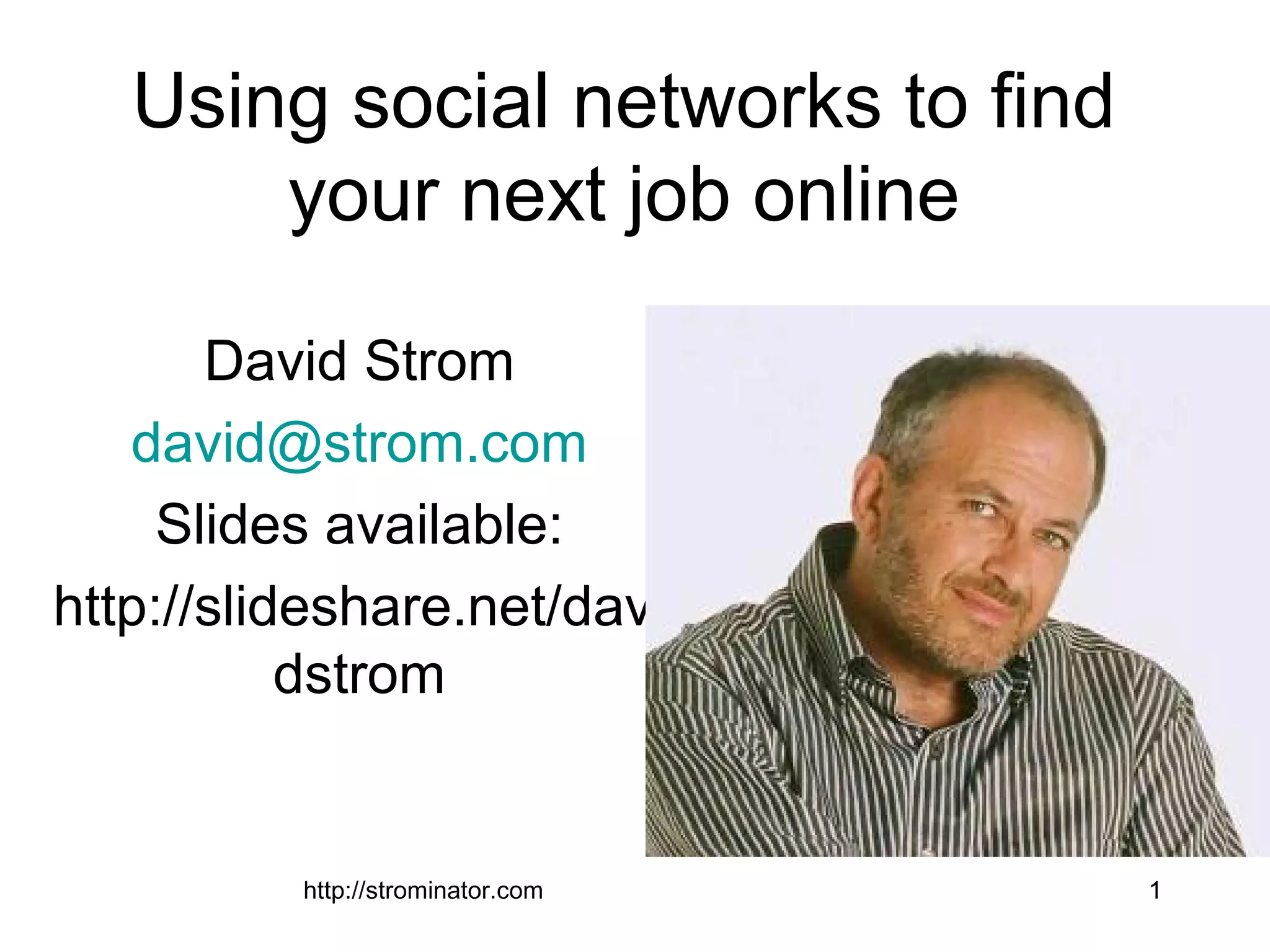
David Strom
david@strom.com
Slides available:
http://slideshare.net/davi
dstrom
http://strominator.com 2
http://strominator.com 3
http://strominator.com 4
http://strominator.com 5
Why bother
• LinkedIn is the new
“Parachute”
• Typical business uses
• What happens if you don’t join
• It isn’t just for job seekers
• Start small and develop experience and
learn by using more of its features
http://strominator.com 6
Agenda
• Set up your profile
• Start to grow your network
• Recommendations and endorsements
• Join groups
• Create and promote your content
• Coordinate with other social media
1. First steps
• Scrub session on Facebook, Web
• Understand this is a process, not a
quick fix
• LinkedIn is just the one of many other
networks you are going to use for your
search
http://strominator.com 7
Scrub session
http://strominator.com 8
http://strominator.com 9
How many of
your posts
have pictures
of something
like this in
them?
http://strominator.com 10
2. Set up your profile
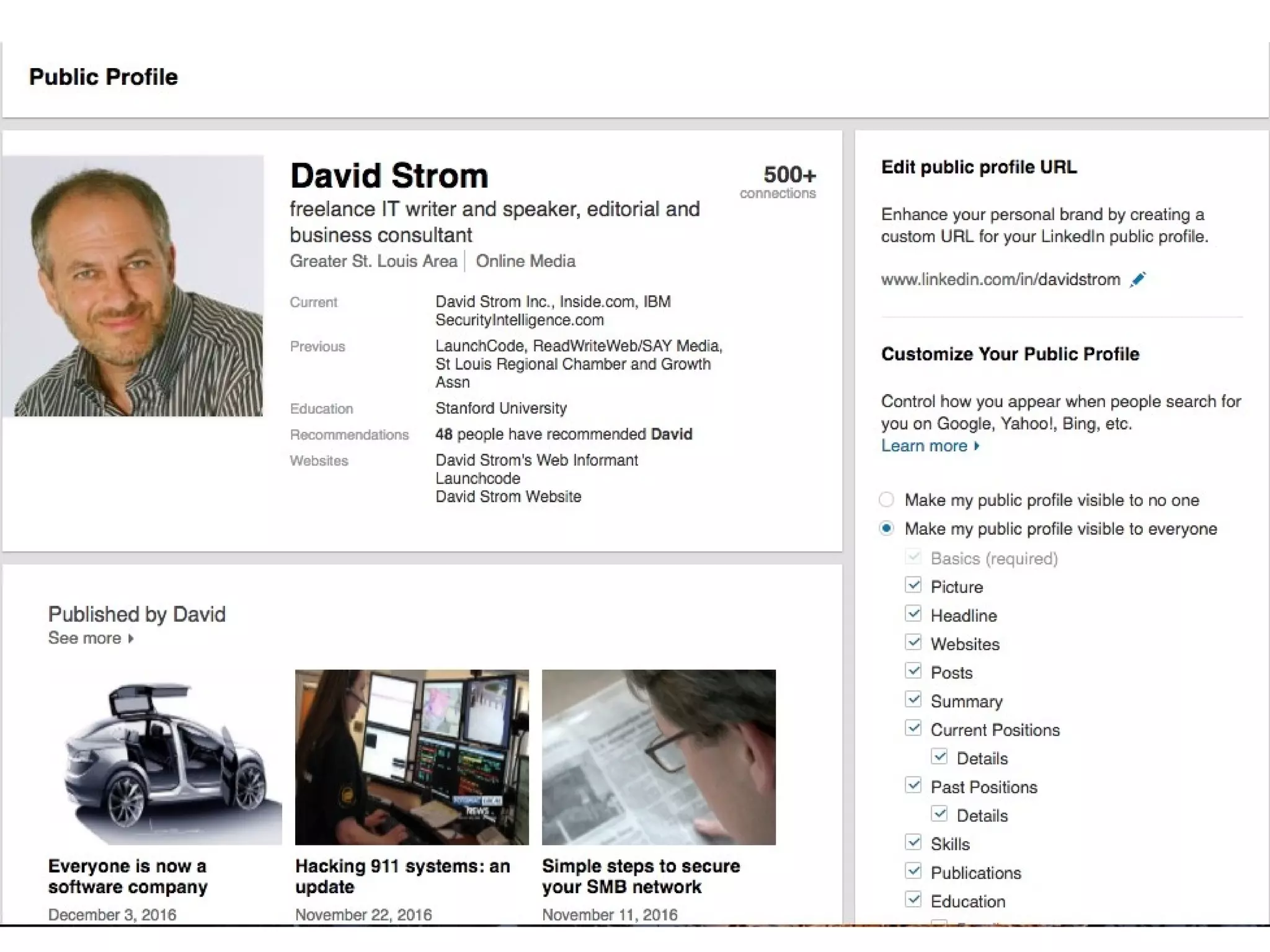
• Understand the various privacy settings
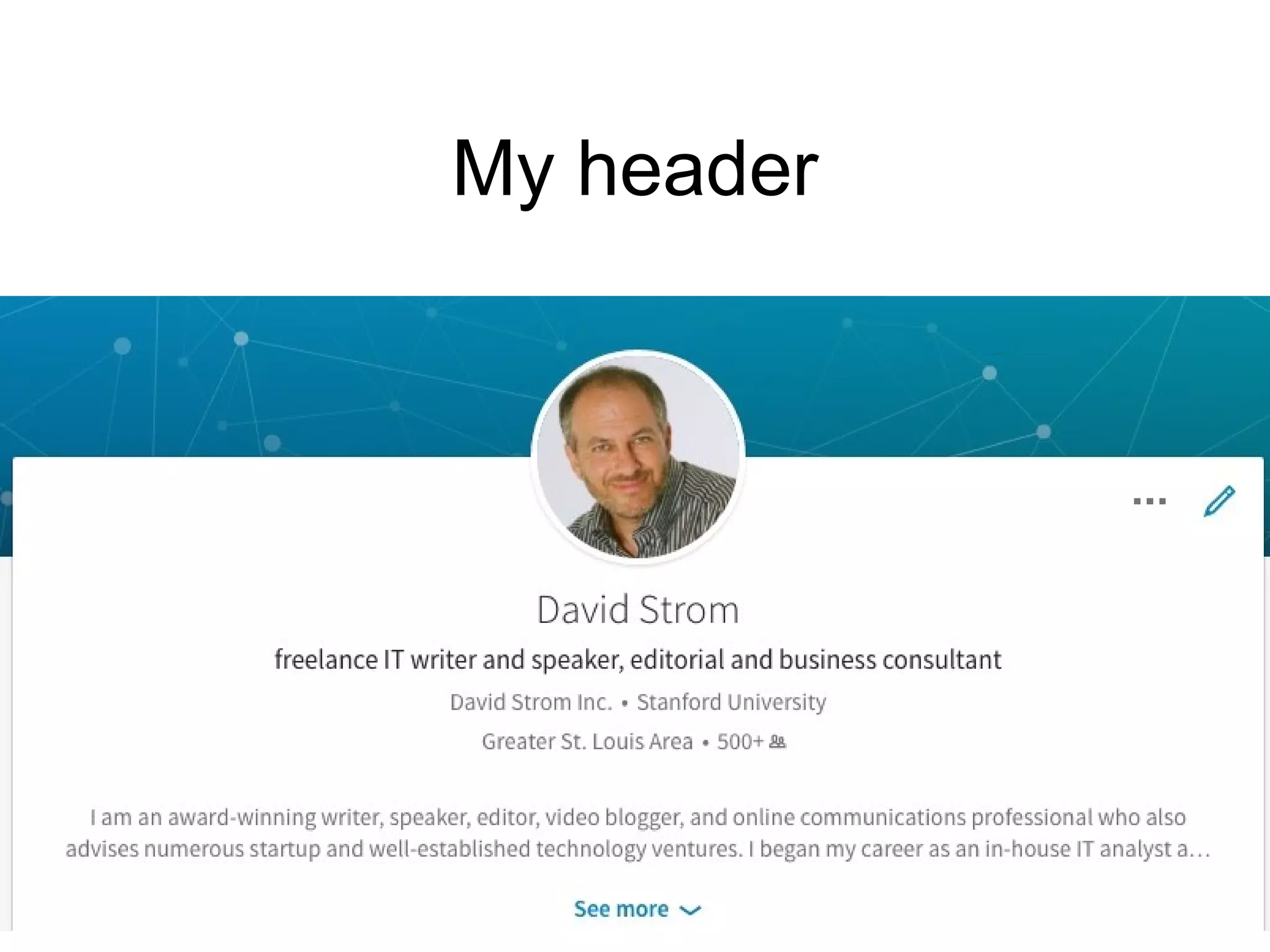
• Start experimenting with your header
• Include a clear and professional photo
• Start posting regular status updates
http://strominator.com 11
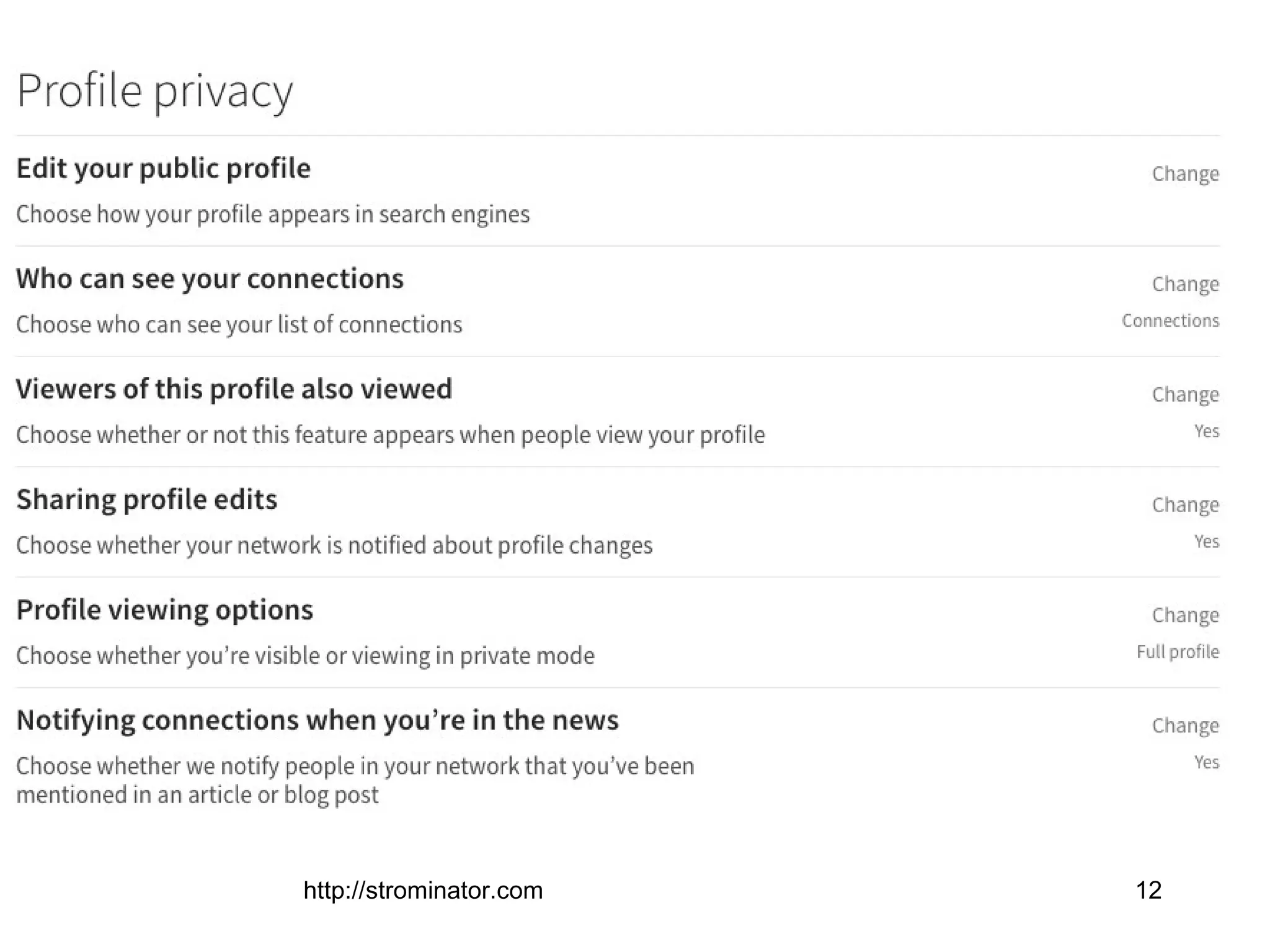
Privacy and visibility
http://strominator.com 12
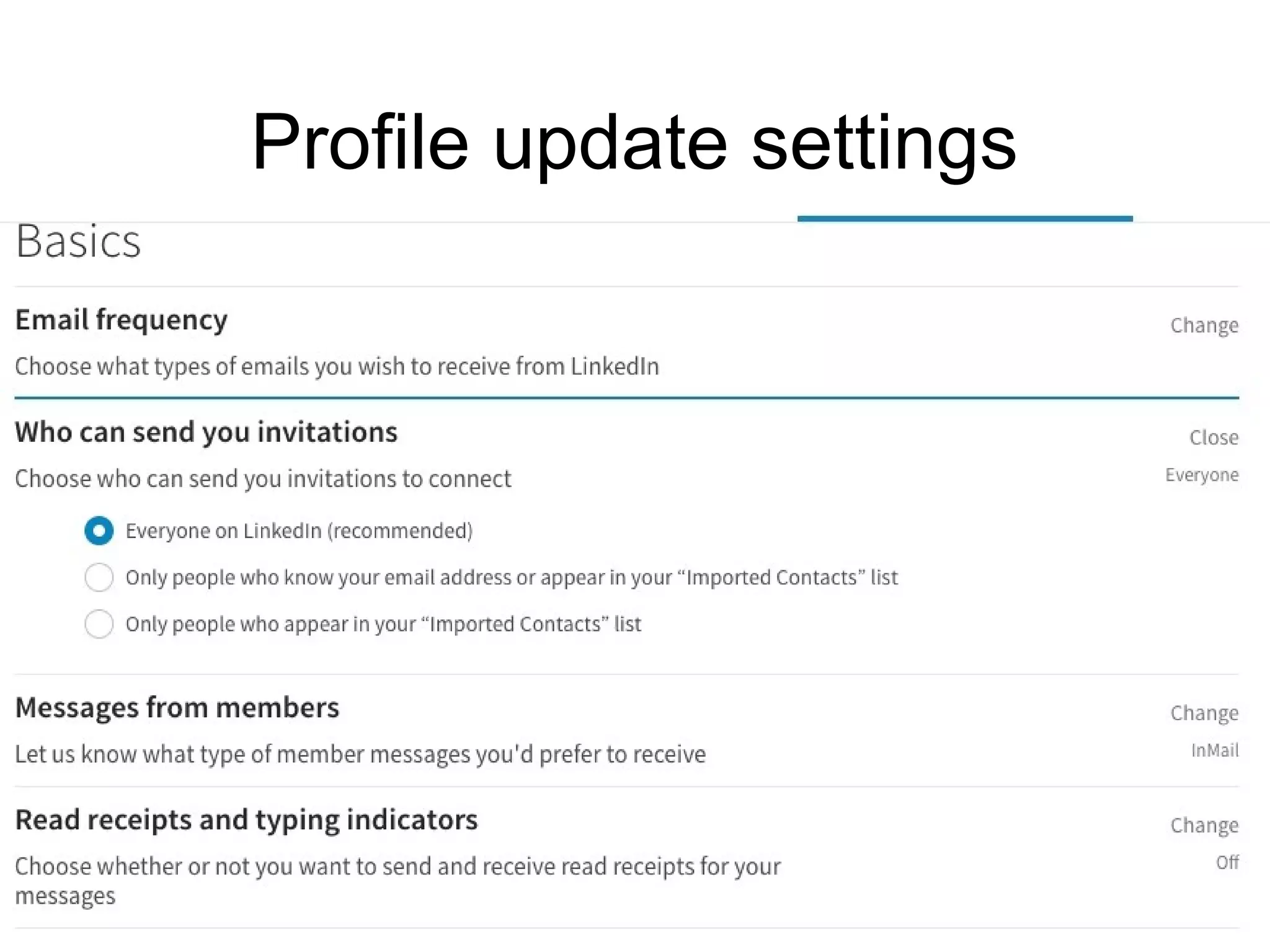
Profile update settings
http://strominator.com 13
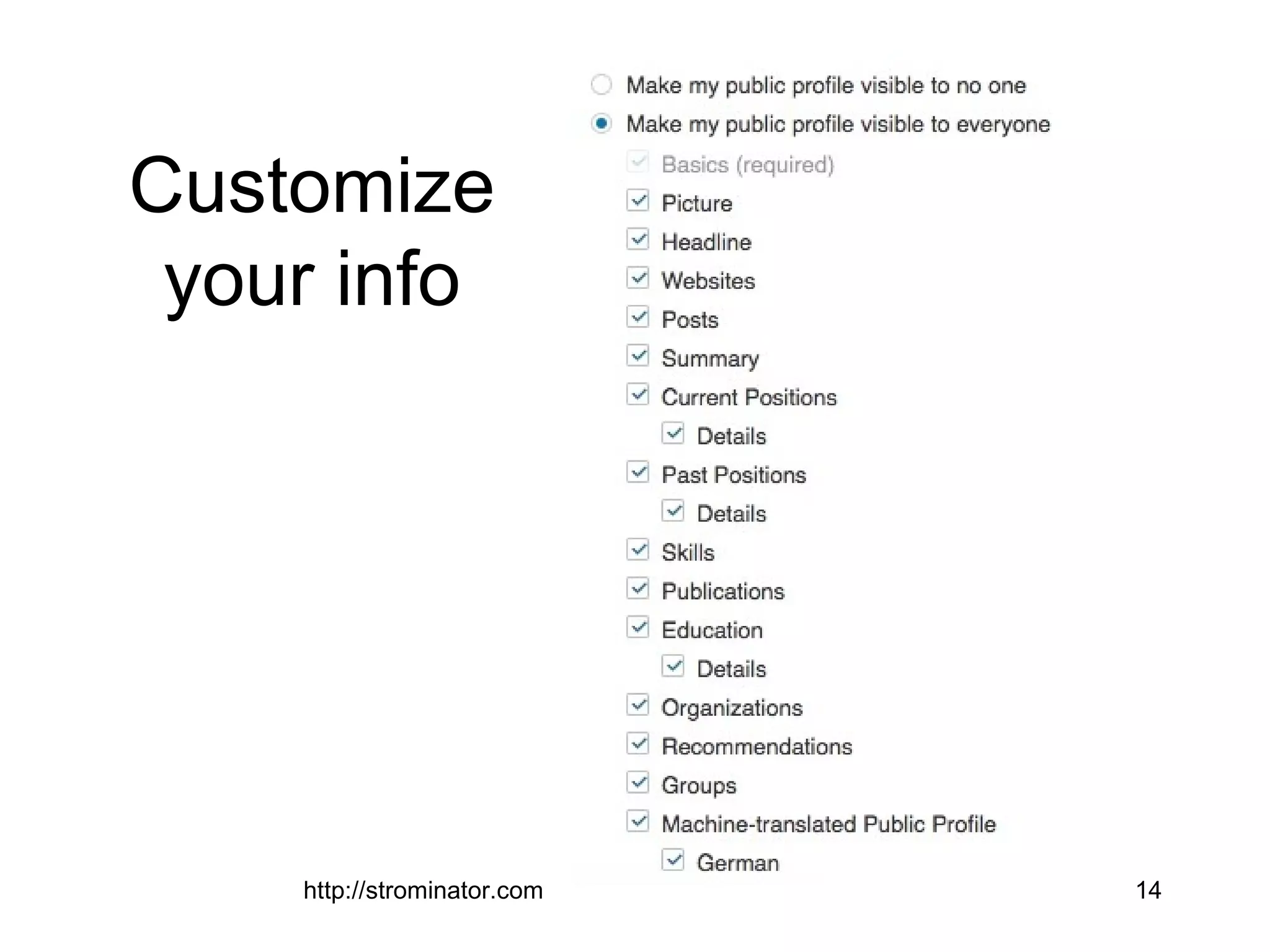
Customize
your info
http://strominator.com 14
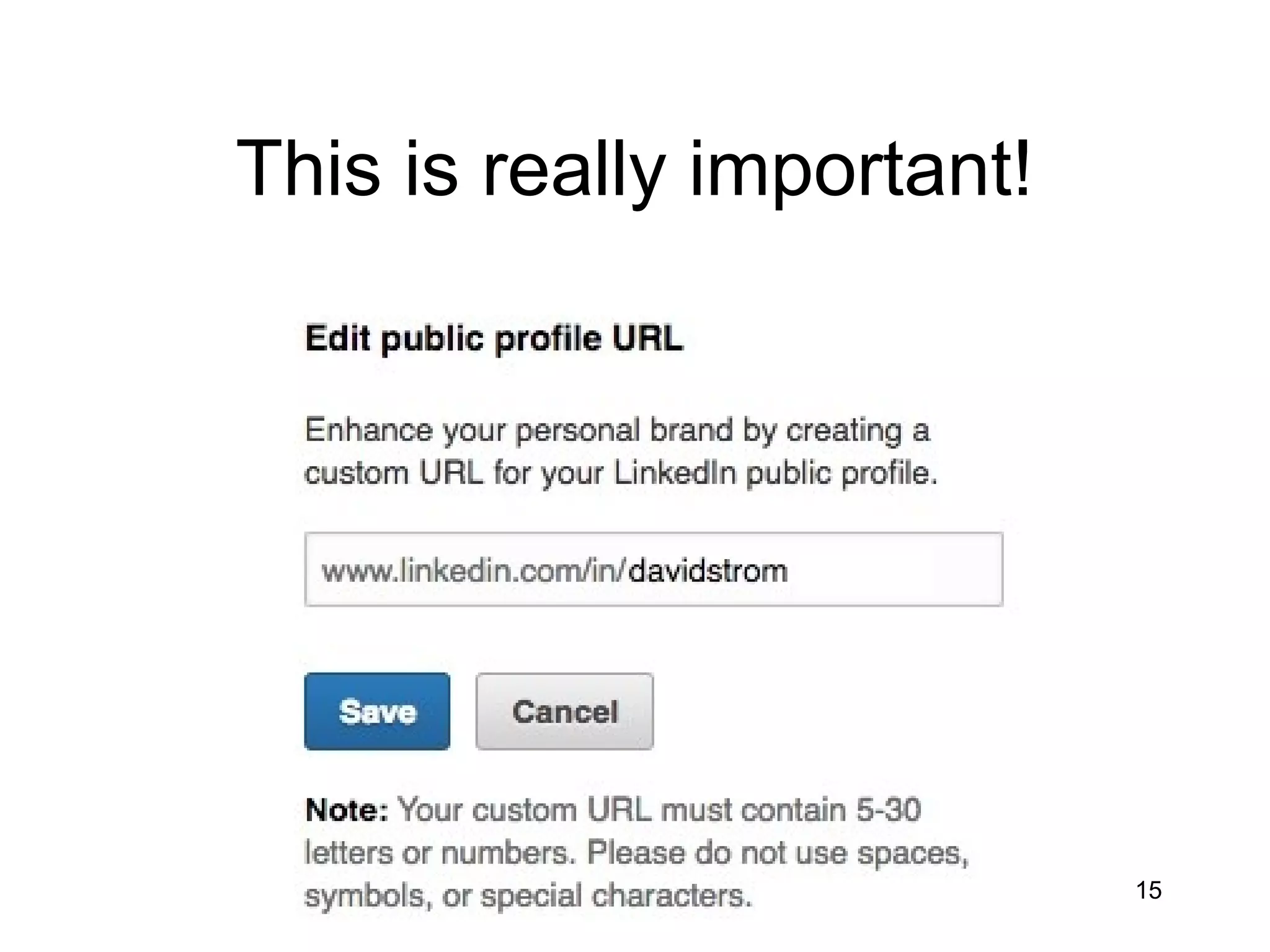
This is really important!
http://strominator.com 15
http://strominator.com 16
Facebook “marriage”
http://strominator.com 17
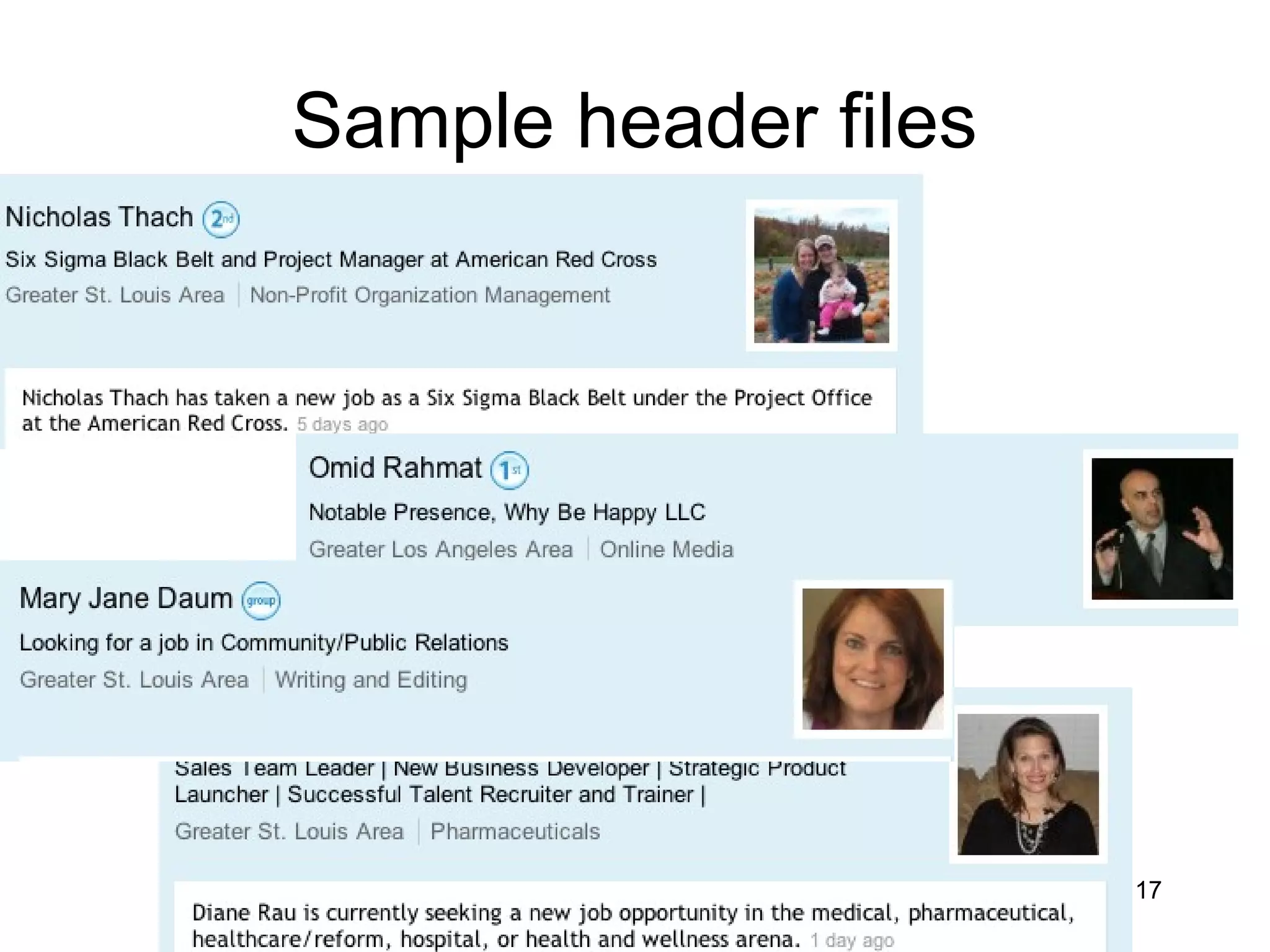
Sample header files
My header
http://strominator.com 18
http://strominator.com 19
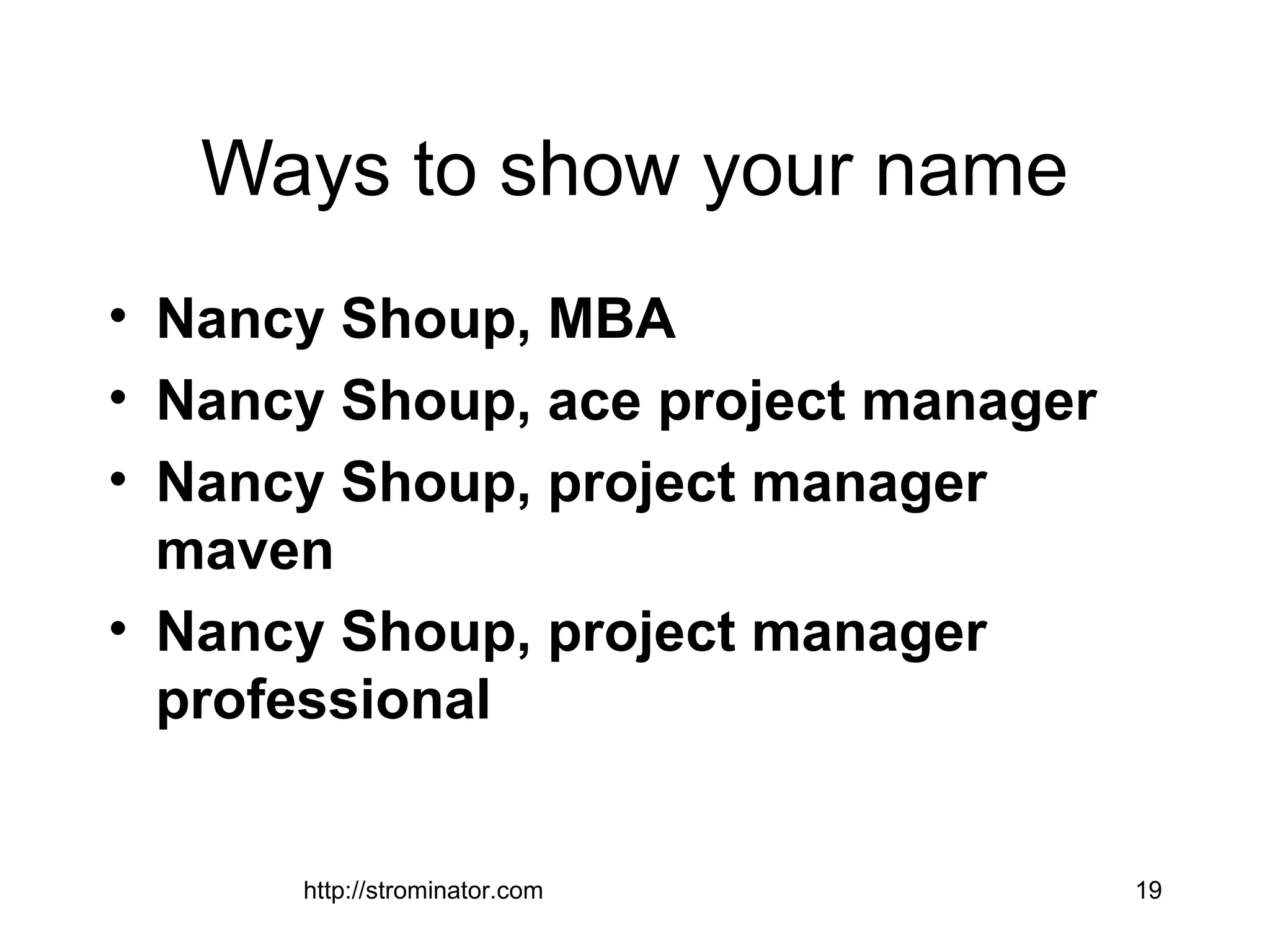
Ways to show your name
• Nancy Shoup, MBA
• Nancy Shoup, ace project manager
• Nancy Shoup, project manager
maven
• Nancy Shoup, project manager
professional
http://strominator.com 20
3. Build your network, slowly!
• Dos and don’ts
• How do you add to your network?
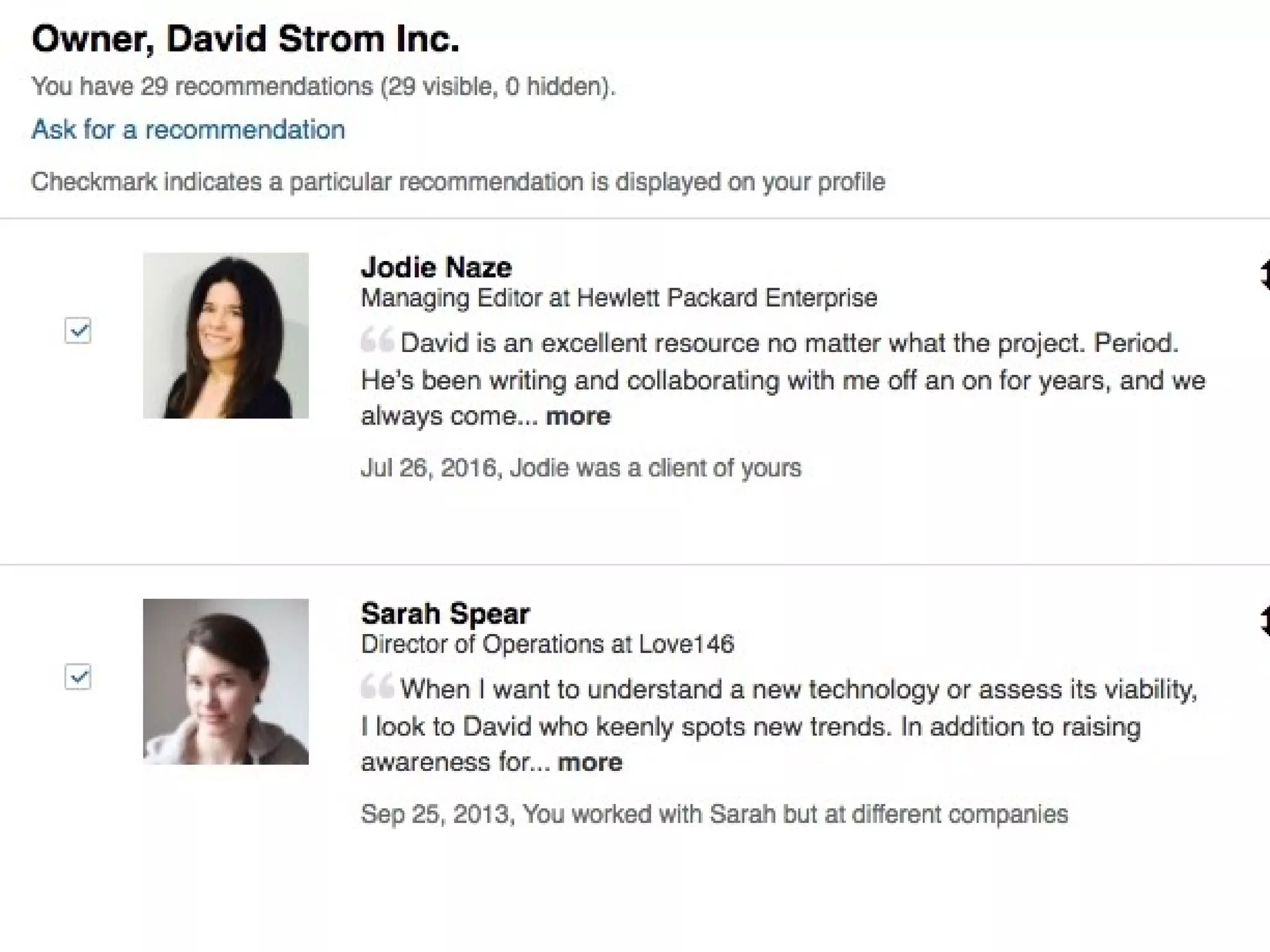
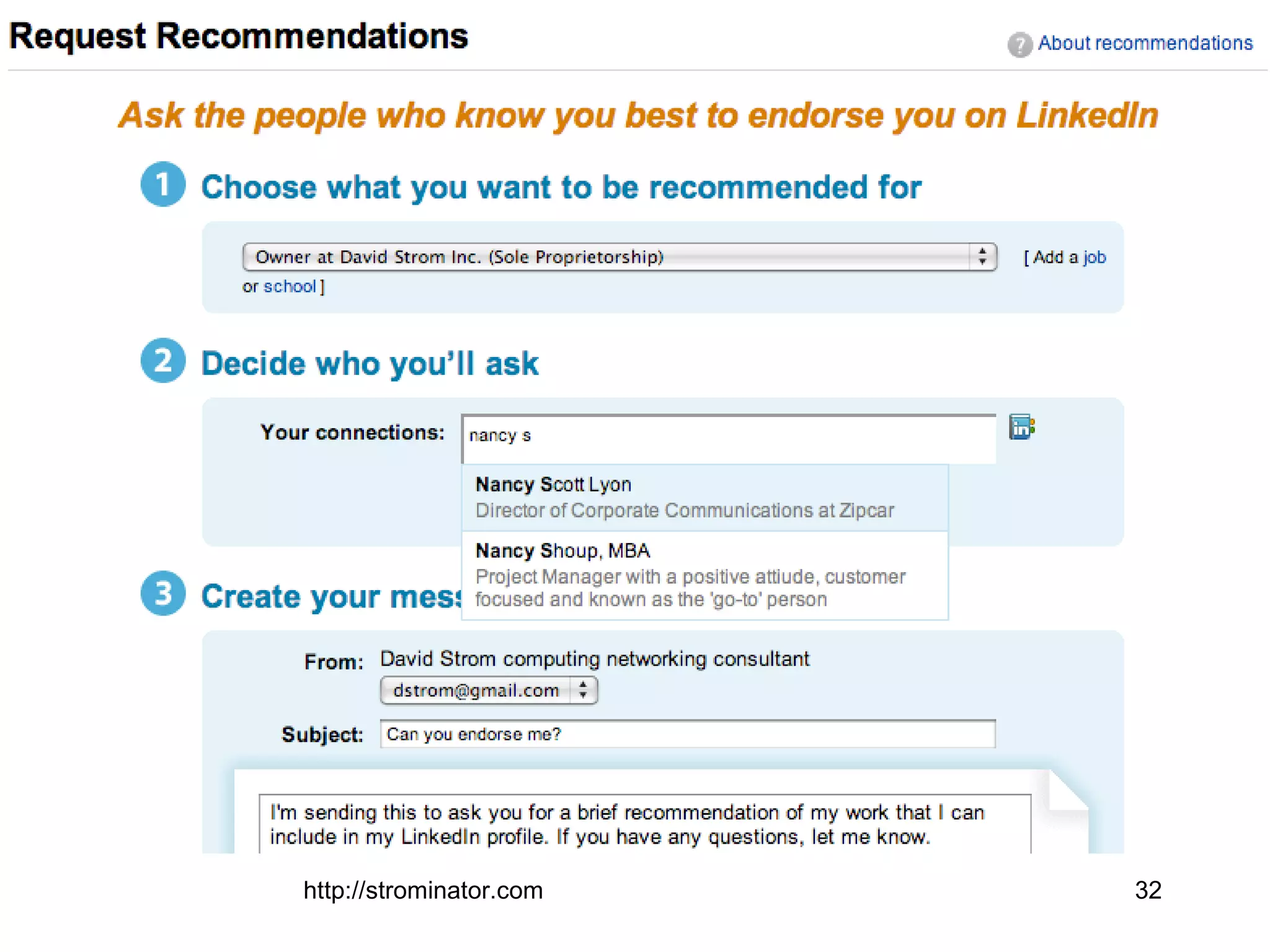
• Using recommendations
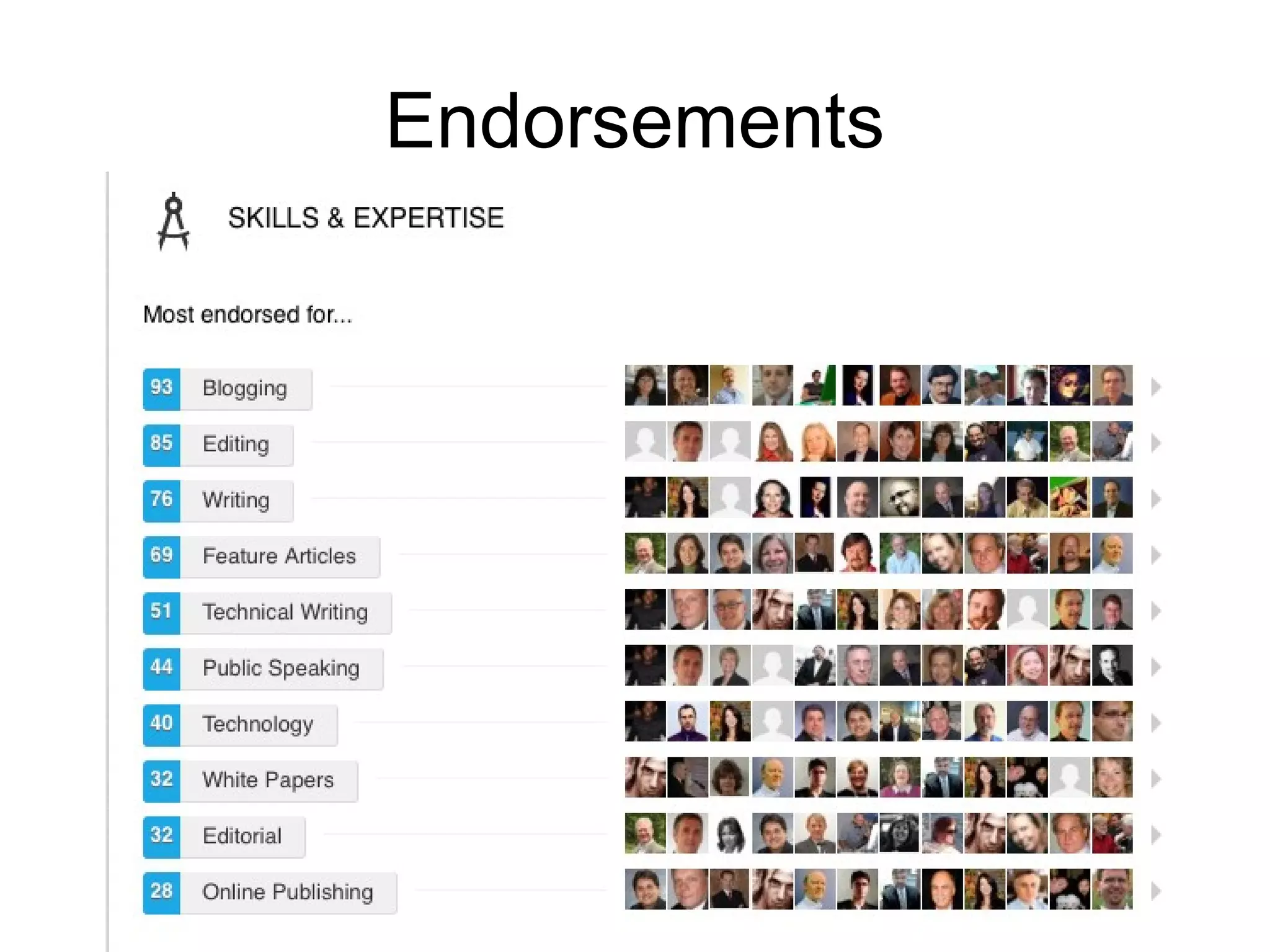
• What about endorsements?
http://strominator.com 21
http://strominator.com 22
Do’s
• Make sure they are people you can
visualize in your mind or have some
memory
• Do check LinkedIn daily
• Make sure you have your settings the
way you intended
• Constantly cultivate and feed your
network
http://strominator.com 23
Don’ts
• Don’t send out mass invites to more than 30
people at once
• Don’t put non-professional items in your
status updates
• Don’t obsess about the number of
connections and build slowly over time
• Don’t just get started on the site two weeks
before you are changing jobs
• Don’t worry too much about using InMail
http://strominator.com 24
Criteria for adding people
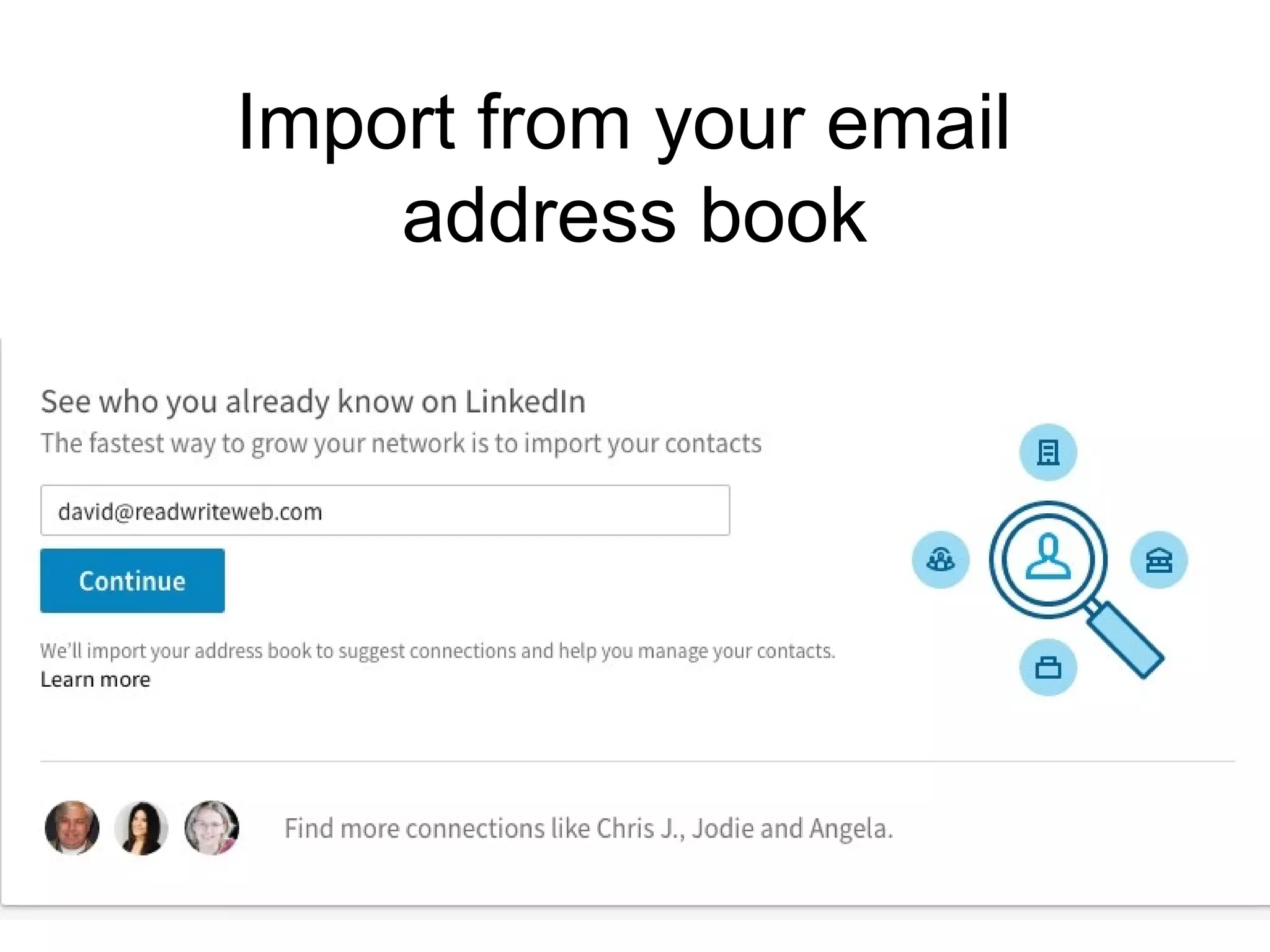
Import from your email
address book
http://strominator.com 25
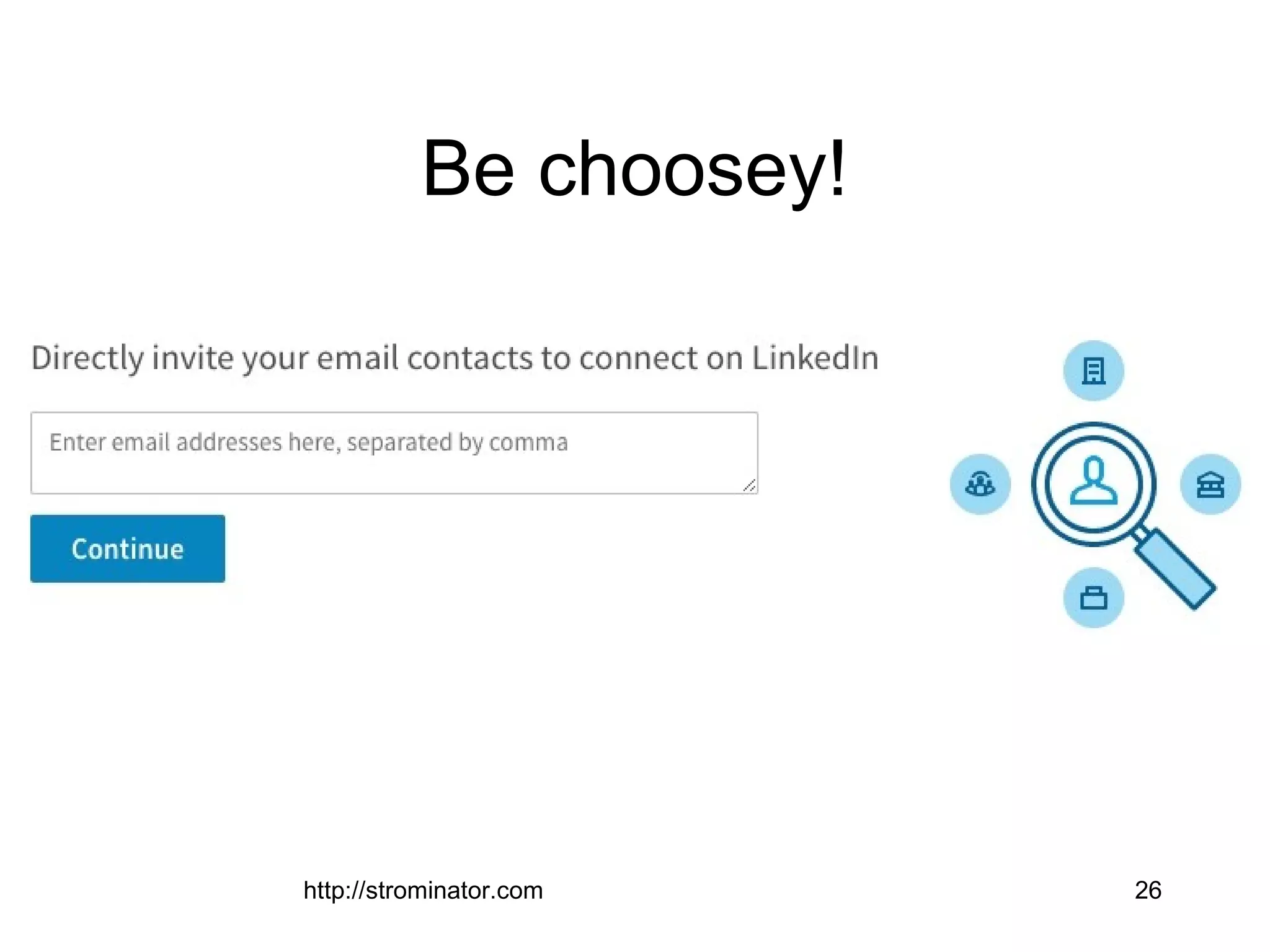
Be choosey!
http://strominator.com 26
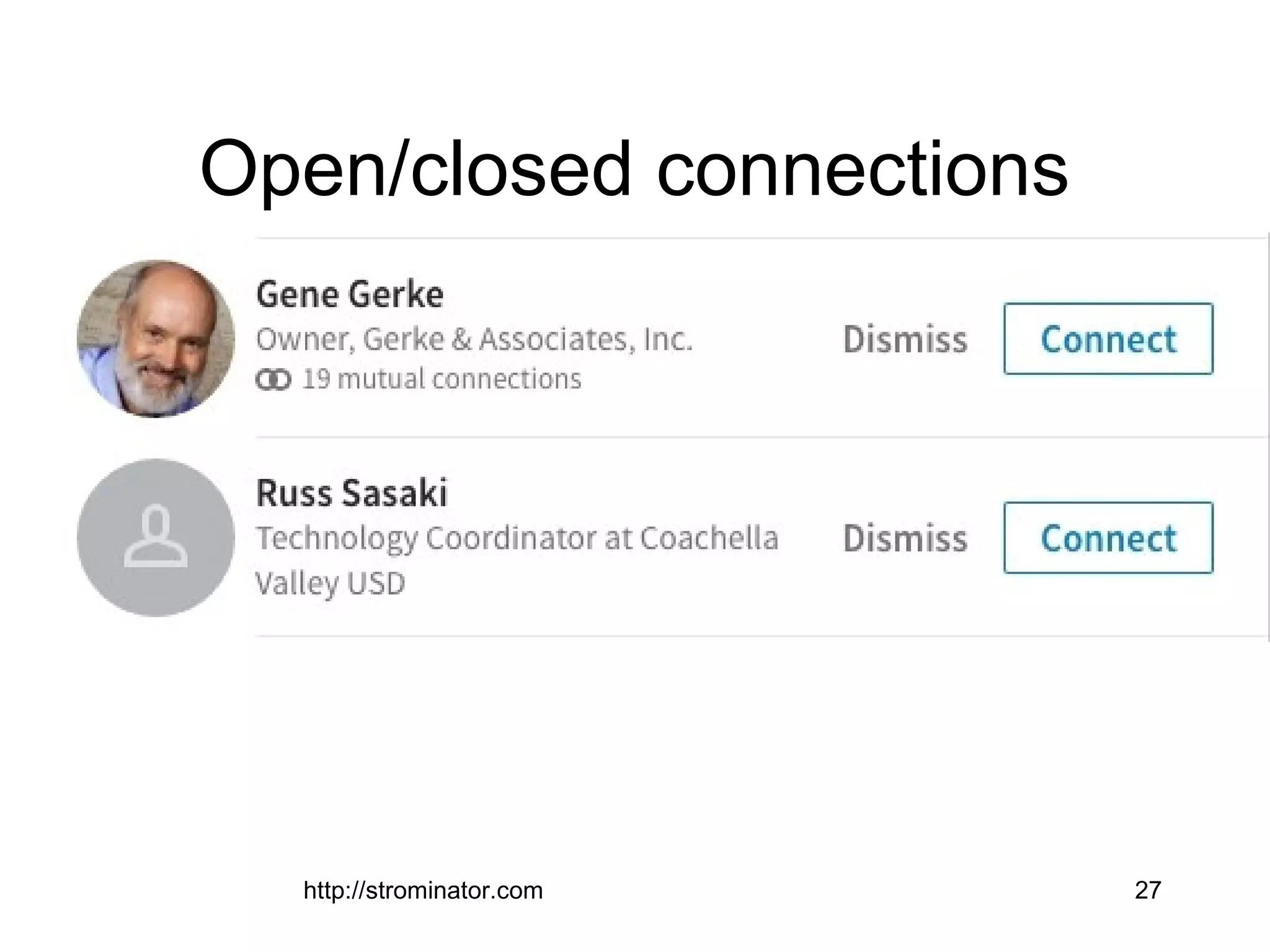
Open/closed connections
http://strominator.com 27
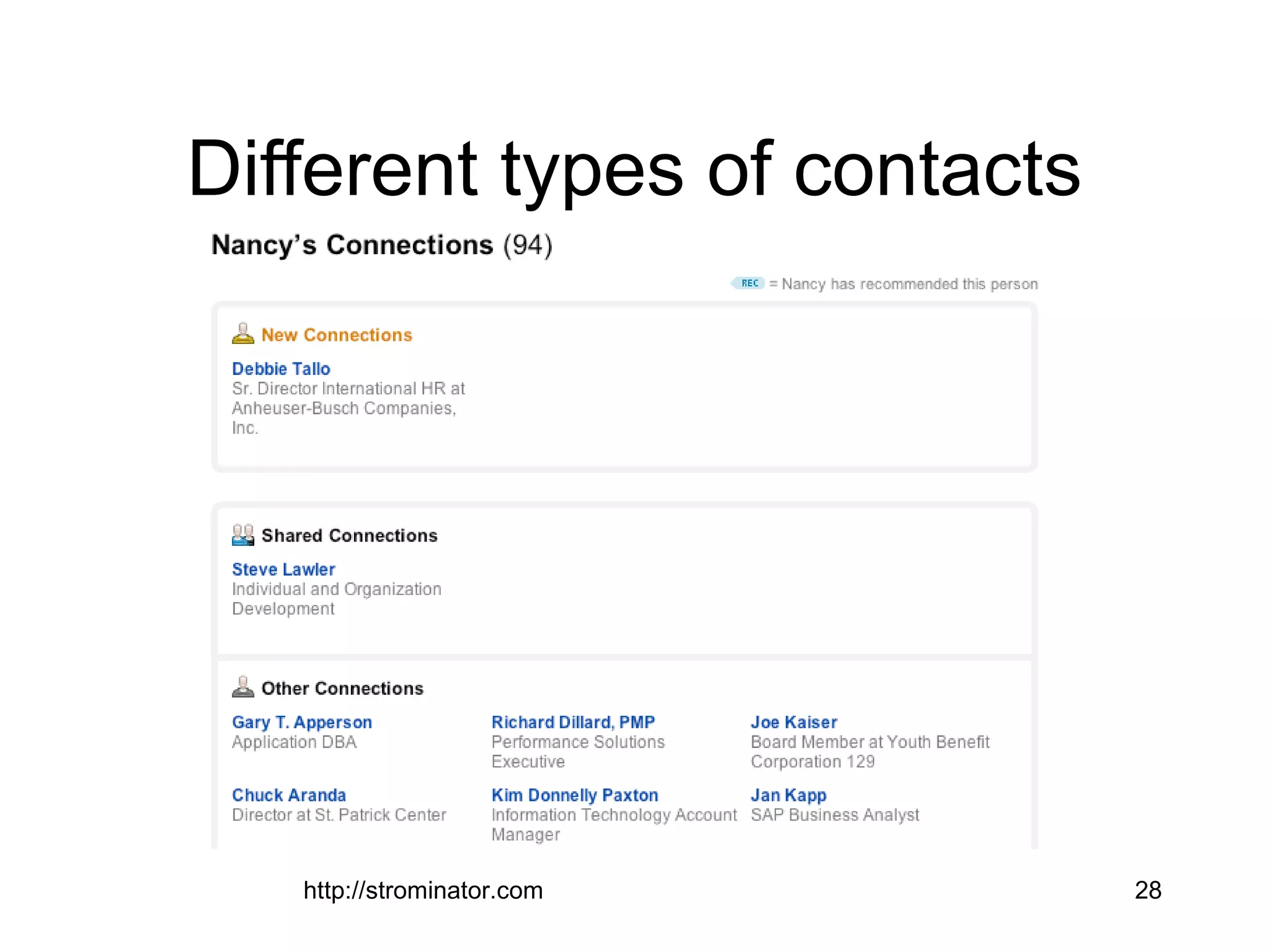
Different types of contacts
http://strominator.com 28
http://strominator.com 29
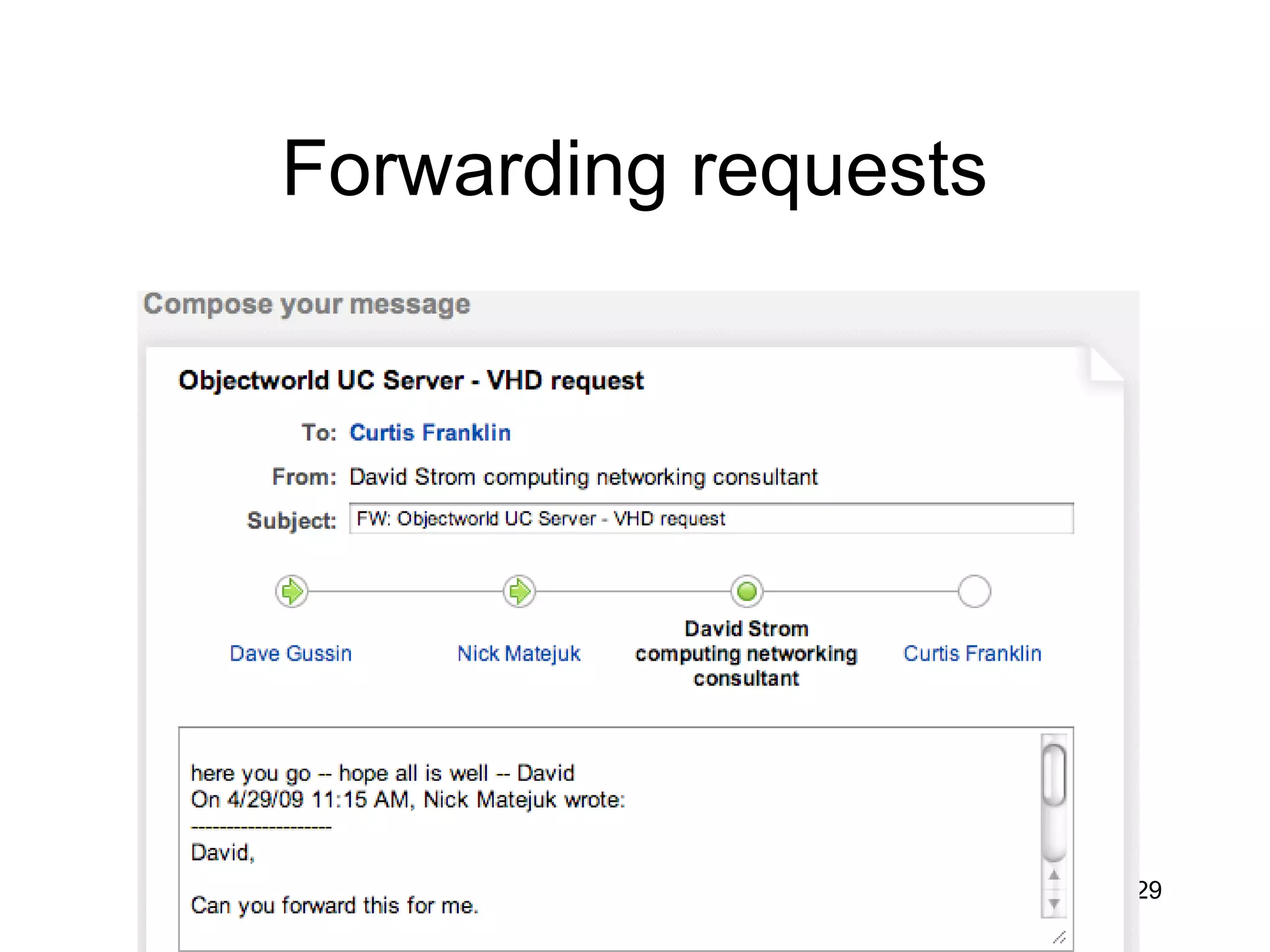
Forwarding requests
http://strominator.com 30
Recommendations
• But I don’t know
anyone!
• Part time jobs
• Family friends,
neighbors, others who
know you well
http://strominator.com 31
http://strominator.com 32
Endorsements
http://strominator.com 33
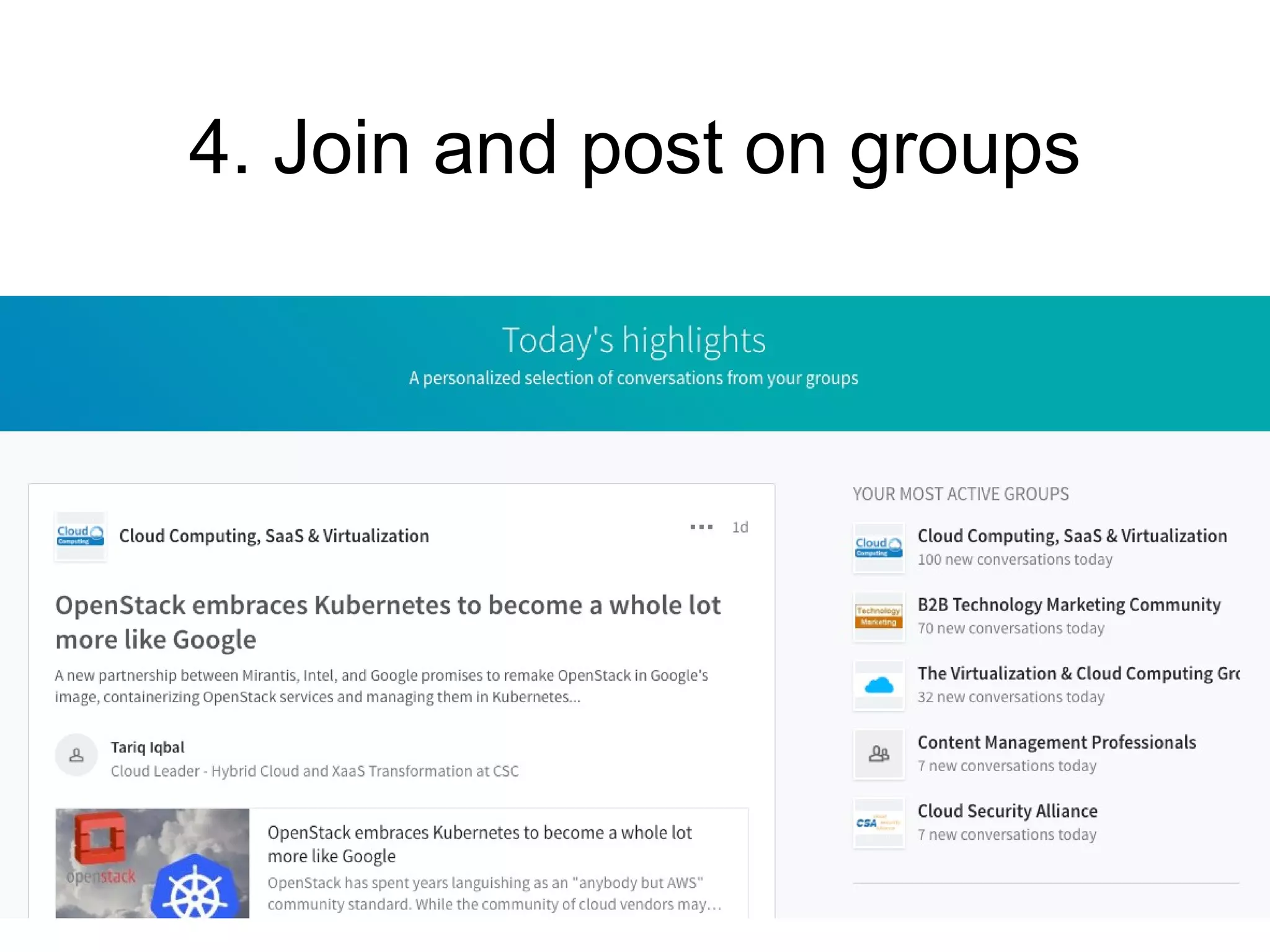
4. Join and post on groups
http://strominator.com 34
http://strominator.com 35
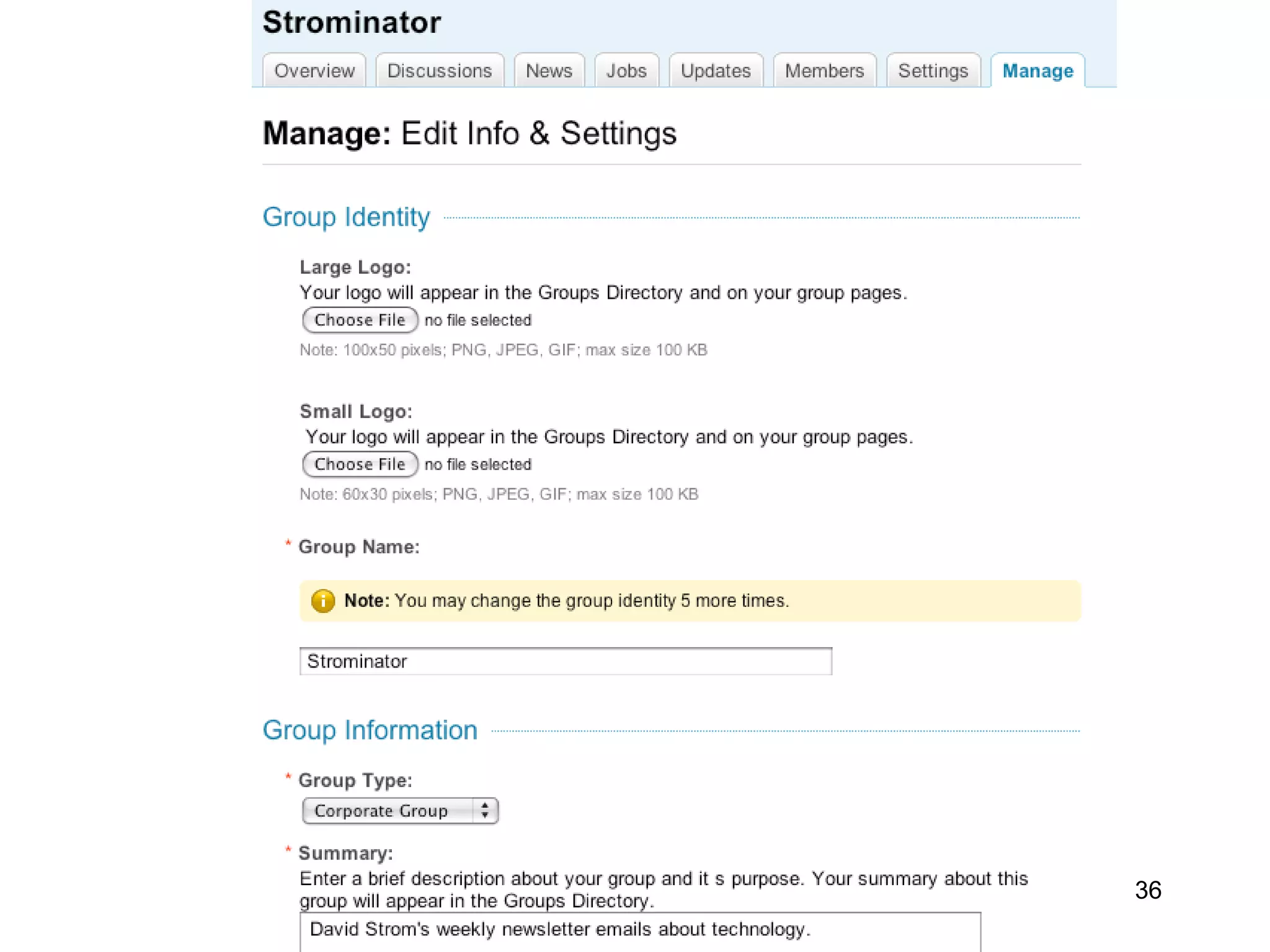
http://strominator.com 36
http://strominator.com 37
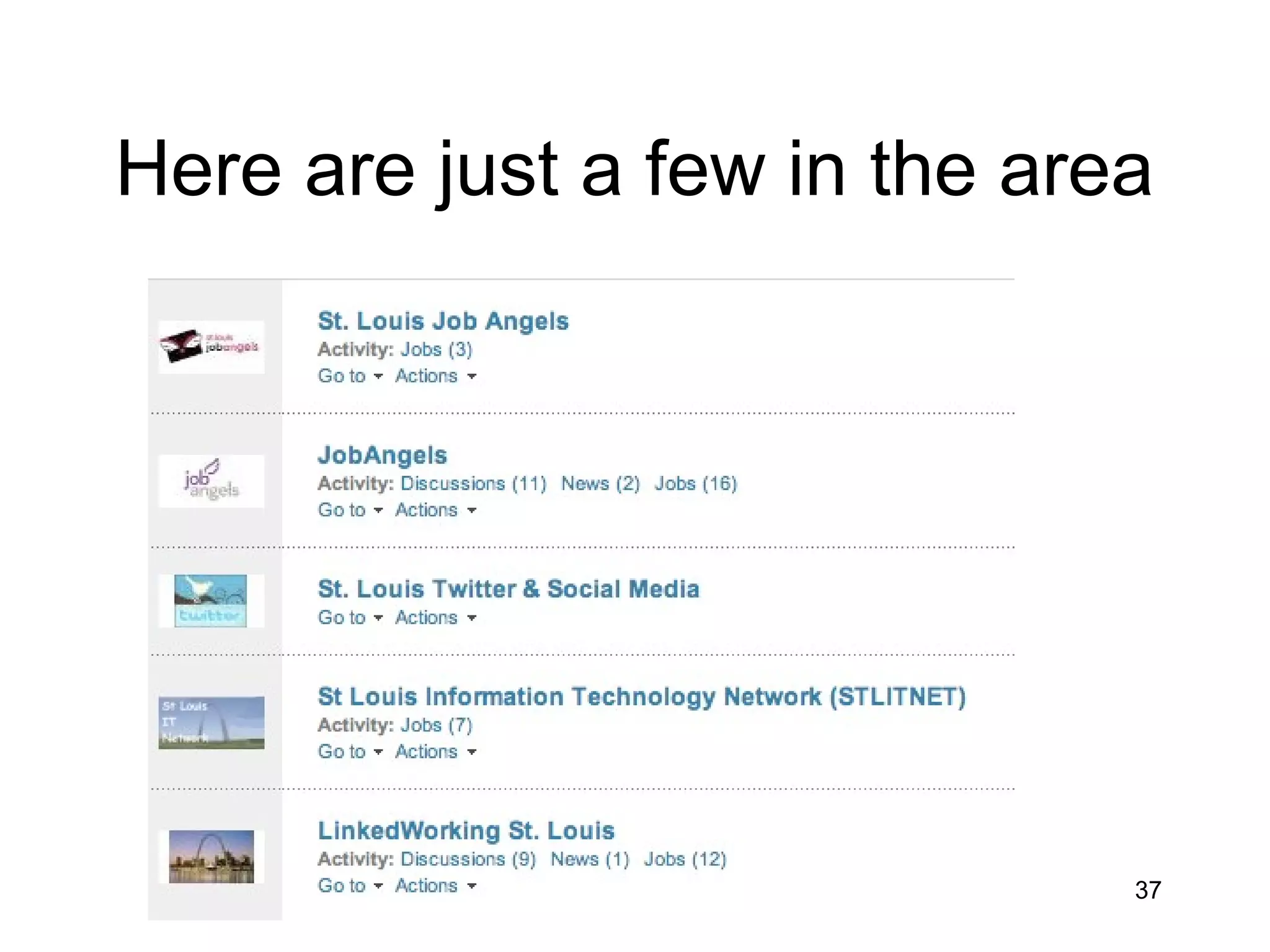
Here are just a few in the area
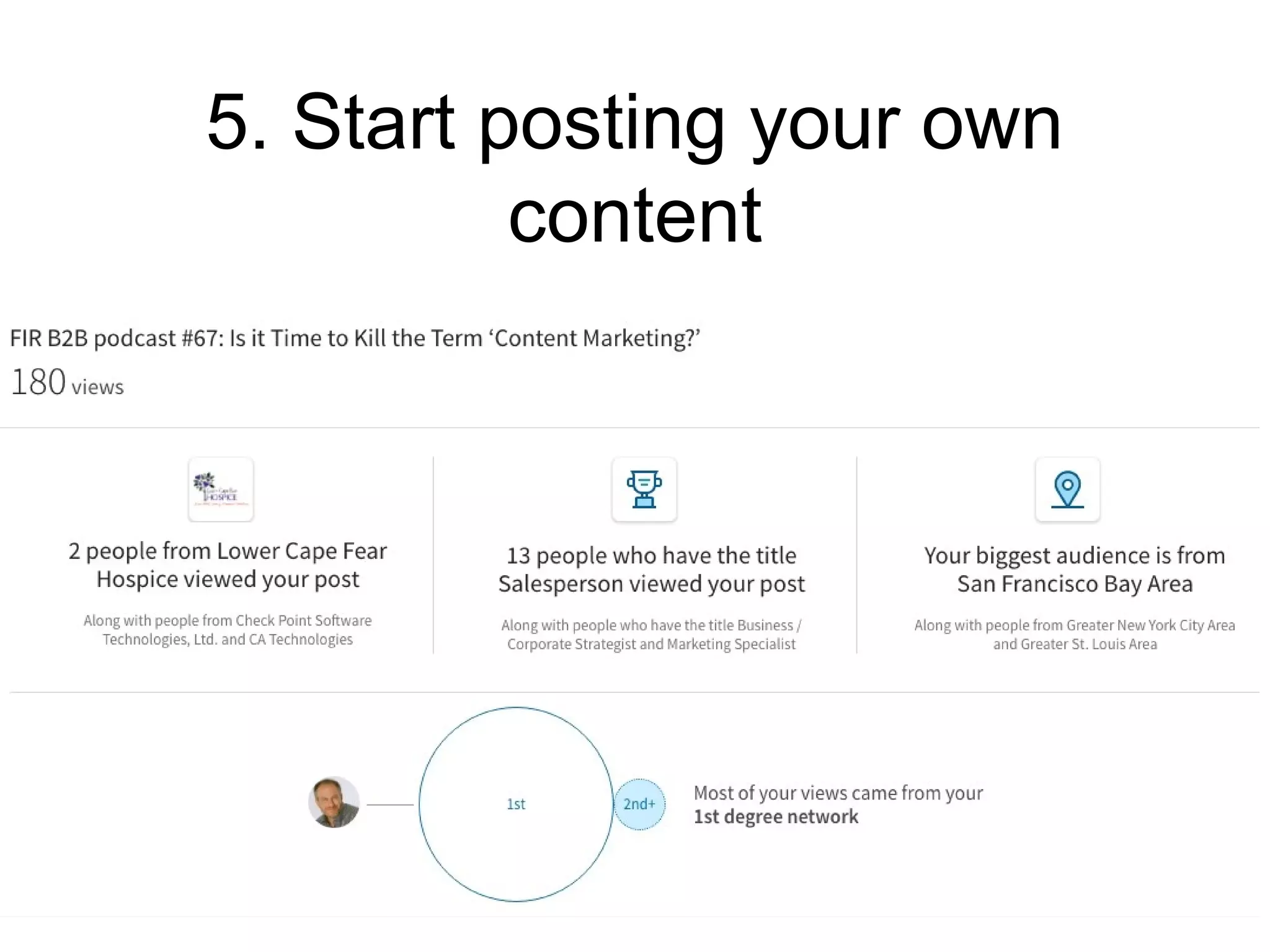
5. Start posting your own
content
http://strominator.com 38
http://strominator.com 39
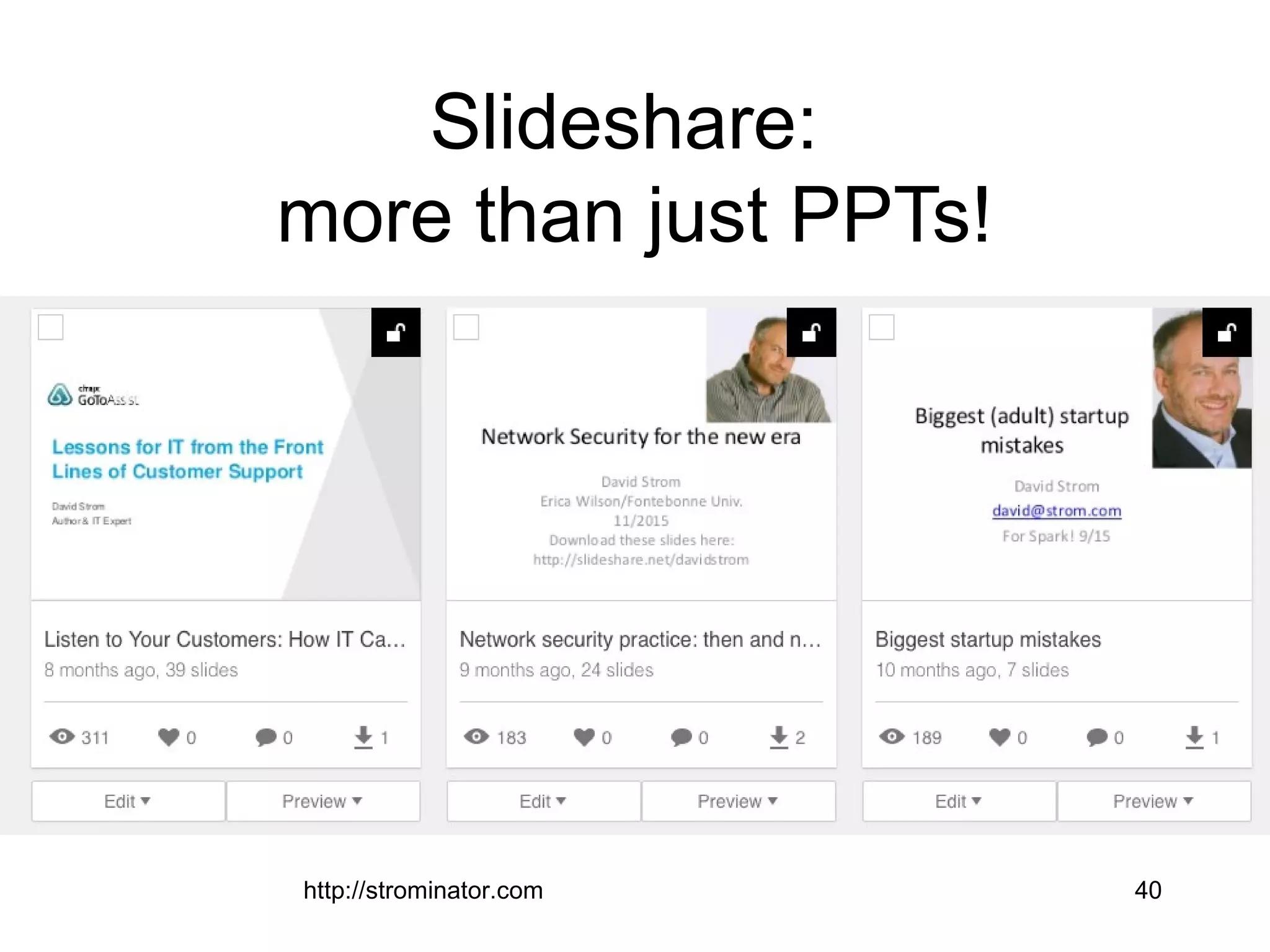
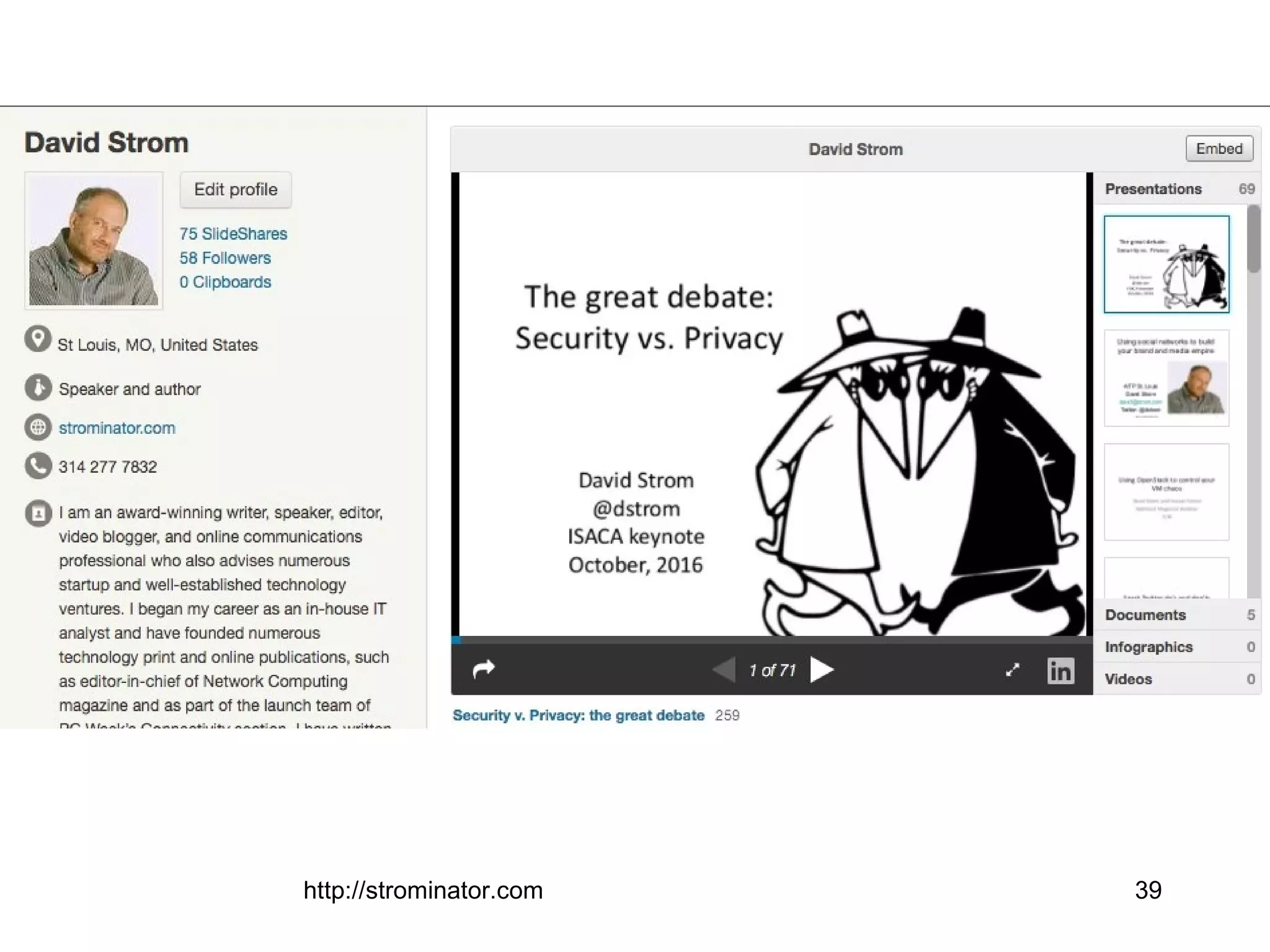
Slideshare:
more than just PPTs!
http://strominator.com 40
http://strominator.com 41
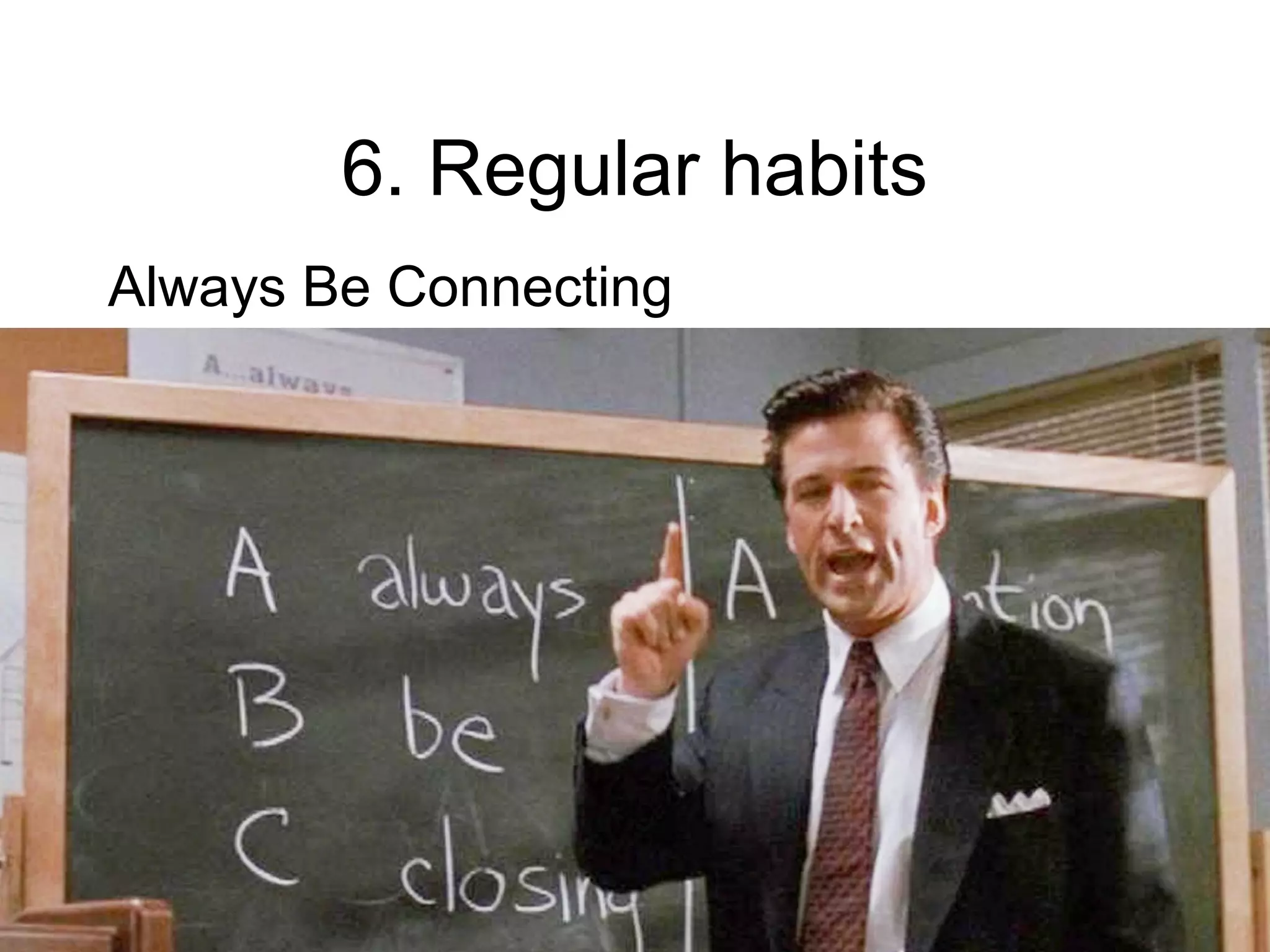
6. Regular habits
Always Be Connecting
http://strominator.com 42
http://strominator.com 43
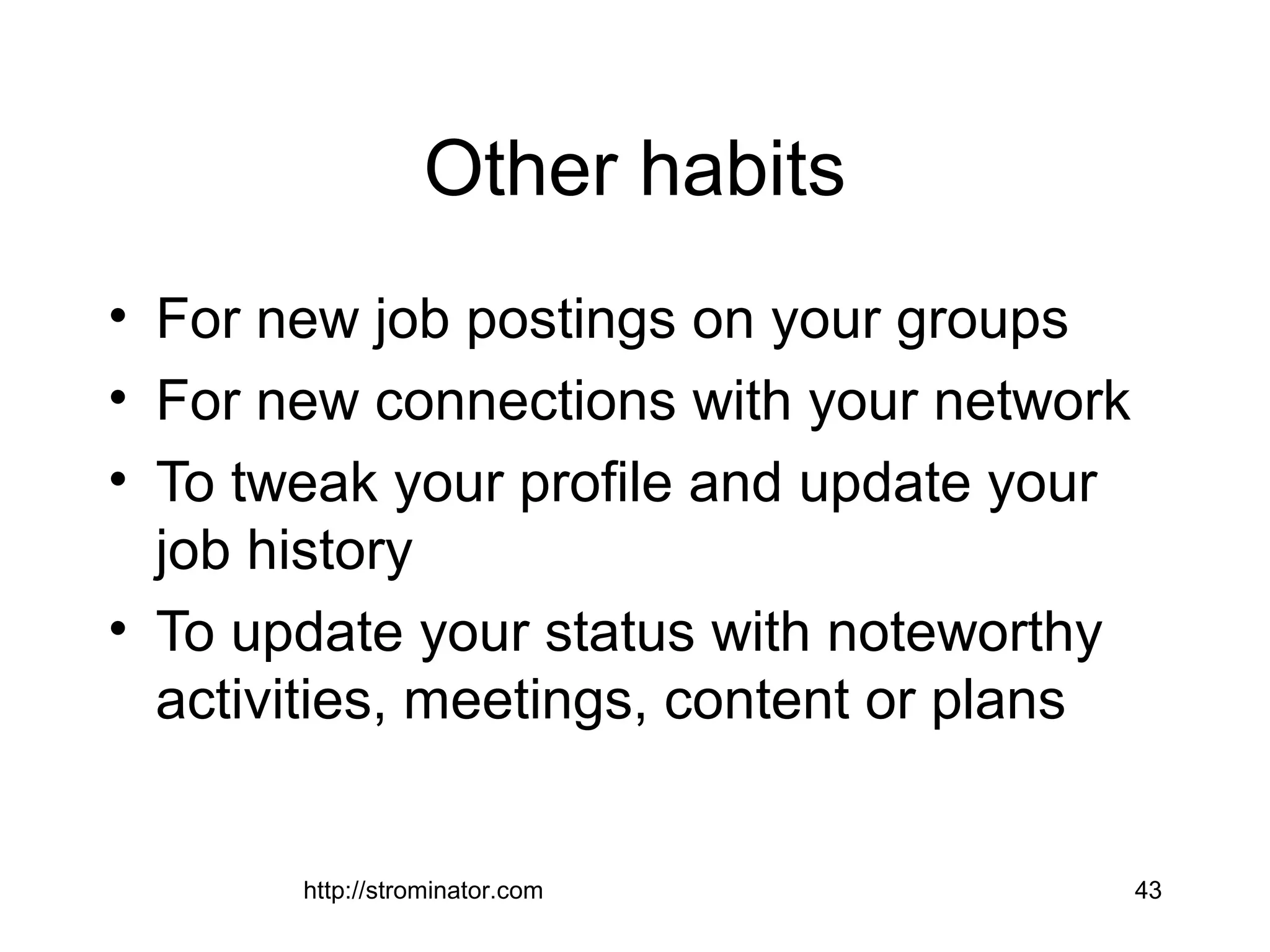
Other habits
• For new job postings on your groups
• For new connections with your network
• To tweak your profile and update your
job history
• To update your status with noteworthy
activities, meetings, content or plans
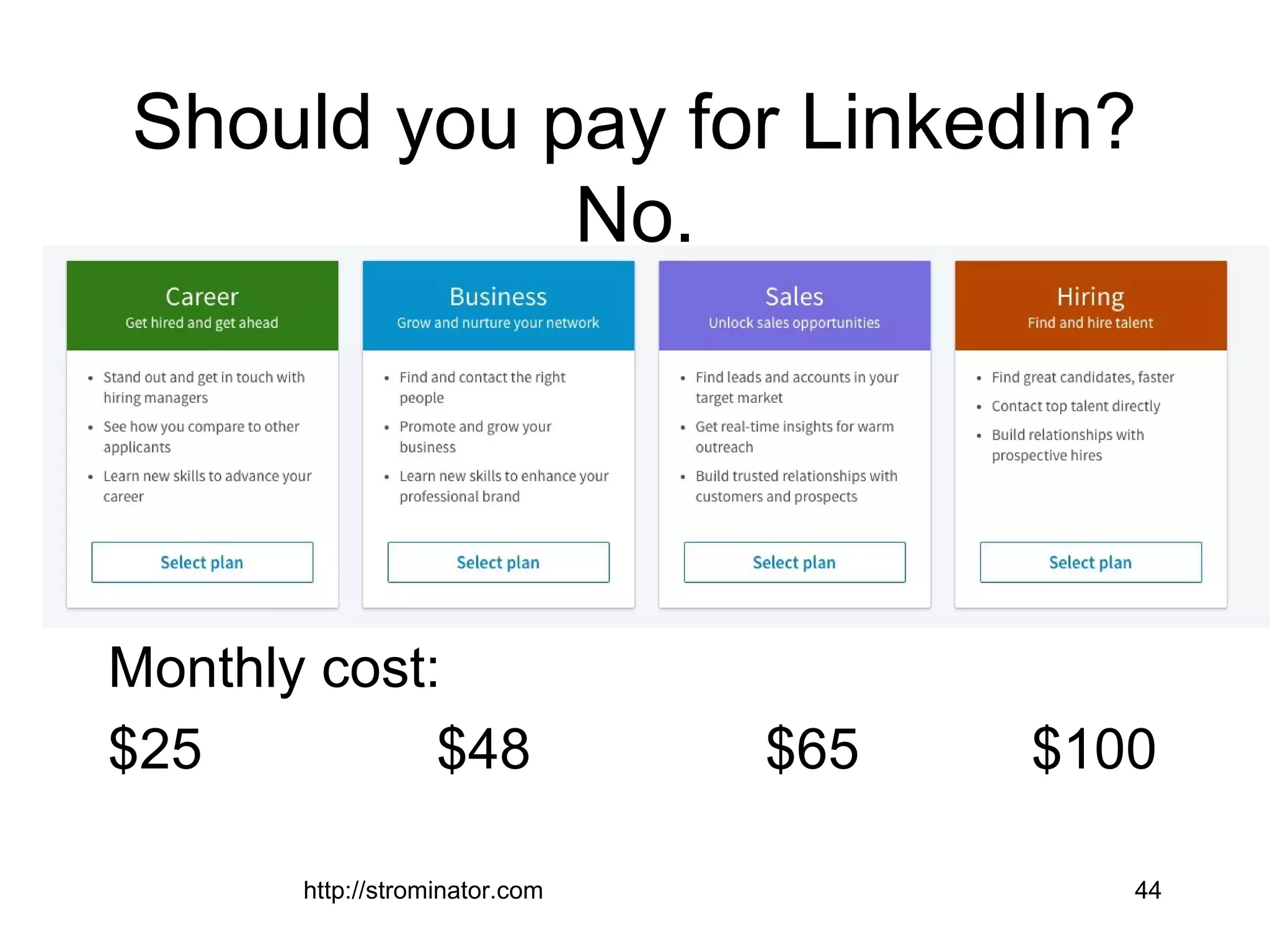
Should you pay for LinkedIn?
No.
Monthly cost:
$25 $48 $65 $100
http://strominator.com 44
Tying it all together
http://strominator.com 45
http://strominator.com 46
LinkedIn is just the start…
http://strominator.com 47
http://strominator.com 48
http://strominator.com 49
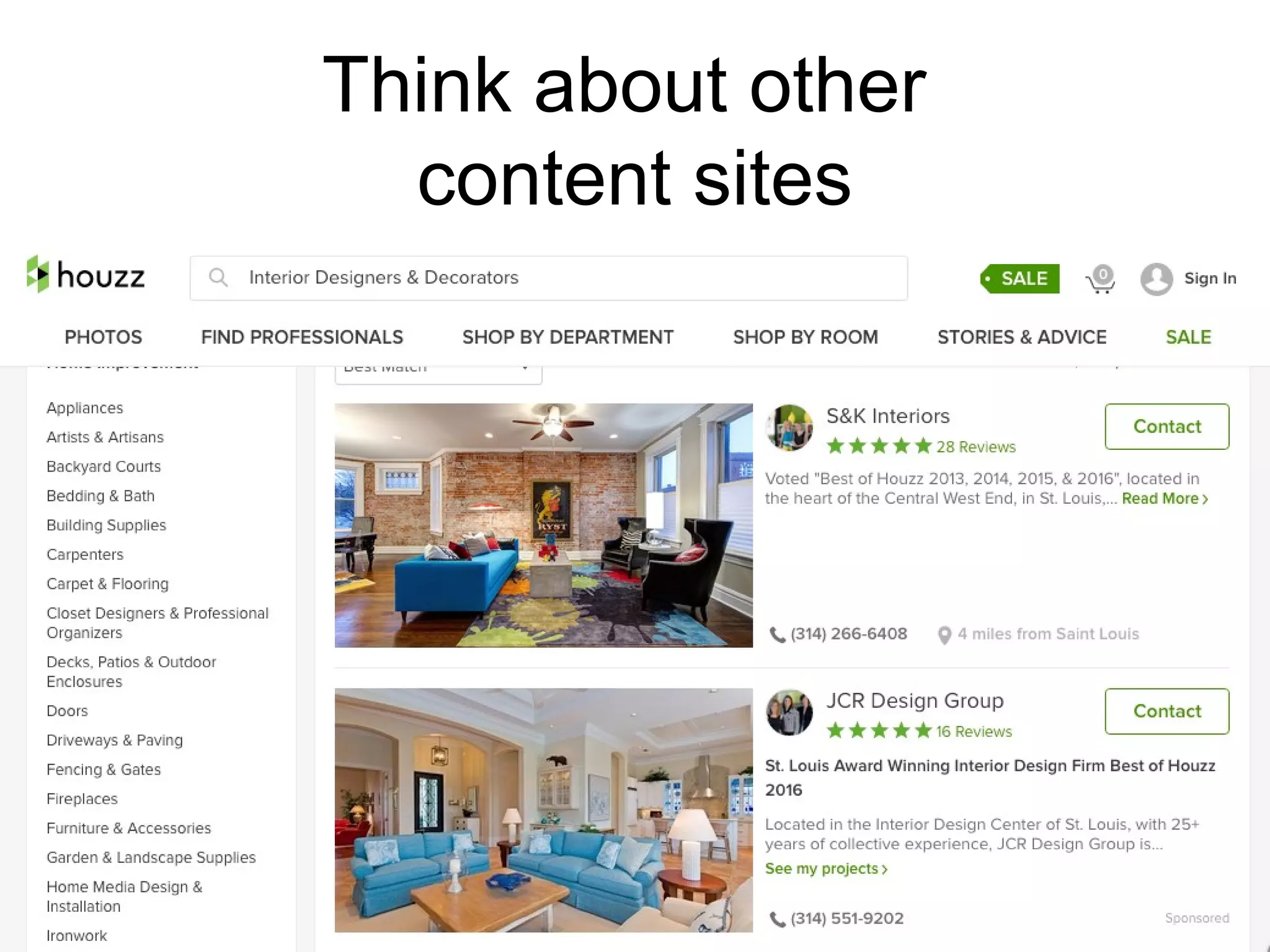
Think about other
content sites
http://strominator.com 50
http://strominator.com 51
http://strominator.com 52
http://strominator.com 53
http://strominator.com 54
Good luck with your
networking!
David Strom
(314) 277-7832
david@strom.com
http://strominator.com
Slides available:
http://slideshare.net/davidstrom

Using social networks to find your next job (2017)

Editor's Notes

  • #2 Completely new deck in 3/17
  • #3 I also produce this regular newsletter via email for Inside.com, which has several other specialty newsletters. Sign up now for free!
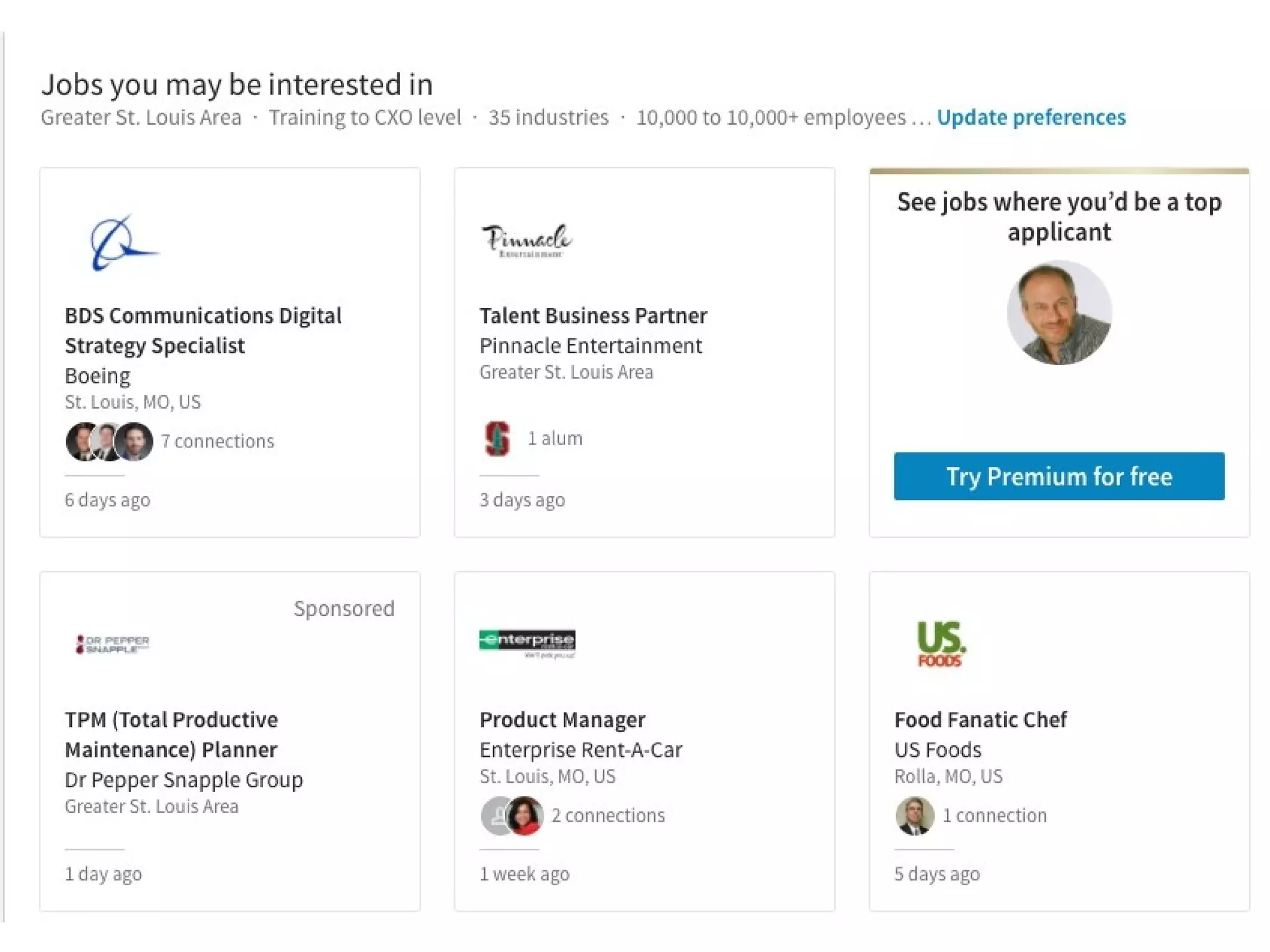
  • #5 Here is the end goal – to find jobs!
  • #15 In Profile/edit then scroll down to “Additional Info” and then add your contact info here. As they warn you, anything you put here can be seen by anyone, even those that aren’t connected to you directly. But that is the point.
  • #18 What is missing here? No email No picture Old update more than 3 weeks ago
  • #19 This is because LinkedIn doesn’t display emails, so if you want to be found, put it in
  • #25 Have you met this person ever? Do you remember what they look like? Have you corresponded with them via email or called lately?
  • #26 You’ll need to create a CSV or vCard file from your contact manager and upload it to LinkedIn -- you really just need their first and last name and email fields
  • #27 Customize the message and be choosey!
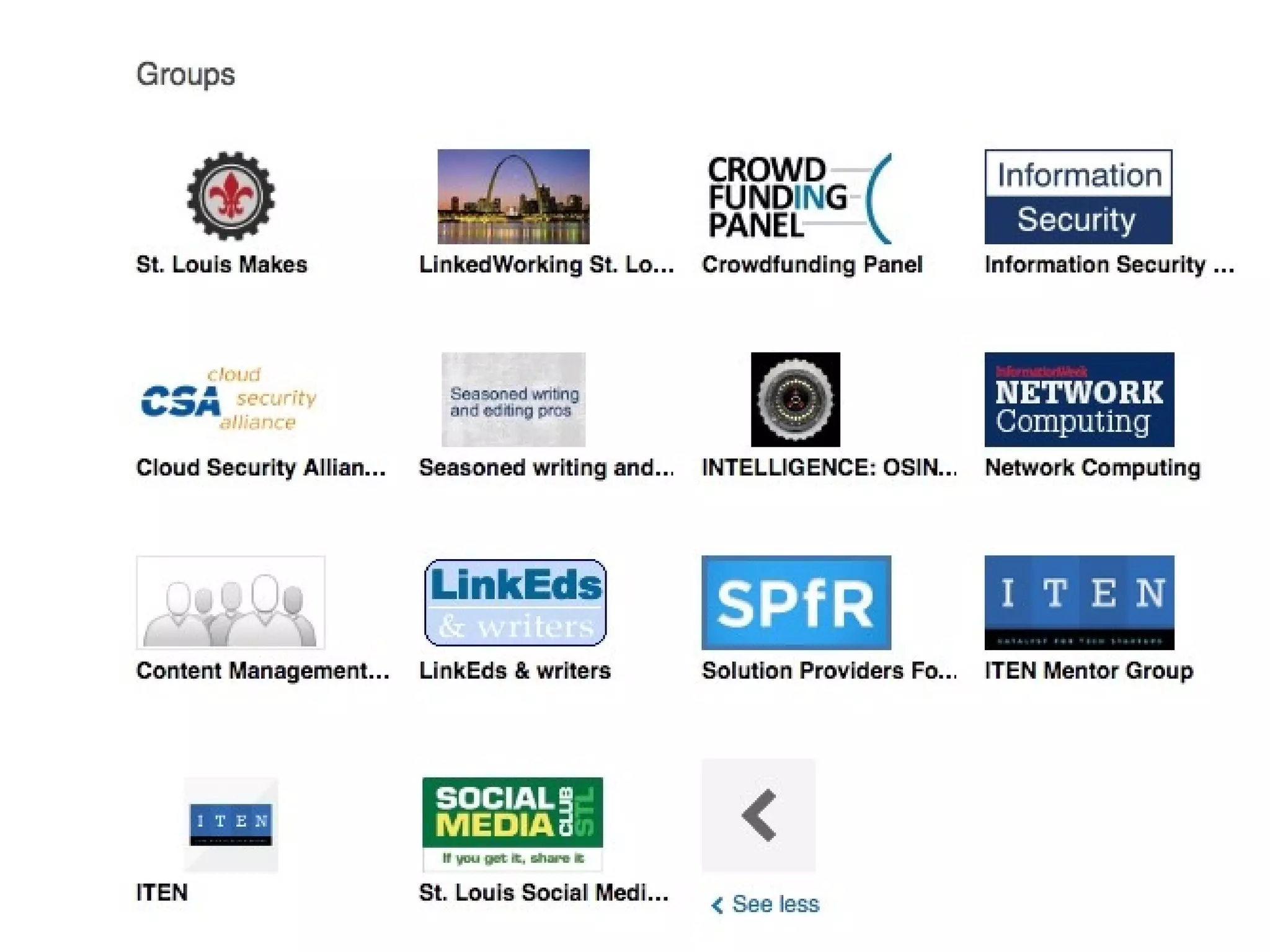
  • #35 LinkedIn has beefed up its Groups features, so it definitely is worth spending time reviewing what you get here. Like other social networks, you can create, join, and post to different affinity groups. First, there are a lot more private groups than before – 2 million of them, they have updated their user interface, they are more policed to prevent spammers ,and even with the open groups aren’t indexed anymore by search engines, making it more compelling to spend time there. Group members will be vetted by the moderators, again keeping the riff-raff out, but that also means you should update your profile to clearly show your interests to make it easier to be vetted as well. http://www.business2community.com/linkedin/8-big-changes-linkedin-groups-will-enhance-social-01643341
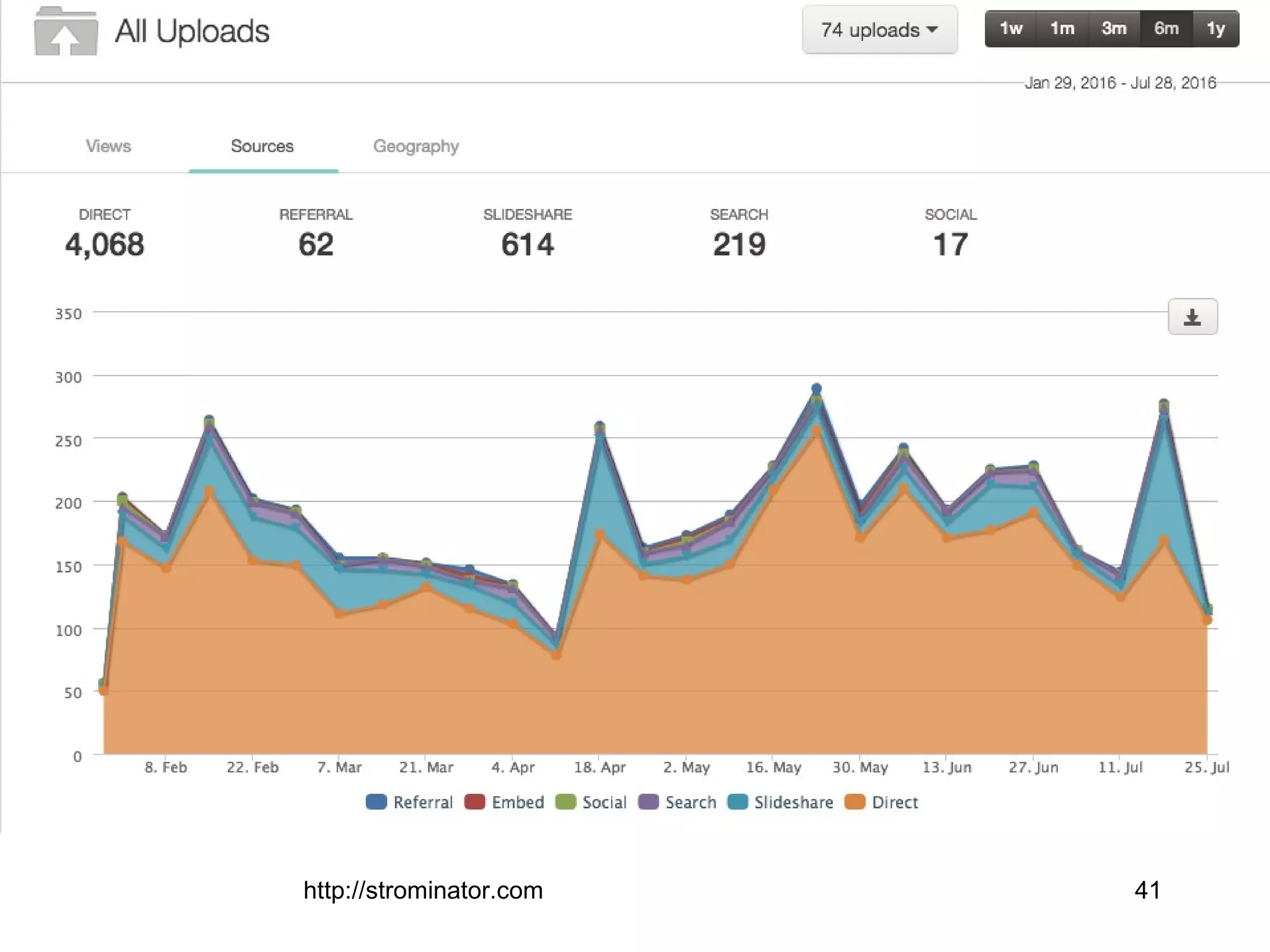
  • #42 Slideshare analytics screen
  • #45 Go to account, then subscriptions. You will have to click around to find the pricing plan, which is subject to change
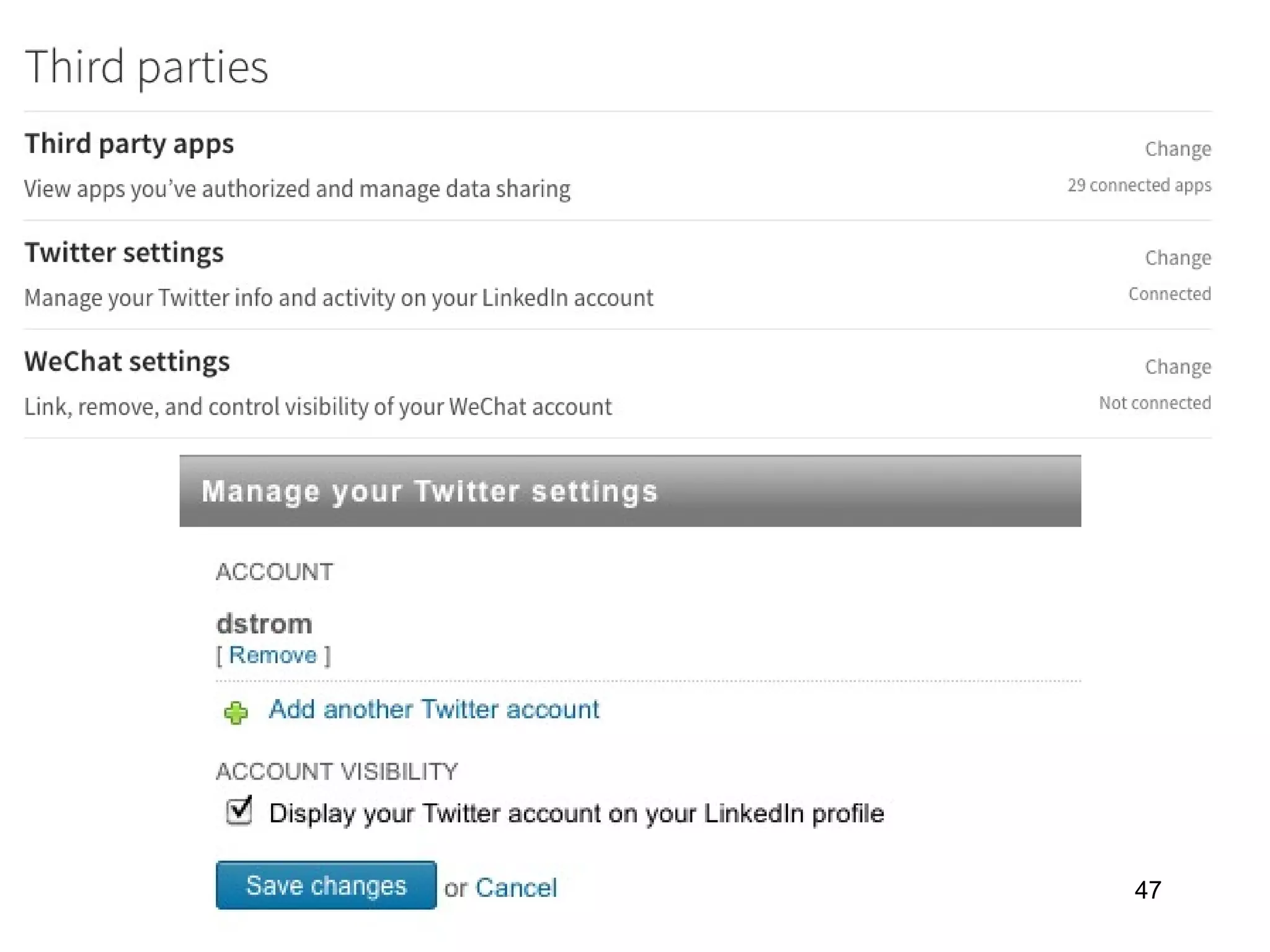
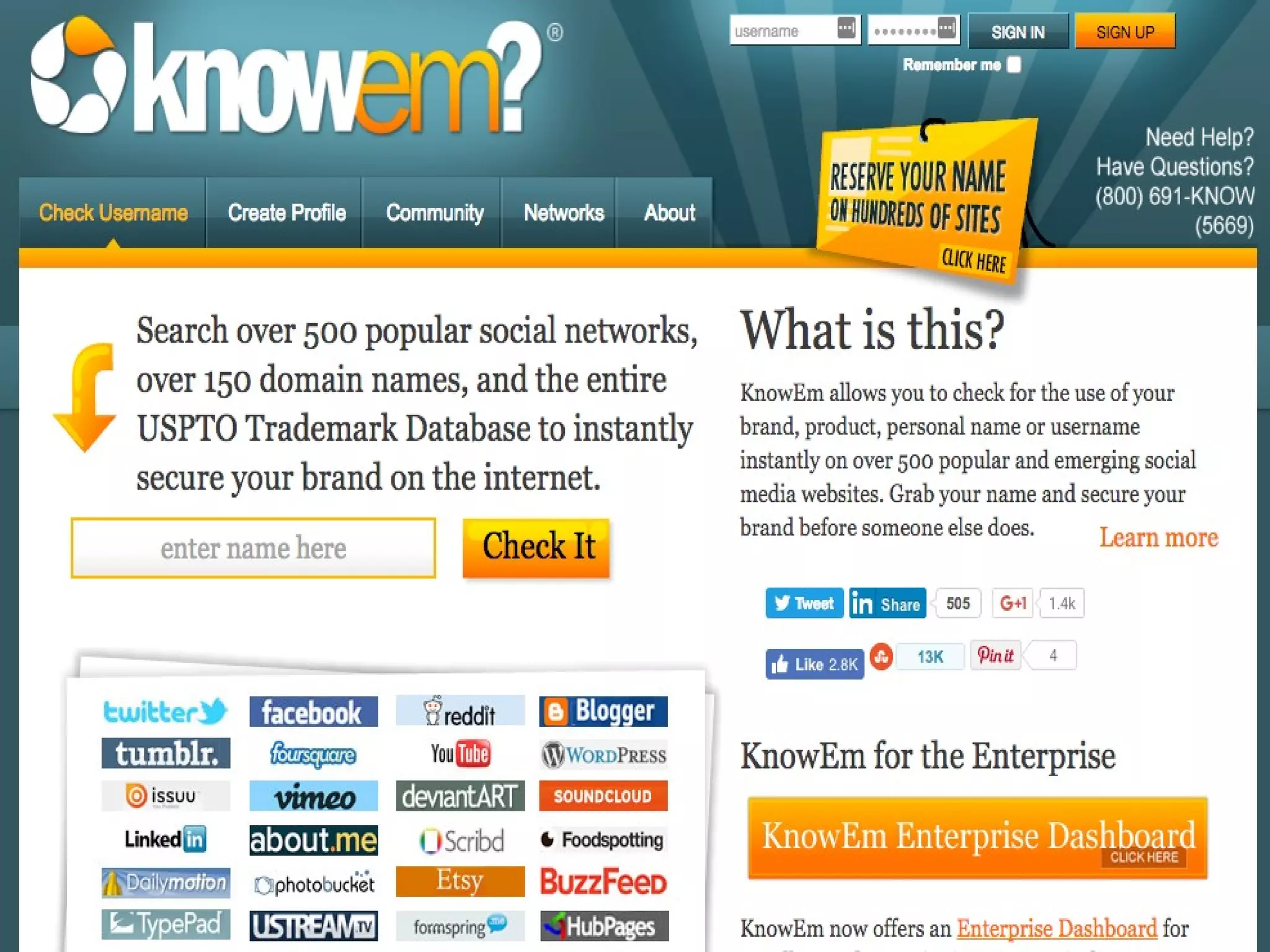
  • #47 “Reserve” your name for LinkedIn, Facebook, Twitter, email lists, and other places around the Internet
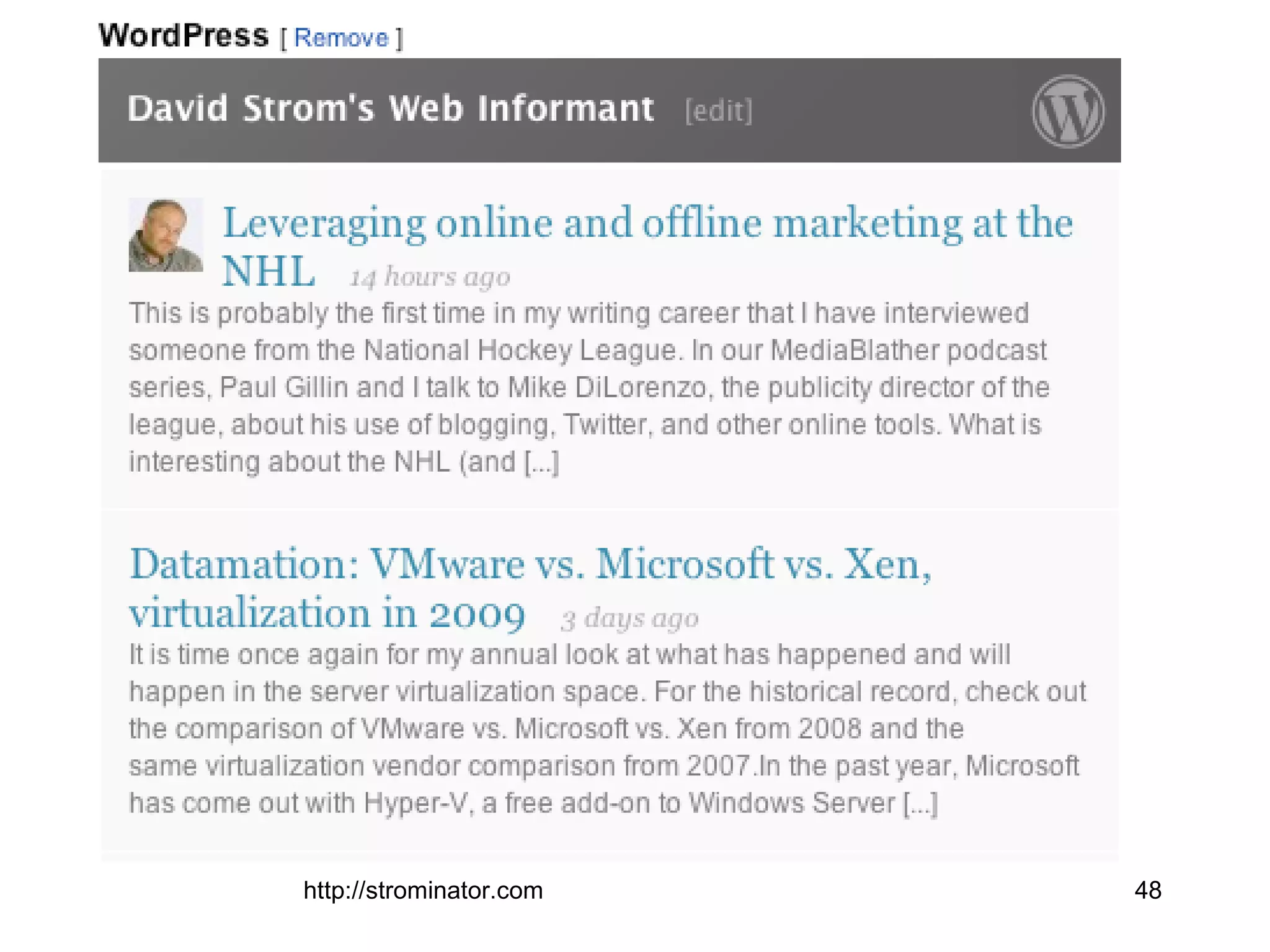
  • #48 Twitter > LinkedIn status,
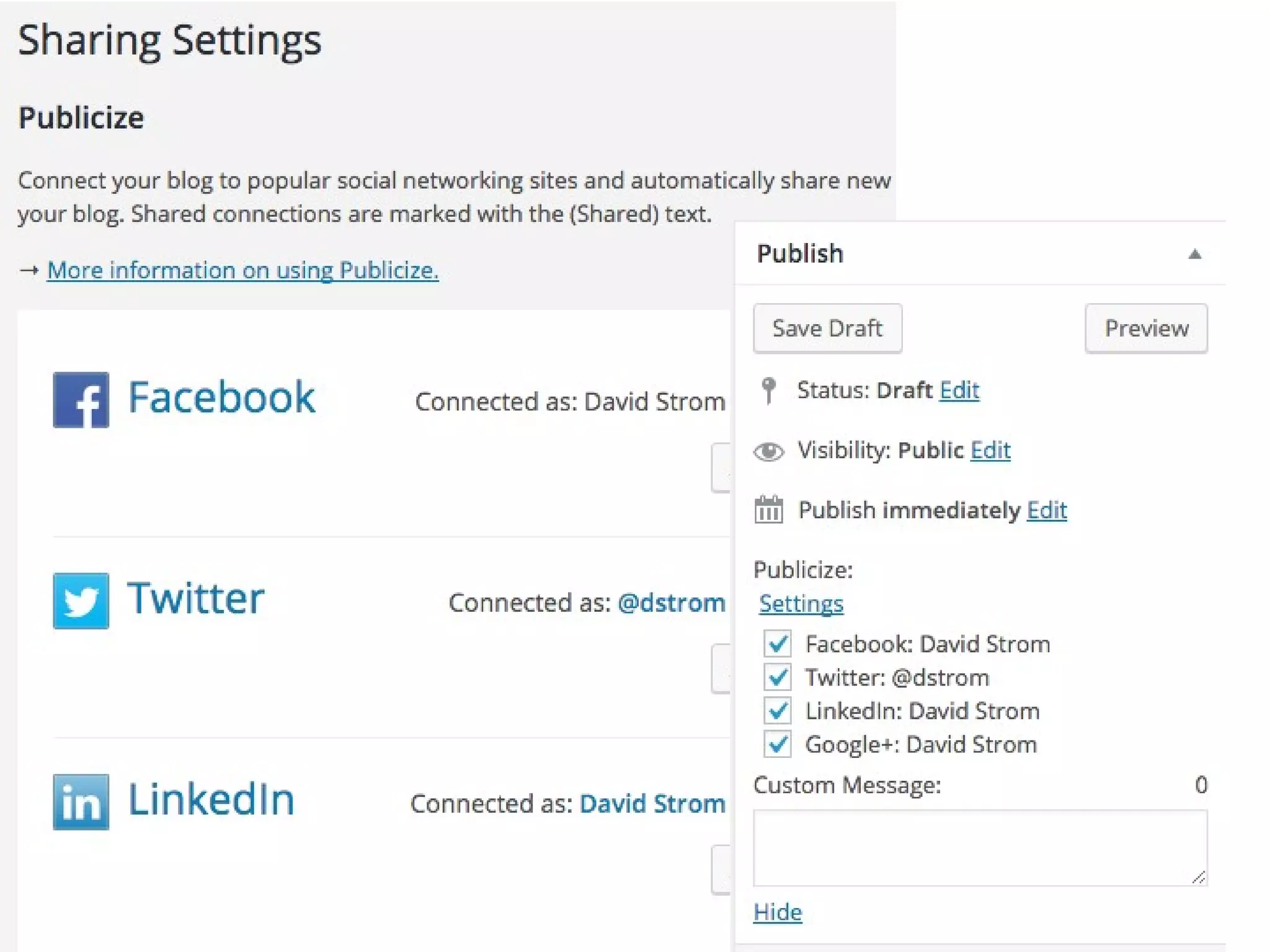
  • #50 You can come at this another way. Here is how you can share your blog posts on Wordpress on your social media accounts, you will have to go to Settings, then Sharing and fill in the details here on the screen on the left. Then when you get ready to post your entry, you can check or check the boxes on the screen on the right and add a custom message to your other social networks when the blog post is online. This looks more complicated than it actually is. If you don’t want to share the posts, you can uncheck the boxes on the right too.
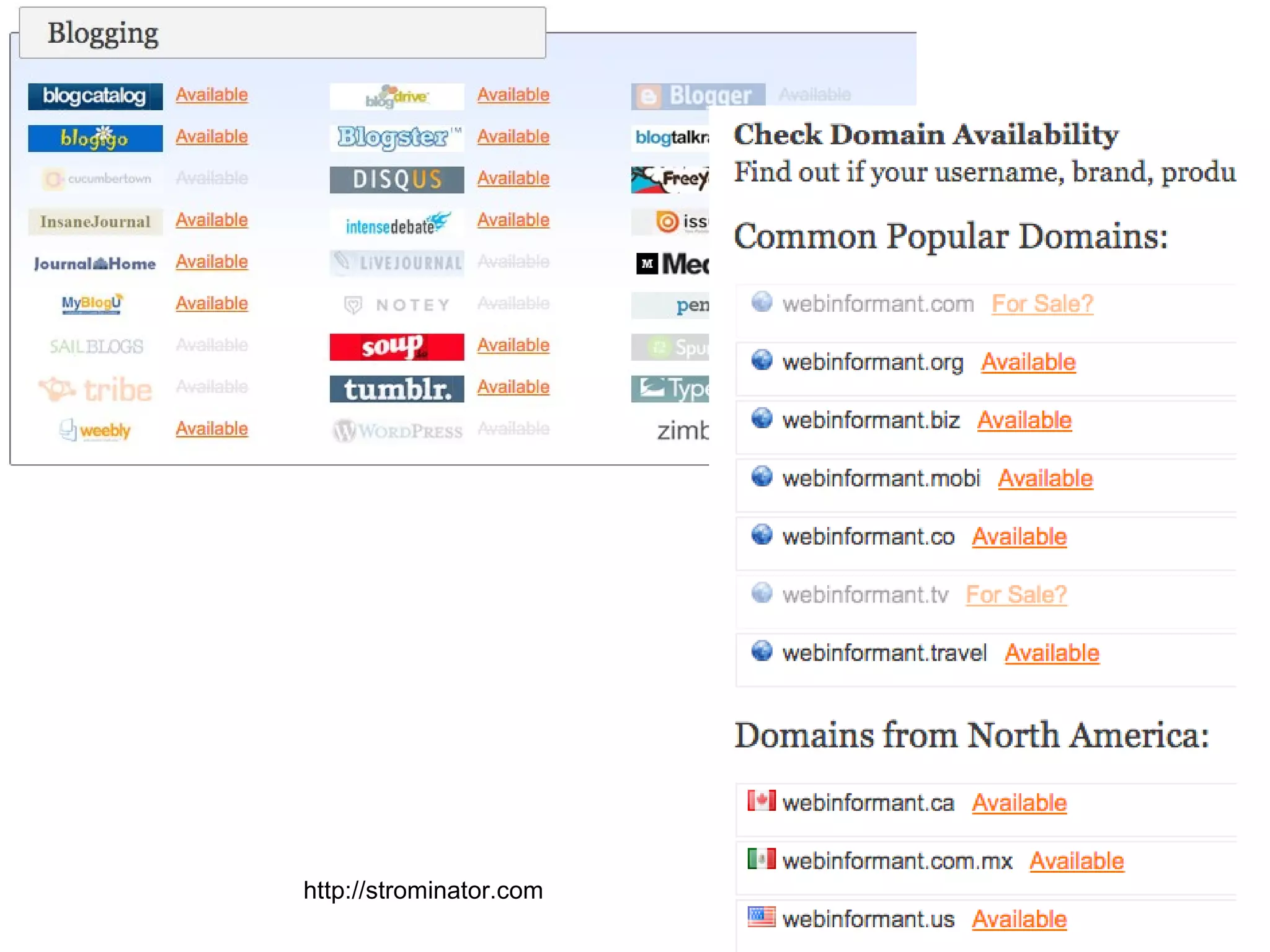
  • #54 KnowEm results screens, where you can see the effect of your domain name on these other sites, such as blogging or non dot com availability.