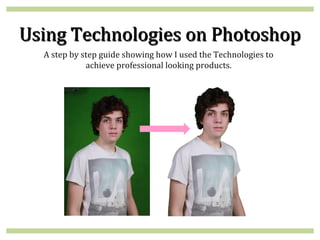
Using Technologies on Photoshop
  A step by step guide showing how I used the Technologies to
             achieve professional looking products.
Step One:
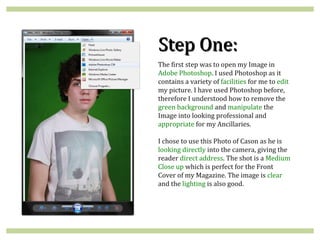
The first step was to open my Image in
Adobe Photoshop. I used Photoshop as it
contains a variety of facilities for me to edit
my picture. I have used Photoshop before,
therefore I understood how to remove the
green background and manipulate the
Image into looking professional and
appropriate for my Ancillaries.

I chose to use this Photo of Cason as he is
looking directly into the camera, giving the
reader direct address. The shot is a Medium
Close up which is perfect for the Front
Cover of my Magazine. The image is clear
and the lighting is also good.
Step Two:
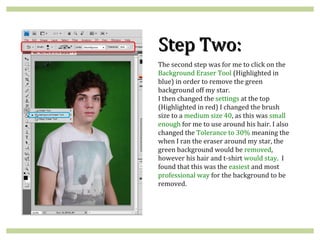
The second step was for me to click on the
Background Eraser Tool (Highlighted in
blue) in order to remove the green
background off my star.
I then changed the settings at the top
(Highlighted in red) I changed the brush
size to a medium size 40, as this was small
enough for me to use around his hair. I also
changed the Tolerance to 30% meaning the
when I ran the eraser around my star, the
green background would be removed,
however his hair and t-shirt would stay. I
found that this was the easiest and most
professional way for the background to be
removed.
Step Three:
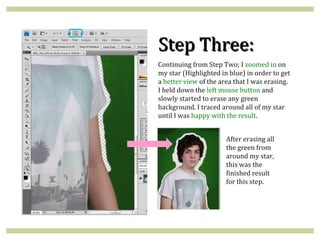
Continuing from Step Two; I zoomed in on
my star (Highlighted in blue) in order to get
a better view of the area that I was erasing.
I held down the left mouse button and
slowly started to erase any green
background. I traced around all of my star
until I was happy with the result.


                       After erasing all
                       the green from
                       around my star,
                       this was the
                       finished result
                       for this step.
Step Four:
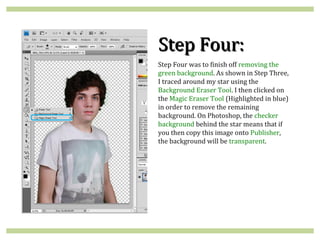
Step Four was to finish off removing the
green background. As shown in Step Three,
I traced around my star using the
Background Eraser Tool. I then clicked on
the Magic Eraser Tool (Highlighted in blue)
in order to remove the remaining
background. On Photoshop, the checker
background behind the star means that if
you then copy this image onto Publisher,
the background will be transparent.
Step Five:
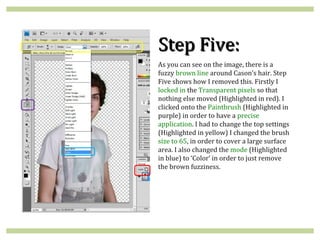
As you can see on the image, there is a
fuzzy brown line around Cason’s hair. Step
Five shows how I removed this. Firstly I
locked in the Transparent pixels so that
nothing else moved (Highlighted in red). I
clicked onto the Paintbrush (Highlighted in
purple) in order to have a precise
application. I had to change the top settings
(Highlighted in yellow) I changed the brush
size to 65, in order to cover a large surface
area. I also changed the mode (Highlighted
in blue) to ‘Color’ in order to just remove
the brown fuzziness.
Step Six:
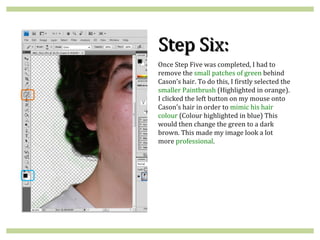
Once Step Five was completed, I had to
remove the small patches of green behind
Cason’s hair. To do this, I firstly selected the
smaller Paintbrush (Highlighted in orange).
I clicked the left button on my mouse onto
Cason’s hair in order to mimic his hair
colour (Colour highlighted in blue) This
would then change the green to a dark
brown. This made my image look a lot
more professional.
Step Seven:
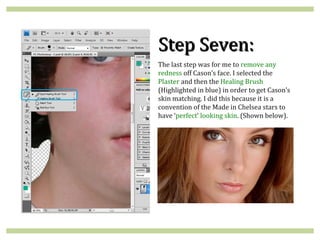
The last step was for me to remove any
redness off Cason’s face. I selected the
Plaster and then the Healing Brush
(Highlighted in blue) in order to get Cason’s
skin matching. I did this because it is a
convention of the Made in Chelsea stars to
have ‘perfect’ looking skin. (Shown below).

Using Photoshop

  • 1.
    Using Technologies onPhotoshop A step by step guide showing how I used the Technologies to achieve professional looking products.
  • 2.
    Step One: The firststep was to open my Image in Adobe Photoshop. I used Photoshop as it contains a variety of facilities for me to edit my picture. I have used Photoshop before, therefore I understood how to remove the green background and manipulate the Image into looking professional and appropriate for my Ancillaries. I chose to use this Photo of Cason as he is looking directly into the camera, giving the reader direct address. The shot is a Medium Close up which is perfect for the Front Cover of my Magazine. The image is clear and the lighting is also good.
  • 3.
    Step Two: The secondstep was for me to click on the Background Eraser Tool (Highlighted in blue) in order to remove the green background off my star. I then changed the settings at the top (Highlighted in red) I changed the brush size to a medium size 40, as this was small enough for me to use around his hair. I also changed the Tolerance to 30% meaning the when I ran the eraser around my star, the green background would be removed, however his hair and t-shirt would stay. I found that this was the easiest and most professional way for the background to be removed.
  • 4.
    Step Three: Continuing fromStep Two; I zoomed in on my star (Highlighted in blue) in order to get a better view of the area that I was erasing. I held down the left mouse button and slowly started to erase any green background. I traced around all of my star until I was happy with the result. After erasing all the green from around my star, this was the finished result for this step.
  • 5.
    Step Four: Step Fourwas to finish off removing the green background. As shown in Step Three, I traced around my star using the Background Eraser Tool. I then clicked on the Magic Eraser Tool (Highlighted in blue) in order to remove the remaining background. On Photoshop, the checker background behind the star means that if you then copy this image onto Publisher, the background will be transparent.
  • 6.
    Step Five: As youcan see on the image, there is a fuzzy brown line around Cason’s hair. Step Five shows how I removed this. Firstly I locked in the Transparent pixels so that nothing else moved (Highlighted in red). I clicked onto the Paintbrush (Highlighted in purple) in order to have a precise application. I had to change the top settings (Highlighted in yellow) I changed the brush size to 65, in order to cover a large surface area. I also changed the mode (Highlighted in blue) to ‘Color’ in order to just remove the brown fuzziness.
  • 7.
    Step Six: Once StepFive was completed, I had to remove the small patches of green behind Cason’s hair. To do this, I firstly selected the smaller Paintbrush (Highlighted in orange). I clicked the left button on my mouse onto Cason’s hair in order to mimic his hair colour (Colour highlighted in blue) This would then change the green to a dark brown. This made my image look a lot more professional.
  • 8.
    Step Seven: The laststep was for me to remove any redness off Cason’s face. I selected the Plaster and then the Healing Brush (Highlighted in blue) in order to get Cason’s skin matching. I did this because it is a convention of the Made in Chelsea stars to have ‘perfect’ looking skin. (Shown below).