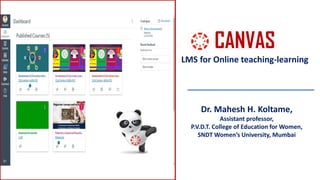
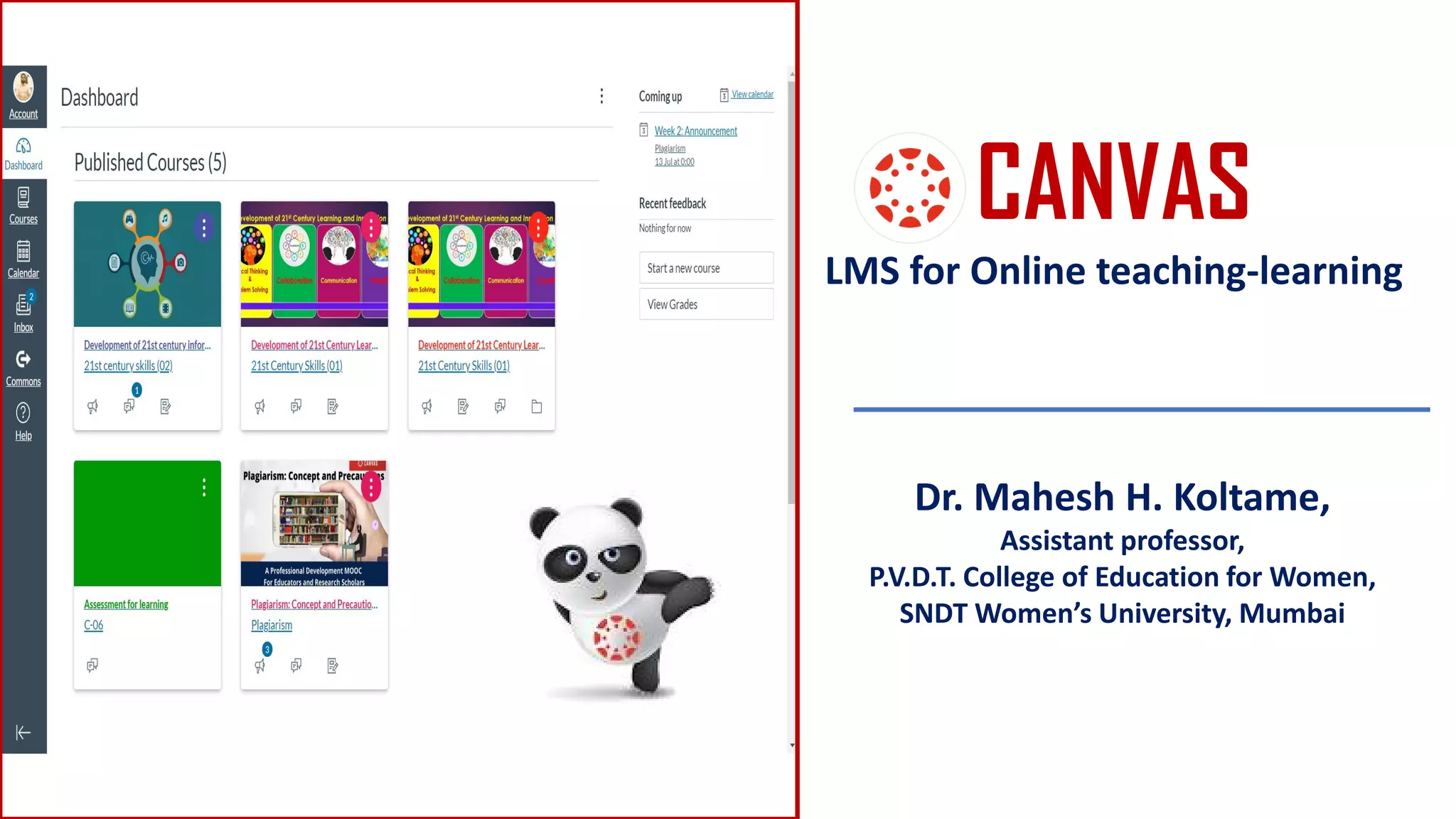
CANVAS
LMS for Online teaching-learning
Dr. Mahesh H. Koltame,
Assistant professor,
P.V.D.T. College of Education for Women,
SNDT Women’s University, Mumbai
Webinar Overview
• Introduction
✓ What is Canvas?
✓ Basic Canvas Feature
• Brief canvas navigation overview
• Course lunch in 5 steps
✓Sign up and New course creation
✓Importing a Template
✓Create the Home Page
✓Bult your course content
✓Launch your course
• Time for your questions/quires
Aim and expected learning outcomes of this webinar
Expected learning outcomes
By the end of this session you will be able to:
• sign up a free Canvas account and do the basic course settings as per
your course requirements,
• select appropriate option of course home page and create a course
Home Page,
• import a templates and other course material from Canvas commons,
• Build course content as per your requirements,
• use Canvas LMS to simplify your teaching and elevate the learning of
your students
This session aims to introduce canvas LMS and provide helpful strategies
to help canvas users leverage canvas to meet the need of their learners.
• Canvas LMS is an open and reliable web-based software that allows
educators to create and present online learning materials and assess student
learning, and students to engage in courses and receive feedback about skill
development and learning achievement.
• Canvas includes a variety of customizable course creation and management
tools, course and user analytics and statistics, and internal communication
tools.
• Institutions may provide users with a Canvas account, or individual users can
try the free version by signing up for their own account.
• Additionally, while Canvas is primarily a web-based software, any user can
access Canvas on a mobile device from the Canvas Teacher, Canvas Student,
and Canvas Parent apps. Learn more about the Canvas mobile apps.
What is Canvas?
1. Instructional designers and instructors may create and share course content
using Assignments, Discussions, Modules, Quizzes, and Pages.
2. You may also choose to foster a collaborative learning experience using Collaborations, Conferences,
and Groups.
3. Instructors can provide students with comprehensive feedback on assignment and quiz submissions
using SpeedGrader and manage grade reporting in the Canvas Gradebook.
4. They can also facilitate real-time course interactions using Chat and communicate course news and
updates with students using Announcements as well as the Calendar and Syllabus.
5. Instructors can gain greater insight into student success and make informed instructional decisions
using data provided in Canvas Analytics.
6. Canvas also includes the Canvas App Center, where admins, designers, and instructors can enable a
variety of Eternal Apps (LTI Tools) and services. The ever-growing app library offers a wide array of
interactive resources, content repositories, assessment tools, social media integrations, and other
digital learning and teaching resources.
Basic Canvas Features
Canvas includes a variety of built-in course construction and management tools that can be customized to
create unique and accessible teaching and learning experiences.
Step-1 Sign up and New course creation
1. Use the following link to sign up as Individual user:
https://canvas.instructure.com/register_from_website
2. Click on I am Teacher
3. Click on the gate a free canvas account
4. Complete the account information fields and you’ll be on your
way! Watch your email for a confirmation email.
5. Set your password and keep remember it for future login
1. Login your Canvas account by clicking on
https://canvas.instructure.com/login/canvas
2. Click on start a new course
3. Give your course name and select content licence and finally click on create
course
4. Click on settings and do all basic settings of course
Stape-2 Importing a Template
This template was built and tested by a team of instructional design engineers at the Canvas Ed-Propulsion Labs.
Consider it your launch vehicle. It helps you to easily create a structure and load examples that you can duplicate in
your course.
Select the following link to automatically download a copy of the Sample Module Template Canvas export package:
Adapting to Online in a Pinch
https://community.canvaslms.com/groups/admins/pages/contingency
https://community.canvaslms.com/groups/designers/blog/2020/03/11/2020-course-design-essentials-home-page-
sample-module-template
1. From your Canvas Dashboard, select your course.
2. From your course's navigation, choose Settings.
3. Choose Import Course Content.
4. Select Content Type Canvas Course Export Package.
5. In your file picker, choose the downloaded file.
6. Check the box to import All Content.
7. Click the Import button.
When the status box reads "Completed," choose Home in your course's Navigation and admire your course's new
home page.
Stape-3 Create the Home Page
The Home Page is designed to provide information, course expectations,
and access to the learning materials in an easy-to-follow format. With this
template, briefing your learners on your course's updated trajectory is as
simple as filling in the blanks of the Module template.
The course template defaults to the Module list. Modules a strong choice
for a course homepage because it will give your students a heads-up view
of their course. If you are using a template other than Adapting to Online
in a Pinch, you may want to consider changing your homepage to
Modules.
1. Select Home from the Course Navigation.
2. Select Choose Home Page from the Right Sidebar.
3. Choose Course Modules, and select Save.
Additional resources for Home page
Select a course Home Page
How do I use the Course Home Page as an instructor?
What layout options are available in the Course Home Page as an
instructor?
How do I change the Course Home Page?
How do I use the Course Activity Stream as an instructor?
Stape-4 Bult your course content
• Overview is a Page. Edit it to reflect the contents of the module. It includes a To Do list.
• Learning Resources is an example of a Page with media embedded. Use the example to include your own
recommended viewing and lecture notes.
• Practice is a Page that you can customize with offline or online practice activities that students can complete.
• Discussion is a topic post, ready for you to add your conversation starter, guidelines, and support details.
• Assignment includes a description to edit and default settings for you to enter a point value, submission type,
and due date.
• Quiz includes a basic quiz description and default settings. Personalize the description and add the questions.
The example quiz is located in the Additional Sample Resources module and is not able to be duplicated.
Instructors can duplicate the module or an individual item in the module to quickly create material for a new unit,
day, or a week of course content, then customize it with their content. Editing these resources and customizing
course content will be covered in the Plotting your Course - Building Course Content course.
To learn more about the template, check out the 2020 Course Design Essentials: Home Page & Sample Module
Template blog post.
Stape-5 Launch your course
You can get any kind of help from the canvas community
https://community.canvaslms.com/groups/instructors/activity
Learn more about Canvas
Friends, it is just your beginning, you have to explore canvas continually and learn
by self-paced Training Services Portal where you can access Canvas training videos and
courses.
mahesh.koltame@pvdt.sndt.ac.in
+91-9923917066
www.linkedin.com/in/dr-mahesh-koltame-aa30681a2
Thank you!

Use of Canvas instructure LMS.pdf

  • 1.
    CANVAS LMS for Onlineteaching-learning Dr. Mahesh H. Koltame, Assistant professor, P.V.D.T. College of Education for Women, SNDT Women’s University, Mumbai
  • 2.
    Webinar Overview • Introduction ✓What is Canvas? ✓ Basic Canvas Feature • Brief canvas navigation overview • Course lunch in 5 steps ✓Sign up and New course creation ✓Importing a Template ✓Create the Home Page ✓Bult your course content ✓Launch your course • Time for your questions/quires
  • 3.
    Aim and expectedlearning outcomes of this webinar Expected learning outcomes By the end of this session you will be able to: • sign up a free Canvas account and do the basic course settings as per your course requirements, • select appropriate option of course home page and create a course Home Page, • import a templates and other course material from Canvas commons, • Build course content as per your requirements, • use Canvas LMS to simplify your teaching and elevate the learning of your students This session aims to introduce canvas LMS and provide helpful strategies to help canvas users leverage canvas to meet the need of their learners.
  • 4.
    • Canvas LMSis an open and reliable web-based software that allows educators to create and present online learning materials and assess student learning, and students to engage in courses and receive feedback about skill development and learning achievement. • Canvas includes a variety of customizable course creation and management tools, course and user analytics and statistics, and internal communication tools. • Institutions may provide users with a Canvas account, or individual users can try the free version by signing up for their own account. • Additionally, while Canvas is primarily a web-based software, any user can access Canvas on a mobile device from the Canvas Teacher, Canvas Student, and Canvas Parent apps. Learn more about the Canvas mobile apps. What is Canvas?
  • 5.
    1. Instructional designersand instructors may create and share course content using Assignments, Discussions, Modules, Quizzes, and Pages. 2. You may also choose to foster a collaborative learning experience using Collaborations, Conferences, and Groups. 3. Instructors can provide students with comprehensive feedback on assignment and quiz submissions using SpeedGrader and manage grade reporting in the Canvas Gradebook. 4. They can also facilitate real-time course interactions using Chat and communicate course news and updates with students using Announcements as well as the Calendar and Syllabus. 5. Instructors can gain greater insight into student success and make informed instructional decisions using data provided in Canvas Analytics. 6. Canvas also includes the Canvas App Center, where admins, designers, and instructors can enable a variety of Eternal Apps (LTI Tools) and services. The ever-growing app library offers a wide array of interactive resources, content repositories, assessment tools, social media integrations, and other digital learning and teaching resources. Basic Canvas Features Canvas includes a variety of built-in course construction and management tools that can be customized to create unique and accessible teaching and learning experiences.
  • 6.
    Step-1 Sign upand New course creation 1. Use the following link to sign up as Individual user: https://canvas.instructure.com/register_from_website 2. Click on I am Teacher 3. Click on the gate a free canvas account 4. Complete the account information fields and you’ll be on your way! Watch your email for a confirmation email. 5. Set your password and keep remember it for future login 1. Login your Canvas account by clicking on https://canvas.instructure.com/login/canvas 2. Click on start a new course 3. Give your course name and select content licence and finally click on create course 4. Click on settings and do all basic settings of course
  • 7.
    Stape-2 Importing aTemplate This template was built and tested by a team of instructional design engineers at the Canvas Ed-Propulsion Labs. Consider it your launch vehicle. It helps you to easily create a structure and load examples that you can duplicate in your course. Select the following link to automatically download a copy of the Sample Module Template Canvas export package: Adapting to Online in a Pinch https://community.canvaslms.com/groups/admins/pages/contingency https://community.canvaslms.com/groups/designers/blog/2020/03/11/2020-course-design-essentials-home-page- sample-module-template 1. From your Canvas Dashboard, select your course. 2. From your course's navigation, choose Settings. 3. Choose Import Course Content. 4. Select Content Type Canvas Course Export Package. 5. In your file picker, choose the downloaded file. 6. Check the box to import All Content. 7. Click the Import button. When the status box reads "Completed," choose Home in your course's Navigation and admire your course's new home page.
  • 8.
    Stape-3 Create theHome Page The Home Page is designed to provide information, course expectations, and access to the learning materials in an easy-to-follow format. With this template, briefing your learners on your course's updated trajectory is as simple as filling in the blanks of the Module template. The course template defaults to the Module list. Modules a strong choice for a course homepage because it will give your students a heads-up view of their course. If you are using a template other than Adapting to Online in a Pinch, you may want to consider changing your homepage to Modules. 1. Select Home from the Course Navigation. 2. Select Choose Home Page from the Right Sidebar. 3. Choose Course Modules, and select Save.
  • 9.
    Additional resources forHome page Select a course Home Page How do I use the Course Home Page as an instructor? What layout options are available in the Course Home Page as an instructor? How do I change the Course Home Page? How do I use the Course Activity Stream as an instructor?
  • 10.
    Stape-4 Bult yourcourse content • Overview is a Page. Edit it to reflect the contents of the module. It includes a To Do list. • Learning Resources is an example of a Page with media embedded. Use the example to include your own recommended viewing and lecture notes. • Practice is a Page that you can customize with offline or online practice activities that students can complete. • Discussion is a topic post, ready for you to add your conversation starter, guidelines, and support details. • Assignment includes a description to edit and default settings for you to enter a point value, submission type, and due date. • Quiz includes a basic quiz description and default settings. Personalize the description and add the questions. The example quiz is located in the Additional Sample Resources module and is not able to be duplicated. Instructors can duplicate the module or an individual item in the module to quickly create material for a new unit, day, or a week of course content, then customize it with their content. Editing these resources and customizing course content will be covered in the Plotting your Course - Building Course Content course. To learn more about the template, check out the 2020 Course Design Essentials: Home Page & Sample Module Template blog post.
  • 11.
  • 12.
    You can getany kind of help from the canvas community https://community.canvaslms.com/groups/instructors/activity Learn more about Canvas Friends, it is just your beginning, you have to explore canvas continually and learn by self-paced Training Services Portal where you can access Canvas training videos and courses.
  • 13.