Uploading CBPDO, ServerPac and CustomPac orders from your workstation to your
host using Windows command prompt.

Step by step procedure:

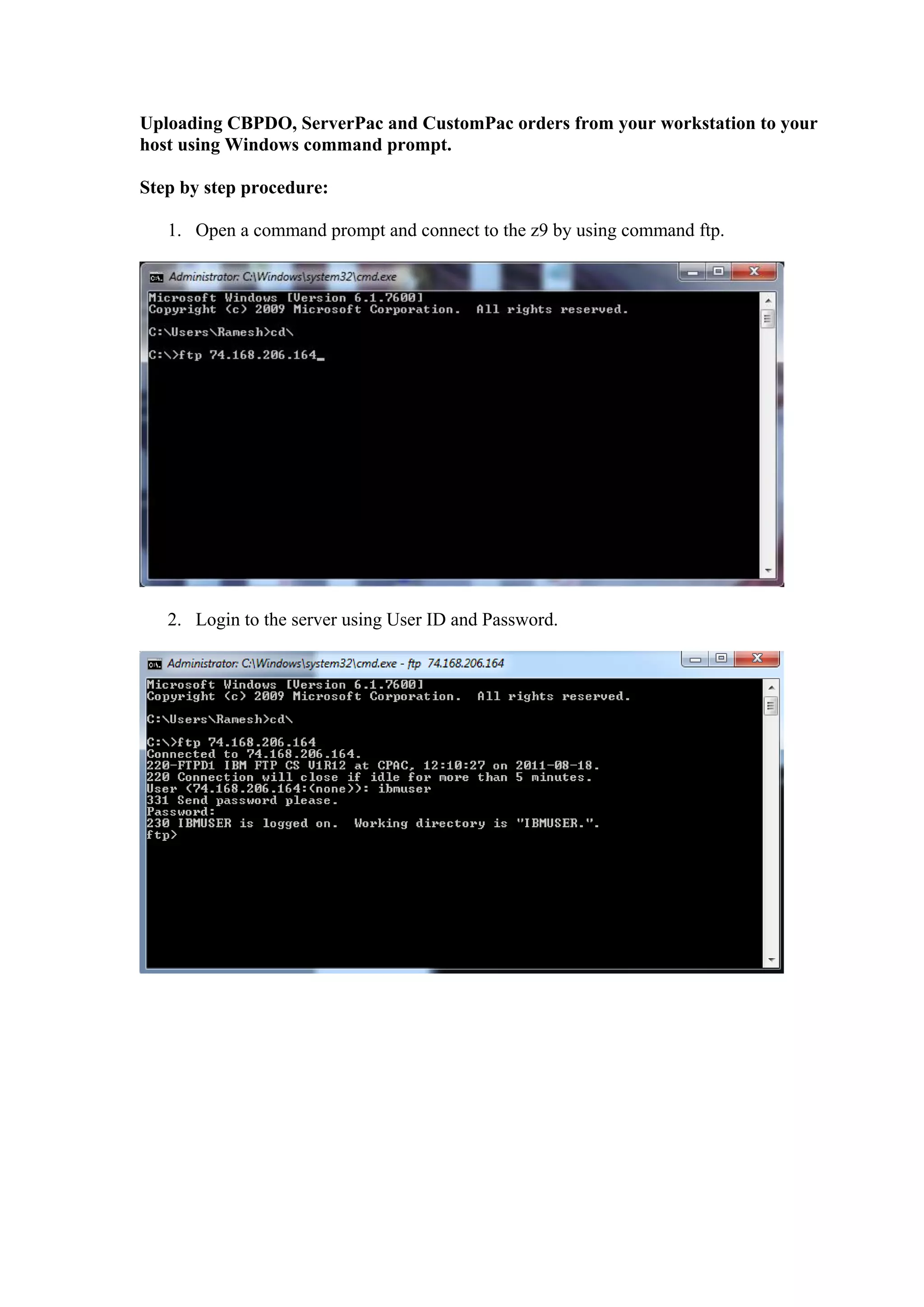
   1. Open a command prompt and connect to the z9 by using command ftp.


   2. Login to the server using User ID and Password.
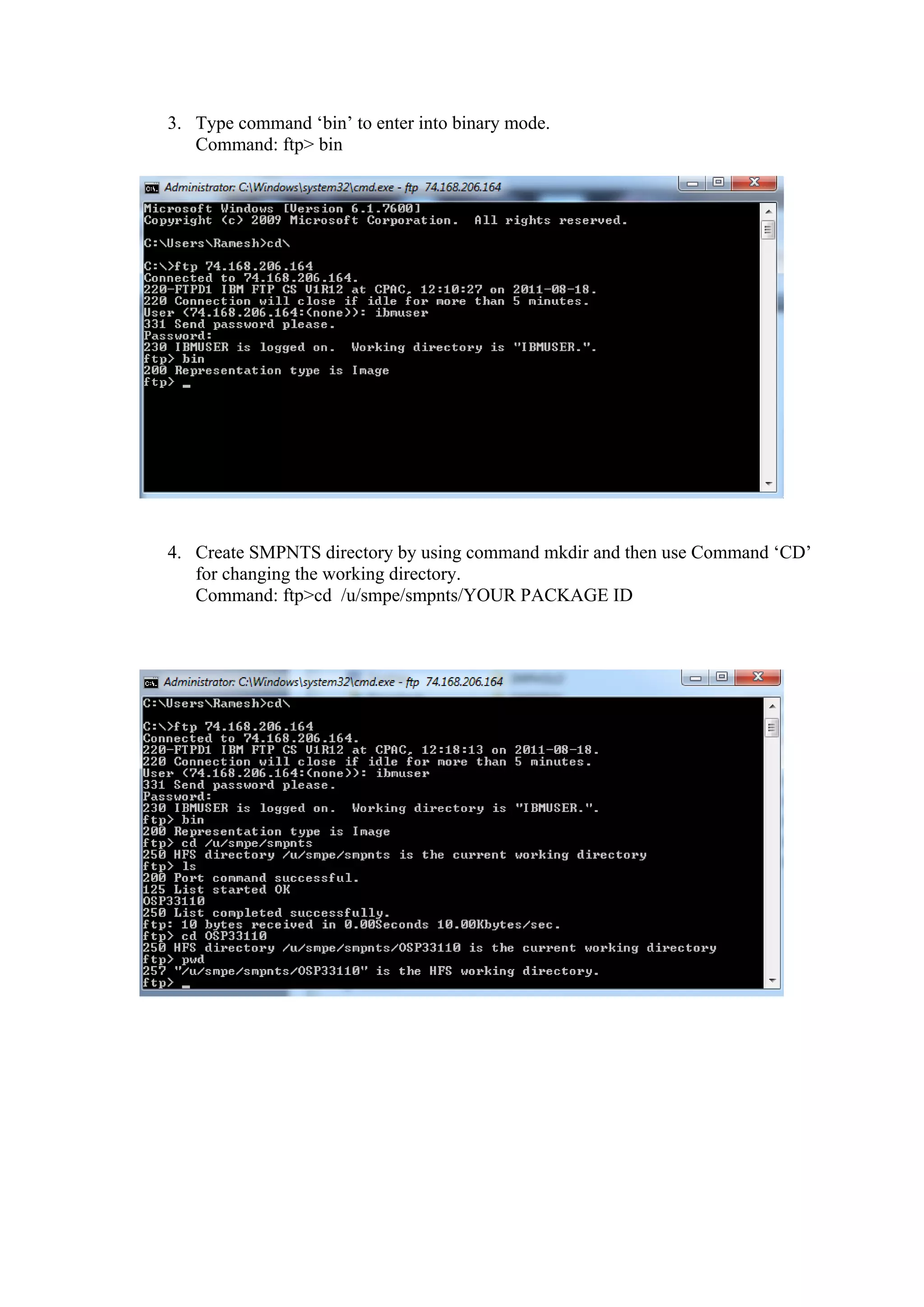
3. Type command ‘bin’ to enter into binary mode.
   Command: ftp> bin


4. Create SMPNTS directory by using command mkdir and then use Command ‘CD’
   for changing the working directory.
   Command: ftp>cd /u/smpe/smpnts/YOUR PACKAGE ID
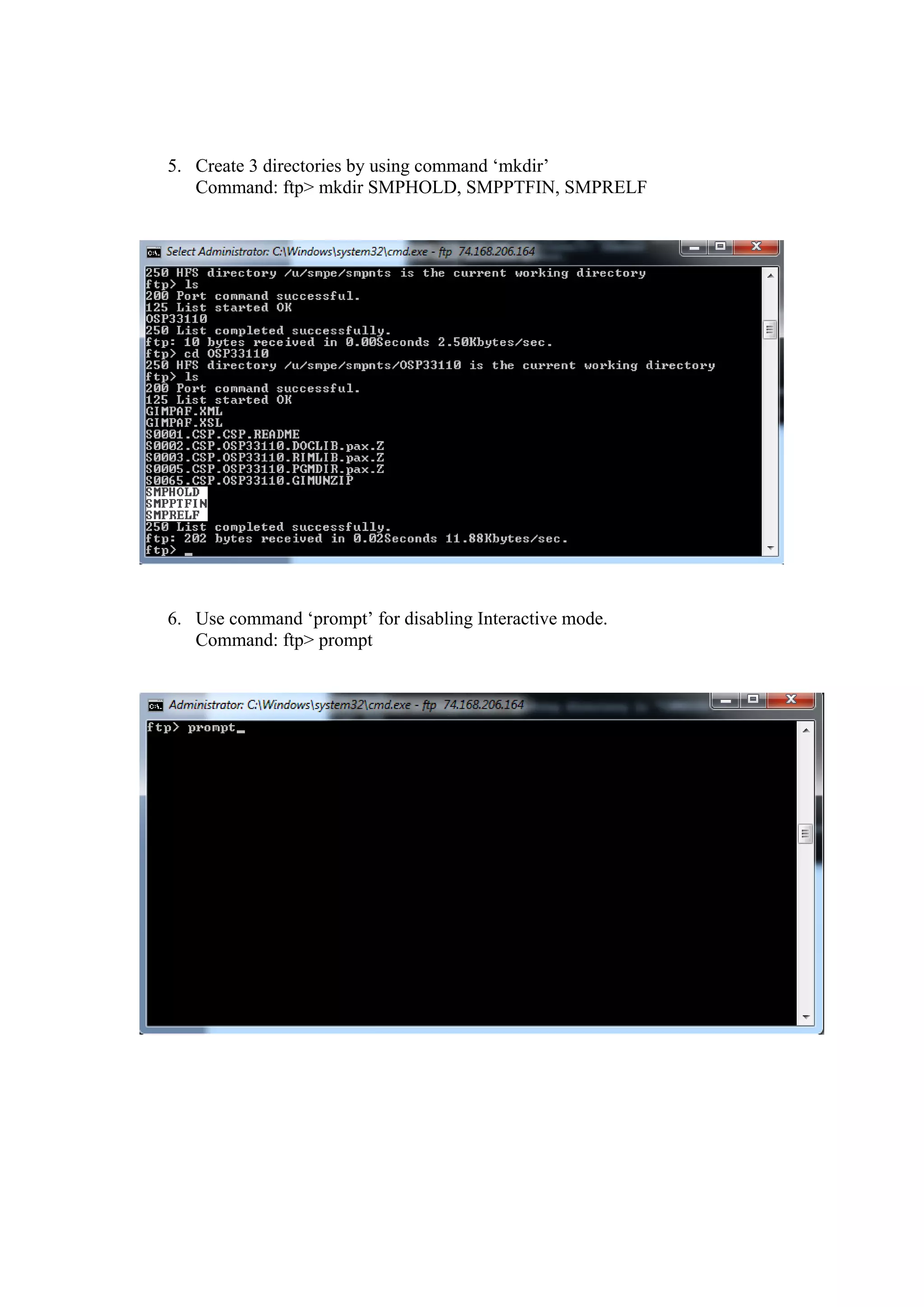
5. Create 3 directories by using command ‘mkdir’
   Command: ftp> mkdir SMPHOLD, SMPPTFIN, SMPRELF


6. Use command ‘prompt’ for disabling Interactive mode.
   Command: ftp> prompt
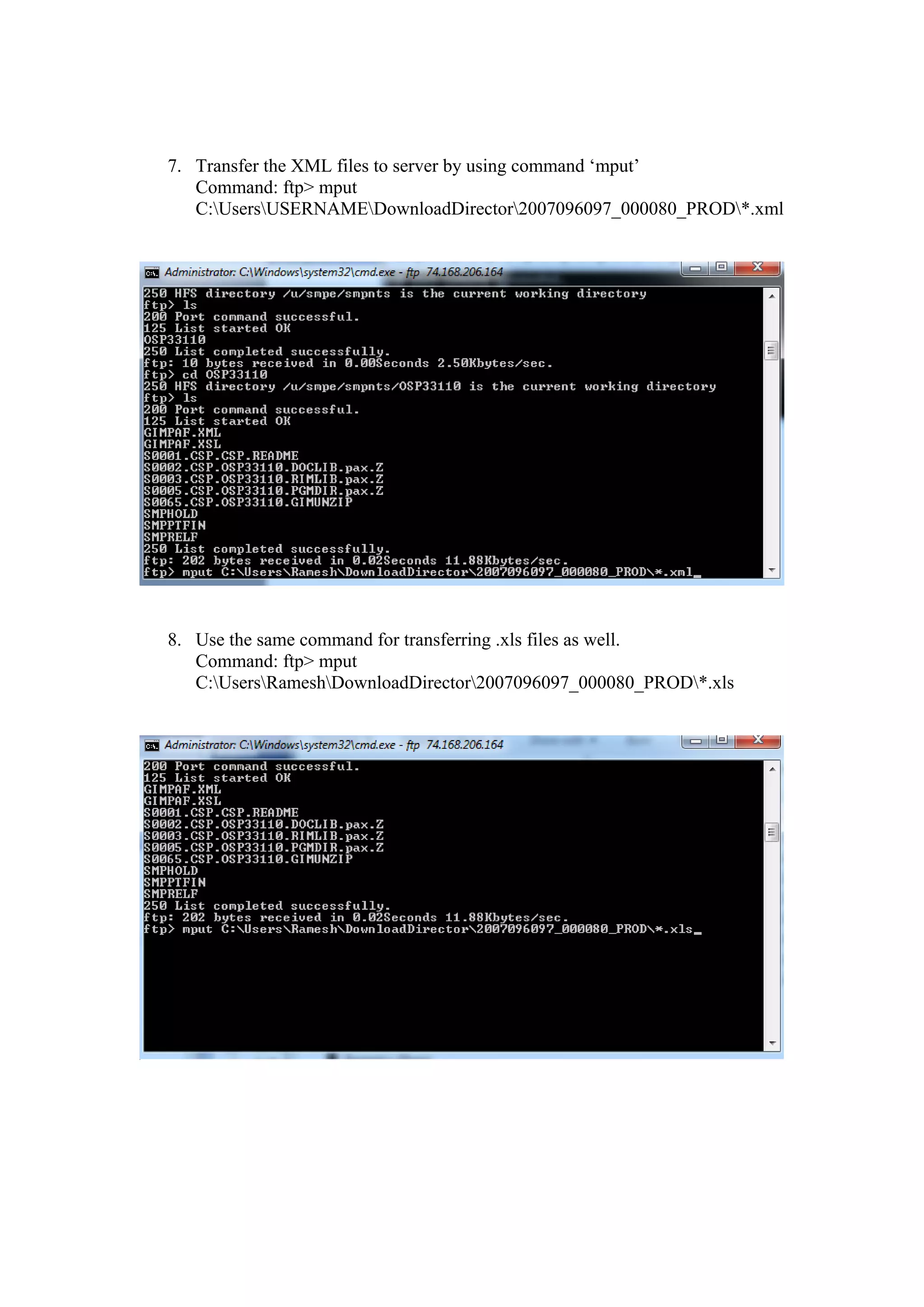
7. Transfer the XML files to server by using command ‘mput’
   Command: ftp> mput
   C:UsersUSERNAMEDownloadDirector2007096097_000080_PROD*.xml


8. Use the same command for transferring .xls files as well.
   Command: ftp> mput
   C:UsersRameshDownloadDirector2007096097_000080_PROD*.xls
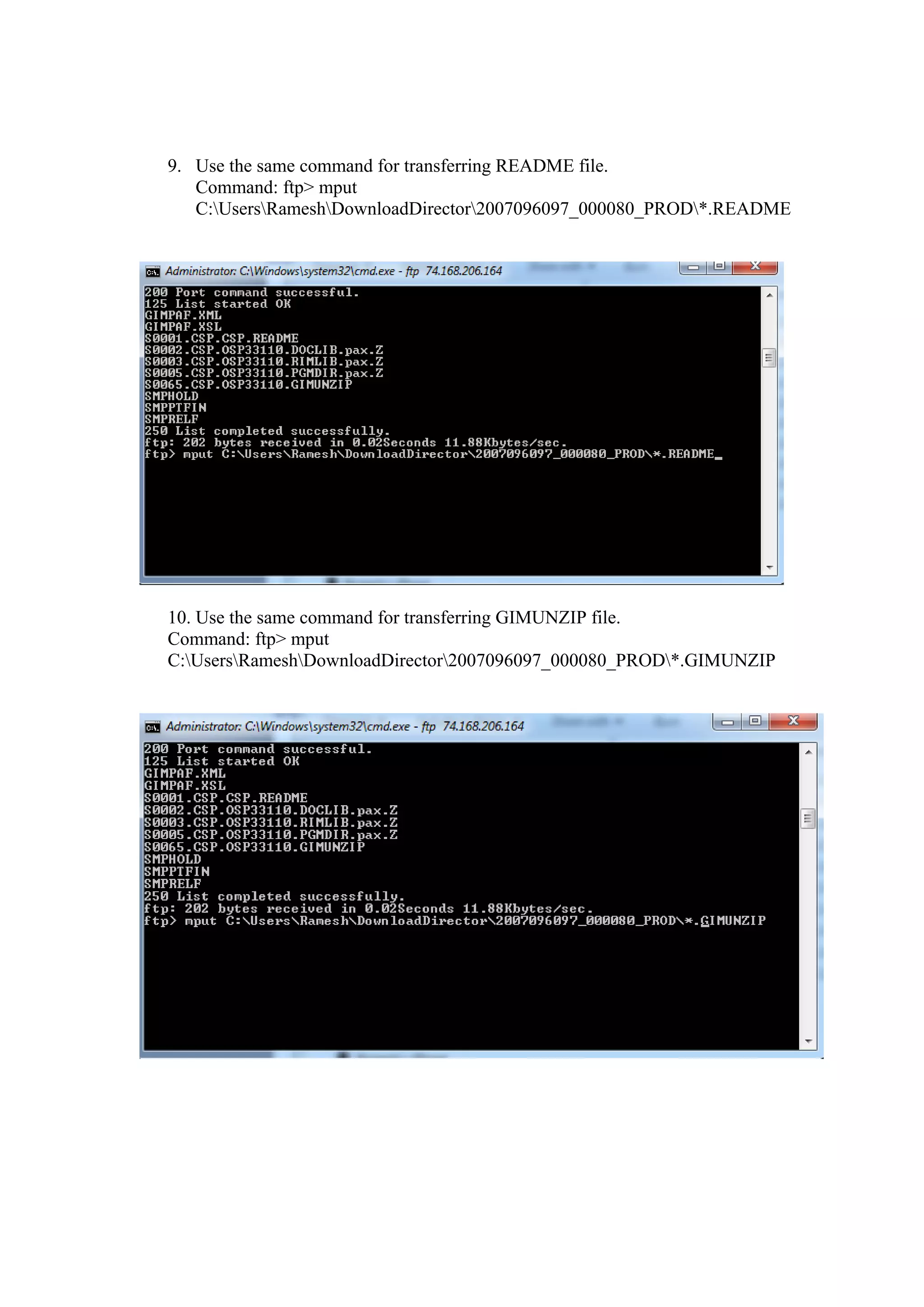
9. Use the same command for transferring README file.
   Command: ftp> mput
   C:UsersRameshDownloadDirector2007096097_000080_PROD*.README


10. Use the same command for transferring GIMUNZIP file.
Command: ftp> mput
C:UsersRameshDownloadDirector2007096097_000080_PROD*.GIMUNZIP
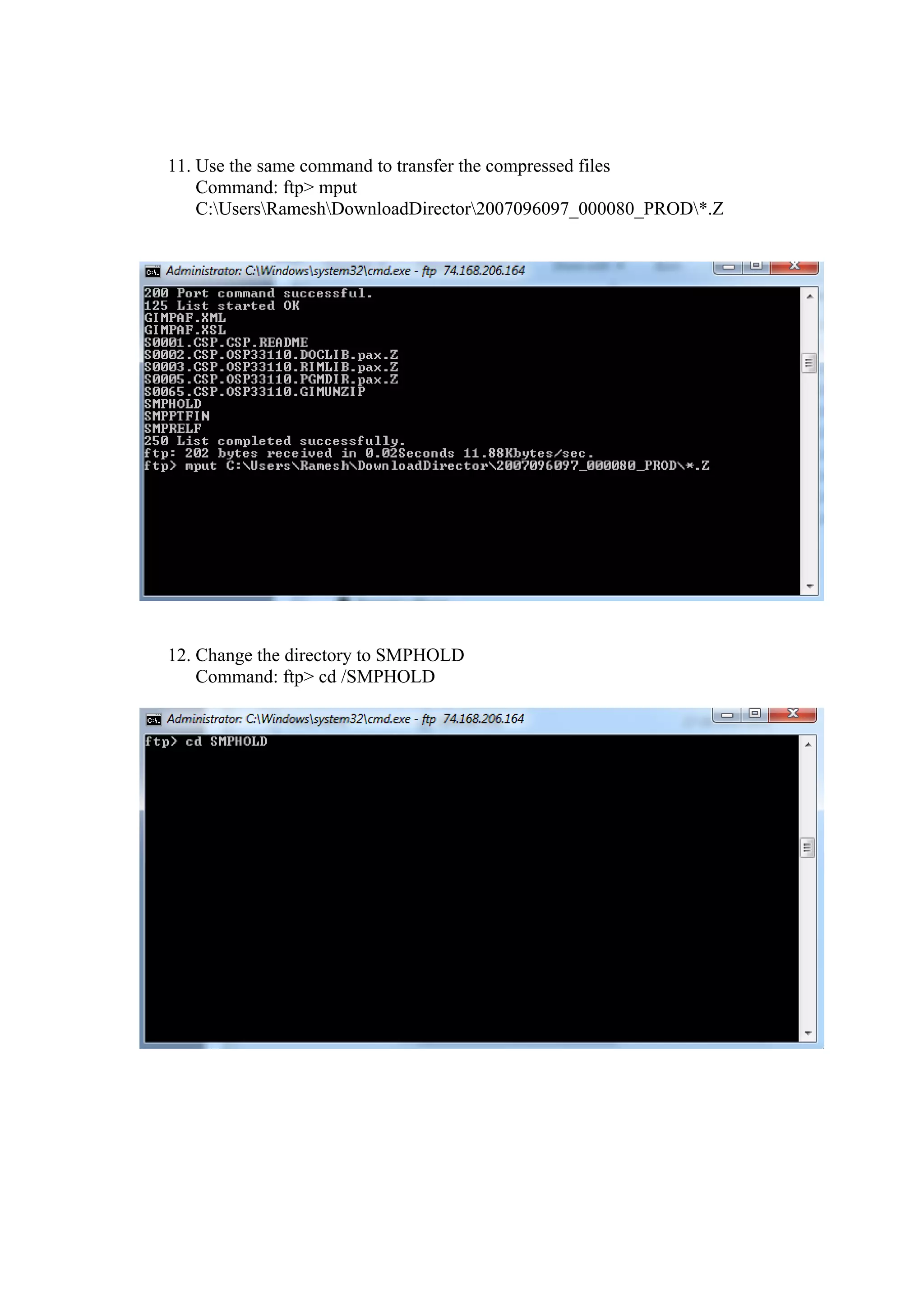
11. Use the same command to transfer the compressed files
    Command: ftp> mput
    C:UsersRameshDownloadDirector2007096097_000080_PROD*.Z


12. Change the directory to SMPHOLD
    Command: ftp> cd /SMPHOLD
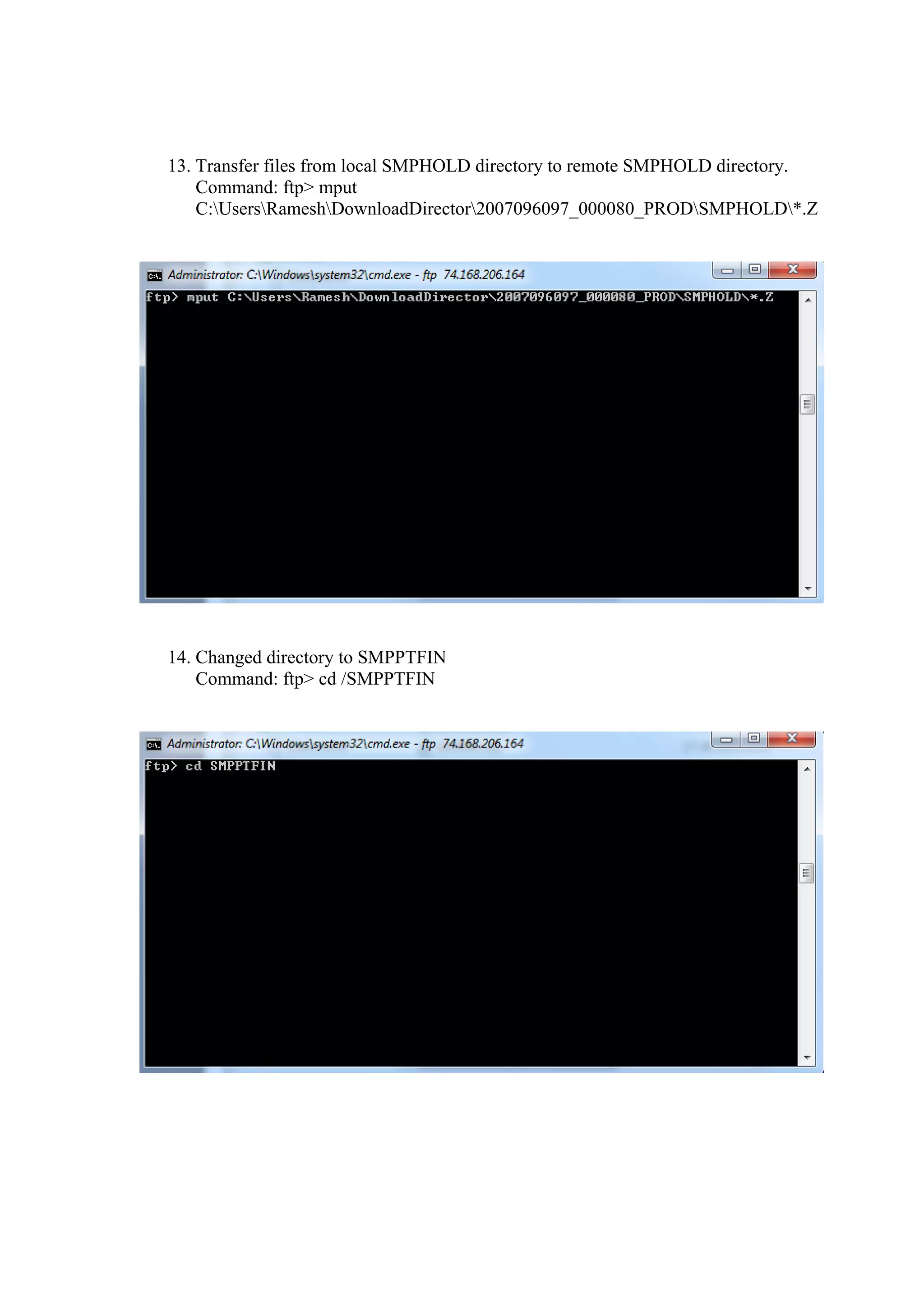
13. Transfer files from local SMPHOLD directory to remote SMPHOLD directory.
    Command: ftp> mput
    C:UsersRameshDownloadDirector2007096097_000080_PRODSMPHOLD*.Z


14. Changed directory to SMPPTFIN
    Command: ftp> cd /SMPPTFIN
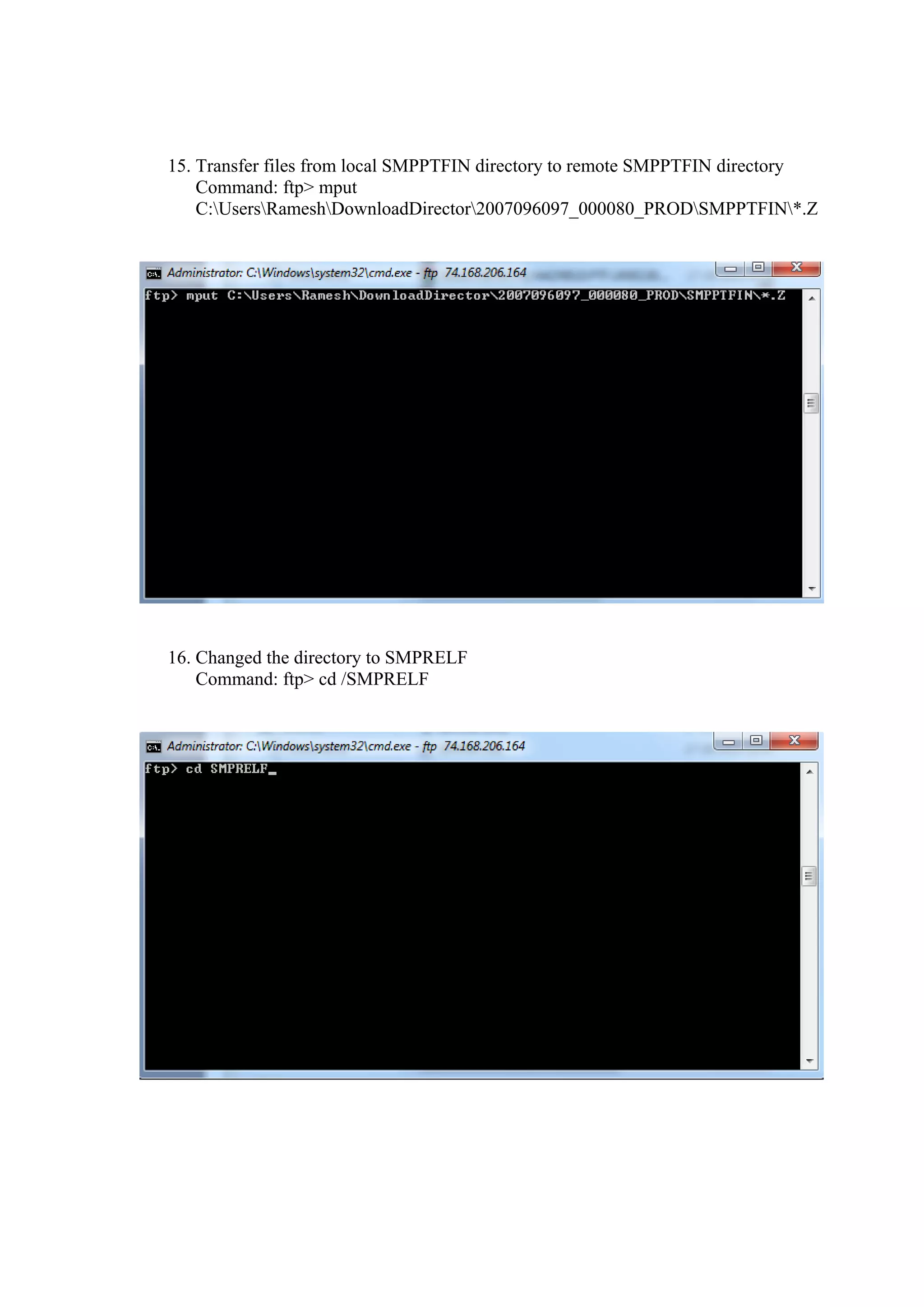
15. Transfer files from local SMPPTFIN directory to remote SMPPTFIN directory
    Command: ftp> mput
    C:UsersRameshDownloadDirector2007096097_000080_PRODSMPPTFIN*.Z


16. Changed the directory to SMPRELF
    Command: ftp> cd /SMPRELF
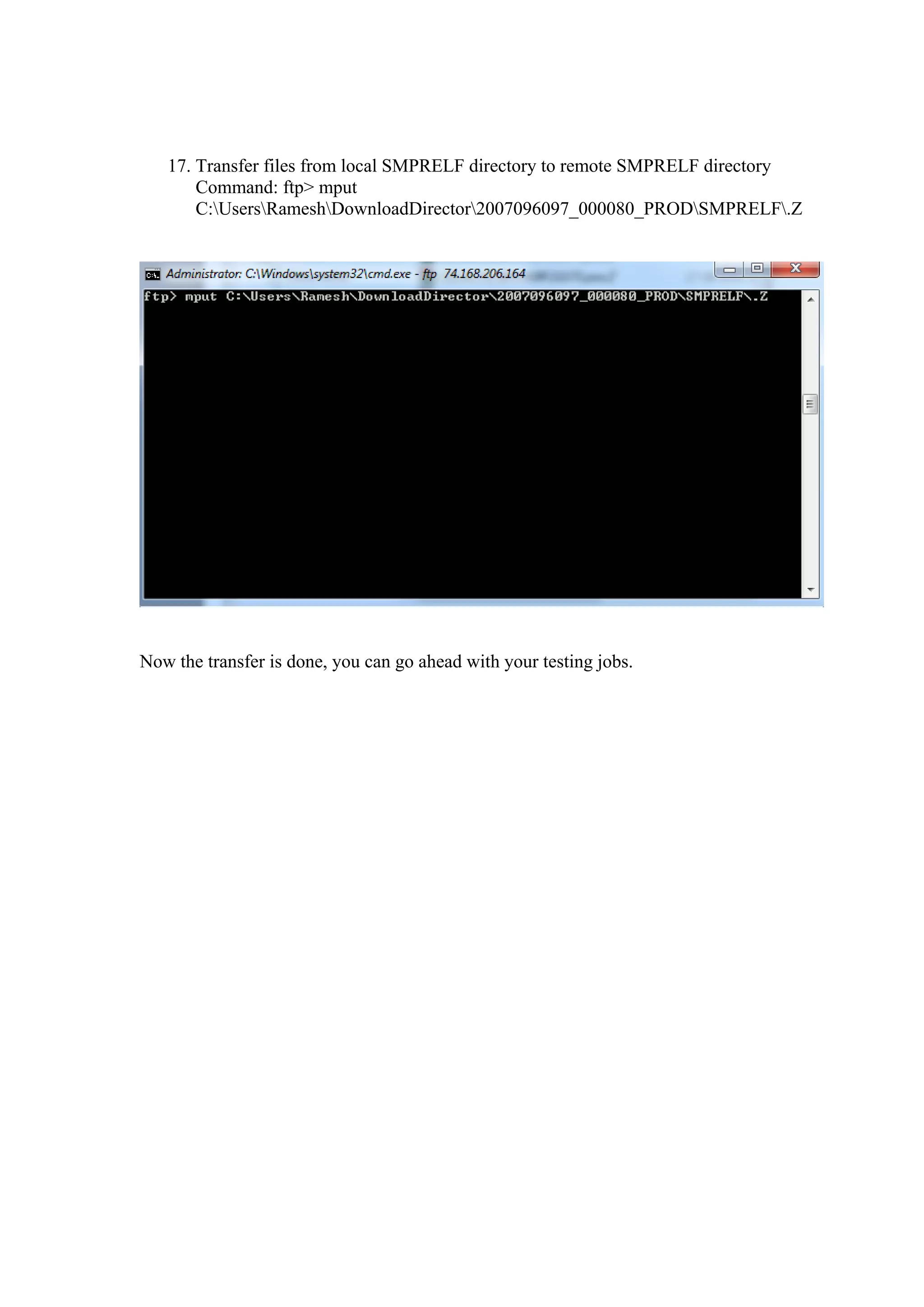
17. Transfer files from local SMPRELF directory to remote SMPRELF directory
       Command: ftp> mput
       C:UsersRameshDownloadDirector2007096097_000080_PRODSMPRELF.Z


Now the transfer is done, you can go ahead with your testing jobs.

Upload files-to-zenterprise-server-via-ftp

  • 1.
    Uploading CBPDO, ServerPacand CustomPac orders from your workstation to your host using Windows command prompt. Step by step procedure: 1. Open a command prompt and connect to the z9 by using command ftp. 2. Login to the server using User ID and Password.
  • 2.
    3. Type command‘bin’ to enter into binary mode. Command: ftp> bin 4. Create SMPNTS directory by using command mkdir and then use Command ‘CD’ for changing the working directory. Command: ftp>cd /u/smpe/smpnts/YOUR PACKAGE ID
  • 3.
    5. Create 3directories by using command ‘mkdir’ Command: ftp> mkdir SMPHOLD, SMPPTFIN, SMPRELF 6. Use command ‘prompt’ for disabling Interactive mode. Command: ftp> prompt
  • 4.
    7. Transfer theXML files to server by using command ‘mput’ Command: ftp> mput C:UsersUSERNAMEDownloadDirector2007096097_000080_PROD*.xml 8. Use the same command for transferring .xls files as well. Command: ftp> mput C:UsersRameshDownloadDirector2007096097_000080_PROD*.xls
  • 5.
    9. Use thesame command for transferring README file. Command: ftp> mput C:UsersRameshDownloadDirector2007096097_000080_PROD*.README 10. Use the same command for transferring GIMUNZIP file. Command: ftp> mput C:UsersRameshDownloadDirector2007096097_000080_PROD*.GIMUNZIP
  • 6.
    11. Use thesame command to transfer the compressed files Command: ftp> mput C:UsersRameshDownloadDirector2007096097_000080_PROD*.Z 12. Change the directory to SMPHOLD Command: ftp> cd /SMPHOLD
  • 7.
    13. Transfer filesfrom local SMPHOLD directory to remote SMPHOLD directory. Command: ftp> mput C:UsersRameshDownloadDirector2007096097_000080_PRODSMPHOLD*.Z 14. Changed directory to SMPPTFIN Command: ftp> cd /SMPPTFIN
  • 8.
    15. Transfer filesfrom local SMPPTFIN directory to remote SMPPTFIN directory Command: ftp> mput C:UsersRameshDownloadDirector2007096097_000080_PRODSMPPTFIN*.Z 16. Changed the directory to SMPRELF Command: ftp> cd /SMPRELF
  • 9.
    17. Transfer filesfrom local SMPRELF directory to remote SMPRELF directory Command: ftp> mput C:UsersRameshDownloadDirector2007096097_000080_PRODSMPRELF.Z Now the transfer is done, you can go ahead with your testing jobs.