Python Class
1
Jignesh Kariya
Python Introduction
Jignesh Kariya 3
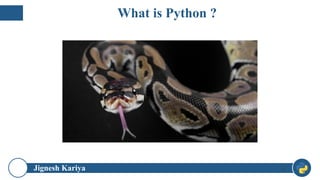
What is Python ?
Jignesh Kariya 4
What is Python ?
Jignesh Kariya 5
Get ready to Rock With Python ☺
Jignesh Kariya 6
Get ready to Rock With Python ☺
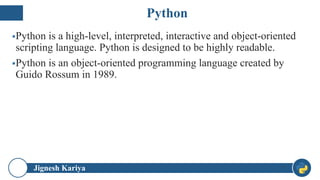
Python
Jignesh Kariya
▪Python is a high-level, interpreted, interactive and object-oriented
scripting language. Python is designed to be highly readable.
▪Python is an object-oriented programming language created by
Guido Rossum in 1989.
7
Jignesh Kariya
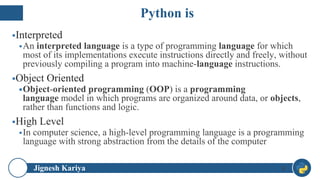
▪Interpreted
▪An interpreted language is a type of programming language for which
most of its implementations execute instructions directly and freely, without
previously compiling a program into machine-language instructions.
▪Object Oriented
▪Object-oriented programming (OOP) is a programming
language model in which programs are organized around data, or objects,
rather than functions and logic.
▪High Level
▪In computer science, a high-level programming language is a programming
language with strong abstraction from the details of the computer
8
Python is
Jignesh Kariya
▪IT and Non IT Can also learn python from Scratch.
9
Who can Learn Python?
Jignesh Kariya
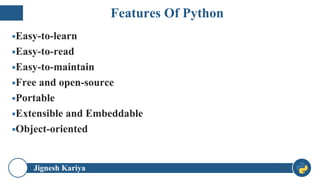
▪Easy-to-learn
▪Easy-to-read
▪Easy-to-maintain
▪Free and open-source
▪Portable
▪Extensible and Embeddable
▪Object-oriented
10
Features Of Python
Jignesh Kariya
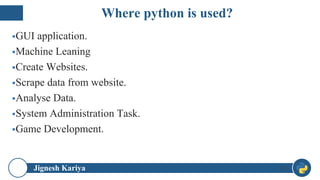
▪GUI application.
▪Machine Leaning
▪Create Websites.
▪Scrape data from website.
▪Analyse Data.
▪System Administration Task.
▪Game Development.
11
Where python is used?
Jignesh Kariya
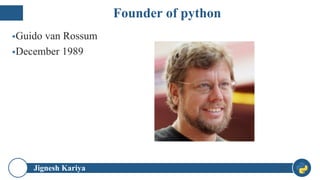
▪Guido van Rossum
▪December 1989
12
Founder of python
Jignesh Kariya
▪Guido van Rossum, the author of Python Programming Language
was reading the published scripts from “Monty Python’s Flying
Circus”, a BBC comedy series from the 1970s.
▪Van Rossum thought he needed a name that was short, unique, and
slightly mysterious, so he decided to call the language Python.
13
Why Python ?
Jignesh Kariya
▪Python 1.0 January 1994
▪Python 2.0 October 2000
▪Python 3.0 December 2008
14
Python Version
Jignesh Kariya
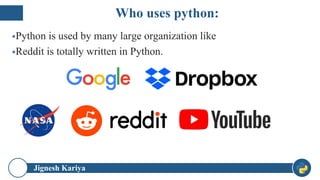
▪Python is used by many large organization like
▪Reddit is totally written in Python.
15
Who uses python:
Jignesh Kariya 16
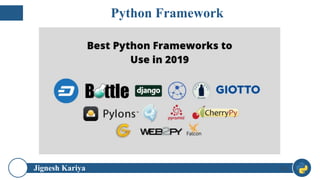
Python Framework
Jignesh Kariya
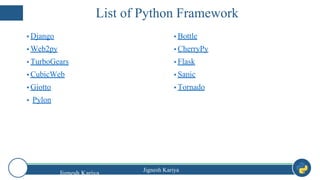
▪ Django
▪ Web2py
▪ TurboGears
▪ CubicWeb
▪ Giotto
▪ Pylon
▪ Bottle
▪ CherryPy
▪ Flask
▪ Sanic
▪ Tornado
Jignesh Kariya
List of Python Framework
17
Download
Jignesh Kariya
Jignesh Kariya
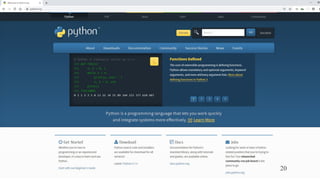
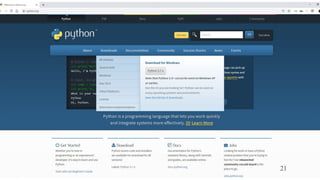
▪To download and install Python visit the official website of Python
http://www.python.org/downloads/
▪Once the download is complete, run the exe for install Python. Now
click on Install Now.
▪When it finishes, you can see a screen that says the Setup was
successful. Now click on "Close".
19
Getting start with python
Jignesh Kariya 20
Jignesh Kariya 21
Jignesh Kariya 22
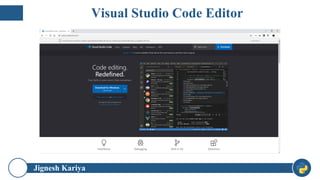
Visual Studio Code Editor
Jignesh Kariya 23
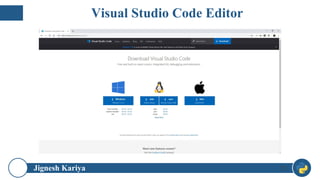
Visual Studio Code Editor
Jignesh Kariya 24
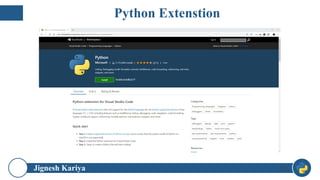
Python Extenstion
Jignesh Kariya
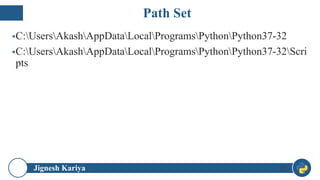
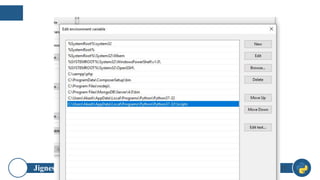
▪C:UsersAkashAppDataLocalProgramsPythonPython37-32
▪C:UsersAkashAppDataLocalProgramsPythonPython37-32Scri
pts
25
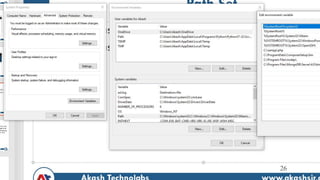
Path Set
Jignesh Kariya 26
Jignesh Kariya 27
Jignesh Kariya 28
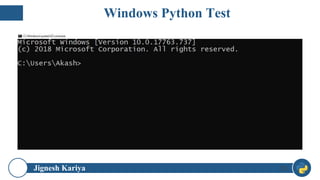
Windows Python Test
Jignesh Kariya 29
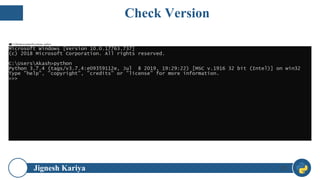
Check Version
Jignesh Kariya 30
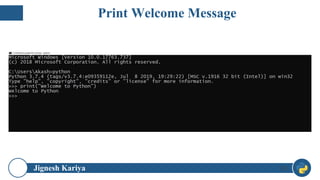
Print Welcome Message
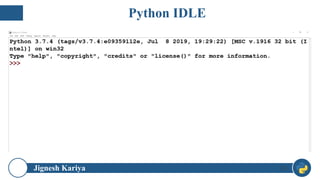
Python IDLE
Jignesh Kariya
31
Jignesh Kariya
▪IDLE is an integrated development environment for Python, which
has been bundled with the default implementation of the language
since 1.5.2b1. It is packaged as an optional part of the Python
packaging with many Linux distributions. It is completely written in
Python and the Tkinter GUI toolkit
32
What is IDLE in Python?
Jignesh Kariya 33
Python IDLE
Jignesh Kariya 34
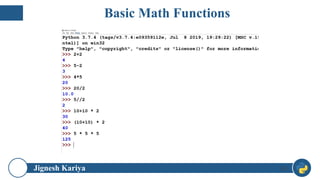
Basic Math Functions
Jignesh Kariya 35
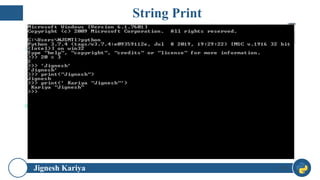
String Print
Jignesh Kariya 36
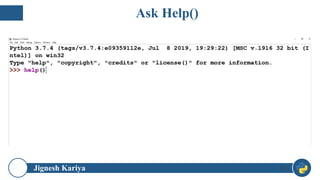
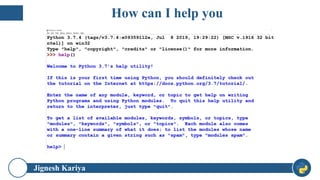
Ask Help()
Jignesh Kariya 37
How can I help you
Jignesh Kariya 38
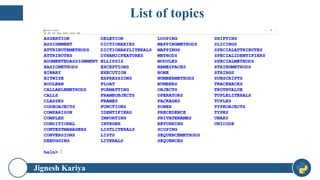
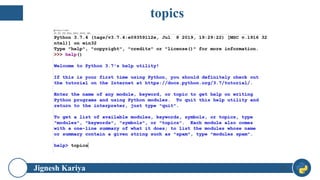
topics
Jignesh Kariya 39
List of topics
Notepad Demo
Jignesh Kariya
40
Jignesh Kariya 41
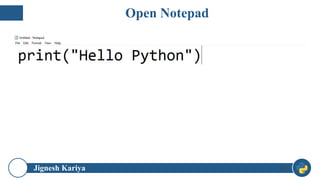
Open Notepad
Jignesh Kariya 42
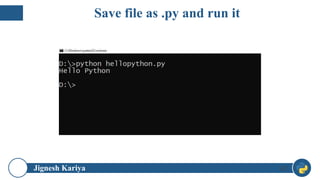
Save file as .py and run it
Visual Studio
Code
Jignesh Kariya
43
Jignesh Kariya 44
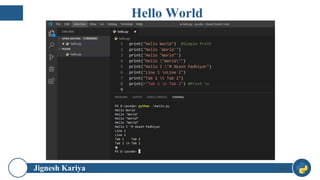
Hello World
PyCharm
Jignesh Kariya
45
Jignesh Kariya 46
Jignesh Kariya 47
Jignesh Kariya
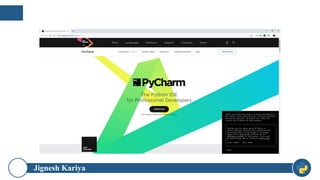
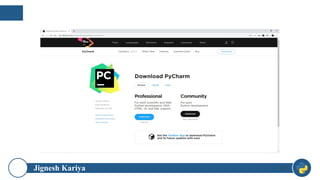
▪To download PyCharm visit the website
https://www.jetbrains.com/pycharm/download/ and Click the
"DOWNLOAD" link under the Community Section.
▪Once the download is complete, run the exe for install PyCharm.
The setup wizard should have started. Click “Next”.
▪On the next screen, Change the installation path if required. Click
“Next”.
▪On the next screen, you can create a desktop shortcut if you want
and click on “Next”.
48
Installing Pycharm
Jignesh Kariya
▪Choose the start menu folder. Keep selected JetBrains and click on
“Install”.
▪Wait for the installation to finish.
▪Once installation finished, you should receive a message screen that
PyCharm is installed. If you want to go ahead and run it, click the
“Run PyCharm Community Edition” box first and click “Finish”.
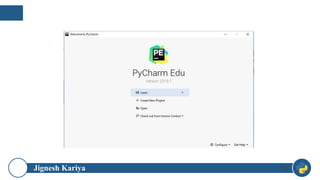
▪After you click on "Finish," the Following screen will appear.
49
Jignesh Kariya 50
Jignesh Kariya 51
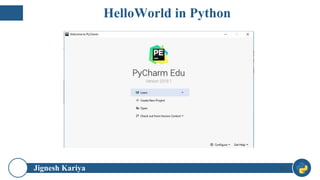
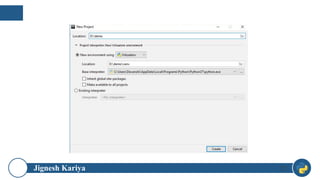
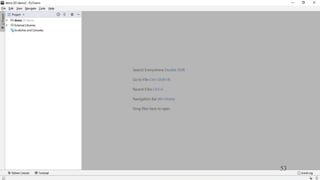
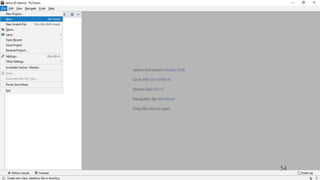
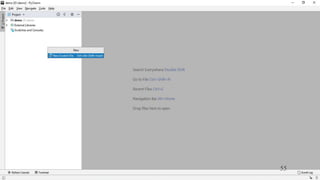
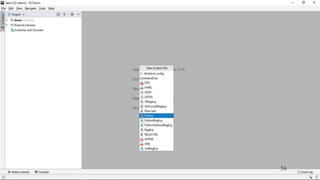
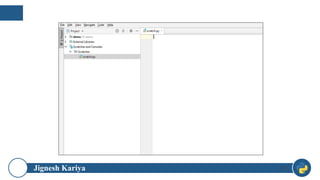
HelloWorld in Python
Jignesh Kariya 52
Jignesh Kariya 53
Jignesh Kariya 54
Jignesh Kariya 55
Jignesh Kariya 56
Jignesh Kariya 57
Jignesh Kariya 58
Jignesh Kariya 59
Jignesh Kariya 60

Python introduction